
EXPLORING MICROSOFT OFFICE 2013 VOLUME 1 by Mary
EXPLORING MICROSOFT OFFICE 2013 VOLUME 1 by Mary Anne Poatsy, Keith Mulbery, Lynn Hogan, Amy Rutledge, Cyndi Krebs, Eric Cameron, Rebecca Lawson Chapter 2 Document Presentation Copyright © 2014 Pearson Education, Inc. Publishing as Prentice Hall. 1
OBJECTIVES • Apply font attributes • Format a paragraph • Format a document • Apply styles • Insert and format objects Copyright © 2014 Pearson Education, Inc. Publishing as Prentice Hall. 2
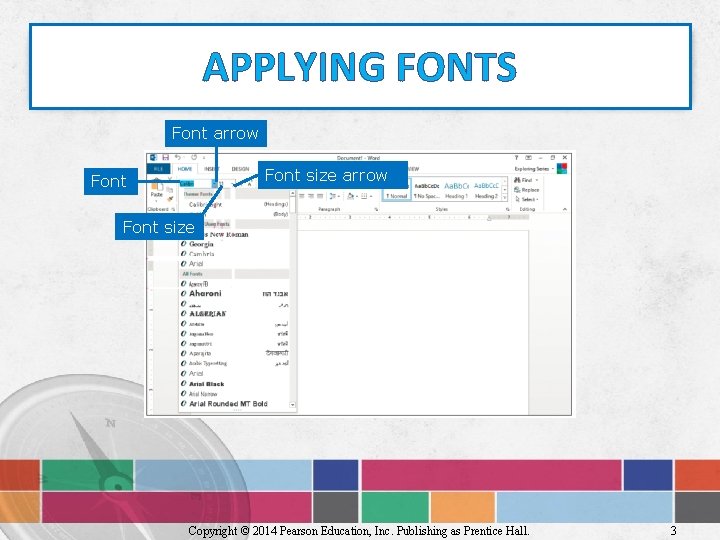
APPLYING FONTS Font arrow Font size Copyright © 2014 Pearson Education, Inc. Publishing as Prentice Hall. 3
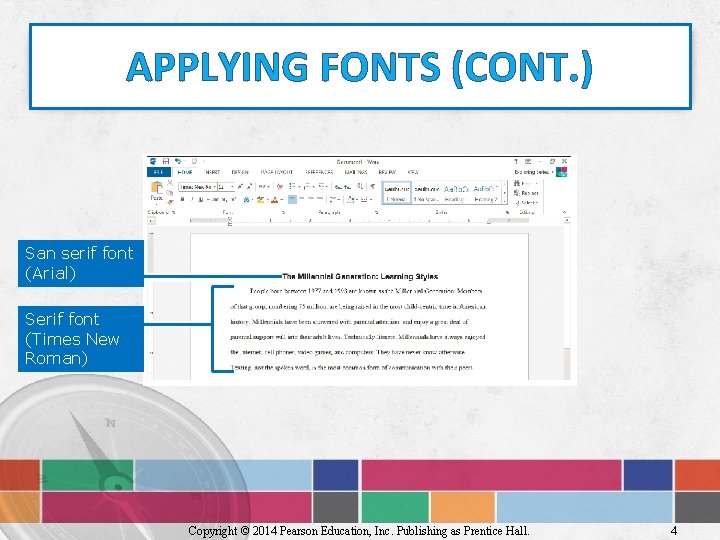
APPLYING FONTS (CONT. ) San serif font (Arial) Serif font (Times New Roman) Copyright © 2014 Pearson Education, Inc. Publishing as Prentice Hall. 4
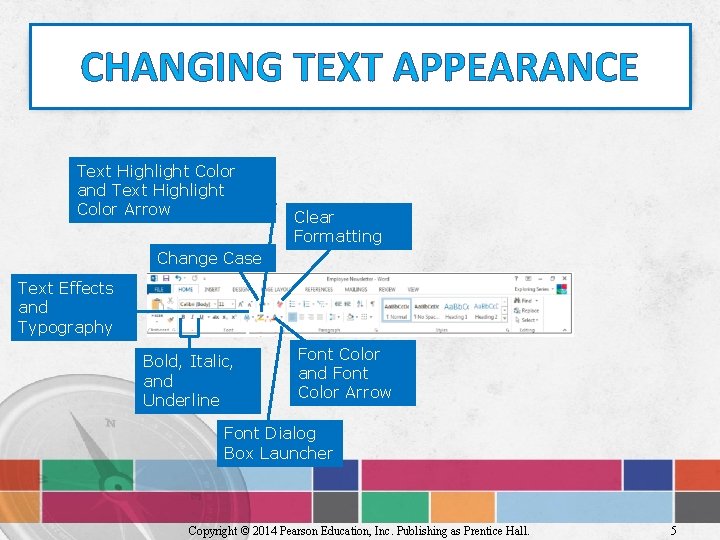
CHANGING TEXT APPEARANCE Text Highlight Color and Text Highlight Color Arrow Clear Formatting Change Case Text Effects and Typography Bold, Italic, and Underline Font Color and Font Color Arrow Font Dialog Box Launcher Copyright © 2014 Pearson Education, Inc. Publishing as Prentice Hall. 5
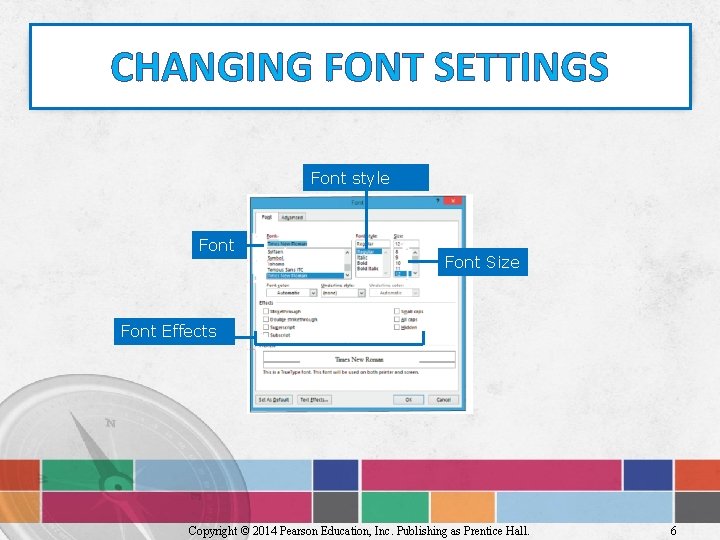
CHANGING FONT SETTINGS Font style Font Size Font Effects Copyright © 2014 Pearson Education, Inc. Publishing as Prentice Hall. 6
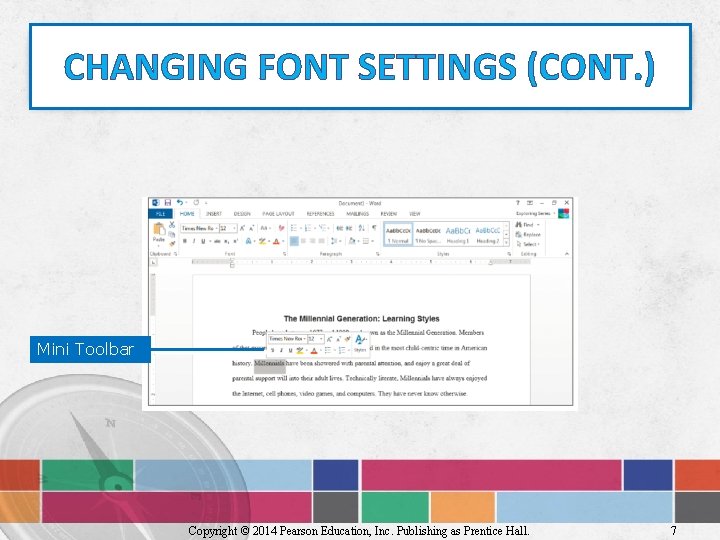
CHANGING FONT SETTINGS (CONT. ) Mini Toolbar Copyright © 2014 Pearson Education, Inc. Publishing as Prentice Hall. 7
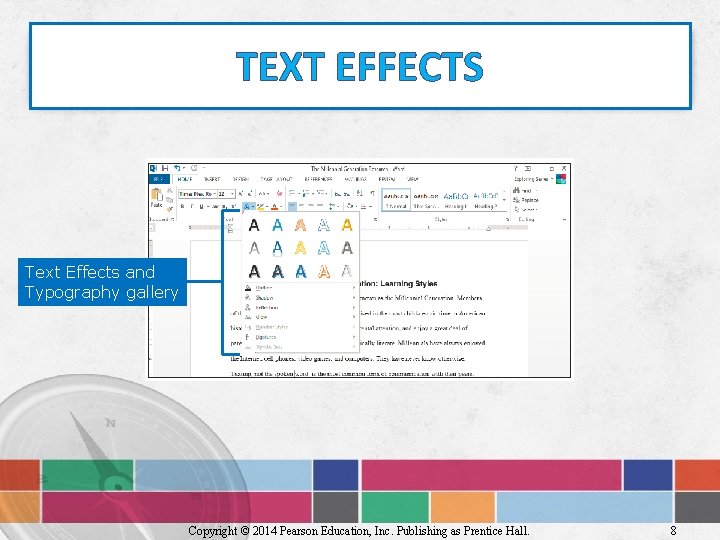
TEXT EFFECTS Text Effects and Typography gallery Copyright © 2014 Pearson Education, Inc. Publishing as Prentice Hall. 8
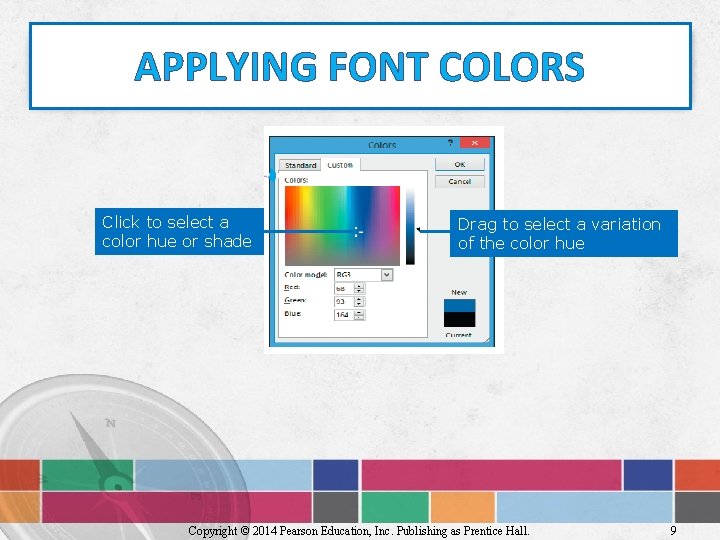
APPLYING FONT COLORS Click to select a color hue or shade Drag to select a variation of the color hue Copyright © 2014 Pearson Education, Inc. Publishing as Prentice Hall. 9
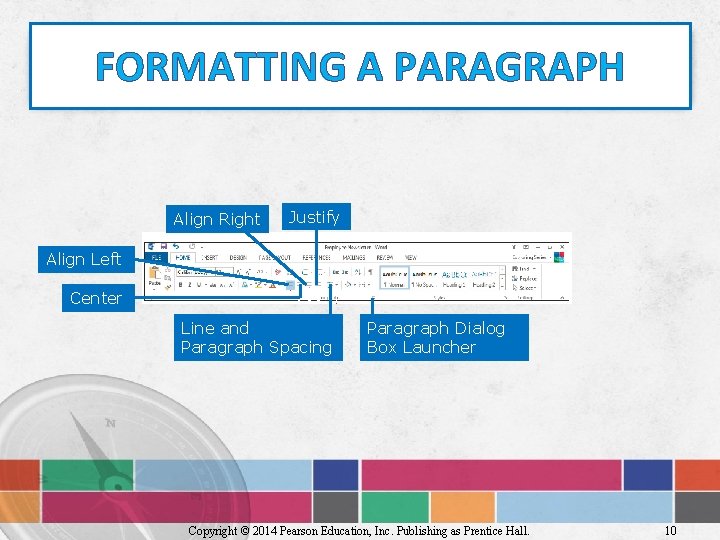
FORMATTING A PARAGRAPH Align Right Justify Align Left Center Line and Paragraph Spacing Paragraph Dialog Box Launcher Copyright © 2014 Pearson Education, Inc. Publishing as Prentice Hall. 10
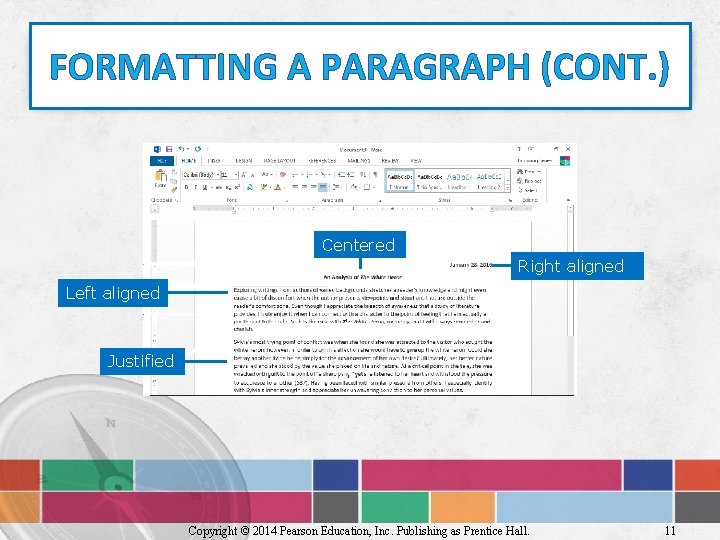
FORMATTING A PARAGRAPH (CONT. ) Centered Right aligned Left aligned Justified Copyright © 2014 Pearson Education, Inc. Publishing as Prentice Hall. 11
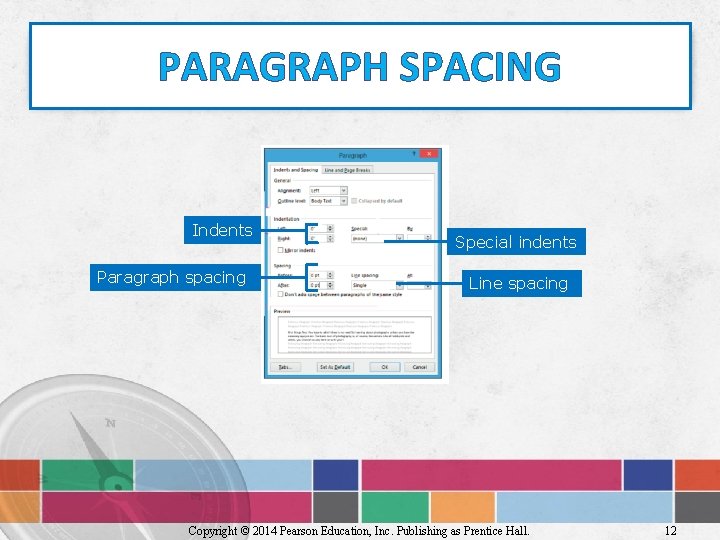
PARAGRAPH SPACING Indents Paragraph spacing Special indents Line spacing Copyright © 2014 Pearson Education, Inc. Publishing as Prentice Hall. 12
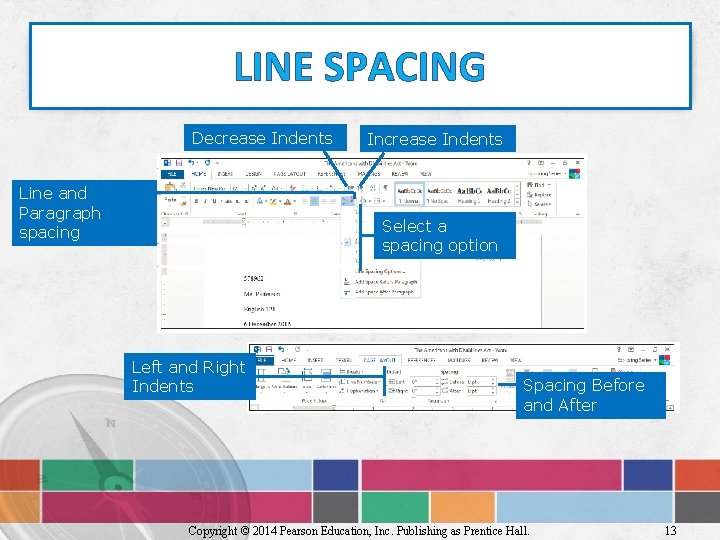
LINE SPACING Decrease Indents Line and Paragraph spacing Increase Indents Select a spacing option Left and Right Indents Spacing Before and After Copyright © 2014 Pearson Education, Inc. Publishing as Prentice Hall. 13
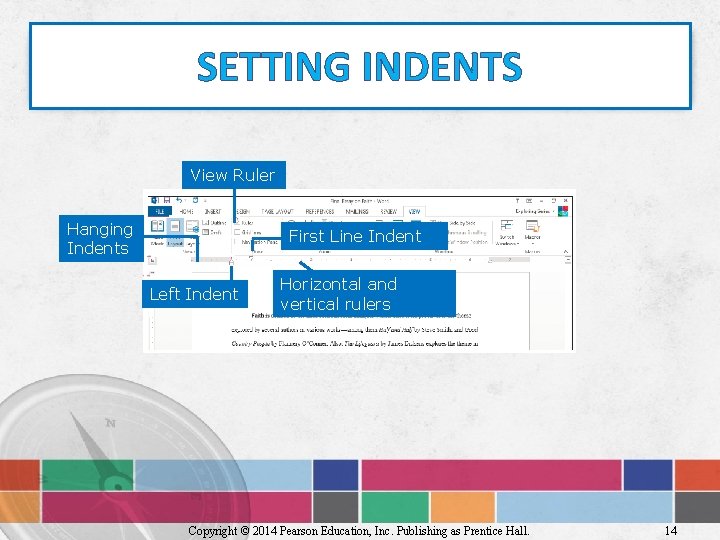
SETTING INDENTS View Ruler Hanging Indents First Line Indent Left Indent Horizontal and vertical rulers Copyright © 2014 Pearson Education, Inc. Publishing as Prentice Hall. 14
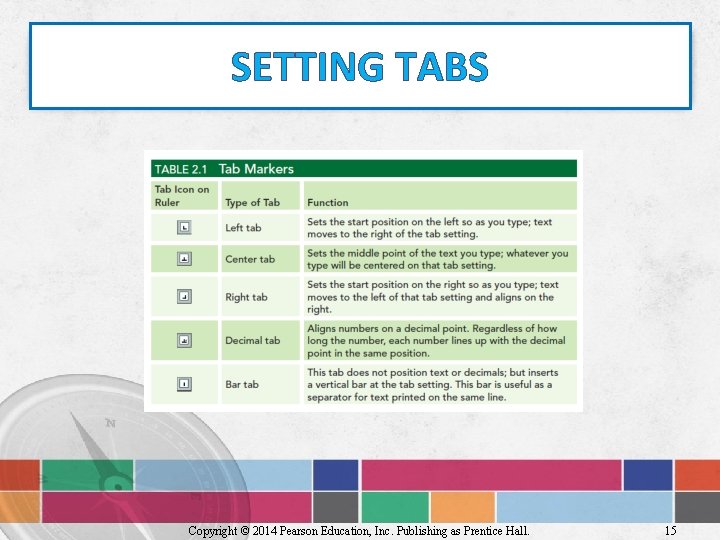
SETTING TABS Copyright © 2014 Pearson Education, Inc. Publishing as Prentice Hall. 15
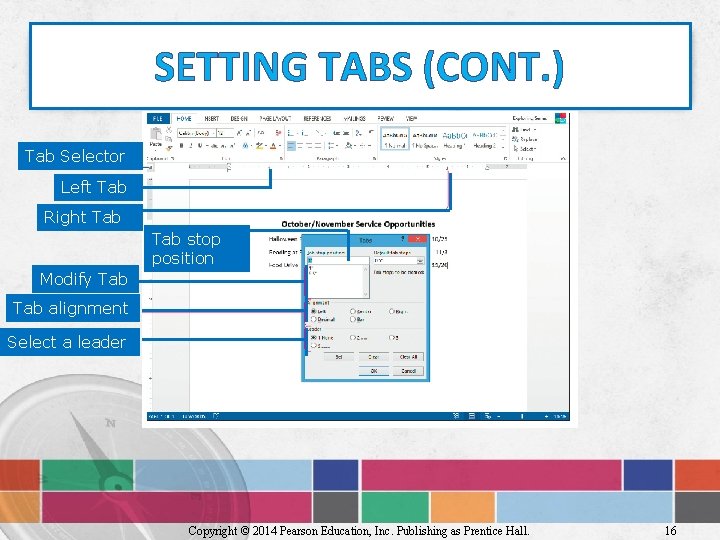
SETTING TABS (CONT. ) Tab Selector Left Tab Right Tab stop position Modify Tab alignment Select a leader Copyright © 2014 Pearson Education, Inc. Publishing as Prentice Hall. 16
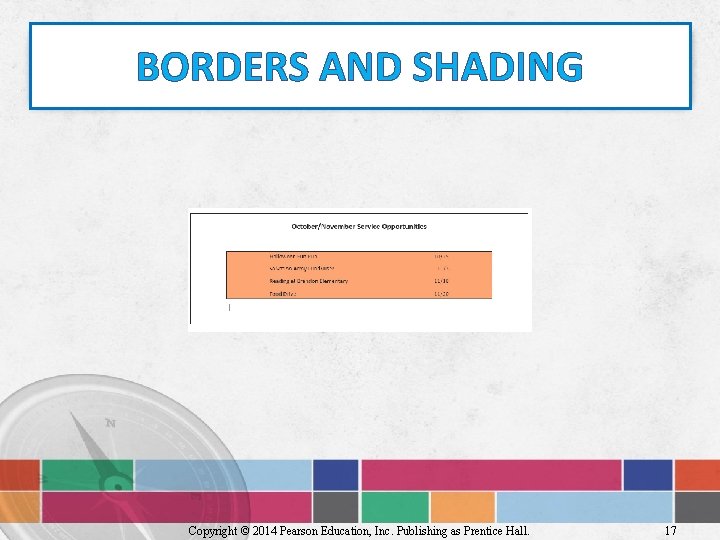
BORDERS AND SHADING Copyright © 2014 Pearson Education, Inc. Publishing as Prentice Hall. 17
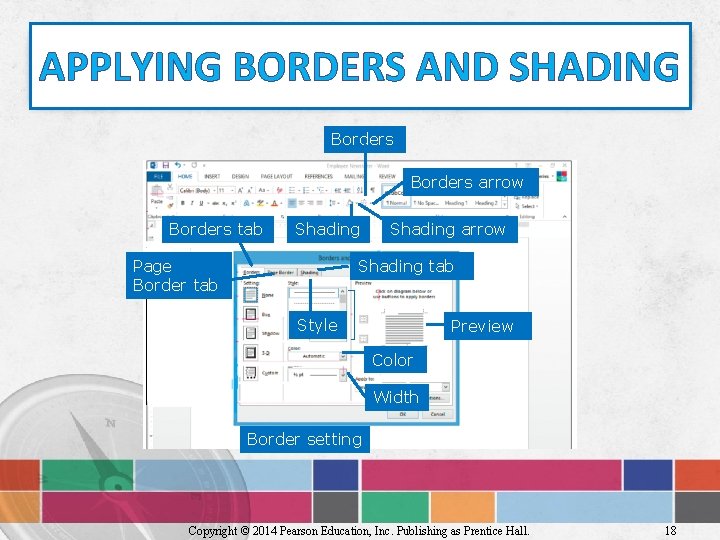
APPLYING BORDERS AND SHADING Borders arrow Borders tab Shading Page Border tab Shading arrow Shading tab Style Preview Color Width Border setting Copyright © 2014 Pearson Education, Inc. Publishing as Prentice Hall. 18
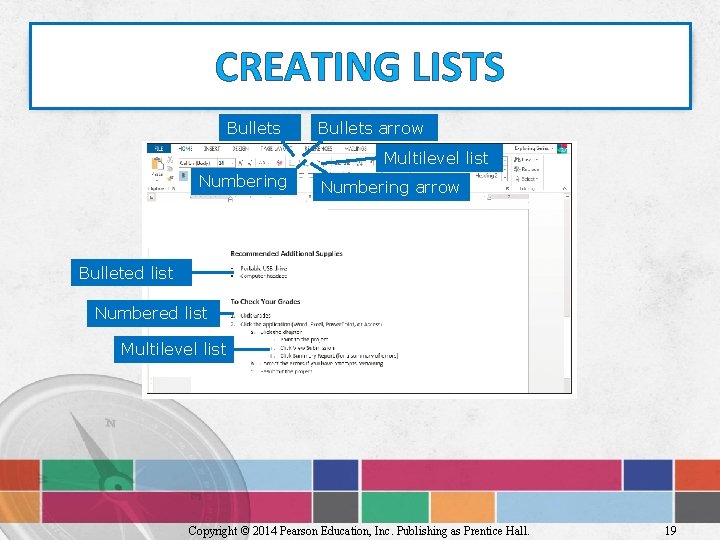
CREATING LISTS Bullets arrow Multilevel list Numbering arrow Bulleted list Numbered list Multilevel list Copyright © 2014 Pearson Education, Inc. Publishing as Prentice Hall. 19
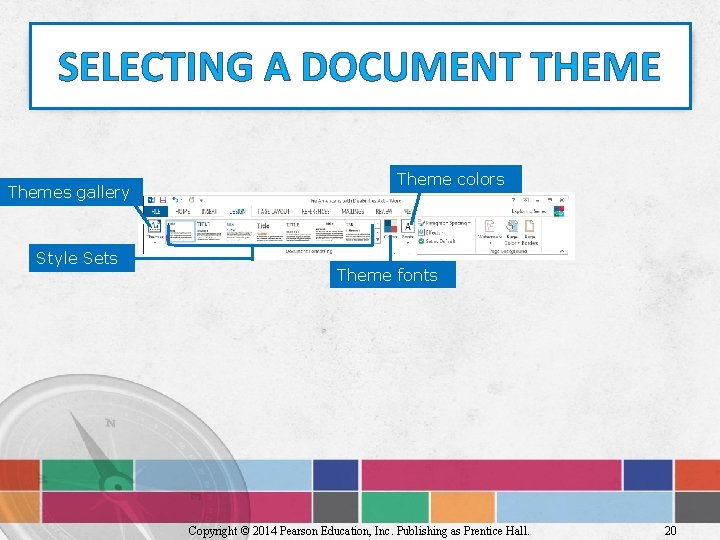
SELECTING A DOCUMENT THEME Themes gallery Style Sets Theme colors Theme fonts Copyright © 2014 Pearson Education, Inc. Publishing as Prentice Hall. 20
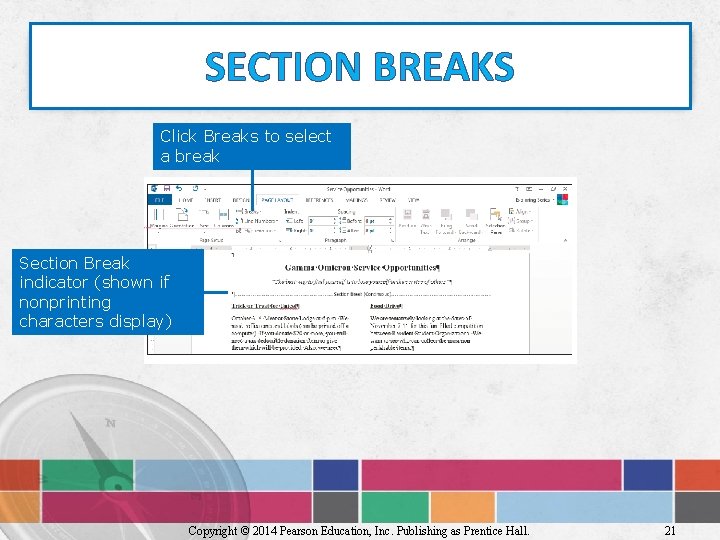
SECTION BREAKS Click Breaks to select a break Section Break indicator (shown if nonprinting characters display) Copyright © 2014 Pearson Education, Inc. Publishing as Prentice Hall. 21
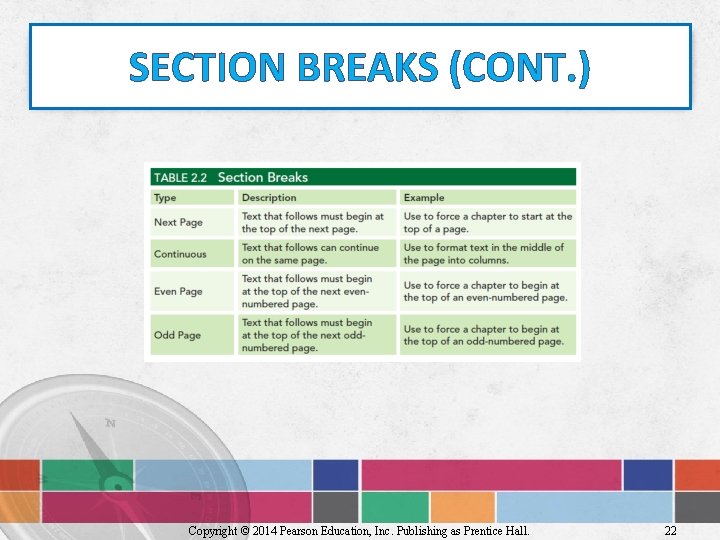
SECTION BREAKS (CONT. ) Copyright © 2014 Pearson Education, Inc. Publishing as Prentice Hall. 22
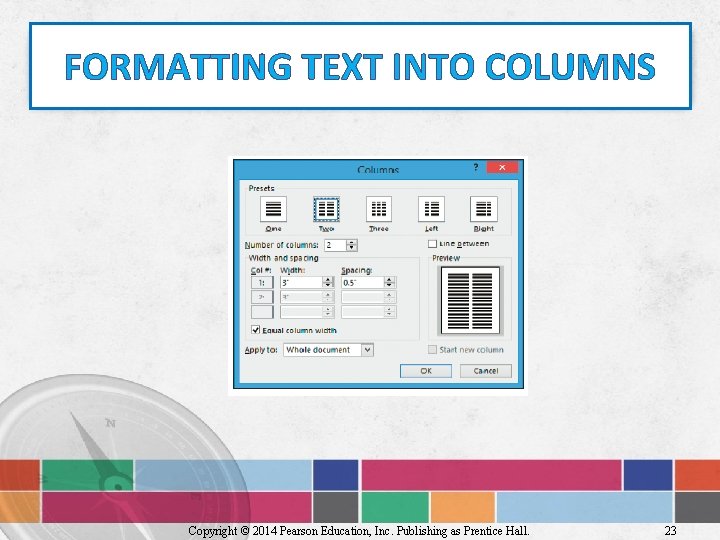
FORMATTING TEXT INTO COLUMNS Copyright © 2014 Pearson Education, Inc. Publishing as Prentice Hall. 23
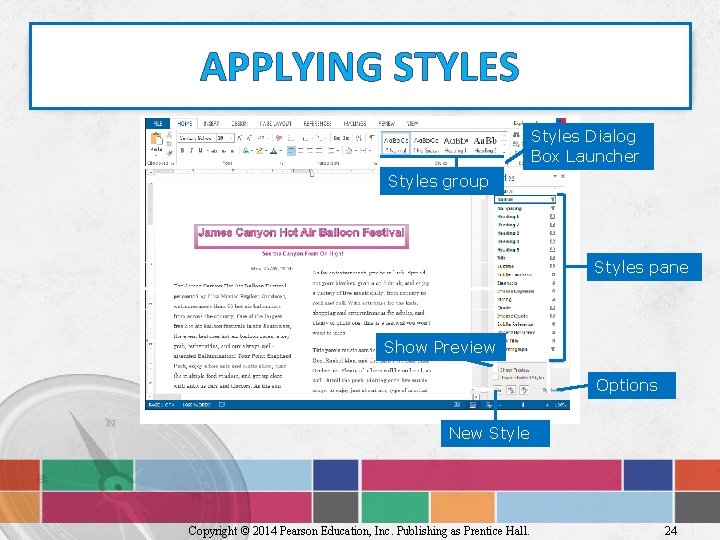
APPLYING STYLES Styles Dialog Box Launcher Styles group Styles pane Show Preview Options New Style Copyright © 2014 Pearson Education, Inc. Publishing as Prentice Hall. 24
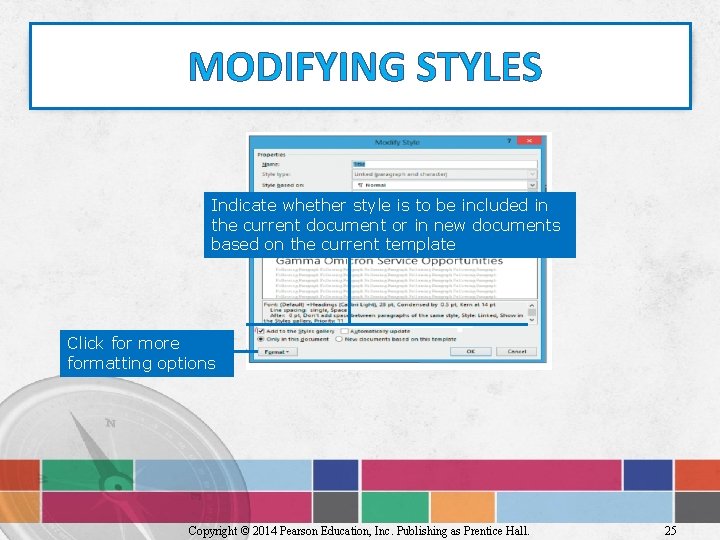
MODIFYING STYLES Indicate whether style is to be included in the current document or in new documents based on the current template Click for more formatting options Copyright © 2014 Pearson Education, Inc. Publishing as Prentice Hall. 25
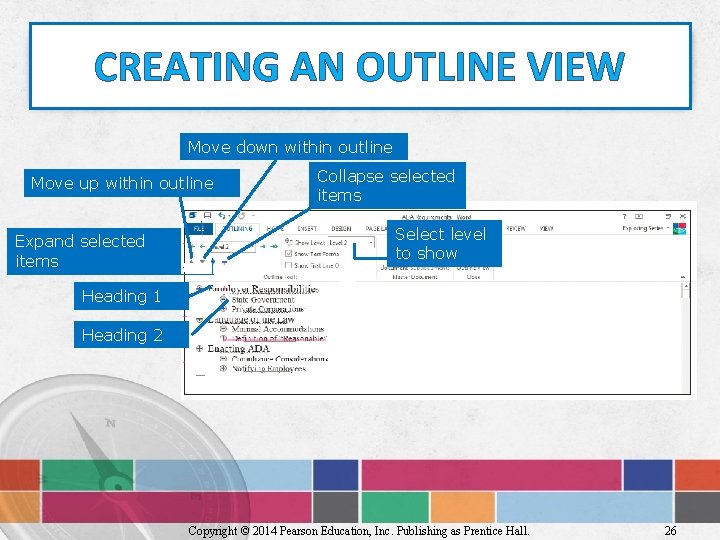
CREATING AN OUTLINE VIEW Move down within outline Move up within outline Expand selected items Collapse selected items Select level to show Heading 1 Heading 2 Copyright © 2014 Pearson Education, Inc. Publishing as Prentice Hall. 26
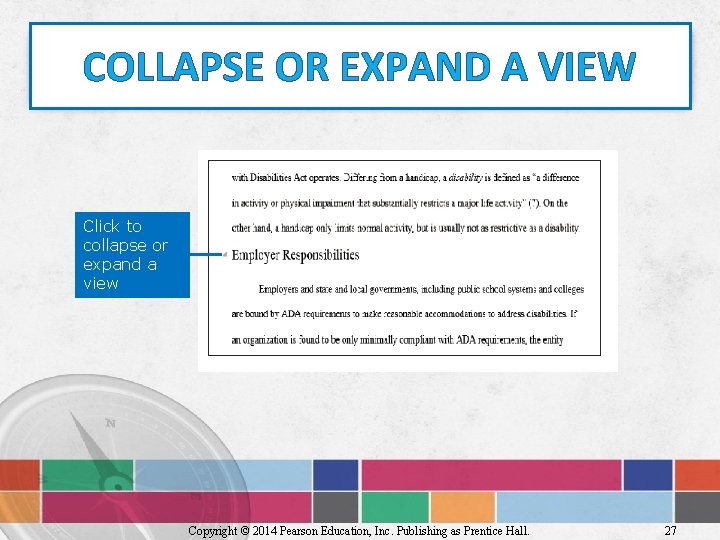
COLLAPSE OR EXPAND A VIEW Click to collapse or expand a view Copyright © 2014 Pearson Education, Inc. Publishing as Prentice Hall. 27
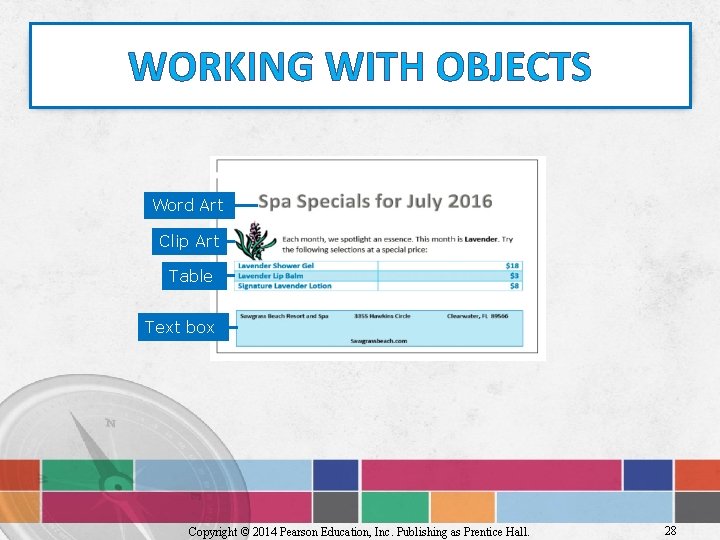
WORKING WITH OBJECTS Word Art Clip Art Table Text box Copyright © 2014 Pearson Education, Inc. Publishing as Prentice Hall. 28
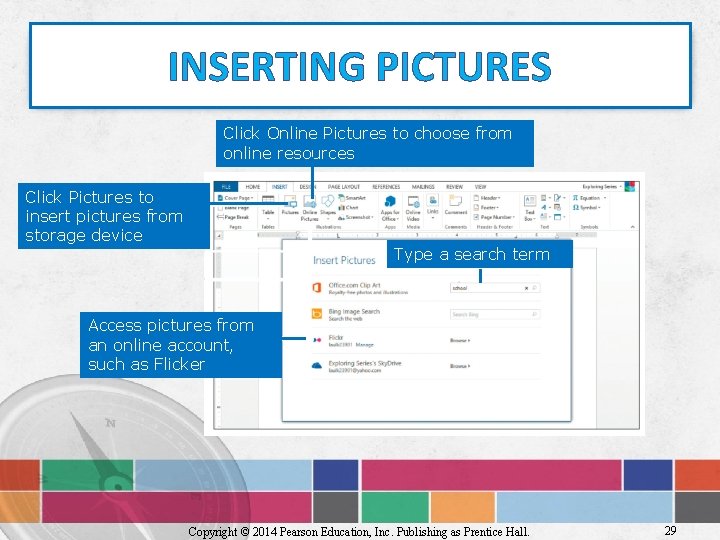
INSERTING PICTURES Click Online Pictures to choose from online resources Click Pictures to insert pictures from storage device Type a search term Access pictures from an online account, such as Flicker Copyright © 2014 Pearson Education, Inc. Publishing as Prentice Hall. 29
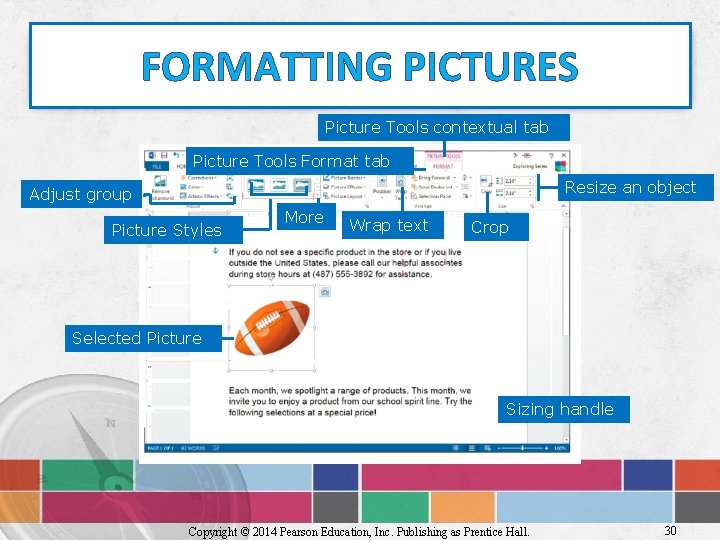
FORMATTING PICTURES Picture Tools contextual tab Picture Tools Format tab Resize an object Adjust group Picture Styles More Wrap text Crop Selected Picture Sizing handle Copyright © 2014 Pearson Education, Inc. Publishing as Prentice Hall. 30
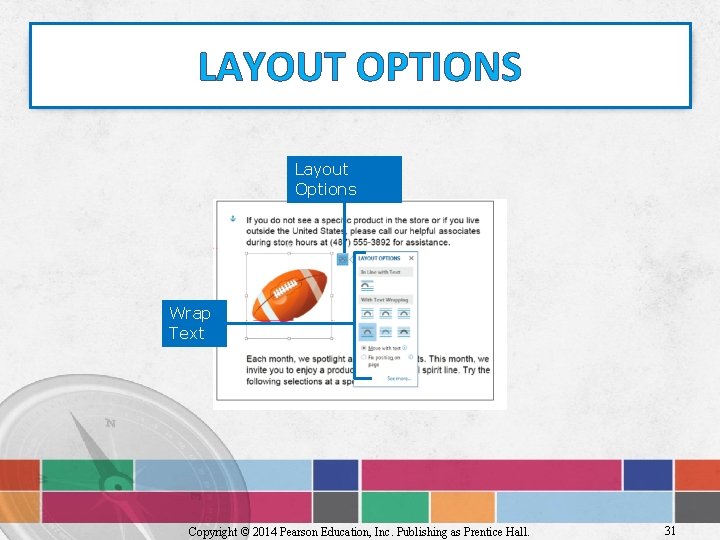
LAYOUT OPTIONS Layout Options Wrap Text Copyright © 2014 Pearson Education, Inc. Publishing as Prentice Hall. 31
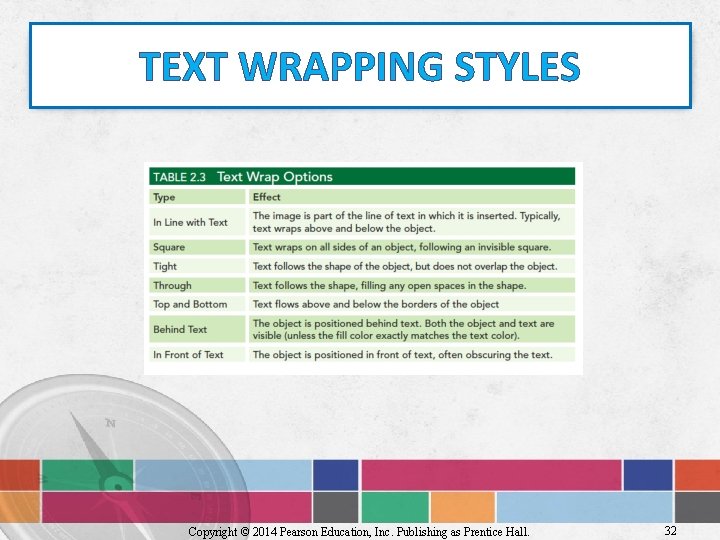
TEXT WRAPPING STYLES Copyright © 2014 Pearson Education, Inc. Publishing as Prentice Hall. 32
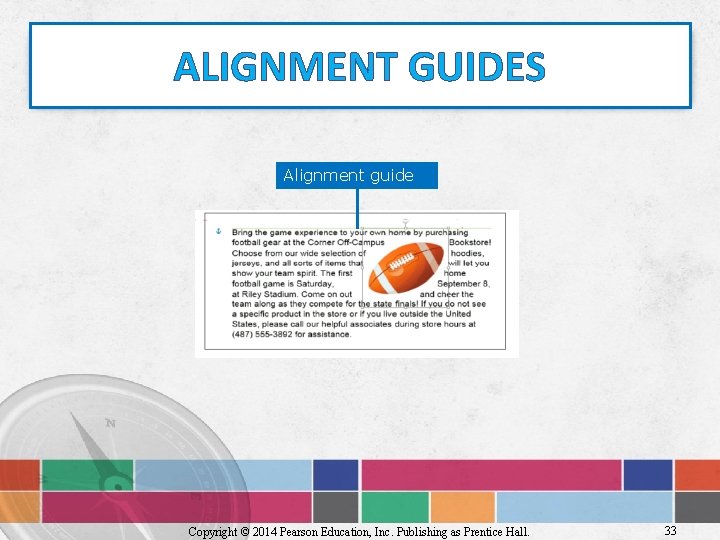
ALIGNMENT GUIDES Alignment guide Copyright © 2014 Pearson Education, Inc. Publishing as Prentice Hall. 33
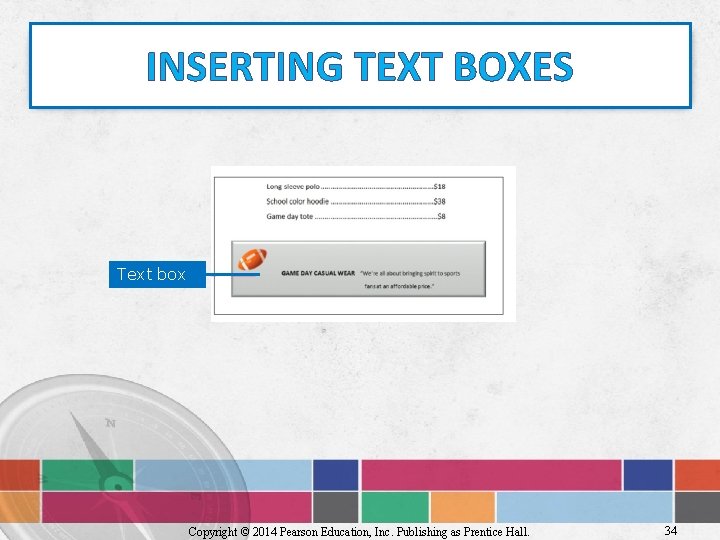
INSERTING TEXT BOXES Text box Copyright © 2014 Pearson Education, Inc. Publishing as Prentice Hall. 34
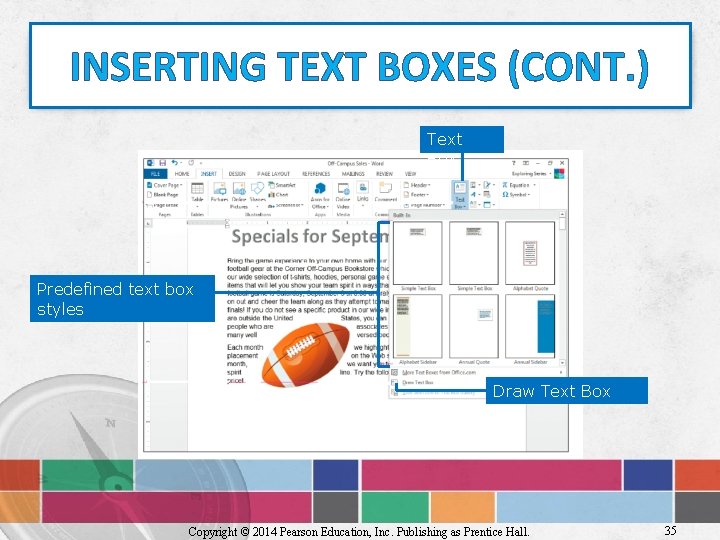
INSERTING TEXT BOXES (CONT. ) Text Box Predefined text box styles Draw Text Box Copyright © 2014 Pearson Education, Inc. Publishing as Prentice Hall. 35
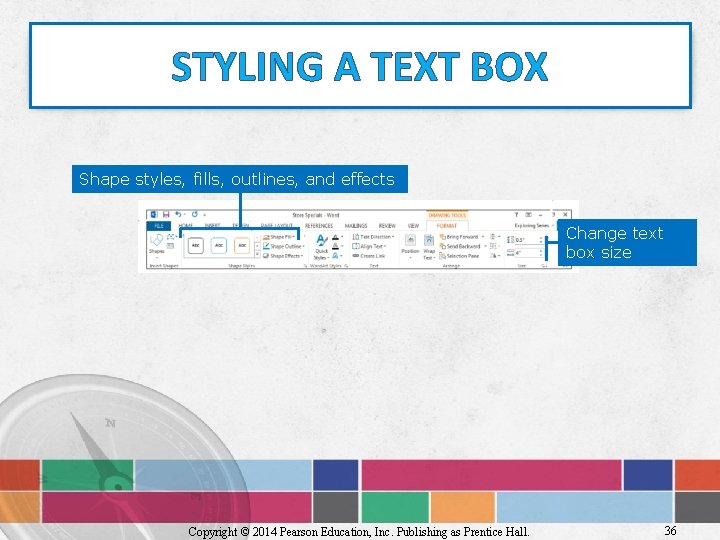
STYLING A TEXT BOX Shape styles, fills, outlines, and effects Change text box size Copyright © 2014 Pearson Education, Inc. Publishing as Prentice Hall. 36
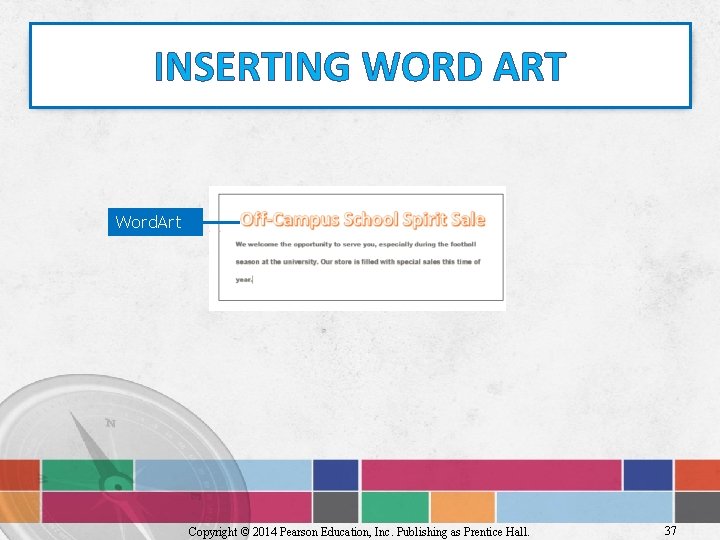
INSERTING WORD ART Word. Art Copyright © 2014 Pearson Education, Inc. Publishing as Prentice Hall. 37
SUMMARY • Change the appearance of text • Apply formats such as alignment, indentation, borders and shading and bullets to a paragraph • Apply themes to a document • Use a style set and different views • Insert and format objects Copyright © 2014 Pearson Education, Inc. Publishing as Prentice Hall. 38
QUESTIONS Copyright © 2014 Pearson Education, Inc. Publishing as Prentice Hall. 39
COPYRIGHT All rights reserved. No part of this publication may be reproduced, stored in a retrieval system, or transmitted, in any form or by any means, electronic, mechanical, photocopying, recording, or otherwise, without the prior written permission of the publisher. Printed in the United States of America. Copyright © 2014 Pearson Education, Inc. Publishing as Prentice Hall. 40
- Slides: 40