
EXPLORING MICROSOFT OFFICE 2013 VOLUME 1 by Mary
EXPLORING MICROSOFT OFFICE 2013 VOLUME 1 by Mary Anne Poatsy, Keith Mulbery, Lynn Hogan, Amy Rutledge, Cyndi Krebs, Eric Cameron, Rebecca Lawson Chapter 2 Formulas and Functions Copyright © 2014 Pearson Education, Inc. Publishing as Prentice Hall. 1
OBJECTIVES • Use relative, absolute, and mixed cell references in formulas • Correct circular references • Insert a function • Insert basic math and statistical functions • Use date functions Copyright © 2014 Pearson Education, Inc. Publishing as Prentice Hall. 2
OBJECTIVES (CONTINUED) • • • Determine results with the IF function Use lookup functions Calculate payments with the PMT function Create and maintain range names Use range names in formulas Copyright © 2014 Pearson Education, Inc. Publishing as Prentice Hall. 3
CELL REFERENCES • Excel offers three types of cell references for use when a formula is copied – Absolute – Relative – Mixed $A$1 A 1 $A 1 or A$1 • $ indicates that the row number or column letter will not be modified during a copy 4 Copyright © 2014 Pearson Education, Inc. Publishing as Prentice Hall.
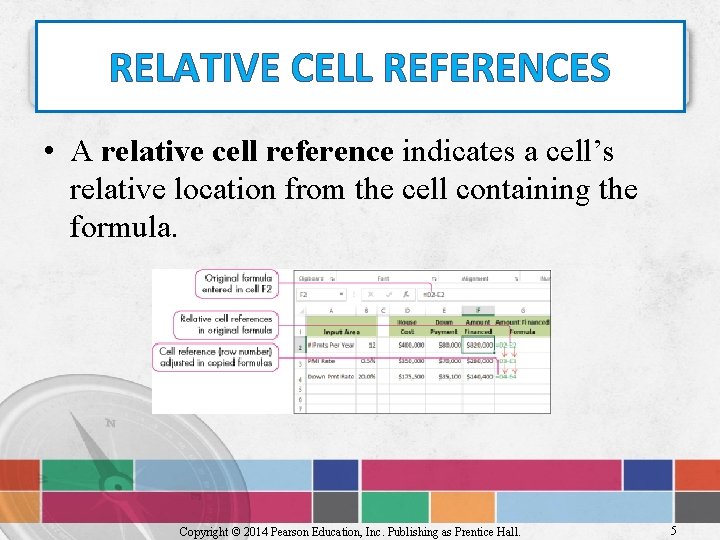
RELATIVE CELL REFERENCES • A relative cell reference indicates a cell’s relative location from the cell containing the formula. Copyright © 2014 Pearson Education, Inc. Publishing as Prentice Hall. 5
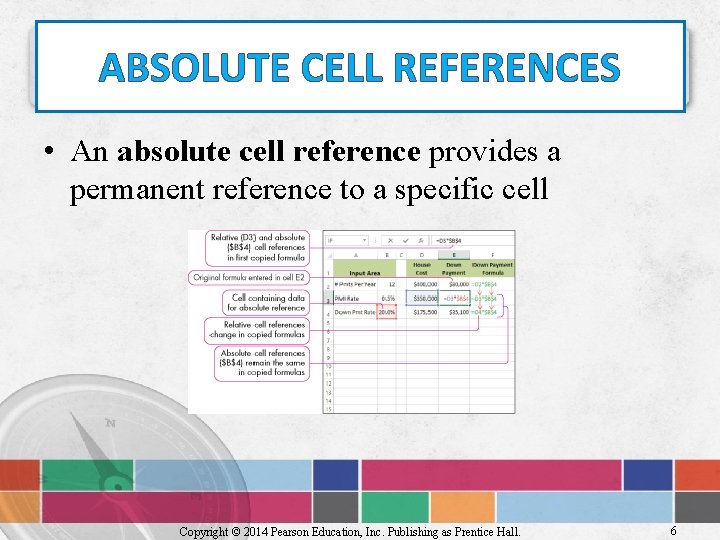
ABSOLUTE CELL REFERENCES • An absolute cell reference provides a permanent reference to a specific cell Copyright © 2014 Pearson Education, Inc. Publishing as Prentice Hall. 6
MIXED CELL REFERENCES • In mixed reference $B 4, the column is fixed, but the row may be altered during a copy • In mixed reference B$4, the row is fixed, but the column may be altered during a copy Copyright © 2014 Pearson Education, Inc. Publishing as Prentice Hall. 7
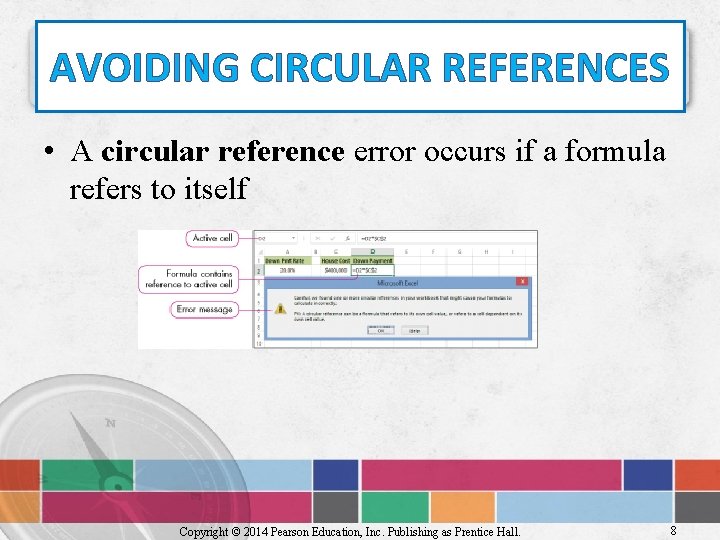
AVOIDING CIRCULAR REFERENCES • A circular reference error occurs if a formula refers to itself Copyright © 2014 Pearson Education, Inc. Publishing as Prentice Hall. 8
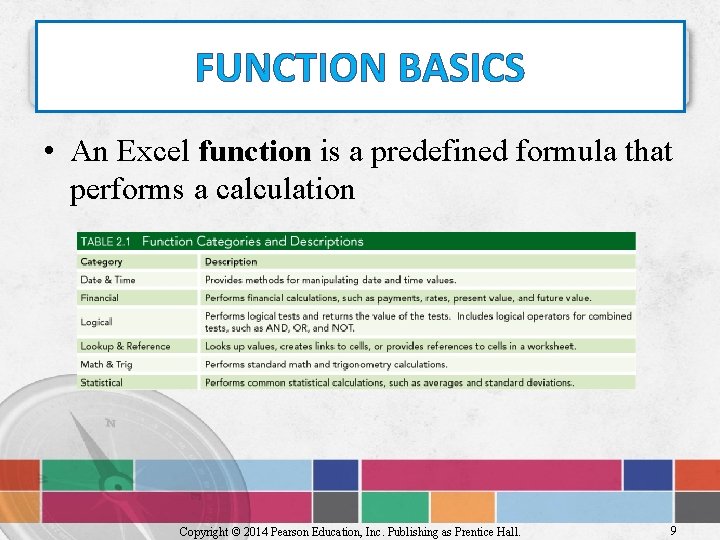
FUNCTION BASICS • An Excel function is a predefined formula that performs a calculation Copyright © 2014 Pearson Education, Inc. Publishing as Prentice Hall. 9
FUNCTION TERMINOLOGY • Syntax is the set of rules that govern correct formation of a function • An argument is an input, such as a cell or range • A function begins with the equal sign (=) followed by the function name and arguments in parentheses Example: =SUM(A 1: A 3) Copyright © 2014 Pearson Education, Inc. Publishing as Prentice Hall. 10
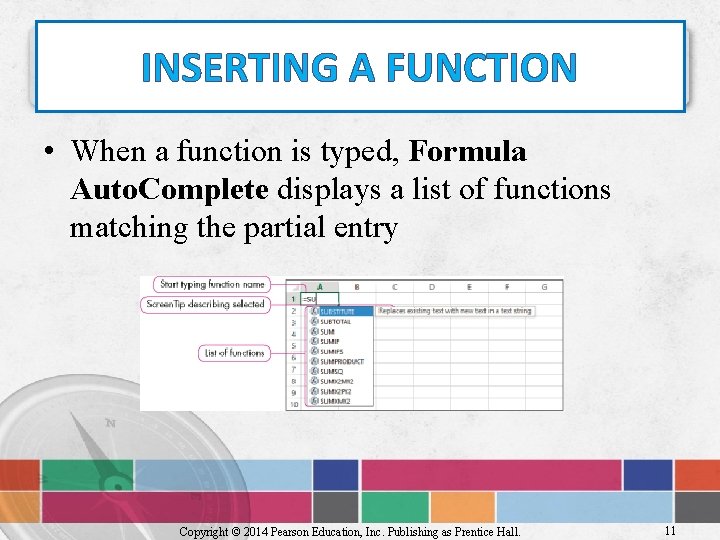
INSERTING A FUNCTION • When a function is typed, Formula Auto. Complete displays a list of functions matching the partial entry Copyright © 2014 Pearson Education, Inc. Publishing as Prentice Hall. 11
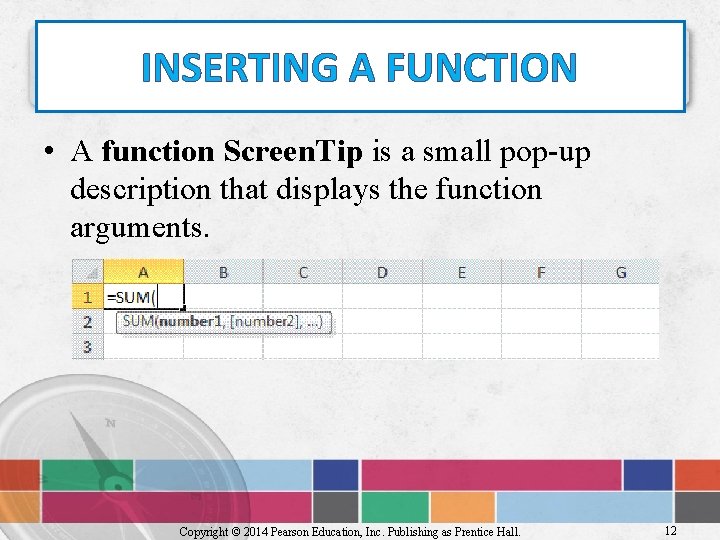
INSERTING A FUNCTION • A function Screen. Tip is a small pop-up description that displays the function arguments. Copyright © 2014 Pearson Education, Inc. Publishing as Prentice Hall. 12
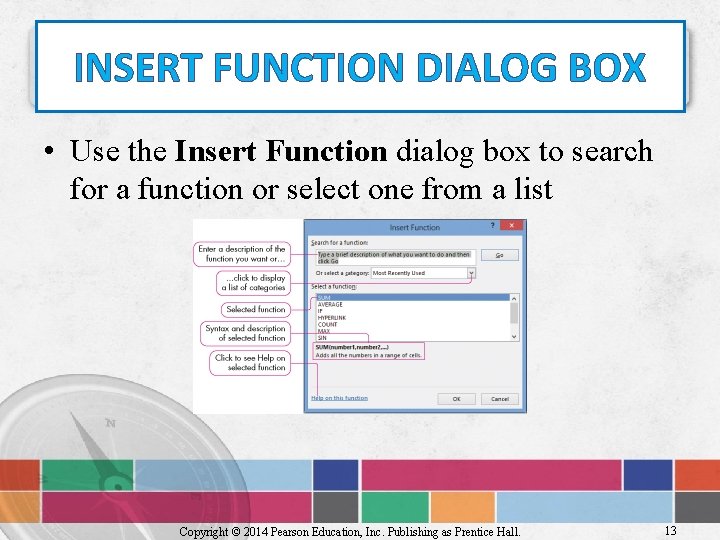
INSERT FUNCTION DIALOG BOX • Use the Insert Function dialog box to search for a function or select one from a list Copyright © 2014 Pearson Education, Inc. Publishing as Prentice Hall. 13
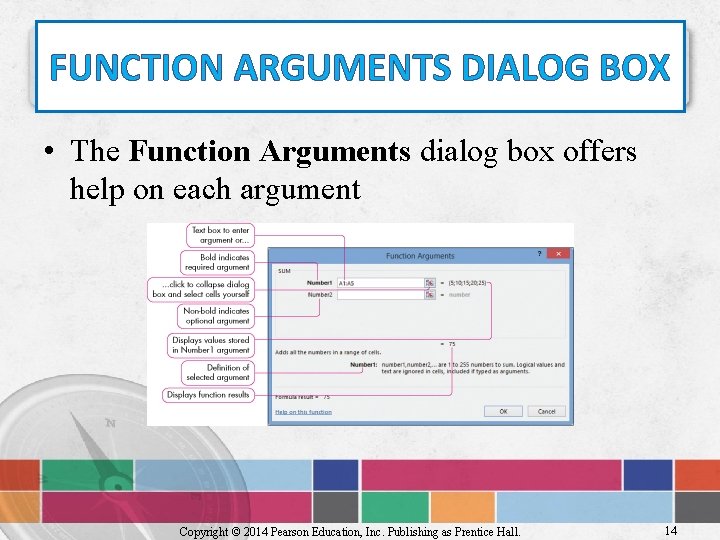
FUNCTION ARGUMENTS DIALOG BOX • The Function Arguments dialog box offers help on each argument Copyright © 2014 Pearson Education, Inc. Publishing as Prentice Hall. 14
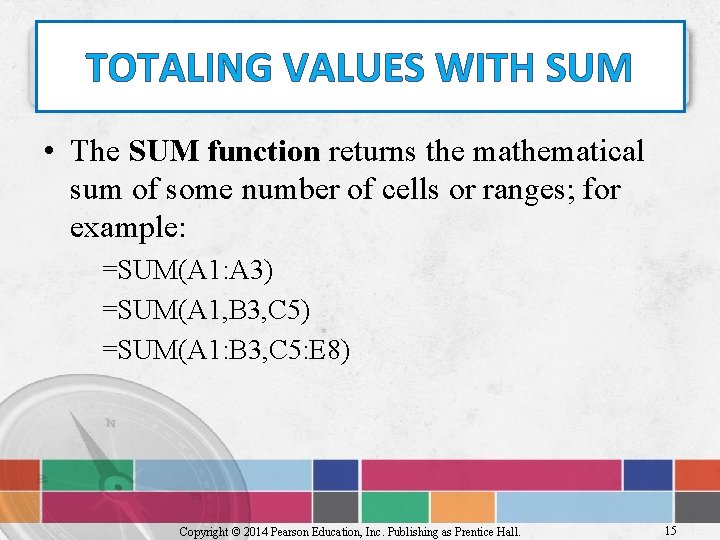
TOTALING VALUES WITH SUM • The SUM function returns the mathematical sum of some number of cells or ranges; for example: =SUM(A 1: A 3) =SUM(A 1, B 3, C 5) =SUM(A 1: B 3, C 5: E 8) Copyright © 2014 Pearson Education, Inc. Publishing as Prentice Hall. 15
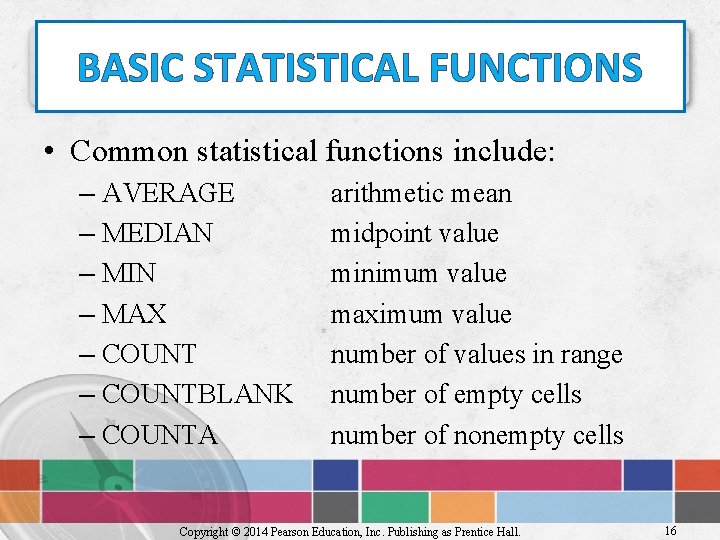
BASIC STATISTICAL FUNCTIONS • Common statistical functions include: – AVERAGE – MEDIAN – MIN – MAX – COUNTBLANK – COUNTA arithmetic mean midpoint value minimum value maximum value number of values in range number of empty cells number of nonempty cells Copyright © 2014 Pearson Education, Inc. Publishing as Prentice Hall. 16
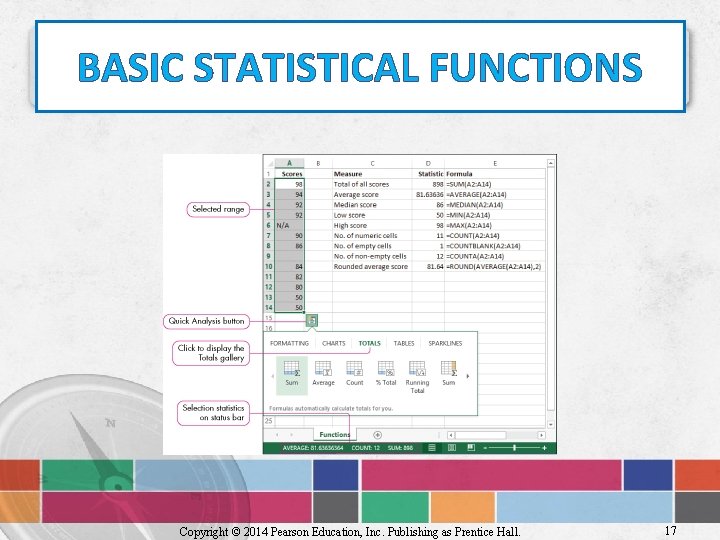
BASIC STATISTICAL FUNCTIONS Copyright © 2014 Pearson Education, Inc. Publishing as Prentice Hall. 17
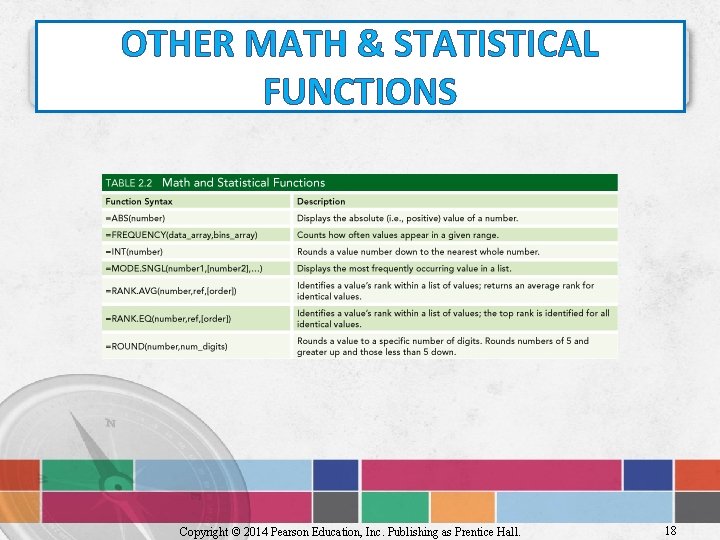
OTHER MATH & STATISTICAL FUNCTIONS Copyright © 2014 Pearson Education, Inc. Publishing as Prentice Hall. 18
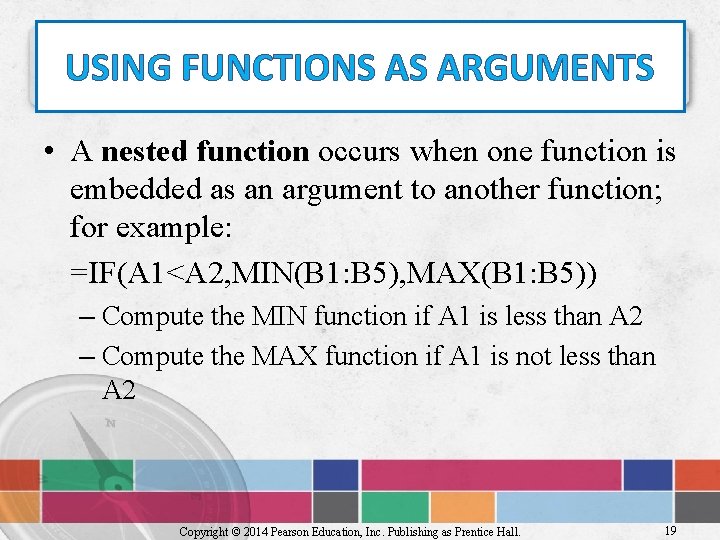
USING FUNCTIONS AS ARGUMENTS • A nested function occurs when one function is embedded as an argument to another function; for example: =IF(A 1<A 2, MIN(B 1: B 5), MAX(B 1: B 5)) – Compute the MIN function if A 1 is less than A 2 – Compute the MAX function if A 1 is not less than A 2 Copyright © 2014 Pearson Education, Inc. Publishing as Prentice Hall. 19
DATE FUNCTIONS • Since dates are numeric, calculations can be performed, such as subtraction • The TODAY function displays the current date • The NOW function displays the current date and time Copyright © 2014 Pearson Education, Inc. Publishing as Prentice Hall. 20
DETERMINING RESULTS WITH THE IF FUNCTION • =IF(logical_test, value_if_true, value_if_false) • The IF function has three arguments: – A condition that is tested to determine if it is either true or false – The resulting value if the condition is true – The resulting value if the condition is false Copyright © 2014 Pearson Education, Inc. Publishing as Prentice Hall. 21
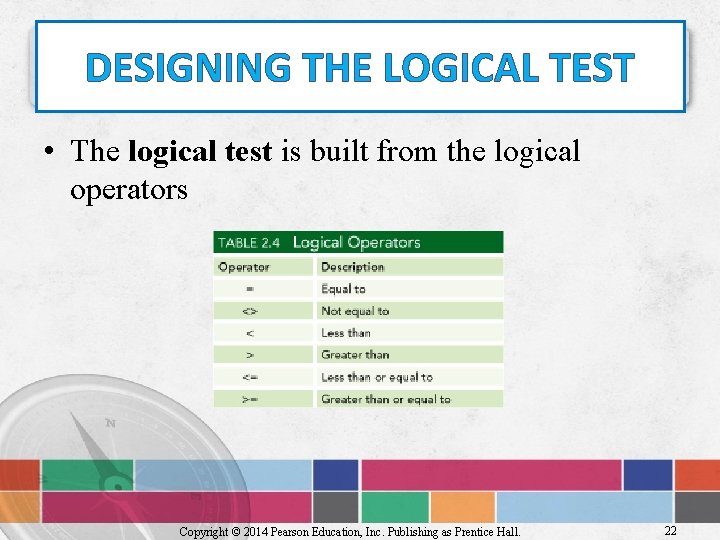
DESIGNING THE LOGICAL TEST • The logical test is built from the logical operators Copyright © 2014 Pearson Education, Inc. Publishing as Prentice Hall. 22
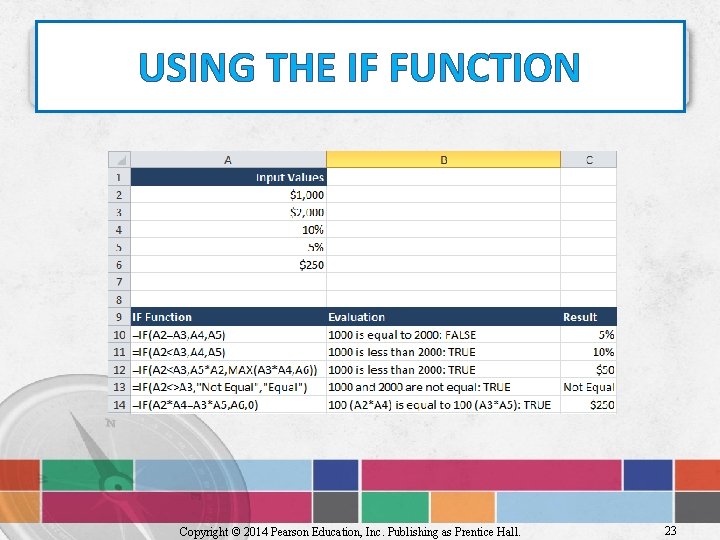
USING THE IF FUNCTION Copyright © 2014 Pearson Education, Inc. Publishing as Prentice Hall. 23
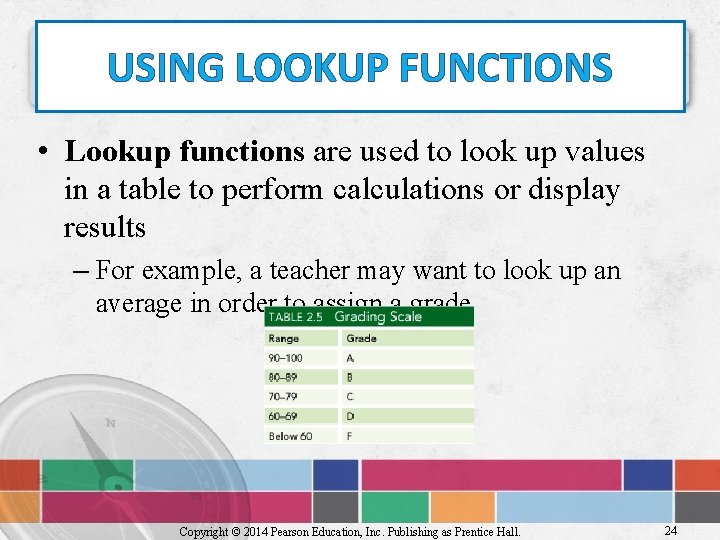
USING LOOKUP FUNCTIONS • Lookup functions are used to look up values in a table to perform calculations or display results – For example, a teacher may want to look up an average in order to assign a grade Copyright © 2014 Pearson Education, Inc. Publishing as Prentice Hall. 24
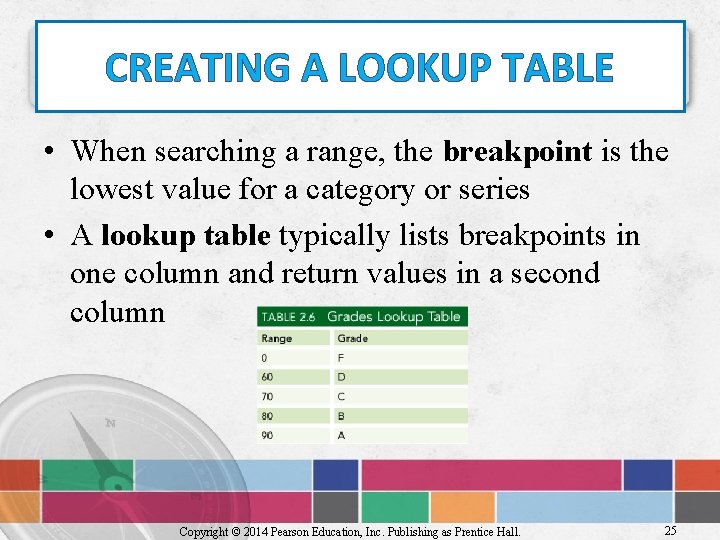
CREATING A LOOKUP TABLE • When searching a range, the breakpoint is the lowest value for a category or series • A lookup table typically lists breakpoints in one column and return values in a second column Copyright © 2014 Pearson Education, Inc. Publishing as Prentice Hall. 25
VLOOKUP FUNCTION • The VLOOKUP function searches a lookup table for a value and returns the result from the related column • VLOOKUP has three required arguments: – Lookup value – Table array (range of lookup table) – Column index of return value Copyright © 2014 Pearson Education, Inc. Publishing as Prentice Hall. 26
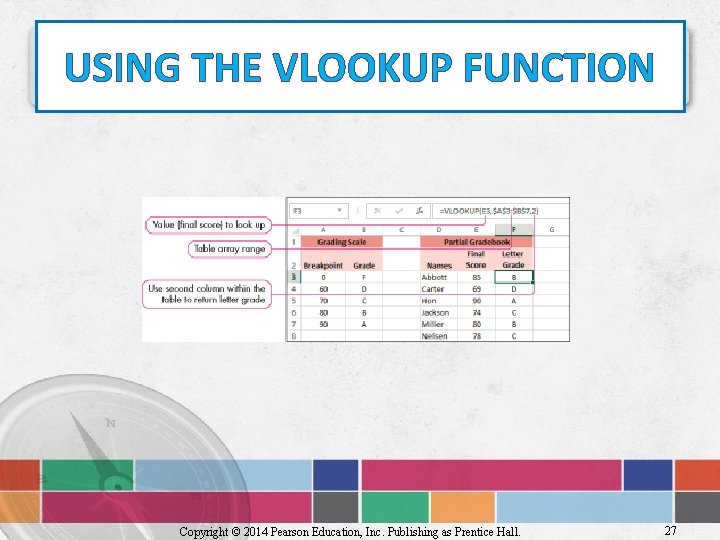
USING THE VLOOKUP FUNCTION Copyright © 2014 Pearson Education, Inc. Publishing as Prentice Hall. 27
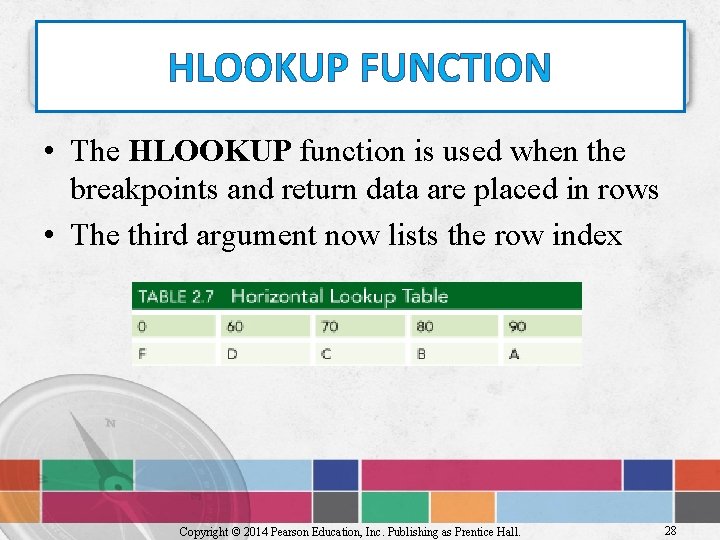
HLOOKUP FUNCTION • The HLOOKUP function is used when the breakpoints and return data are placed in rows • The third argument now lists the row index Copyright © 2014 Pearson Education, Inc. Publishing as Prentice Hall. 28
CALCULATING PAYMENTS WITH THE PMT FUNCTION • The PMT financial function calculates the periodic payment for a loan with a fixed interest rate and term length • PMT has three required arguments: – Interest rate (rate) – Number of periods (nper) – Present value (pv) Copyright © 2014 Pearson Education, Inc. Publishing as Prentice Hall. 29
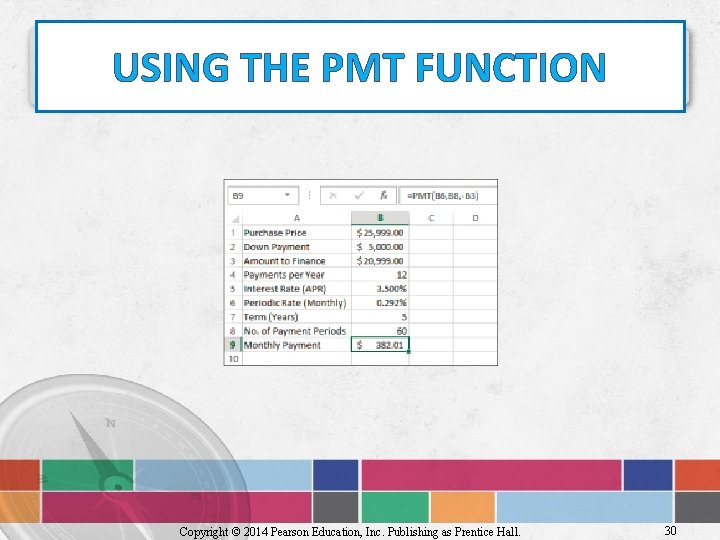
USING THE PMT FUNCTION Copyright © 2014 Pearson Education, Inc. Publishing as Prentice Hall. 30
RANGE NAMES • A range name is a word or string of characters assigned to one or more cells • Range names make formulas easier to read Copyright © 2014 Pearson Education, Inc. Publishing as Prentice Hall. 31
RANGE NAME RULES • Range names use the following rules: – 1 to 255 characters – Begin with a letter or underscore (_) – Contain letters, digits, periods, underscores • Valid names include Rate, Tax_Rate, Rate_2012 Copyright © 2014 Pearson Education, Inc. Publishing as Prentice Hall. 32
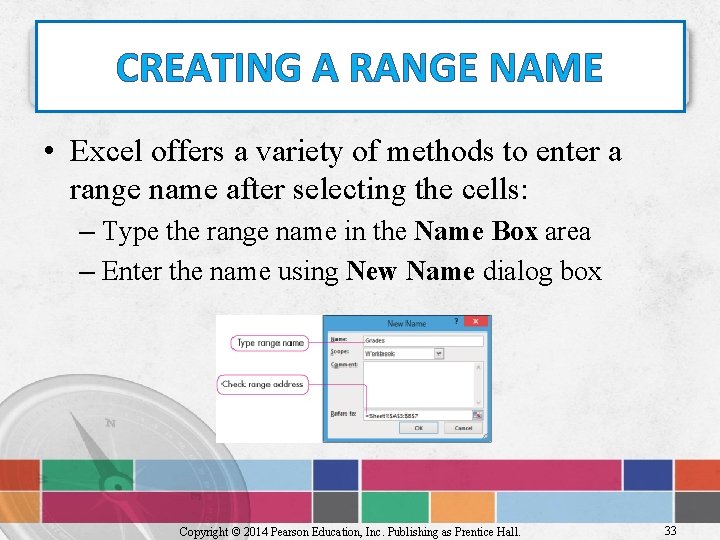
CREATING A RANGE NAME • Excel offers a variety of methods to enter a range name after selecting the cells: – Type the range name in the Name Box area – Enter the name using New Name dialog box Copyright © 2014 Pearson Education, Inc. Publishing as Prentice Hall. 33
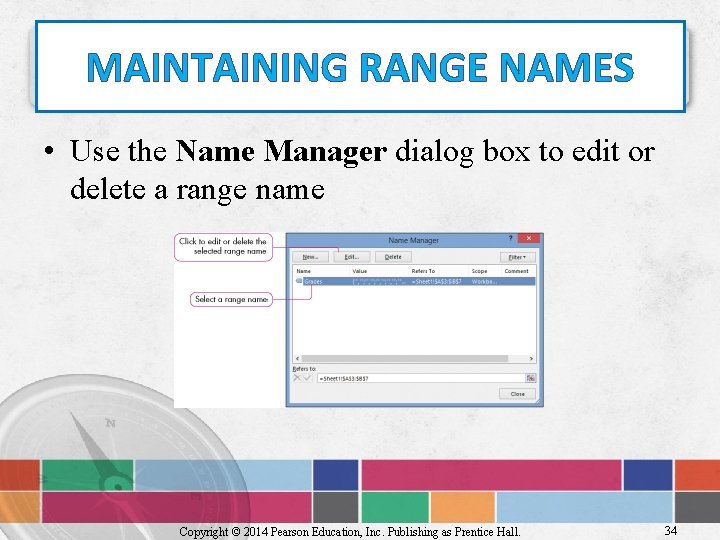
MAINTAINING RANGE NAMES • Use the Name Manager dialog box to edit or delete a range name Copyright © 2014 Pearson Education, Inc. Publishing as Prentice Hall. 34
SUMMARY • In this chapter, you have learned to write formulas using relative, absolute, and mixed cell references as well as correcting circular references and inserting functions. • You have learned about statistical and date functions, such as SUM, AVERAGE, and TODAY. • You have explored the IF, VLOOKUP, and PMT functions. • You learned to create and use range names. Copyright © 2014 Pearson Education, Inc. Publishing as Prentice Hall. 35
COPYRIGHT All rights reserved. No part of this publication may be reproduced, stored in a retrieval system, or transmitted, in any form or by any means, electronic, mechanical, photocopying, recording, or otherwise, without the prior written permission of the publisher. Printed in the United States of America. Copyright © 2014 Pearson Education, Inc. Publishing as Prentice Hall. 36
- Slides: 36