
Exploring Microsoft Office 2010 Fundamentals by Robert Grauer
Exploring Microsoft Office 2010 Fundamentals by Robert Grauer, Lynn Hogan, and Mary Anne Poatsy Chapter 1 Office Fundamentals Copyright © 2011 Pearson Education, Inc. Publishing as Prentice Hall. 1
Objectives • Use Windows Explorer • Work with folders and files • Select, copy, and move multiple files and folders • Identify common interface components • Get Office Help Copyright © 2011 Pearson Education, Inc. Publishing as Prentice Hall. 2
Objectives (continued) • • Open and print a file Close a file and application Select and edit text Use the Clipboard group tasks Use the Editing group tasks Insert objects Review a file Change page settings Copyright © 2011 Pearson Education, Inc. Publishing as Prentice Hall. 3
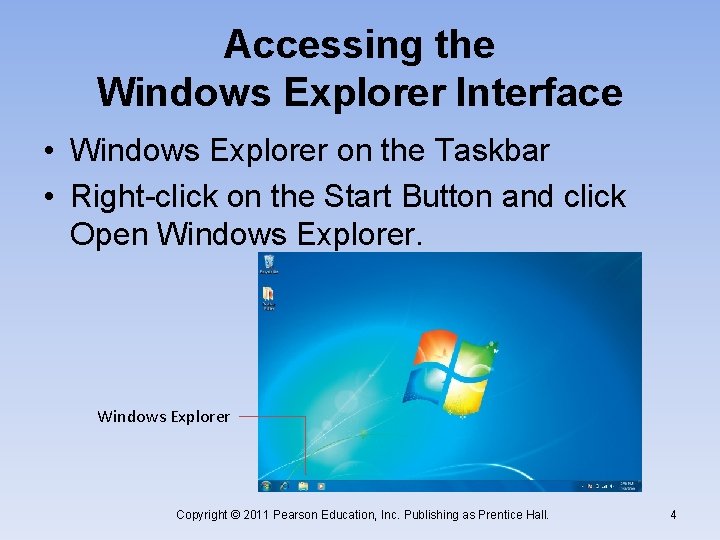
Accessing the Windows Explorer Interface • Windows Explorer on the Taskbar • Right-click on the Start Button and click Open Windows Explorer Copyright © 2011 Pearson Education, Inc. Publishing as Prentice Hall. 4

The Windows Explorer Interface Show or hide the preview pane Address bar Toolbar Help Change your view Back and forward buttons button Search box Navigation pane Content pane Preview pane Details pane Copyright © 2011 Pearson Education, Inc. Publishing as Prentice Hall. 5

Navigation Pane Favorites Libraries Homegroup Computer Network Copyright © 2011 Pearson Education, Inc. Publishing as Prentice Hall. 6
Customizing the Windows Interface • • Change the view Change the size of icons Change the amount of detail Show or hide Windows Explorer panes Copyright © 2011 Pearson Education, Inc. Publishing as Prentice Hall. 7
Windows Explorer • Managing libraries • Accessing information on: – Networked drives – Shared disk drives • Using Favorites feature Copyright © 2011 Pearson Education, Inc. Publishing as Prentice Hall. 8
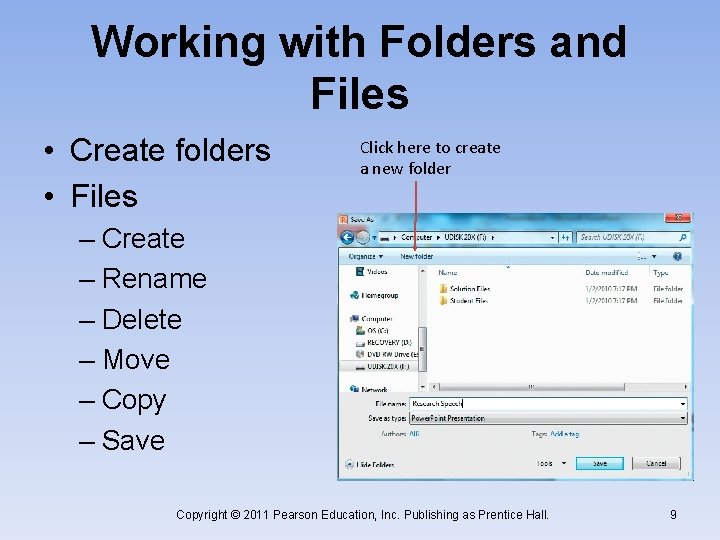
Working with Folders and Files • Create folders • Files Click here to create a new folder – Create – Rename – Delete – Move – Copy – Save Copyright © 2011 Pearson Education, Inc. Publishing as Prentice Hall. 9
Selecting, Copying, and Moving Multiple Files and Folders • Back up your data to protect it • Copy all files contained in a folder • Copy all folders in a library Copyright © 2011 Pearson Education, Inc. Publishing as Prentice Hall. 10
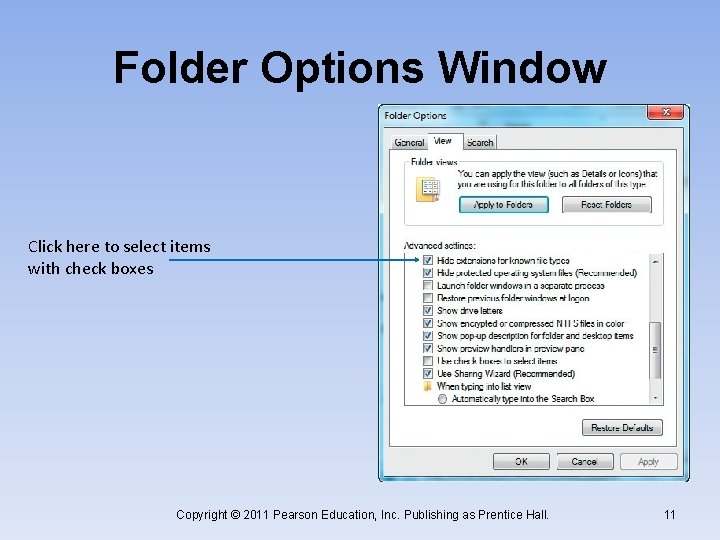
Folder Options Window Click here to select items with check boxes Copyright © 2011 Pearson Education, Inc. Publishing as Prentice Hall. 11
Working with Multiple Files and Folders • Using the Shift key • Using the Ctrl key • Using the Right-click Copyright © 2011 Pearson Education, Inc. Publishing as Prentice Hall. 12
Microsoft Office Software • • Word 2010 Excel 2010 Power. Point 2010 Access 2010 Copyright © 2011 Pearson Education, Inc. Publishing as Prentice Hall. 13
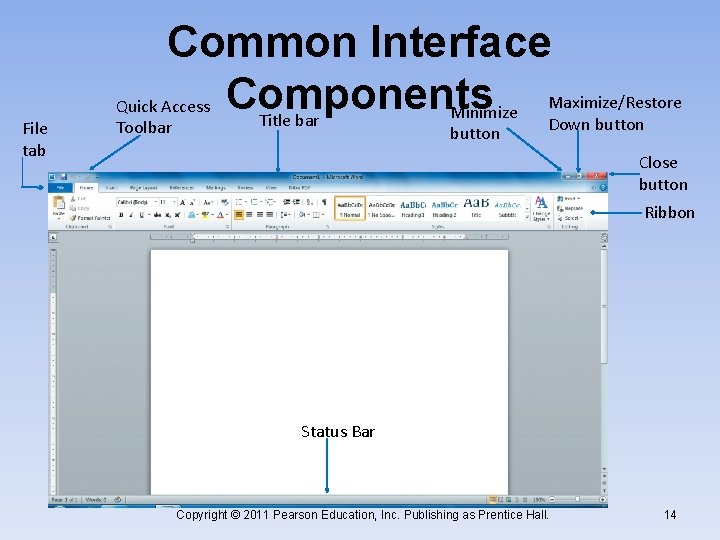
File tab Common Interface Maximize/Restore Quick Access Components Minimize Title bar Down button Toolbar button Close button Ribbon Status Bar Copyright © 2011 Pearson Education, Inc. Publishing as Prentice Hall. 14
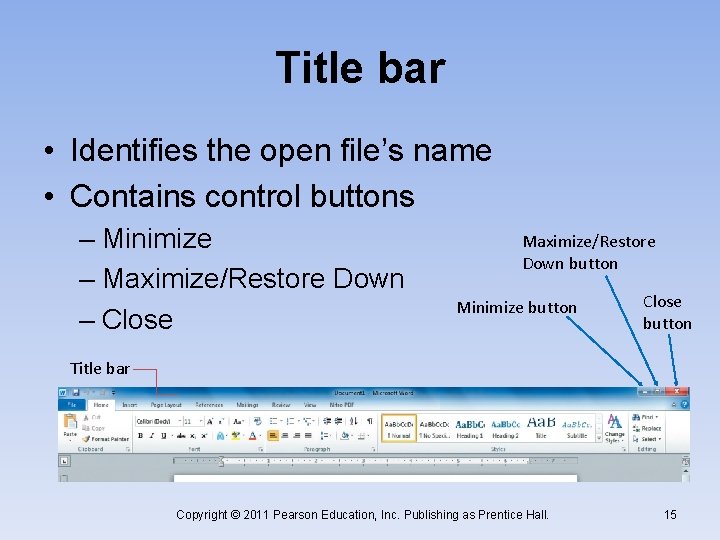
Title bar • Identifies the open file’s name • Contains control buttons – Minimize – Maximize/Restore Down – Close Maximize/Restore Down button Minimize button Close button Title bar Copyright © 2011 Pearson Education, Inc. Publishing as Prentice Hall. 15
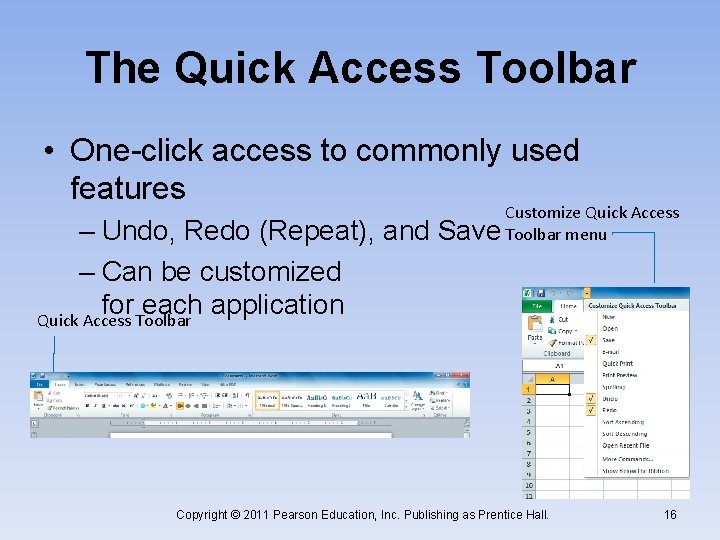
The Quick Access Toolbar • One-click access to commonly used features – Undo, Redo (Repeat), and – Can be customized for each application Quick Access Toolbar Customize Quick Access Save Toolbar menu Copyright © 2011 Pearson Education, Inc. Publishing as Prentice Hall. 16
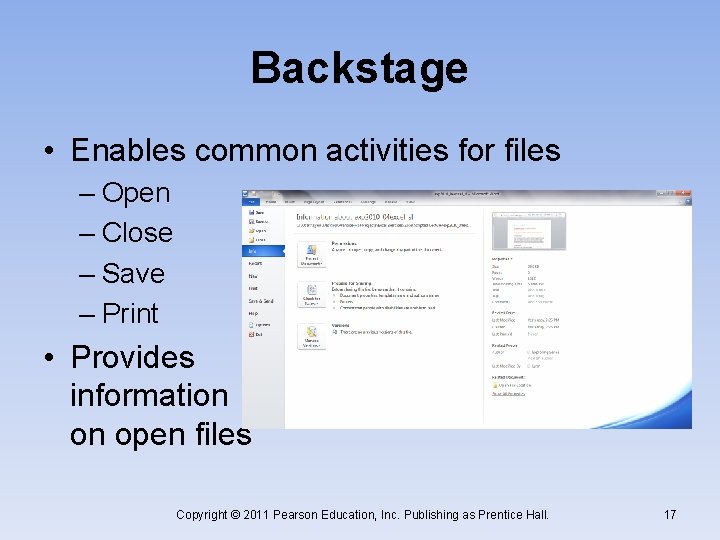
Backstage • Enables common activities for files – Open – Close – Save – Print • Provides information on open files Copyright © 2011 Pearson Education, Inc. Publishing as Prentice Hall. 17
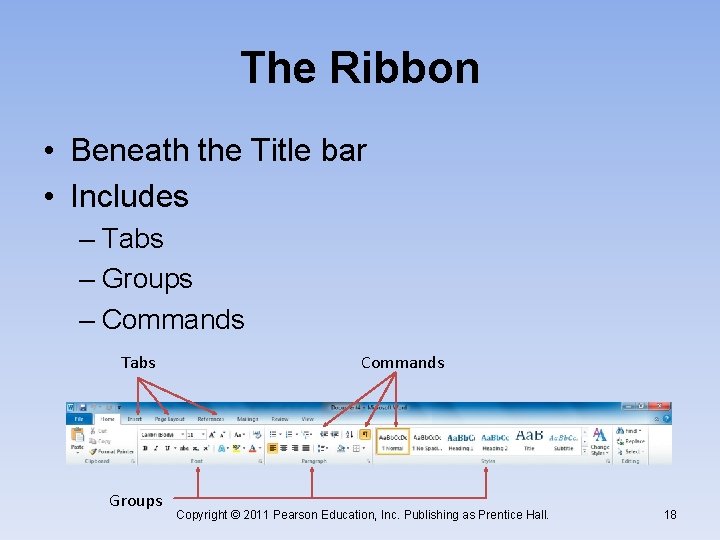
The Ribbon • Beneath the Title bar • Includes – Tabs – Groups – Commands Tabs Groups Commands Copyright © 2011 Pearson Education, Inc. Publishing as Prentice Hall. 18
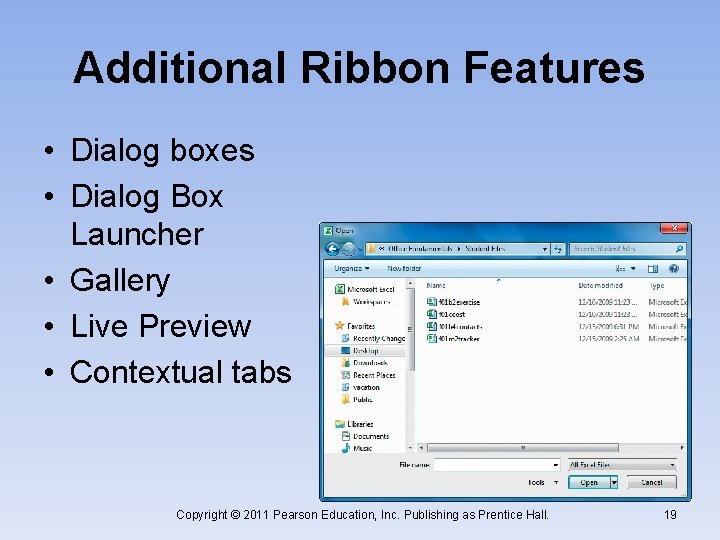
Additional Ribbon Features • Dialog boxes • Dialog Box Launcher • Gallery • Live Preview • Contextual tabs Copyright © 2011 Pearson Education, Inc. Publishing as Prentice Hall. 19
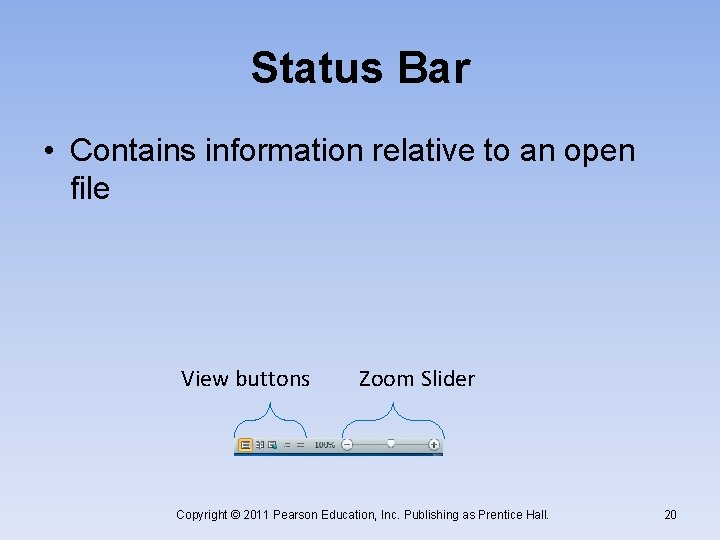
Status Bar • Contains information relative to an open file View buttons Zoom Slider Copyright © 2011 Pearson Education, Inc. Publishing as Prentice Hall. 20
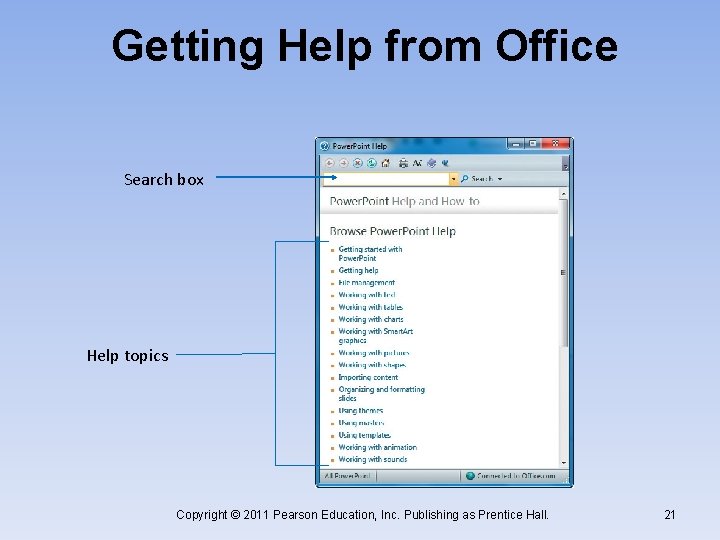
Getting Help from Office Search box Help topics Copyright © 2011 Pearson Education, Inc. Publishing as Prentice Hall. 21
Working with Files • • • Opening a file Printing from a file Closing a file and application Selecting and editing text Font attributes Copyright © 2011 Pearson Education, Inc. Publishing as Prentice Hall. 22
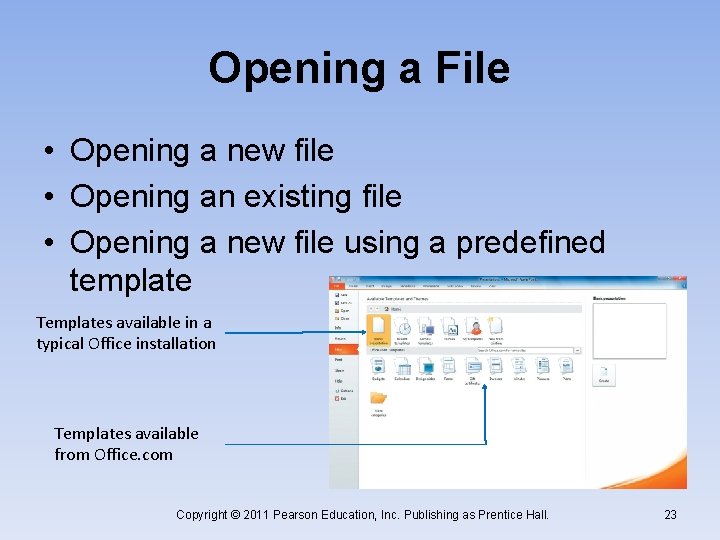
Opening a File • Opening a new file • Opening an existing file • Opening a new file using a predefined template Templates available in a typical Office installation Templates available from Office. com Copyright © 2011 Pearson Education, Inc. Publishing as Prentice Hall. 23
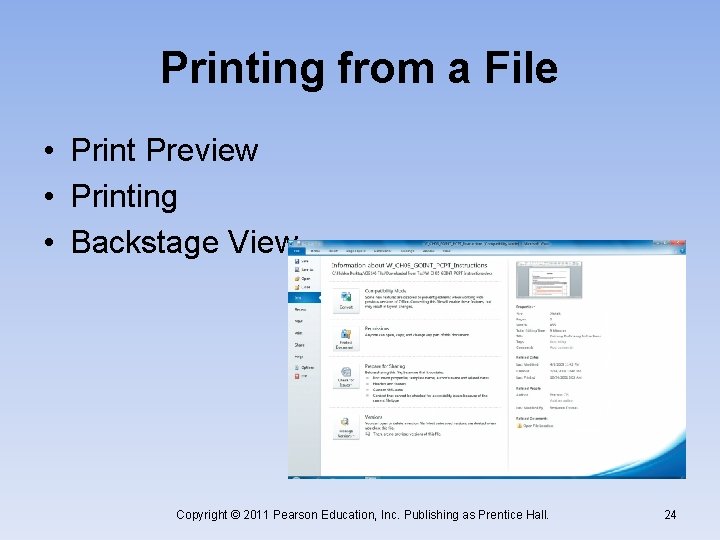
Printing from a File • Print Preview • Printing • Backstage View Copyright © 2011 Pearson Education, Inc. Publishing as Prentice Hall. 24
Closing a File or Application • Closing an individual file • Closing an application • Saving as you close Copyright © 2011 Pearson Education, Inc. Publishing as Prentice Hall. 25
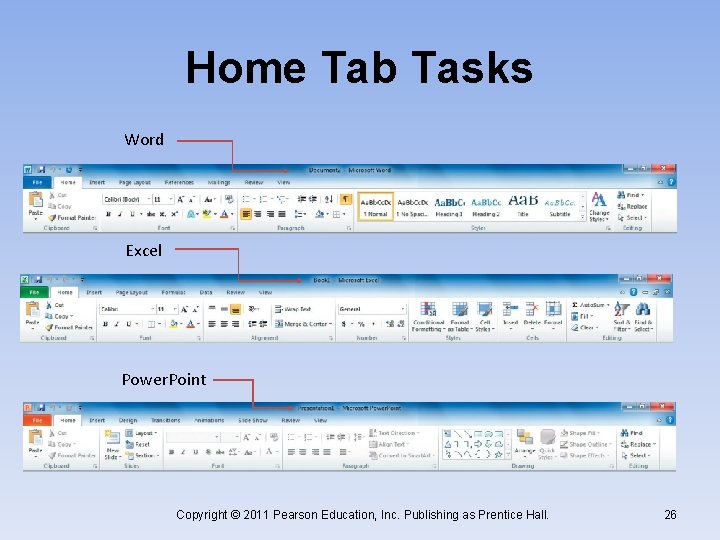
Home Tab Tasks Word Excel Power. Point Copyright © 2011 Pearson Education, Inc. Publishing as Prentice Hall. 26
Selecting and Editing Text • Selecting text to edit – Select then do – Shortcuts to selecting text • Editing text • Mini toolbar Copyright © 2011 Pearson Education, Inc. Publishing as Prentice Hall. 27
Font Attributes • A character design (how the font will appear) • Each Office application has its own default font • Fonts can be changed • Toggle commands Copyright © 2011 Pearson Education, Inc. Publishing as Prentice Hall. 28
Clipboard Tasks • • • Cut Copy Paste Shortcut menu Format Painter Copyright © 2011 Pearson Education, Inc. Publishing as Prentice Hall. 29
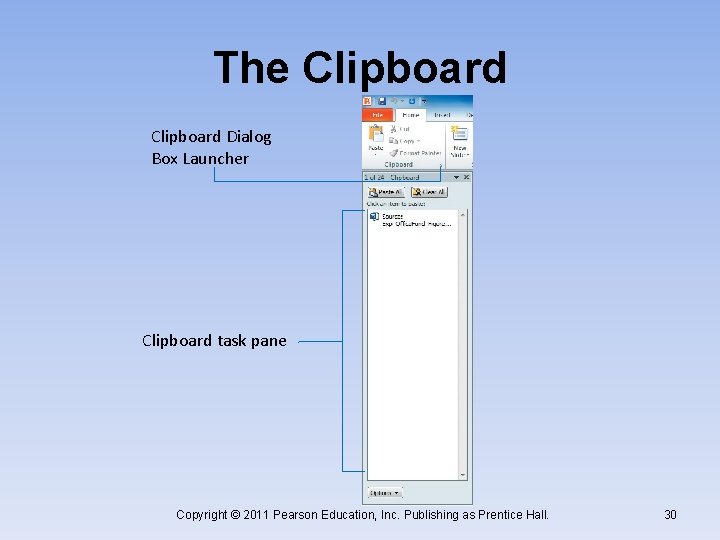
The Clipboard Dialog Box Launcher Clipboard task pane Copyright © 2011 Pearson Education, Inc. Publishing as Prentice Hall. 30
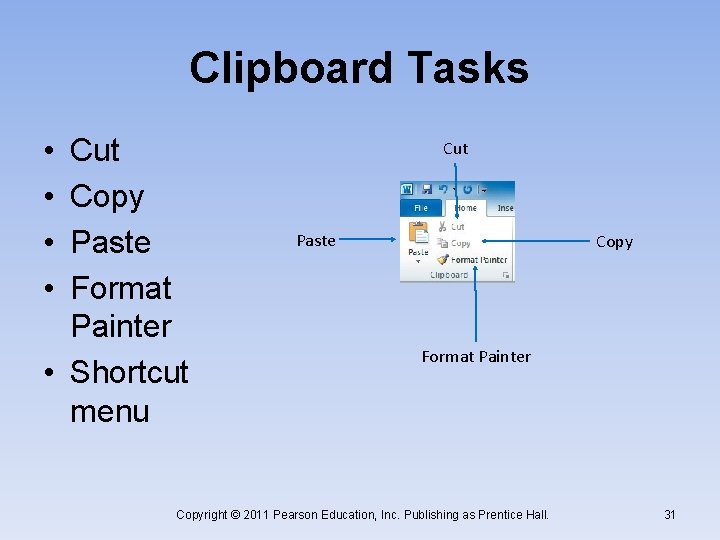
Clipboard Tasks • • Cut Copy Paste Format Painter • Shortcut menu Cut Paste Copy Format Painter Copyright © 2011 Pearson Education, Inc. Publishing as Prentice Hall. 31
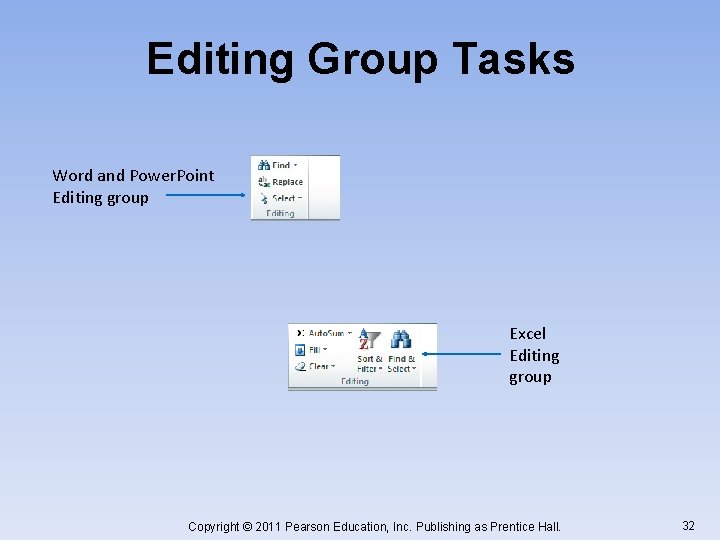
Editing Group Tasks Word and Power. Point Editing group Excel Editing group Copyright © 2011 Pearson Education, Inc. Publishing as Prentice Hall. 32
Inserting Objects using the Insert Tab • Insert or add items into a file • Some commands are specific to each application, such as charts and tables in Excel • Others are common across applications, such as Illustrations Copyright © 2011 Pearson Education, Inc. Publishing as Prentice Hall. 33
Inserting Objects • • • Pictures Clip art Shapes Screenshots Smart. Art Copyright © 2011 Pearson Education, Inc. Publishing as Prentice Hall. 34
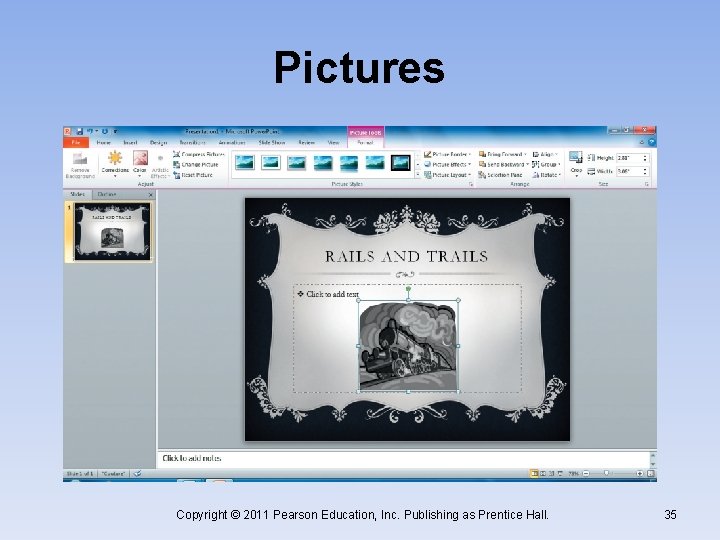
Pictures Copyright © 2011 Pearson Education, Inc. Publishing as Prentice Hall. 35
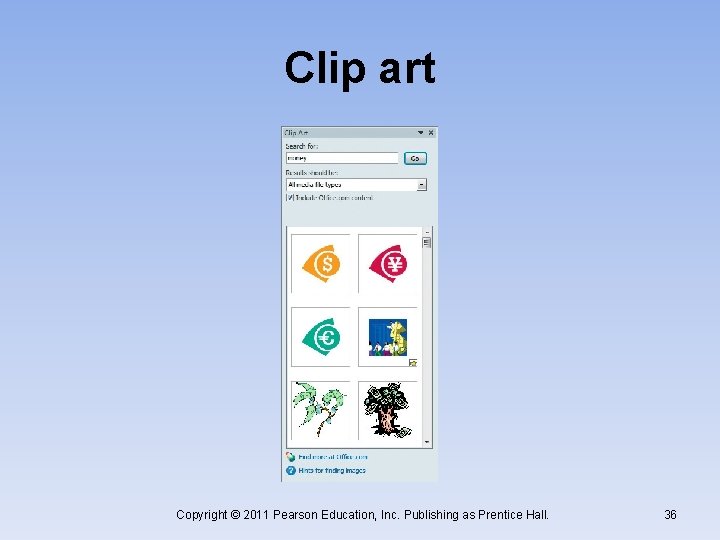
Clip art Copyright © 2011 Pearson Education, Inc. Publishing as Prentice Hall. 36
Reviewing Files • • Spelling Grammar Word usage Thesaurus Copyright © 2011 Pearson Education, Inc. Publishing as Prentice Hall. 37
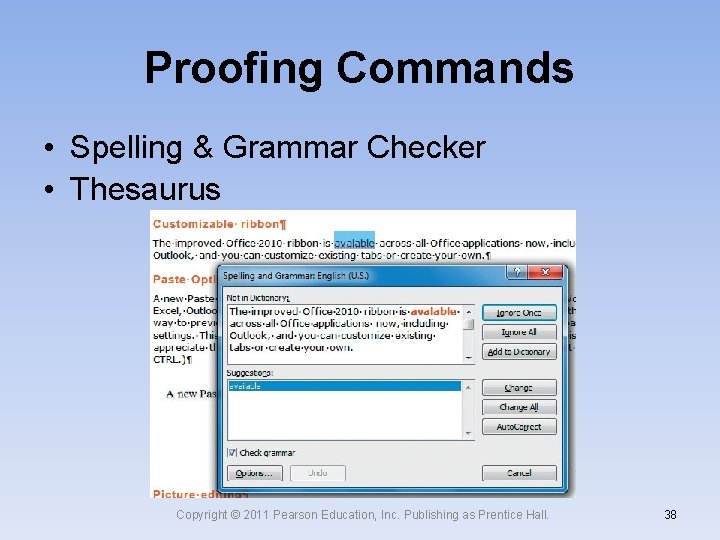
Proofing Commands • Spelling & Grammar Checker • Thesaurus Copyright © 2011 Pearson Education, Inc. Publishing as Prentice Hall. 38
Changing Page Settings Page Layout Tab Tasks • Page Setup ─Provides commonly used page options • Page Setup Dialog Box Launcher ─Options unique to each application Copyright © 2011 Pearson Education, Inc. Publishing as Prentice Hall. 39
Summary • In this chapter, Office Fundamentals presents the common user interface found in the Microsoft Office suite applications. • Windows Explorer shows users how to copy, rename, and delete files and folders and how to use libraries. • Users are also shown how to create, edit, and insert objects into their files. Copyright © 2011 Pearson Education, Inc. Publishing as Prentice Hall. 40
Questions Copyright © 2011 Pearson Education, Inc. Publishing as Prentice Hall. 41
Copyright All rights reserved. No part of this publication may be reproduced, stored in a retrieval system, or transmitted, in any form or by any means, electronic, mechanical, photocopying, recording, or otherwise, without the prior written permission of the publisher. Printed in the United States of America. Copyright © 2011 Pearson Education, Inc. Publishing as Prentice Hall. 42
- Slides: 42