
Exploring Microsoft Excel 2016 Comprehensive First Edition Chapter

- Slides: 47
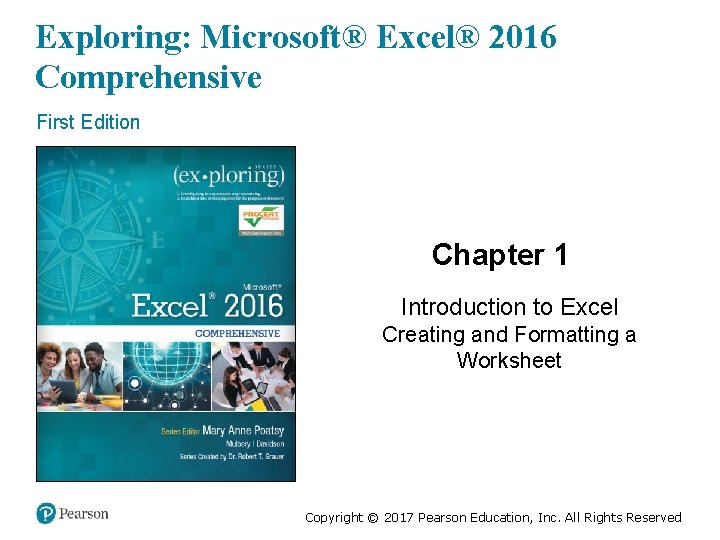
Exploring: Microsoft® Excel® 2016 Comprehensive First Edition Chapter 1 Introduction to Excel Creating and Formatting a Worksheet Copyright © 2017 Pearson Education, Inc. All Rights Reserved
Objectives (1 of 2) • Explore the Excel Window • Enter and Edit Cell Data • Create Formulas • Display Cell Formulas • Manage Columns and Rows • Select, Move, Copy, and Paste Data Copyright © 2017 Pearson Education, Inc. All Rights Reserved
Objectives (2 of 2) • Apply Cell Styles, Alignment, and Font Options • Apply Number Formats • Manage Worksheets • Select Page Setup Options • Preview and Print a Worksheet Copyright © 2017 Pearson Education, Inc. All Rights Reserved
Objective 1: Explore the Excel Window Skills: • Identify Excel Window Elements • Identify Columns, Rows, and Cells • Navigate In and Among Worksheets Copyright © 2017 Pearson Education, Inc. All Rights Reserved
Explore the Excel Window (1 of 4) • Spreadsheet—electronic file that: – Contains a grid of columns and rows – Displays results of calculations – Enables interpretation of quantitative data Copyright © 2017 Pearson Education, Inc. All Rights Reserved
Explore the Excel Window (2 of 4) • Worksheet—single spreadsheet that contains: – Descriptive labels – Numeric values – Formulas, functions – Graphical representations of data Copyright © 2017 Pearson Education, Inc. All Rights Reserved
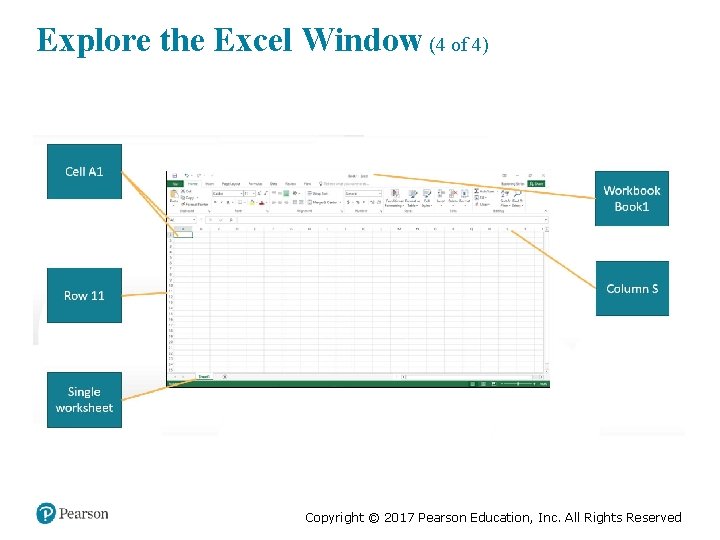
Explore the Excel Window (3 of 4) • Workbook—collection of one or more related worksheets • Cell—intersection of a column and a row • Identification: – Columns use letters—A – Rows use numbers— 10 – Cells use a combination of a letter and a number—A 10 Copyright © 2017 Pearson Education, Inc. All Rights Reserved
Explore the Excel Window (4 of 4) Copyright © 2017 Pearson Education, Inc. All Rights Reserved
Objective 2: Enter and Edit Cell Data Skills: • Enter Text • Use Auto Fill to Complete a Sequence • Enter Values • Enter a Date • Clear Cell Contents Copyright © 2017 Pearson Education, Inc. All Rights Reserved
Enter and Edit Cell Data (1 of 2) • Data types: – Text—combination of letters, numbers, symbols, and spaces – Values—numbers used as the basis of calculations – Dates and times—entered in a variety of formats • Auto Fill—feature that completes a sequence of words or values Copyright © 2017 Pearson Education, Inc. All Rights Reserved
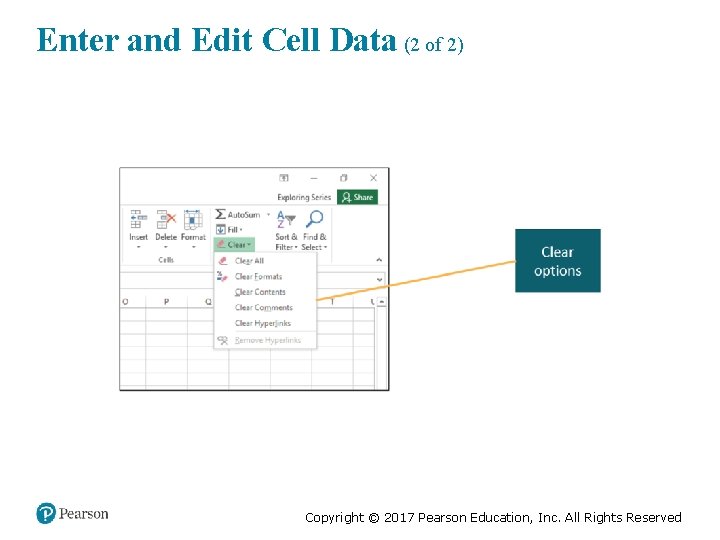
Enter and Edit Cell Data (2 of 2) Copyright © 2017 Pearson Education, Inc. All Rights Reserved
Objective 3: Create Formulas Skills: • Use Cell References in Formulas • Apply the Order of Operations • Use Semi-Selection to Create a Formula • Copy Formulas Copyright © 2017 Pearson Education, Inc. All Rights Reserved
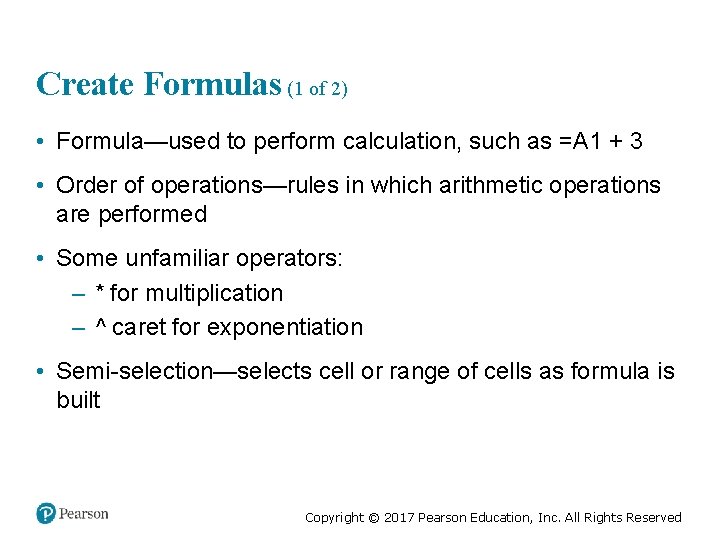
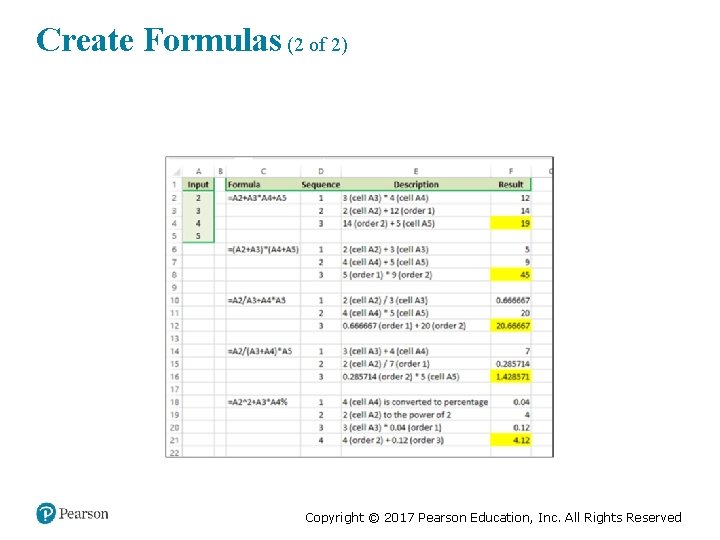
Create Formulas (1 of 2) • Formula—used to perform calculation, such as =A 1 + 3 • Order of operations—rules in which arithmetic operations are performed • Some unfamiliar operators: – * for multiplication – ^ caret for exponentiation • Semi-selection—selects cell or range of cells as formula is built Copyright © 2017 Pearson Education, Inc. All Rights Reserved
Create Formulas (2 of 2) Copyright © 2017 Pearson Education, Inc. All Rights Reserved
Objective 4: Display Cell Formulas Skills: • Display Cell Formulas Copyright © 2017 Pearson Education, Inc. All Rights Reserved
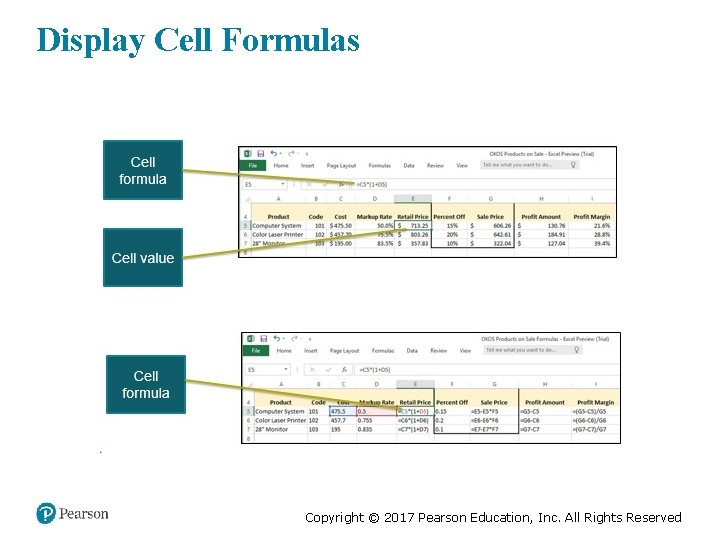
Display Cell Formulas Copyright © 2017 Pearson Education, Inc. All Rights Reserved
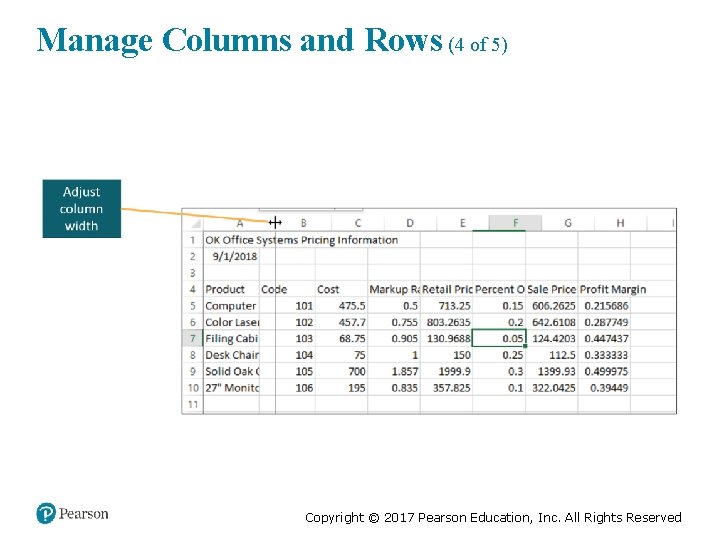
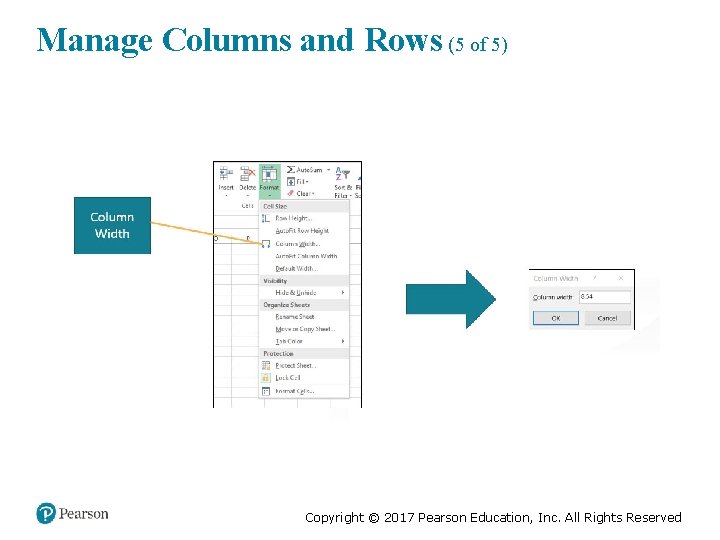
Objective 5: Manage Columns and Rows Skills: • Insert Cells, Columns, and Rows • Delete Cells, Columns, and Rows • Hide a Column or Row • Adjust Column Width • Adjust Row Height Copyright © 2017 Pearson Education, Inc. All Rights Reserved
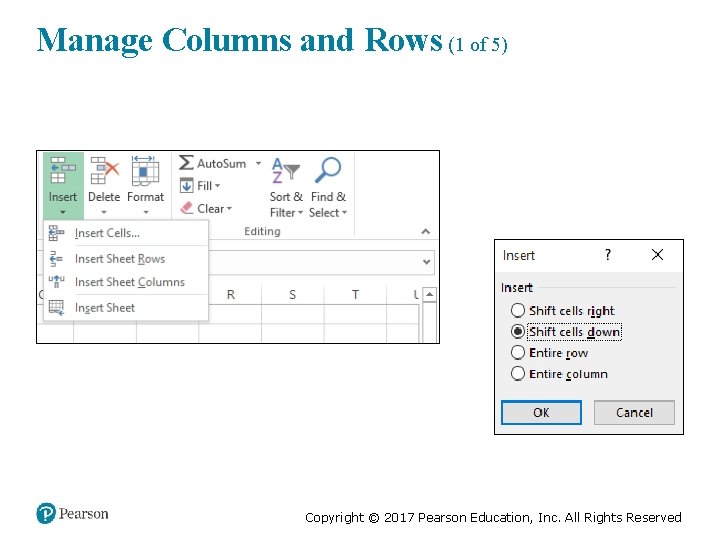
Manage Columns and Rows (1 of 5) Copyright © 2017 Pearson Education, Inc. All Rights Reserved
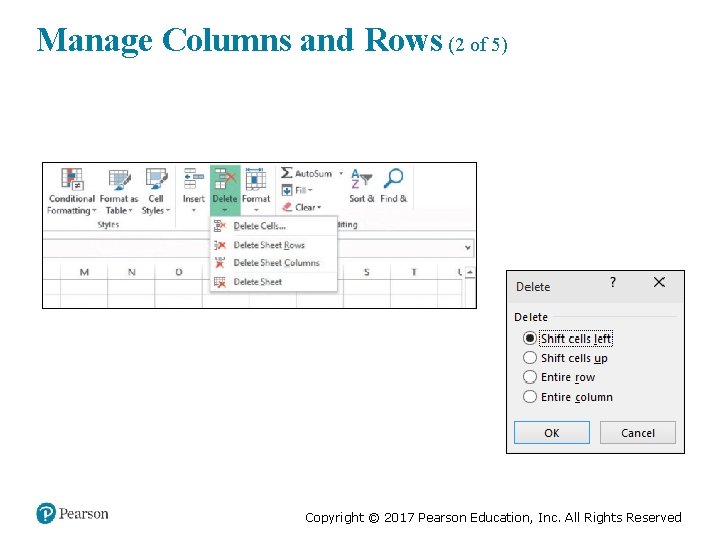
Manage Columns and Rows (2 of 5) Copyright © 2017 Pearson Education, Inc. All Rights Reserved
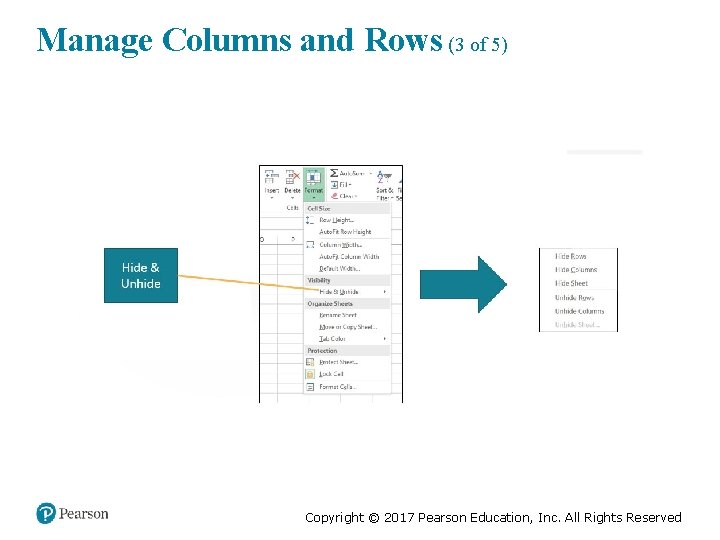
Manage Columns and Rows (3 of 5) Copyright © 2017 Pearson Education, Inc. All Rights Reserved
Manage Columns and Rows (4 of 5) Copyright © 2017 Pearson Education, Inc. All Rights Reserved
Manage Columns and Rows (5 of 5) Copyright © 2017 Pearson Education, Inc. All Rights Reserved
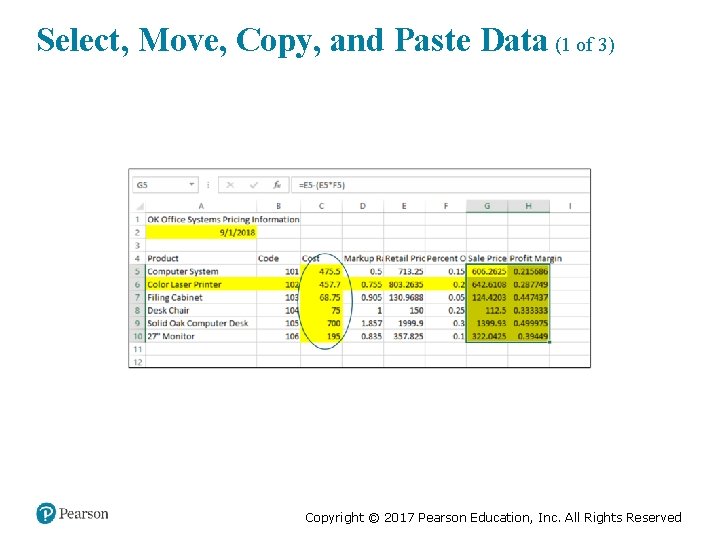
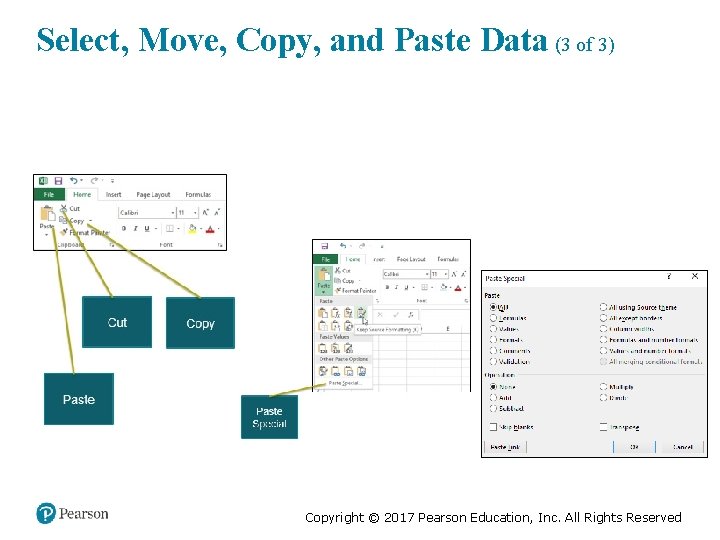
Objective 6: Select, Move, Copy, and Paste Data Skills: • Select a Range • Move a Range • Copy and Paste a Range • Use Paste Options and Paste Special Copyright © 2017 Pearson Education, Inc. All Rights Reserved
Select, Move, Copy, and Paste Data (1 of 3) Copyright © 2017 Pearson Education, Inc. All Rights Reserved
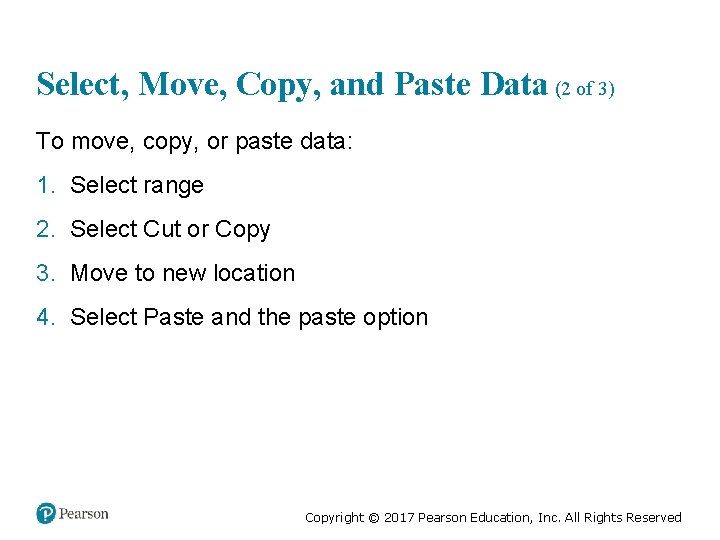
Select, Move, Copy, and Paste Data (2 of 3) To move, copy, or paste data: 1. Select range 2. Select Cut or Copy 3. Move to new location 4. Select Paste and the paste option Copyright © 2017 Pearson Education, Inc. All Rights Reserved
Select, Move, Copy, and Paste Data (3 of 3) Copyright © 2017 Pearson Education, Inc. All Rights Reserved
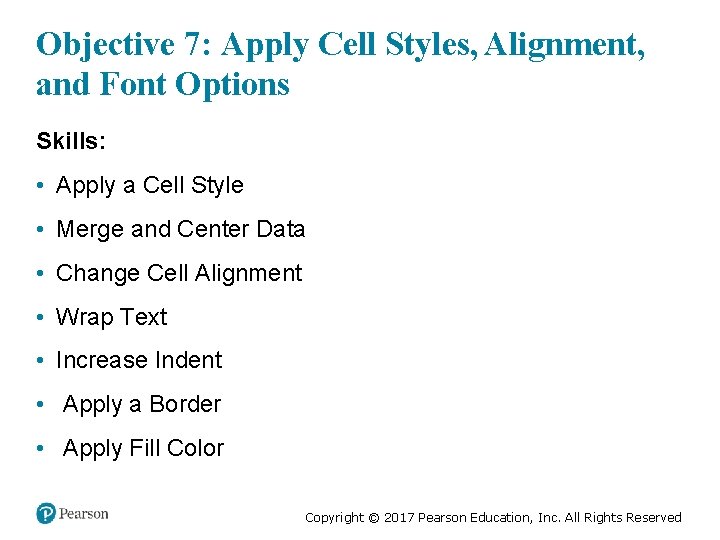
Objective 7: Apply Cell Styles, Alignment, and Font Options Skills: • Apply a Cell Style • Merge and Center Data • Change Cell Alignment • Wrap Text • Increase Indent • Apply a Border • Apply Fill Color Copyright © 2017 Pearson Education, Inc. All Rights Reserved
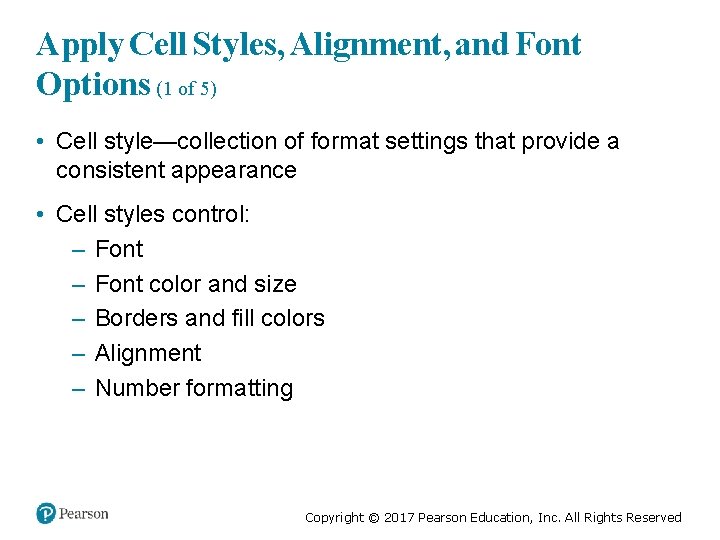
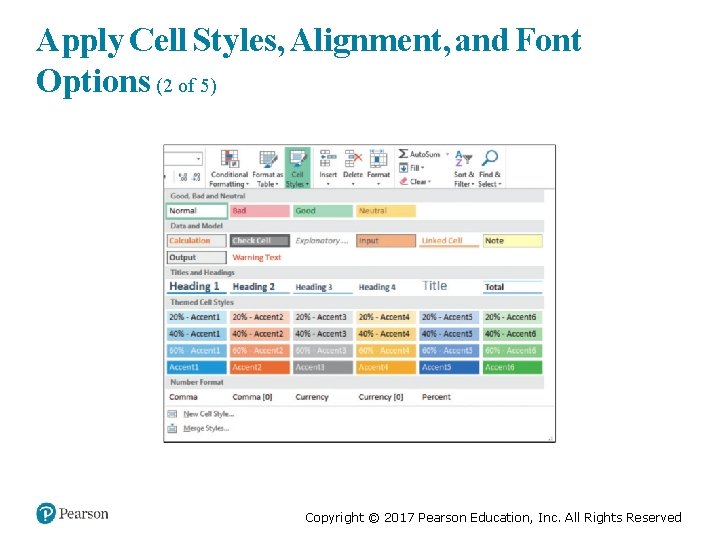
Apply Cell Styles, Alignment, and Font Options (1 of 5) • Cell style—collection of format settings that provide a consistent appearance • Cell styles control: – Font color and size – Borders and fill colors – Alignment – Number formatting Copyright © 2017 Pearson Education, Inc. All Rights Reserved
Apply Cell Styles, Alignment, and Font Options (2 of 5) Copyright © 2017 Pearson Education, Inc. All Rights Reserved
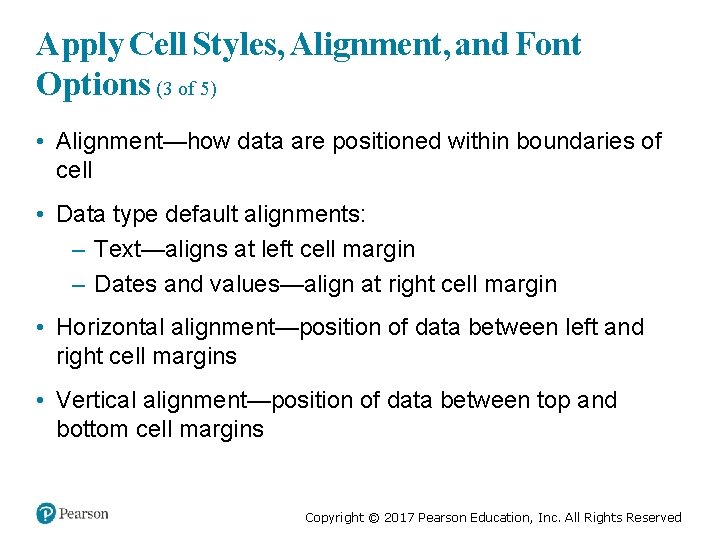
Apply Cell Styles, Alignment, and Font Options (3 of 5) • Alignment—how data are positioned within boundaries of cell • Data type default alignments: – Text—aligns at left cell margin – Dates and values—align at right cell margin • Horizontal alignment—position of data between left and right cell margins • Vertical alignment—position of data between top and bottom cell margins Copyright © 2017 Pearson Education, Inc. All Rights Reserved
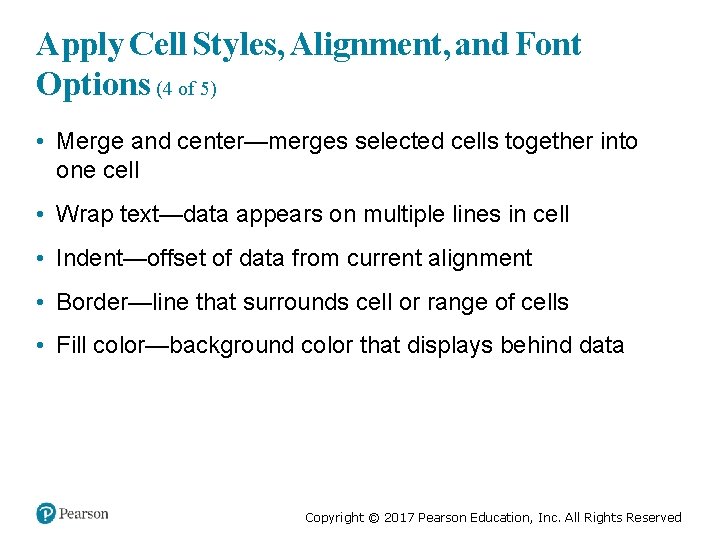
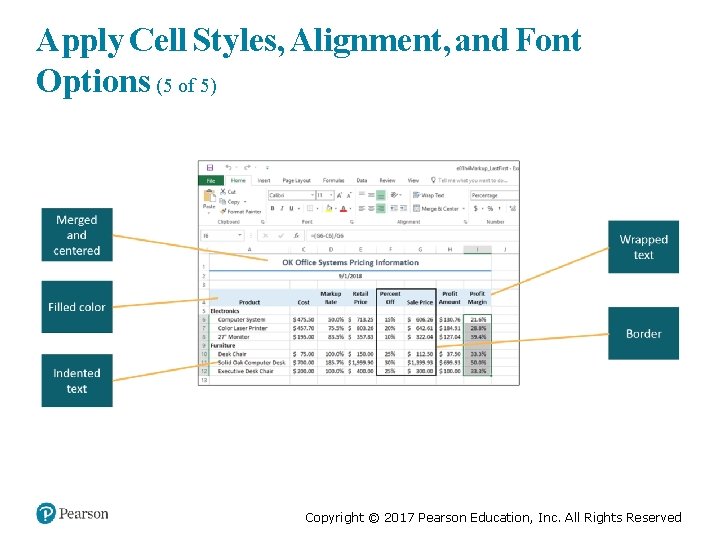
Apply Cell Styles, Alignment, and Font Options (4 of 5) • Merge and center—merges selected cells together into one cell • Wrap text—data appears on multiple lines in cell • Indent—offset of data from current alignment • Border—line that surrounds cell or range of cells • Fill color—background color that displays behind data Copyright © 2017 Pearson Education, Inc. All Rights Reserved
Apply Cell Styles, Alignment, and Font Options (5 of 5) Copyright © 2017 Pearson Education, Inc. All Rights Reserved
Objective 8: Apply Number Formats Skills: • Apply Number Formats • Increase and Decrease Decimal Places Copyright © 2017 Pearson Education, Inc. All Rights Reserved
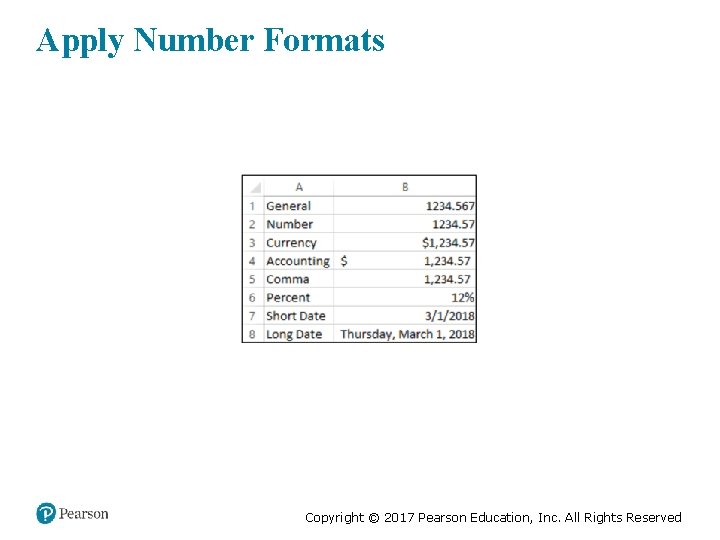
Apply Number Formats Copyright © 2017 Pearson Education, Inc. All Rights Reserved
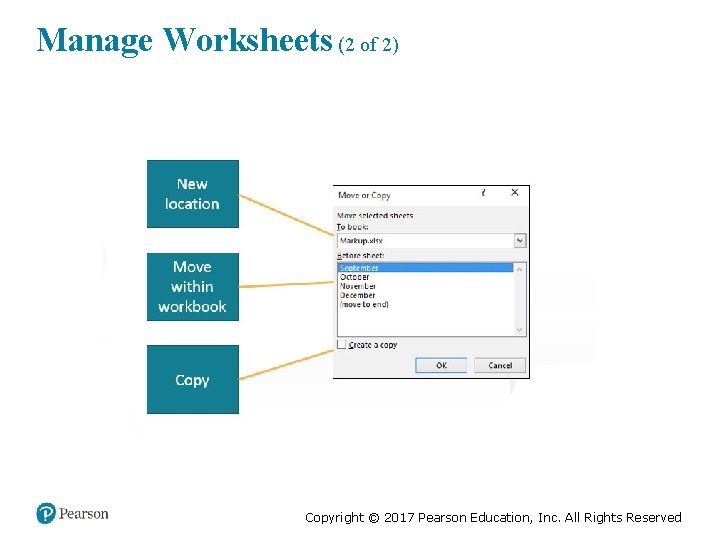
Objective 9: Manage Worksheets Skills: • Insert a Worksheet • Delete a Worksheet • Copy or Move a Worksheet • Rename a Worksheet • Group Worksheets Copyright © 2017 Pearson Education, Inc. All Rights Reserved
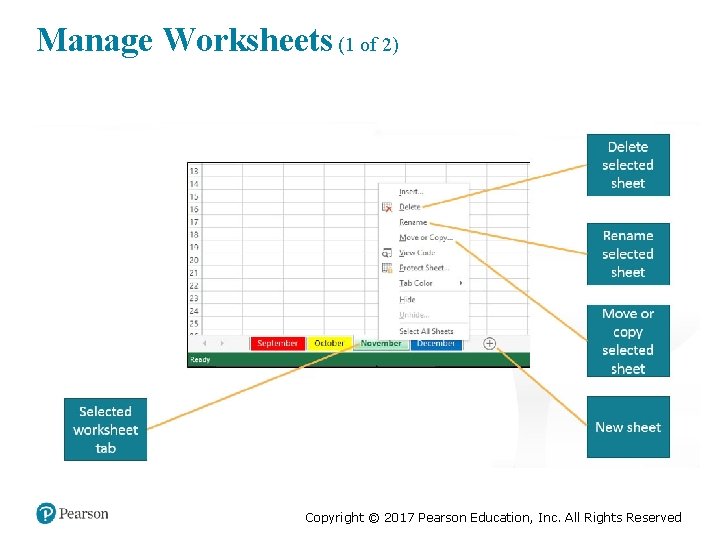
Manage Worksheets (1 of 2) Copyright © 2017 Pearson Education, Inc. All Rights Reserved
Manage Worksheets (2 of 2) Copyright © 2017 Pearson Education, Inc. All Rights Reserved
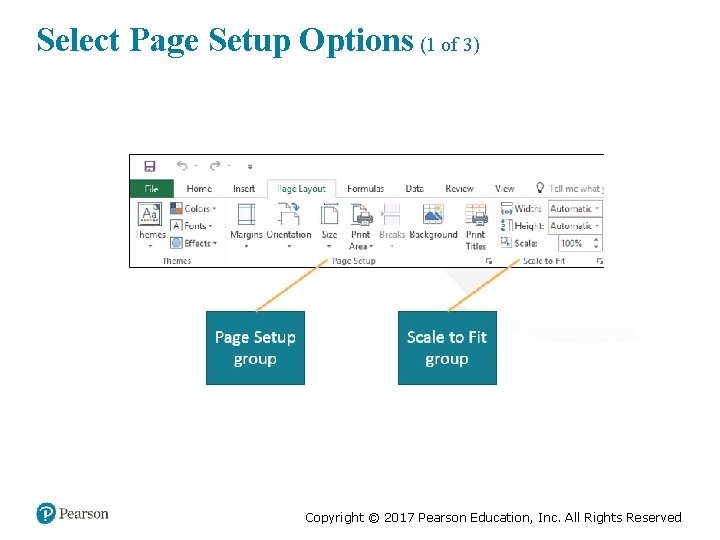
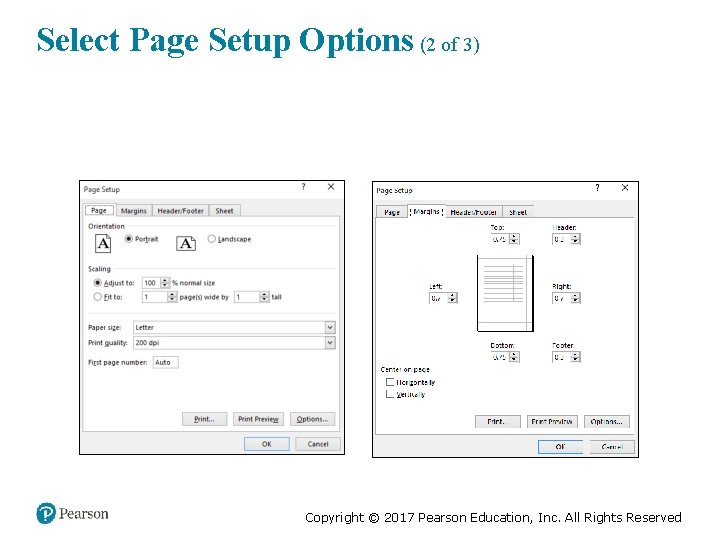
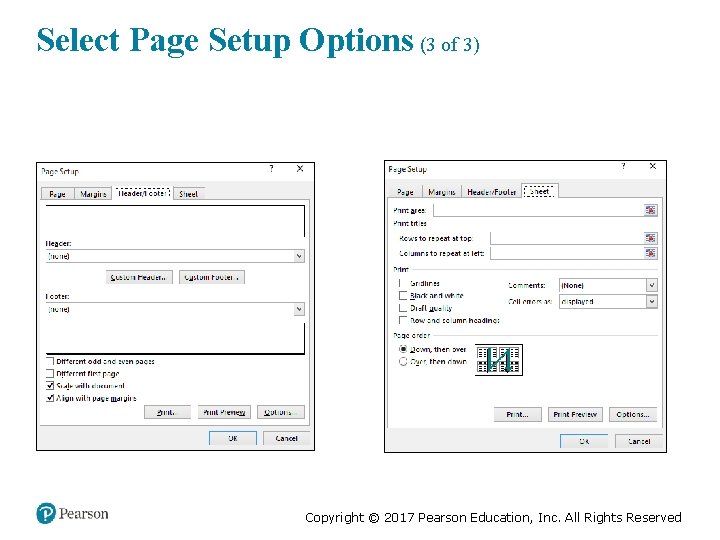
Objective 10: Select Page Setup Options Skills: • Set Page Orientation • Select Scaling Options • Set Margin Options • Create a Header or Footer • Select Sheet Options Copyright © 2017 Pearson Education, Inc. All Rights Reserved
Select Page Setup Options (1 of 3) Copyright © 2017 Pearson Education, Inc. All Rights Reserved
Select Page Setup Options (2 of 3) Copyright © 2017 Pearson Education, Inc. All Rights Reserved
Select Page Setup Options (3 of 3) Copyright © 2017 Pearson Education, Inc. All Rights Reserved
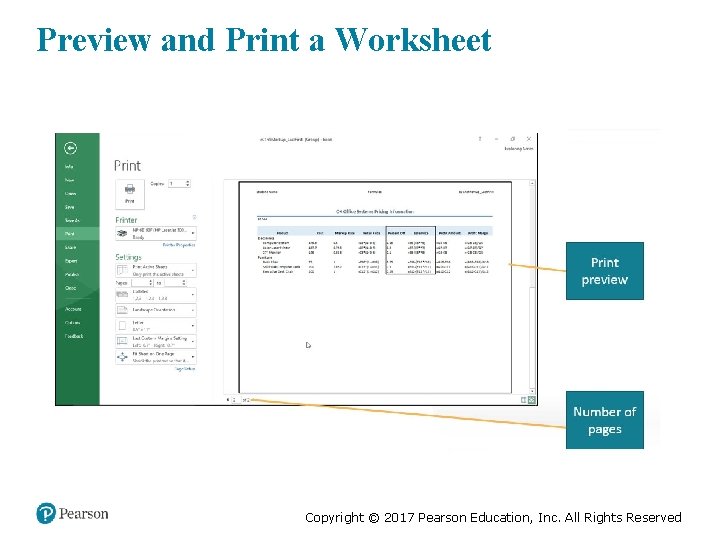
Objective 11: Preview and Print a Worksheet Skills: • View in Print Preview • Set Print Options • Print a Worksheet Copyright © 2017 Pearson Education, Inc. All Rights Reserved
Preview and Print a Worksheet Copyright © 2017 Pearson Education, Inc. All Rights Reserved
Summary (1 of 2) • A workbook can consist of multiple worksheets, divided into columns, rows, and cells • Cells contain text, values, or formulas, with contents entered by typing, copying and pasting, and using Auto Fill • Columns, rows, and cells can be added or deleted, copied, or moved • Styles, alignment, and formatting can be applied to cells • Formatting can be applied to numerical values Copyright © 2017 Pearson Education, Inc. All Rights Reserved
Summary (2 of 2) • Worksheets can be inserted, deleted, renamed, copied, and moved • A worksheet can have orientation and margins changed, headers and footers added, and scaling adjusted • Before printing, a worksheet can be previewed and final printing options selected Copyright © 2017 Pearson Education, Inc. All Rights Reserved
Questions Copyright © 2017 Pearson Education, Inc. All Rights Reserved
Copyright © 2017 Pearson Education, Inc. All Rights Reserved