
Exploring Microsoft Excel 2003 Chapter 4 Spreadsheets in


- Slides: 35
Exploring Microsoft Excel 2003 Chapter 4: Spreadsheets in Decision Making: What If? Robert Grauer and Maryann Barber Committed to Shaping the Next Generation of IT Experts. Exploring Office 2003 - Grauer and Barber 1
Objectives n n n Use the PMT function to calculate the payment of a car loan or mortgage. Use the FV function to determine the future value of a retirement account Explain how the Goal Seek command facilitates the decision-making process Use mixed references to vary two parameters in a table Use the AVERAGE, MAX, MIN, and COUNT functions Exploring Office 2003 - Grauer and Barber 2
Objectives (continued) n n Use the IF and VLOOKUP functions to implement decision making Freeze, unfreeze, hide, and unhide, rows and columns in a worksheet Use the Auto. Filter command to display selected records in a list Describe the options in the Page Setup command used with large worksheets Exploring Office 2003 - Grauer and Barber 3
Case Study: Vacation Time In this case study, students are asked to complete a worksheet that was started by someone else. The worksheet contains information about employees. They need to use date arithmetic to calculate how long an employee has been working here, use the VLOOKUP and IF functions to make determinations on how much vacation time each employee is entitled to and if he or she has any time left. After using these functions, students create some simple statistics, using built-in statistical functions. Exploring Office 2003 - Grauer and Barber 4
Using Functions n n Function – a predefined computational task Requires arguments q n Values the function uses to calculate answers Returns a value Exploring Office 2003 - Grauer and Barber 5
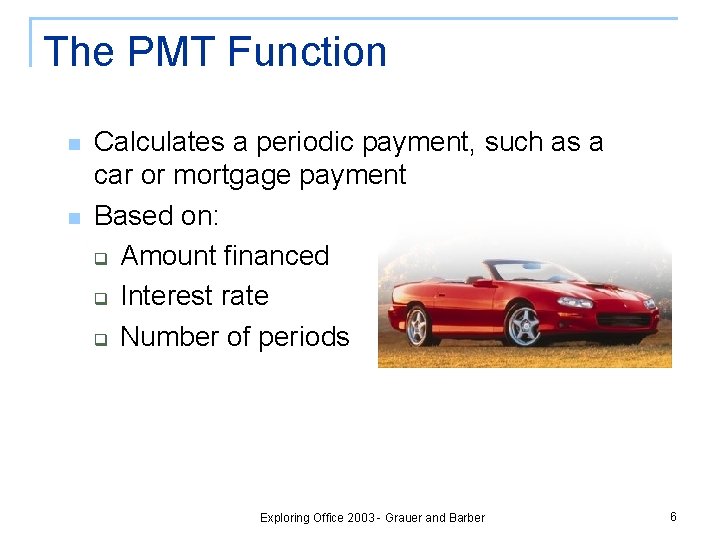
The PMT Function n n Calculates a periodic payment, such as a car or mortgage payment Based on: q Amount financed q Interest rate q Number of periods Exploring Office 2003 - Grauer and Barber 6
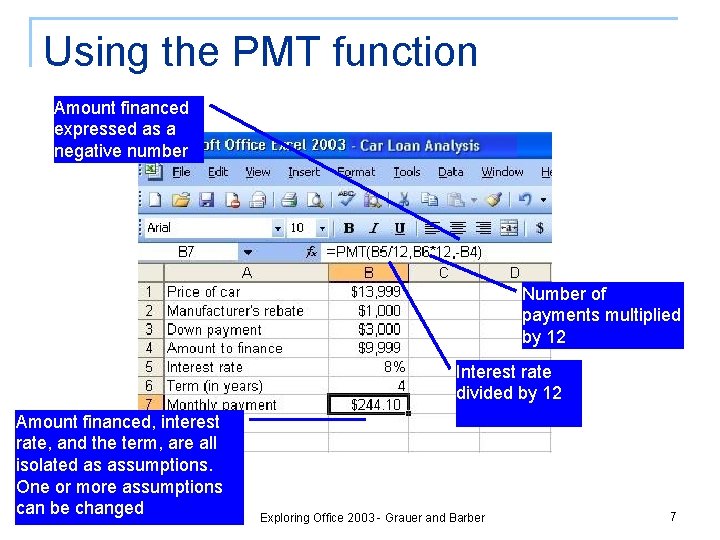
Using the PMT function Amount financed expressed as a negative number Number of payments multiplied by 12 Interest rate divided by 12 Amount financed, interest rate, and the term, are all isolated as assumptions. One or more assumptions can be changed Exploring Office 2003 - Grauer and Barber 7
The FV function n Returns the future value of a series of payments q n For example, contributions to your 401 K or IRA Based on: q q q Number of periods Expected rate of return Amount invested each period Exploring Office 2003 - Grauer and Barber 8
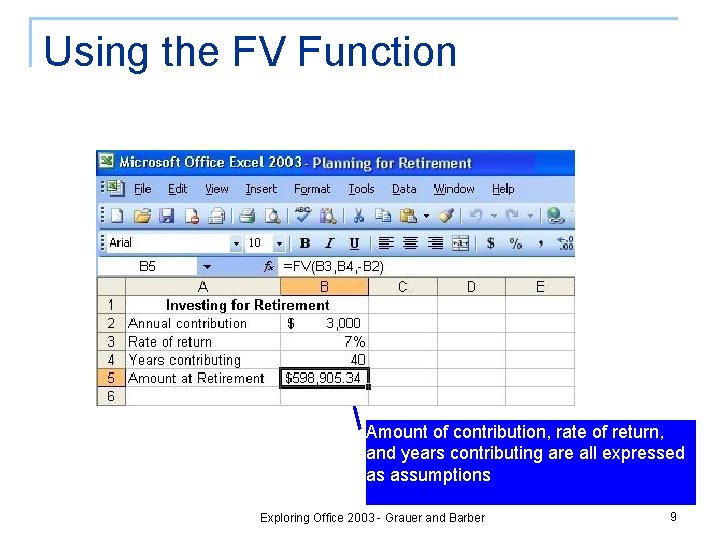
Using the FV Function Amount of contribution, rate of return, and years contributing are all expressed as assumptions Exploring Office 2003 - Grauer and Barber 9
Inserting a Function n n Use the Insert Function command from the Insert menu Use the list box to select the name of the function q n Functions are categorized Let the Wizard help you enter the arguments q q Point to enter cell references Use the Collapse button to collapse the dialog box Exploring Office 2003 - Grauer and Barber 10
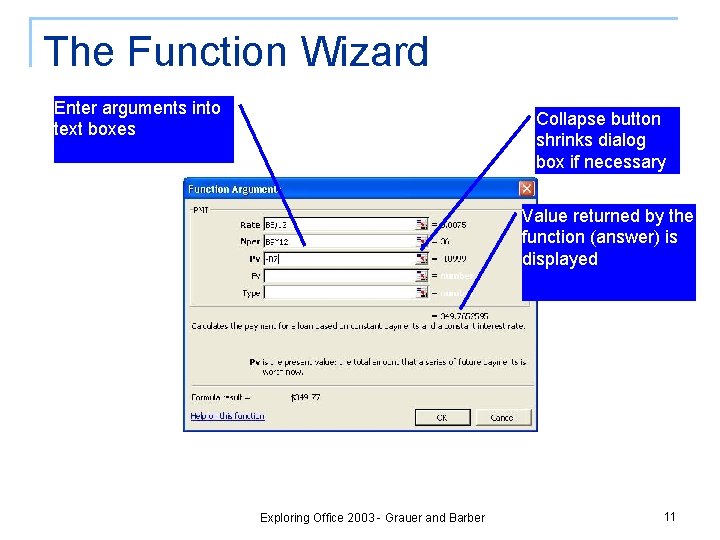
The Function Wizard Enter arguments into text boxes Collapse button shrinks dialog box if necessary Value returned by the function (answer) is displayed Exploring Office 2003 - Grauer and Barber 11
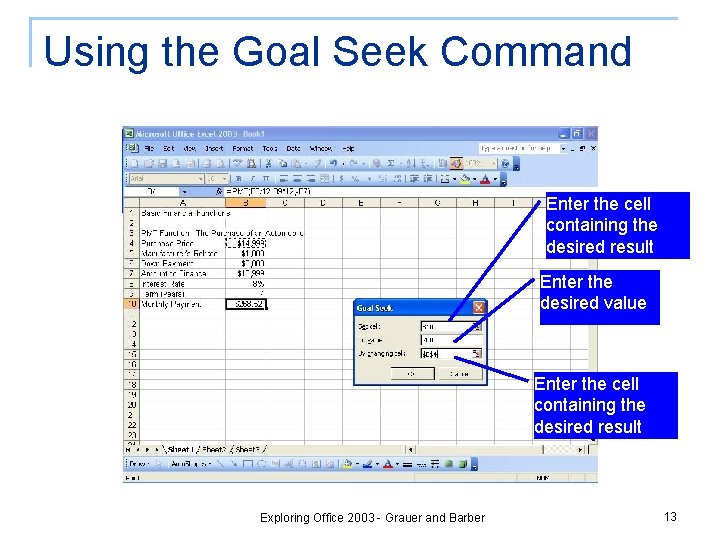
The Goal Seek Command n Allows you to set an end result and vary the inputs (assumptions) to produce that result q Only one input can be varied at a time n q All other assumptions remain constant For example, set a desired monthly car payment n n Vary the amount financed Interest rate and number of months remain the same Exploring Office 2003 - Grauer and Barber 12
Using the Goal Seek Command Enter the cell containing the desired result Enter the desired value Enter the cell containing the desired result Exploring Office 2003 - Grauer and Barber 13
Hands-on Exercise 1 n n Title of Exercise: Basic Financial Functions Objective: To illustrate the PMT and FV functions; to illustrate the Goal Seek command. q q Input file: None Output file: Basic Financial Functions Exploring Office 2003 - Grauer and Barber 14
Developing Proficiency n Use relative and absolute references correctly q q n Mixed references q n Use relative cell references if the value will change when a cell is copied Use absolute references if the value remains constant (typically assumptions) Use when either the row or the column will change Isolate your assumptions q Formulas in cells refer to the assumptions area, not to the actual values Exploring Office 2003 - Grauer and Barber 15
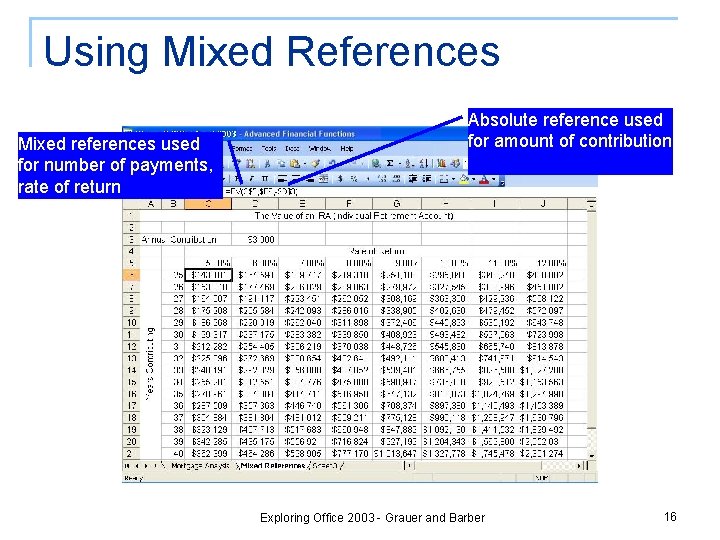
Using Mixed References Mixed references used for number of payments, rate of return Absolute reference used for amount of contribution Exploring Office 2003 - Grauer and Barber 16
Hands-on Exercise 2 n n Title of Exercise: Advanced Financial Functions Objective: To use relative, absolute, and mixed references in conjunction with the PMT and FV functions; to practice various formatting commands. q q Input file: None Output file: Advanced Financial Functions Exploring Office 2003 - Grauer and Barber 17
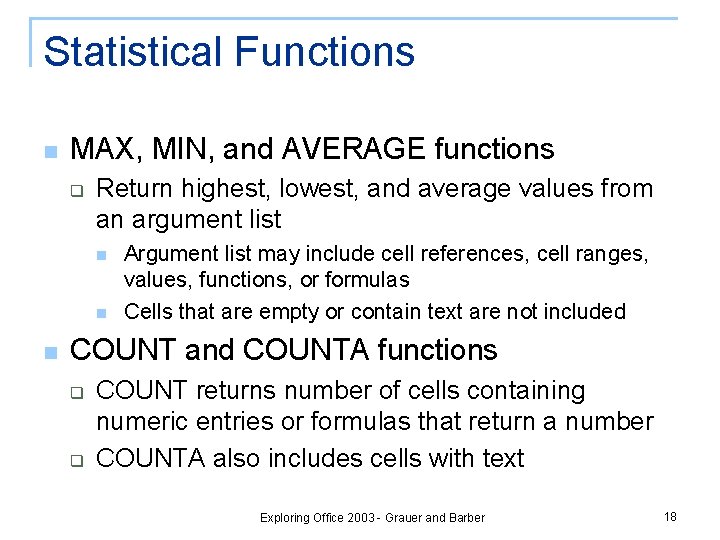
Statistical Functions n MAX, MIN, and AVERAGE functions q Return highest, lowest, and average values from an argument list n n n Argument list may include cell references, cell ranges, values, functions, or formulas Cells that are empty or contain text are not included COUNT and COUNTA functions q q COUNT returns number of cells containing numeric entries or formulas that return a number COUNTA also includes cells with text Exploring Office 2003 - Grauer and Barber 18
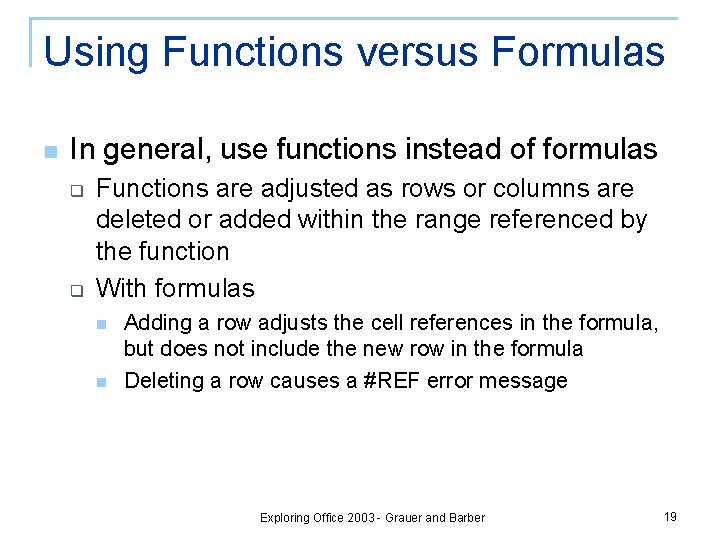
Using Functions versus Formulas n In general, use functions instead of formulas q q Functions are adjusted as rows or columns are deleted or added within the range referenced by the function With formulas n n Adding a row adjusts the cell references in the formula, but does not include the new row in the formula Deleting a row causes a #REF error message Exploring Office 2003 - Grauer and Barber 19
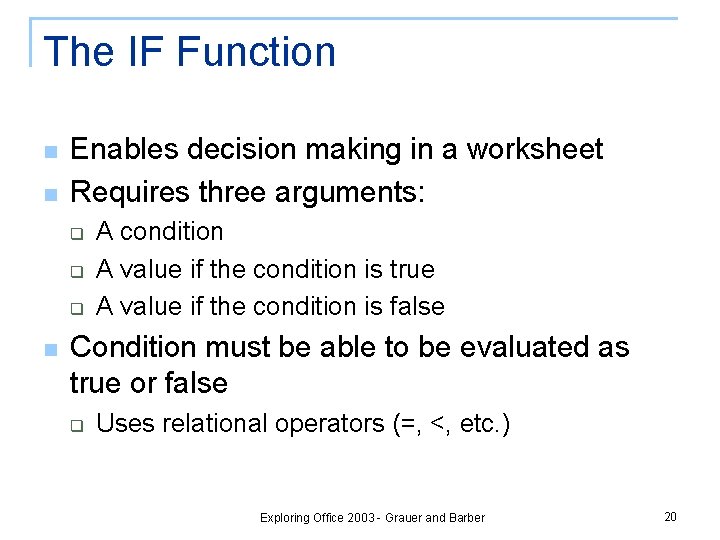
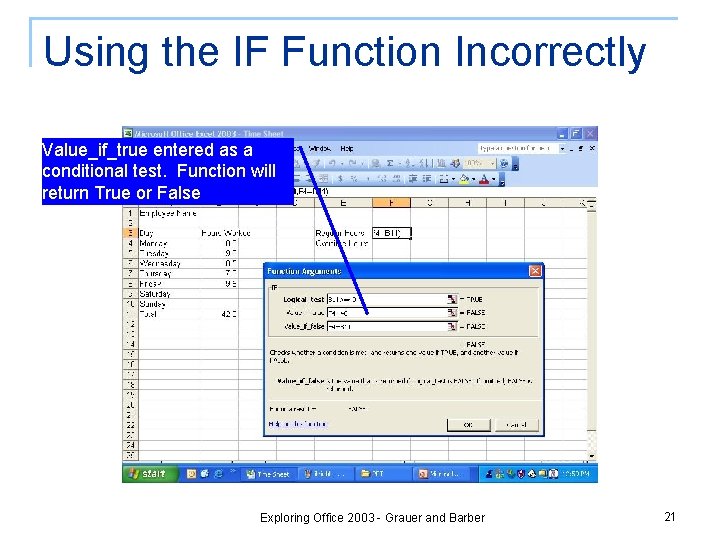
The IF Function n n Enables decision making in a worksheet Requires three arguments: q q q n A condition A value if the condition is true A value if the condition is false Condition must be able to be evaluated as true or false q Uses relational operators (=, <, etc. ) Exploring Office 2003 - Grauer and Barber 20
Using the IF Function Incorrectly Value_if_true entered as a conditional test. Function will return True or False Exploring Office 2003 - Grauer and Barber 21
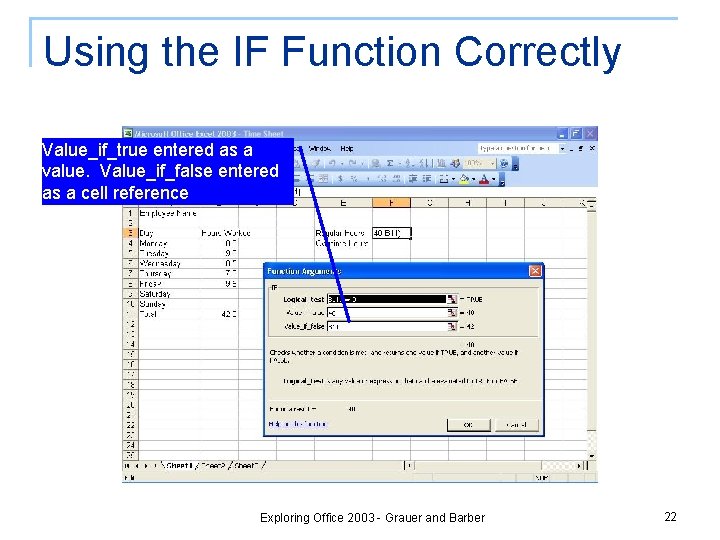
Using the IF Function Correctly Value_if_true entered as a value. Value_if_false entered as a cell reference Exploring Office 2003 - Grauer and Barber 22
The VLOOKUP function n n Allows Excel to look up a value in a table and return a related value Requires three arguments: q q q the numeric value (or cell) to look up the range of the table the column number containing the value you want to return Exploring Office 2003 - Grauer and Barber 23
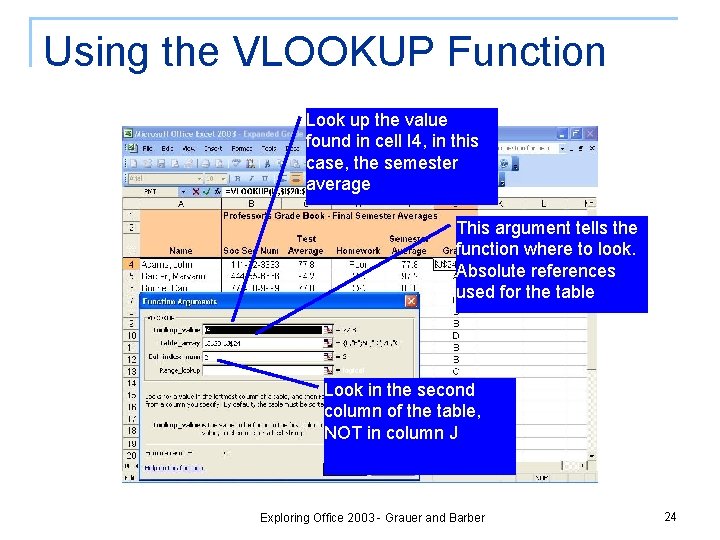
Using the VLOOKUP Function Look up the value found in cell I 4, in this case, the semester average This argument tells the function where to look. Absolute references used for the table Look in the second column of the table, NOT in column J Exploring Office 2003 - Grauer and Barber 24
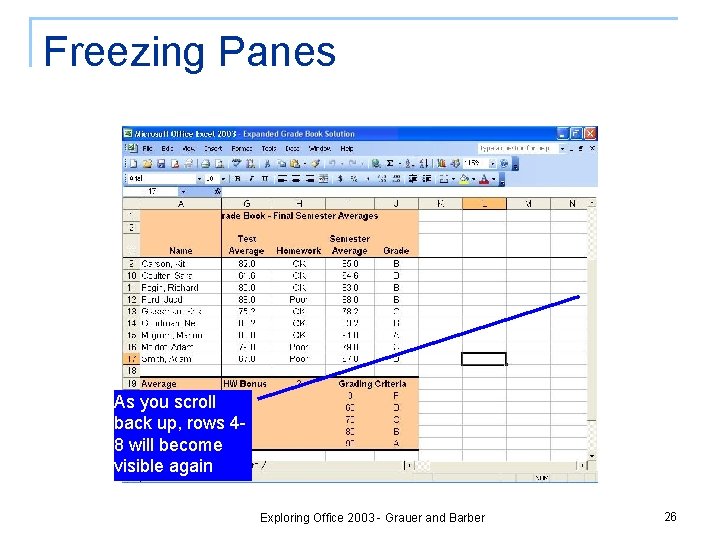
Working With Large Worksheets n Scrolling causes the screen to move horizontally or vertically as you change the active cell q q q n n Drag the horizontal or vertical scroll bars Click above or below vertical scroll bars Click to the left or right of horizontal scroll bars Freezing Panes allows row and column headings to remain visible while scrolling Hiding rows and columns makes rows and columns invisible on the monitor or when printed Exploring Office 2003 - Grauer and Barber 25
Freezing Panes As you scroll back up, rows 48 will become visible again Exploring Office 2003 - Grauer and Barber 26
Printing Large Worksheets n n Page Preview command (View menu) lets you see where the page breaks are Page Setup command (File menu) lets you change how the sheet prints q q q Change from portrait (8 ½ x 11) to landscape (11 x 8 ½) Change margins Scale the worksheet to print on one sheet Exploring Office 2003 - Grauer and Barber 27
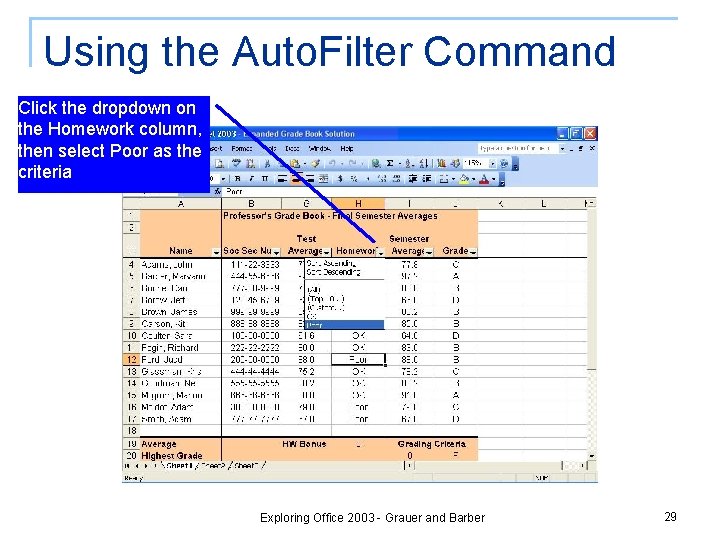
The Auto. Filter Command n Allows you to display a selected set of rows within a worksheet q q n n Displays rows that meet selected criteria Other rows are hidden, not deleted Select Filter then Auto. Filter from the Data menu Select criteria from the dropdown Exploring Office 2003 - Grauer and Barber 28
Using the Auto. Filter Command Click the dropdown on the Homework column, then select Poor as the criteria Exploring Office 2003 - Grauer and Barber 29
Hands-on Exercise 3 n n Title of Exercise: The Expanded Grade Book Objective: To develop the expanded grade book; to use statistical (AVERAGE, MAX, and MIN) and logical (IF and VLOOKUP functions); to demonstrate scrolling and the Freeze Panes command q q Input file: Expanded Grade Book Output file: Expanded Grade Book Solution Exploring Office 2003 - Grauer and Barber 30
Summary n n n Financial functions (PMT and FV) Goal Seek enhances decision making Statistical functions (MAX, MIN, AVERAGE, COUNT, and COUNTA) Decision making functions (IF, VLOOKUP, and HLOOKUP) Isolate and clearly label initial assumptions Exploring Office 2003 - Grauer and Barber 31
Summary (continued) n n Copy using fill handle Use scrolling & the Freeze Panes command to work with large worksheets Page Setup controls how the worksheet prints Auto. Filter command displays only rows that meet certain criteria Exploring Office 2003 - Grauer and Barber 32
End-of-chapter Exercises n n Multiple Choice Practice Exercises q q q q Exercise 1 – Calculating Your Retirement Exercise 2 – Alternate Grade Book Exercise 3 – Expanded Payroll Exercise 4 – Fuel Estimates Exercise 5 – The Roth IRA Exercise 6 – Celebrity Birthdays Exercise 7 – The Health Club Exercise 8 – File Formats and Folders Exploring Office 2003 - Grauer and Barber 33
End-of-Chapter Exercises (continued) n Practice Exercises q q n Exercise 9 – Nested Ifs and Other Functions Exercise 10 – Election 2000 Mini Cases q q q The Financial Consultant Fun with the If Statement The Lottery A Penny a Day The Rule of 72 Exploring Office 2003 - Grauer and Barber 34
Questions? Exploring Office 2003 - Grauer and Barber 35