
Exploring Microsoft Excel 2003 Chapter 3 Graphs and


- Slides: 26
Exploring Microsoft Excel 2003 Chapter 3 – Graphs and Charts: Delivering a Message Robert Grauer and Maryann Barber Committed to Shaping the Next Generation of IT Experts. Exploring Office 2003 - Grauer and Barber 1
Objectives n n n n Explain several types of charts Describe an Embedded Chart (vs. a chart in its own sheet) Create and Modify a Chart – using Wizard Enhance a Chart with lines and objects Distinguish between data series in rows vs. columns Difference between Stacked-Column Chart and a Side-By-Side Column Chart Link a Word document to a chart Exploring Office 2003 - Grauer and Barber 2
What is a Chart? n n A graphic representation of data in a worksheet Chart elements q q q Category labels – descriptive text entries Data points – numeric values Data series: a grouping of data points Exploring Office 2003 - Grauer and Barber 3
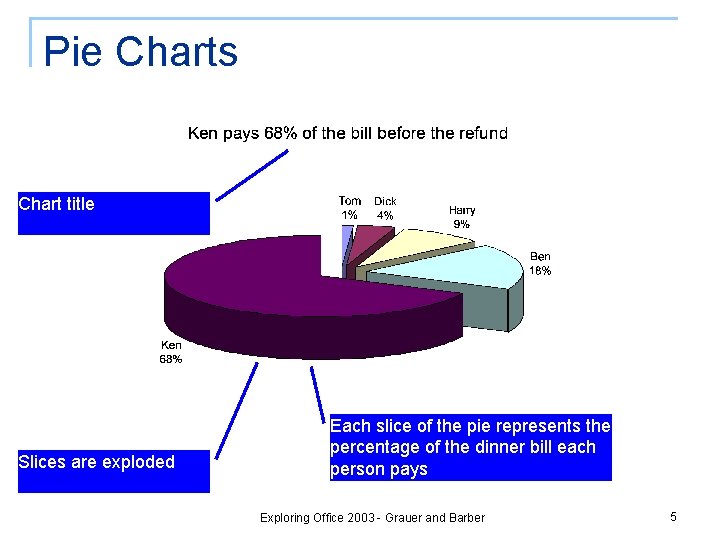
Chart Types n n Keep it simple Use the appropriate chart type q q q Pie and Exploded pie charts display proportional relationships Column charts display numbers rather than percentages Bar charts display numbers horizontally Exploring Office 2003 - Grauer and Barber 4
Pie Charts Chart title Slices are exploded Each slice of the pie represents the percentage of the dinner bill each person pays Exploring Office 2003 - Grauer and Barber 5
Column Charts Embedded chart shows both the chart and the data Row 4 contains column headings and forms labels for X axis Exploring Office 2003 - Grauer and Barber 6
Creating A Chart n Two ways to create q Embed chart in worksheet n q n Sizing handles allow you to size, move, copy, or delete an embedded chart Create in separate chart sheet Charts are linked to underlying data q A change in the data instantly updates the chart(s) created on that data Exploring Office 2003 - Grauer and Barber 7
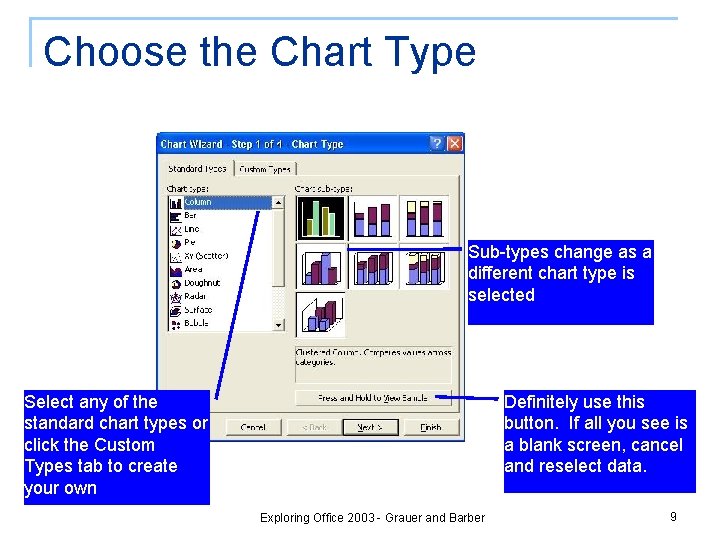
Using the Chart Wizard n n Select the cells that contain the data Click the Chart Wizard button on the standard toolbar q q Select the chart type Check the data series Complete the chart options Choose the location Exploring Office 2003 - Grauer and Barber 8
Choose the Chart Type Sub-types change as a different chart type is selected Select any of the standard chart types or click the Custom Types tab to create your own Definitely use this button. If all you see is a blank screen, cancel and reselect data. Exploring Office 2003 - Grauer and Barber 9
Check the Data Series Preview the chart before going further Collapse button hides the dialog and allows you to select a different range The first row is used as a default for the X axis labels Exploring Office 2003 - Grauer and Barber 10
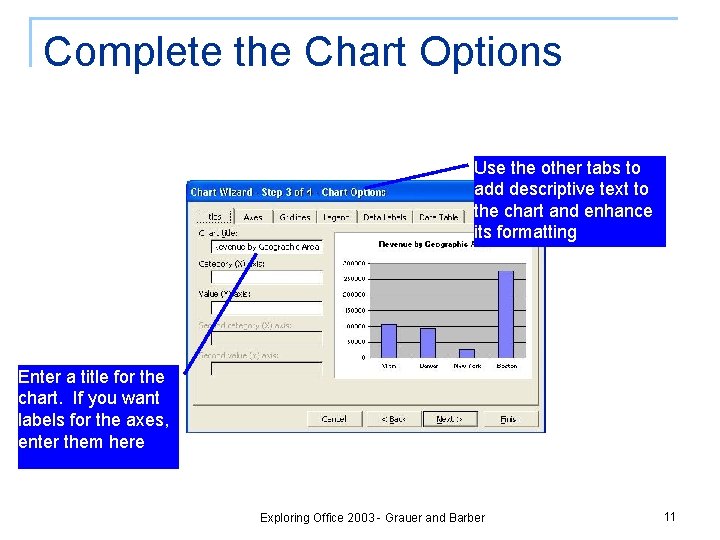
Complete the Chart Options Use the other tabs to add descriptive text to the chart and enhance its formatting Enter a title for the chart. If you want labels for the axes, enter them here Exploring Office 2003 - Grauer and Barber 11
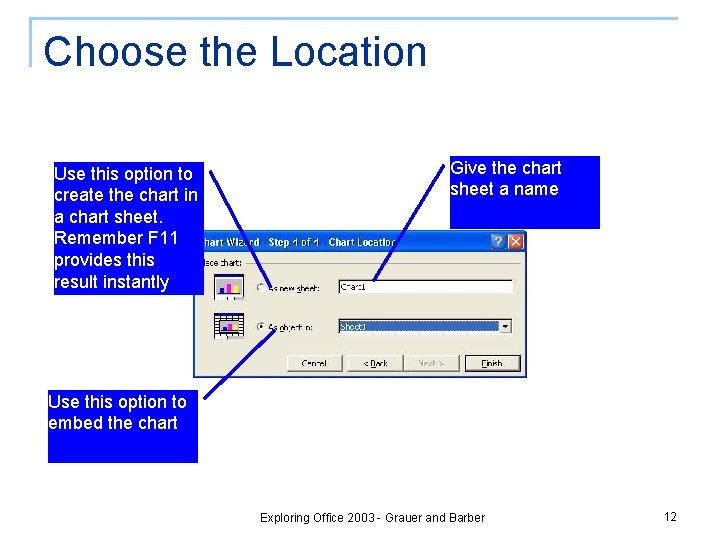
Choose the Location Use this option to create the chart in a chart sheet. Remember F 11 provides this result instantly Give the chart sheet a name Use this option to embed the chart Exploring Office 2003 - Grauer and Barber 12
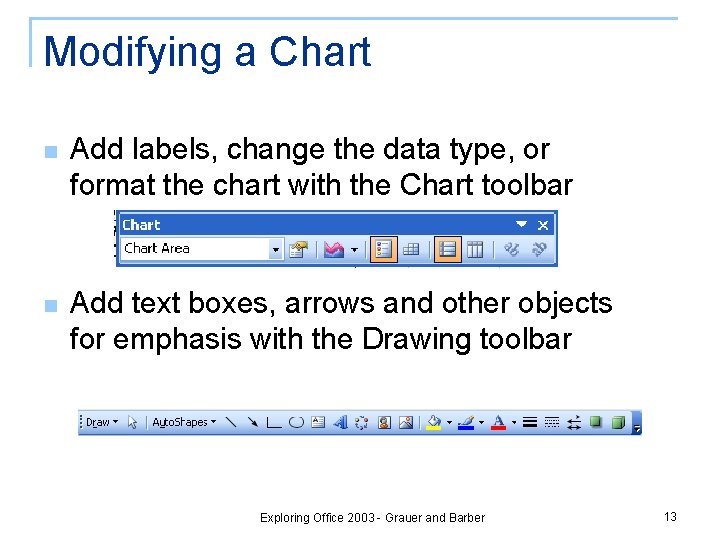
Modifying a Chart n Add labels, change the data type, or format the chart with the Chart toolbar n Add text boxes, arrows and other objects for emphasis with the Drawing toolbar Exploring Office 2003 - Grauer and Barber 13
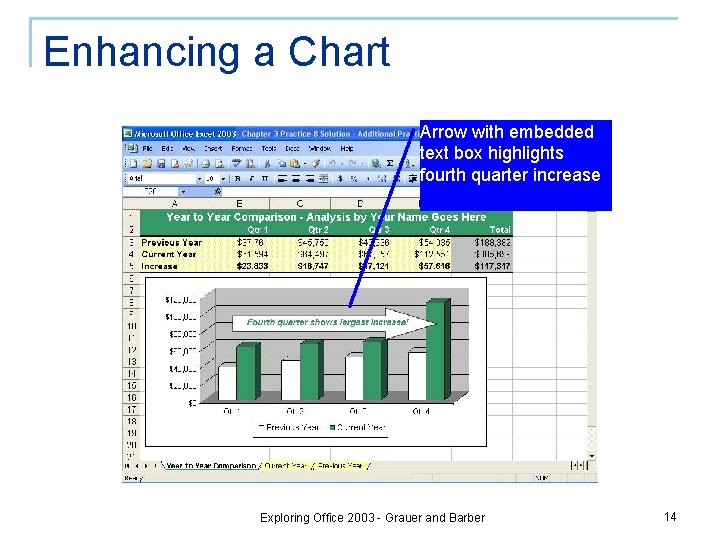
Enhancing a Chart Arrow with embedded text box highlights fourth quarter increase Exploring Office 2003 - Grauer and Barber 14
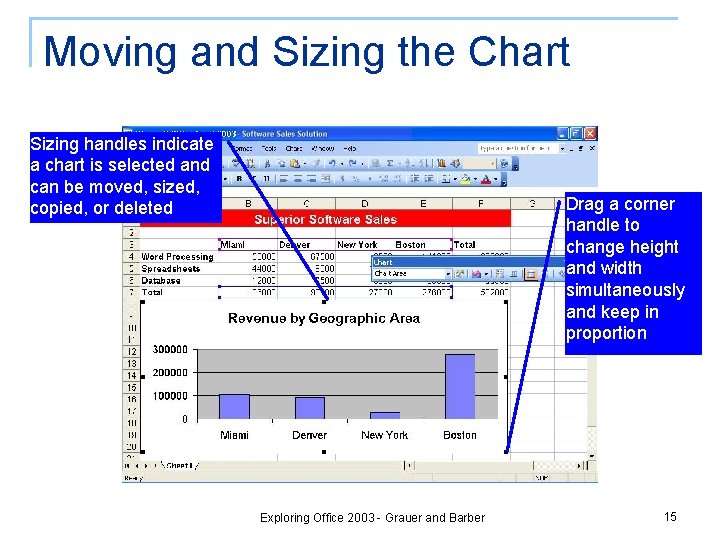
Moving and Sizing the Chart Sizing handles indicate a chart is selected and can be moved, sized, copied, or deleted Drag a corner handle to change height and width simultaneously and keep in proportion Exploring Office 2003 - Grauer and Barber 15
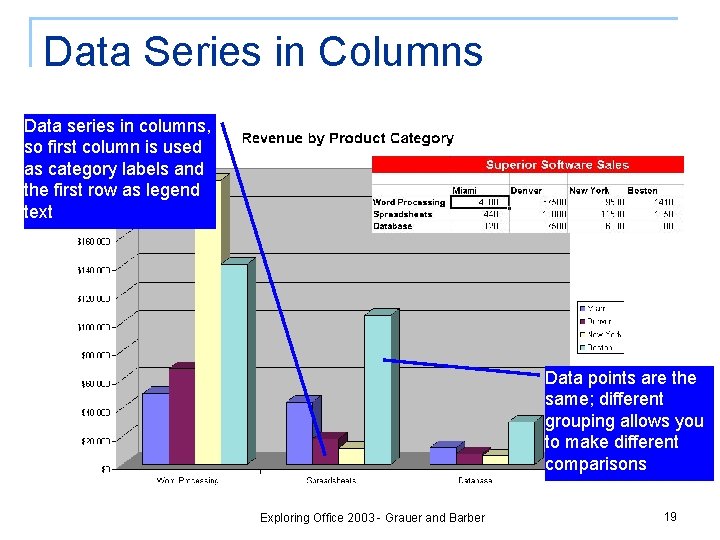
Multiple Data Series n n Select multiple data series when you want to see individual data points rather than totals Determine whether data series are in rows or columns q Data points plotted are the same either way, but grouping will be different. Exploring Office 2003 - Grauer and Barber 16
Rows Versus Columns n If data series are in rows q q q n First row is used for category labels Remaining rows are used for data series First column is used for the legend text If data series are in columns q q q First column is used for category labels Remaining columns are used for data series First row is used for legend text Exploring Office 2003 - Grauer and Barber 17
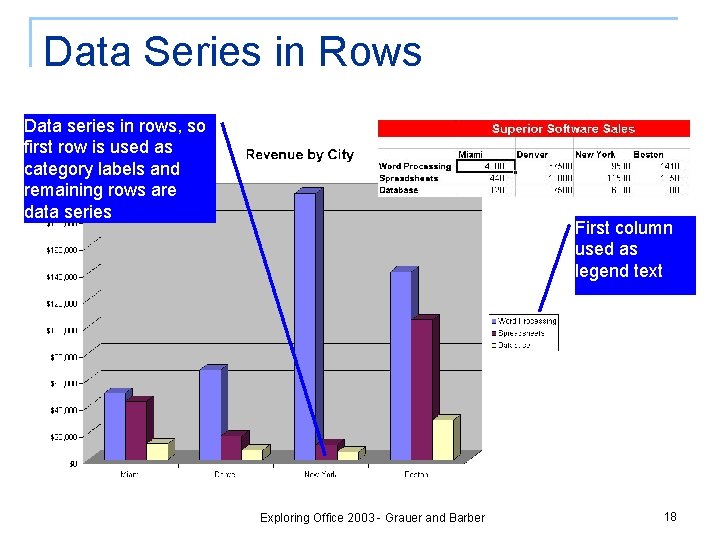
Data Series in Rows Data series in rows, so first row is used as category labels and remaining rows are data series First column used as legend text Exploring Office 2003 - Grauer and Barber 18
Data Series in Columns Data series in columns, so first column is used as category labels and the first row as legend text Data points are the same; different grouping allows you to make different comparisons Exploring Office 2003 - Grauer and Barber 19
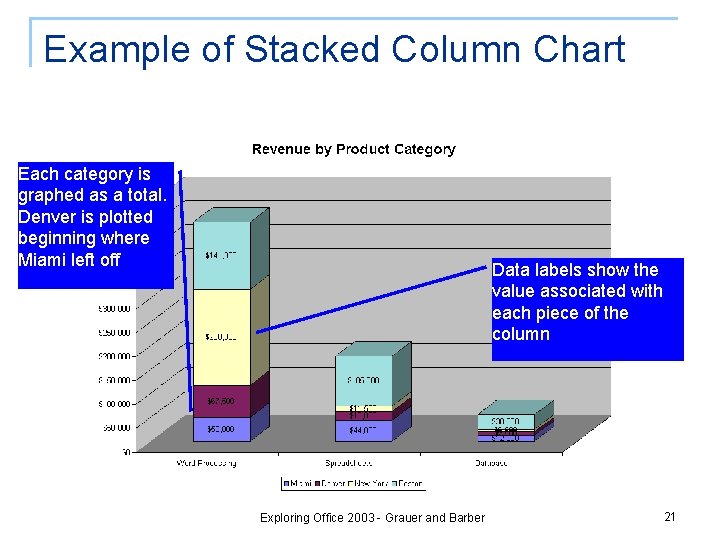
Stacked Column Charts n Depicts totals by category instead of each individual data point q q Each data point is plotted as part of a whole Useful when you want to compare totals by category Exploring Office 2003 - Grauer and Barber 20
Example of Stacked Column Chart Each category is graphed as a total. Denver is plotted beginning where Miami left off Data labels show the value associated with each piece of the column Exploring Office 2003 - Grauer and Barber 21
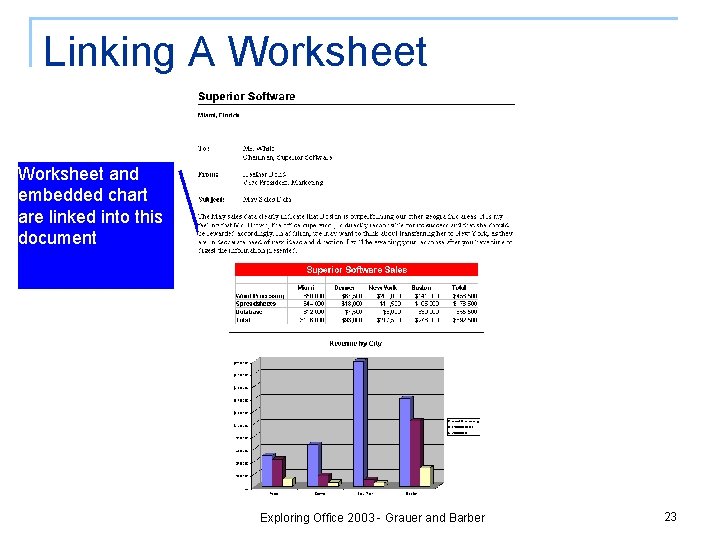
Object Linking and Embedding n n Create a document in one application that contains objects from another application Embedded object is stored in the document q n an Excel chart becomes part of the Word document Linked object is stored in its own file q any change in this file is automatically reflected in the main document Exploring Office 2003 - Grauer and Barber 22
Linking A Worksheet and embedded chart are linked into this document Exploring Office 2003 - Grauer and Barber 23
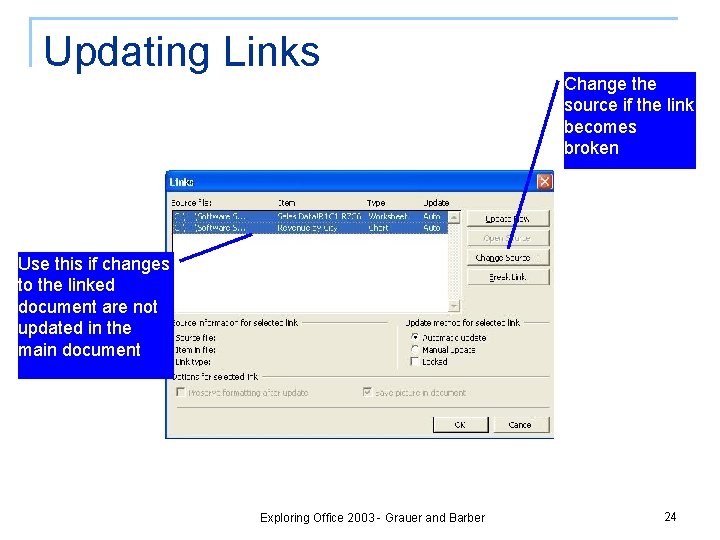
Updating Links Change the source if the link becomes broken Use this if changes to the linked document are not updated in the main document Exploring Office 2003 - Grauer and Barber 24
Summary n n Charts graphically represent data in a worksheet Select chart type based on the message you are trying to convey Create with the Chart Wizard Can be embedded onto a worksheet or created on a separate chart sheet Exploring Office 2003 - Grauer and Barber 25
Summary (continued) n Multiple data series may be specified in either rows or columns q n Same data points, but different grouping gives different comparison Object Linking and Embedding (OLE) creates a compound document q q q Contains objects from multiple applications Embedding – the object is stored within the compound document Linking – the object is stored as a separate file Exploring Office 2003 - Grauer and Barber 26