
Exploring Microsoft Access 2003 Chapter 7 Building Applications

Exploring Microsoft Access 2003 Chapter 7 Building Applications: The Switchboard, Macros, and Prototyping
Objectives (1 of 2) • Use the Switchboard Manager create multiple switchboard • Use Link Tables command • Describe how macros are used to automate applications • Describe components of Macro window

Objectives (2 of 2) • Explain how prototyping facilitates application development • Use the Unmatched Query Wizard • Create a macro group
Overview • Develop a database user interface • Understand create an application • Prototype to demonstrate “look and feel” to potential users • Macros automate common commands

Switchboard Design View Record Source for switchboard is Switchboard Items table Switchboard can have 8 menu items
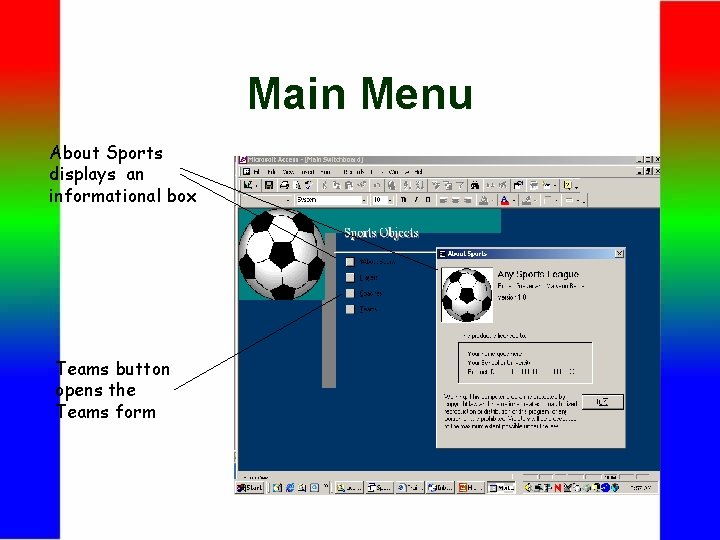
Main Menu About Sports displays an informational box Teams button opens the Teams form
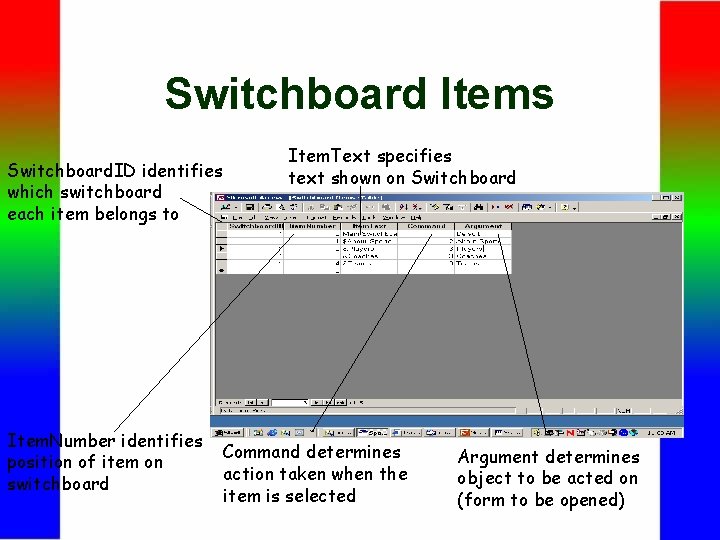
Switchboard Items Switchboard. ID identifies which switchboard each item belongs to Item. Number identifies position of item on switchboard Item. Text specifies text shown on Switchboard Command determines action taken when the item is selected Argument determines object to be acted on (form to be opened)
The Switchboard Manager • • • Hands-On Exercise 1 Open the Sports Objects Database The Link Tables Command Import the About Sports Form Start the Switchboard Manager Complete the Switchboard Test the Switchboard Add your records Complete the data Entry Insert the Clip Art Complete the Design
Introduction to Macros • Macro automate a command sequence • Macro window divided in two: actions and arguments • Macro toolbar appears at the top of the macro window • Auto. Exec macro is run whenever database is opened • Debugging provides error messages
Macros and Prototyping Hands-On Exercise 2 • • Create the Auto. Exec Macro Create the Prototype Macro Create the Close Database Macro Create the Report Switchboard Modify/Test the Main Switchboard Test the Report Switchboard Create the Add Player Macro
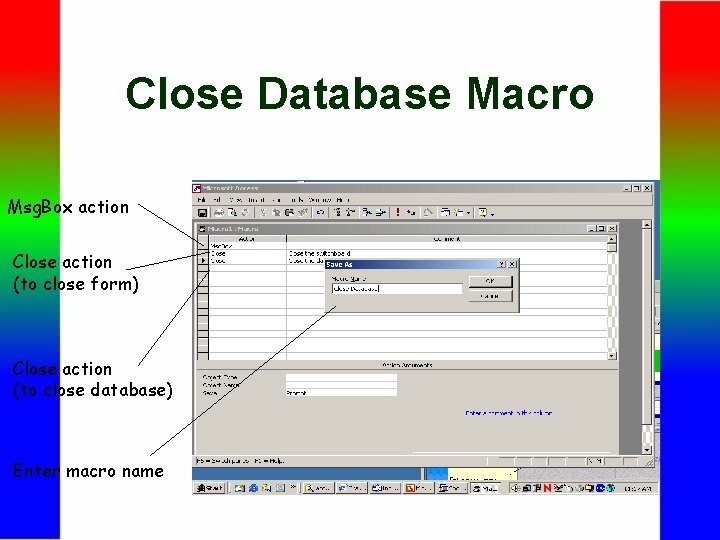
Close Database Macro Msg. Box action Close action (to close form) Close action (to close database) Enter macro name
Using Macro Groups • Macros are grouped to organize the macros for the developer • Individual macros within a group must be identified by name and group name (e. g. “Macro. Group. Name. Macro. Name”)
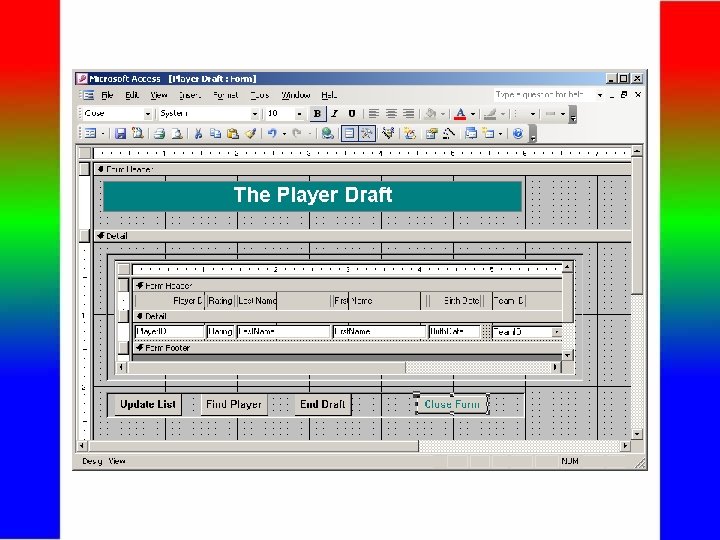
The Player Draft • • • Hands-On Exercise 3 The unmatched Query Wizard Modify the Query Create the unmatched Players Form Create the Player Draft Macro Group Create/Modify the Player Draft Form Add the Command Buttons Modify the Main Switchboard Test the Completed System
Prototyping • Designed to set up a partially completed version of an application • Helps organize and outline what should be in the database • Does not contain much real information
Prototyping • • Hands-On Exercise 4 Create the Prototype Macro Create the Report Menu Form Add the Command Buttons Complete the Report Menu Modify the Main Menu Test the Completed System
Chapter 7 Summary • Switchboard makes a database user friendly • Splitting tables from objects simplifies upgrades • Macros automate a command sequence • Auto. Exec macro executes when database opens • Unmatched query wizard finds records in one table without matching records in another table
Practice with Access 2000 1. Report Switchboard 2. The Linked Table Manager 3. Splitting a Database 4. The Tech Support Macro 5. Establishing Conditions 6. Complete the Find Player Function 7. The Add Player Macro 8. Inserting a Hyperlink
Case Studies • • • Client/Server Applications Security Options A Project for the Semester The Database Wizard Compacting versus Compressing The Auto. Keys Macro
- Slides: 19