
Exploring Microsoft Access 2003 Chapter 2 Tables and

Exploring Microsoft Access 2003 Chapter 2 - Tables and Forms: Properties, Views, and Wizards Robert Grauer and Maryann Barber Vol 1 2/e- Grauer and Committed to Exploring Shaping. Office the 2003 Next Generation of IT Experts. Barber 1

Table Design Basics n n Include necessary data Store data in its smallest parts q n E. g. , first name, last name Avoid calculated fields q q E. g. , birth date rather than age E. g. , employee’s date of hire rather than employee’s length of service Exploring Office 2003 Vol 1 2/e- Grauer and Barber 2

Creating a Table n Two ways to create a table: q q n n n Table Wizard is easiest Design a table yourself Every field has a field name Every field has a data type Primary key – Makes each record unique Views: Datasheet or Design Properties – characteristics of an object Exploring Office 2003 Vol 1 2/e- Grauer and Barber 3
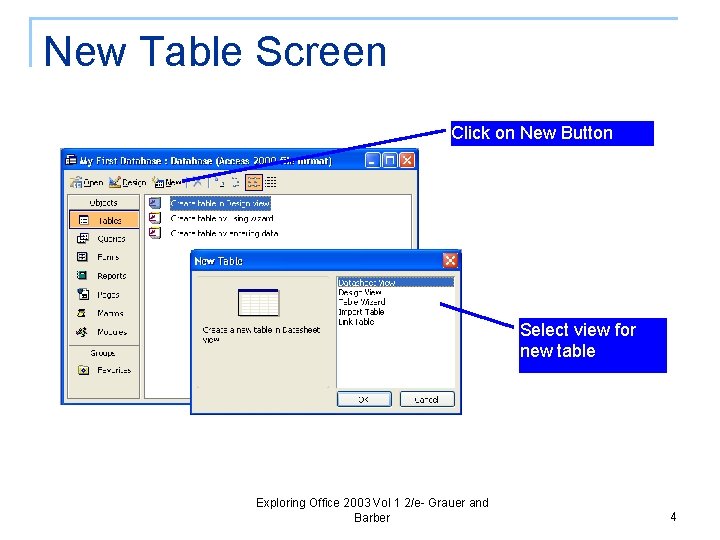
New Table Screen Click on New Button Select view for new table Exploring Office 2003 Vol 1 2/e- Grauer and Barber 4

Table Design View Primary Key Field Names Data Type Field Properties Field Descriptions Exploring Office 2003 Vol 1 2/e- Grauer and Barber 5
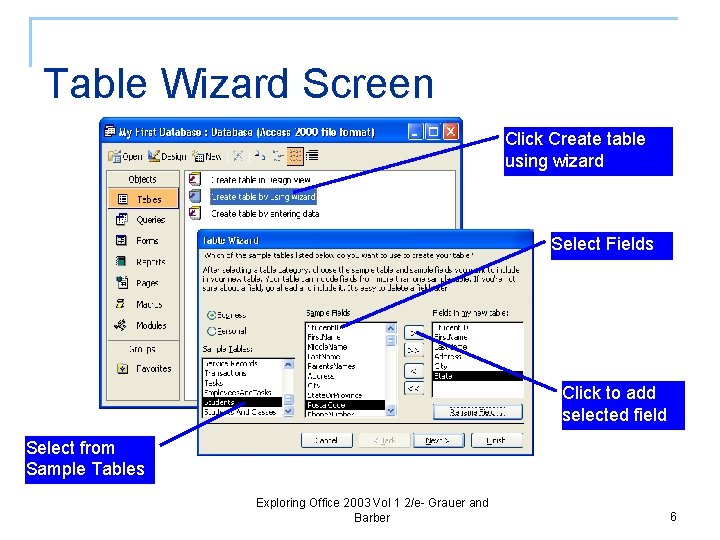
Table Wizard Screen Click Create table using wizard Select Fields Click to add selected field Select from Sample Tables Exploring Office 2003 Vol 1 2/e- Grauer and Barber 6
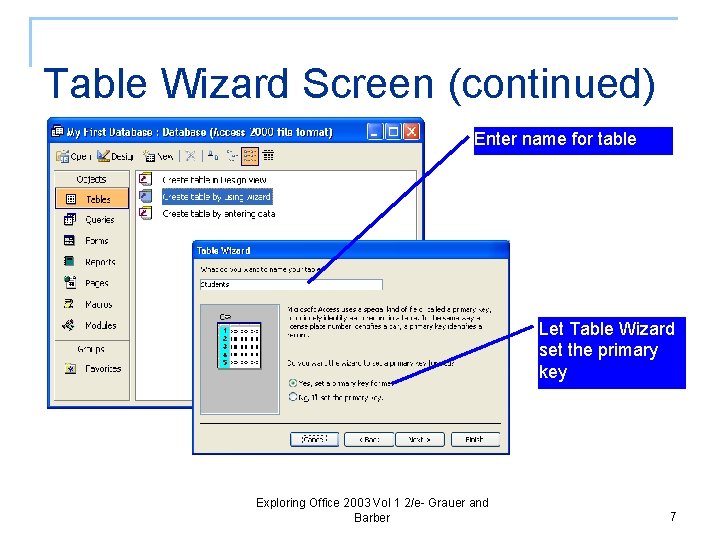
Table Wizard Screen (continued) Enter name for table Let Table Wizard set the primary key Exploring Office 2003 Vol 1 2/e- Grauer and Barber 7

Create an Input Mask Select Social Security Number Use Try It box Select Input Mask Click Build button Select Yes for Required property Exploring Office 2003 Vol 1 2/e- Grauer and Barber 8
Forms n Form view q q n Displays completed form Used to enter or modify data in underlying table Design view q Used to create or modify the form Exploring Office 2003 Vol 1 2/e- Grauer and Barber 9
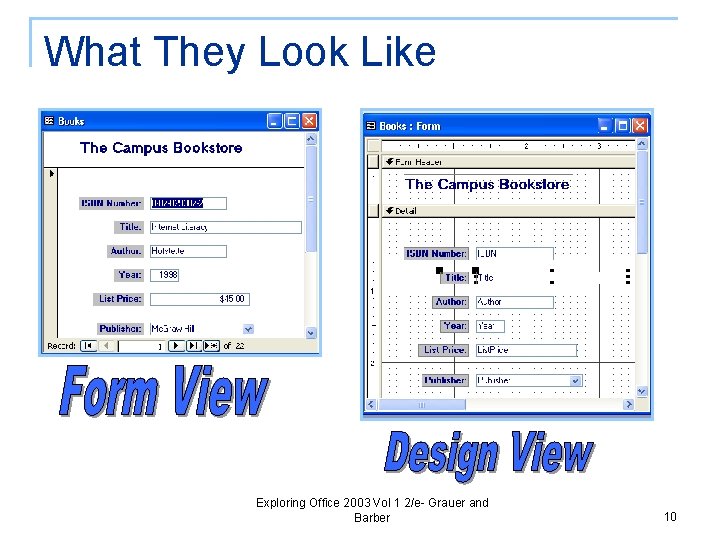
What They Look Like Exploring Office 2003 Vol 1 2/e- Grauer and Barber 10
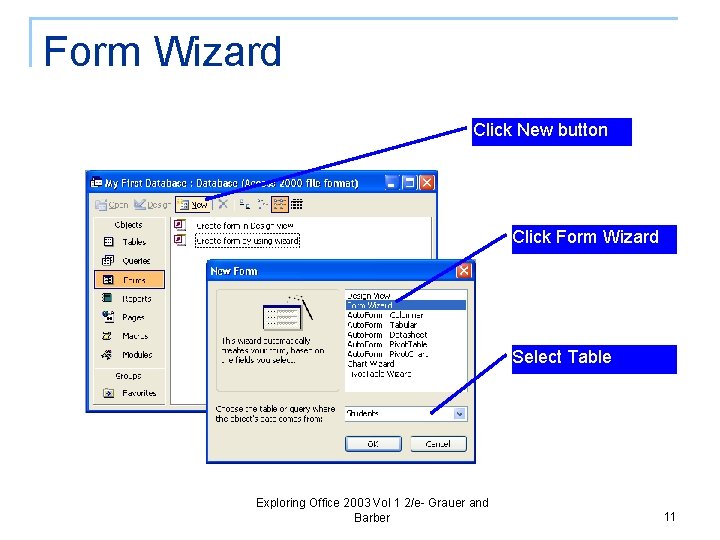
Form Wizard Click New button Click Form Wizard Select Table Exploring Office 2003 Vol 1 2/e- Grauer and Barber 11
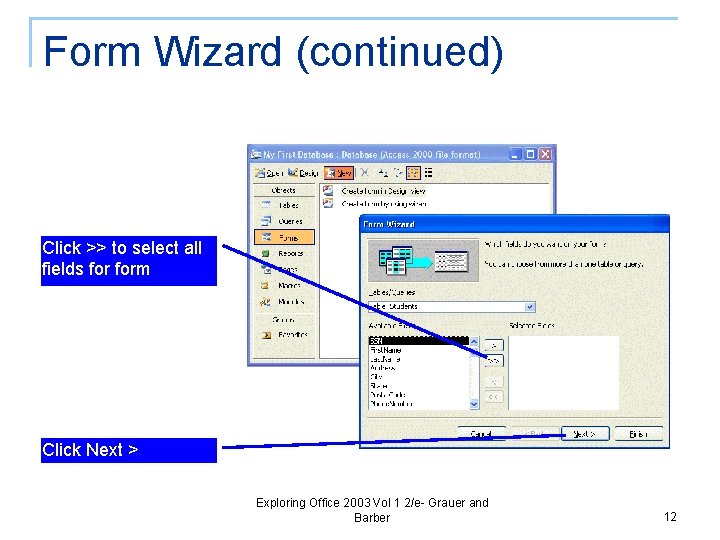
Form Wizard (continued) Click >> to select all fields form Click Next > Exploring Office 2003 Vol 1 2/e- Grauer and Barber 12
Creating a Form Controls n Bound control — has data source n Unbound control — no data source n Calculated control — expression as data source Exploring Office 2003 Vol 1 2/e- Grauer and Barber 13
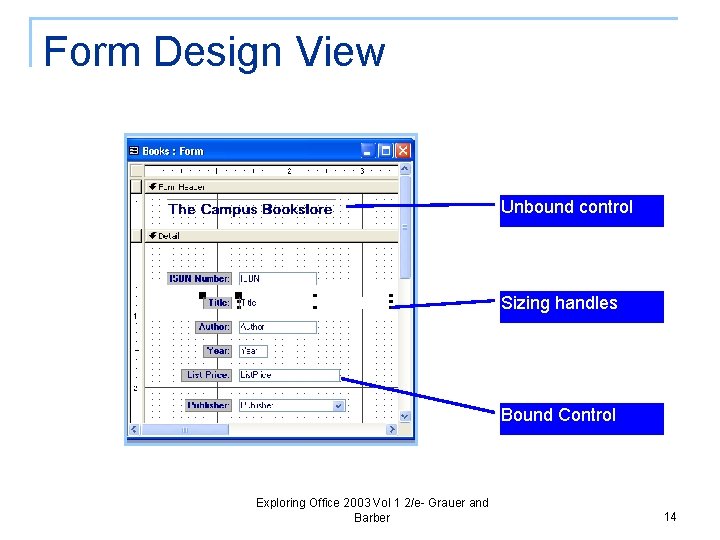
Form Design View Unbound control Sizing handles Bound Control Exploring Office 2003 Vol 1 2/e- Grauer and Barber 14
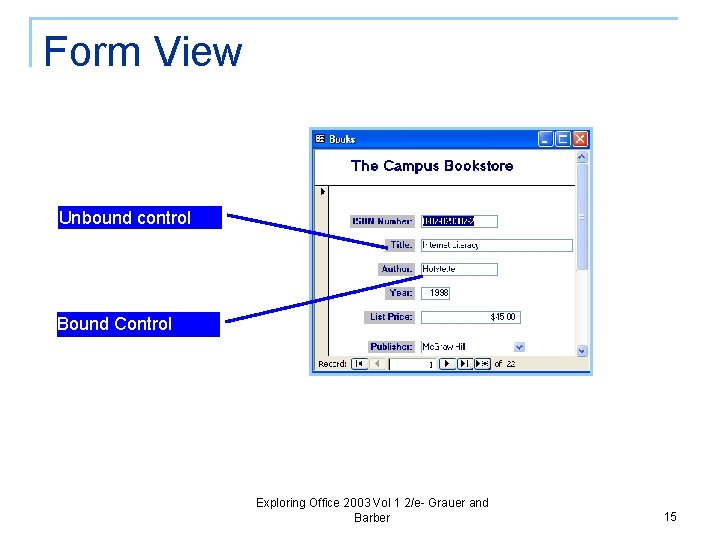
Form View Unbound control Bound Control Exploring Office 2003 Vol 1 2/e- Grauer and Barber 15
Sophisticated Forms n Additional controls to use on forms q q q n Drop-down list box (using Lookup Wizard) Check box Option group Command buttons Exploring Office 2003 Vol 1 2/e- Grauer and Barber 16
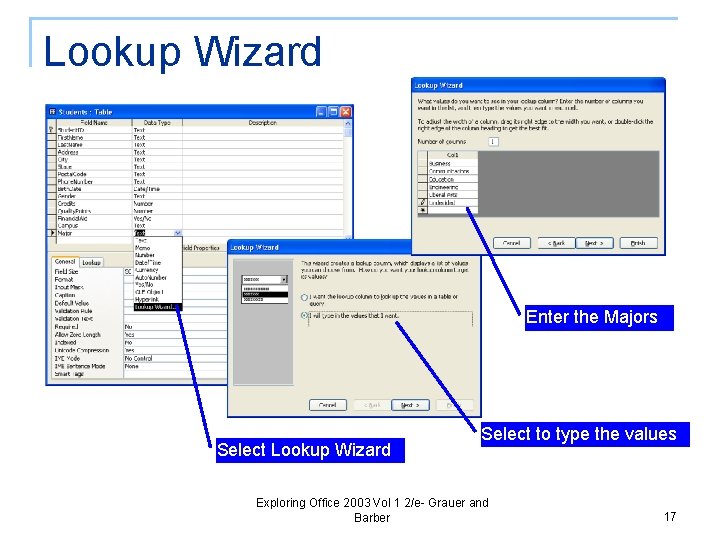
Lookup Wizard Enter the Majors Select Lookup Wizard Select to type the values Exploring Office 2003 Vol 1 2/e- Grauer and Barber 17
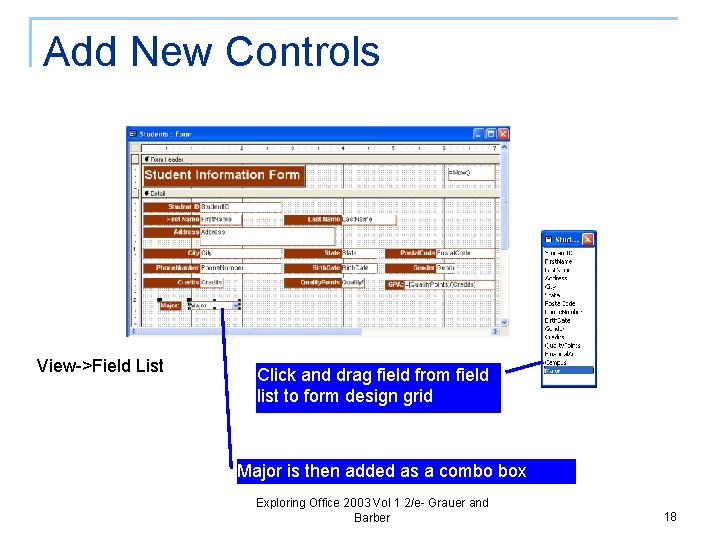
Add New Controls View->Field List Click and drag field from field list to form design grid Major is then added as a combo box Exploring Office 2003 Vol 1 2/e- Grauer and Barber 18
- Slides: 18