
Exploring Graphs Using the TI Graphing Calculator and
- Slides: 19
Exploring Graphs Using the TI Graphing Calculator and a Calculator Based Ranger (CBR) also known as a distance sensor Office of Educational Technology College of Education at the University of Illinois, Urbana Champaign, IL 61821 Last Updated: 6/14/2021
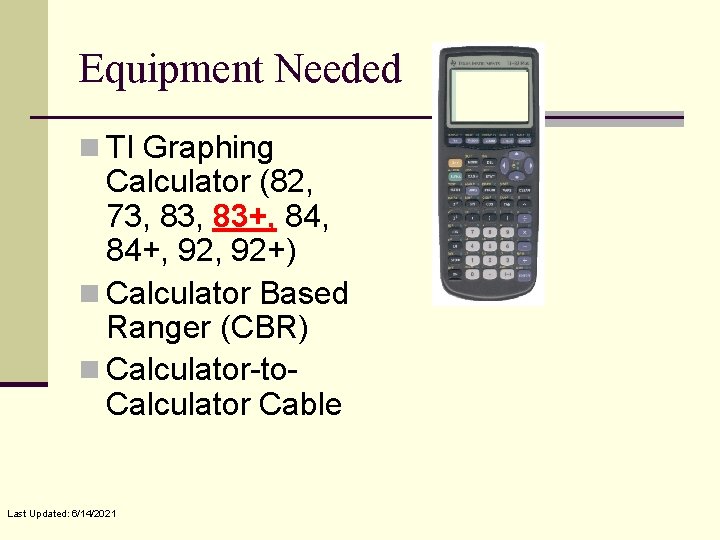
Equipment Needed n TI Graphing Calculator (82, 73, 83+, 84+, 92+) n Calculator Based Ranger (CBR) n Calculator-to. Calculator Cable Last Updated: 6/14/2021
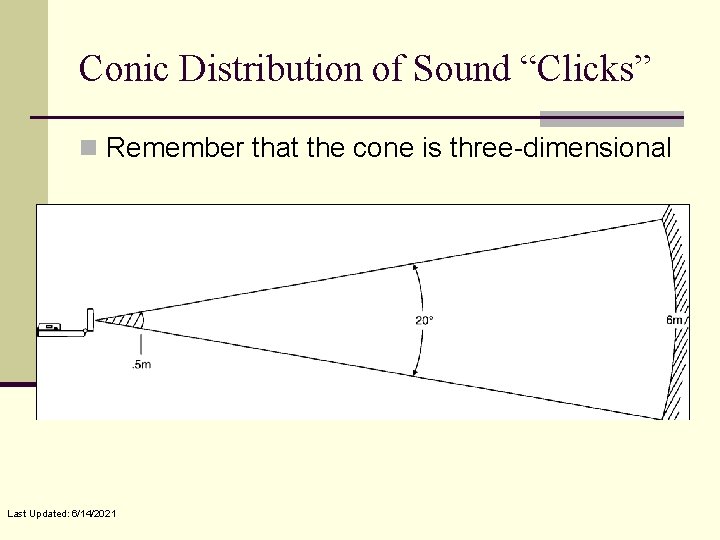
Conic Distribution of Sound “Clicks” n Remember that the cone is three-dimensional Last Updated: 6/14/2021
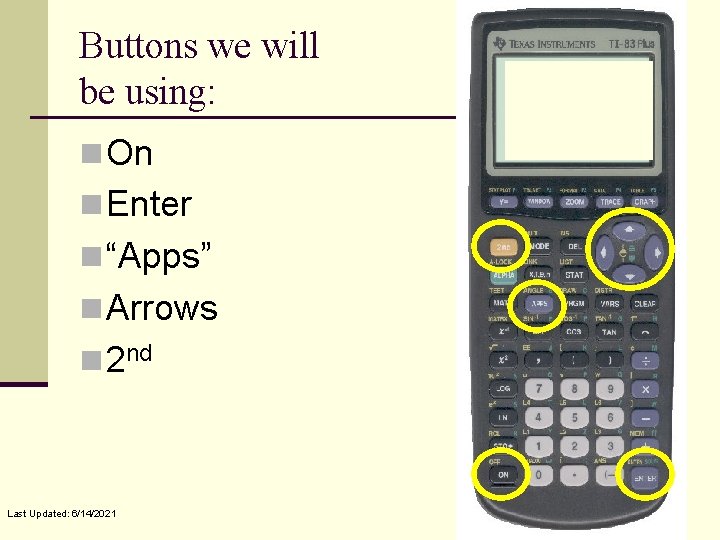
Buttons we will be using: n On n Enter n “Apps” n Arrows n 2 nd Last Updated: 6/14/2021
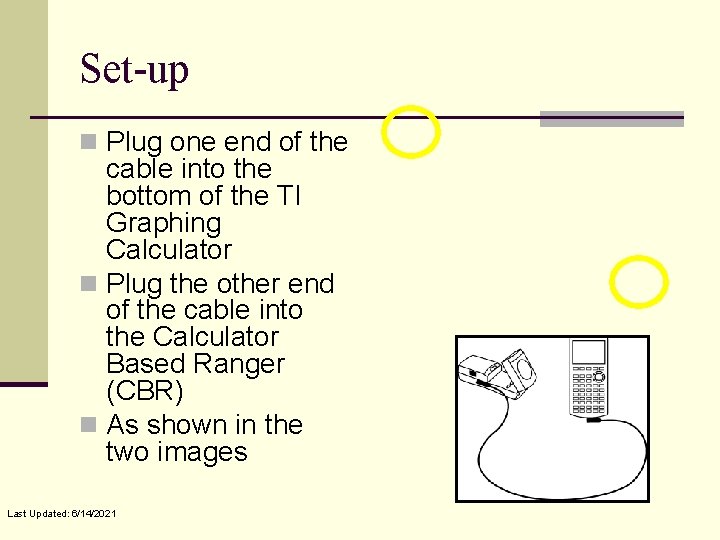
Set-up n Plug one end of the cable into the bottom of the TI Graphing Calculator n Plug the other end of the cable into the Calculator Based Ranger (CBR) n As shown in the two images Last Updated: 6/14/2021
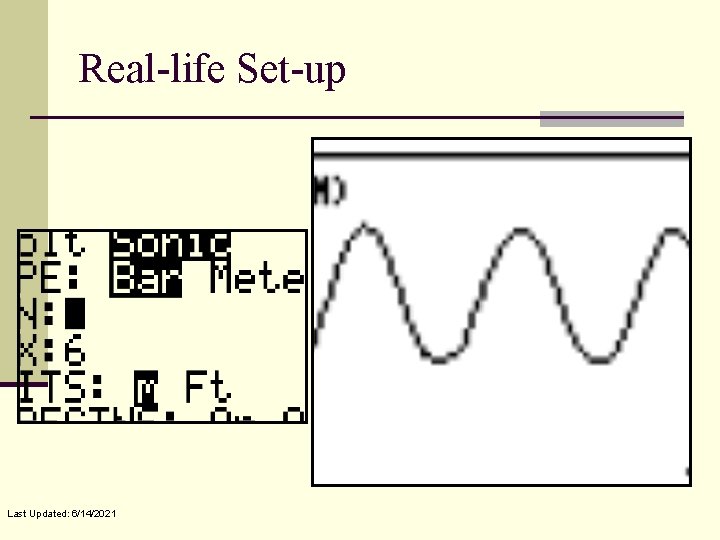
Real-life Set-up Last Updated: 6/14/2021
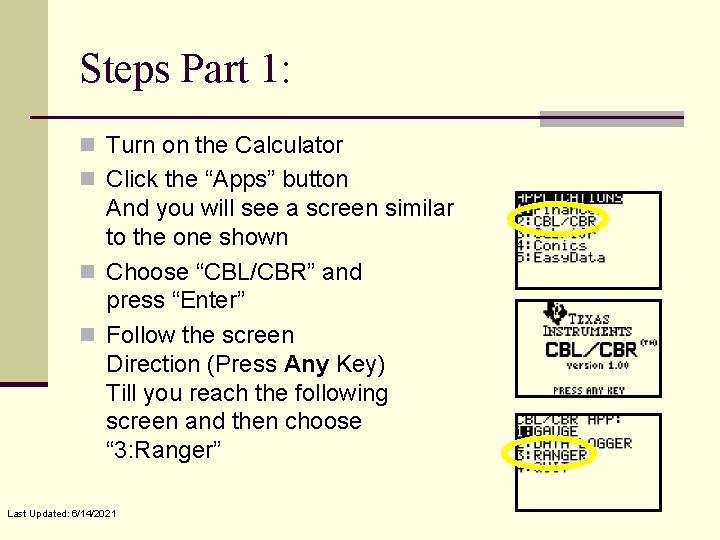
Steps Part 1: n Turn on the Calculator n Click the “Apps” button And you will see a screen similar to the one shown n Choose “CBL/CBR” and press “Enter” n Follow the screen Direction (Press Any Key) Till you reach the following screen and then choose “ 3: Ranger” Last Updated: 6/14/2021
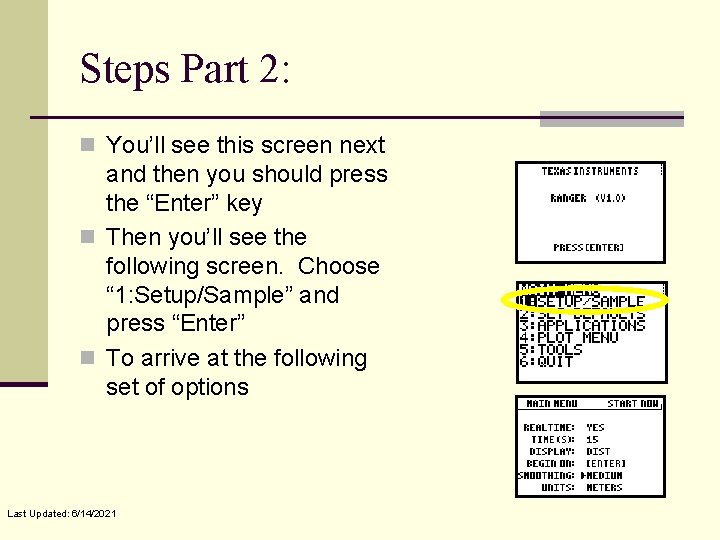
Steps Part 2: n You’ll see this screen next and then you should press the “Enter” key n Then you’ll see the following screen. Choose “ 1: Setup/Sample” and press “Enter” n To arrive at the following set of options Last Updated: 6/14/2021
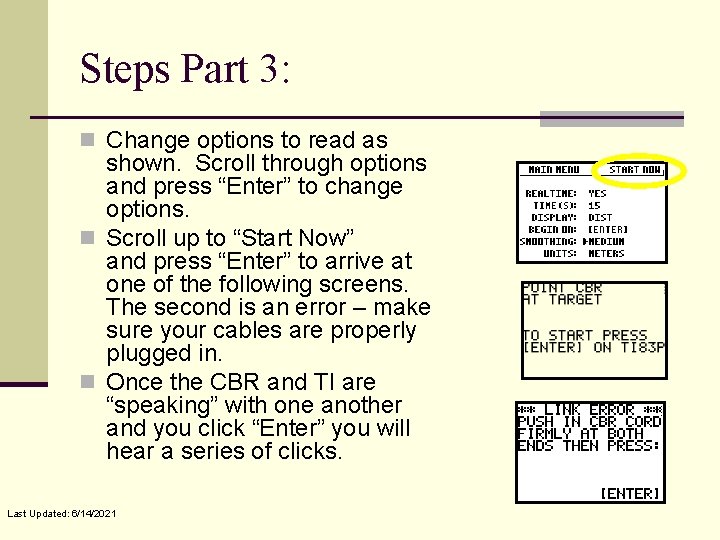
Steps Part 3: n Change options to read as shown. Scroll through options and press “Enter” to change options. n Scroll up to “Start Now” and press “Enter” to arrive at one of the following screens. The second is an error – make sure your cables are properly plugged in. n Once the CBR and TI are “speaking” with one another and you click “Enter” you will hear a series of clicks. Last Updated: 6/14/2021
Starting Out Using the Distance Sensor n Now that we know how to set up the equipment let’s start using it n Point the distance sensor at an object and the user moves the sensor, or n The user or another object (like a ball) is moved or moves in front of the distance sensor Last Updated: 6/14/2021
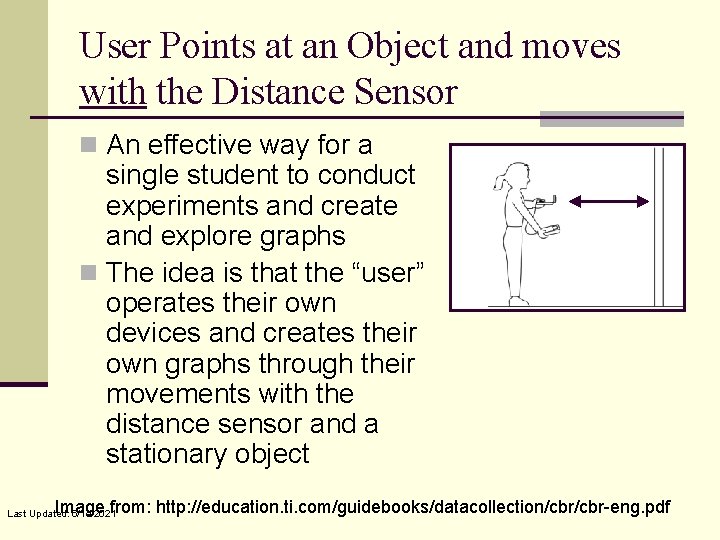
User Points at an Object and moves with the Distance Sensor n An effective way for a single student to conduct experiments and create and explore graphs n The idea is that the “user” operates their own devices and creates their own graphs through their movements with the distance sensor and a stationary object Image from: http: //education. ti. com/guidebooks/datacollection/cbr-eng. pdf Last Updated: 6/14/2021
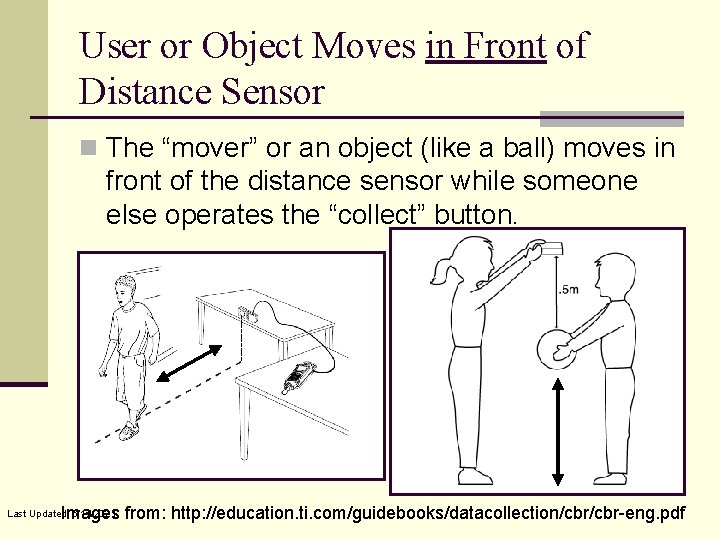
User or Object Moves in Front of Distance Sensor n The “mover” or an object (like a ball) moves in front of the distance sensor while someone else operates the “collect” button. Images from: http: //education. ti. com/guidebooks/datacollection/cbr-eng. pdf Last Updated: 6/14/2021
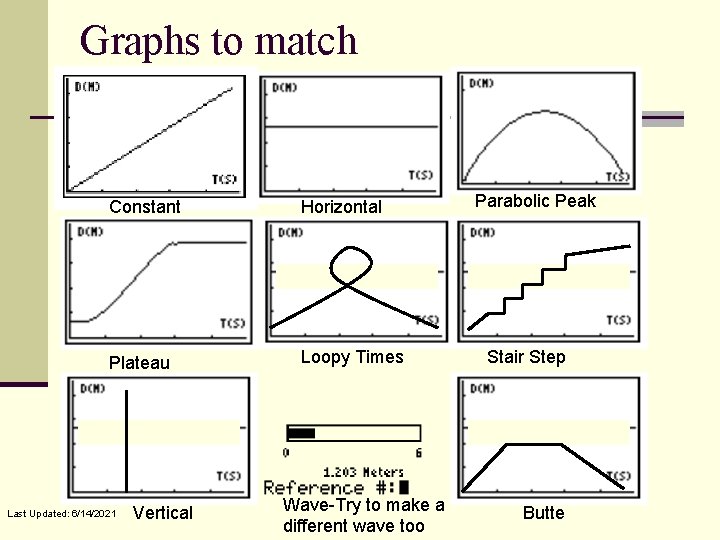
Graphs to match Constant Horizontal Plateau Loopy Times Last Updated: 6/14/2021 Vertical Wave-Try to make a different wave too Parabolic Peak Stair Step Butte
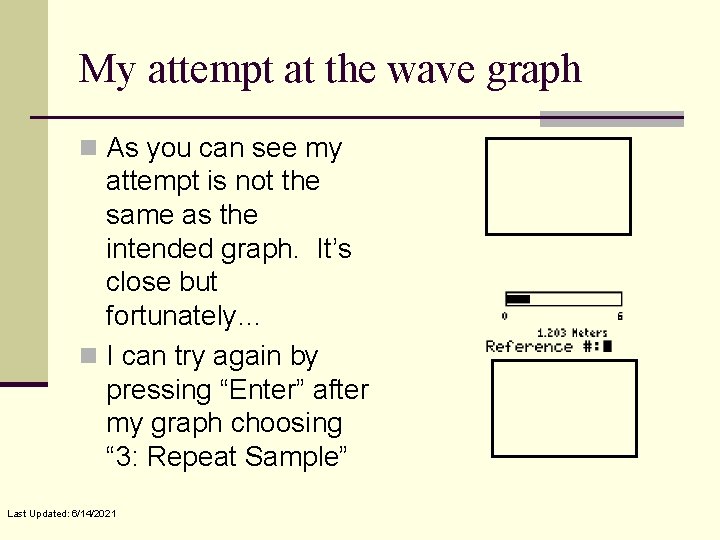
My attempt at the wave graph n As you can see my attempt is not the same as the intended graph. It’s close but fortunately… n I can try again by pressing “Enter” after my graph choosing “ 3: Repeat Sample” Last Updated: 6/14/2021
Create your own graph and draw it n Create your own graph and draw it in the screen shown and explain the procedure to create it below: _________________ _________________ Last Updated: 6/14/2021
Graph Analysis n Determine High and Low Points n Determine Slope over an interval by calculating the Change in Y over the Change in X for points chosen Last Updated: 6/14/2021
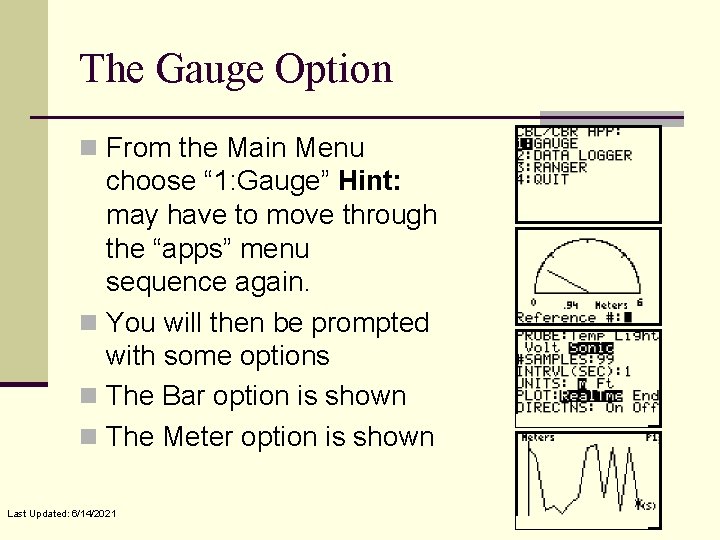
The Gauge Option n From the Main Menu choose “ 1: Gauge” Hint: may have to move through the “apps” menu sequence again. n You will then be prompted with some options n The Bar option is shown n The Meter option is shown Last Updated: 6/14/2021
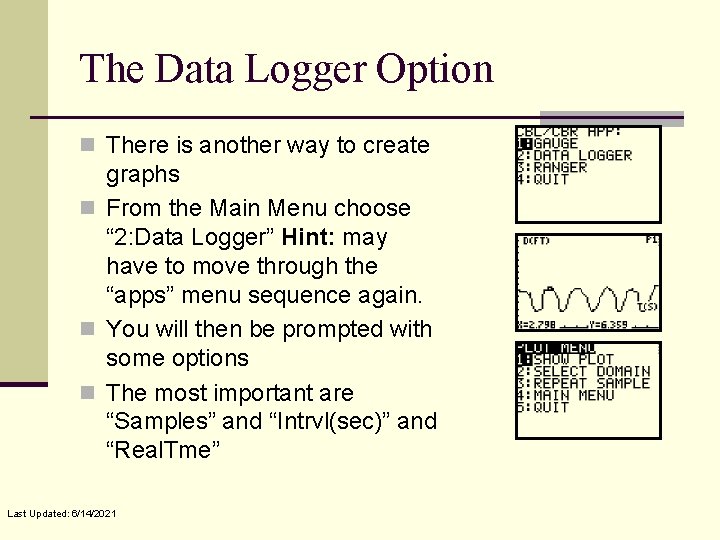
The Data Logger Option n There is another way to create graphs n From the Main Menu choose “ 2: Data Logger” Hint: may have to move through the “apps” menu sequence again. n You will then be prompted with some options n The most important are “Samples” and “Intrvl(sec)” and “Real. Tme” Last Updated: 6/14/2021
Exploring Graphs Using the TI Graphing Calculator and a Calculator Based Ranger (CBR) also known as a distance sensor Office of Educational Technology College of Education at the University of Illinois, Urbana Champaign, IL 61821 Last Updated: 6/14/2021