
Explore GNOME The easy way using a live

- Slides: 57
Explore GNOME The easy way, using a live CD By Carl Weisheit
Why did I use Gnome and Ubuntu? l l Using a live CD will let you explore the gnome GUI without installing or altering anything on your system Gnome is one of the two most popular GUIs used in Linux. (other is KDE) l l Gnome is a complete desktop environment, it uses Metacity as its default window manager Gnome is the preferred GUI of Ubuntu is one of the most popular Linux Distro at this time* and comes pre-installed on major brands such as Dell Computers * #1 on Distro Watch
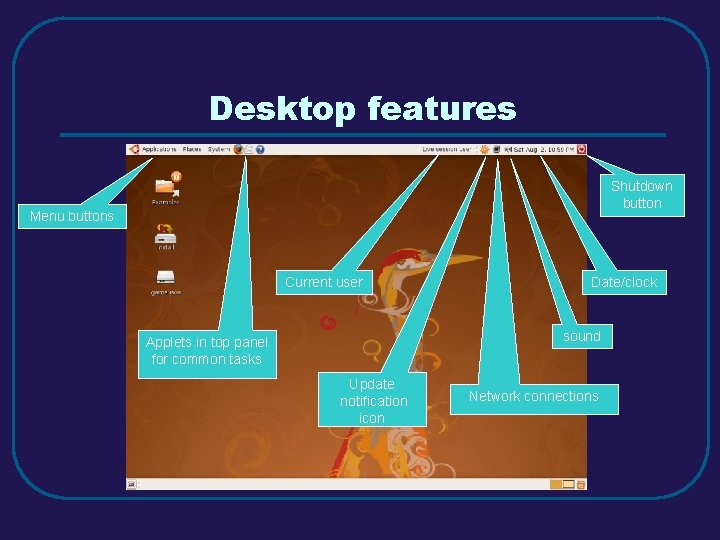
Desktop features Shutdown button Menu buttons Current user Date/clock sound Applets in top panel for common tasks Update notification icon Network connections
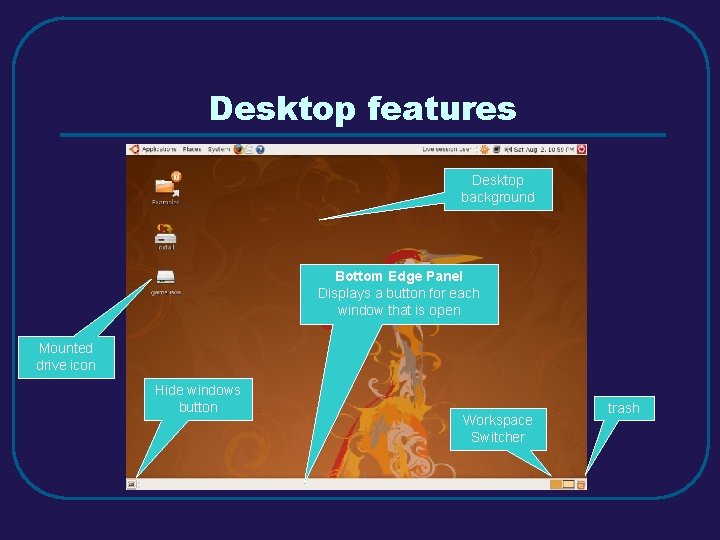
Desktop features Desktop background Bottom Edge Panel Displays a button for each window that is open Mounted drive icon Hide windows button Workspace Switcher trash
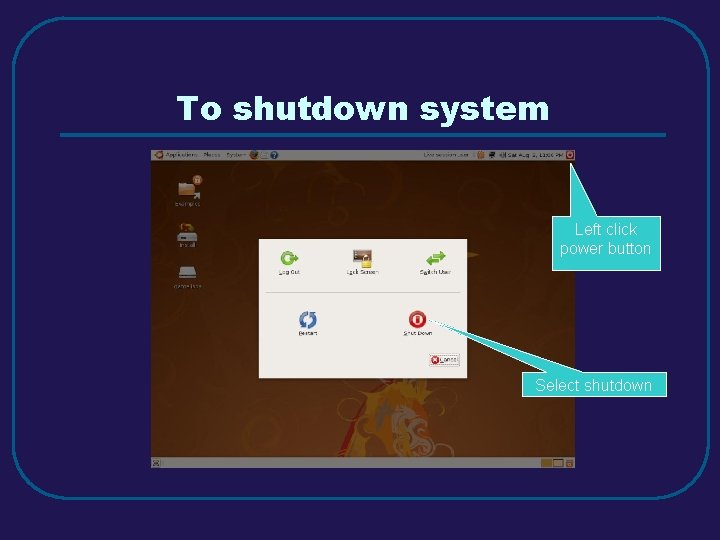
To shutdown system Left click power button Select shutdown
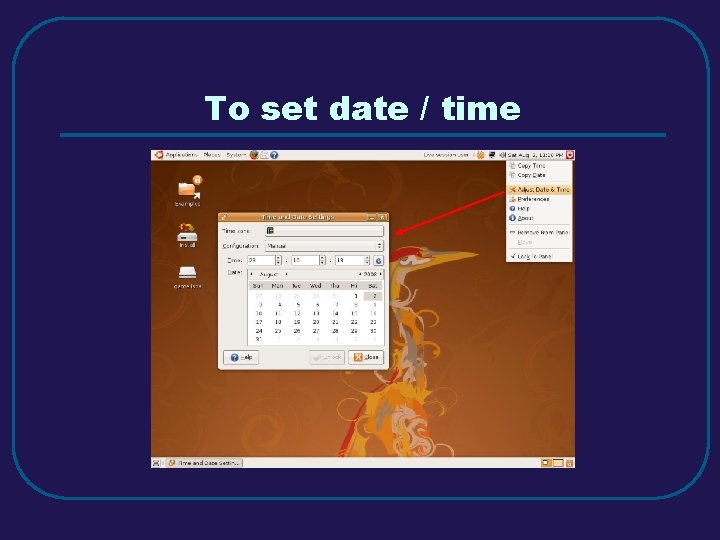
To set date / time
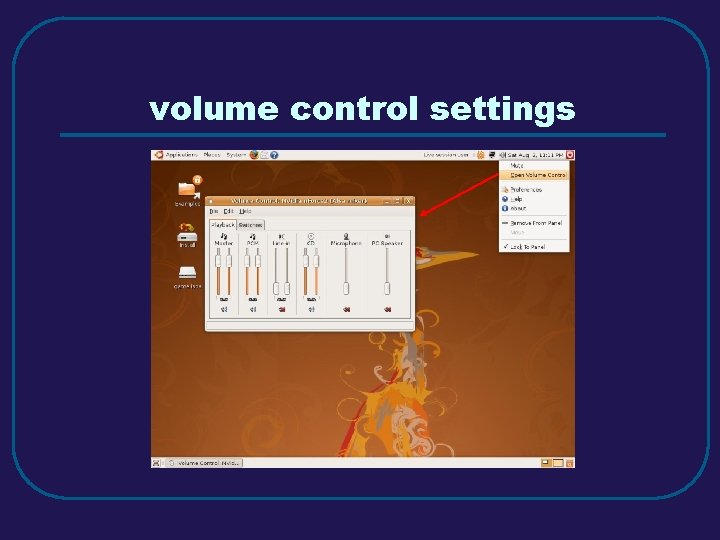
volume control settings
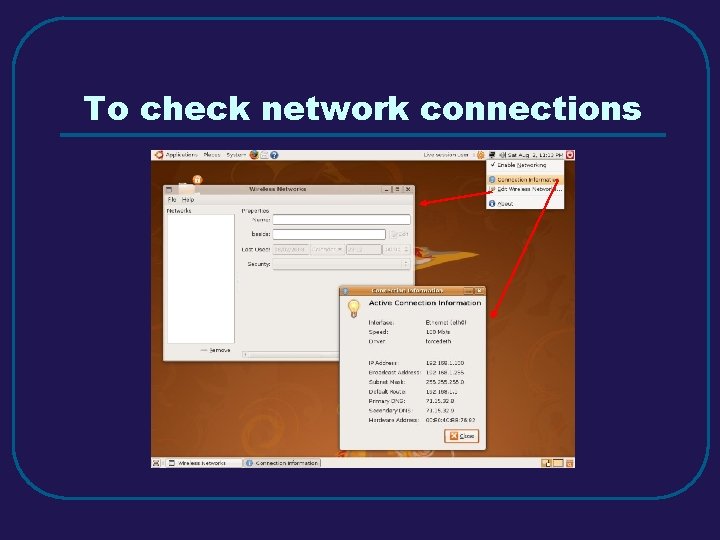
To check network connections
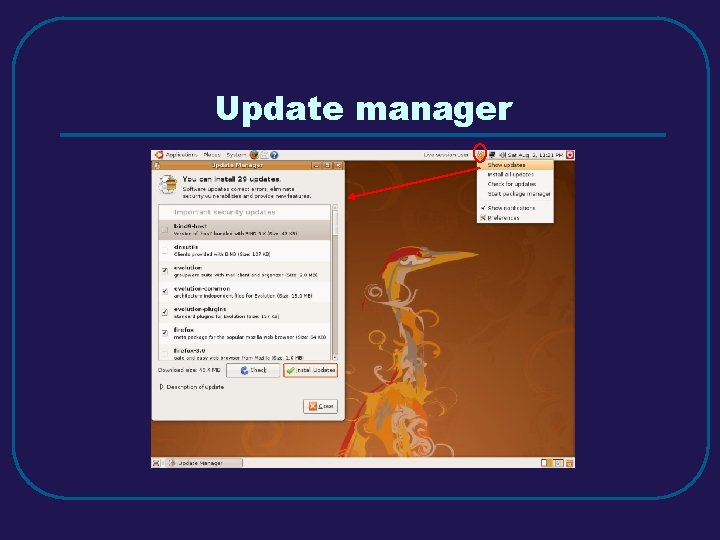
Update manager
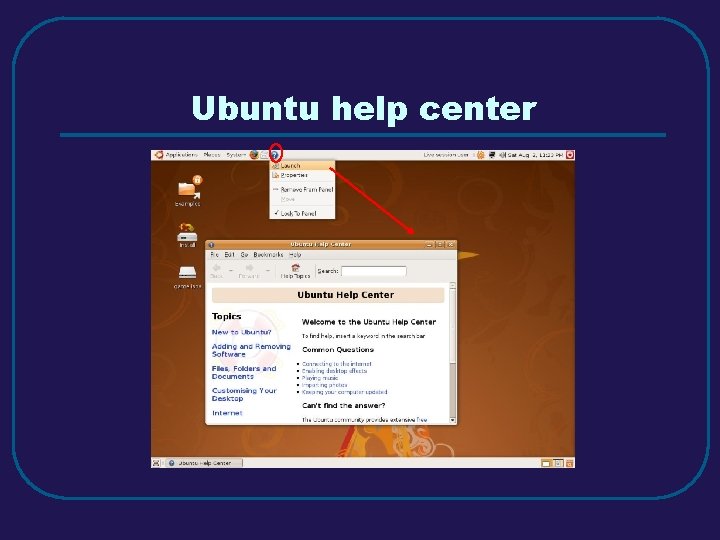
Ubuntu help center
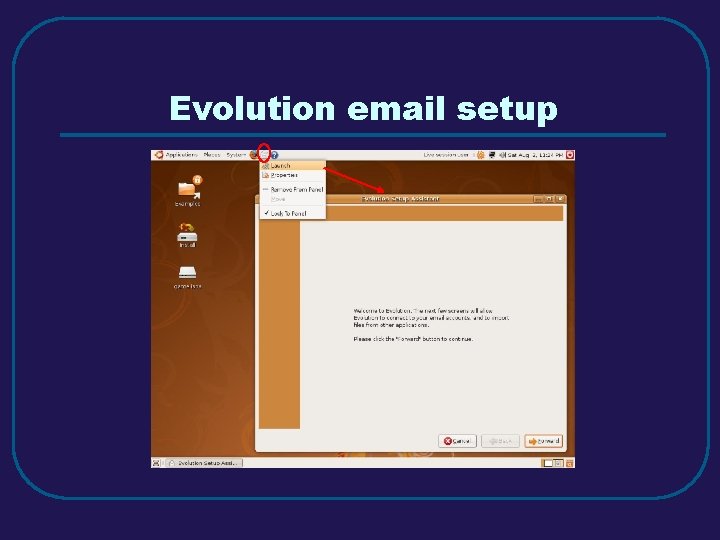
Evolution email setup
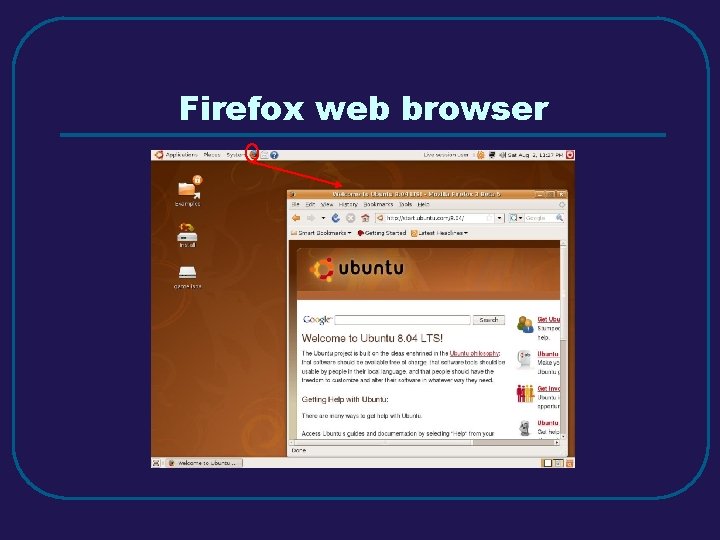
Firefox web browser
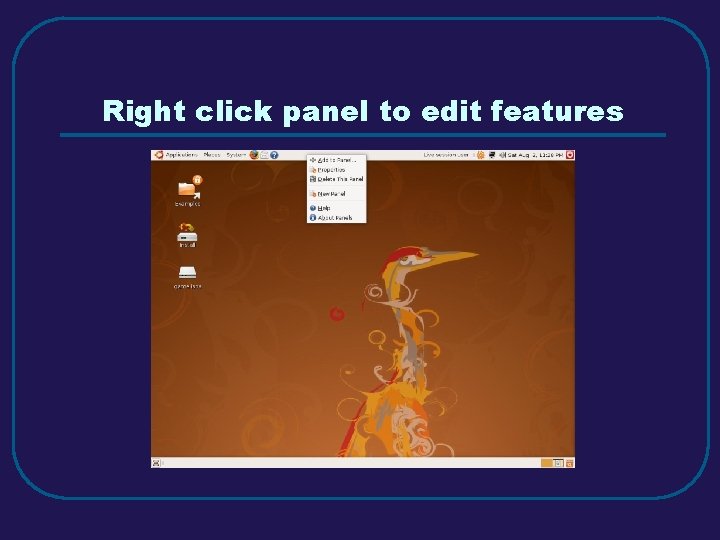
Right click panel to edit features
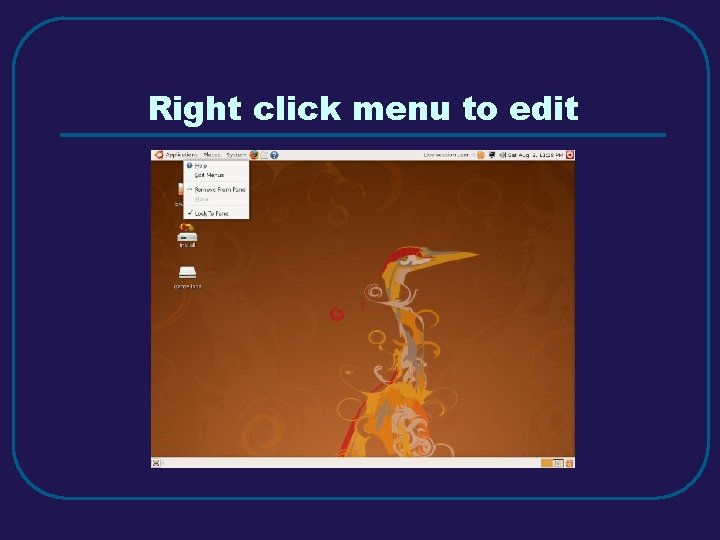
Right click menu to edit
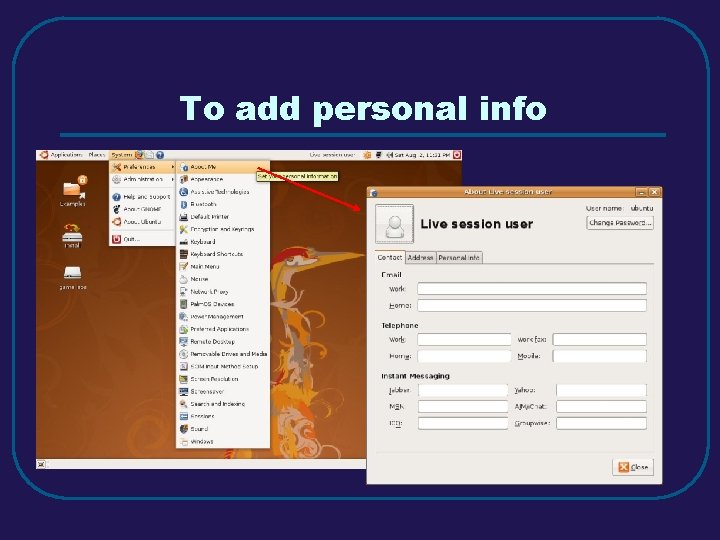
To add personal info
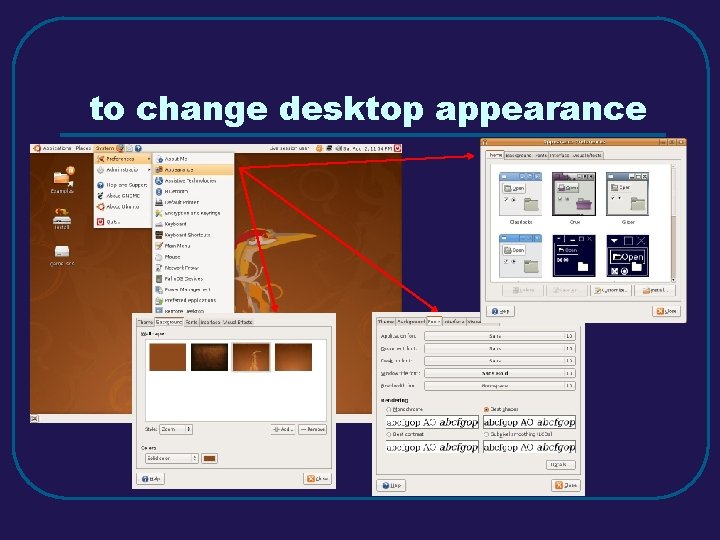
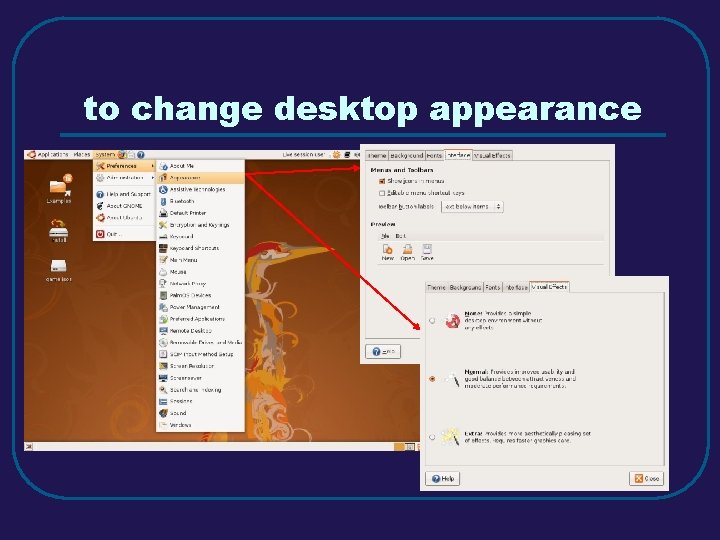
to change desktop appearance
to change desktop appearance
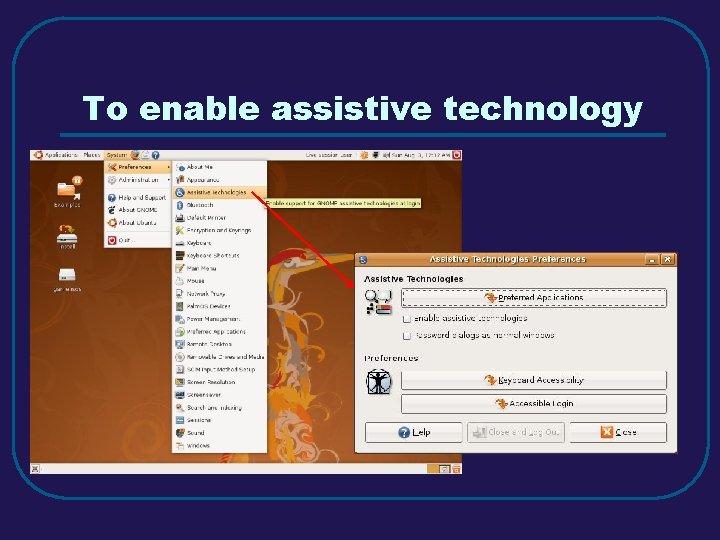
To enable assistive technology
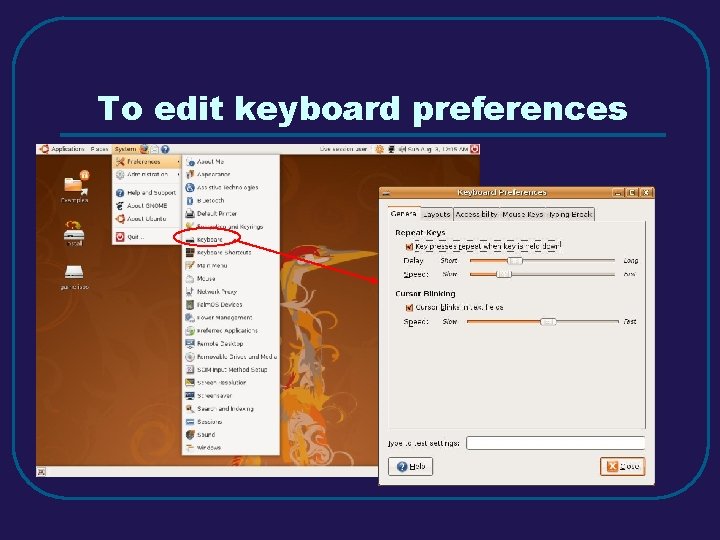
To edit keyboard preferences
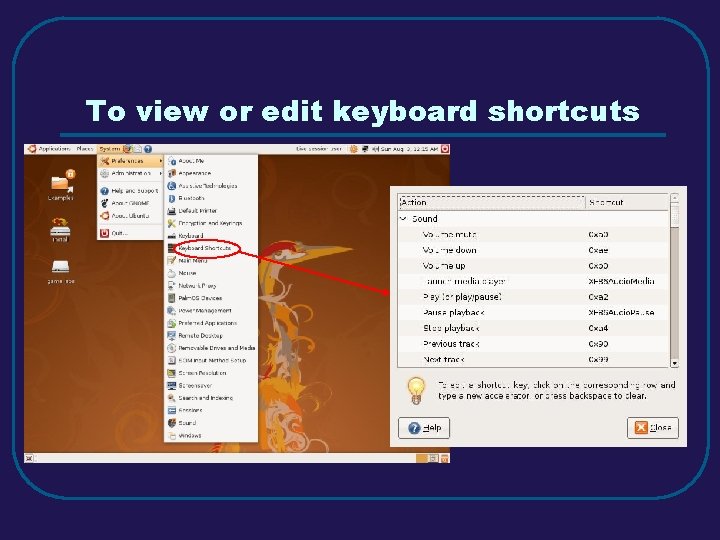
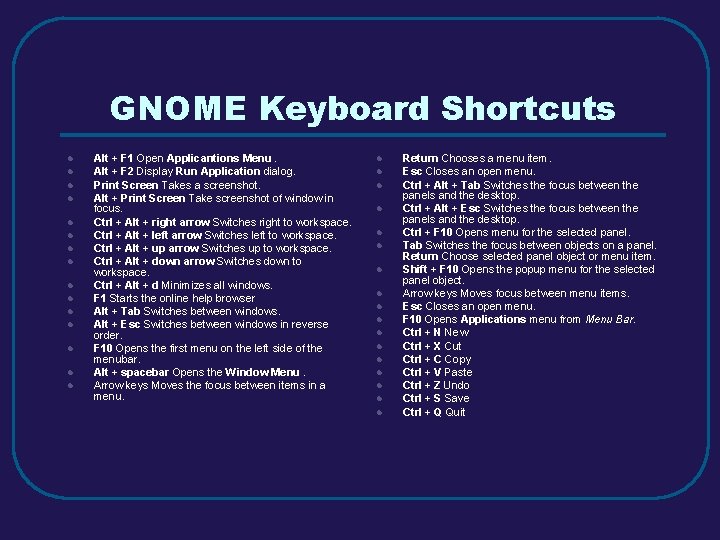
To view or edit keyboard shortcuts
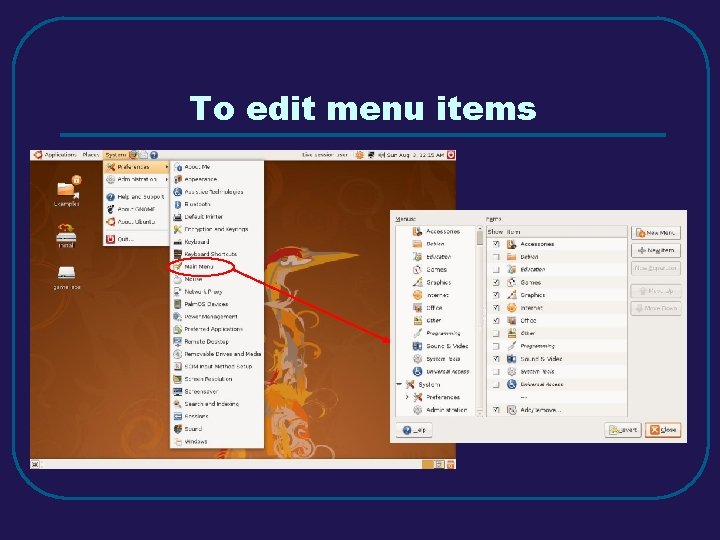
To edit menu items
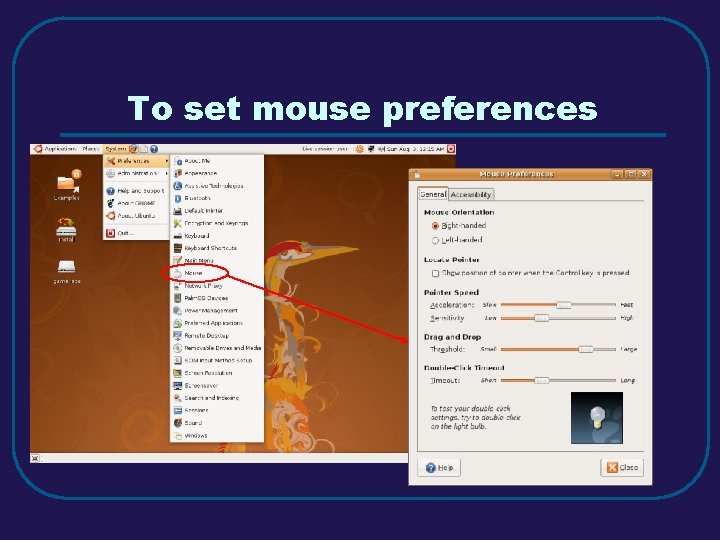
To set mouse preferences
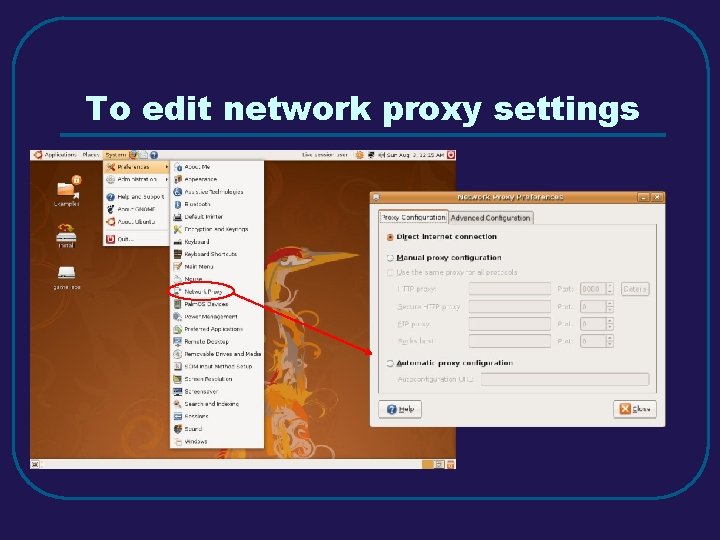
To edit network proxy settings
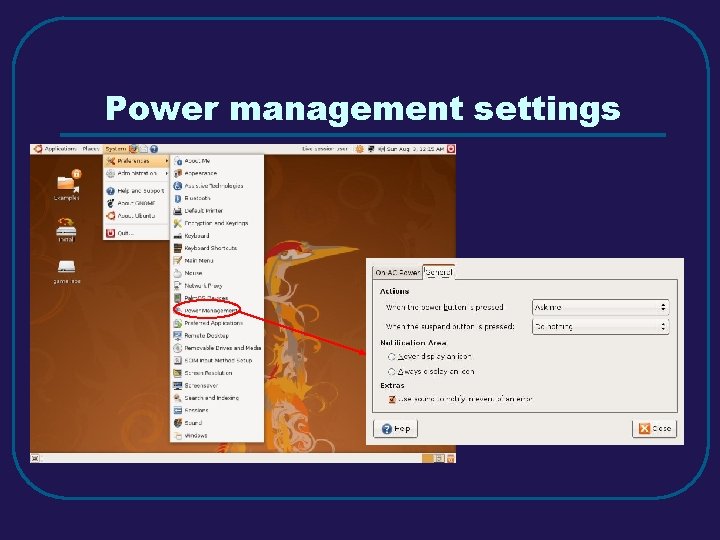
Power management settings
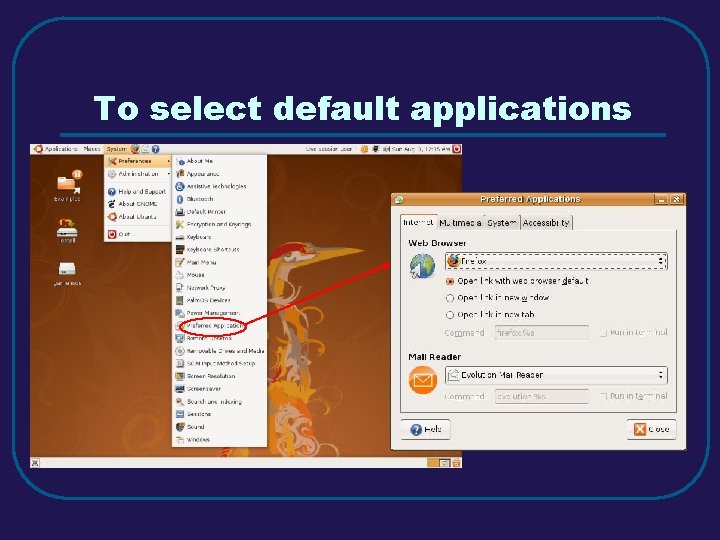
To select default applications
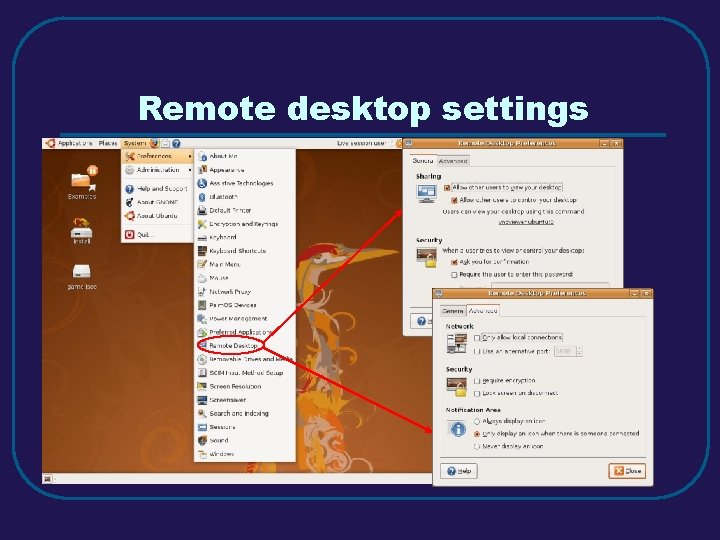
Remote desktop settings
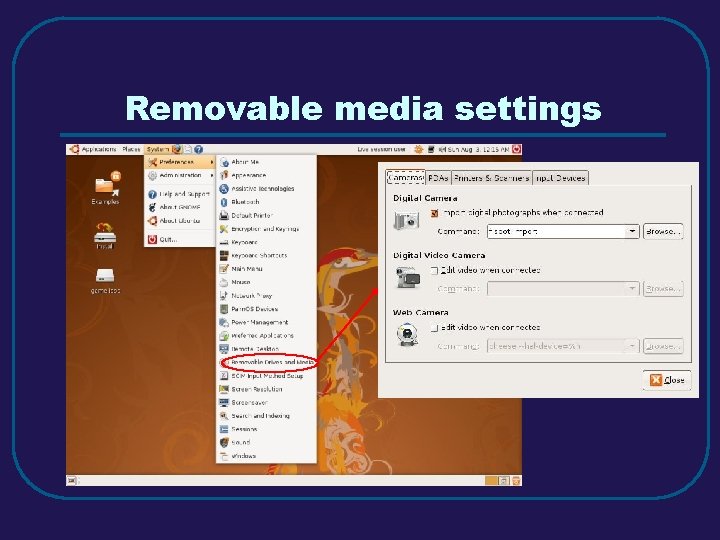
Removable media settings
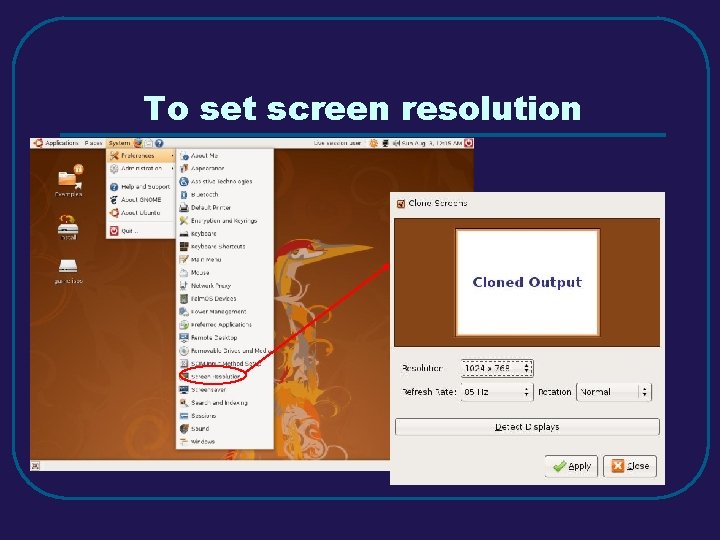
To set screen resolution
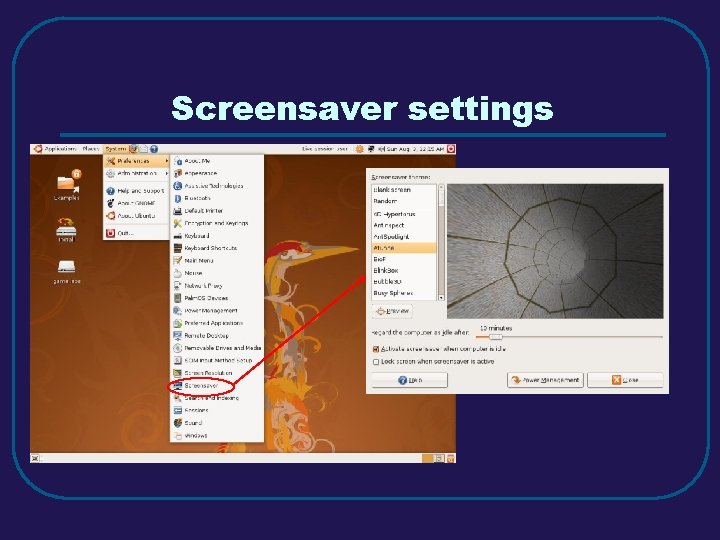
Screensaver settings
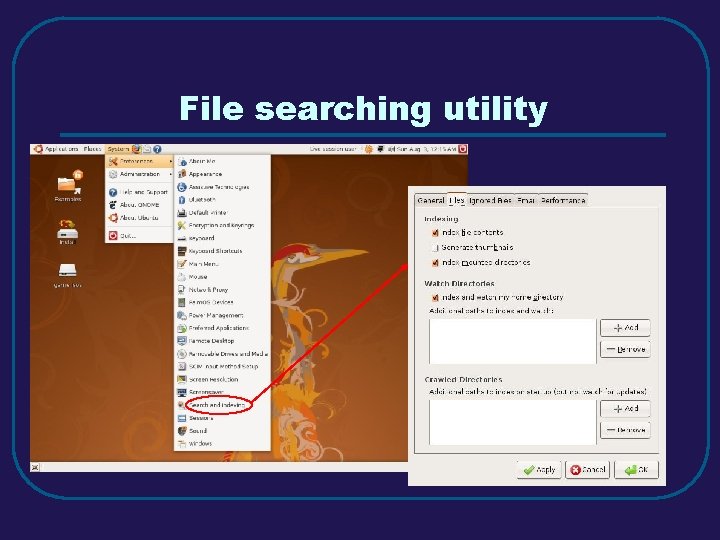
File searching utility
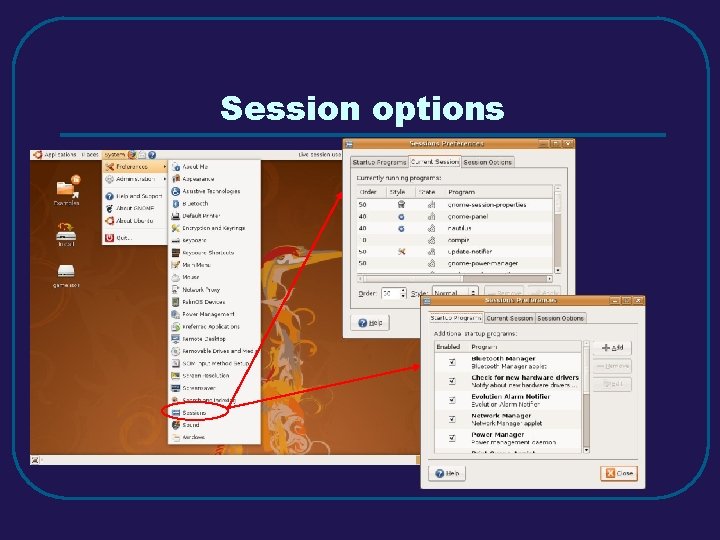
Session options
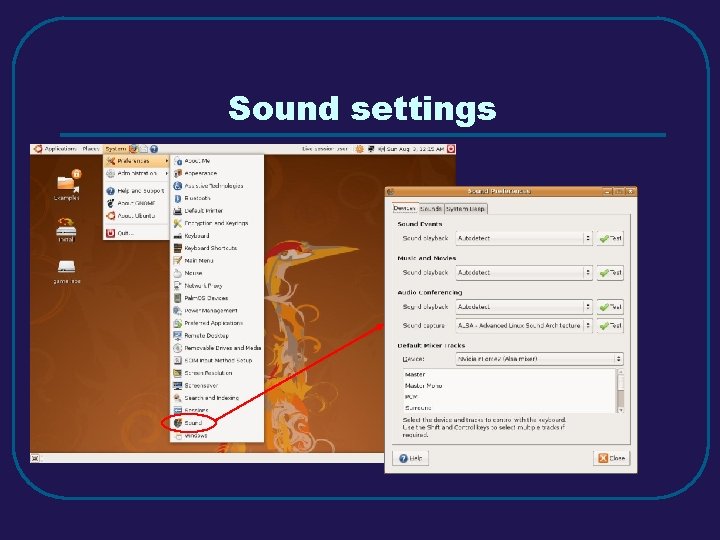
Sound settings
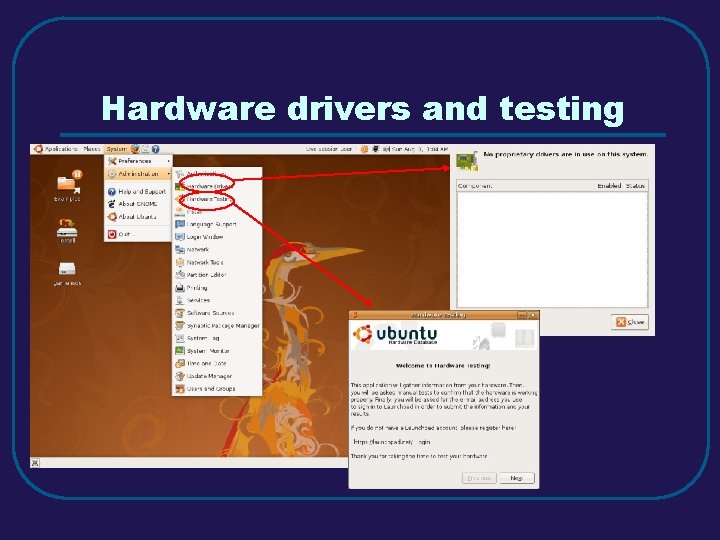
Hardware drivers and testing
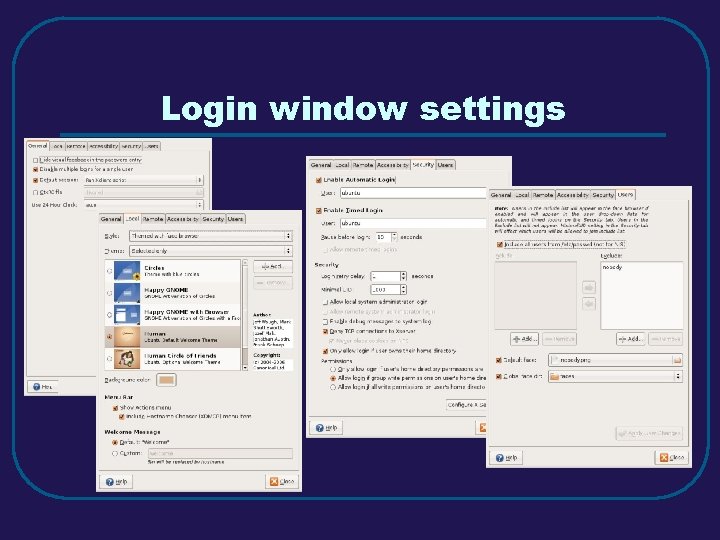
Login window settings
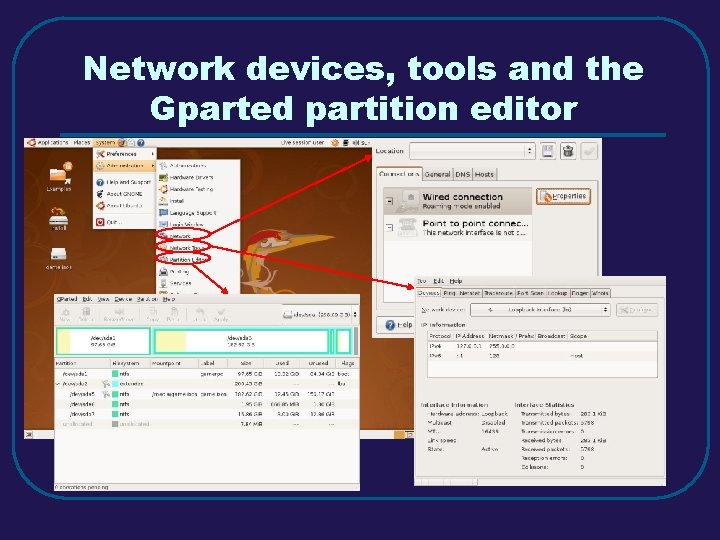
Network devices, tools and the Gparted partition editor
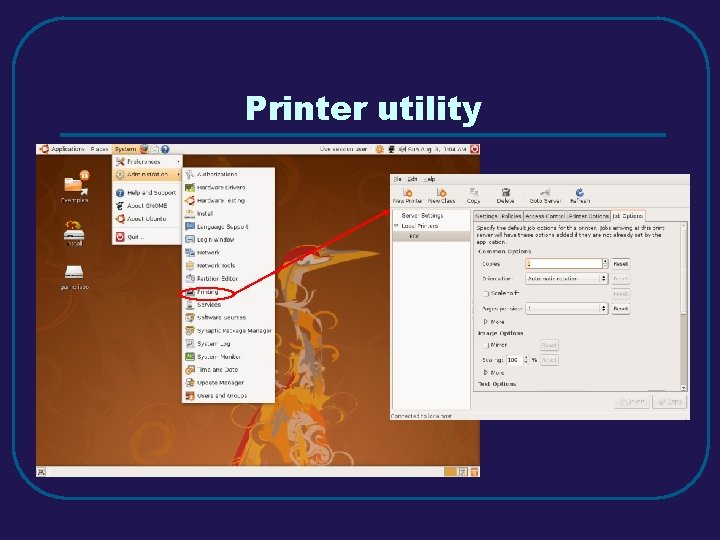
Printer utility
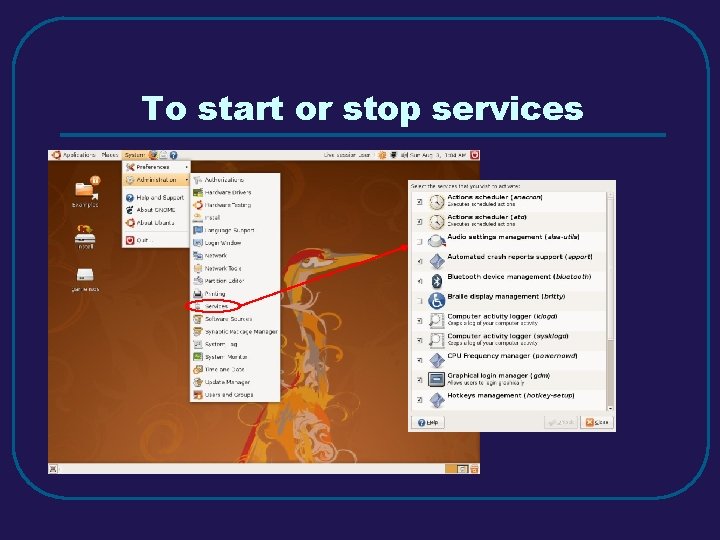
To start or stop services
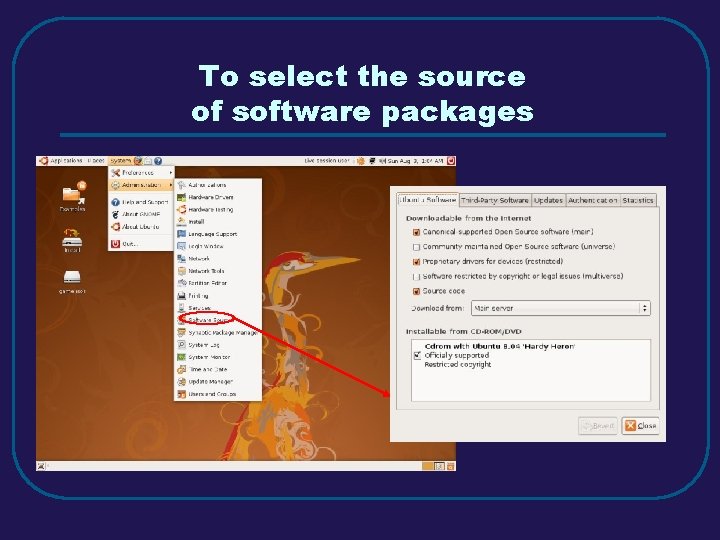
To select the source of software packages
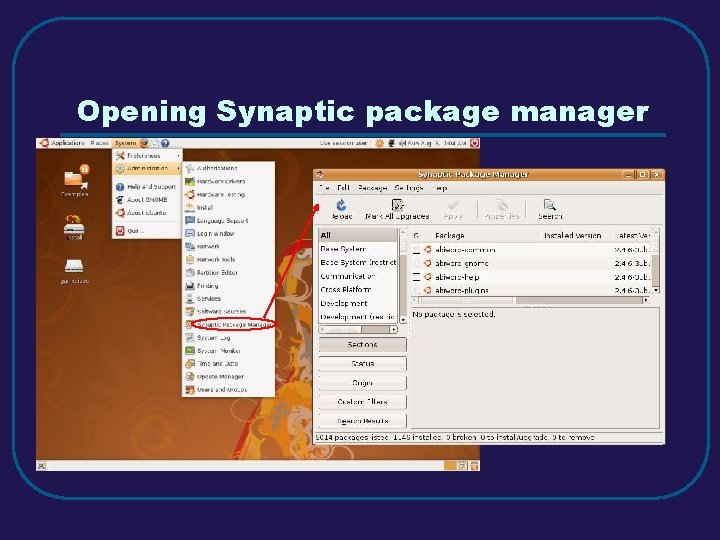
Opening Synaptic package manager
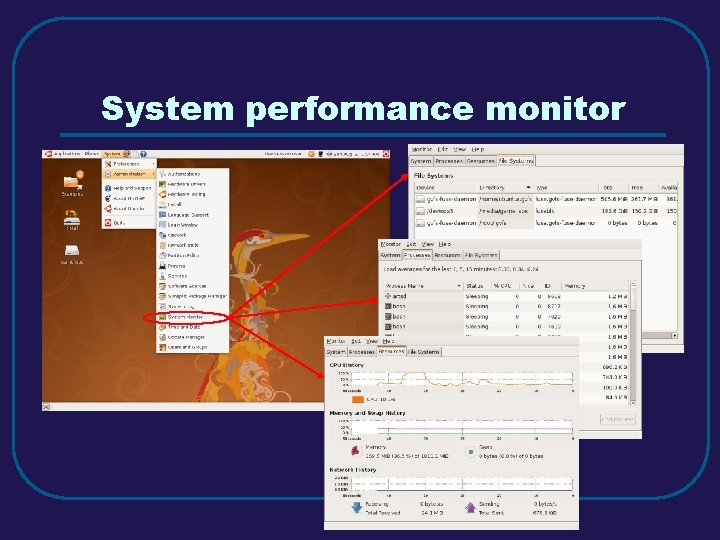
System performance monitor
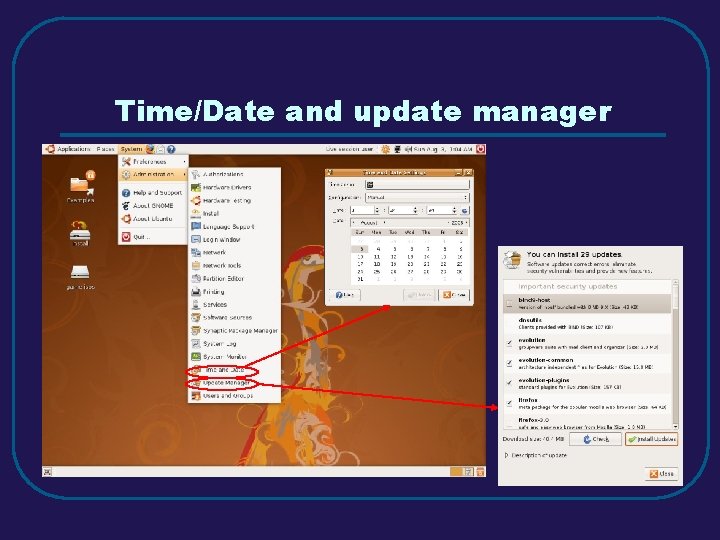
Time/Date and update manager
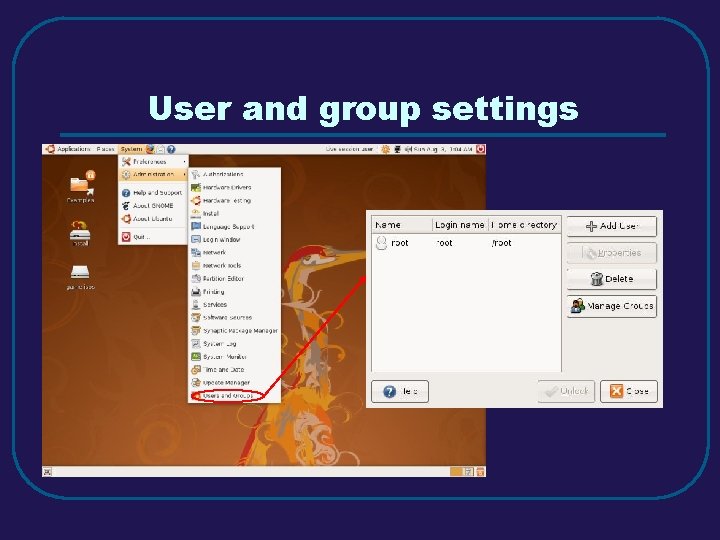
User and group settings
To view drives and the local network Important folders Mounted and unmounted drives
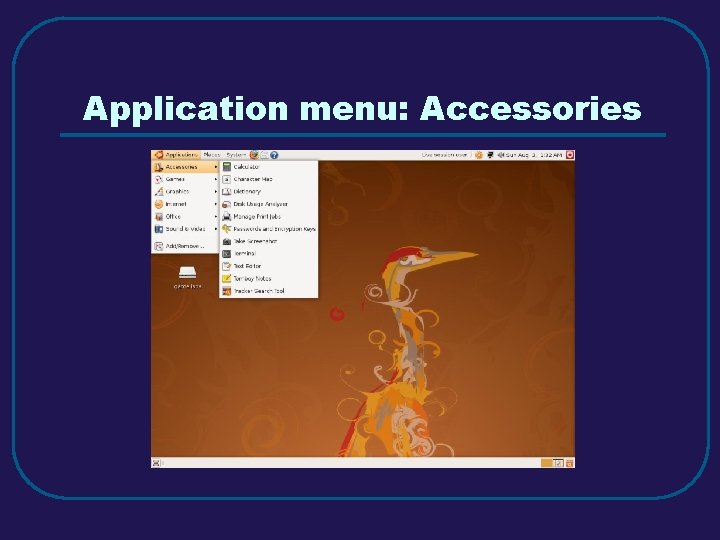
Application menu: Accessories
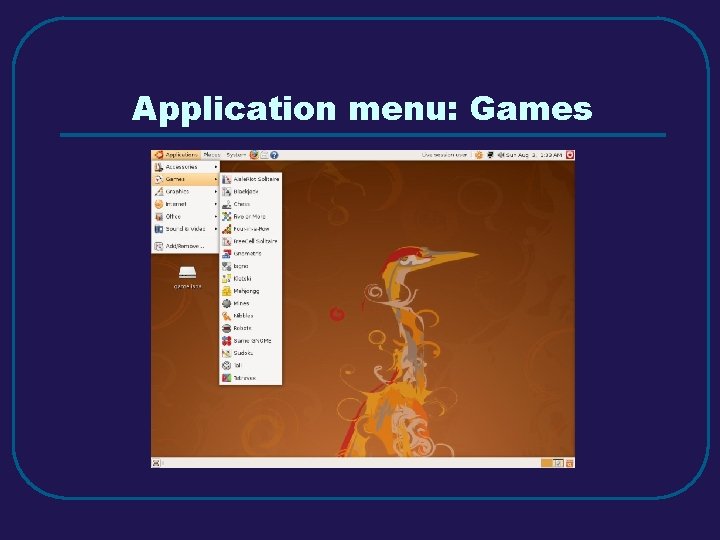
Application menu: Games
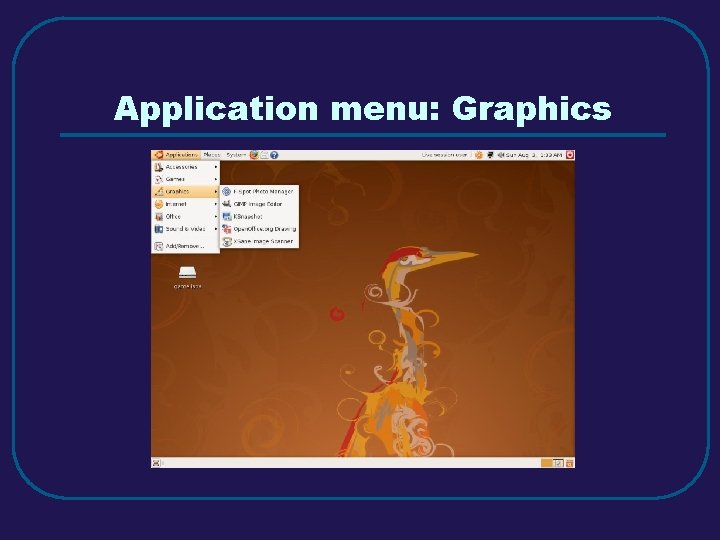
Application menu: Graphics
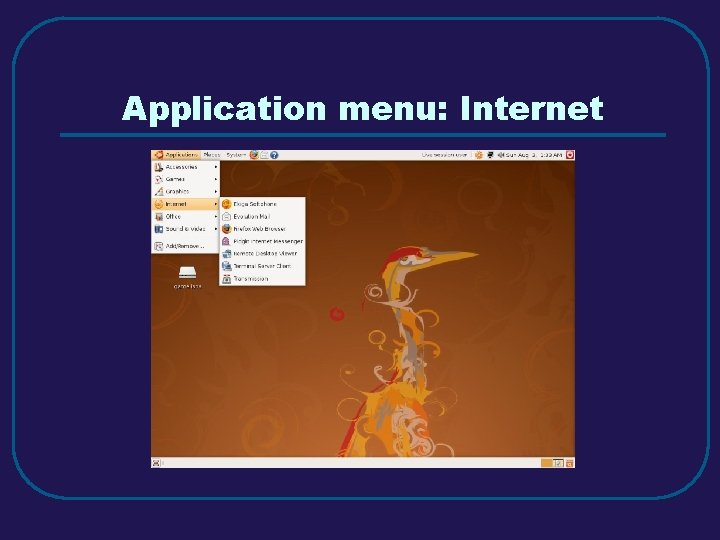
Application menu: Internet
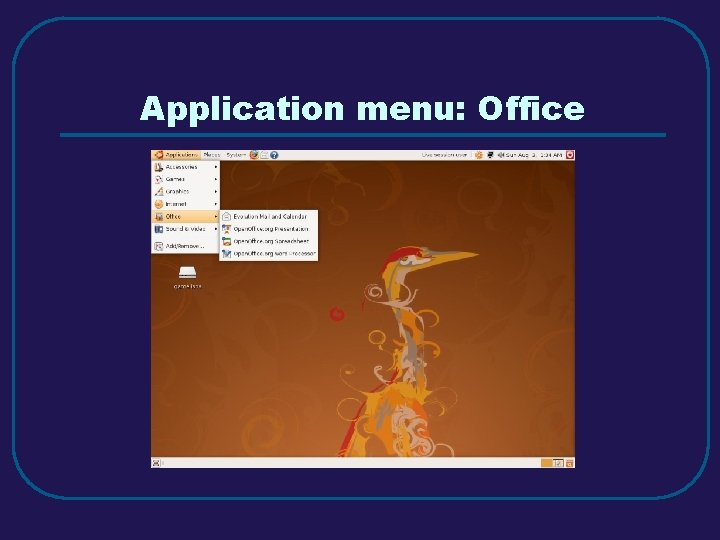
Application menu: Office
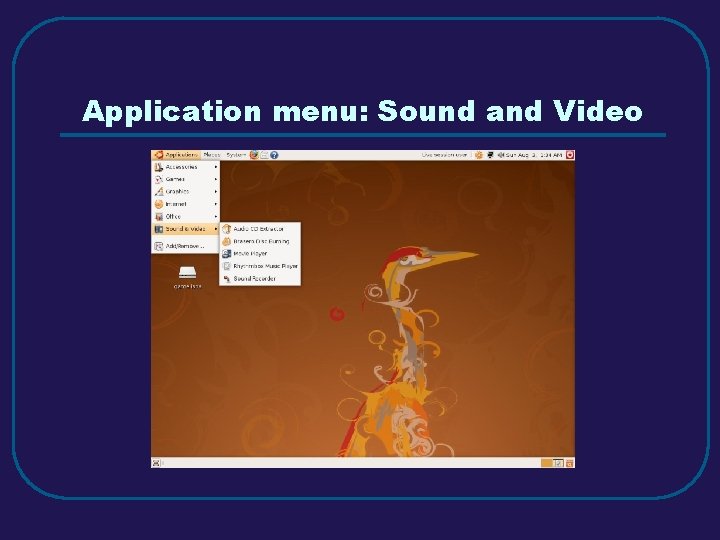
Application menu: Sound and Video
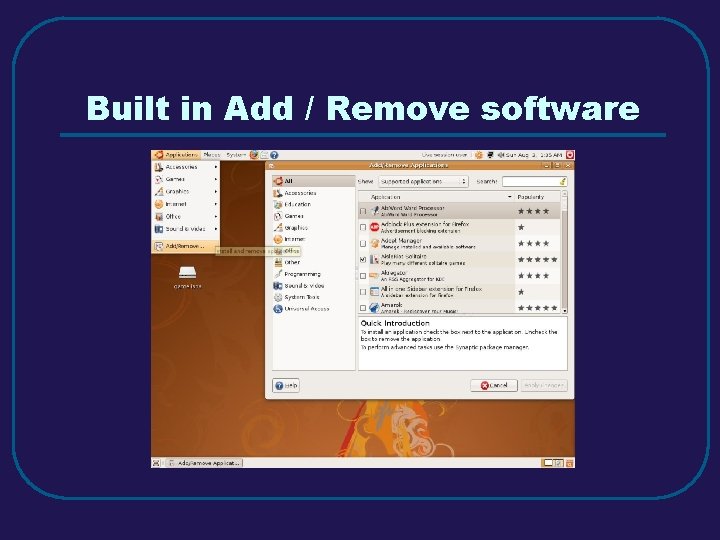
Built in Add / Remove software
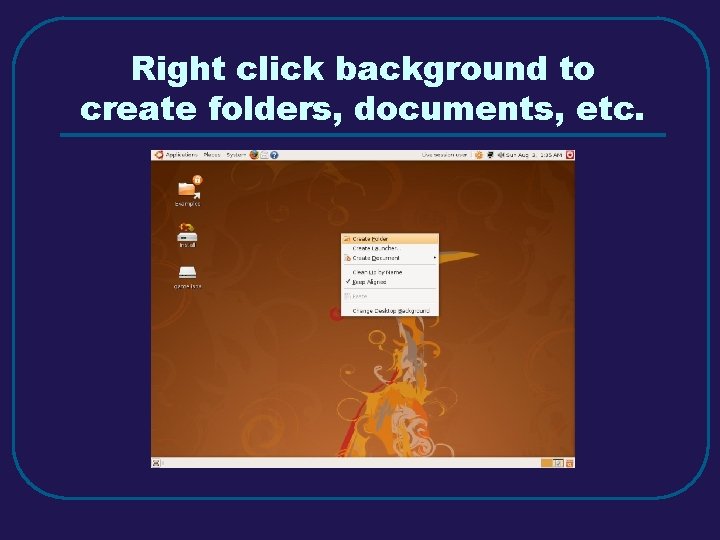
Right click background to create folders, documents, etc.
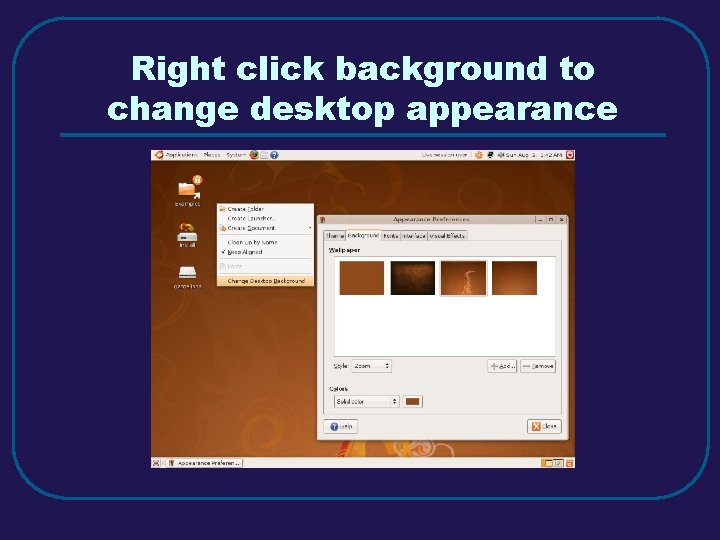
Right click background to change desktop appearance
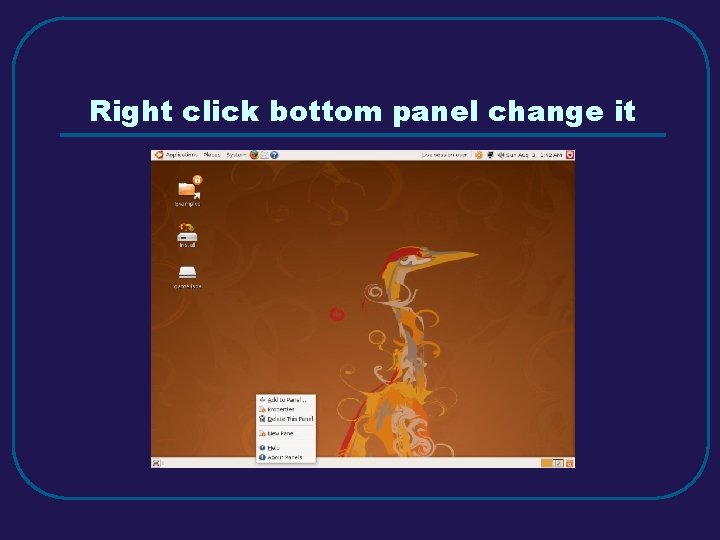
Right click bottom panel change it
GNOME Keyboard Shortcuts l l l l Alt + F 1 Open Applicantions Menu. Alt + F 2 Display Run Application dialog. Print Screen Takes a screenshot. Alt + Print Screen Take screenshot of window in focus. Ctrl + Alt + right arrow Switches right to workspace. Ctrl + Alt + left arrow Switches left to workspace. Ctrl + Alt + up arrow Switches up to workspace. Ctrl + Alt + down arrow Switches down to workspace. Ctrl + Alt + d Minimizes all windows. F 1 Starts the online help browser Alt + Tab Switches between windows. Alt + Esc Switches between windows in reverse order. F 10 Opens the first menu on the left side of the menubar. Alt + spacebar Opens the Window Menu. Arrow keys Moves the focus between items in a menu. l l l l l Return Chooses a menu item. Esc Closes an open menu. Ctrl + Alt + Tab Switches the focus between the panels and the desktop. Ctrl + Alt + Esc Switches the focus between the panels and the desktop. Ctrl + F 10 Opens menu for the selected panel. Tab Switches the focus between objects on a panel. Return Choose selected panel object or menu item. Shift + F 10 Opens the popup menu for the selected panel object. Arrow keys Moves focus between menu items. Esc Closes an open menu. F 10 Opens Applications menu from Menu Bar. Ctrl + N New Ctrl + X Cut Ctrl + C Copy Ctrl + V Paste Ctrl + Z Undo Ctrl + S Save Ctrl + Q Quit
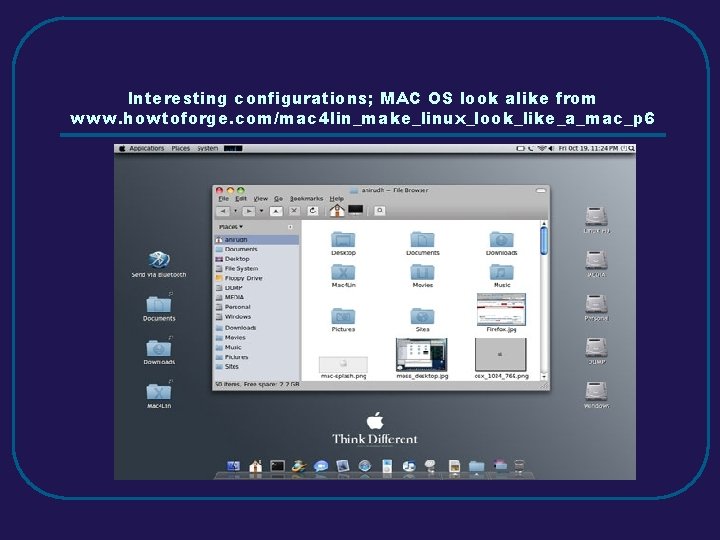
Interesting configurations; MAC OS look alike from www. howtoforge. com/mac 4 lin_make_linux_look_like_a_mac_p 6
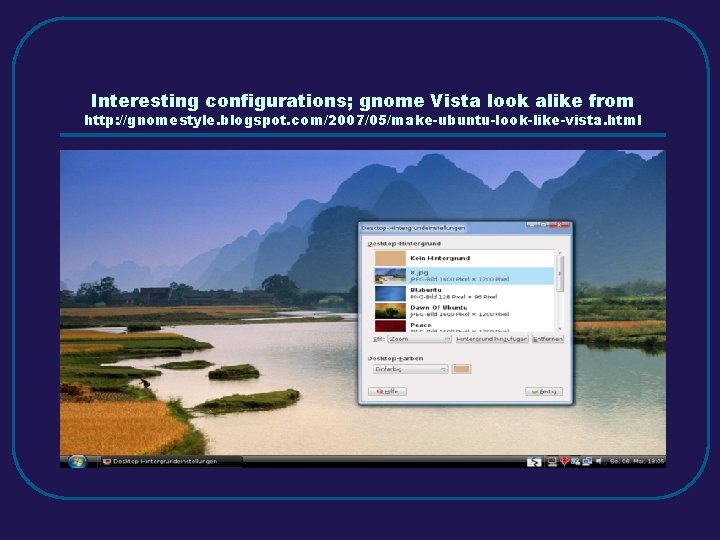
Interesting configurations; gnome Vista look alike from http: //gnomestyle. blogspot. com/2007/05/make-ubuntu-look-like-vista. html
THE END Tell us on the general list if you tried these programs