
Exercises for NPHR Training Session 2 BASIC SKILLS

Exercises for NPHR Training
Session 2 BASIC SKILLS: REPRESENTING WORKFORCE DYNAMICS IN SYSTEMS DYNAMICS MODELS (STELLA)

Outline • Systems Dynamics with Stella – Basic systems dynamics modeling skills – Interfaces – Conveyors – Introduction to Arrays – Configuring and importing data files System dynamics is a computer-aided approach to policy analysis and design. It applies to dynamic problems arising in complex social, managerial, economic, or ecological systems — literally any dynamic systems characterized by interdependence, mutual interaction, information feedback, and circular causality. - Systems Dynamics Society

Basic Systems Dynamics Building Blocks Stocks represent accumulation of people, things, … Flows represent actions or activities that fill or drain stocks over time. Converters modify flows and other converters. Often used to tell how quickly an action happens. Connectors show causal relationships that drive activity. A feedback loop is formed when changes in the stock affect the flow into or out of the same stock.

Stella Modelling Environment Output Tools Model Elements Navigation Element Dialog Box Simulation Controls 5
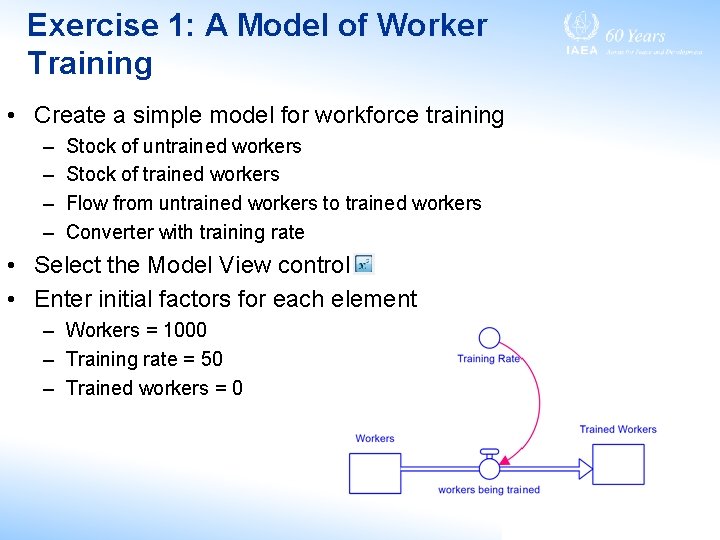
Exercise 1: A Model of Worker Training • Create a simple model for workforce training – – Stock of untrained workers Stock of trained workers Flow from untrained workers to trained workers Converter with training rate • Select the Model View control • Enter initial factors for each element – Workers = 1000 – Training rate = 50 – Trained workers = 0
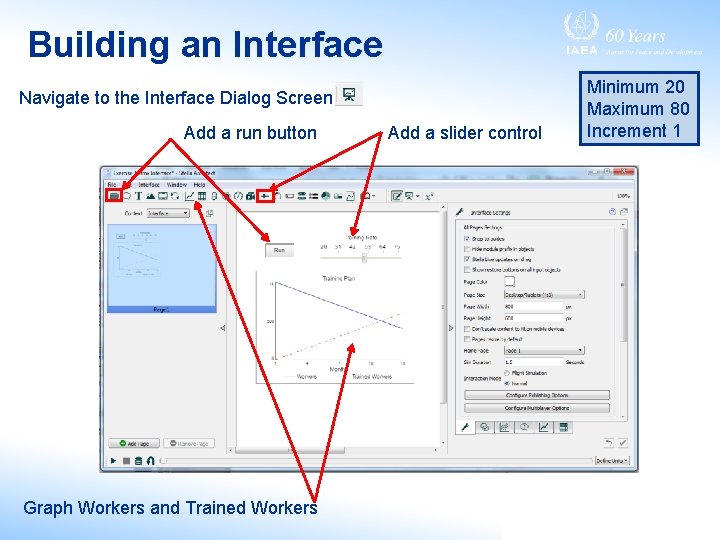
Building an Interface Navigate to the Interface Dialog Screen Add a run button Graph Workers and Trained Workers Add a slider control Minimum 20 Maximum 80 Increment 1
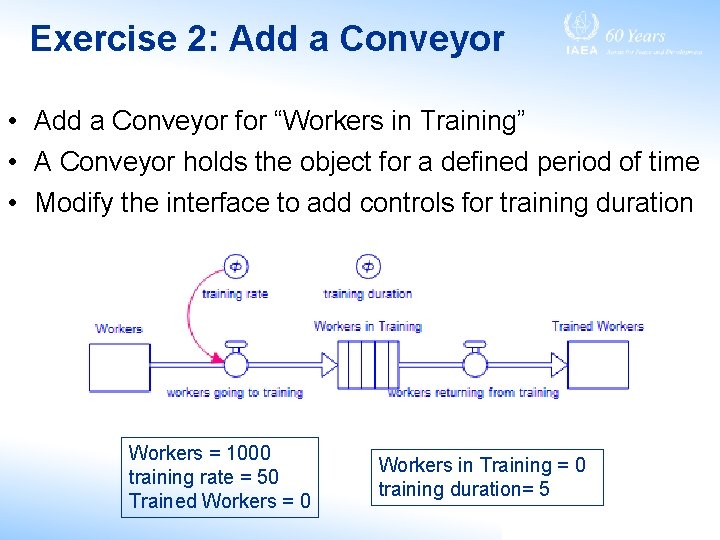
Exercise 2: Add a Conveyor • Add a Conveyor for “Workers in Training” • A Conveyor holds the object for a defined period of time • Modify the interface to add controls for training duration Workers = 1000 training rate = 50 Trained Workers = 0 Workers in Training = 0 training duration= 5
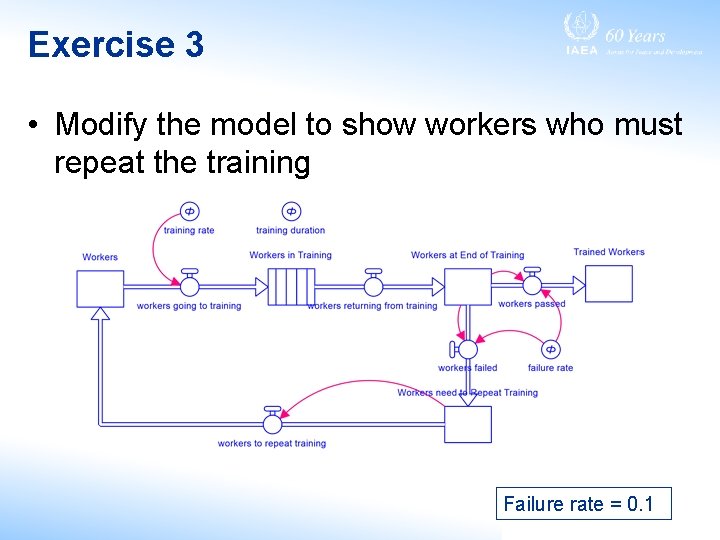
Exercise 3 • Modify the model to show workers who must repeat the training Failure rate = 0. 1
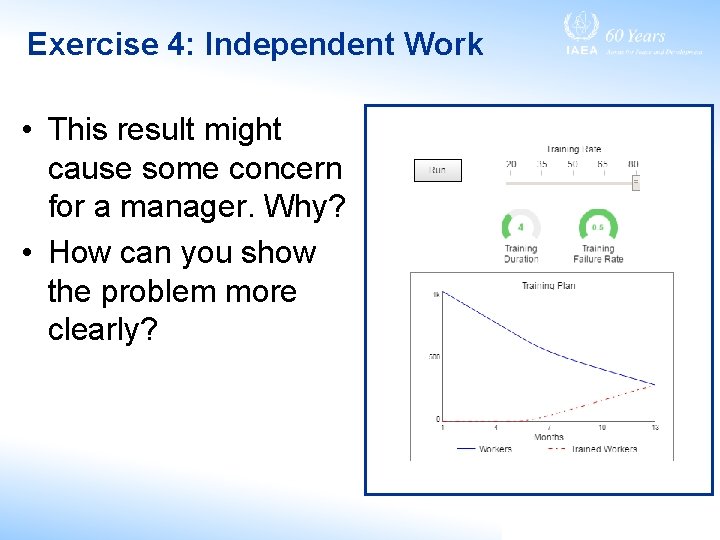
Exercise 4: Independent Work • This result might cause some concern for a manager. Why? • How can you show the problem more clearly?
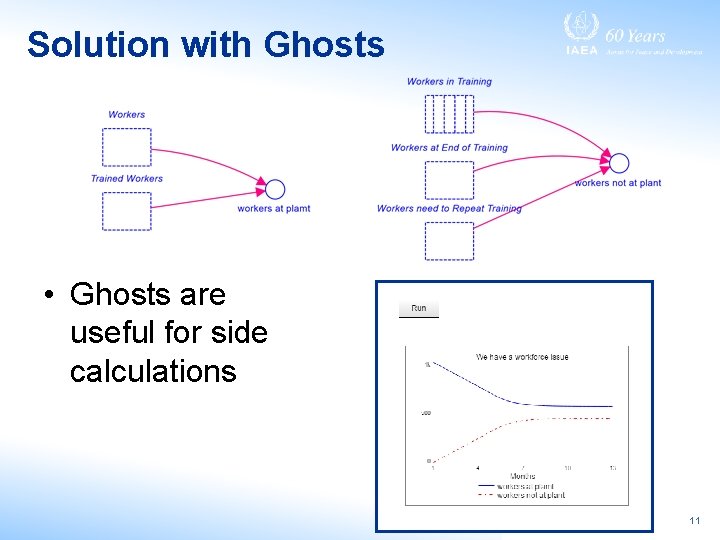
Solution with Ghosts • Ghosts are useful for side calculations 11
Session 3 ADVANCED SKILLS: USING ARRAYS AND DATA FILES
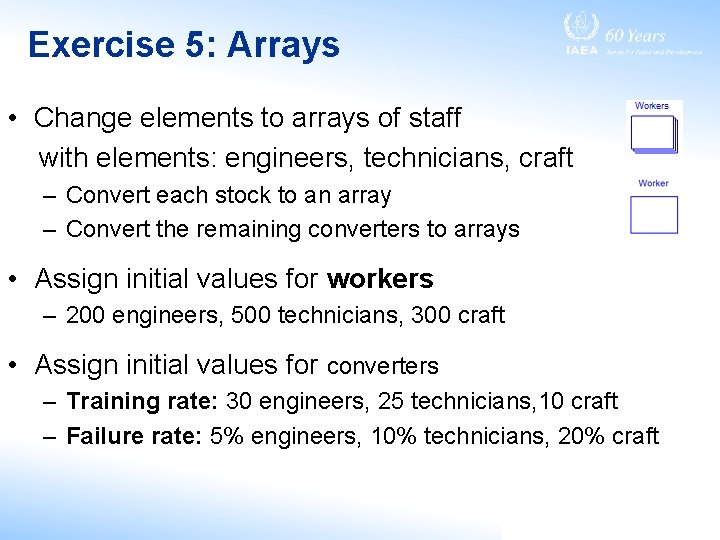
Exercise 5: Arrays • Change elements to arrays of staff with elements: engineers, technicians, craft – Convert each stock to an array – Convert the remaining converters to arrays • Assign initial values for workers – 200 engineers, 500 technicians, 300 craft • Assign initial values for converters – Training rate: 30 engineers, 25 technicians, 10 craft – Failure rate: 5% engineers, 10% technicians, 20% craft
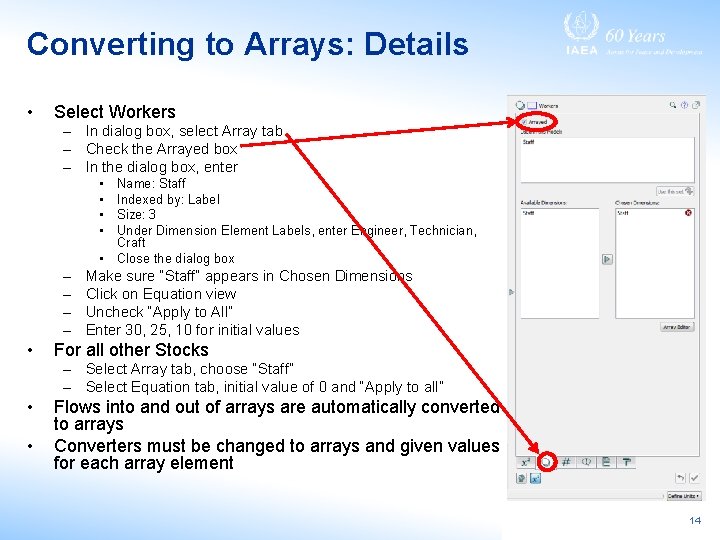
Converting to Arrays: Details • Select Workers – In dialog box, select Array tab – Check the Arrayed box – In the dialog box, enter • • • – – • Name: Staff Indexed by: Label Size: 3 Under Dimension Element Labels, enter Engineer, Technician, Craft Close the dialog box Make sure “Staff” appears in Chosen Dimensions Click on Equation view Uncheck “Apply to All” Enter 30, 25, 10 for initial values For all other Stocks – Select Array tab, choose “Staff” – Select Equation tab, initial value of 0 and “Apply to all” • • Flows into and out of arrays are automatically converted to arrays Converters must be changed to arrays and given values for each array element 14
Update the Interface • Controls no longer know which element of the array to control • The slider no longer says “Training Rate” • Select the slider – Select variable training rate – A dialog box appears asking which element of the array to control. Select Engineers • Update the control for failure rate and the graph • Training duration control isn’t arrayed 15
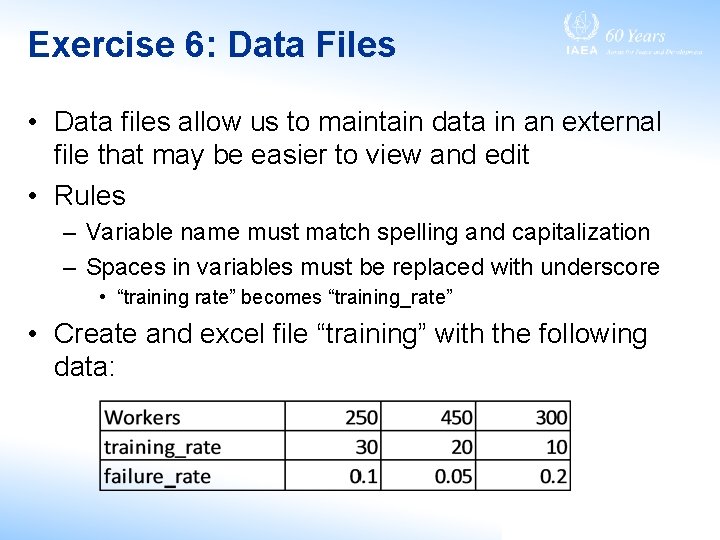
Exercise 6: Data Files • Data files allow us to maintain data in an external file that may be easier to view and edit • Rules – Variable name must match spelling and capitalization – Spaces in variables must be replaced with underscore • “training rate” becomes “training_rate” • Create and excel file “training” with the following data:
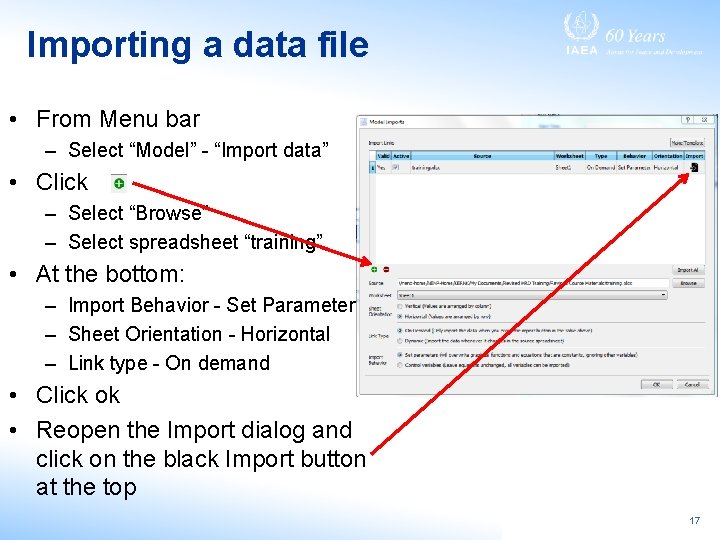
Importing a data file • From Menu bar – Select “Model” - “Import data” • Click – Select “Browse” – Select spreadsheet “training” • At the bottom: – Import Behavior - Set Parameters – Sheet Orientation - Horizontal – Link type - On demand • Click ok • Reopen the Import dialog and click on the black Import button at the top 17
- Slides: 17