
ExchangeMailing Exmail Ex mail is windows base mailing
Exchange-Mailing
Ex-mail Ex mail is windows base mailing service where With Microsoft Exchange and Users can do more than send and receive. Exchange is a popular Microsoft messaging system that includes a mail server, an e-mail program (e-mail client), and groupware applications. Designed for use in a business setting, the Exchange server is often used in conjunction with Microsoft Outlook to take advantage of Outlook's collaborative features, such as the ability to share calendars and contact lists. .
Why Exchange • • • Personal Mail Folder Shared Calendars Shared Contacts Shared Folders Shared Task Management Customized Forms Outlook Web Access(OWA) Mobile Messaging with Microsoft Office Outlook Mobile Outlook (MAPI Function) Global Address List
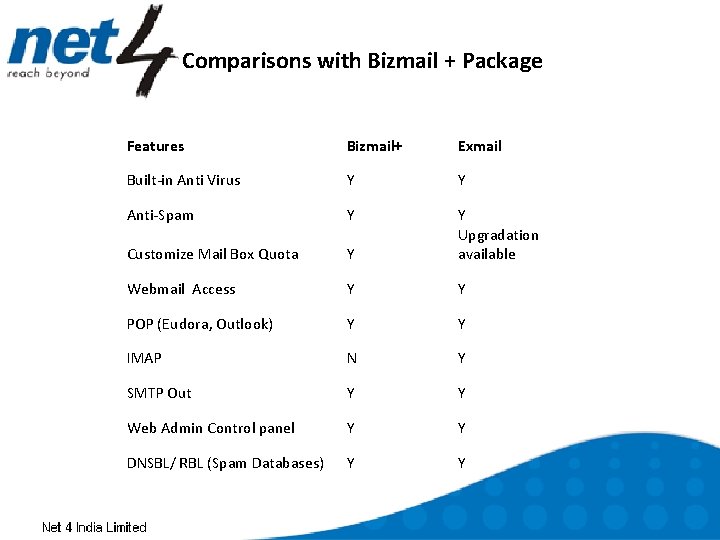
Comparisons with Bizmail + Package Features Bizmail+ Exmail Built-in Anti Virus Y Y Anti-Spam Y Customize Mail Box Quota Y Y Upgradation available Webmail Access Y Y POP (Eudora, Outlook) Y Y IMAP N Y SMTP Out Y Y Web Admin Control panel Y Y DNSBL/ RBL (Spam Databases) Y Y
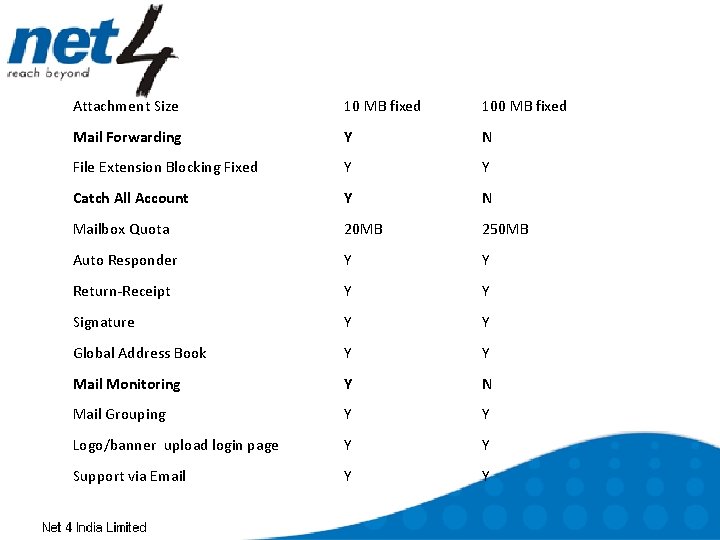
Attachment Size 10 MB fixed 100 MB fixed Mail Forwarding Y N File Extension Blocking Fixed Y Y Catch All Account Y N Mailbox Quota 20 MB 250 MB Auto Responder Y Y Return-Receipt Y Y Signature Y Y Global Address Book Y Y Mail Monitoring Y N Mail Grouping Y Y Logo/banner upload login page Y Y Support via Email Y Y
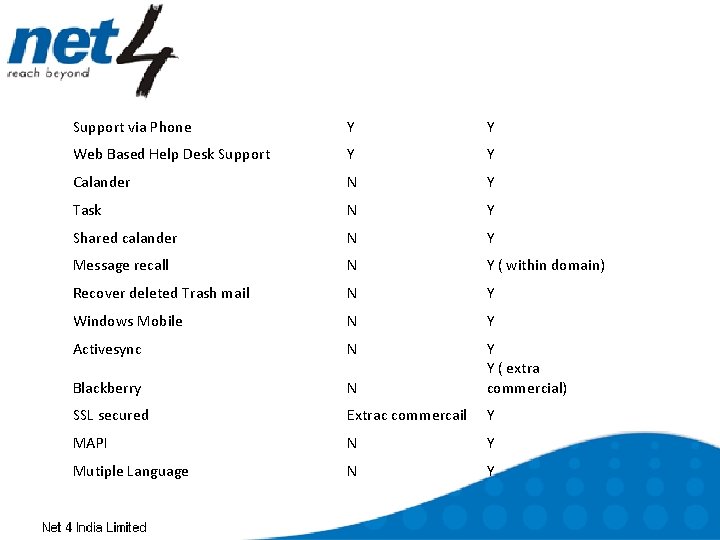
Support via Phone Y Y Web Based Help Desk Support Y Y Calander N Y Task N Y Shared calander N Y Message recall N Y ( within domain) Recover deleted Trash mail N Y Windows Mobile N Y Activesync N Blackberry N Y Y ( extra commercial) SSL secured Extrac commercail Y MAPI N Y Mutiple Language N Y
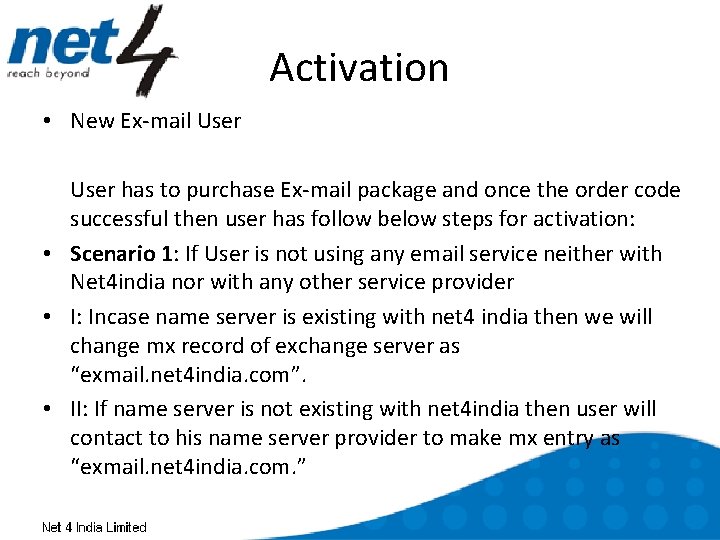
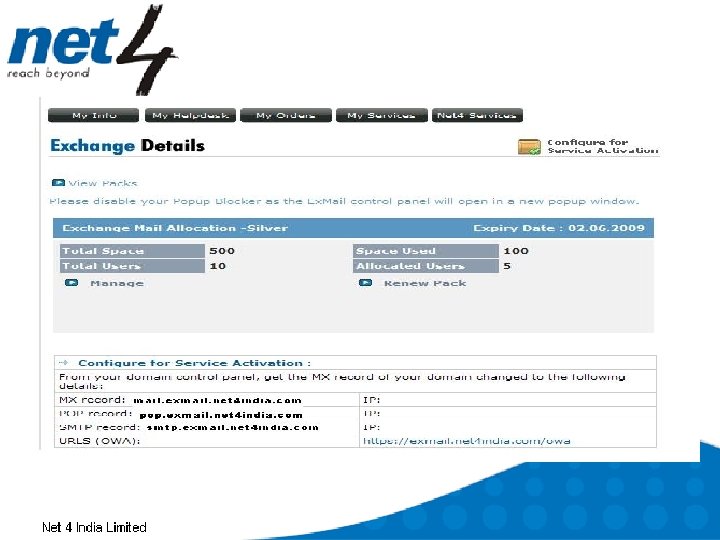
Activation • New Ex-mail User has to purchase Ex-mail package and once the order code successful then user has follow below steps for activation: • Scenario 1: If User is not using any email service neither with Net 4 india nor with any other service provider • I: Incase name server is existing with net 4 india then we will change mx record of exchange server as “exmail. net 4 india. com”. • II: If name server is not existing with net 4 india then user will contact to his name server provider to make mx entry as “exmail. net 4 india. com. ”
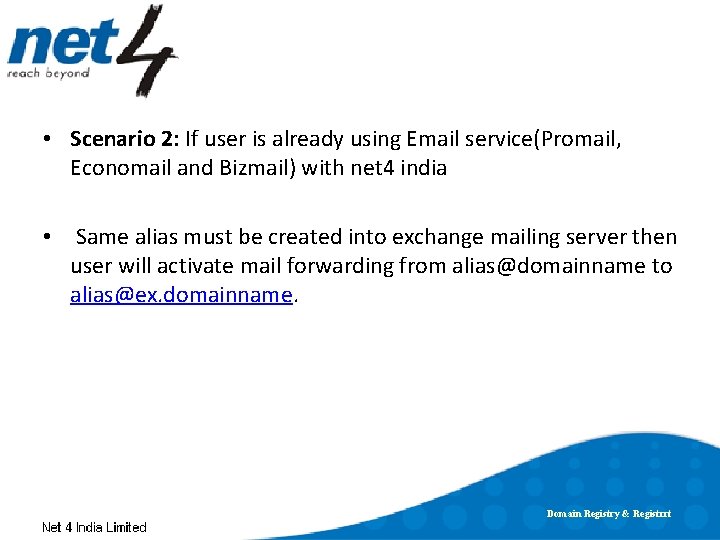
• Scenario 2: If user is already using Email service(Promail, Economail and Bizmail) with net 4 india • Same alias must be created into exchange mailing server then user will activate mail forwarding from alias@domainname to alias@ex. domainname. Domain Registry & Registrrt
• Scenario 3: If user is already using Email service with other service provider • Same alias must be created into exchange mailing server then user will activate mail forwarding from alias@domainname to alias@ex. domainname.
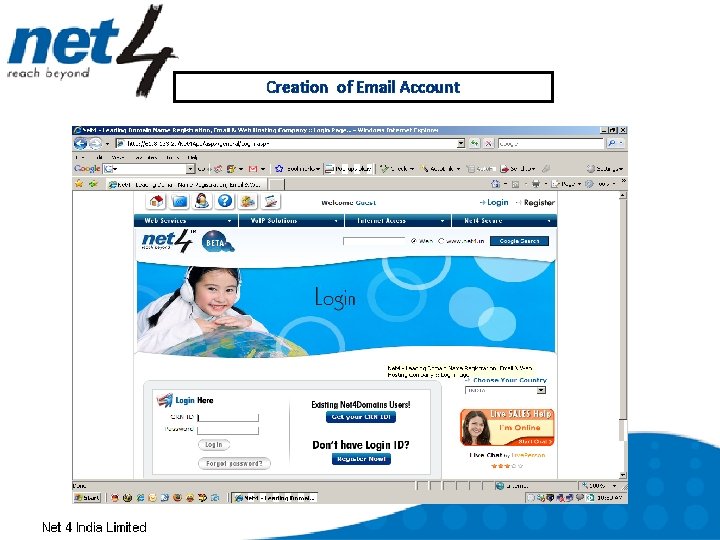
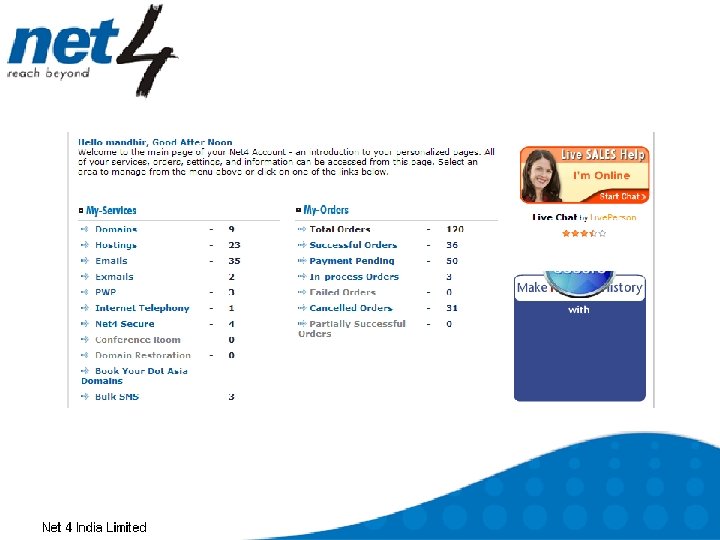
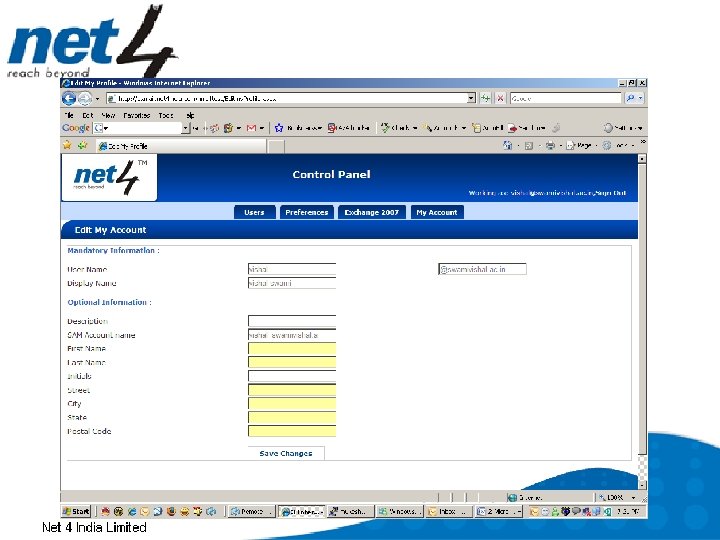
Creation of Email Account
How to access Emails § § Webmail Access Ms-Outlook IPHONE Handsets Blackberry or Handsets
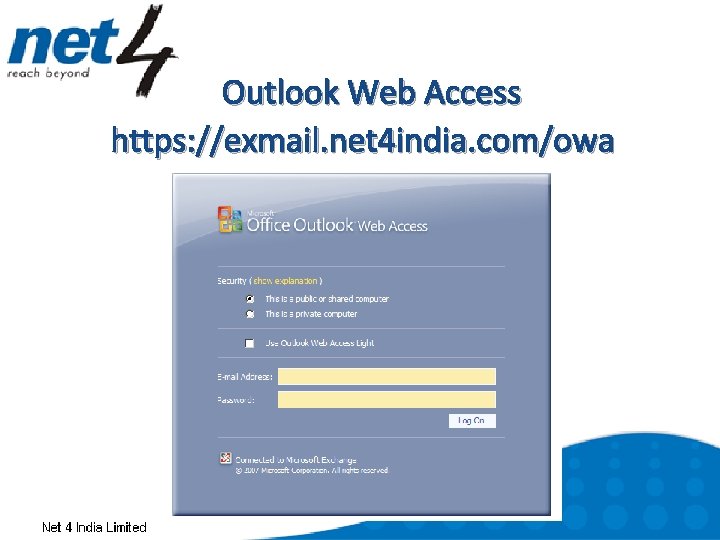
Outlook Web Access https: //exmail. net 4 india. com/owa
MS-Outlook Configuration 2003
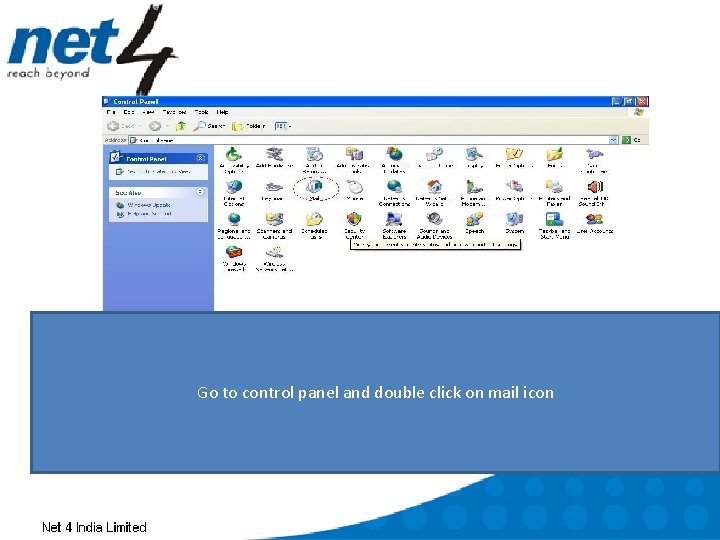
Go to control panel and double click on mail icon
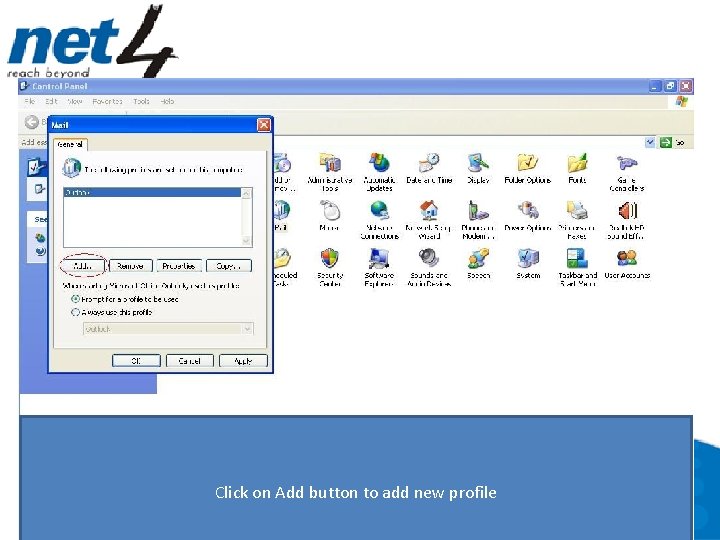
Click on Add button to add new profile
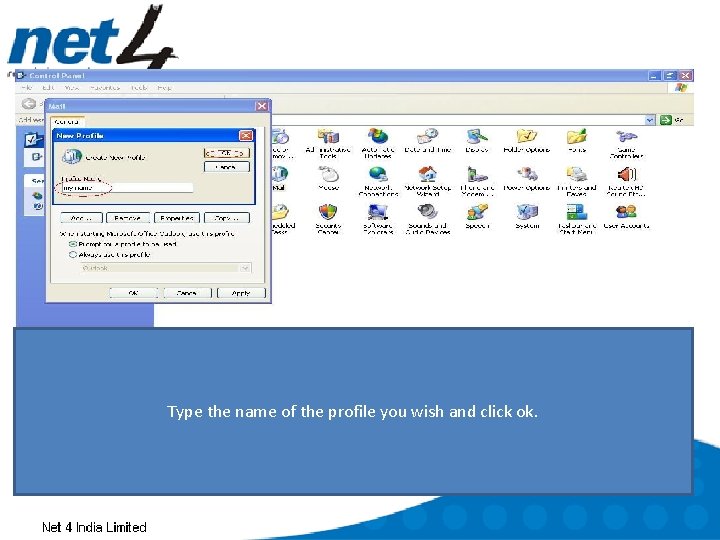
Type the name of the profile you wish and click ok.
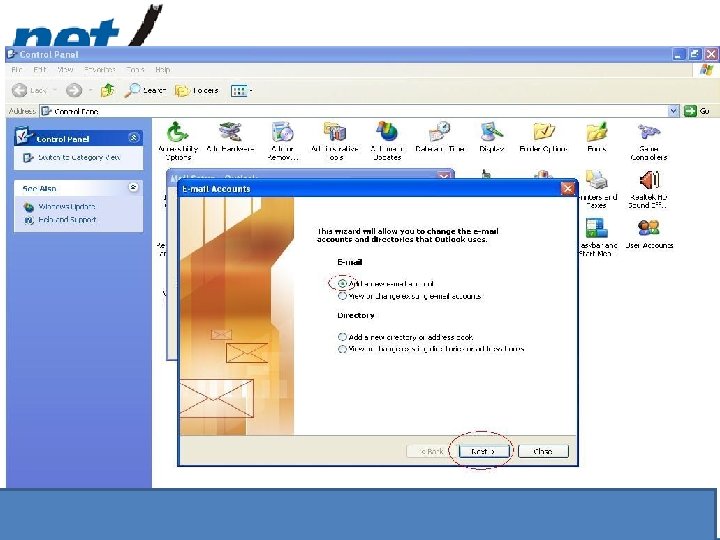
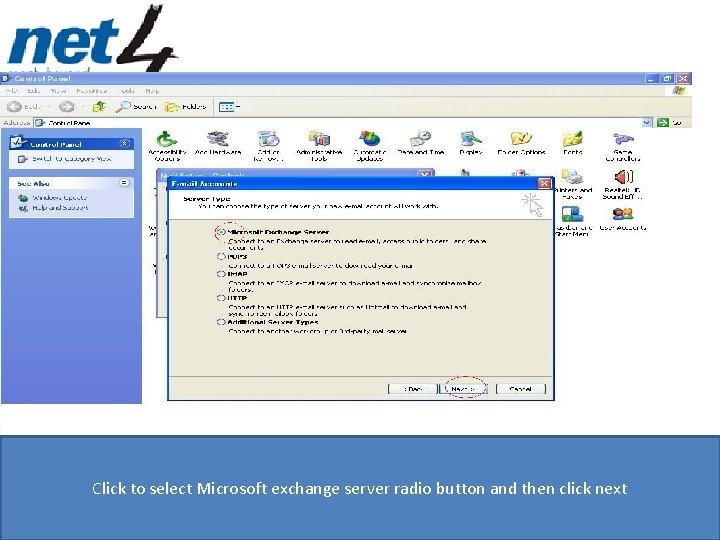
Click to select Microsoft exchange server radio button and then click next
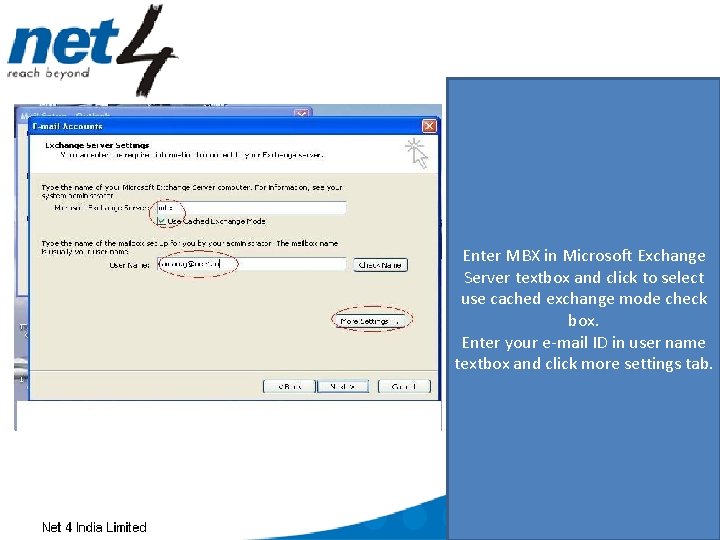
Enter MBX in Microsoft Exchange Server textbox and click to select use cached exchange mode check box. Enter your e-mail ID in user name textbox and click more settings tab.
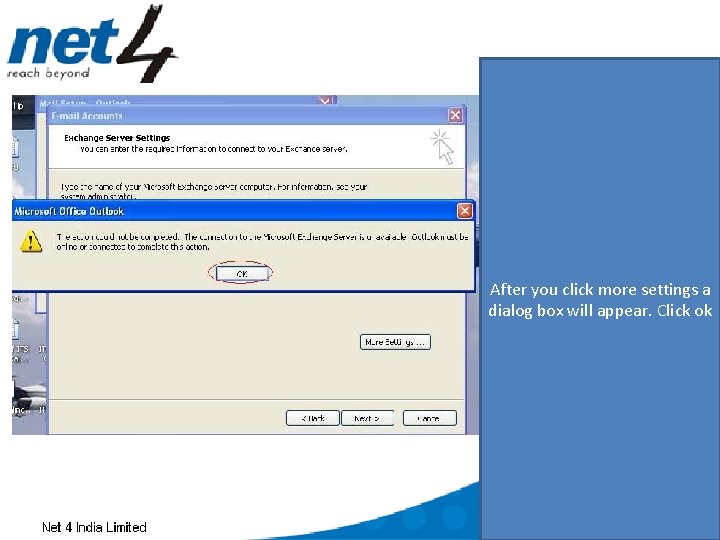
After you click more settings a dialog box will appear. Click ok
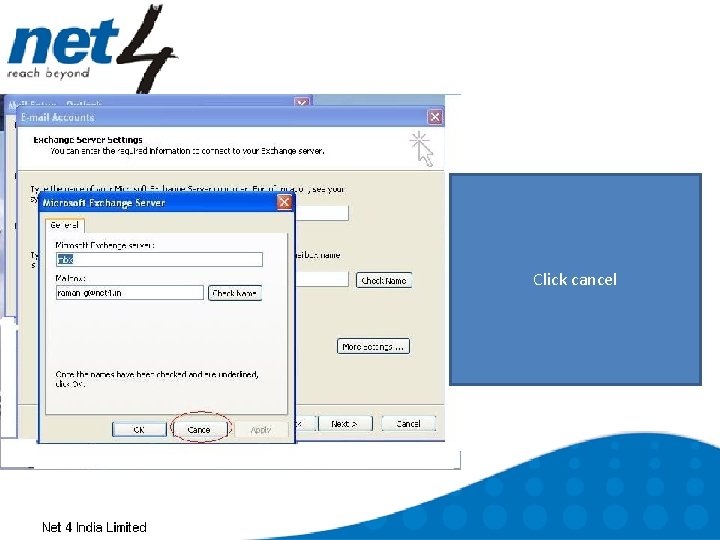
Click cancel
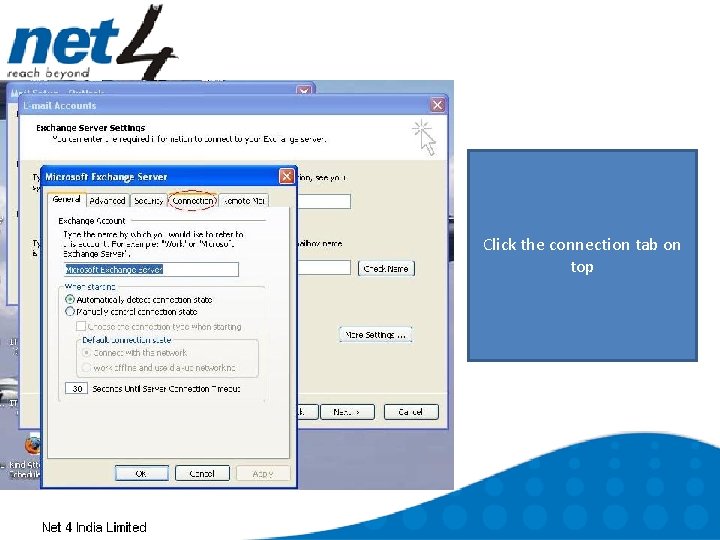
Click the connection tab on top
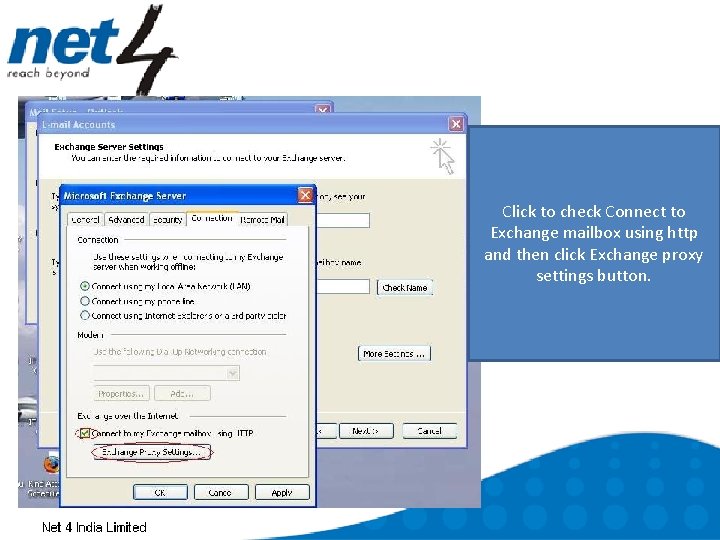
Click to check Connect to Exchange mailbox using http and then click Exchange proxy settings button.
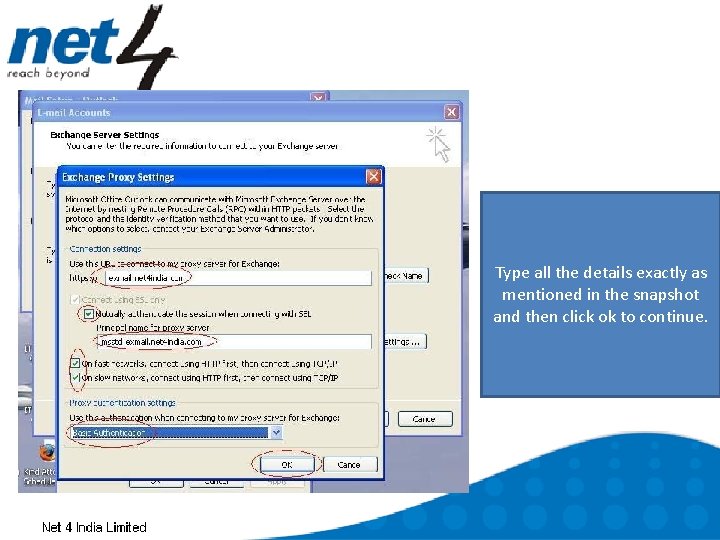
Type all the details exactly as mentioned in the snapshot and then click ok to continue.
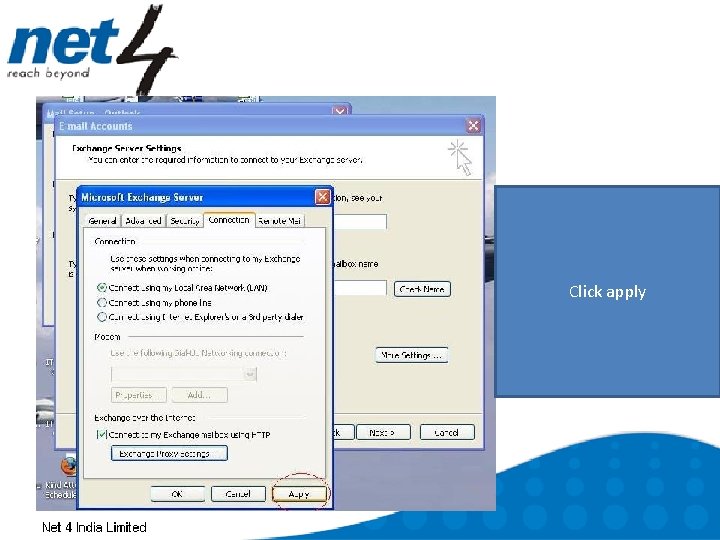
Click apply
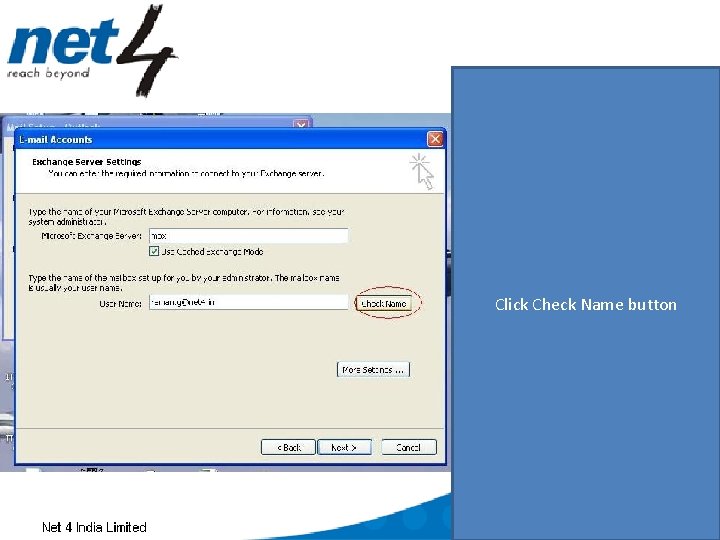
Click Check Name button
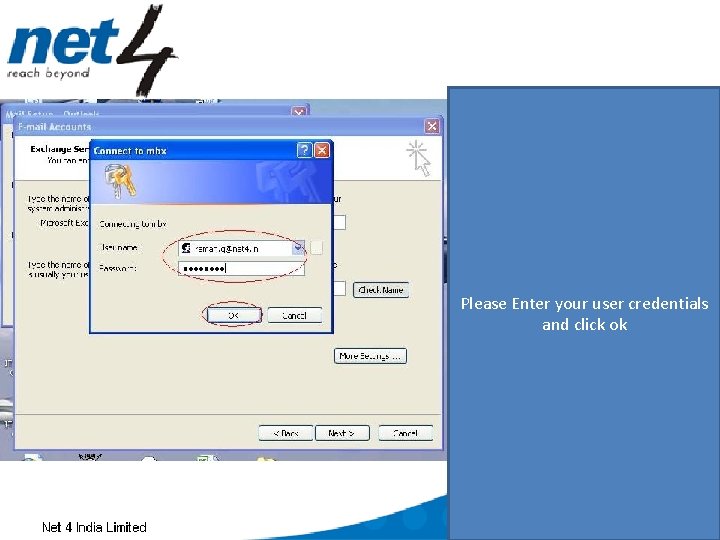
Please Enter your user credentials and click ok
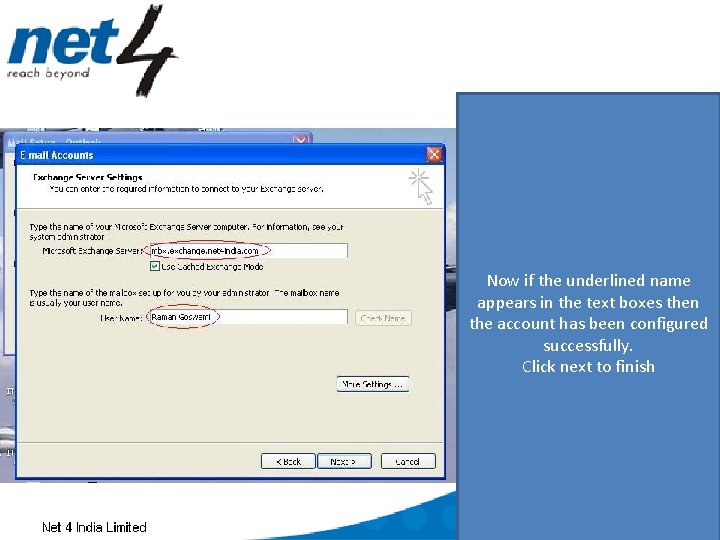
Now if the underlined name appears in the text boxes then the account has been configured successfully. Click next to finish
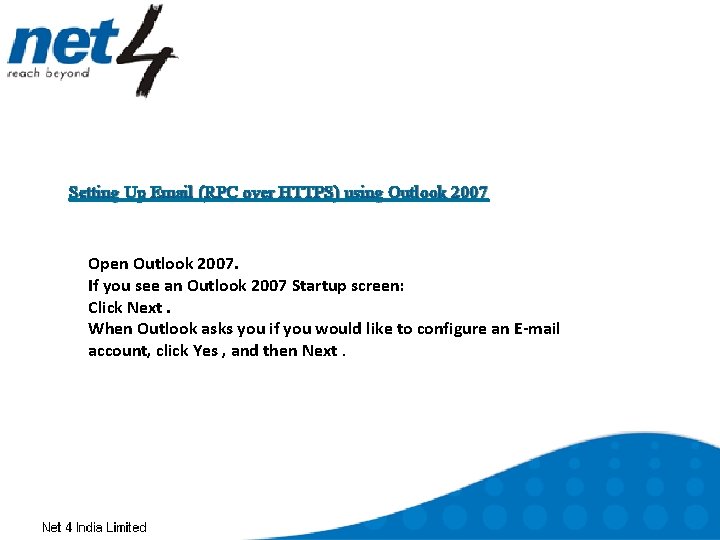
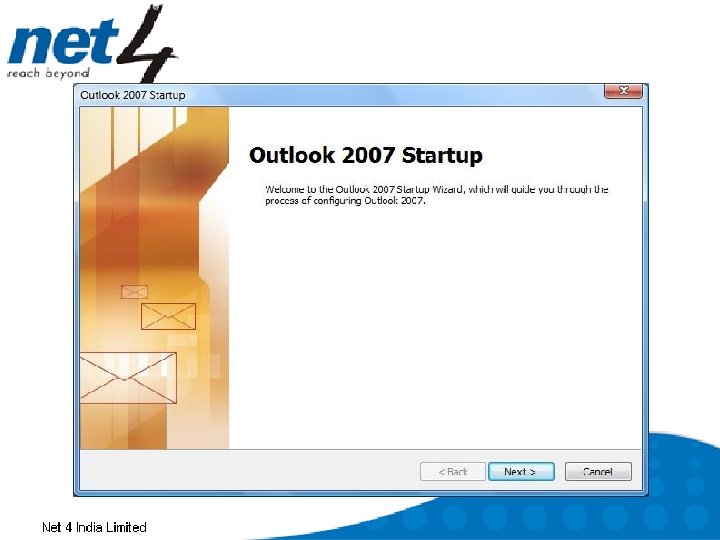
Setting Up Email (RPC over HTTPS) using Outlook 2007 Open Outlook 2007. If you see an Outlook 2007 Startup screen: Click Next. When Outlook asks you if you would like to configure an E-mail account, click Yes , and then Next.
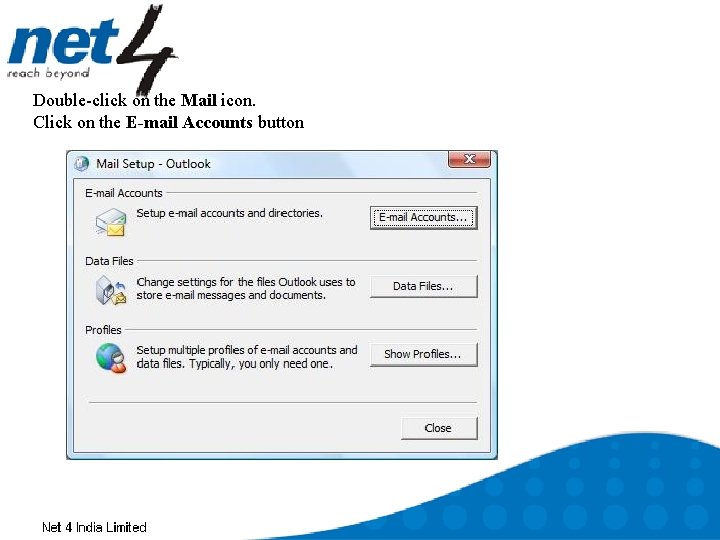
Double-click on the Mail icon. Click on the E-mail Accounts button
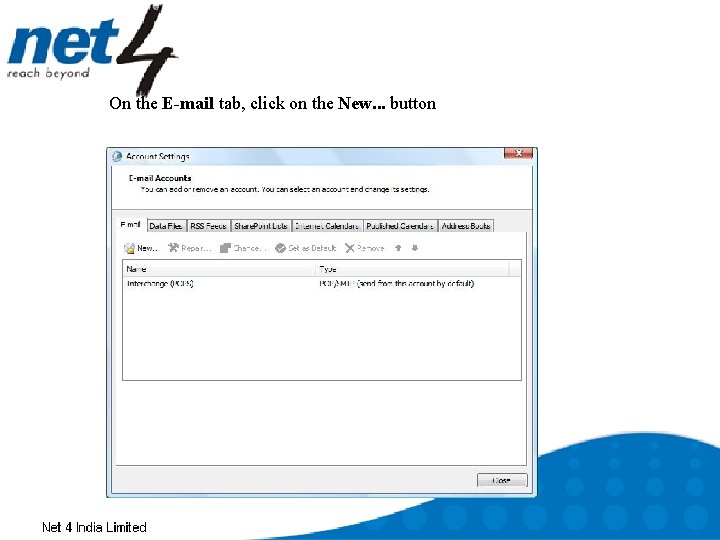
On the E-mail tab, click on the New. . . button
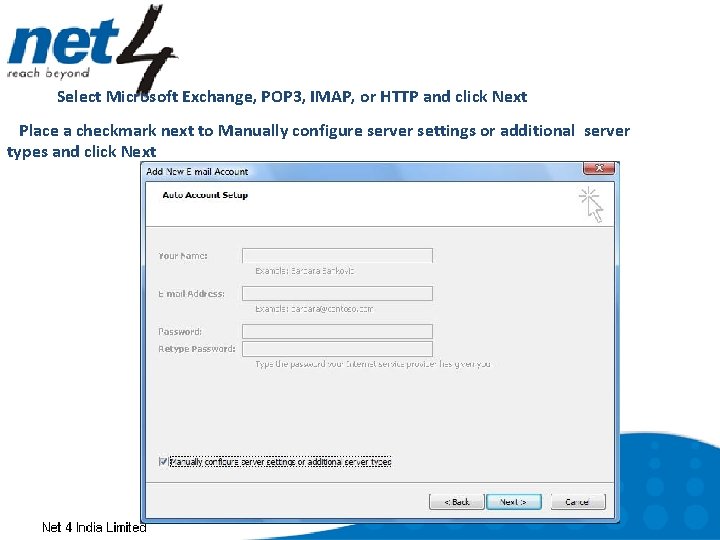
Select Microsoft Exchange, POP 3, IMAP, or HTTP and click Next Place a checkmark next to Manually configure server settings or additional server types and click Next
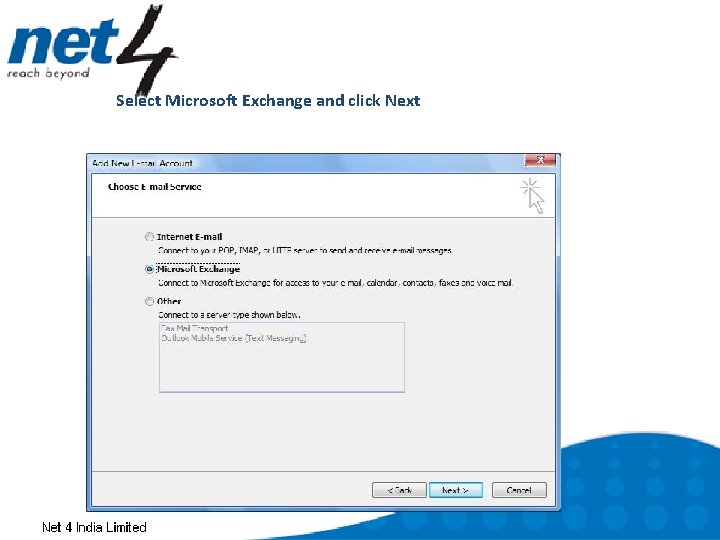
Select Microsoft Exchange and click Next
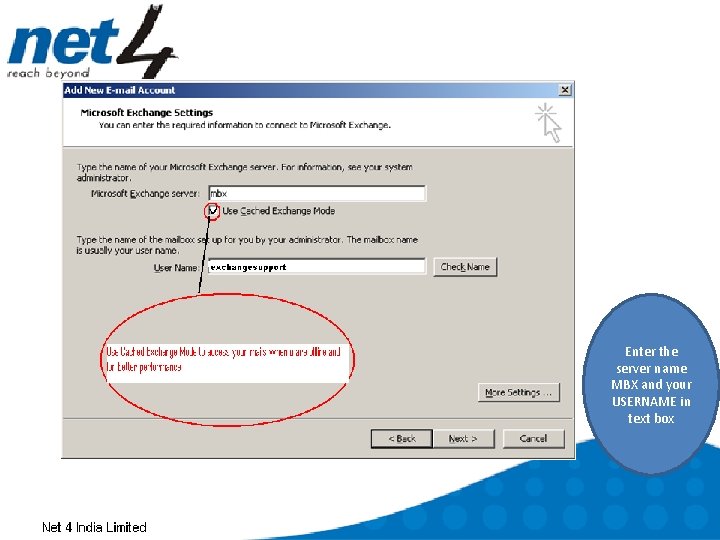
Enter the server name MBX and your USERNAME in text box
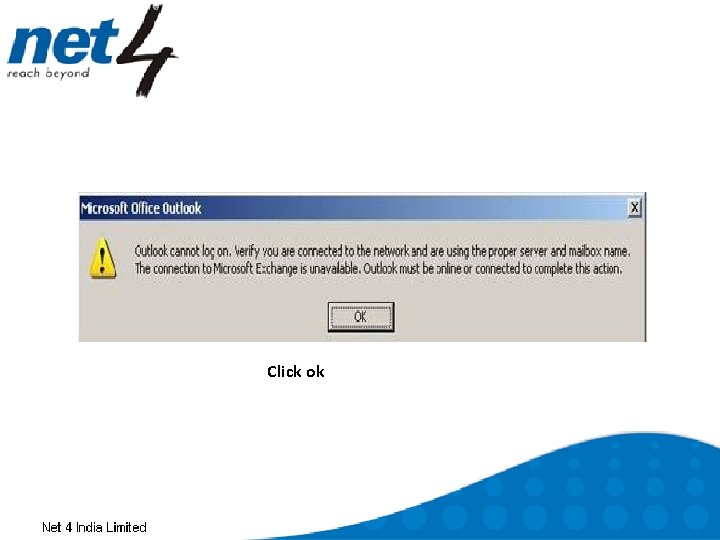
Click ok
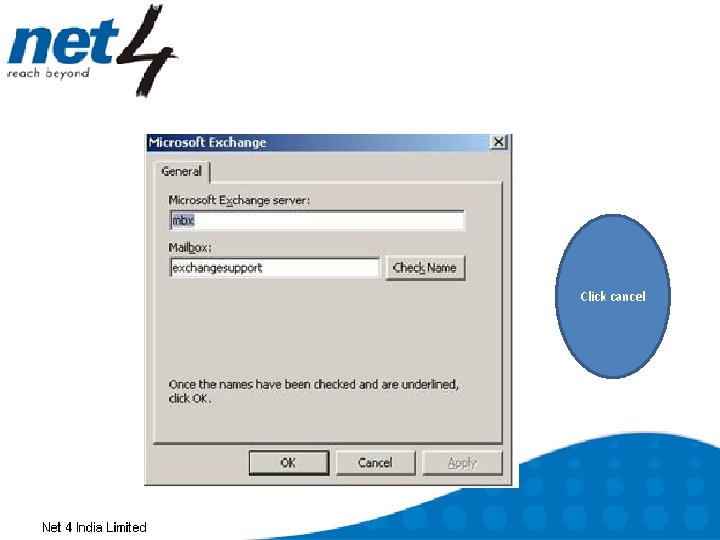
Click cancel
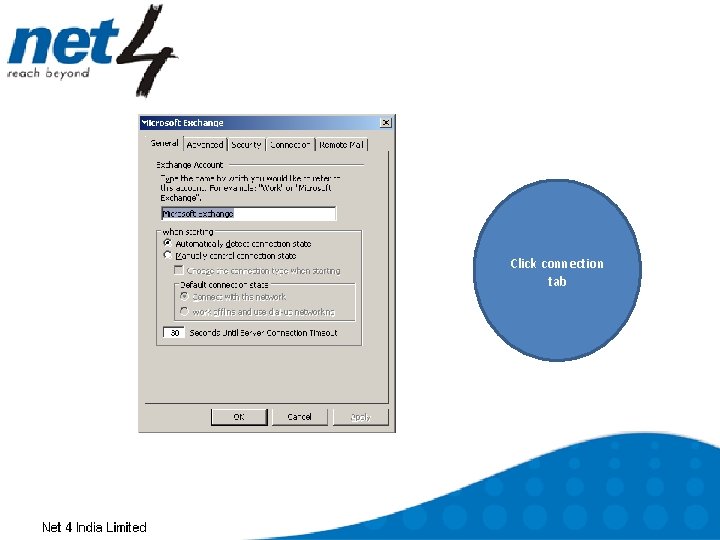
Click connection tab
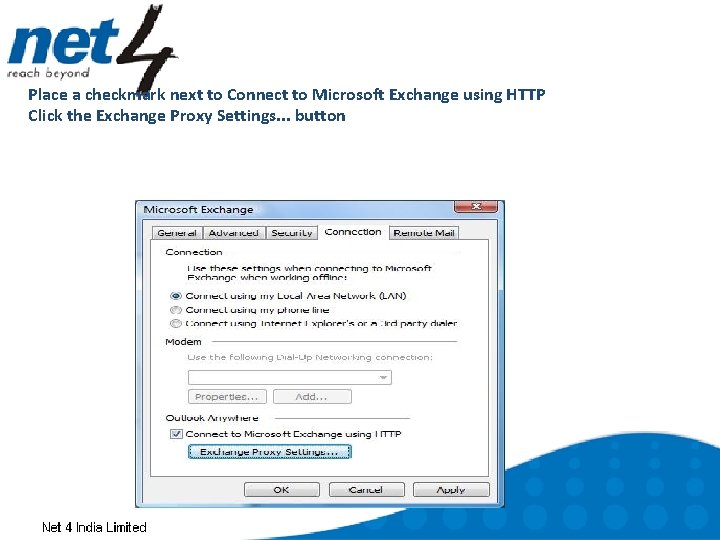
Place a checkmark next to Connect to Microsoft Exchange using HTTP Click the Exchange Proxy Settings. . . button
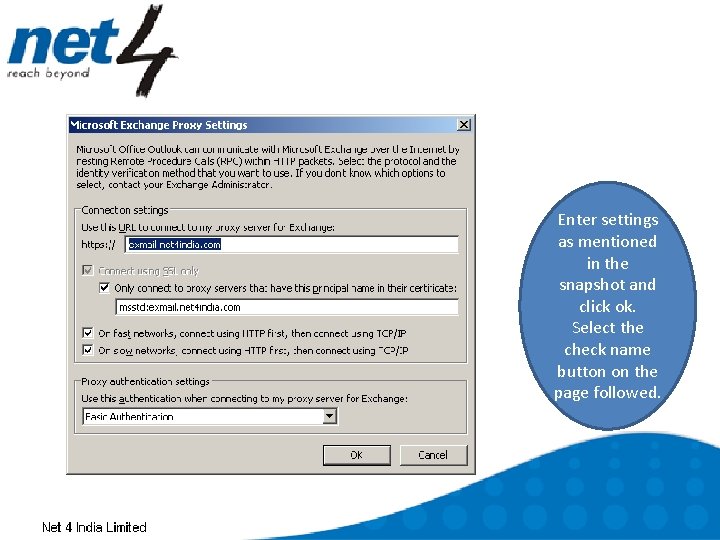
Enter settings as mentioned in the snapshot and click ok. Select the check name button on the page followed.
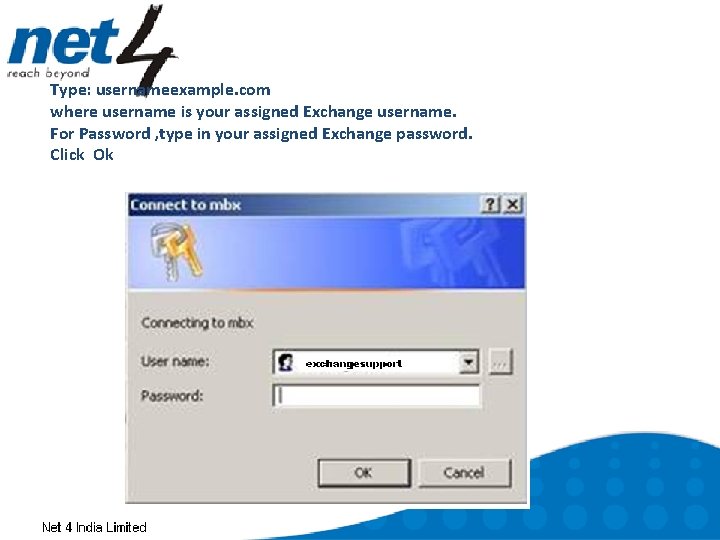
Type: usernameexample. com where username is your assigned Exchange username. For Password , type in your assigned Exchange password. Click Ok
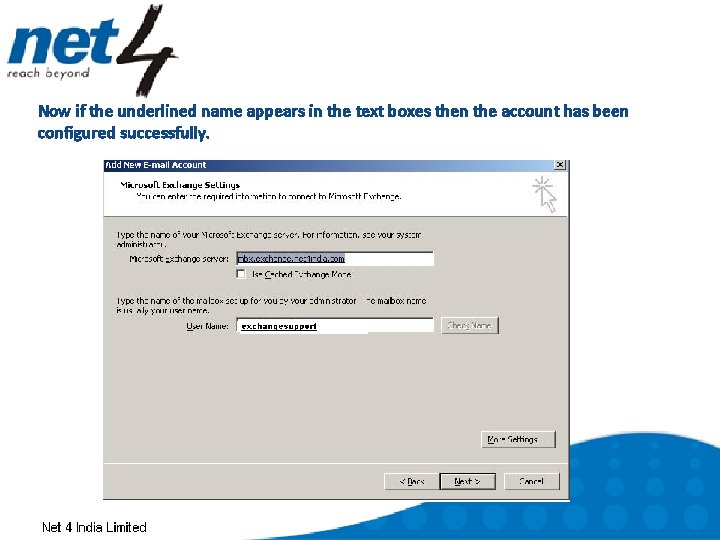
Now if the underlined name appears in the text boxes then the account has been configured successfully.
• Click OK again to return to the Microsoft Exchange Settings window. • You may receive a message stating that you must restart Outlook for these changes to take effect. If so, click OK. • Click Next. • You may receive a message stating that, by adding a Microsoft Exchange account, you have changed where some of you new e-mail messages and calendar information is saved. If so, click OK • Click Finish. • You may be prompted for your Exchange password. If so, type in your assigned Exchange password and click OK. • If you now see the E-mail Accounts screen, click Close , and then click Close again.
Archive • A file that contains one or more compressed files. Most archive formats are also capable of storing folder structures in order to reconstruct the file/folder relationship when decompressed.
Advantage for Archiving • To compress one or more files and folders into a single file for backup or transport. Although archived files may remain on the same computer, “archive” implies. data retention and archived data are typically stored in a secondary location for backup.
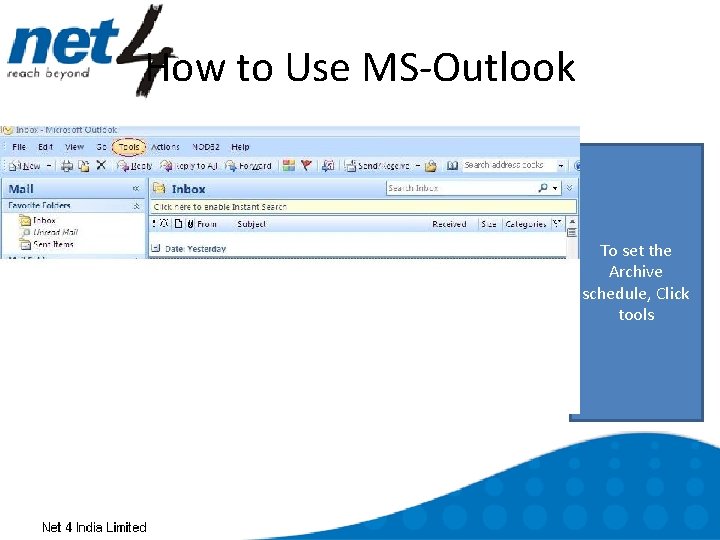
How to Use MS-Outlook To set the Archive schedule, Click tools
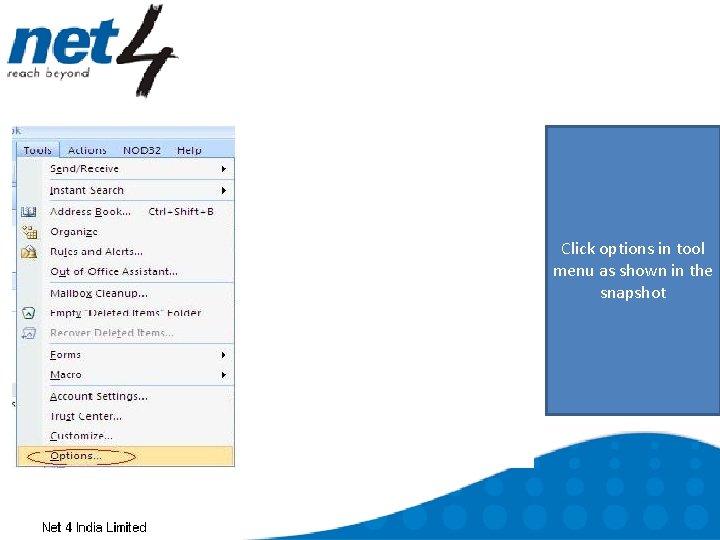
Click options in tool menu as shown in the snapshot
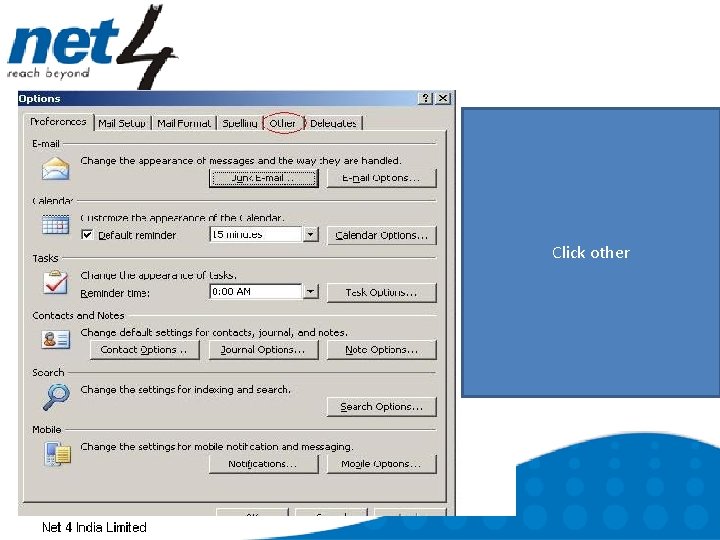
Click other
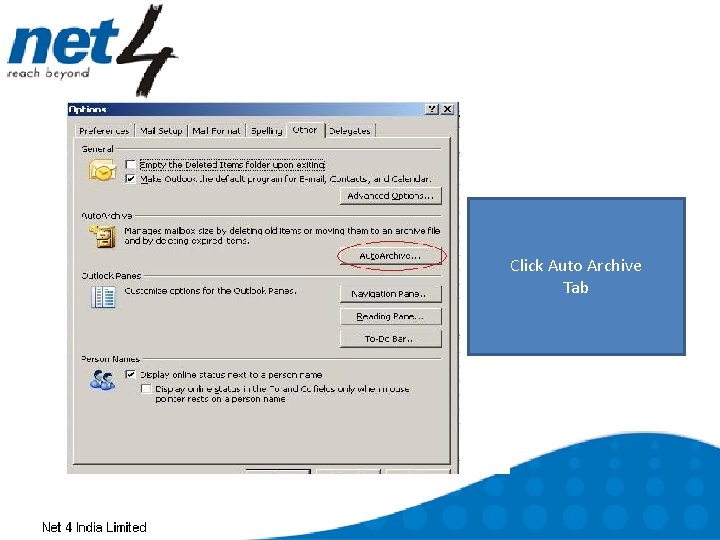
Click Auto Archive Tab
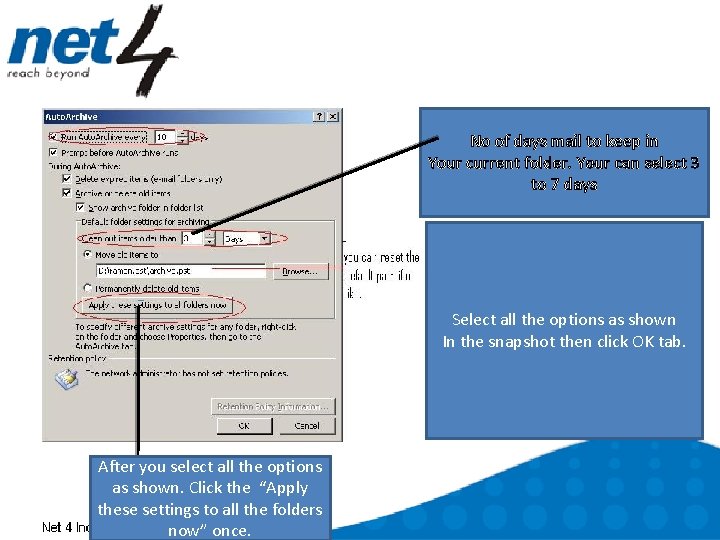
No of days mail to keep in Your current folder. Your can select 3 to 7 days Select all the options as shown In the snapshot then click OK tab. After you select all the options as shown. Click the “Apply these settings to all the folders now” once.
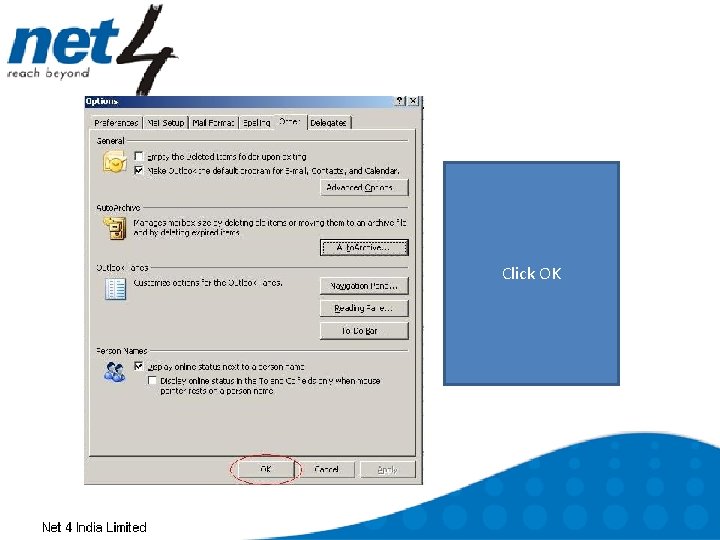
Click OK
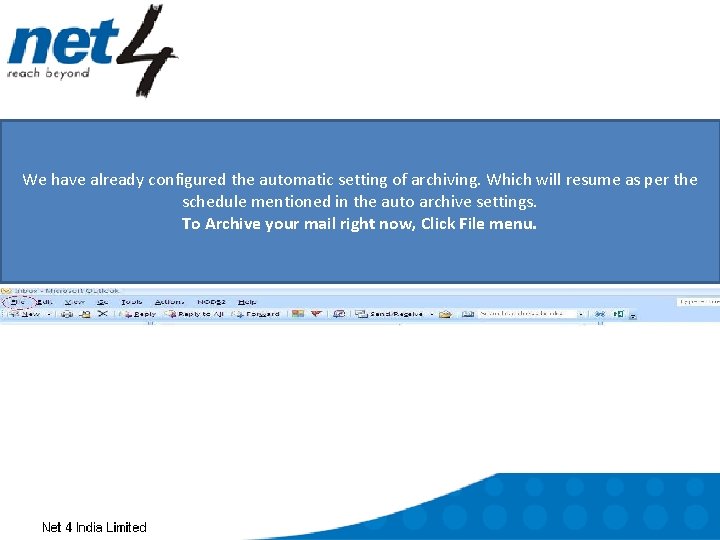
We have already configured the automatic setting of archiving. Which will resume as per the schedule mentioned in the auto archive settings. To Archive your mail right now, Click File menu.
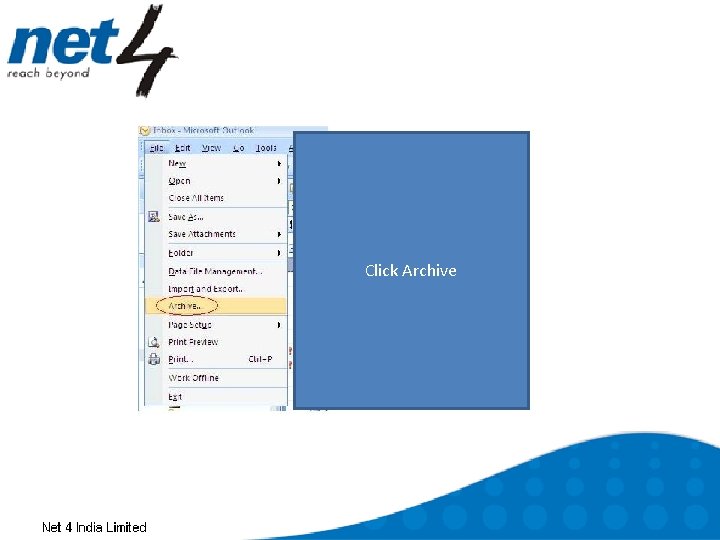
Click Archive
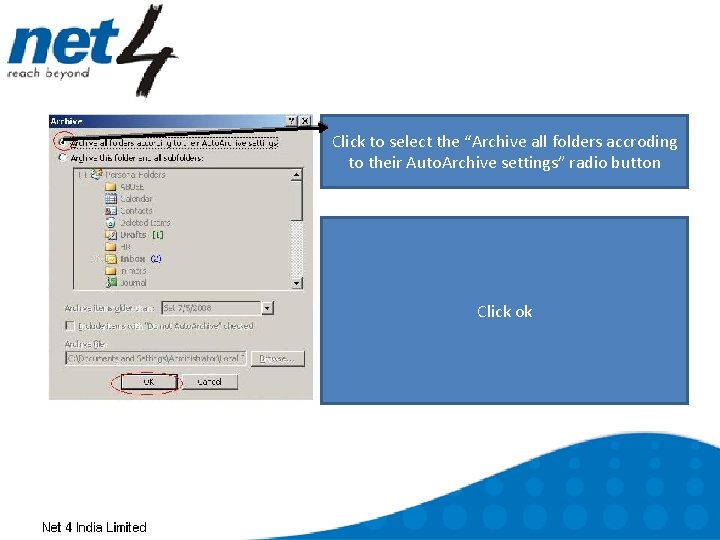
Click to select the “Archive all folders accroding to their Auto. Archive settings” radio button Click ok
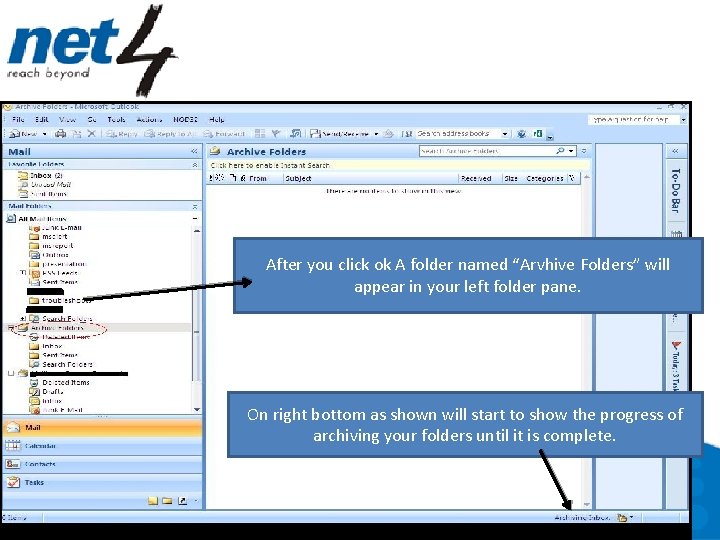
After you click ok A folder named “Arvhive Folders” will appear in your left folder pane. On right bottom as shown will start to show the progress of archiving your folders until it is complete.
Manage and Configure Windows Mobile 6 Powered Devices
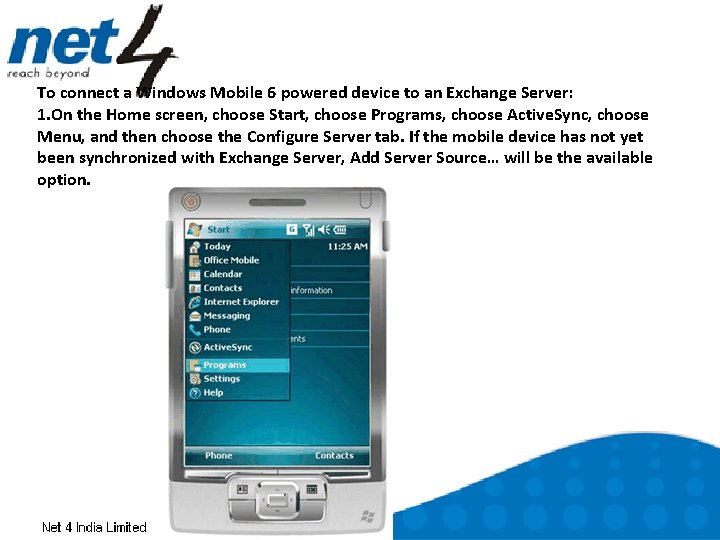
To connect a Windows Mobile 6 powered device to an Exchange Server: 1. On the Home screen, choose Start, choose Programs, choose Active. Sync, choose Menu, and then choose the Configure Server tab. If the mobile device has not yet been synchronized with Exchange Server, Add Server Source… will be the available option.
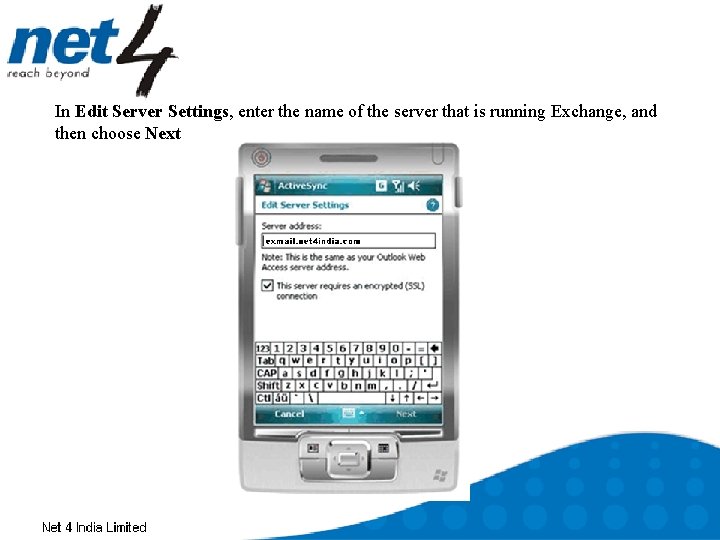
In Edit Server Settings, enter the name of the server that is running Exchange, and then choose Next
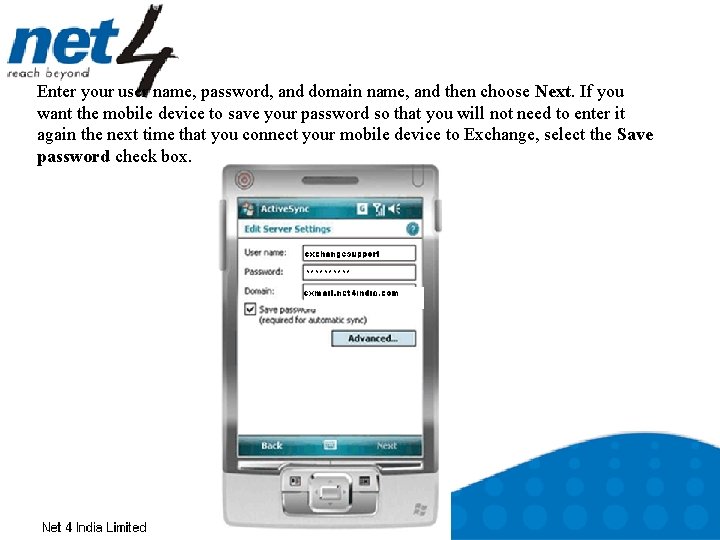
Enter your user name, password, and domain name, and then choose Next. If you want the mobile device to save your password so that you will not need to enter it again the next time that you connect your mobile device to Exchange, select the Save password check box.
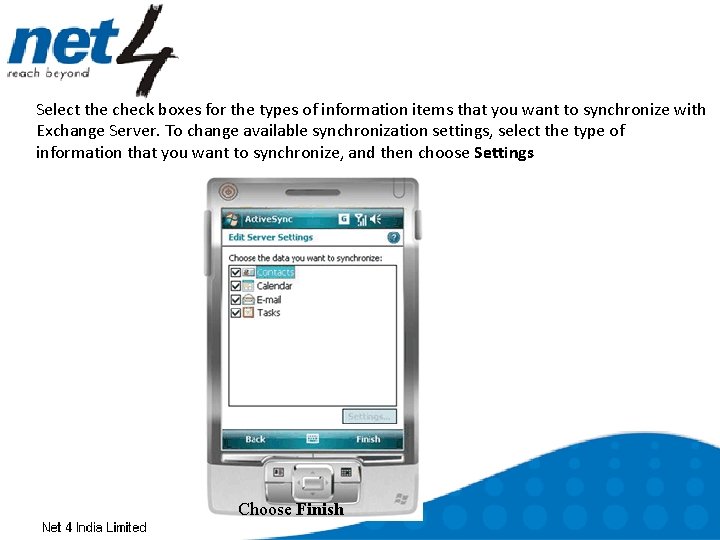
Select the check boxes for the types of information items that you want to synchronize with Exchange Server. To change available synchronization settings, select the type of information that you want to synchronize, and then choose Settings Choose Finish
• To configure your i. Phone (software version 2. x) for email, please follow these steps:
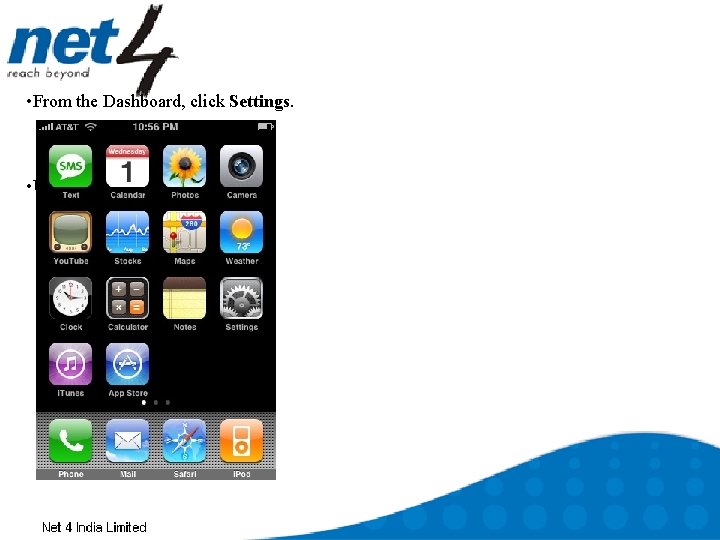
• From the Dashboard, click Settings. • Under Settings, select
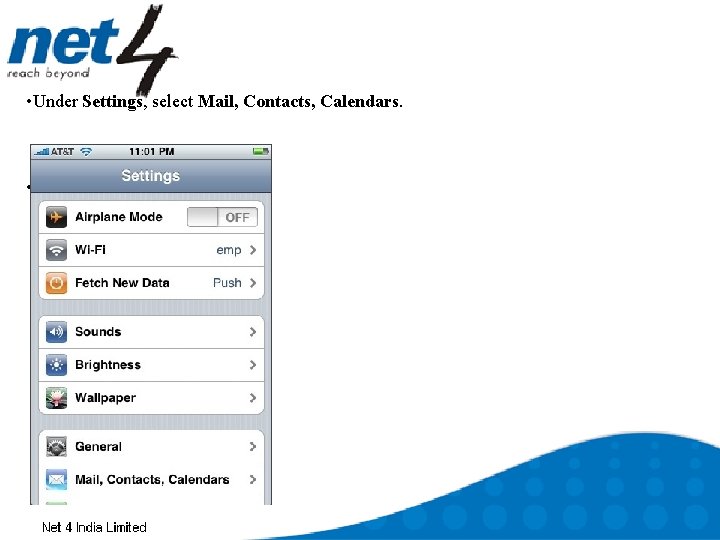
• Under Settings, select Mail, Contacts, Calendars. • Select Add Account. . .
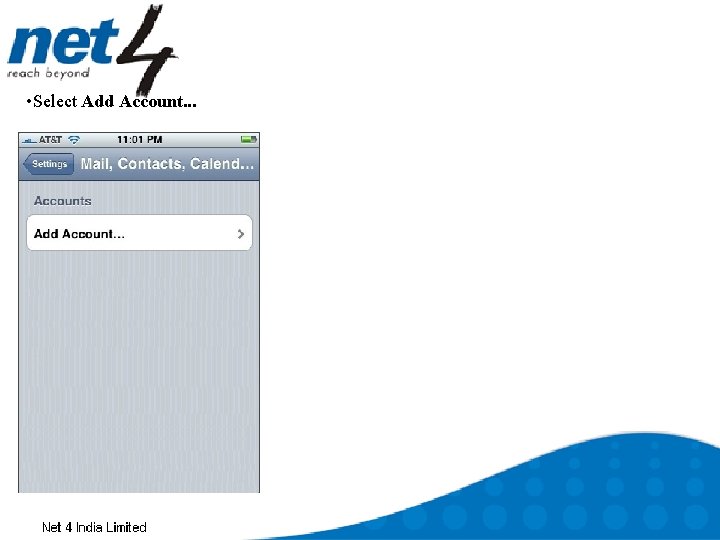
• Select Add Account. . . • Select Other as the
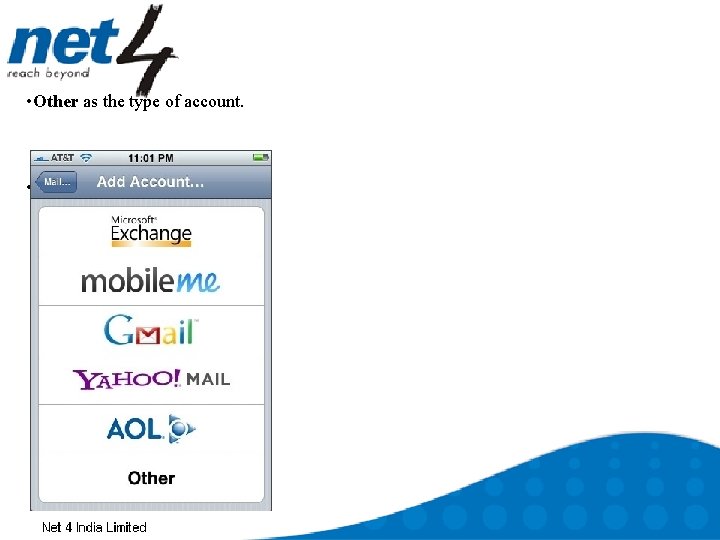
• Other as the type of account. • Enter the requested information
Click POP and enter the Incoming Mail Server information: Host Name: enter the mail server address User Name: enter the full email address Password: enter the users password
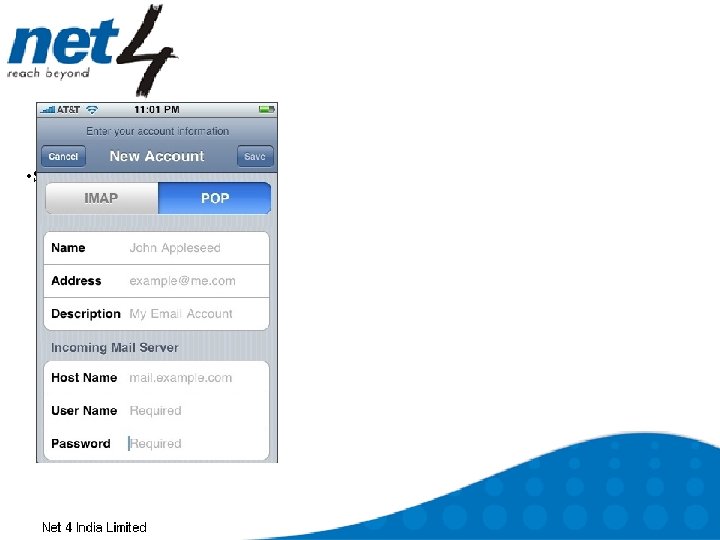
• Scroll down and enter the
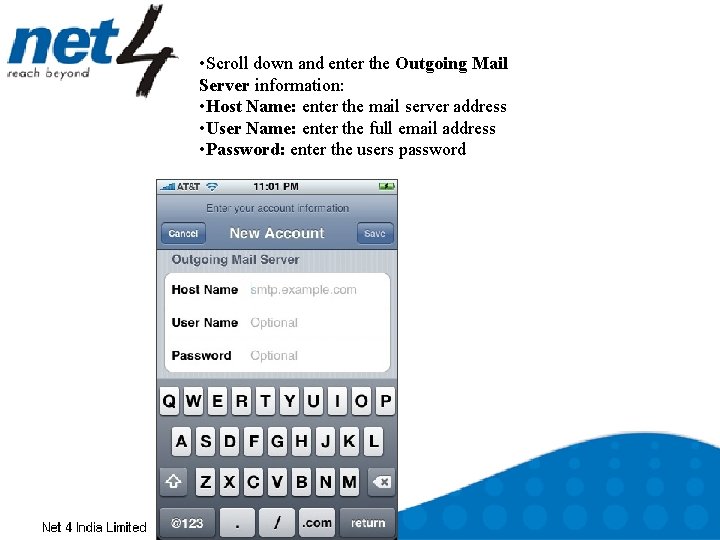
• Scroll down and enter the Outgoing Mail Server information: • Host Name: enter the mail server address • User Name: enter the full email address • Password: enter the users password
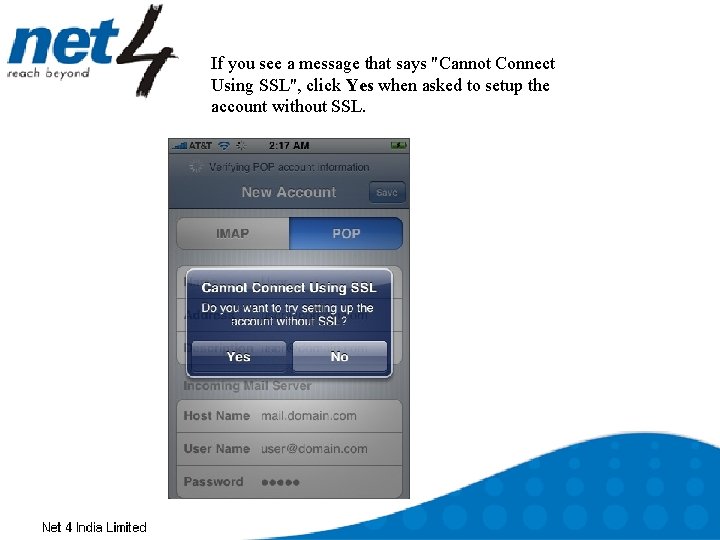
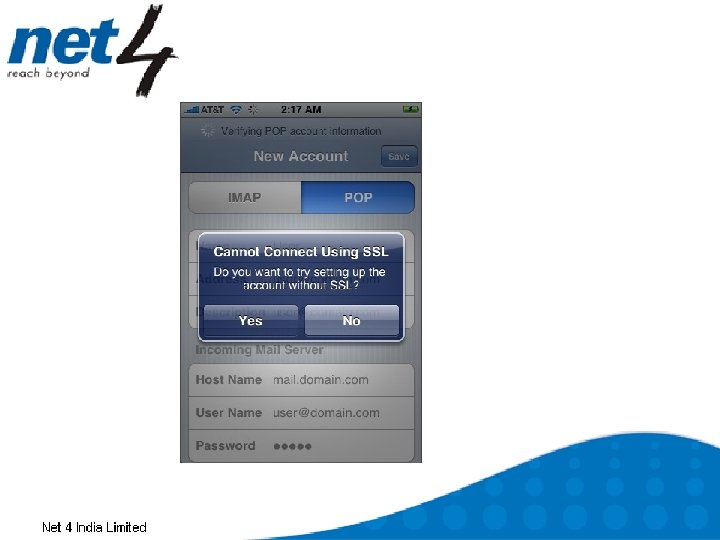
If you see a message that says "Cannot Connect Using SSL", click Yes when asked to setup the account without SSL.
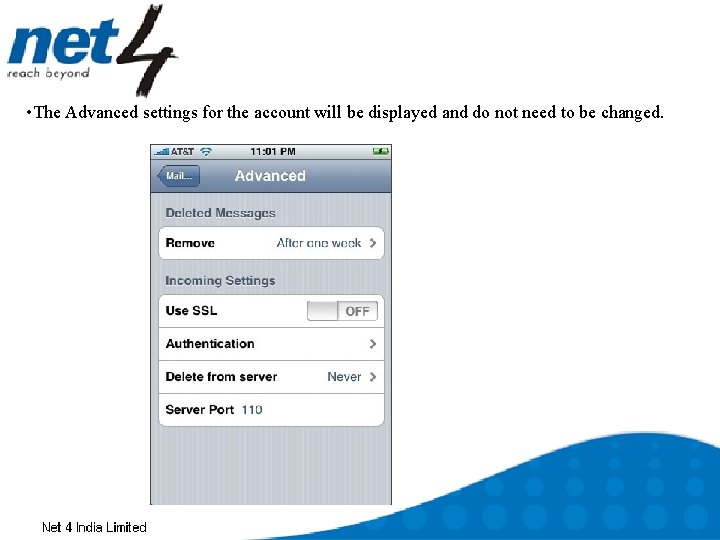
• The Advanced settings for the account will be displayed and do not need to be changed.
- Slides: 74