
EXCEL WORKSHOP EXCEL FUNDAMENTALS SURESH NAIR Ph D





- Slides: 36
EXCEL WORKSHOP EXCEL FUNDAMENTALS SURESH NAIR, Ph. D. Professor and Robert Cizik Chair in Manufacturing and Technology Management, Operations and Info Management School of Business University of Connecticut, Storrs, USA http: //users. business. uconn. edu/snair/excel. html
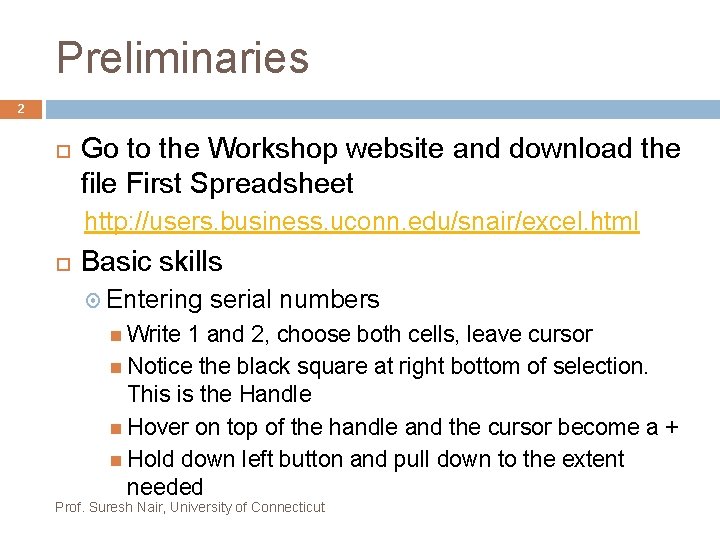
Preliminaries 2 Go to the Workshop website and download the file First Spreadsheet http: //users. business. uconn. edu/snair/excel. html Basic skills Entering serial numbers Write 1 and 2, choose both cells, leave cursor Notice the black square at right bottom of selection. This is the Handle Hover on top of the handle and the cursor become a + Hold down left button and pull down to the extent needed Prof. Suresh Nair, University of Connecticut
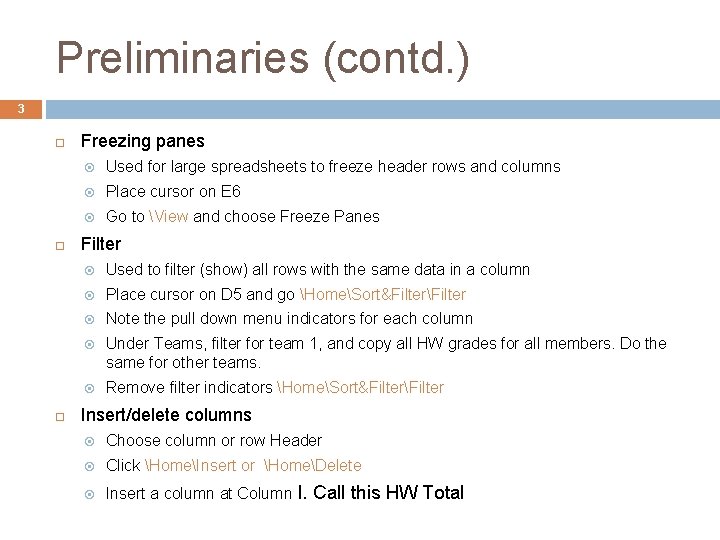
Preliminaries (contd. ) 3 Freezing panes Used for large spreadsheets to freeze header rows and columns Place cursor on E 6 Go to View and choose Freeze Panes Filter Used to filter (show) all rows with the same data in a column Place cursor on D 5 and go HomeSort&FilterFilter Note the pull down menu indicators for each column Under Teams, filter for team 1, and copy all HW grades for all members. Do the same for other teams. Remove filter indicators HomeSort&FilterFilter Insert/delete columns Choose column or row Header Click HomeInsert or HomeDelete Insert a column at Column I. Call this HW Total
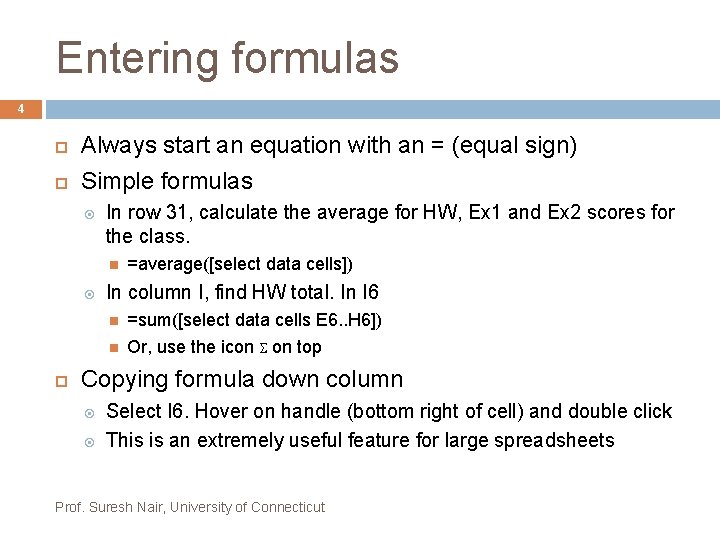
Entering formulas 4 Always start an equation with an = (equal sign) Simple formulas In row 31, calculate the average for HW, Ex 1 and Ex 2 scores for the class. In column I, find HW total. In I 6 =average([select data cells]) =sum([select data cells E 6. . H 6]) Or, use the icon S on top Copying formula down column Select I 6. Hover on handle (bottom right of cell) and double click This is an extremely useful feature for large spreadsheets Prof. Suresh Nair, University of Connecticut
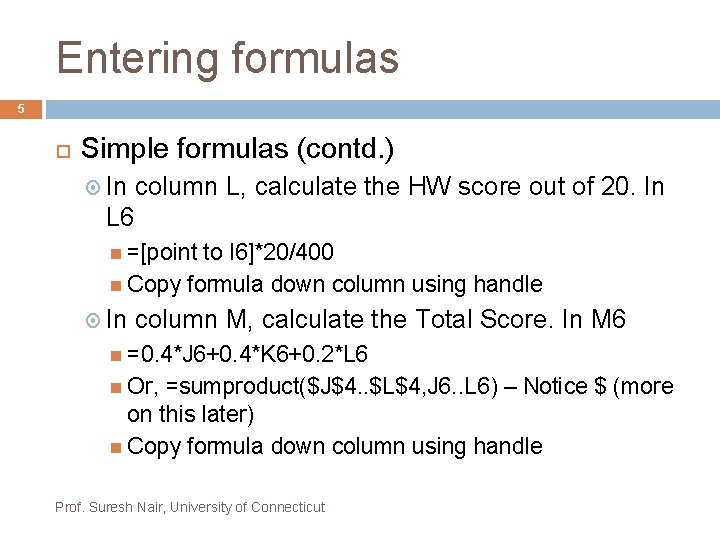
Entering formulas 5 Simple formulas (contd. ) In column L, calculate the HW score out of 20. In L 6 =[point to I 6]*20/400 Copy formula down column using handle In column M, calculate the Total Score. In M 6 =0. 4*J 6+0. 4*K 6+0. 2*L 6 Or, =sumproduct($J$4. . $L$4, J 6. . L 6) – Notice $ (more on this later) Copy formula down column using handle Prof. Suresh Nair, University of Connecticut
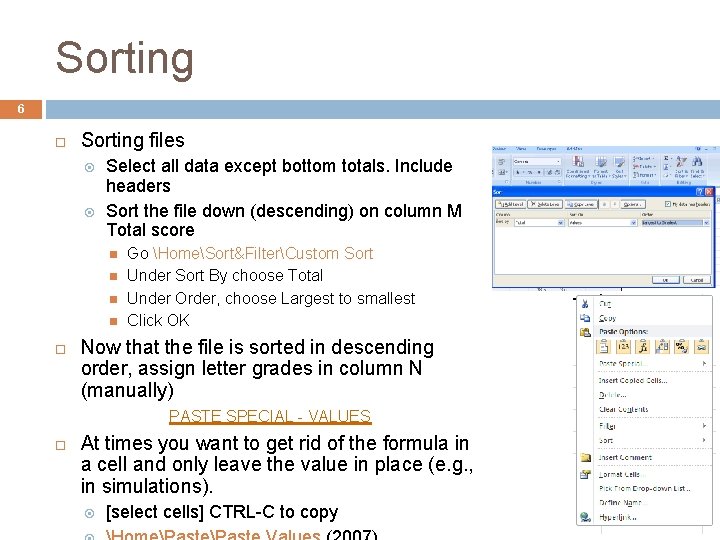
Sorting 6 Sorting files Select all data except bottom totals. Include headers Sort the file down (descending) on column M Total score Go HomeSort&FilterCustom Sort Under Sort By choose Total Under Order, choose Largest to smallest Click OK Now that the file is sorted in descending order, assign letter grades in column N (manually) PASTE SPECIAL - VALUES At times you want to get rid of the formula in a cell and only leave the value in place (e. g. , in simulations). [select cells] CTRL-C to copy
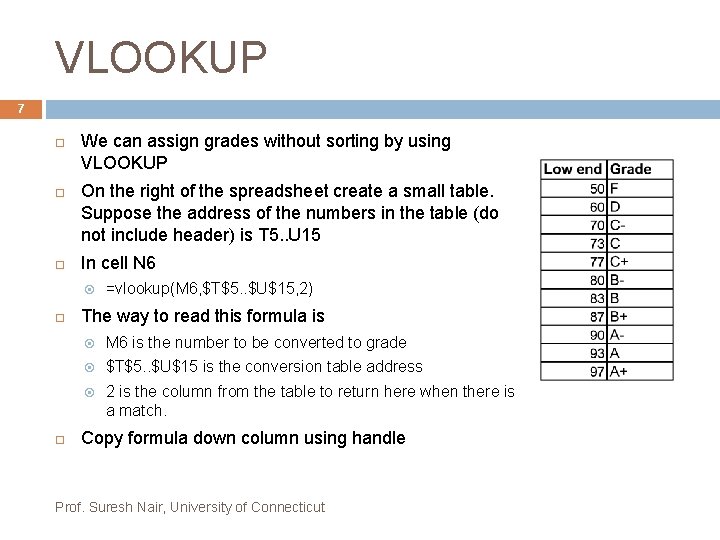
VLOOKUP 7 We can assign grades without sorting by using VLOOKUP On the right of the spreadsheet create a small table. Suppose the address of the numbers in the table (do not include header) is T 5. . U 15 In cell N 6 =vlookup(M 6, $T$5. . $U$15, 2) The way to read this formula is M 6 is the number to be converted to grade $T$5. . $U$15 is the conversion table address 2 is the column from the table to return here when there is a match. Copy formula down column using handle Prof. Suresh Nair, University of Connecticut
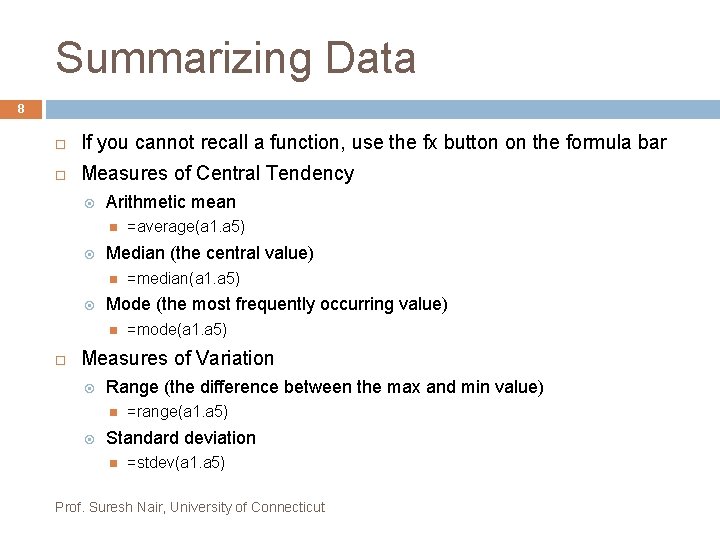
Summarizing Data 8 If you cannot recall a function, use the fx button on the formula bar Measures of Central Tendency Arithmetic mean Median (the central value) =median(a 1. a 5) Mode (the most frequently occurring value) =average(a 1. a 5) =mode(a 1. a 5) Measures of Variation Range (the difference between the max and min value) =range(a 1. a 5) Standard deviation =stdev(a 1. a 5) Prof. Suresh Nair, University of Connecticut
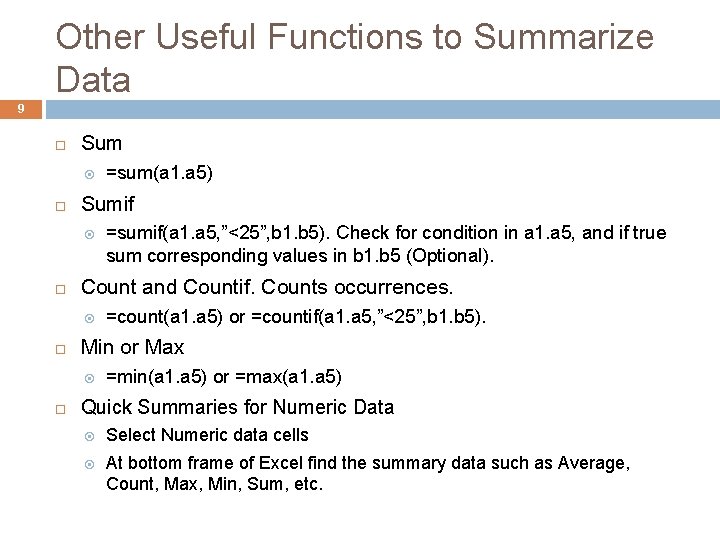
Other Useful Functions to Summarize Data 9 Sumif =count(a 1. a 5) or =countif(a 1. a 5, ”<25”, b 1. b 5). Min or Max =sumif(a 1. a 5, ”<25”, b 1. b 5). Check for condition in a 1. a 5, and if true sum corresponding values in b 1. b 5 (Optional). Count and Countif. Counts occurrences. =sum(a 1. a 5) =min(a 1. a 5) or =max(a 1. a 5) Quick Summaries for Numeric Data Select Numeric data cells At bottom frame of Excel find the summary data such as Average, Count, Max, Min, Sum, etc.
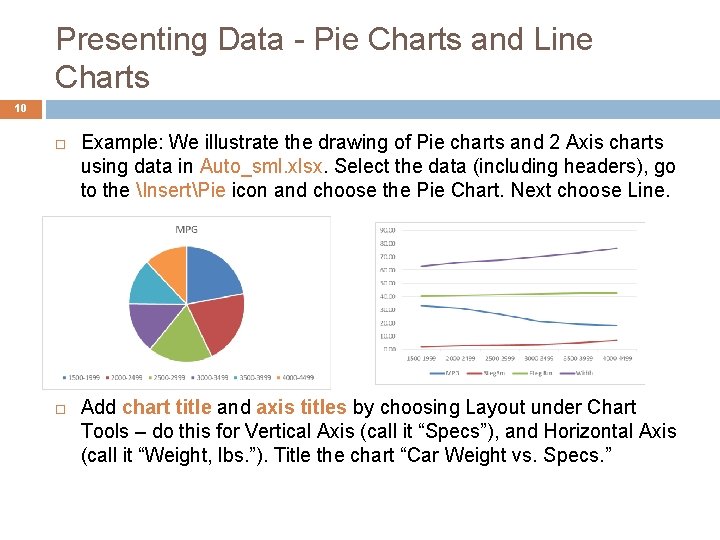
Presenting Data - Pie Charts and Line Charts 10 Example: We illustrate the drawing of Pie charts and 2 Axis charts using data in Auto_sml. xlsx. Select the data (including headers), go to the InsertPie icon and choose the Pie Chart. Next choose Line. Add chart title and axis titles by choosing Layout under Chart Tools – do this for Vertical Axis (call it “Specs”), and Horizontal Axis (call it “Weight, lbs. ”). Title the chart “Car Weight vs. Specs. ”
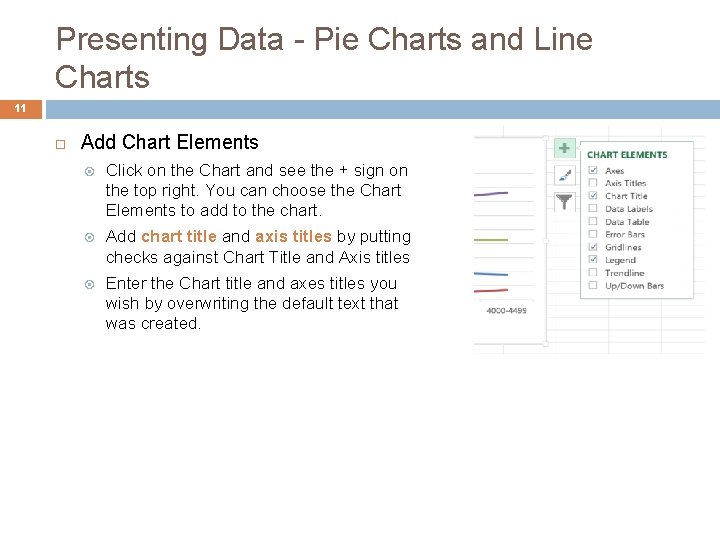
Presenting Data - Pie Charts and Line Charts 11 Add Chart Elements Click on the Chart and see the + sign on the top right. You can choose the Chart Elements to add to the chart. Add chart title and axis titles by putting checks against Chart Title and Axis titles Enter the Chart title and axes titles you wish by overwriting the default text that was created.
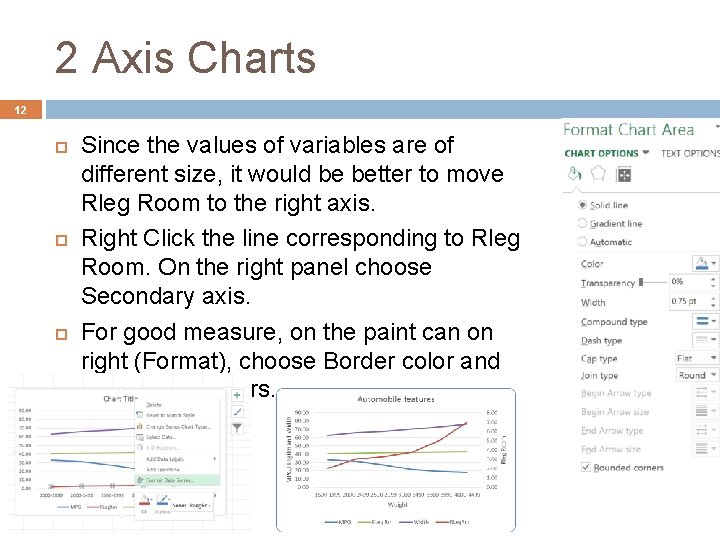
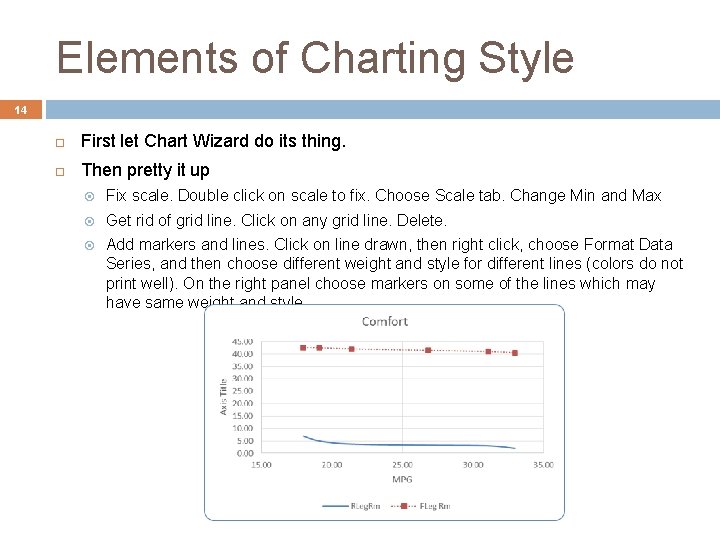
2 Axis Charts 12 Since the values of variables are of different size, it would be better to move Rleg Room to the right axis. Right Click the line corresponding to Rleg Room. On the right panel choose Secondary axis. For good measure, on the paint can on right (Format), choose Border color and Rounded Corners.
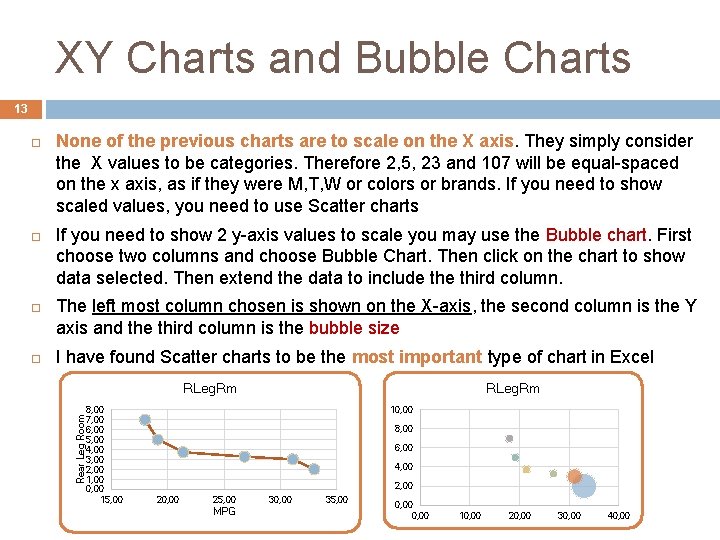
XY Charts and Bubble Charts 13 None of the previous charts are to scale on the X axis. They simply consider the X values to be categories. Therefore 2, 5, 23 and 107 will be equal-spaced on the x axis, as if they were M, T, W or colors or brands. If you need to show scaled values, you need to use Scatter charts If you need to show 2 y-axis values to scale you may use the Bubble chart. First choose two columns and choose Bubble Chart. Then click on the chart to show data selected. Then extend the data to include third column. The left most column chosen is shown on the X-axis, the second column is the Y axis and the third column is the bubble size I have found Scatter charts to be the most important type of chart in Excel RLeg. Rm Rear Leg Room 8, 00 7, 00 6, 00 5, 00 4, 00 3, 00 2, 00 1, 00 0, 00 15, 00 RLeg. Rm 10, 00 8, 00 6, 00 4, 00 20, 00 25, 00 MPG 30, 00 35, 00 0, 00 10, 00 20, 00 30, 00 40, 00
Elements of Charting Style 14 First let Chart Wizard do its thing. Then pretty it up Fix scale. Double click on scale to fix. Choose Scale tab. Change Min and Max Get rid of grid line. Click on any grid line. Delete. Add markers and lines. Click on line drawn, then right click, choose Format Data Series, and then choose different weight and style for different lines (colors do not print well). On the right panel choose markers on some of the lines which may have same weight and style.
EXCEL WORKSHOP EXCEL ADVANCED SURESH NAIR, Ph. D. Professor and Robert Cizik Chair in Manufacturing and Technology Management, Operations and Info Management School of Business University of Connecticut, Storrs, USA http: //users. business. uconn. edu/snair/excel. html
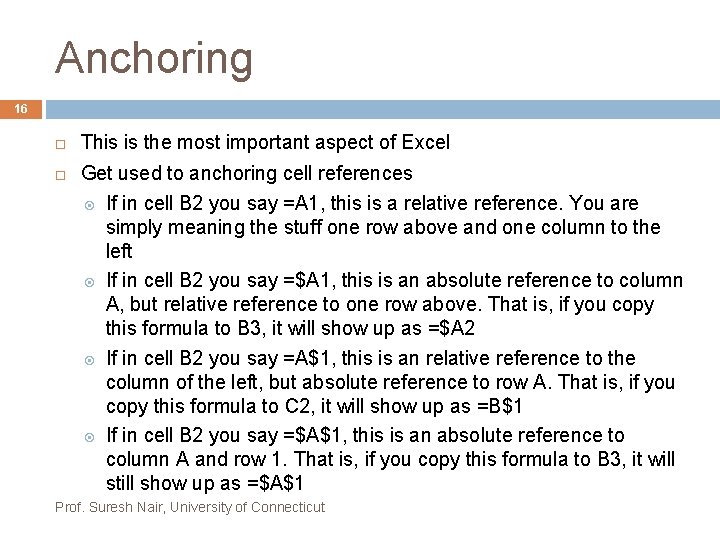
Anchoring 16 This is the most important aspect of Excel Get used to anchoring cell references If in cell B 2 you say =A 1, this is a relative reference. You are simply meaning the stuff one row above and one column to the left If in cell B 2 you say =$A 1, this is an absolute reference to column A, but relative reference to one row above. That is, if you copy this formula to B 3, it will show up as =$A 2 If in cell B 2 you say =A$1, this is an relative reference to the column of the left, but absolute reference to row A. That is, if you copy this formula to C 2, it will show up as =B$1 If in cell B 2 you say =$A$1, this is an absolute reference to column A and row 1. That is, if you copy this formula to B 3, it will still show up as =$A$1 Prof. Suresh Nair, University of Connecticut
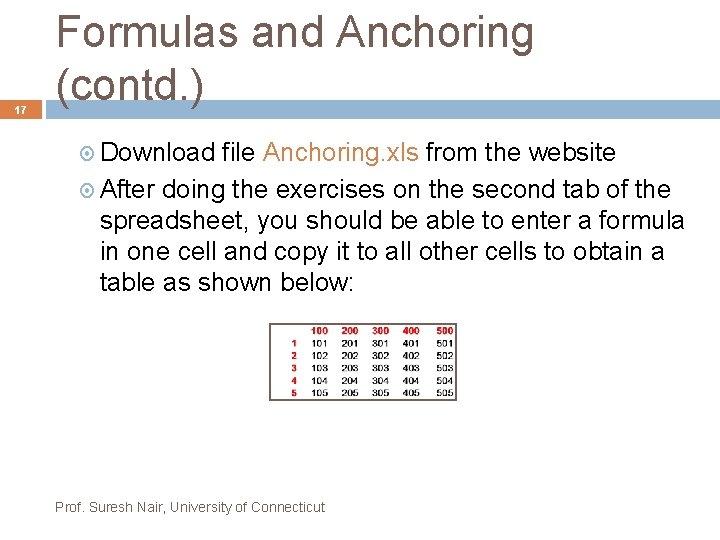
17 Formulas and Anchoring (contd. ) Download file Anchoring. xls from the website After doing the exercises on the second tab of the spreadsheet, you should be able to enter a formula in one cell and copy it to all other cells to obtain a table as shown below: Prof. Suresh Nair, University of Connecticut
Importing Text Data 18 Use the Text Import wizard Example: The file Mutual. txt has information on Mutual funds and is delimited by comma. First save this file to disk. From any Excel document, OfficeOpen and select this file (under Files of Type, choose Text Files). The Text Import Wizard screen comes up. Choose Delimited. On the next screen take off the check against Tab and put a check against Comma. Click Finish. Save file as an Excel Worksheet, Mutual. xls The file Auto. txt has information on automobiles and is delimited by the character | Do exactly as above, but on the second screen choose Other and put a | in the box. Save as Auto. xls Prof. Suresh Nair, University of Connecticut
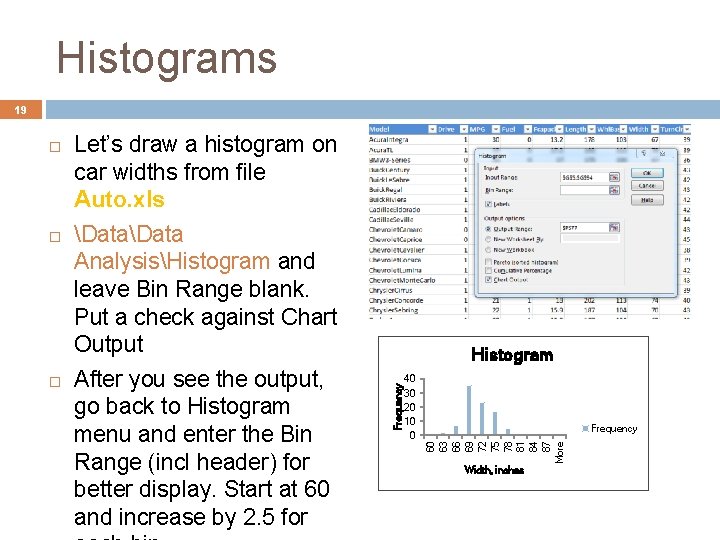
Histograms 19 Data AnalysisHistogram and leave Bin Range blank. Put a check against Chart Output After you see the output, go back to Histogram menu and enter the Bin Range (incl header) for better display. Start at 60 and increase by 2. 5 for Histogram 40 30 20 10 0 Frequency 60 63 66 69 72 75 78 81 84 87 More Let’s draw a histogram on car widths from file Auto. xls Frequency Width, inches
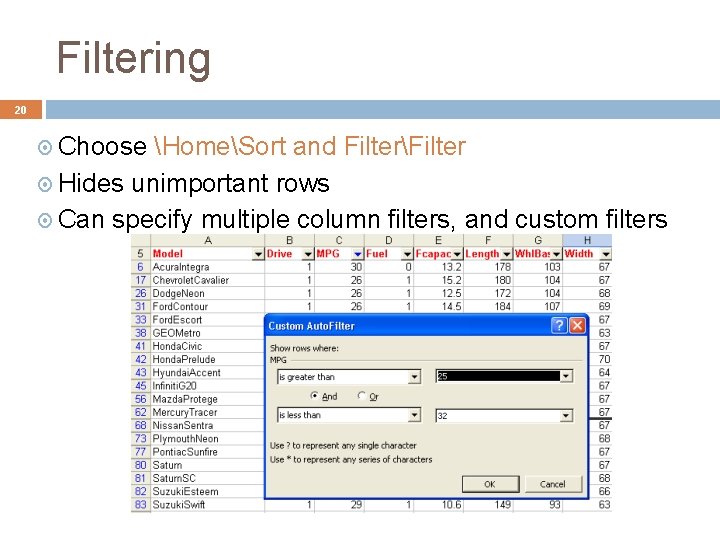
Filtering 20 Choose HomeSort and FilterFilter Hides unimportant rows Can specify multiple column filters, and custom filters
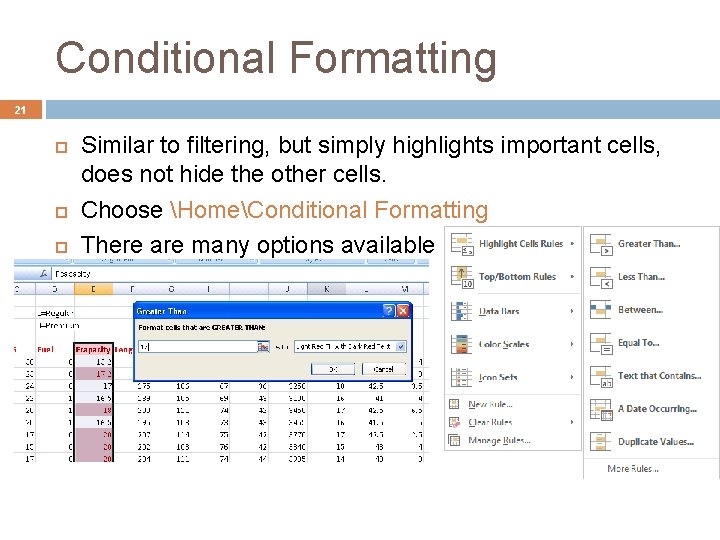
Conditional Formatting 21 Similar to filtering, but simply highlights important cells, does not hide the other cells. Choose HomeConditional Formatting There are many options available
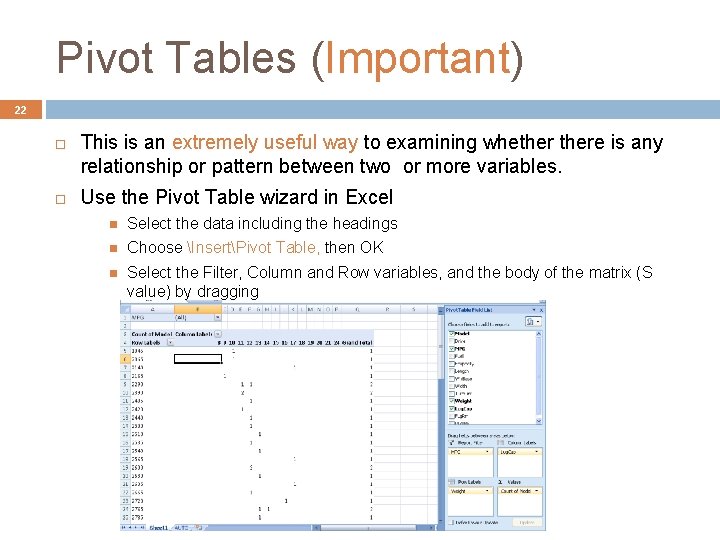
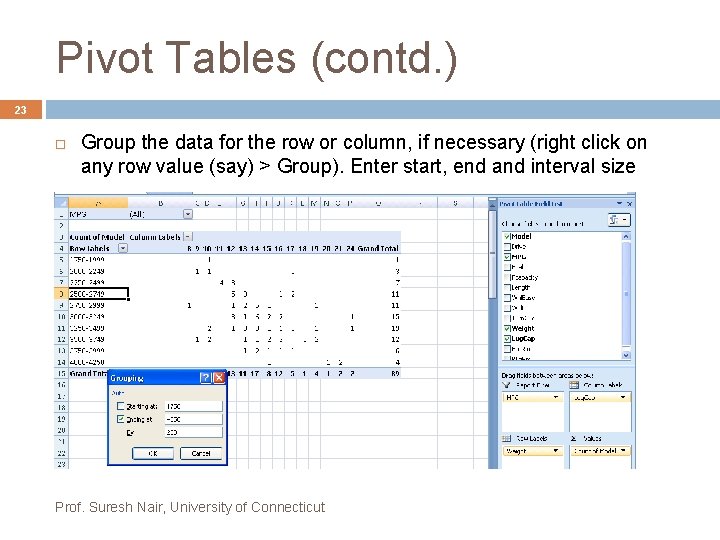
Pivot Tables (Important) 22 This is an extremely useful way to examining whethere is any relationship or pattern between two or more variables. Use the Pivot Table wizard in Excel Select the data including the headings Choose InsertPivot Table, then OK Select the Filter, Column and Row variables, and the body of the matrix (S value) by dragging
Pivot Tables (contd. ) 23 Group the data for the row or column, if necessary (right click on any row value (say) > Group). Enter start, end and interval size Prof. Suresh Nair, University of Connecticut
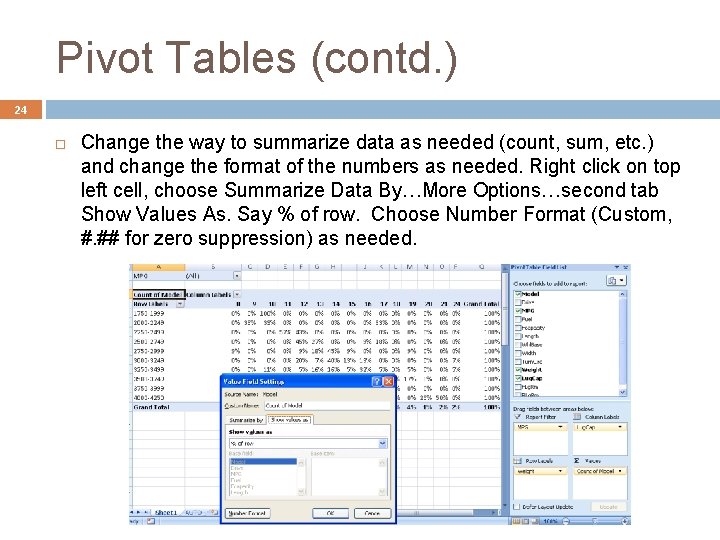
Pivot Tables (contd. ) 24 Change the way to summarize data as needed (count, sum, etc. ) and change the format of the numbers as needed. Right click on top left cell, choose Summarize Data By…More Options…second tab Show Values As. Say % of row. Choose Number Format (Custom, #. ## for zero suppression) as needed.
EXCEL WORKSHOP STRUCTURED DATA FROM UNSTRUCTURED TEXT SURESH NAIR, Ph. D. Professor and Robert Cizik Chair in Manufacturing and Technology Management, Operations and Info Management School of Business University of Connecticut, Storrs, USA http: //users. business. uconn. edu/snair/excel. html
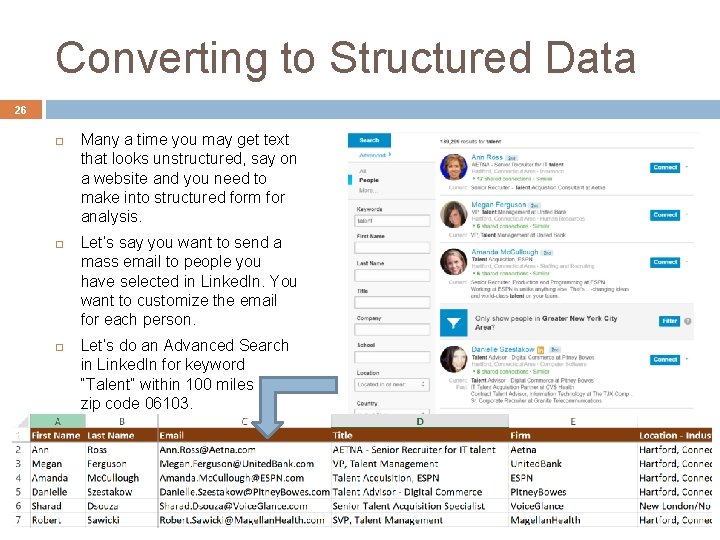
Converting to Structured Data 26 Many a time you may get text that looks unstructured, say on a website and you need to make into structured form for analysis. Let’s say you want to send a mass email to people you have selected in Linked. In. You want to customize the email for each person. Let’s do an Advanced Search in Linked. In for keyword “Talent” within 100 miles of our zip code 06103.
Copy/paste pages in Word 27 Let’s copy/paste several of these pages into a Word document as Keep Text Only I have done 11 pages of this. Download file Linked. In Hits - First File
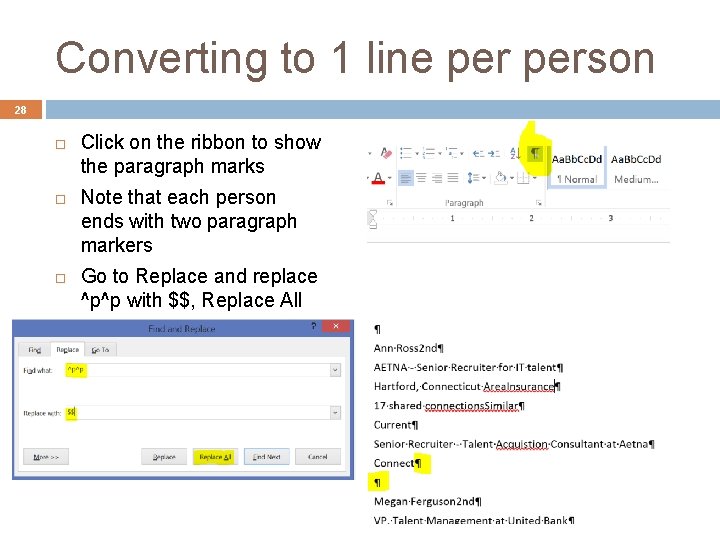
Converting to 1 line person 28 Click on the ribbon to show the paragraph marks Note that each person ends with two paragraph markers Go to Replace and replace ^p^p with $$, Replace All
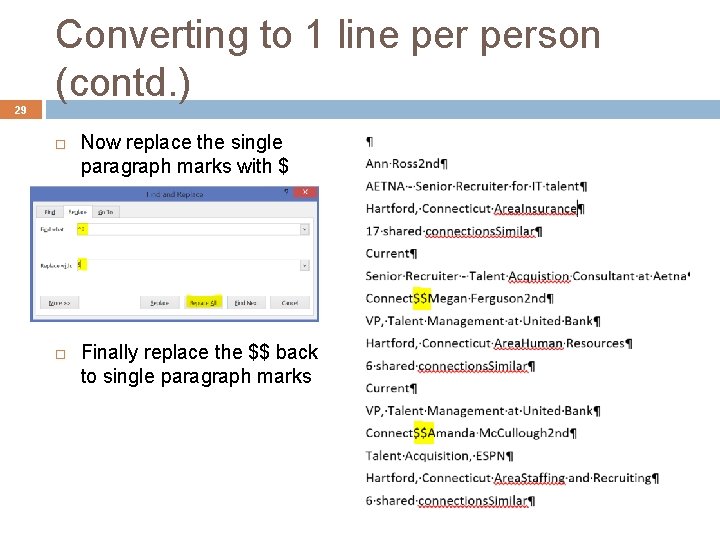
29 Converting to 1 line person (contd. ) Now replace the single paragraph marks with $ Finally replace the $$ back to single paragraph marks
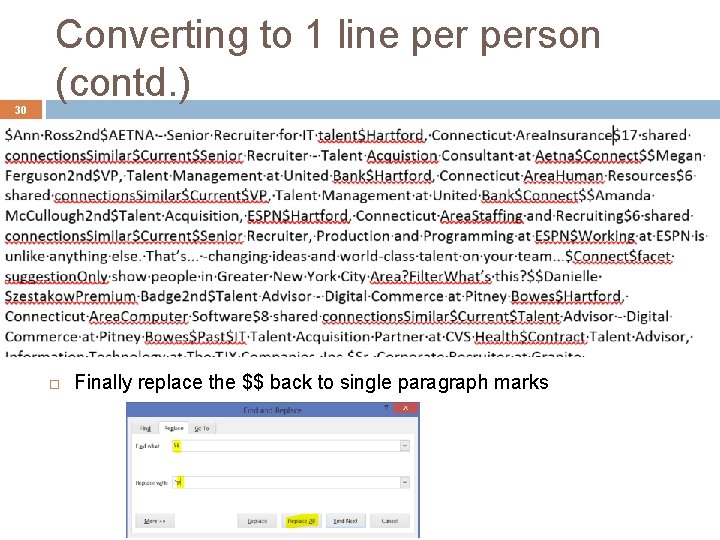
30 Converting to 1 line person (contd. ) Finally replace the $$ back to single paragraph marks
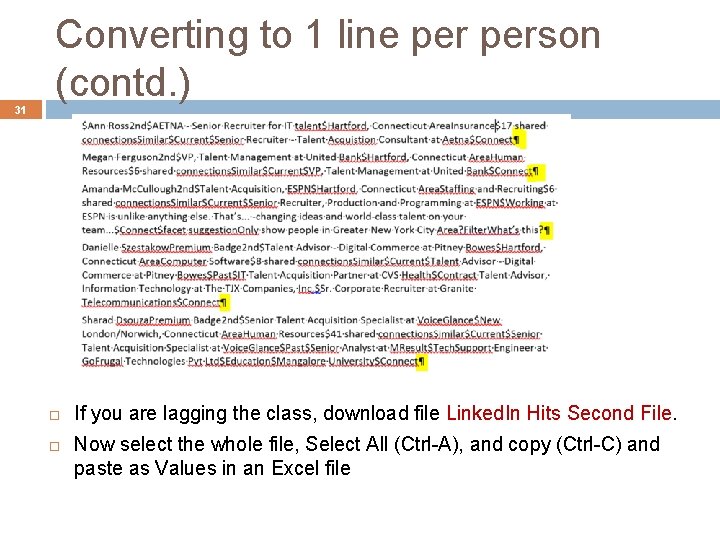
31 Converting to 1 line person (contd. ) If you are lagging the class, download file Linked. In Hits Second File. Now select the whole file, Select All (Ctrl-A), and copy (Ctrl-C) and paste as Values in an Excel file
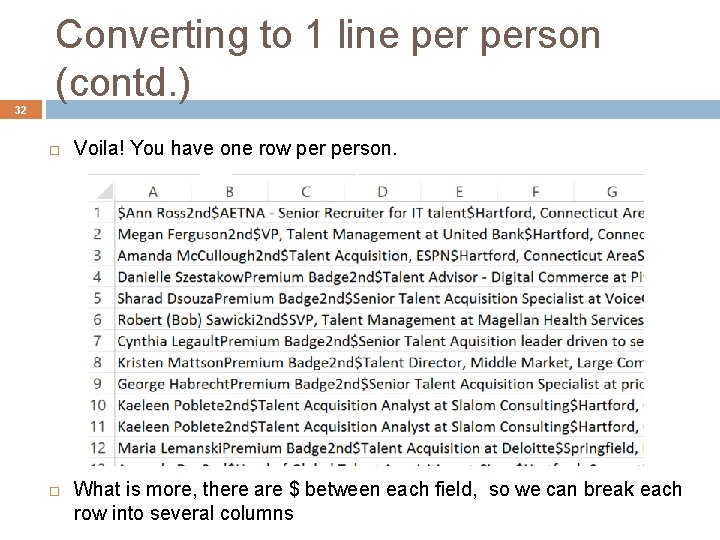
32 Converting to 1 line person (contd. ) Voila! You have one row person. What is more, there are $ between each field, so we can break each row into several columns
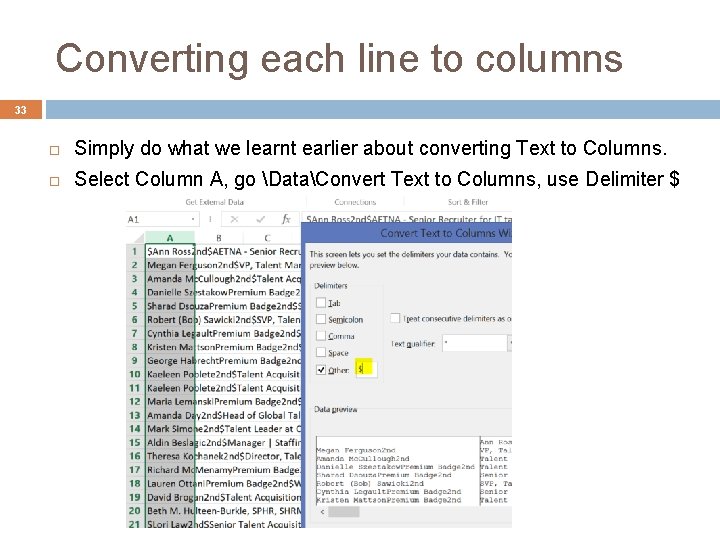
Converting each line to columns 33 Simply do what we learnt earlier about converting Text to Columns. Select Column A, go DataConvert Text to Columns, use Delimiter $
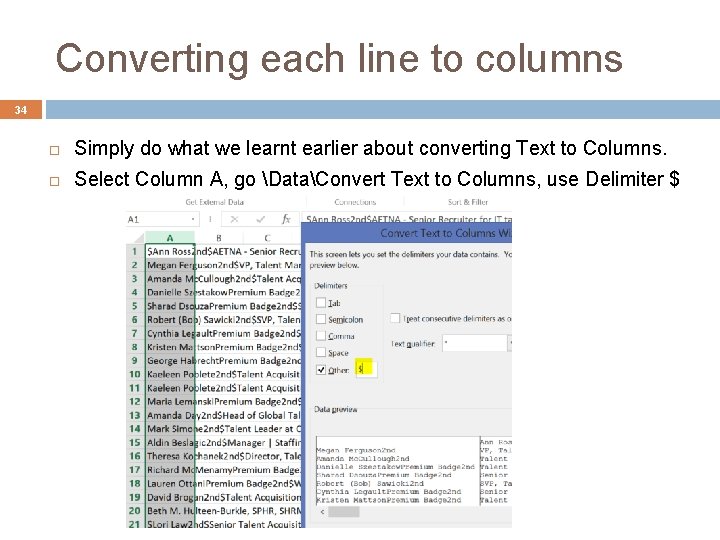
Converting each line to columns 34 Simply do what we learnt earlier about converting Text to Columns. Select Column A, go DataConvert Text to Columns, use Delimiter $
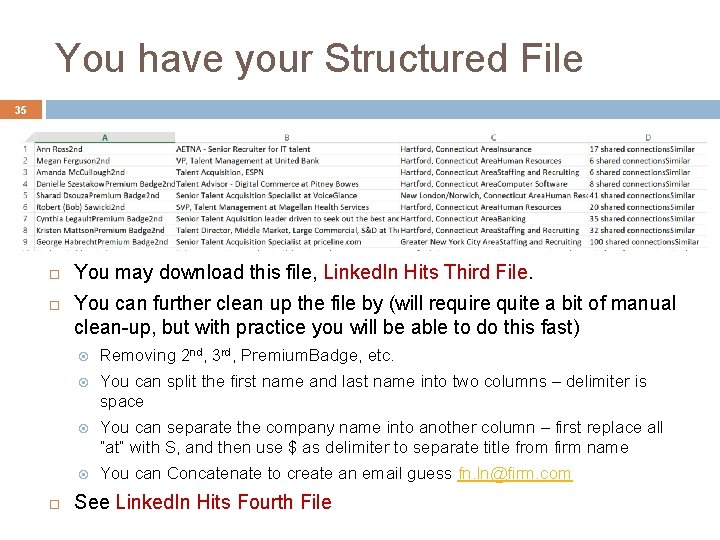
You have your Structured File 35 You may download this file, Linked. In Hits Third File. You can further clean up the file by (will require quite a bit of manual clean-up, but with practice you will be able to do this fast) Removing 2 nd, 3 rd, Premium. Badge, etc. You can split the first name and last name into two columns – delimiter is space You can separate the company name into another column – first replace all “at” with S, and then use $ as delimiter to separate title from firm name You can Concatenate to create an email guess fn. ln@firm. com See Linked. In Hits Fourth File
Using Mailmerge 36 You need to be sure that the email you guessed is correct. One good site for making guesses of email format is http: //email-format. com/d/adobe. com/# You can then use Mailmerge in Word to send customized emails to everyone in the file Several will bounce due to bad email guess For these use another guess, send only to these another email Good luck! The Linked. In example was simply illustrative. However, this idea of $, ^p, etc. , is very useful for several other real applications you will come across. Good luck!