
Excel Statistics 240 Cen SARA Instructor Steve Hiebsch
Excel Statistics 240 Cen. SARA Instructor: Steve Hiebsch Email: steve. hiebsch@gmail. com
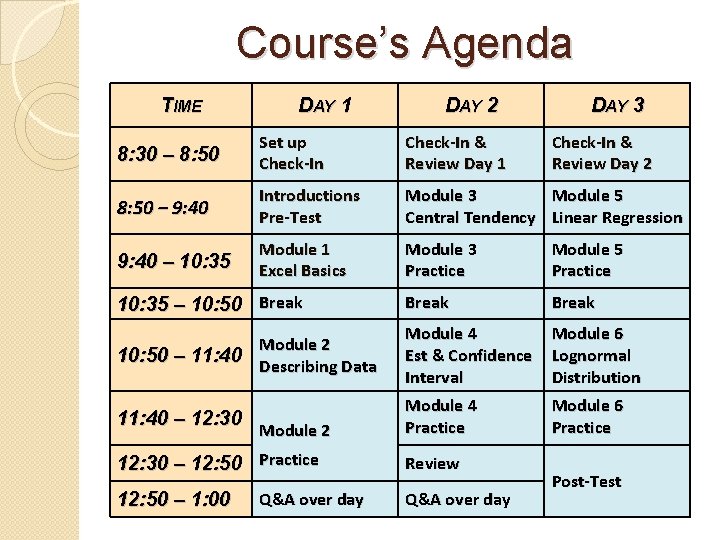
Course’s Agenda TIME DAY 1 DAY 2 DAY 3 8: 30 – 8: 50 Set up Check-In & Review Day 1 8: 50 – 9: 40 Introductions Pre-Test Module 3 Module 5 Central Tendency Linear Regression 9: 40 – 10: 35 Module 1 Excel Basics Module 3 Practice Module 5 Practice 10: 35 – 10: 50 Break Module 2 10: 50 – 11: 40 Describing Data Module 4 Est & Confidence Interval Module 6 Lognormal Distribution 11: 40 – 12: 30 Module 4 Practice Module 6 Practice Module 2 12: 30 – 12: 50 Practice 12: 50 – 1: 00 Q&A over day Review Q&A over day Check-In & Review Day 2 Post-Test
Introductions �Introduce yourself Name and position Education and/or work background Something more personal about yourself e. g. hobbies, special talent, something you accomplished of which you are proud, something nobody knows about you, etc. (optional)
Start Pre-Test �Open Microsoft Word file named “ 0 Pre-Test Excel…” on the Website for this course. Then follow the instructions. Pre-Test 240 Cen. SARA

Purpose of Class �Emphasis is on learning to use Microsoft Excel for statistical purposes. ◦ While we will have some amount of statistical learning, this is not the main emphasis. ◦ We will use some environmental type data, but again that is not the primary purpose. �Primary Purpose is to prepare student for some classes where there is need to use Excel in specific Statistical
Module 1: Using Microsoft Excel Worksheets After completing this module, the student will be able to: 1. Understand why Excel is useful as a statistical tool 2. Define what is meant by a worksheet and a workbook 3. Enter data into a worksheet 4. Create formulas and solve problems with a worksheet using basic arithmetic functions 5. Edit data that is in a worksheet 6. Edit data by using right-click functions, copy with cross hairs, F 4 key cell ($) modifiers
Module 2: Describing Data Graphical Presentations After completing this module, the student will be able to: 1. Use Excel to create common graphic presentations as pie chart, bar charts, simple histograms, line charts, and scatter plots. 2. Edit and modify charts

Module 3: Describing Data – Measures of Central Tendency After completing this module, the student will be able to: 1. Explain the characteristics and uses of measures of central tendency 2. Explain the characteristics and uses of measures of dispersion 3. Use Excel functions to calculate the arithmetic mean, median, mode, and standard deviations 4. Use Excel’s Analysis Tool. Pak add-in to find measures of central tendency and
Module 4: Estimation & Confidence Interval After completing this module, the student will be able to: 1. Define point estimate 2. Define level of confidence 3. Use Excel to calculate a confidence interval for a population when the sample size is 30 or larger AND when the sample size is 30 or less.
Module 5: Linear Regression After completing this module, the student will be able to: 1. Explain linear regression 2. Use Excel to draw a scatter diagram 3. Use Excel to find a least squares regression line 4. Use Excel and the least squares regression equation to predict the value of a dependent variable based on an independent variable
Module 6: Lognormal Function After completing this module, the student will be able to: 1. Explain lognormal distribution 2. Use Excel Lognormal functions to create a lognormal distribution probability
Today’s s gles n i n a e M iew v e R Data y Carefull is d e R v e Module 1: Using Microsoft Excel Spreadsheets
What is a Spreadsheet? �A computer program that stores data in a tabular format. �A computer program with features and/or capabilities that include ◦ Calculations of formulas ◦ Production of charts and graphics ◦ Data analysis tools capable of handling large quantities of data.
What is a Spreadsheet? � Spreadsheet packages are used to help the user understand solve numerical problems ◦ Used in almost every field of business, government, and academia. � Microsoft Excel is popular spreadsheet package � Others ◦ Visi. Calc – one of the original ◦ Lotus 1 -2 -3 – first big package (still available) ◦ Open Office – originally by Oracle ◦ Word. Perfect Office – Quattro Pro ◦ Microsoft – Works (in 2009 out of production) became Microsoft – Office Starter Edition ◦ Online Spreadsheet – Google Docs
Basics of Excel �Spreadsheet packages use worksheets of columns and rows to view the data. �A collection of worksheets make up a workbook. ◦ Old default in MS Excel was 3 worksheets �A spreadsheet program, such as Excel, is used to create workbook files that contain one or more worksheets which contains tabular

Excel as a Statistical Tool �Useful functions in spreadsheet package ◦ Enter data that is related ◦ Develop relationship using math & statistical tools ◦ Look at results when changes occur �Present data in “more easily” understandable manner ◦ Charts ◦ Tables ◦ Graphs �Help in decision making
Excel Basics �Entering ◦ ◦ Data in Excel discussed in this class. Fill – series data Create formula Copy – Icons vs. cross hair vs. Key strokes Locking on “Key Cell” with F 4 function key �Use of $ in formula ◦ Naming an array for repeated future use �Creating formulas and solve problems ◦ Sum function vs. keying in plus symbol ◦ Product function vs. keying in multiplication symbols ◦ Power function vs. keying in ^ for exponential ◦ Count function vs. counting cells and values �Edit data that is in a worksheet Go to Worksheet – Basic Excel
the Making look x Comple le – Simp d at oo Understnce gla Module 2: Describing Data: Graphical Presentations
Good Graphical Presentations Graphics can aid a presentation’s understandability �Use Excel to create common graphic presentations ◦ ◦ ◦ pie chart, bar charts, simple histograms, line charts, and scatter plots. �Edit and modify charts
Bar Chart vs. Pie Chart �BAR CHART - A graph in which the classes are reported on the horizontal axis and the class frequencies on the vertical axis. The class frequencies are proportional to the heights of the bars. ◦ Microsoft Excel calls this a “Column Chart” �PIE CHART - A chart that shows the proportion, percent or relative frequency that each class represents of the total number of frequencies.
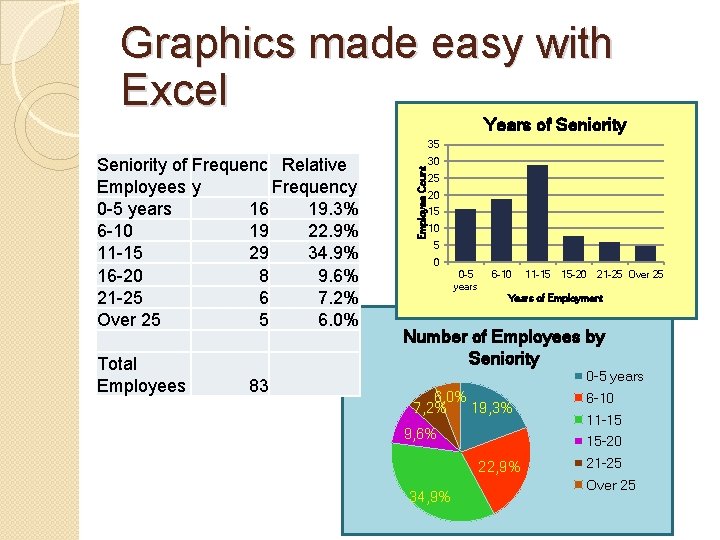
Graphics made easy with Excel Years of Seniority of Frequenc Relative Employees y Frequency 0 -5 years 16 19. 3% 6 -10 19 22. 9% 11 -15 29 34. 9% 16 -20 8 9. 6% 21 -25 6 7. 2% Over 25 5 6. 0% Total Employees 83 Employee Count 35 30 25 20 15 10 5 0 0 -5 years 6 -10 11 -15 15 -20 21 -25 Over 25 Years of Employment Number of Employees by Seniority 0 -5 years 6, 0% 7, 2% 19, 3% 9, 6% 11 -15 15 -20 22, 9% 34, 9% 6 -10 21 -25 Over 25
Other Graphics �Histogram ◦ Histogram vs. Bar Charts �Line Charts – Good for showing changes in data over time. �Scatter Plots - similar to line graphs ◦ Both vertical & horizontal access to plot data points. ◦ Show if one variable is related to another – called correlation.
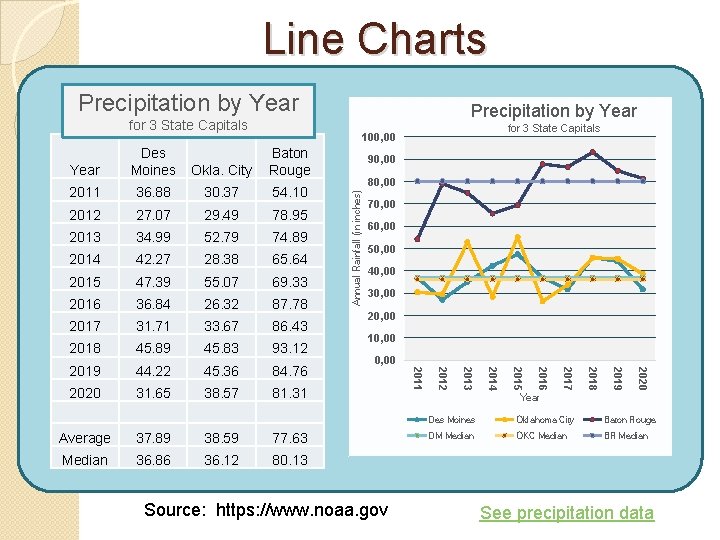
Line Charts Precipitation by Year for 3 State Capitals 100, 00 34. 99 52. 79 74. 89 2014 42. 27 28. 38 65. 64 2015 47. 39 55. 07 69. 33 2016 36. 84 26. 32 87. 78 2017 31. 71 33. 67 86. 43 2018 45. 89 45. 83 93. 12 2019 44. 22 45. 36 84. 76 2020 31. 65 38. 57 81. 31 Average 37. 89 38. 59 77. 63 Median 36. 86 36. 12 80. 13 Annual Rainfall (in inches) 2013 70, 00 60, 00 50, 00 40, 00 30, 00 20, 00 10, 00 Source: https: //www. noaa. gov 2020 78. 95 2019 29. 49 2018 27. 07 2012 80, 00 2016 54. 10 2015 30. 37 2014 36. 88 2013 2011 90, 00 2012 Okla. City Baton Rouge 2011 Year Des Moines Oklahoma City Baton Rouge DM Median OKC Median BR Median See precipitation data
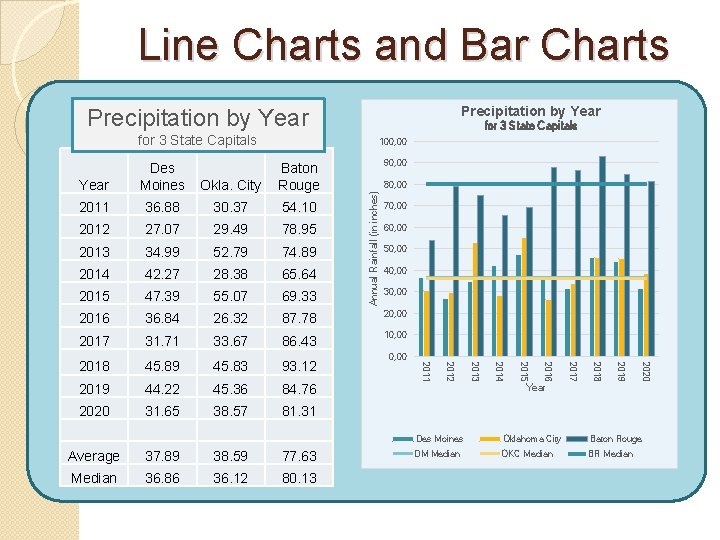
Line Charts and Bar Charts Precipitation by Year for 3 State Capitals 100, 00 90, 00 Year Des Moines Okla. City Baton Rouge 2011 36. 88 30. 37 54. 10 2012 27. 07 29. 49 78. 95 2013 34. 99 52. 79 74. 89 2014 42. 27 28. 38 65. 64 2015 47. 39 55. 07 69. 33 2016 36. 84 26. 32 87. 78 20, 00 2017 31. 71 33. 67 86. 43 10, 00 2018 45. 89 45. 83 93. 12 2019 44. 22 45. 36 84. 76 2020 31. 65 38. 57 81. 31 2020 2019 2018 80. 13 2017 36. 12 0, 00 2016 36. 86 Annual Rainfall (in inches) 30, 00 2015 Median 40, 00 2014 77. 63 50, 00 2013 38. 59 60, 00 2012 37. 89 70, 00 2011 Average 80, 00 Year Des Moines Oklahoma City Baton Rouge DM Median OKC Median BR Median
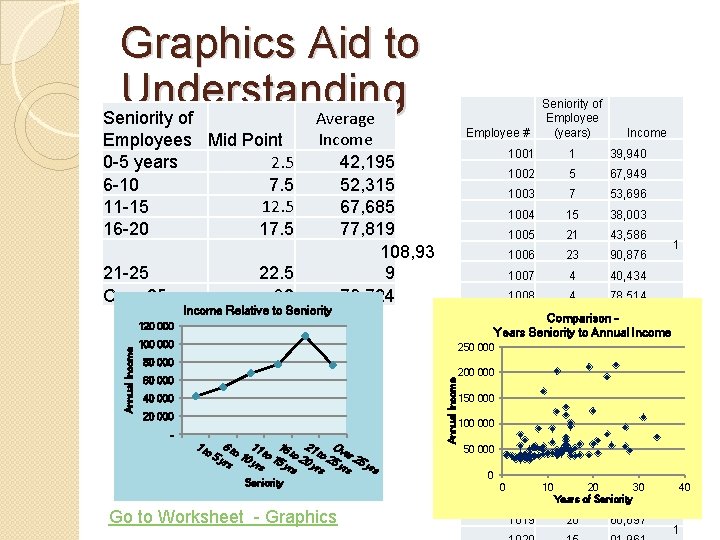
Graphics Aid to Understanding Average Seniority of Employees Mid Point 2. 5 0 -5 years 6 -10 7. 5 12. 5 11 -15 16 -20 17. 5 21 -25 Over 25 22. 5 30 Employee # Income 42, 195 52, 315 67, 685 77, 819 108, 93 9 76, 724 Income Relative to Seniority 250 000 80 000 20 000 - 1 t o 5 6 t 11 1 O 2 o to 6 to 1 to ver 2 20 25 yrs 10 yr 15 yrs yrs 5 yrs s Seniority Go to Worksheet - Graphics Annual Income 100 000 40 000 Income 1001 1 39, 940 1002 5 67, 949 1003 7 53, 696 1004 15 38, 003 1005 21 43, 586 1006 23 90, 876 1007 4 40, 434 1008 4 78, 514 1 1009 Comparison 2 37, 620 Years Seniority Income 1010 3 to Annual 34, 217 120 000 60 000 Seniority of Employee (years) 1011 15 94, 216 200 000 1012 11 90, 094 150 000 1013 24 58, 048 1014 21 67, 194 1015 16 52, 377 1016 14 33, 509 4 35, 310 20 60, 697 100 000 50 000 0 0 1017 1018 1019 10 20 30 Years 17 of Seniority 38, 711 1 40 1
ck a b o g s ’ Let lus p y l k c i qu e add som points Review of 1& 2 Worksheet - review
re a s e r u t Pic , 000 1 a h t r wo words – ve gi s r e b m Nu ils a t e d e u the tr Module 3: Describing Data – Measures of Central Tendency
Meaning of Central Tendency 1. Explain the characteristics and uses of measures of central tendency 2. Explain the characteristics and uses of measures of dispersion 3. Use Excel functions to calculate the arithmetic mean, median, mode, and standard deviations 4. Use Excel’s Analysis Tool. Pak add-in to find measures of central tendency and dispersion
Meaning of Central Tendency �A single value that attempts to describe a set of data by identifying the central position within that set of data. ◦ ◦ A measure of location Sometimes referred to as point estimate Most common is Average (Mean) Others are Median and the Mode.
Dispersion around �Measures of Dispersion help to know the spread around the central tendency. ◦ Range – give difference between high & low ◦ Standard Deviation – how clustered are the values around the central tendency. �Indication of likelihood of values relatively near central tendency or relatively far away. �Knowing mean is wonderful, knowing dispersion gives
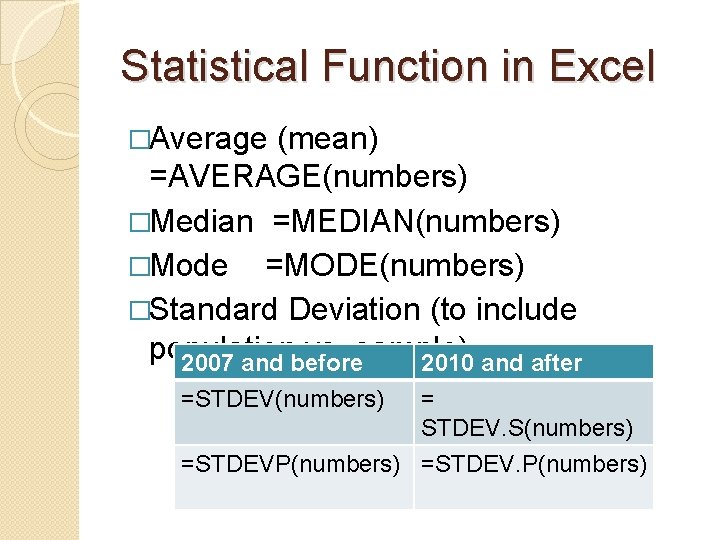
Statistical Function in Excel �Average (mean) =AVERAGE(numbers) �Median =MEDIAN(numbers) �Mode =MODE(numbers) �Standard Deviation (to include population vs. sample) 2007 and before 2010 and after =STDEV(numbers) = STDEV. S(numbers) =STDEVP(numbers) =STDEV. P(numbers)
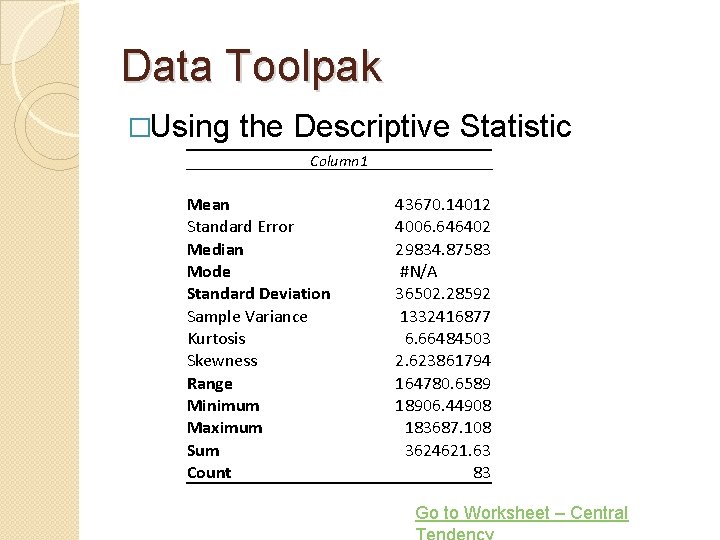
Data Toolpak �Using the Descriptive Statistic Column 1 Mean Standard Error Median Mode Standard Deviation Sample Variance Kurtosis Skewness Range Minimum Maximum Sum Count 43670. 14012 4006. 646402 29834. 87583 #N/A 36502. 28592 1332416877 6. 66484503 2. 623861794 164780. 6589 18906. 44908 183687. 108 3624621. 63 83 Go to Worksheet – Central

e Sweat th – ff small stu one ed v a h u o Y rk, o w e h t l al t. h g i r t i s but i Module 4: Confidence Interval
What’s a Confidence Interval? �Suppose you conduct a study and arrive at some statistics from your study, e. g. : ◦ Sample Mean ◦ Sample Standard Deviation ◦ Sample Range �How certain are you that your sample statistics represents the Population’s parameters? �Need to introduce some terminology.
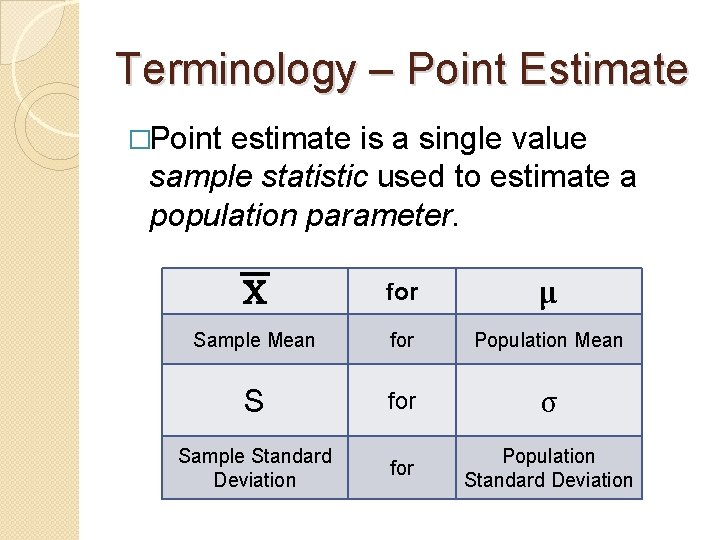
Terminology – Point Estimate �Point estimate is a single value sample statistic used to estimate a population parameter. for µ Sample Mean for Population Mean S for σ Sample Standard Deviation for Population Standard Deviation
Terminology – Confidence Interval �Confidence Interval is a technique used to indicate the reliability of an sample’s statistic as a estimator of the population parameter. ◦ Samples do not replicate the population perfectly. ◦ A Confidence interval is a range of values (interval) that likely contain the population parameter. � Confidence Interval = point estimate ± sample error
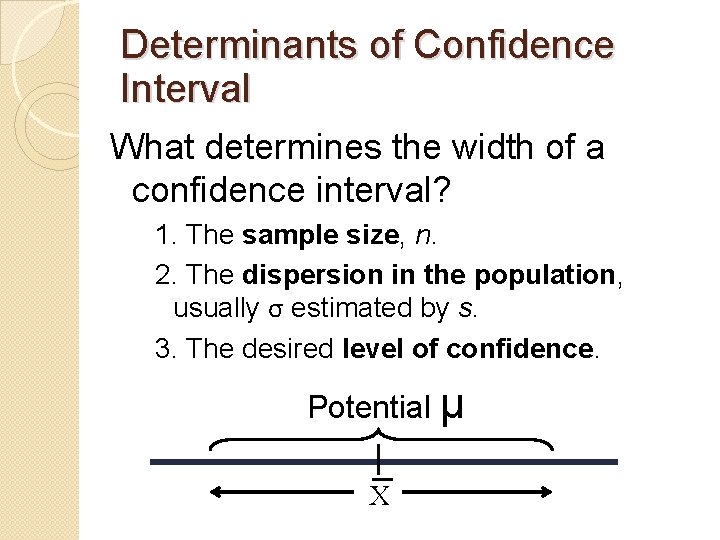
Determinants of Confidence Interval What determines the width of a confidence interval? 1. The sample size, n. 2. The dispersion in the population, usually σ estimated by s. 3. The desired level of confidence. Potential µ X
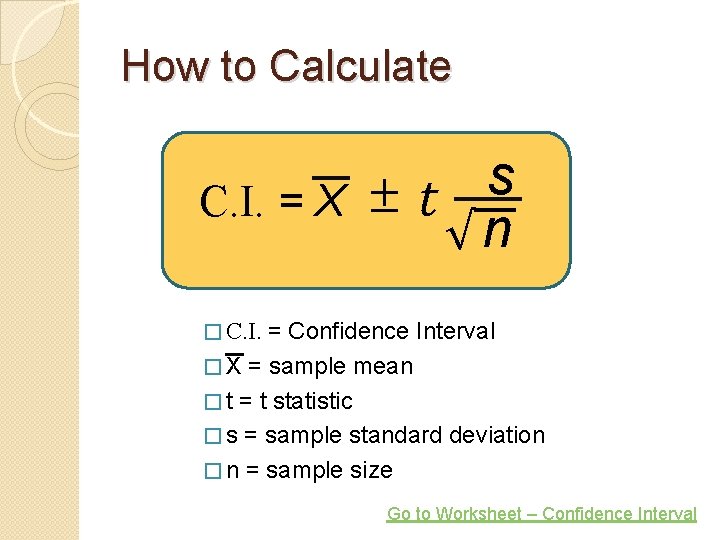
How to Calculate ∓ C. I. = X s t √n = Confidence Interval � X = sample mean � t = t statistic � s = sample standard deviation � n = sample size � C. I. Go to Worksheet – Confidence Interval

s ∓ C X = ck a b o g s ’ Let quickly. p Touch u ts n i o p e som I. . t √n Review of 3 & 4 Worksheet - review
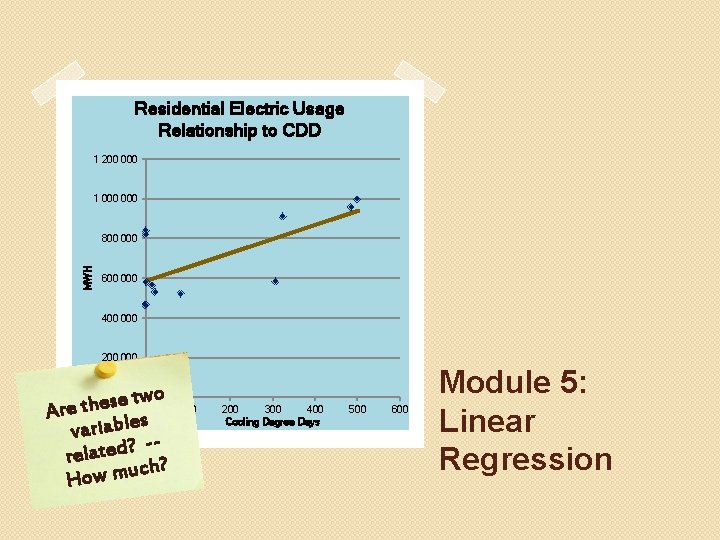
Residential Electric Usage Relationship to CDD 1 200 000 1 000 MWH 800 000 600 000 400 000 200 0 two e s e h t 0 e Ar s variable related? h? c How mu 100 200 300 400 Cooling Degree Days 500 600 Module 5: Linear Regression
Linear Regression �Purpose is to develop a better understanding the relationship between two variable being studied. ◦ Independent variable ◦ Dependent variable �Goal in Linear Regression: ◦ Develop an equation to express the relationship b/t variables. ◦ Use the equation to estimate the value of the dependent variable using the independent variable as a predictor.
Terminology �The dependent variable (criterion) is the variable being predicted or estimated. �The independent variable (predictor) provides the basis for estimation. �Examples : ◦ Smoking cigarettes increases the likelihood of a person getting lung cancer. � Lung cancer is the dependent variable. � Smoking is the independent variable ◦ Larger house have a higher selling price � Selling price is the dependent variable � Square footage is the independent variable
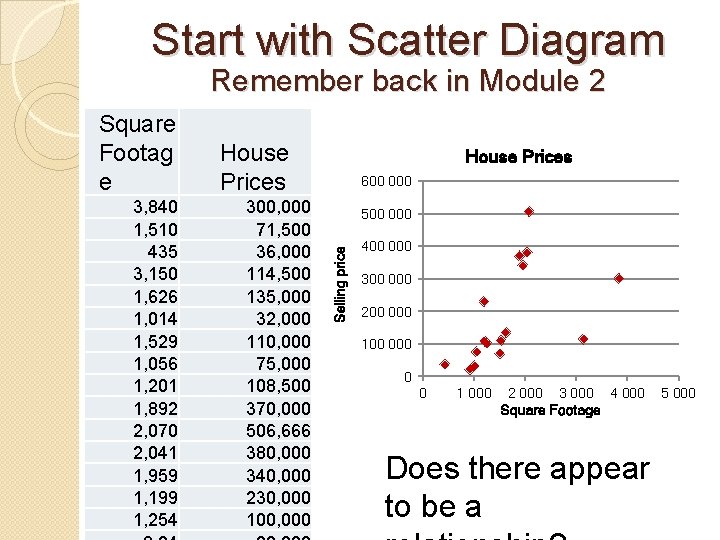
Start with Scatter Diagram Remember back in Module 2 3, 840 1, 510 435 3, 150 1, 626 1, 014 1, 529 1, 056 1, 201 1, 892 2, 070 2, 041 1, 959 1, 199 1, 254 House Prices 300, 000 71, 500 36, 000 114, 500 135, 000 32, 000 110, 000 75, 000 108, 500 370, 000 506, 666 380, 000 340, 000 230, 000 100, 000 House Prices 600 000 500 000 Selling price Square Footag e 400 000 300 000 200 000 100 0 0 1 000 2 000 3 000 4 000 Square Footage Does there appear to be a 5 000
What is a Correlation �Correlation is numerical measures used to express the strength of the relationship between two variables. �Many examples of a relationship of correlations: ◦ MPG and the car’s weight. ◦ Quantity of fuel burned and CO 2 emissions ◦ Number of red squirrels in Ohio and Stock Market Prices ◦ And from previous slide, the square footage of a house and selling price. �Does correlation mean causation?
Coefficient of Correlation �The coefficient of correlation (r) is a measure of the strength of the relationship between two variables. ◦ Shows the direction and strength of the linear relationship between two interval or ratio-scale variables. ◦ Correlations ranges from – 1. 00 to +1. 00 �Values of – 1. 00 or +1. 00 indicate perfect or strong �Values close to 0. 0 indicate weak correlation. �Negative values indicate an inverse relationship �Positive values indicate a direct relationship. See precipitation data
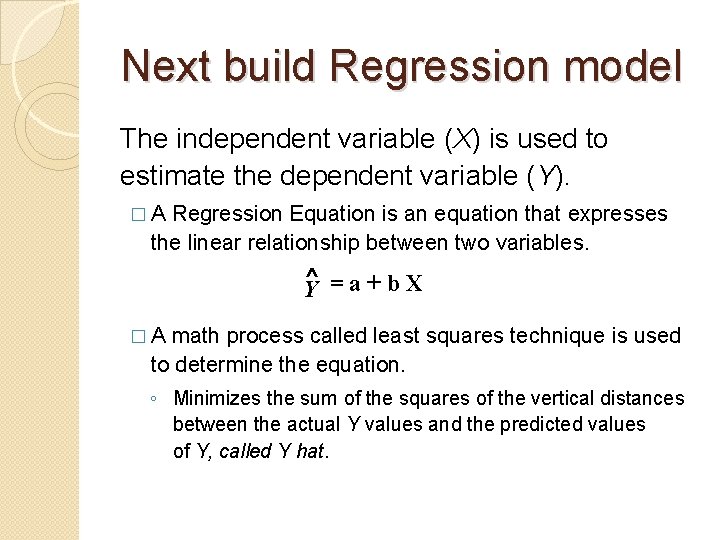
Next build Regression model The independent variable (X) is used to estimate the dependent variable (Y). �A Regression Equation is an equation that expresses the linear relationship between two variables. ^ =a+b. X Y �A math process called least squares technique is used to determine the equation. ◦ Minimizes the sum of the squares of the vertical distances between the actual Y values and the predicted values of Y, called Y hat.
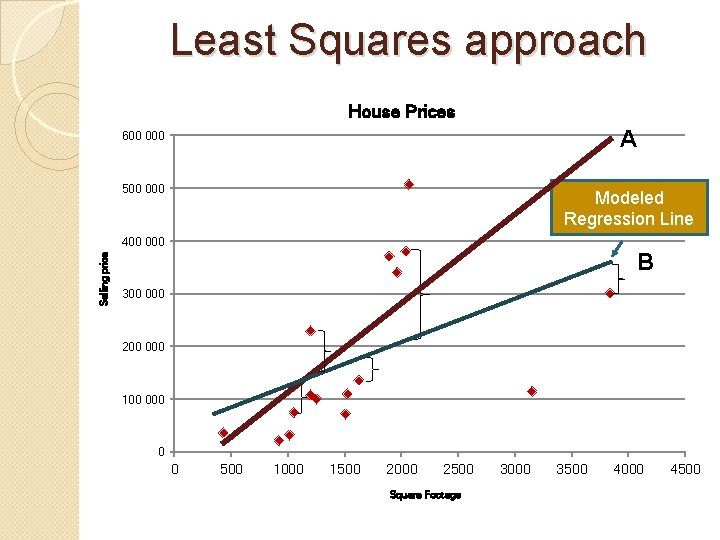
Least Squares approach House Prices 600 000 A 500 000 Modeled Regression Line Selling price 400 000 B 300 000 200 000 100 0 0 500 1000 1500 2000 2500 Square Footage 3000 3500 4000 4500
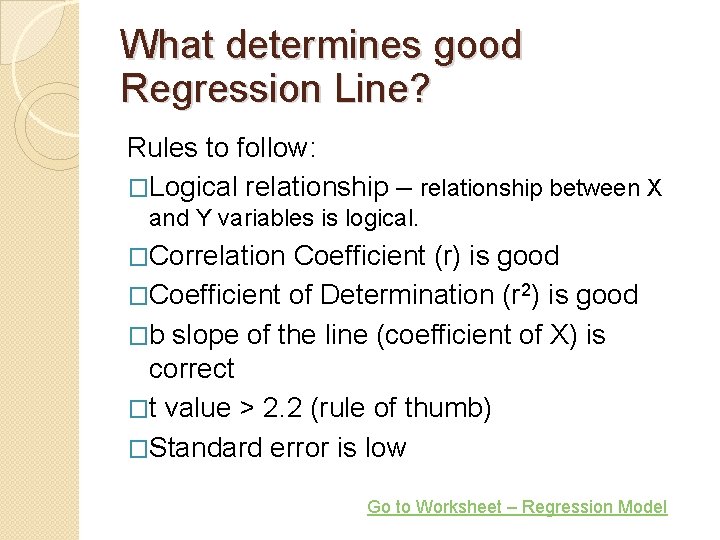
What determines good Regression Line? Rules to follow: �Logical relationship – relationship between X and Y variables is logical. �Correlation Coefficient (r) is good �Coefficient of Determination (r 2) is good �b slope of the line (coefficient of X) is correct �t value > 2. 2 (rule of thumb) �Standard error is low Go to Worksheet – Regression Model
ions t a l u t a r Cong i Lynn Jimm -e First Priz Module 6: Lognormal
What is Lognormal? �Lognormal – a distribution of a random variable for which the logarithm of the variable has a normal distribution. �Positively skewed distributions are particularly common when: ◦ ◦ Mean values are low, Variances large Values are not zero, and Values cannot be negative
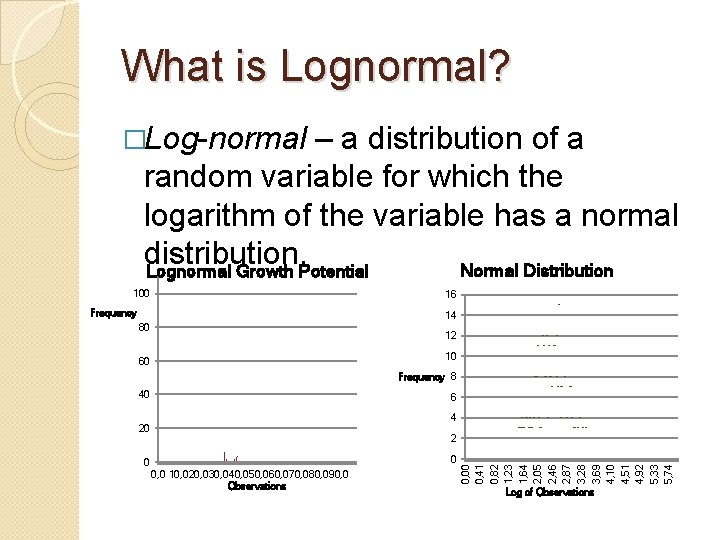
What is Lognormal? �Log-normal – a distribution of a random variable for which the logarithm of the variable has a normal distribution. Normal Distribution Lognormal Growth Potential 100 16 Frequency 14 80 12 10 60 Frequency 8 40 6 4 20 0 0 0, 0 10, 020, 030, 040, 050, 060, 070, 080, 090, 0 Observations 0, 00 0, 41 0, 82 1, 23 1, 64 2, 05 2, 46 2, 87 3, 28 3, 69 4, 10 4, 51 4, 92 5, 33 5, 74 2 Log of Observations
Examples of Lognormal Distributions �Skewed distributions often closely fit the log -normal distribution - examples: ◦ Lengths of latent periods of infectious diseases, ◦ Distribution of mineral resources in the Earth’s crust ◦ Inheritance of fruit and flower size ◦ Return on equities in stock market ◦ Survival rates of cancer patients ◦ Failure rates in product tests. ◦ Rainfall in Las Vegas
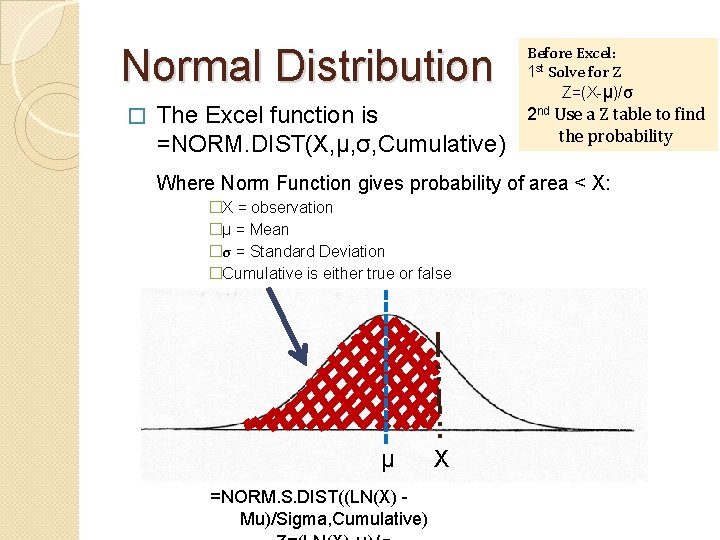
Normal Distribution � The Excel function is =NORM. DIST(X, µ, σ, Cumulative) Before Excel: 1 st Solve for Z Z=(X-µ)/σ 2 nd Use a Z table to find the probability Where Norm Function gives probability of area < X: �X = observation �µ = Mean �σ = Standard Deviation �Cumulative is either true or false µ =NORM. S. DIST((LN(X) Mu)/Sigma, Cumulative) X
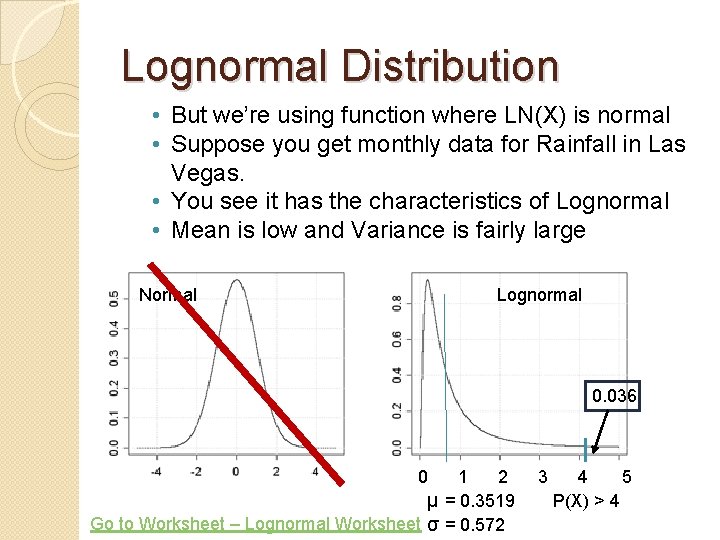
Lognormal Distribution • But we’re using function where LN(X) is normal • Suppose you get monthly data for Rainfall in Las Vegas. • You see it has the characteristics of Lognormal • Mean is low and Variance is fairly large Normal Lognormal 0. 036 0 1 2 µ = 0. 3519 Go to Worksheet – Lognormal Worksheet σ = 0. 572 3 4 5 P(X) > 4

Residential Electric Usage Relationship to CDD 1 200 000 1 000 ack b o g s ’ t Le again MWH 800 000 600 000 400 000 200 0 0 500 Cooling Degree Days 1000 Review of 46 Worksheet – review 3
Excel Statistics 240 Cen. SARA Instructor: Steve Hiebsch Email: steve. hiebsch@gmail. com Open file named, “ 7 Post-Test Excel …” and complete it Post-Test 240 Cen. SARA
- Slides: 56