
Excel Pivot Tables By Martha Nelson Digital Learning

Excel Pivot Tables By Martha Nelson Digital Learning Specialist
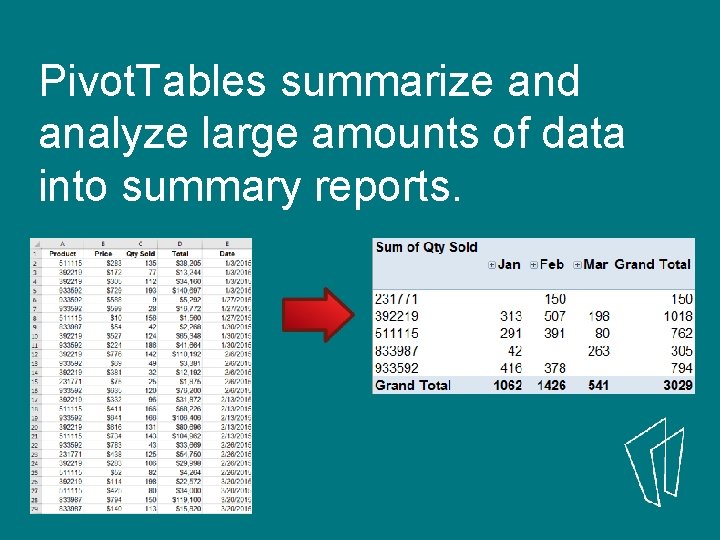
Pivot. Tables summarize and analyze large amounts of data into summary reports.
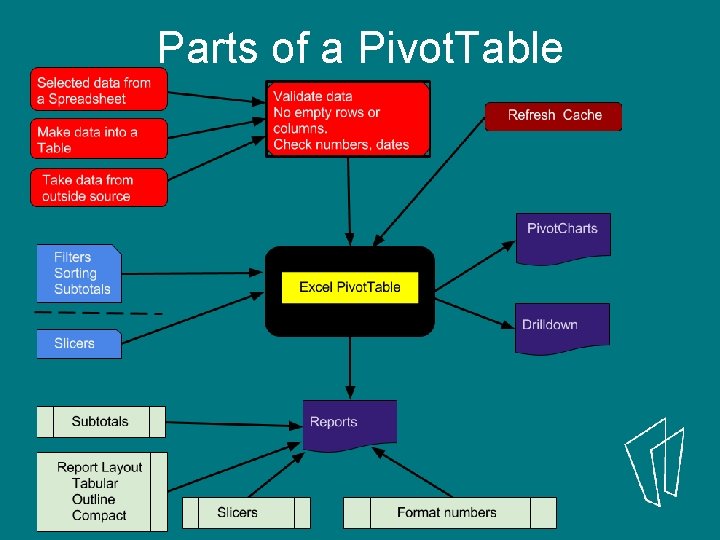
Parts of a Pivot. Table
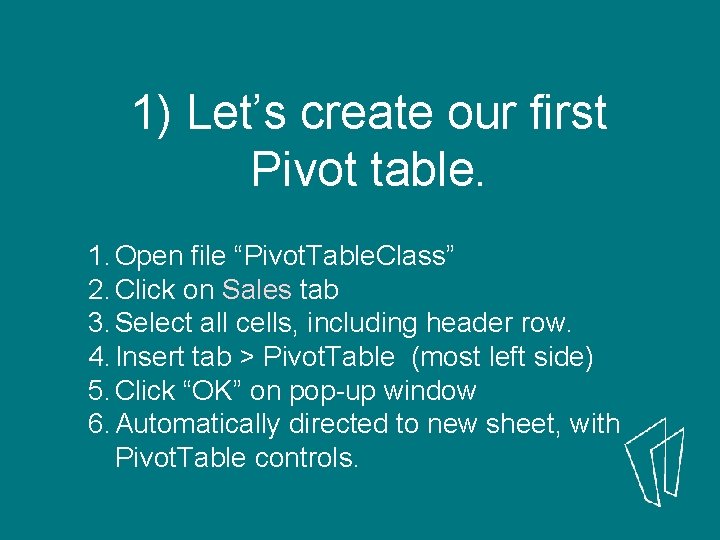
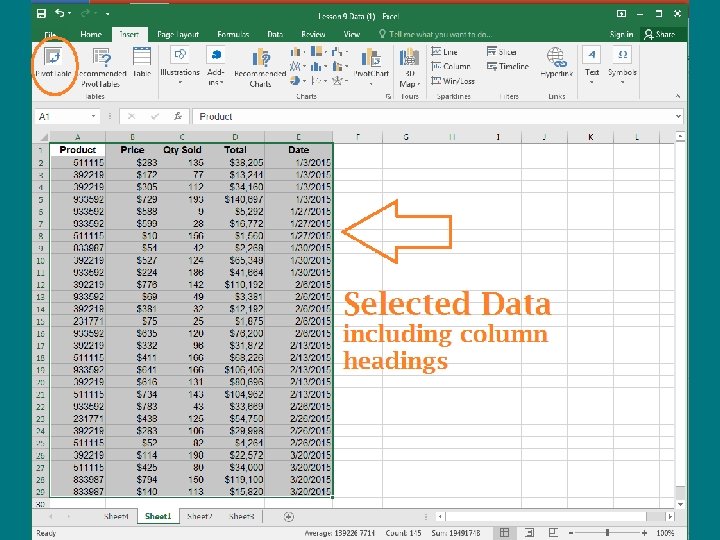
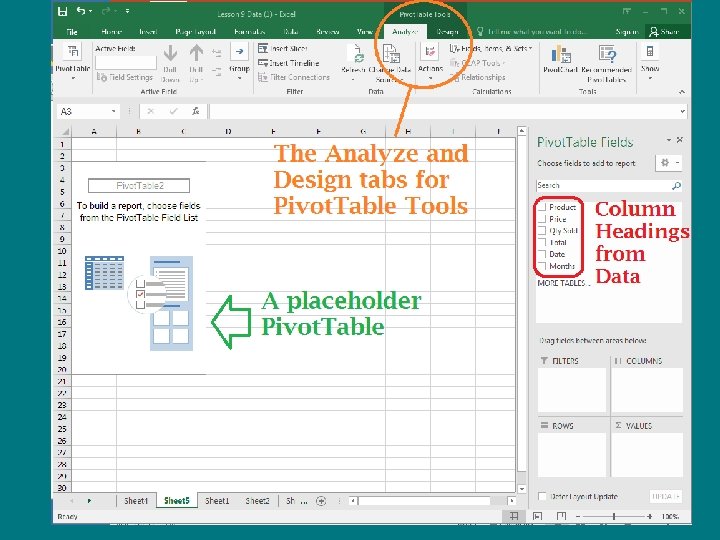
1) Let’s create our first Pivot table. 1. Open file “Pivot. Table. Class” 2. Click on Sales tab 3. Select all cells, including header row. 4. Insert tab > Pivot. Table (most left side) 5. Click “OK” on pop-up window 6. Automatically directed to new sheet, with Pivot. Table controls.

The Create Pivot. Table Dialog box. The address of the data we just selected appears here. Most frequently we put the new Pivot. Table on an new worksheet. Click OK
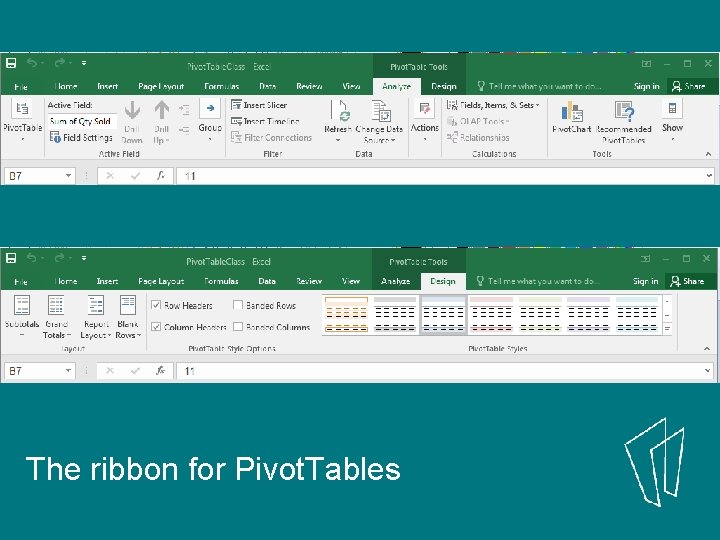
The ribbon for Pivot. Tables
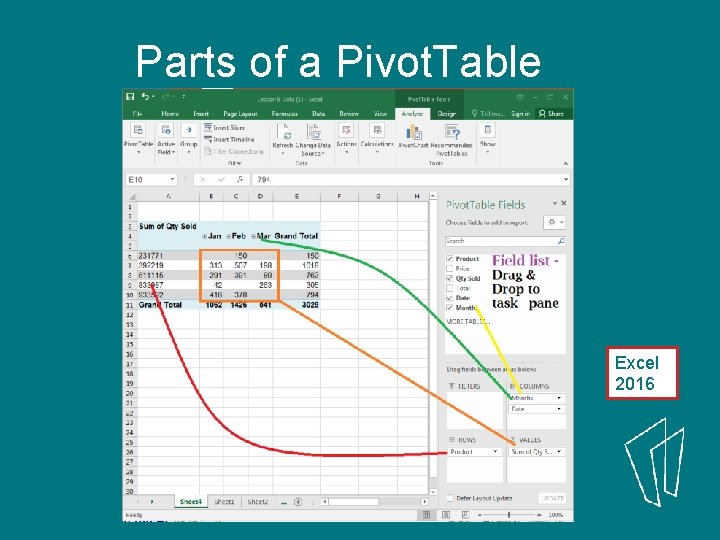
Parts of a Pivot. Table Excel 2016
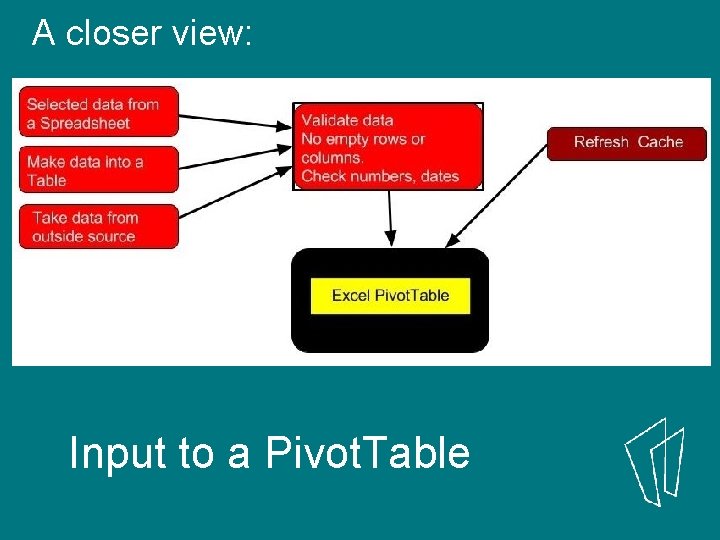
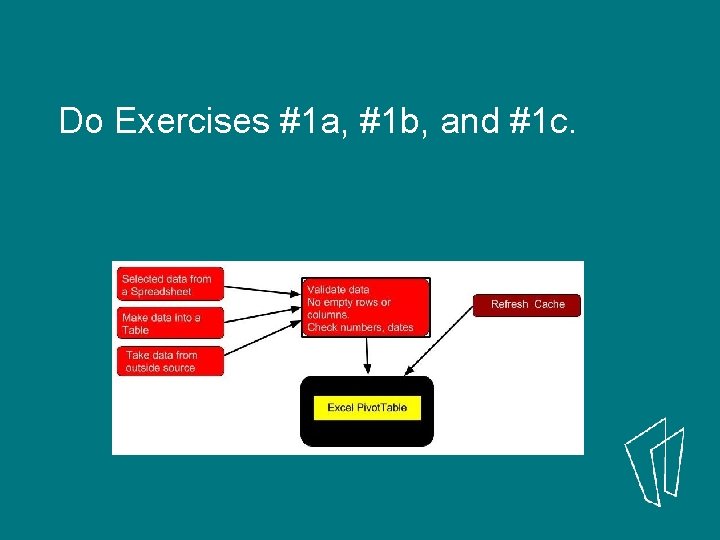
A closer view: Input to a Pivot. Table
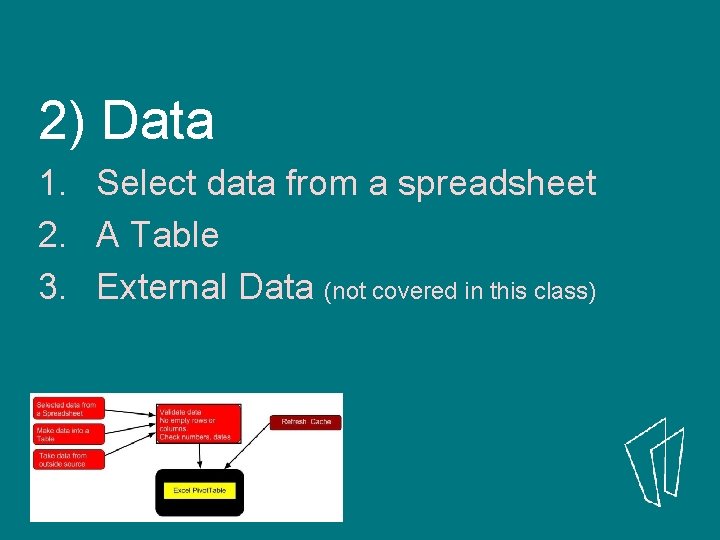
2) Data 1. Select data from a spreadsheet 2. A Table 3. External Data (not covered in this class)
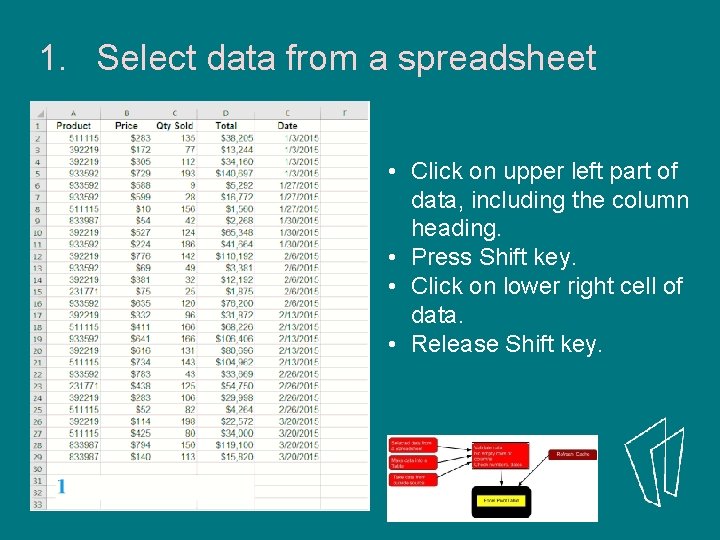
1. Select data from a spreadsheet • Click on upper left part of data, including the column heading. • Press Shift key. • Click on lower right cell of data. • Release Shift key.
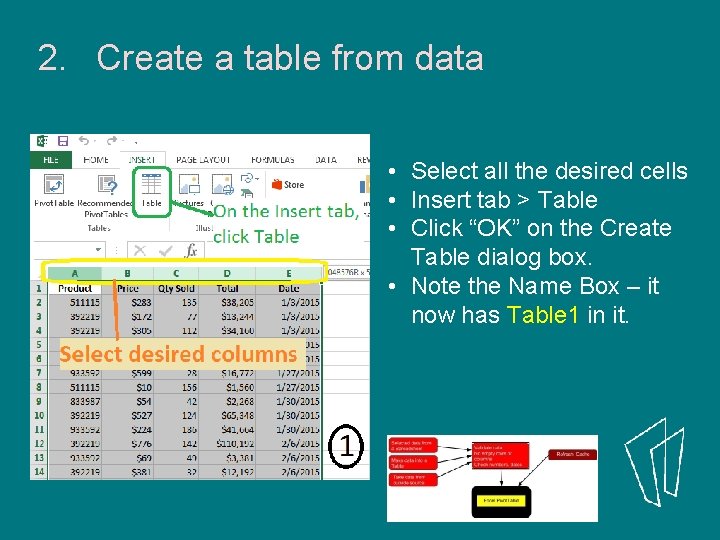
2. Create a table from data • Select all the desired cells • Insert tab > Table • Click “OK” on the Create Table dialog box. • Note the Name Box – it now has Table 1 in it.
When you create a Pivot. Table, a copy of the data is stored in a pivot cache. Any changes to the data won’t show up in the report until you refresh the cache. To refresh the data: • Right-click the pivot table and click Refresh Data. Or • Go to the Options tab, and click the Refresh button
Do Exercises #1 a, #1 b, and #1 c.
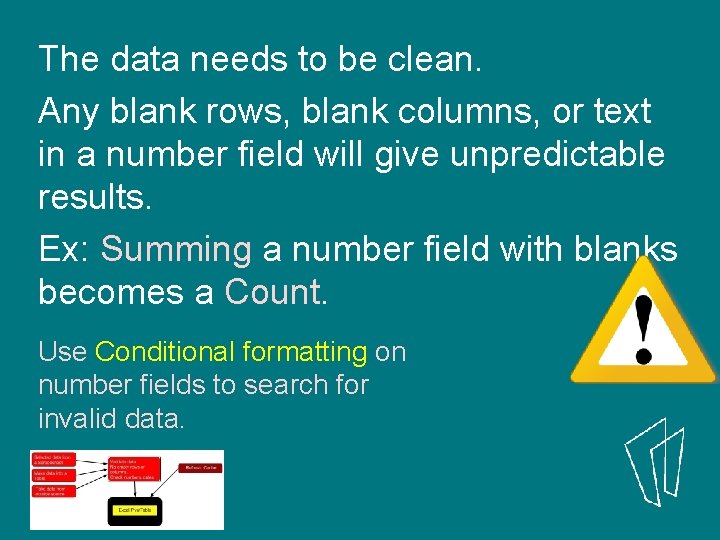
The data needs to be clean. Any blank rows, blank columns, or text in a number field will give unpredictable results. Ex: Summing a number field with blanks becomes a Count. Use Conditional formatting on number fields to search for invalid data.
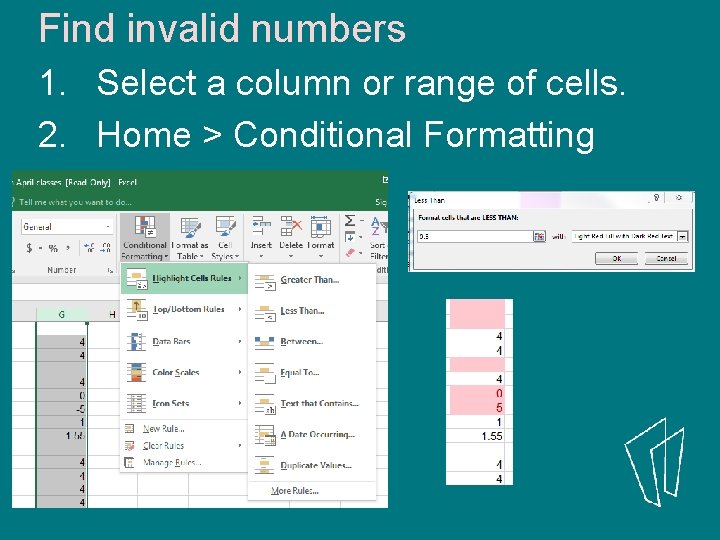
Find invalid numbers 1. Select a column or range of cells. 2. Home > Conditional Formatting
The data : • Must have Column Headings in the first row. • Must have tabular layout - no blank rows or columns. • No repeating columns of data Normalized data
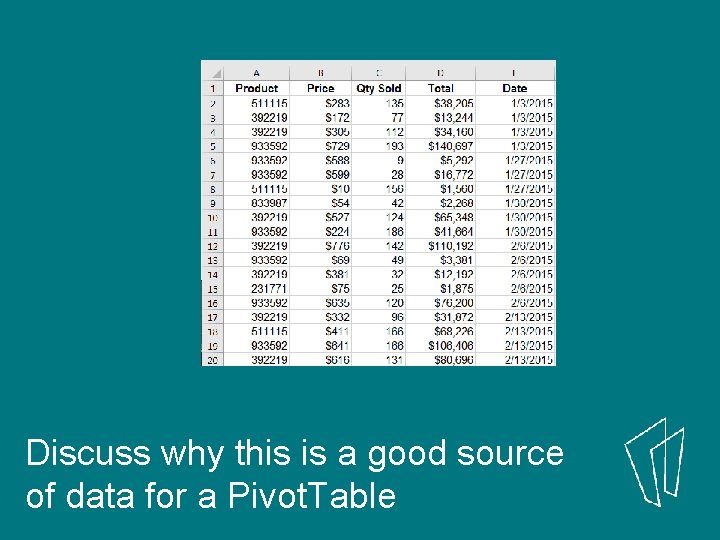
Discuss why this is a good source of data for a Pivot. Table
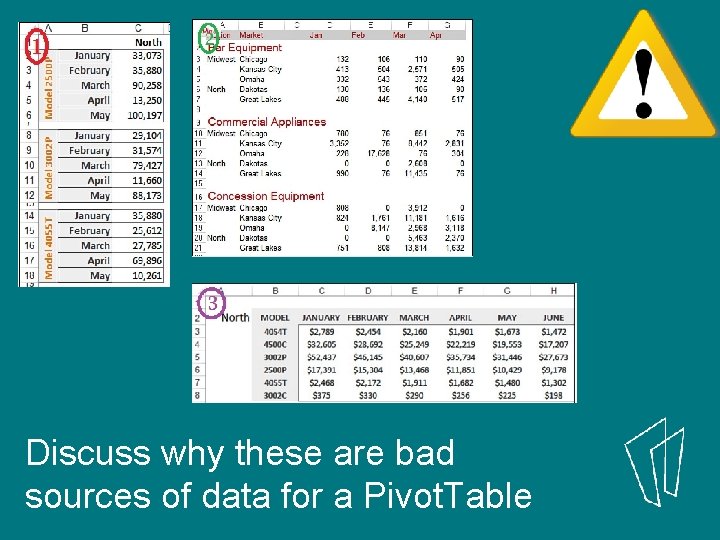
Discuss why these are bad sources of data for a Pivot. Table
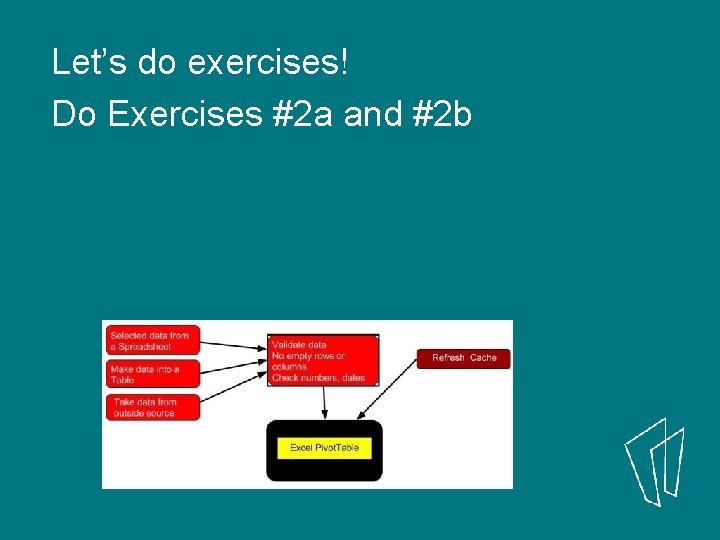
Let’s do exercises! Do Exercises #2 a and #2 b

Think of Pivot. Tables as how to solve a word problem: What is the question asking? Open the Big. Data tab and review the information. Can you think of certain questions an analyst would like to see?
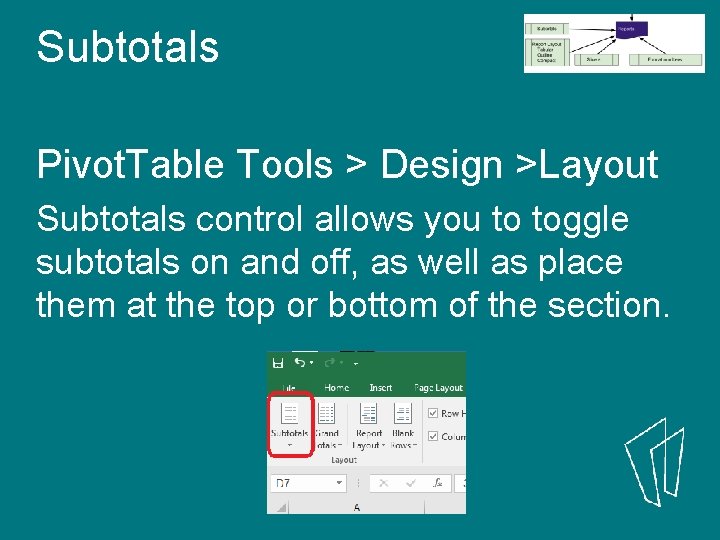
Subtotals Pivot. Table Tools > Design >Layout Subtotals control allows you to toggle subtotals on and off, as well as place them at the top or bottom of the section.
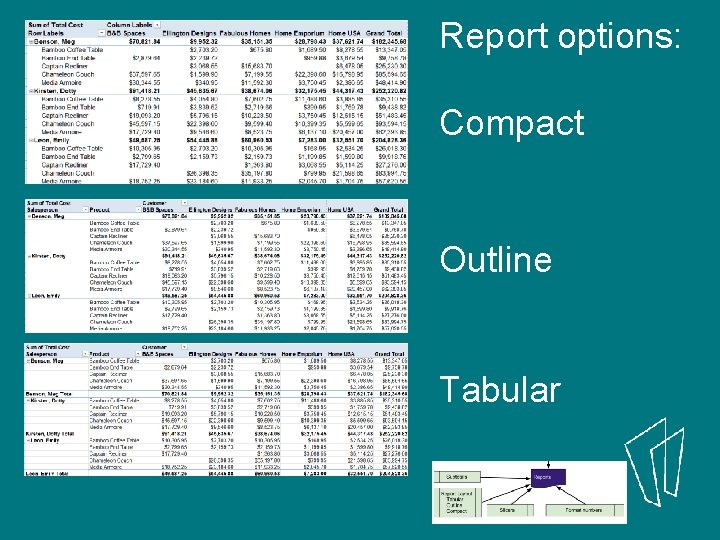
Report options: Compact Outline Tabular
There at least two ways of selecting / limiting data: § Filters § Slicers
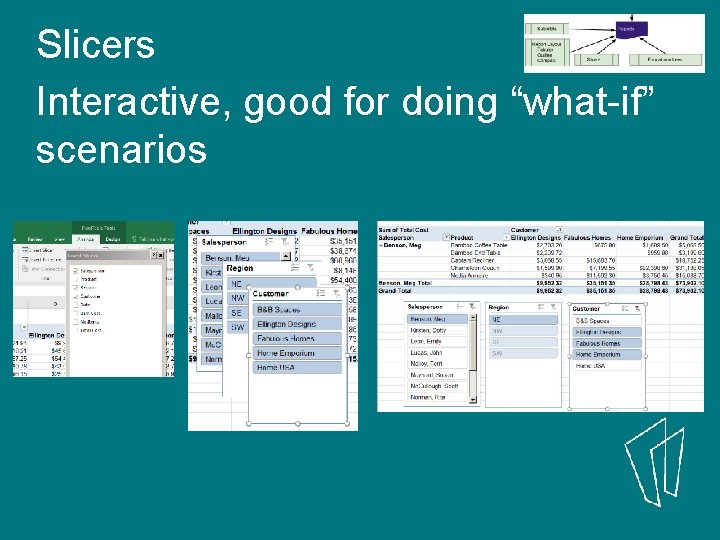
Slicers Interactive, good for doing “what-if” scenarios
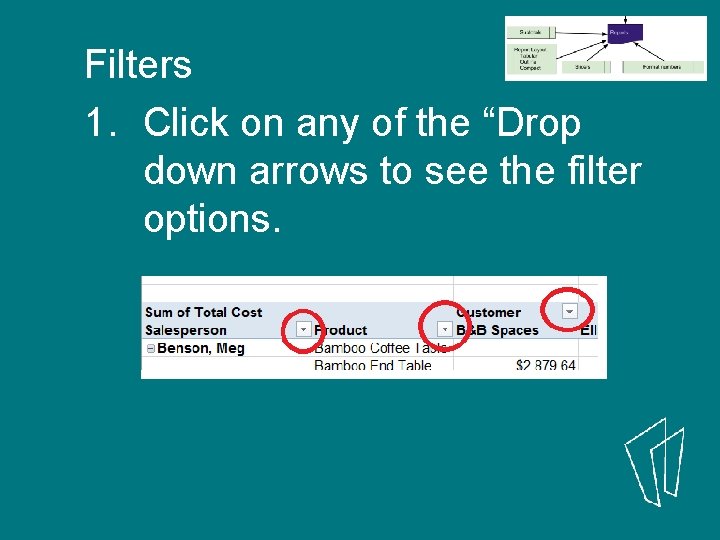
Filters 1. Click on any of the “Drop down arrows to see the filter options.
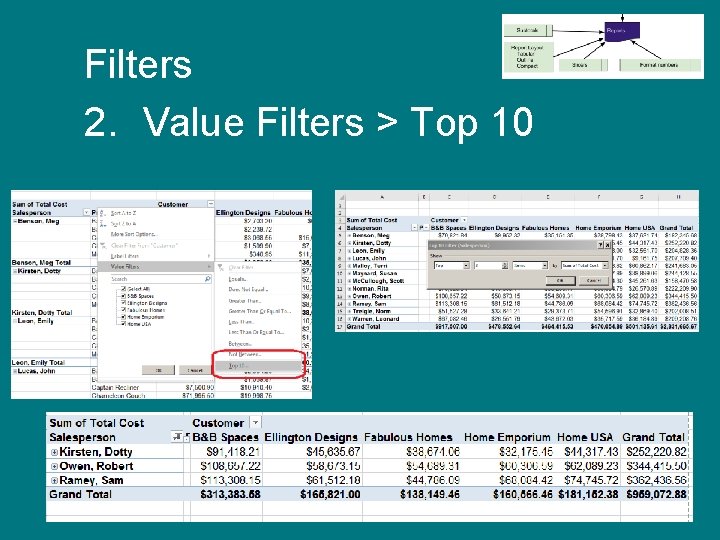
Filters 2. Value Filters > Top 10
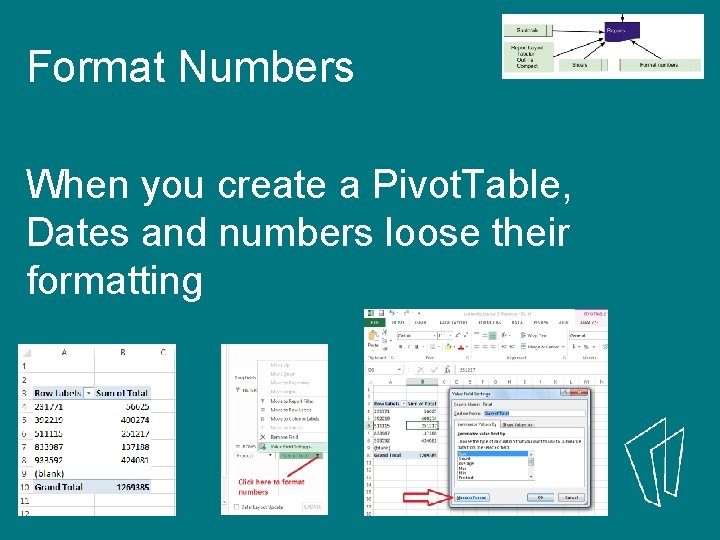
Format Numbers When you create a Pivot. Table, Dates and numbers loose their formatting
Drill down double click on a Value Field and Excel will generate a new sheet listing all the components in that field.
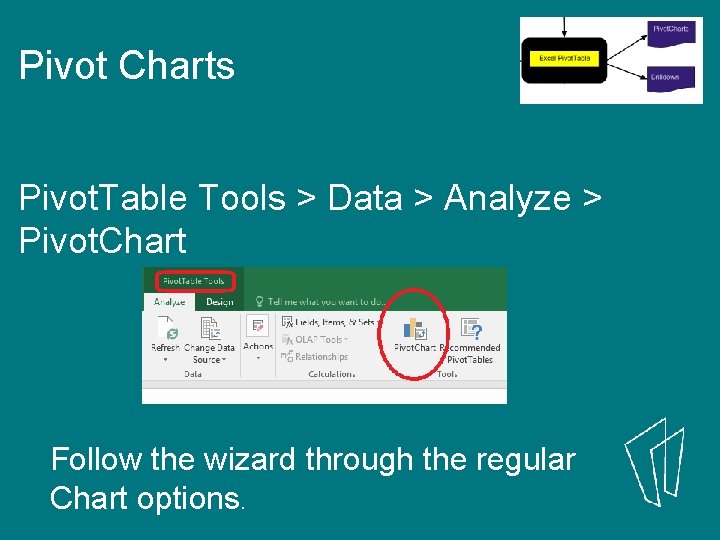
Pivot Charts Pivot. Table Tools > Data > Analyze > Pivot. Chart Follow the wizard through the regular Chart options.
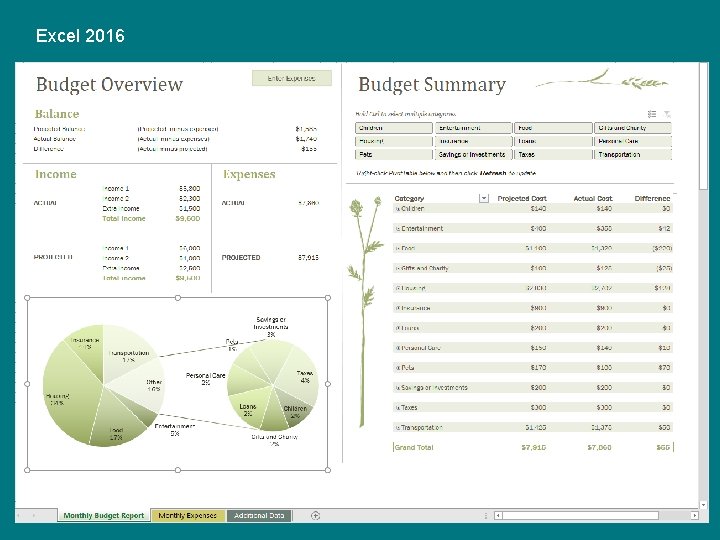
Excel 2016
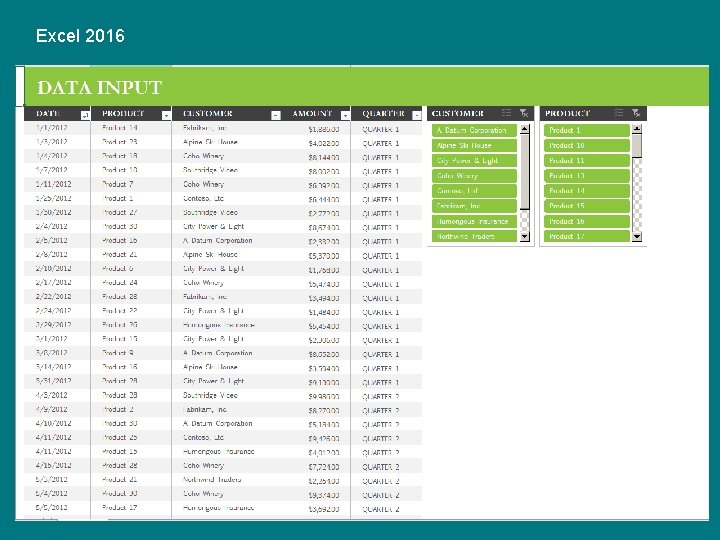
Excel 2016

I recommend this book as the best Pivot. Table reference available. Skokie Library has it available as an electronic book. (EPUB) Excel 2015 Pivot Table Data Crunching, by Bill Jelen and Michael Alexander
More Excel classes: • Charts and Graphs • Formulas and Functions • Making a Budget using Excel

Thank You Want a copy of this presentation? Visit www. skokielibrary. info/handouts where this presentation will be available for four weeks.
- Slides: 36