
Excel Module DECISION ANALYSIS WITH SPREADSHEET SOFTWARE STUDENT


- Slides: 49
Excel Module DECISION ANALYSIS WITH SPREADSHEET SOFTWARE
STUDENT LEARNING OUTCOMES 1. Define a list and list definition table for spreadsheet applications 2. Compare/contrast Auto. Filter and custom Auto. Filter functions for spreadsheet applications 3. Describe conditional formatting 4. Define/describe a pivot table D-2
INTRODUCTION • IT plays an important role in aiding decision making • Spreadsheet tools can aid in decision making – Auto. Filter – Conditional formatting – Pivot table D-3
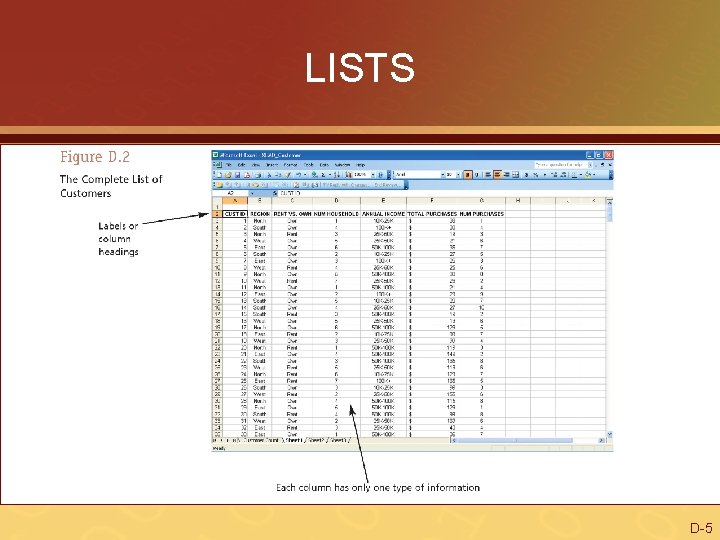
LISTS • List – information arranged in columns and rows – Each column has one information type – First row contains headings or labels – No blank rows – Blank columns/rows all around D-4
LISTS D-5
List Definition Table • List definition table – description of a list by column (see Figure D. 2 on page 218) A. CUST ID – unique ID for customer B. REGION – North, South, etc. C. RENT VS. OWN – customer rents or owns a home – And so on D-6
BASIC AUTOFILTER • Auto. Filter function – filters a list and hides rows that don’t match a criteria • Good for seeing only certain rows of information • Basic Auto. Filter supports only “equal to” criteria D-7
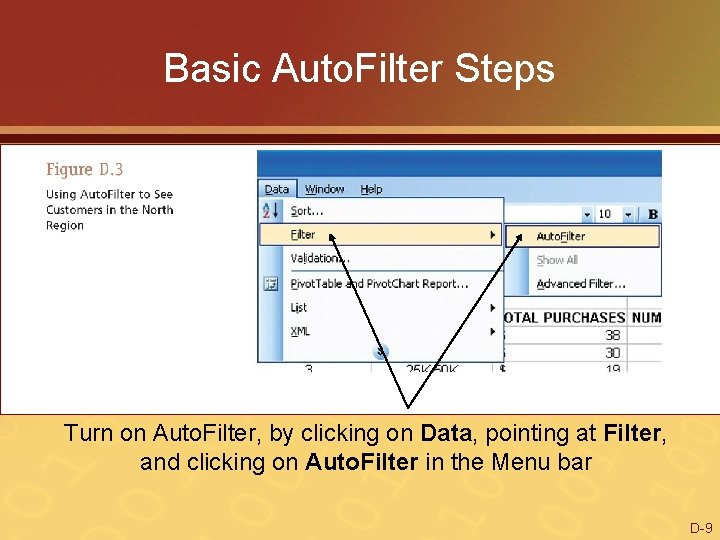
Basic Auto. Filter Steps 1. Open workbook (XLMD_Customer. xls from D 2 L) 2. Click any cell in the list 3. Men bar – click on Data, point at Filter, click on Auto. Filter – Will see list box arrows next to each label or column heading D-8
Basic Auto. Filter Steps Turn on Auto. Filter, by clicking on Data, pointing at Filter, and clicking on Auto. Filter in the Menu bar D-9
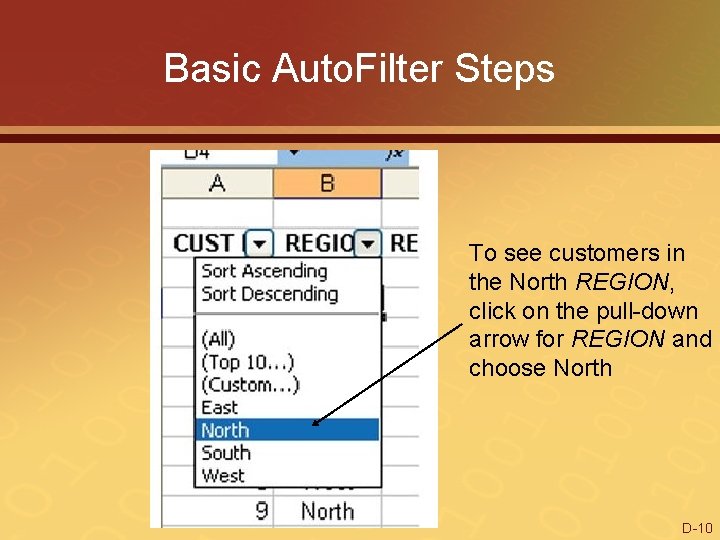
Basic Auto. Filter Steps To see customers in the North REGION, click on the pull-down arrow for REGION and choose North D-10
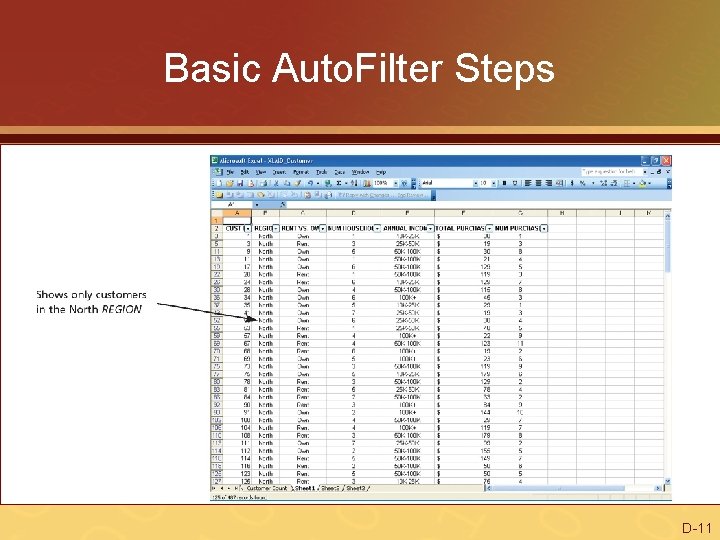
Basic Auto. Filter Steps D-11
Turning Off Basic Auto. Filter • From Menu bar – Click on Data – Point at Filter – Click on Auto. Filter D-12
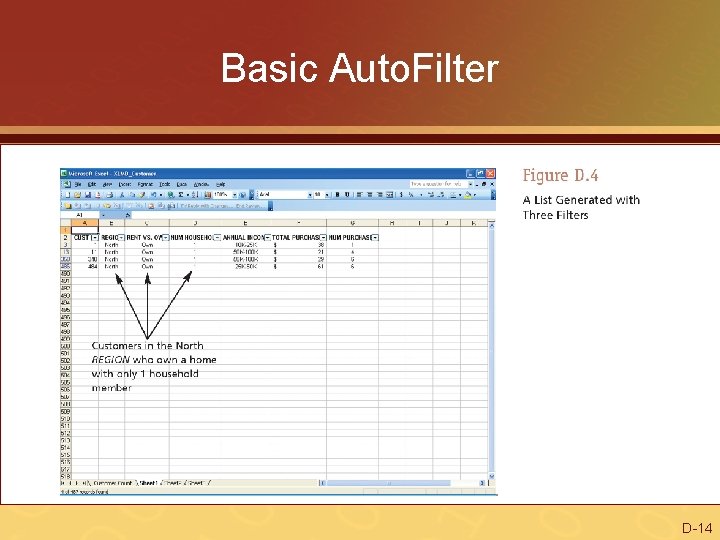
Basic Auto. Filter • Can also filter on multiple columns • Example – Customers in North region (select North in REGION) – Own a home (select Own in RENT VS. OWN) – Only one household member (select 1 in NUM HOUSEHOLD) D-13
Basic Auto. Filter D-14
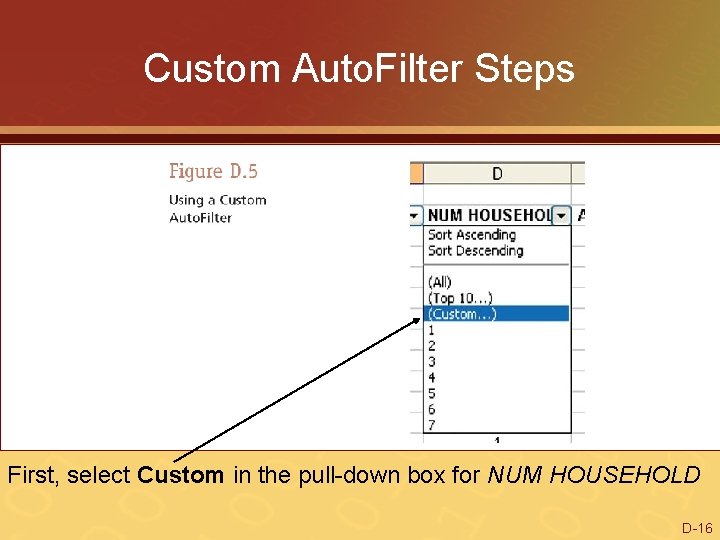
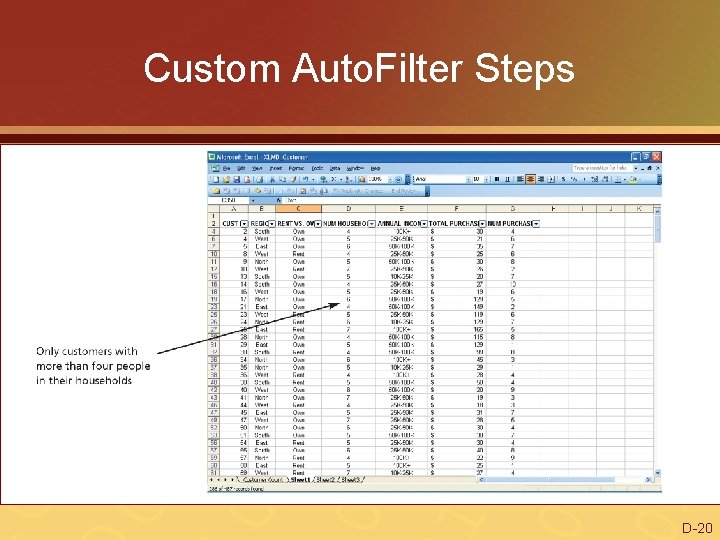
CUSTOM AUTOFILTER • Custom Auto. Filter function – hides all rows except those that match criteria, besides “is equal to” • Example – Customers with more than 3 household members D-15
Custom Auto. Filter Steps First, select Custom in the pull-down box for NUM HOUSEHOLD D-16
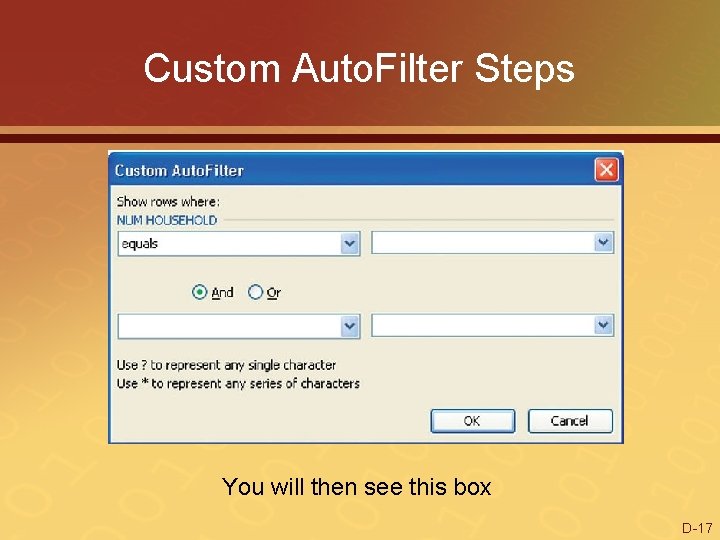
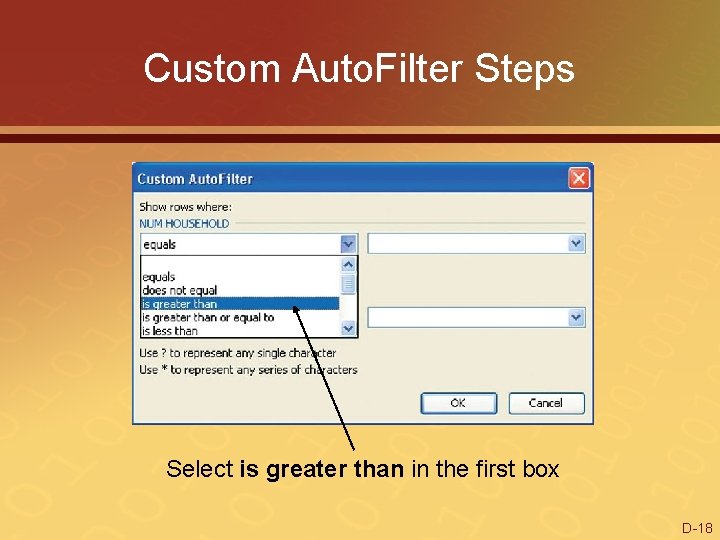
Custom Auto. Filter Steps You will then see this box D-17
Custom Auto. Filter Steps Select is greater than in the first box D-18
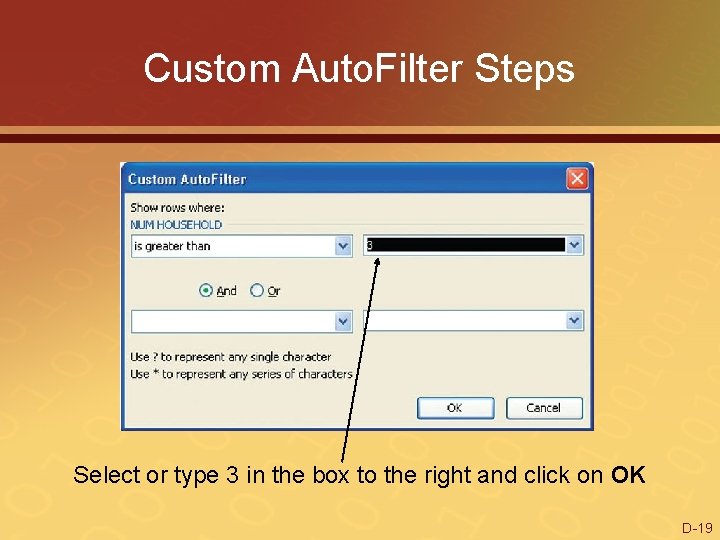
Custom Auto. Filter Steps Select or type 3 in the box to the right and click on OK D-19
Custom Auto. Filter Steps D-20
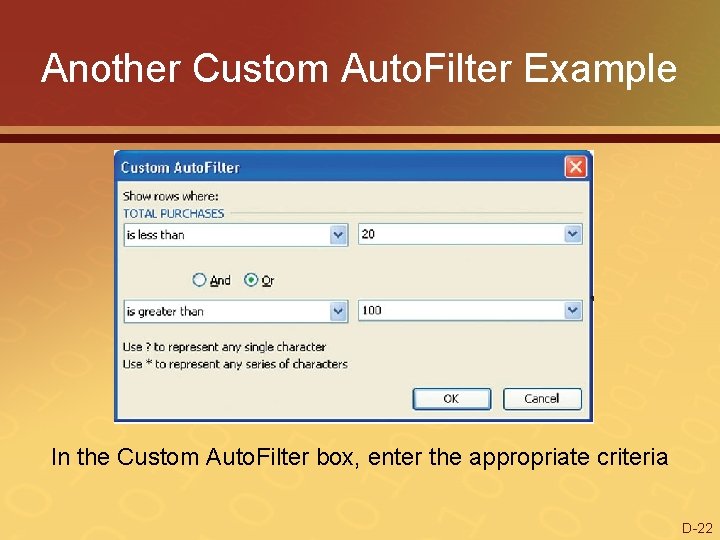
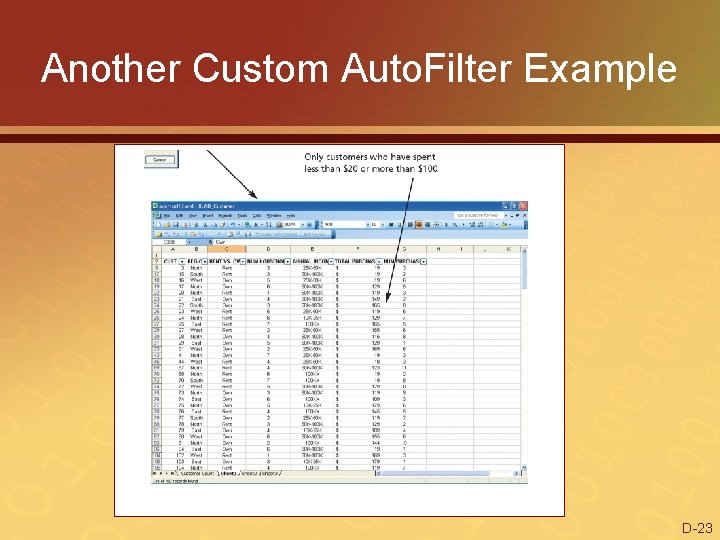
Another Custom Auto. Filter Example • Customers who spent less than $20 or more than $100 D-21
Another Custom Auto. Filter Example In the Custom Auto. Filter box, enter the appropriate criteria D-22
Another Custom Auto. Filter Example D-23
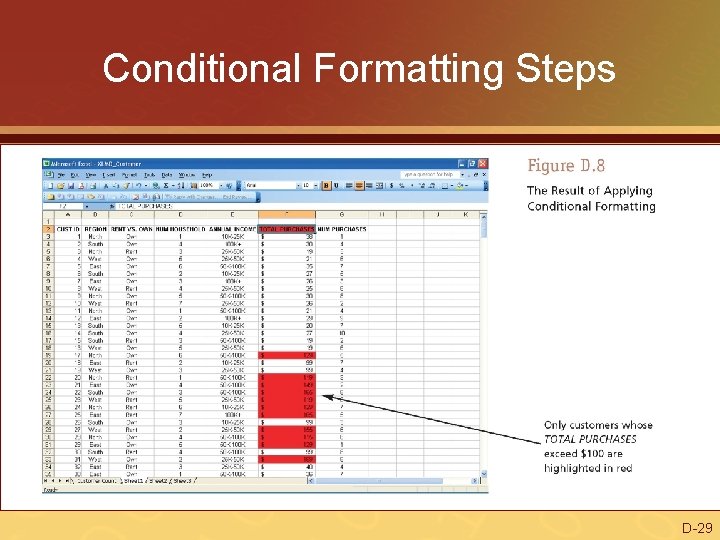
CONDITIONAL FORMATTING • Conditional formatting – highlights the information in a cell that meets some criteria you specify – Does not hide any rows – Lets you see the whole list – While highlighting certain information • Example – Customers who purchased more than $100 D-24
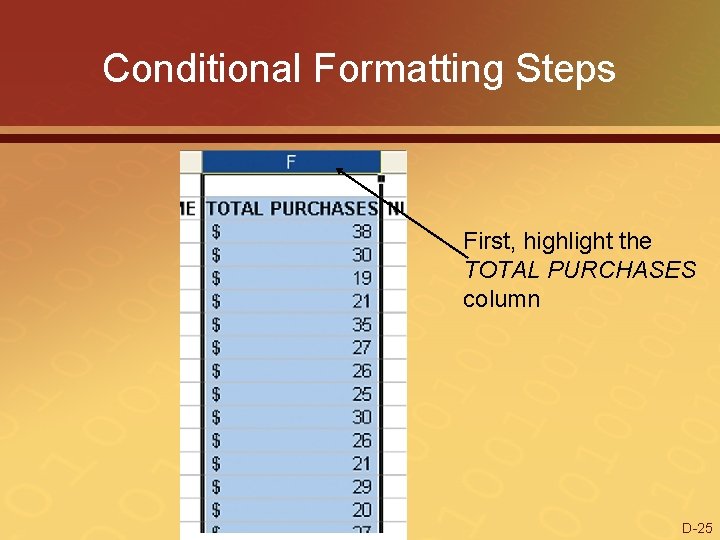
Conditional Formatting Steps First, highlight the TOTAL PURCHASES column D-25
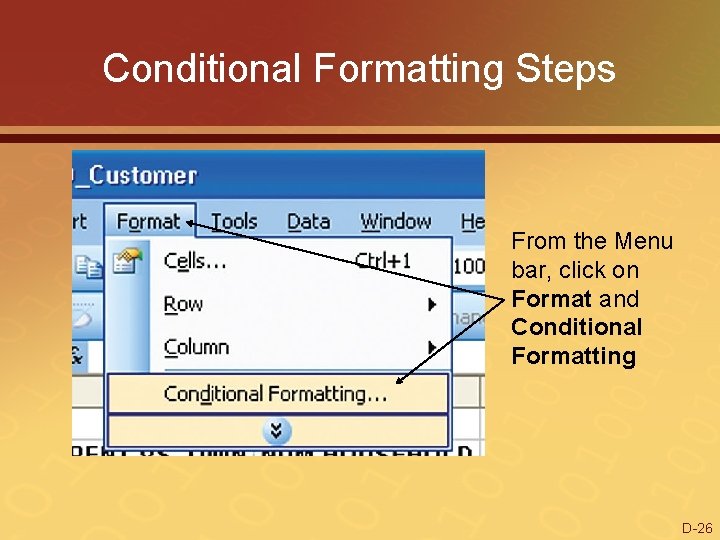
Conditional Formatting Steps From the Menu bar, click on Format and Conditional Formatting D-26
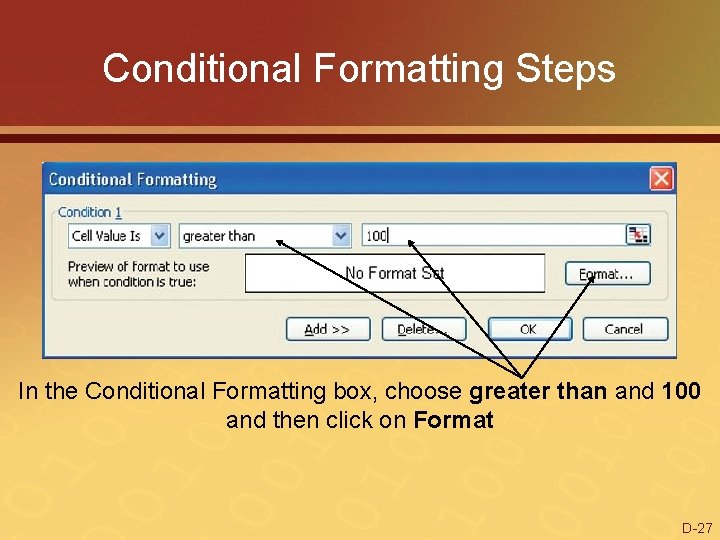
Conditional Formatting Steps In the Conditional Formatting box, choose greater than and 100 and then click on Format D-27
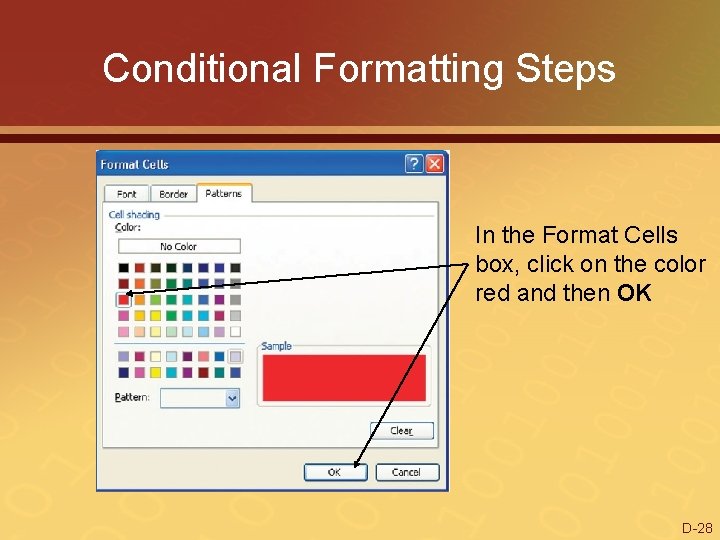
Conditional Formatting Steps In the Format Cells box, click on the color red and then OK D-28
Conditional Formatting Steps D-29
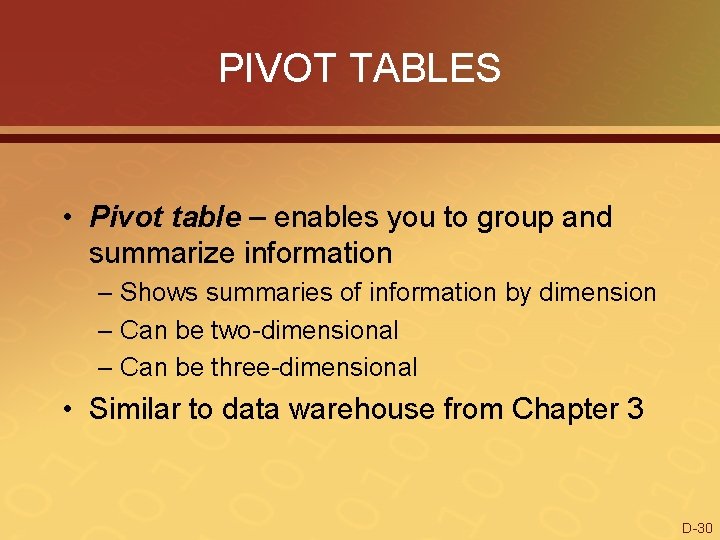
PIVOT TABLES • Pivot table – enables you to group and summarize information – Shows summaries of information by dimension – Can be two-dimensional – Can be three-dimensional • Similar to data warehouse from Chapter 3 D-30
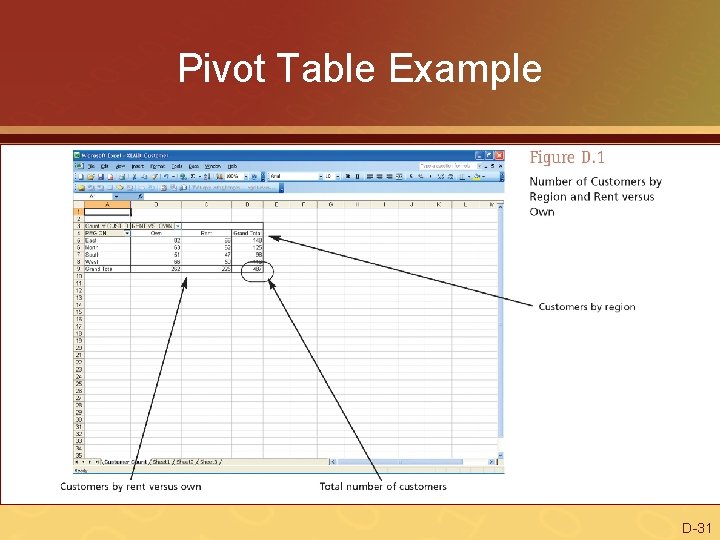
Pivot Table Example D-31
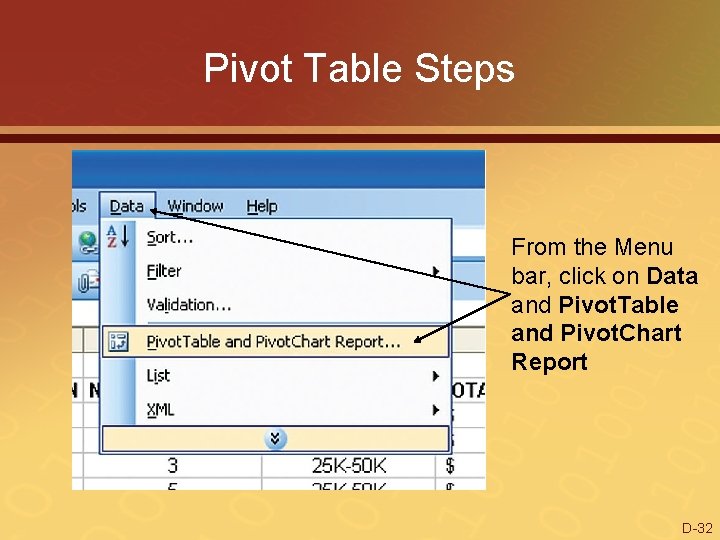
Pivot Table Steps From the Menu bar, click on Data and Pivot. Table and Pivot. Chart Report D-32
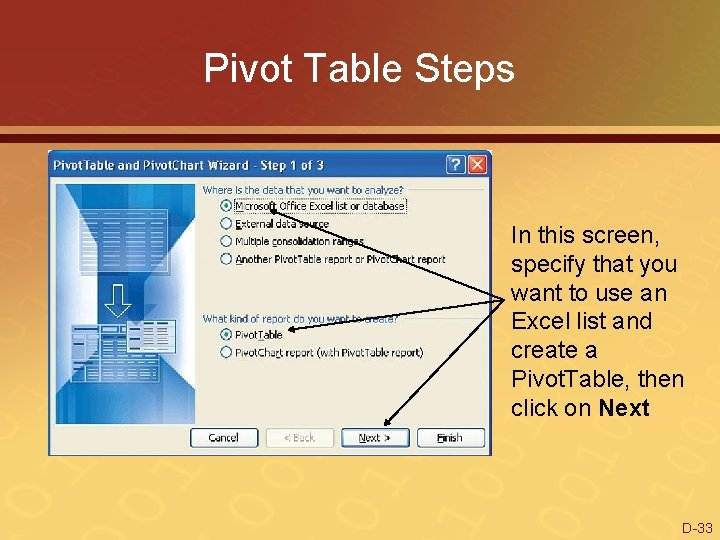
Pivot Table Steps In this screen, specify that you want to use an Excel list and create a Pivot. Table, then click on Next D-33
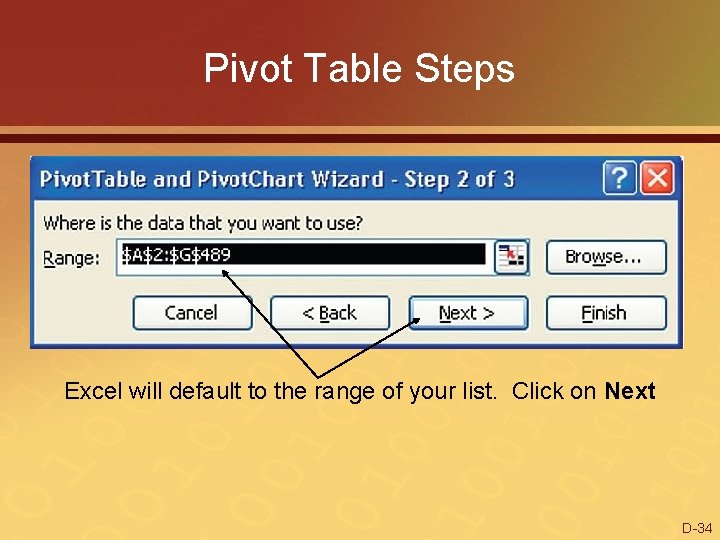
Pivot Table Steps Excel will default to the range of your list. Click on Next D-34
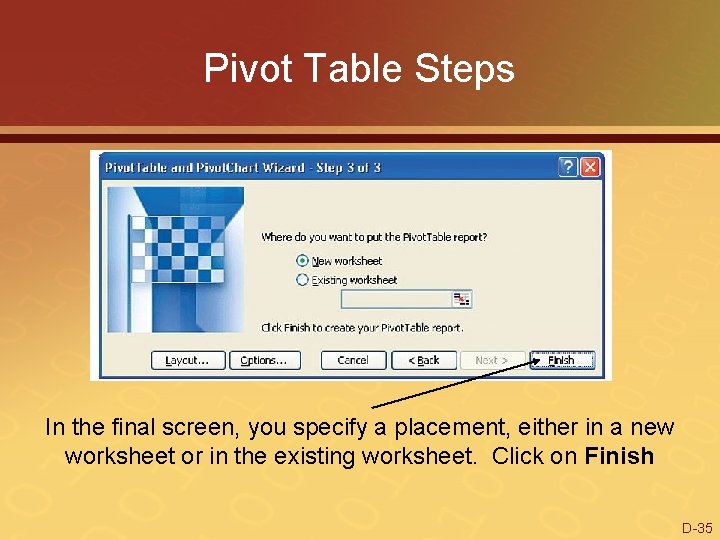
Pivot Table Steps In the final screen, you specify a placement, either in a new worksheet or in the existing worksheet. Click on Finish D-35
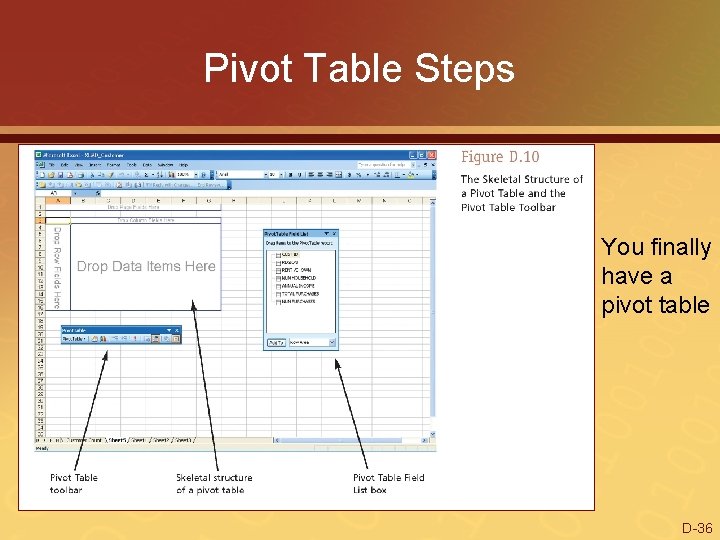
Pivot Table Steps You finally have a pivot table D-36
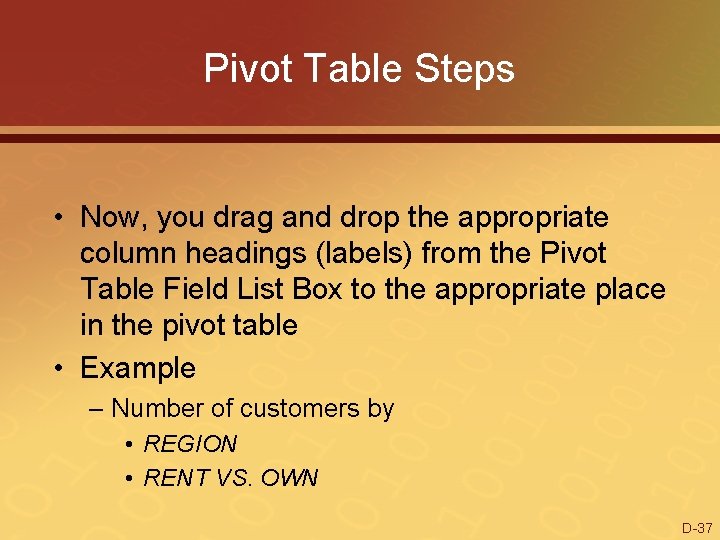
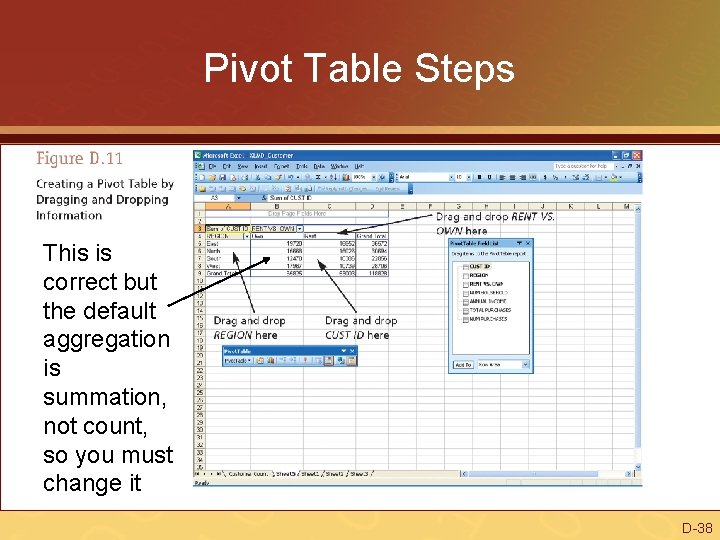
Pivot Table Steps • Now, you drag and drop the appropriate column headings (labels) from the Pivot Table Field List Box to the appropriate place in the pivot table • Example – Number of customers by • REGION • RENT VS. OWN D-37
Pivot Table Steps This is correct but the default aggregation is summation, not count, so you must change it D-38
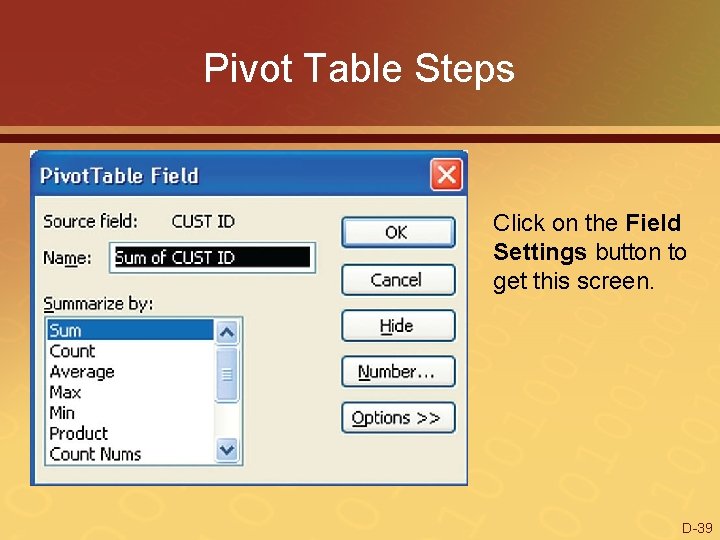
Pivot Table Steps Click on the Field Settings button to get this screen. D-39
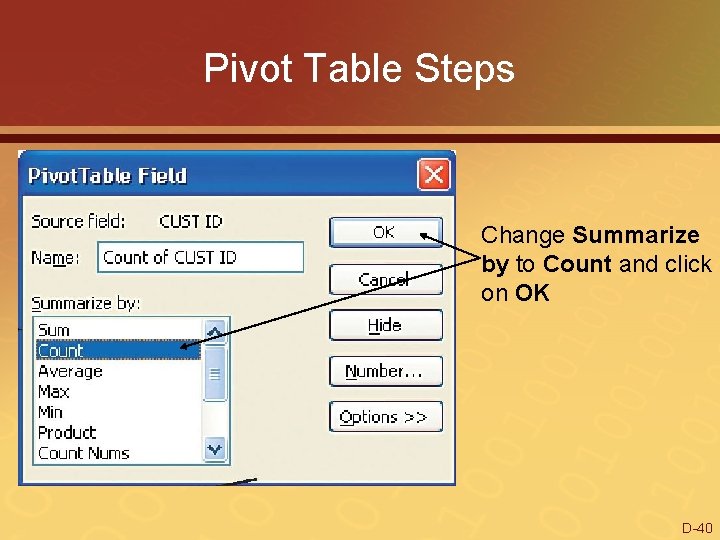
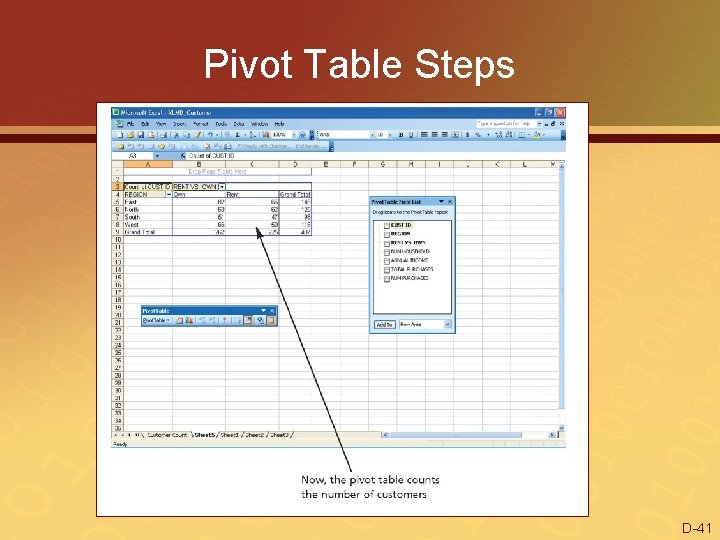
Pivot Table Steps Change Summarize by to Count and click on OK D-40
Pivot Table Steps D-41
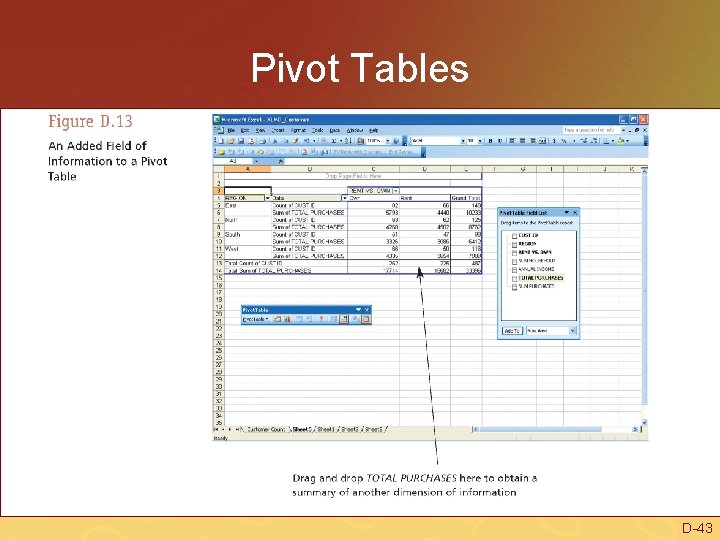
Pivot Tables • Can have multiple pieces of information in body of pivot table • Example – Count of customers – Total of purchases – Drag/drop TOTAL PURCHASES into pivot table D-42
Pivot Tables D-43
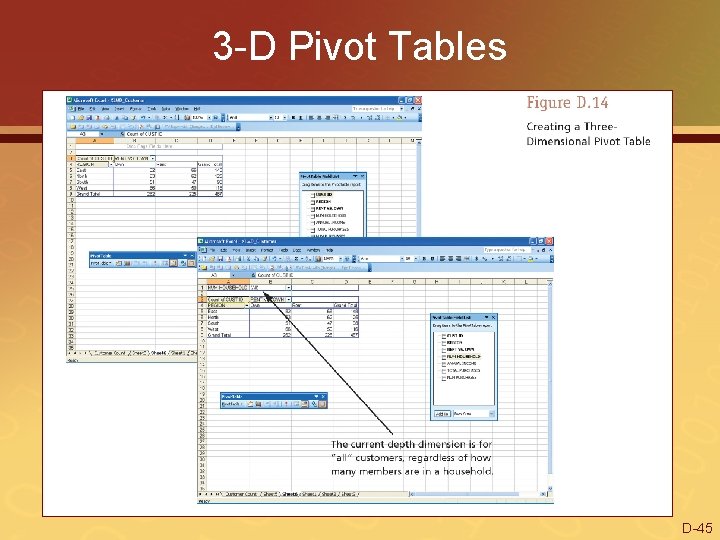
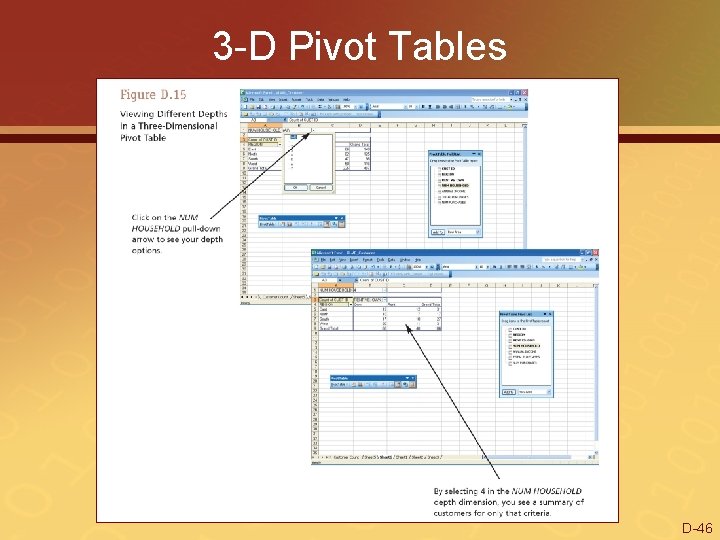
3 -D Pivot Tables • Desired dimensions – REGION – RENT VS. OWN – NUM HOUSEHOLD • Drag/drop NUM HOUSEHOLD into “Drop Page Fields Here” location D-44
3 -D Pivot Tables D-45
3 -D Pivot Tables D-46
SUMMARY • Auto. Filter – view a partial list of information • Conditional formatting – see all information with some highlighted • Pivot table – summarize information by dimension • It’s all about decision support D-47
CAN YOU… 1. Define a list and list definition table for spreadsheet applications 2. Compare/contrast Auto. Filter and custom Auto. Filter functions for spreadsheet applications 3. Describe conditional formatting 4. Define/describe a pivot table D-48
Extended Learning Module D End of Extended Learning Module D