
Excel Module 1 Formatting Text and Data Simple

- Slides: 11
Excel Module 1 Formatting Text and Data Simple Calculations
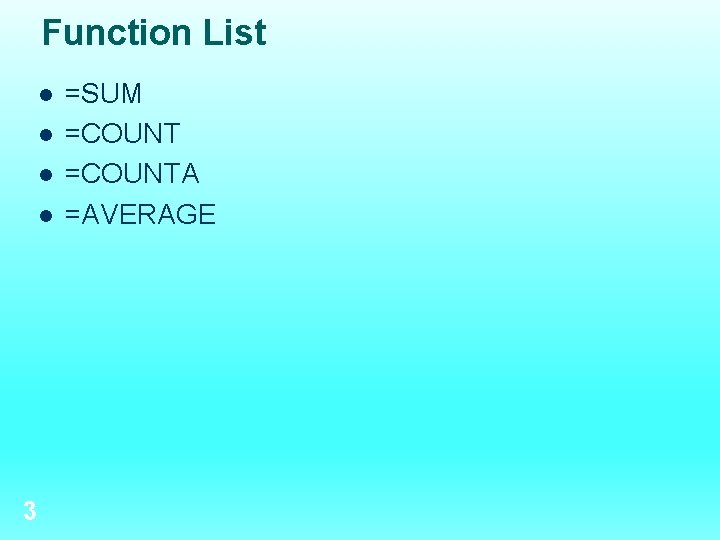
Function List l l 3 =SUM =COUNTA =AVERAGE
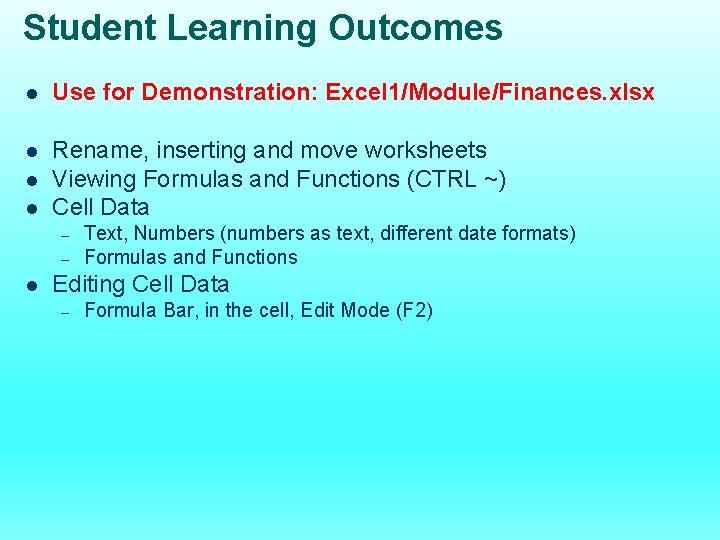
Student Learning Outcomes l Use for Demonstration: Excel 1/Module/Finances. xlsx l Rename, inserting and move worksheets Viewing Formulas and Functions (CTRL ~) Cell Data l l – – l Text, Numbers (numbers as text, different date formats) Formulas and Functions Editing Cell Data – Formula Bar, in the cell, Edit Mode (F 2)
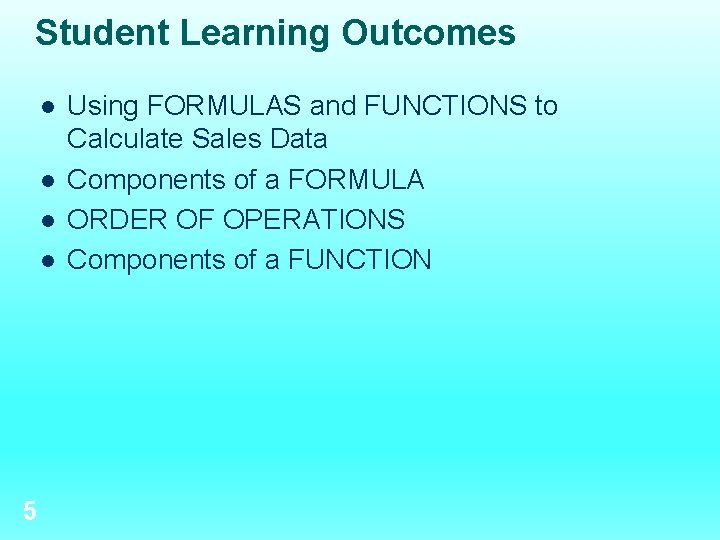
Student Learning Outcomes l l 5 Using FORMULAS and FUNCTIONS to Calculate Sales Data Components of a FORMULA ORDER OF OPERATIONS Components of a FUNCTION
Student Learning Outcomes l Printing Options – – 6 Portrait or Landscape (File Tab or Page Layout Tab) Scale to Fit (File Tab or Page Layout Tab)
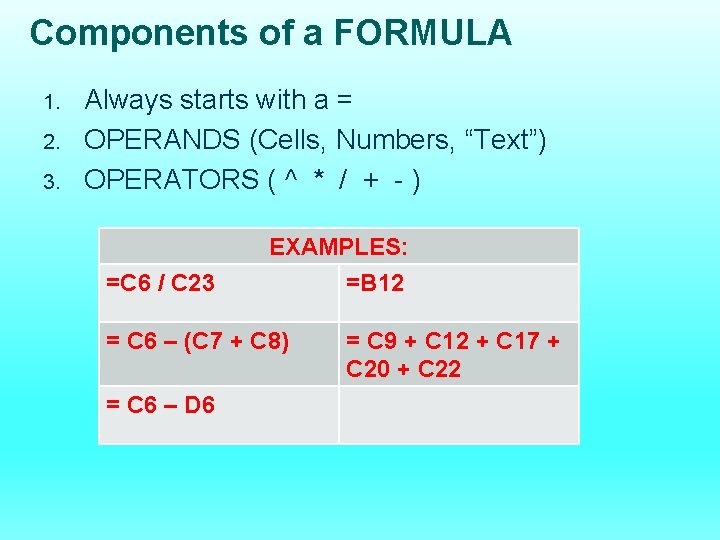
Components of a FORMULA 1. 2. 3. Always starts with a = OPERANDS (Cells, Numbers, “Text”) OPERATORS ( ^ * / + - ) =C 6 / C 23 EXAMPLES: =B 12 = C 6 – (C 7 + C 8) = C 6 – D 6 = C 9 + C 12 + C 17 + C 20 + C 22
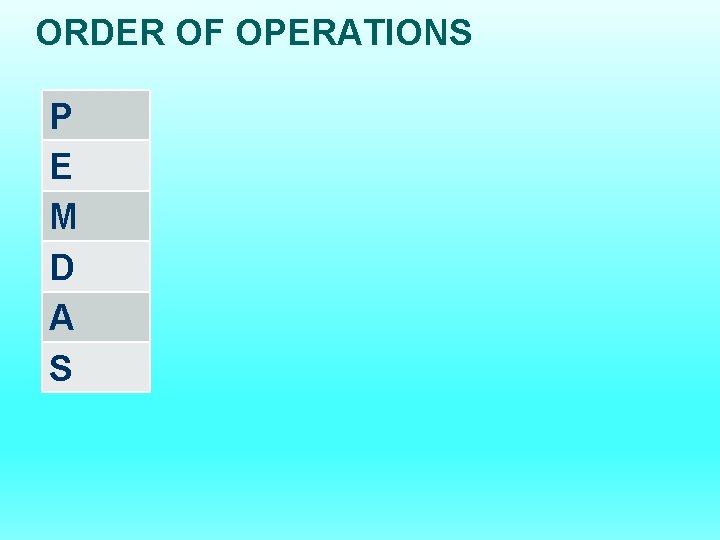
ORDER OF OPERATIONS P E M D A S
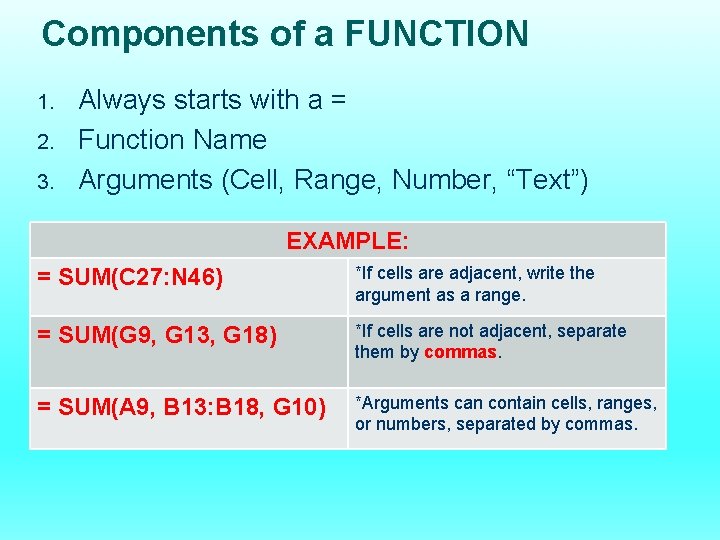
Components of a FUNCTION 1. 2. 3. Always starts with a = Function Name Arguments (Cell, Range, Number, “Text”) EXAMPLE: = SUM(C 27: N 46) *If cells are adjacent, write the argument as a range. = SUM(G 9, G 13, G 18) *If cells are not adjacent, separate them by commas. = SUM(A 9, B 13: B 18, G 10) *Arguments can contain cells, ranges, or numbers, separated by commas.
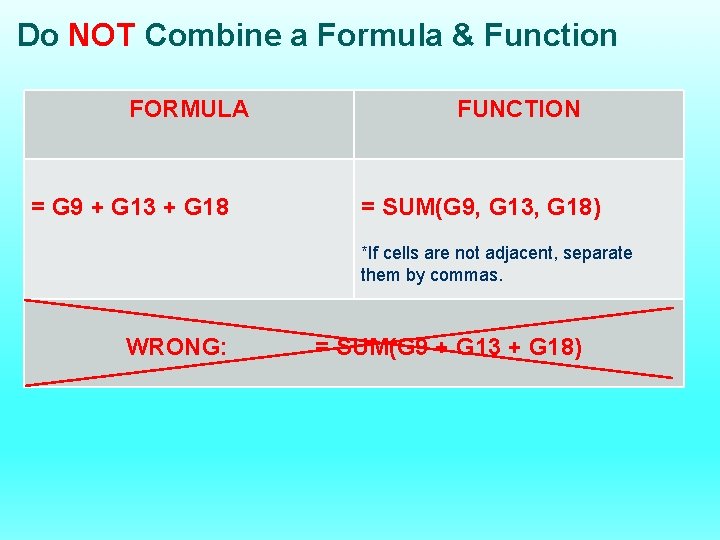
Do NOT Combine a Formula & Function FORMULA = G 9 + G 13 + G 18 FUNCTION = SUM(G 9, G 13, G 18) *If cells are not adjacent, separate them by commas. WRONG: = SUM(G 9 + G 13 + G 18)
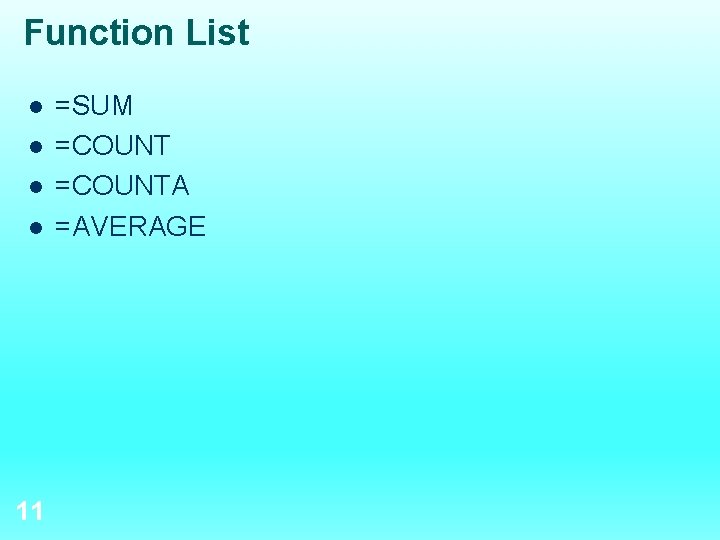
Function List l l 11 =SUM =COUNTA =AVERAGE