
Excel Introduction Microsoft Office 2007 XLSX 1 TEMPLATES


- Slides: 22
Excel: Introduction Microsoft Office 2007 . XLSX 1
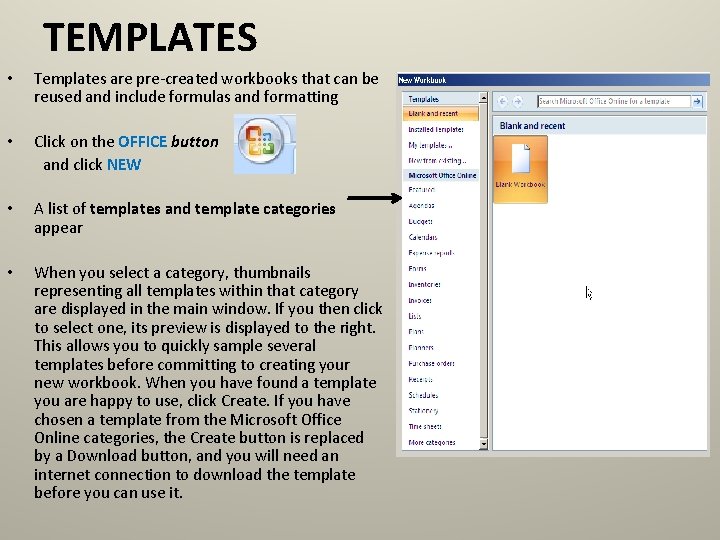
TEMPLATES • Templates are pre-created workbooks that can be reused and include formulas and formatting • Click on the OFFICE button and click NEW • A list of templates and template categories appear • When you select a category, thumbnails representing all templates within that category are displayed in the main window. If you then click to select one, its preview is displayed to the right. This allows you to quickly sample several templates before committing to creating your new workbook. When you have found a template you are happy to use, click Create. If you have chosen a template from the Microsoft Office Online categories, the Create button is replaced by a Download button, and you will need an internet connection to download the template before you can use it.
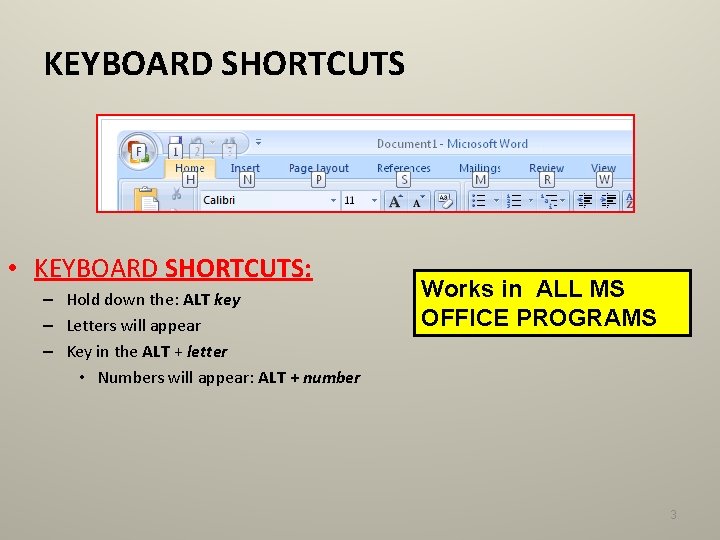
KEYBOARD SHORTCUTS • KEYBOARD SHORTCUTS: – Hold down the: ALT key – Letters will appear – Key in the ALT + letter • Numbers will appear: ALT + number Works in ALL MS OFFICE PROGRAMS 3
DIFFERENT VIEWS • Excel 2007 gives you the option of viewing your data in 3 different ways • Normal View – default view • Page Break View – shows each page with a water mark to indicate which page it will be printed on – Shows each page break with a dotted line • Page Layout View – Allows you to see what the printer sees. It contains headers, footers, margins and orientation. • Switch between views by clicking the view buttons on the task bar on the bottom right
Formatting 5
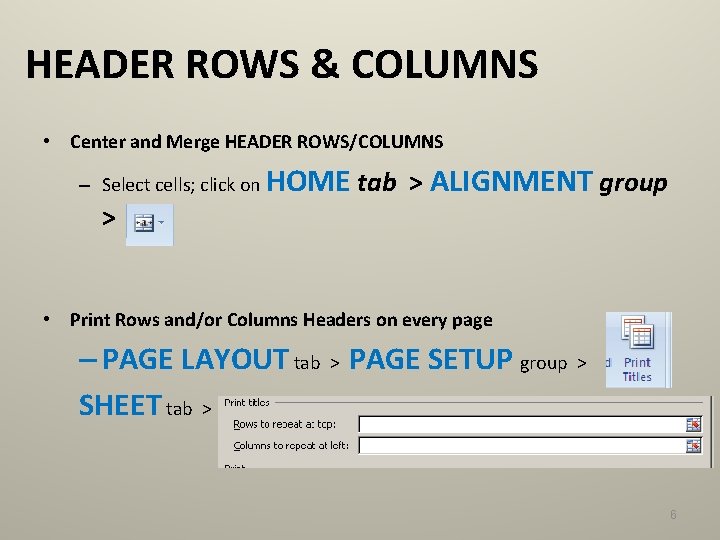
HEADER ROWS & COLUMNS • Center and Merge HEADER ROWS/COLUMNS – Select cells; click on HOME > tab > ALIGNMENT group • Print Rows and/or Columns Headers on every page – PAGE LAYOUT tab > PAGE SETUP group > SHEET tab > 6
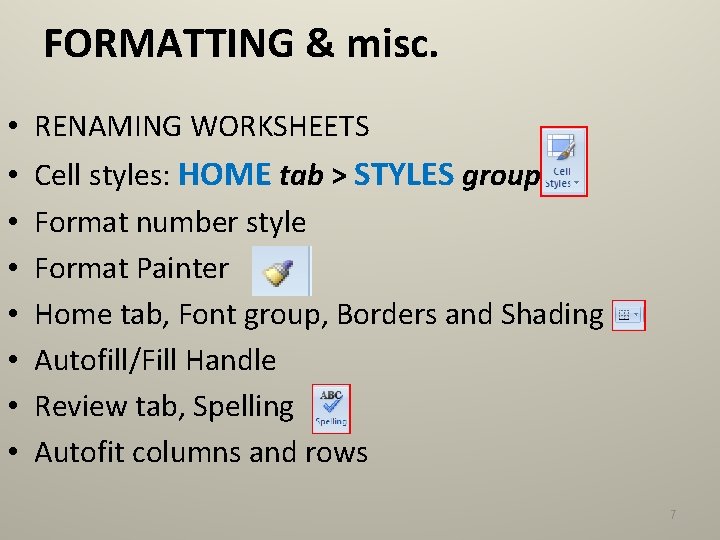
FORMATTING & misc. • RENAMING WORKSHEETS • • Cell styles: HOME tab > STYLES group > Format number style Format Painter Home tab, Font group, Borders and Shading Autofill/Fill Handle Review tab, Spelling Autofit columns and rows 7
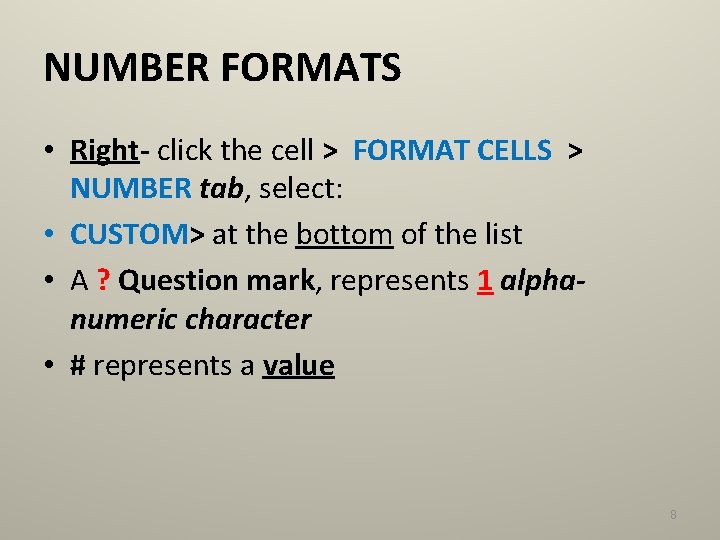
NUMBER FORMATS • Right- click the cell > FORMAT CELLS > NUMBER tab, select: • CUSTOM> at the bottom of the list • A ? Question mark, represents 1 alphanumeric character • # represents a value 8
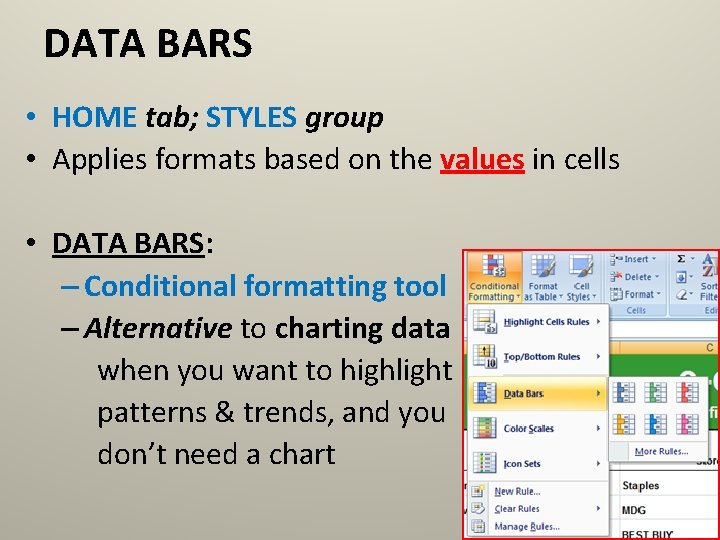
DATA BARS • HOME tab; STYLES group • Applies formats based on the values in cells • DATA BARS: – Conditional formatting tool – Alternative to charting data when you want to highlight patterns & trends, and you don’t need a chart 9
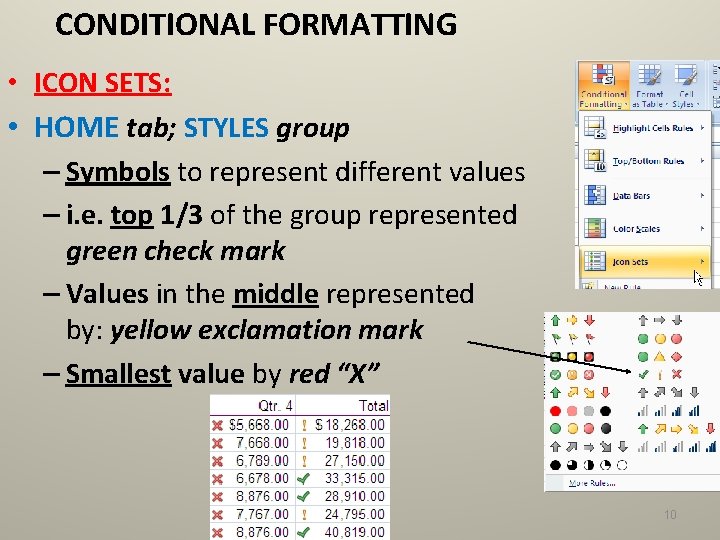
CONDITIONAL FORMATTING • ICON SETS: • HOME tab; STYLES group – Symbols to represent different values – i. e. top 1/3 of the group represented green check mark – Values in the middle represented by: yellow exclamation mark – Smallest value by red “X” by the 10
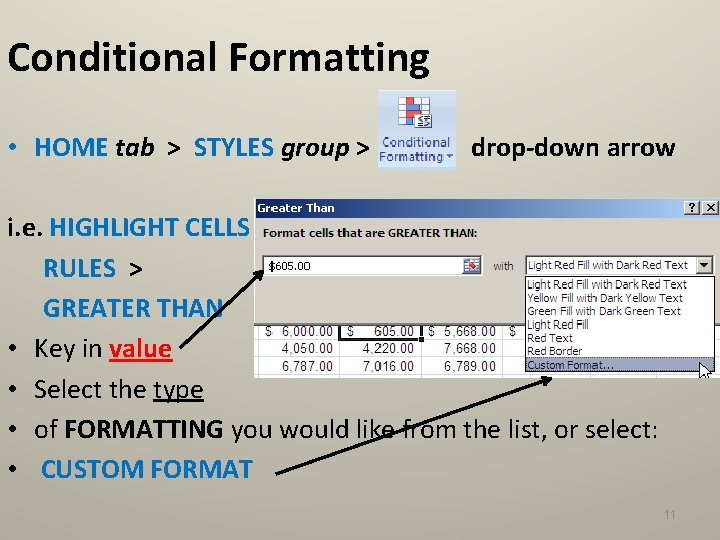
Conditional Formatting • HOME tab > STYLES group > drop-down arrow i. e. HIGHLIGHT CELLS RULES > GREATER THAN • Key in value • Select the type • of FORMATTING you would like from the list, or select: • CUSTOM FORMAT 11
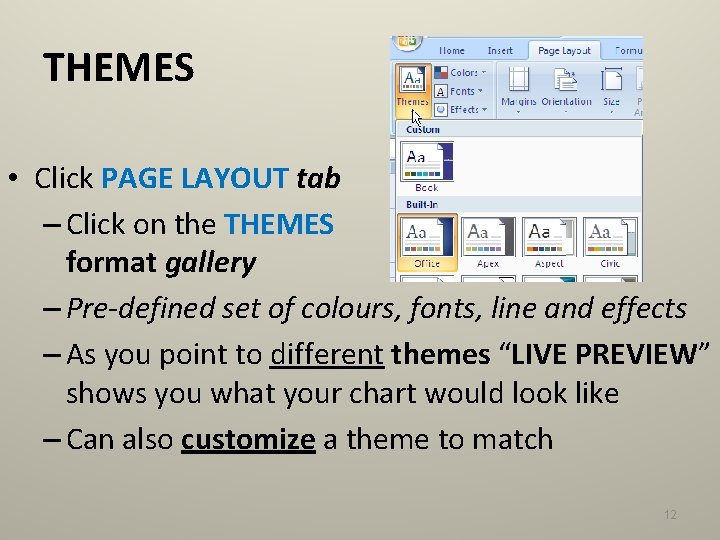
THEMES • Click PAGE LAYOUT tab – Click on the THEMES format gallery – Pre-defined set of colours, fonts, line and effects – As you point to different themes “LIVE PREVIEW” shows you what your chart would look like – Can also customize a theme to match 12
Charts 13
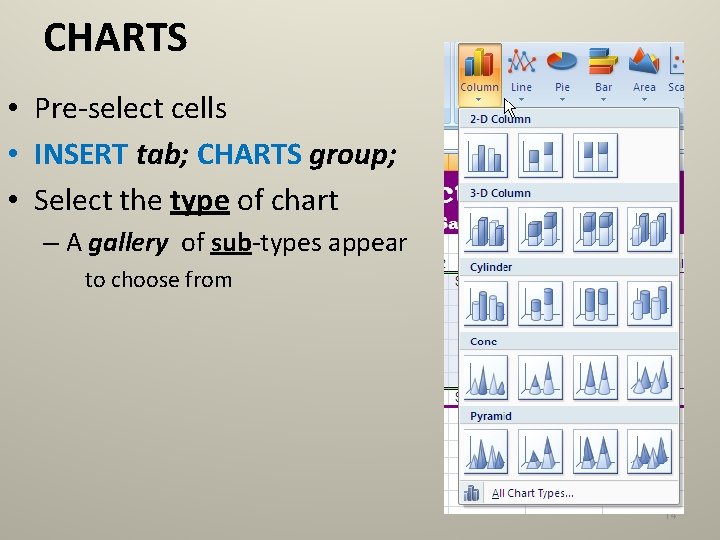
CHARTS • Pre-select cells • INSERT tab; CHARTS group; • Select the type of chart – A gallery of sub-types appear to choose from 14
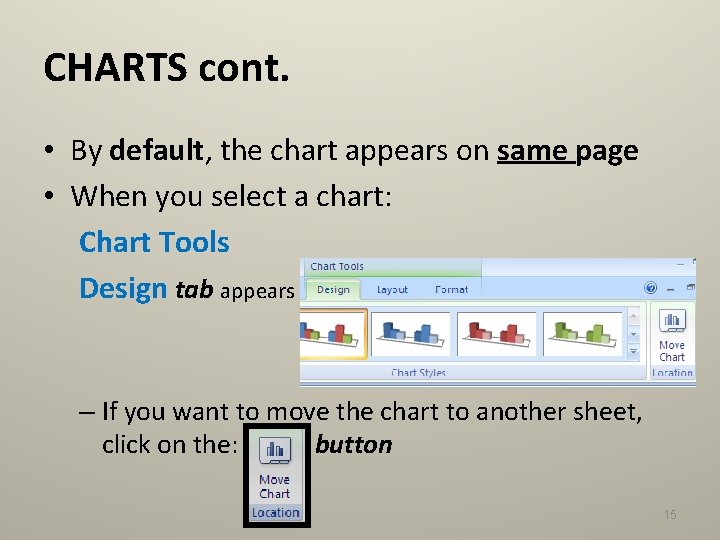
CHARTS cont. • By default, the chart appears on same page • When you select a chart: Chart Tools Design tab appears – If you want to move the chart to another sheet, click on the: button 15
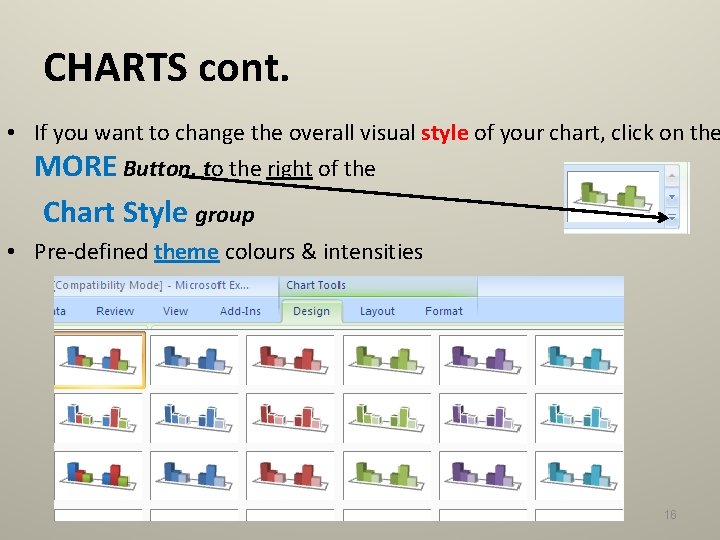
CHARTS cont. • If you want to change the overall visual style of your chart, click on the MORE Button, to the right of the Chart Style group • Pre-defined theme colours & intensities 16
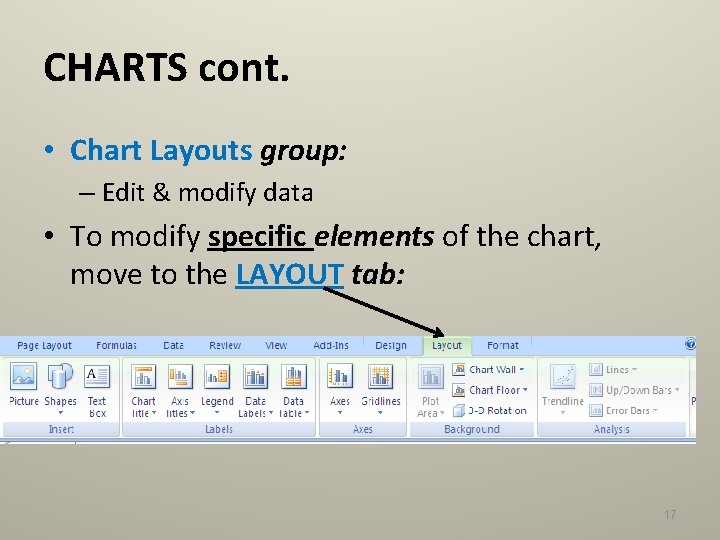
CHARTS cont. • Chart Layouts group: – Edit & modify data • To modify specific elements of the chart, move to the LAYOUT tab: 17
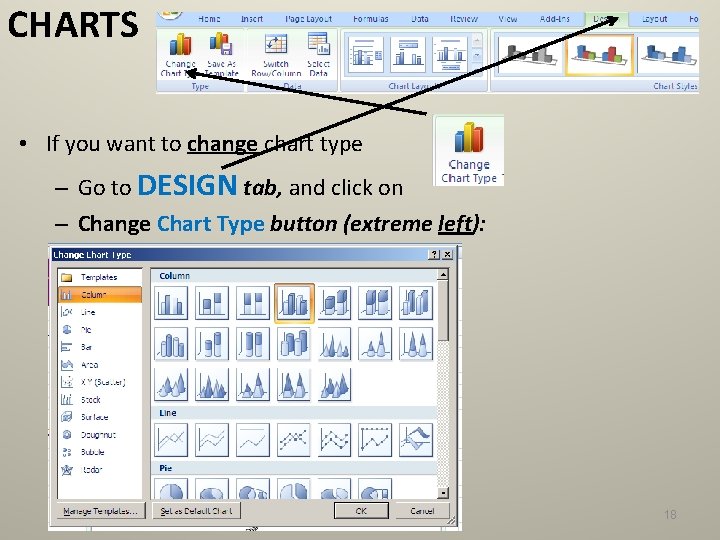
CHARTS • If you want to change chart type – Go to DESIGN tab, and click on – Change Chart Type button (extreme left): 18
Functions, Formulas, Miscellany 19
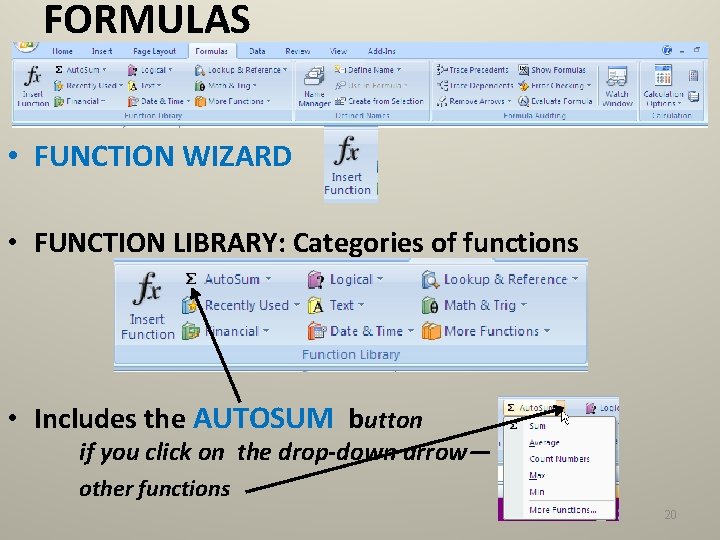
FORMULAS • FUNCTION WIZARD • FUNCTION LIBRARY: Categories of functions • Includes the AUTOSUM button if you click on the drop-down arrow— other functions 20
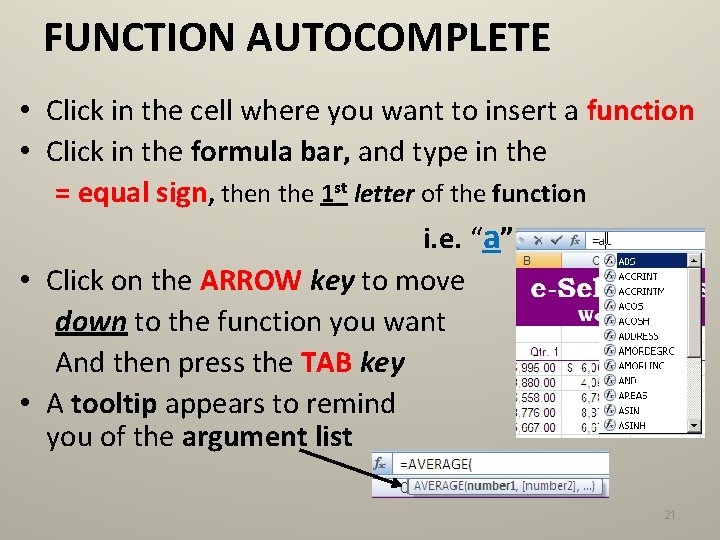
FUNCTION AUTOCOMPLETE • Click in the cell where you want to insert a function • Click in the formula bar, and type in the = equal sign, then the 1 st letter of the function i. e. “a” • Click on the ARROW key to move down to the function you want And then press the TAB key • A tooltip appears to remind you of the argument list 21
FREE “TIP OF THE WEEK” • The "Get Started" tab added to the Excel ribbon - http: //office. microsoft. com/enca/help/HA 102146851033. aspx • gives quick access to the training and videos • adds an interactive guide which can show the locations of commands in Excel 2007 when you know its location Excel 2003. 22