
Excel Formulas and Functions By Martha Nelson Digital
Excel Formulas and Functions By Martha Nelson Digital Learning Specialist
Extra Help • Use the ? Button on the upper right corner • <right-click> on an item for help about that item This slide show will be posted on the Library’s website. Links to help: https: //support. office. com/en-us/excel

The Ribbon Click on each Tab to see sub-menu controls. The Home Tab
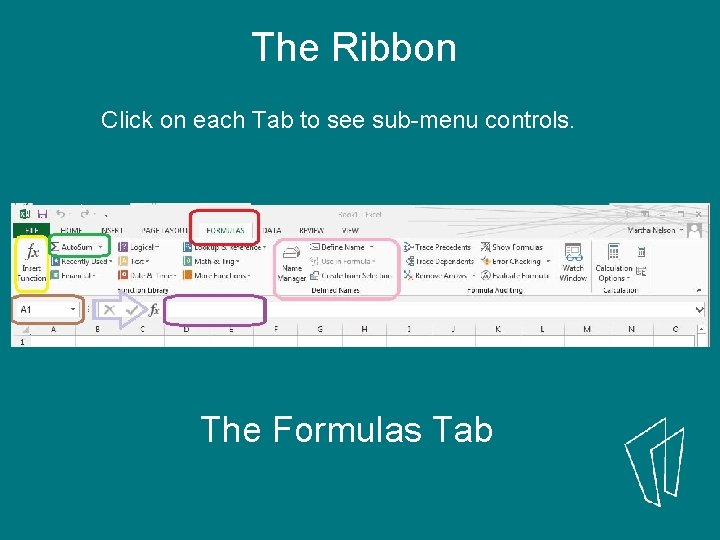
The Ribbon Click on each Tab to see sub-menu controls. The Formulas Tab
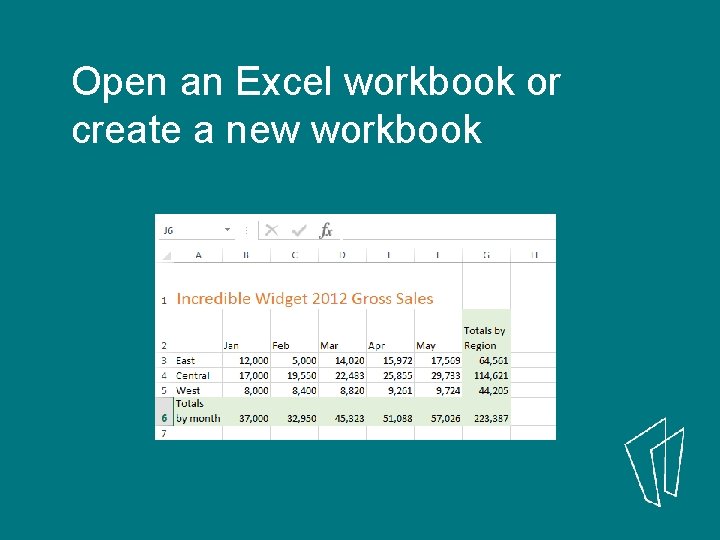
Open an Excel workbook or create a new workbook
1) Select data Simple: Click and Drag over cells
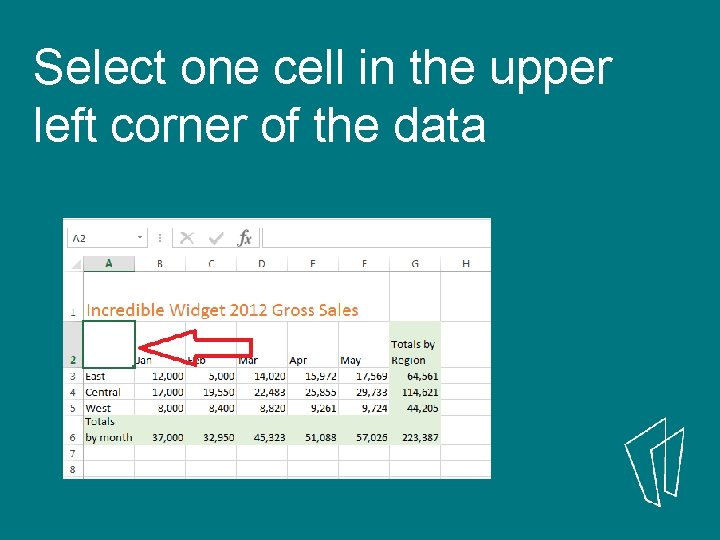
Select one cell in the upper left corner of the data
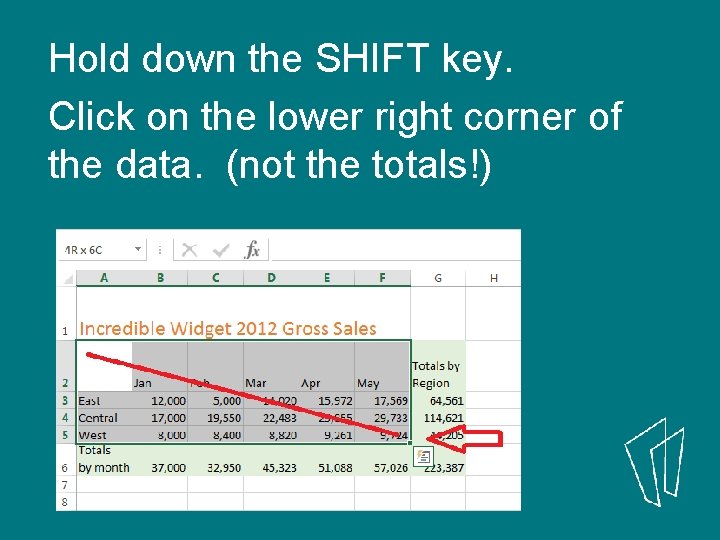
Hold down the SHIFT key. Click on the lower right corner of the data. (not the totals!)
2) Select data Fancier – use Labels Click on Column letters to select entire column
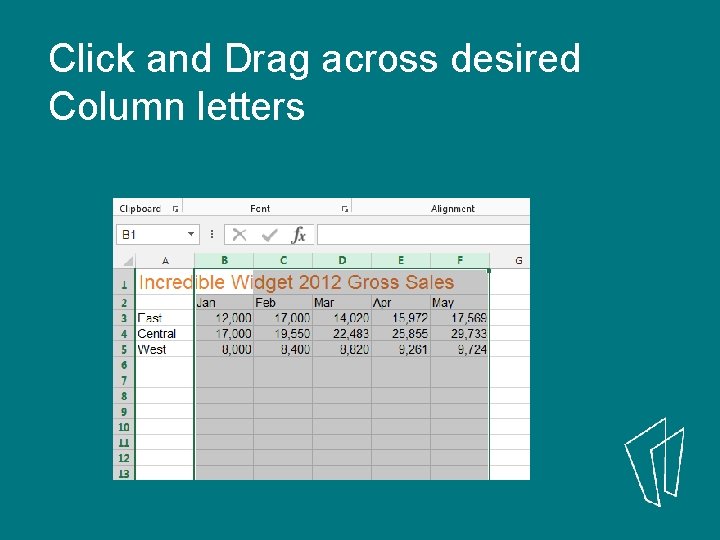
Click and Drag across desired Column letters
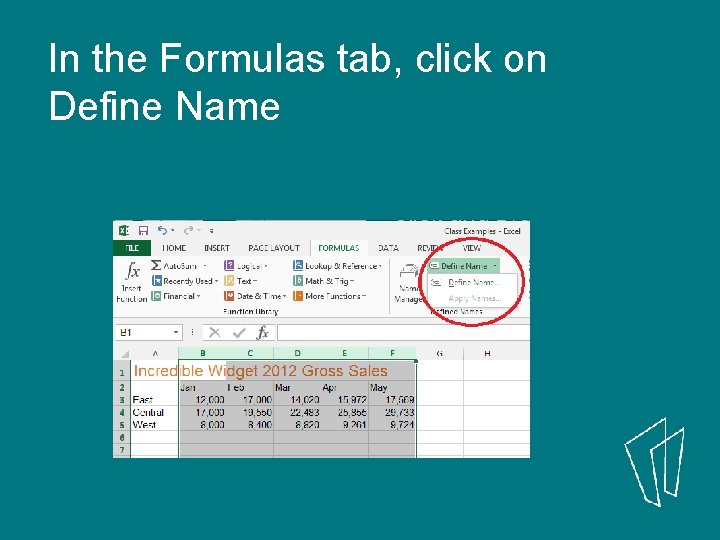
In the Formulas tab, click on Define Name

Give a meaningful name to the range of data. Note: See the range address
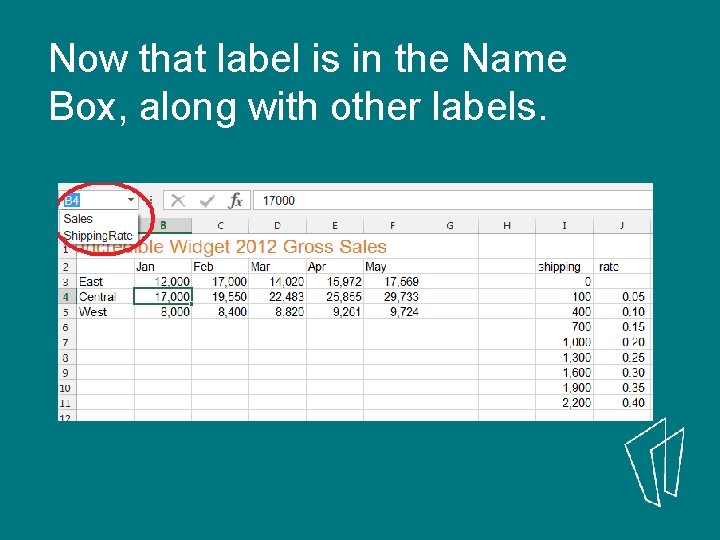
Now that label is in the Name Box, along with other labels.

3) Simple Auto. Sum
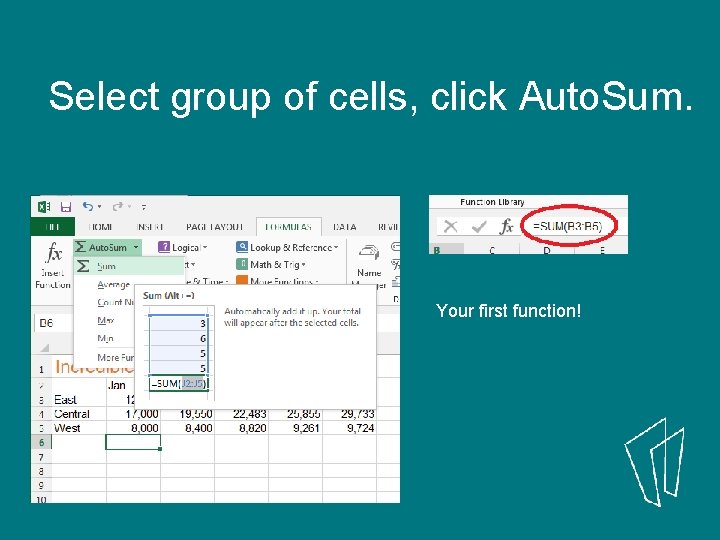
Select group of cells, click Auto. Sum. Your first function!
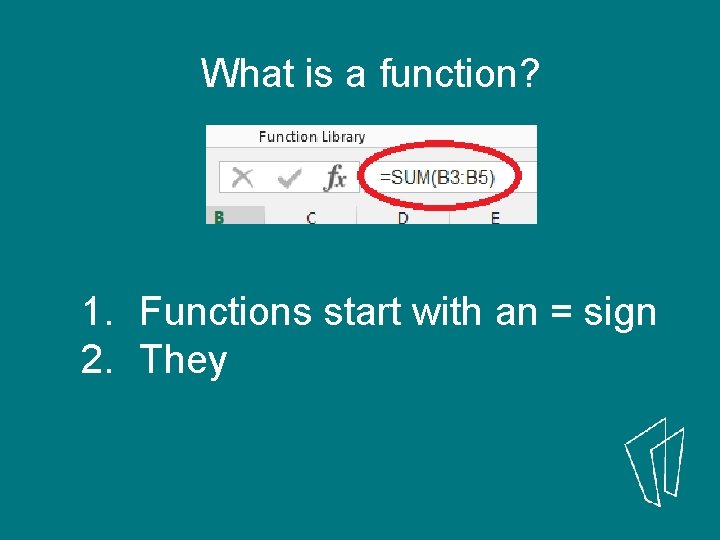
What is a function? 1. Functions start with an = sign 2. They
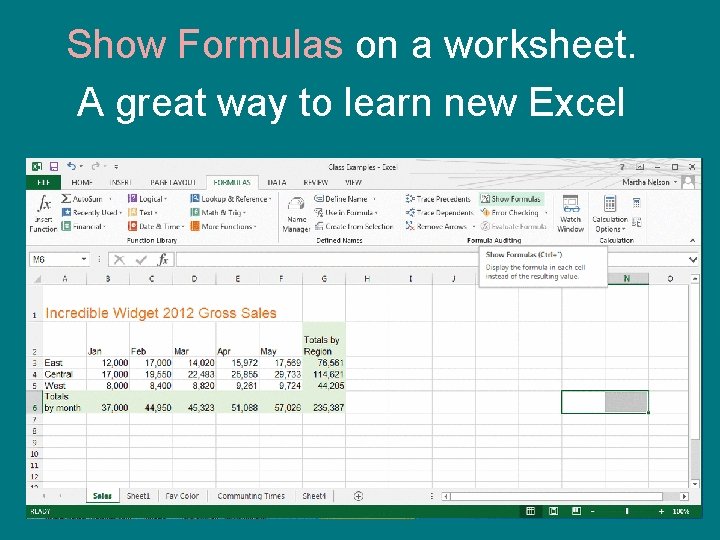
Show Formulas on a worksheet. A great way to learn new Excel
3) Look at cell references and names
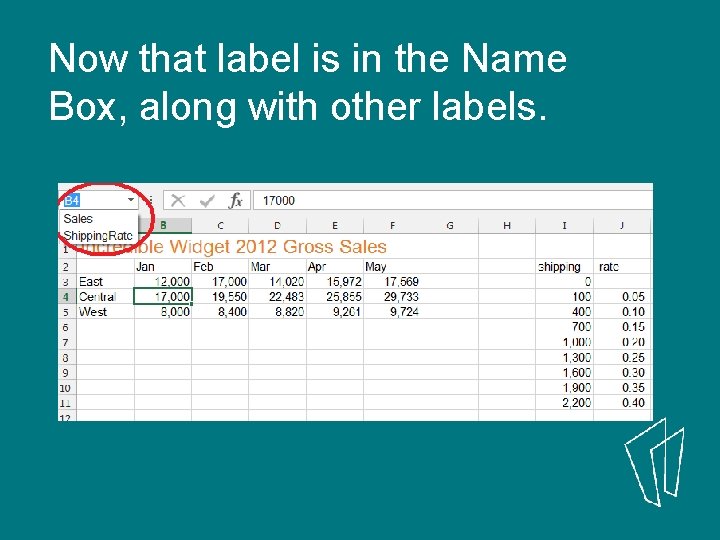
Now that label is in the Name Box, along with other labels.
Thank You Want a copy of this presentation? Visit www. skokielibrary. info/handouts where this presentation will be available for four weeks.
- Slides: 20