
Excel Basic Fundamentals Skills Training Presentation Presented by

Excel Basic Fundamentals & Skills Training Presentation Presented by Kevin D. Hobbs Crossroads’ Turning Points, Inc. Director of IT Original Creation Date: 03/01/2017
Overview This presentation was created as a training tool to aid and help users understand Microsoft Excel. Most of the items discussed and explained pertain to Excel versions 2007, 2010, 2013 and beyond. However, it is possible not all items are available within each version. In addition, screen shots may appear differently depending on the version and other settings applied.
Agenda Outline • • • Excel Screen Layout Excel Ribbons (Menus/Submenus/Tasks) Excel Workbook Area and Controls Example Workbook Freeze Panes, Sorting, and Filtering Formula Basics (Sum, Count, Average) Outlines: Data Grouping and Subtotaling Intermediate & Advanced Formulas/Functions Formatting a Workbook Inserting Pictures, Charts, etc. Page Layout, Print Options, and Printing Useful Resources and References
Excel Screen Layout • Several aspects of the Excel screen layout are configurable • For instance, you can add or remove commands from the Quick Access Toolbar • As you resize the Excel window you may notice some features are expanded or contracted • Some items can be added or removed to the ribbons (menus) • The work area can be configured to show grid lines, heading, formula bar, etc. • We will be working with the default screen appearance for the most part throughout this presentation • Let’s take a look at the Excel screen and highlight certain items of interest
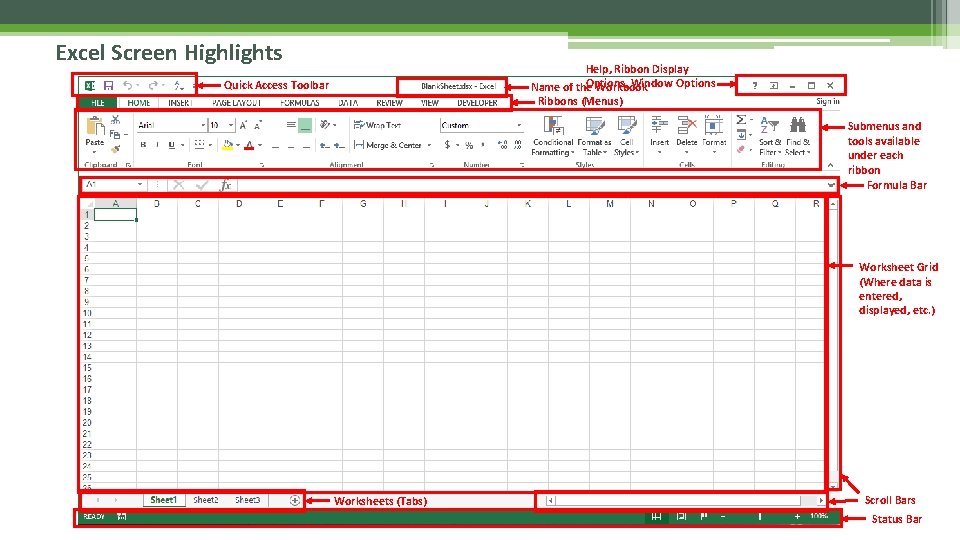
Excel Screen Highlights Help, Ribbon Display Options, Window Options Name of the Workbook Ribbons (Menus) Quick Access Toolbar Submenus and tools available under each ribbon Formula Bar Worksheet Grid (Where data is entered, displayed, etc. ) Worksheets (Tabs) Scroll Bars Status Bar
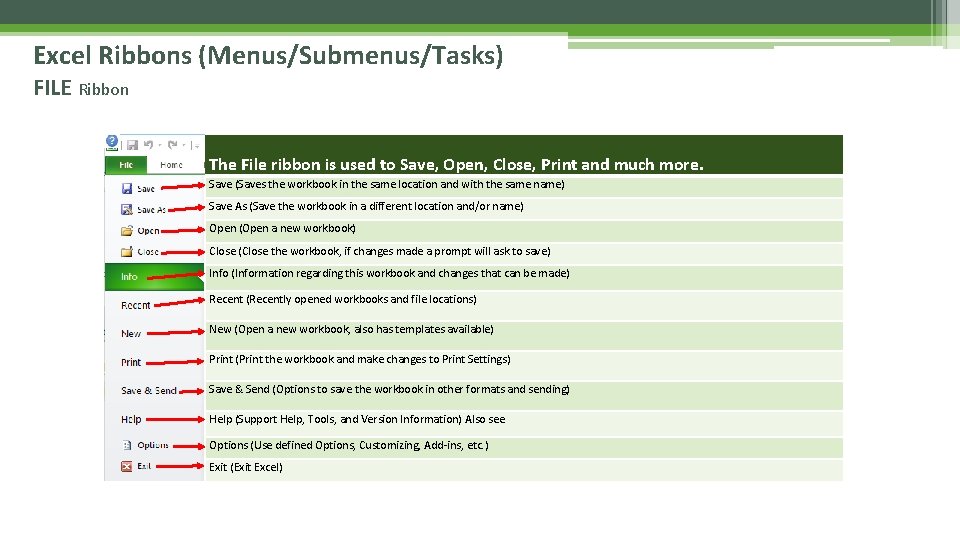
Excel Ribbons (Menus/Submenus/Tasks) FILE Ribbon The File ribbon is used to Save, Open, Close, Print and much more. Save (Saves the workbook in the same location and with the same name) Save As (Save the workbook in a different location and/or name) Open (Open a new workbook) Close (Close the workbook, if changes made a prompt will ask to save) Info (Information regarding this workbook and changes that can be made) Recent (Recently opened workbooks and file locations) New (Open a new workbook, also has templates available) Print (Print the workbook and make changes to Print Settings) Save & Send (Options to save the workbook in other formats and sending) Help (Support Help, Tools, and Version Information) Also see Options (Use defined Options, Customizing, Add-ins, etc. ) Exit (Exit Excel)
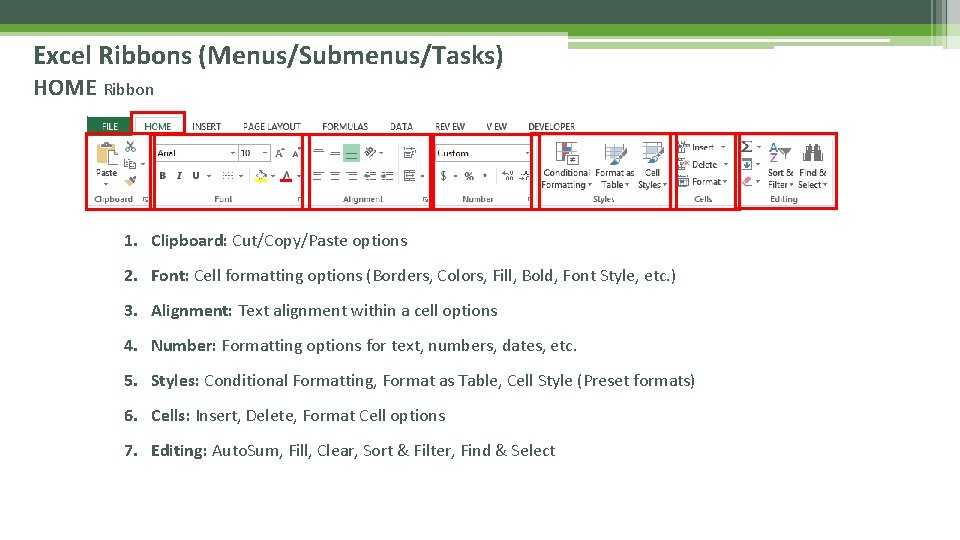
Excel Ribbons (Menus/Submenus/Tasks) HOME Ribbon 1. Clipboard: Cut/Copy/Paste options 2. Font: Cell formatting options (Borders, Colors, Fill, Bold, Font Style, etc. ) 3. Alignment: Text alignment within a cell options 4. Number: Formatting options for text, numbers, dates, etc. 5. Styles: Conditional Formatting, Format as Table, Cell Style (Preset formats) 6. Cells: Insert, Delete, Format Cell options 7. Editing: Auto. Sum, Fill, Clear, Sort & Filter, Find & Select
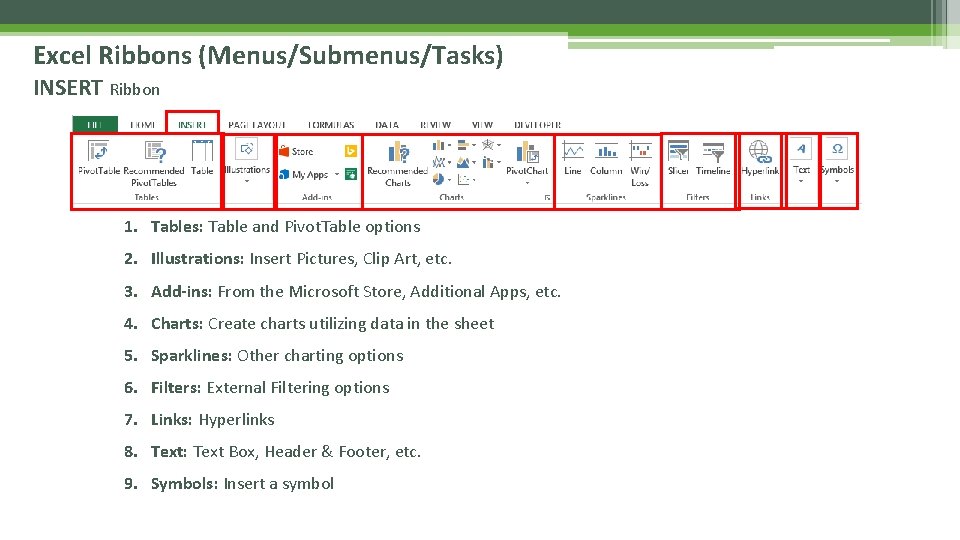
Excel Ribbons (Menus/Submenus/Tasks) INSERT Ribbon 1. Tables: Table and Pivot. Table options 2. Illustrations: Insert Pictures, Clip Art, etc. 3. Add-ins: From the Microsoft Store, Additional Apps, etc. 4. Charts: Create charts utilizing data in the sheet 5. Sparklines: Other charting options 6. Filters: External Filtering options 7. Links: Hyperlinks 8. Text: Text Box, Header & Footer, etc. 9. Symbols: Insert a symbol
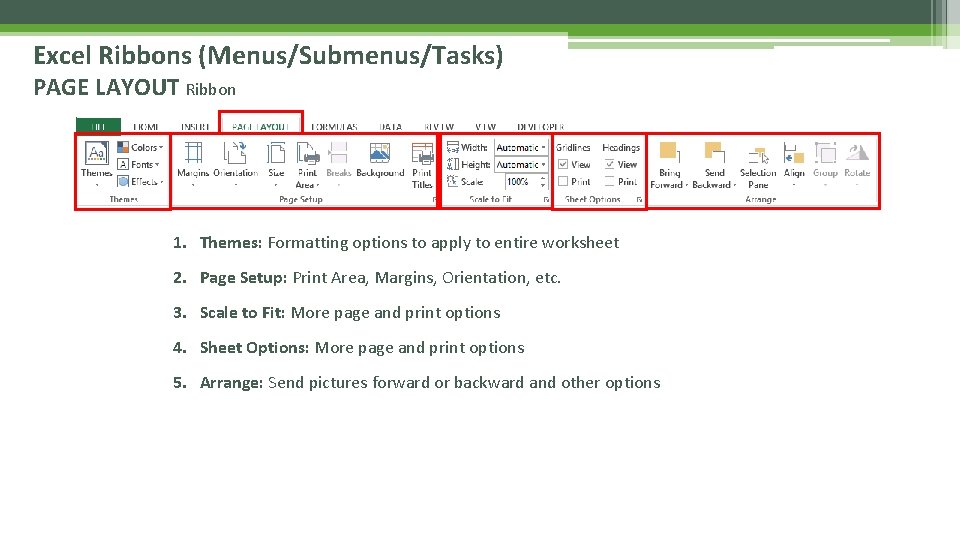
Excel Ribbons (Menus/Submenus/Tasks) PAGE LAYOUT Ribbon 1. Themes: Formatting options to apply to entire worksheet 2. Page Setup: Print Area, Margins, Orientation, etc. 3. Scale to Fit: More page and print options 4. Sheet Options: More page and print options 5. Arrange: Send pictures forward or backward and other options
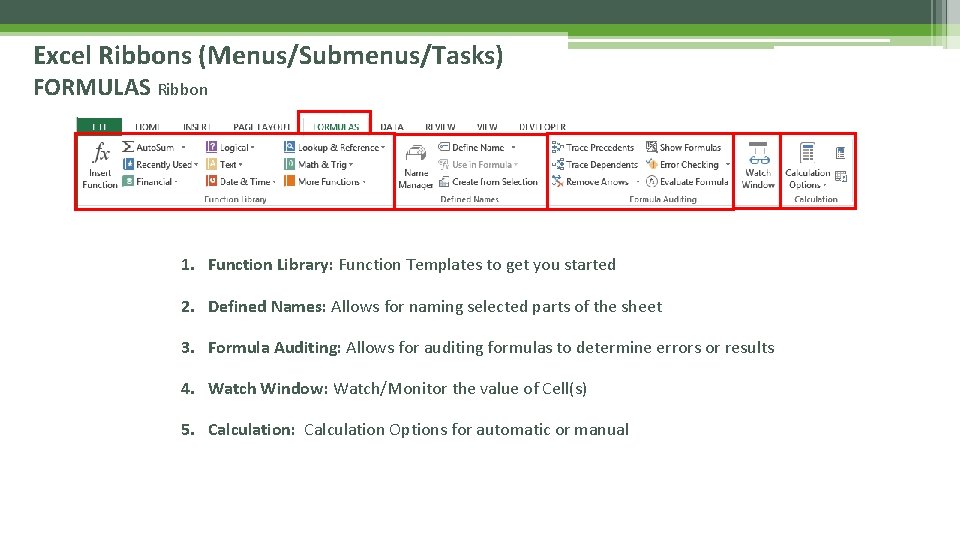
Excel Ribbons (Menus/Submenus/Tasks) FORMULAS Ribbon 1. Function Library: Function Templates to get you started 2. Defined Names: Allows for naming selected parts of the sheet 3. Formula Auditing: Allows for auditing formulas to determine errors or results 4. Watch Window: Watch/Monitor the value of Cell(s) 5. Calculation: Calculation Options for automatic or manual
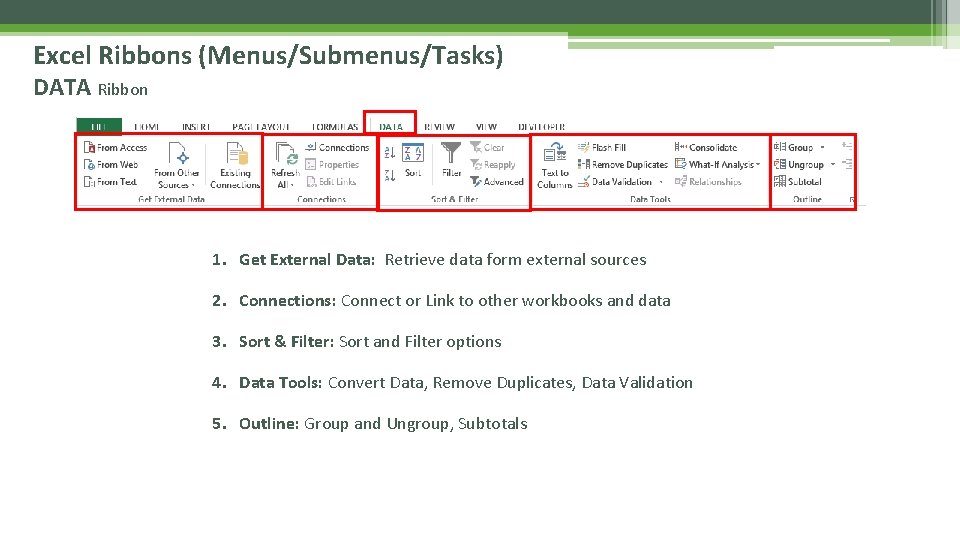
Excel Ribbons (Menus/Submenus/Tasks) DATA Ribbon 1. Get External Data: Retrieve data form external sources 2. Connections: Connect or Link to other workbooks and data 3. Sort & Filter: Sort and Filter options 4. Data Tools: Convert Data, Remove Duplicates, Data Validation 5. Outline: Group and Ungroup, Subtotals
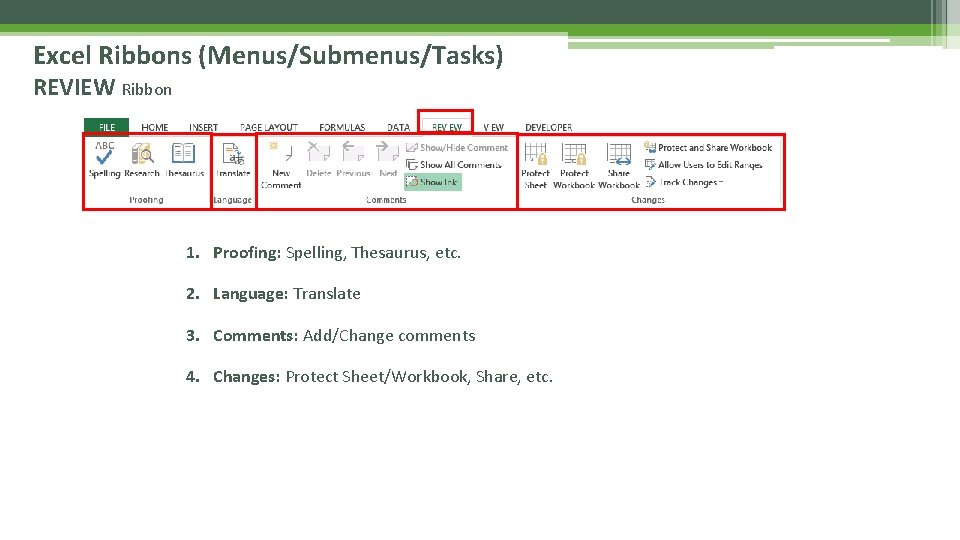
Excel Ribbons (Menus/Submenus/Tasks) REVIEW Ribbon 1. Proofing: Spelling, Thesaurus, etc. 2. Language: Translate 3. Comments: Add/Change comments 4. Changes: Protect Sheet/Workbook, Share, etc.
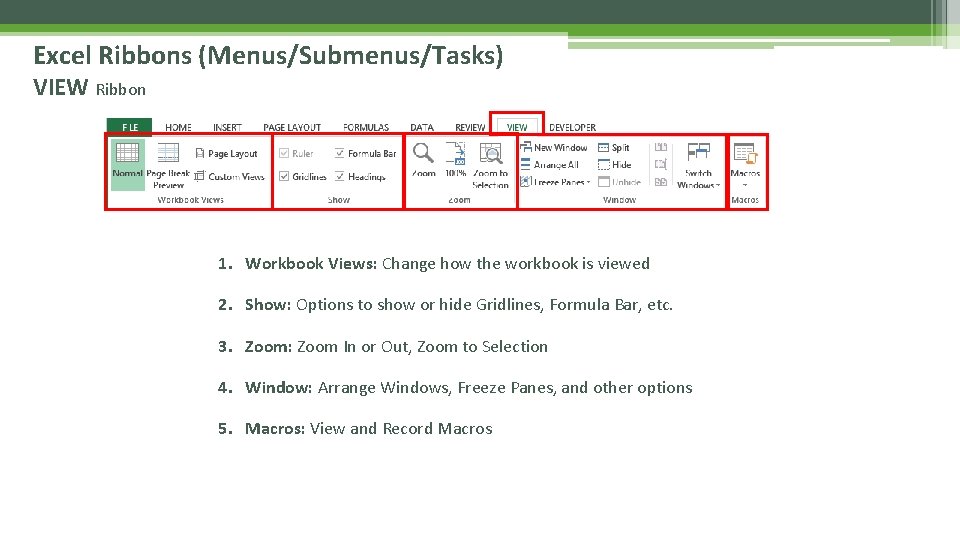
Excel Ribbons (Menus/Submenus/Tasks) VIEW Ribbon 1. Workbook Views: Change how the workbook is viewed 2. Show: Options to show or hide Gridlines, Formula Bar, etc. 3. Zoom: Zoom In or Out, Zoom to Selection 4. Window: Arrange Windows, Freeze Panes, and other options 5. Macros: View and Record Macros
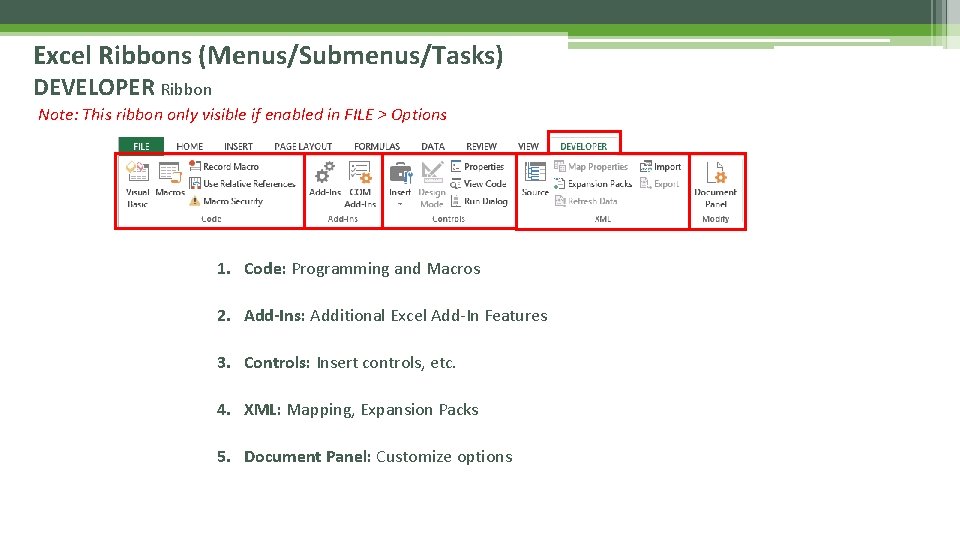
Excel Ribbons (Menus/Submenus/Tasks) DEVELOPER Ribbon Note: This ribbon only visible if enabled in FILE > Options 1. Code: Programming and Macros 2. Add-Ins: Additional Excel Add-In Features 3. Controls: Insert controls, etc. 4. XML: Mapping, Expansion Packs 5. Document Panel: Customize options
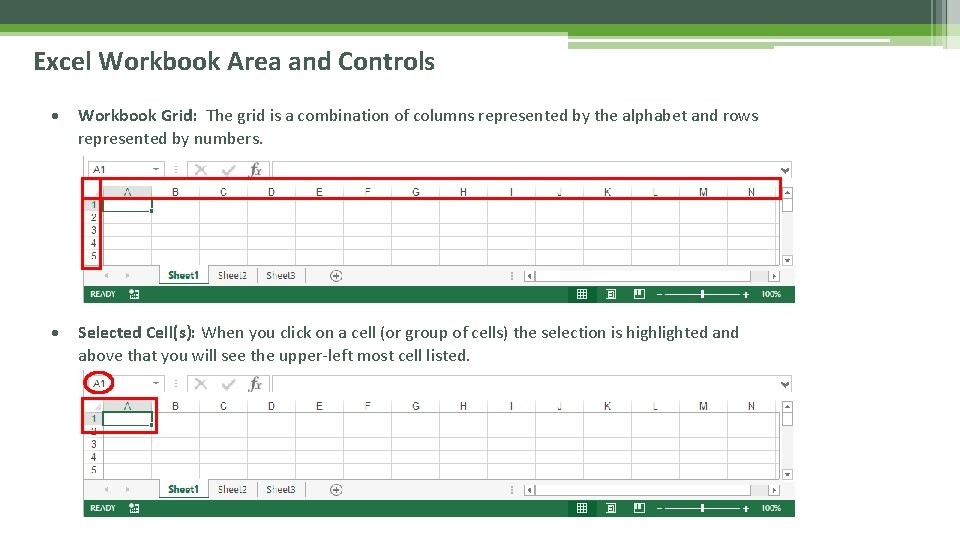
Excel Workbook Area and Controls Workbook Grid: The grid is a combination of columns represented by the alphabet and rows represented by numbers. Selected Cell(s): When you click on a cell (or group of cells) the selection is highlighted and above that you will see the upper-left most cell listed.
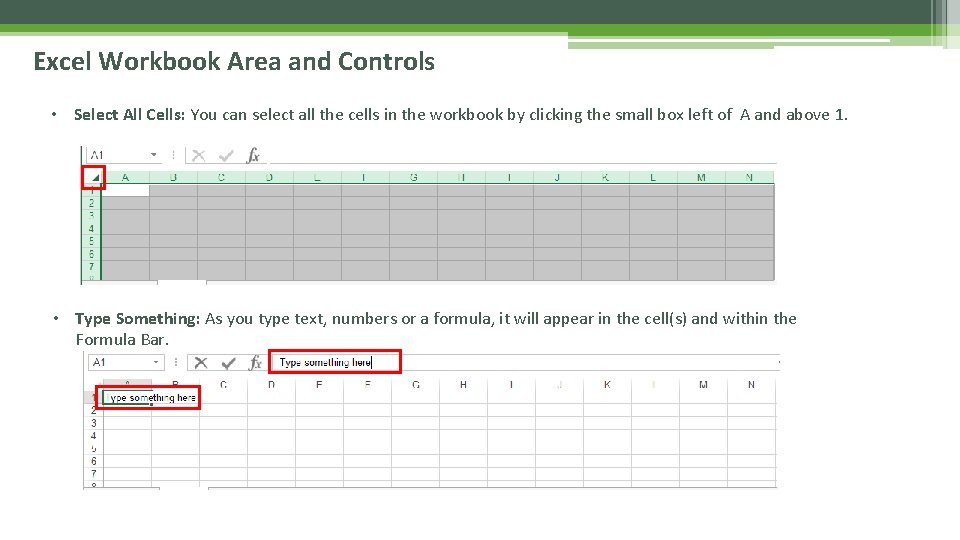
Excel Workbook Area and Controls • Select All Cells: You can select all the cells in the workbook by clicking the small box left of A and above 1. • Type Something: As you type text, numbers or a formula, it will appear in the cell(s) and within the Formula Bar.
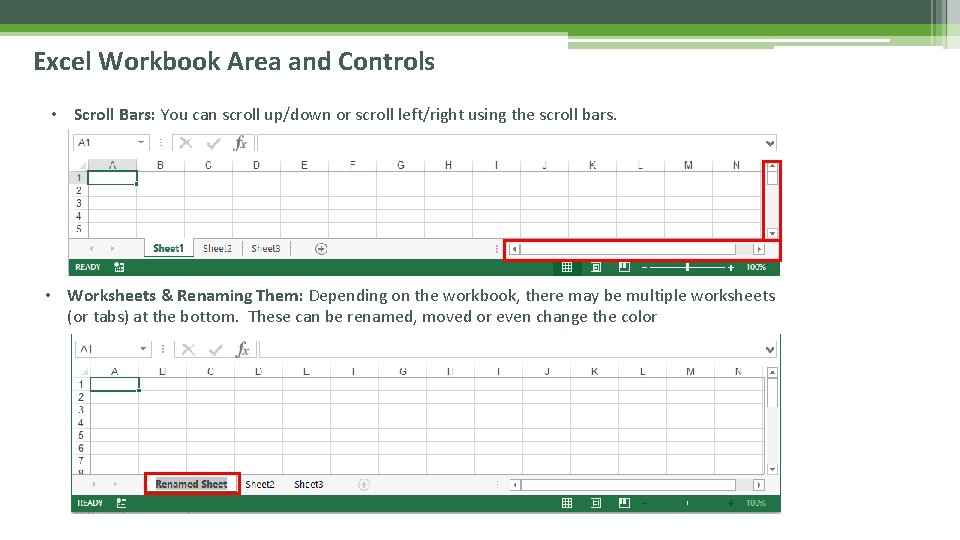
Excel Workbook Area and Controls • Scroll Bars: You can scroll up/down or scroll left/right using the scroll bars. • Worksheets & Renaming Them: Depending on the workbook, there may be multiple worksheets (or tabs) at the bottom. These can be renamed, moved or even change the color
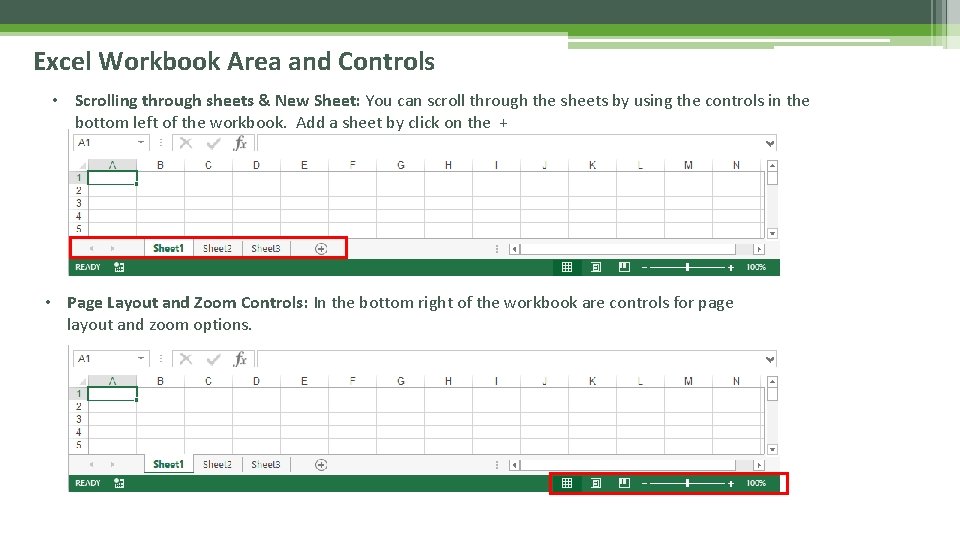
Excel Workbook Area and Controls • Scrolling through sheets & New Sheet: You can scroll through the sheets by using the controls in the bottom left of the workbook. Add a sheet by click on the + • Page Layout and Zoom Controls: In the bottom right of the workbook are controls for page layout and zoom options.
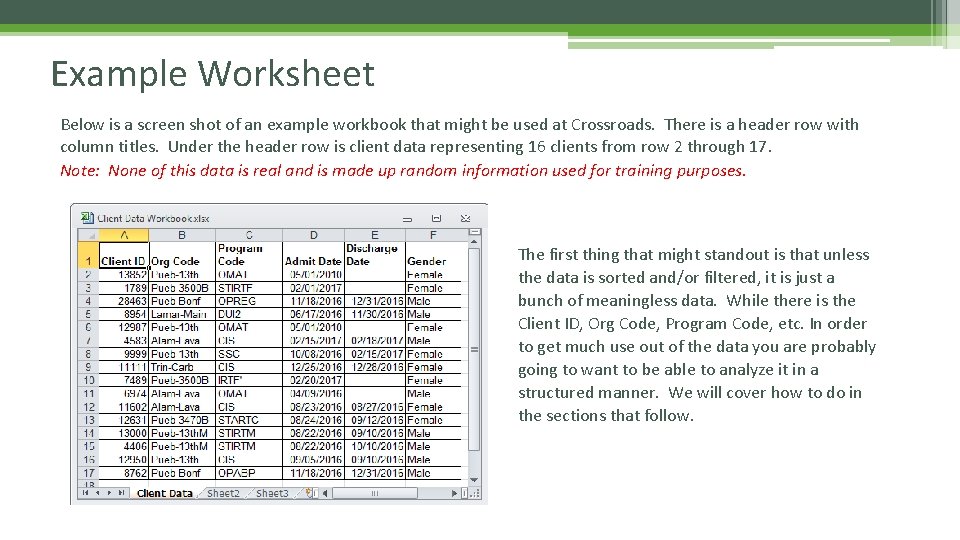
Example Worksheet Below is a screen shot of an example workbook that might be used at Crossroads. There is a header row with column titles. Under the header row is client data representing 16 clients from row 2 through 17. Note: None of this data is real and is made up random information used for training purposes. The first thing that might standout is that unless the data is sorted and/or filtered, it is just a bunch of meaningless data. While there is the Client ID, Org Code, Program Code, etc. In order to get much use out of the data you are probably going to want to be able to analyze it in a structured manner. We will cover how to do in the sections that follow.
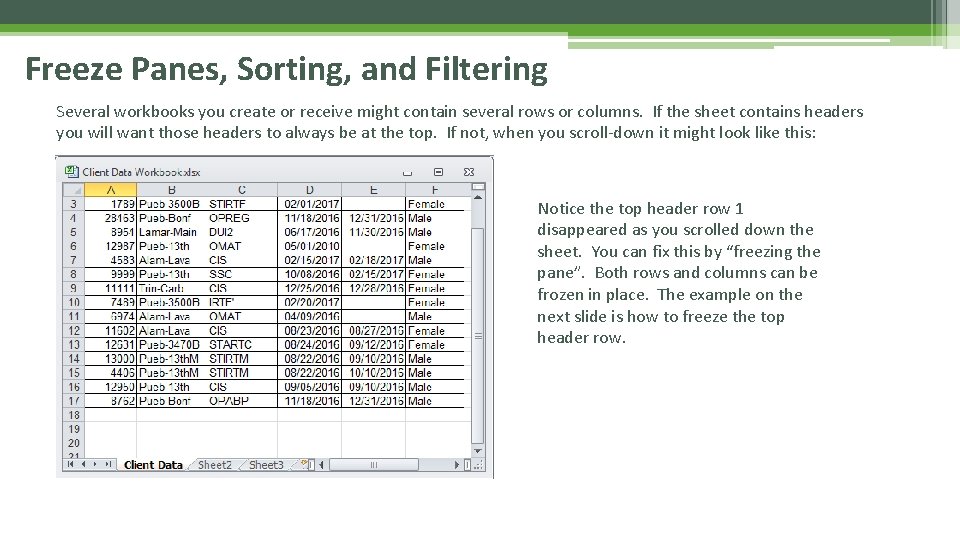
Freeze Panes, Sorting, and Filtering Several workbooks you create or receive might contain several rows or columns. If the sheet contains headers you will want those headers to always be at the top. If not, when you scroll-down it might look like this: Notice the top header row 1 disappeared as you scrolled down the sheet. You can fix this by “freezing the pane”. Both rows and columns can be frozen in place. The example on the next slide is how to freeze the top header row.
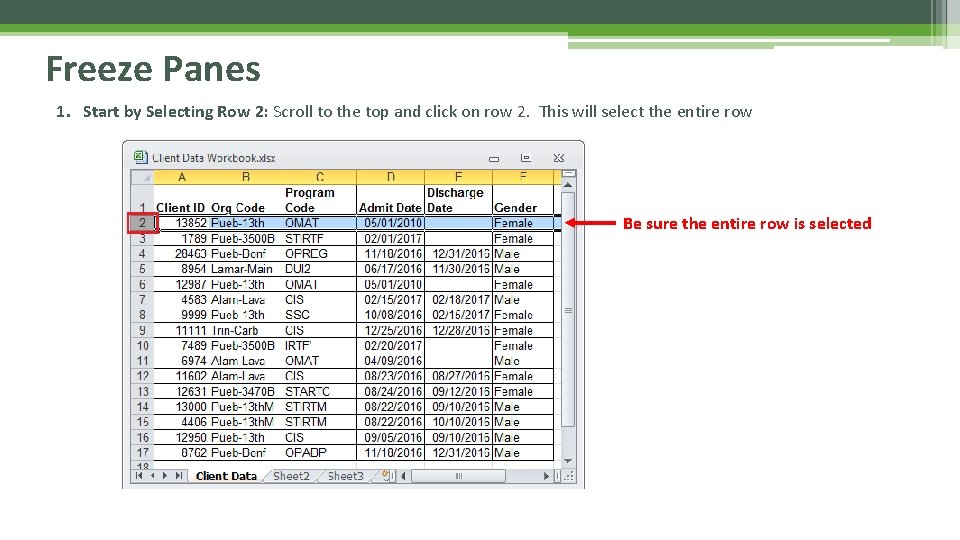
Freeze Panes 1. Start by Selecting Row 2: Scroll to the top and click on row 2. This will select the entire row Be sure the entire row is selected
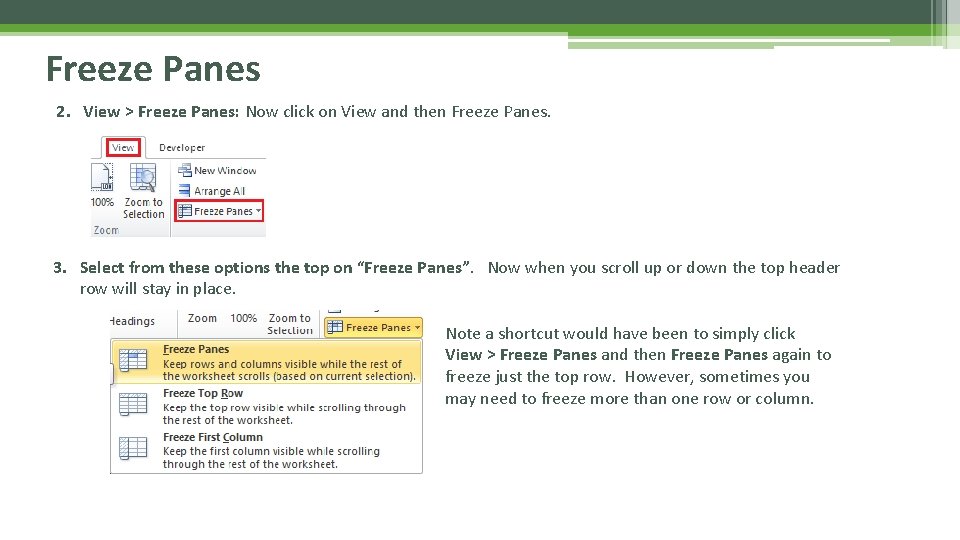
Freeze Panes 2. View > Freeze Panes: Now click on View and then Freeze Panes. 3. Select from these options the top on “Freeze Panes”. Now when you scroll up or down the top header row will stay in place. Note a shortcut would have been to simply click View > Freeze Panes and then Freeze Panes again to freeze just the top row. However, sometimes you may need to freeze more than one row or column.
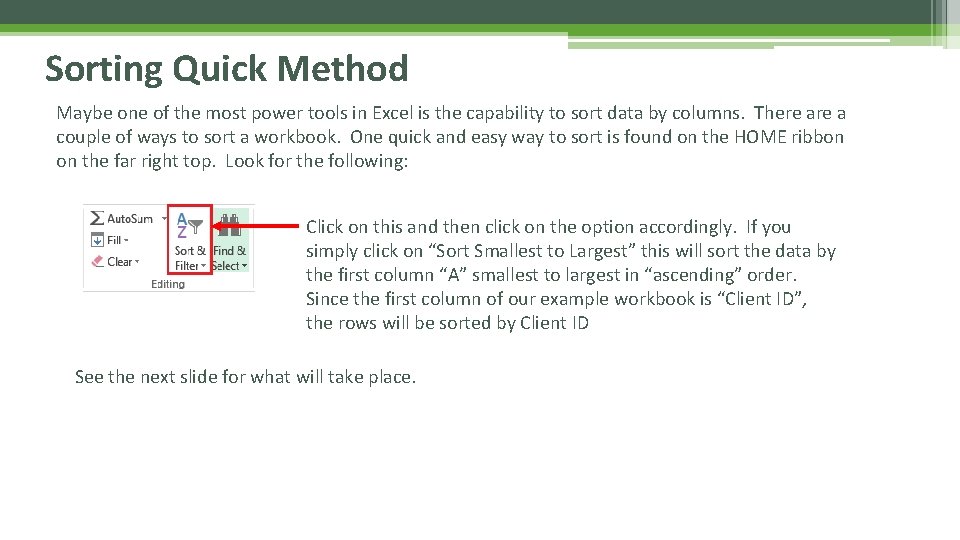
Sorting Quick Method Maybe one of the most power tools in Excel is the capability to sort data by columns. There a couple of ways to sort a workbook. One quick and easy way to sort is found on the HOME ribbon on the far right top. Look for the following: Click on this and then click on the option accordingly. If you simply click on “Sort Smallest to Largest” this will sort the data by the first column “A” smallest to largest in “ascending” order. Since the first column of our example workbook is “Client ID”, the rows will be sorted by Client ID See the next slide for what will take place.
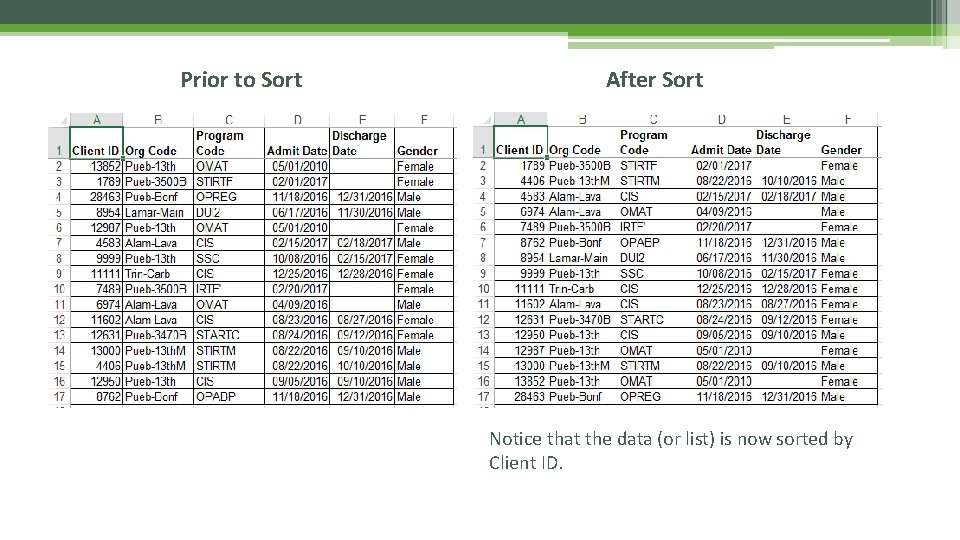
Prior to Sort After Sort Notice that the data (or list) is now sorted by Client ID.
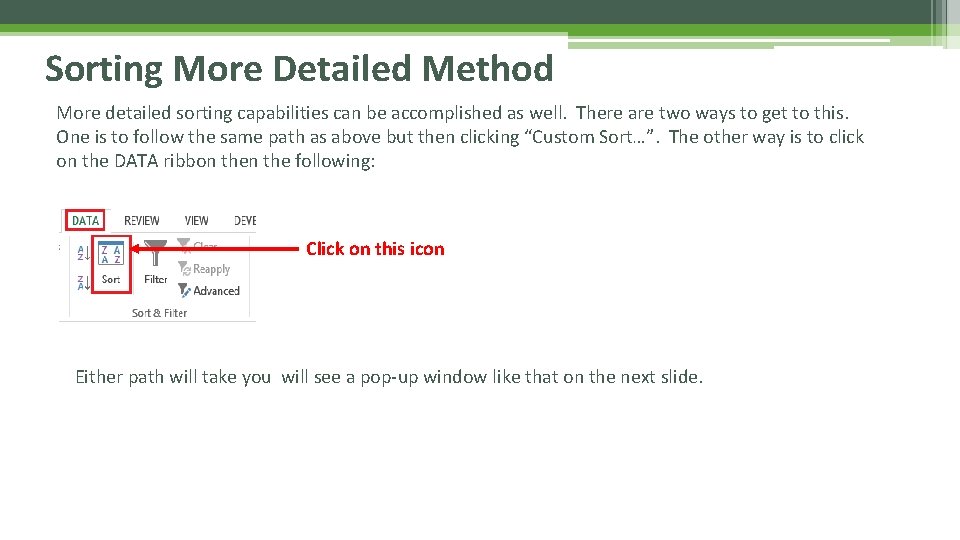
Sorting More Detailed Method More detailed sorting capabilities can be accomplished as well. There are two ways to get to this. One is to follow the same path as above but then clicking “Custom Sort…”. The other way is to click on the DATA ribbon the following: Click on this icon Either path will take you will see a pop-up window like that on the next slide.
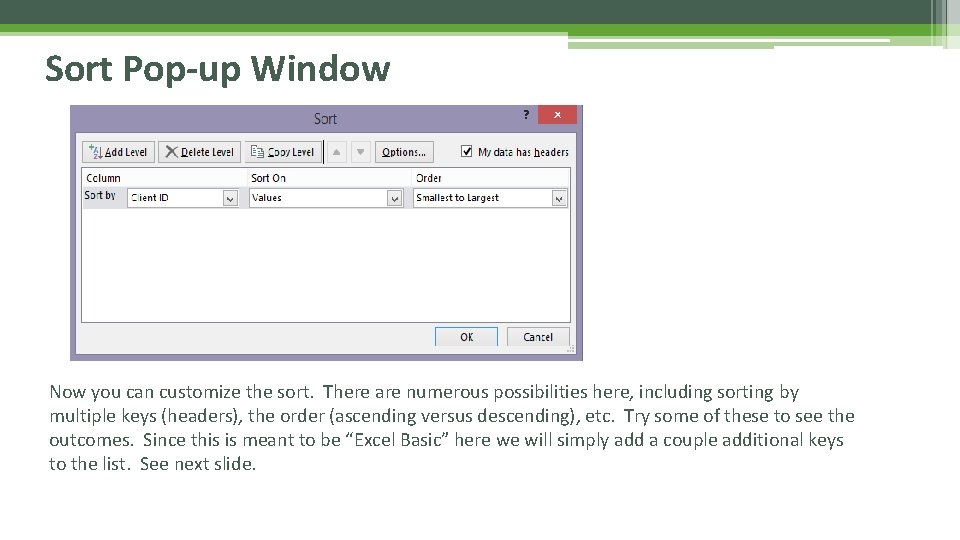
Sort Pop-up Window Click on this icon Now you can customize the sort. There are numerous possibilities here, including sorting by multiple keys (headers), the order (ascending versus descending), etc. Try some of these to see the outcomes. Since this is meant to be “Excel Basic” here we will simply add a couple additional keys to the list. See next slide.
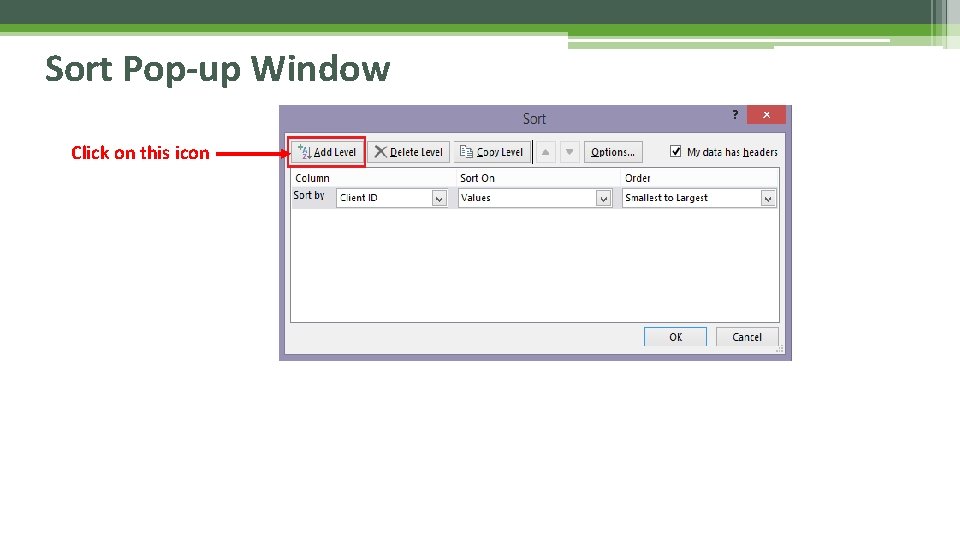
Sort Pop-up Window Click on this icon
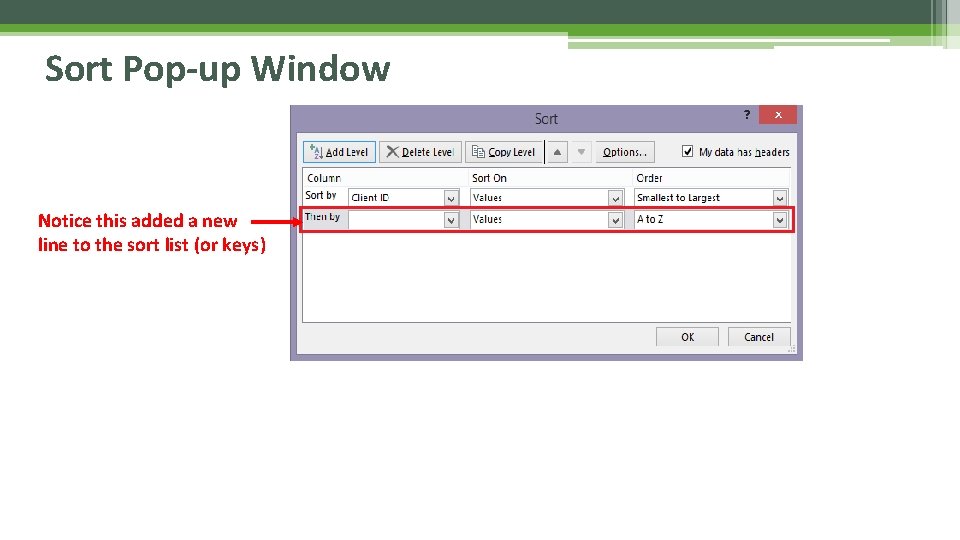
Sort Pop-up Window Notice this added a new line to the sort list (or keys)
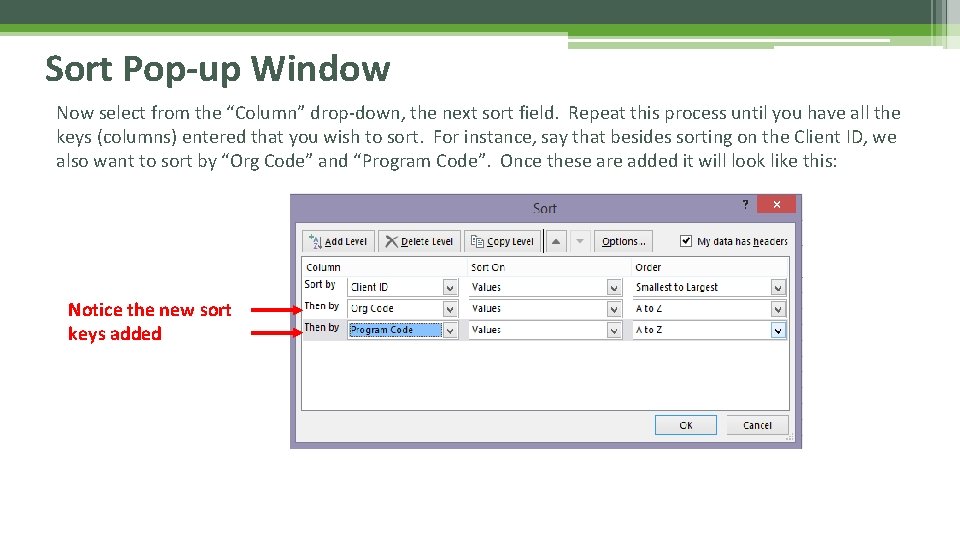
Sort Pop-up Window Now select from the “Column” drop-down, the next sort field. Repeat this process until you have all the keys (columns) entered that you wish to sort. For instance, say that besides sorting on the Client ID, we also want to sort by “Org Code” and “Program Code”. Once these are added it will look like this: Notice the new sort keys added
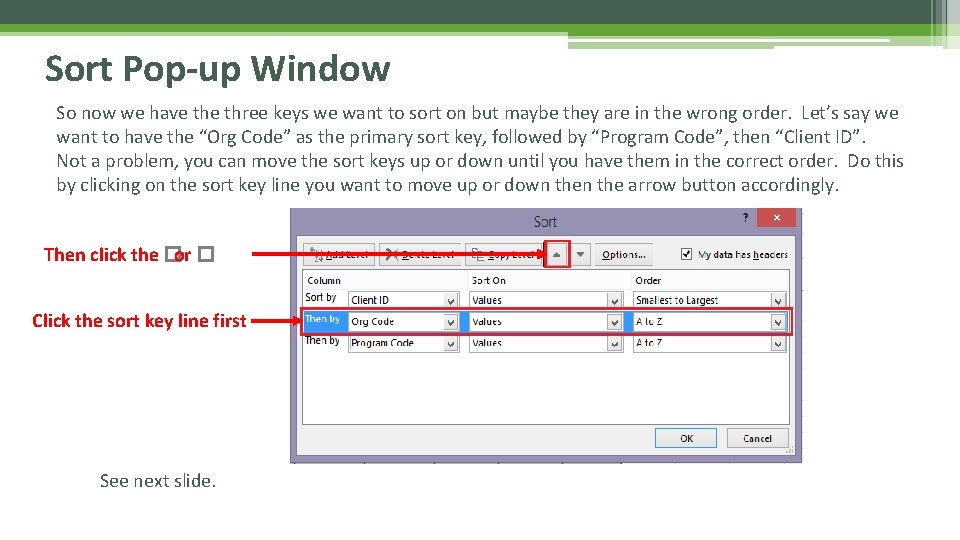
Sort Pop-up Window So now we have three keys we want to sort on but maybe they are in the wrong order. Let’s say we want to have the “Org Code” as the primary sort key, followed by “Program Code”, then “Client ID”. Not a problem, you can move the sort keys up or down until you have them in the correct order. Do this by clicking on the sort key line you want to move up or down the arrow button accordingly. Then click the �or � Click the sort key line first See next slide.
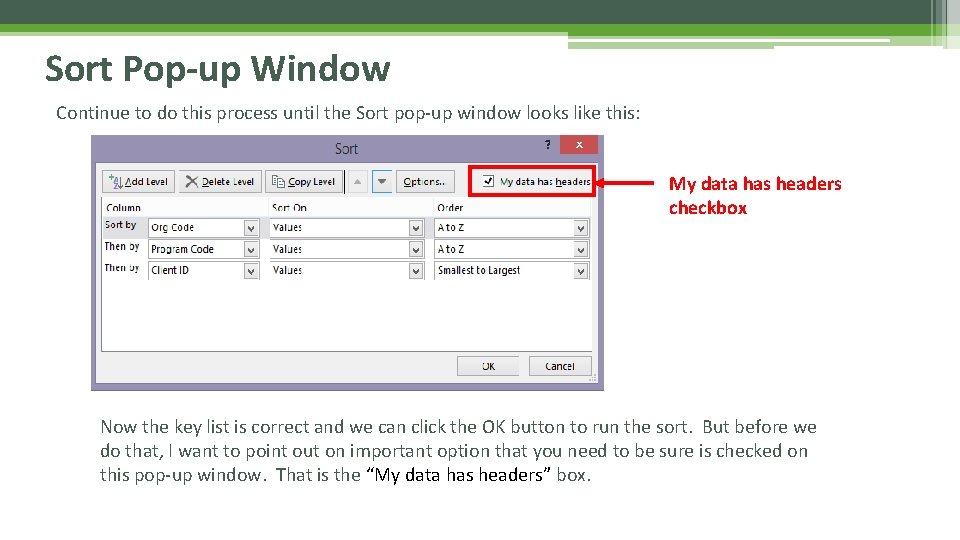
Sort Pop-up Window Continue to do this process until the Sort pop-up window looks like this: My data has headers checkbox Now the key list is correct and we can click the OK button to run the sort. But before we do that, I want to point out on important option that you need to be sure is checked on this pop-up window. That is the “My data has headers” box.
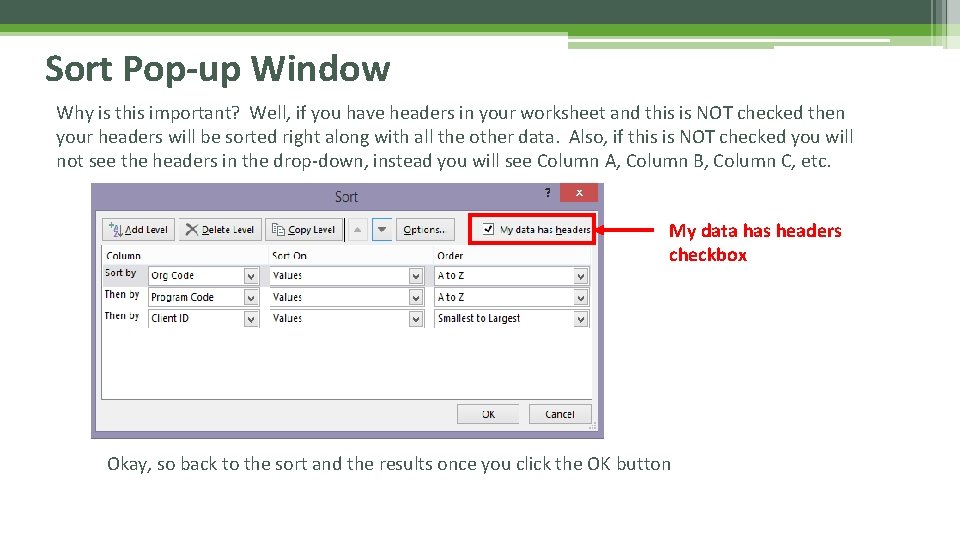
Sort Pop-up Window Why is this important? Well, if you have headers in your worksheet and this is NOT checked then your headers will be sorted right along with all the other data. Also, if this is NOT checked you will not see the headers in the drop-down, instead you will see Column A, Column B, Column C, etc. My data has headers checkbox Okay, so back to the sort and the results once you click the OK button
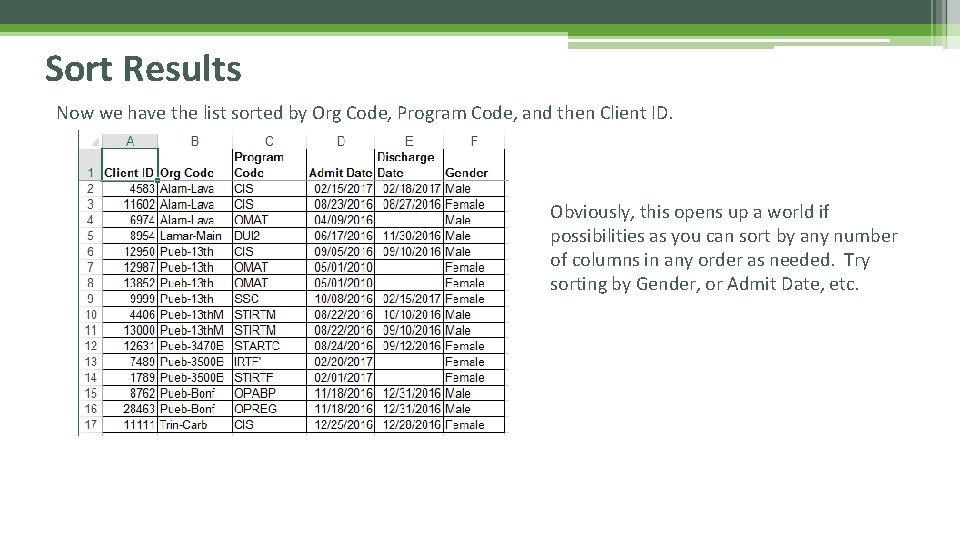
Sort Results Now we have the list sorted by Org Code, Program Code, and then Client ID. Obviously, this opens up a world if possibilities as you can sort by any number of columns in any order as needed. Try sorting by Gender, or Admit Date, etc.
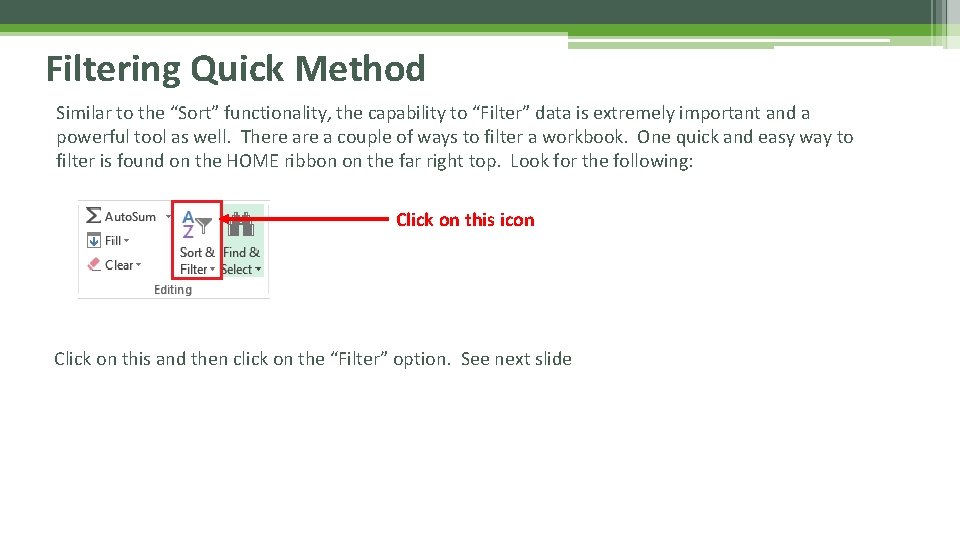
Filtering Quick Method Similar to the “Sort” functionality, the capability to “Filter” data is extremely important and a powerful tool as well. There a couple of ways to filter a workbook. One quick and easy way to filter is found on the HOME ribbon on the far right top. Look for the following: Click on this icon Click on this and then click on the “Filter” option. See next slide
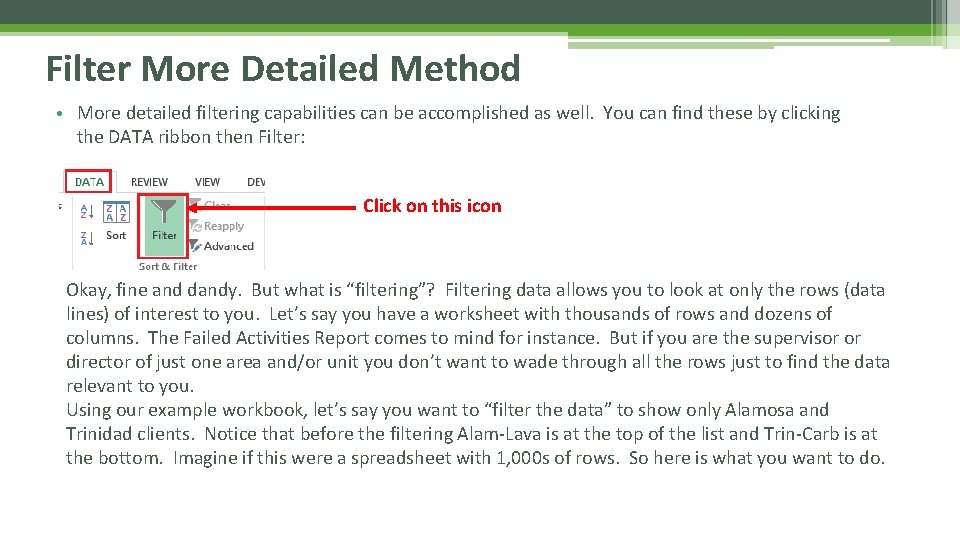
Filter More Detailed Method • More detailed filtering capabilities can be accomplished as well. You can find these by clicking the DATA ribbon then Filter: Click on this icon Okay, fine and dandy. But what is “filtering”? Filtering data allows you to look at only the rows (data lines) of interest to you. Let’s say you have a worksheet with thousands of rows and dozens of columns. The Failed Activities Report comes to mind for instance. But if you are the supervisor or director of just one area and/or unit you don’t want to wade through all the rows just to find the data relevant to you. Using our example workbook, let’s say you want to “filter the data” to show only Alamosa and Trinidad clients. Notice that before the filtering Alam-Lava is at the top of the list and Trin-Carb is at the bottom. Imagine if this were a spreadsheet with 1, 000 s of rows. So here is what you want to do.
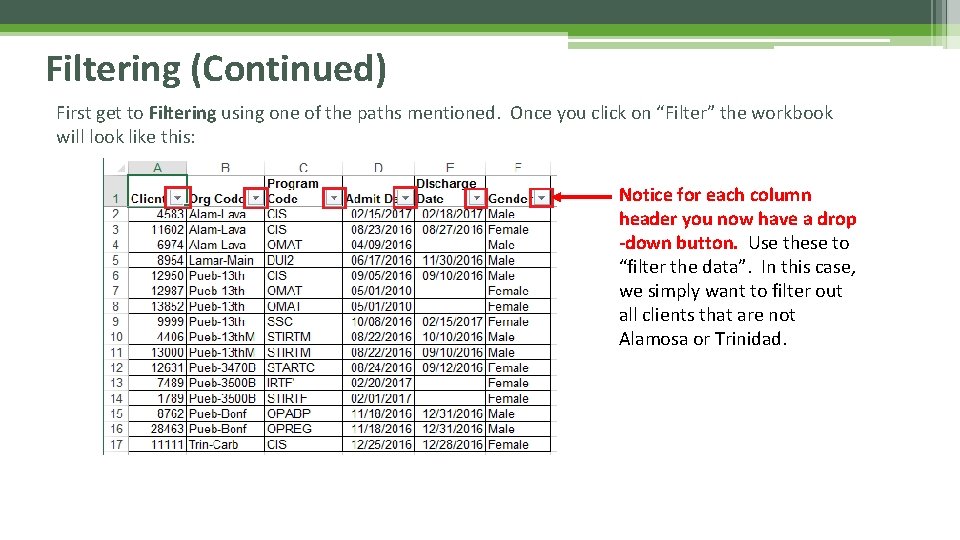
Filtering (Continued) First get to Filtering using one of the paths mentioned. Once you click on “Filter” the workbook will look like this: Notice for each column header you now have a drop -down button. Use these to “filter the data”. In this case, we simply want to filter out all clients that are not Alamosa or Trinidad.
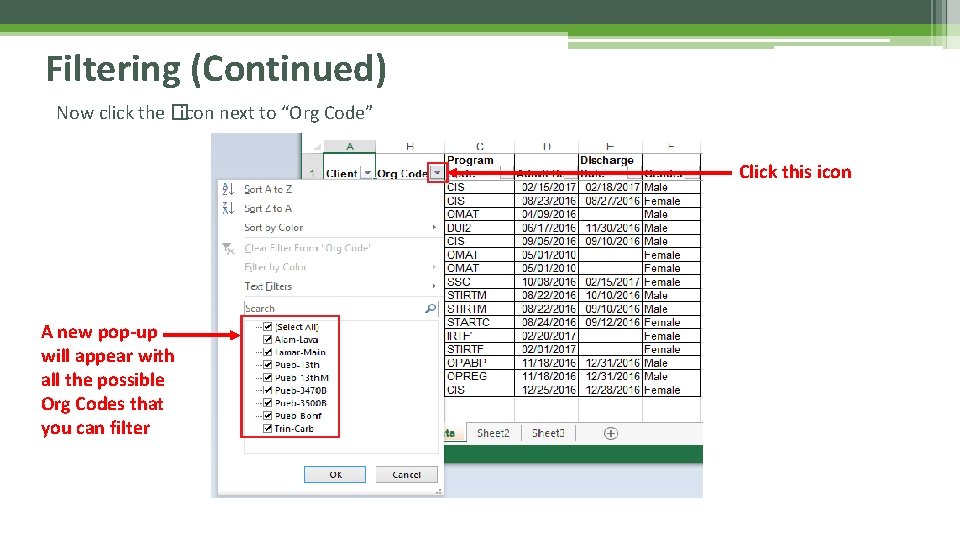
Filtering (Continued) Now click the �icon next to “Org Code” Click this icon A new pop-up will appear with all the possible Org Codes that you can filter
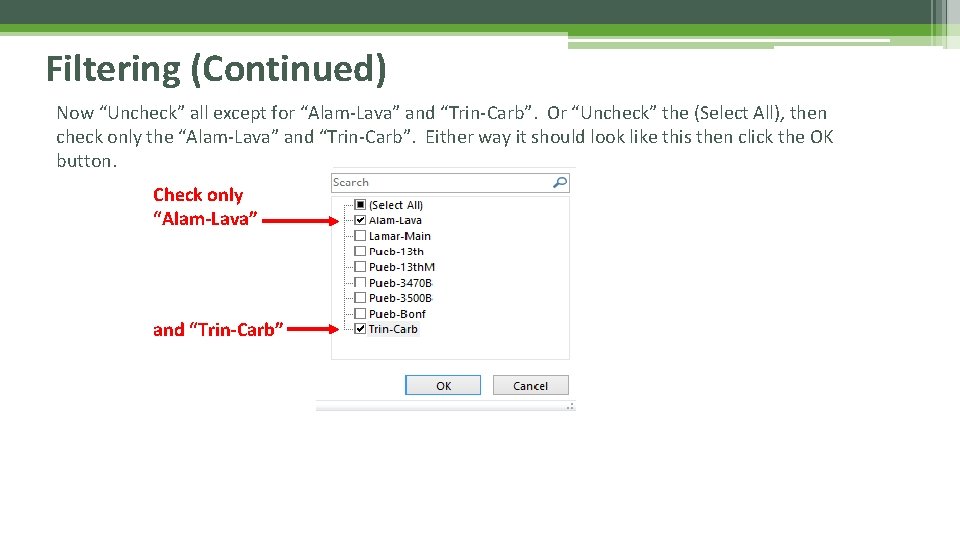
Filtering (Continued) Now “Uncheck” all except for “Alam-Lava” and “Trin-Carb”. Or “Uncheck” the (Select All), then check only the “Alam-Lava” and “Trin-Carb”. Either way it should look like this then click the OK button. Check only “Alam-Lava” and “Trin-Carb”
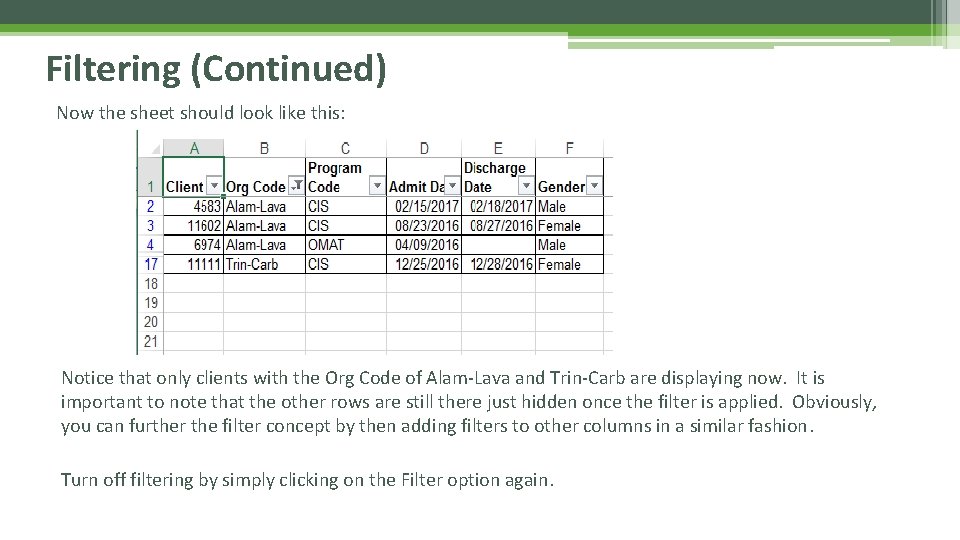
Filtering (Continued) Now the sheet should look like this: Notice that only clients with the Org Code of Alam-Lava and Trin-Carb are displaying now. It is important to note that the other rows are still there just hidden once the filter is applied. Obviously, you can further the filter concept by then adding filters to other columns in a similar fashion. Turn off filtering by simply clicking on the Filter option again.
Formula Basics (Sum, Count, Average) It is practically impossible to even attempt to put a dent into the number of possible formulas and combinations of formulas and functions that can be accomplished in Excel. So we will look at the three most commonly used and easiest to understand. Those are SUM, COUNT, and AVERAGE. By combining these alone with the simple IF statement would get overwhelming. So sticking with the basics here, we have the following.
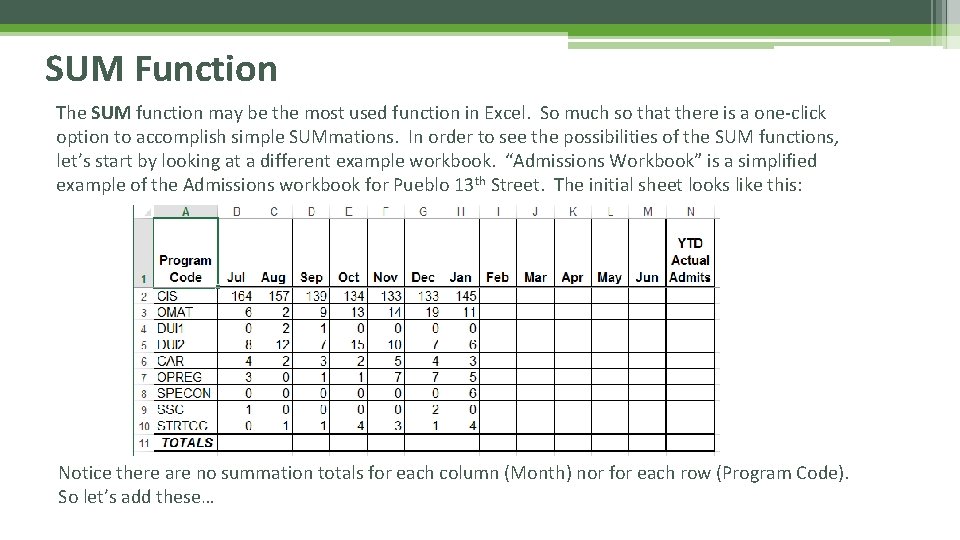
SUM Function The SUM function may be the most used function in Excel. So much so that there is a one-click option to accomplish simple SUMmations. In order to see the possibilities of the SUM functions, let’s start by looking at a different example workbook. “Admissions Workbook” is a simplified example of the Admissions workbook for Pueblo 13 th Street. The initial sheet looks like this: Notice there are no summation totals for each column (Month) nor for each row (Program Code). So let’s add these…
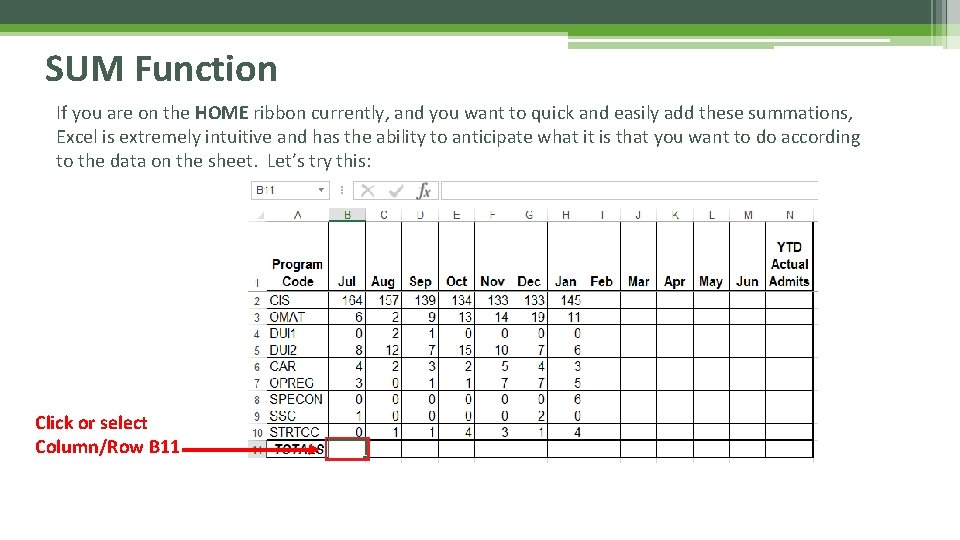
SUM Function If you are on the HOME ribbon currently, and you want to quick and easily add these summations, Excel is extremely intuitive and has the ability to anticipate what it is that you want to do according to the data on the sheet. Let’s try this: Click or select Column/Row B 11
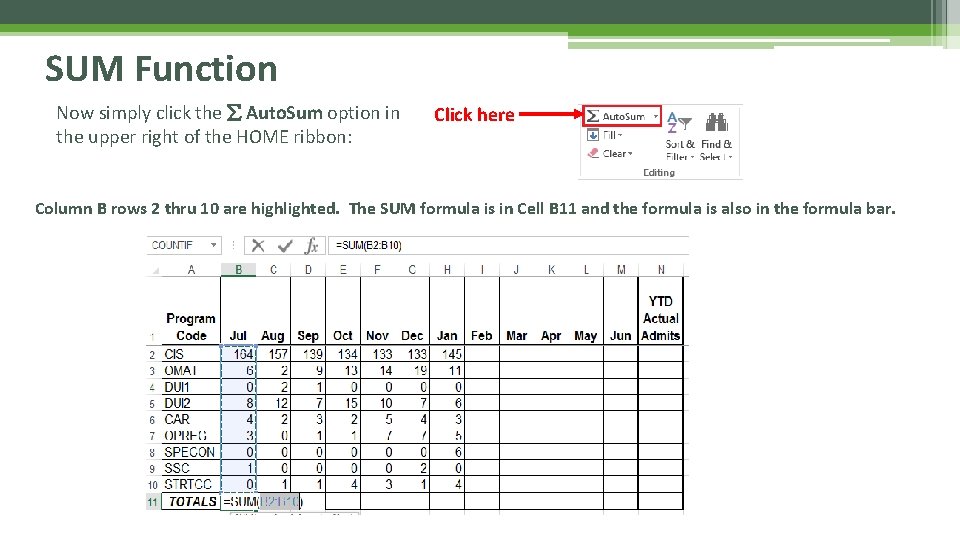
SUM Function Now simply click the Auto. Sum option in the upper right of the HOME ribbon: Click here Column B rows 2 thru 10 are highlighted. The SUM formula is in Cell B 11 and the formula is also in the formula bar.
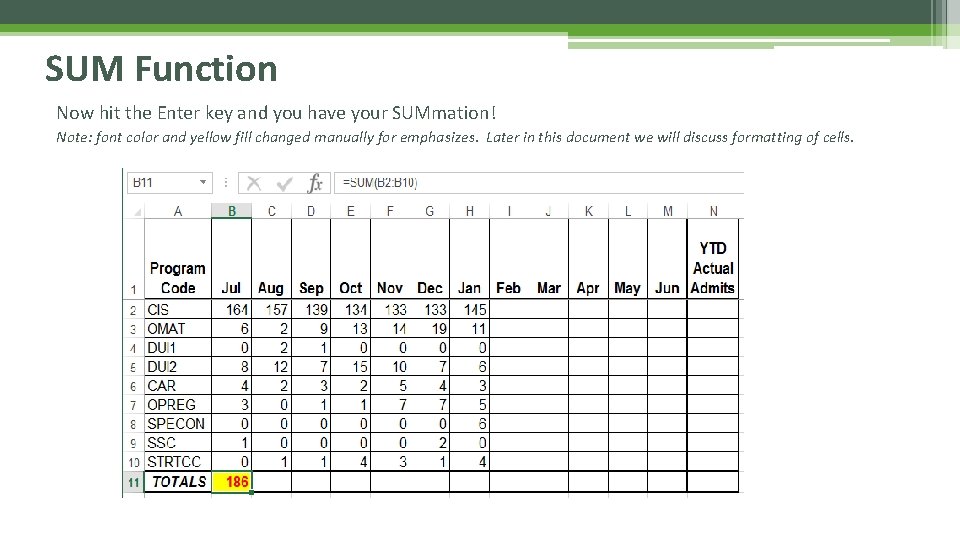
SUM Function Now hit the Enter key and you have your SUMmation! Note: font color and yellow fill changed manually for emphasizes. Later in this document we will discuss formatting of cells.
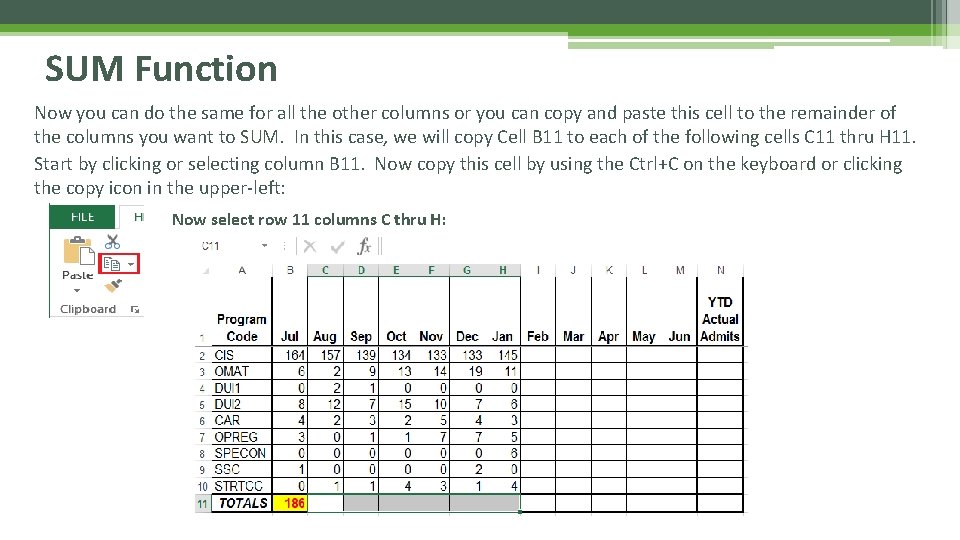
SUM Function Now you can do the same for all the other columns or you can copy and paste this cell to the remainder of the columns you want to SUM. In this case, we will copy Cell B 11 to each of the following cells C 11 thru H 11. Start by clicking or selecting column B 11. Now copy this cell by using the Ctrl+C on the keyboard or clicking the copy icon in the upper-left: Now select row 11 columns C thru H:
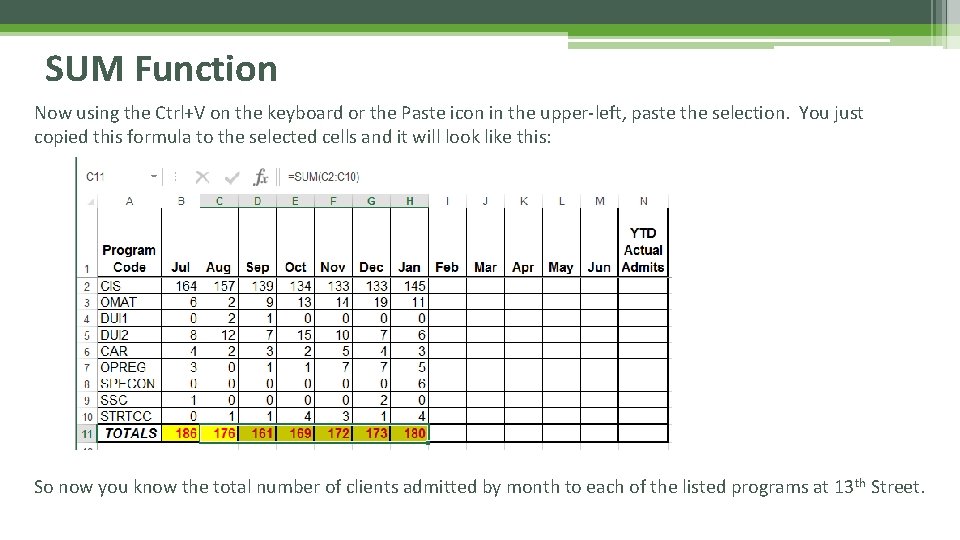
SUM Function Now using the Ctrl+V on the keyboard or the Paste icon in the upper-left, paste the selection. You just copied this formula to the selected cells and it will look like this: So now you know the total number of clients admitted by month to each of the listed programs at 13 th Street.
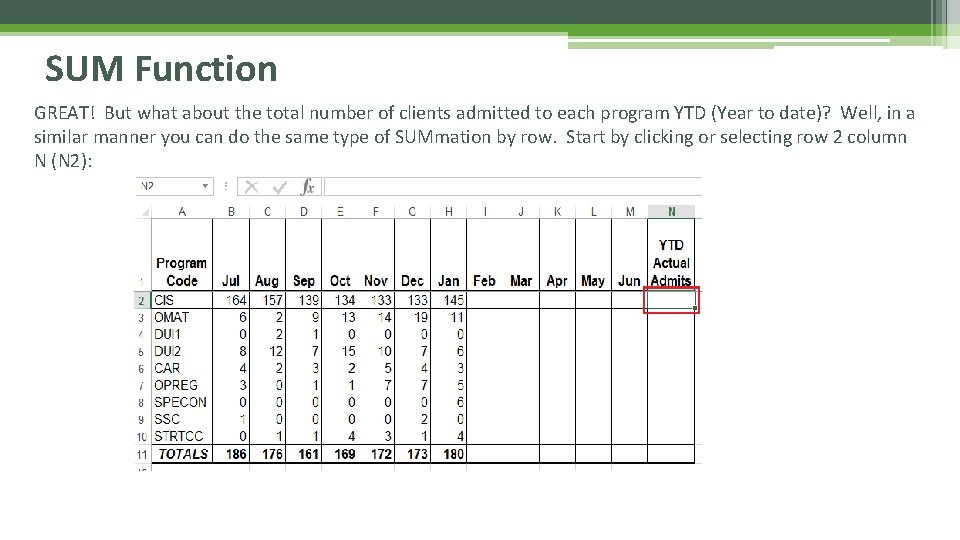
SUM Function GREAT! But what about the total number of clients admitted to each program YTD (Year to date)? Well, in a similar manner you can do the same type of SUMmation by row. Start by clicking or selecting row 2 column N (N 2):
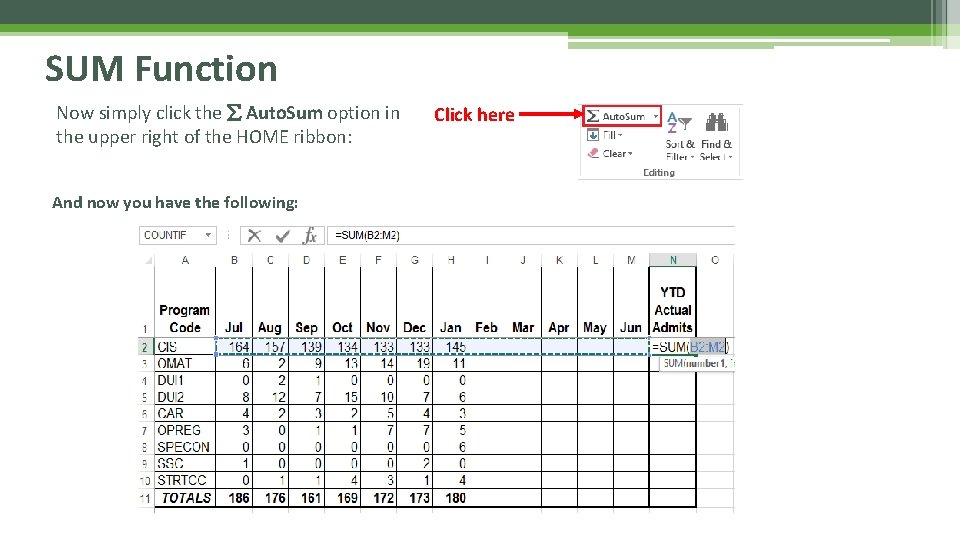
SUM Function Now simply click the Auto. Sum option in the upper right of the HOME ribbon: And now you have the following: Click here
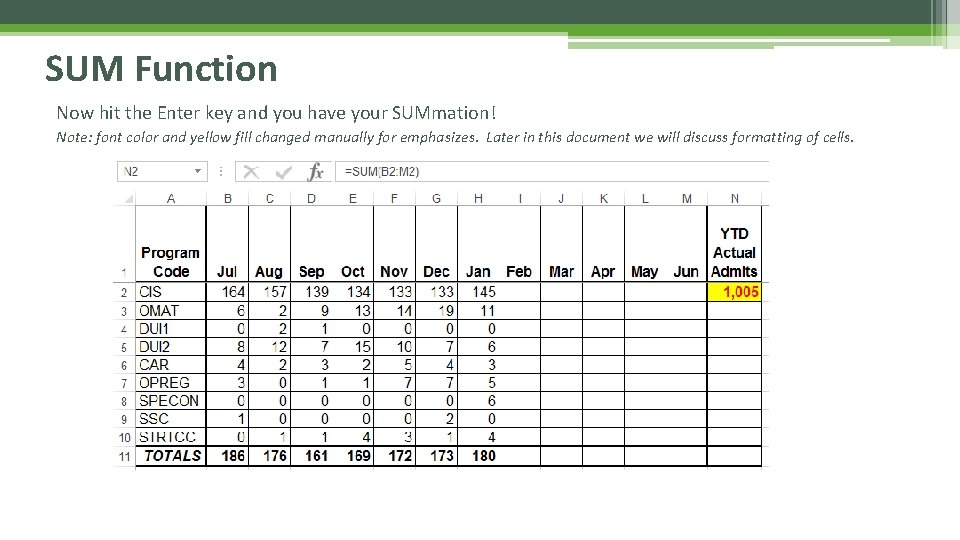
SUM Function Now hit the Enter key and you have your SUMmation! Note: font color and yellow fill changed manually for emphasizes. Later in this document we will discuss formatting of cells.
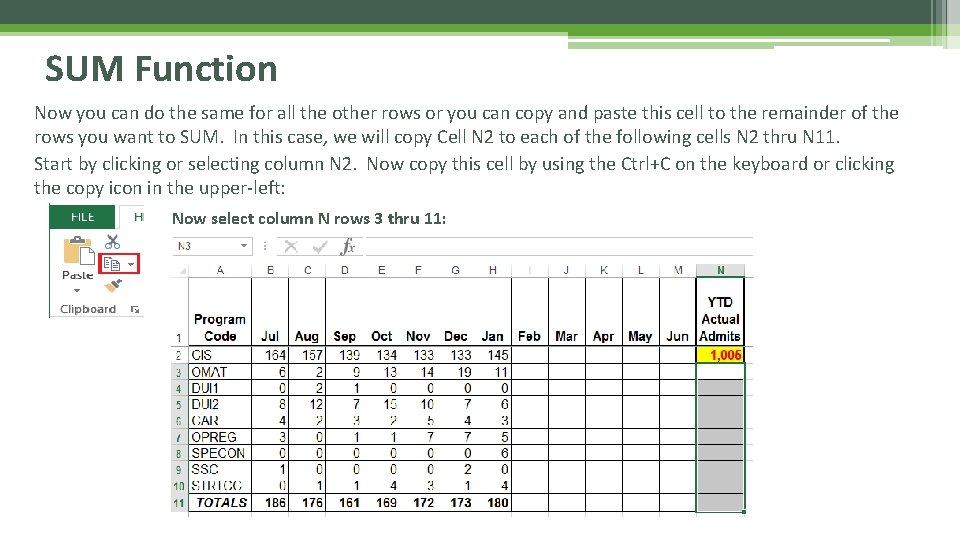
SUM Function Now you can do the same for all the other rows or you can copy and paste this cell to the remainder of the rows you want to SUM. In this case, we will copy Cell N 2 to each of the following cells N 2 thru N 11. Start by clicking or selecting column N 2. Now copy this cell by using the Ctrl+C on the keyboard or clicking the copy icon in the upper-left: Now select column N rows 3 thru 11:
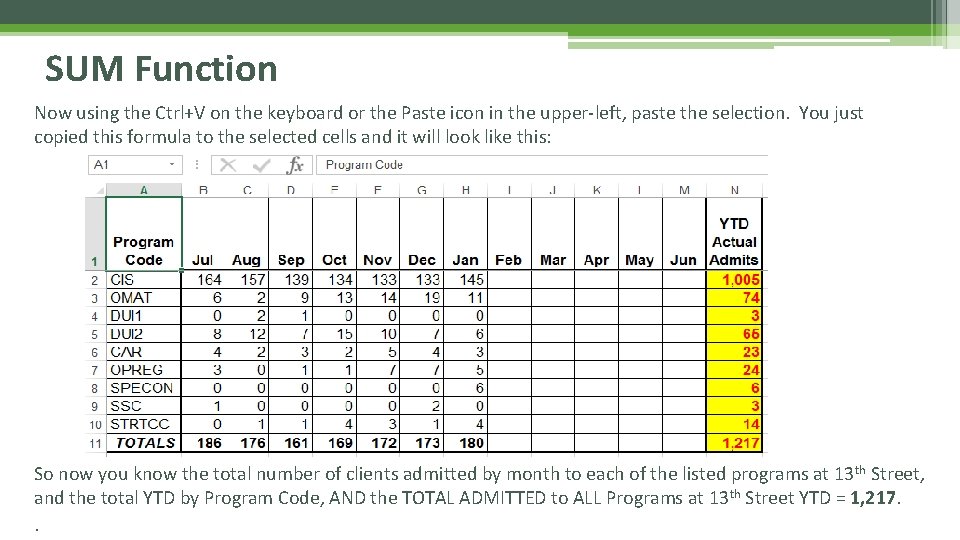
SUM Function Now using the Ctrl+V on the keyboard or the Paste icon in the upper-left, paste the selection. You just copied this formula to the selected cells and it will look like this: So now you know the total number of clients admitted by month to each of the listed programs at 13 th Street, and the total YTD by Program Code, AND the TOTAL ADMITTED to ALL Programs at 13 th Street YTD = 1, 217. .

SUM Function Expanded (Adding, Subtracting, etc. ) Sooooo… Easy-Peasy! RIGHT! Are we on a roll or what?
SUM Function Expanded (Adding, Subtracting, etc. ) • Thus far, we have looked at a quick and easy way to sum rows and/or columns. Let’s move a bit past that because the SUM function can do so much more. • Such as summing only certain selected cells (rather than an entire row/column), or basic math functions such as addition, subtraction, multiplication, and division). Without getting too carried away, let’s look at another example of how you can use the SUM function to calculate the number of days a client was in treatment or detox. • For this example, we will start with another example workbook called “Alamosa CIC Admissions” which is a list of clients admitted and discharged to Alamosa CIC in December 2016 (again the data is made up). • We want to determine “Length of Stay” for each client by subtracting the Admit Date from the Discharge and adding one (1). The length of stay always includes the first and last day, hence the need to add the one (1).
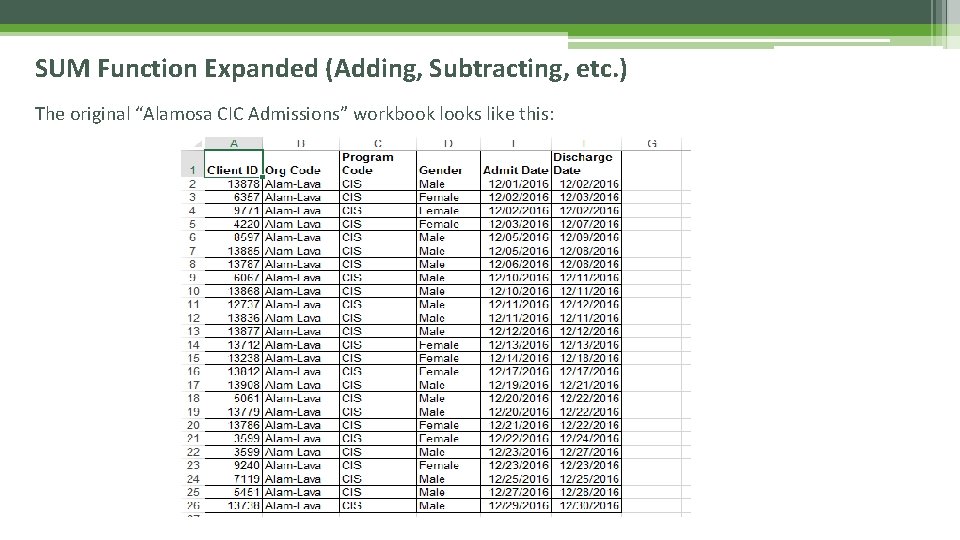
SUM Function Expanded (Adding, Subtracting, etc. ) The original “Alamosa CIC Admissions” workbook looks like this:
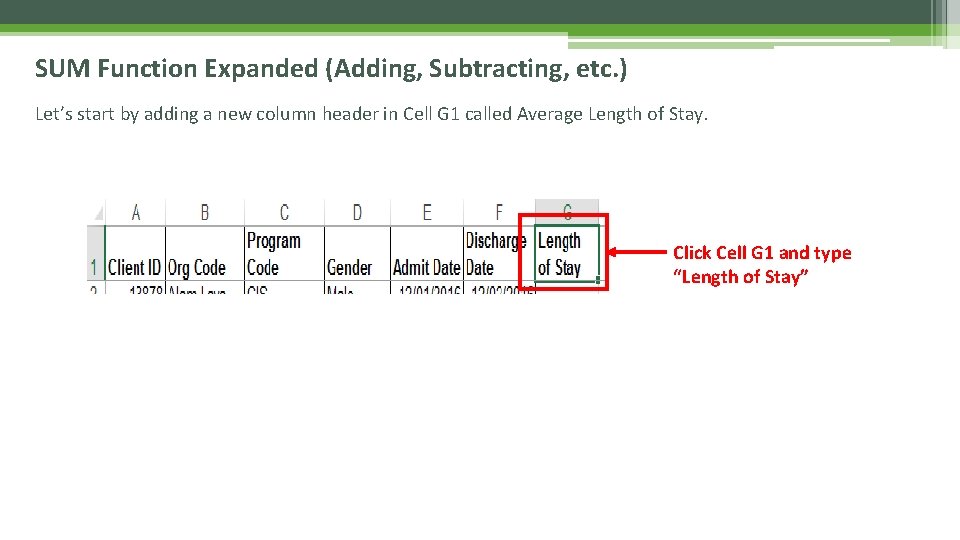
SUM Function Expanded (Adding, Subtracting, etc. ) Let’s start by adding a new column header in Cell G 1 called Average Length of Stay. Click Cell G 1 and type “Length of Stay”
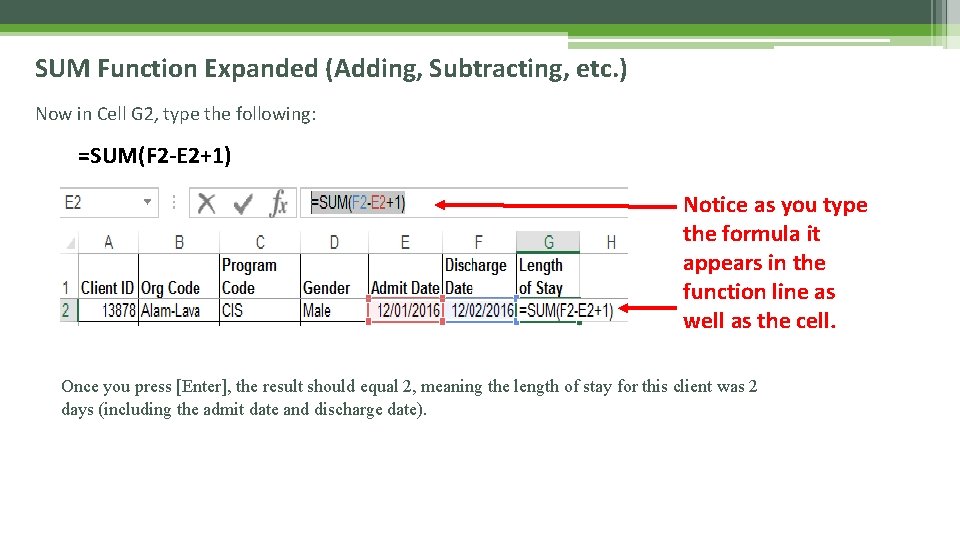
SUM Function Expanded (Adding, Subtracting, etc. ) Now in Cell G 2, type the following: =SUM(F 2 -E 2+1) Notice as you type the formula it appears in the function line as well as the cell. Once you press [Enter], the result should equal 2, meaning the length of stay for this client was 2 days (including the admit date and discharge date).
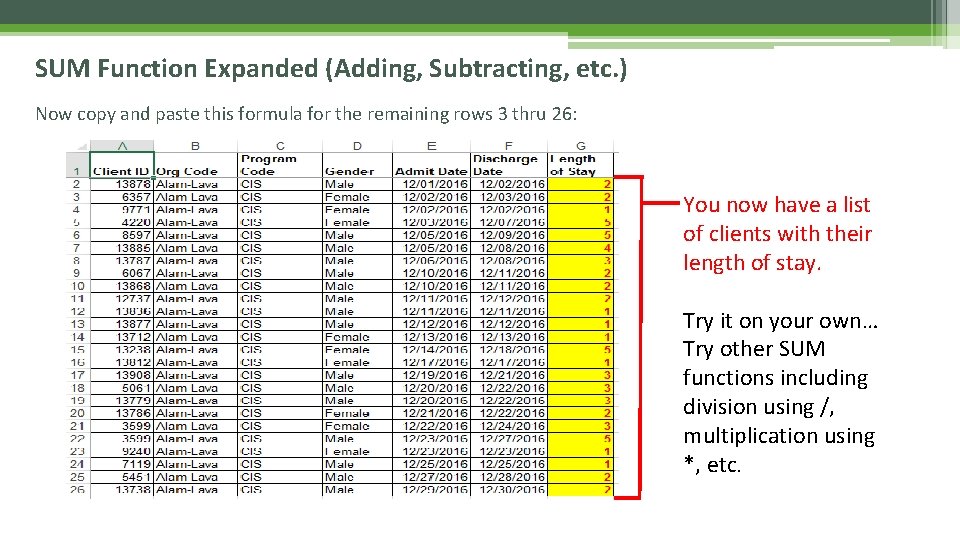
SUM Function Expanded (Adding, Subtracting, etc. ) Now copy and paste this formula for the remaining rows 3 thru 26: You now have a list of clients with their length of stay. Try it on your own… Try other SUM functions including division using /, multiplication using *, etc.
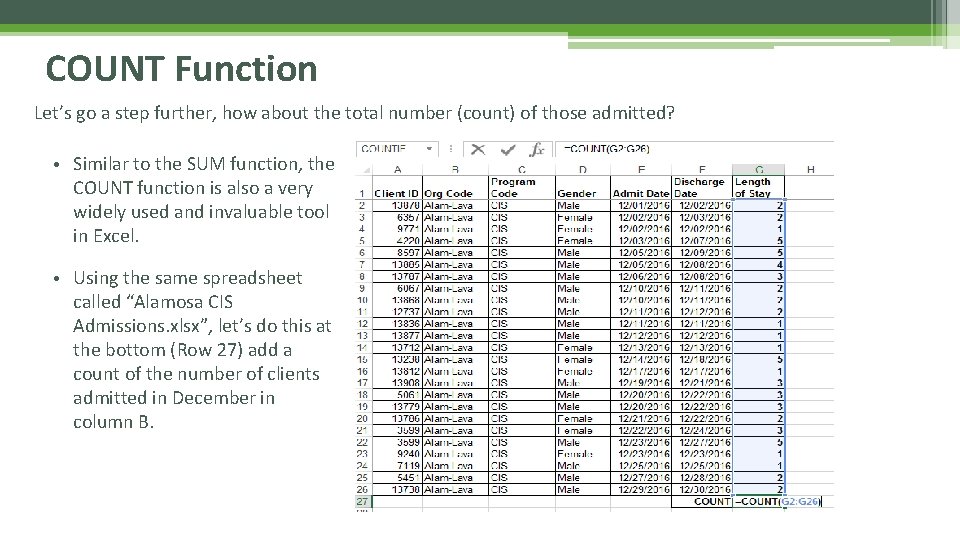
COUNT Function Let’s go a step further, how about the total number (count) of those admitted? • Similar to the SUM function, the COUNT function is also a very widely used and invaluable tool in Excel. • Using the same spreadsheet called “Alamosa CIS Admissions. xlsx”, let’s do this at the bottom (Row 27) add a count of the number of clients admitted in December in column B.
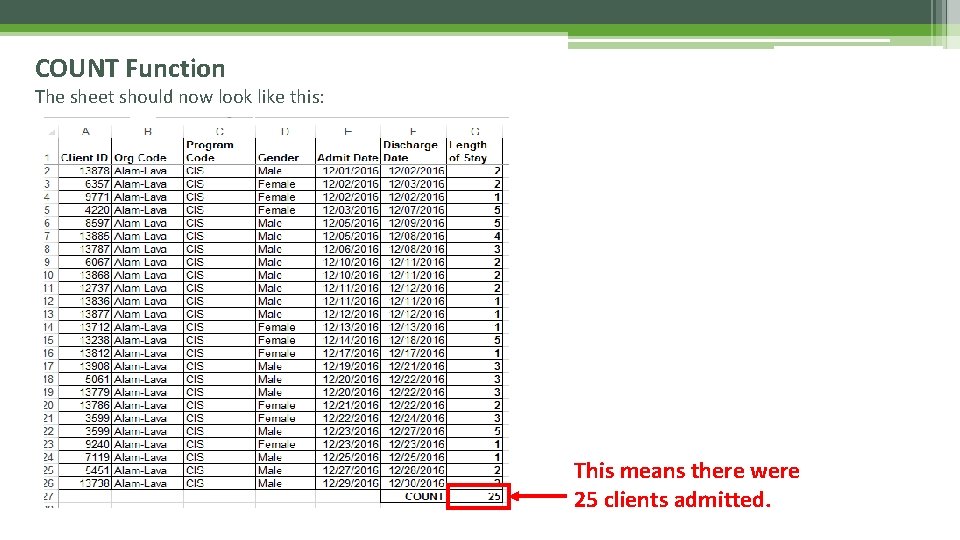
COUNT Function The sheet should now look like this: This means there were 25 clients admitted.
COUNT Function Expanded • There are numerous other ways the COUNT function can be used as well. • COUNTA (Counts the number of cells in the range that are not blank) • COUNTBLANK (Counts the number of cells in the range that are blank) • COUNTIF (Count the number of Cells in range based on a condition), etc.
Combining SUM and COUNT Functions • You can also combine these functions for a bit more complex function. • Let’s say that for the same example workbook used above we now want to know the Average Length of Stay (ALOS) for all clients admitted to Alamosa CIC in December. • What is the average really? • It is the total number of days (Length of Stay) for all clients divided by the number of clients, right? • So we should be able to come up with a formula like this: • (Total Days) / (Count of Clients) = ALOS
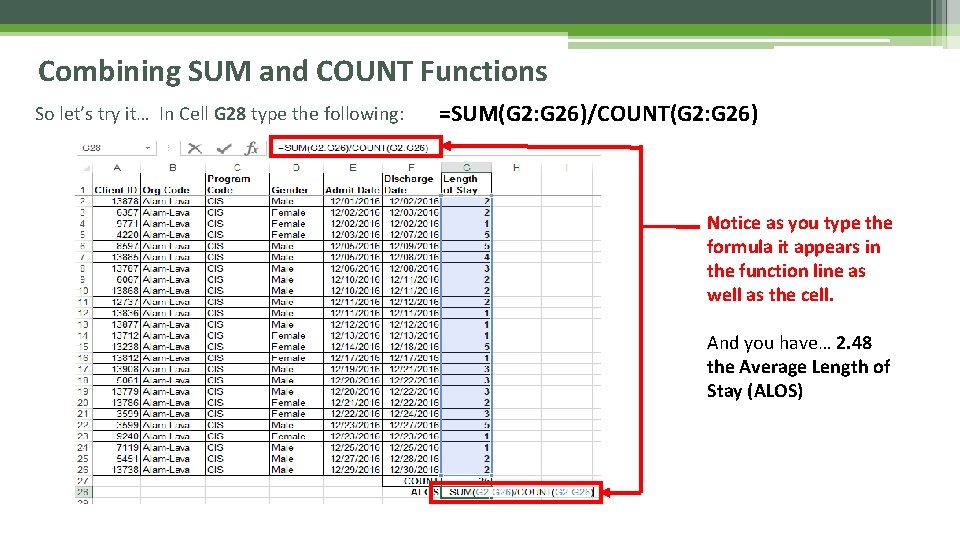
Combining SUM and COUNT Functions So let’s try it… In Cell G 28 type the following: =SUM(G 2: G 26)/COUNT(G 2: G 26) Notice as you type the formula it appears in the function line as well as the cell. And you have… 2. 48 the Average Length of Stay (ALOS)
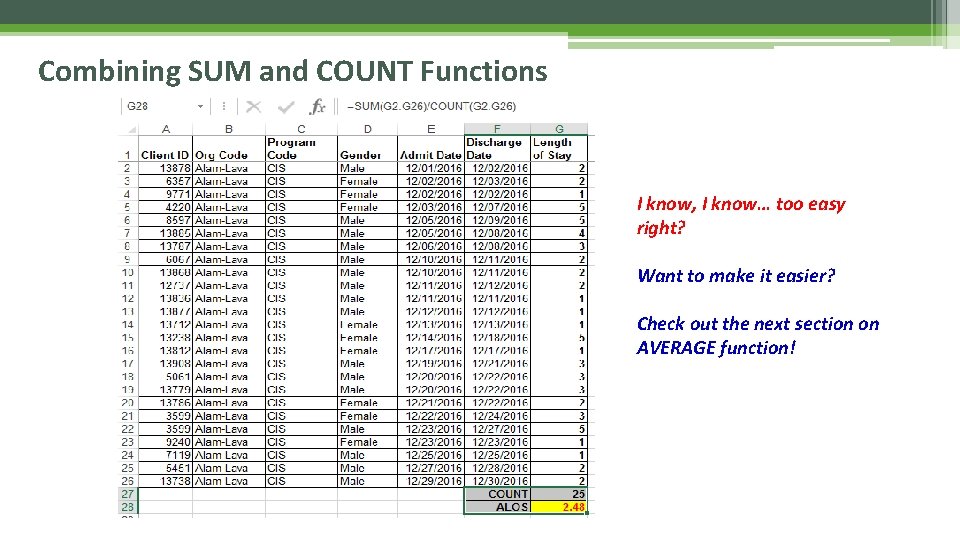
Combining SUM and COUNT Functions I know, I know… too easy right? Want to make it easier? Check out the next section on AVERAGE function!
AVERAGE Function Okay… So even though combining the SUM and COUNT functions in the last section was not too bad, there is an easier way to compute the average. It is called AVERAGE. • Using this function, Excel has combined the two for you so all you have to do is type the formula and range and you have it! • Let’s try it and compare the results to the way we did it before, okay? Remember the calculated Average from the last slide as 2. 48
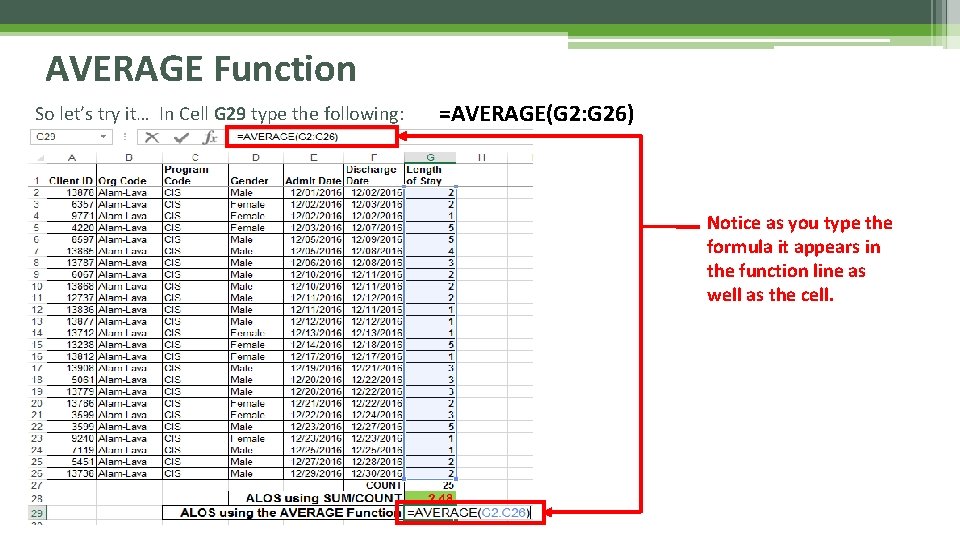
AVERAGE Function So let’s try it… In Cell G 29 type the following: =AVERAGE(G 2: G 26) Notice as you type the formula it appears in the function line as well as the cell.
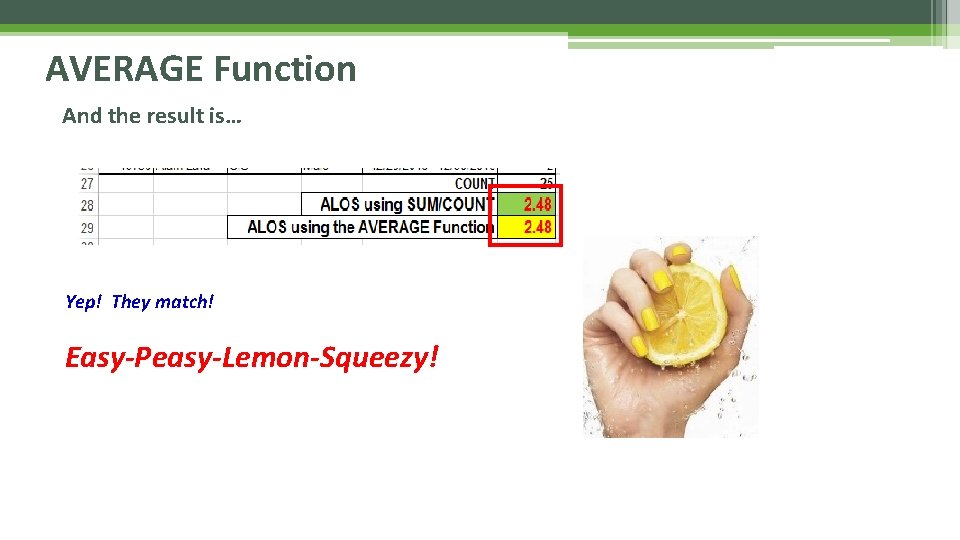
AVERAGE Function And the result is… Yep! They match! Easy-Peasy-Lemon-Squeezy!
Outlines: Data Grouping and Subtotaling • What if you could group data (rows for instance) according to selections you make or by sorted instances. • Even better, how about adding a subtotal line when data items change? • Yes, these can be done as well through the use of Data Groups and/or Subtotals. • If you have a list of data that you want to group and summarize, you can create an outline of up to eight levels, one for each group. Each inner level, represented by a higher number in the outline symbols, displays detail data for the preceding outer level, represented by a lower number in the outline symbols. Use an outline to quickly display summary rows or columns, or to reveal the detail data for each group. You can create an outline of rows, an outline of columns, or an outline of both rows and columns.
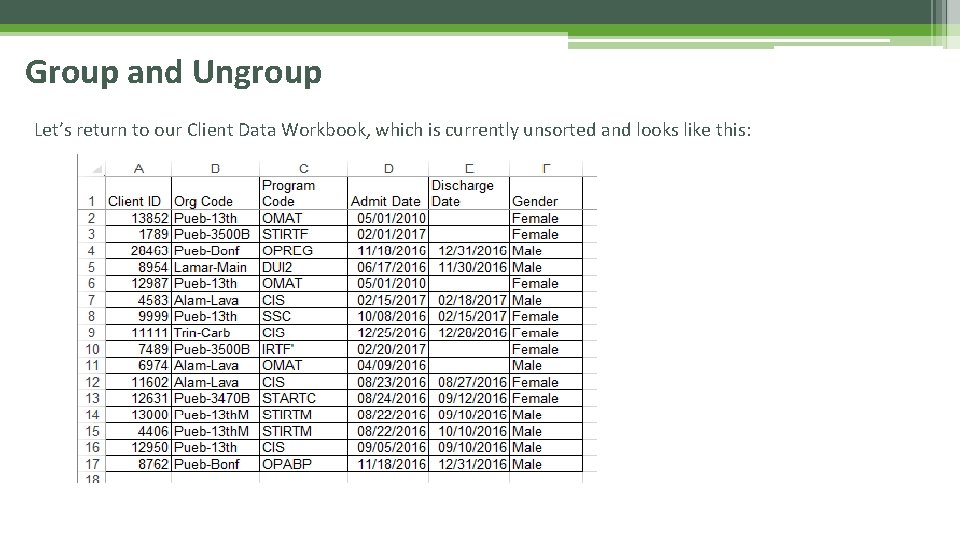
Group and Ungroup Let’s return to our Client Data Workbook, which is currently unsorted and looks like this:
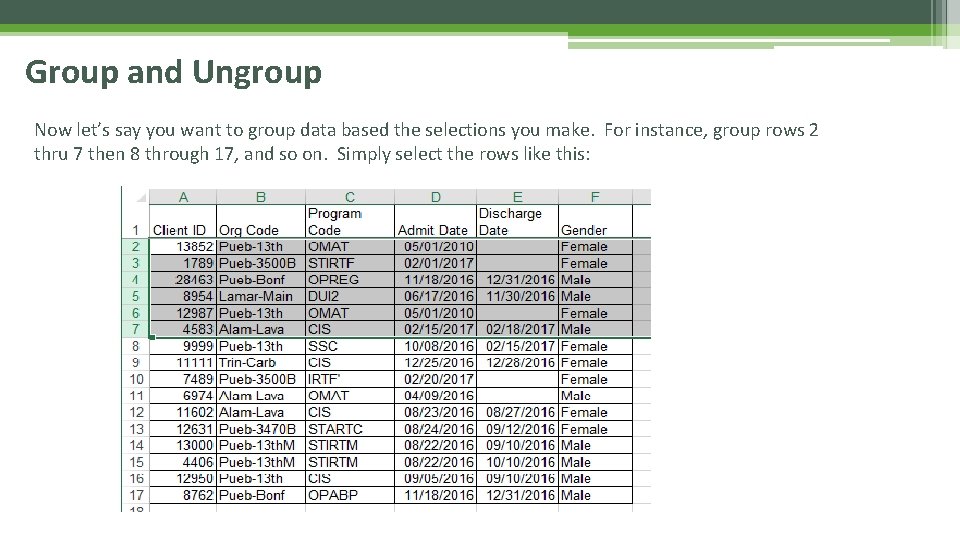
Group and Ungroup Now let’s say you want to group data based the selections you make. For instance, group rows 2 thru 7 then 8 through 17, and so on. Simply select the rows like this:
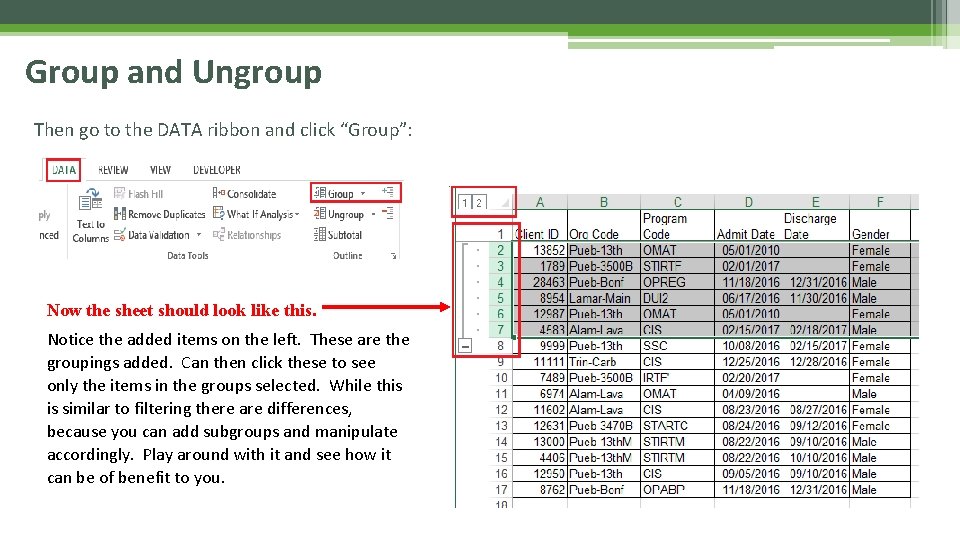
Group and Ungroup Then go to the DATA ribbon and click “Group”: Now the sheet should look like this. Notice the added items on the left. These are the groupings added. Can then click these to see only the items in the groups selected. While this is similar to filtering there are differences, because you can add subgroups and manipulate accordingly. Play around with it and see how it can be of benefit to you.
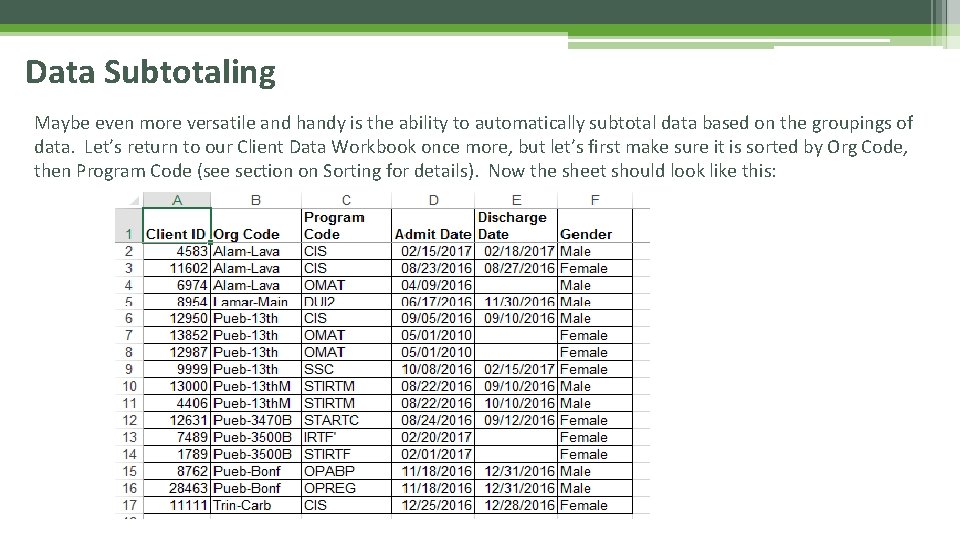
Data Subtotaling Maybe even more versatile and handy is the ability to automatically subtotal data based on the groupings of data. Let’s return to our Client Data Workbook once more, but let’s first make sure it is sorted by Org Code, then Program Code (see section on Sorting for details). Now the sheet should look like this:
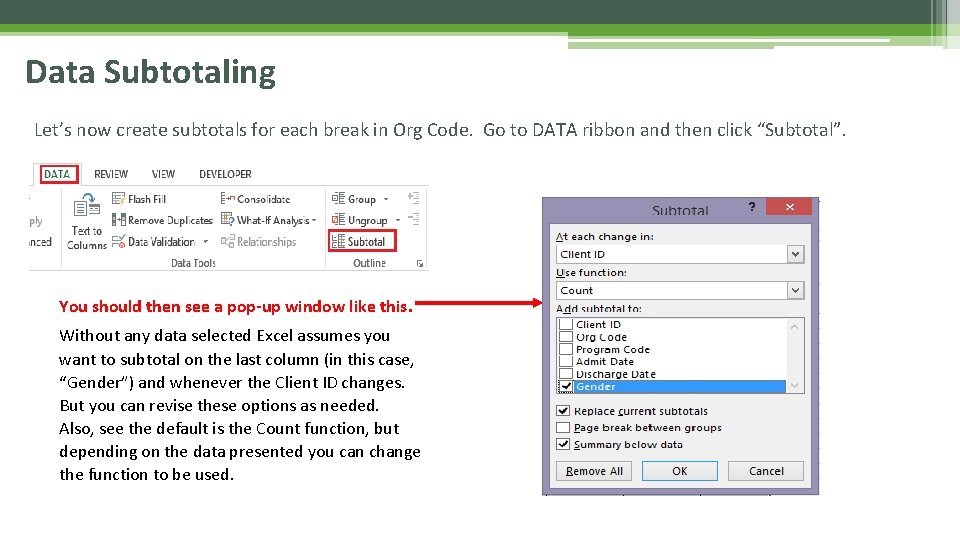
Data Subtotaling Let’s now create subtotals for each break in Org Code. Go to DATA ribbon and then click “Subtotal”. You should then see a pop-up window like this. Without any data selected Excel assumes you want to subtotal on the last column (in this case, “Gender”) and whenever the Client ID changes. But you can revise these options as needed. Also, see the default is the Count function, but depending on the data presented you can change the function to be used.
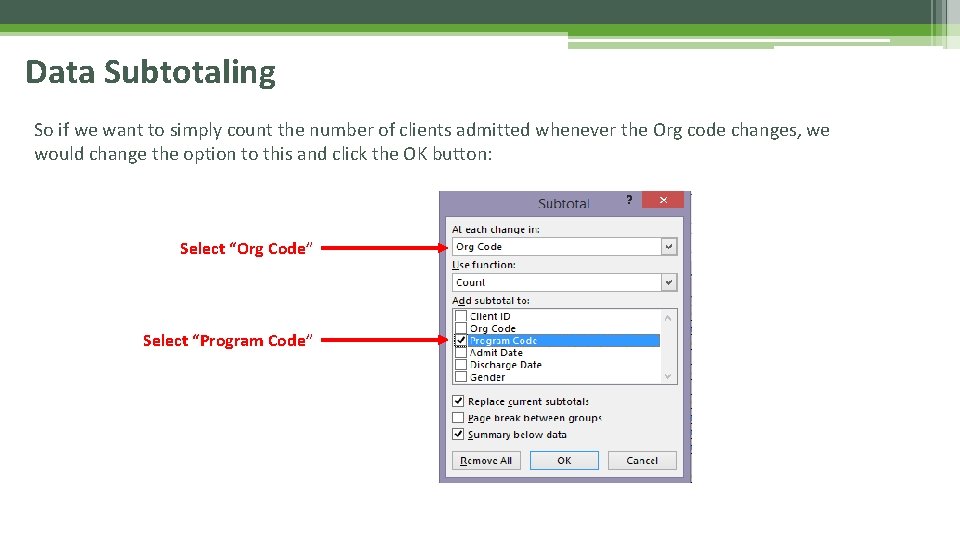
Data Subtotaling So if we want to simply count the number of clients admitted whenever the Org code changes, we would change the option to this and click the OK button: Select “Org Code” Select “Program Code”
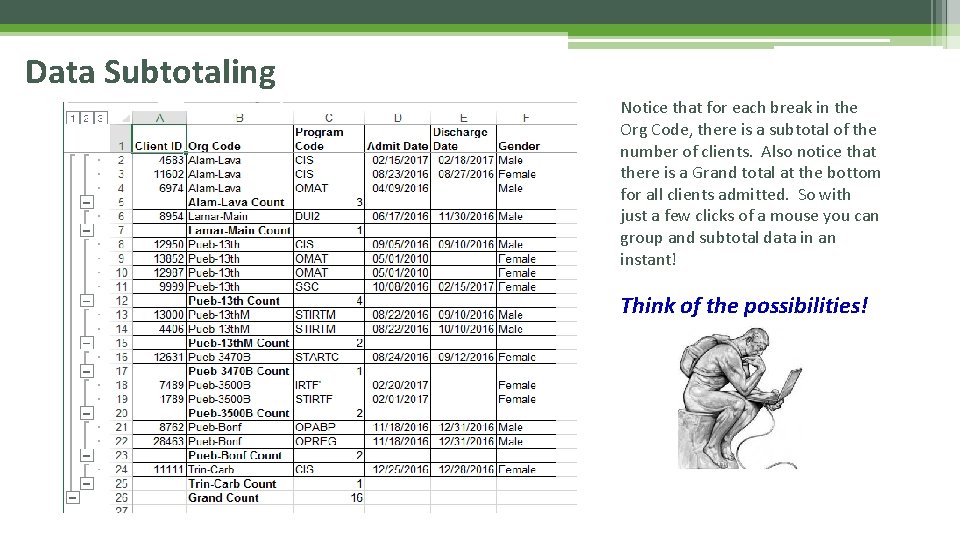
Data Subtotaling Notice that for each break in the Org Code, there is a subtotal of the number of clients. Also notice that there is a Grand total at the bottom for all clients admitted. So with just a few clicks of a mouse you can group and subtotal data in an instant! Think of the possibilities!
Intermediate & Advanced Formulas/Functions • As mentioned before, Excel has an overwhelming number of formulas and functions available. • In addition, Add-Ins and programmed Macros can add to this list of possibilities. Since this is an Excel Basics presentation, more advanced formulas will not be covered. • However, some of the other formulas that you might find worthwhile to check out include those on the following slide. • For a more complete list see the FORMULAS ribbon (menu) • Or simply Google “Excel Formulas”.
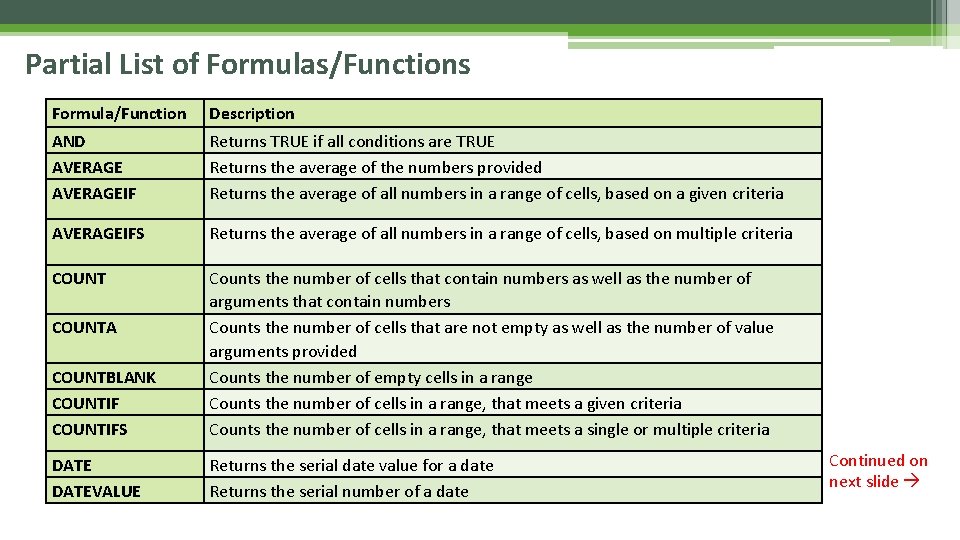
Partial List of Formulas/Functions Formula/Function Description AND AVERAGEIF Returns TRUE if all conditions are TRUE Returns the average of the numbers provided Returns the average of all numbers in a range of cells, based on a given criteria AVERAGEIFS Returns the average of all numbers in a range of cells, based on multiple criteria COUNTBLANK COUNTIFS Counts the number of cells that contain numbers as well as the number of arguments that contain numbers Counts the number of cells that are not empty as well as the number of value arguments provided Counts the number of empty cells in a range Counts the number of cells in a range, that meets a given criteria Counts the number of cells in a range, that meets a single or multiple criteria DATEVALUE Returns the serial date value for a date Returns the serial number of a date COUNTA Continued on next slide
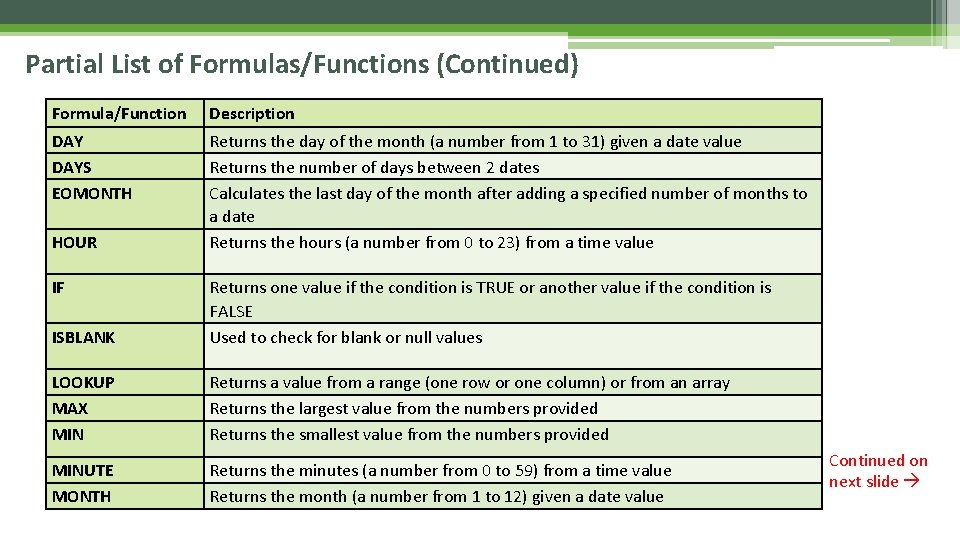
Partial List of Formulas/Functions (Continued) Formula/Function Description DAYS EOMONTH Returns the day of the month (a number from 1 to 31) given a date value Returns the number of days between 2 dates Calculates the last day of the month after adding a specified number of months to a date Returns the hours (a number from 0 to 23) from a time value HOUR IF ISBLANK Returns one value if the condition is TRUE or another value if the condition is FALSE Used to check for blank or null values LOOKUP MAX MIN Returns a value from a range (one row or one column) or from an array Returns the largest value from the numbers provided Returns the smallest value from the numbers provided MINUTE MONTH Returns the minutes (a number from 0 to 59) from a time value Returns the month (a number from 1 to 12) given a date value Continued on next slide
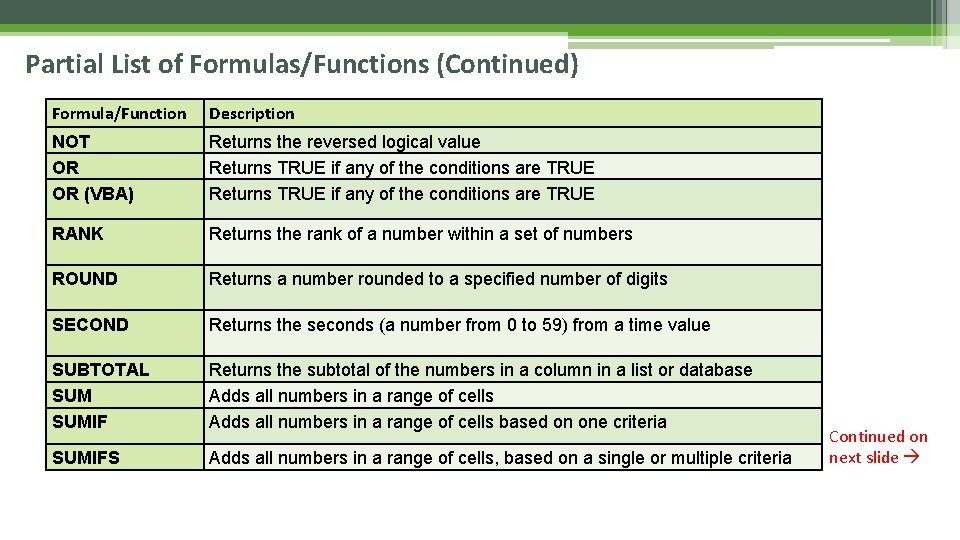
Partial List of Formulas/Functions (Continued) Formula/Function Description NOT OR OR (VBA) Returns the reversed logical value Returns TRUE if any of the conditions are TRUE RANK Returns the rank of a number within a set of numbers ROUND Returns a number rounded to a specified number of digits SECOND Returns the seconds (a number from 0 to 59) from a time value SUBTOTAL SUMIF Returns the subtotal of the numbers in a column in a list or database Adds all numbers in a range of cells based on one criteria SUMIFS Adds all numbers in a range of cells, based on a single or multiple criteria Continued on next slide
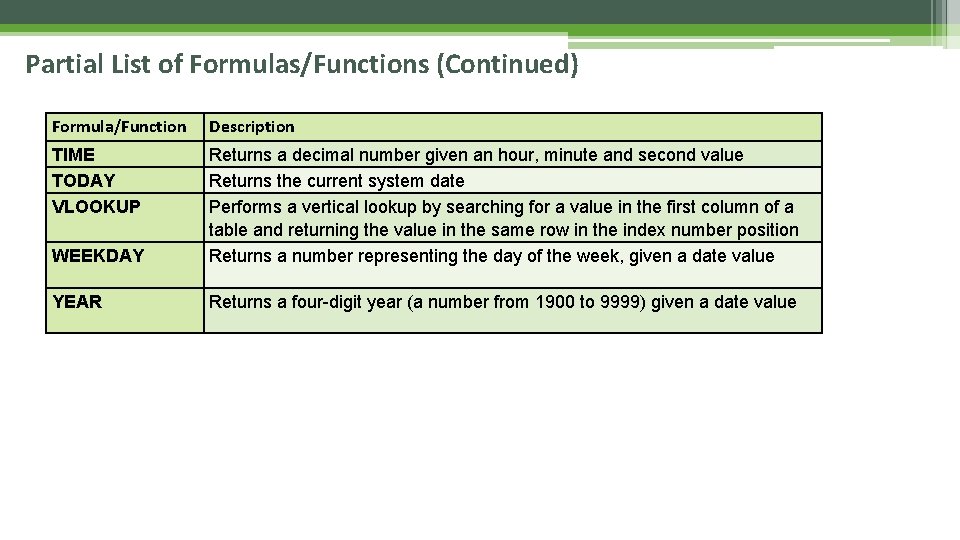
Partial List of Formulas/Functions (Continued) Formula/Function Description TIME TODAY VLOOKUP WEEKDAY Returns a decimal number given an hour, minute and second value Returns the current system date Performs a vertical lookup by searching for a value in the first column of a table and returning the value in the same row in the index number position Returns a number representing the day of the week, given a date value YEAR Returns a four-digit year (a number from 1900 to 9999) given a date value
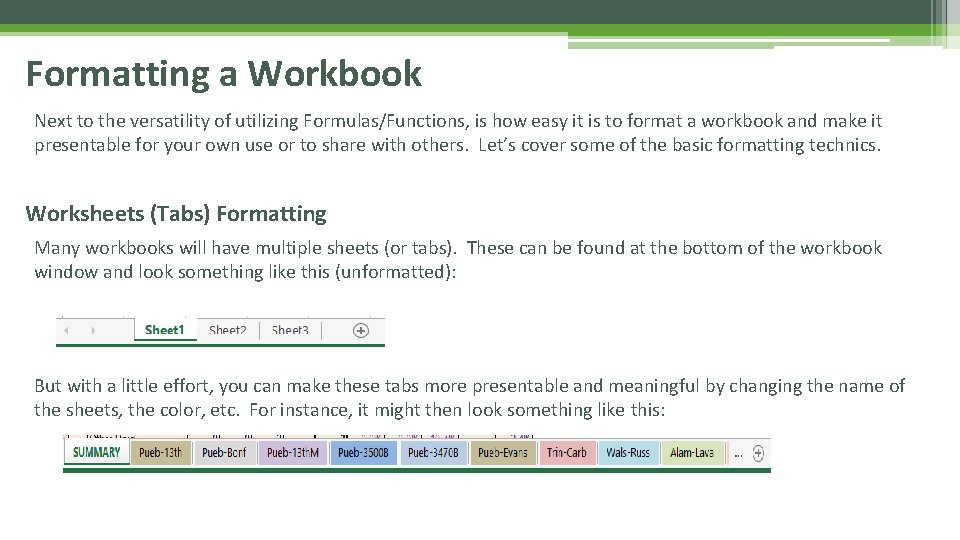
Formatting a Workbook Next to the versatility of utilizing Formulas/Functions, is how easy it is to format a workbook and make it presentable for your own use or to share with others. Let’s cover some of the basic formatting technics. Worksheets (Tabs) Formatting Many workbooks will have multiple sheets (or tabs). These can be found at the bottom of the workbook window and look something like this (unformatted): But with a little effort, you can make these tabs more presentable and meaningful by changing the name of the sheets, the color, etc. For instance, it might then look something like this:
Worksheets (Tabs) Formatting (Continued) • So how do you change the format of the sheets (tabs)? • Change the name of the tab by double-clicking the current tab name then typing the revised name • Change the background color of the tab by right-clicking the tab then selecting “Tab Color” and selecting the color. • Other options: You can also move, delete, copy the tab using the same method.
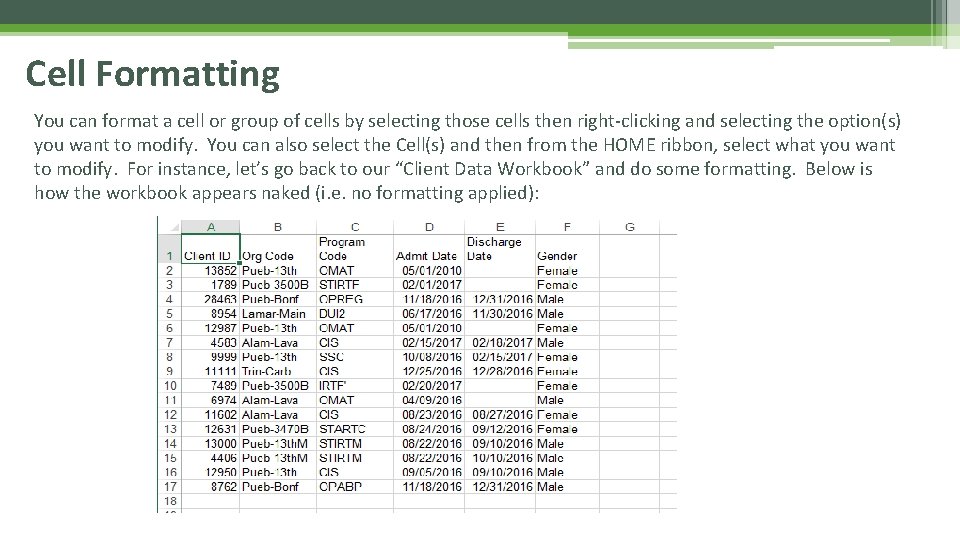
Cell Formatting You can format a cell or group of cells by selecting those cells then right-clicking and selecting the option(s) you want to modify. You can also select the Cell(s) and then from the HOME ribbon, select what you want to modify. For instance, let’s go back to our “Client Data Workbook” and do some formatting. Below is how the workbook appears naked (i. e. no formatting applied):
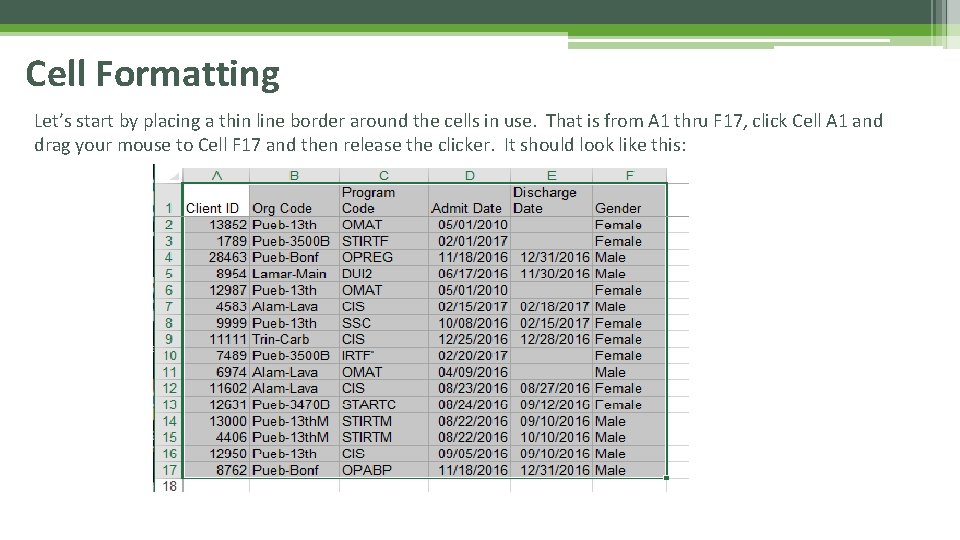
Cell Formatting Let’s start by placing a thin line border around the cells in use. That is from A 1 thru F 17, click Cell A 1 and drag your mouse to Cell F 17 and then release the clicker. It should look like this:
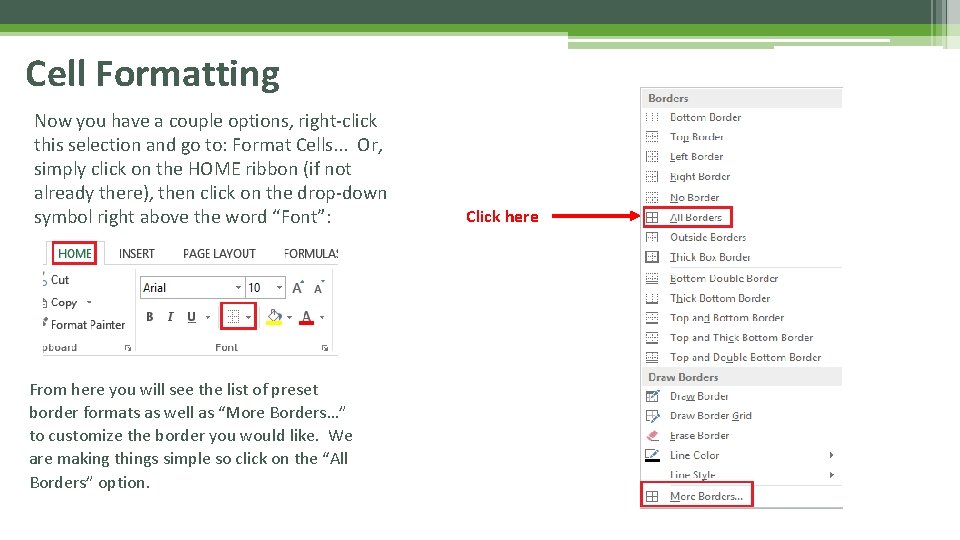
Cell Formatting Now you have a couple options, right-click this selection and go to: Format Cells. . . Or, simply click on the HOME ribbon (if not already there), then click on the drop-down symbol right above the word “Font”: From here you will see the list of preset border formats as well as “More Borders…” to customize the border you would like. We are making things simple so click on the “All Borders” option. Click here
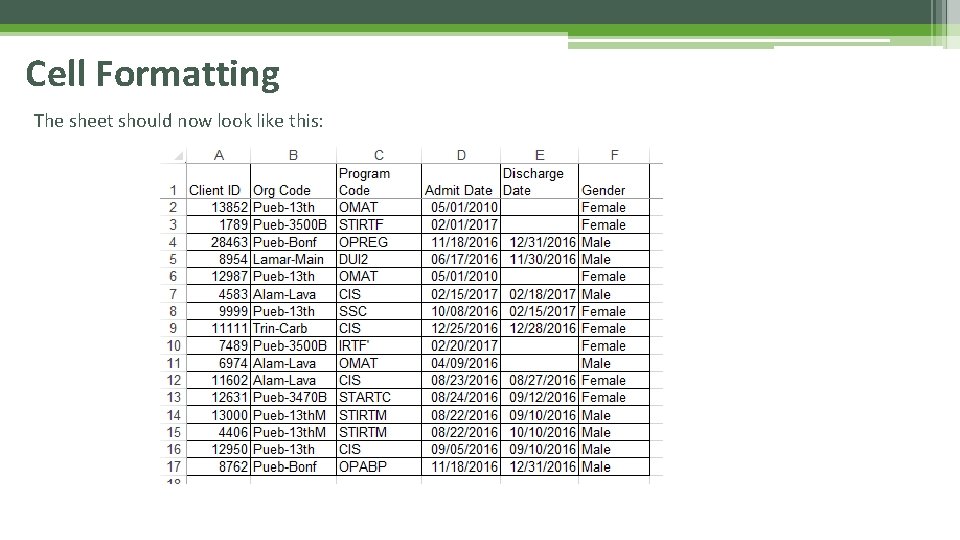
Cell Formatting The sheet should now look like this:
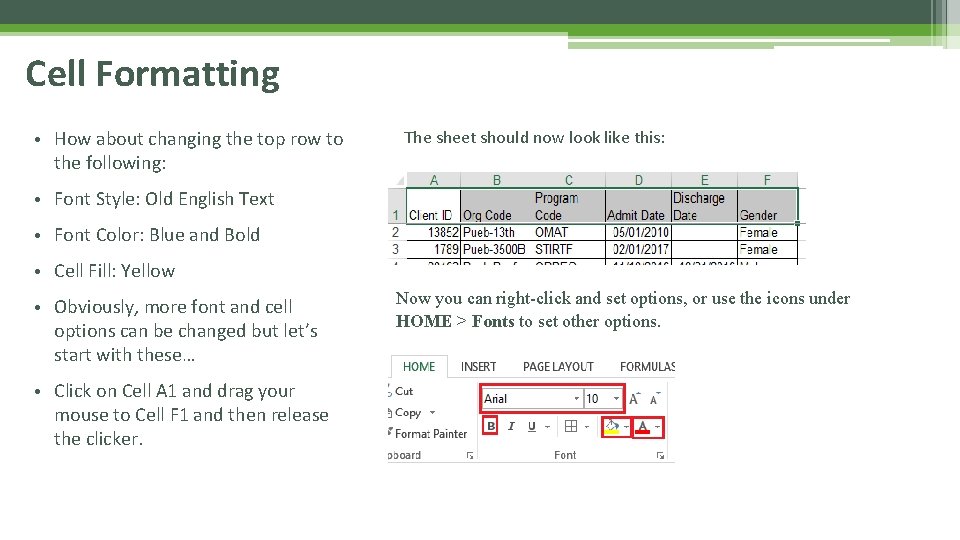
Cell Formatting • How about changing the top row to the following: The sheet should now look like this: • Font Style: Old English Text • Font Color: Blue and Bold • Cell Fill: Yellow • Obviously, more font and cell options can be changed but let’s start with these… • Click on Cell A 1 and drag your mouse to Cell F 1 and then release the clicker. Now you can right-click and set options, or use the icons under HOME > Fonts to set other options.
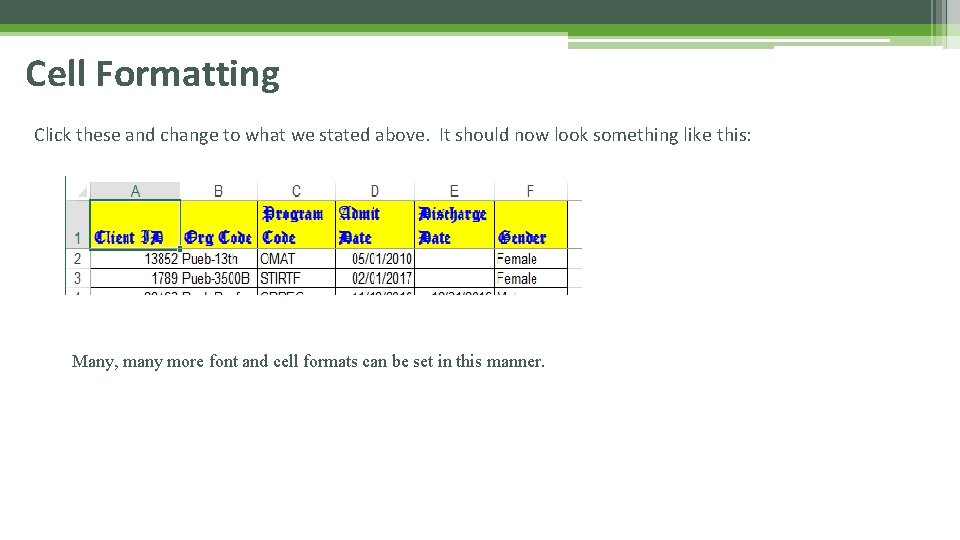
Cell Formatting Click these and change to what we stated above. It should now look something like this: Many, many more font and cell formats can be set in this manner.
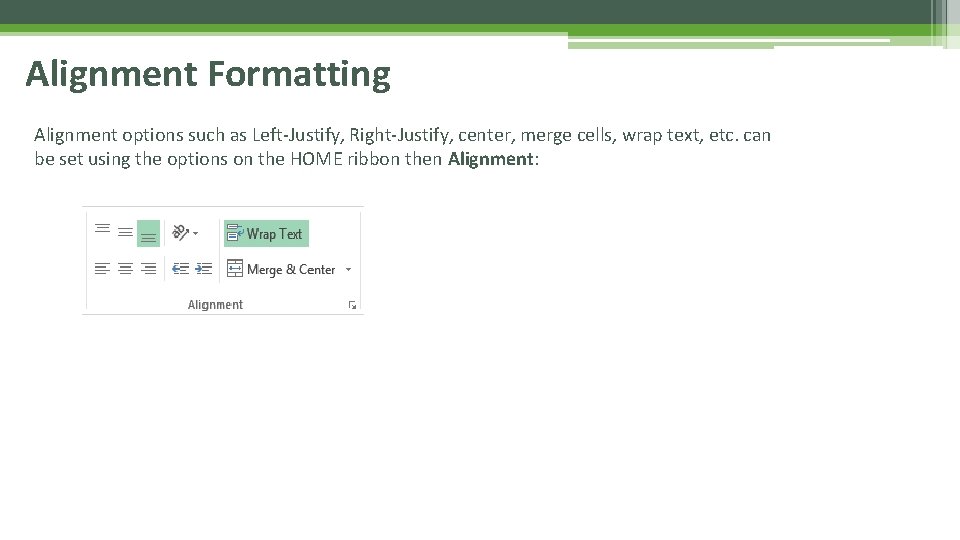
Alignment Formatting Alignment options such as Left-Justify, Right-Justify, center, merge cells, wrap text, etc. can be set using the options on the HOME ribbon then Alignment:
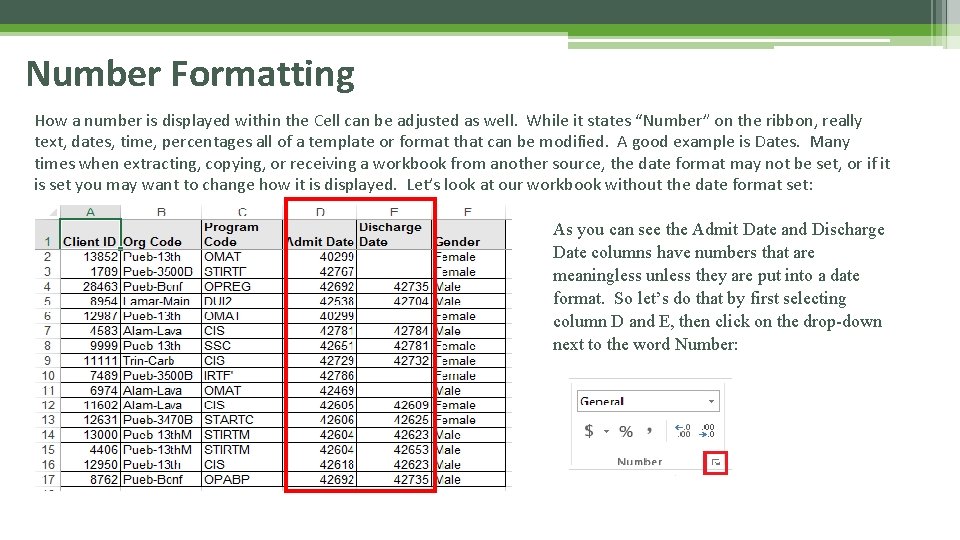
Number Formatting How a number is displayed within the Cell can be adjusted as well. While it states “Number” on the ribbon, really text, dates, time, percentages all of a template or format that can be modified. A good example is Dates. Many times when extracting, copying, or receiving a workbook from another source, the date format may not be set, or if it is set you may want to change how it is displayed. Let’s look at our workbook without the date format set: As you can see the Admit Date and Discharge Date columns have numbers that are meaningless unless they are put into a date format. So let’s do that by first selecting column D and E, then click on the drop-down next to the word Number:
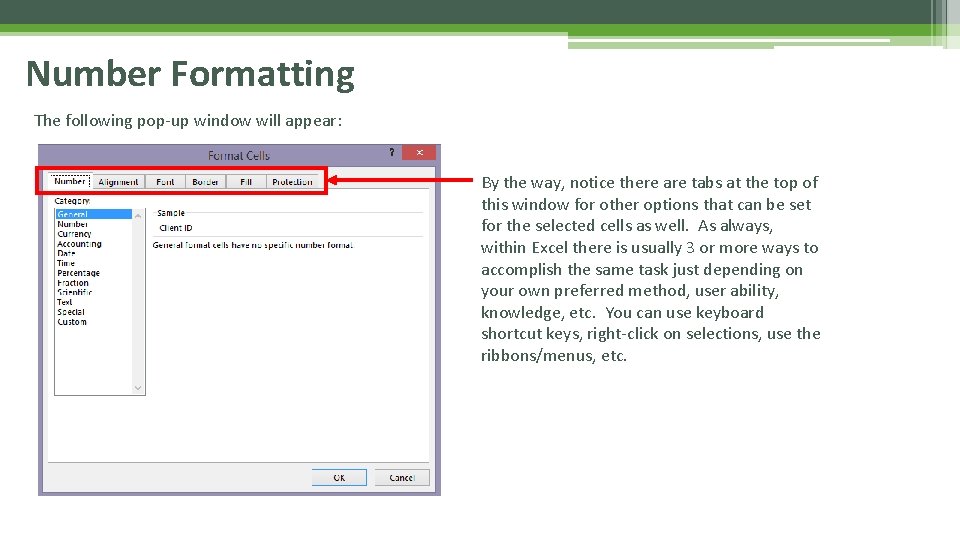
Number Formatting The following pop-up window will appear: By the way, notice there are tabs at the top of this window for other options that can be set for the selected cells as well. As always, within Excel there is usually 3 or more ways to accomplish the same task just depending on your own preferred method, user ability, knowledge, etc. You can use keyboard shortcut keys, right-click on selections, use the ribbons/menus, etc.
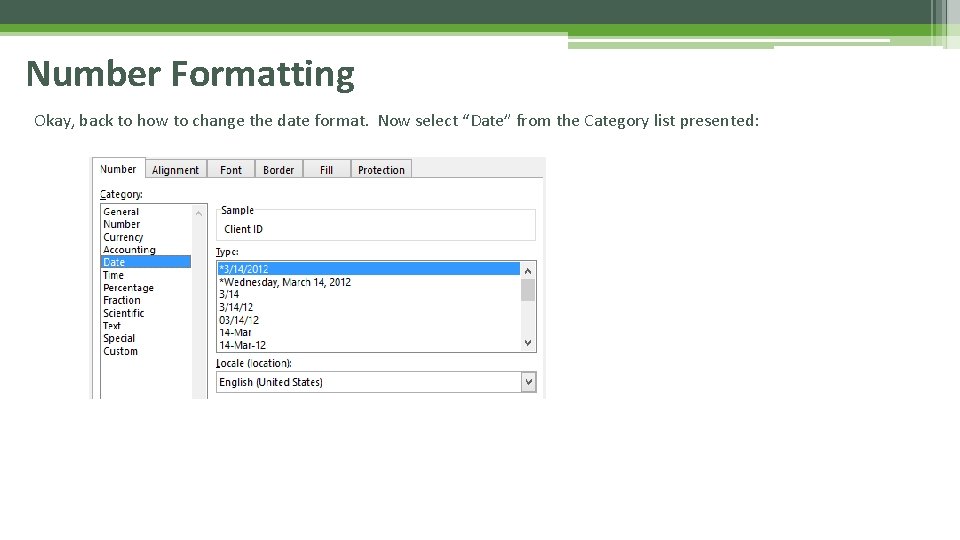
Number Formatting Okay, back to how to change the date format. Now select “Date” from the Category list presented:
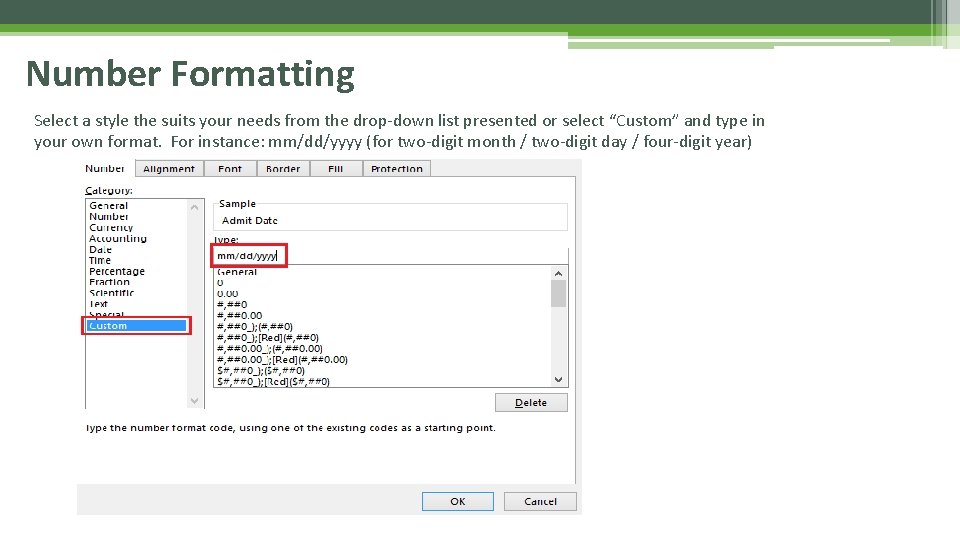
Number Formatting Select a style the suits your needs from the drop-down list presented or select “Custom” and type in your own format. For instance: mm/dd/yyyy (for two-digit month / two-digit day / four-digit year)
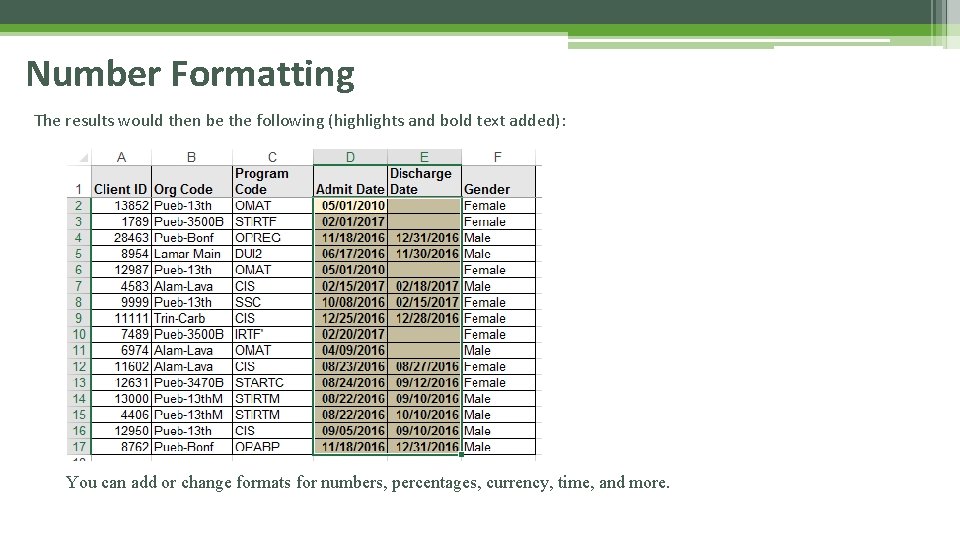
Number Formatting The results would then be the following (highlights and bold text added): You can add or change formats for numbers, percentages, currency, time, and more.
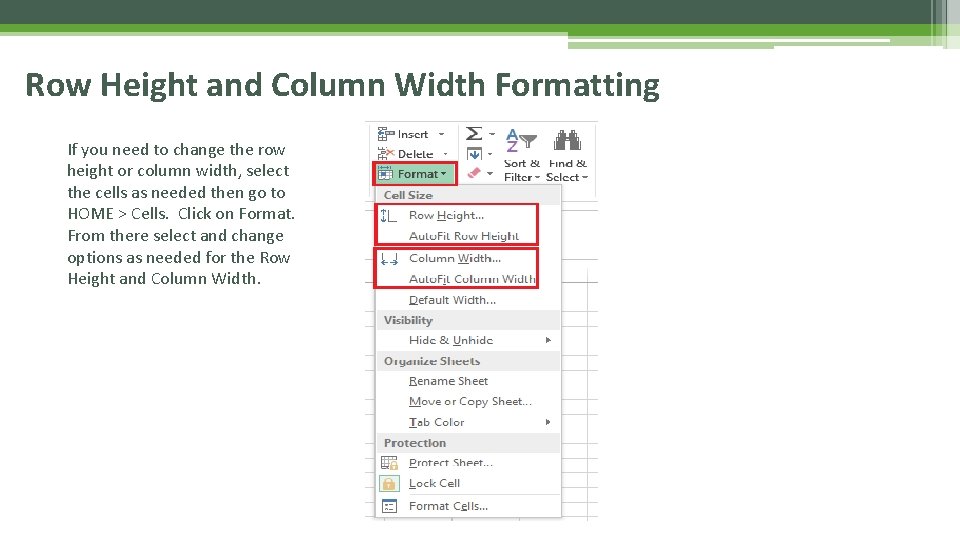
Row Height and Column Width Formatting If you need to change the row height or column width, select the cells as needed then go to HOME > Cells. Click on Format. From there select and change options as needed for the Row Height and Column Width.
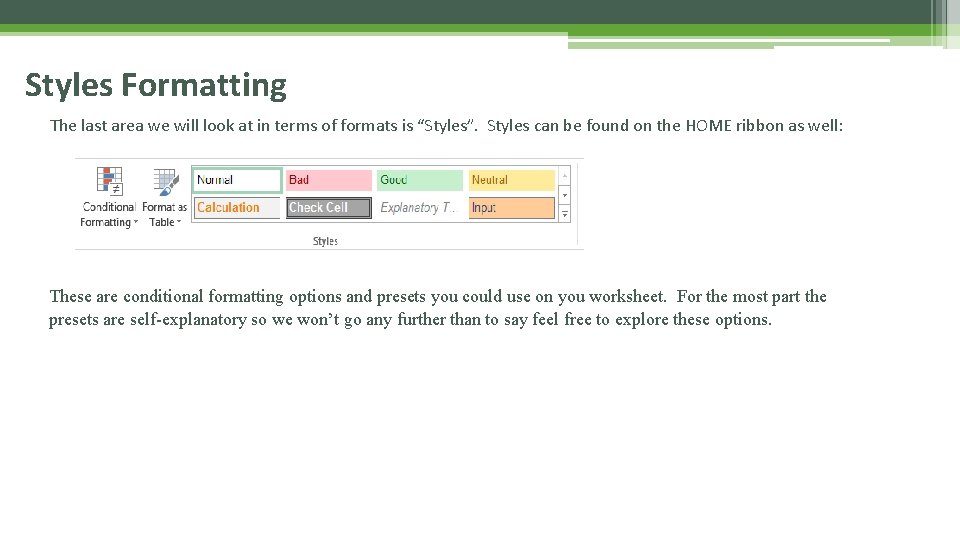
Styles Formatting The last area we will look at in terms of formats is “Styles”. Styles can be found on the HOME ribbon as well: These are conditional formatting options and presets you could use on you worksheet. For the most part the presets are self-explanatory so we won’t go any further than to say feel free to explore these options.
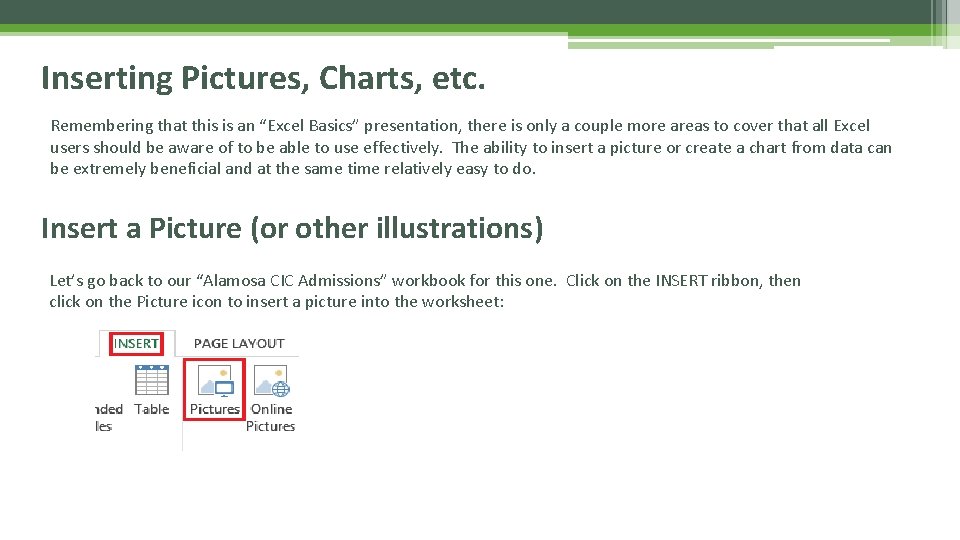
Inserting Pictures, Charts, etc. Remembering that this is an “Excel Basics” presentation, there is only a couple more areas to cover that all Excel users should be aware of to be able to use effectively. The ability to insert a picture or create a chart from data can be extremely beneficial and at the same time relatively easy to do. Insert a Picture (or other illustrations) Let’s go back to our “Alamosa CIC Admissions” workbook for this one. Click on the INSERT ribbon, then click on the Picture icon to insert a picture into the worksheet:
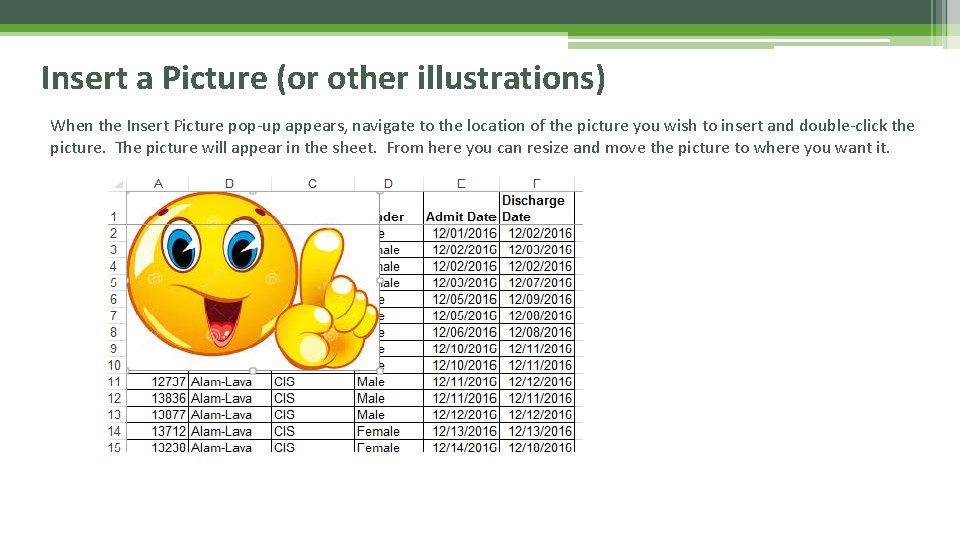
Insert a Picture (or other illustrations) When the Insert Picture pop-up appears, navigate to the location of the picture you wish to insert and double-click the picture. The picture will appear in the sheet. From here you can resize and move the picture to where you want it.
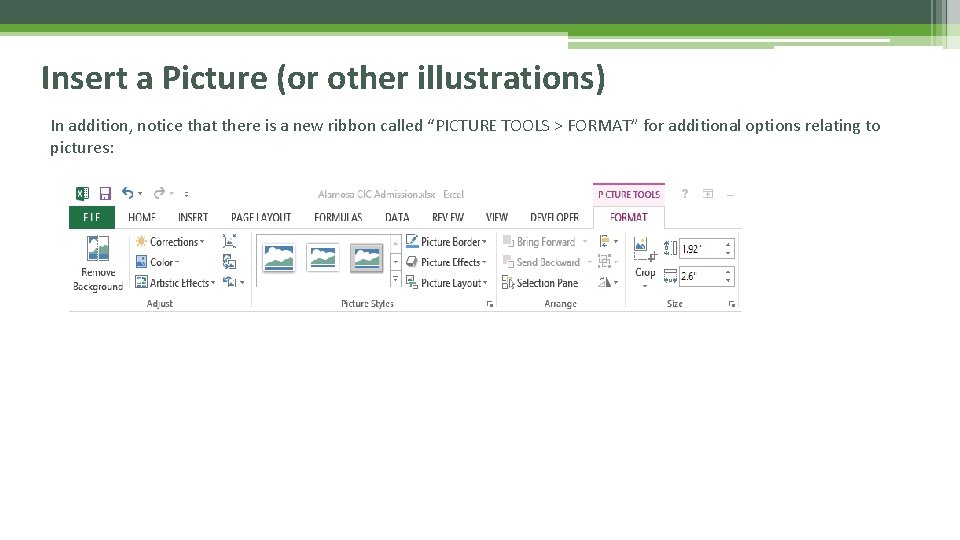
Insert a Picture (or other illustrations) In addition, notice that there is a new ribbon called “PICTURE TOOLS > FORMAT” for additional options relating to pictures:
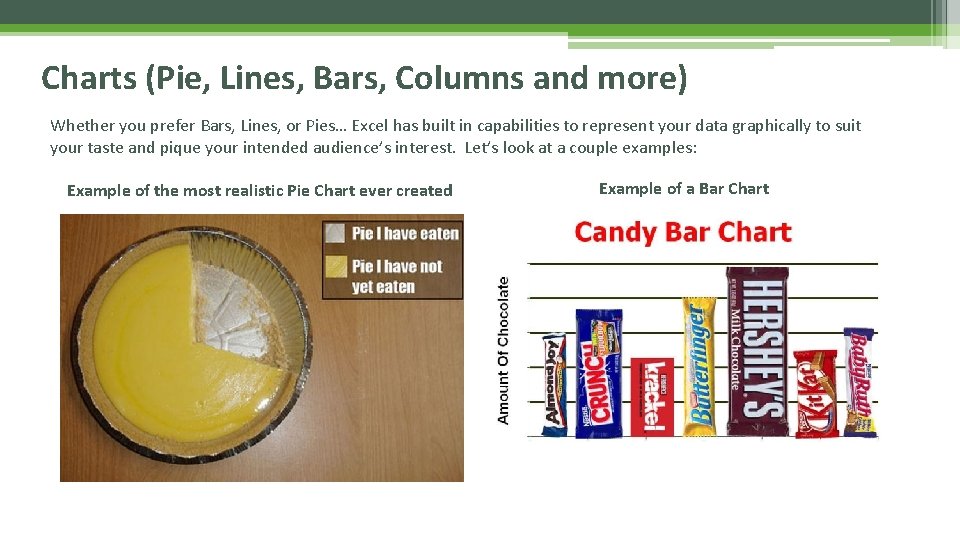
Charts (Pie, Lines, Bars, Columns and more) Whether you prefer Bars, Lines, or Pies… Excel has built in capabilities to represent your data graphically to suit your taste and pique your intended audience’s interest. Let’s look at a couple examples: Example of the most realistic Pie Chart ever created Example of a Bar Chart
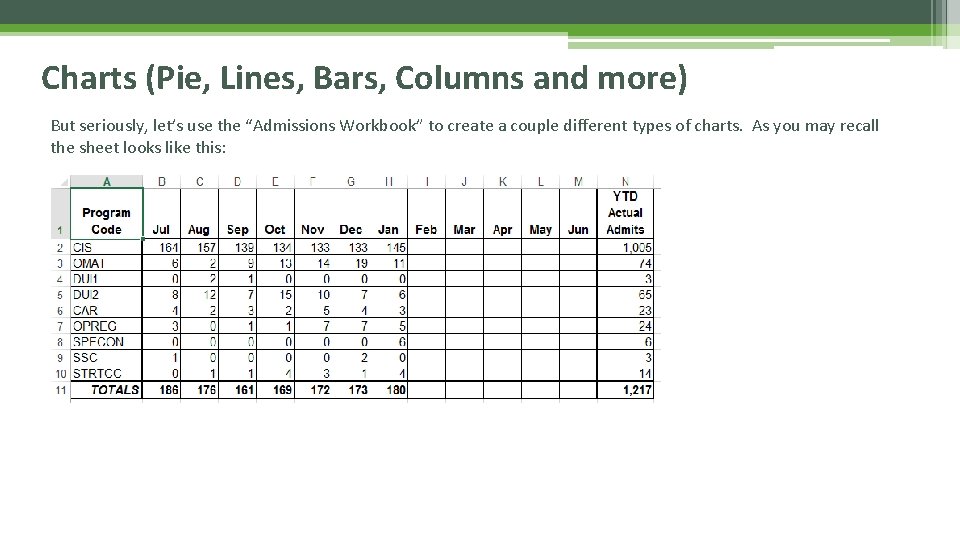
Charts (Pie, Lines, Bars, Columns and more) But seriously, let’s use the “Admissions Workbook” to create a couple different types of charts. As you may recall the sheet looks like this:
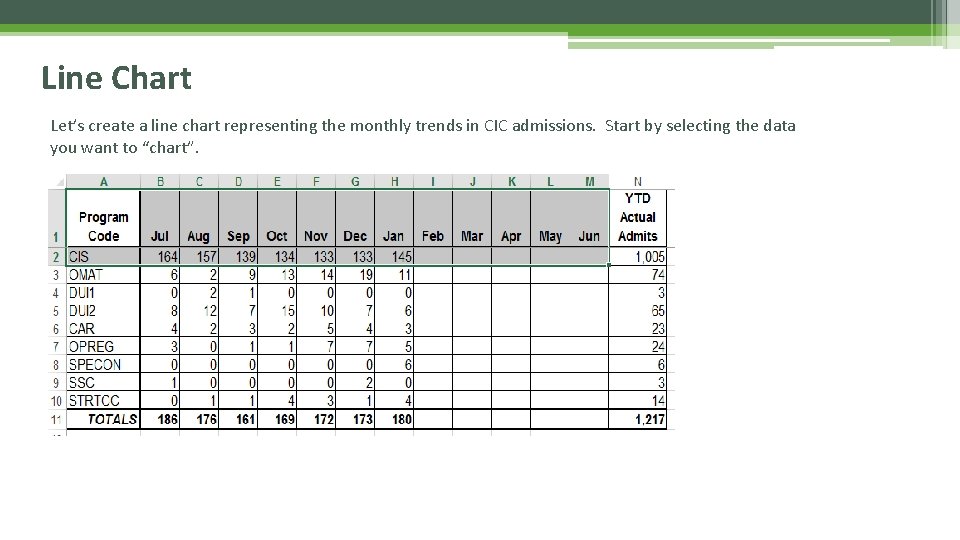
Line Chart Let’s create a line chart representing the monthly trends in CIC admissions. Start by selecting the data you want to “chart”.
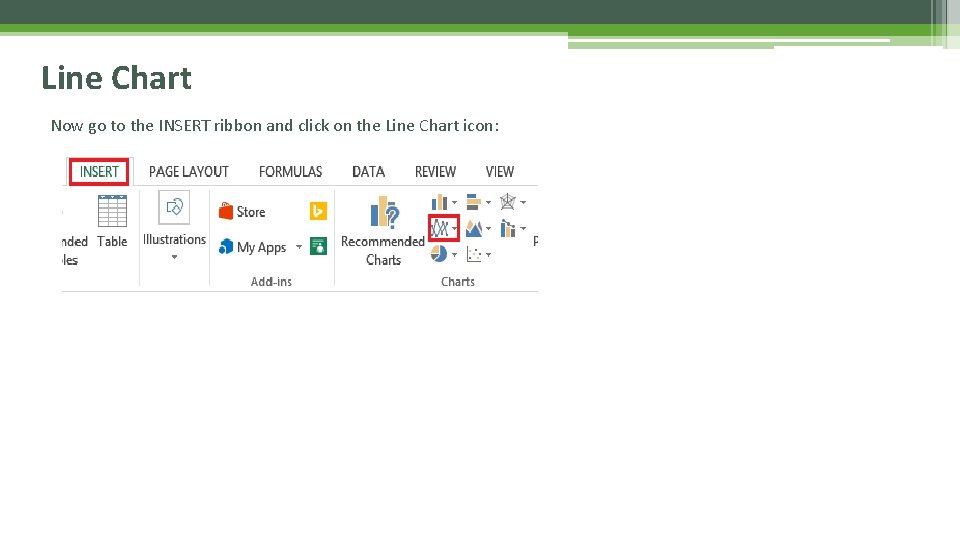
Line Chart Now go to the INSERT ribbon and click on the Line Chart icon:
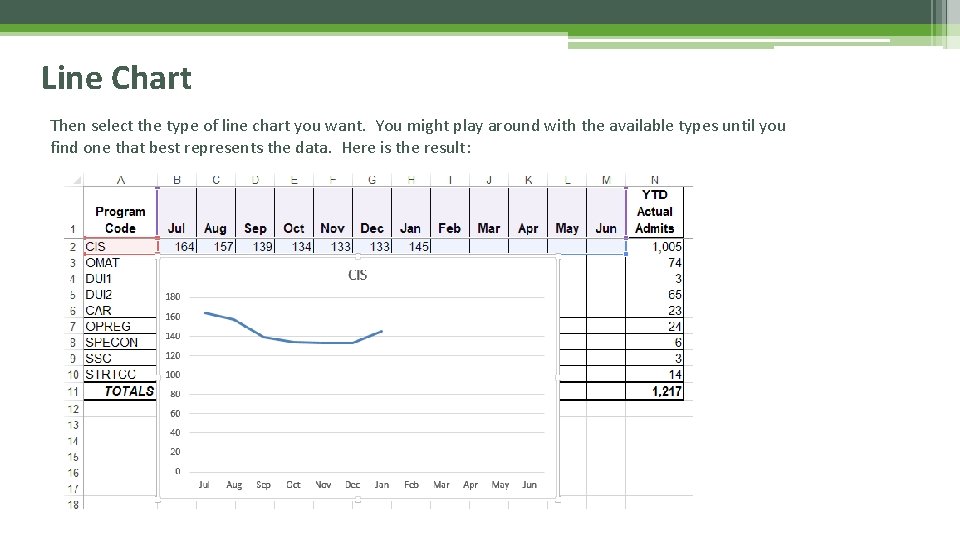
Line Chart Then select the type of line chart you want. You might play around with the available types until you find one that best represents the data. Here is the result:
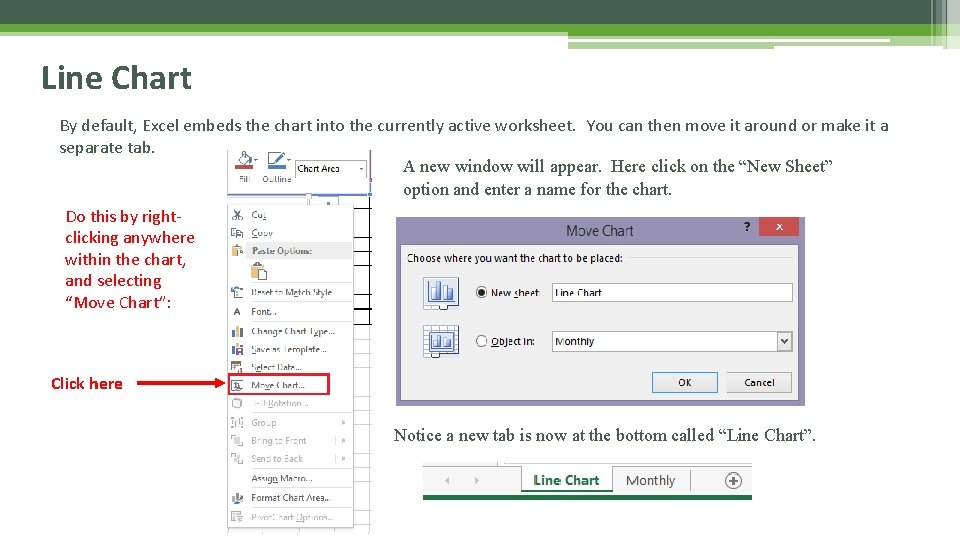
Line Chart By default, Excel embeds the chart into the currently active worksheet. You can then move it around or make it a separate tab. A new window will appear. Here click on the “New Sheet” option and enter a name for the chart. Do this by rightclicking anywhere within the chart, and selecting “Move Chart”: Click here Notice a new tab is now at the bottom called “Line Chart”.
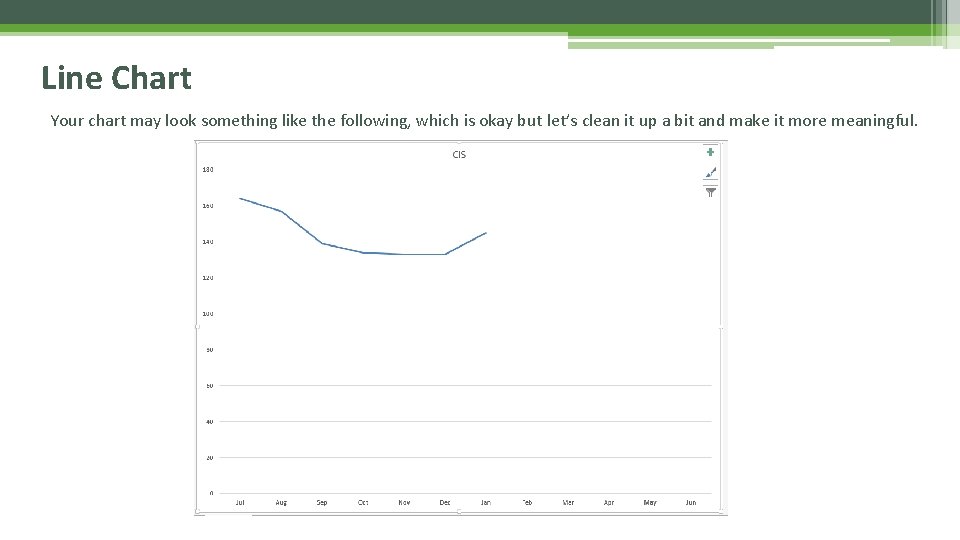
Line Chart Your chart may look something like the following, which is okay but let’s clean it up a bit and make it more meaningful.
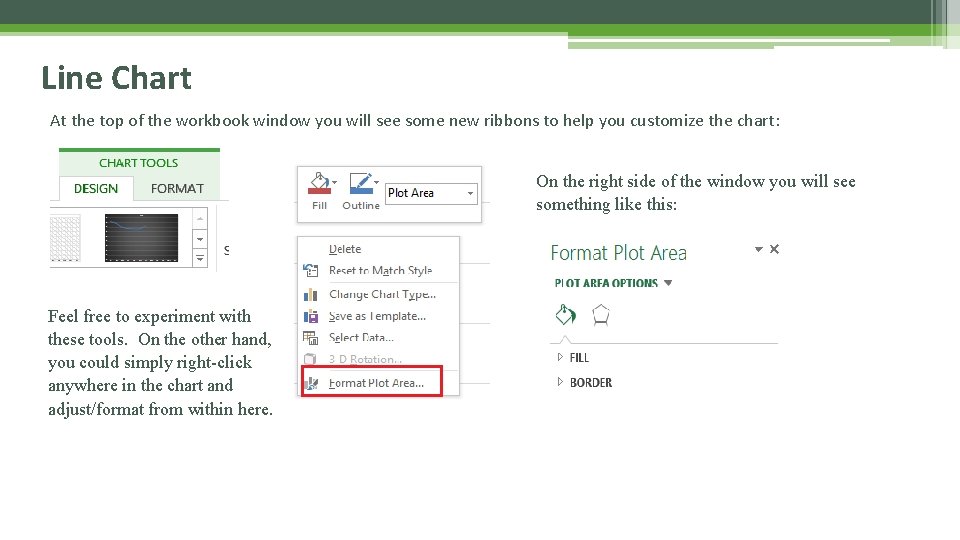
Line Chart At the top of the workbook window you will see some new ribbons to help you customize the chart: On the right side of the window you will see something like this: Feel free to experiment with these tools. On the other hand, you could simply right-click anywhere in the chart and adjust/format from within here.
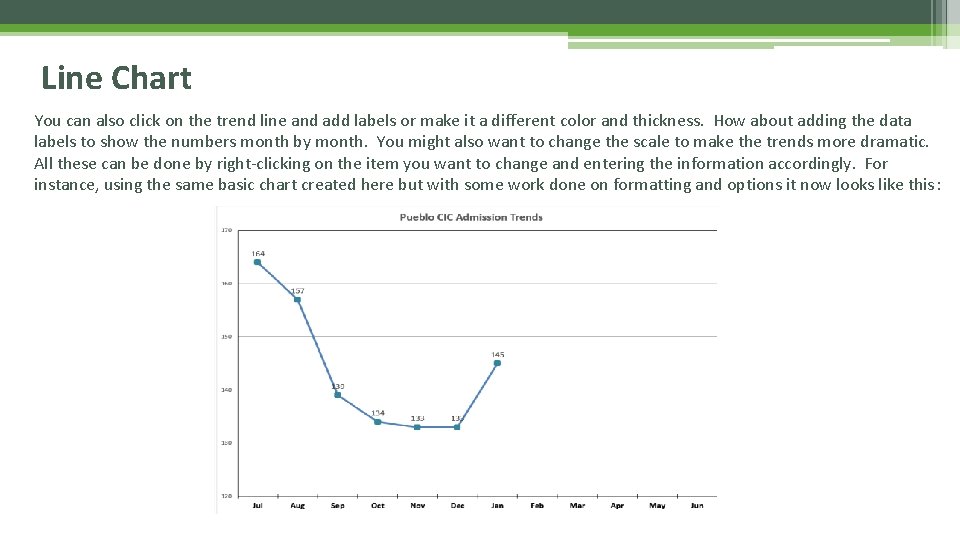
Line Chart You can also click on the trend line and add labels or make it a different color and thickness. How about adding the data labels to show the numbers month by month. You might also want to change the scale to make the trends more dramatic. All these can be done by right-clicking on the item you want to change and entering the information accordingly. For instance, using the same basic chart created here but with some work done on formatting and options it now looks like this:
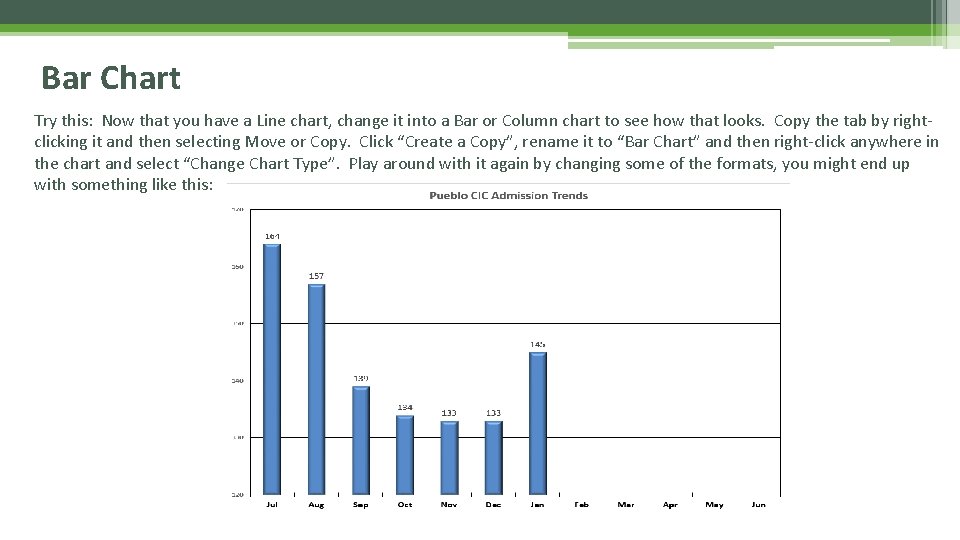
Bar Chart Try this: Now that you have a Line chart, change it into a Bar or Column chart to see how that looks. Copy the tab by rightclicking it and then selecting Move or Copy. Click “Create a Copy”, rename it to “Bar Chart” and then right-click anywhere in the chart and select “Change Chart Type”. Play around with it again by changing some of the formats, you might end up with something like this:
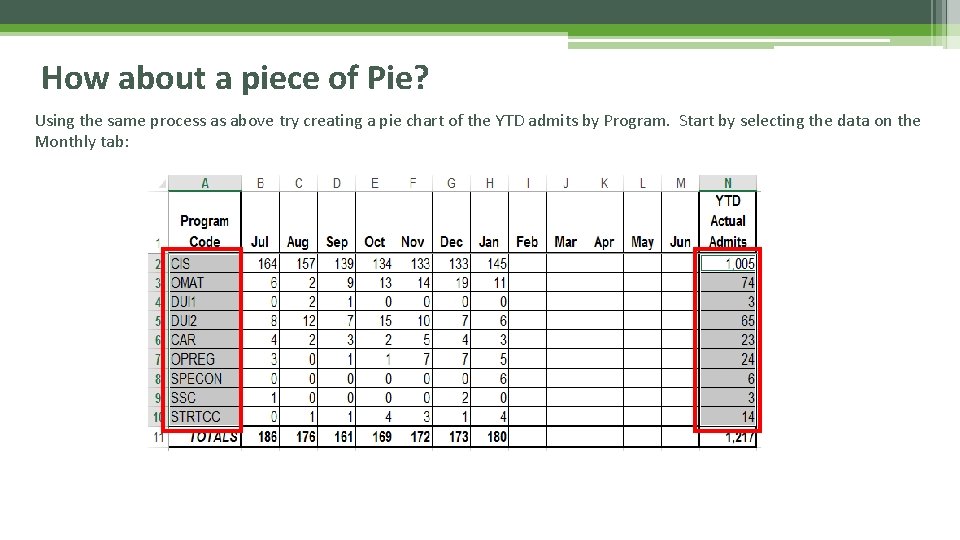
How about a piece of Pie? Using the same process as above try creating a pie chart of the YTD admits by Program. Start by selecting the data on the Monthly tab:
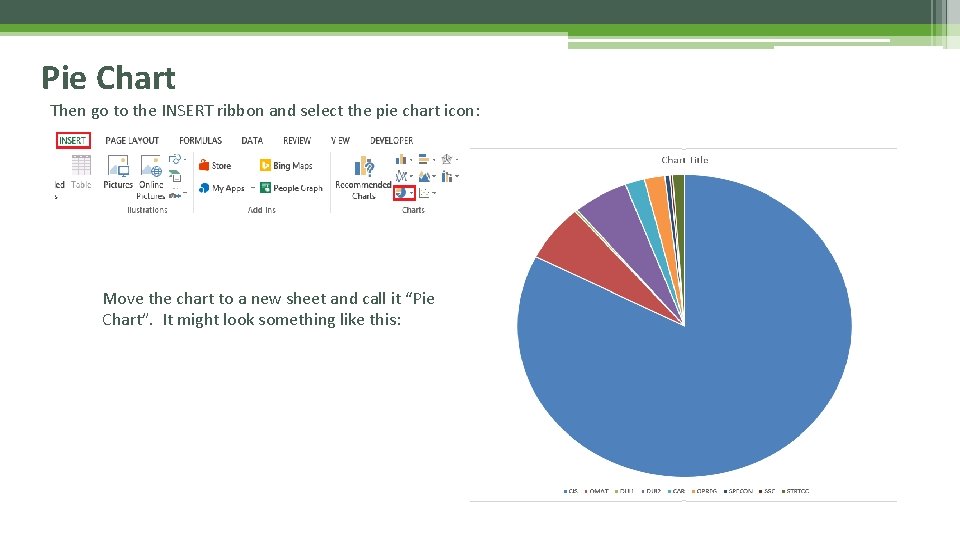
Pie Chart Then go to the INSERT ribbon and select the pie chart icon: Move the chart to a new sheet and call it “Pie Chart”. It might look something like this:
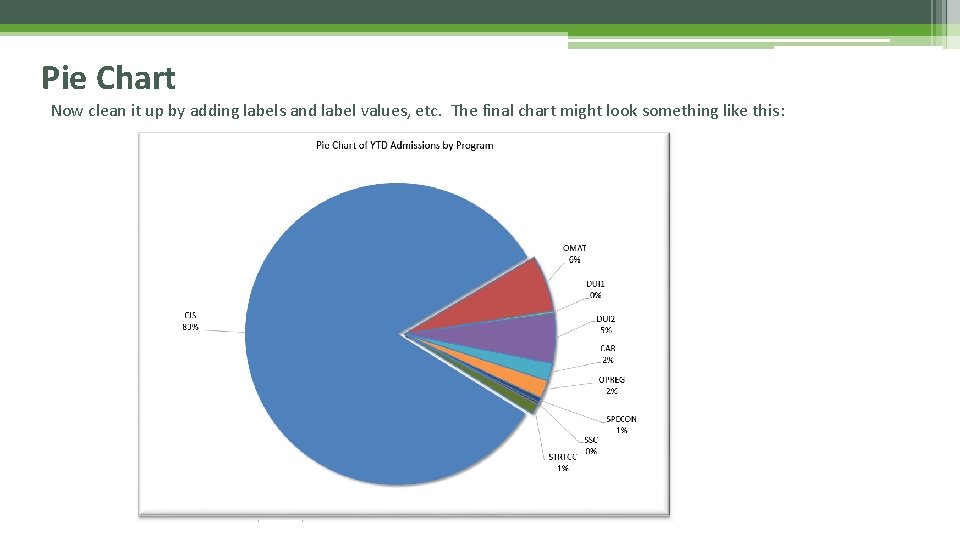
Pie Chart Now clean it up by adding labels and label values, etc. The final chart might look something like this:
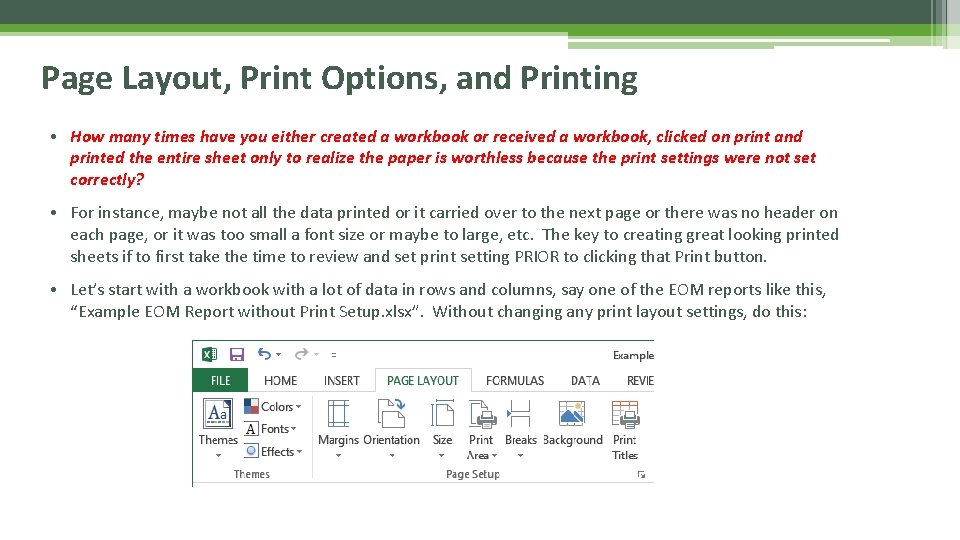
Page Layout, Print Options, and Printing • How many times have you either created a workbook or received a workbook, clicked on print and printed the entire sheet only to realize the paper is worthless because the print settings were not set correctly? • For instance, maybe not all the data printed or it carried over to the next page or there was no header on each page, or it was too small a font size or maybe to large, etc. The key to creating great looking printed sheets if to first take the time to review and set print setting PRIOR to clicking that Print button. • Let’s start with a workbook with a lot of data in rows and columns, say one of the EOM reports like this, “Example EOM Report without Print Setup. xlsx”. Without changing any print layout settings, do this:
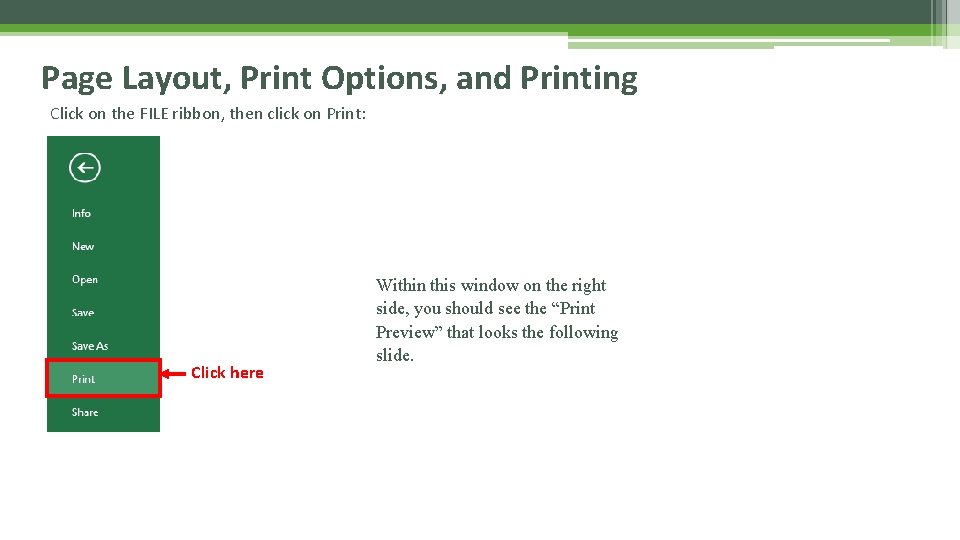
Page Layout, Print Options, and Printing Click on the FILE ribbon, then click on Print: Click here Within this window on the right side, you should see the “Print Preview” that looks the following slide.
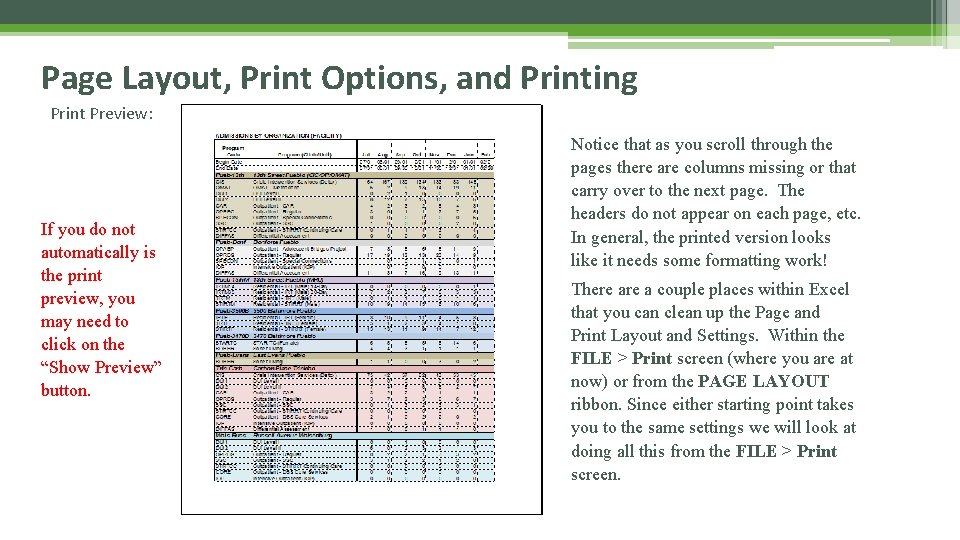
Page Layout, Print Options, and Printing Print Preview: If you do not automatically is the print preview, you may need to click on the “Show Preview” button. Notice that as you scroll through the pages there are columns missing or that carry over to the next page. The headers do not appear on each page, etc. In general, the printed version looks like it needs some formatting work! There a couple places within Excel that you can clean up the Page and Print Layout and Settings. Within the FILE > Print screen (where you are at now) or from the PAGE LAYOUT ribbon. Since either starting point takes you to the same settings we will look at doing all this from the FILE > Print screen.
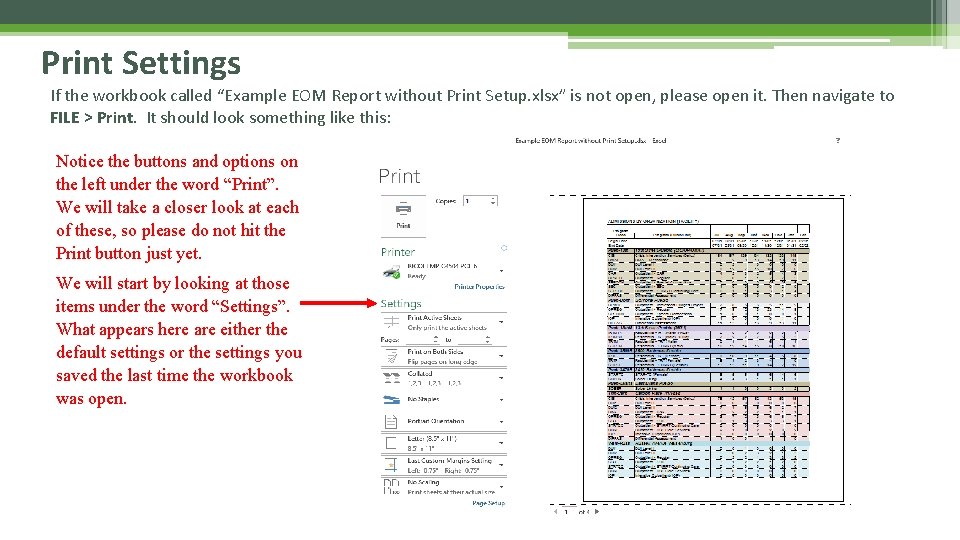
Print Settings If the workbook called “Example EOM Report without Print Setup. xlsx” is not open, please open it. Then navigate to FILE > Print. It should look something like this: Notice the buttons and options on the left under the word “Print”. We will take a closer look at each of these, so please do not hit the Print button just yet. We will start by looking at those items under the word “Settings”. What appears here are either the default settings or the settings you saved the last time the workbook was open.
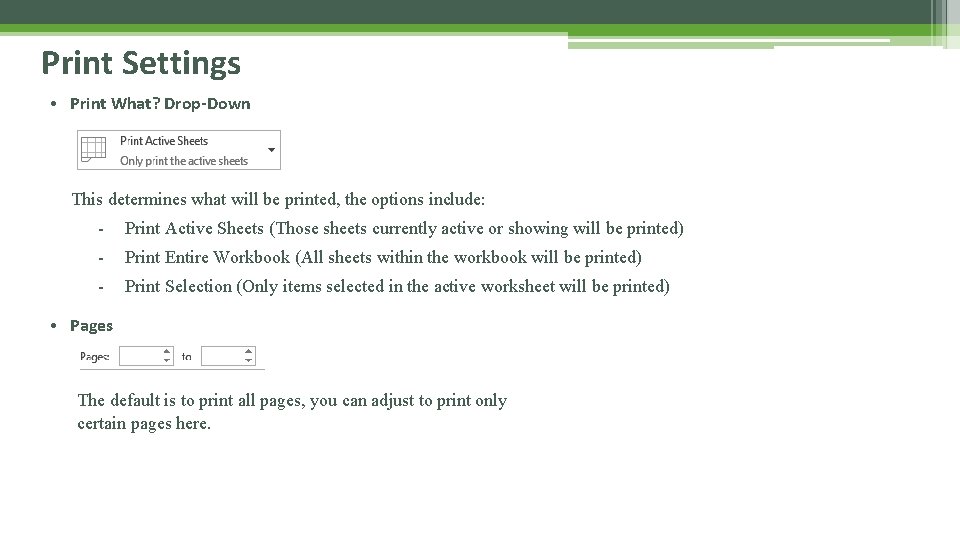
Print Settings • Print What? Drop-Down This determines what will be printed, the options include: - Print Active Sheets (Those sheets currently active or showing will be printed) - Print Entire Workbook (All sheets within the workbook will be printed) - Print Selection (Only items selected in the active worksheet will be printed) • Pages The default is to print all pages, you can adjust to print only certain pages here.
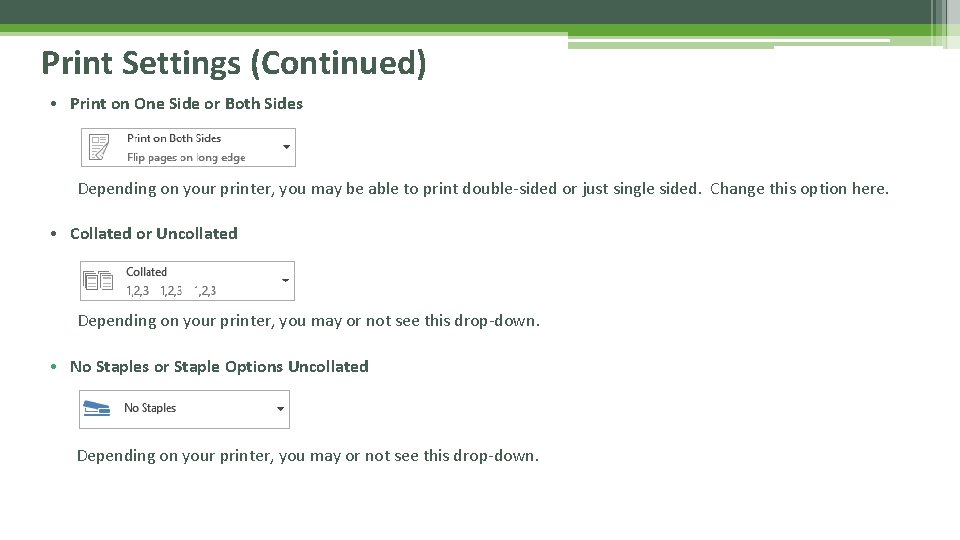
Print Settings (Continued) • Print on One Side or Both Sides Depending on your printer, you may be able to print double-sided or just single sided. Change this option here. • Collated or Uncollated Depending on your printer, you may or not see this drop-down. • No Staples or Staple Options Uncollated Depending on your printer, you may or not see this drop-down.
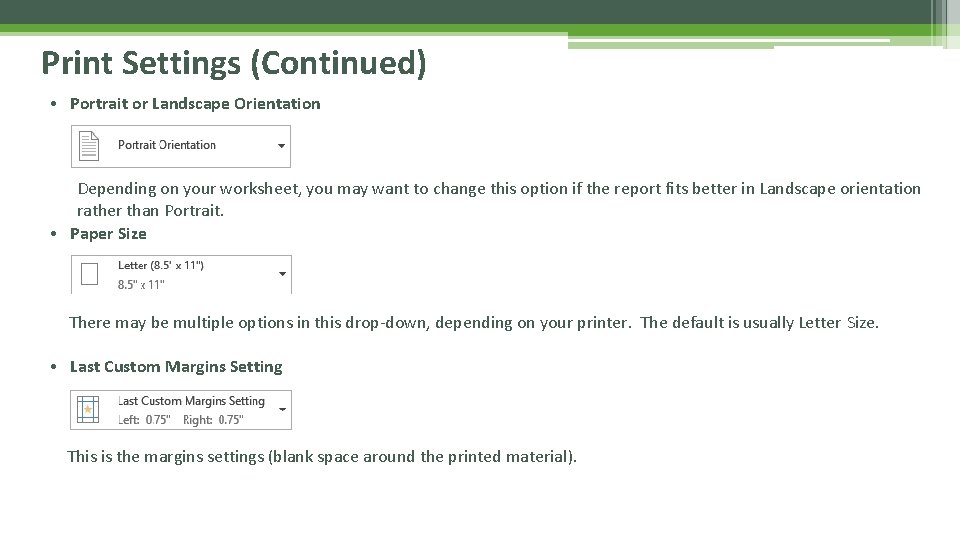
Print Settings (Continued) • Portrait or Landscape Orientation Depending on your worksheet, you may want to change this option if the report fits better in Landscape orientation rather than Portrait. • Paper Size There may be multiple options in this drop-down, depending on your printer. The default is usually Letter Size. • Last Custom Margins Setting This is the margins settings (blank space around the printed material).
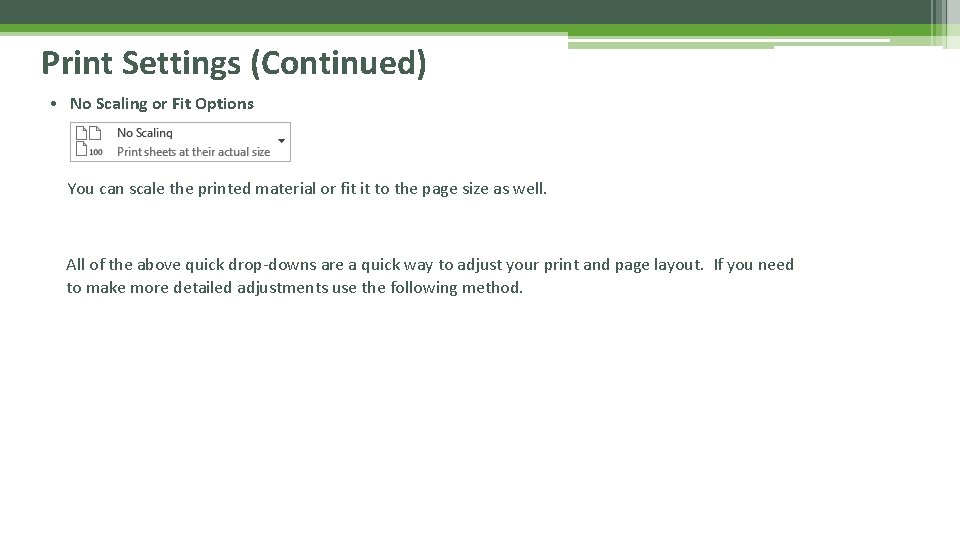
Print Settings (Continued) • No Scaling or Fit Options You can scale the printed material or fit it to the page size as well. All of the above quick drop-downs are a quick way to adjust your print and page layout. If you need to make more detailed adjustments use the following method.
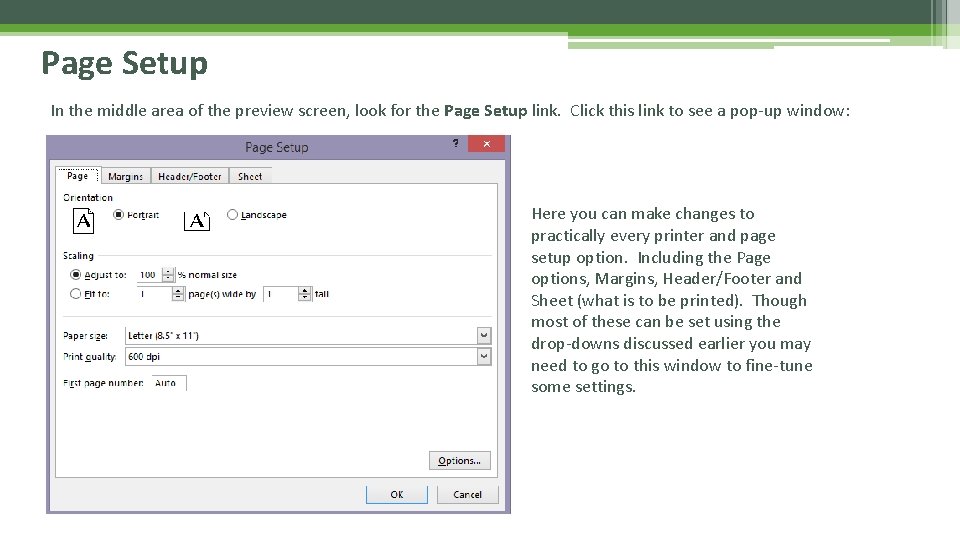
Page Setup In the middle area of the preview screen, look for the Page Setup link. Click this link to see a pop-up window: Here you can make changes to practically every printer and page setup option. Including the Page options, Margins, Header/Footer and Sheet (what is to be printed). Though most of these can be set using the drop-downs discussed earlier you may need to go to this window to fine-tune some settings.
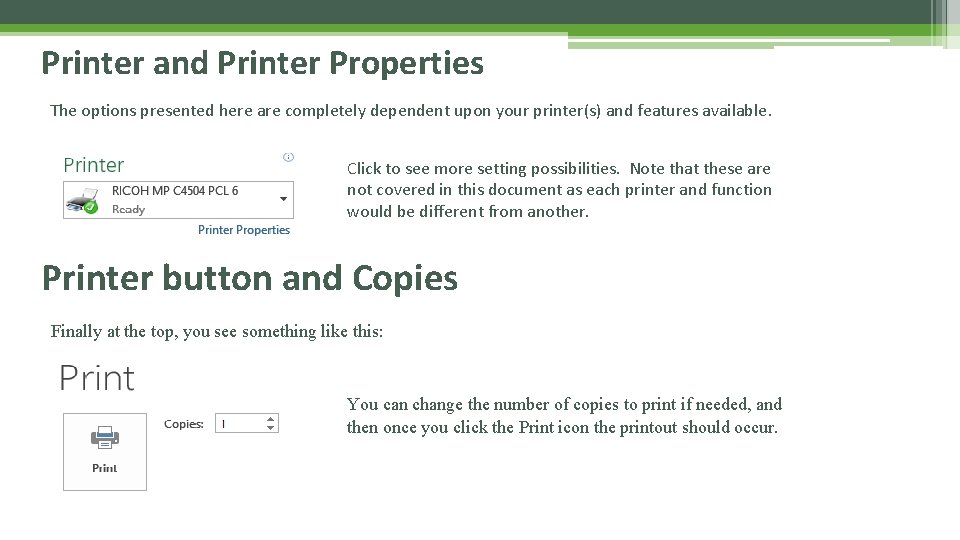
Printer and Printer Properties The options presented here are completely dependent upon your printer(s) and features available. Click to see more setting possibilities. Note that these are not covered in this document as each printer and function would be different from another. Printer button and Copies Finally at the top, you see something like this: You can change the number of copies to print if needed, and then once you click the Print icon the printout should occur.
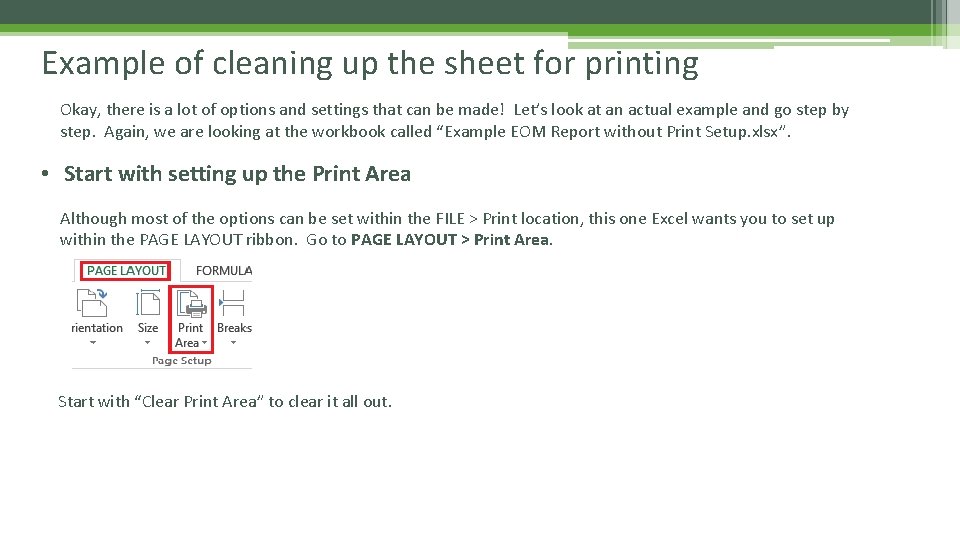
Example of cleaning up the sheet for printing Okay, there is a lot of options and settings that can be made! Let’s look at an actual example and go step by step. Again, we are looking at the workbook called “Example EOM Report without Print Setup. xlsx”. • Start with setting up the Print Area Although most of the options can be set within the FILE > Print location, this one Excel wants you to set up within the PAGE LAYOUT ribbon. Go to PAGE LAYOUT > Print Area. Start with “Clear Print Area” to clear it all out.
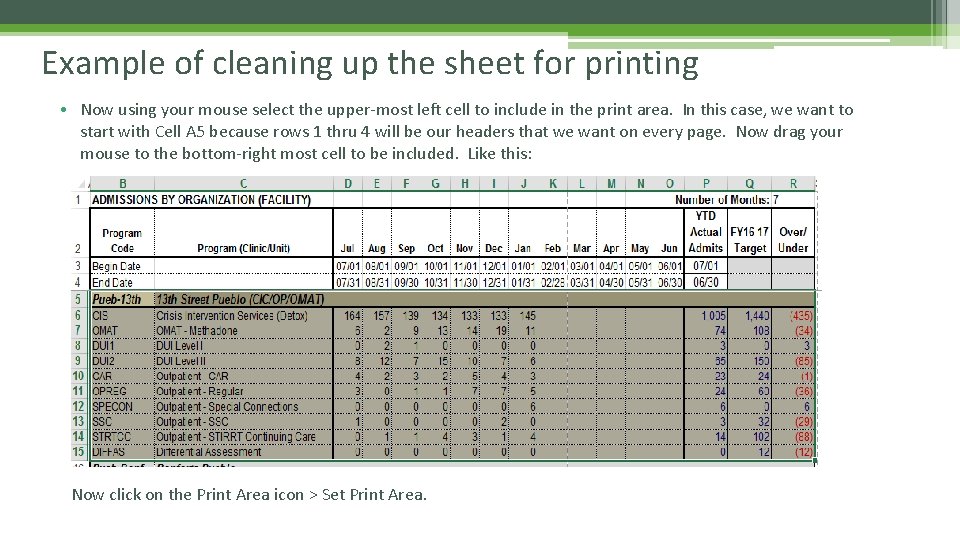
Example of cleaning up the sheet for printing • Now using your mouse select the upper-most left cell to include in the print area. In this case, we want to start with Cell A 5 because rows 1 thru 4 will be our headers that we want on every page. Now drag your mouse to the bottom-right most cell to be included. Like this: Now click on the Print Area icon > Set Print Area.
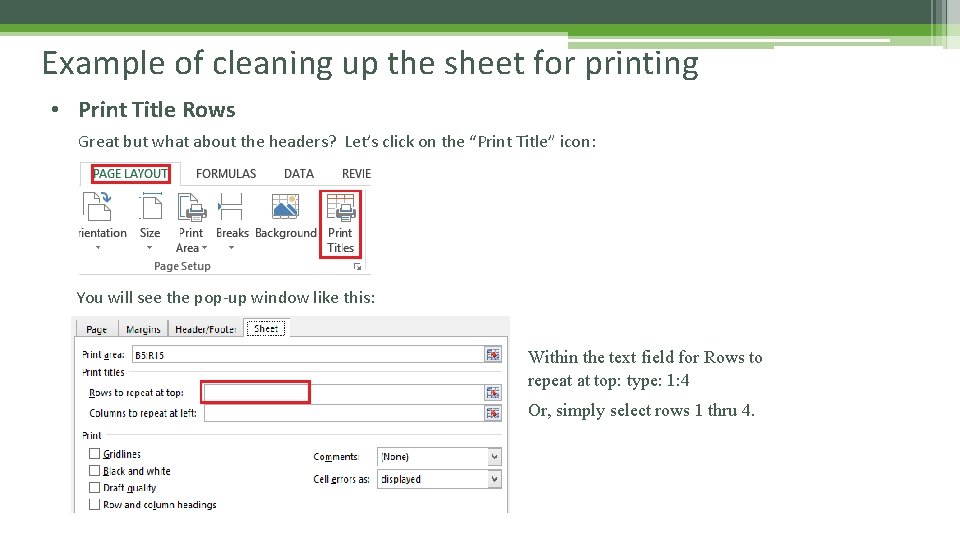
Example of cleaning up the sheet for printing • Print Title Rows Great but what about the headers? Let’s click on the “Print Title” icon: You will see the pop-up window like this: Within the text field for Rows to repeat at top: type: 1: 4 Or, simply select rows 1 thru 4.
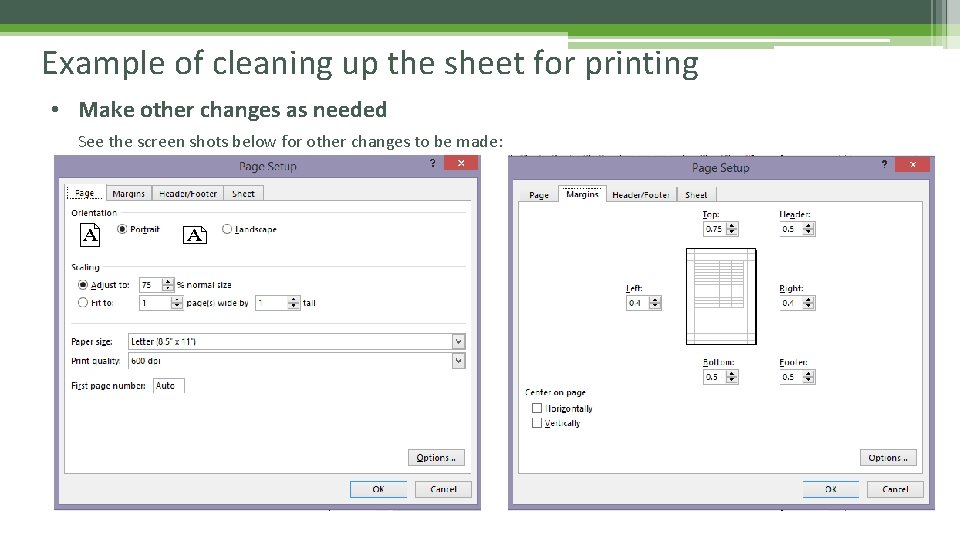
Example of cleaning up the sheet for printing • Make other changes as needed See the screen shots below for other changes to be made:
Example of cleaning up the sheet for printing • Print Finally, return to the Print Preview prior to printing. If all looks good, click the Print icon: That’s it… Check your printer!
Useful Resources and References Phew! A lot of information! There are numerous Microsoft Excel resources available on the Internet. Local colleges and learning institutes may also offer classes. A simple Google search on the topic will reveal multiple links. Here are just a few: • Chandoo. org: Basic Excel Skills http: //chandoo. org/wp/excel-basics/ • Excel-Easy. com: Excel Basics http: //www. excel-easy. com/basics. html • GCF Learn. Free. org http: //www. gcflearnfree. org/excel 2016/ • Microsoft Office Support: Basic tasks in Excel 2013 https: //support. office. com/en-us/article/Basic-tasks-in-Excel-2013 -363600 c 5 -55 be-4 d 6 e-82 cf-b 0 a 41 e 294054 • Microsoft Excel Training https: //support. office. com/en-us/article/Excel-training-9 bc 05390 -e 94 c-46 af-a 5 b 3 -d 7 c 22 f 6990 bb? ui=en-US&rs=en-US&ad=US • Microsoft Excel Quiz http: //www. proprofs. com/quiz-school/story. php? title=microsoft-excel-exam

Excel Basic Fundamentals & Skills Training Presentation That Concludes this Training Presentation
- Slides: 128