
Excel 2010 Formatting Cells In this lesson you
- Slides: 13
Excel 2010 Formatting Cells In this lesson you will learn how to format text and cells. How to add a border and color to a cell, align data in a cell, and how to Merge & Center cells. Excel 2010 / Mr. Bitenas
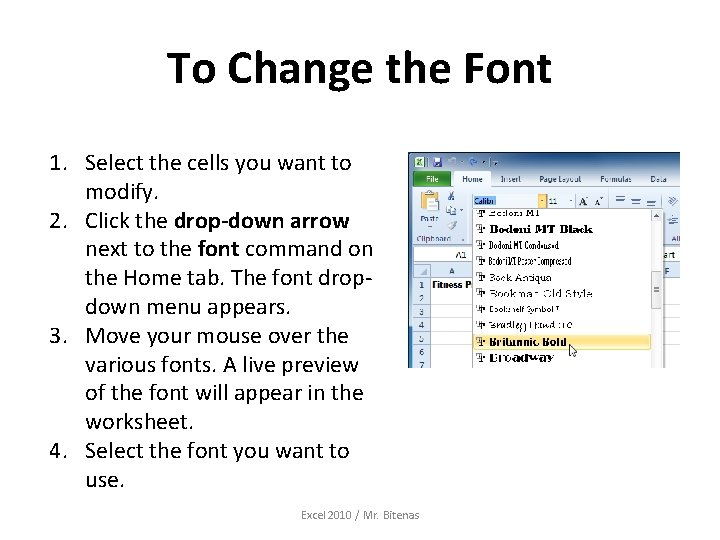
To Change the Font 1. Select the cells you want to modify. 2. Click the drop-down arrow next to the font command on the Home tab. The font dropdown menu appears. 3. Move your mouse over the various fonts. A live preview of the font will appear in the worksheet. 4. Select the font you want to use. Excel 2010 / Mr. Bitenas
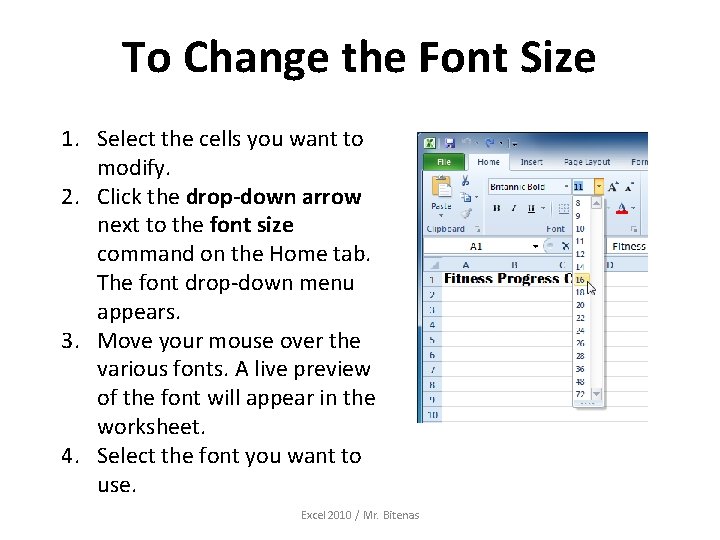
To Change the Font Size 1. Select the cells you want to modify. 2. Click the drop-down arrow next to the font size command on the Home tab. The font drop-down menu appears. 3. Move your mouse over the various fonts. A live preview of the font will appear in the worksheet. 4. Select the font you want to use. Excel 2010 / Mr. Bitenas
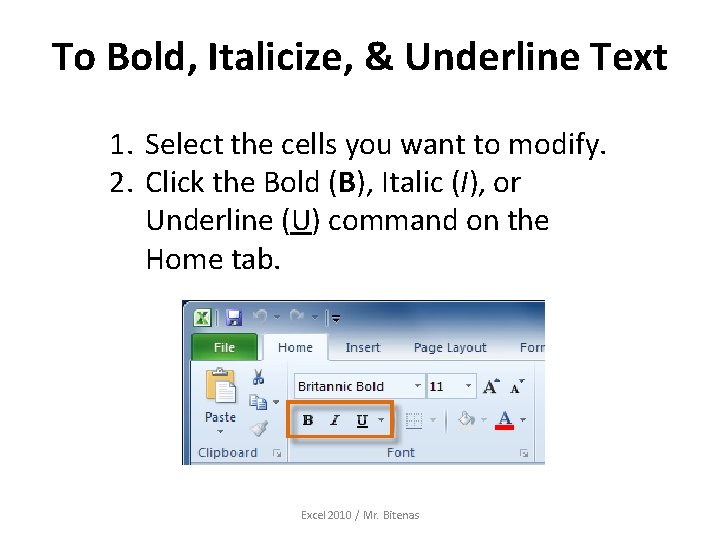
To Bold, Italicize, & Underline Text 1. Select the cells you want to modify. 2. Click the Bold (B), Italic (I), or Underline (U) command on the Home tab. Excel 2010 / Mr. Bitenas
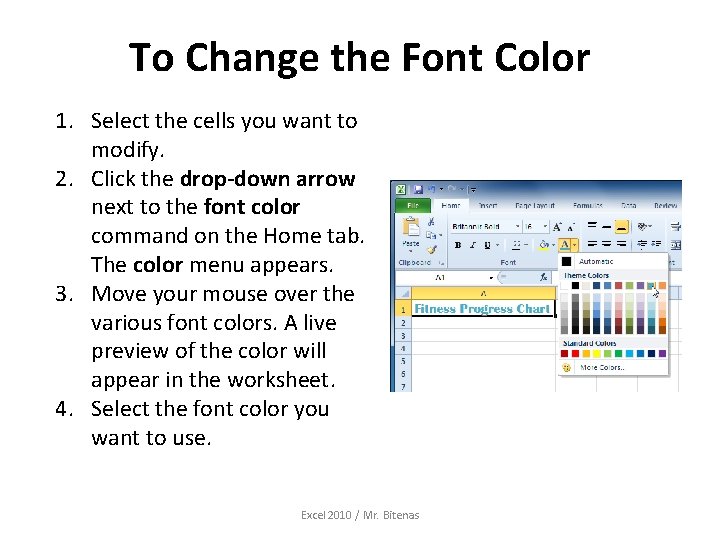
To Change the Font Color 1. Select the cells you want to modify. 2. Click the drop-down arrow next to the font color command on the Home tab. The color menu appears. 3. Move your mouse over the various font colors. A live preview of the color will appear in the worksheet. 4. Select the font color you want to use. Excel 2010 / Mr. Bitenas
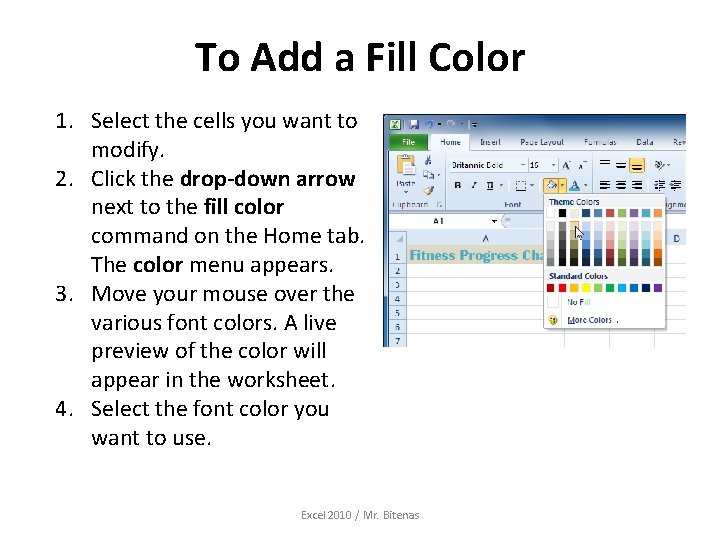
To Add a Fill Color 1. Select the cells you want to modify. 2. Click the drop-down arrow next to the fill color command on the Home tab. The color menu appears. 3. Move your mouse over the various font colors. A live preview of the color will appear in the worksheet. 4. Select the font color you want to use. Excel 2010 / Mr. Bitenas
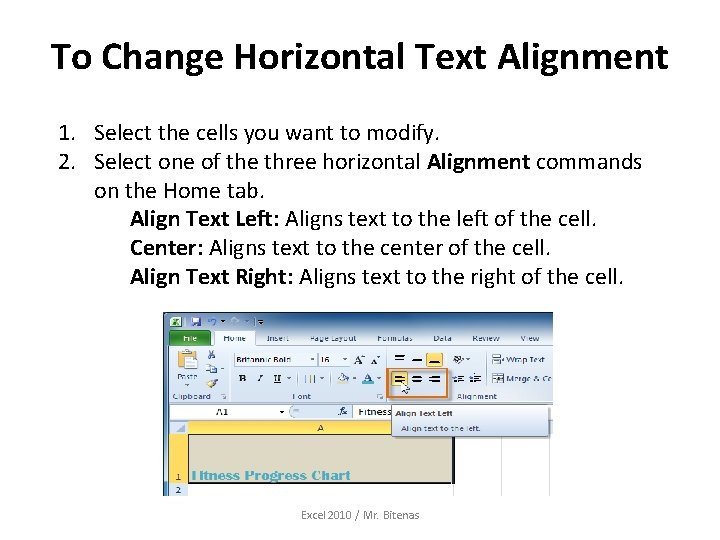
To Change Horizontal Text Alignment 1. Select the cells you want to modify. 2. Select one of the three horizontal Alignment commands on the Home tab. Align Text Left: Aligns text to the left of the cell. Center: Aligns text to the center of the cell. Align Text Right: Aligns text to the right of the cell. Excel 2010 / Mr. Bitenas
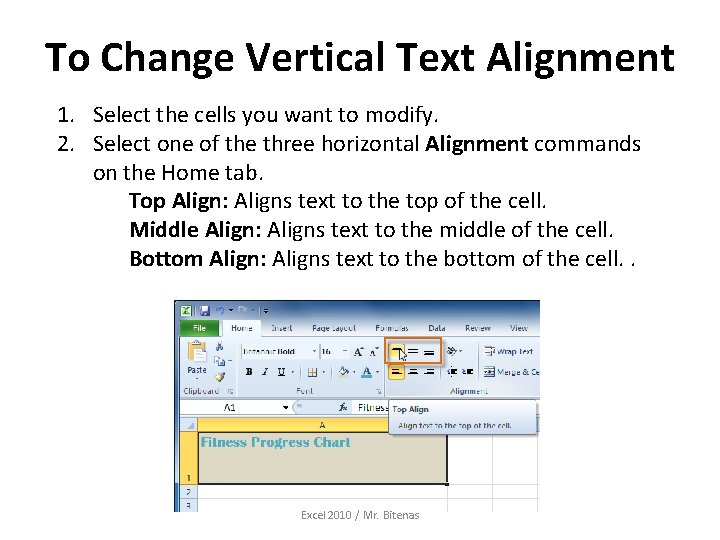
To Change Vertical Text Alignment 1. Select the cells you want to modify. 2. Select one of the three horizontal Alignment commands on the Home tab. Top Align: Aligns text to the top of the cell. Middle Align: Aligns text to the middle of the cell. Bottom Align: Aligns text to the bottom of the cell. . Excel 2010 / Mr. Bitenas
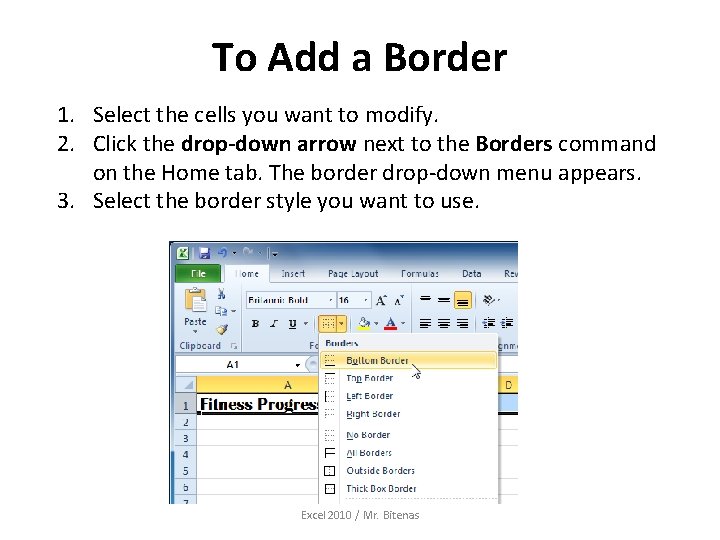
To Add a Border 1. Select the cells you want to modify. 2. Click the drop-down arrow next to the Borders command on the Home tab. The border drop-down menu appears. 3. Select the border style you want to use. Excel 2010 / Mr. Bitenas
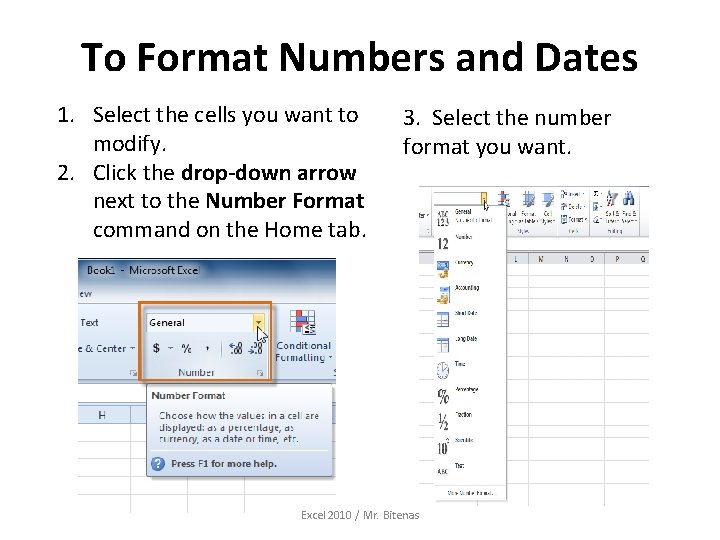
To Format Numbers and Dates 1. Select the cells you want to modify. 2. Click the drop-down arrow next to the Number Format command on the Home tab. 3. Select the number format you want. Excel 2010 / Mr. Bitenas
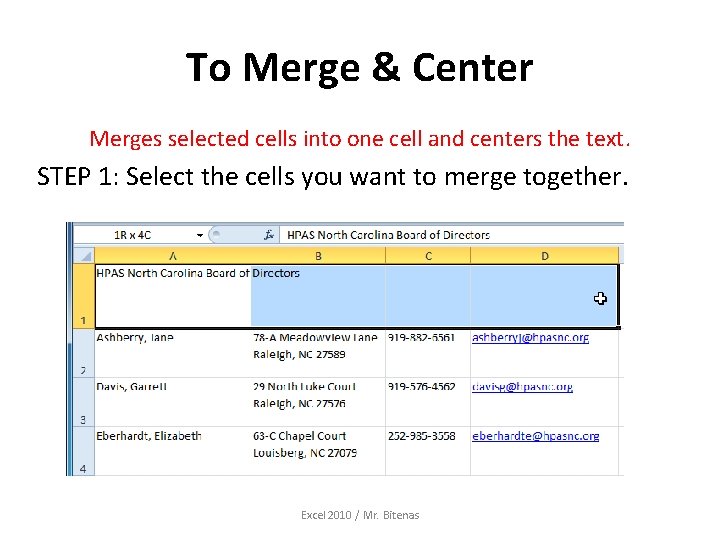
To Merge & Center Merges selected cells into one cell and centers the text. STEP 1: Select the cells you want to merge together. Excel 2010 / Mr. Bitenas
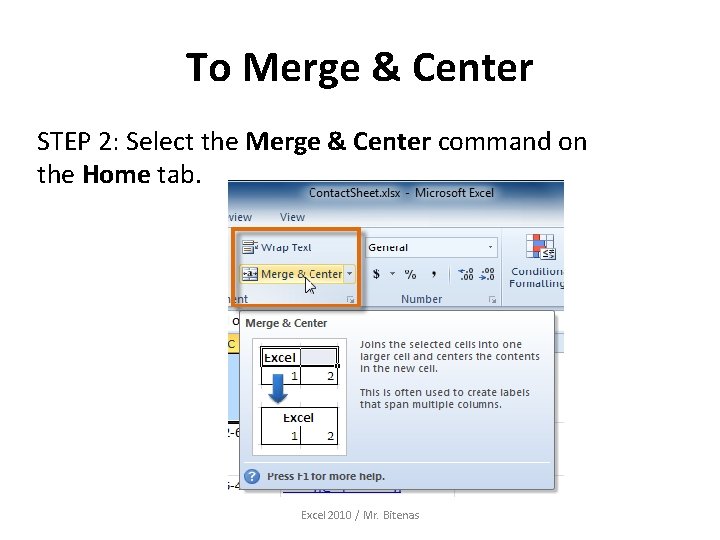
To Merge & Center STEP 2: Select the Merge & Center command on the Home tab. Excel 2010 / Mr. Bitenas
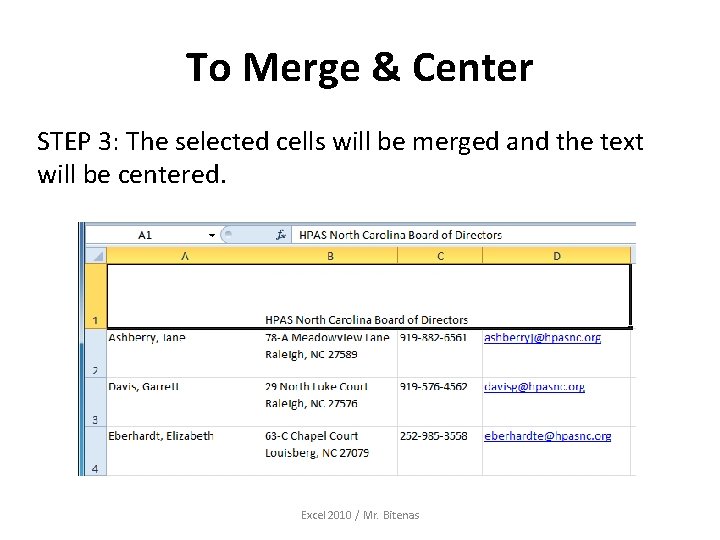
To Merge & Center STEP 3: The selected cells will be merged and the text will be centered. Excel 2010 / Mr. Bitenas