
EVM Management System EMS Version1 0 Introduction The
- Slides: 120
EVM Management System (EMS) Version-1. 0
Introduction The New EVM Management System will have two components, first is a Web-based application and second is a Mobile application. Web-Based Application - It is a main application which will be having core functionalities related to EVM business processes and will be used by users like Manufacturer, ECI, CEOs. DEOs, Warehouse In charge, etc. Role based access will be provided to different users at same url Mobile Application - This is a supporting application which will be used by temporary users for mainly scanning at warehouse level during sending and receiving EVM Units, FLC , receiving in AC after 1 st randomization etc. .
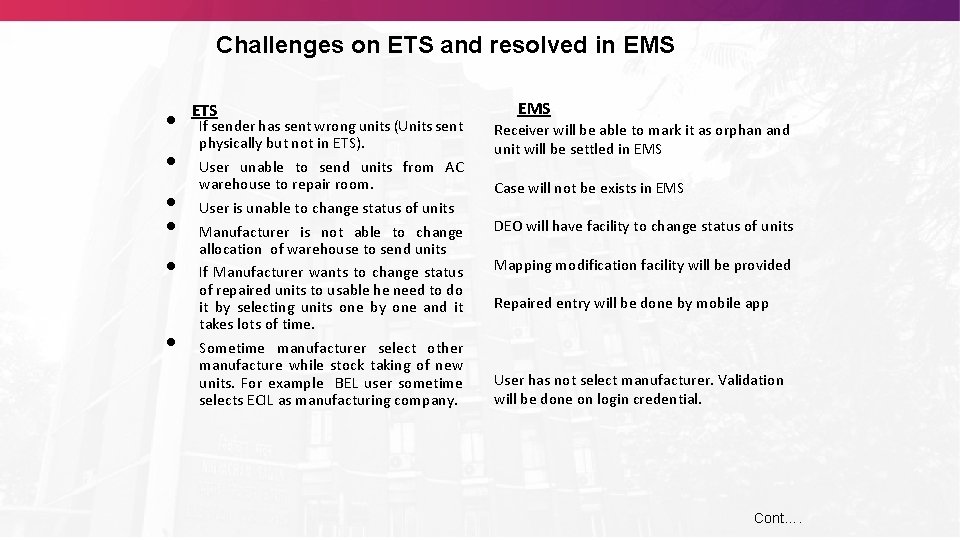
Challenges on ETS and resolved in EMS • • • ETS If sender has sent wrong units (Units sent physically but not in ETS). User unable to send units from AC warehouse to repair room. User is unable to change status of units Manufacturer is not able to change allocation of warehouse to send units If Manufacturer wants to change status of repaired units to usable he need to do it by selecting units one by one and it takes lots of time. Sometime manufacturer select other manufacture while stock taking of new units. For example BEL user sometime selects ECIL as manufacturing company. EMS Receiver will be able to mark it as orphan and unit will be settled in EMS Case will not be exists in EMS DEO will have facility to change status of units Mapping modification facility will be provided Repaired entry will be done by mobile app User has not select manufacturer. Validation will be done on login credential. Cont….
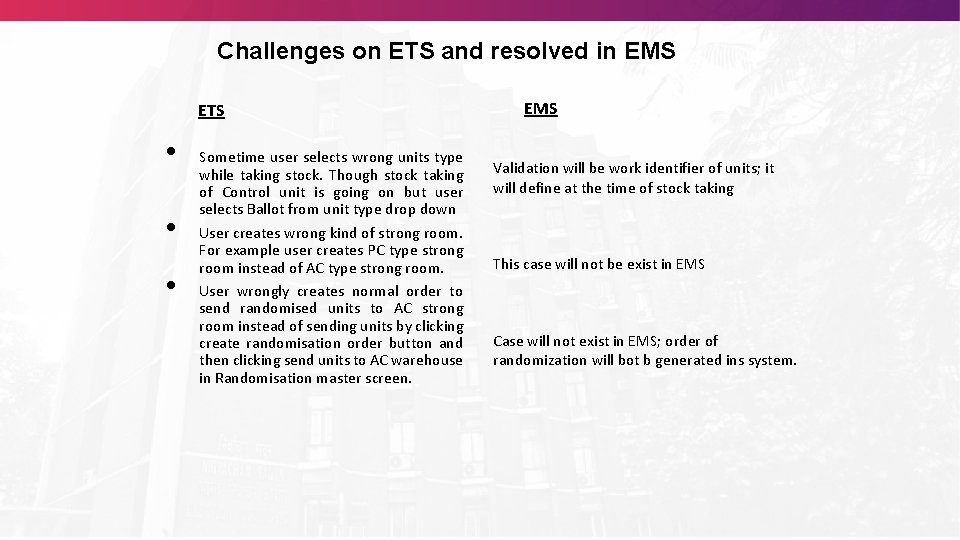
Challenges on ETS and resolved in EMS ETS • • • Sometime user selects wrong units type while taking stock. Though stock taking of Control unit is going on but user selects Ballot from unit type drop down User creates wrong kind of strong room. For example user creates PC type strong room instead of AC type strong room. User wrongly creates normal order to send randomised units to AC strong room instead of sending units by clicking create randomisation order button and then clicking send units to AC warehouse in Randomisation master screen. EMS Validation will be work identifier of units; it will define at the time of stock taking This case will not be exist in EMS Case will not exist in EMS; order of randomization will bot b generated ins system.
Main objectives (1/2) • EVM units ( BU /CU /VVPAT) lifecycle management from production to destruction • EVM shifting management from one location to another location • To make smooth flow of order generation & real time order tracking • To provide order modification & order cancellation facilities • To keep track of EVM units during on-going election process activities; from FLC to poll day EVM units deployment • To add more units for poll after 1 st & 2 nd randomization • Blocking & Unblocking of Units
Main Objective (2/2) • Make easy to search details of units by providing unit ID or few basic details • Prevent manual entry of EVM units to avoid error / duplication of units across warehouses, etc. . • Conflict raising & resolution • To generate real time reports of EVM units regarding location, availability, etc. • Manage training units which are allocated before Randomization • Capture information of replaced units during commissioning, dispersal, mock poll & actual poll • Capture defect description of units during marking unit as a defective
User Modules User modules of proposed application are: 1. 2. 3. 4. 5. 6. 7. ECI Manufacturer CEO / CEO office DEO /DDEO AC User / PC User Warehouse In charge (ECI & Manufacturer both) Temp User (Mobile App User – ECI User’s & Manufacturer’s User Both)
Functional Modules Covered in Web Application 1. User & Entity Management 2. Production of new units 3. Shifting of Units 4. First Level Check 5. Awareness 6. Randomization 7. Supplementary Randomization 8. Replacement of units 9. Election Petition & Reserve Unit Handling 10. Conflict Handling
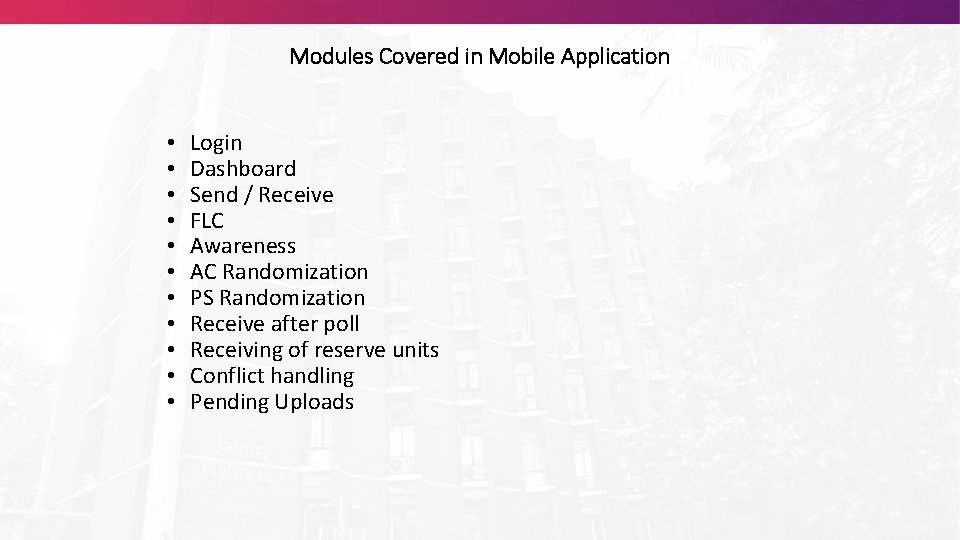
Modules Covered in Mobile Application • • • Login Dashboard Send / Receive FLC Awareness AC Randomization PS Randomization Receive after poll Receiving of reserve units Conflict handling Pending Uploads
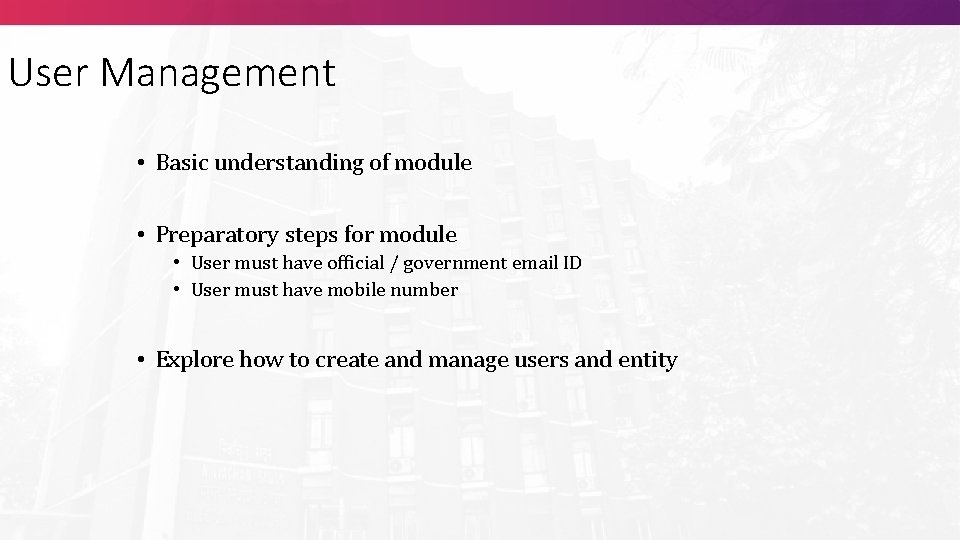
User Management • Basic understanding of module • Preparatory steps for module • User must have official / government email ID • User must have mobile number • Explore how to create and manage users and entity
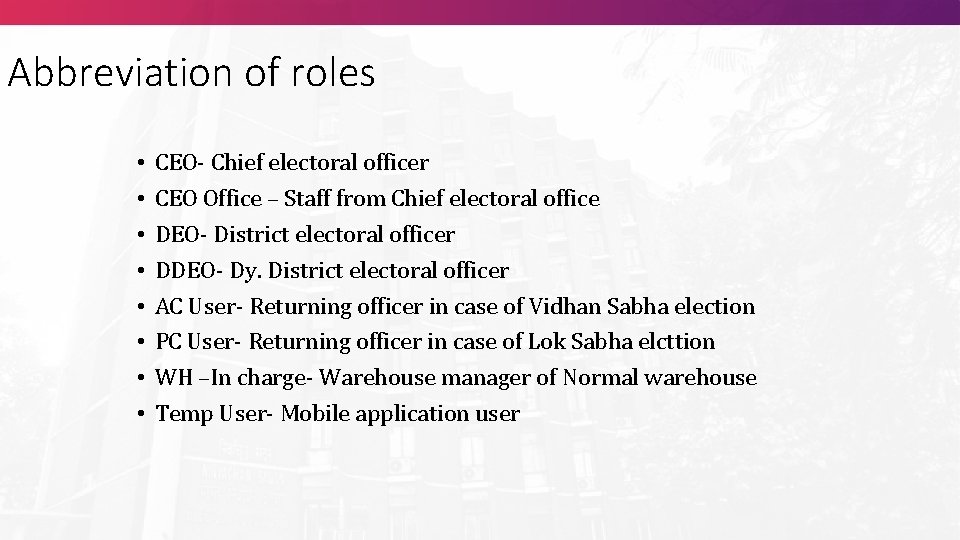
Abbreviation of roles • • CEO- Chief electoral officer CEO Office – Staff from Chief electoral office DEO- District electoral officer DDEO- Dy. District electoral officer AC User- Returning officer in case of Vidhan Sabha election PC User- Returning officer in case of Lok Sabha elcttion WH –In charge- Warehouse manager of Normal warehouse Temp User- Mobile application user
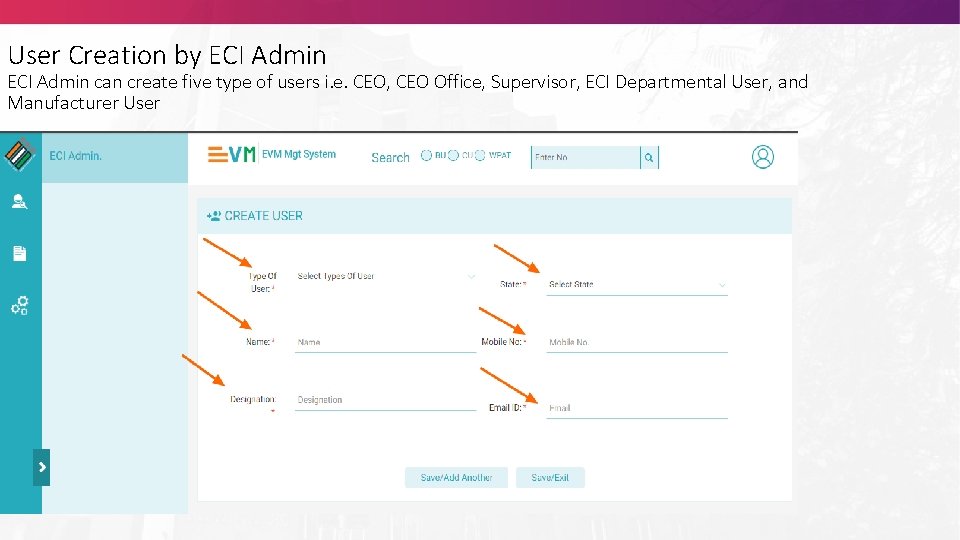
User Creation by ECI Admin can create five type of users i. e. CEO, CEO Office, Supervisor, ECI Departmental User, and Manufacturer User
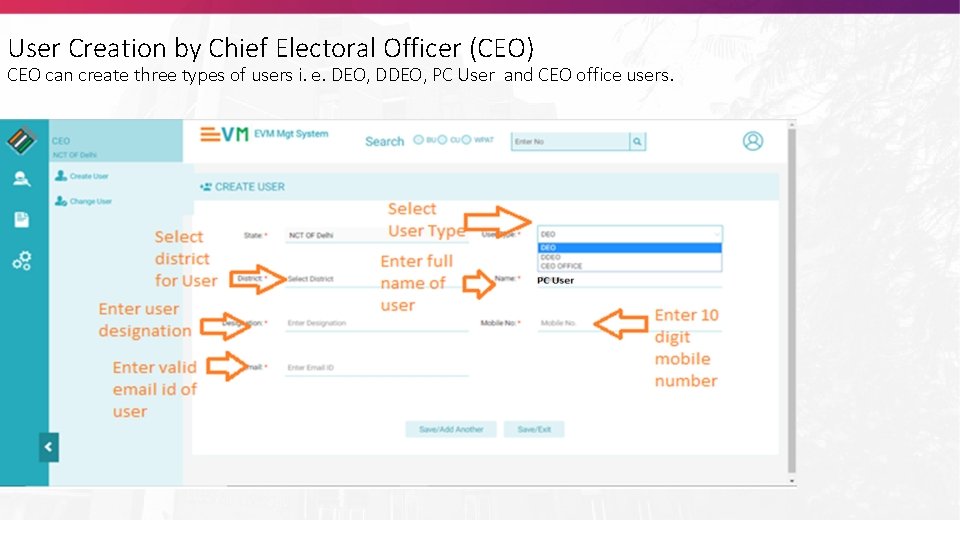
User Creation by Chief Electoral Officer (CEO) CEO can create three types of users i. e. DEO, DDEO, PC User and CEO office users.
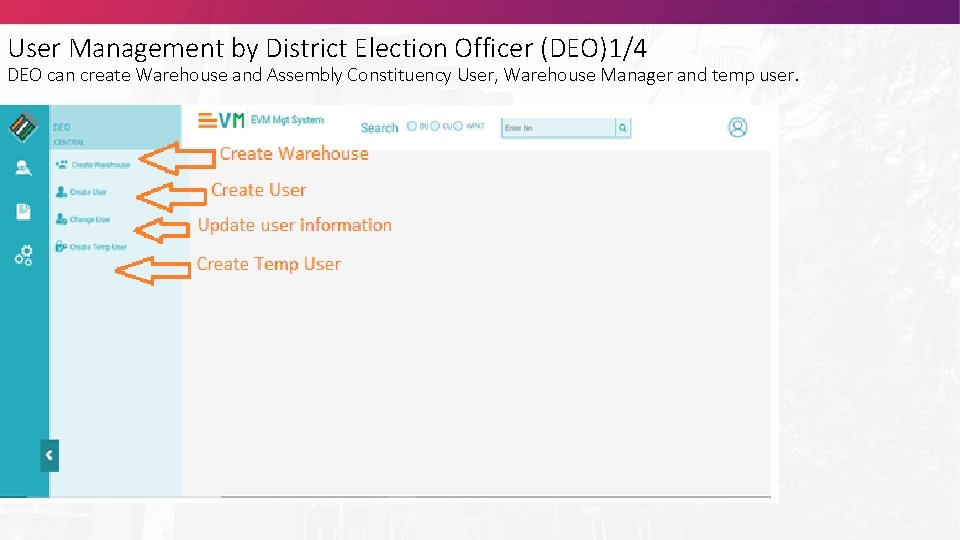
User Management by District Election Officer (DEO)1/4 DEO can create Warehouse and Assembly Constituency User, Warehouse Manager and temp user.
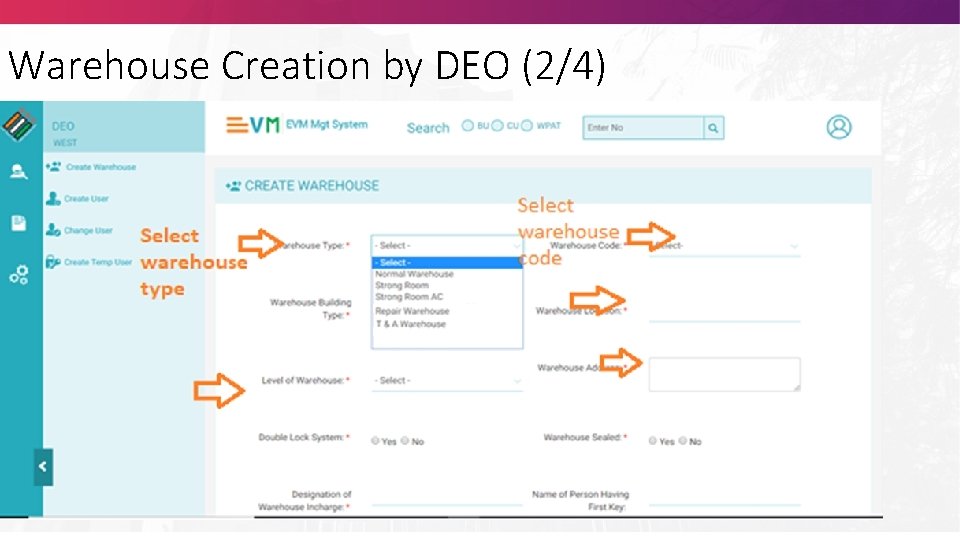
Warehouse Creation by DEO (2/4)
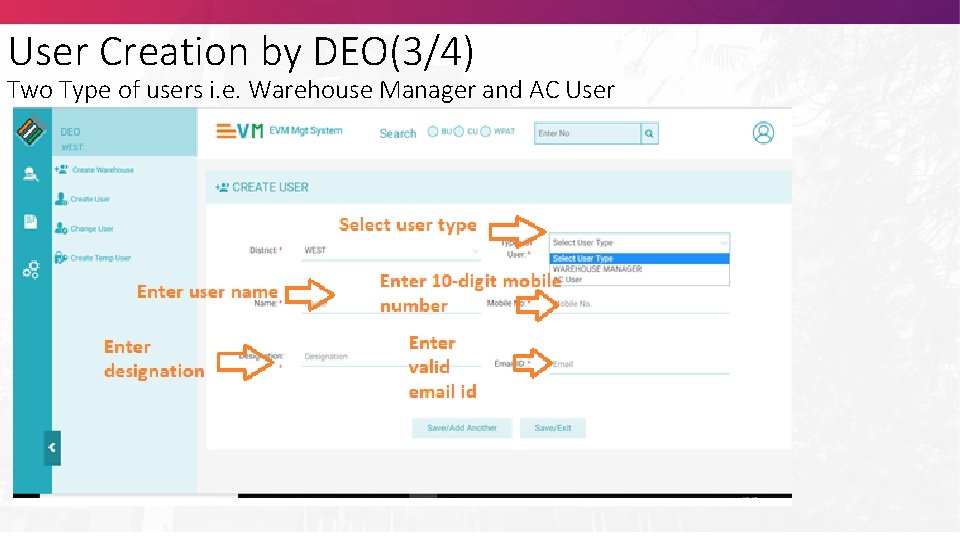
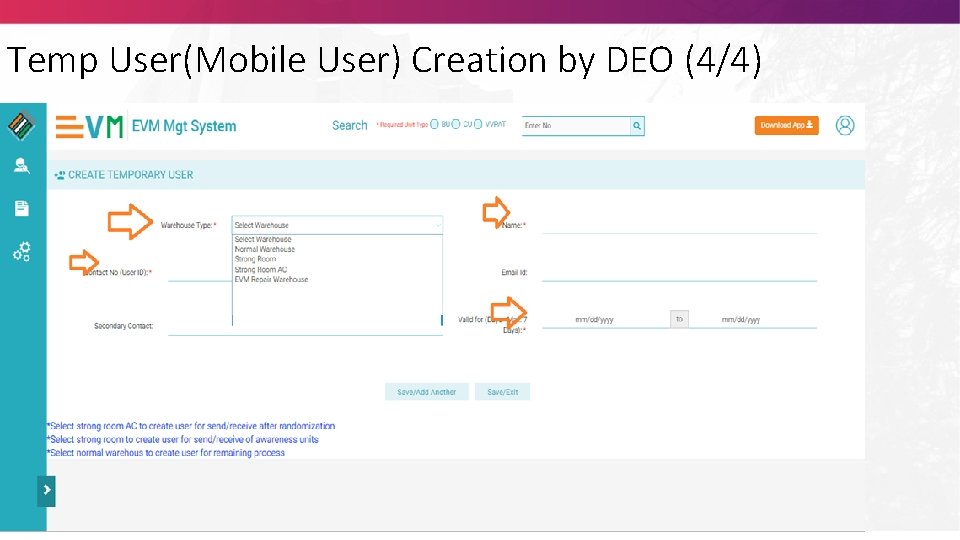
User Creation by DEO(3/4) Two Type of users i. e. Warehouse Manager and AC User
Temp User(Mobile User) Creation by DEO (4/4)
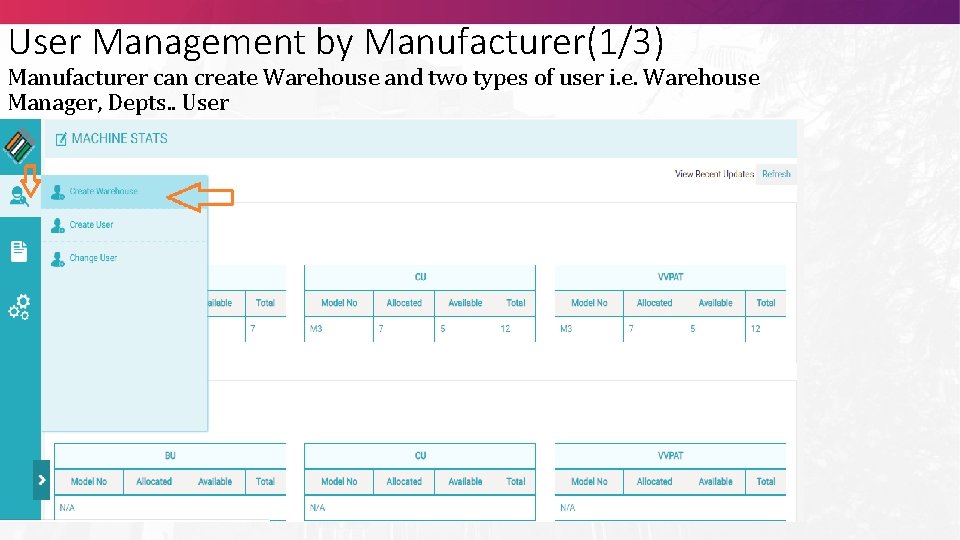
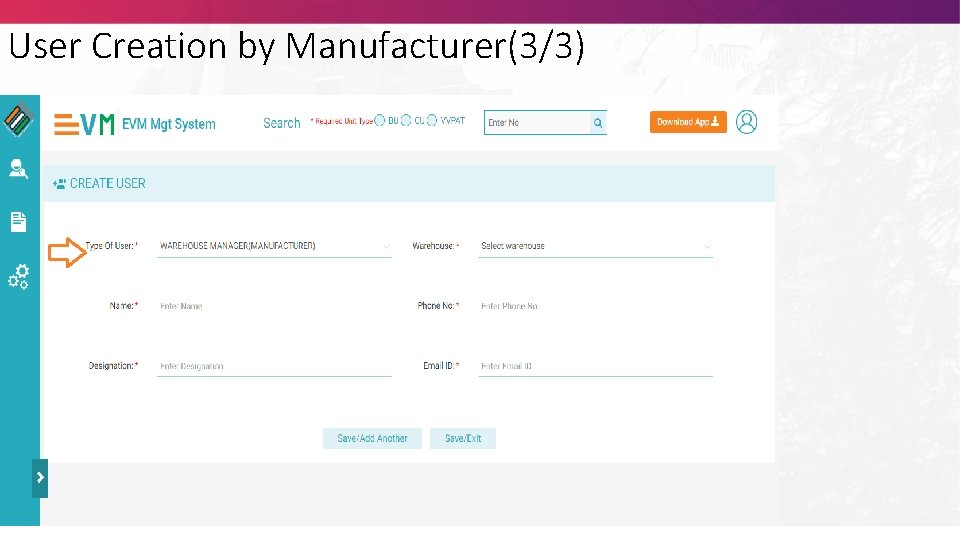
User Management by Manufacturer(1/3) Manufacturer can create Warehouse and two types of user i. e. Warehouse Manager, Depts. . User
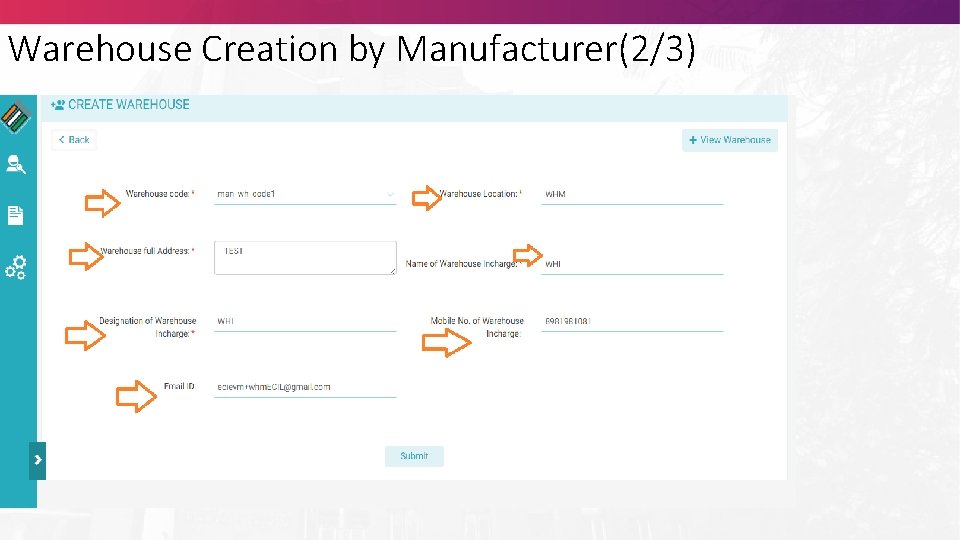
Warehouse Creation by Manufacturer(2/3)
User Creation by Manufacturer(3/3)
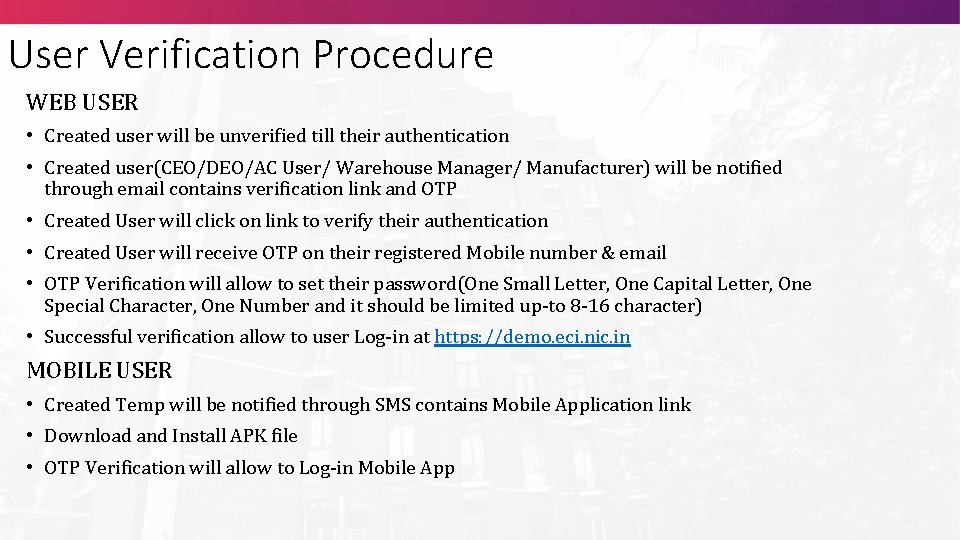
User Verification Procedure WEB USER • Created user will be unverified till their authentication • Created user(CEO/DEO/AC User/ Warehouse Manager/ Manufacturer) will be notified through email contains verification link and OTP • Created User will click on link to verify their authentication • Created User will receive OTP on their registered Mobile number & email • OTP Verification will allow to set their password(One Small Letter, One Capital Letter, One Special Character, One Number and it should be limited up-to 8 -16 character) • Successful verification allow to user Log-in at https: //demo. eci. nic. in MOBILE USER • Created Temp will be notified through SMS contains Mobile Application link • Download and Install APK file • OTP Verification will allow to Log-in Mobile App
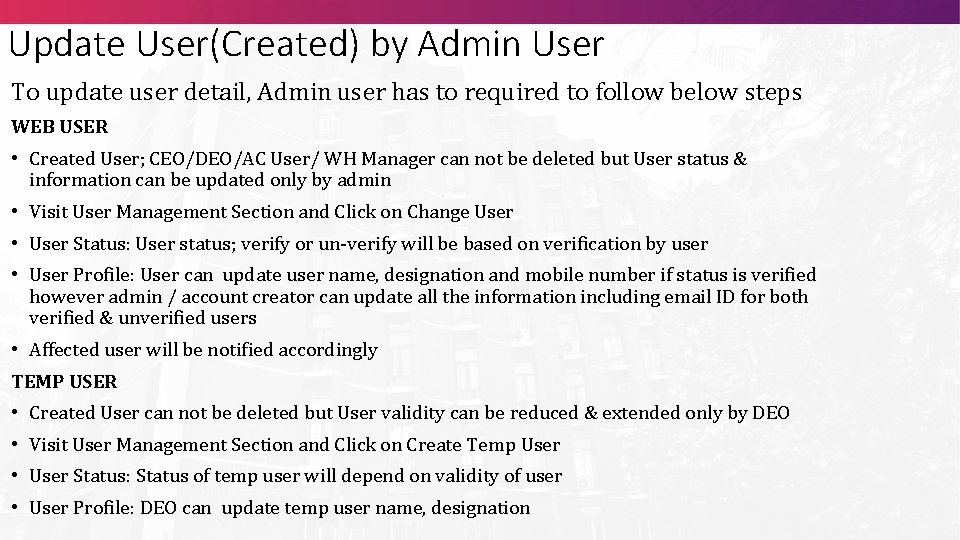
Update User(Created) by Admin User To update user detail, Admin user has to required to follow below steps WEB USER • Created User; CEO/DEO/AC User/ WH Manager can not be deleted but User status & information can be updated only by admin • Visit User Management Section and Click on Change User • User Status: User status; verify or un-verify will be based on verification by user • User Profile: User can update user name, designation and mobile number if status is verified however admin / account creator can update all the information including email ID for both verified & unverified users • Affected user will be notified accordingly TEMP USER • Created User can not be deleted but User validity can be reduced & extended only by DEO • Visit User Management Section and Click on Create Temp User • User Status: Status of temp user will depend on validity of user • User Profile: DEO can update temp user name, designation
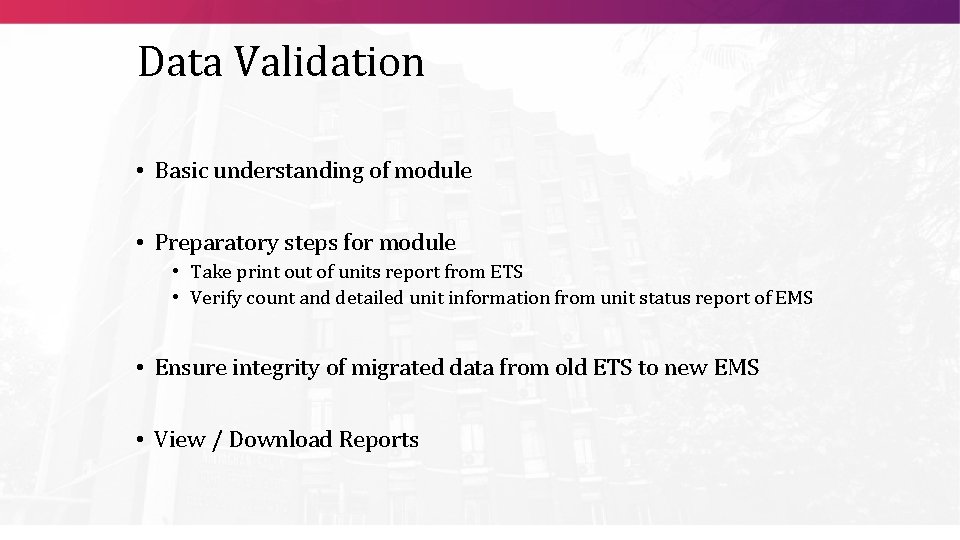
Data Validation • Basic understanding of module • Preparatory steps for module • Take print out of units report from ETS • Verify count and detailed unit information from unit status report of EMS • Ensure integrity of migrated data from old ETS to new EMS • View / Download Reports
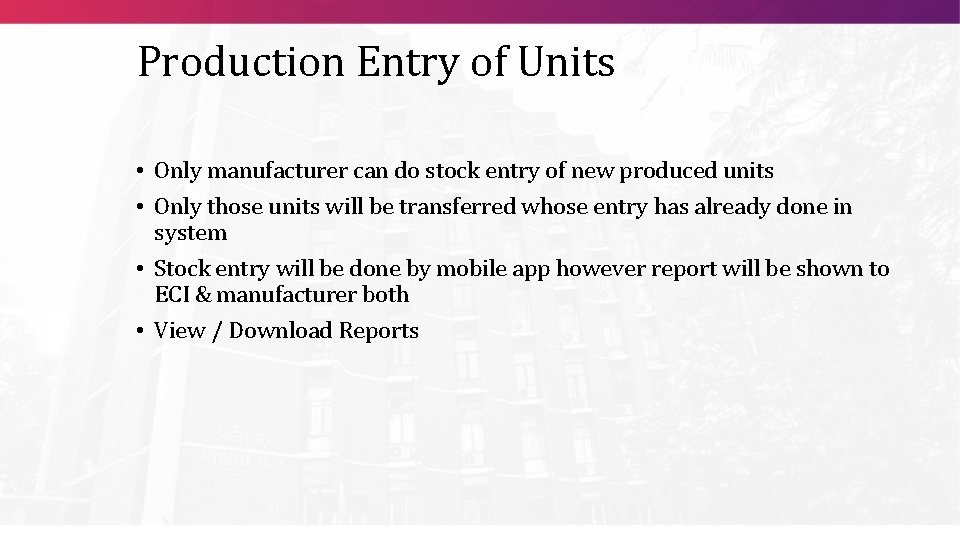
Production Entry of Units • Only manufacturer can do stock entry of new produced units • Only those units will be transferred whose entry has already done in system • Stock entry will be done by mobile app however report will be shown to ECI & manufacturer both • View / Download Reports
Order generation for New/Repaired Unit & Inter- Intra State Transfer • • Basic understanding of module Preparatory steps for module How to generate order for new units order How to manage movement of new units How to generate order for Inter- Intra State Transfer How to Map sender and receiver for Unit sending/ receiving How to do scanning through mobile app for sending / receiving
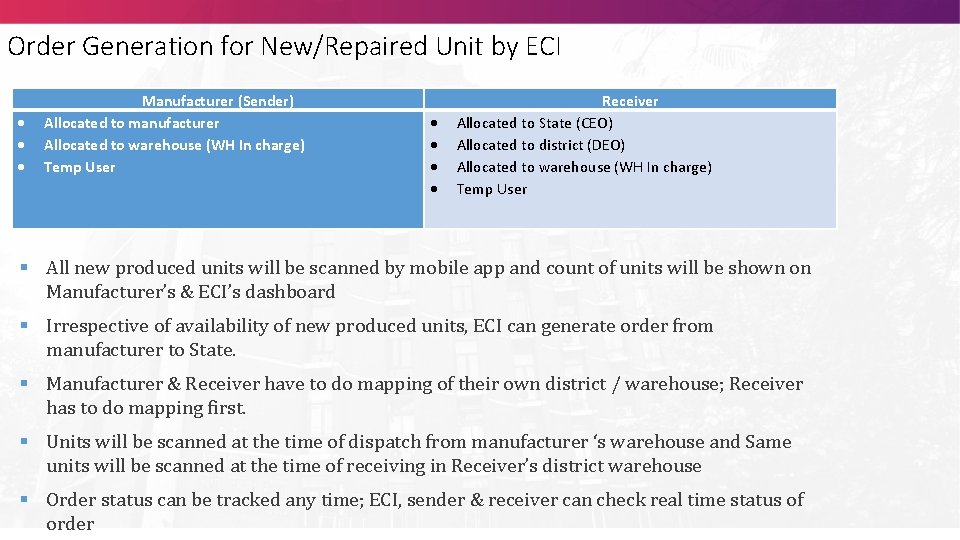
Order Generation for New/Repaired Unit by ECI Manufacturer (Sender) Allocated to manufacturer Allocated to warehouse (WH In charge) Temp User Receiver Allocated to State (CEO) Allocated to district (DEO) Allocated to warehouse (WH In charge) Temp User § All new produced units will be scanned by mobile app and count of units will be shown on Manufacturer’s & ECI’s dashboard § Irrespective of availability of new produced units, ECI can generate order from manufacturer to State. § Manufacturer & Receiver have to do mapping of their own district / warehouse; Receiver has to do mapping first. § Units will be scanned at the time of dispatch from manufacturer ‘s warehouse and Same units will be scanned at the time of receiving in Receiver’s district warehouse § Order status can be tracked any time; ECI, sender & receiver can check real time status of order
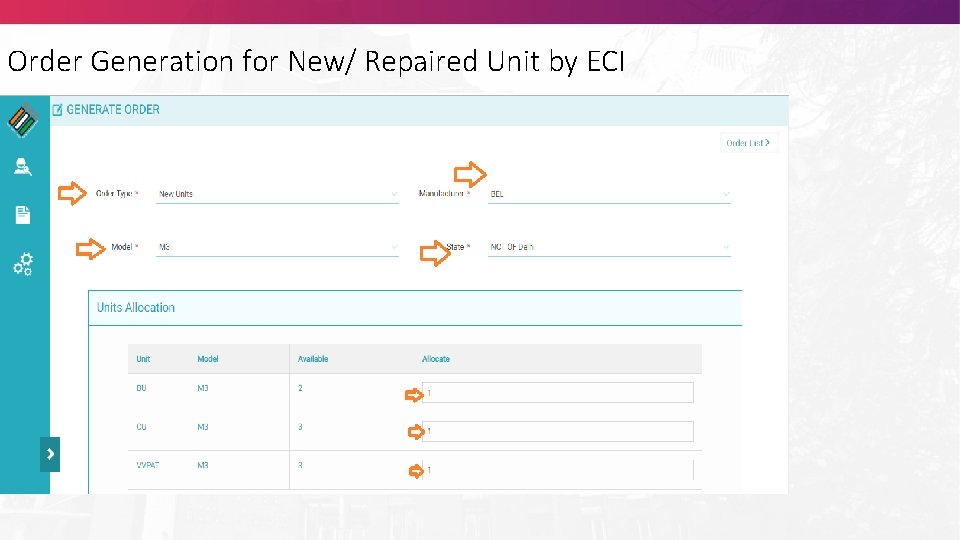
Order Generation for New/ Repaired Unit by ECI
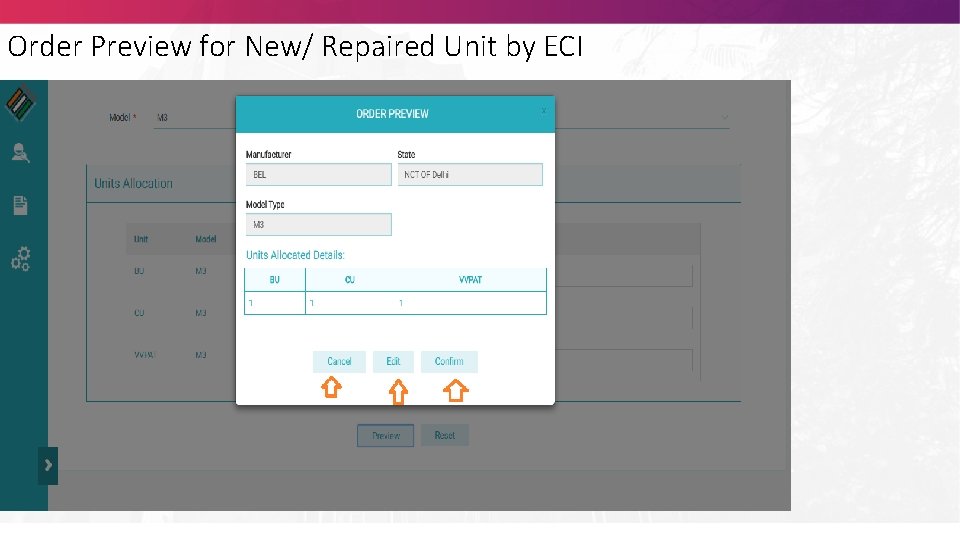
Order Preview for New/ Repaired Unit by ECI
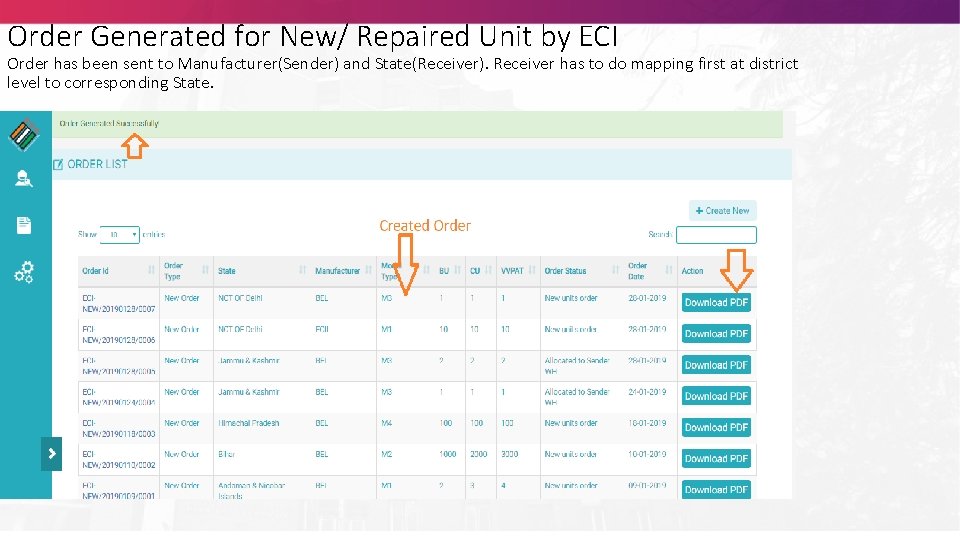
Order Generated for New/ Repaired Unit by ECI Order has been sent to Manufacturer(Sender) and State(Receiver). Receiver has to do mapping first at district level to corresponding State.
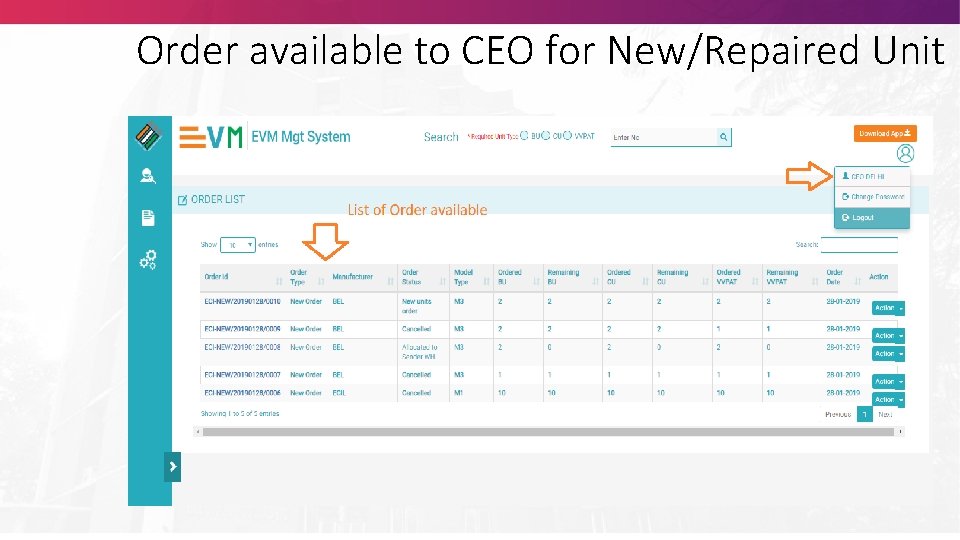
Order available to CEO for New/Repaired Unit
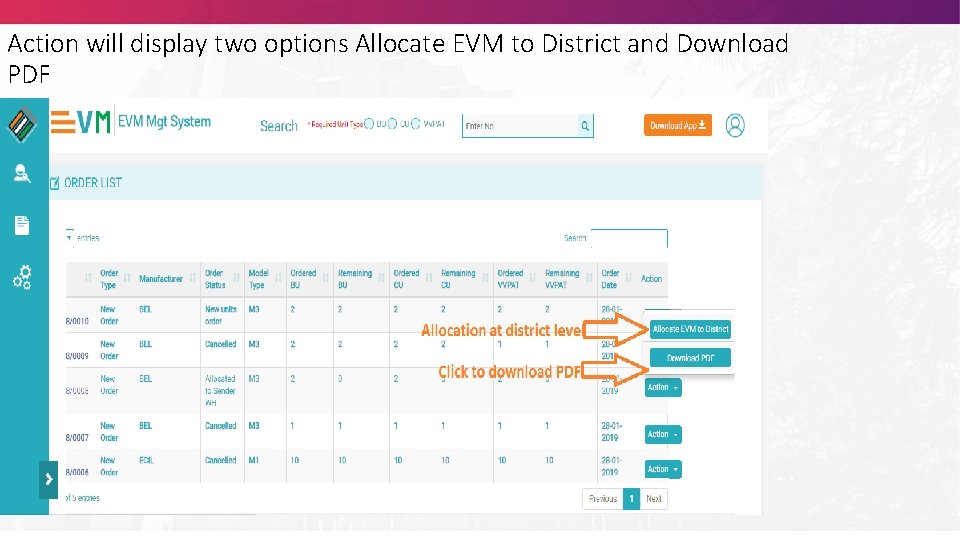
Action will display two options Allocate EVM to District and Download PDF
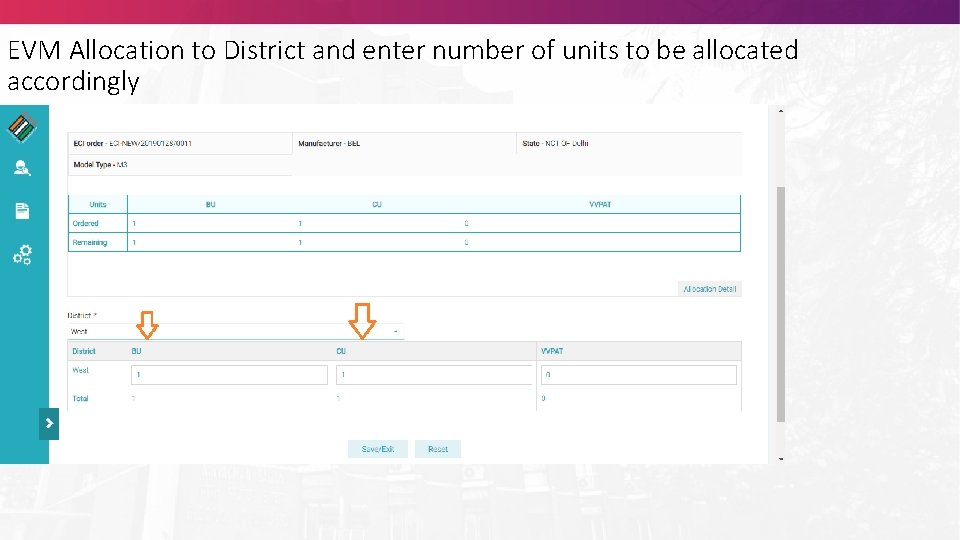
EVM Allocation to District and enter number of units to be allocated accordingly
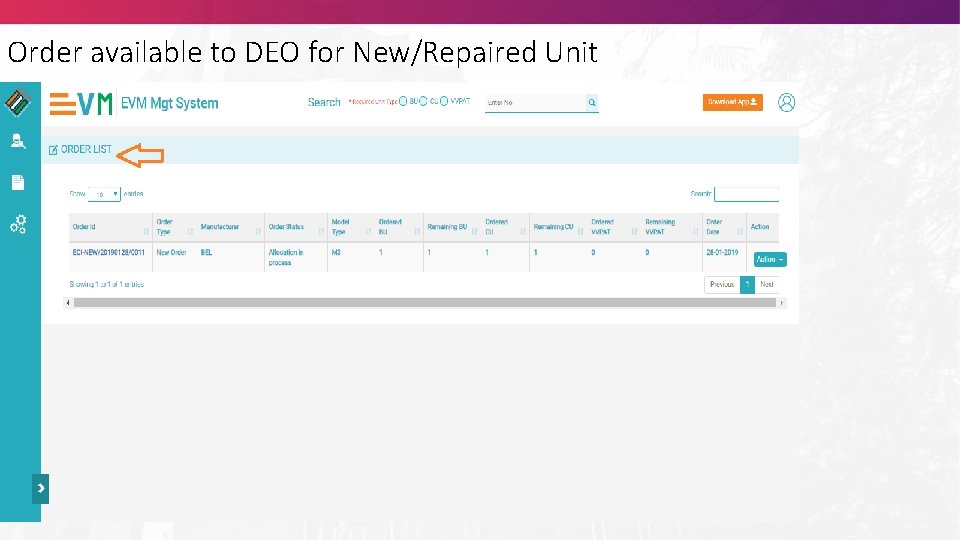
Order available to DEO for New/Repaired Unit
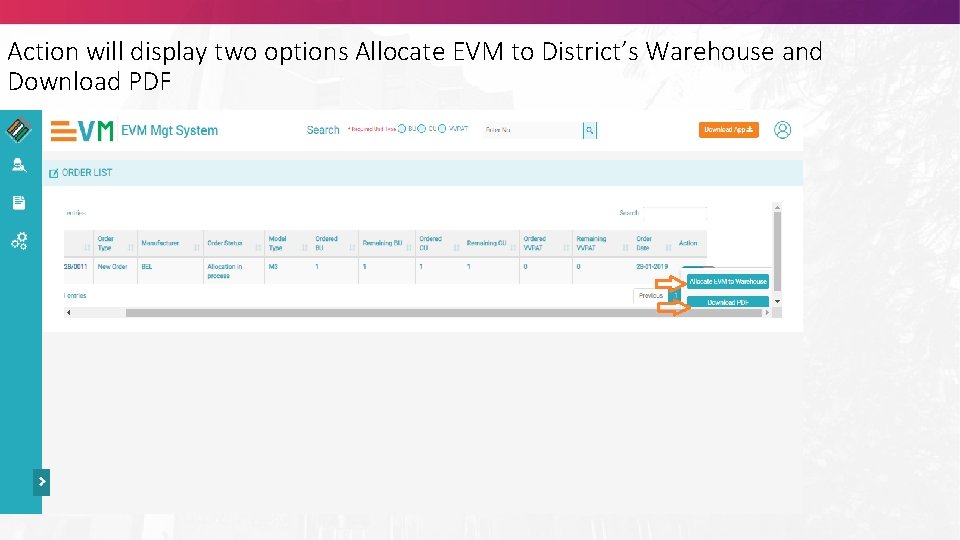
Action will display two options Allocate EVM to District’s Warehouse and Download PDF
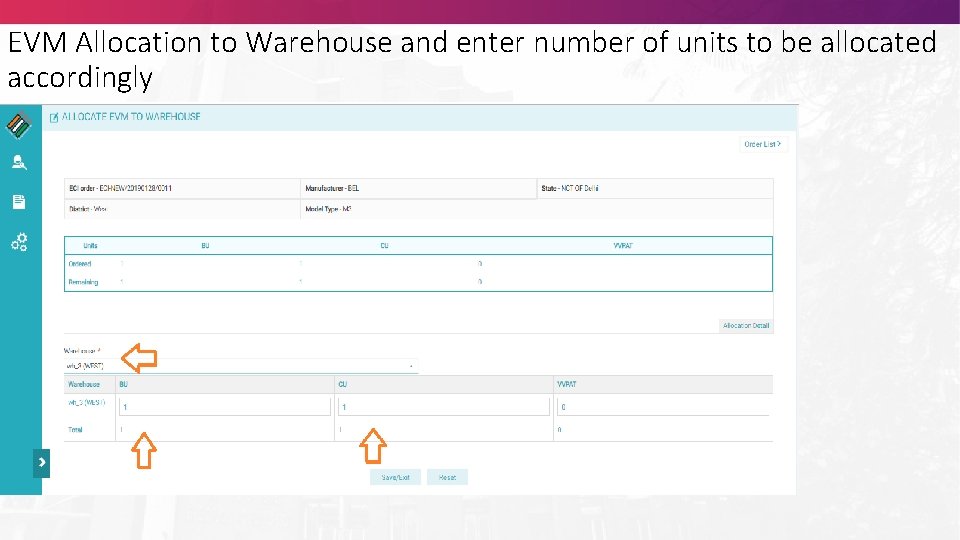
EVM Allocation to Warehouse and enter number of units to be allocated accordingly
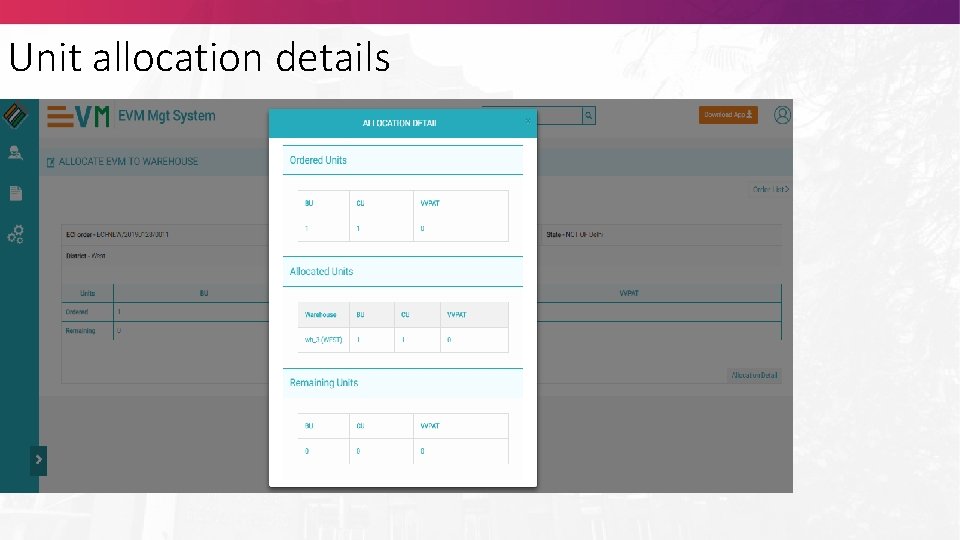
Unit allocation details
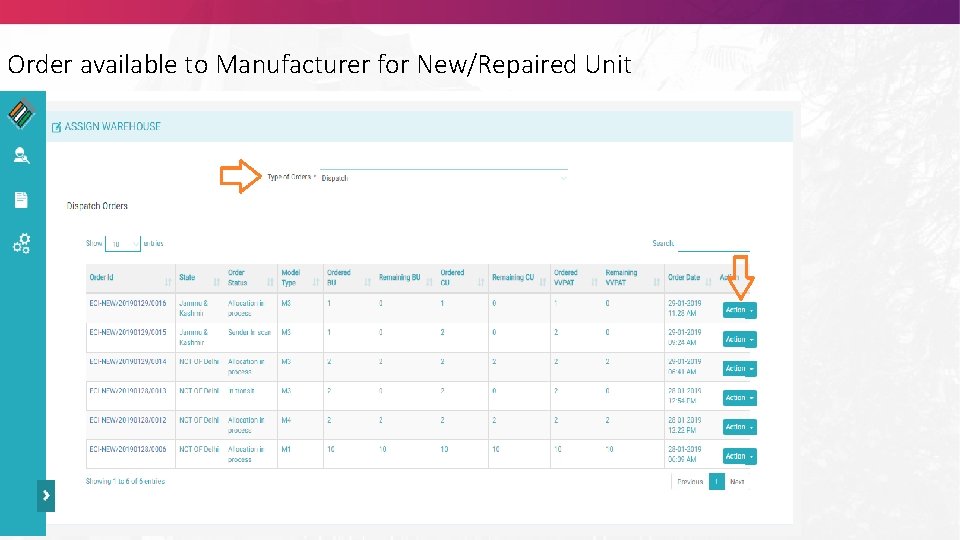
Order available to Manufacturer for New/Repaired Unit
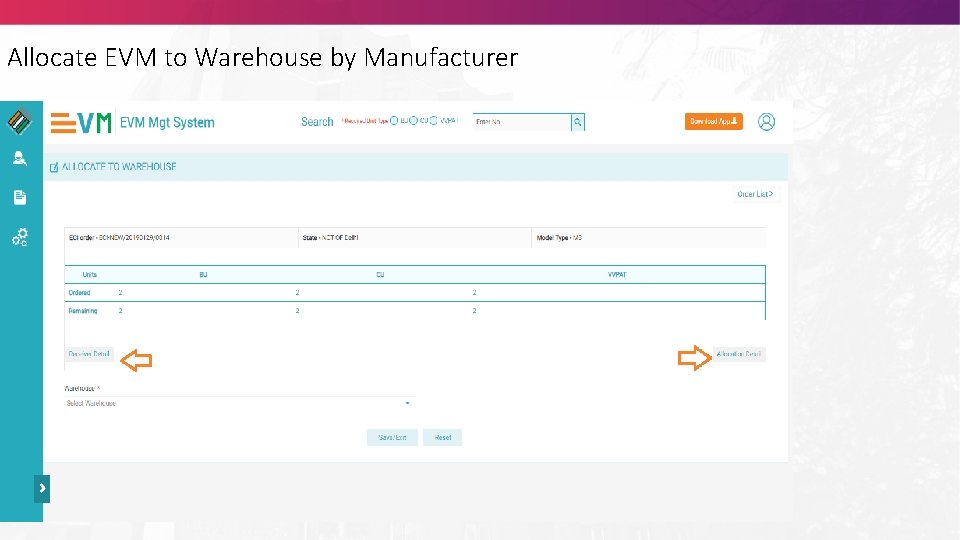
Allocate EVM to Warehouse by Manufacturer
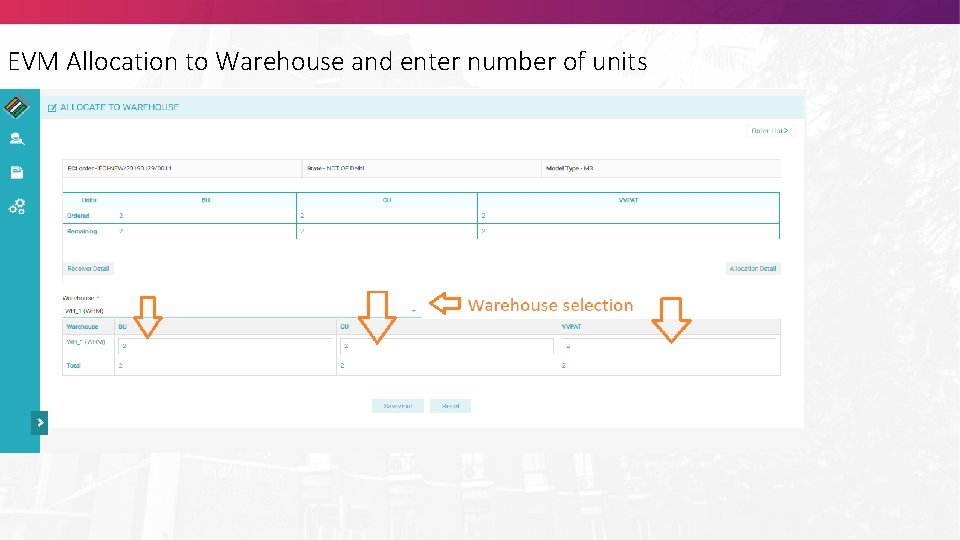
EVM Allocation to Warehouse and enter number of units
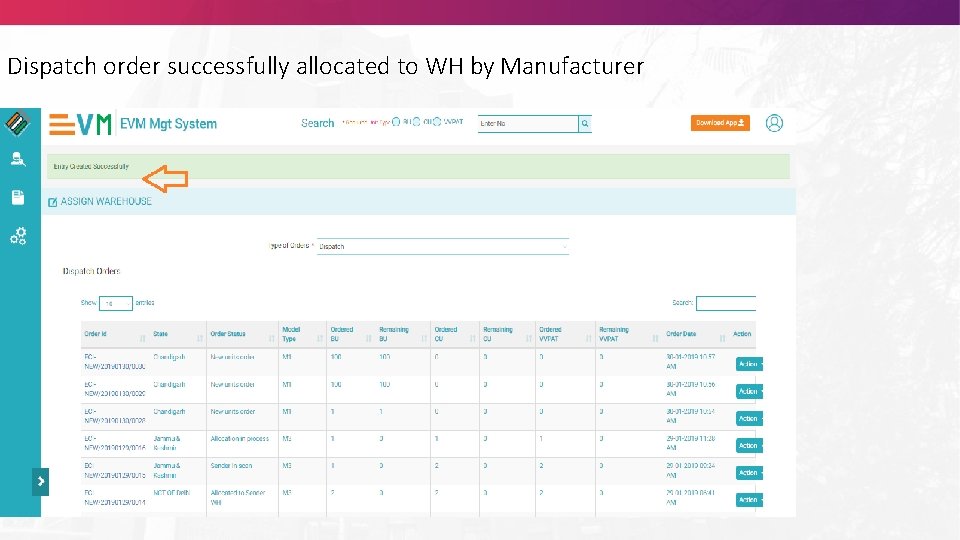
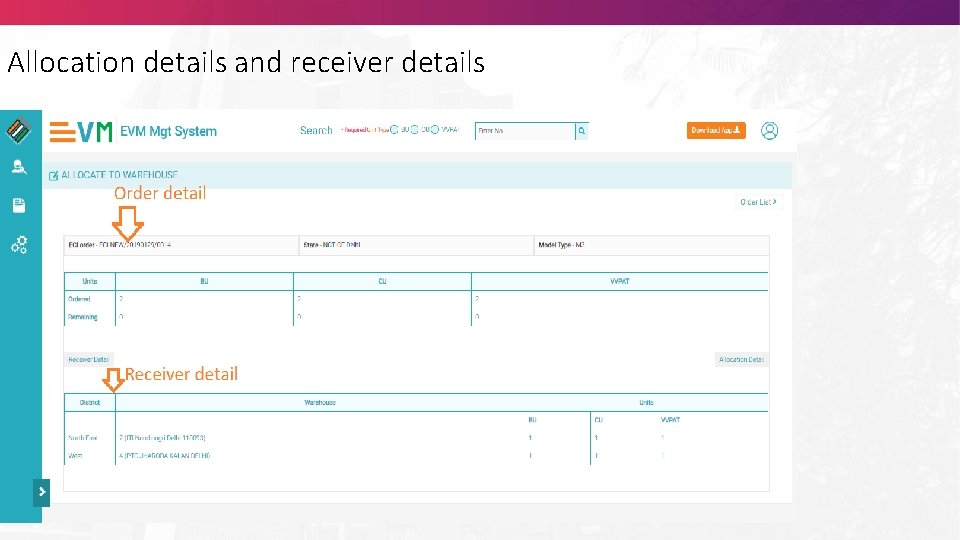
Dispatch order successfully allocated to WH by Manufacturer
Allocation details and receiver details
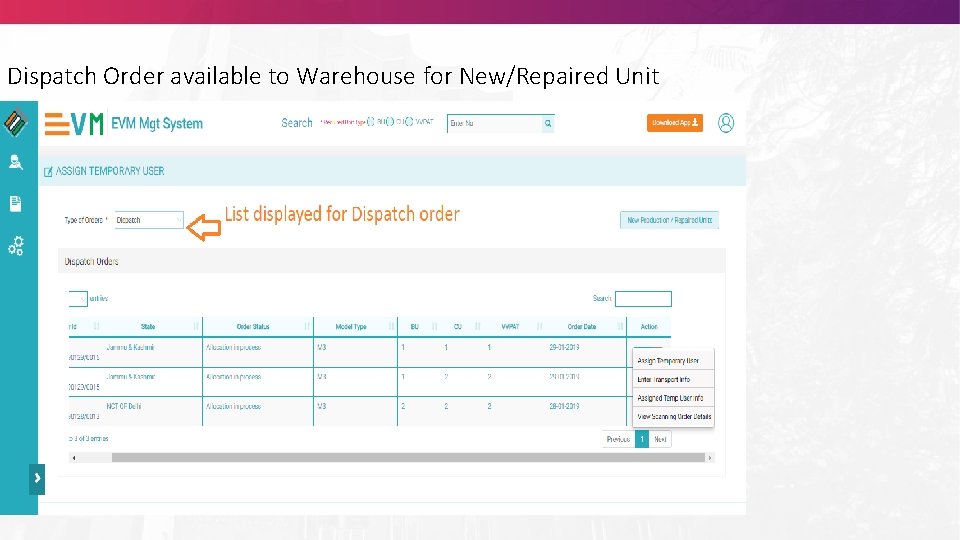
Dispatch Order available to Warehouse for New/Repaired Unit
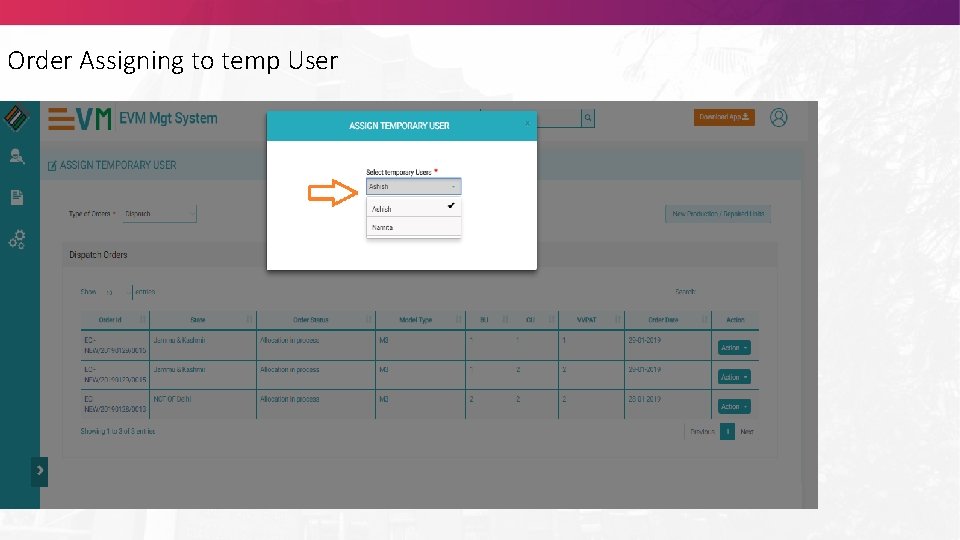
Order Assigning to temp User
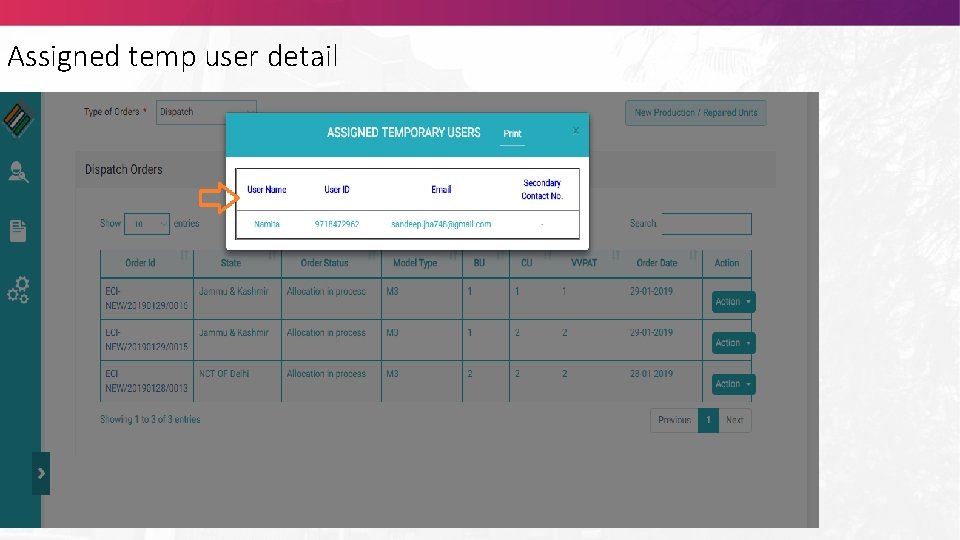
Assigned temp user detail
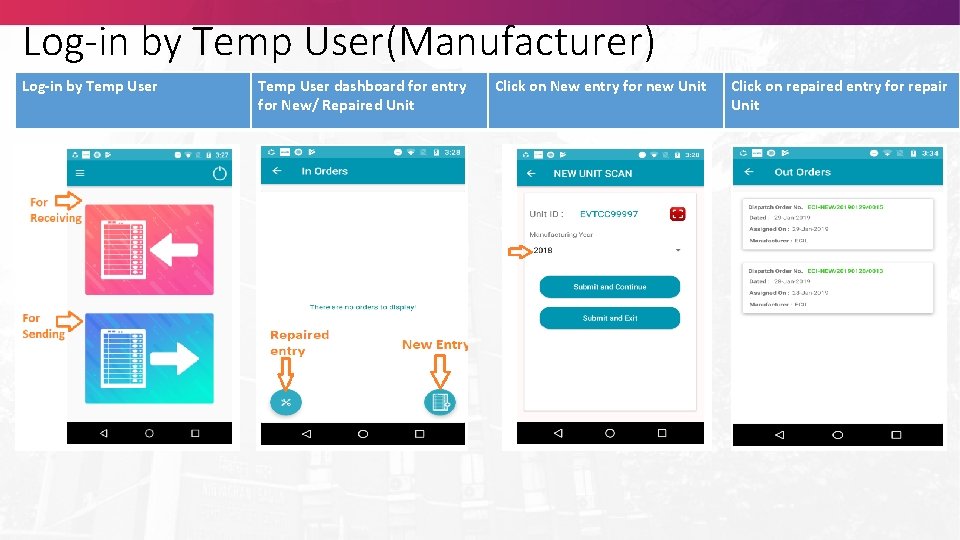
Log-in by Temp User(Manufacturer) Log-in by Temp User dashboard for entry for New/ Repaired Unit Click on New entry for new Unit Click on repaired entry for repair Unit
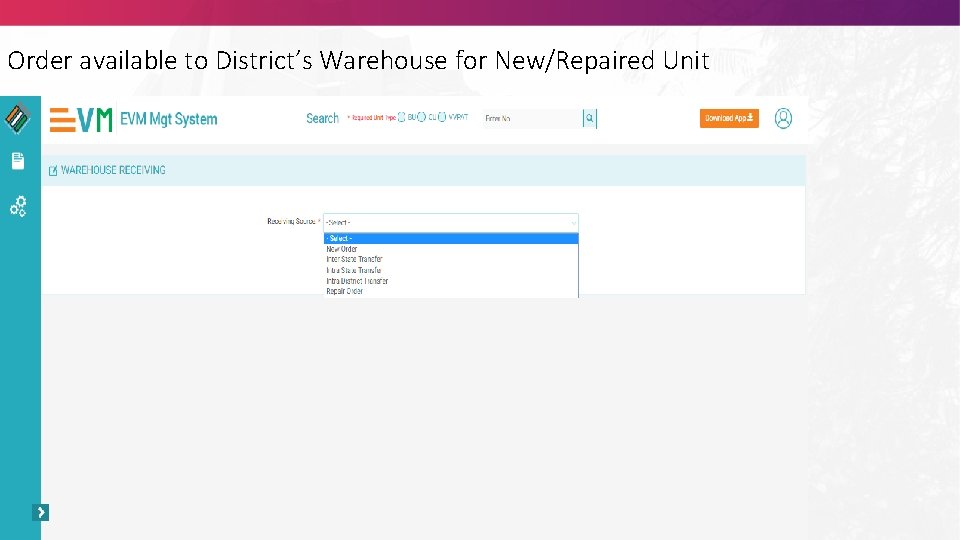
Order available to District’s Warehouse for New/Repaired Unit
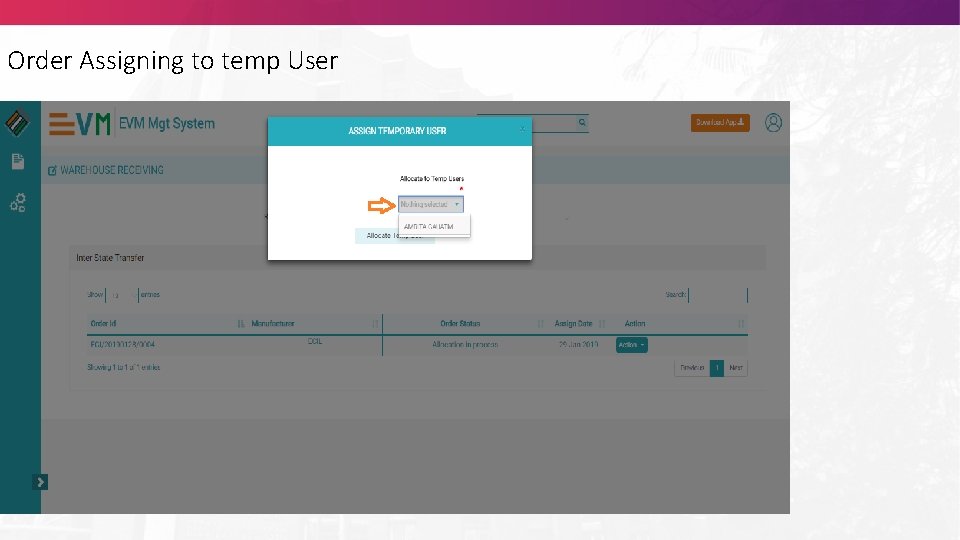
Order Assigning to temp User
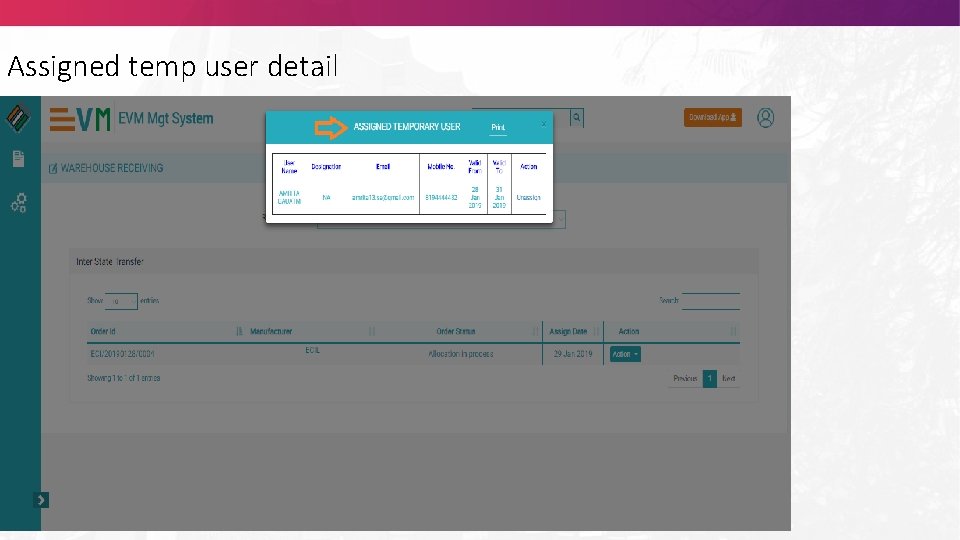
Assigned temp user detail
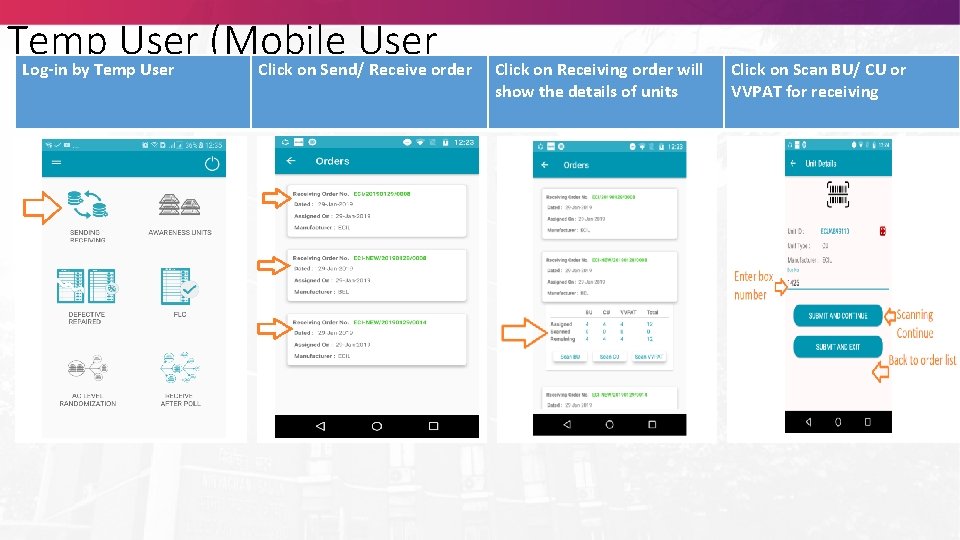
Temp User (Mobile User Log-in by Temp User Click on Send/ Receive order Click on Receiving order will show the details of units Click on Scan BU/ CU or VVPAT for receiving
Shifting of Units: Inter State/ Intra district shifting • Based on availability of units in different State/District, ECI/CEO can generate order from Sender to Receiver • Sender & Receiver have to do mapping of their own District/ Warehouse; Receiver has to do mapping first • Units will be scanned at the time of dispatch from Sender ‘s Warehouse • Same units will be scanned at the time of receiving in Receiver’s Warehouse Order status can be tracked any time; ECI, Sender & Receiver can check real time status of order
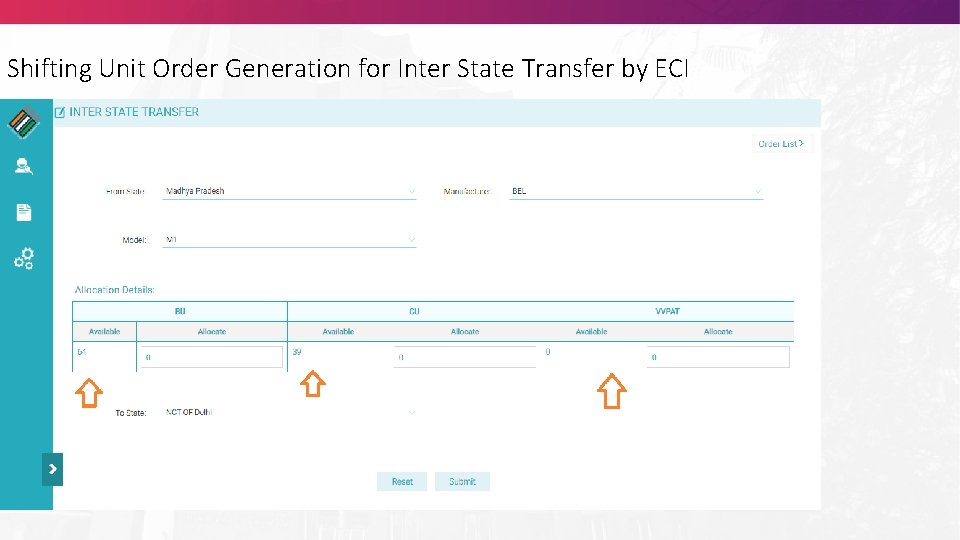
Shifting Unit Order Generation for Inter State Transfer by ECI
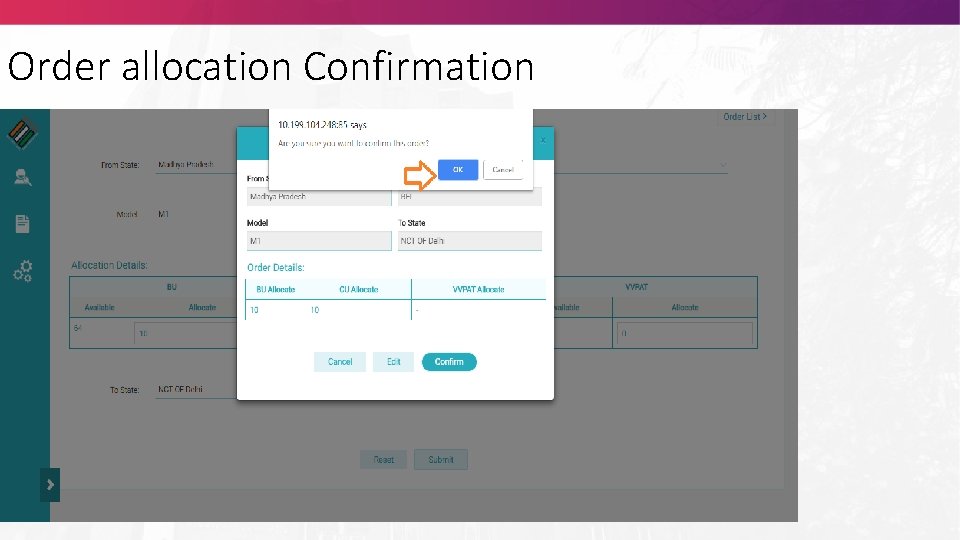
Order allocation Confirmation
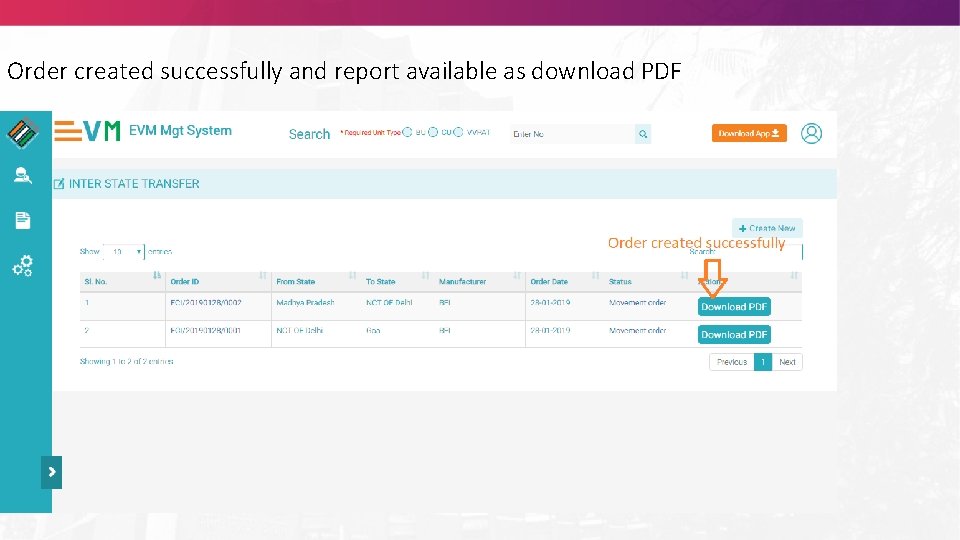
Order created successfully and report available as download PDF
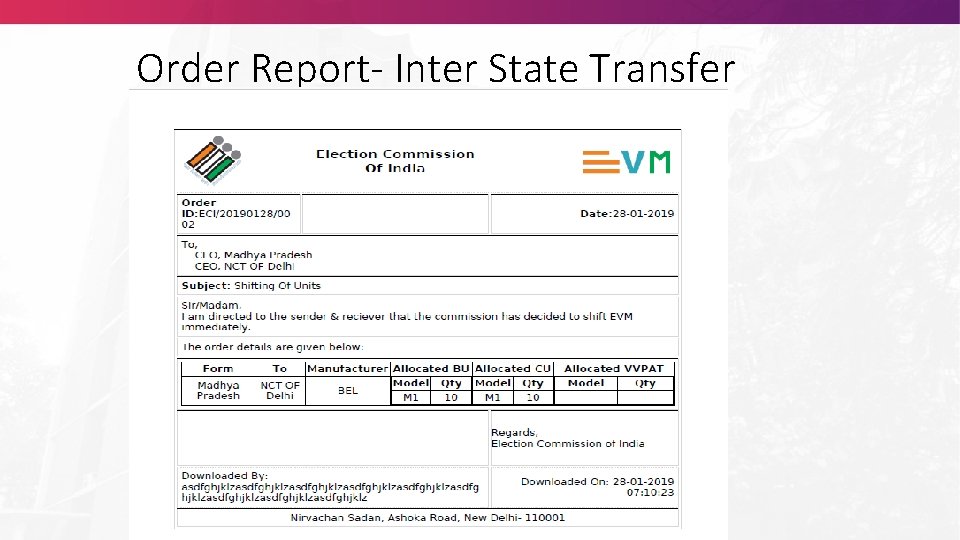
Order Report- Inter State Transfer
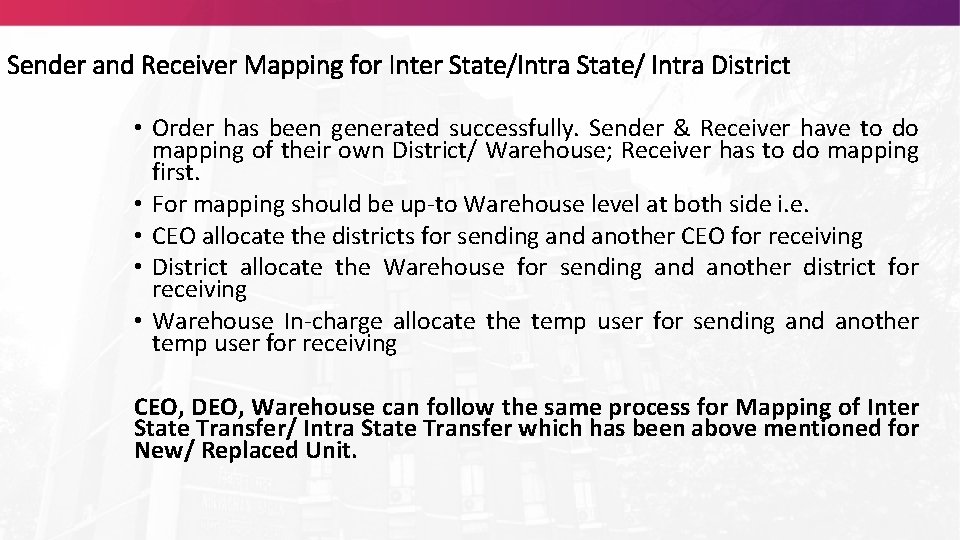
Sender and Receiver Mapping for Inter State/Intra State/ Intra District • Order has been generated successfully. Sender & Receiver have to do mapping of their own District/ Warehouse; Receiver has to do mapping first. • For mapping should be up-to Warehouse level at both side i. e. • CEO allocate the districts for sending and another CEO for receiving • District allocate the Warehouse for sending and another district for receiving • Warehouse In-charge allocate the temp user for sending and another temp user for receiving CEO, DEO, Warehouse can follow the same process for Mapping of Inter State Transfer/ Intra State Transfer which has been above mentioned for New/ Replaced Unit.
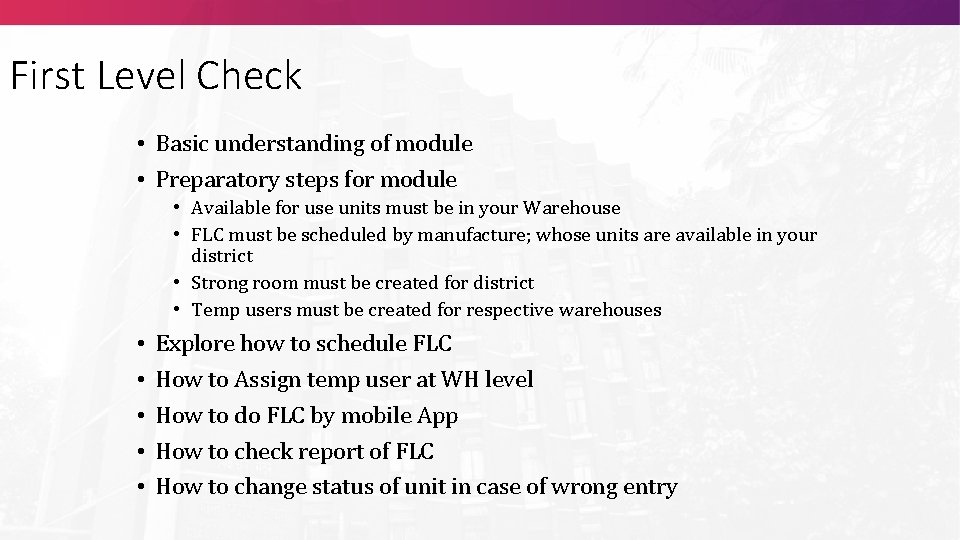
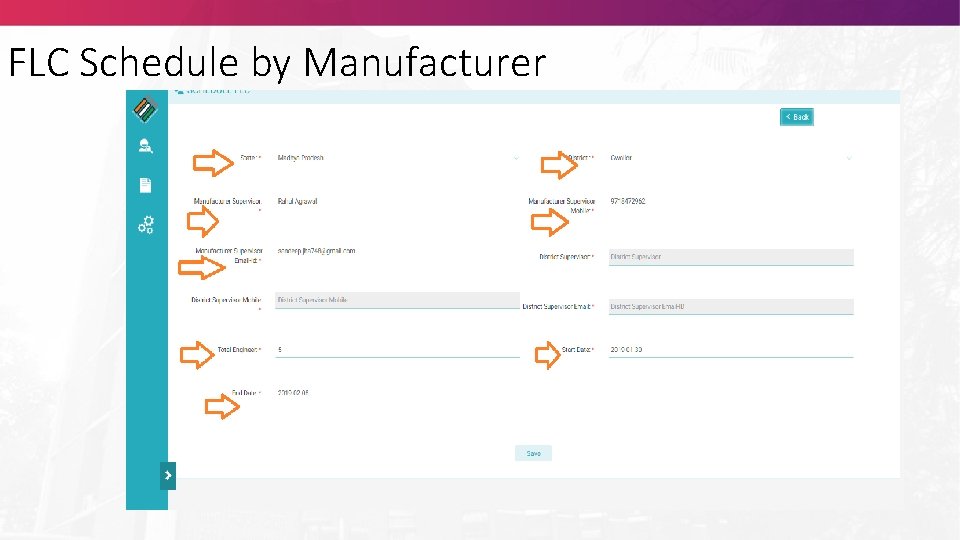
First Level Check • Basic understanding of module • Preparatory steps for module • Available for use units must be in your Warehouse • FLC must be scheduled by manufacture; whose units are available in your district • Strong room must be created for district • Temp users must be created for respective warehouses • • • Explore how to schedule FLC How to Assign temp user at WH level How to do FLC by mobile App How to check report of FLC How to change status of unit in case of wrong entry
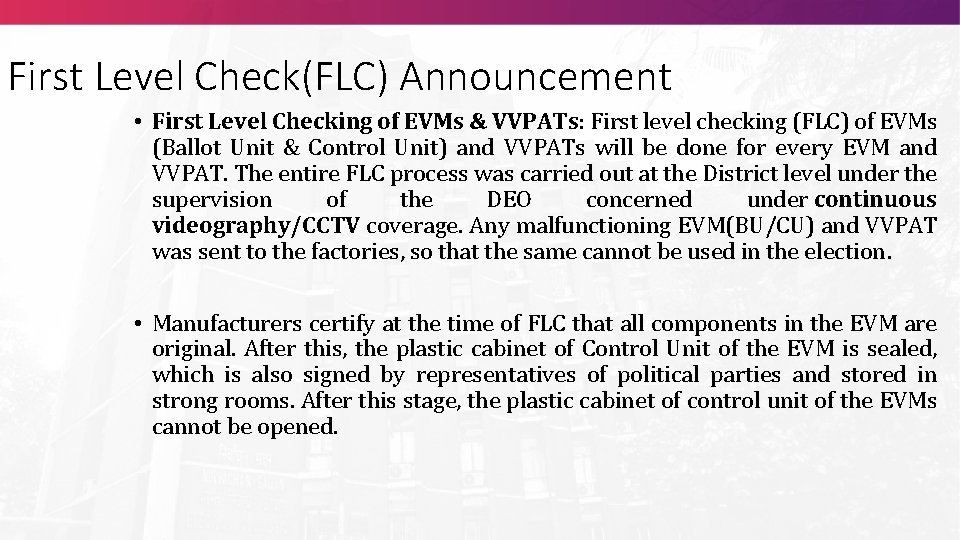
First Level Check(FLC) Announcement • First Level Checking of EVMs & VVPATs: First level checking (FLC) of EVMs (Ballot Unit & Control Unit) and VVPATs will be done for every EVM and VVPAT. The entire FLC process was carried out at the District level under the supervision of the DEO concerned under continuous videography/CCTV coverage. Any malfunctioning EVM(BU/CU) and VVPAT was sent to the factories, so that the same cannot be used in the election. • Manufacturers certify at the time of FLC that all components in the EVM are original. After this, the plastic cabinet of Control Unit of the EVM is sealed, which is also signed by representatives of political parties and stored in strong rooms. After this stage, the plastic cabinet of control unit of the EVMs cannot be opened.
FLC Schedule by Manufacturer
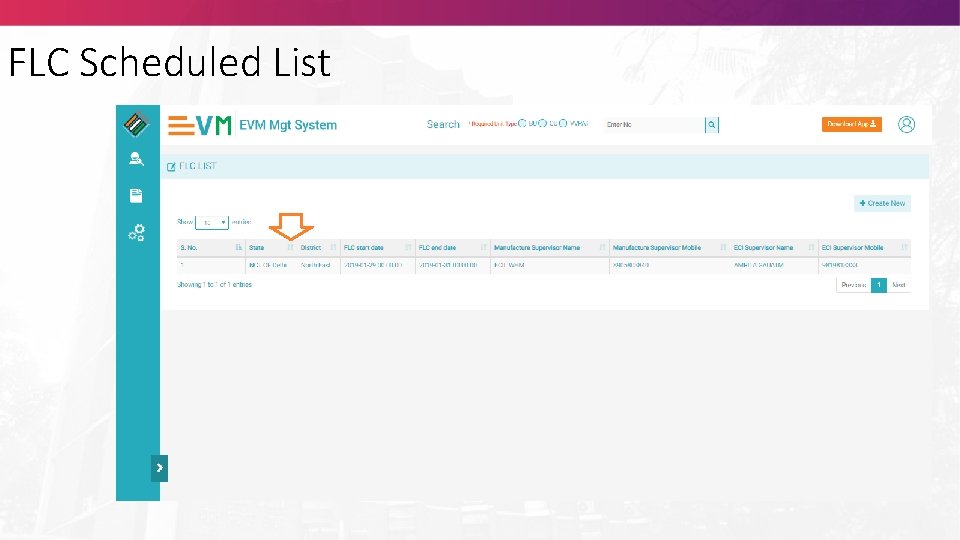
FLC Scheduled List
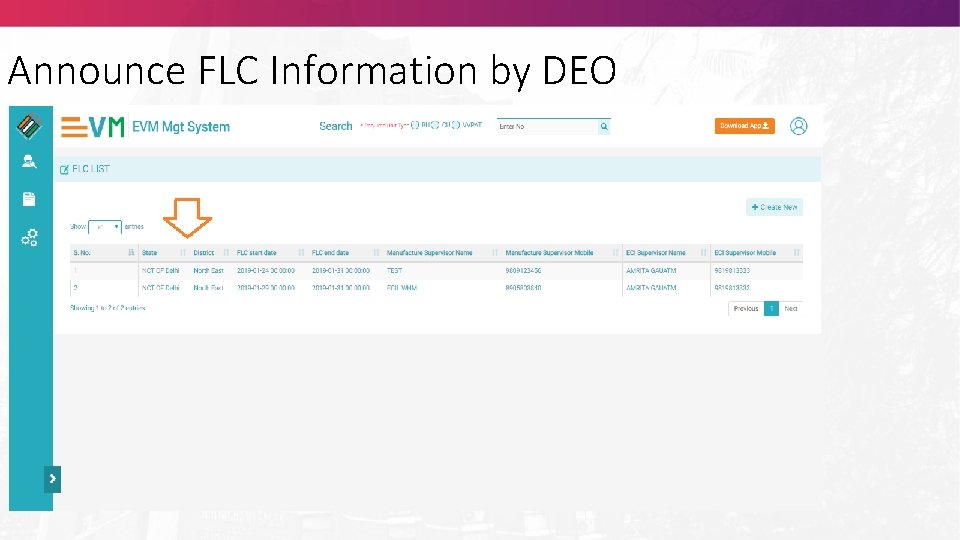
Announce FLC Information by DEO
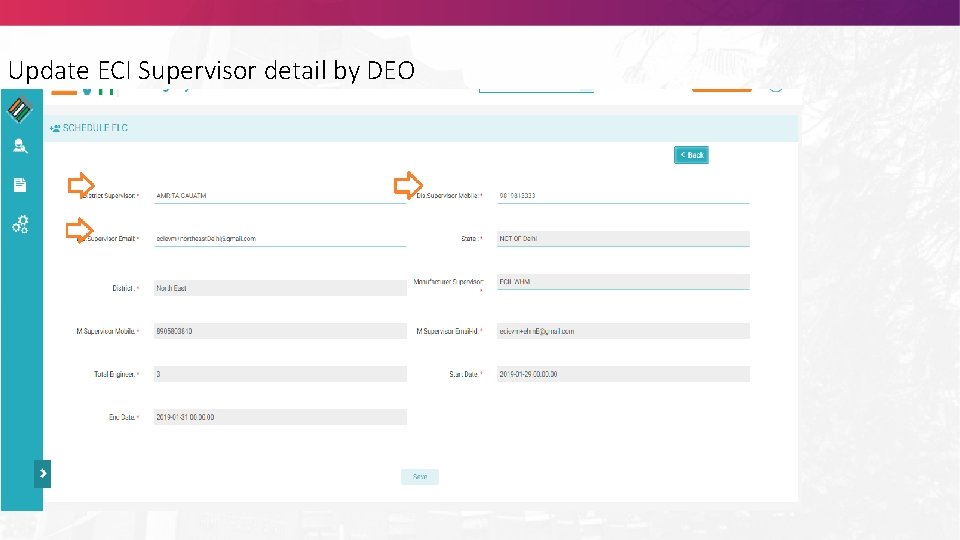
Update ECI Supervisor detail by DEO
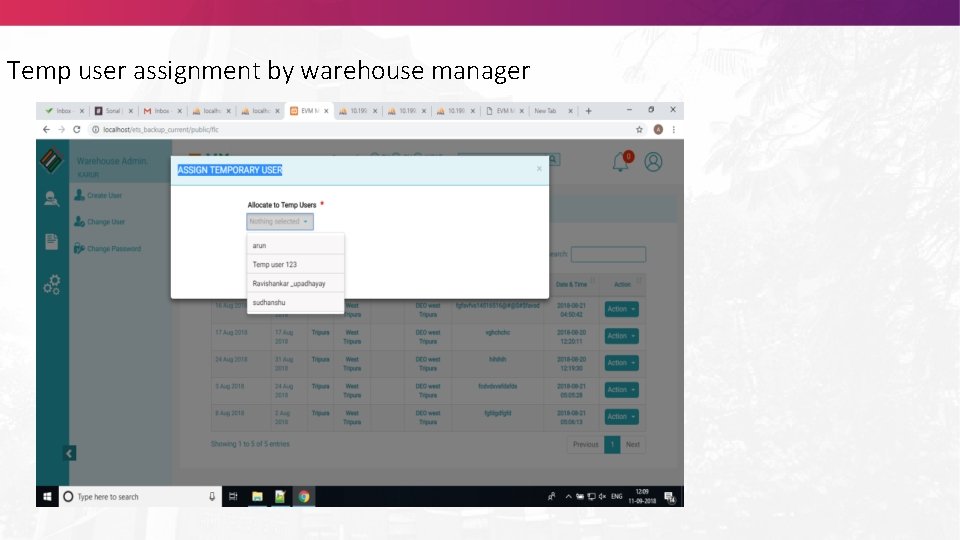
Temp user assignment by warehouse manager
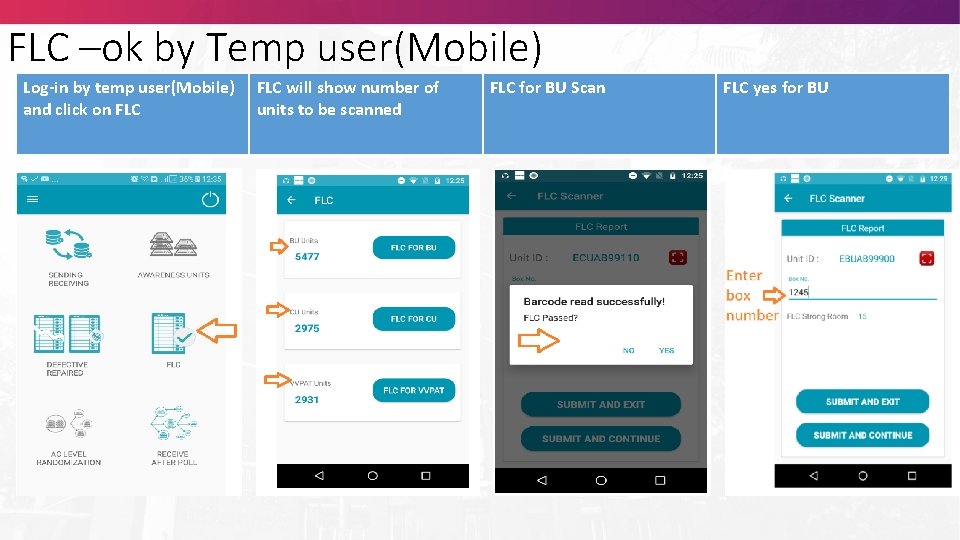
FLC –ok by Temp user(Mobile) Log-in by temp user(Mobile) and click on FLC will show number of units to be scanned FLC for BU Scan FLC yes for BU
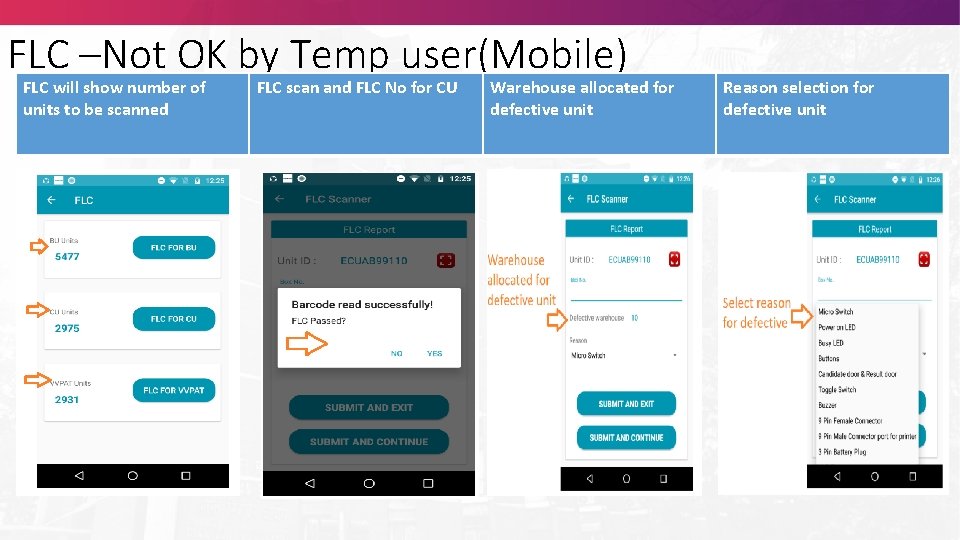
FLC –Not OK by Temp user(Mobile) FLC will show number of units to be scanned FLC scan and FLC No for CU Warehouse allocated for defective unit Reason selection for defective unit
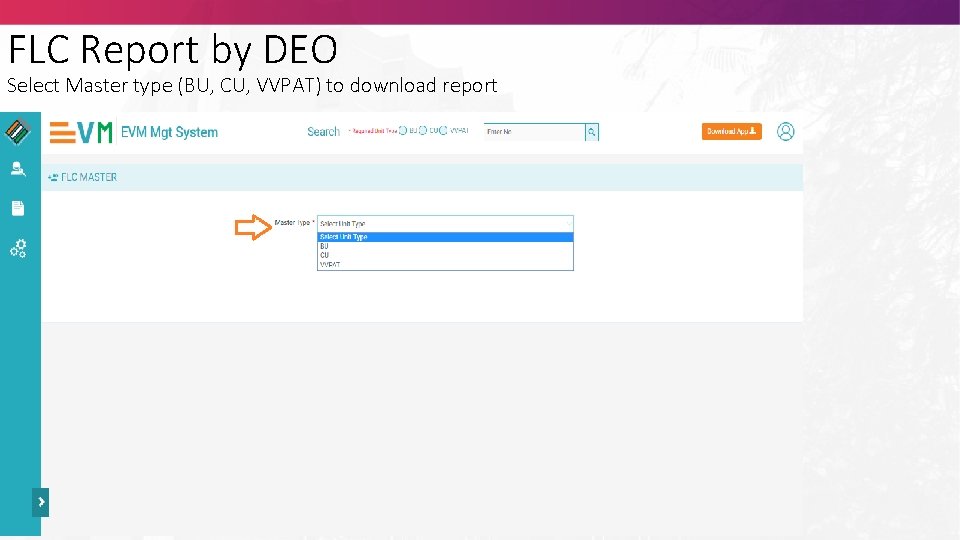
FLC Report by DEO Select Master type (BU, CU, VVPAT) to download report
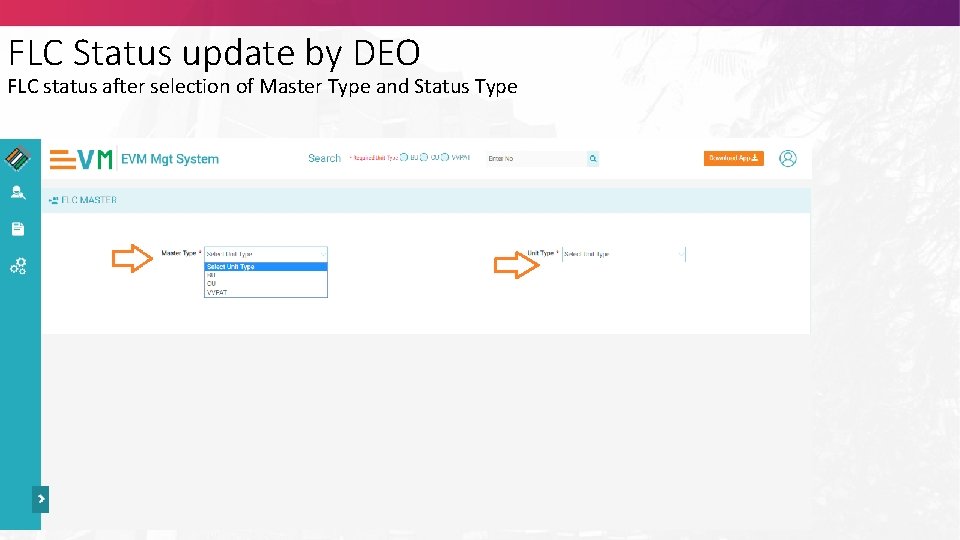
FLC Status update by DEO FLC status after selection of Master Type and Status Type
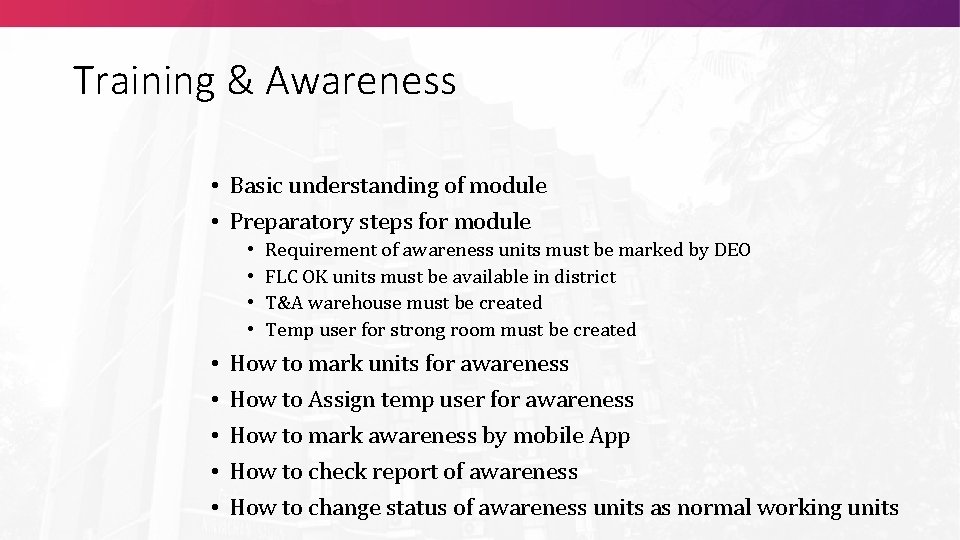
Training & Awareness • Basic understanding of module • Preparatory steps for module • • • Requirement of awareness units must be marked by DEO FLC OK units must be available in district T&A warehouse must be created Temp user for strong room must be created How to mark units for awareness How to Assign temp user for awareness How to mark awareness by mobile App How to check report of awareness How to change status of awareness units as normal working units
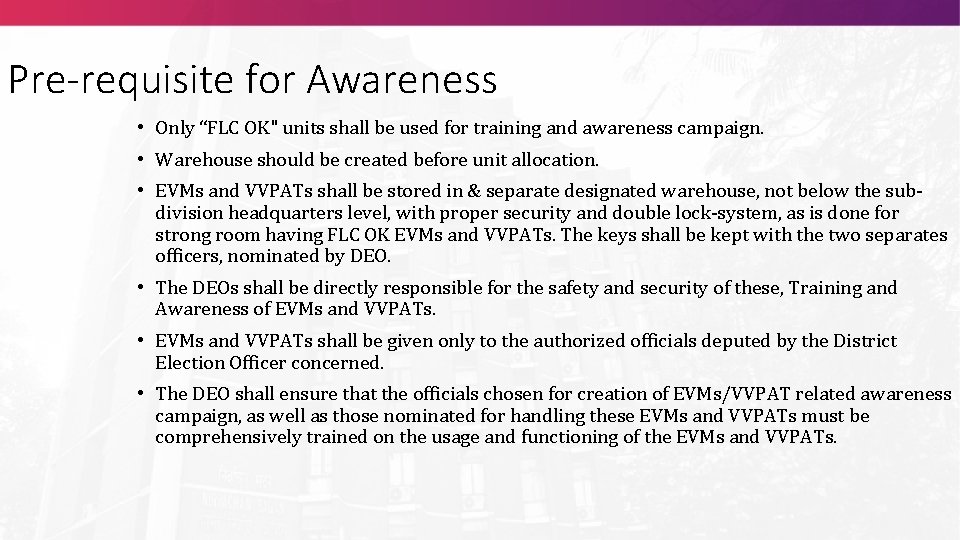
Pre-requisite for Awareness • Only “FLC OK" units shall be used for training and awareness campaign. • Warehouse should be created before unit allocation. • EVMs and VVPATs shall be stored in & separate designated warehouse, not below the subdivision headquarters level, with proper security and double lock-system, as is done for strong room having FLC OK EVMs and VVPATs. The keys shall be kept with the two separates officers, nominated by DEO. • The DEOs shall be directly responsible for the safety and security of these, Training and Awareness of EVMs and VVPATs. • EVMs and VVPATs shall be given only to the authorized officials deputed by the District Election Officer concerned. • The DEO shall ensure that the officials chosen for creation of EVMs/VVPAT related awareness campaign, as well as those nominated for handling these EVMs and VVPATs must be comprehensively trained on the usage and functioning of the EVMs and VVPATs.
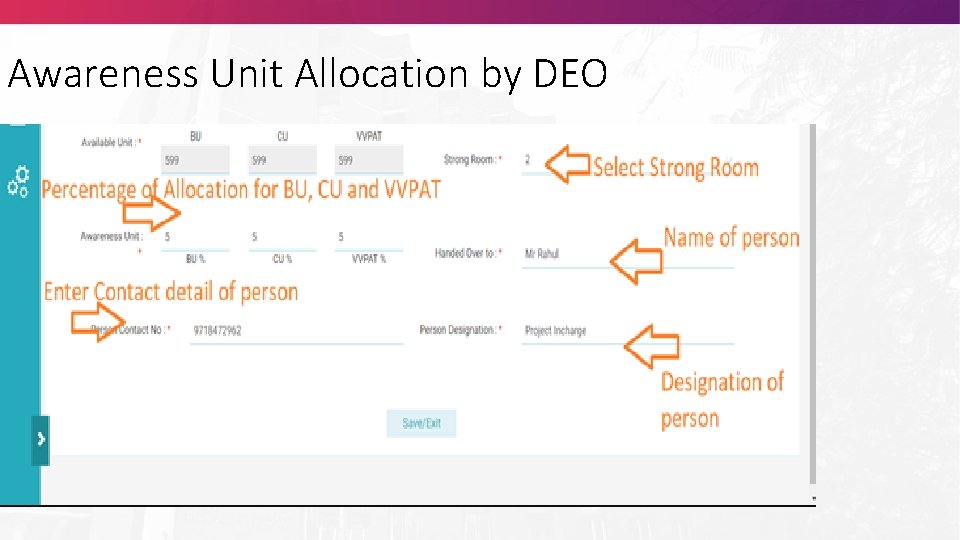
Awareness Unit Allocation by DEO
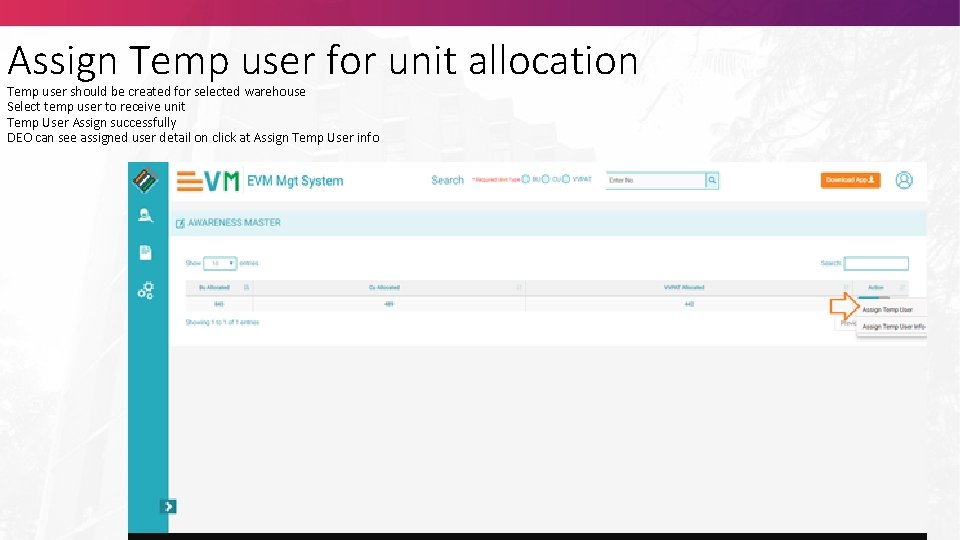
Assign Temp user for unit allocation Temp user should be created for selected warehouse Select temp user to receive unit Temp User Assign successfully DEO can see assigned user detail on click at Assign Temp User info
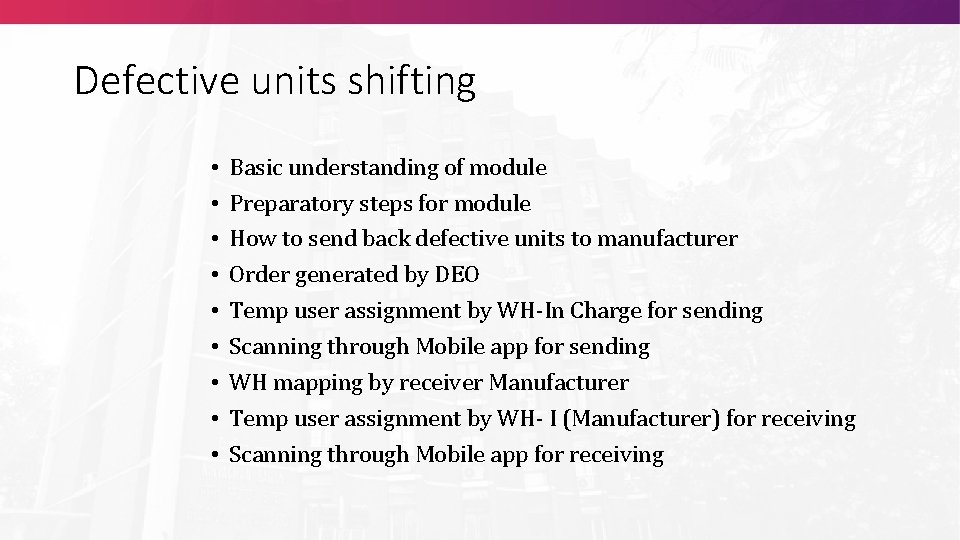
Defective units shifting • • • Basic understanding of module Preparatory steps for module How to send back defective units to manufacturer Order generated by DEO Temp user assignment by WH-In Charge for sending Scanning through Mobile app for sending WH mapping by receiver Manufacturer Temp user assignment by WH- I (Manufacturer) for receiving Scanning through Mobile app for receiving
Randomization FLC-OK EVMs and VVPATs will be randomized twice, once for allocation of machines to assembly constituencies and second to polling stations in the presence of candidates or their representatives before they are distributed for use in individual polling stations. The randomizations were carried out through EVM Tracking Software (ETS) by the DEO in the presence of the representatives of political parties/candidates for complete transparency. The lists of EVMs and VVPATs containing serial number of EVM and VVPAT allocated to particular polling station were provided to the political parties/candidates.
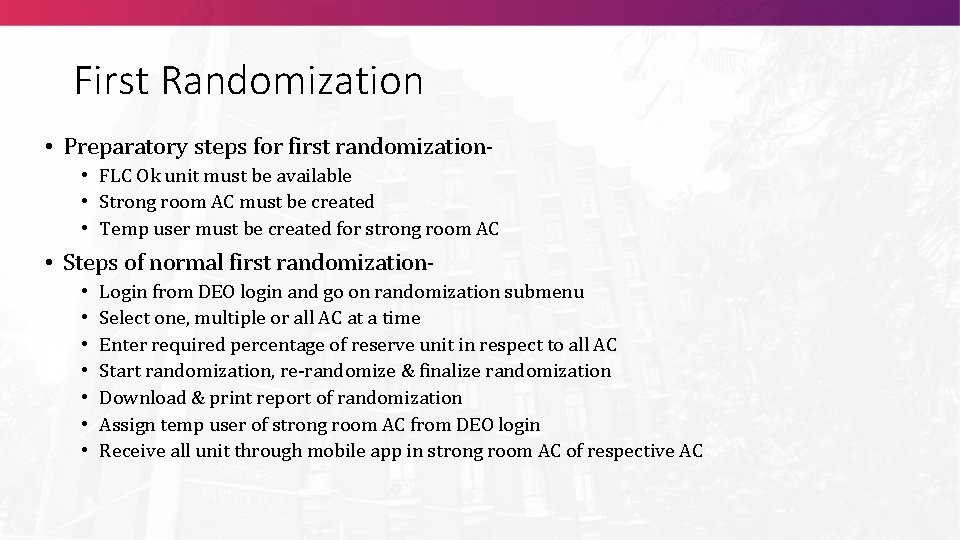
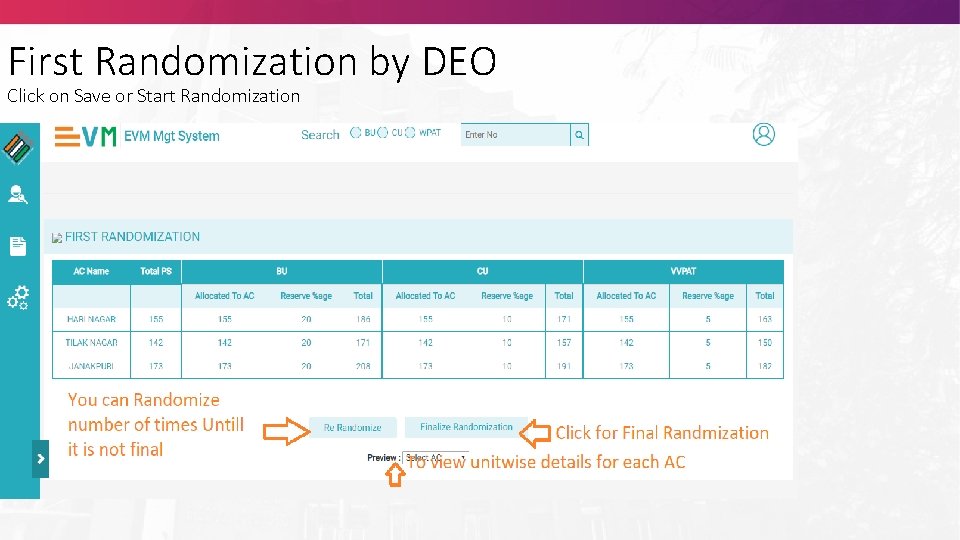
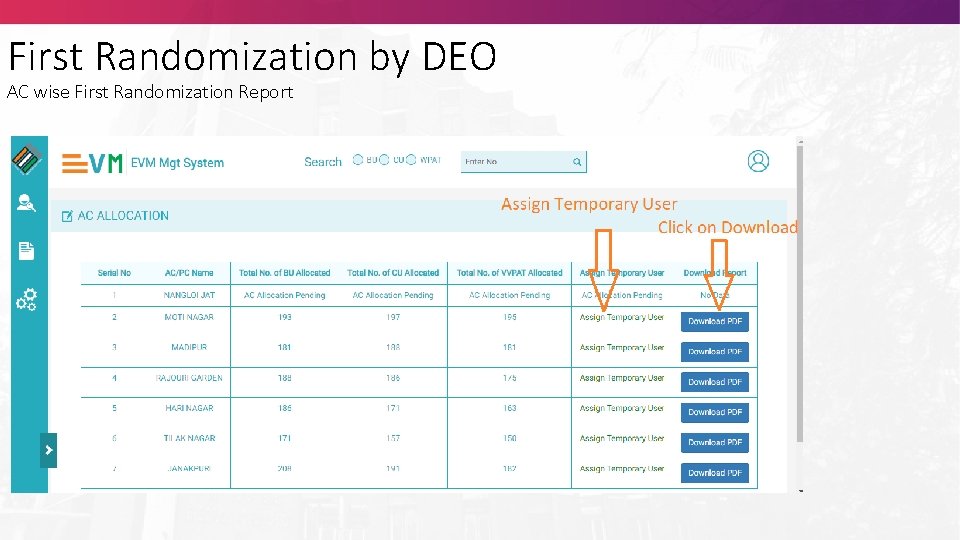
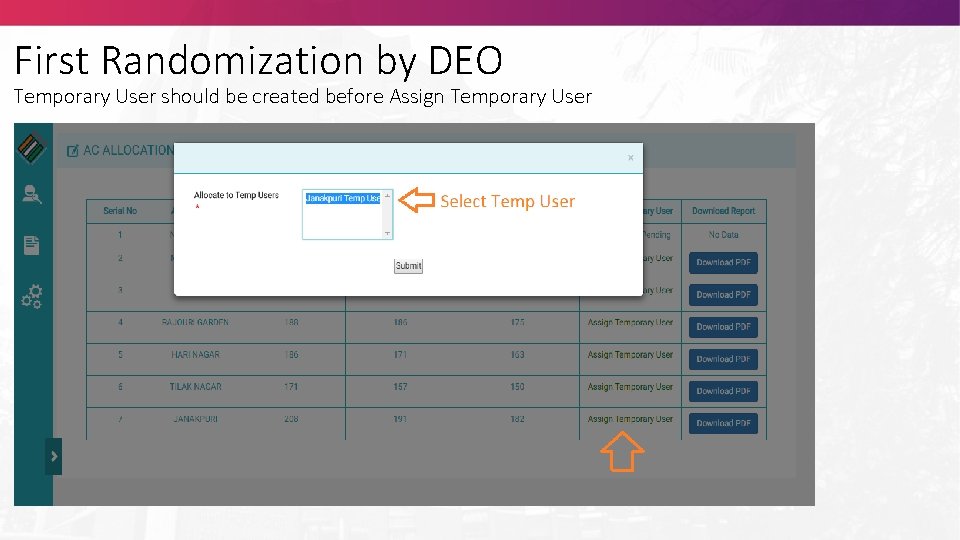
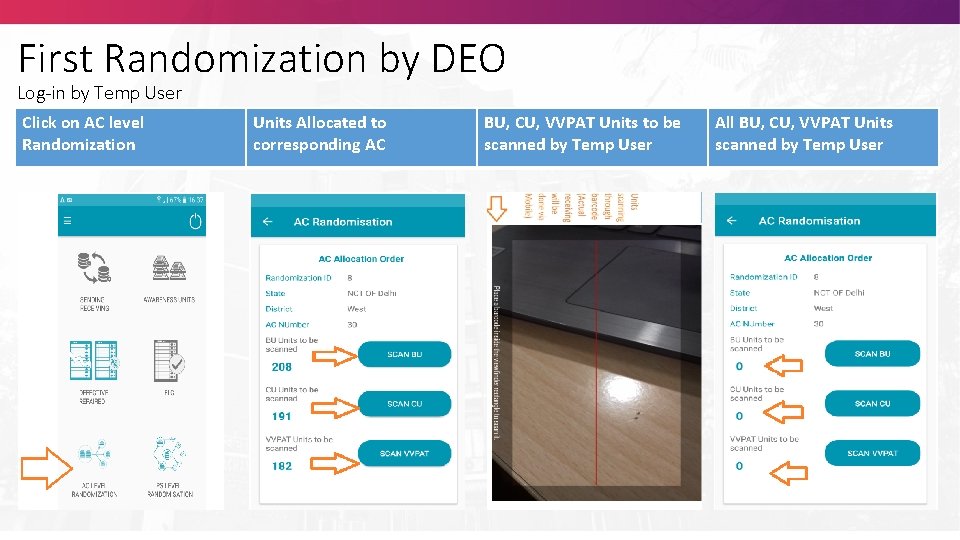
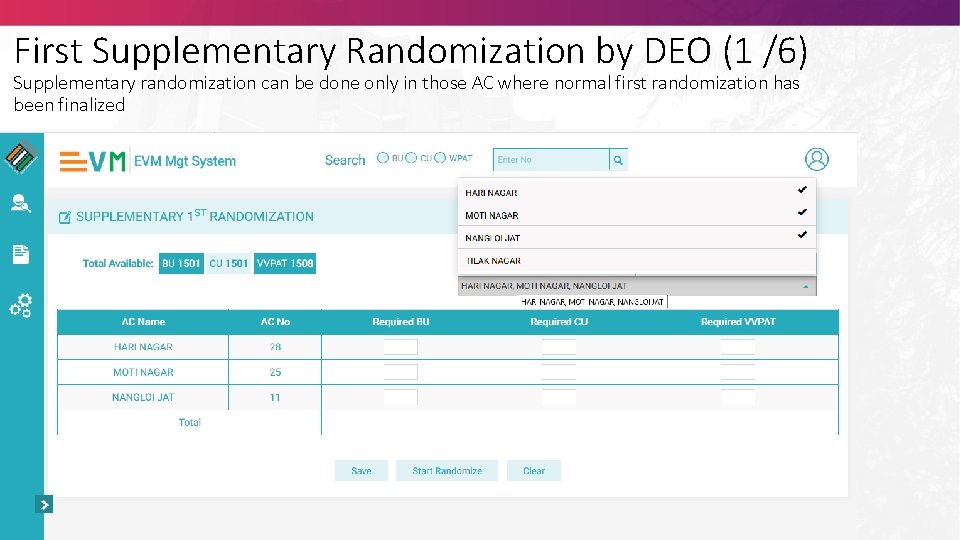
First Randomization • Preparatory steps for first randomization- • FLC Ok unit must be available • Strong room AC must be created • Temp user must be created for strong room AC • Steps of normal first randomization • • Login from DEO login and go on randomization submenu Select one, multiple or all AC at a time Enter required percentage of reserve unit in respect to all AC Start randomization, re-randomize & finalize randomization Download & print report of randomization Assign temp user of strong room AC from DEO login Receive all unit through mobile app in strong room AC of respective AC
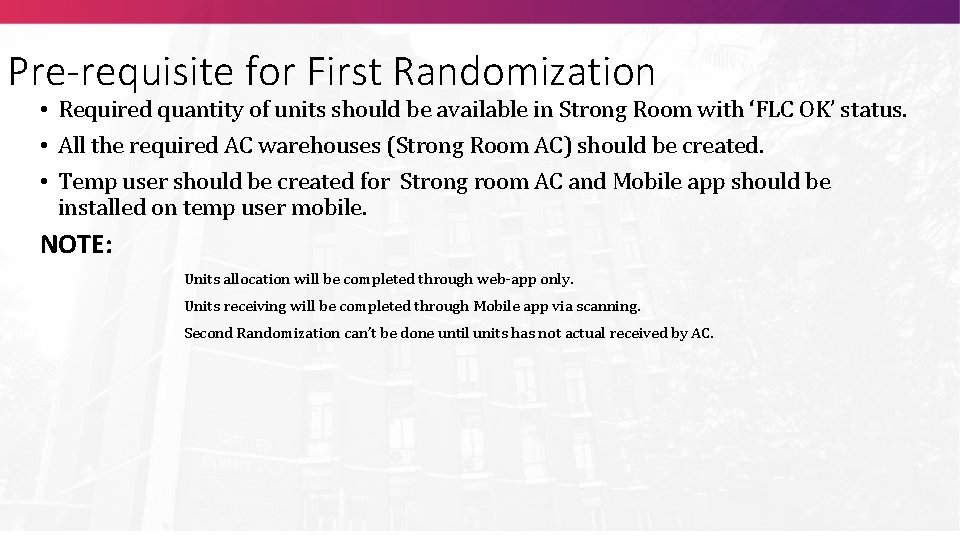
Pre-requisite for First Randomization • Required quantity of units should be available in Strong Room with ‘FLC OK’ status. • All the required AC warehouses (Strong Room AC) should be created. • Temp user should be created for Strong room AC and Mobile app should be installed on temp user mobile. NOTE: Units allocation will be completed through web-app only. Units receiving will be completed through Mobile app via scanning. Second Randomization can’t be done until units has not actual received by AC.
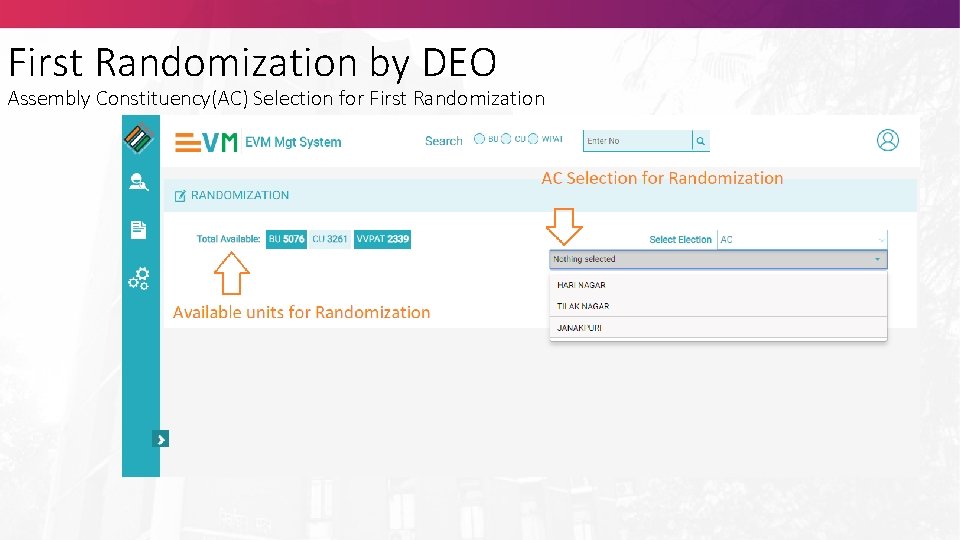
First Randomization by DEO Assembly Constituency(AC) Selection for First Randomization
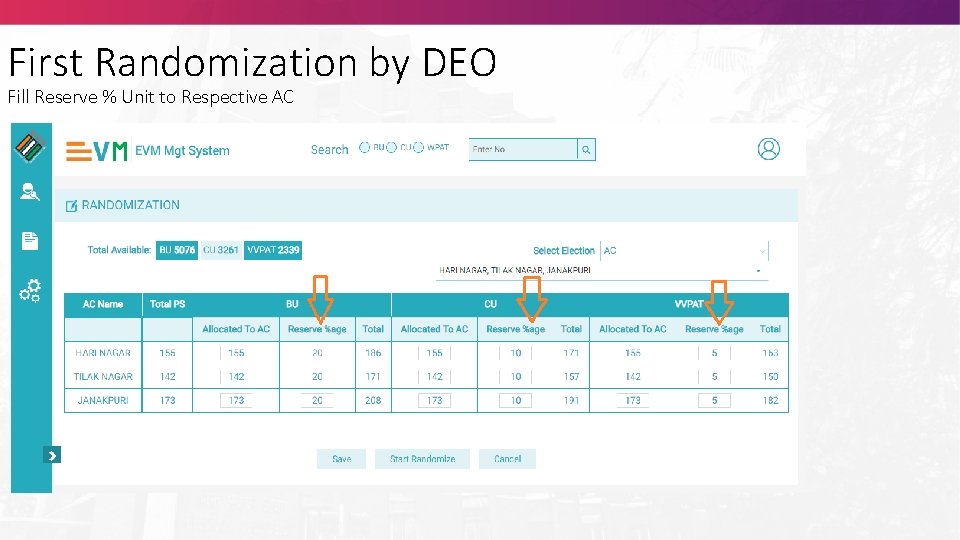
First Randomization by DEO Fill Reserve % Unit to Respective AC
First Randomization by DEO Click on Save or Start Randomization
First Randomization by DEO AC wise First Randomization Report
First Randomization by DEO Temporary User should be created before Assign Temporary User
First Randomization by DEO Log-in by Temp User Click on AC level Randomization Units Allocated to corresponding AC BU, CU, VVPAT Units to be scanned by Temp User All BU, CU, VVPAT Units scanned by Temp User
First Supplementary Randomization by DEO (1 /6) Supplementary randomization can be done only in those AC where normal first randomization has been finalized
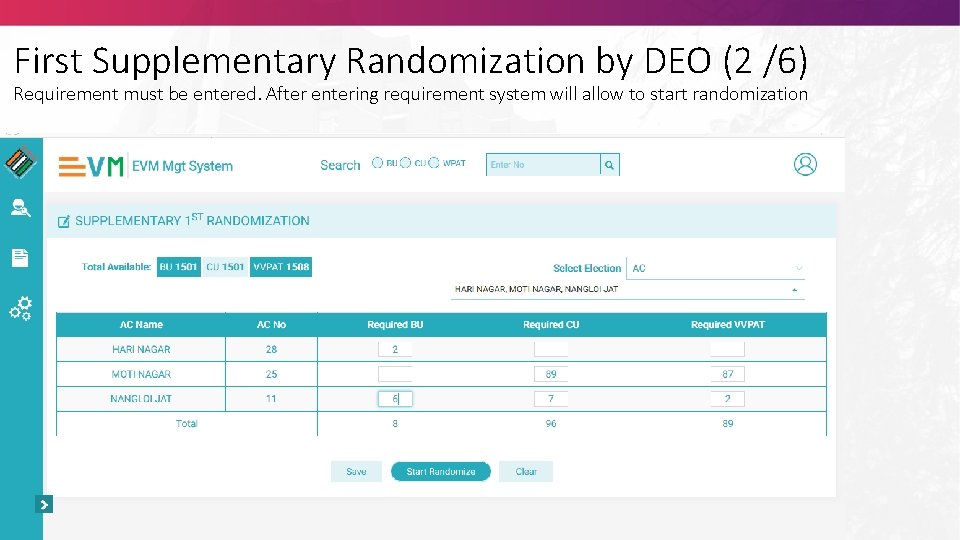
First Supplementary Randomization by DEO (2 /6) Requirement must be entered. After entering requirement system will allow to start randomization
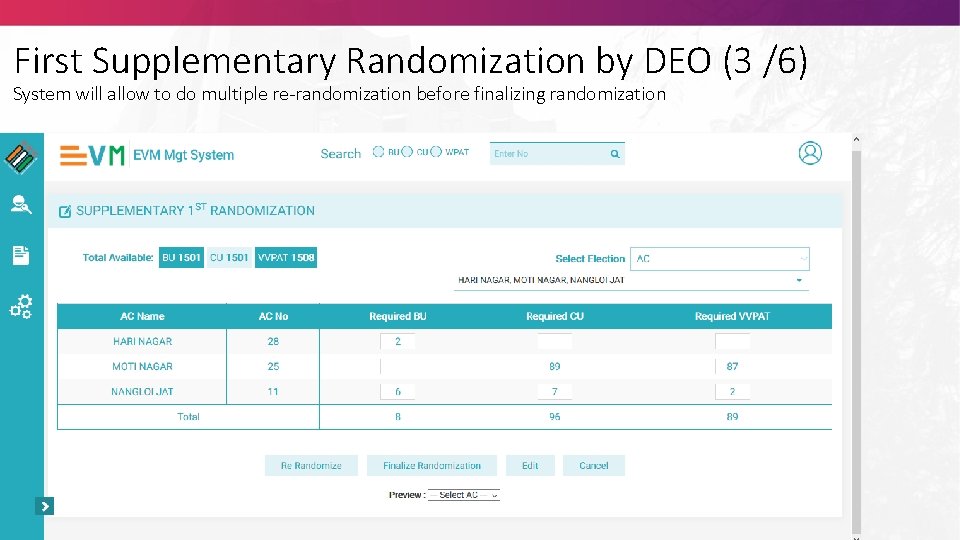
First Supplementary Randomization by DEO (3 /6) System will allow to do multiple re-randomization before finalizing randomization
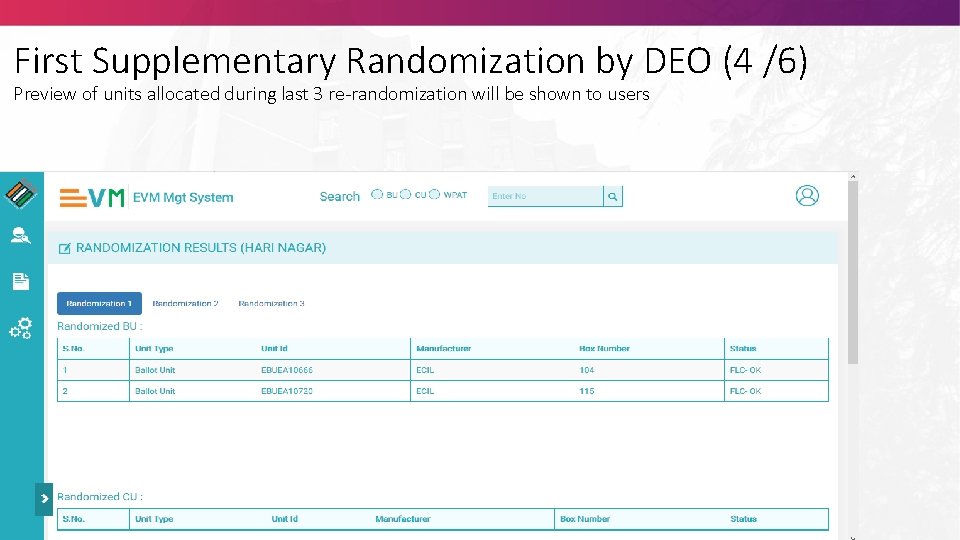
First Supplementary Randomization by DEO (4 /6) Preview of units allocated during last 3 re-randomization will be shown to users
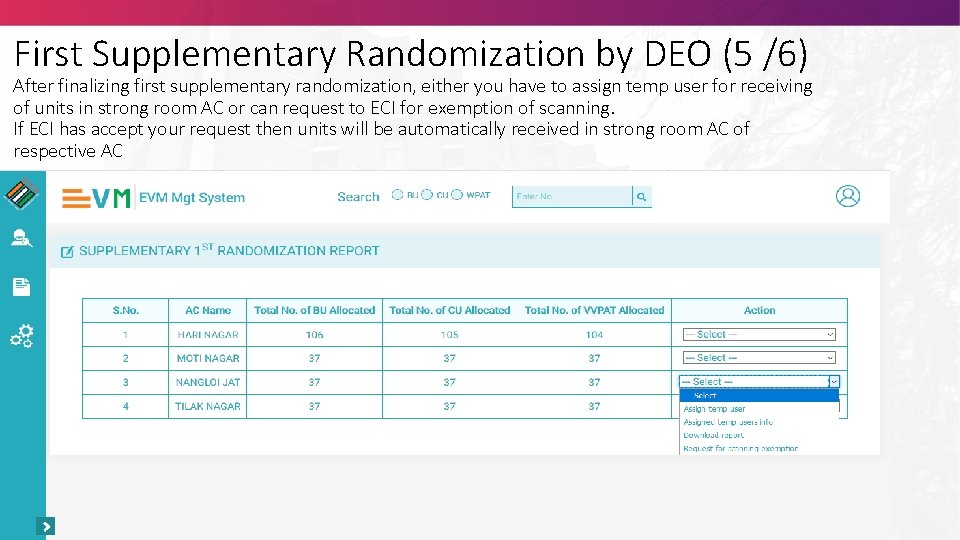
First Supplementary Randomization by DEO (5 /6) After finalizing first supplementary randomization, either you have to assign temp user for receiving of units in strong room AC or can request to ECI for exemption of scanning. If ECI has accept your request then units will be automatically received in strong room AC of respective AC
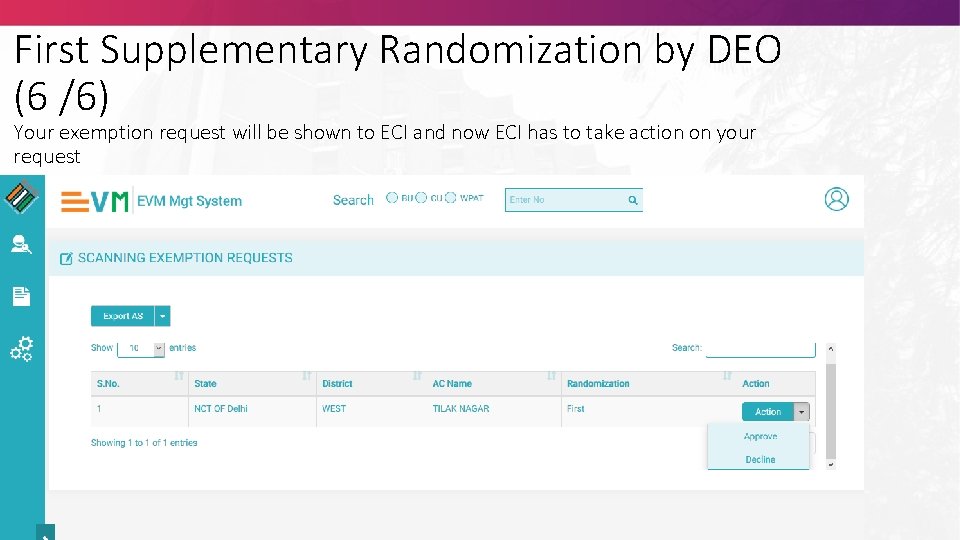
First Supplementary Randomization by DEO (6 /6) Your exemption request will be shown to ECI and now ECI has to take action on your request
Second Randomization Preparatory steps for second randomization • • First randomization must be done All the units must be received in strong room AC Count of polling station & candidate must be verified Temp user must be created for strong room AC • Steps of normal second randomization • • Login from DEO login and go on randomization submenu Select one AC at a time Verify count of PS and count of candidate Start randomization, re-randomize & finalize randomization Download & print report of randomization Assign temp user of strong room AC from DEO login Dispatch all units to polling stations through mobile app
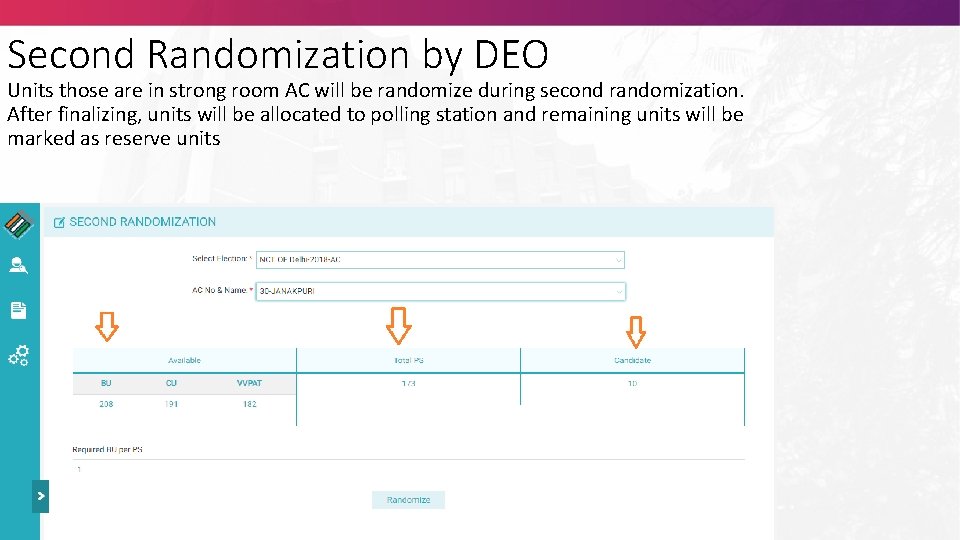
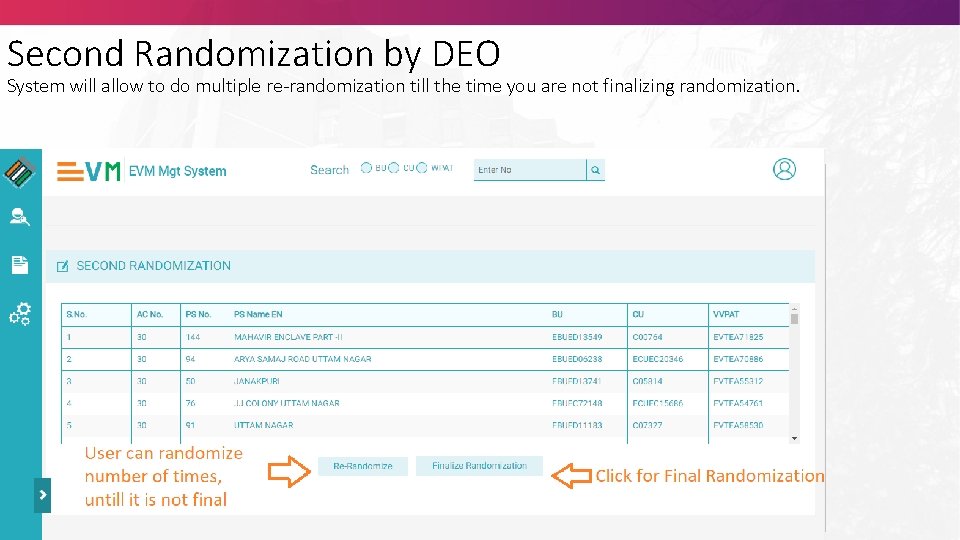
Second Randomization by DEO Units those are in strong room AC will be randomize during second randomization. After finalizing, units will be allocated to polling station and remaining units will be marked as reserve units
Second Randomization by DEO System will allow to do multiple re-randomization till the time you are not finalizing randomization.
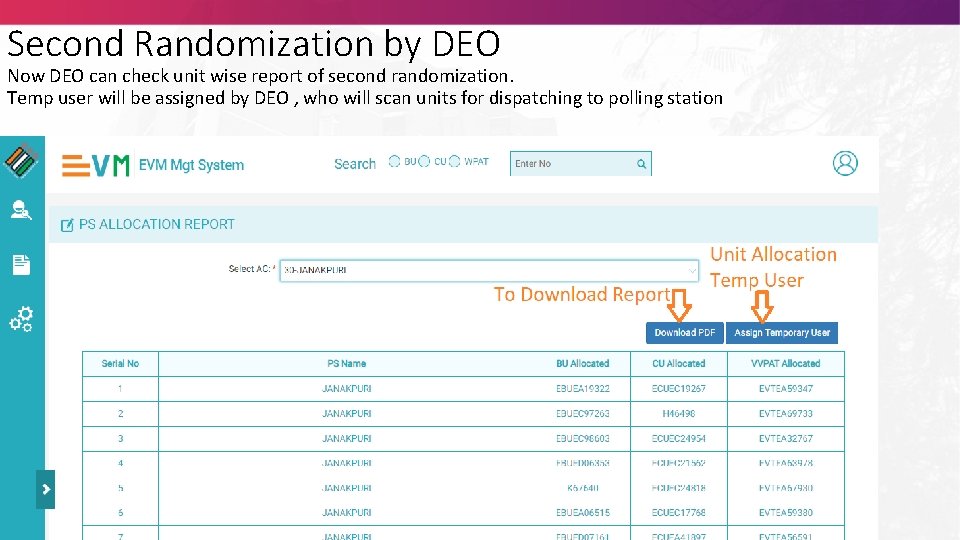
Second Randomization by DEO Now DEO can check unit wise report of second randomization. Temp user will be assigned by DEO , who will scan units for dispatching to polling station
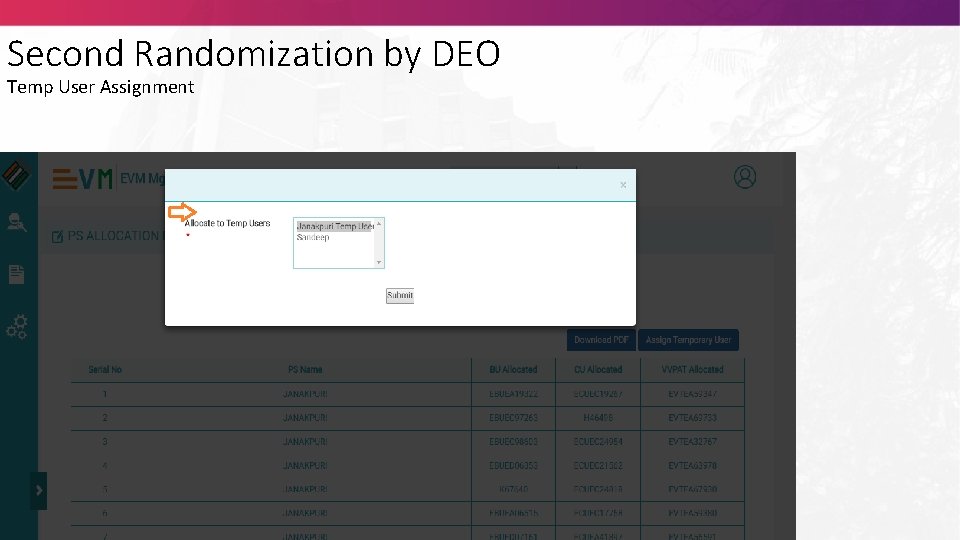
Second Randomization by DEO Temp User Assignment
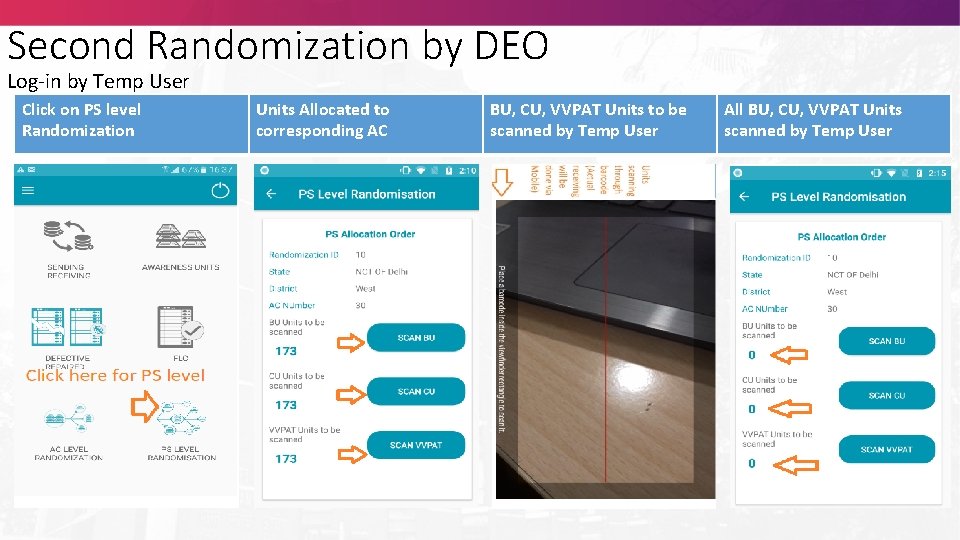
Second Randomization by DEO Log-in by Temp User Click on PS level Randomization Units Allocated to corresponding AC BU, CU, VVPAT Units to be scanned by Temp User All BU, CU, VVPAT Units scanned by Temp User
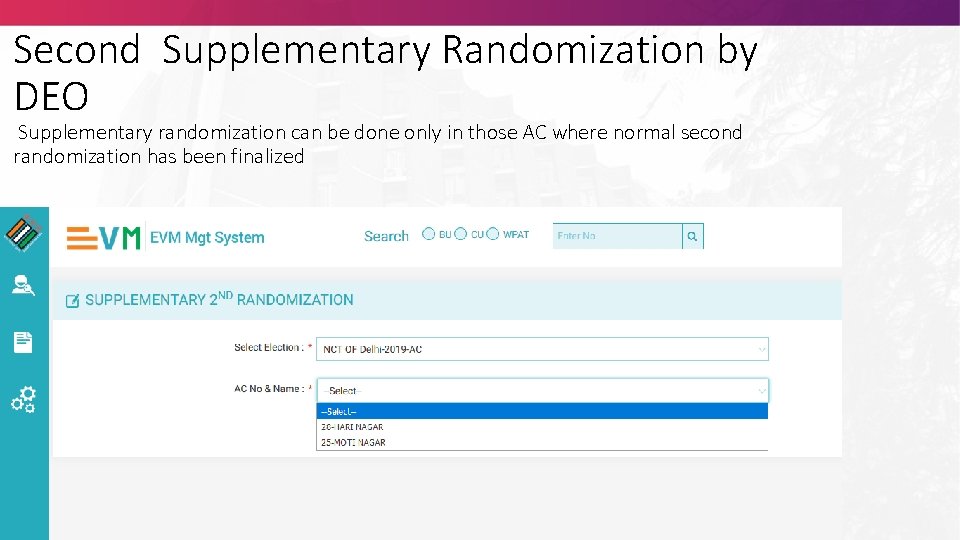
Second Supplementary Randomization by DEO Supplementary randomization can be done only in those AC where normal second randomization has been finalized
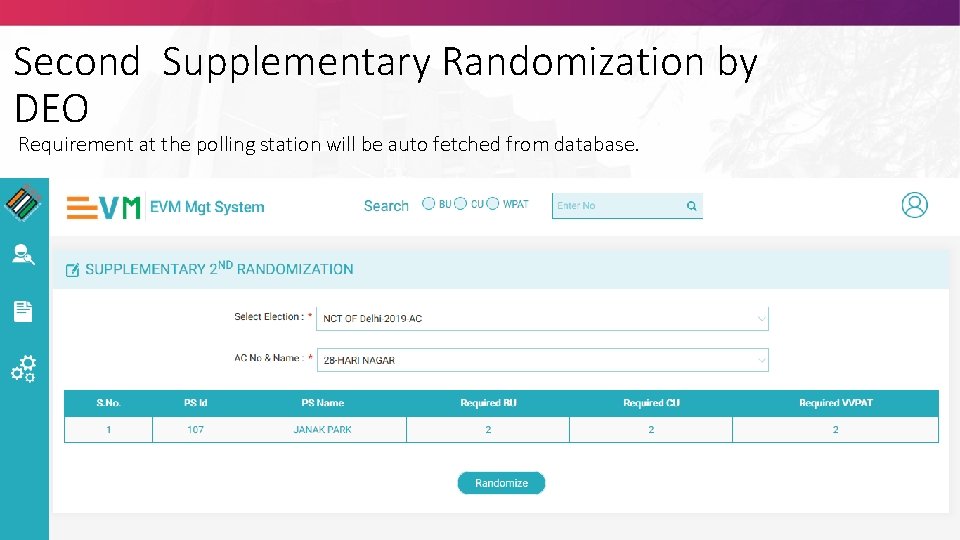
Second Supplementary Randomization by DEO Requirement at the polling station will be auto fetched from database.
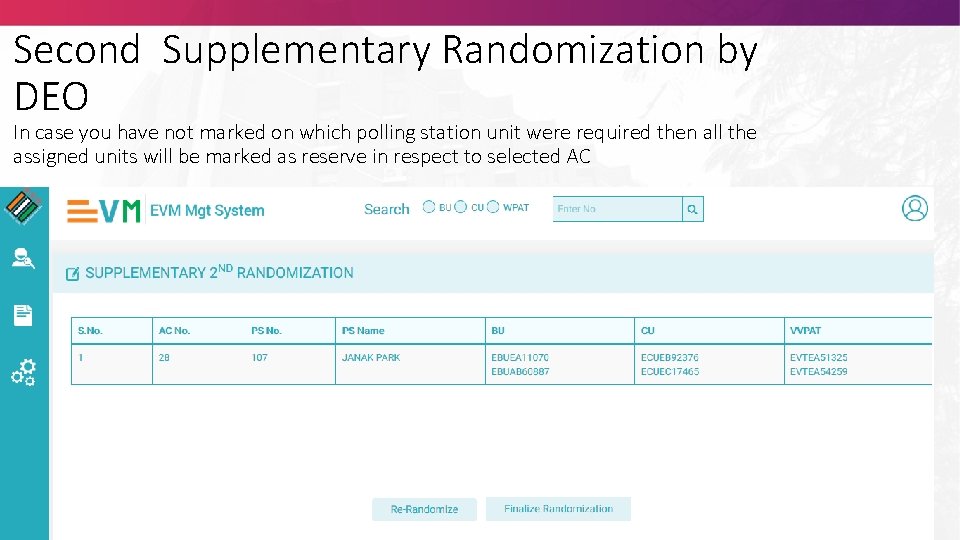
Second Supplementary Randomization by DEO In case you have not marked on which polling station unit were required then all the assigned units will be marked as reserve in respect to selected AC
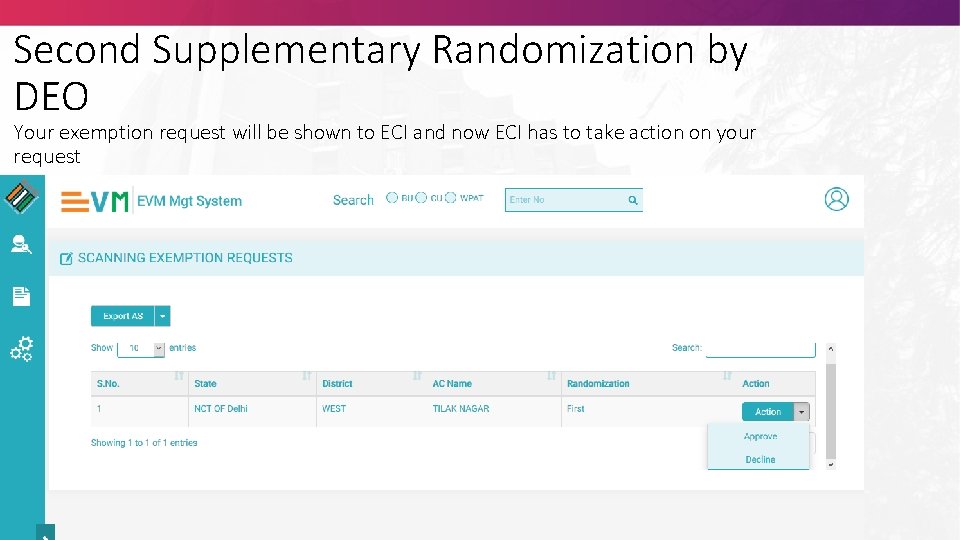
Second Supplementary Randomization by DEO Your exemption request will be shown to ECI and now ECI has to take action on your request
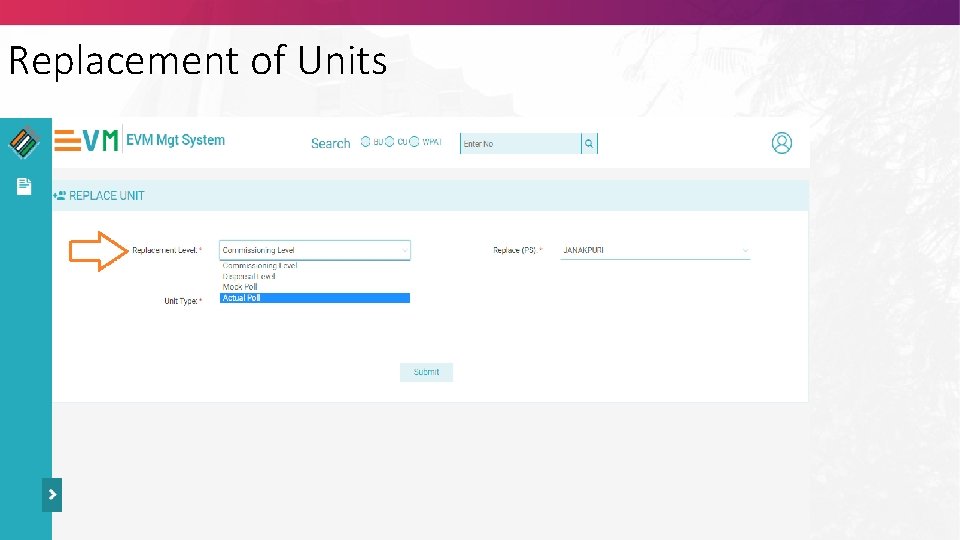
Replacement of Units • Basic understanding of module • Preparatory steps for module • Detailed information of replaced units must be you have • How to mark details of replacement with unit’s details and replacement level details • View & download report • How to upload replacement report
Replacement of Units
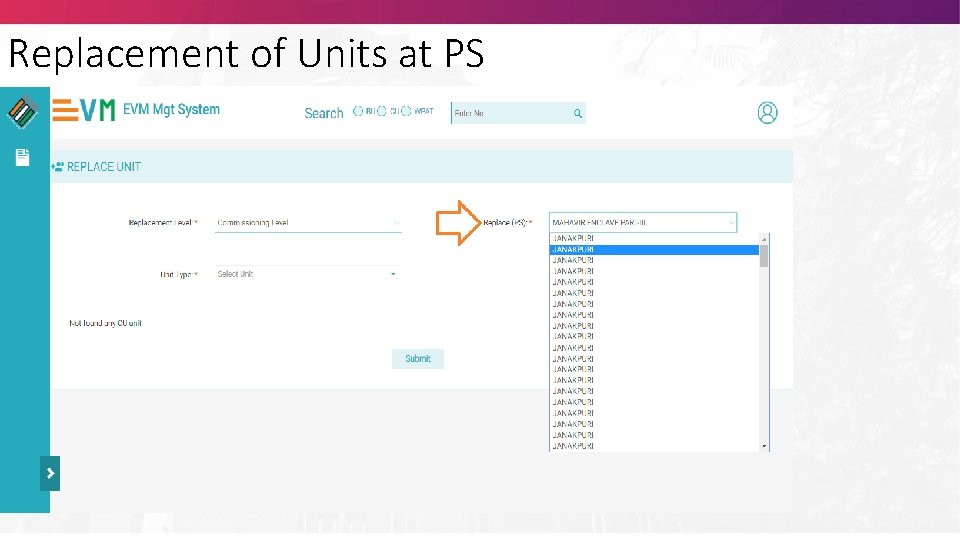
Replacement of Units at PS
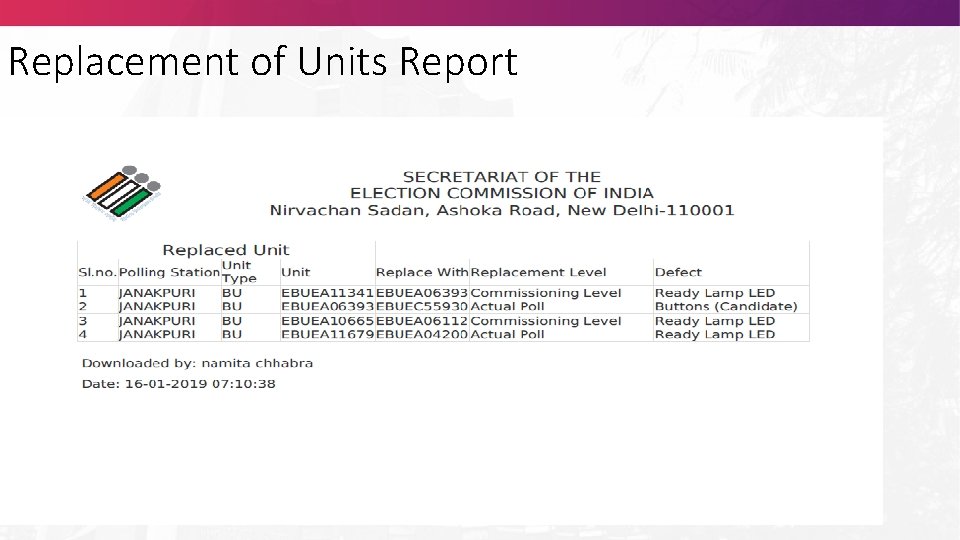
Replacement of Units Report
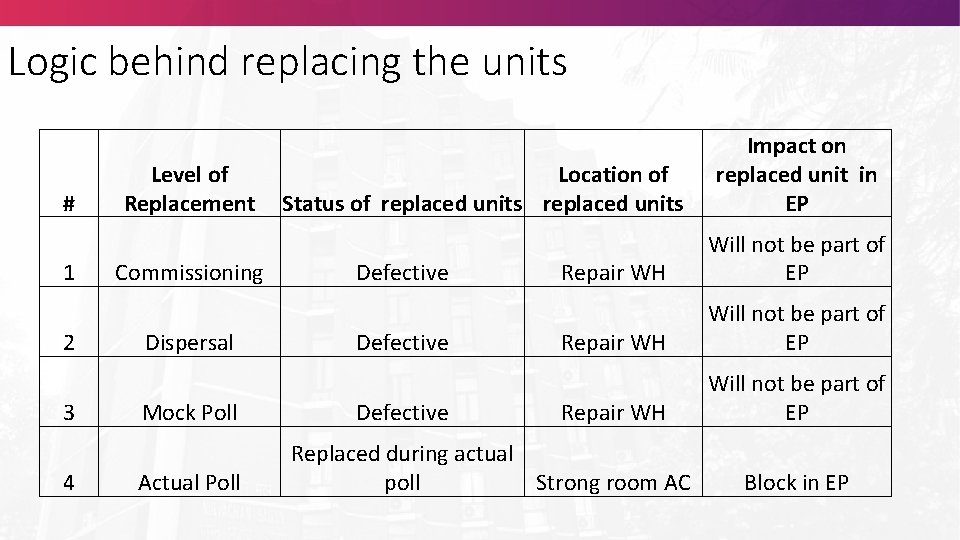
Logic behind replacing the units # 1 2 3 4 Level of Replacement Commissioning Dispersal Mock Poll Actual Poll Location of Status of replaced units Defective Impact on replaced unit in EP Repair WH Will not be part of EP Replaced during actual Strong room AC poll Block in EP
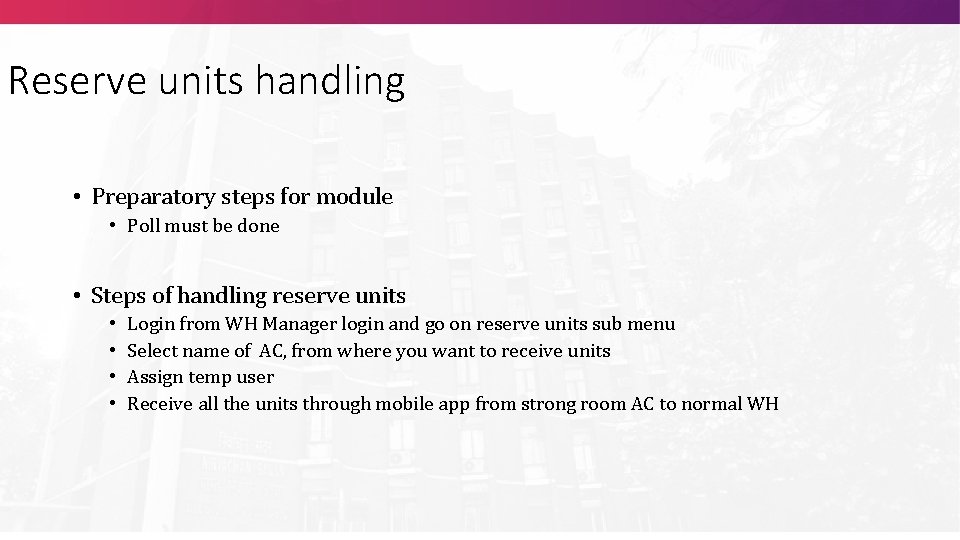
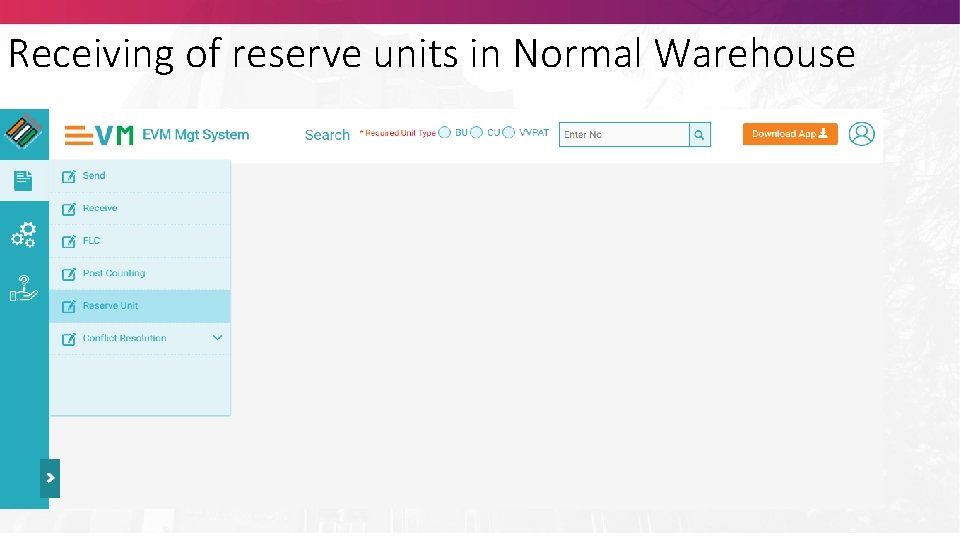
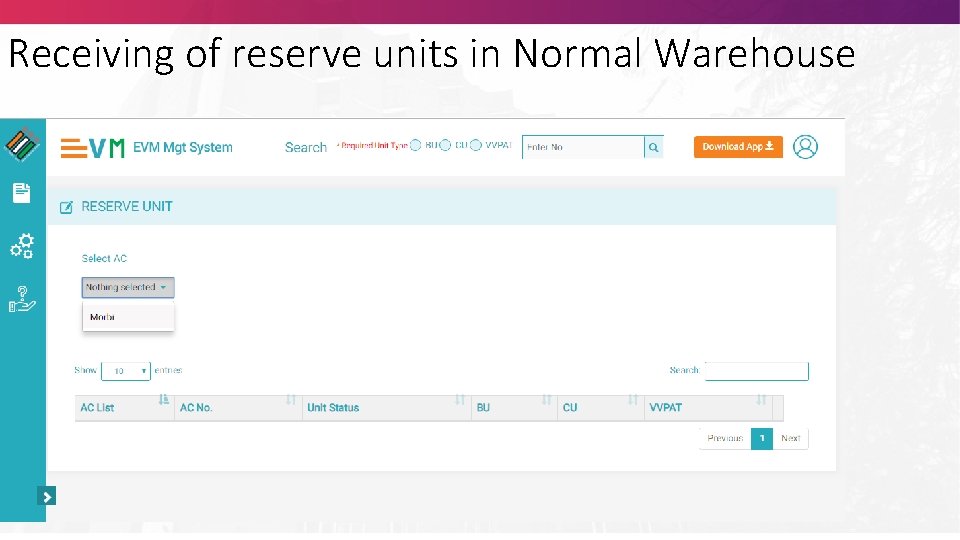
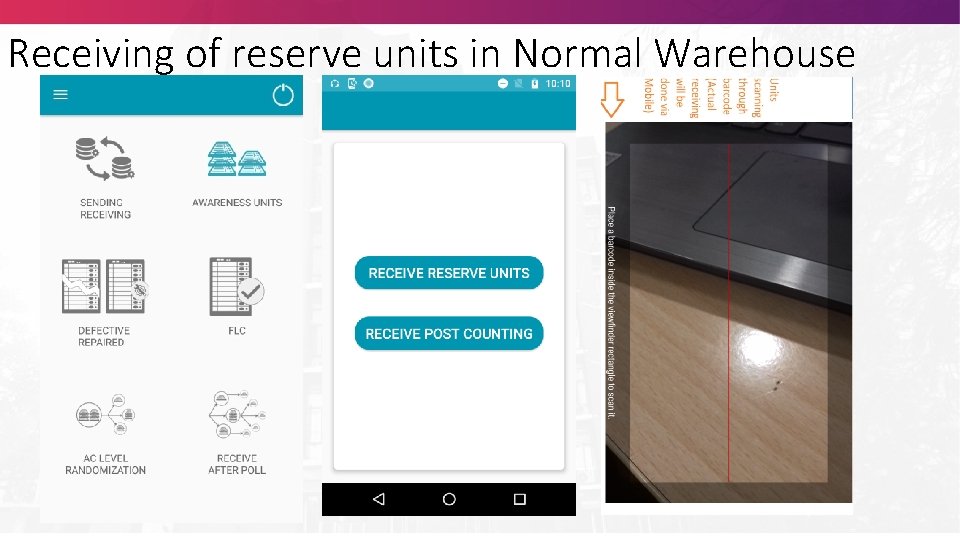
Reserve units handling • Preparatory steps for module • Poll must be done • Steps of handling reserve units • • Login from WH Manager login and go on reserve units sub menu Select name of AC, from where you want to receive units Assign temp user Receive all the units through mobile app from strong room AC to normal WH
Receiving of reserve units in Normal Warehouse
Receiving of reserve units in Normal Warehouse
Receiving of reserve units in Normal Warehouse
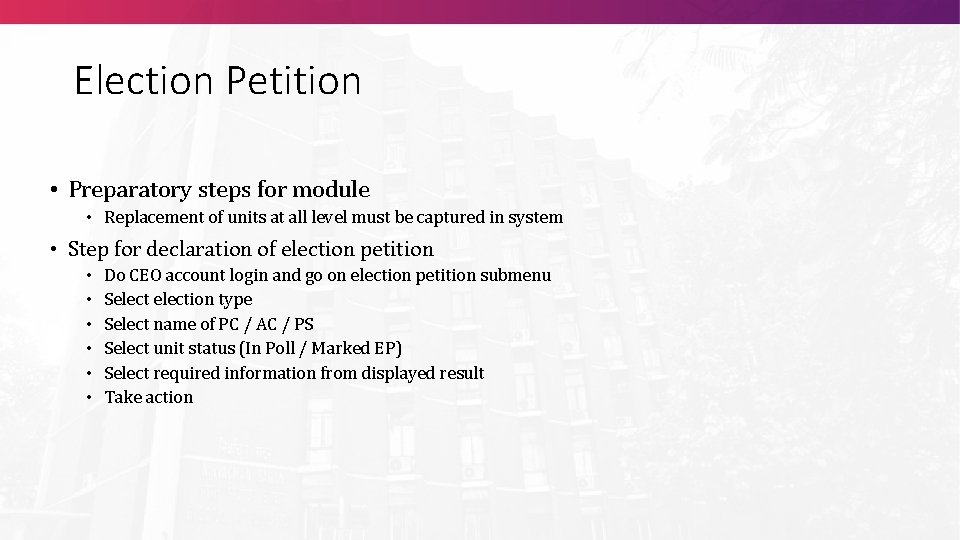
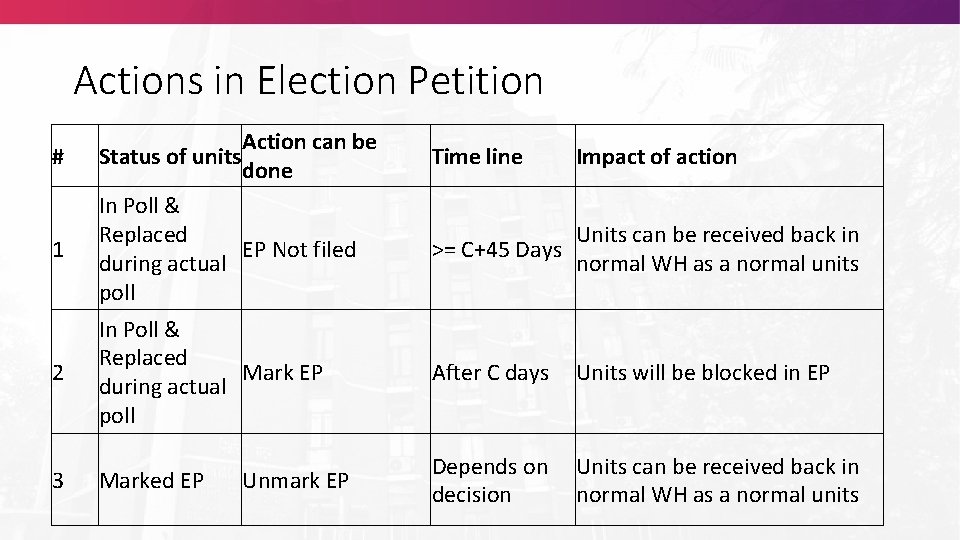
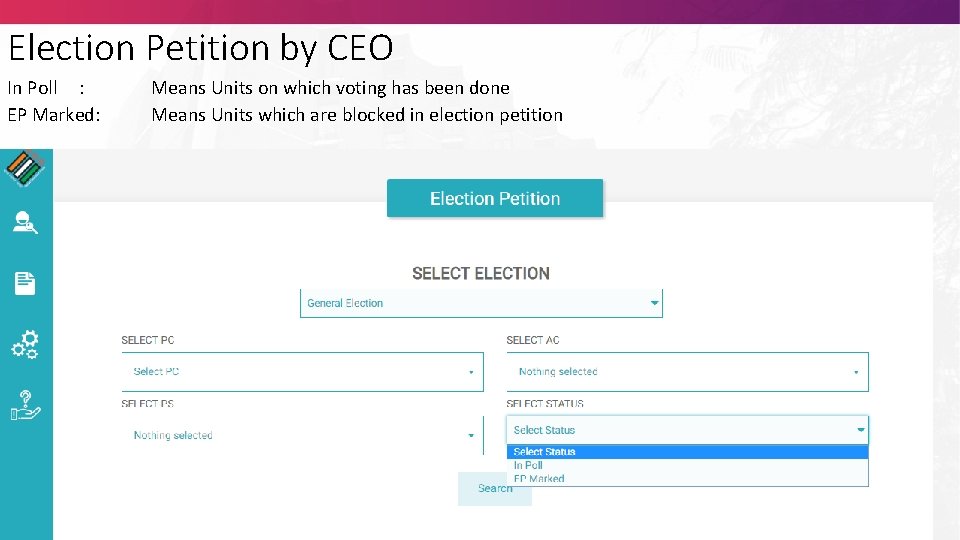
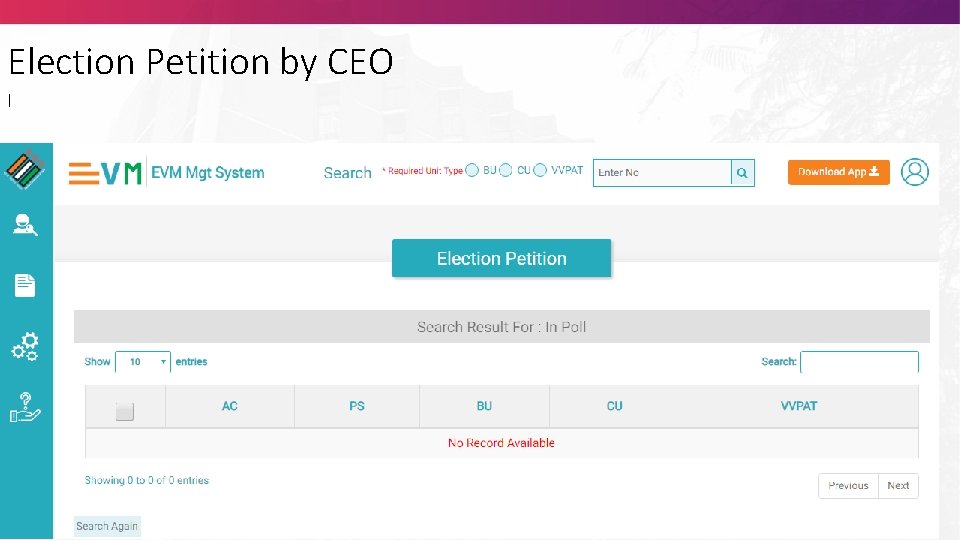
Election Petition • Preparatory steps for module • Replacement of units at all level must be captured in system • Step for declaration of election petition • • • Do CEO account login and go on election petition submenu Selection type Select name of PC / AC / PS Select unit status (In Poll / Marked EP) Select required information from displayed result Take action
Actions in Election Petition Action can be done # Status of units 1 In Poll & Replaced EP Not filed during actual poll Units can be received back in >= C+45 Days normal WH as a normal units 2 In Poll & Replaced Mark EP during actual poll After C days Units will be blocked in EP 3 Marked EP Depends on Units can be received back in decision normal WH as a normal units Unmark EP Time line Impact of action
Election Petition by CEO In Poll : EP Marked: Means Units on which voting has been done Means Units which are blocked in election petition
Election Petition by CEO I
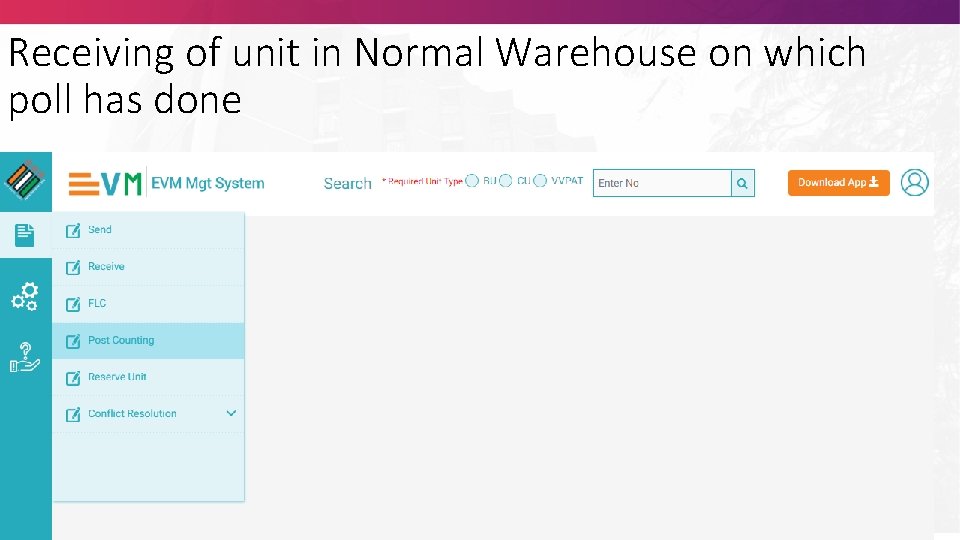
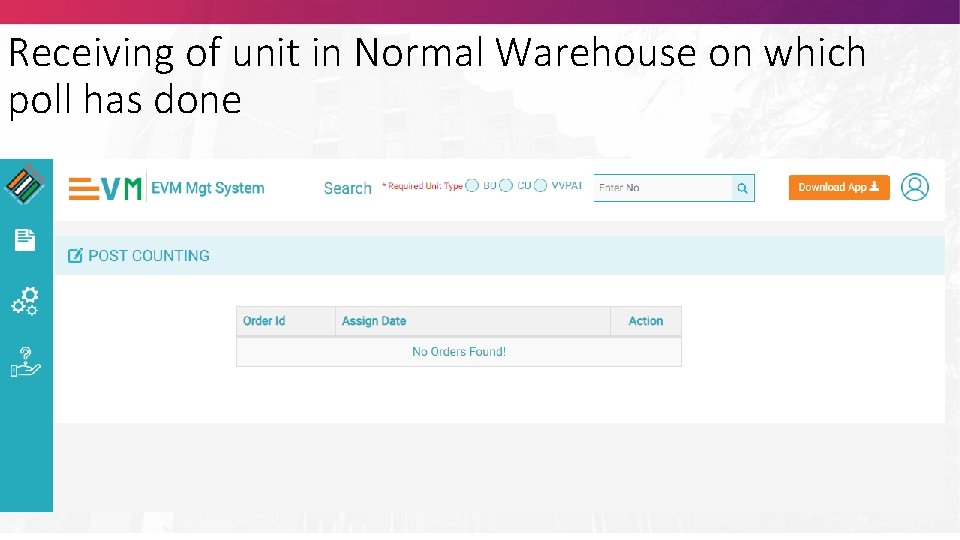
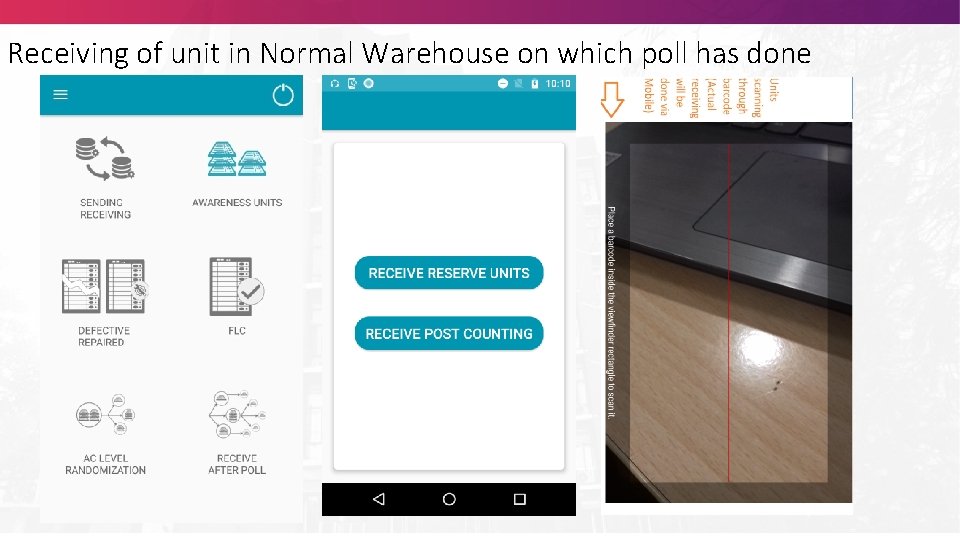
Receiving of unit in Normal Warehouse on which poll has done • Do action, either EP not filed or unmark EP • Upload court order • Login by Normal Warehouse Manager • Assign temporary user for post counting • Login by EMS Asset Mobile App with normal warehouse temporary user and click on "Receive After Poll" and click "Receive Post Count" to scan EVM units of post counting to normal warehouse.
Receiving of unit in Normal Warehouse on which poll has done
Receiving of unit in Normal Warehouse on which poll has done
Receiving of unit in Normal Warehouse on which poll has done
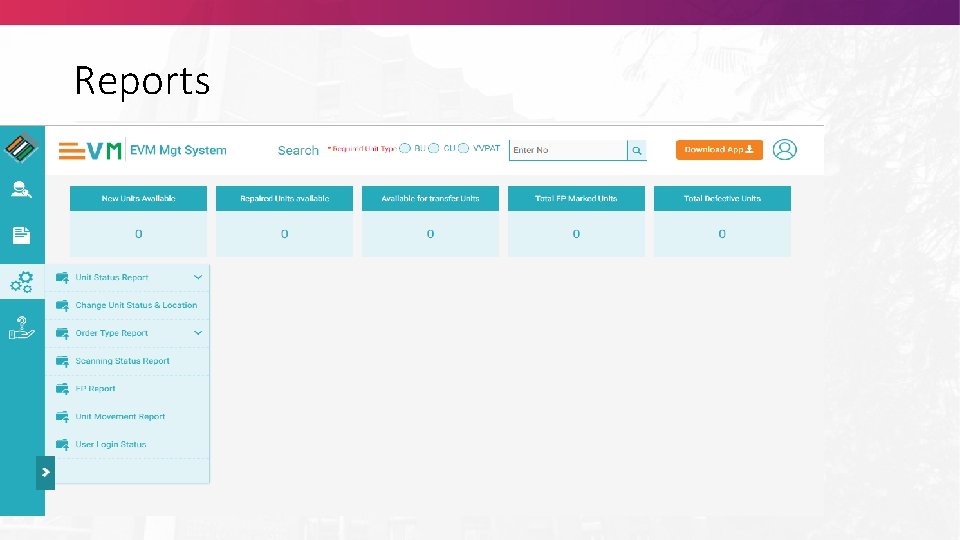
Reports • • • Basic understanding of module Preparatory steps for module Real time scanning report of each module Check real time unit status report Check historical movement report View & download report
Reports
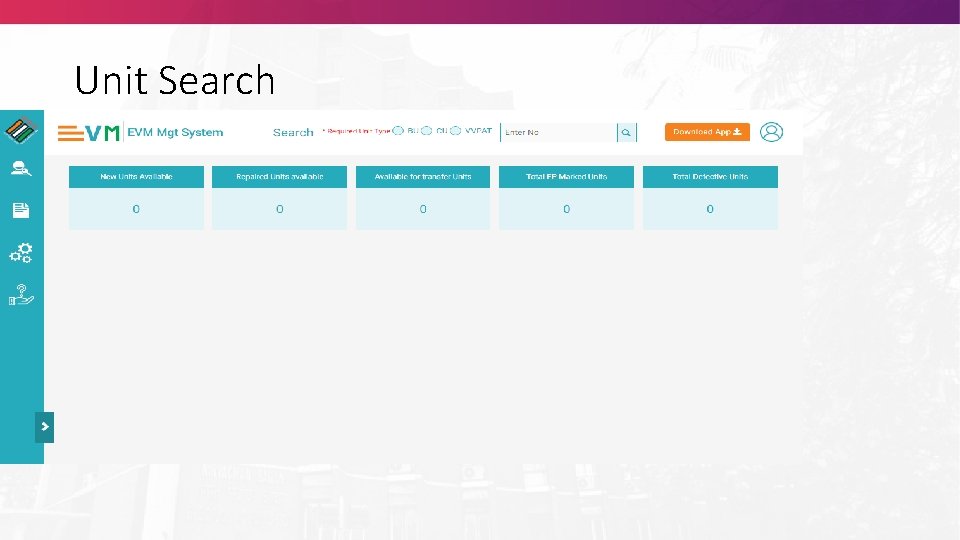
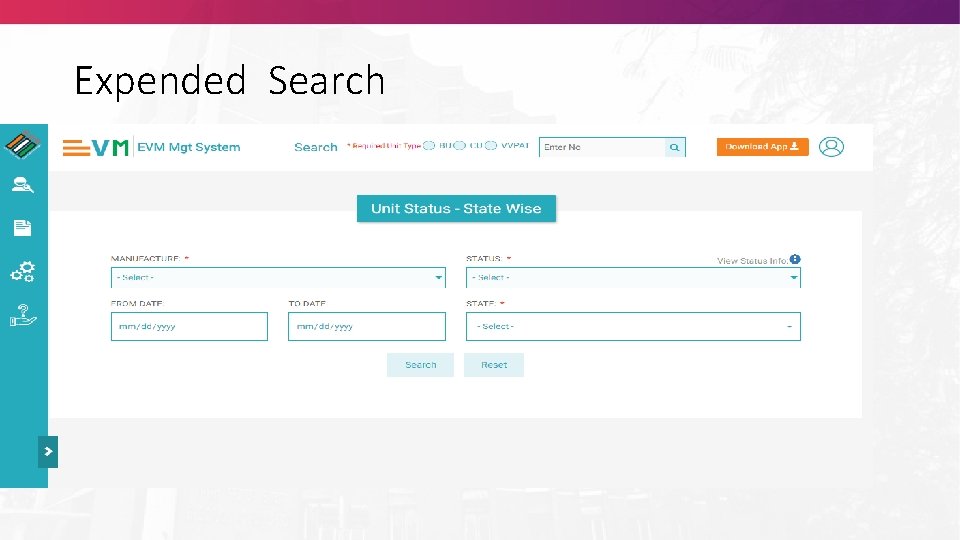
Search • Basic understanding of module • Preparatory steps for module • How to search unit from entire EMS • How to find out filter based
Unit Search
Expended Search
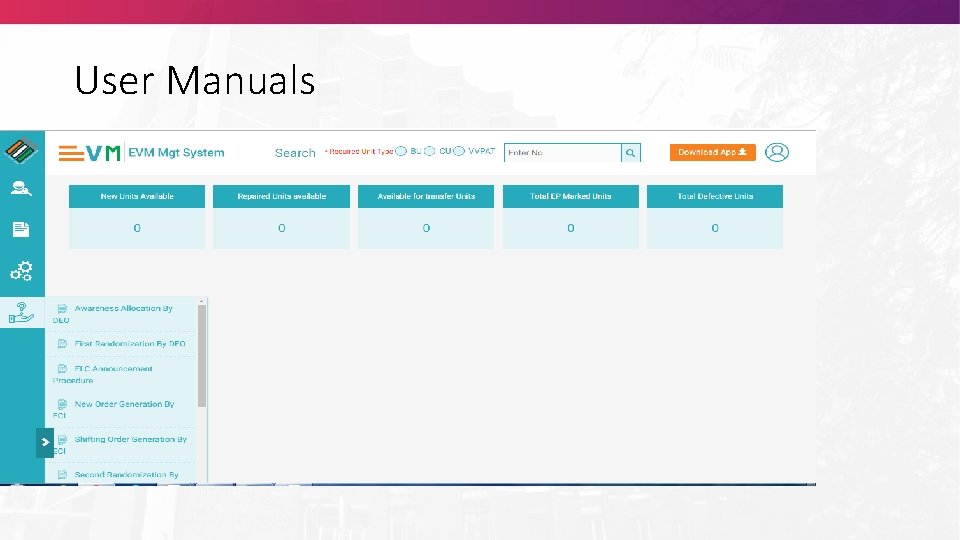
User Manuals
THANK YOU