
evaluating your design When designing our evaluating refining

- Slides: 26
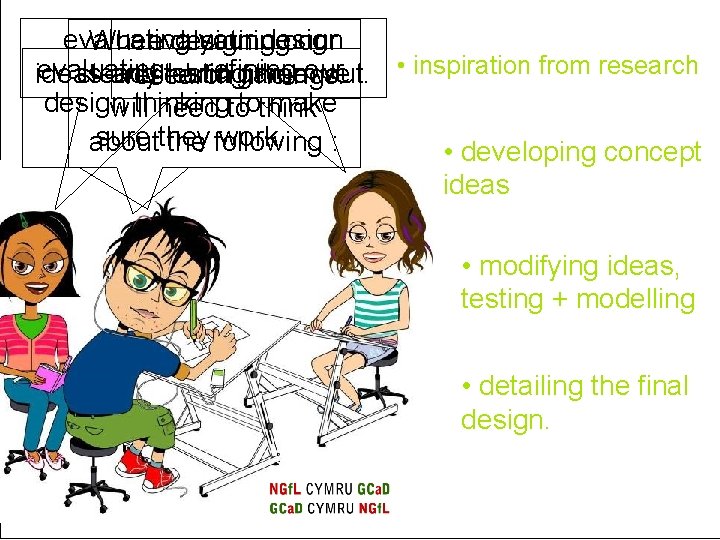
evaluating your design When designing our evaluating + refining ideas and testing themour out. • inspiration from research steady hand game we research findings. design thinking make will need totothink sure they work. about the following : • developing concept ideas • modifying ideas, testing + modelling • detailing the final design.
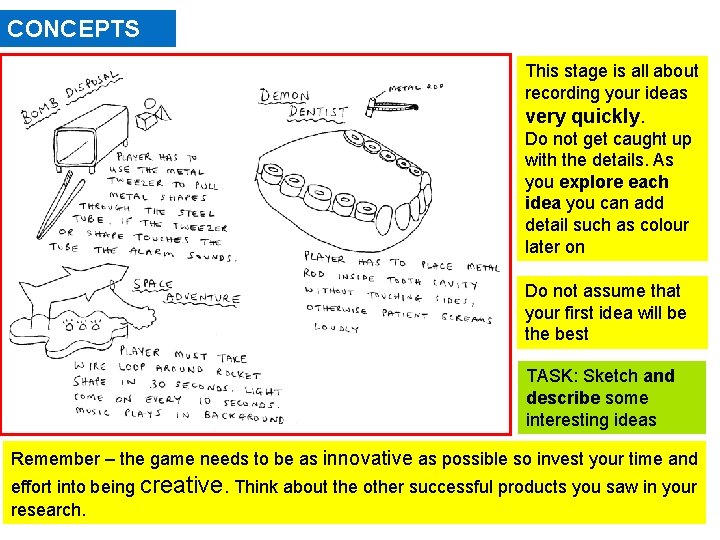
CONCEPTS This stage is all about recording your ideas very quickly. Do not get caught up with the details. As you explore each idea you can add detail such as colour later on Do not assume that your first idea will be the best TASK: Sketch and describe some interesting ideas Remember – the game needs to be as innovative as possible so invest your time and effort into being creative. Think about the other successful products you saw in your research.
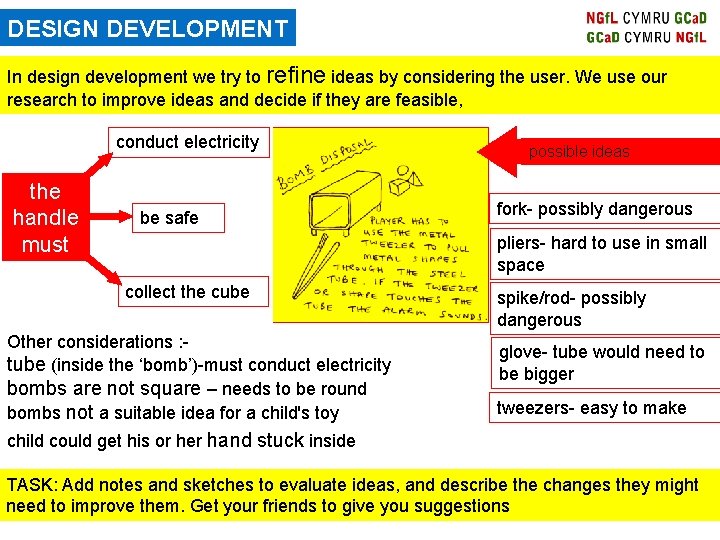
DESIGN DEVELOPMENT In design development we try to refine ideas by considering the user. We use our research to improve ideas and decide if they are feasible, conduct electricity the handle must be safe possible ideas fork- possibly dangerous pliers- hard to use in small space collect the cube Other considerations : tube (inside the ‘bomb’)-must conduct electricity bombs are not square – needs to be round bombs not a suitable idea for a child's toy spike/rod- possibly dangerous glove- tube would need to be bigger tweezers- easy to make child could get his or her hand stuck inside TASK: Add notes and sketches to evaluate ideas, and describe the changes they might need to improve them. Get your friends to give you suggestions
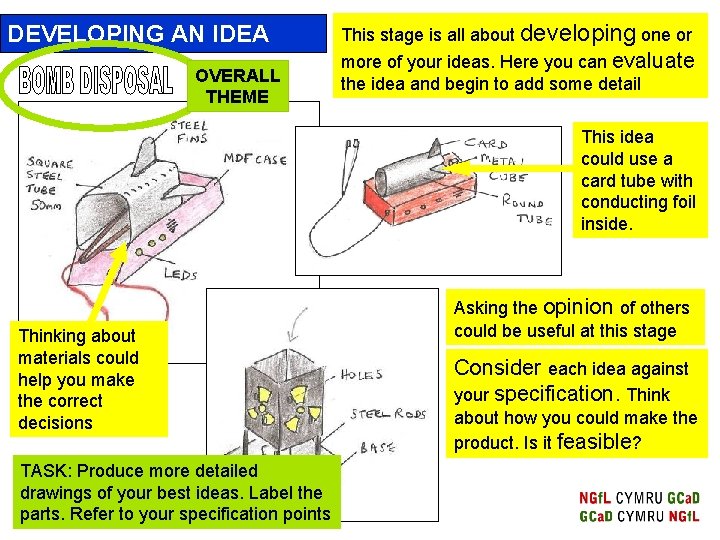
DEVELOPING AN IDEA OVERALL THEME This stage is all about developing one or more of your ideas. Here you can evaluate the idea and begin to add some detail This idea could use a card tube with conducting foil inside. Thinking about materials could help you make the correct decisions TASK: Produce more detailed drawings of your best ideas. Label the parts. Refer to your specification points Asking the opinion of others could be useful at this stage Consider each idea against your specification. Think about how you could make the product. Is it feasible?
Developing another idea As a result of asking the opinions of others, our research has shown that the puzzle wire game will be more popular if it has a theme. Once you have an idea an image board can help stimulate or improve ideas. Collect images related to your theme and scanning them carefully to help to give you ideas. Finding inspiration TASK: In order to improve all or some of your best idea or ideas, produce an image board that is relevant to your project NEW THEME
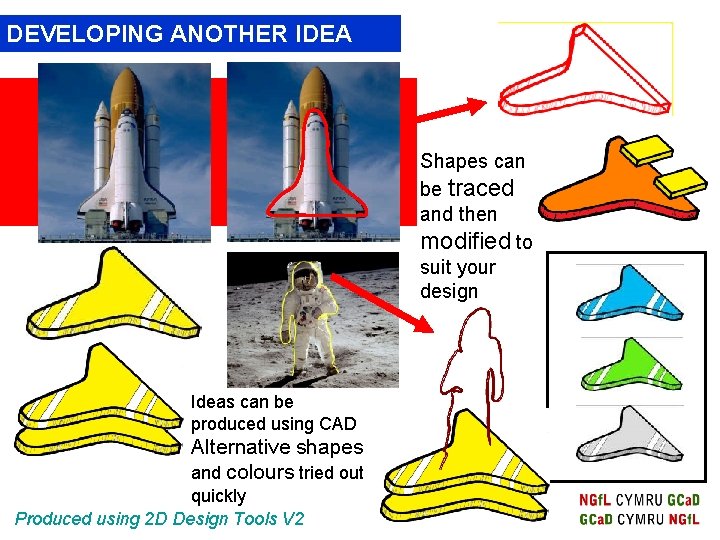
DEVELOPING ANOTHER IDEA Start with an image Ideas can be produced using CAD Alternative shapes and colours tried out quickly Produced using 2 D Design Tools V 2 Shapes can be traced and then modified to suit your design
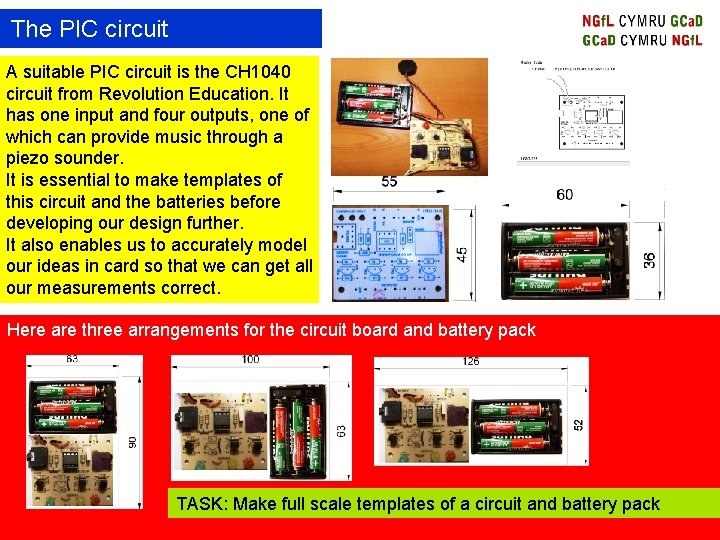
The PIC circuit A suitable PIC circuit is the CH 1040 circuit from Revolution Education. It has one input and four outputs, one of which can provide music through a piezo sounder. It is essential to make templates of this circuit and the batteries before developing our design further. It also enables us to accurately model our ideas in card so that we can get all our measurements correct. Here are three arrangements for the circuit board and battery pack TASK: Make full scale templates of a circuit and battery pack
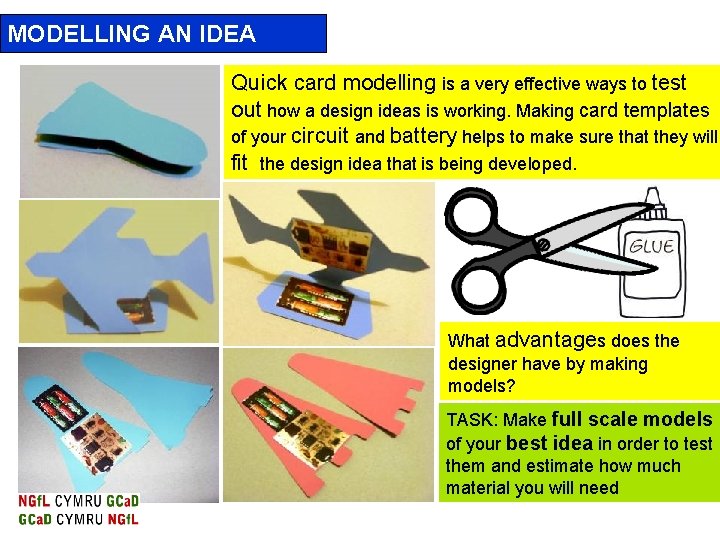
MODELLING AN IDEA Quick card modelling is a very effective ways to test out how a design ideas is working. Making card templates of your circuit and battery helps to make sure that they will fit the design idea that is being developed. What advantages does the designer have by making models? TASK: Make full scale models of your best idea in order to test them and estimate how much material you will need
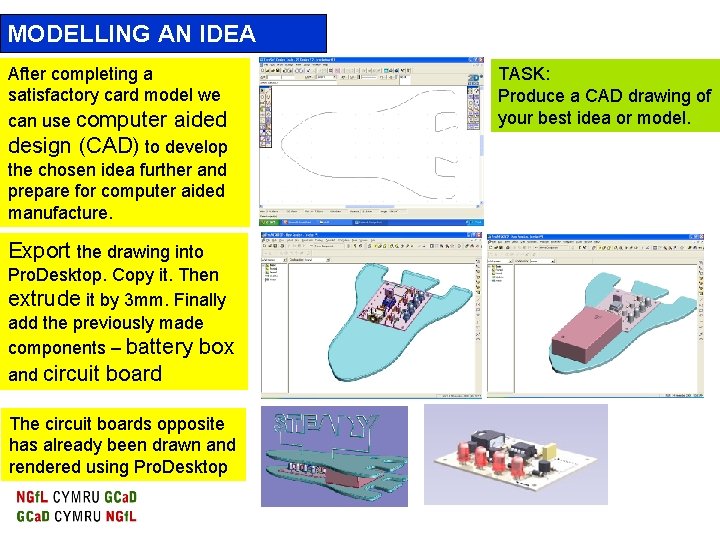
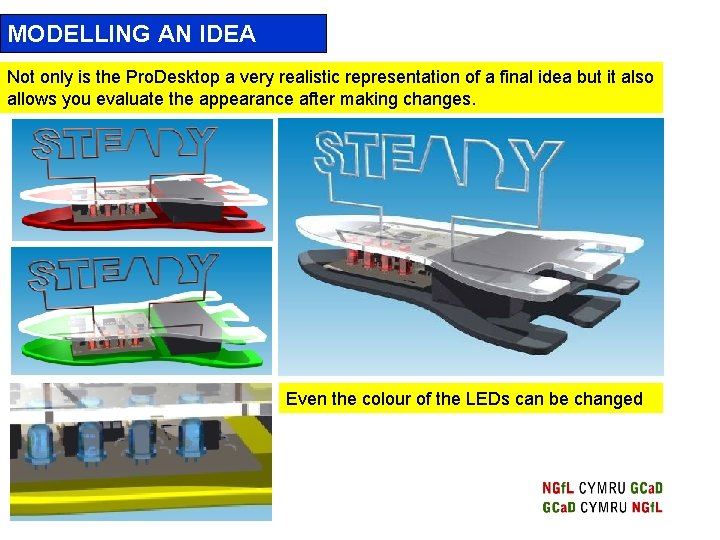
MODELLING AN IDEA After completing a satisfactory card model we can use computer aided design (CAD) to develop the chosen idea further and prepare for computer aided manufacture. Export the drawing into Pro. Desktop. Copy it. Then extrude it by 3 mm. Finally add the previously made components – battery box and circuit board The circuit boards opposite has already been drawn and rendered using Pro. Desktop TASK: Produce a CAD drawing of your best idea or model.
MODELLING AN IDEA Not only is the Pro. Desktop a very realistic representation of a final idea but it also allows you evaluate the appearance after making changes. Even the colour of the LEDs can be changed
DETAIL DESIGNING When fitting components such as circuits, batteries, LEDs, sounders and switches we have to follow certain rules: • All components must be fully secure in the case • All components must be accessible for repair or replacement • Components should be placed in a way that minimises wiring • There should be as little bare wires showing as possible • It should be possible to remove components when required • The entire product should be designed in a way that allows disassembly and recycling at the end of its life – sustainable design Detail designing is about making the correct decisions about what goes where and how. If you get this wrong then your product may be hard to use or even dangerous. TASK: Annotate your final design to show that you have considered all of the above
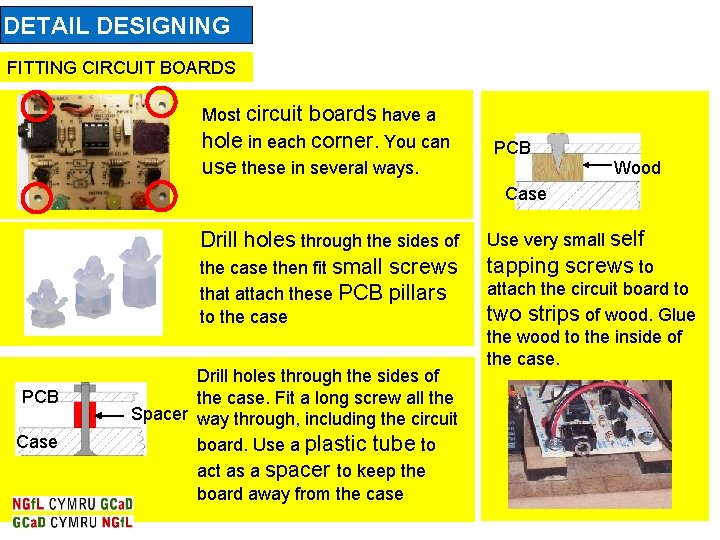
DETAIL DESIGNING FITTING CIRCUIT BOARDS Most circuit boards have a hole in each corner. You can use these in several ways. PCB Wood Case Drill holes through the sides of the case then fit small screws that attach these PCB pillars to the case PCB Case Drill holes through the sides of the case. Fit a long screw all the Spacer way through, including the circuit board. Use a plastic tube to act as a spacer to keep the board away from the case Use very small self tapping screws to attach the circuit board to two strips of wood. Glue the wood to the inside of the case.
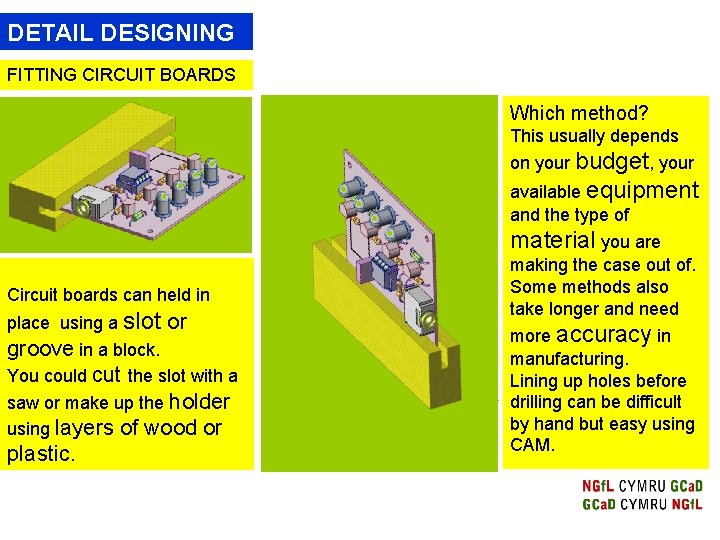
DETAIL DESIGNING FITTING CIRCUIT BOARDS Which method? This usually depends on your budget, your available equipment and the type of material you are Circuit boards can held in place using a slot or groove in a block. You could cut the slot with a saw or make up the holder using layers of wood or plastic. making the case out of. Some methods also take longer and need more accuracy in manufacturing. Lining up holes before drilling can be difficult by hand but easy using CAM.
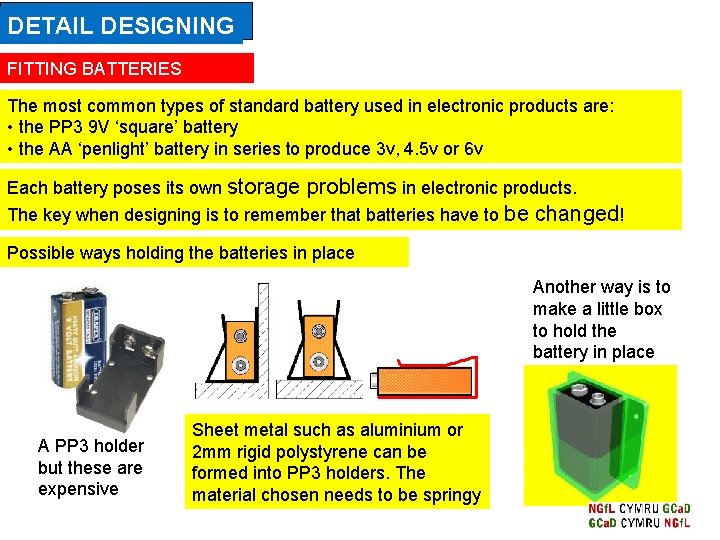
DETAIL DESIGNING FITTING BATTERIES The most common types of standard battery used in electronic products are: • the PP 3 9 V ‘square’ battery • the AA ‘penlight’ battery in series to produce 3 v, 4. 5 v or 6 v Each battery poses its own storage problems in electronic products. The key when designing is to remember that batteries have to be changed! Possible ways holding the batteries in place Another way is to make a little box to hold the battery in place A PP 3 holder but these are expensive Sheet metal such as aluminium or 2 mm rigid polystyrene can be formed into PP 3 holders. The material chosen needs to be springy
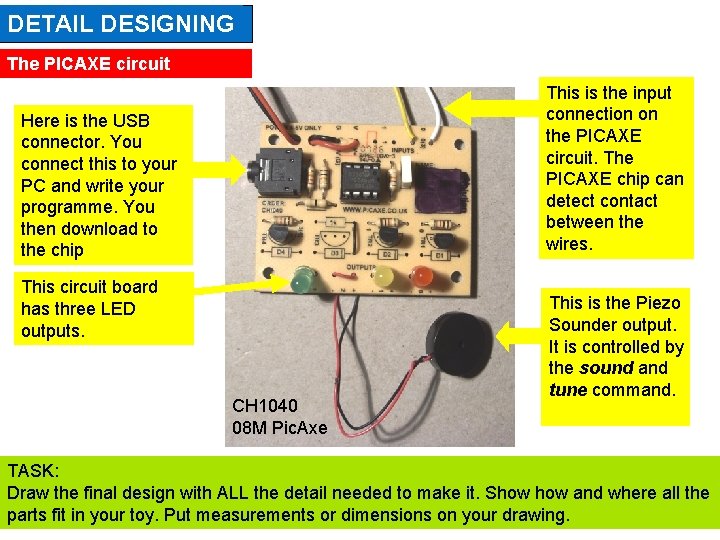
DETAIL DESIGNING The PICAXE circuit This is the input connection on the PICAXE circuit. The PICAXE chip can detect contact between the wires. Here is the USB connector. You connect this to your PC and write your programme. You then download to the chip This circuit board has three LED outputs. CH 1040 08 M Pic. Axe This is the Piezo Sounder output. It is controlled by the sound and tune command. TASK: Draw the final design with ALL the detail needed to make it. Show and where all the parts fit in your toy. Put measurements or dimensions on your drawing.
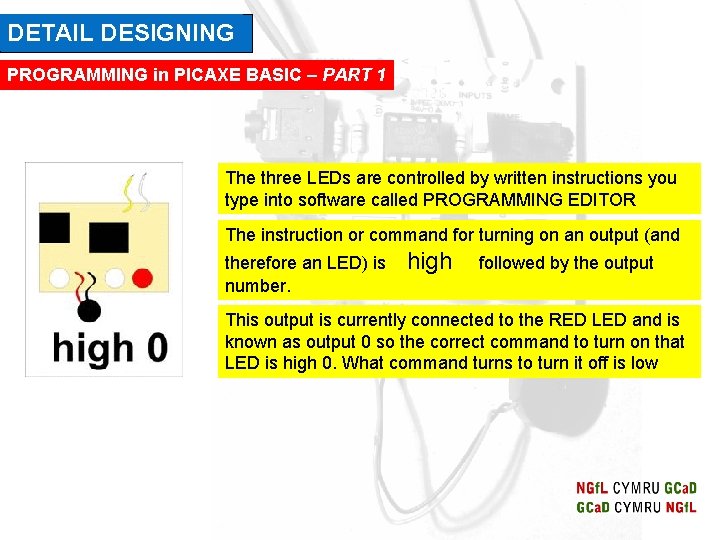
DETAIL DESIGNING PROGRAMMING in PICAXE BASIC – PART 1 The three LEDs are controlled by written instructions you type into software called PROGRAMMING EDITOR The instruction or command for turning on an output (and therefore an LED) is number. high followed by the output This output is currently connected to the RED LED and is known as output 0 so the correct command to turn on that LED is high 0. What command turns to turn it off is low
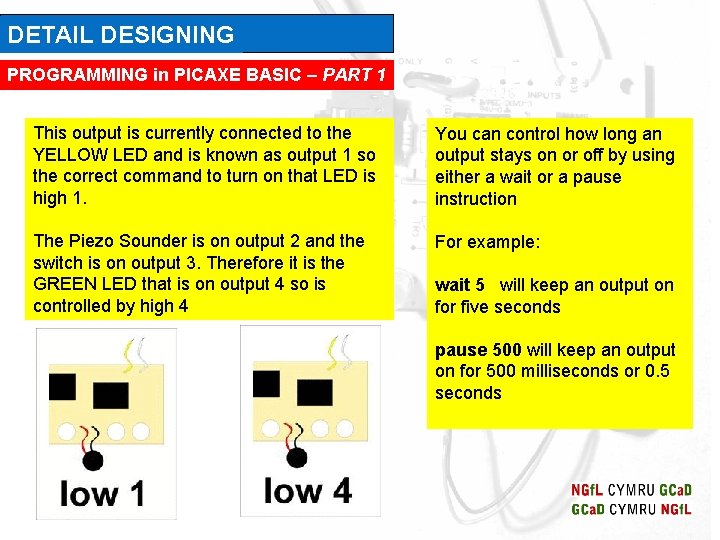
DETAIL DESIGNING PROGRAMMING in PICAXE BASIC – PART 1 This output is currently connected to the YELLOW LED and is known as output 1 so the correct command to turn on that LED is high 1. You can control how long an output stays on or off by using either a wait or a pause instruction The Piezo Sounder is on output 2 and the switch is on output 3. Therefore it is the GREEN LED that is on output 4 so is controlled by high 4 For example: wait 5 will keep an output on for five seconds pause 500 will keep an output on for 500 milliseconds or 0. 5 seconds
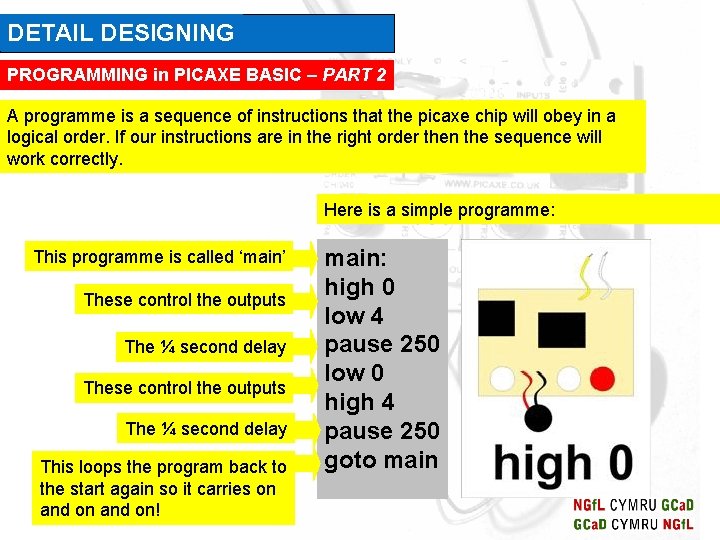
DETAIL DESIGNING PROGRAMMING in PICAXE BASIC – PART 2 A programme is a sequence of instructions that the picaxe chip will obey in a logical order. If our instructions are in the right order then the sequence will work correctly. Here is a simple programme: This programme is called ‘main’ These control the outputs The ¼ second delay This loops the program back to the start again so it carries on and on! main: high 0 low 4 pause 250 low 0 high 4 pause 250 goto main
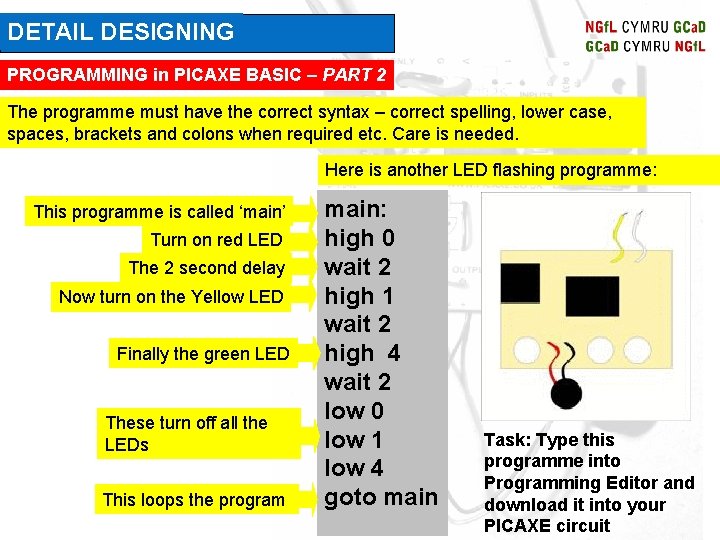
DETAIL DESIGNING PROGRAMMING in PICAXE BASIC – PART 2 The programme must have the correct syntax – correct spelling, lower case, spaces, brackets and colons when required etc. Care is needed. Here is another LED flashing programme: This programme is called ‘main’ Turn on red LED The 2 second delay Now turn on the Yellow LED Finally the green LED These turn off all the LEDs This loops the program main: high 0 wait 2 high 1 wait 2 high 4 wait 2 low 0 low 1 low 4 goto main Task: Type this programme into Programming Editor and download it into your PICAXE circuit
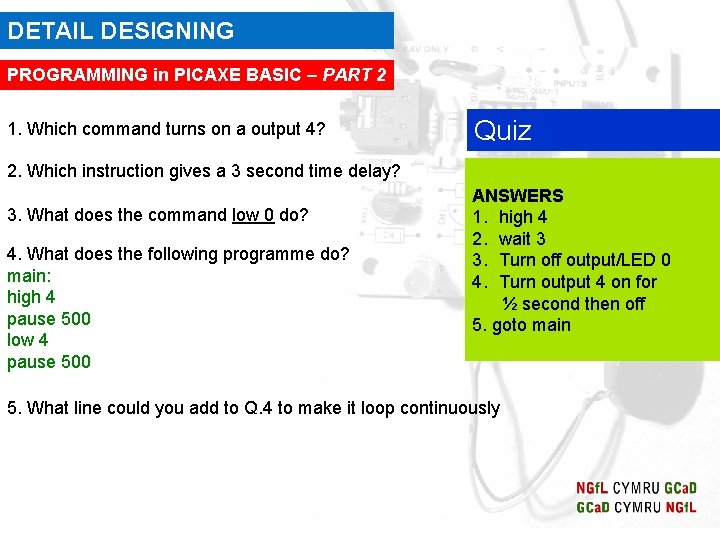
DETAIL DESIGNING PROGRAMMING in PICAXE BASIC – PART 2 1. Which command turns on a output 4? Quiz 2. Which instruction gives a 3 second time delay? 3. What does the command low 0 do? 4. What does the following programme do? main: high 4 pause 500 low 4 pause 500 ANSWERS 1. high 4 2. wait 3 3. Turn off output/LED 0 4. Turn output 4 on for ½ second then off 5. goto main 5. What line could you add to Q. 4 to make it loop continuously
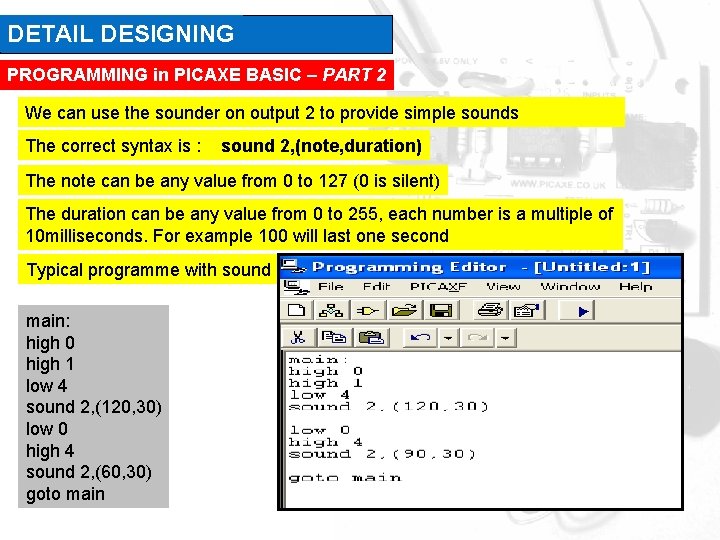
DETAIL DESIGNING PROGRAMMING in PICAXE BASIC – PART 2 We can use the sounder on output 2 to provide simple sounds The correct syntax is : sound 2, (note, duration) The note can be any value from 0 to 127 (0 is silent) The duration can be any value from 0 to 255, each number is a multiple of 10 milliseconds. For example 100 will last one second Typical programme with sound main: high 0 high 1 low 4 sound 2, (120, 30) low 0 high 4 sound 2, (60, 30) goto main
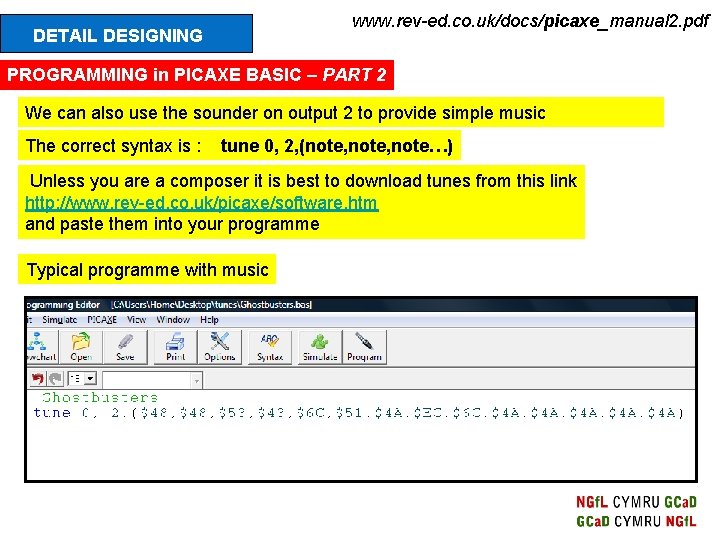
www. rev-ed. co. uk/docs/picaxe_manual 2. pdf DETAIL DESIGNING PROGRAMMING in PICAXE BASIC – PART 2 We can also use the sounder on output 2 to provide simple music The correct syntax is : tune 0, 2, (note, note…) Unless you are a composer it is best to download tunes from this link http: //www. rev-ed. co. uk/picaxe/software. htm and paste them into your programme Typical programme with music
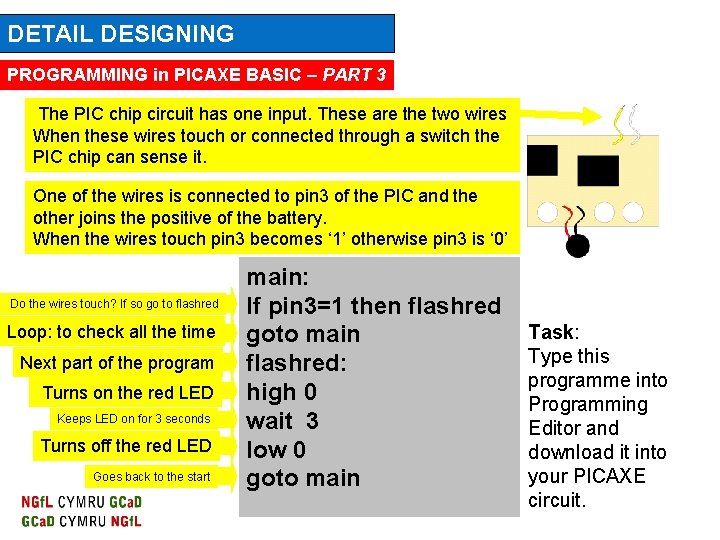
DETAIL DESIGNING PROGRAMMING in PICAXE BASIC – PART 3 The PIC chip circuit has one input. These are the two wires When these wires touch or connected through a switch the PIC chip can sense it. One of the wires is connected to pin 3 of the PIC and the other joins the positive of the battery. When the wires touch pin 3 becomes ‘ 1’ otherwise pin 3 is ‘ 0’ Do the wires touch? If so go to flashred Loop: to check all the time Next part of the program Turns on the red LED Keeps LED on for 3 seconds Turns off the red LED Goes back to the start main: If pin 3=1 then flashred goto main flashred: high 0 wait 3 low 0 goto main Task: Type this programme into Programming Editor and download it into your PICAXE circuit.
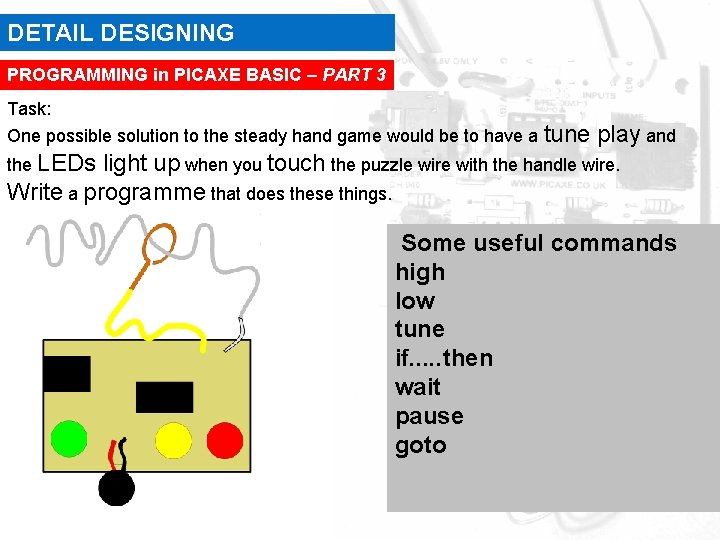
DETAIL DESIGNING PROGRAMMING in PICAXE BASIC – PART 3 Task: One possible solution to the steady hand game would be to have a tune play and the LEDs light up when you touch the puzzle wire with the handle wire. Write a programme that does these things. Some useful commands high low tune if. . . then wait pause goto
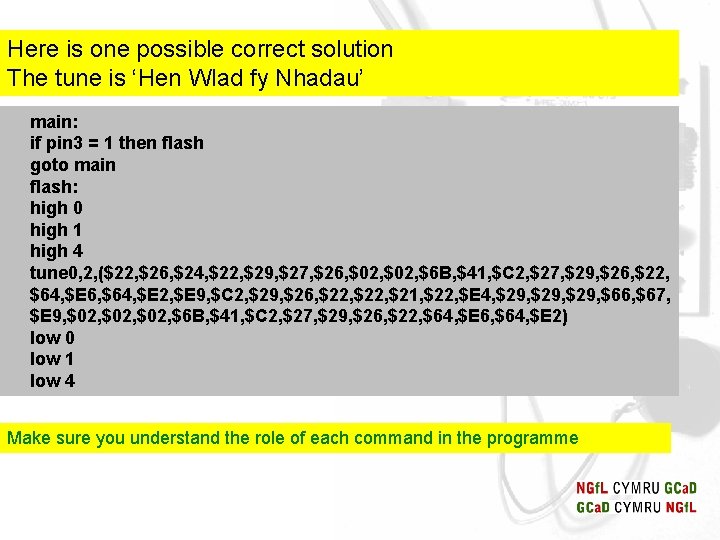
Here is one possible correct solution The tune is ‘Hen Wlad fy Nhadau’ main: if pin 3 = 1 then flash goto main flash: high 0 high 1 high 4 tune 0, 2, ($22, $26, $24, $22, $29, $27, $26, $02, $6 B, $41, $C 2, $27, $29, $26, $22, $64, $E 6, $64, $E 2, $E 9, $C 2, $29, $26, $22, $21, $22, $E 4, $29, $66, $67, $E 9, $02, $6 B, $41, $C 2, $27, $29, $26, $22, $64, $E 6, $64, $E 2) low 0 low 1 low 4 Make sure you understand the role of each command in the programme
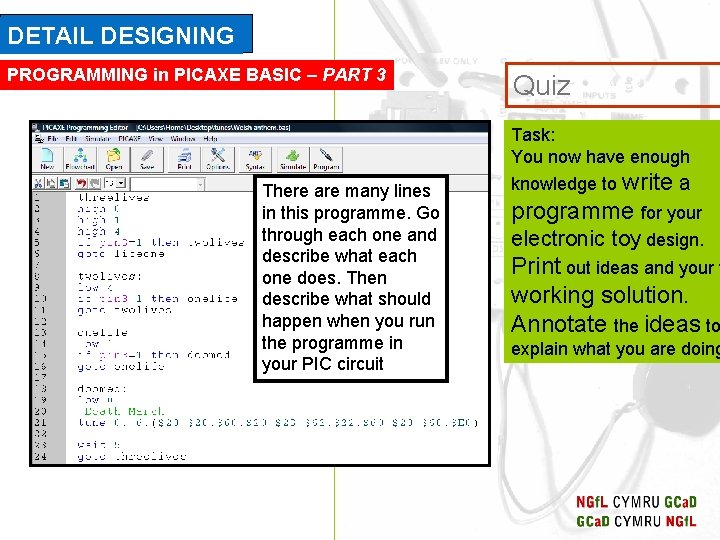
DETAIL DESIGNING PROGRAMMING in PICAXE BASIC – PART 3 Quiz Task: You now have enough There are many lines in this programme. Go through each one and describe what each one does. Then describe what should happen when you run the programme in your PIC circuit knowledge to write a programme for your electronic toy design. Print out ideas and your f working solution. Annotate the ideas to explain what you are doing