
European Computer Driving Licence Module 4 Spreadsheets Chapter


- Slides: 14
European Computer Driving Licence Module 4 – Spreadsheets Chapter 4. 6 – Pie Charts
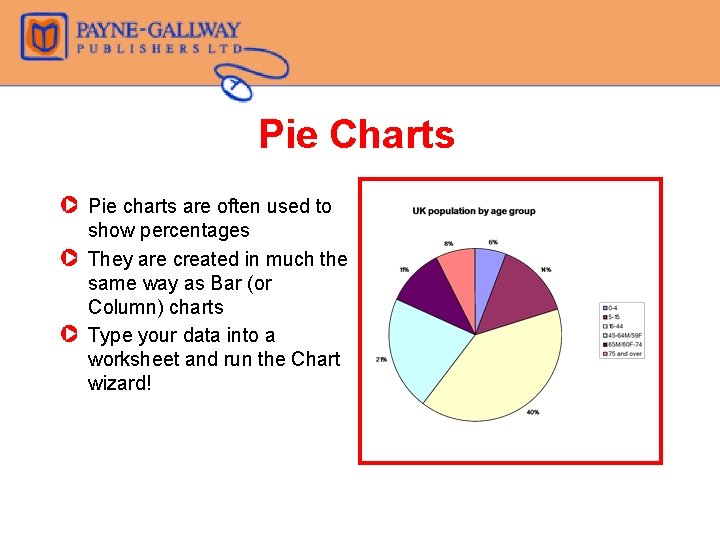
Pie Charts Z Pie charts are often used to show percentages Z They are created in much the same way as Bar (or Column) charts Z Type your data into a worksheet and run the Chart wizard!
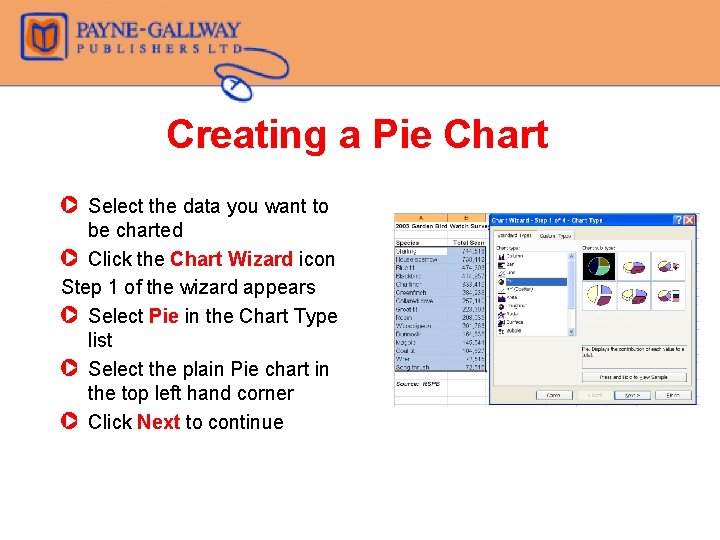
Creating a Pie Chart Z Select the data you want to be charted Z Click the Chart Wizard icon Step 1 of the wizard appears Z Select Pie in the Chart Type list Z Select the plain Pie chart in the top left hand corner Z Click Next to continue
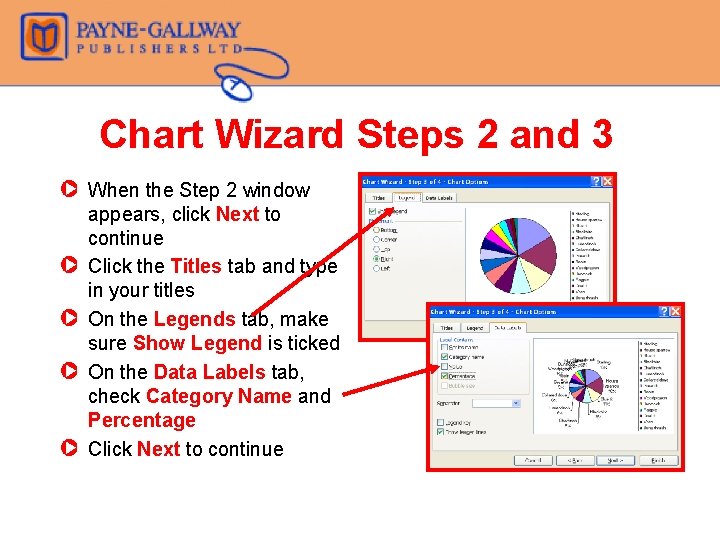
Chart Wizard Steps 2 and 3 Z When the Step 2 window appears, click Next to continue Z Click the Titles tab and type in your titles Z On the Legends tab, make sure Show Legend is ticked Z On the Data Labels tab, check Category Name and Percentage Z Click Next to continue
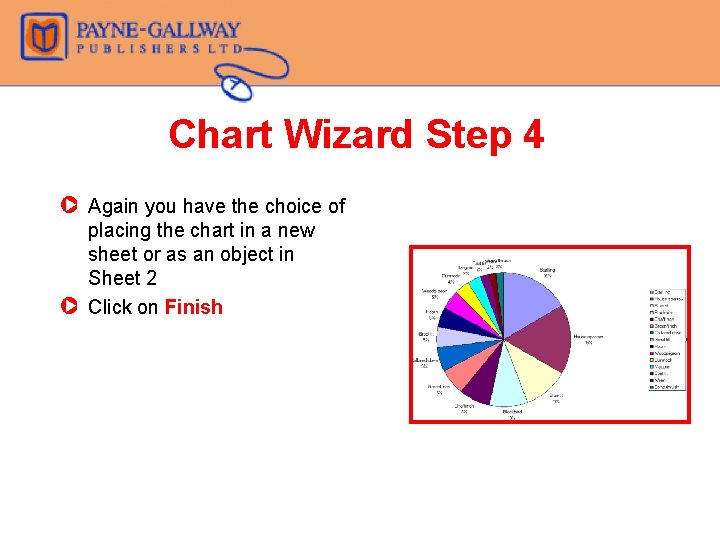
Chart Wizard Step 4 Z Again you have the choice of placing the chart in a new sheet or as an object in Sheet 2 Z Click on Finish
Formatting Data Labels Z To make data labels bigger, right click in any data label Z Select Format Data Labels from the shortcut menu Z The Format data labels dialogue box appears , To change the font size click on the Font tab and select the size required , If labels are overlapping, drag them apart
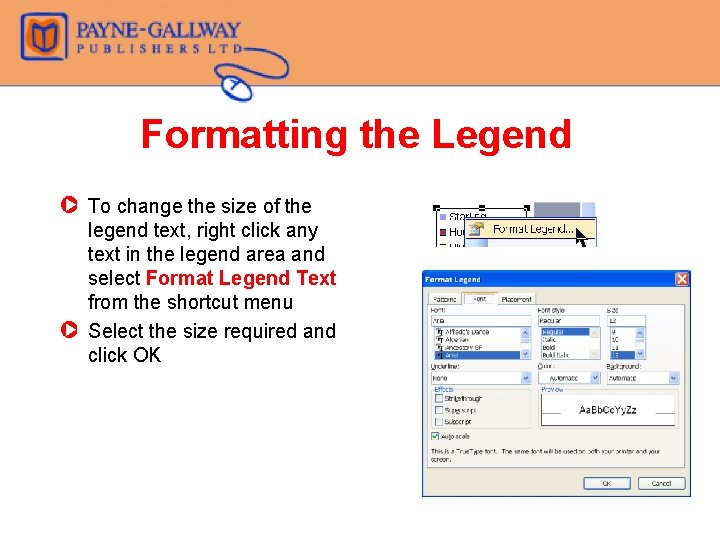
Formatting the Legend Z To change the size of the legend text, right click any text in the legend area and select Format Legend Text from the shortcut menu Z Select the size required and click OK
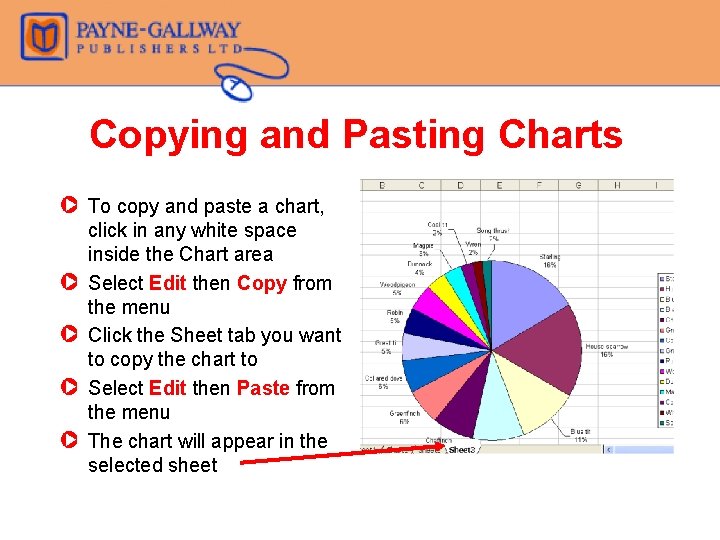
Copying and Pasting Charts Z To copy and paste a chart, click in any white space inside the Chart area Z Select Edit then Copy from the menu Z Click the Sheet tab you want to copy the chart to Z Select Edit then Paste from the menu Z The chart will appear in the selected sheet
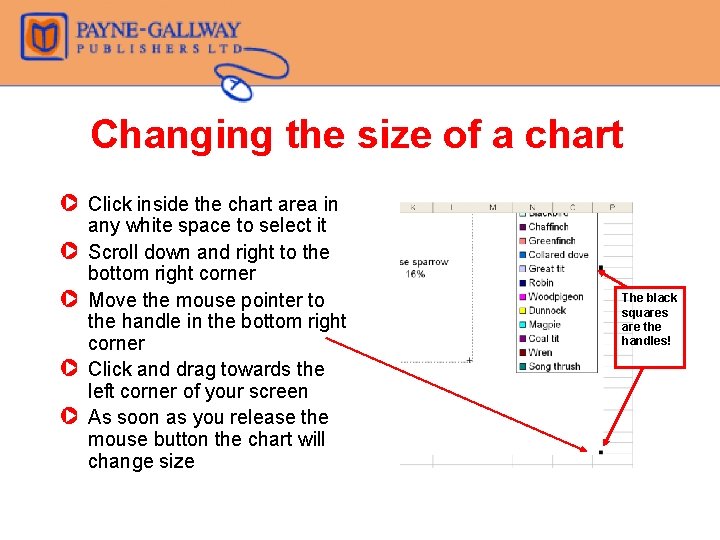
Changing the size of a chart Z Click inside the chart area in any white space to select it Z Scroll down and right to the bottom right corner Z Move the mouse pointer to the handle in the bottom right corner Z Click and drag towards the left corner of your screen Z As soon as you release the mouse button the chart will change size The black squares are the handles!
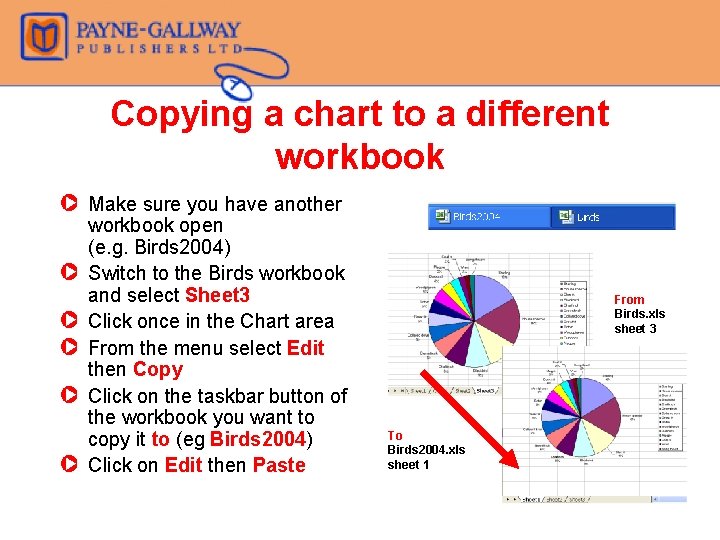
Copying a chart to a different workbook Z Make sure you have another workbook open (e. g. Birds 2004) Z Switch to the Birds workbook and select Sheet 3 Z Click once in the Chart area Z From the menu select Edit then Copy Z Click on the taskbar button of the workbook you want to copy it to (eg Birds 2004) Z Click on Edit then Paste From Birds. xls sheet 3 To Birds 2004. xls sheet 1
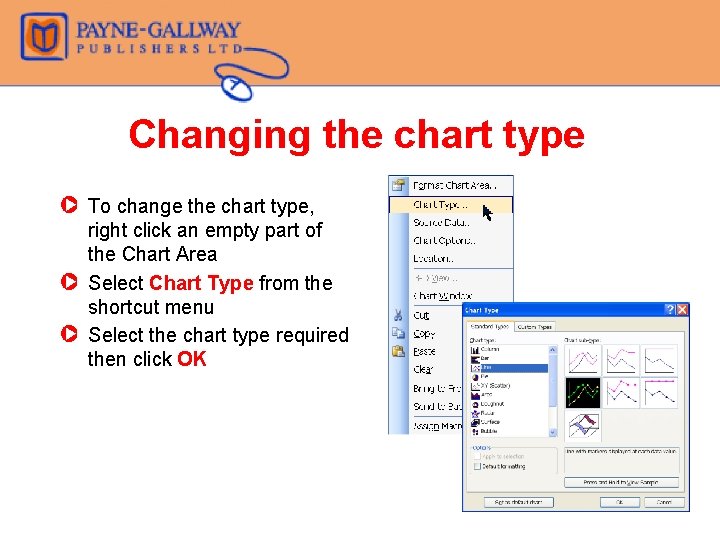
Changing the chart type Z To change the chart type, right click an empty part of the Chart Area Z Select Chart Type from the shortcut menu Z Select the chart type required then click OK
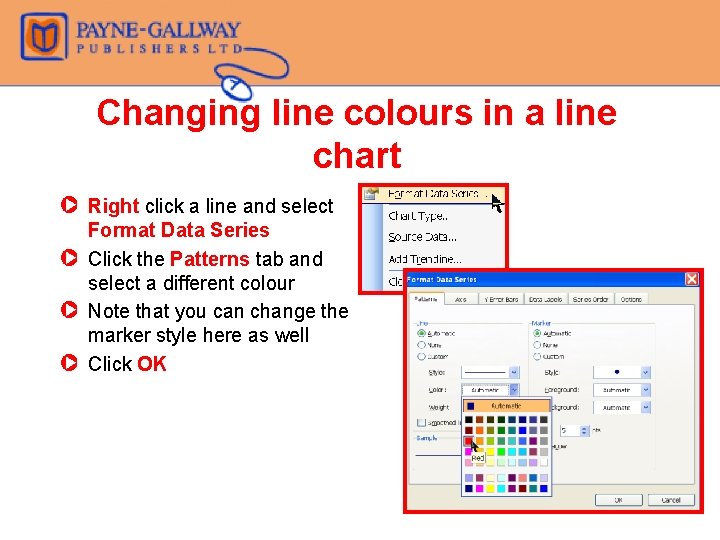
Changing line colours in a line chart Z Right click a line and select Format Data Series Z Click the Patterns tab and select a different colour Z Note that you can change the marker style here as well Z Click OK
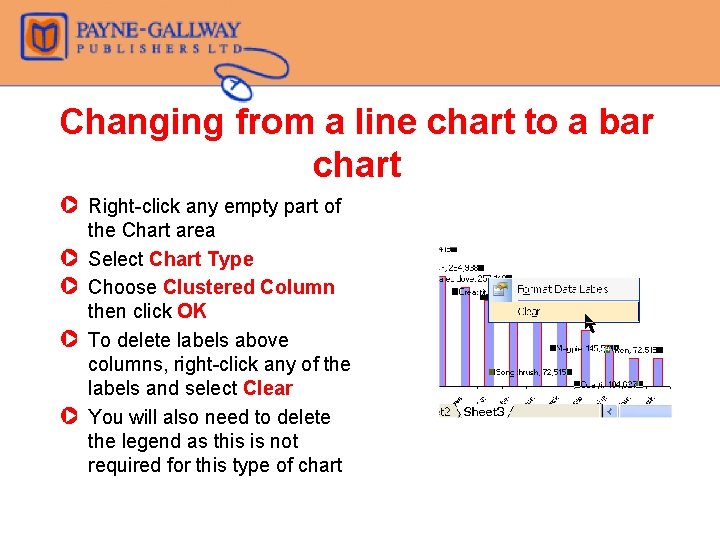
Changing from a line chart to a bar chart Z Right-click any empty part of the Chart area Z Select Chart Type Z Choose Clustered Column then click OK Z To delete labels above columns, right-click any of the labels and select Clear Z You will also need to delete the legend as this is not required for this type of chart
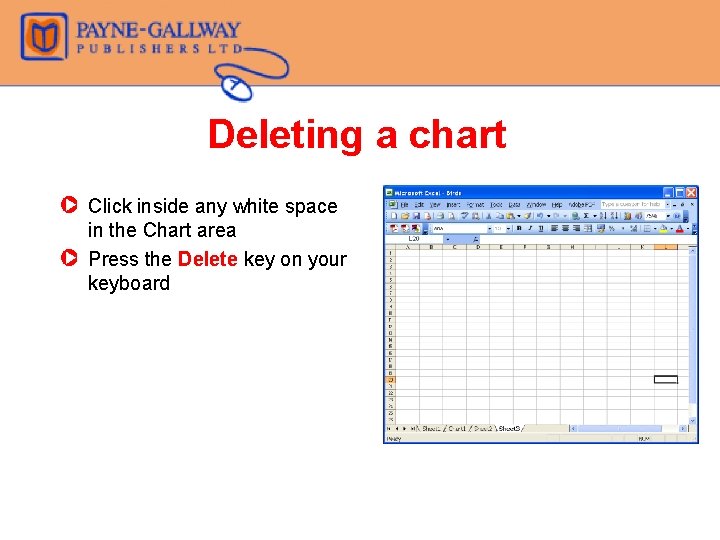
Deleting a chart Z Click inside any white space in the Chart area Z Press the Delete key on your keyboard