
EPurchasing at Komatsu PMO Peoria Manufacturing Operations Supplier

- Slides: 43
E-Purchasing at Komatsu PMO Peoria Manufacturing Operations Supplier Instructions 1
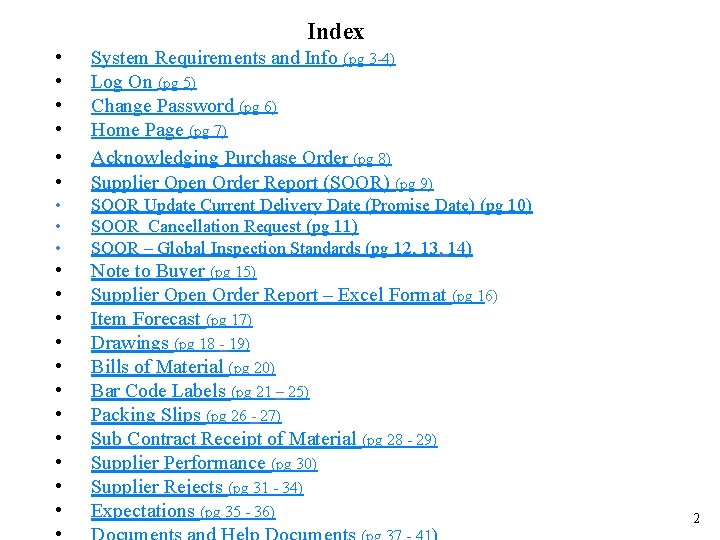
Index • • • System Requirements and Info (pg 3 -4) Log On (pg 5) Change Password (pg 6) Home Page (pg 7) Acknowledging Purchase Order (pg 8) Supplier Open Order Report (SOOR) (pg 9) • • • SOOR Update Current Delivery Date (Promise Date) (pg 10) SOOR Cancellation Request (pg 11) SOOR – Global Inspection Standards (pg 12, 13, 14) • • • Note to Buyer (pg 15) Supplier Open Order Report – Excel Format (pg 16) Item Forecast (pg 17) Drawings (pg 18 - 19) Bills of Material (pg 20) Bar Code Labels (pg 21 – 25) Packing Slips (pg 26 - 27) Sub Contract Receipt of Material (pg 28 - 29) Supplier Performance (pg 30) Supplier Rejects (pg 31 - 34) Expectations (pg 35 - 36) 2
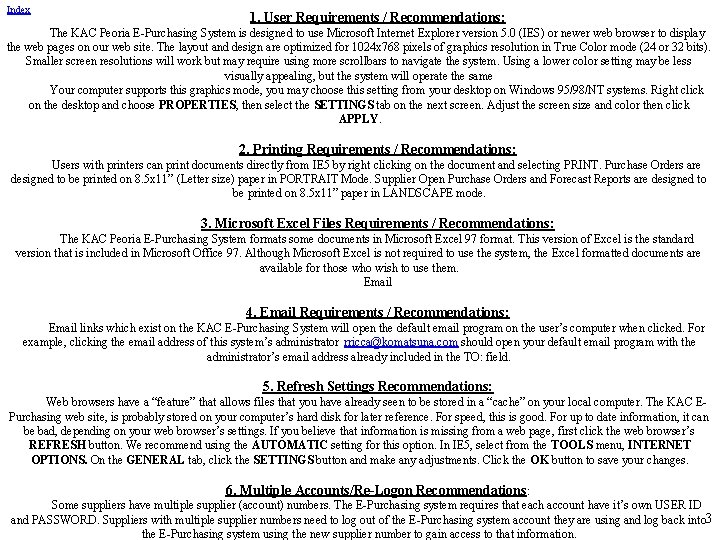
Index 1. User Requirements / Recommendations: The KAC Peoria E-Purchasing System is designed to use Microsoft Internet Explorer version 5. 0 (IES) or newer web browser to display the web pages on our web site. The layout and design are optimized for 1024 x 768 pixels of graphics resolution in True Color mode (24 or 32 bits). Smaller screen resolutions will work but may require using more scrollbars to navigate the system. Using a lower color setting may be less visually appealing, but the system will operate the same Your computer supports this graphics mode, you may choose this setting from your desktop on Windows 95/98/NT systems. Right click on the desktop and choose PROPERTIES, then select the SETTINGS tab on the next screen. Adjust the screen size and color then click APPLY. 2. Printing Requirements / Recommendations: Users with printers can print documents directly from IE 5 by right clicking on the document and selecting PRINT. Purchase Orders are designed to be printed on 8. 5 x 11” (Letter size) paper in PORTRAIT Mode. Supplier Open Purchase Orders and Forecast Reports are designed to be printed on 8. 5 x 11” paper in LANDSCAPE mode. 3. Microsoft Excel Files Requirements / Recommendations: The KAC Peoria E-Purchasing System formats some documents in Microsoft Excel 97 format. This version of Excel is the standard version that is included in Microsoft Office 97. Although Microsoft Excel is not required to use the system, the Excel formatted documents are available for those who wish to use them. Email 4. Email Requirements / Recommendations: Email links which exist on the KAC E-Purchasing System will open the default email program on the user’s computer when clicked. For example, clicking the email address of this system’s administrator rricca@komatsuna. com should open your default email program with the administrator’s email address already included in the TO: field. 5. Refresh Settings Recommendations: Web browsers have a “feature” that allows files that you have already seen to be stored in a “cache” on your local computer. The KAC EPurchasing web site, is probably stored on your computer’s hard disk for later reference. For speed, this is good. For up to date information, it can be bad, depending on your web browser’s settings. If you believe that information is missing from a web page, first click the web browser’s REFRESH button. We recommend using the AUTOMATIC setting for this option. In IE 5, select from the TOOLS menu, INTERNET OPTIONS. On the GENERAL tab, click the SETTINGS button and make any adjustments. Click the OK button to save your changes. 6. Multiple Accounts/Re-Logon Recommendations: Some suppliers have multiple supplier (account) numbers. The E-Purchasing system requires that each account have it’s own USER ID and PASSWORD. Suppliers with multiple supplier numbers need to log out of the E-Purchasing system account they are using and log back into 3 the E-Purchasing system using the new supplier number to gain access to that information.
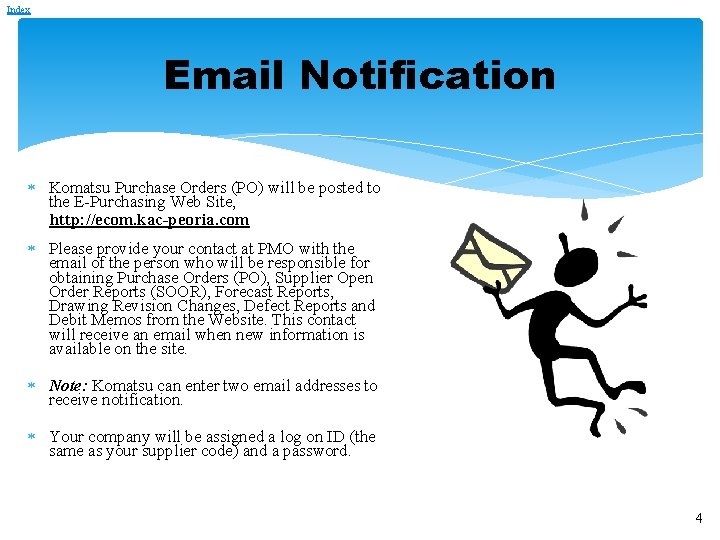
Index Email Notification Komatsu Purchase Orders (PO) will be posted to the E-Purchasing Web Site, http: //ecom. kac-peoria. com Please provide your contact at PMO with the email of the person who will be responsible for obtaining Purchase Orders (PO), Supplier Open Order Reports (SOOR), Forecast Reports, Drawing Revision Changes, Defect Reports and Debit Memos from the Website. This contact will receive an email when new information is available on the site. Note: Komatsu can enter two email addresses to receive notification. Your company will be assigned a log on ID (the same as your supplier code) and a password. 4
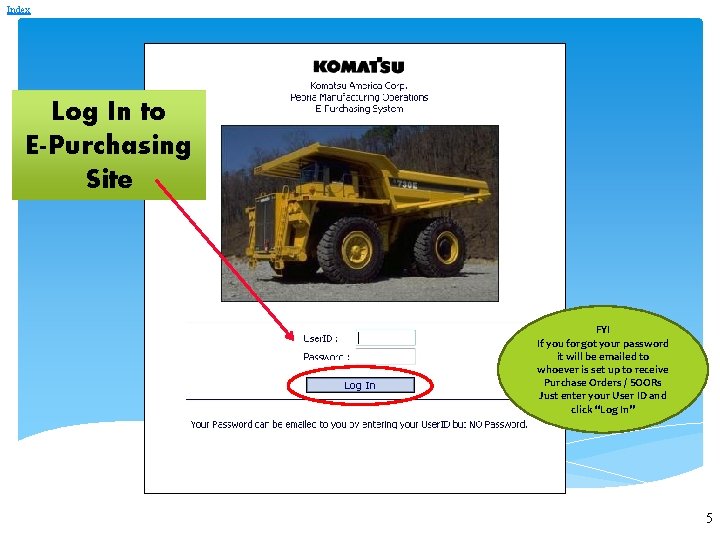
Index Log In to E-Purchasing Site FYI If you forgot your password it will be emailed to whoever is set up to receive Purchase Orders / SOORs Just enter your User ID and click “Log In” 5
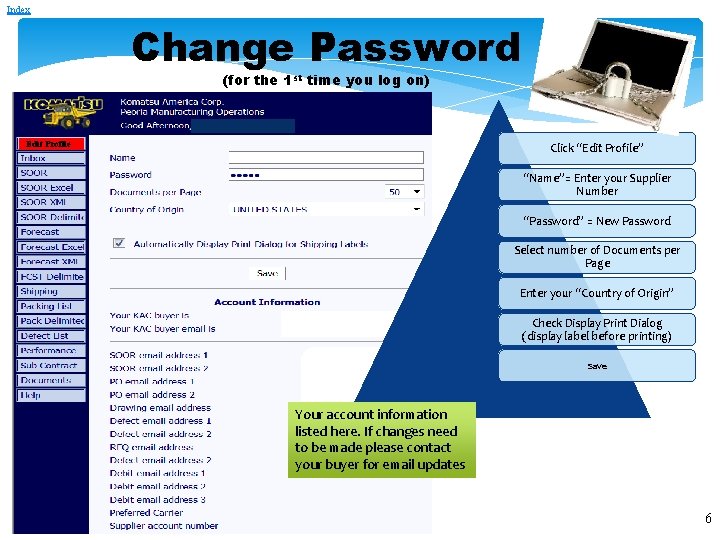
Index Change Password (for the 1 st time you log on) Edit Profile Click “Edit Profile” “Name”= Enter your Supplier Number “Password” = New Password Select number of Documents per Page Enter your “Country of Origin” Check Display Print Dialog (display label before printing) Save Your account information listed here. If changes need to be made please contact your buyer for email updates 6
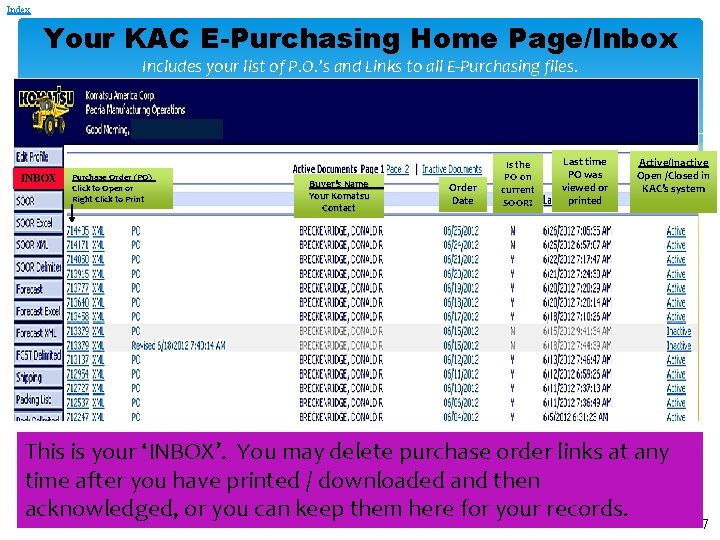
Index Your KAC E-Purchasing Home Page/Inbox Includes your list of P. O. ’s and Links to all E-Purchasing files. INBOX Purchase Order (PO) Click to Open or Right Click to Print Buyer’s Name Your Komatsu Contact Order Date Is the PO on current SOOR? Last time PO was viewed or printed Active/Inactive Open /Closed in KAC’s system This is your ‘INBOX’. You may delete purchase order links at any time after you have printed / downloaded and then acknowledged, or you can keep them here for your records. 7
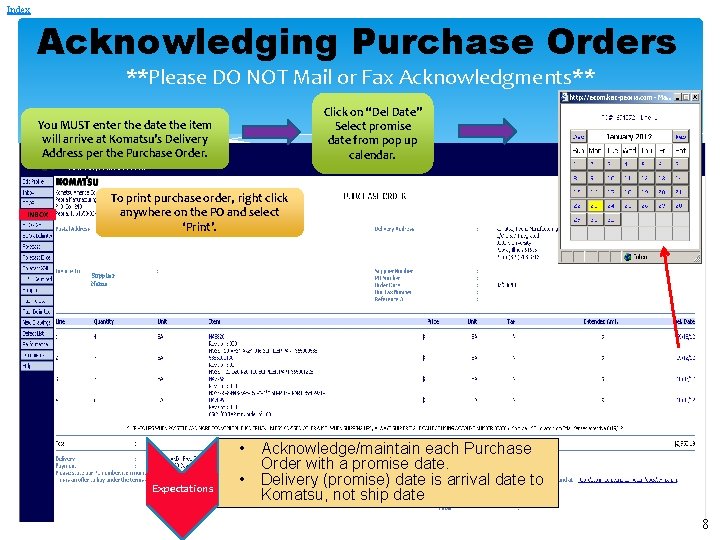
Index Acknowledging Purchase Orders **Please DO NOT Mail or Fax Acknowledgments** Click on “Del Date” Select promise date from pop up calendar. You MUST enter the date the item will arrive at Komatsu’s Delivery Address per the Purchase Order. INBOX To print purchase order, right click anywhere on the PO and select ‘Print’. Supplier Name Expectations • Acknowledge/maintain each Purchase Order with a promise date. • Delivery (promise) date is arrival date to Komatsu, not ship date 8
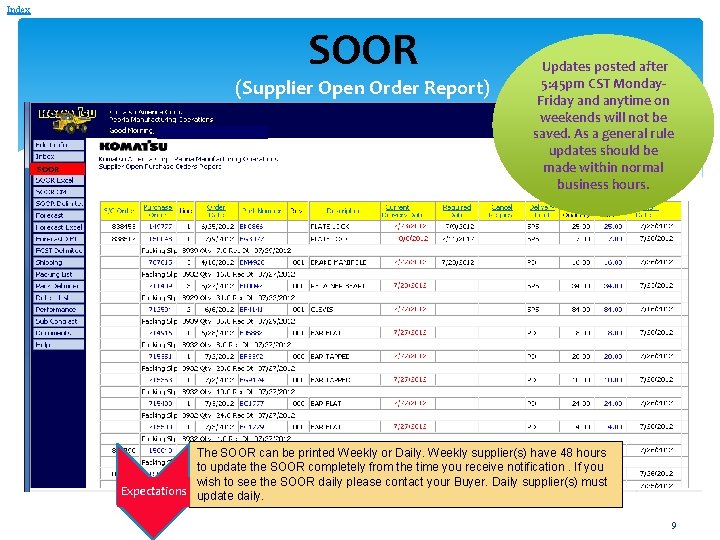
Index SOOR (Supplier Open Order Report) SOOR Updates posted after 5: 45 pm CST Monday. Friday and anytime on weekends will not be saved. As a general rule updates should be made within normal business hours. The SOOR can be printed Weekly or Daily. Weekly supplier(s) have 48 hours to update the SOOR completely from the time you receive notification. If you wish to see the SOOR daily please contact your Buyer. Daily supplier(s) must Expectations update daily. 9
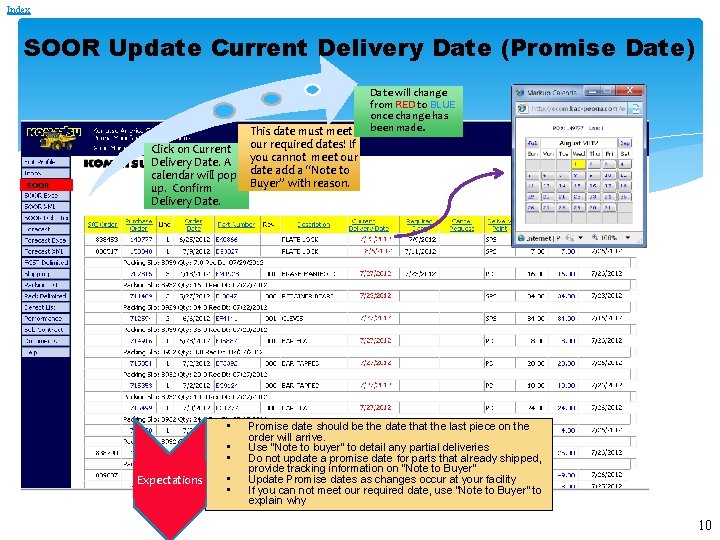
Index SOOR Update Current Delivery Date (Promise Date) SOOR Click on Current Delivery Date. A calendar will pop up. Confirm Delivery Date. • • • Expectations • • This date must meet our required dates! If you cannot meet our date add a “Note to Buyer” with reason. Date will change from RED to BLUE once change has been made. Promise date should be the date that the last piece on the order will arrive. Use “Note to buyer” to detail any partial deliveries Do not update a promise date for parts that already shipped, provide tracking information on “Note to Buyer” Update Promise dates as changes occur at your facility If you can not meet our required date, use “Note to Buyer” to explain why 10
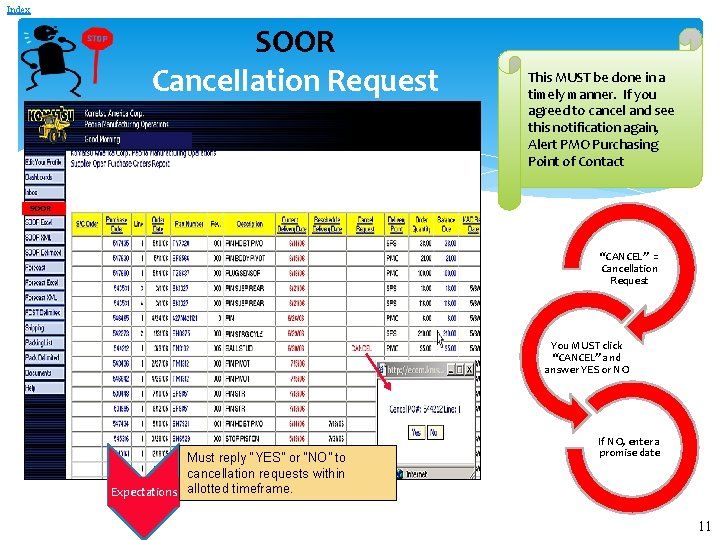
Index SOOR Cancellation Request This MUST be done in a timely manner. If you agreed to cancel and see this notification again, Alert PMO Purchasing Point of Contact SOOR “CANCEL” = Cancellation Request You MUST click “CANCEL” and answer YES or NO Must reply “YES” or “NO” to cancellation requests within Expectations allotted timeframe. If NO, enter a promise date 11
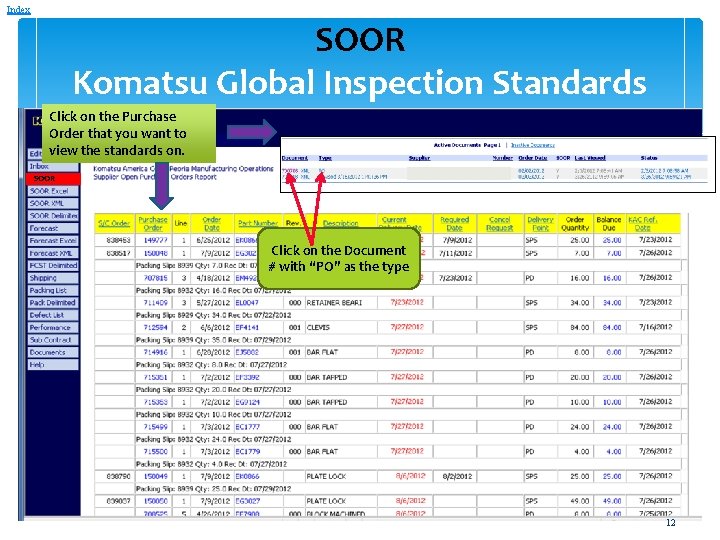
Index SOOR Komatsu Global Inspection Standards Click on the Purchase Order that you want to view the standards on. SOOR Click on the Document # with “PO” as the type 12 12
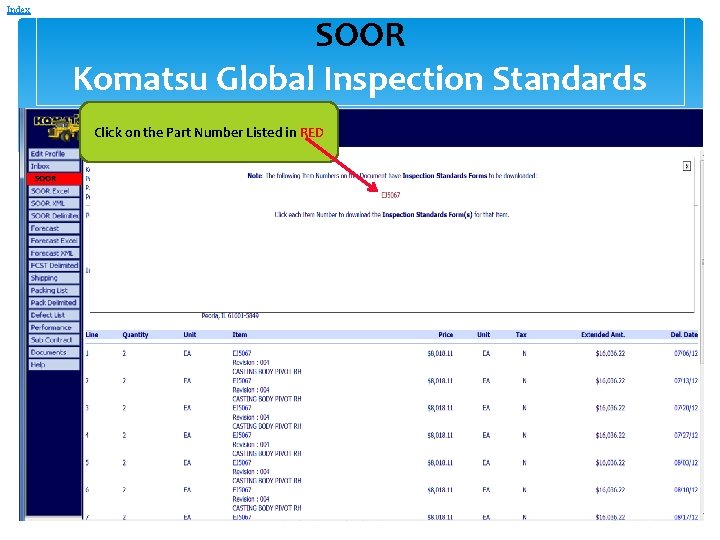
Index SOOR Komatsu Global Inspection Standards Click on the Part Number Listed in RED SOOR 13
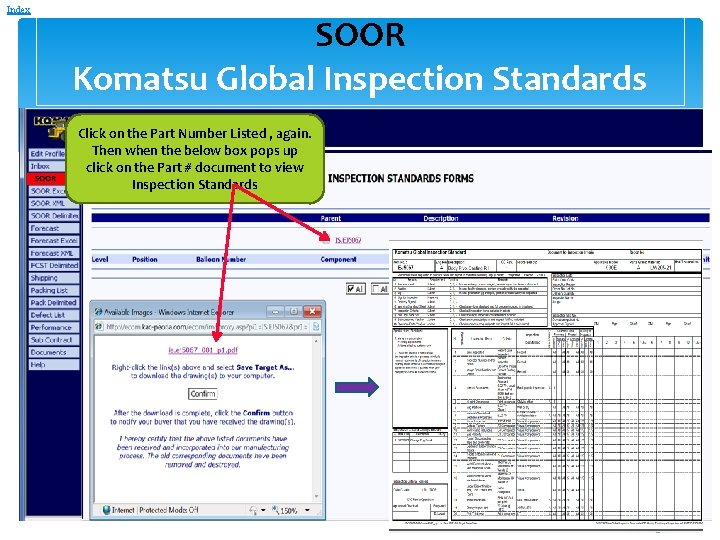
Index SOOR Komatsu Global Inspection Standards SOOR Click on the Part Number Listed , again. Then when the below box pops up click on the Part # document to view Inspection Standards 14
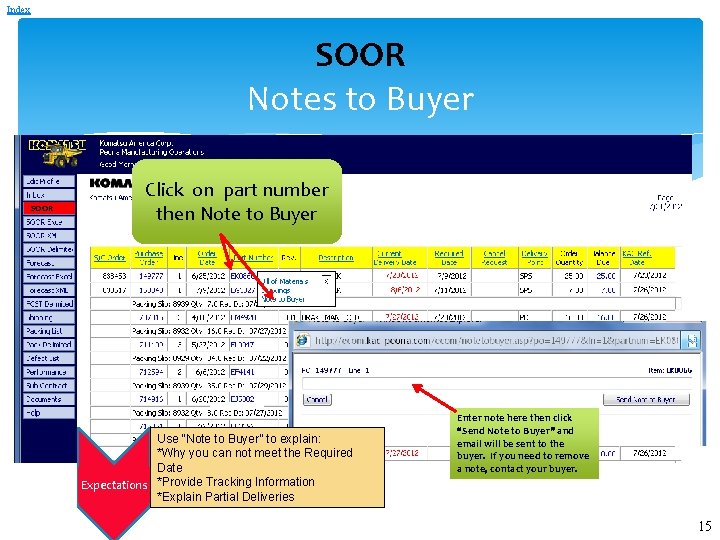
Index SOOR Notes to Buyer SOOR Click on part number then Note to Buyer Use “Note to Buyer” to explain: *Why you can not meet the Required Date Expectations *Provide Tracking Information *Explain Partial Deliveries Enter note here then click “Send Note to Buyer” and email will be sent to the buyer. If you need to remove a note, contact your buyer. 15
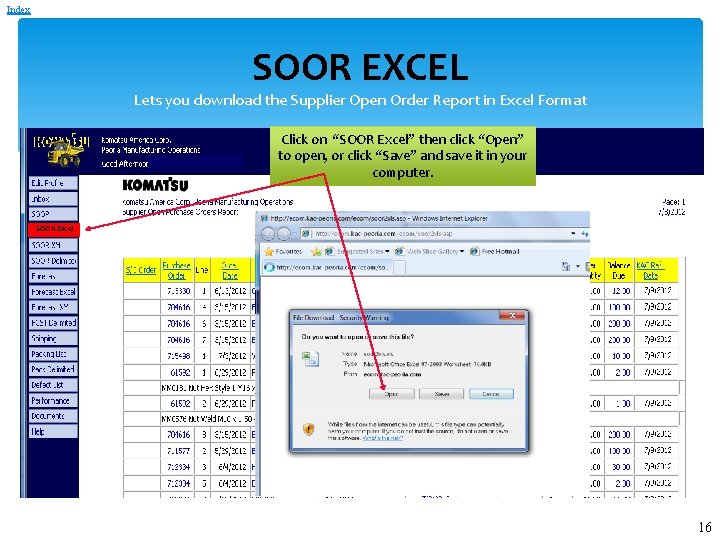
Index SOOR EXCEL Lets you download the Supplier Open Order Report in Excel Format Click on “SOOR Excel” then click “Open” to open, or click “Save” and save it in your computer. SOOR Excel 16
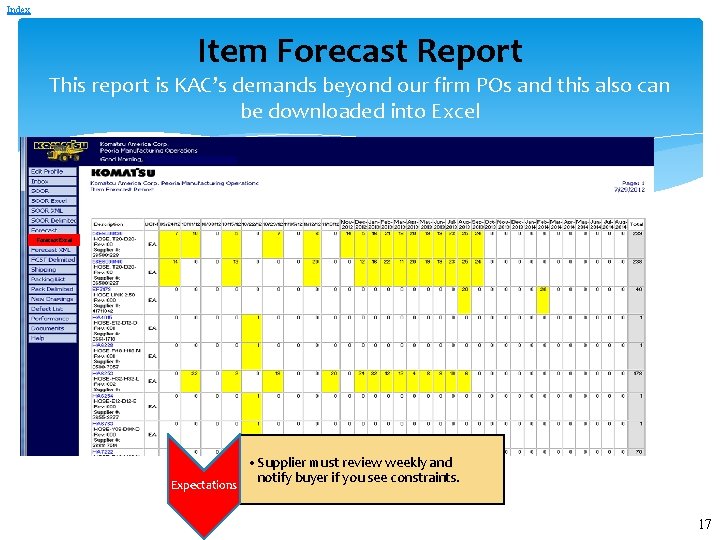
Index Item Forecast Report This report is KAC’s demands beyond our firm POs and this also can be downloaded into Excel Forecast Excel • Supplier must review weekly and notify buyer if you see constraints. Expectations 17
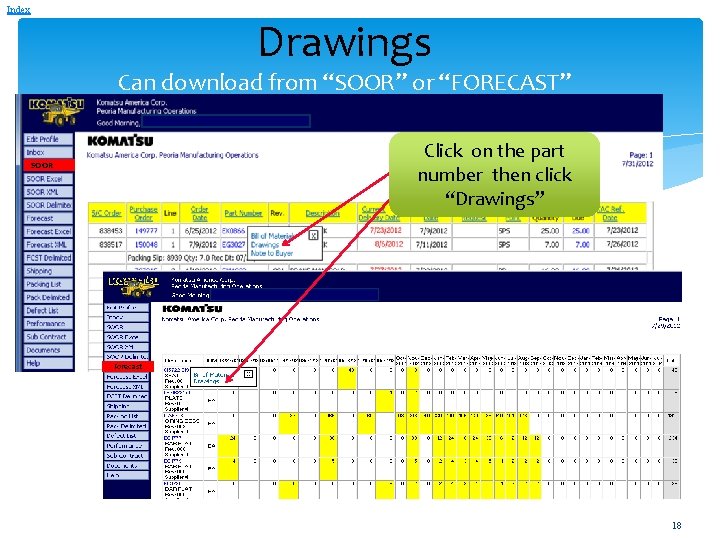
Index Drawings Can download from “SOOR” or “FORECAST” Click on the part number then click “Drawings” SOOR Forecast 18
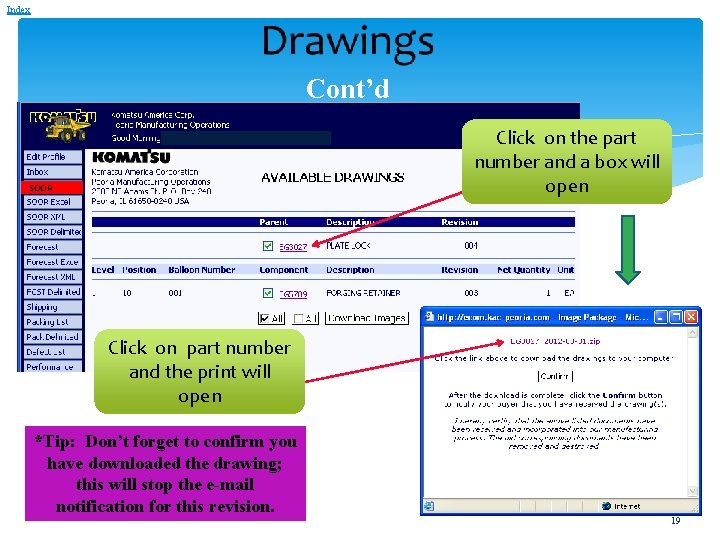
Index Cont’d Click on the part number and a box will open SOOR Click on part number and the print will open *Tip: Don’t forget to confirm you have downloaded the drawing; this will stop the e-mail notification for this revision. 19
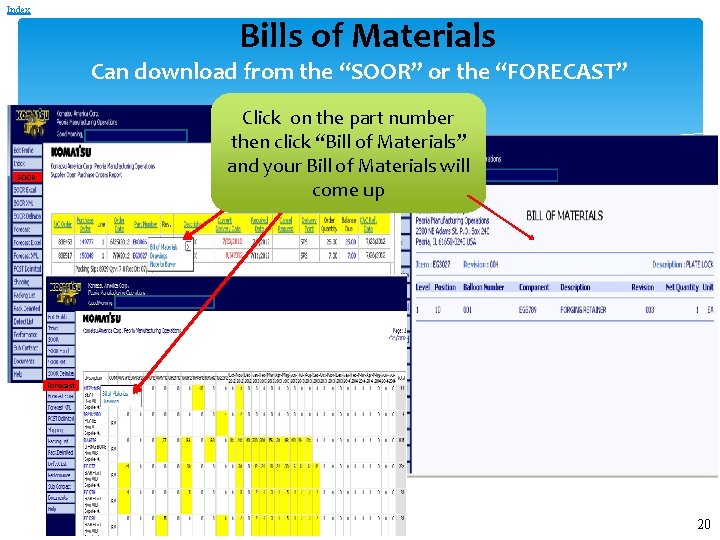
Index Bills of Materials Can download from the “SOOR” or the “FORECAST” Click on the part number then click “Bill of Materials” and your Bill of Materials will come up SOOR Forecast 20
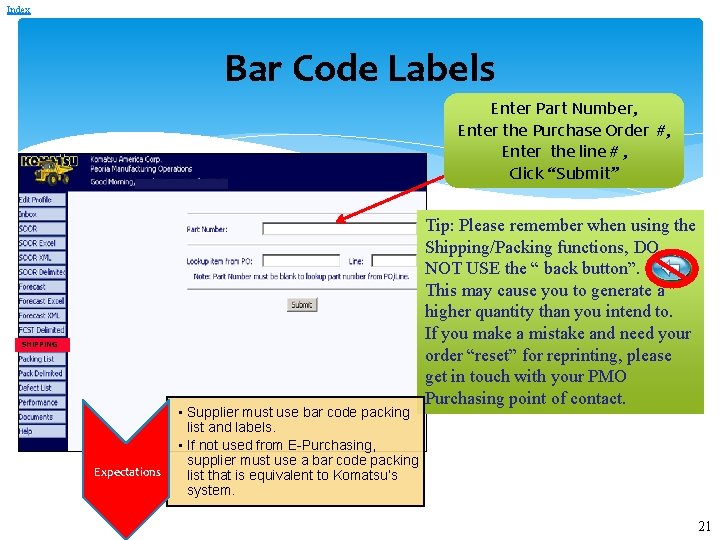
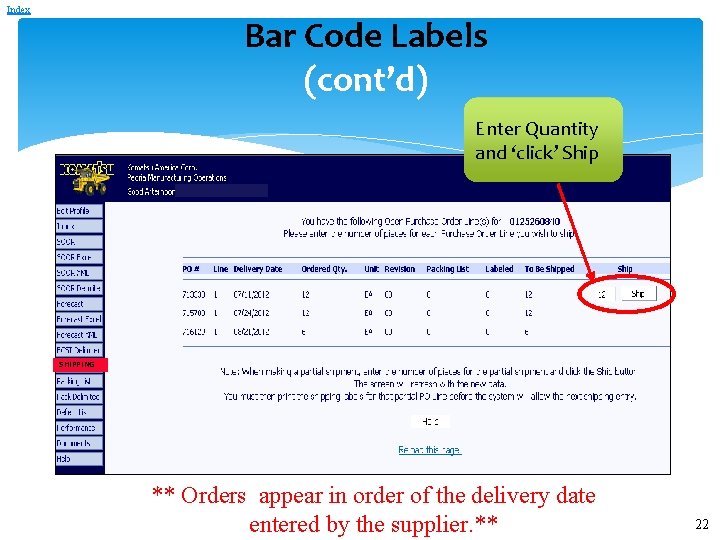
Index Bar Code Labels Enter Part Number, Enter the Purchase Order #, Enter the line # , Click “Submit” SHIPPING Expectations • Supplier must use bar code packing list and labels. • If not used from E-Purchasing, supplier must use a bar code packing list that is equivalent to Komatsu’s system. Tip: Please remember when using the Shipping/Packing functions, DO NOT USE the “ back button”. This may cause you to generate a higher quantity than you intend to. If you make a mistake and need your order “reset” for reprinting, please get in touch with your PMO Purchasing point of contact. 21
Index Bar Code Labels (cont’d) Enter Quantity and ‘click’ Ship SHIPPING ** Orders appear in order of the delivery date entered by the supplier. ** 22
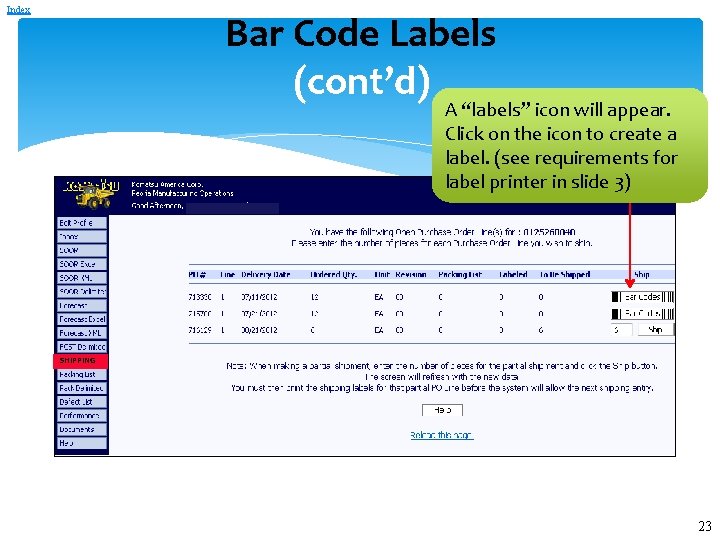
Index Bar Code Labels (cont’d) A “labels” icon will appear. Click on the icon to create a label. (see requirements for label printer in slide 3) SHIPPING 23
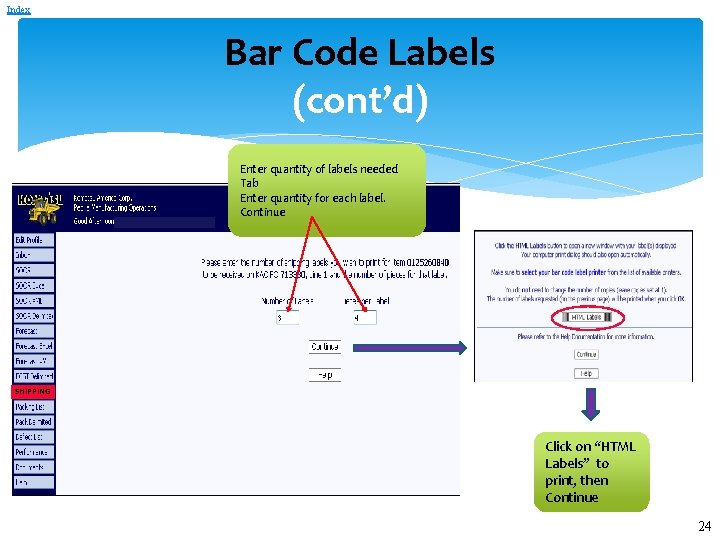
Index Bar Code Labels (cont’d) Enter quantity of labels needed Tab Enter quantity for each label. Continue SHIPPING Click on “HTML Labels” to print, then Continue 24
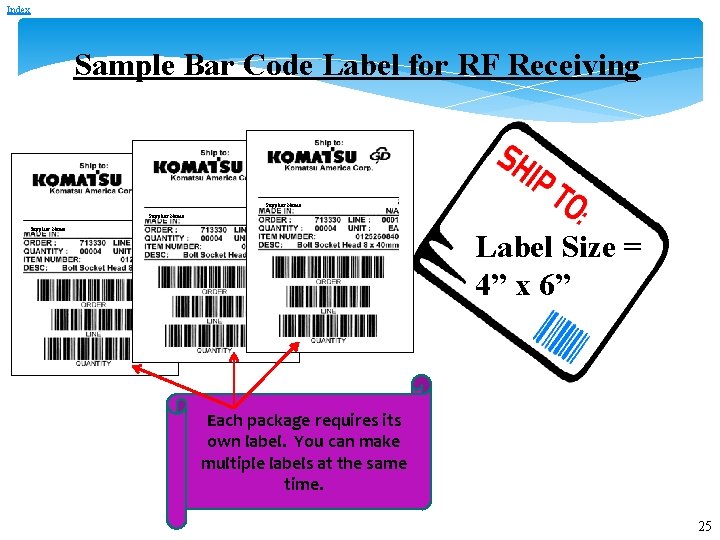
Index Sample Bar Code Label for RF Receiving Supplier Name Label Size = 4” x 6” Each package requires its own label. You can make multiple labels at the same time. 25
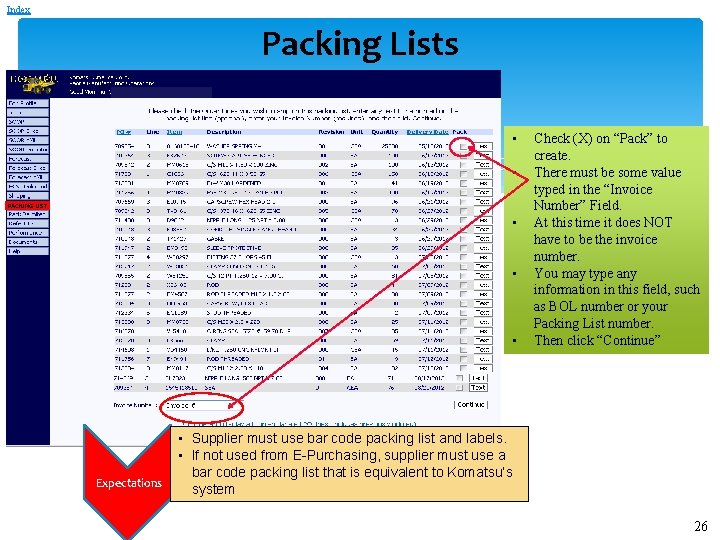
Index Packing Lists • • PACKING LIST • • • Expectations Check (X) on “Pack” to create. There must be some value typed in the “Invoice Number” Field. At this time it does NOT have to be the invoice number. You may type any information in this field, such as BOL number or your Packing List number. Then click “Continue” • Supplier must use bar code packing list and labels. • If not used from E-Purchasing, supplier must use a bar code packing list that is equivalent to Komatsu’s system 26
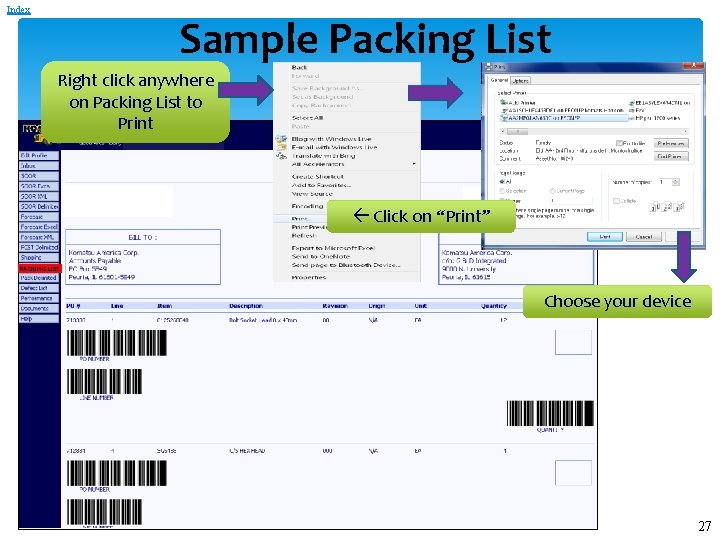
Index Sample Packing List Right click anywhere on Packing List to Print Click on “Print” PACKING LIST Choose your device 27
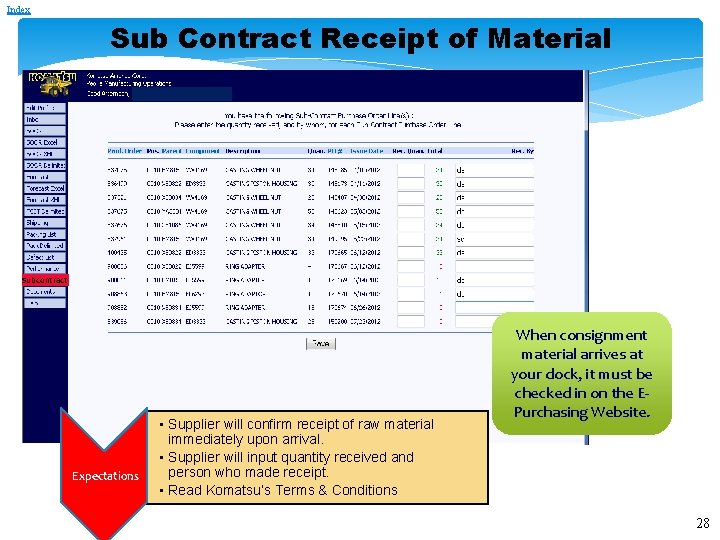
Index Sub Contract Receipt of Material Subcontract Expectations • Supplier will confirm receipt of raw material immediately upon arrival. • Supplier will input quantity received and person who made receipt. • Read Komatsu’s Terms & Conditions When consignment material arrives at your dock, it must be checked in on the EPurchasing Website. 28
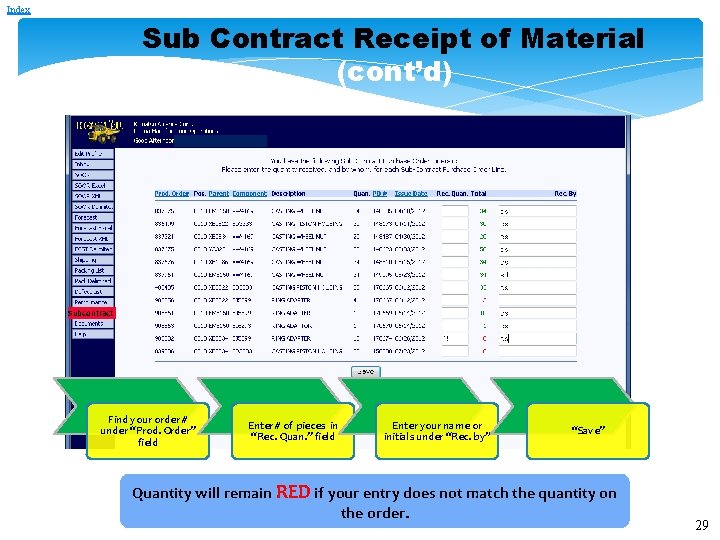
Index Sub Contract Receipt of Material (cont’d) Subcontract Find your order # under “Prod. Order” field Enter # of pieces in “Rec. Quan. ” field Enter your name or initials under “Rec. by” “Save” Quantity will remain RED if your entry does not match the quantity on the order. 29
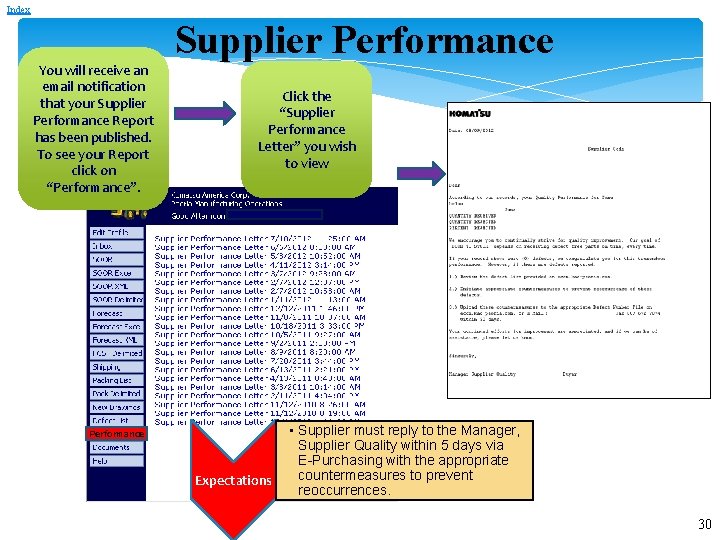
Index You will receive an email notification that your Supplier Performance Report has been published. To see your Report click on “Performance”. Supplier Performance Click the “Supplier Performance Letter” you wish to view Performance Expectations • Supplier must reply to the Manager, Supplier Quality within 5 days via E-Purchasing with the appropriate countermeasures to prevent reoccurrences. 30
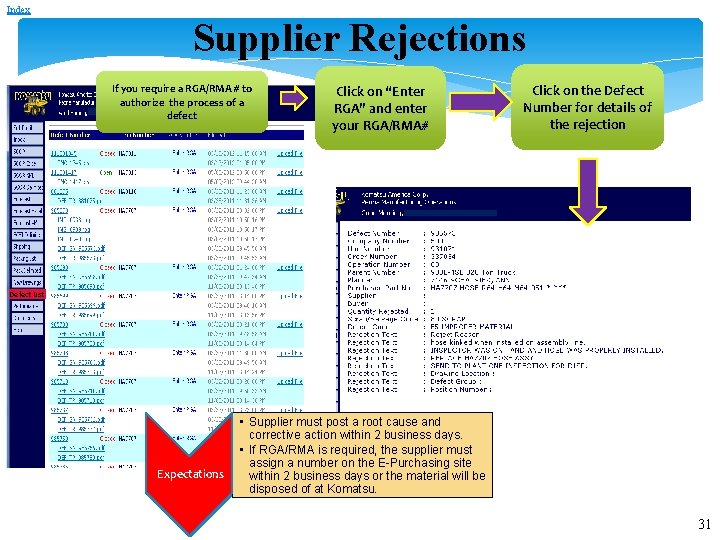
Index Supplier Rejections If you require a RGA/RMA # to authorize the process of a defect Click on “Enter RGA” and enter your RGA/RMA# Click on the Defect Number for details of the rejection Defect List • Supplier must post a root cause and corrective action within 2 business days. Defect List • If RGA/RMA is required, the supplier must assign a number on the E-Purchasing site Expectations within 2 business days or the material will be disposed of at Komatsu. 31
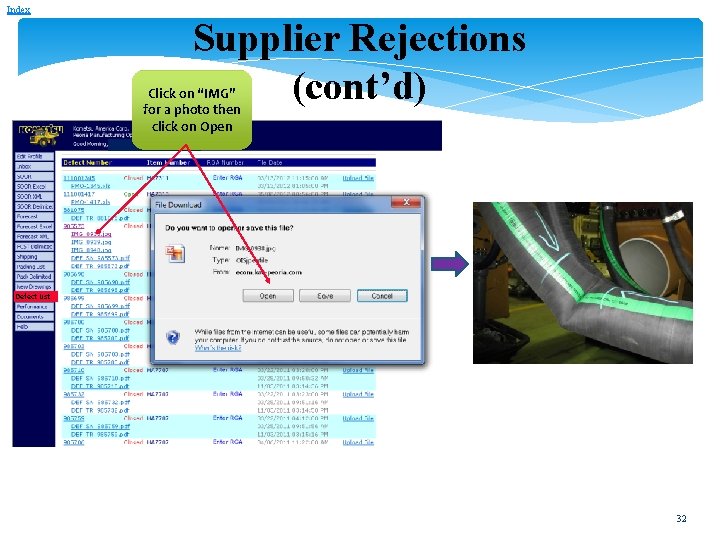
Index Supplier Rejections (cont’d) Click on “IMG” for a photo then click on Open Defect List 32
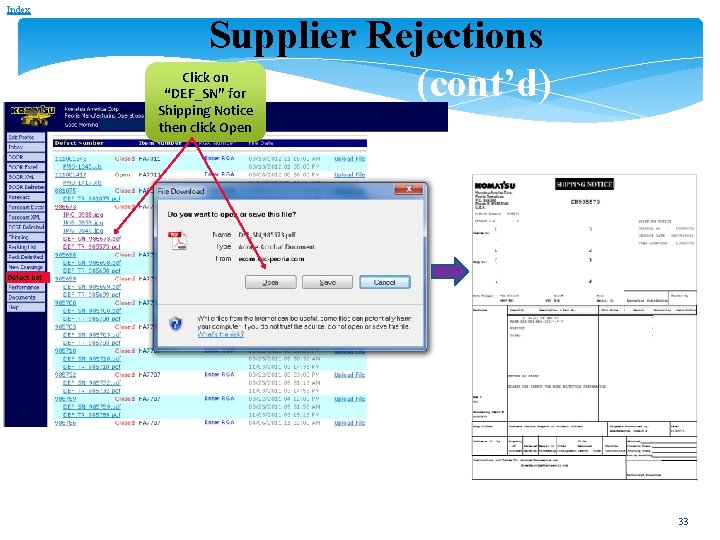
Index Supplier Rejections (cont’d) Click on “DEF_SN” for Shipping Notice then click Open Defect List 33
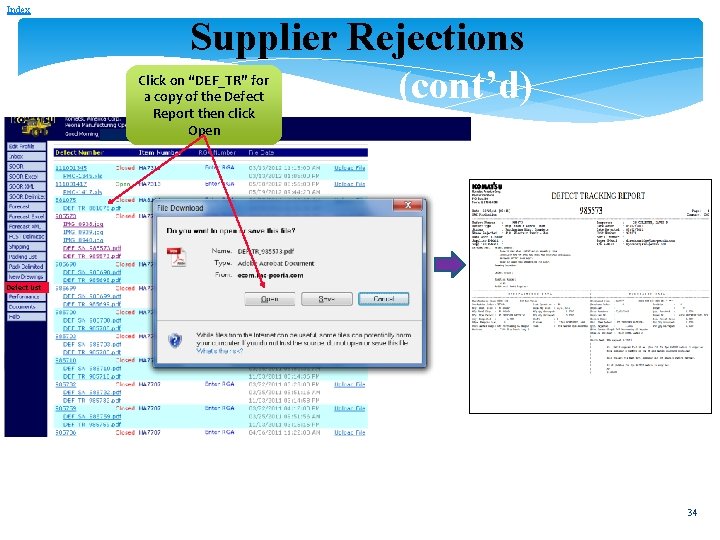
Index Supplier Rejections (cont’d) Click on “DEF_TR” for a copy of the Defect Report then click Open Defect List 34
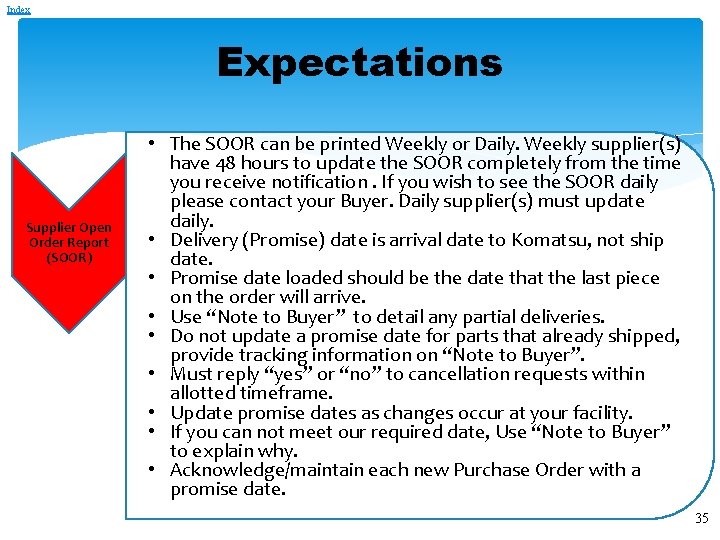
Index Expectations Supplier Open Order Report (SOOR) • The SOOR can be printed Weekly or Daily. Weekly supplier(s) have 48 hours to update the SOOR completely from the time you receive notification. If you wish to see the SOOR daily please contact your Buyer. Daily supplier(s) must update daily. • Delivery (Promise) date is arrival date to Komatsu, not ship date. • Promise date loaded should be the date that the last piece on the order will arrive. • Use “Note to Buyer” to detail any partial deliveries. • Do not update a promise date for parts that already shipped, provide tracking information on “Note to Buyer”. • Must reply “yes” or “no” to cancellation requests within allotted timeframe. • Update promise dates as changes occur at your facility. • If you can not meet our required date, Use “Note to Buyer” to explain why. • Acknowledge/maintain each new Purchase Order with a promise date. 35
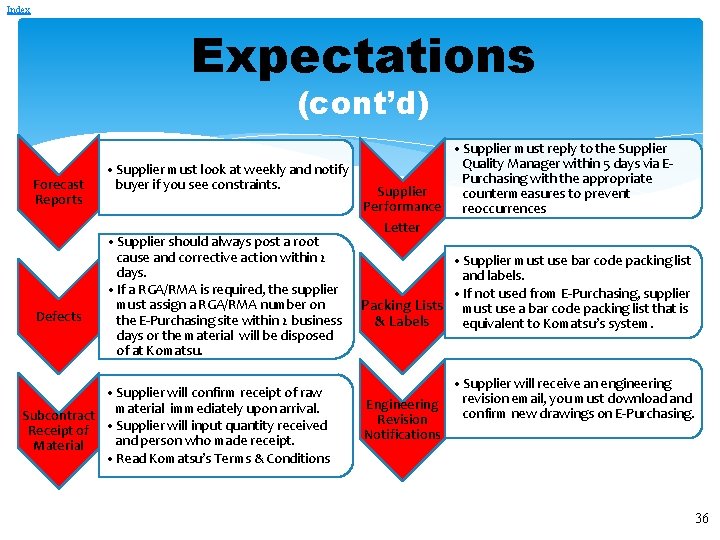
Index Expectations (cont’d) Forecast Reports Defects • Supplier must look at weekly and notify buyer if you see constraints. • Supplier should always post a root cause and corrective action within 2 days. • If a RGA/RMA is required, the supplier must assign a RGA/RMA number on the E-Purchasing site within 2 business days or the material will be disposed of at Komatsu. • Supplier will confirm receipt of raw material immediately upon arrival. Subcontract Receipt of • Supplier will input quantity received and person who made receipt. Material • Read Komatsu’s Terms & Conditions • Supplier must reply to the Supplier Quality Manager within 5 days via EPurchasing with the appropriate Supplier countermeasures to prevent Performance reoccurrences Letter • Supplier must use bar code packing list and labels. • If not used from E-Purchasing, supplier Packing Lists must use a bar code packing list that is & Labels equivalent to Komatsu’s system. • Supplier will receive an engineering revision email, you must download and Engineering confirm new drawings on E-Purchasing. Revision Notifications 36
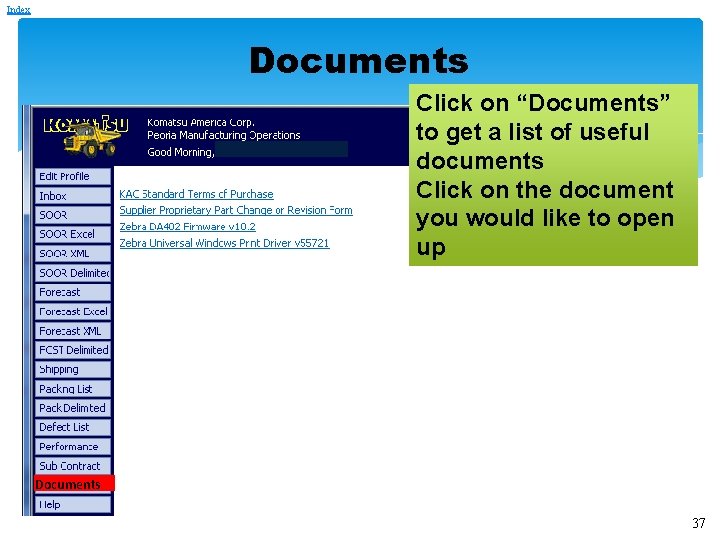
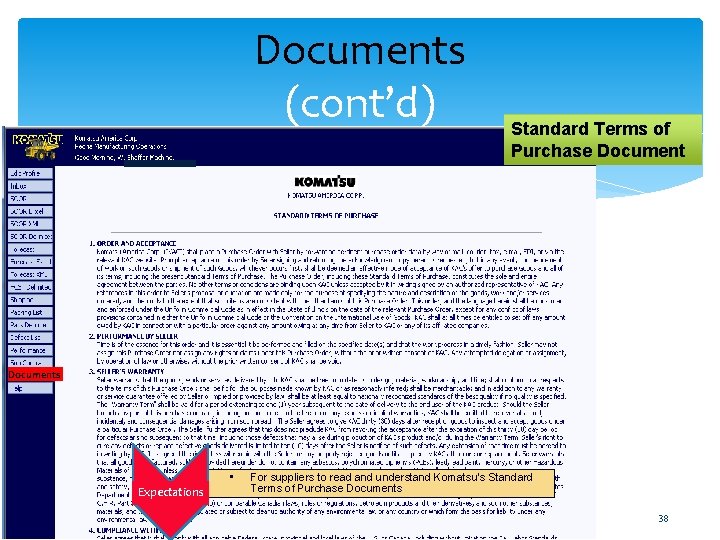
Index Documents Click on “Documents” to get a list of useful documents Click on the document you would like to open up Documents 37
Documents (cont’d) Standard Terms of Purchase Documents • Expectations For suppliers to read and understand Komatsu’s Standard Terms of Purchase Documents 38
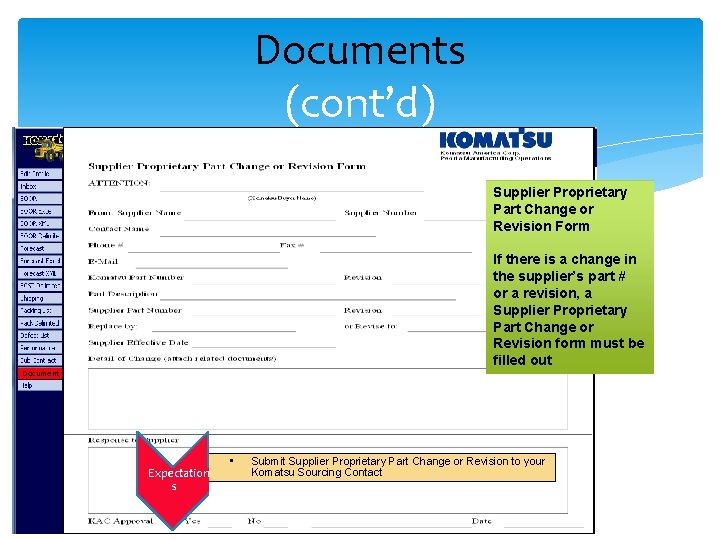
Documents (cont’d) Supplier Proprietary Part Change or Revision Form If there is a change in the supplier’s part # or a revision, a Supplier Proprietary Part Change or Revision form must be filled out Document Expectation s • Submit Supplier Proprietary Part Change or Revision to your Komatsu Sourcing Contact 39
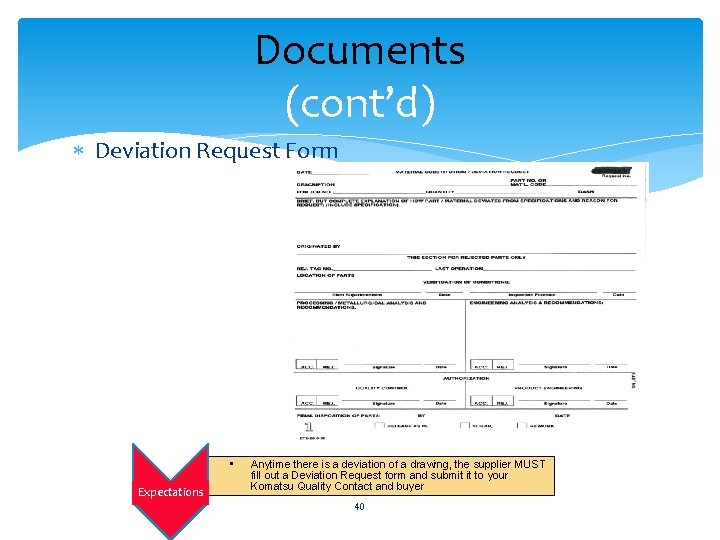
Documents (cont’d) Deviation Request Form • Expectations Anytime there is a deviation of a drawing, the supplier MUST fill out a Deviation Request form and submit it to your Komatsu Quality Contact and buyer 40
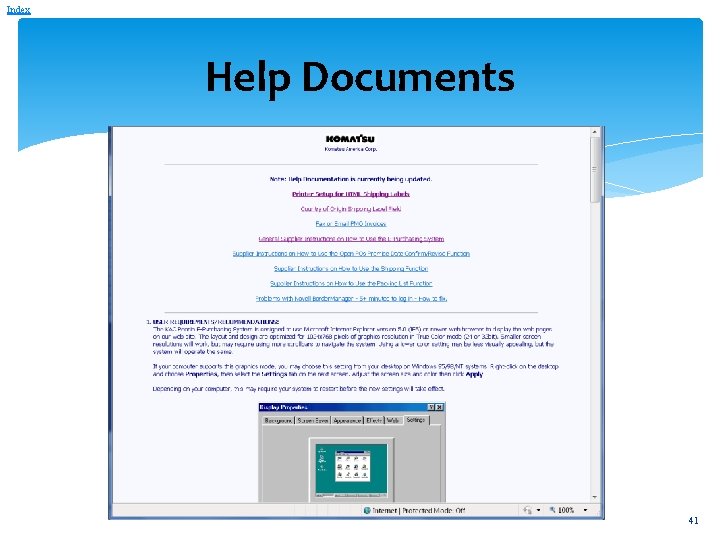
Index Help Documents 41
That Concludes the Komatsu, PMO E-Purchasing instructions. We appreciate your use of the Komatsu E-Purchasing Web Site. Please do not hesitate to get in touch with your PMO Purchasing point of contact should you have any questions. 42
End Presentation 43