
EOffice File Management System Portal And Credentials Online
- Slides: 30
EOffice File Management System
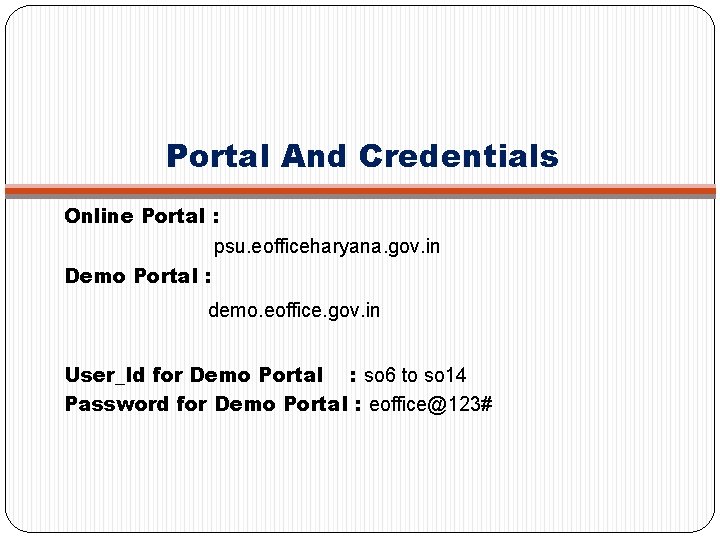
Portal And Credentials Online Portal : psu. eofficeharyana. gov. in Demo Portal : demo. eoffice. gov. in User_Id for Demo Portal : so 6 to so 14 Password for Demo Portal : eoffice@123#
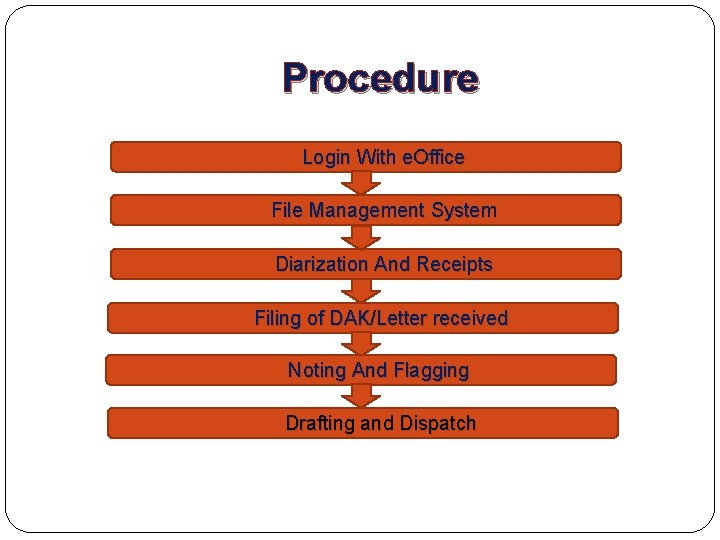
Procedure Login With e. Office File Management System Diarization And Receipts Filing of DAK/Letter received Noting And Flagging Drafting and Dispatch
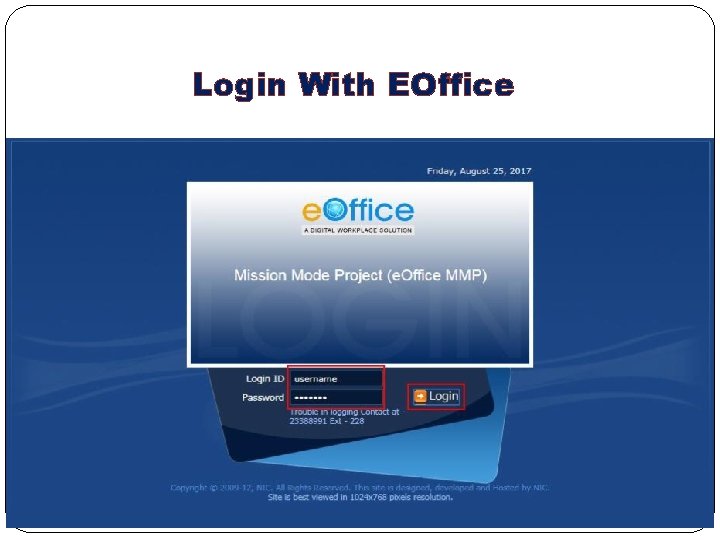
Login With EOffice
File Management System 1 - Click here on file managem ent
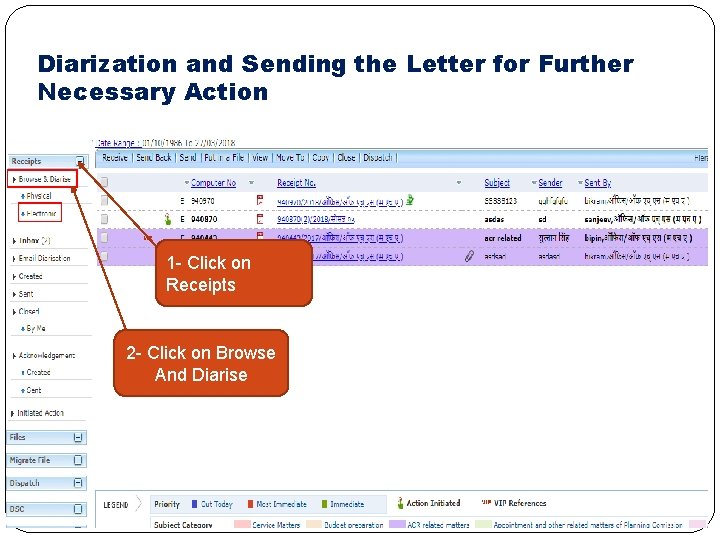
Diarization and Sending the Letter for Further Necessary Action 1 - Click on Receipts 2 - Click on Browse And Diarise
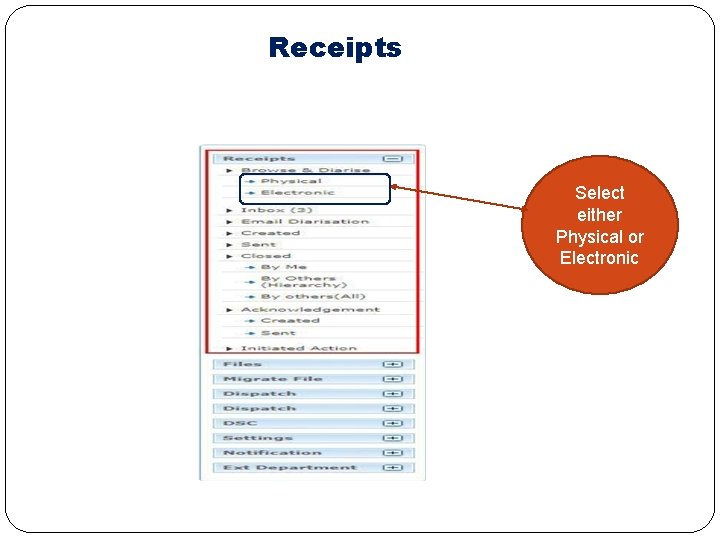
Receipts Select either Physical or Electronic
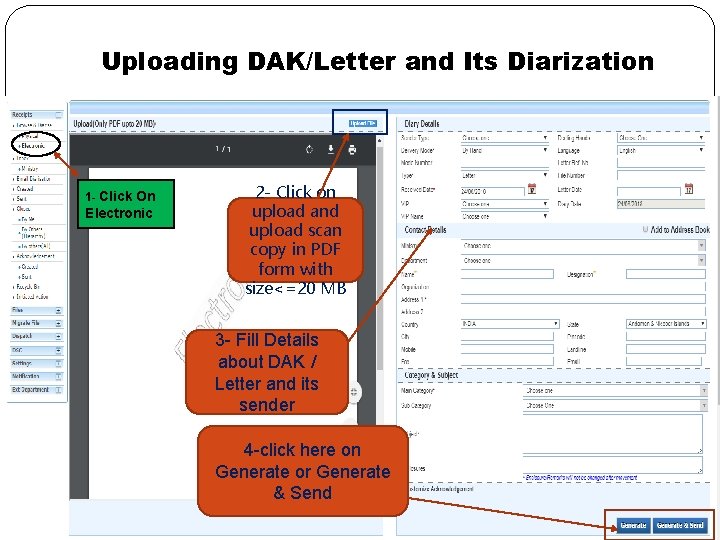
Uploading DAK/Letter and Its Diarization 1 - Click On Electronic 2 - Click on upload and upload scan copy in PDF form with size<=20 MB 3 - Fill Details about DAK / Letter and its sender 4 -click here on Generate or Generate & Send
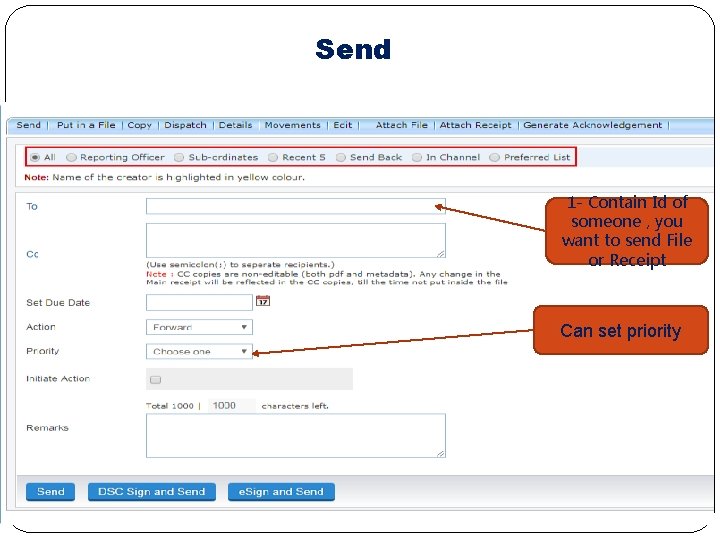
Send 1 - Contain Id of someone , you want to send File or Receipt Can set priority
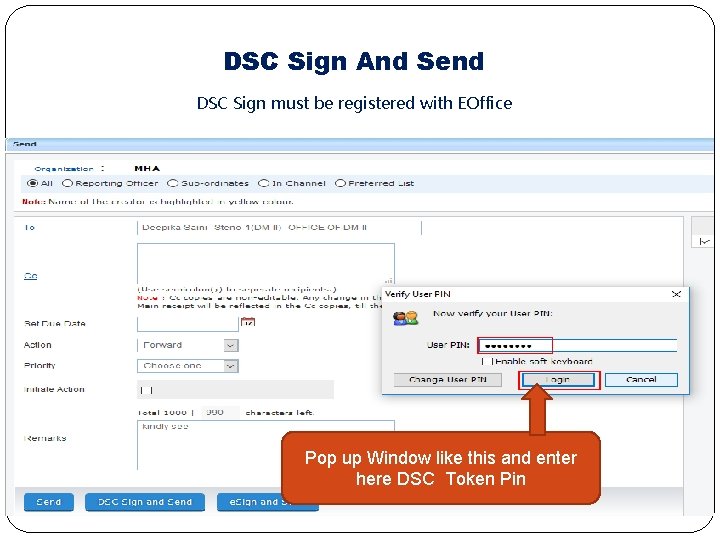
DSC Sign And Send DSC Sign must be registered with EOffice Pop up Window like this and enter here DSC Token Pin
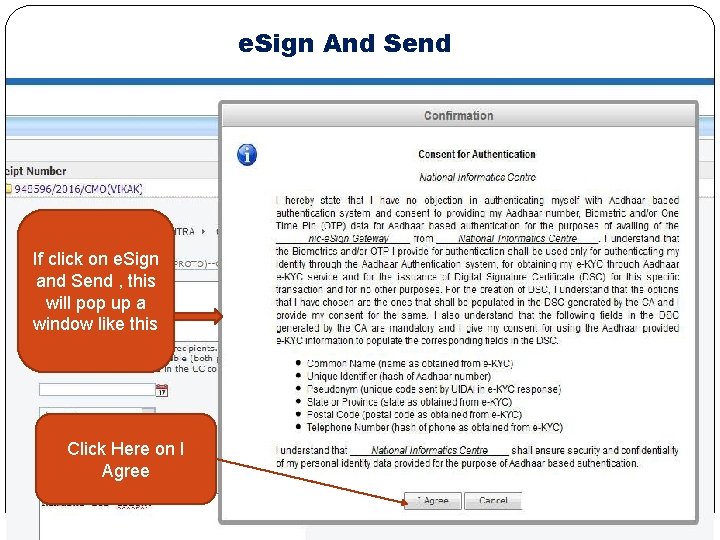
e. Sign And Send If click on e. Sign and Send , this will pop up a window like this Click Here on I Agree
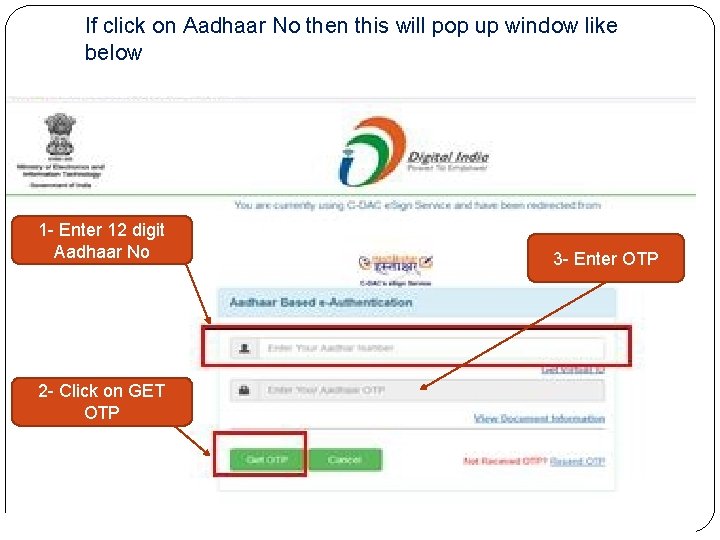
If click on Aadhaar No then this will pop up window like below 1 - Enter 12 digit Aadhaar No 2 - Click on GET OTP 3 - Enter OTP
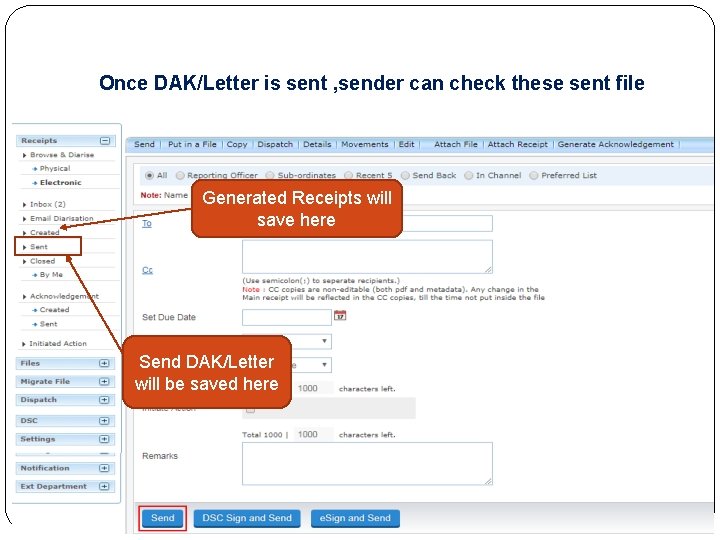
Once DAK/Letter is sent , sender can check these sent file Generated Receipts will save here Send DAK/Letter will be saved here
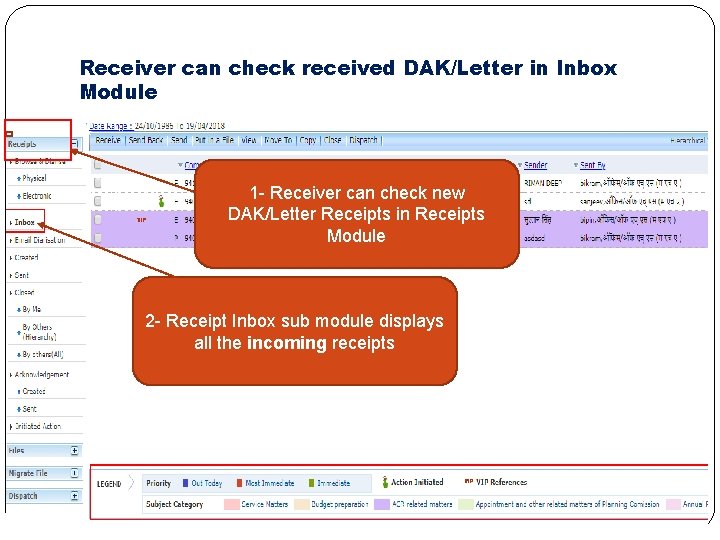
Receiver can check received DAK/Letter in Inbox Module 1 - Receiver can check new DAK/Letter Receipts in Receipts Module 2 - Receipt Inbox sub module displays all the incoming receipts
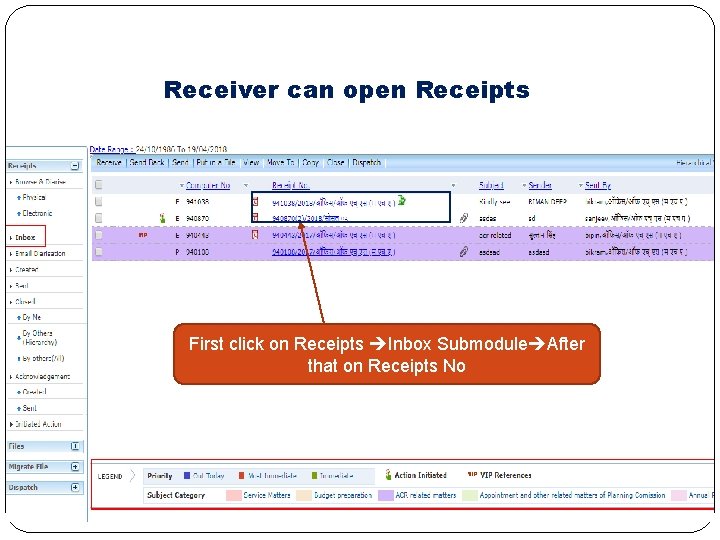
Receiver can open Receipts First click on Receipts Inbox Submodule After that on Receipts No
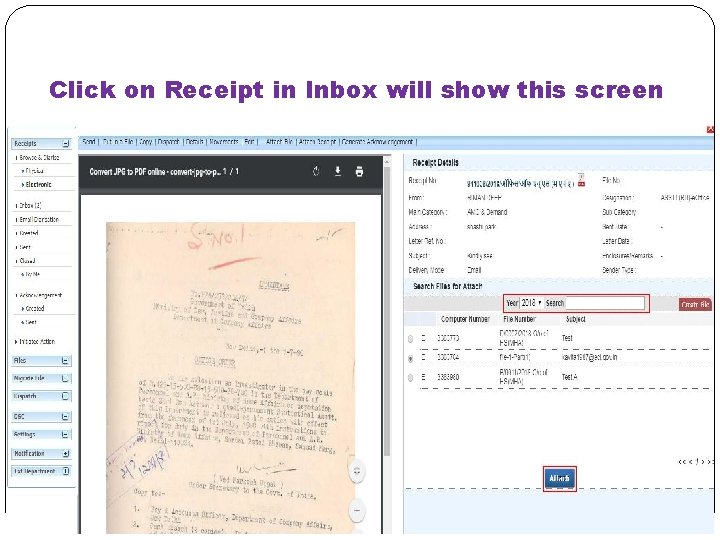
Click on Receipt in Inbox will show this screen
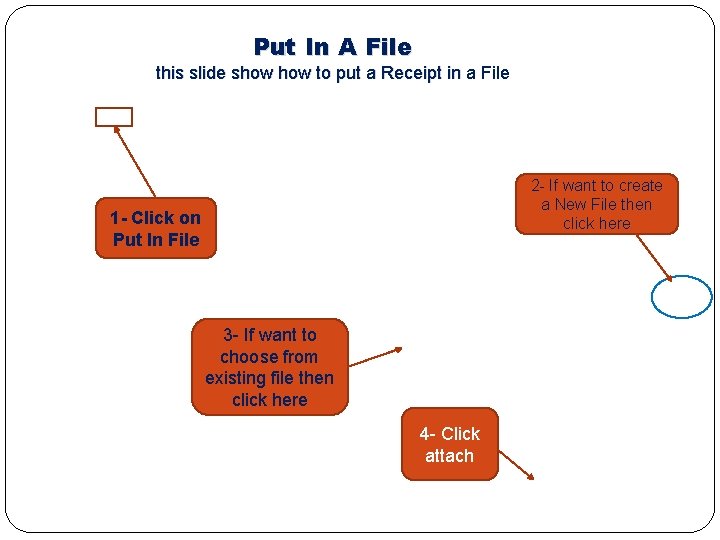
Put In A File this slide show to put a Receipt in a File 2 - If want to create a New File then click here 1 - Click on Put In File 3 - If want to choose from existing file then click here 4 - Click attach
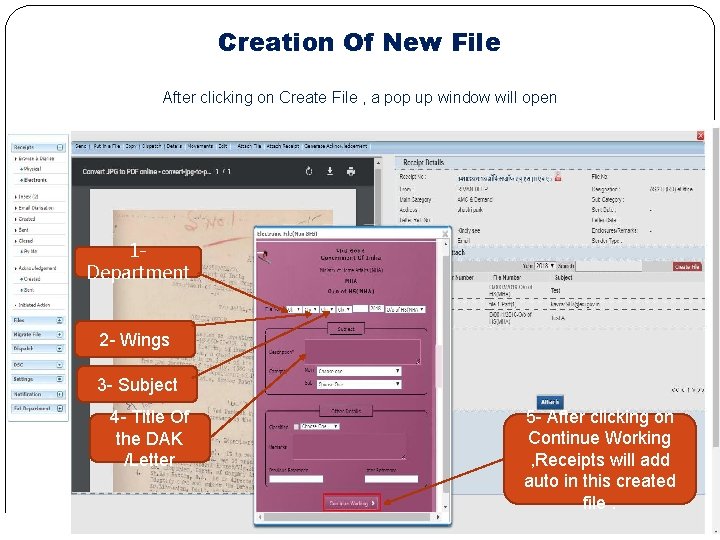
Creation Of New File After clicking on Create File , a pop up window will open 1 Department 2 - Wings 3 - Subject 4 - Title Of the DAK /Letter 5 - After clicking on Continue Working , Receipts will add auto in this created file.
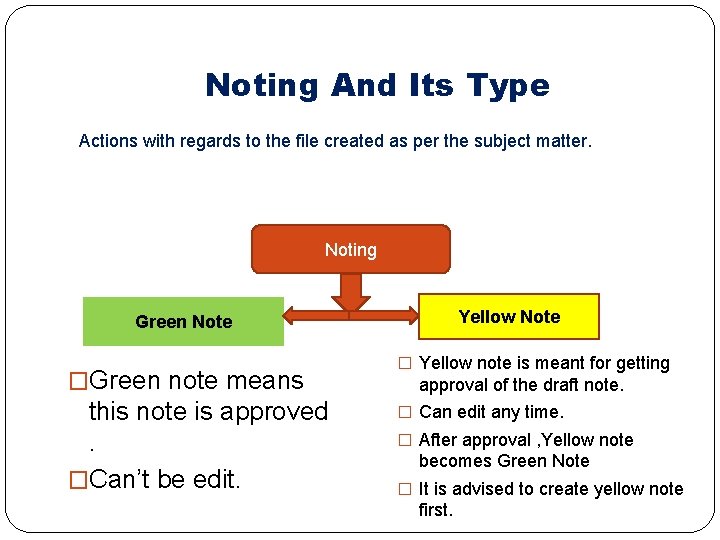
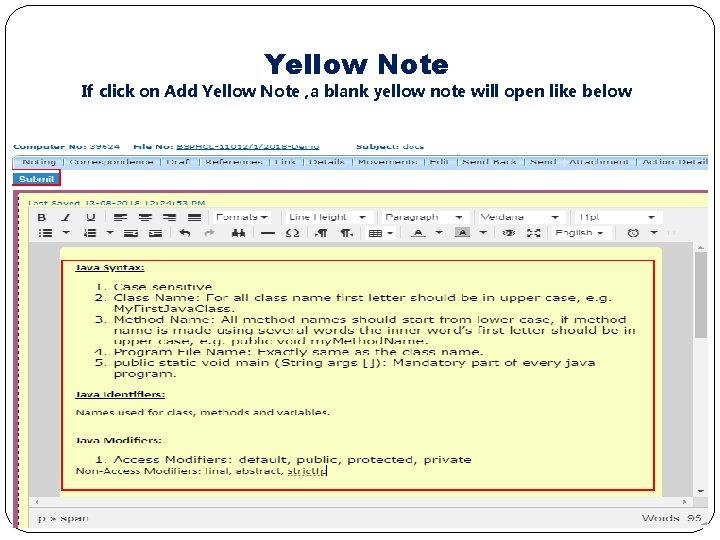
Noting And Its Type Actions with regards to the file created as per the subject matter. Noting Yellow Note Green Note �Green note means this note is approved. �Can’t be edit. � Yellow note is meant for getting approval of the draft note. � Can edit any time. � After approval , Yellow note becomes Green Note � It is advised to create yellow note first.
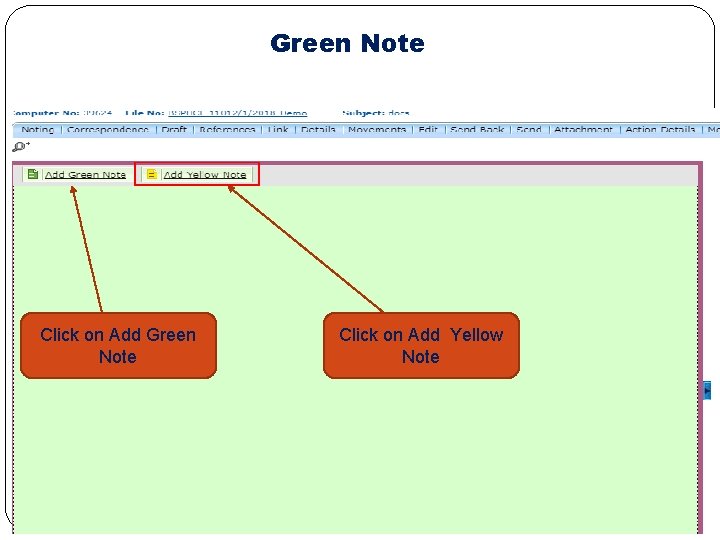
Green Note Click on Add Yellow Note
Yellow Note If click on Add Yellow Note , a blank yellow note will open like below Click on Add Yellow Note
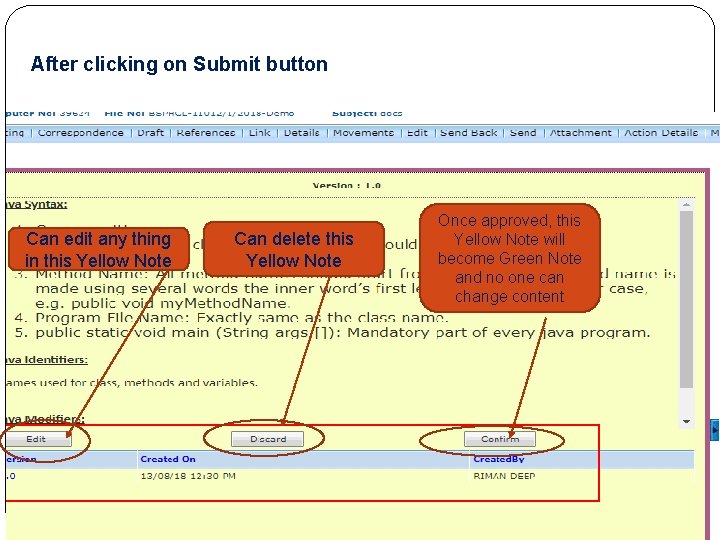
After clicking on Submit button Can edit any thing in this Yellow Note Can delete this Yellow Note Once approved, this Yellow Note will become Green Note and no one can change content
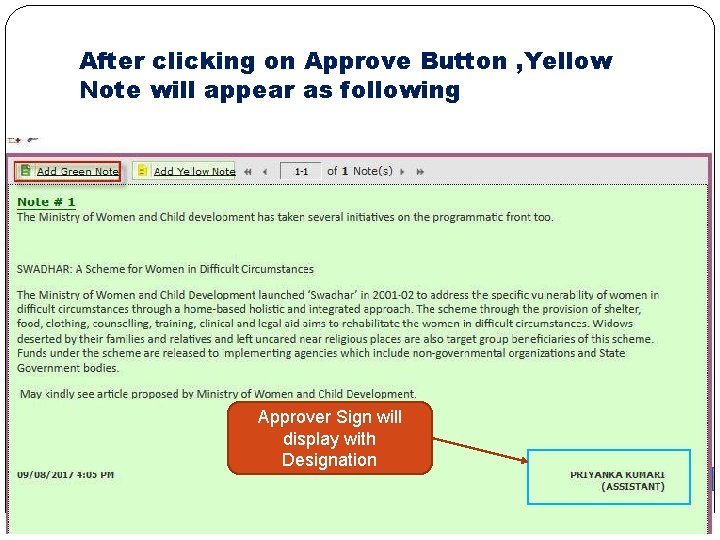
After clicking on Approve Button , Yellow Note will appear as following Approver Sign will display with Designation
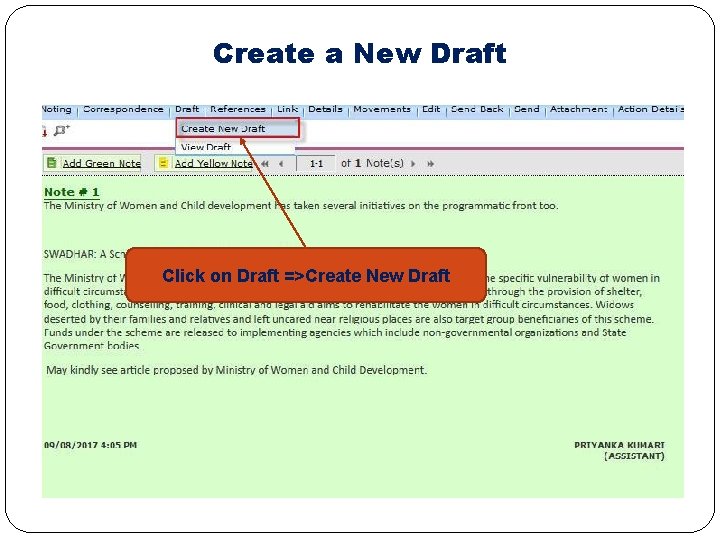
Create a New Draft Click on Draft =>Create New Draft
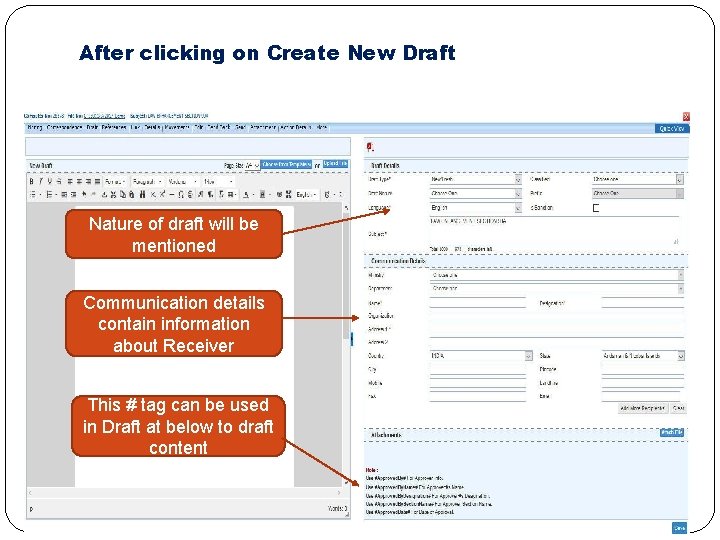
After clicking on Create New Draft Nature of draft will be mentioned Communication details contain information about Receiver This # tag can be used in Draft at below to draft content
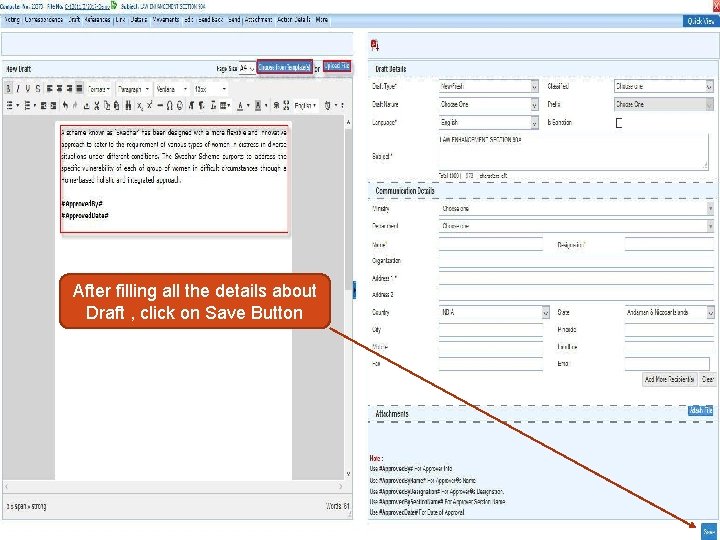
After filling all the details about Draft , click on Save Button
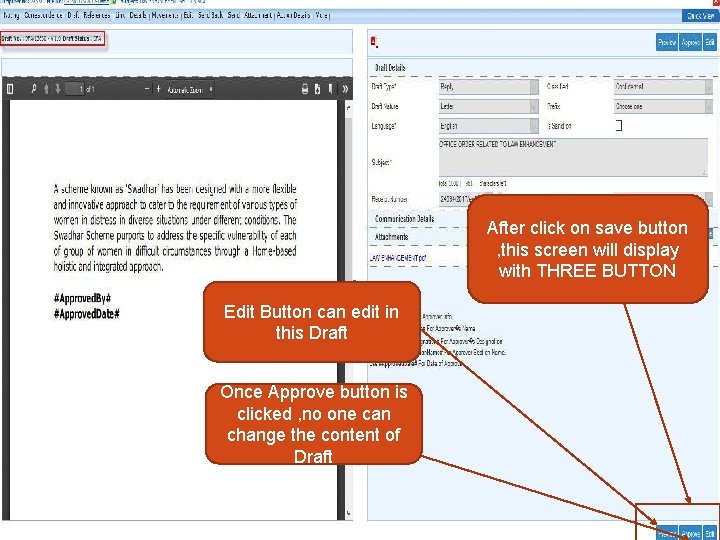
After click on save button , this screen will display with THREE BUTTON Edit Button can edit in this Draft Once Approve button is clicked , no one can change the content of Draft
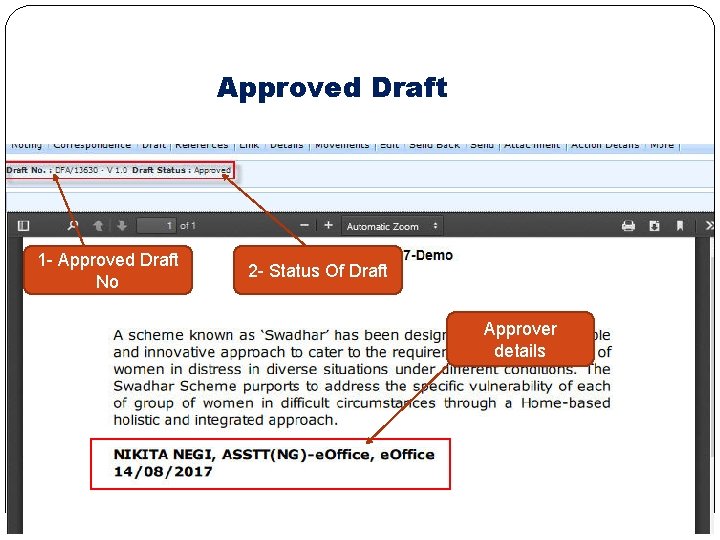
Approved Draft 1 - Approved Draft No 2 - Status Of Draft Approver details
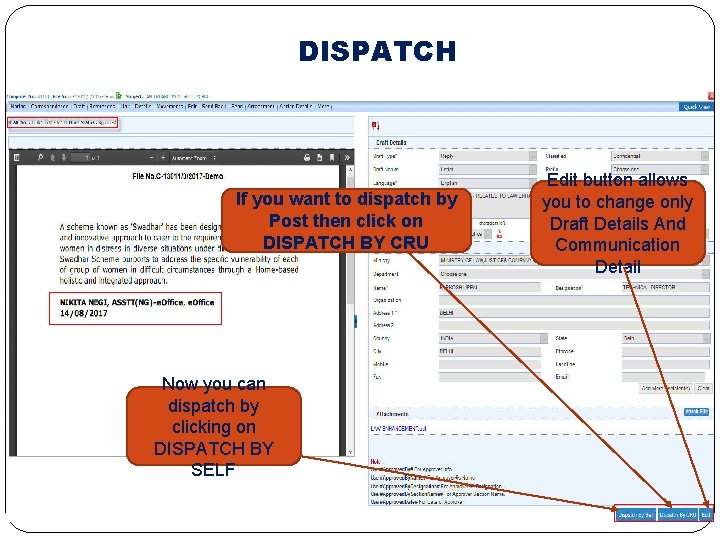
DISPATCH If you want to dispatch by Post then click on DISPATCH BY CRU Now you can dispatch by clicking on DISPATCH BY SELF Edit button allows you to change only Draft Details And Communication Detail
Thank You In case of any query, please contact IT wing at eoffice@dhbvn. org. in