
Environment Establishing one for Minecraft Modding Copyright 2015
Environment Establishing one for Minecraft Modding Copyright © 2015 Curt Hill
Introduction • Our goal in this presentation is to establish a modding environment • The pieces we will use include: – Eclipse – JDK 7 – Minecraft Forge Copyright © 2015 Curt Hill
Eclipse • The 2015 version of this course will use Eclipse Luna • See the following link: http: //www. eclipse. org/downloads/ • We should download Eclipse IDE for Java Developers Copyright © 2015 Curt Hill
JDK • We will use the JDK version 7 – It says that 8 will not yet work – I have not confirmed this • Download here: http: //www. oracle. com/technetwork/javase/downloads/jdk 7 -downloads 1880260. html • Install after the download Copyright © 2015 Curt Hill

Forge • We will then download Forge • Download at: http: //files. minecraftforge. net/ • Use the 1. 7. 10 -Recommended 10. 13. 2. 1230 – Click on the * following src – Otherwise you get a download manager that tends to do drive by installs • Save it • See next screen Copyright © 2015 Curt Hill
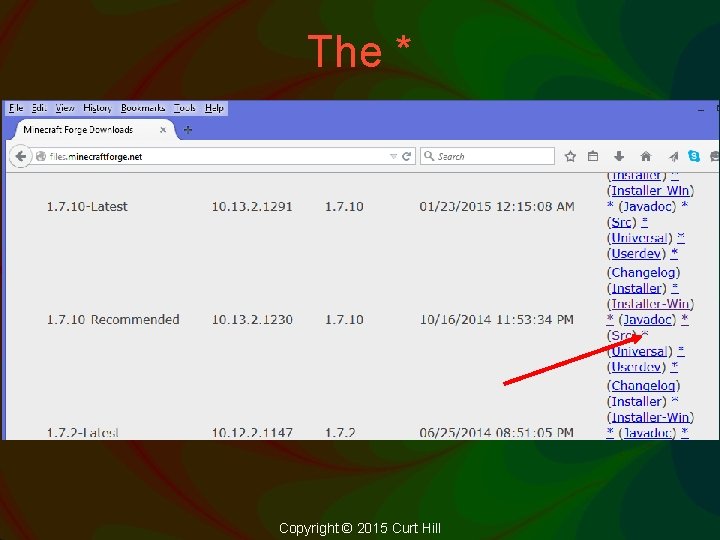
The * Copyright © 2015 Curt Hill
Java. Doc • Also in that list is something labeled Javadoc • This is HTML generated by the Javadoc program • It will show all the objects and all their methods • Since this has been decompiled it does not show much more than names, but can be helpful – You may want to down this Copyright © 2015 Curt Hill
Extraction • The saved disk file may be saved anywhere • However, its extraction may be best into a directory within root • I always recommend a directory that is new and without spaces in name • Do not use Desktop or Documents! • I recommend some place other than another Eclipse directory – Create a new directory • I am using projects_mc – Extract the downloaded zip file into it Copyright © 2015 Curt Hill
Gradle • Gradel is a product at www. gradle. org • It is a build automation system – Similar to make, but seems to be somewhat more advanced • For us gradlew is program that will do a number of installation setup actions – This needs to be done with a DOS box for we have command line parameters Copyright © 2015 Curt Hill
Setup • Once unzipped a directory structure should exist • Next you use a DOS box and move into the directory • Use the following two commands: gradlew setup. Decomp. Workspace gradlew --refresh-dependencies eclipse • The first one will take about 7 minutes, second about a minute Copyright © 2015 Curt Hill
Eclipse • We now start Eclipse • If this is the first time using Eclipse it will ask for a workspace and suggest one – do not use it – If not do a File/Switch Workspace • Browse to the Eclipse directory within the directory you created • There should be a sample project there with a sample mod • Open it Copyright © 2015 Curt Hill
JRE • • Open Window/Preferences Expend the Java line Clock on the Installed JREs IF JDK 7 is not present – Add – Use standard VM – Browse to the directory • When done 7 should be the clicked JRE Copyright © 2015 Curt Hill
Finally • At this point you should almost be able to run the project – There is a license thing that needs to be filled in – It should direct you to it when it starts • You should eventually see the Mojang splash screen and play a game Copyright © 2015 Curt Hill
Assignment • So now do it! • Since this takes longer than the presentation you need to verify that everything worked • This environment should be ready by the next class period Copyright © 2015 Curt Hill
- Slides: 14