
Enterprise Payment System Enterprise Post Office Boxes Online
Enterprise Payment System / Enterprise Post Office Boxes Online / Mobile Check Capture March 8, 2018 1
Agenda • Enterprise Payment System (EPS) • Enterprise Post Office Boxes Online (e. POBOL) • Funding your EPS Trust Account with Mobile Check Capture 2
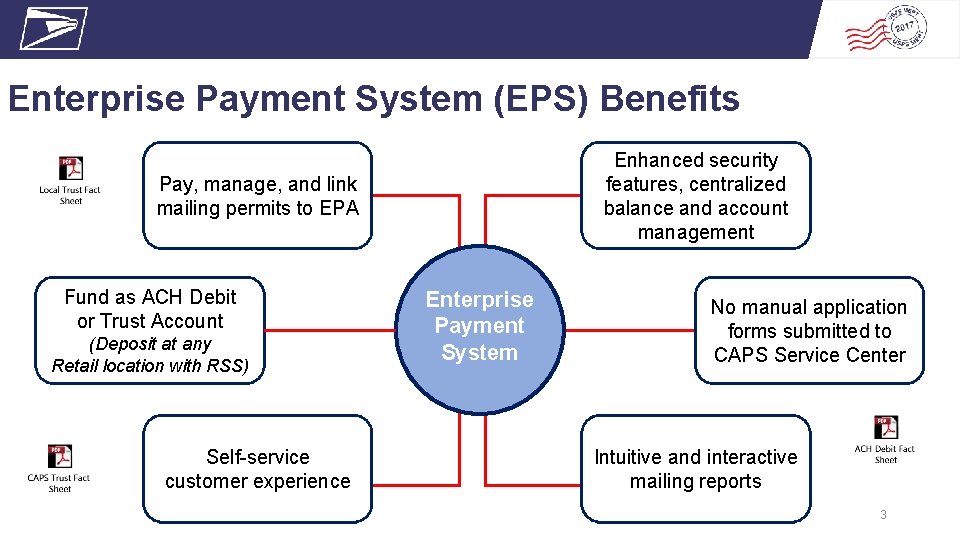
Enterprise Payment System (EPS) Benefits Enhanced security features, centralized balance and account management Pay, manage, and link mailing permits to EPA Fund as ACH Debit or Trust Account (Deposit at any Retail location with RSS) Self-service customer experience Enterprise Payment System No manual application forms submitted to CAPS Service Center Intuitive and interactive mailing reports 3
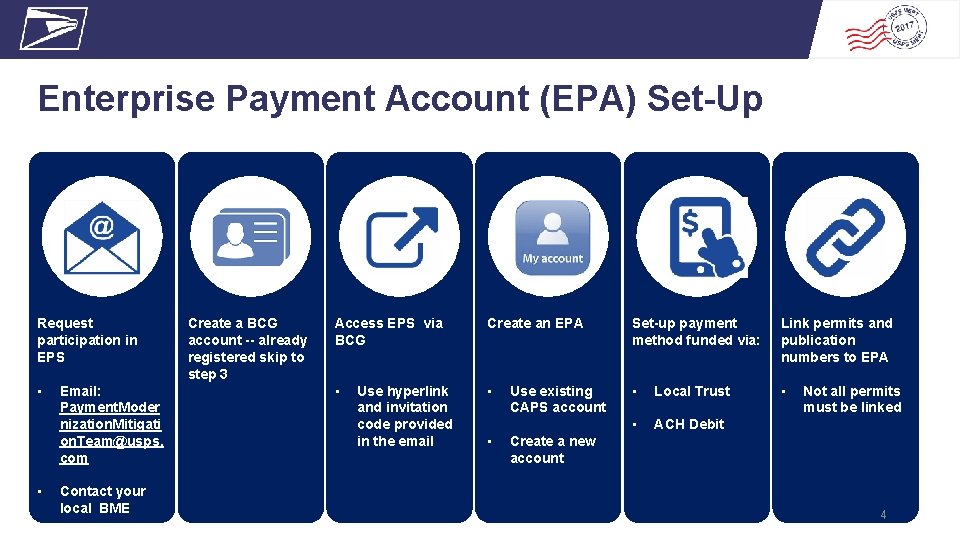
Enterprise Payment Account (EPA) Set-Up 3 Request participation in EPS • • Email: Payment. Moder nization. Mitigati on. Team@usps. com Contact your local BME Create a BCG account -- already registered skip to step 3 4 5 6 Access EPS via BCG Create an EPA Set-up payment method funded via: Link permits and publication numbers to EPA • • • Local Trust • • ACH Debit Use hyperlink and invitation code provided in the email • Use existing CAPS account Not all permits must be linked Create a new account 4

Request Participation in EPS • Participation is by invitation only via email or BMEU • Send an email to the Payment Modernization Mitigation Team: Payment. Modernization. Mitigation. Team. com • Include the following information: • Subject Line “EPS Request” • Name, Address Contact Information (email) • CRID (Customer Registration ID) • Contact your local Business Mail Entry Unit to request participation 5
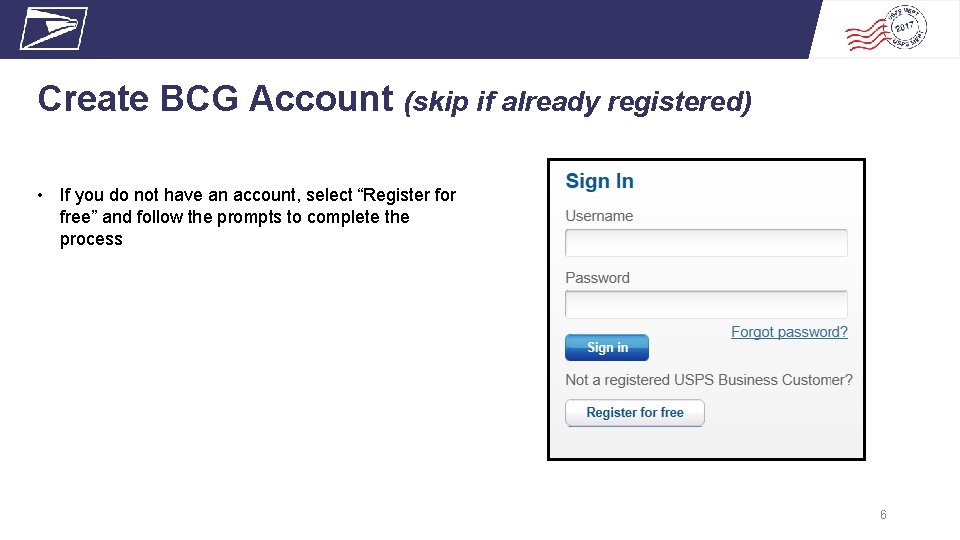
Create BCG Account (skip if already registered) • If you do not have an account, select “Register for free” and follow the prompts to complete the process 6
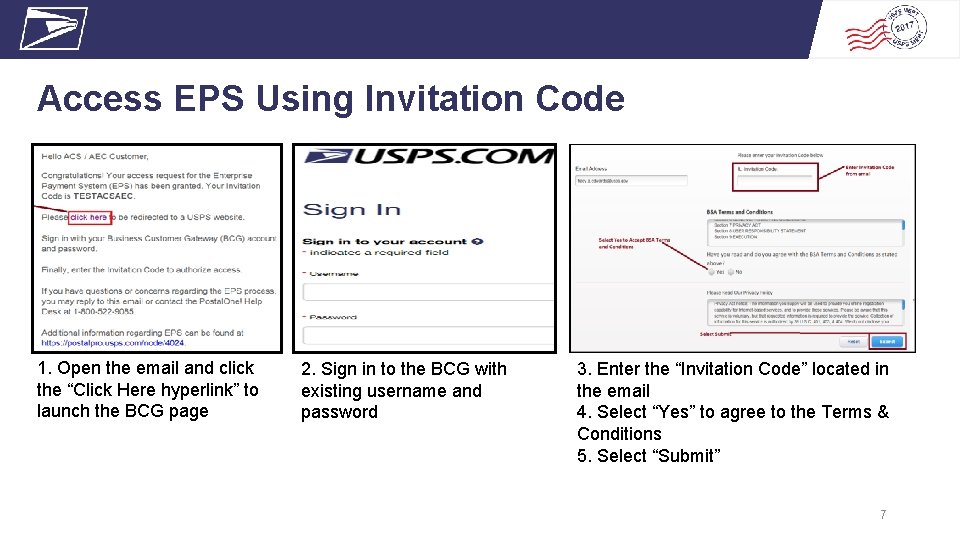
Access EPS Using Invitation Code 1. Open the email and click the “Click Here hyperlink” to launch the BCG page 2. Sign in to the BCG with existing username and password 3. Enter the “Invitation Code” located in the email 4. Select “Yes” to agree to the Terms & Conditions 5. Select “Submit” 7
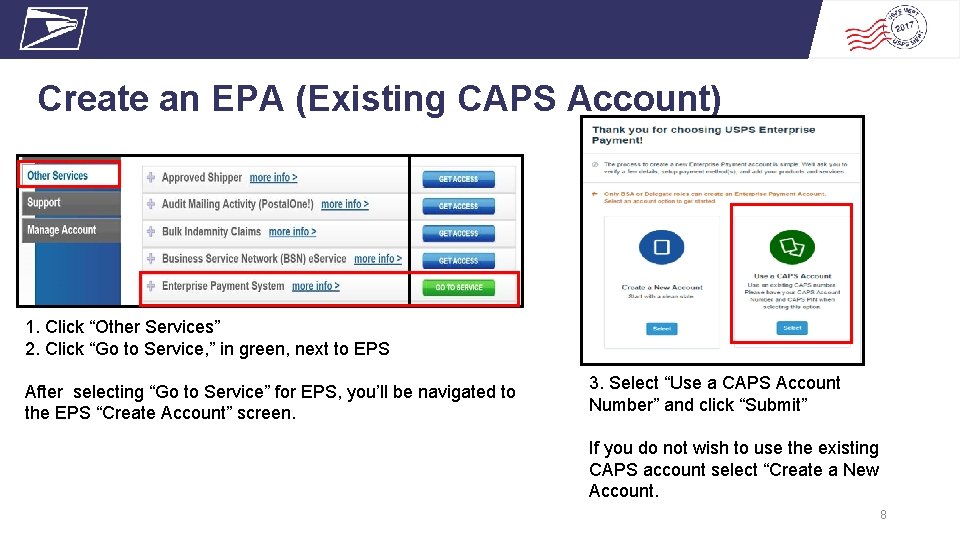
Create an EPA (Existing CAPS Account) 1. Click “Other Services” 2. Click “Go to Service, ” in green, next to EPS After selecting “Go to Service” for EPS, you’ll be navigated to the EPS “Create Account” screen. 3. Select “Use a CAPS Account Number” and click “Submit” If you do not wish to use the existing CAPS account select “Create a New Account. 8
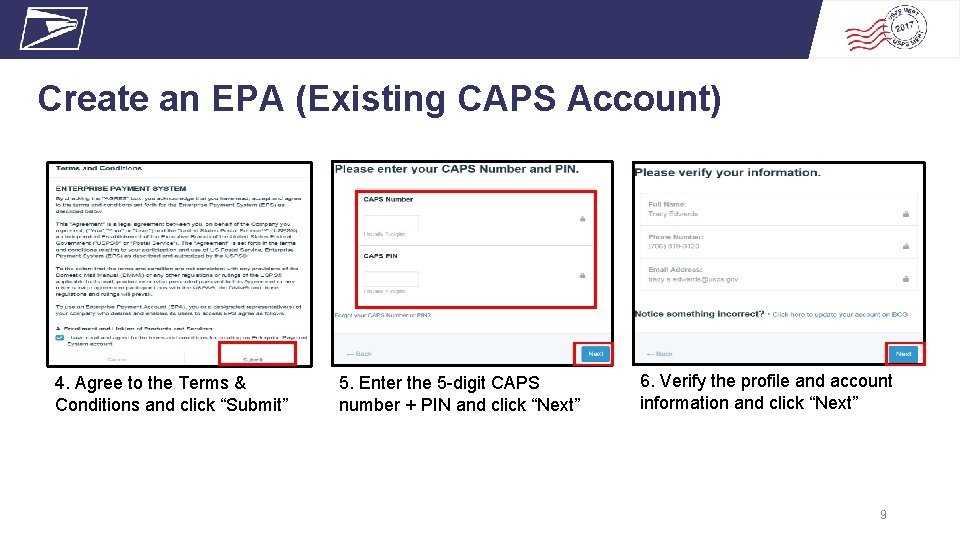
Create an EPA (Existing CAPS Account) 4. Agree to the Terms & Conditions and click “Submit” 5. Enter the 5 -digit CAPS number + PIN and click “Next” 6. Verify the profile and account information and click “Next” 9
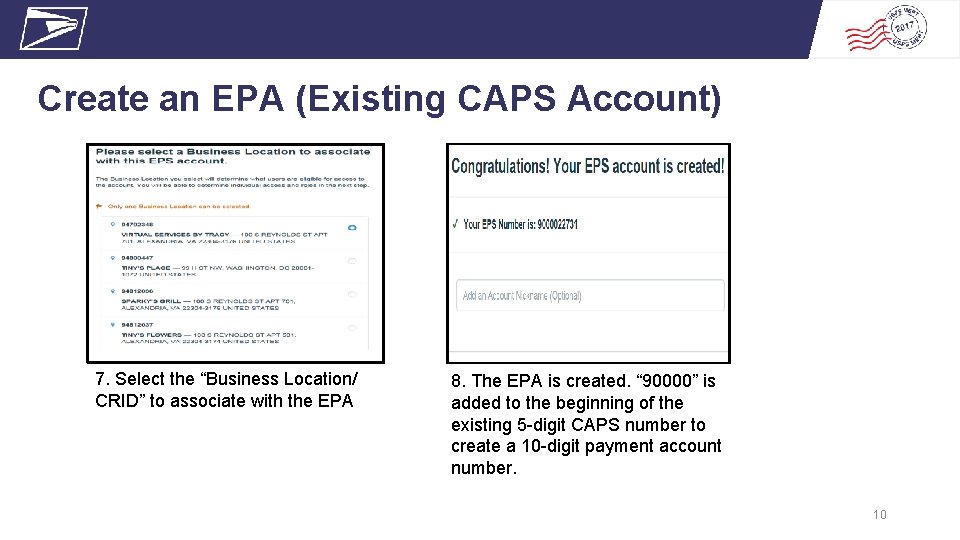
Create an EPA (Existing CAPS Account) 7. Select the “Business Location/ CRID” to associate with the EPA 8. The EPA is created. “ 90000” is added to the beginning of the existing 5 -digit CAPS number to create a 10 -digit payment account number. 10
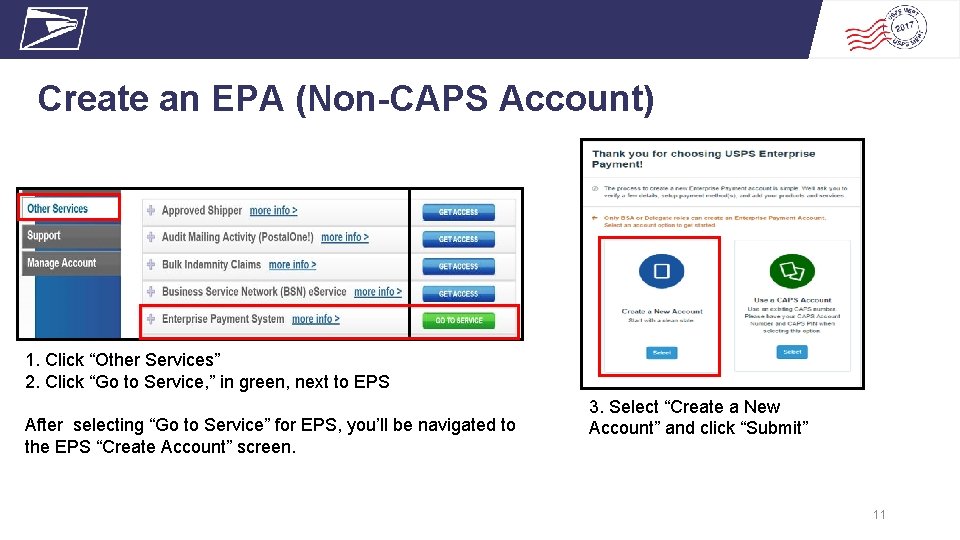
Create an EPA (Non-CAPS Account) 1. Click “Other Services” 2. Click “Go to Service, ” in green, next to EPS After selecting “Go to Service” for EPS, you’ll be navigated to the EPS “Create Account” screen. 3. Select “Create a New Account” and click “Submit” 11
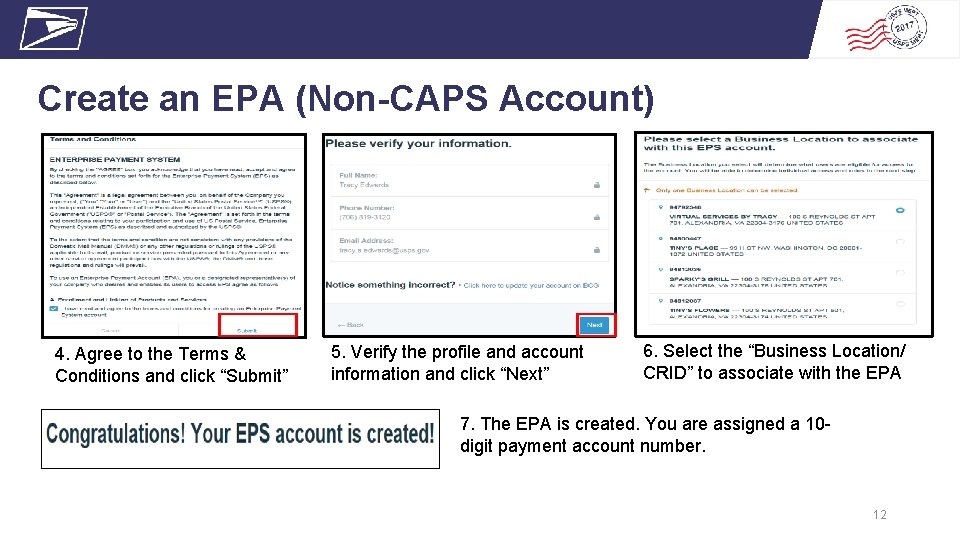
Create an EPA (Non-CAPS Account) 4. Agree to the Terms & Conditions and click “Submit” 6. Select the “Business Location/ CRID” to associate with the EPA 7. The EPA is created. You are assigned a 10 - 5. Verify the profile and account information and click “Next” digit payment account number. 12
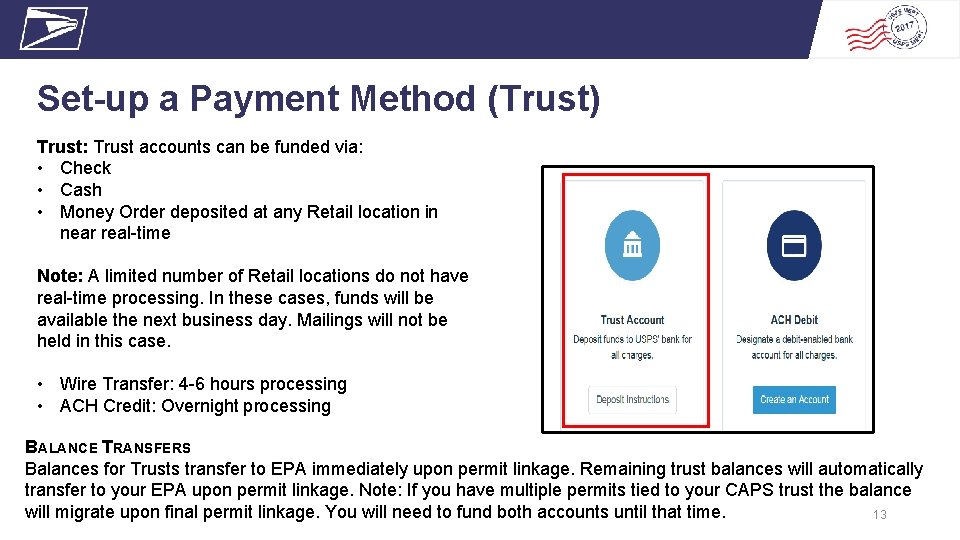
Set-up a Payment Method (Trust) Trust: Trust accounts can be funded via: • Check • Cash • Money Order deposited at any Retail location in near real-time Note: A limited number of Retail locations do not have real-time processing. In these cases, funds will be available the next business day. Mailings will not be held in this case. • Wire Transfer: 4 -6 hours processing • ACH Credit: Overnight processing B ALANCE TRANSFERS Balances for Trusts transfer to EPA immediately upon permit linkage. Remaining trust balances will automatically transfer to your EPA upon permit linkage. Note: If you have multiple permits tied to your CAPS trust the balance will migrate upon final permit linkage. You will need to fund both accounts until that time. 13
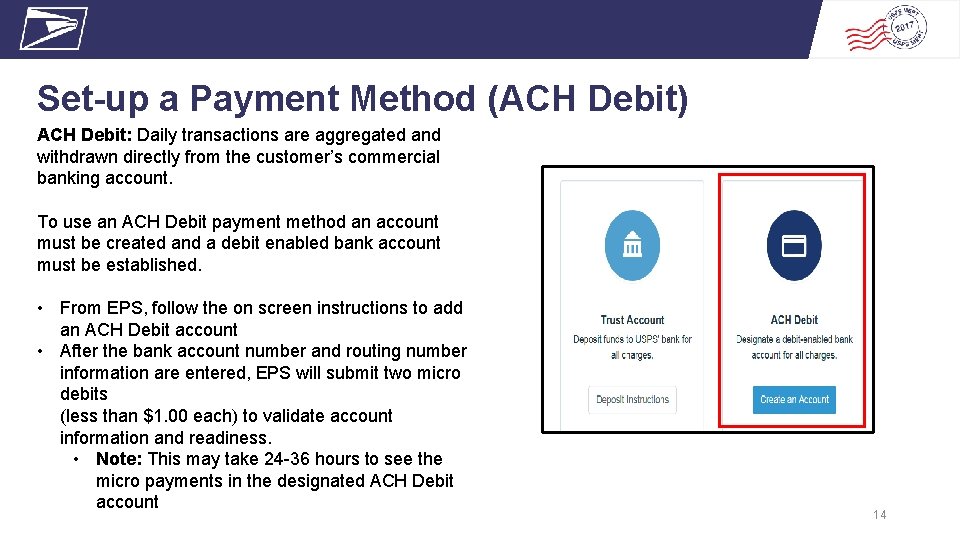
Set-up a Payment Method (ACH Debit) ACH Debit: Daily transactions are aggregated and withdrawn directly from the customer’s commercial banking account. To use an ACH Debit payment method an account must be created and a debit enabled bank account must be established. • From EPS, follow the on screen instructions to add an ACH Debit account • After the bank account number and routing number information are entered, EPS will submit two micro debits (less than $1. 00 each) to validate account information and readiness. • Note: This may take 24 -36 hours to see the micro payments in the designated ACH Debit account 14
Set-up a Payment Method (ACH Debit) • The Trust will be pending activation through a deposit • Once activated the balance is maintained in real-time as transactions and deposits come in throughout the day The account will need to be verified, via EPS, the next business day by completing these steps: • Select “Payment Methods” tab • Select “Verify Micro-Transaction Link” • Input the amount of each micro-transaction entered into the bank account • Select “Submit” to verify the account and will be ready for use 15
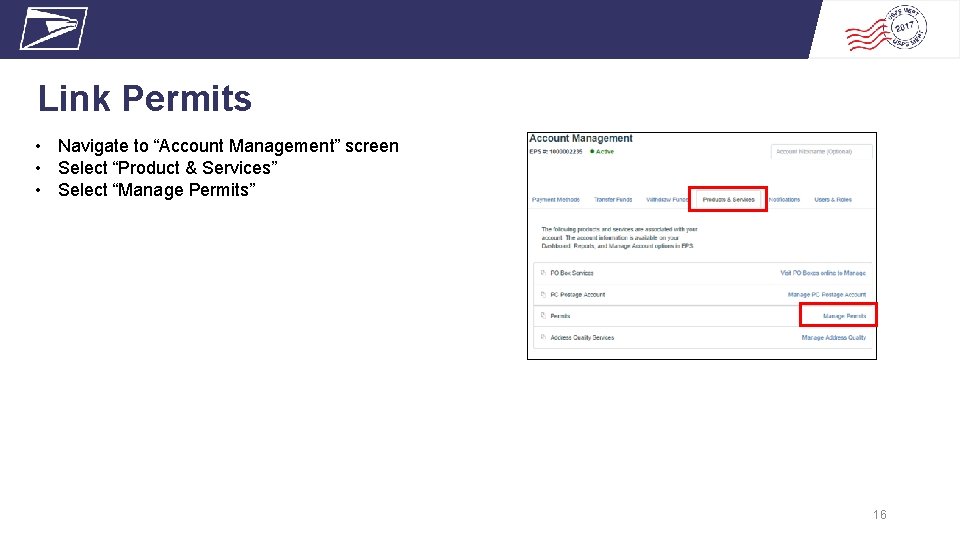
Link Permits • Navigate to “Account Management” screen • Select “Product & Services” • Select “Manage Permits” 16
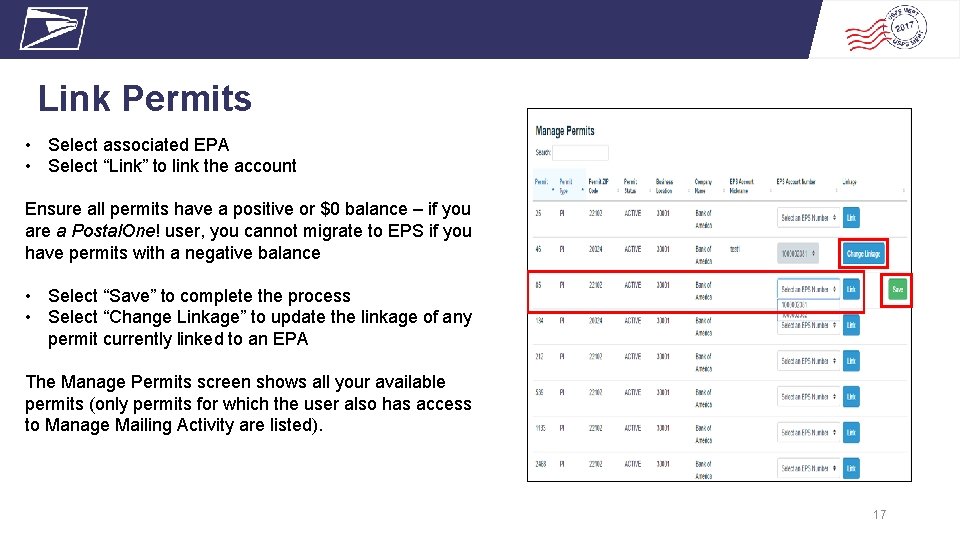
Link Permits • Select associated EPA • Select “Link” to link the account Ensure all permits have a positive or $0 balance – if you are a Postal. One! user, you cannot migrate to EPS if you have permits with a negative balance • Select “Save” to complete the process • Select “Change Linkage” to update the linkage of any permit currently linked to an EPA The Manage Permits screen shows all your available permits (only permits for which the user also has access to Manage Mailing Activity are listed). 17
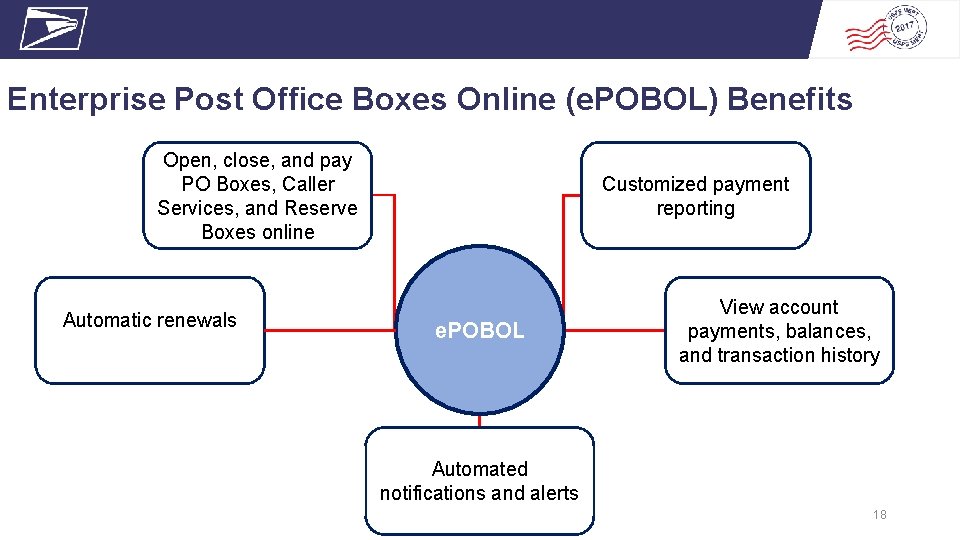
Enterprise Post Office Boxes Online (e. POBOL) Benefits Open, close, and pay PO Boxes, Caller Services, and Reserve Boxes online Automatic renewals Customized payment reporting e. POBOL View account payments, balances, and transaction history Automated notifications and alerts 18
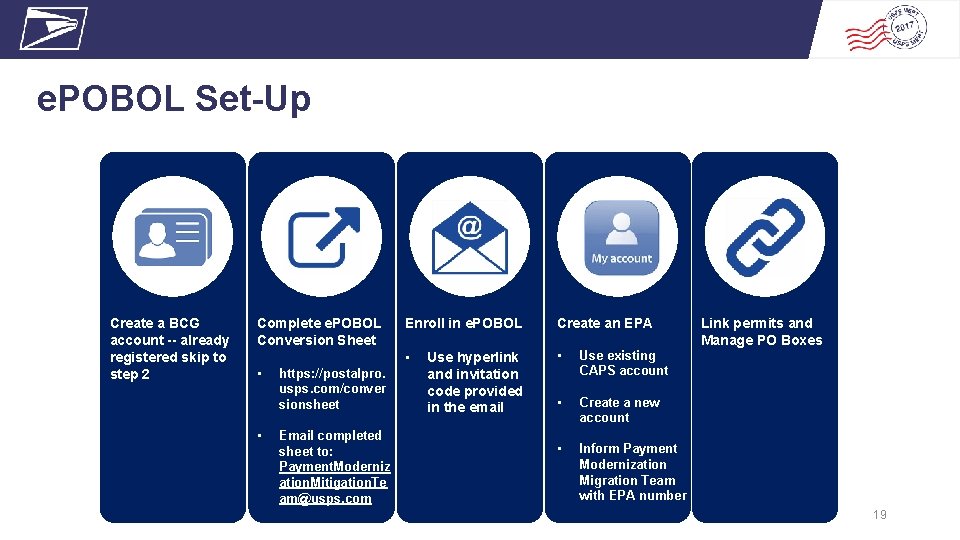
e. POBOL Set-Up 4 Create a BCG account -- already registered skip to step 2 Complete e. POBOL Conversion Sheet • • https: //postalpro. usps. com/conver sionsheet Email completed sheet to: Payment. Moderniz ation. Mitigation. Te am@usps. com Enroll in e. POBOL Create an EPA • • Use existing CAPS account • Create a new account • Inform Payment Modernization Migration Team with EPA number Use hyperlink and invitation code provided in the email Link permits and Manage PO Boxes 19
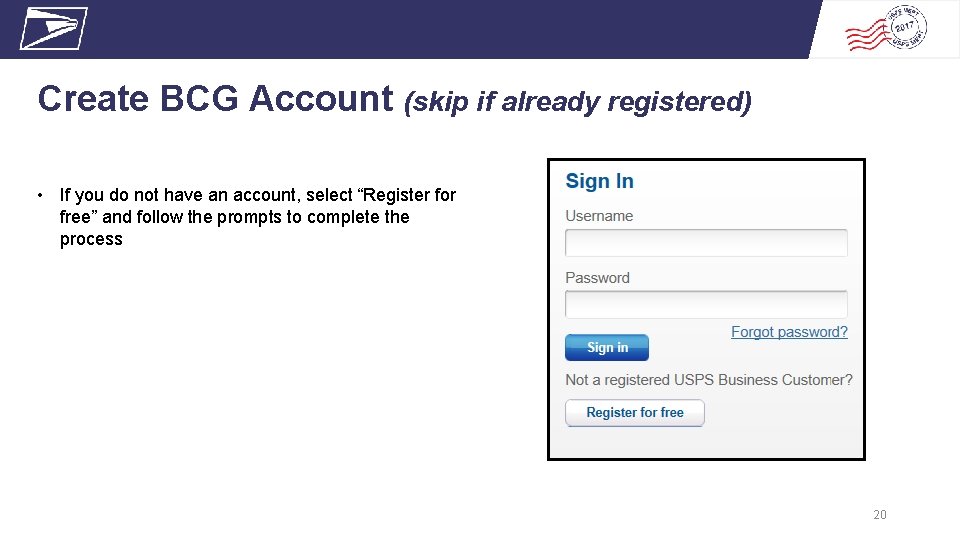
Create BCG Account (skip if already registered) • If you do not have an account, select “Register for free” and follow the prompts to complete the process 20
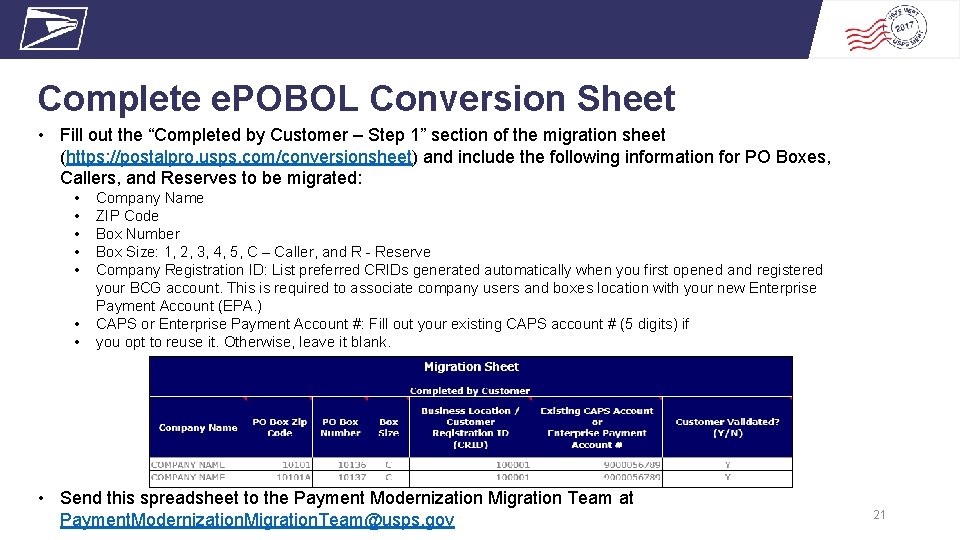
Complete e. POBOL Conversion Sheet • Fill out the “Completed by Customer – Step 1” section of the migration sheet (https: //postalpro. usps. com/conversionsheet) and include the following information for PO Boxes, Callers, and Reserves to be migrated: • • Company Name ZIP Code Box Number Box Size: 1, 2, 3, 4, 5, C – Caller, and R - Reserve Company Registration ID: List preferred CRIDs generated automatically when you first opened and registered your BCG account. This is required to associate company users and boxes location with your new Enterprise Payment Account (EPA. ) CAPS or Enterprise Payment Account #: Fill out your existing CAPS account # (5 digits) if you opt to reuse it. Otherwise, leave it blank. • Send this spreadsheet to the Payment Modernization Migration Team at Payment. Modernization. Migration. Team@usps. gov 21
Enroll in e. POBOL • Once the Payment Modernization Migration Team finalizes the Conversion Sheet they send an email containing: • Enrollment URL which directs you to BCG • Unique and secure invitation code for e. POBOL • Login using existing BCG username and password • Enter your invitation code from email when prompted • Select “Validate” • Agree to the Terms & Conditions and select “Submit” 22
Create an EPA (skip if already registered) • If you don’t have an EPA create one following the steps in the first section of this training. • Inform the Payment Modernization Migration Team (Payment. Modernization. Migration. Team@usps. gov) of your EPA number to complete e. POBOL registration. 23
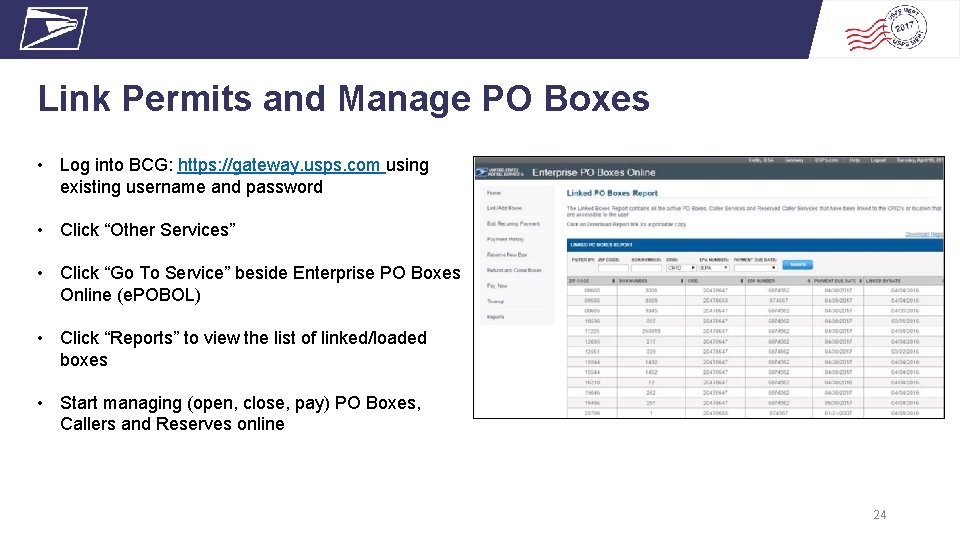
Link Permits and Manage PO Boxes • Log into BCG: https: //gateway. usps. com using existing username and password • Click “Other Services” • Click “Go To Service” beside Enterprise PO Boxes Online (e. POBOL) • Click “Reports” to view the list of linked/loaded boxes • Start managing (open, close, pay) PO Boxes, Callers and Reserves online 24
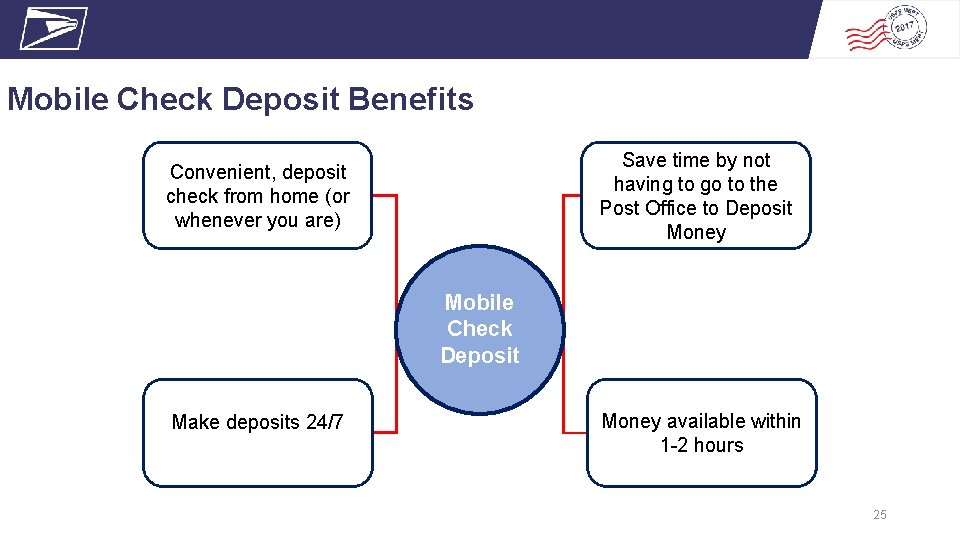
Mobile Check Deposit Benefits Save time by not having to go to the Post Office to Deposit Money Convenient, deposit check from home (or whenever you are) Mobile Check Deposit Make deposits 24/7 Money available within 1 -2 hours 25
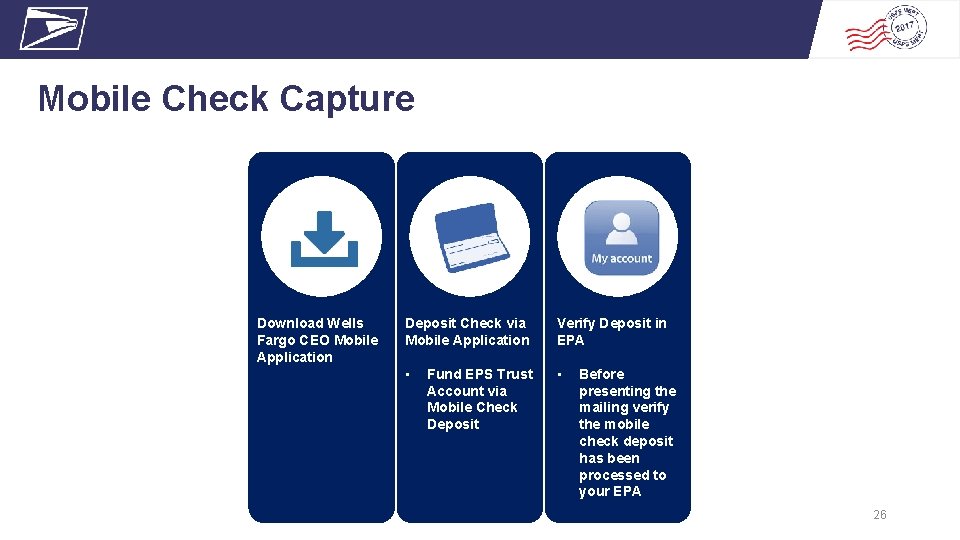
Mobile Check Capture 4 Download Wells Fargo CEO Mobile Application Deposit Check via Mobile Application Verify Deposit in EPA • • Fund EPS Trust Account via Mobile Check Deposit Link permits and Manage PO Boxes Before presenting the mailing verify the mobile check deposit has been processed to your EPA 26
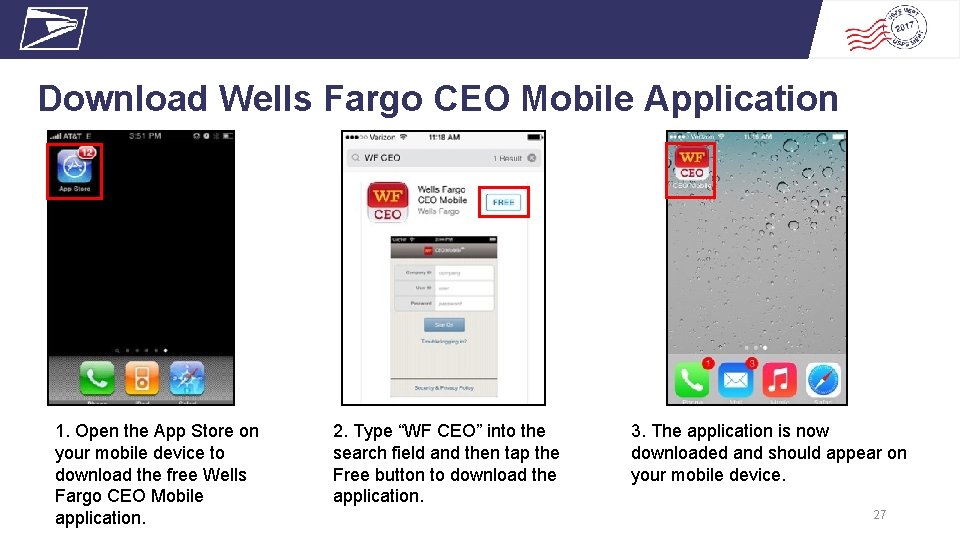
Download Wells Fargo CEO Mobile Application 1. Open the App Store on your mobile device to download the free Wells Fargo CEO Mobile application. 2. Type “WF CEO” into the search field and then tap the Free button to download the application. 3. The application is now downloaded and should appear on your mobile device. 27
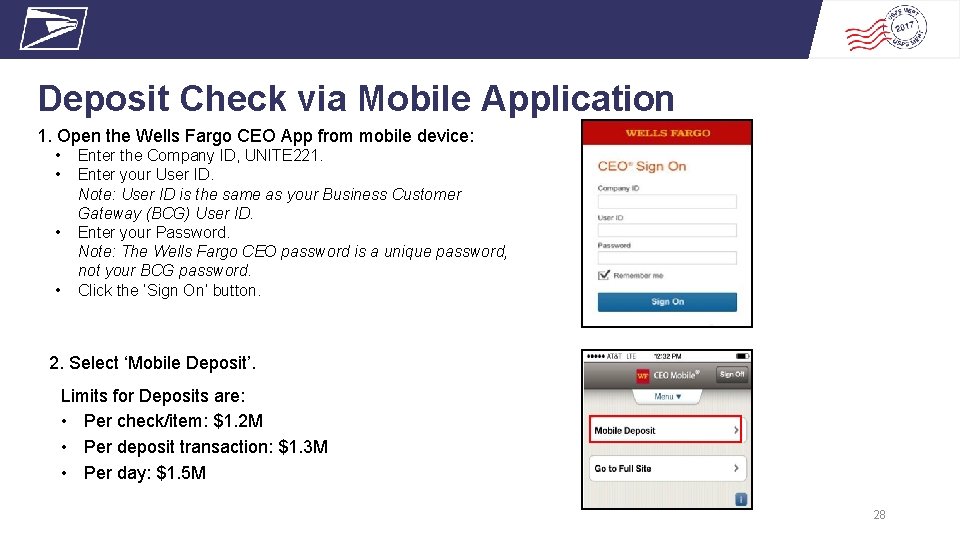
Deposit Check via Mobile Application 1. Open the Wells Fargo CEO App from mobile device: • • Enter the Company ID, UNITE 221. Enter your User ID. Note: User ID is the same as your Business Customer Gateway (BCG) User ID. Enter your Password. Note: The Wells Fargo CEO password is a unique password, not your BCG password. Click the ‘Sign On’ button. 2. Select ‘Mobile Deposit’. Limits for Deposits are: • Per check/item: $1. 2 M • Per deposit transaction: $1. 3 M • Per day: $1. 5 M 28
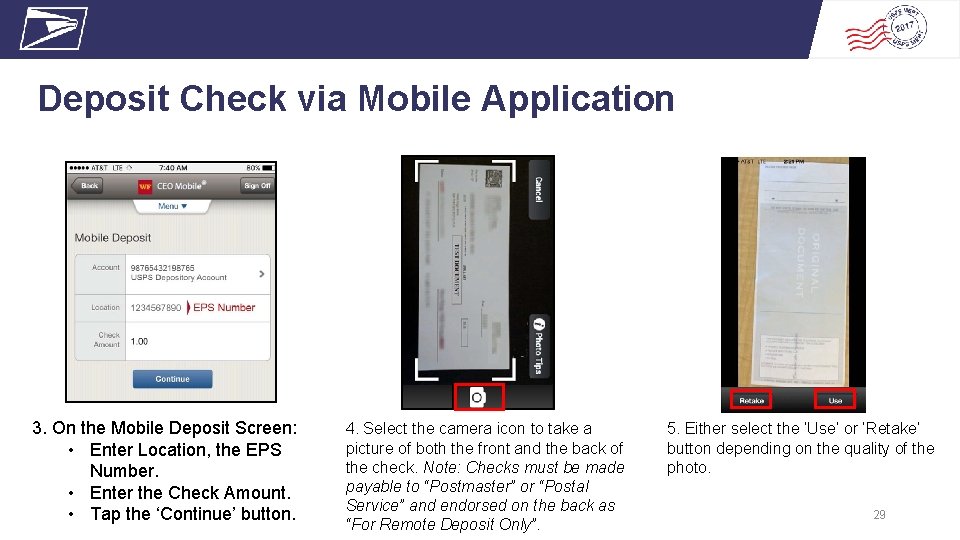
Deposit Check via Mobile Application 3. On the Mobile Deposit Screen: • Enter Location, the EPS Number. • Enter the Check Amount. • Tap the ‘Continue’ button. 4. Select the camera icon to take a picture of both the front and the back of the check. Note: Checks must be made payable to “Postmaster” or “Postal Service” and endorsed on the back as “For Remote Deposit Only”. 5. Either select the ‘Use’ or ‘Retake’ button depending on the quality of the photo. 29
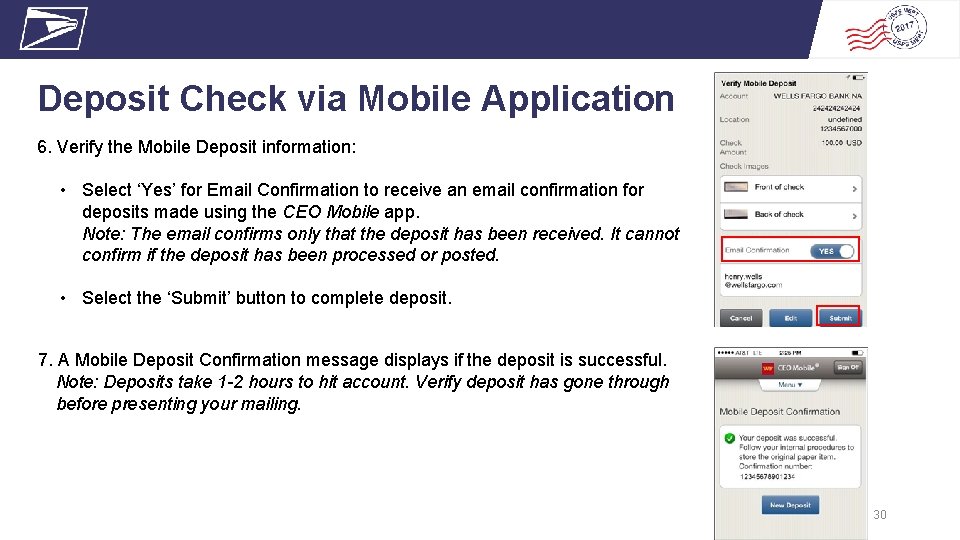
Deposit Check via Mobile Application 6. Verify the Mobile Deposit information: • Select ‘Yes’ for Email Confirmation to receive an email confirmation for deposits made using the CEO Mobile app. Note: The email confirms only that the deposit has been received. It cannot confirm if the deposit has been processed or posted. • Select the ‘Submit’ button to complete deposit. 7. A Mobile Deposit Confirmation message displays if the deposit is successful. Note: Deposits take 1 -2 hours to hit account. Verify deposit has gone through before presenting your mailing. 30
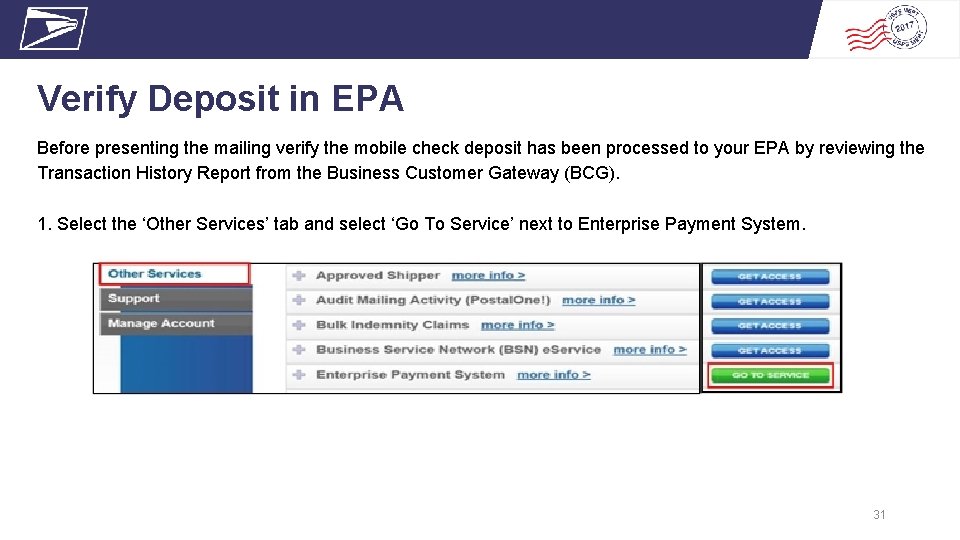
Verify Deposit in EPA Before presenting the mailing verify the mobile check deposit has been processed to your EPA by reviewing the Transaction History Report from the Business Customer Gateway (BCG). 1. Select the ‘Other Services’ tab and select ‘Go To Service’ next to Enterprise Payment System. 31
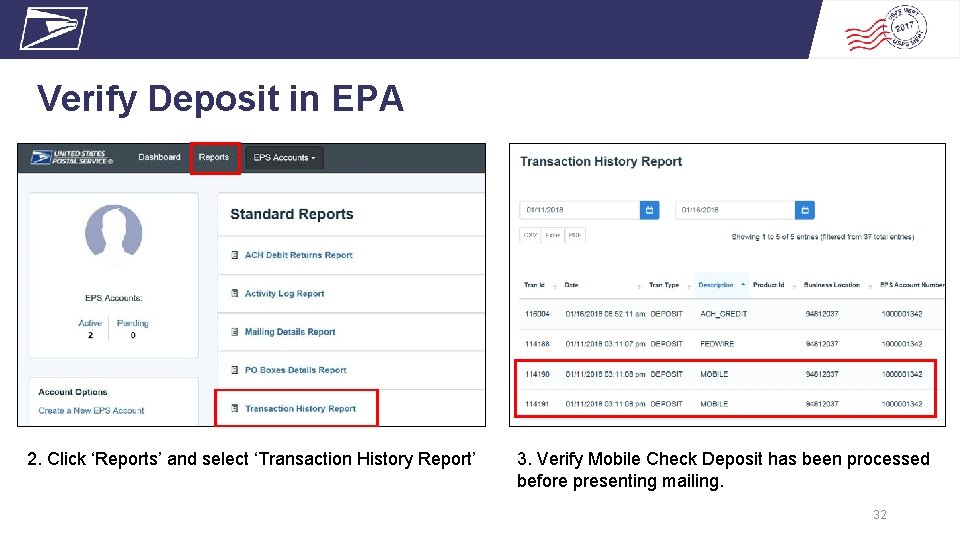
Verify Deposit in EPA 2. Click ‘Reports’ and select ‘Transaction History Report’ 3. Verify Mobile Check Deposit has been processed before presenting mailing. 32
PRESENTATION TITLE Enterprise Payment FAQs • https: //postalpro. usps. com/EPS/FAQs 33
PRESENTATION TITLE Enterprise Payment Support Postal. One! Help Desk Support customers with EPS setup & use • Postalone@usps. gov • 800. 522. 9085 Email questions Support customers with migration preparation • USPSPayment@usps. gov Postal. Provide online reference materials • https: //postalpro. usps. com/eps • BMEU locator • Retail deposit sites 34
- Slides: 34