
Entering Par Location Counts Concept Entering Par Location
- Slides: 17
Entering Par Location Counts Concept
Entering Par Location Counts
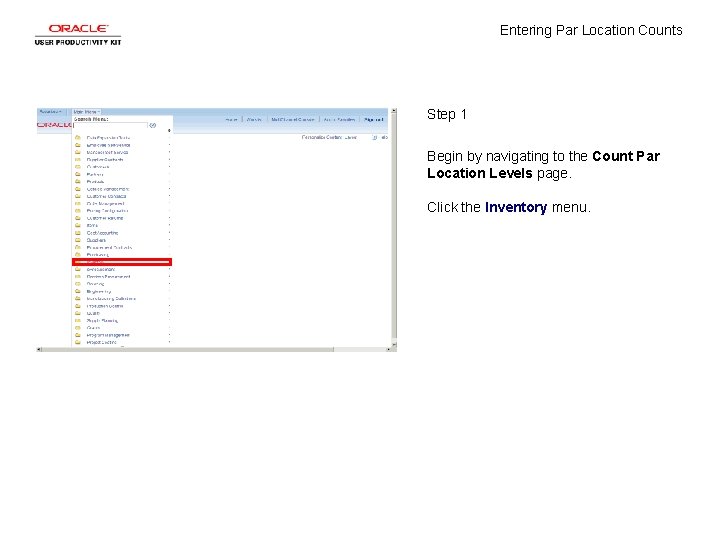
Entering Par Location Counts Step 1 Begin by navigating to the Count Par Location Levels page. Click the Inventory menu.
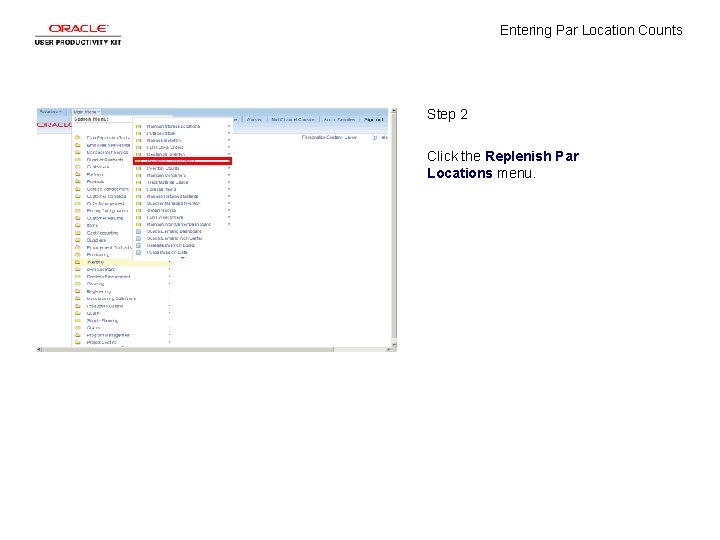
Entering Par Location Counts Step 2 Click the Replenish Par Locations menu.
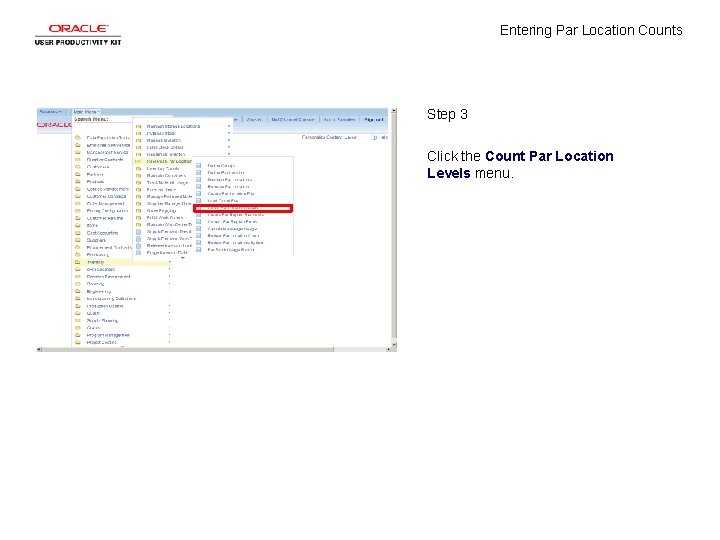
Entering Par Location Counts Step 3 Click the Count Par Location Levels menu.
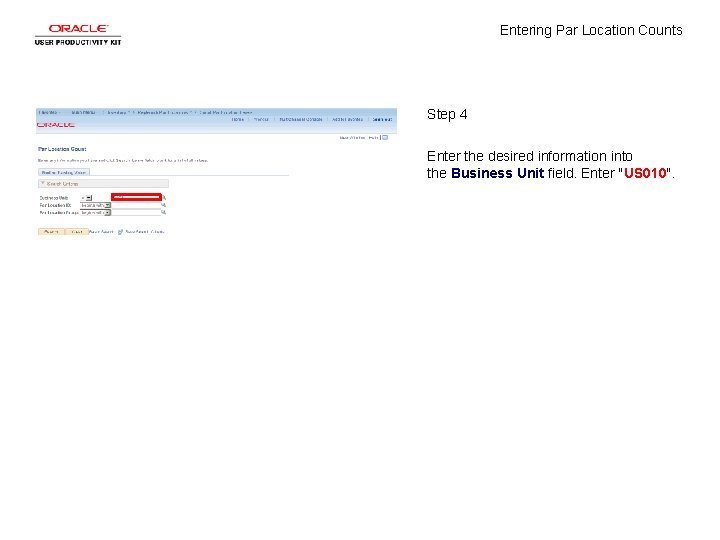
Entering Par Location Counts Step 4 Enter the desired information into the Business Unit field. Enter "US 010".
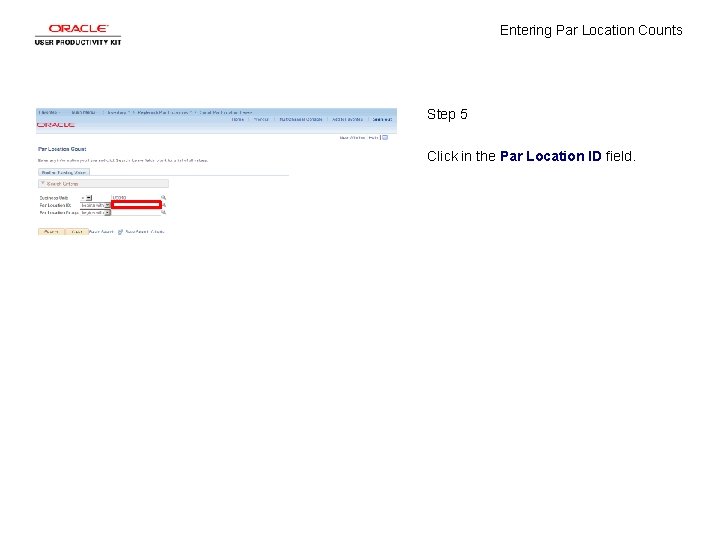
Entering Par Location Counts Step 5 Click in the Par Location ID field.
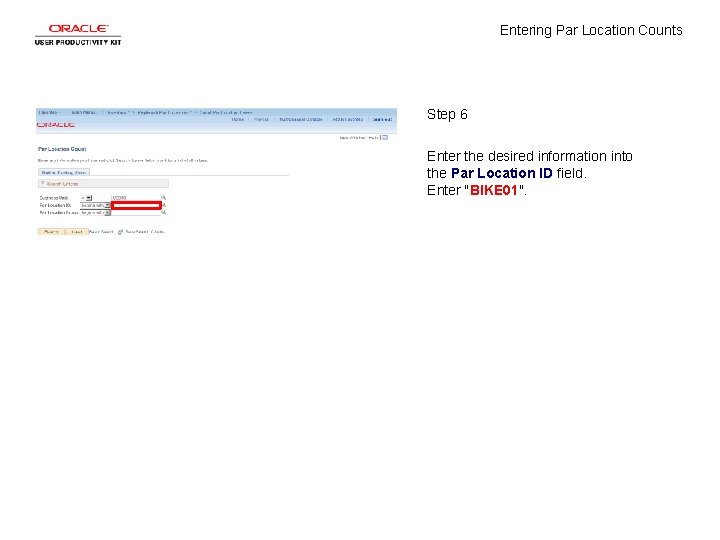
Entering Par Location Counts Step 6 Enter the desired information into the Par Location ID field. Enter "BIKE 01".
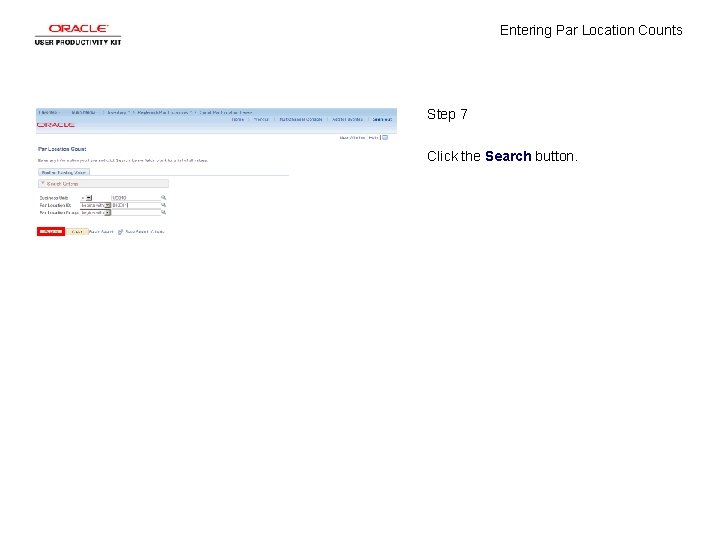
Entering Par Location Counts Step 7 Click the Search button.
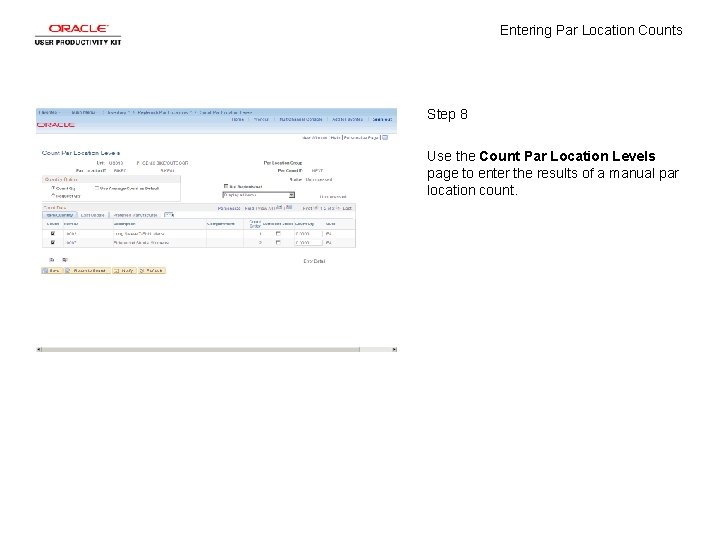
Entering Par Location Counts Step 8 Use the Count Par Location Levels page to enter the results of a manual par location count.
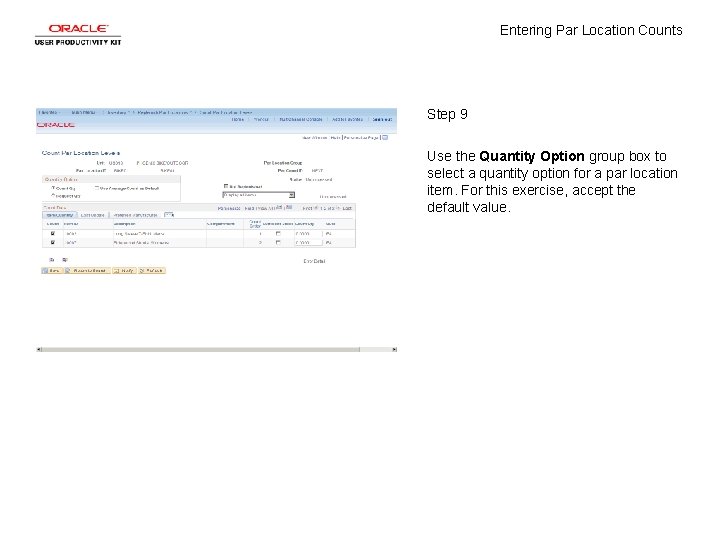
Entering Par Location Counts Step 9 Use the Quantity Option group box to select a quantity option for a par location item. For this exercise, accept the default value.
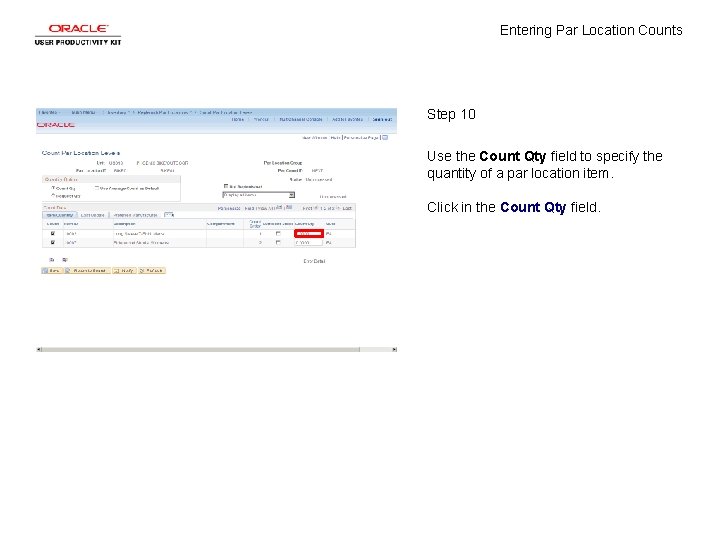
Entering Par Location Counts Step 10 Use the Count Qty field to specify the quantity of a par location item. Click in the Count Qty field.
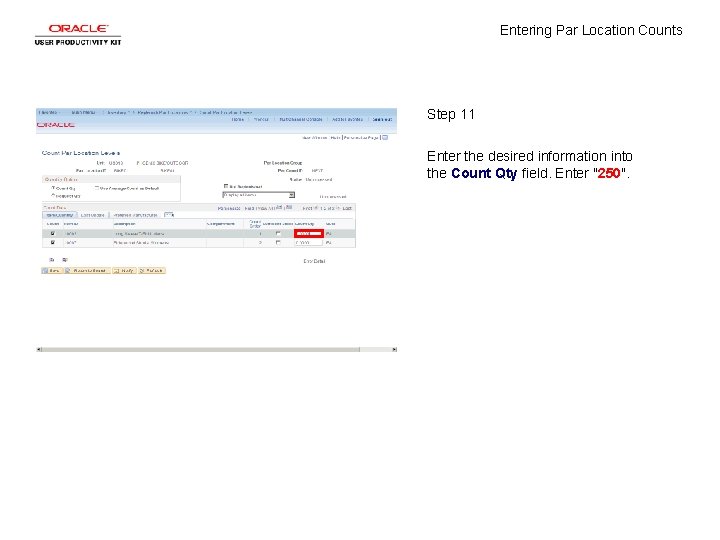
Entering Par Location Counts Step 11 Enter the desired information into the Count Qty field. Enter "250".
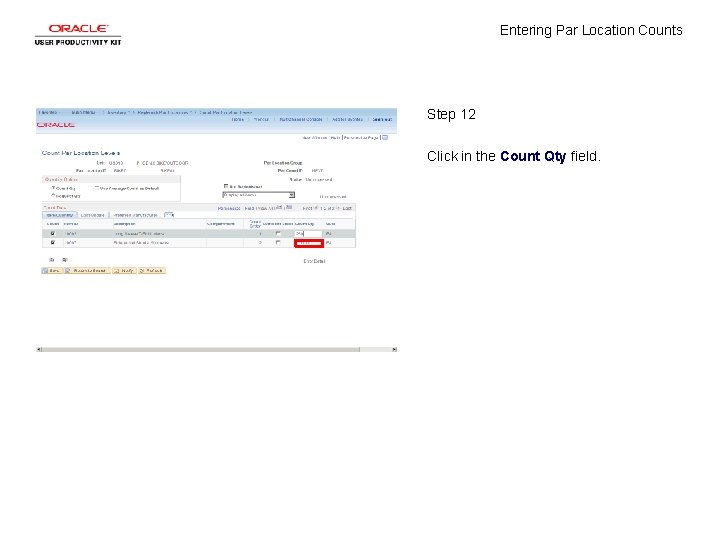
Entering Par Location Counts Step 12 Click in the Count Qty field.
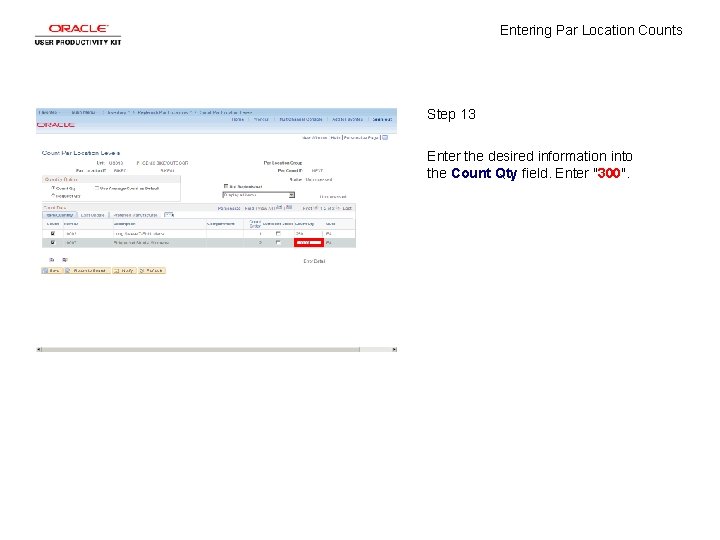
Entering Par Location Counts Step 13 Enter the desired information into the Count Qty field. Enter "300".
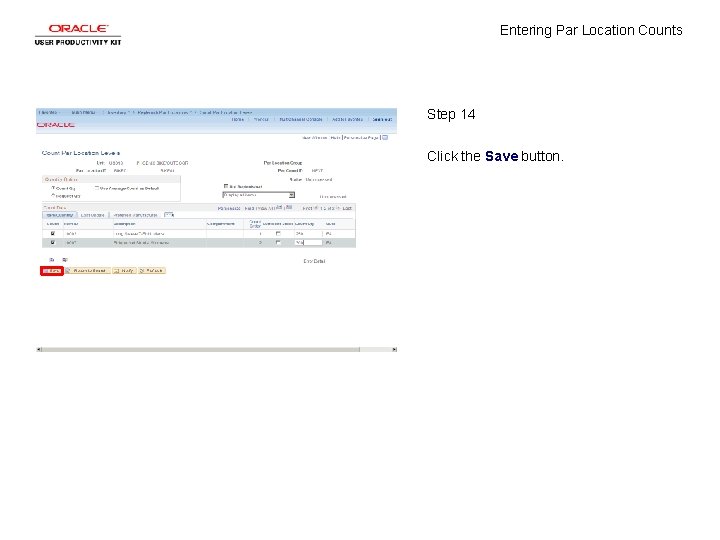
Entering Par Location Counts Step 14 Click the Save button.
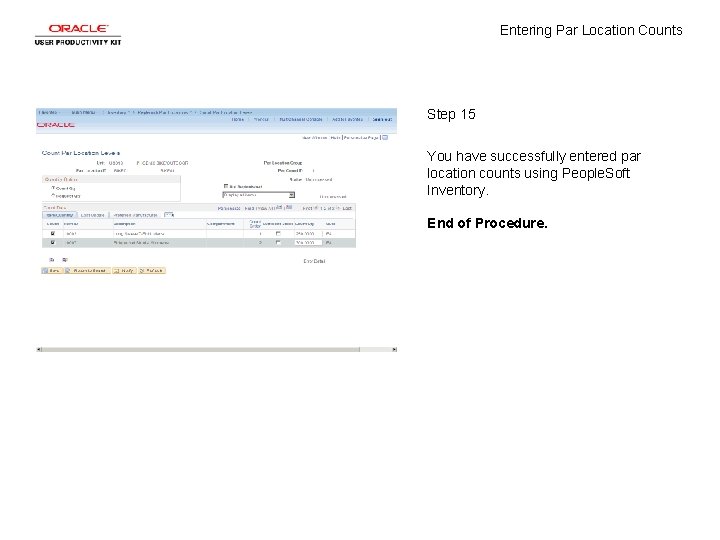
Entering Par Location Counts Step 15 You have successfully entered par location counts using People. Soft Inventory. End of Procedure.