Entering Journal Vouchers Concept Entering Journal Vouchers Entering

- Slides: 25
Entering Journal Vouchers Concept
Entering Journal Vouchers
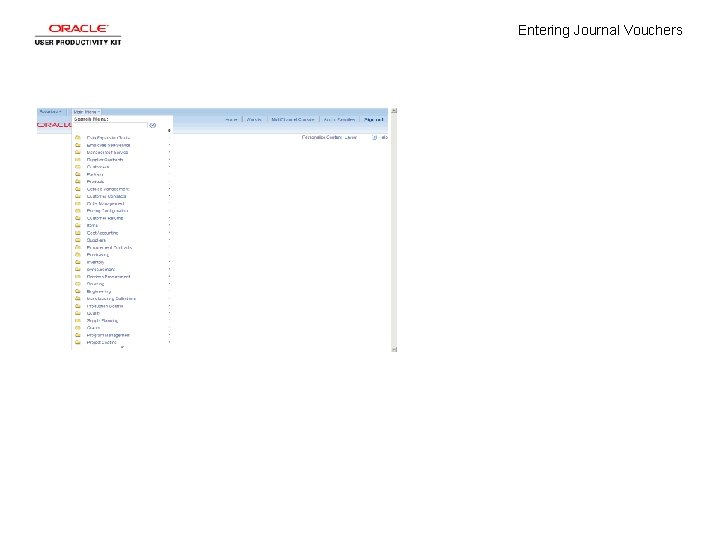
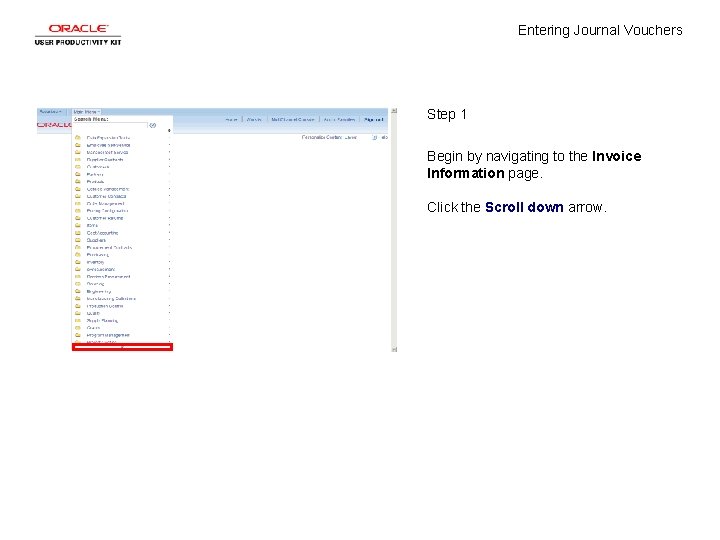
Entering Journal Vouchers Step 1 Begin by navigating to the Invoice Information page. Click the Scroll down arrow.
Entering Journal Vouchers Step 2 Click the Accounts Payable menu.
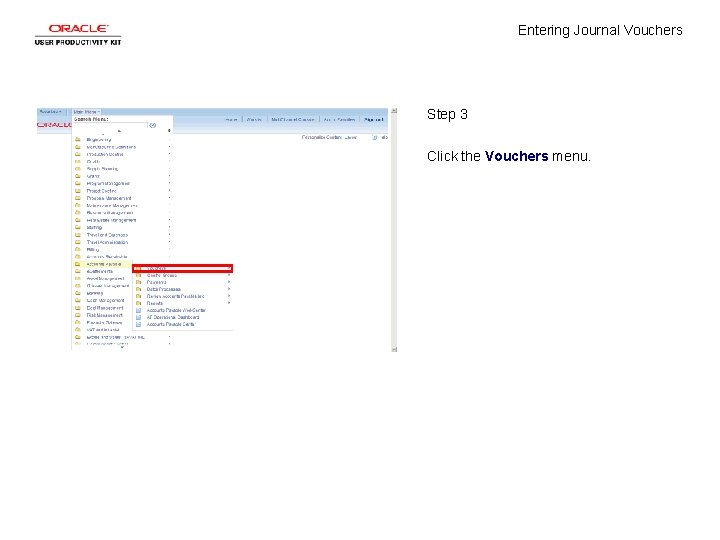
Entering Journal Vouchers Step 3 Click the Vouchers menu.
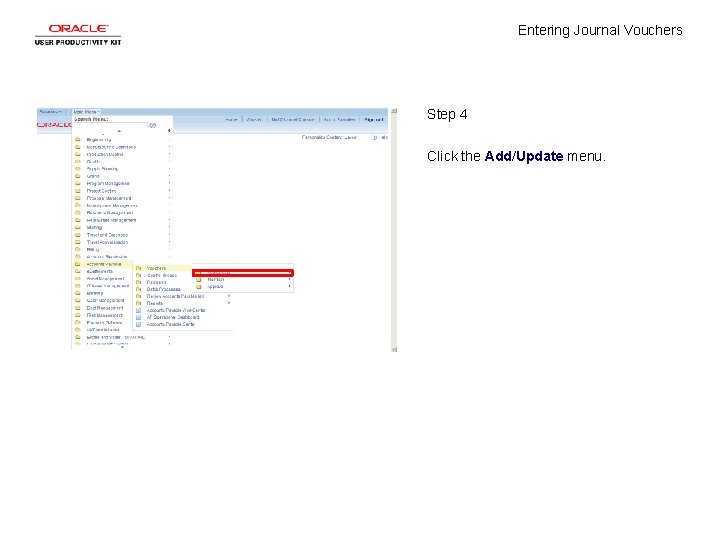
Entering Journal Vouchers Step 4 Click the Add/Update menu.
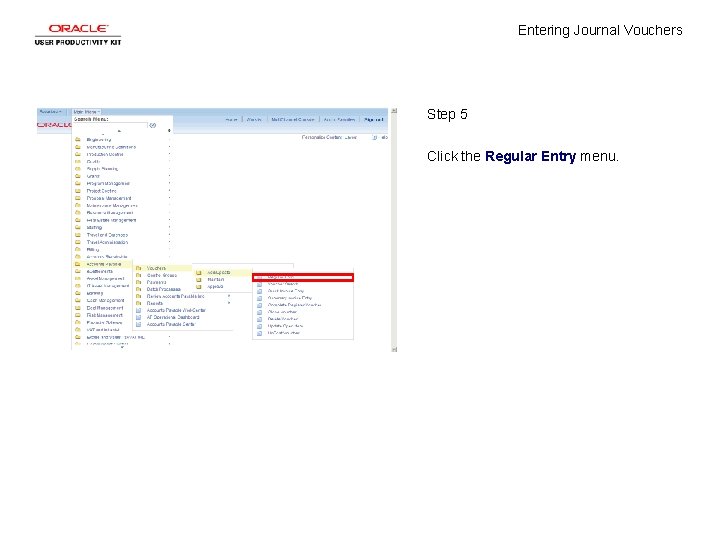
Entering Journal Vouchers Step 5 Click the Regular Entry menu.
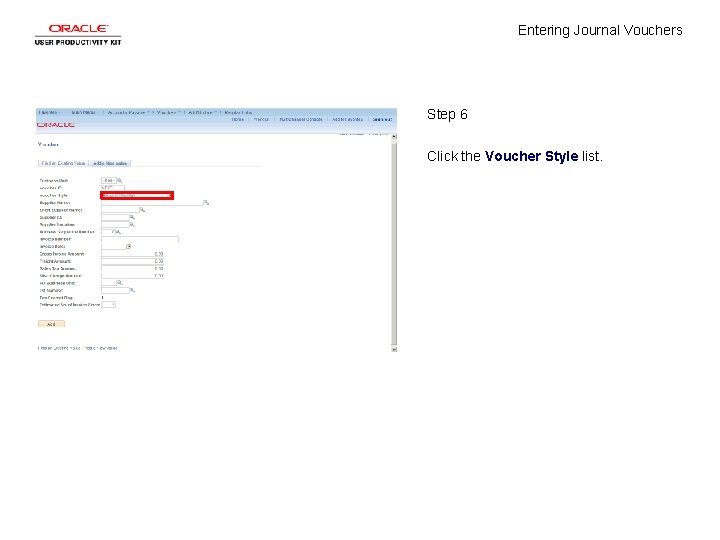
Entering Journal Vouchers Step 6 Click the Voucher Style list.
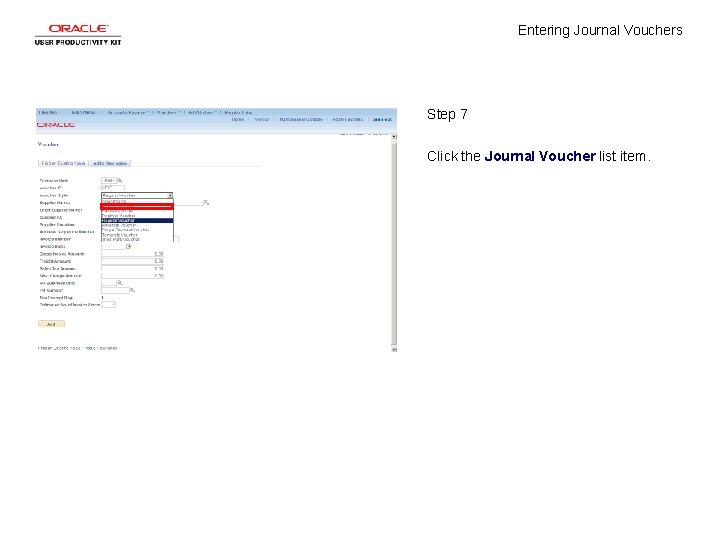
Entering Journal Vouchers Step 7 Click the Journal Voucher list item.
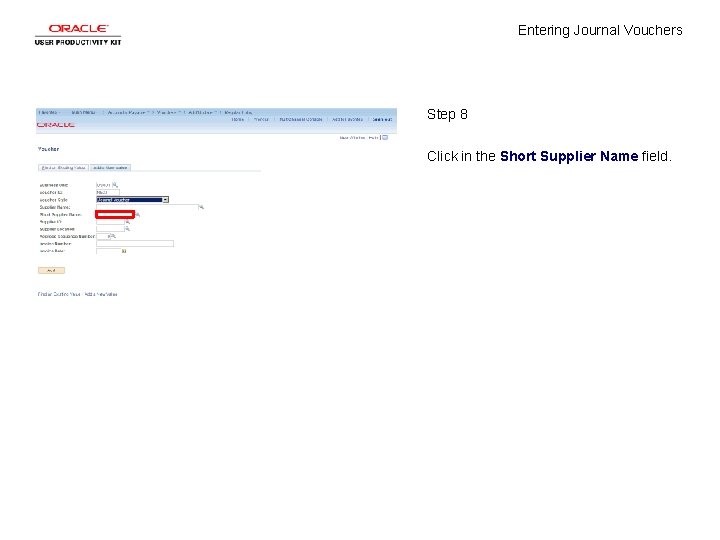
Entering Journal Vouchers Step 8 Click in the Short Supplier Name field.
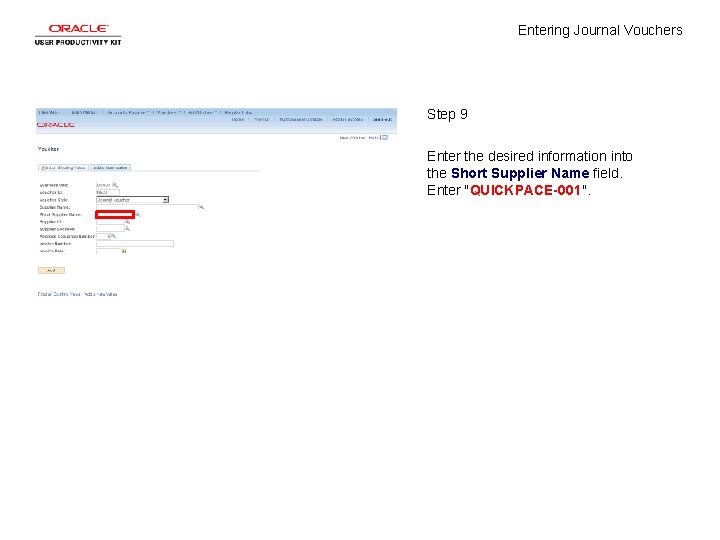
Entering Journal Vouchers Step 9 Enter the desired information into the Short Supplier Name field. Enter "QUICKPACE-001".
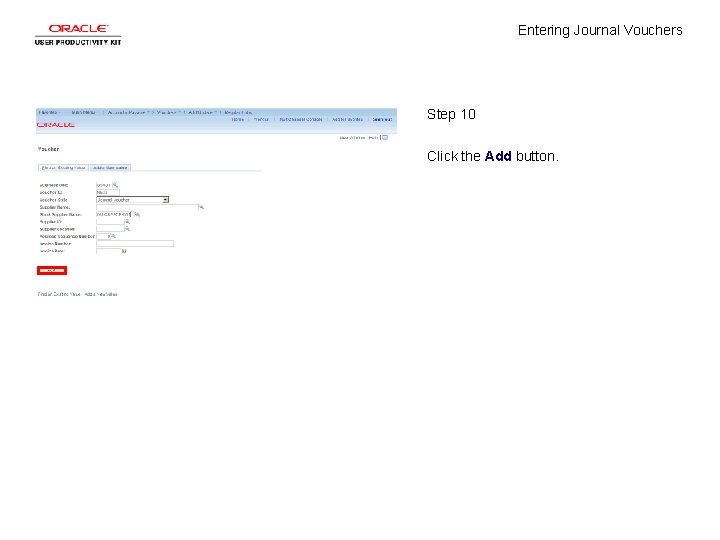
Entering Journal Vouchers Step 10 Click the Add button.
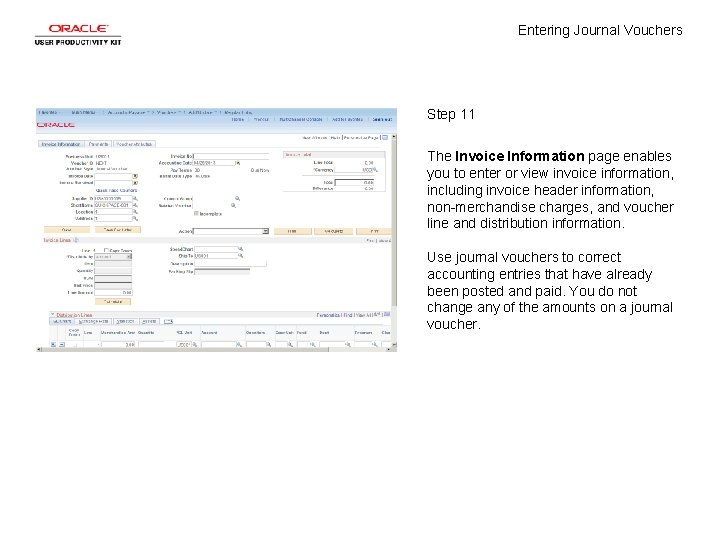
Entering Journal Vouchers Step 11 The Invoice Information page enables you to enter or view invoice information, including invoice header information, non-merchandise charges, and voucher line and distribution information. Use journal vouchers to correct accounting entries that have already been posted and paid. You do not change any of the amounts on a journal voucher.
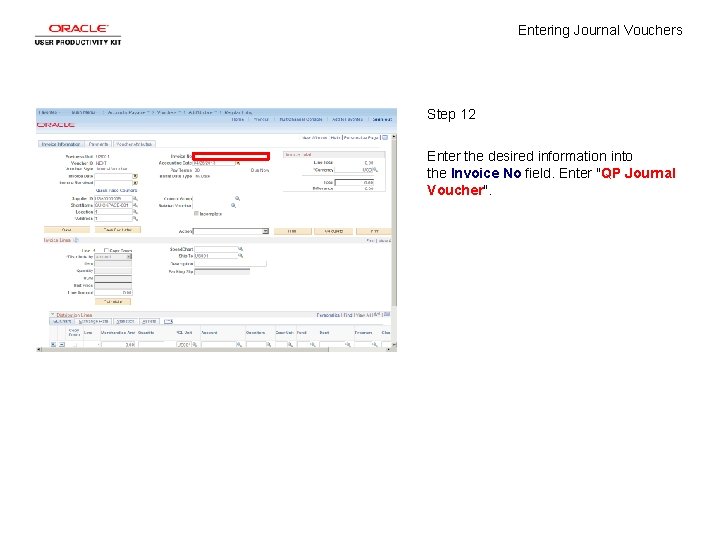
Entering Journal Vouchers Step 12 Enter the desired information into the Invoice No field. Enter "QP Journal Voucher".
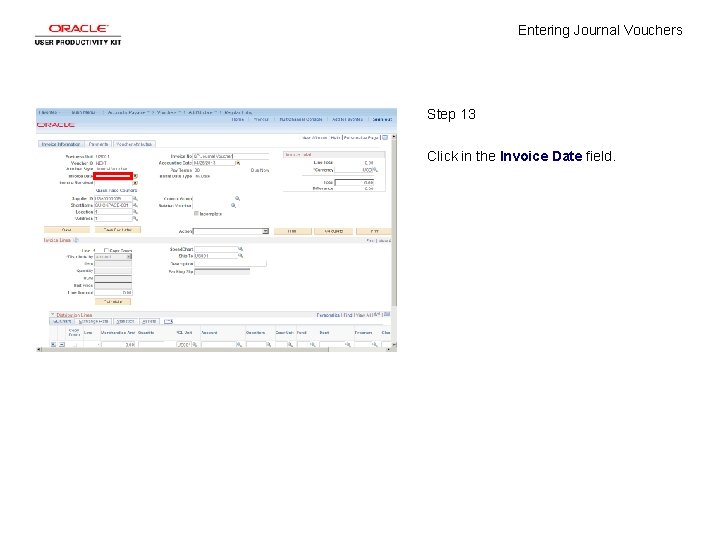
Entering Journal Vouchers Step 13 Click in the Invoice Date field.
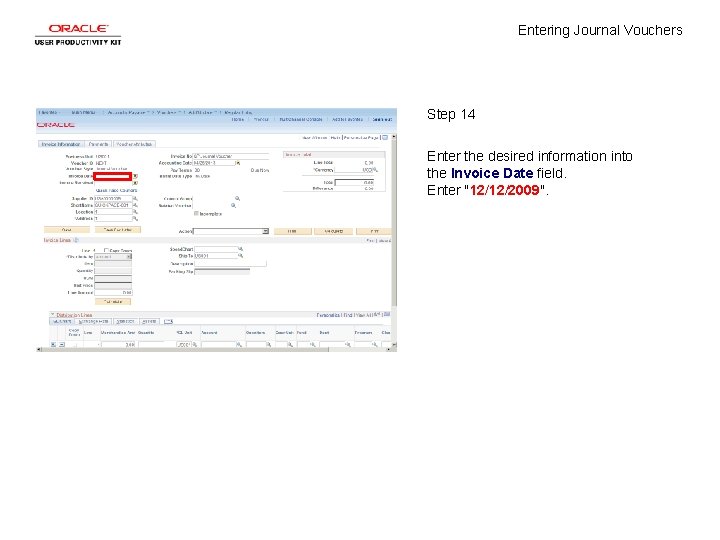
Entering Journal Vouchers Step 14 Enter the desired information into the Invoice Date field. Enter "12/12/2009".
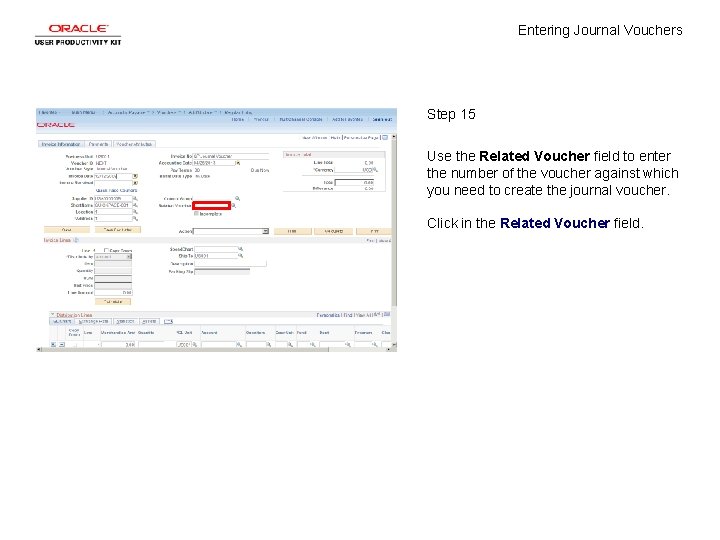
Entering Journal Vouchers Step 15 Use the Related Voucher field to enter the number of the voucher against which you need to create the journal voucher. Click in the Related Voucher field.
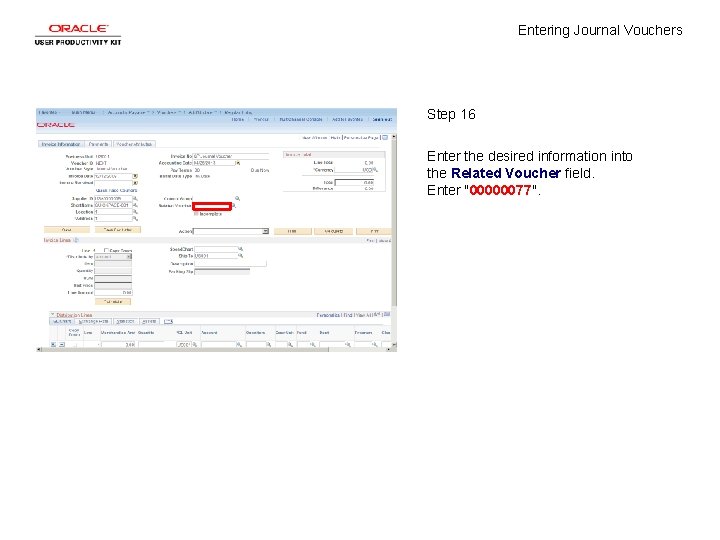
Entering Journal Vouchers Step 16 Enter the desired information into the Related Voucher field. Enter "00000077".
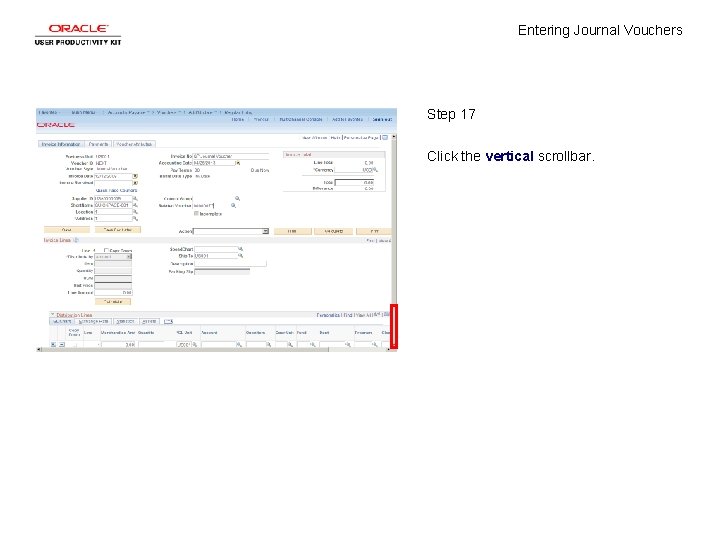
Entering Journal Vouchers Step 17 Click the vertical scrollbar.
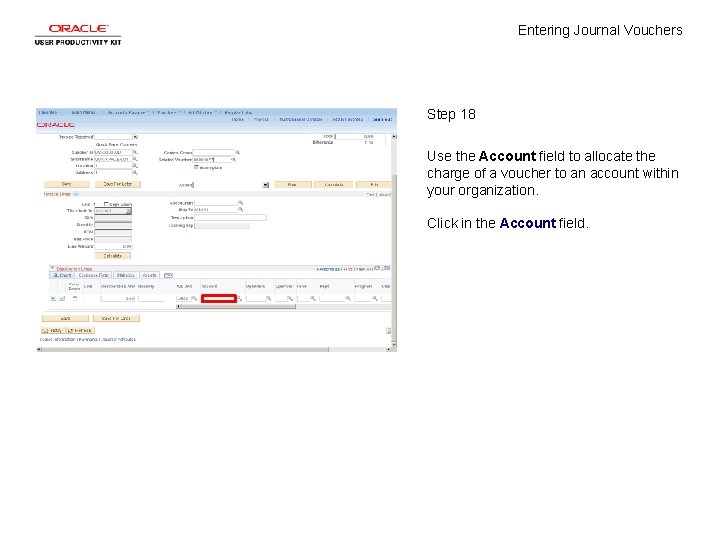
Entering Journal Vouchers Step 18 Use the Account field to allocate the charge of a voucher to an account within your organization. Click in the Account field.
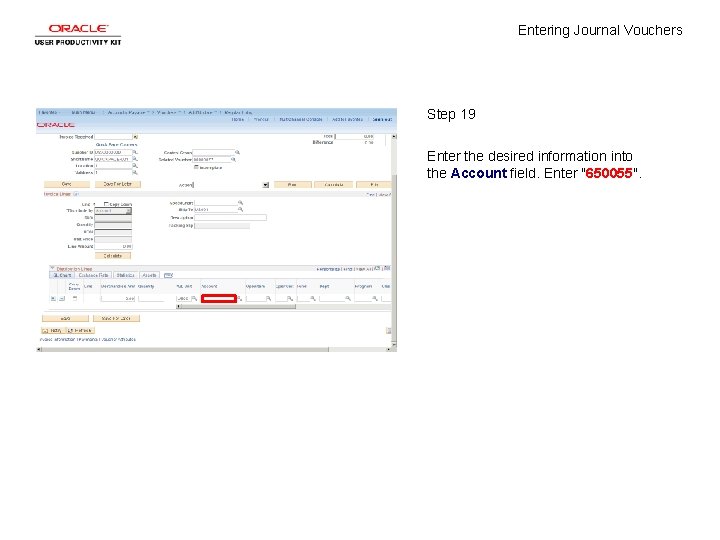
Entering Journal Vouchers Step 19 Enter the desired information into the Account field. Enter "650055".
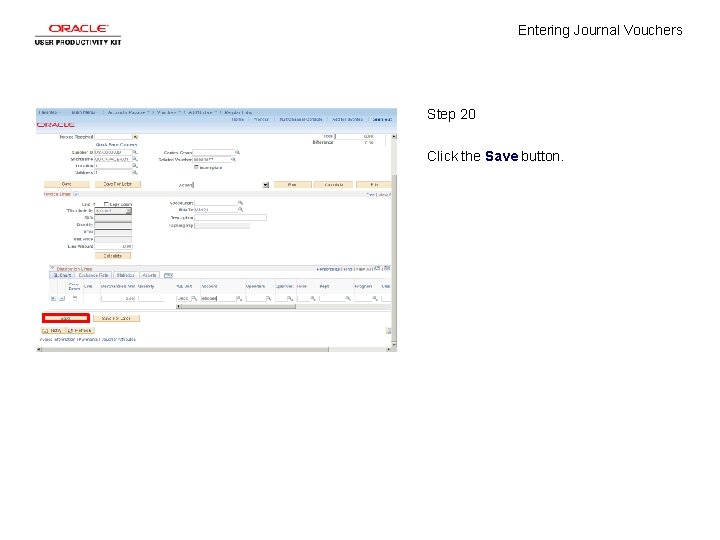
Entering Journal Vouchers Step 20 Click the Save button.
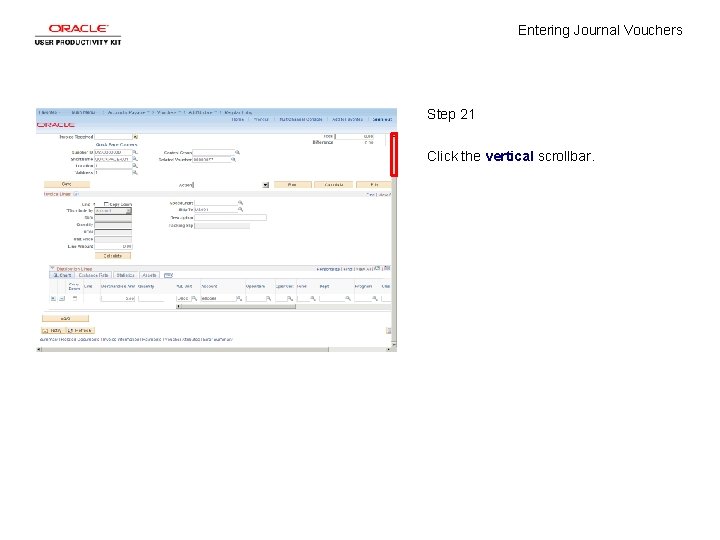
Entering Journal Vouchers Step 21 Click the vertical scrollbar.
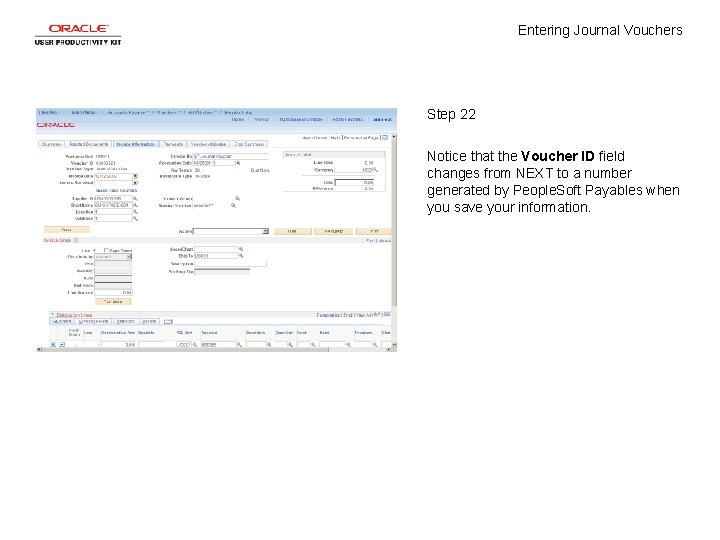
Entering Journal Vouchers Step 22 Notice that the Voucher ID field changes from NEXT to a number generated by People. Soft Payables when you save your information.
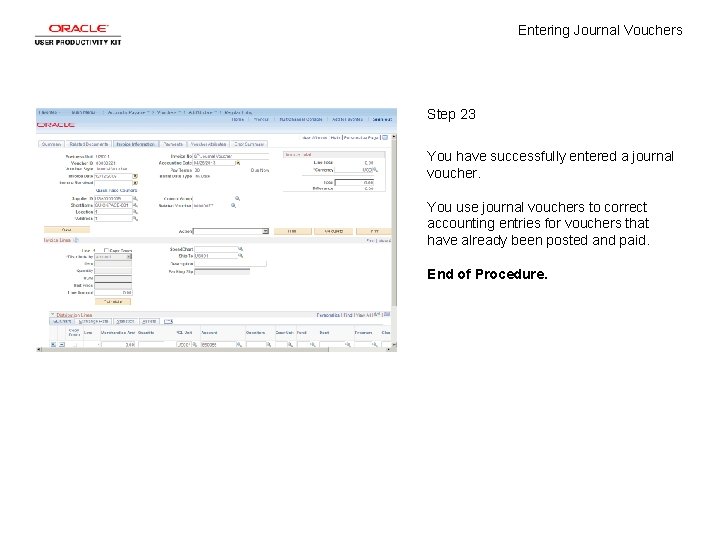
Entering Journal Vouchers Step 23 You have successfully entered a journal voucher. You use journal vouchers to correct accounting entries for vouchers that have already been posted and paid. End of Procedure.