
Enhanced agent workspace for messaging Training transitioning using



- Slides: 26
— Enhanced agent workspace for messaging Training: transitioning & using new features Live. Person Proprietary & Confidential Information. © 2019 Live. Person, Inc. All Rights Reserved. 1
Why use the enhanced agent workspace? Simple to use UI was designed with messaging in mind Save time with the help of guided decision making Filter out inactive conversations for a list that’s easier to work with Live. Person Proprietary & Confidential Information. © 2019 Live. Person, Inc. All Rights Reserved.
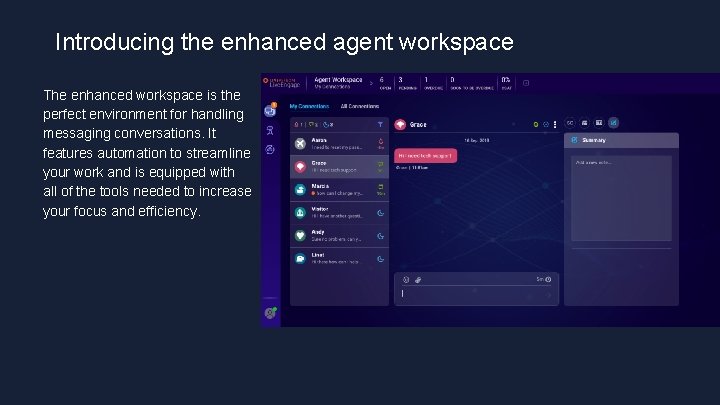
Introducing the enhanced agent workspace The enhanced workspace is the perfect environment for handling messaging conversations. It features automation to streamline your work and is equipped with all of the tools needed to increase your focus and efficiency. Live. Person Proprietary & Confidential Information. © 2018 Live. Person, Inc. All Rights Reserved.
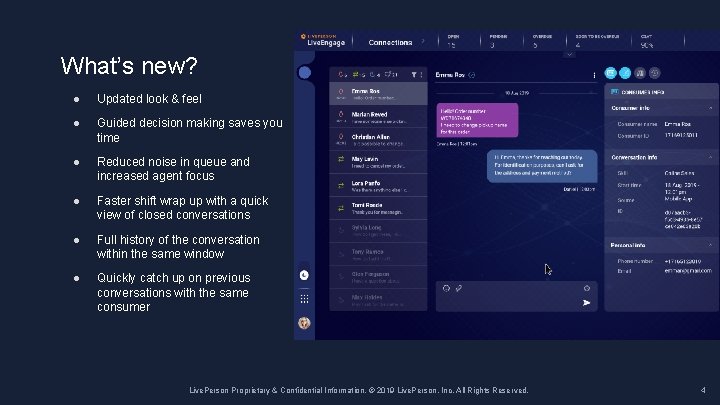
What’s new? ● Updated look & feel ● Guided decision making saves you time ● Reduced noise in queue and increased agent focus ● Faster shift wrap up with a quick view of closed conversations ● Full history of the conversation within the same window ● Quickly catch up on previous conversations with the same consumer Live. Person Proprietary & Confidential Information. © 2019 Live. Person, Inc. All Rights Reserved. 4
— Beginning of your shift 5
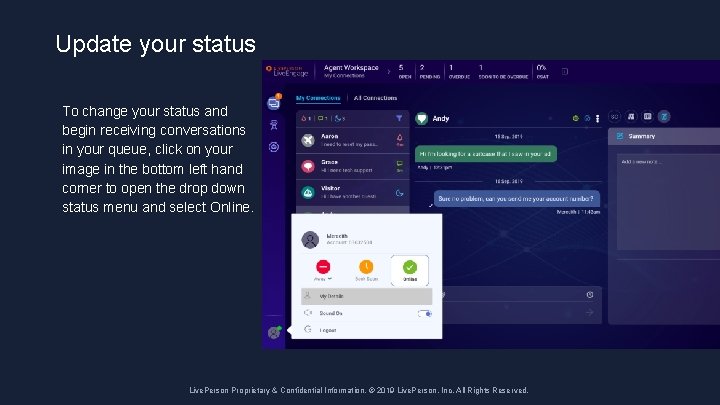
Update your status To change your status and begin receiving conversations in your queue, click on your image in the bottom left hand corner to open the drop down status menu and select Online. Live. Person Proprietary & Confidential Information. © 2019 2018 Live. Person, Inc. All Rights Reserved.
— Handling conversations: Your workload simplified 7
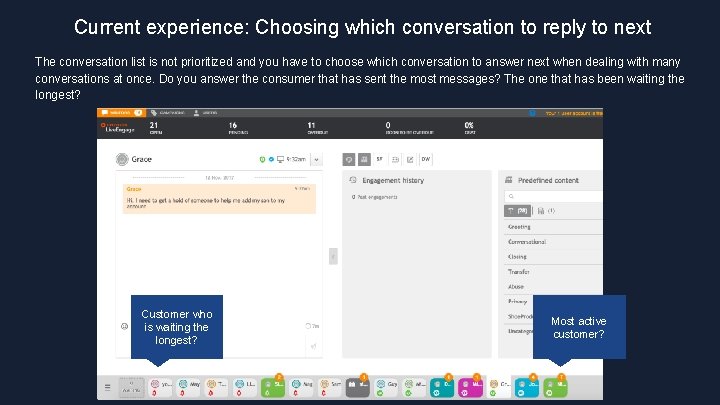
Current experience: Choosing which conversation to reply to next The conversation list is not prioritized and you have to choose which conversation to answer next when dealing with many conversations at once. Do you answer the consumer that has sent the most messages? The one that has been waiting the longest? Customer who is waiting the longest? Live. Person Proprietary & Confidential Information. © 2019 Live. Person, Inc. All Rights Reserved. Most active customer?
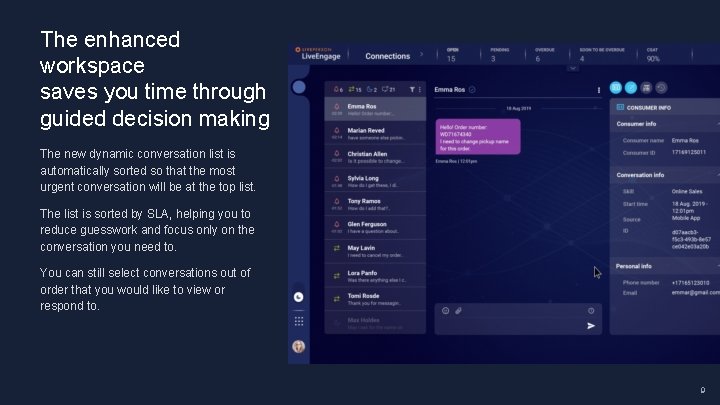
The enhanced workspace saves you time through guided decision making The new dynamic conversation list is automatically sorted so that the most urgent conversation will be at the top list. The list is sorted by SLA, helping you to reduce guesswork and focus only on the conversation you need to. You can still select conversations out of order that you would like to view or respond to. 9
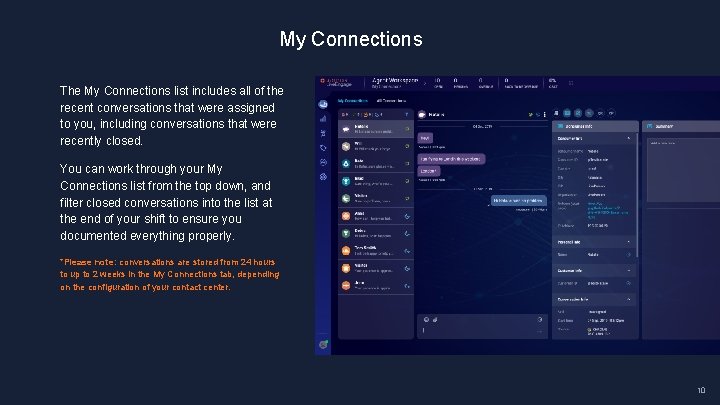
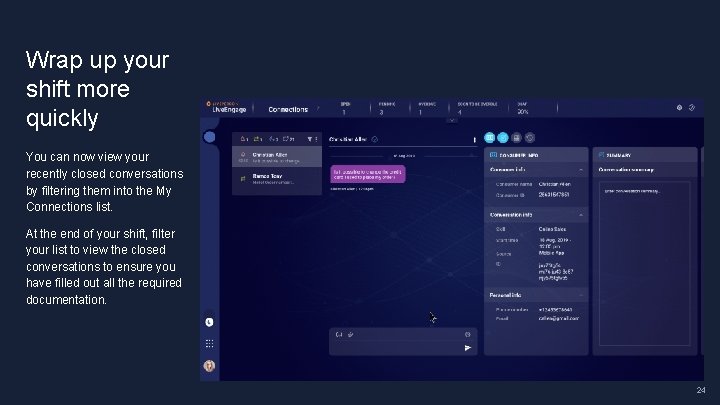
My Connections The My Connections list includes all of the recent conversations that were assigned to you, including conversations that were recently closed. You can work through your My Connections list from the top down, and filter closed conversations into the list at the end of your shift to ensure you documented everything properly. *Please note: conversations are stored from 24 hours to up to 2 weeks in the My Connections tab, depending on the configuration of your contact center. 10
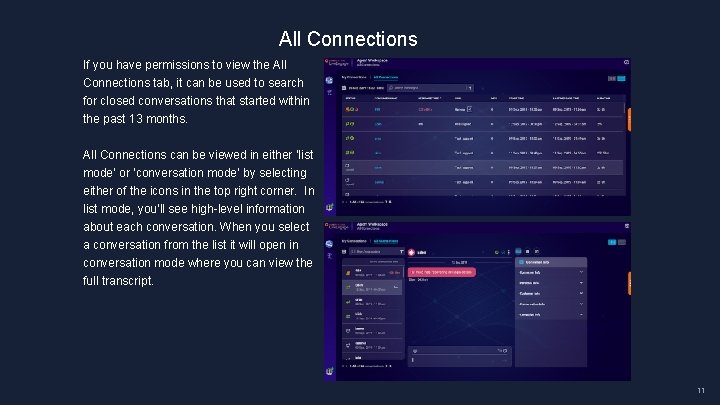
All Connections If you have permissions to view the All Connections tab, it can be used to search for closed conversations that started within the past 13 months. All Connections can be viewed in either ‘list mode’ or ‘conversation mode’ by selecting either of the icons in the top right corner. In list mode, you’ll see high-level information about each conversation. When you select a conversation from the list it will open in conversation mode where you can view the full transcript. 11
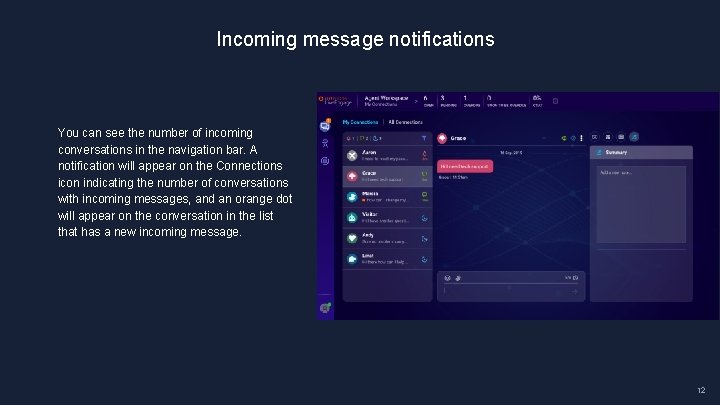
Incoming message notifications You can see the number of incoming conversations in the navigation bar. A notification will appear on the Connections icon indicating the number of conversations with incoming messages, and an orange dot will appear on the conversation in the list that has a new incoming message. 12
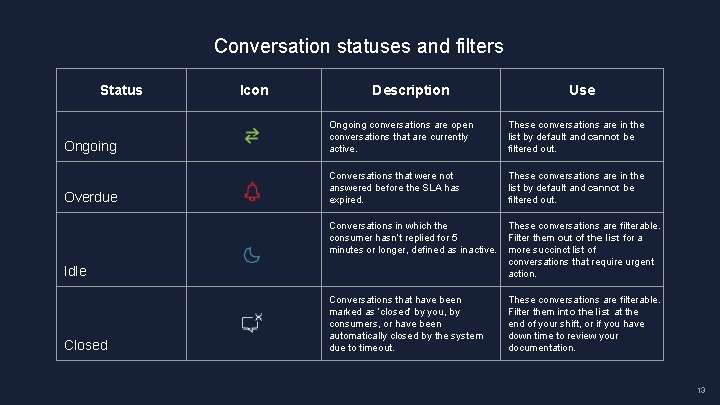
Conversation statuses and filters Status Icon Description Use Ongoing conversations are open conversations that are currently active. These conversations are in the list by default and cannot be filtered out. Overdue Conversations that were not answered before the SLA has expired. These conversations are in the list by default and cannot be filtered out. Conversations in which the consumer hasn’t replied for 5 minutes or longer, defined as inactive. These conversations are filterable. Filter them out of the list for a more succinct list of conversations that require urgent action. Conversations that have been marked as ‘closed’ by you, by consumers, or have been automatically closed by the system due to timeout. These conversations are filterable. Filter them into the list at the end of your shift, or if you have down time to review your documentation. Idle Closed 13
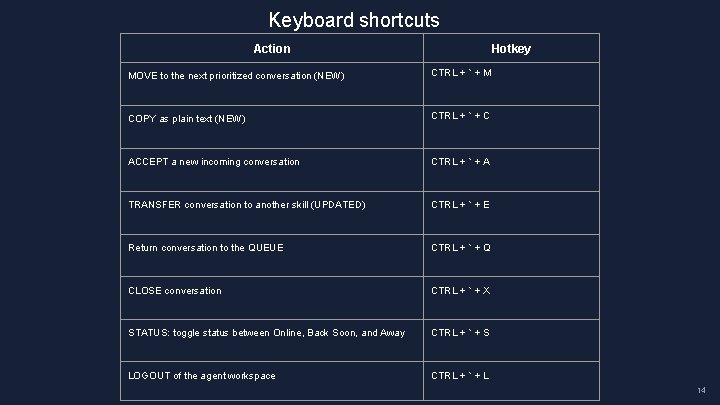
Keyboard shortcuts Action Hotkey MOVE to the next prioritized conversation (NEW) CTRL + ` + M COPY as plain text (NEW) CTRL + ` + C ACCEPT a new incoming conversation CTRL + ` + A TRANSFER conversation to another skill (UPDATED) CTRL + ` + E Return conversation to the QUEUE CTRL + ` + Q CLOSE conversation CTRL + ` + X STATUS: toggle status between Online, Back Soon, and Away CTRL + ` + S LOGOUT of the agent workspace CTRL + ` + L 14
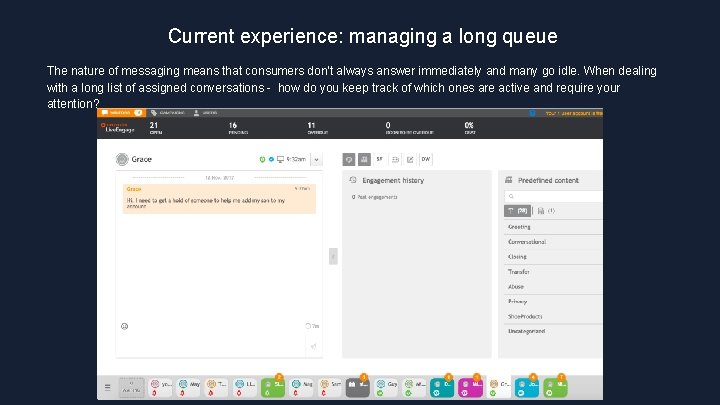
Current experience: managing a long queue The nature of messaging means that consumers don’t always answer immediately and many go idle. When dealing with a long list of assigned conversations - how do you keep track of which ones are active and require your attention? Live. Person Proprietary & Confidential Information. © 2019 Live. Person, Inc. All Rights Reserved.
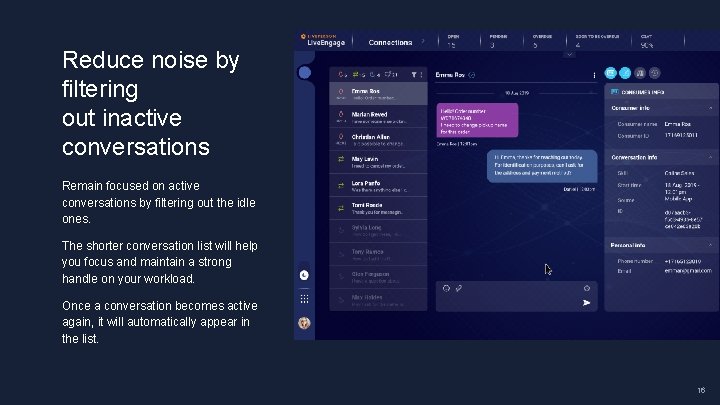
Reduce noise by filtering out inactive conversations Remain focused on active conversations by filtering out the idle ones. The shorter conversation list will help you focus and maintain a strong handle on your workload. Once a conversation becomes active again, it will automatically appear in the list. 16
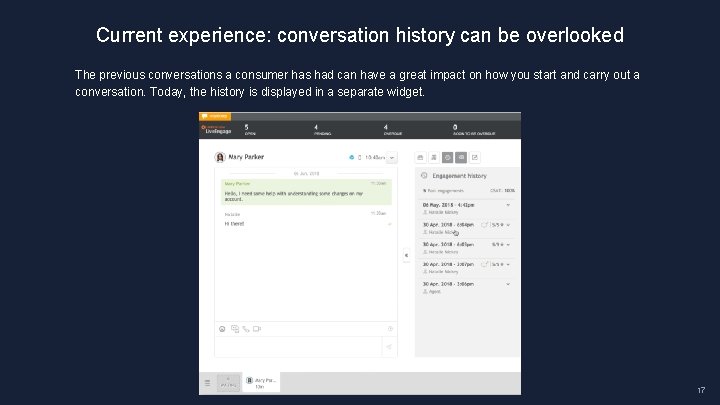
Current experience: conversation history can be overlooked The previous conversations a consumer has had can have a great impact on how you start and carry out a conversation. Today, the history is displayed in a separate widget. 17
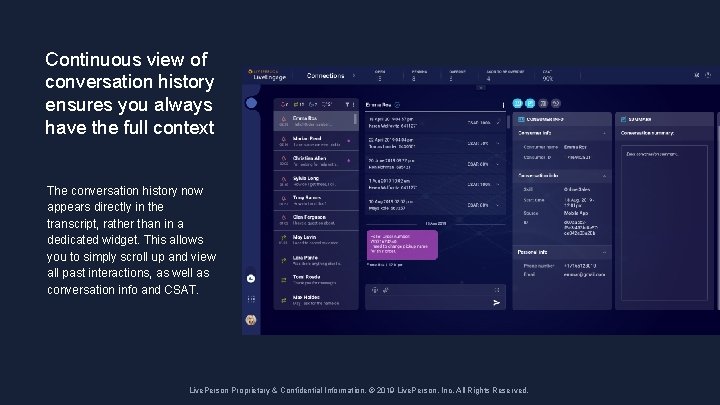
Continuous view of conversation history ensures you always have the full context The conversation history now appears directly in the transcript, rather than in a dedicated widget. This allows you to simply scroll up and view all past interactions, as well as conversation info and CSAT. Live. Person Proprietary & Confidential Information. © 2019 2018 Live. Person, Inc. All Rights Reserved.
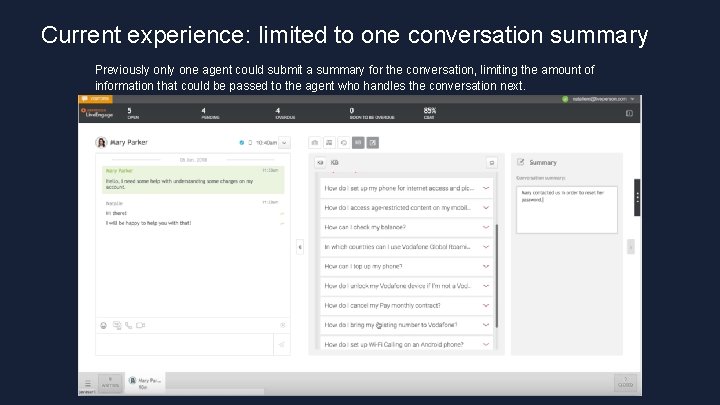
Current experience: limited to one conversation summary Previously one agent could submit a summary for the conversation, limiting the amount of information that could be passed to the agent who handles the conversation next. Live. Person Proprietary & Confidential Information. © 2018 Live. Person, Inc. All Rights Reserved.
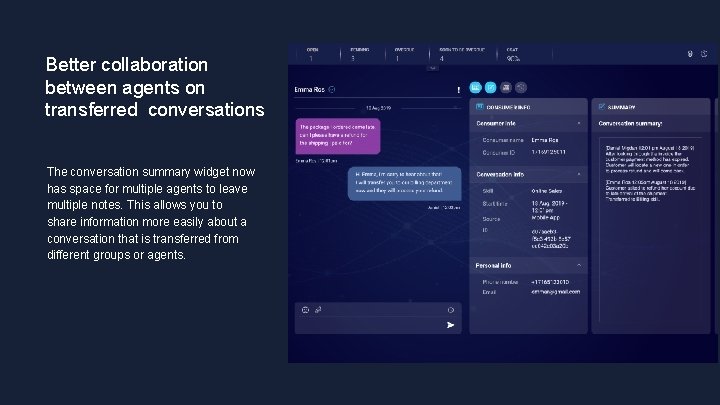
Better collaboration between agents on transferred conversations The conversation summary widget now has space for multiple agents to leave multiple notes. This allows you to share information more easily about a conversation that is transferred from different groups or agents. Live. Person Proprietary & Confidential Information. © 2018 Live. Person, Inc. All Rights Reserved.
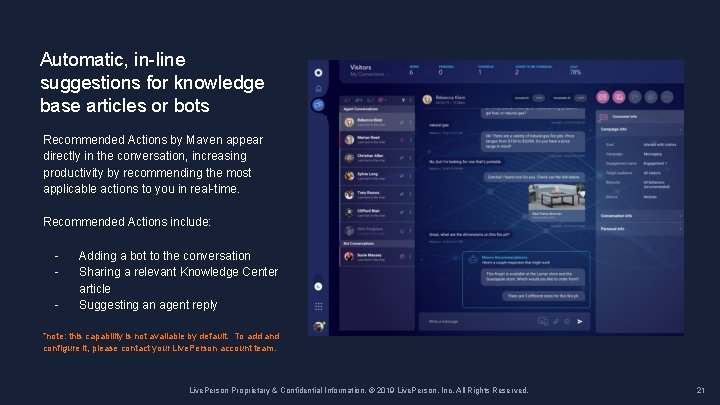
Automatic, in-line suggestions for knowledge base articles or bots Recommended Actions by Maven appear directly in the conversation, increasing productivity by recommending the most applicable actions to you in real-time. Recommended Actions include: - Adding a bot to the conversation Sharing a relevant Knowledge Center article Suggesting an agent reply *note: this capability is not available by default. To add and configure it, please contact your Live. Person account team. Live. Person Proprietary & Confidential Information. © 2019 Live. Person, Inc. All Rights Reserved. 21
— Closing Conversations 22
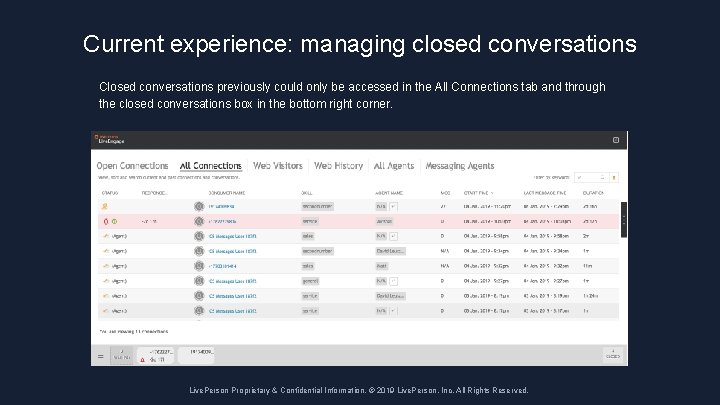
Current experience: managing closed conversations Closed conversations previously could only be accessed in the All Connections tab and through the closed conversations box in the bottom right corner. Live. Person Proprietary & Confidential Information. © 2019 Live. Person, Inc. All Rights Reserved.
Wrap up your shift more quickly You can now view your recently closed conversations by filtering them into the My Connections list. At the end of your shift, filter your list to view the closed conversations to ensure you have filled out all the required documentation. 24
Additional resources Boosting efficiency and streamlining messaging operations, the enhanced agent workspace was developed with you in mind. For more information about working with the enhanced agent workspace, click here to view the full user guide. Live. Person Proprietary & Confidential Information. © 2019 2018 Live. Person, Inc. All Rights Reserved.