
Encouraging Dynamic Growth for Educators ONENOTE OVERVIEW SARAH



- Slides: 13
Encouraging Dynamic Growth for Educators ONENOTE OVERVIEW SARAH STODDARD
Introduction and Welcome Sarah Stoddard
Session Objectives and Success Criteria Participants will gain a basic understanding of the features of One. Note Participants will explore the tools and features within One. Note Participants will understand the basic differences between One. Note Online and One. Note Hard Install By the end of today’s session participants will be able to: Create a Notebook within One. Note Utilize the variety of features available in One. Note Share a Notebook with colleagues to help work efficiency and communication Access continuing support as needed
Agenda Overview of Structure of One. Note Features within One. Note Sharing your Notebook Class Notebook Continuing Support
Overview of Structure of One. Note Hard Install How to access Structure Bookshelf Notebook Sections and Pages
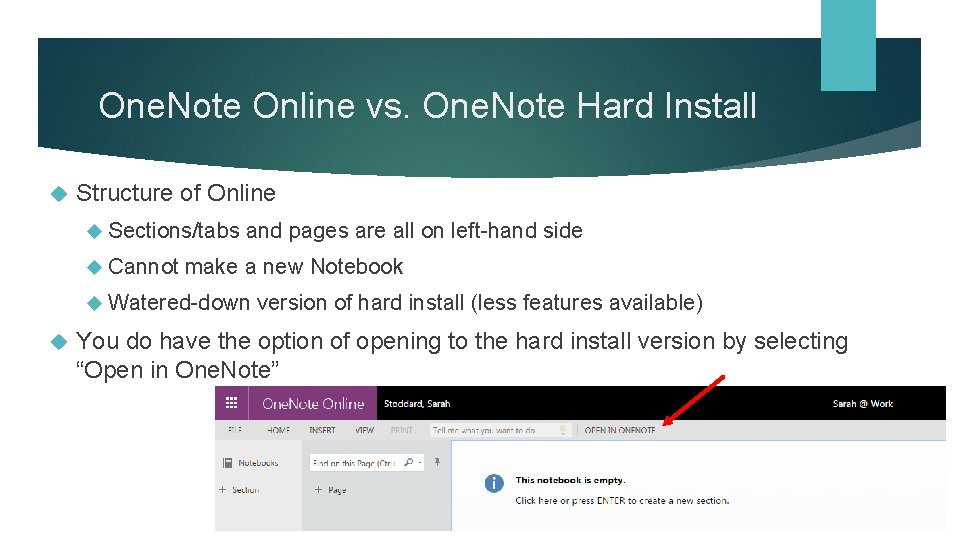
One. Note Online vs. One. Note Hard Install Structure of Online Sections/tabs Cannot and pages are all on left-hand side make a new Notebook Watered-down version of hard install (less features available) You do have the option of opening to the hard install version by selecting “Open in One. Note”
Features Within One. Note Overview of tabs and ribbons Structure There are unique features to One. Note Search No is similar to other Microsoft Office products feature Save button – automatically saves! Can work offline and will sync when connected to wireless network
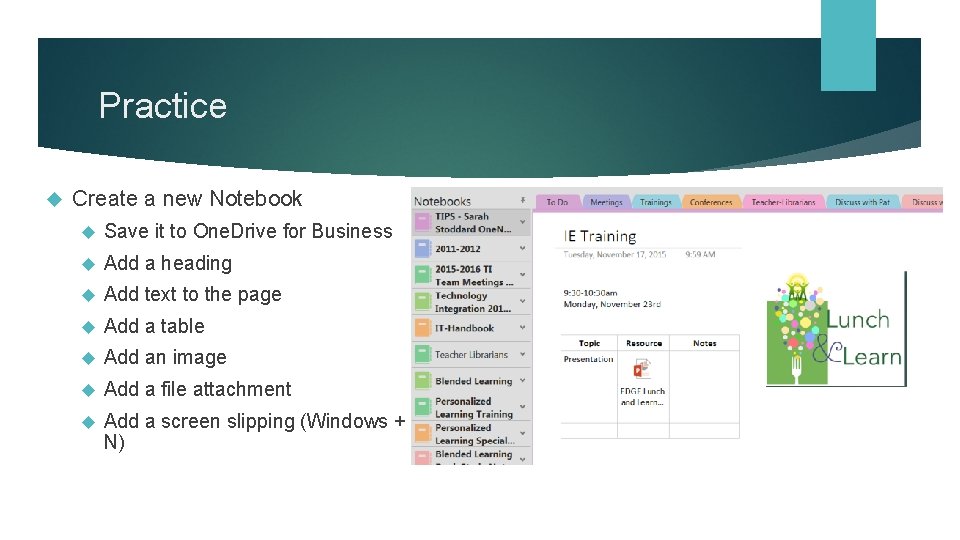
Practice Create a new Notebook Save it to One. Drive for Business Add a heading Add text to the page Add a table Add an image Add a file attachment Add a screen slipping (Windows + N)
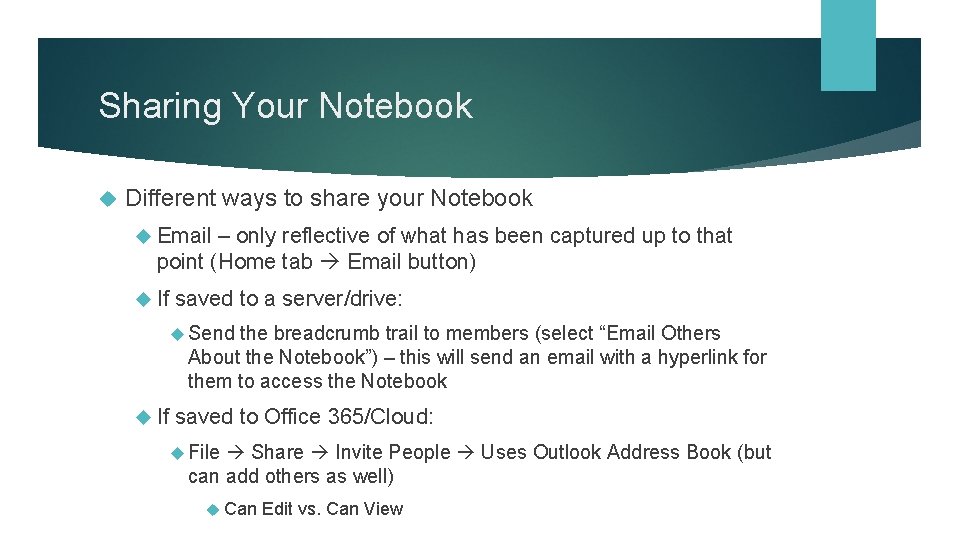
Sharing Your Notebook Different ways to share your Notebook Email – only reflective of what has been captured up to that point (Home tab Email button) If saved to a server/drive: Send the breadcrumb trail to members (select “Email Others About the Notebook”) – this will send an email with a hyperlink for them to access the Notebook If saved to Office 365/Cloud: File Share Invite People Uses Outlook Address Book (but can add others as well) Can Edit vs. Can View
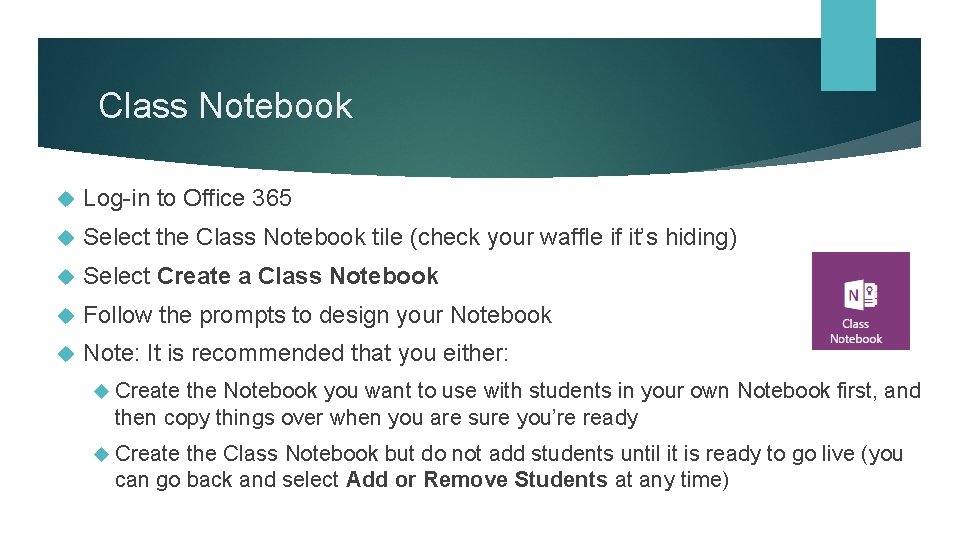
Class Notebook Log-in to Office 365 Select the Class Notebook tile (check your waffle if it’s hiding) Select Create a Class Notebook Follow the prompts to design your Notebook Note: It is recommended that you either: Create the Notebook you want to use with students in your own Notebook first, and then copy things over when you are sure you’re ready Create the Class Notebook but do not add students until it is ready to go live (you can go back and select Add or Remove Students at any time)
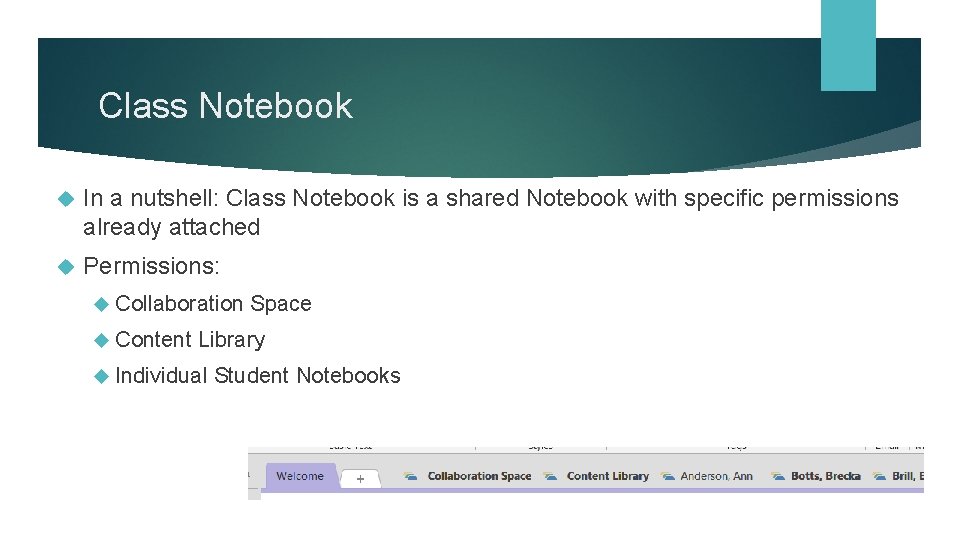
Class Notebook In a nutshell: Class Notebook is a shared Notebook with specific permissions already attached Permissions: Collaboration Content Space Library Individual Student Notebooks
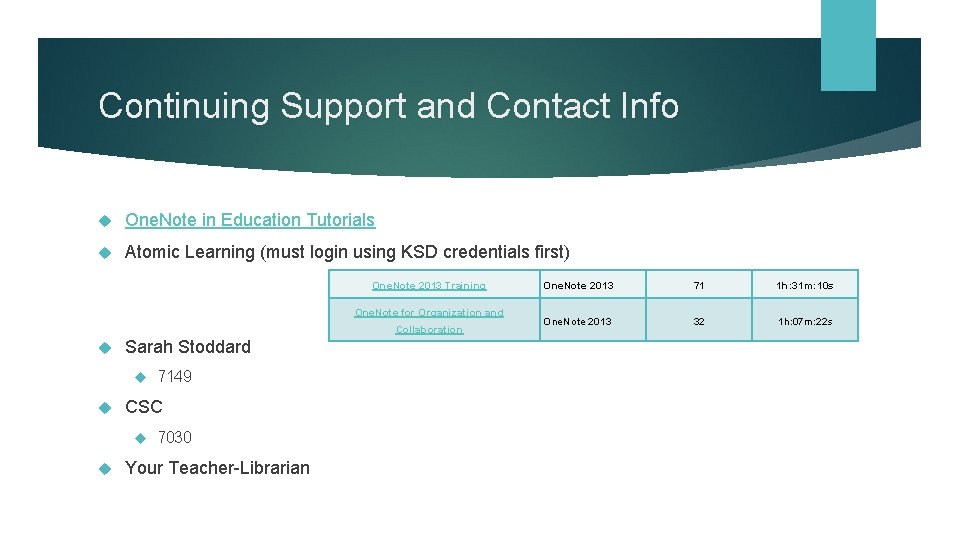
Continuing Support and Contact Info One. Note in Education Tutorials Atomic Learning (must login using KSD credentials first) One. Note 2013 Training One. Note for Organization and Collaboration Sarah Stoddard CSC 7149 7030 Your Teacher-Librarian One. Note 2013 71 1 h: 31 m: 10 s One. Note 2013 32 1 h: 07 m: 22 s
Q and A