
Enabling your use of Tableau Introduction to Calculations
Enabling your use of Tableau Introduction to Calculations Please note that this webinar will be recorded and will be shared with the NSS Tableau user community (Showing Tableau 9. 3)

Future Webinars March 14 th at 11 am: What’s new in Tableau 10 and 10. 1 April: Table Calculations May: Level of Detail Expressions Check the BI Hub for more details and to sign-up

Agenda Calculation Types (for today’s Lunch & Learn session): • • • Number Aggregation String Date Logical Quick Table
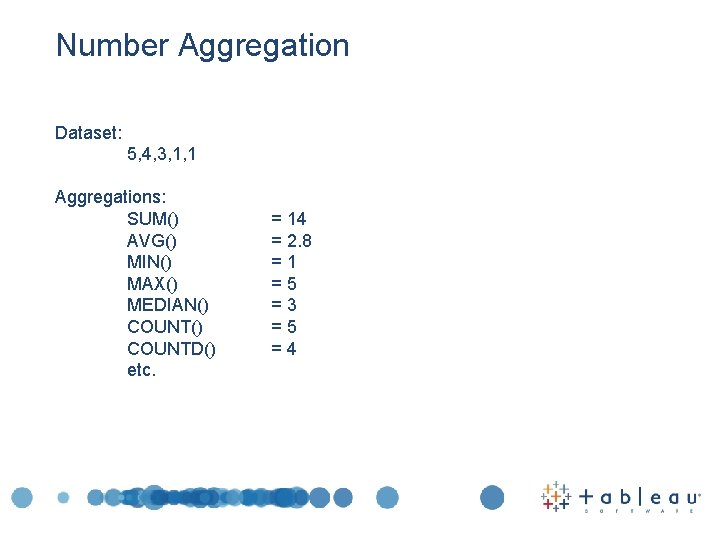
Number Aggregation Dataset: 5, 4, 3, 1, 1 Aggregations: SUM() AVG() MIN() MAX() MEDIAN() COUNTD() etc. = 14 = 2. 8 =1 =5 =3 =5 =4
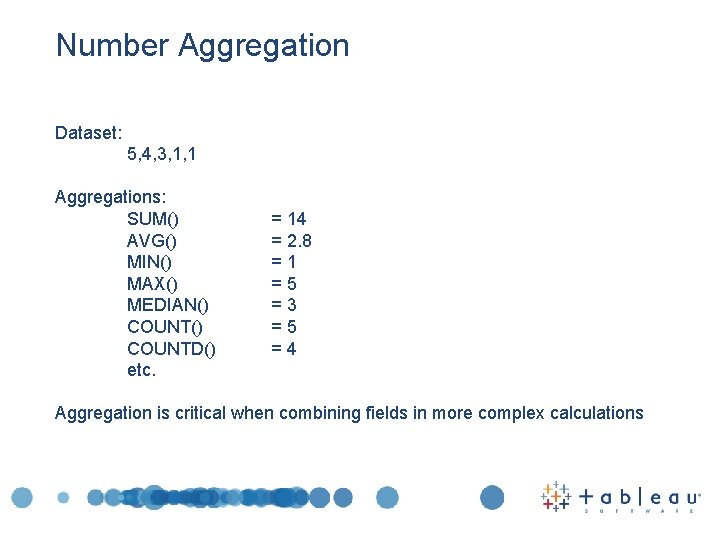
Number Aggregation Dataset: 5, 4, 3, 1, 1 Aggregations: SUM() AVG() MIN() MAX() MEDIAN() COUNTD() etc. = 14 = 2. 8 =1 =5 =3 =5 =4 Aggregation is critical when combining fields in more complex calculations
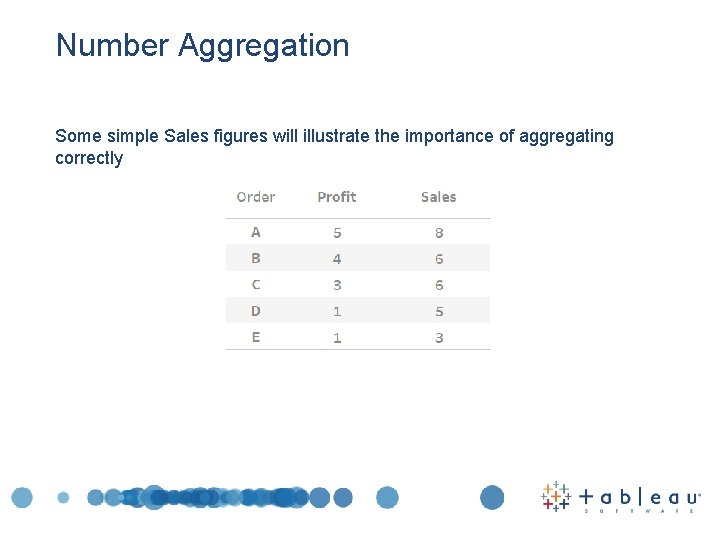
Number Aggregation Some simple Sales figures will illustrate the importance of aggregating correctly
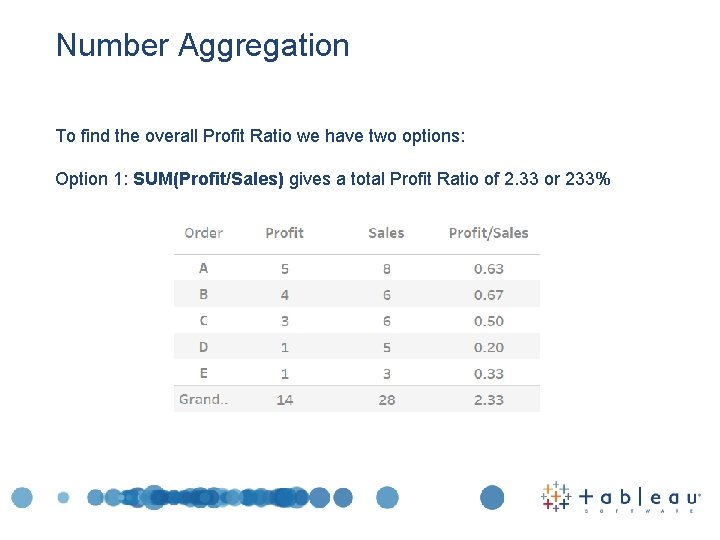
Number Aggregation To find the overall Profit Ratio we have two options: Option 1: SUM(Profit/Sales) gives a total Profit Ratio of 2. 33 or 233%
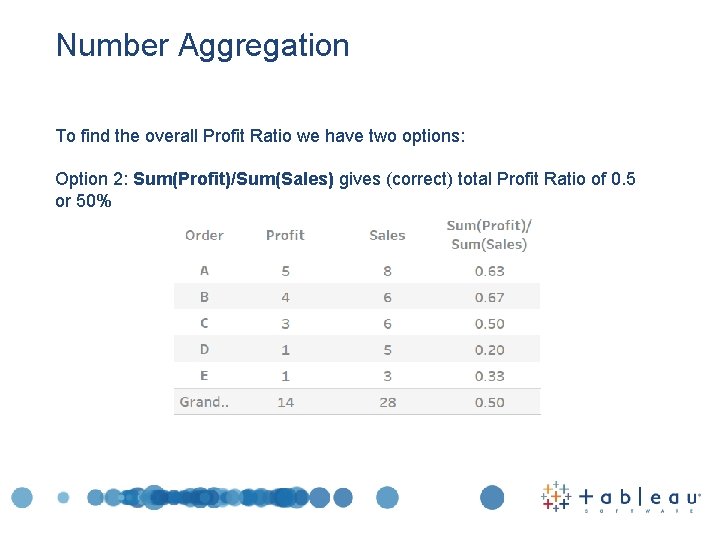
Number Aggregation To find the overall Profit Ratio we have two options: Option 2: Sum(Profit)/Sum(Sales) gives (correct) total Profit Ratio of 0. 5 or 50%
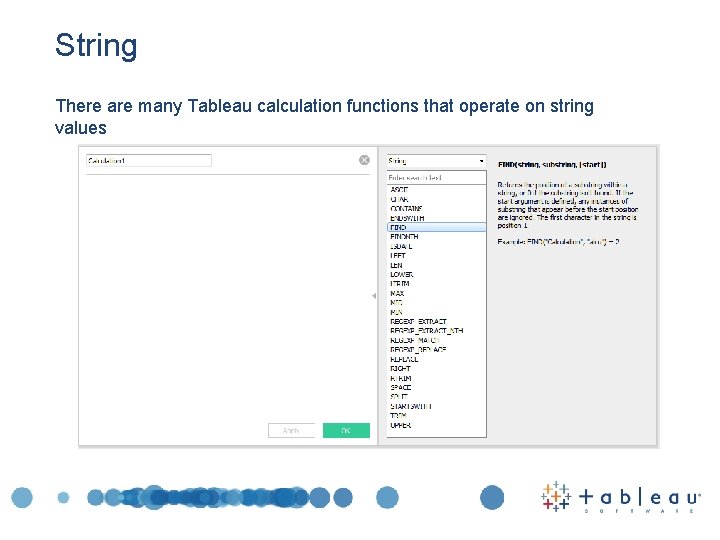
String There are many Tableau calculation functions that operate on string values
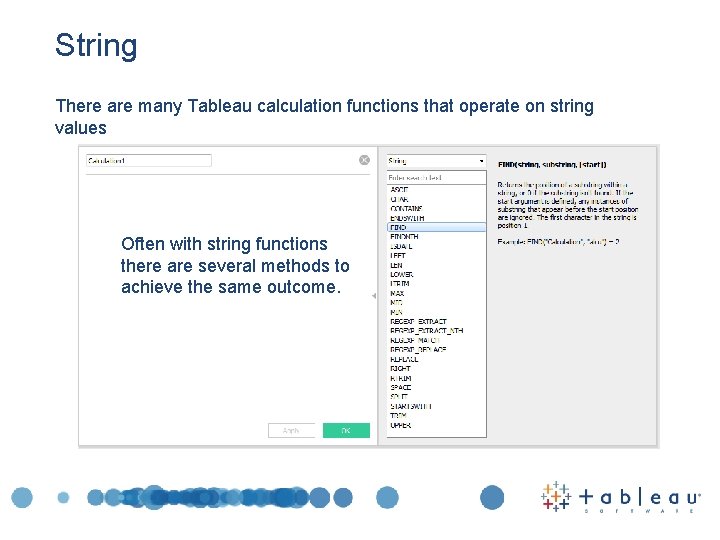
String There are many Tableau calculation functions that operate on string values Often with string functions there are several methods to achieve the same outcome.
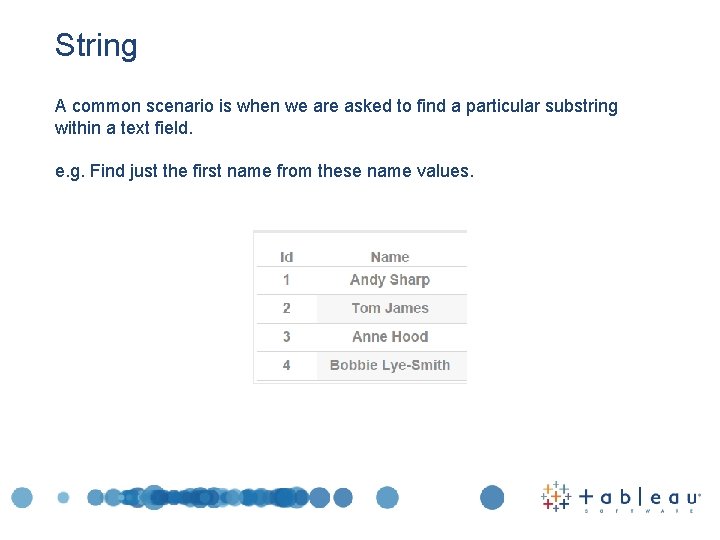
String A common scenario is when we are asked to find a particular substring within a text field. e. g. Find just the first name from these name values.

String Create a new Calculated Field based on ‘Name’ by right clicking on the Name field in the Dimensions list and choosing Create > Calculated Field
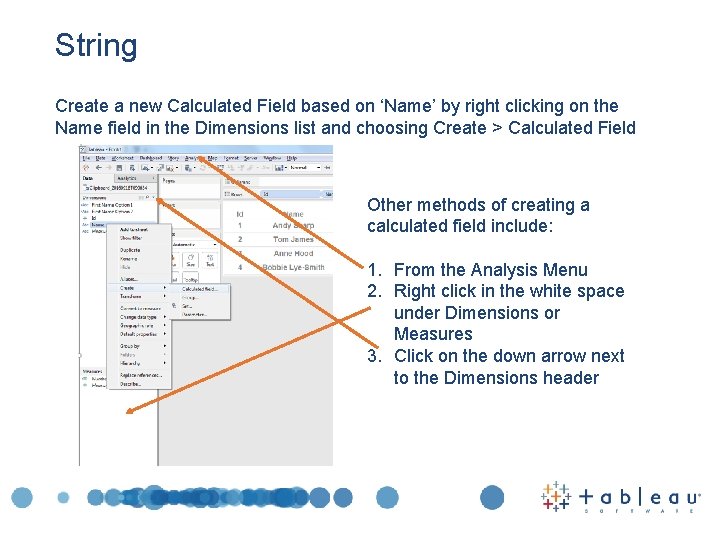
String Create a new Calculated Field based on ‘Name’ by right clicking on the Name field in the Dimensions list and choosing Create > Calculated Field Other methods of creating a calculated field include: 1. From the Analysis Menu 2. Right click in the white space under Dimensions or Measures 3. Click on the down arrow next to the Dimensions header
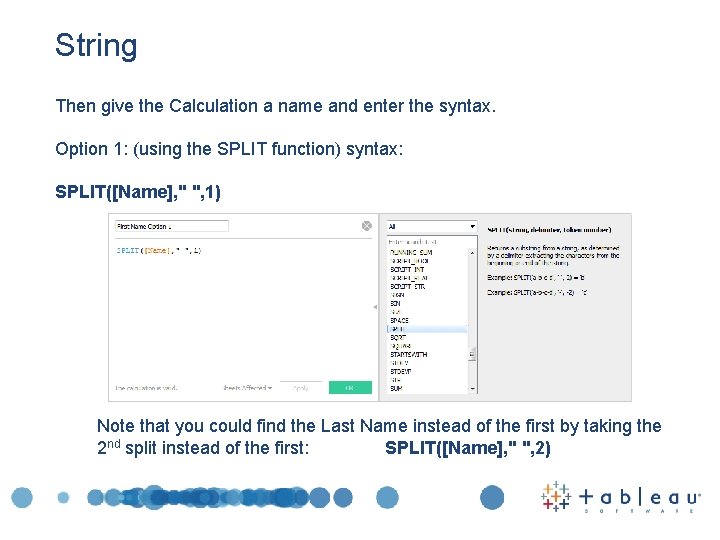
String Then give the Calculation a name and enter the syntax. Option 1: (using the SPLIT function) syntax: SPLIT([Name], " ", 1) Note that you could find the Last Name instead of the first by taking the 2 nd split instead of the first: SPLIT([Name], " ", 2)
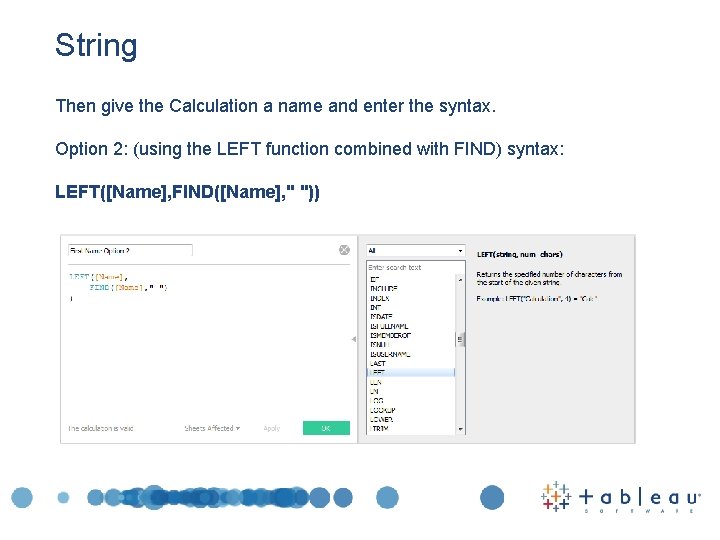
String Then give the Calculation a name and enter the syntax. Option 2: (using the LEFT function combined with FIND) syntax: LEFT([Name], FIND([Name], " "))
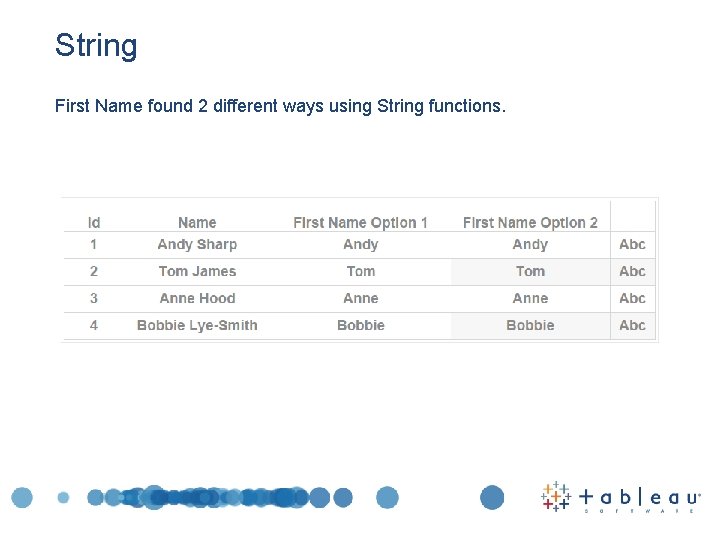
String First Name found 2 different ways using String functions.
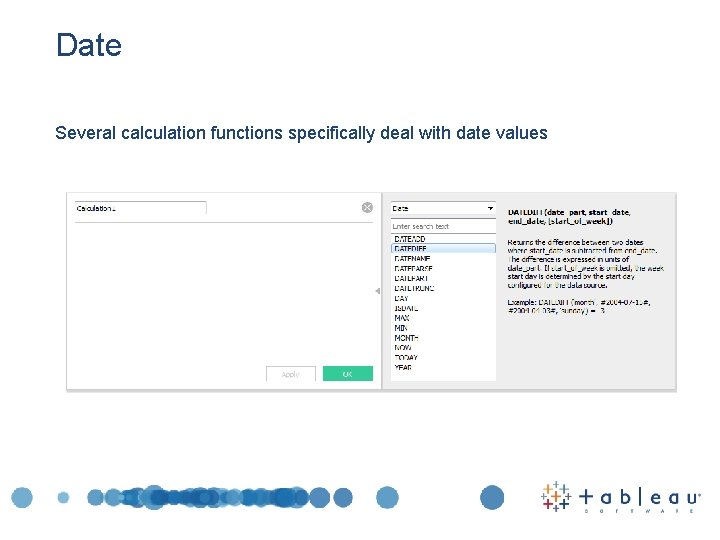
Date Several calculation functions specifically deal with date values
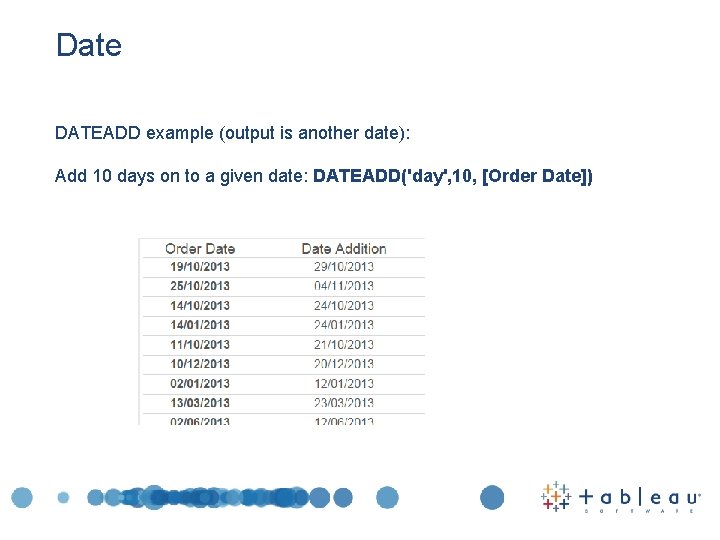
Date DATEADD example (output is another date): Add 10 days on to a given date: DATEADD('day', 10, [Order Date])
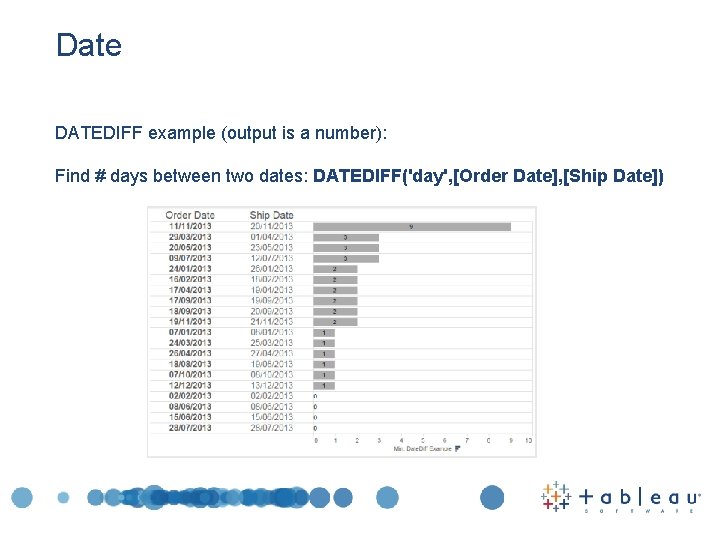
Date DATEDIFF example (output is a number): Find # days between two dates: DATEDIFF('day', [Order Date], [Ship Date])
Logical - comparison The first kind of logical calculation we’ll look at is a comparison. These are the basic comparison operators that can be used in expressions: = =, =, >, <, >=, <=, !=, <> Each operator compares two numbers, dates, or strings and returns a boolean (TRUE or FALSE).
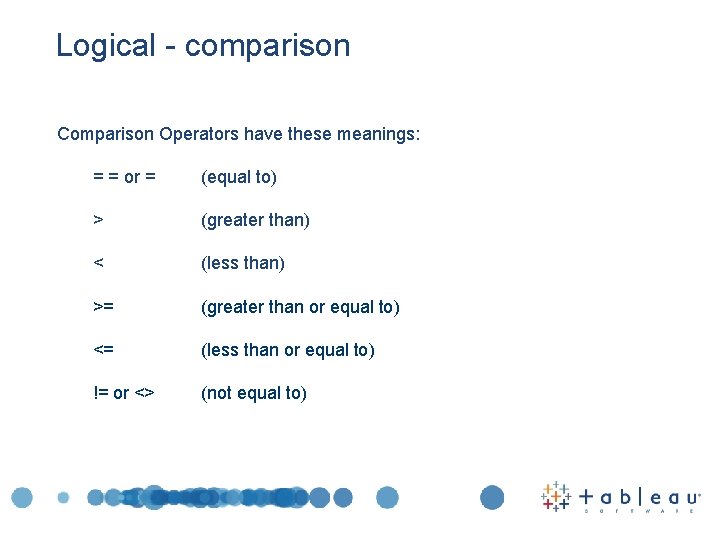
Logical - comparison Comparison Operators have these meanings: = = or = (equal to) > (greater than) < (less than) >= (greater than or equal to) <= (less than or equal to) != or <> (not equal to)
Logical - comparison The syntax is simple: Value 1 Operator Value 2 And the values can be fixed or determined from Dimensions or Measures e. g. Sum([Sales]) >= 3000 Or [Product_Name] <> [Supplied_Item_Name]
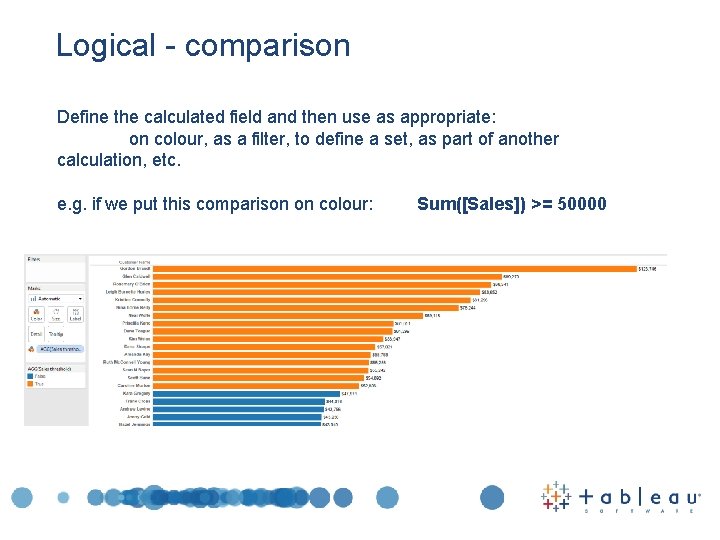
Logical - comparison Define the calculated field and then use as appropriate: on colour, as a filter, to define a set, as part of another calculation, etc. e. g. if we put this comparison on colour: Sum([Sales]) >= 50000
Logical – IF / THEN Analysis The IF THEN ELSE function evaluates a sequence of test conditions and returns the value for the first condition that is true. If no condition is true, the ELSE value is returned. IF SUM([Sales]) > 50000 - Test Condition THEN "Ahead of Quota“- Result if TRUE ELSE "Below Quota“ - Result if FALSE END - End of IF expression
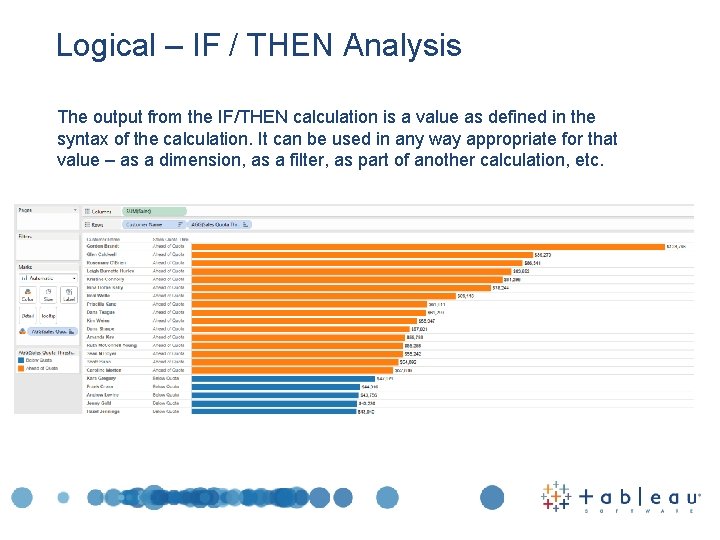
Logical – IF / THEN Analysis The output from the IF/THEN calculation is a value as defined in the syntax of the calculation. It can be used in any way appropriate for that value – as a dimension, as a filter, as part of another calculation, etc.
![Logical – IF / THEN Analysis A more complex example uses ELSEIF IF SUM([Sales])](http://slidetodoc.com/presentation_image_h2/8fc439d288b8a20766643ff291f5f09e/image-26.jpg "Logical – IF / THEN Analysis A more complex example uses ELSEIF IF SUM([Sales])")
Logical – IF / THEN Analysis A more complex example uses ELSEIF IF SUM([Sales]) > 50000 THEN "Ahead of Quota“ ELSEIF SUM([Sales]) > 45000 THEN "Near Quota“ ELSE "Below Quota“ END - Test Condition - Result if TRUE - Condition for remaining values - Result if TRUE - Result if FALSE - End of IF expression This expression returns a value for the first condition that is true, or it returns the ELSE value.
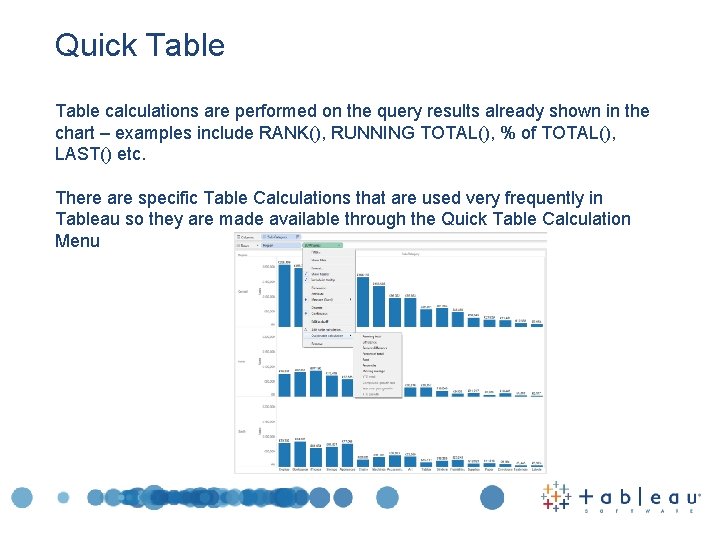
Quick Table calculations are performed on the query results already shown in the chart – examples include RANK(), RUNNING TOTAL(), % of TOTAL(), LAST() etc. There are specific Table Calculations that are used very frequently in Tableau so they are made available through the Quick Table Calculation Menu
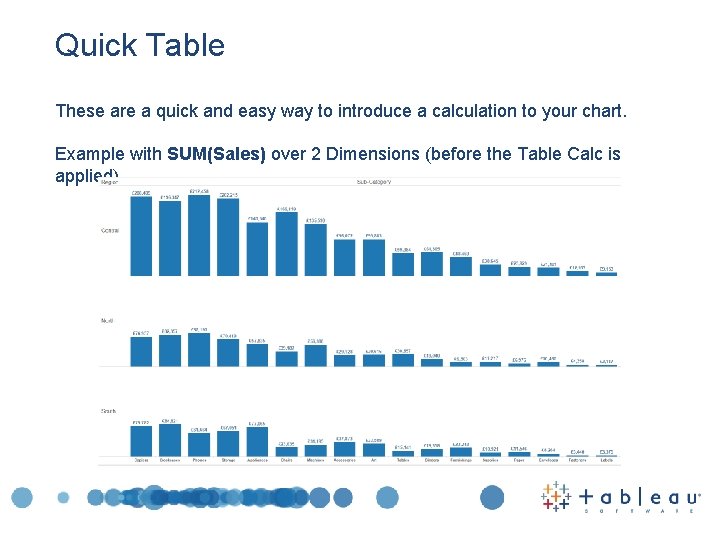
Quick Table These are a quick and easy way to introduce a calculation to your chart. Example with SUM(Sales) over 2 Dimensions (before the Table Calc is applied)
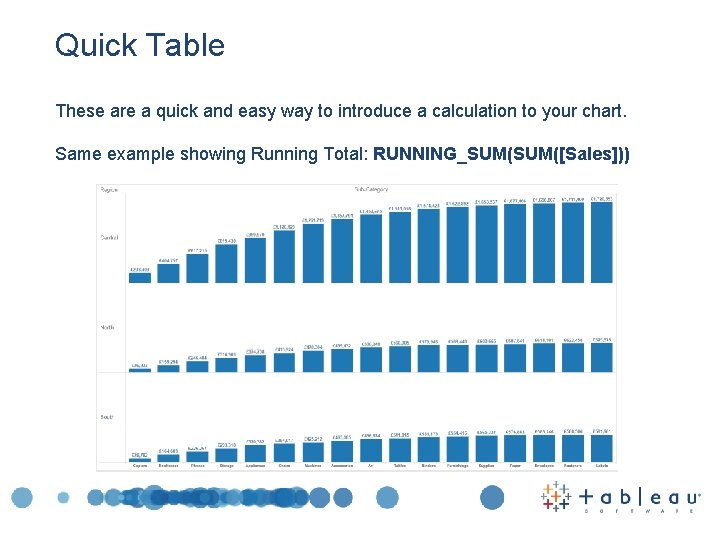
Quick Table These are a quick and easy way to introduce a calculation to your chart. Same example showing Running Total: RUNNING_SUM([Sales]))
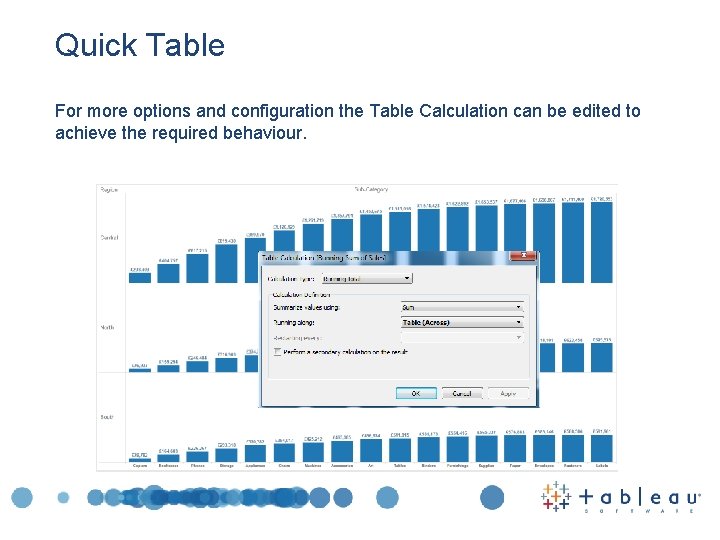
Quick Table For more options and configuration the Table Calculation can be edited to achieve the required behaviour.

Alex Clift Tableau Pre. Sales EMEA aclift@tableau. com
- Slides: 31