
Enabling TwoStep Verification for Email HERE A FEW
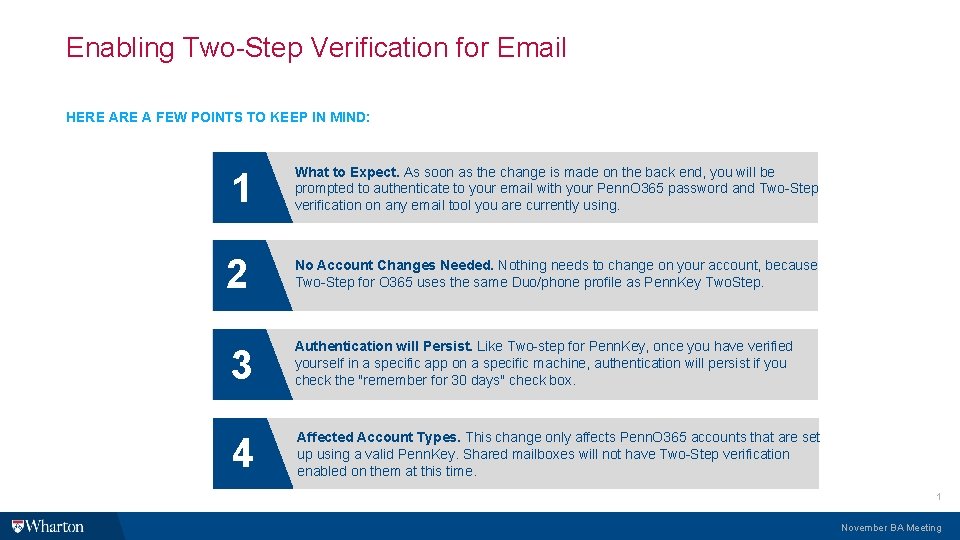
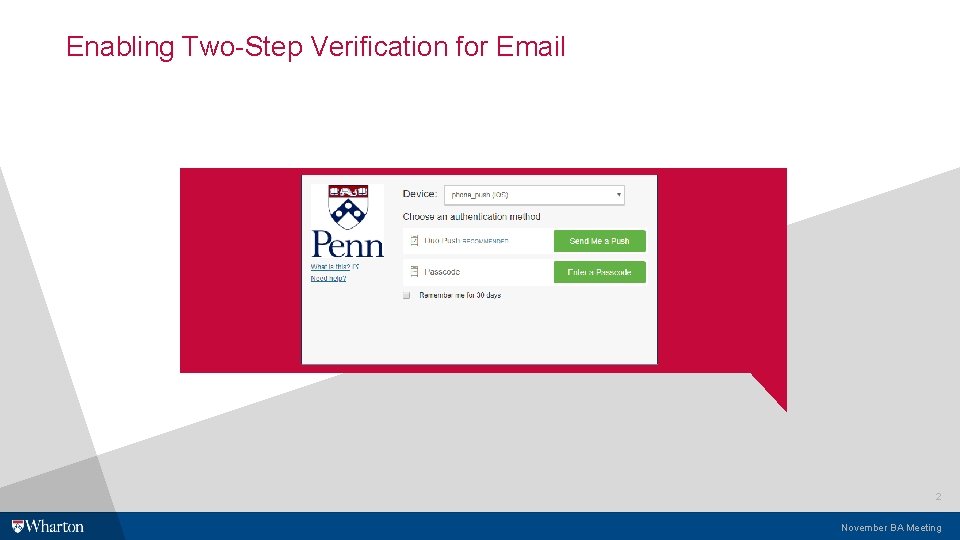
Enabling Two-Step Verification for Email HERE A FEW POINTS TO KEEP IN MIND: 1 2 What to Expect. As soon as the change is made on the back end, you will be prompted to authenticate to your email with your Penn. O 365 password and Two-Step verification on any email tool you are currently using. No Account Changes Needed. Nothing needs to change on your account, because Two-Step for O 365 uses the same Duo/phone profile as Penn. Key Two. Step. 3 Authentication will Persist. Like Two-step for Penn. Key, once you have verified yourself in a specific app on a specific machine, authentication will persist if you check the "remember for 30 days" check box. 4 Affected Account Types. This change only affects Penn. O 365 accounts that are set up using a valid Penn. Key. Shared mailboxes will not have Two-Step verification enabled on them at this time. 1 November BA Meeting
Enabling Two-Step Verification for Email 2 November BA Meeting

Resources • Complete information and directions are on the Wharton Computing support website here: https: //support. wharton. upenn. edu/help/two-step-verification-penno 365 -accounts • If you need to reset your Penn. O 365 password, you can do so here: whr. tn/o 365 pwd • If you need to change your settings for Two-Step verification for Penn. Key, you can do so here: http: //twostep. apps. upenn. edu/ admin-support@wharton. upenn. edu (215 -746 -4634) 3 November BA Meeting
- Slides: 3