
Employee SelfService ESS Module About Employee Self Service
Employee Self-Service (ESS) Module
About Employee Self Service Ø ESS can be accessed from any computer that has internet access Ø From your home computer or or mobile devices (internet explorer, safari, mozilla) Note: Google chrome is not currently compatible Ø Access to ESS can be found on the: Ø PERSONAL tab in the My. Time TASS portal Ø Link to ESS is available on Win. Net Ø Win. Net>My. Time> Employee Self Service Ø ESS login will require your Winchester Hospital network username and password Ø Login is the same as the My. Time username and password Ø Log into the My. Time TASS portal today and test whether you know your password Ø Please call the IS Helpdesk (x 2647) if you do not know your username and password
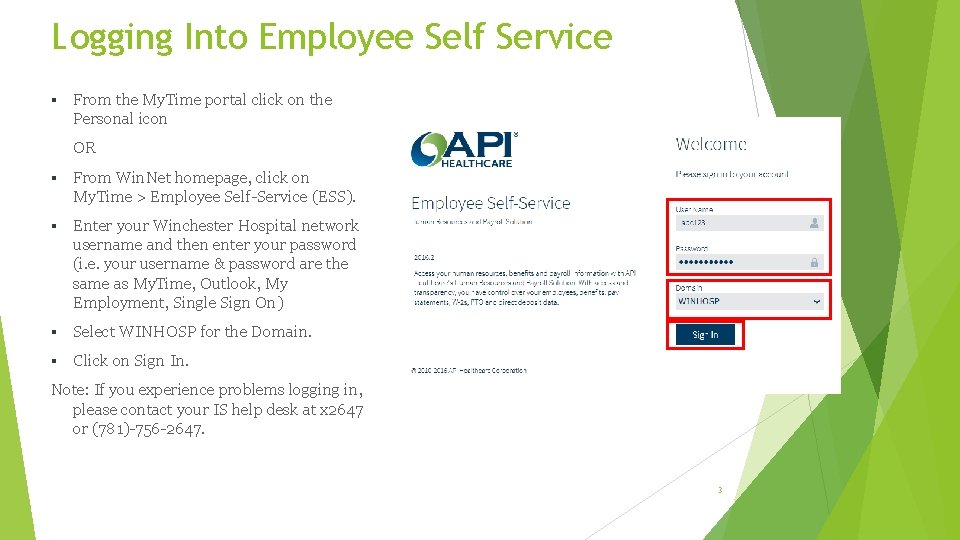
Logging Into Employee Self Service § From the My. Time portal click on the Personal icon OR § From Win. Net homepage, click on My. Time > Employee Self-Service (ESS). § Enter your Winchester Hospital network username and then enter your password (i. e. your username & password are the same as My. Time, Outlook, My Employment, Single Sign On) § Select WINHOSP for the Domain. § Click on Sign In. Note: If you experience problems logging in, please contact your IS help desk at x 2647 or (781)-756 -2647. 3
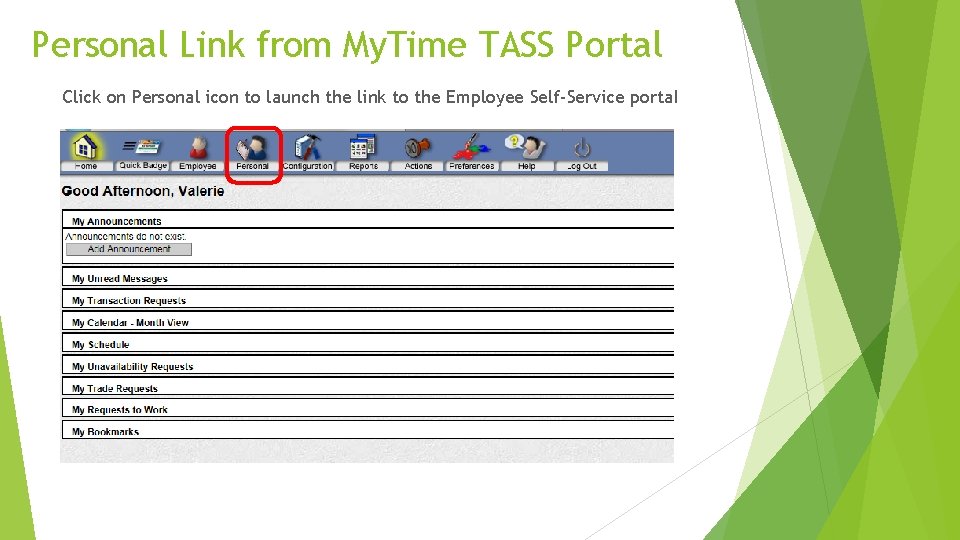
Personal Link from My. Time TASS Portal Click on Personal icon to launch the link to the Employee Self-Service portal
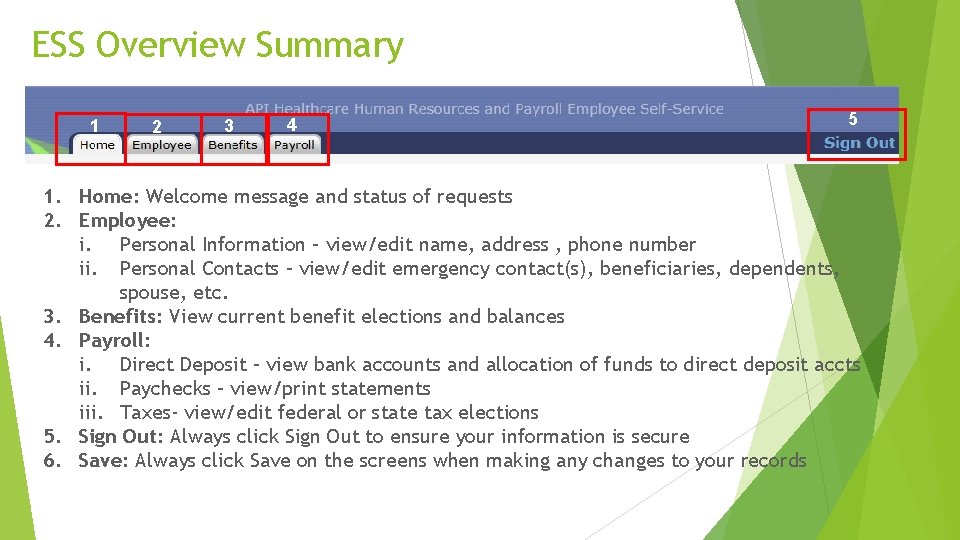
ESS Overview Summary 1 2 3 4 5 1. Home: Welcome message and status of requests 2. Employee: i. Personal Information – view/edit name, address , phone number ii. Personal Contacts – view/edit emergency contact(s), beneficiaries, dependents, spouse, etc. 3. Benefits: View current benefit elections and balances 4. Payroll: i. Direct Deposit – view bank accounts and allocation of funds to direct deposit accts ii. Paychecks – view/print statements iii. Taxes- view/edit federal or state tax elections 5. Sign Out: Always click Sign Out to ensure your information is secure 6. Save: Always click Save on the screens when making any changes to your records
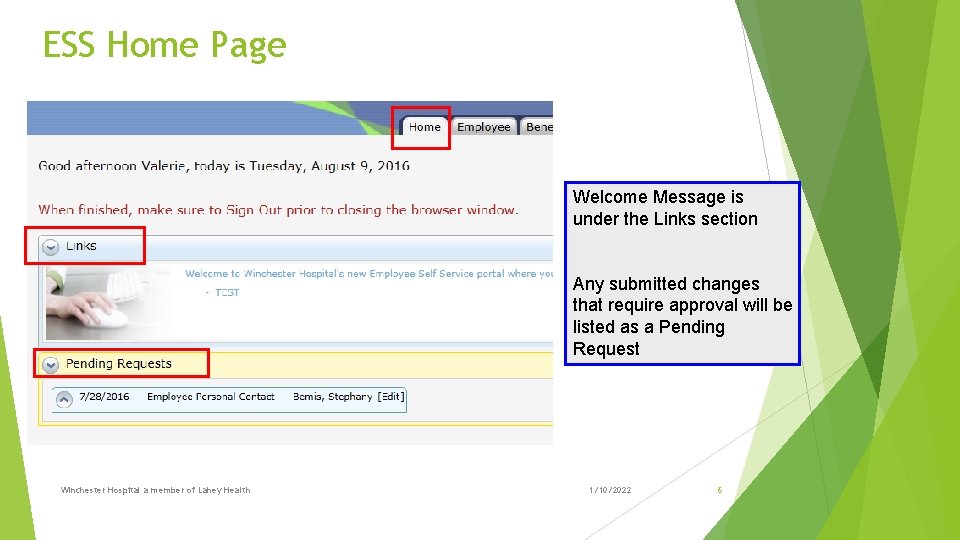
ESS Home Page Welcome Message is under the Links section Any submitted changes that require approval will be listed as a Pending Request Winchester Hospital a member of Lahey Health 1/10/2022 6
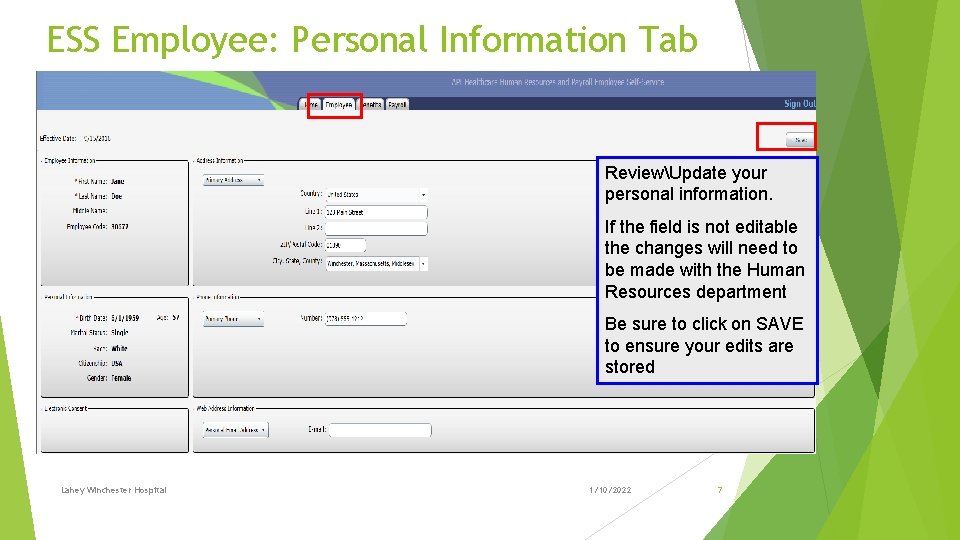
ESS Employee: Personal Information Tab ReviewUpdate your personal information. If the field is not editable the changes will need to be made with the Human Resources department Be sure to click on SAVE to ensure your edits are stored Lahey Winchester Hospital 1/10/2022 7
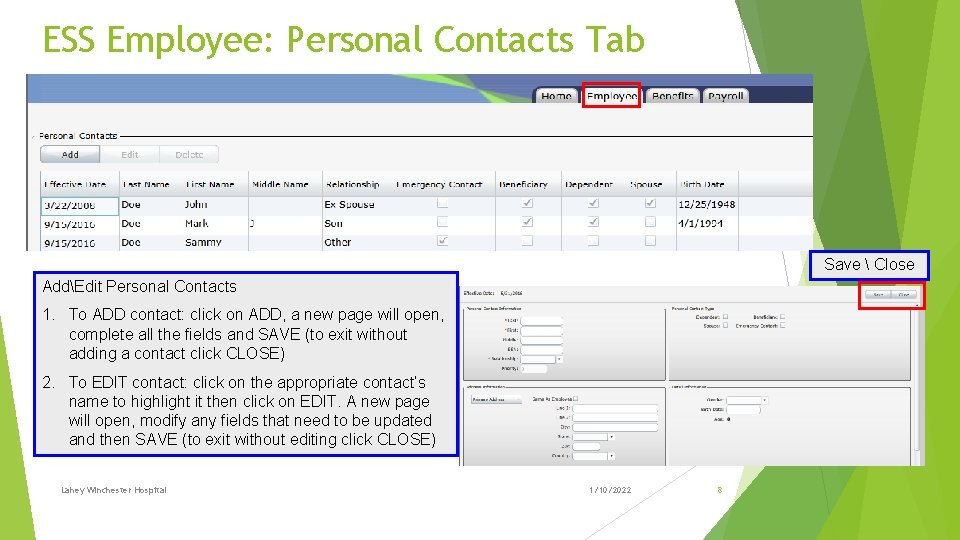
ESS Employee: Personal Contacts Tab Save Close AddEdit Personal Contacts 1. To ADD contact: click on ADD, a new page will open, complete all the fields and SAVE (to exit without adding a contact click CLOSE) 2. To EDIT contact: click on the appropriate contact’s name to highlight it then click on EDIT. A new page will open, modify any fields that need to be updated and then SAVE (to exit without editing click CLOSE) Lahey Winchester Hospital 1/10/2022 8
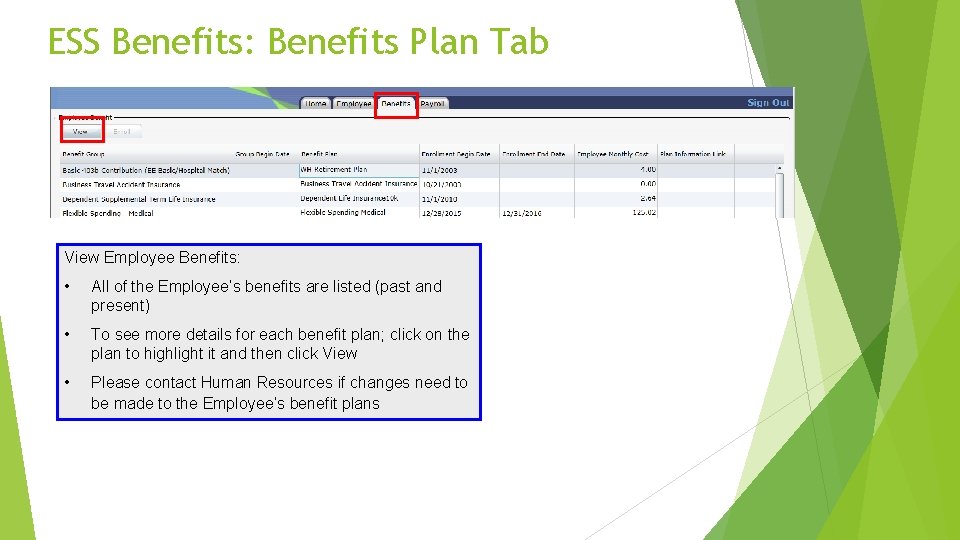
ESS Benefits: Benefits Plan Tab View Employee Benefits: • All of the Employee’s benefits are listed (past and present) • To see more details for each benefit plan; click on the plan to highlight it and then click View • Please contact Human Resources if changes need to be made to the Employee’s benefit plans
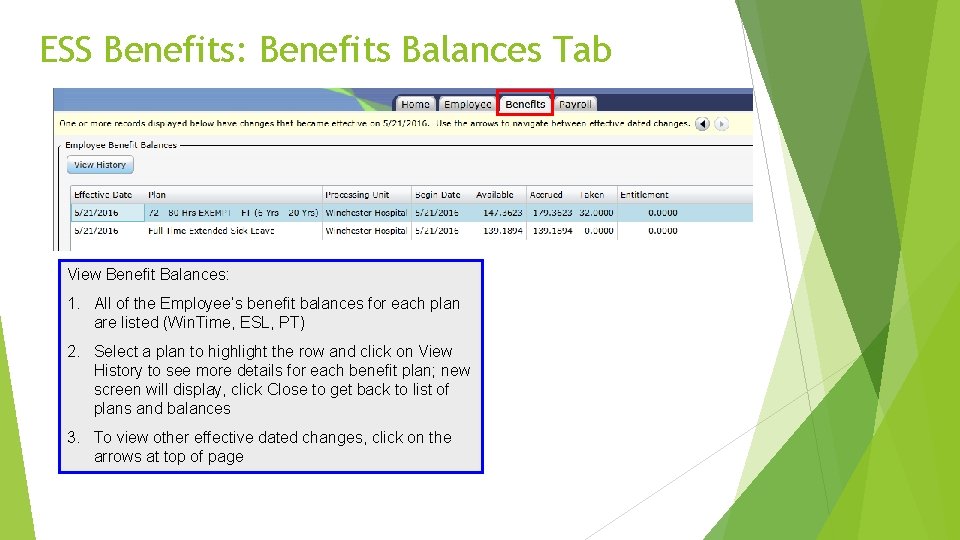
ESS Benefits: Benefits Balances Tab View Benefit Balances: 1. All of the Employee’s benefit balances for each plan are listed (Win. Time, ESL, PT) 2. Select a plan to highlight the row and click on View History to see more details for each benefit plan; new screen will display, click Close to get back to list of plans and balances 3. To view other effective dated changes, click on the arrows at top of page
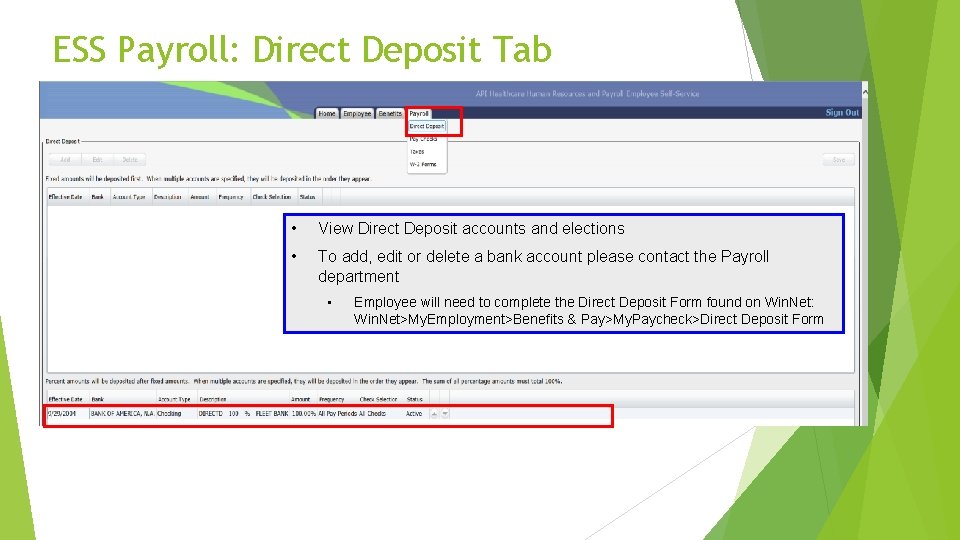
ESS Payroll: Direct Deposit Tab • View Direct Deposit accounts and elections • To add, edit or delete a bank account please contact the Payroll department • Employee will need to complete the Direct Deposit Form found on Win. Net: Win. Net>My. Employment>Benefits & Pay>My. Paycheck>Direct Deposit Form
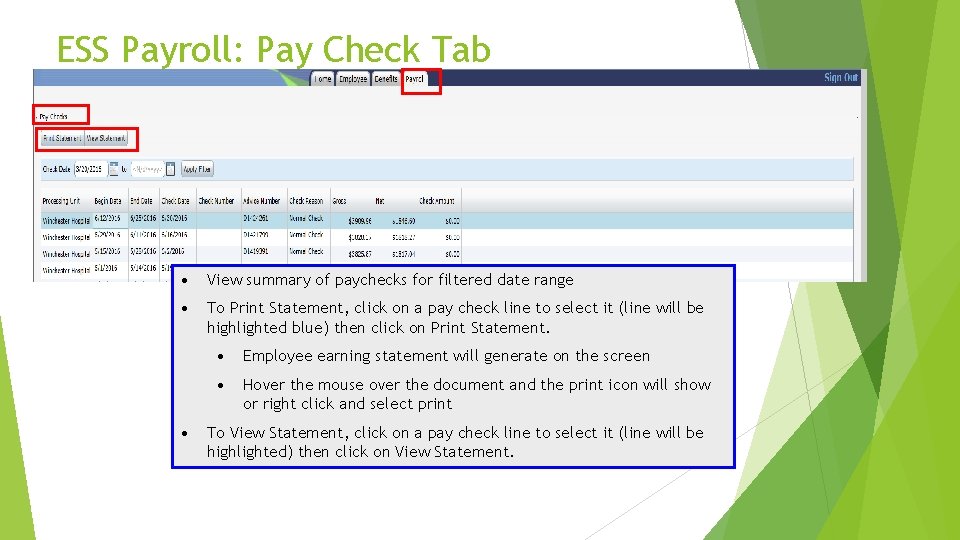
ESS Payroll: Pay Check Tab • View summary of paychecks for filtered date range • To Print Statement, click on a pay check line to select it (line will be highlighted blue) then click on Print Statement. • • Employee earning statement will generate on the screen • Hover the mouse over the document and the print icon will show or right click and select print To View Statement, click on a pay check line to select it (line will be highlighted) then click on View Statement.
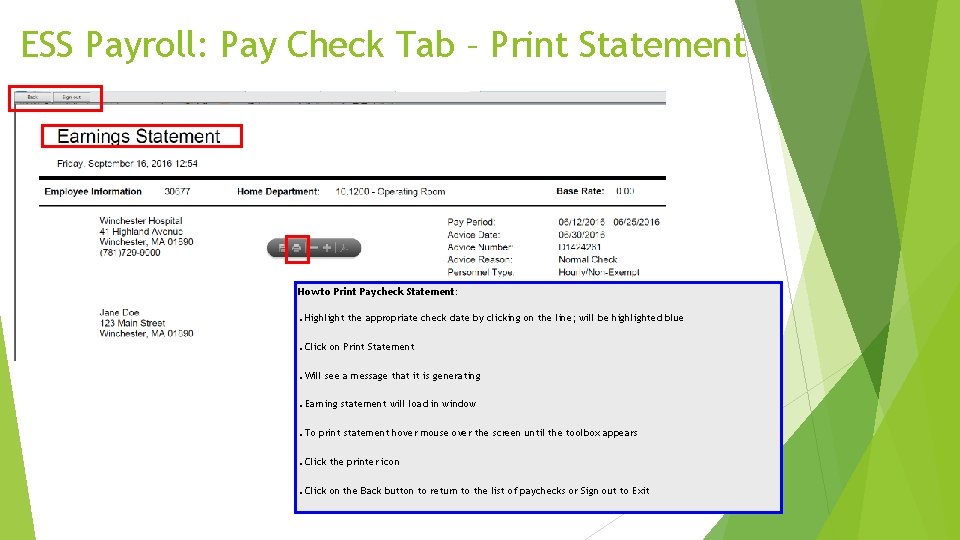
ESS Payroll: Pay Check Tab – Print Statement How to Print Paycheck Statement: . Highlight the appropriate check date by clicking on the line; will be highlighted blue. Click on Print Statement. Will see a message that it is generating. Earning statement will load in window. To print statement hover mouse over the screen until the toolbox appears. Click the printer icon. Click on the Back button to return to the list of paychecks or Sign out to Exit
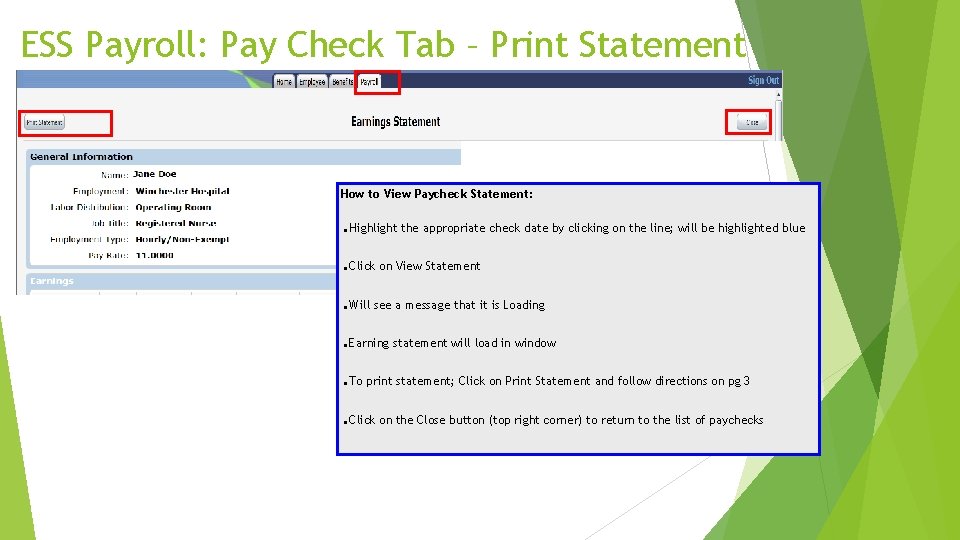
ESS Payroll: Pay Check Tab – Print Statement How to View Paycheck Statement: . . . Highlight the appropriate check date by clicking on the line; will be highlighted blue Click on View Statement Will see a message that it is Loading Earning statement will load in window To print statement; Click on Print Statement and follow directions on pg 3 Click on the Close button (top right corner) to return to the list of paychecks
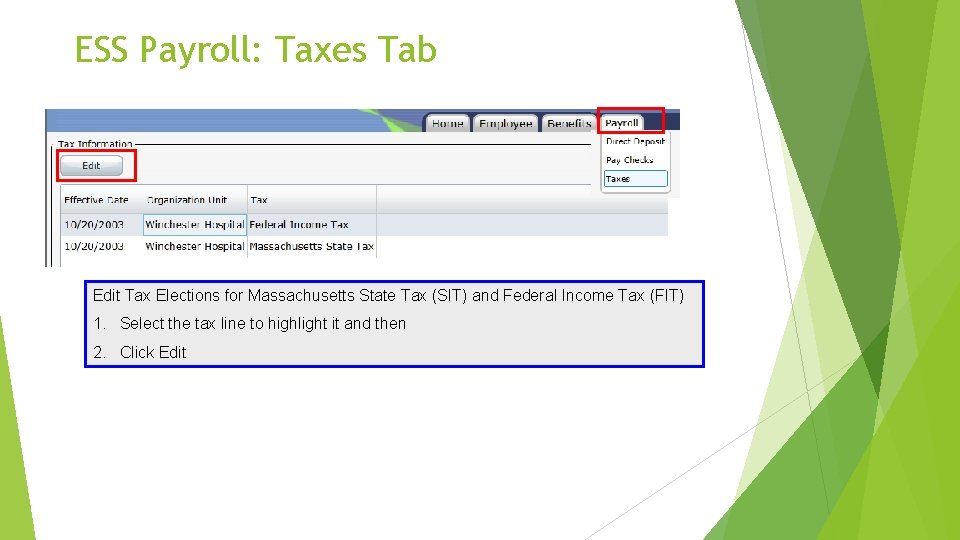
ESS Payroll: Taxes Tab Edit Tax Elections for Massachusetts State Tax (SIT) and Federal Income Tax (FIT) 1. Select the tax line to highlight it and then 2. Click Edit
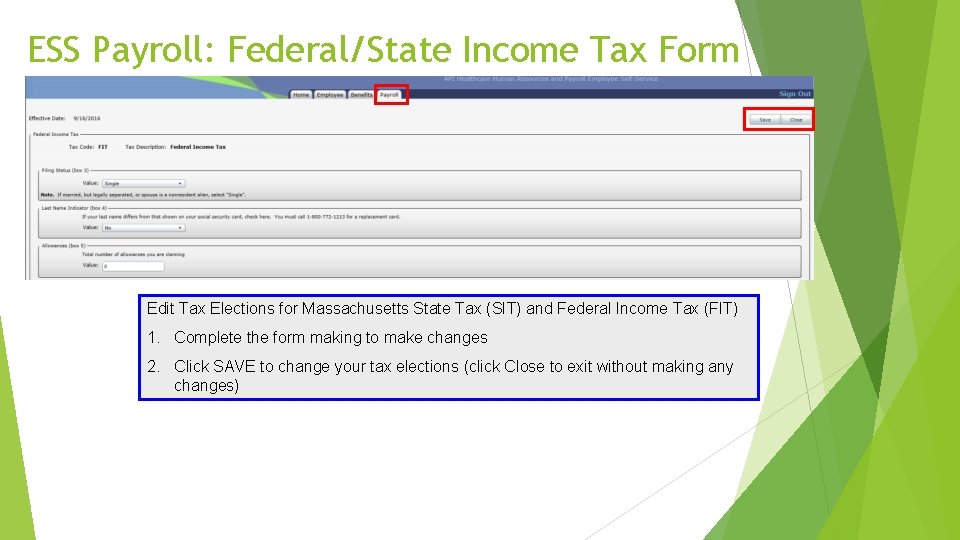
ESS Payroll: Federal/State Income Tax Form Edit Tax Elections for Massachusetts State Tax (SIT) and Federal Income Tax (FIT) 1. Complete the form making to make changes 2. Click SAVE to change your tax elections (click Close to exit without making any changes)
- Slides: 16