
Empirical Model Empirical Models in MATLAB supports curve

Empirical Model
Empirical Models in MATLAB supports curve fitting through the: ØBasic Fitting interface ØCurve Fitting Toolbox
The basic fitting interface is designed so that you can: üFit data using a spline interpolant, a shape-preserving interpolant, or a polynomial up to degree 10. üPlot multiple fits simultaneously for a given data set. üPlot the fit residuals. üExamine the numerical results of a fit. üEvaluate (interpolate or extrapolate) a fit. üAnnotate the plot with the numerical fit results and the norm of residuals. üSave the fit and evaluated results to the MATLAB workspace. You can use the Basic Fitting interface only with 2 -D data. However, if you plot multiple data sets as a subplot, and at least one data set is 2 -D, then the interface is enabled.
Overview of the Basic Fitting Interface The full Basic Fitting interface is shown below. To reproduce this state, follow these three steps: 1. Plot some data 2. Select Basic Fitting from the Tools menu 3. Click the button twice.
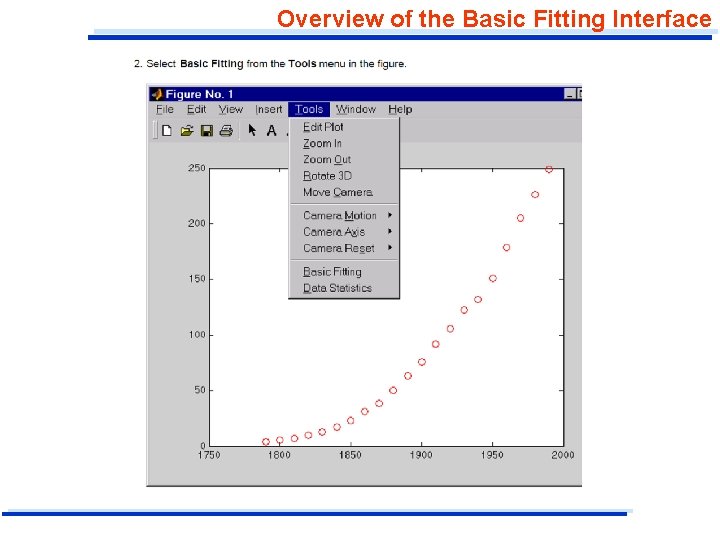
Overview of the Basic Fitting Interface
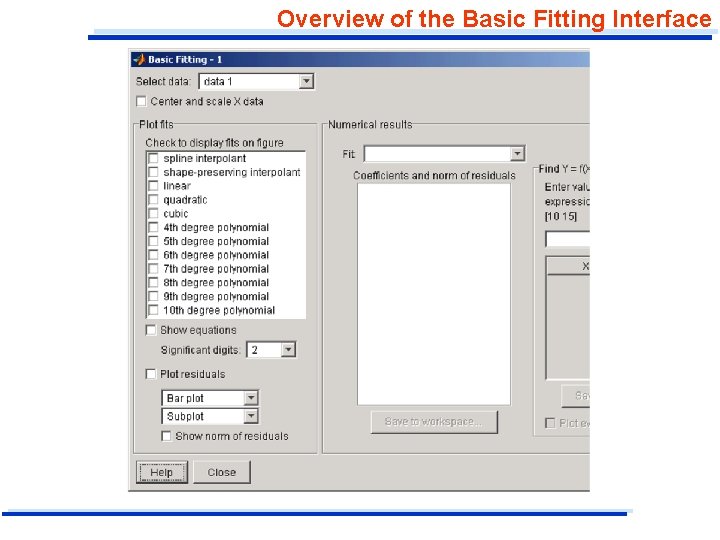
Overview of the Basic Fitting Interface
Example using the Basic Fitting Interface 1. Import data. There are two different possibility: a) Select the current directory in which the data are located; File>Import Data… (after you selected the data, Matlab open the window “Import Wizard” b) Alternatively, you can import your file data by the icon “Import data” located on the workspace 2. Obtain the two vector column t and Log. N
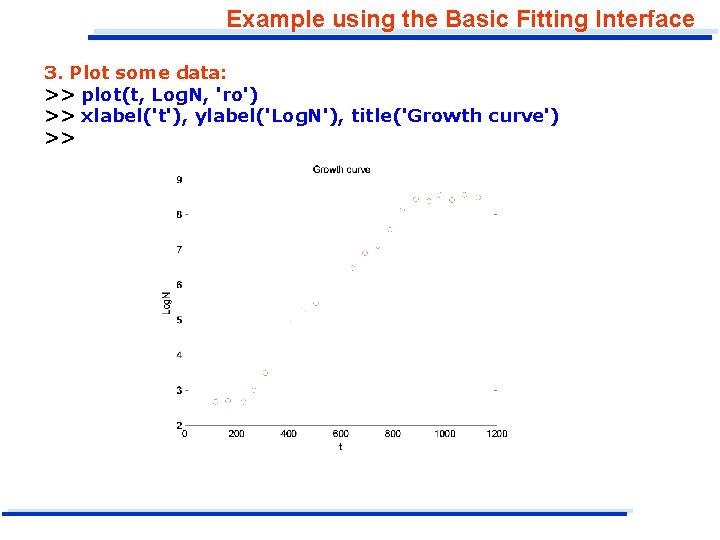
Example using the Basic Fitting Interface 3. Plot some data: >> plot(t, Log. N, 'ro') >> xlabel('t'), ylabel('Log. N'), title('Growth curve') >>
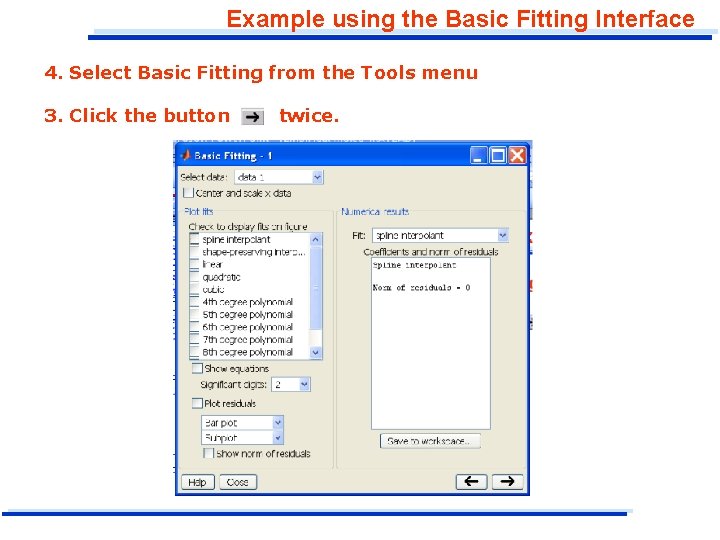
Example using the Basic Fitting Interface 4. Select Basic Fitting from the Tools menu 3. Click the button twice.

Example using the Basic Fitting Interface INTERPOLATION ü Tick “spline interpolant”
Example using the Basic Fitting Interface Regression curve Configure the Basic Fitting interface to: ü Fit the best polynomial function to the data ü Display the equation in the data plot ü Plot the fit residuals as a bar plot, and display the residuals as a subplot of the data figure window ü Display the norm of the residuals
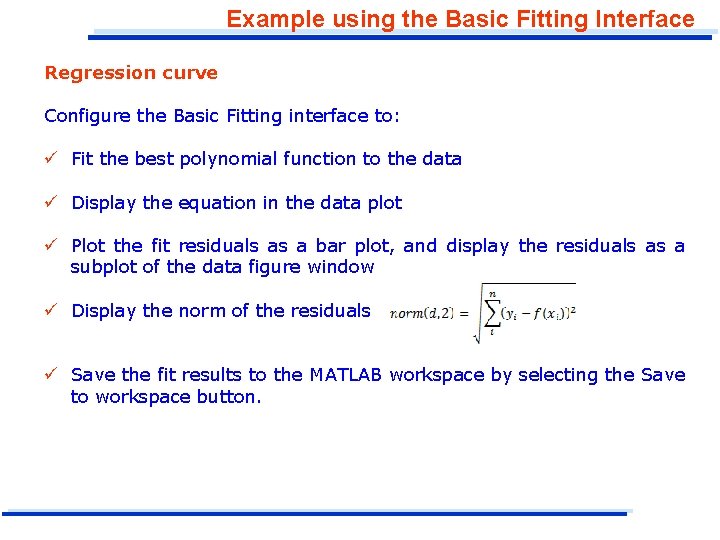
Example using the Basic Fitting Interface Regression curve Configure the Basic Fitting interface to: ü Fit the best polynomial function to the data ü Display the equation in the data plot ü Plot the fit residuals as a bar plot, and display the residuals as a subplot of the data figure window ü Display the norm of the residuals ü Save the fit results to the MATLAB workspace by selecting the Save to workspace button.
- Slides: 12