
EMBEDDED SYSTEMS Week 9 Assist Prof Rassim Suliyev
EMBEDDED SYSTEMS Week 9 Assist. Prof. Rassim Suliyev - SDU 2018
Remotely Controlling Devices interact with almost any device that uses some form of remote control TVs, audio equipment, cameras, garage doors, appliances, and toys remote controls work by sending digital data from a transmitter to a receiver infrared light (IR) or wireless radio technology different protocols (signal patterns) used translate key presses into a digital signal
IR remote works by turning an LED on and off in patterns produce unique codes are typically 12 to 32 bits Each key on the remote is associated with a specific code that is transmitted when the key is pressed If the key is held down, the remote usually sends the same code repeatedly some remotes (e. g. , NEC) send a special repeat code when a key is held down
IR remote low-cost IR receiver module detect the signal and provide a digital output that the Arduino can read digital output is then decoded by a library called IRremote same library is used when Arduino sends commands to act like a remote control to install the library, place it in the folder named libraries in your Arduino sketch folder
Wireless radio technology more difficult to emulate than IR controls button contacts on these controls can be activated by Arduino simulate button presses by closing the button contacts circuit inside the remote control need to take apart the remote control and connect wires from the contacts to Arduino isolation prevents voltages from Arduino from harming the remote control, and vice versa
Optocouplers Components called optocouplers are used to provide electrical separation between Arduino and the remote control enable you to safely control another circuit provide a way to keep things electrically separated contain an LED, which can be controlled by an Arduino digital pin light from the LED in the optocoupler shines onto a light-sensitive transistor
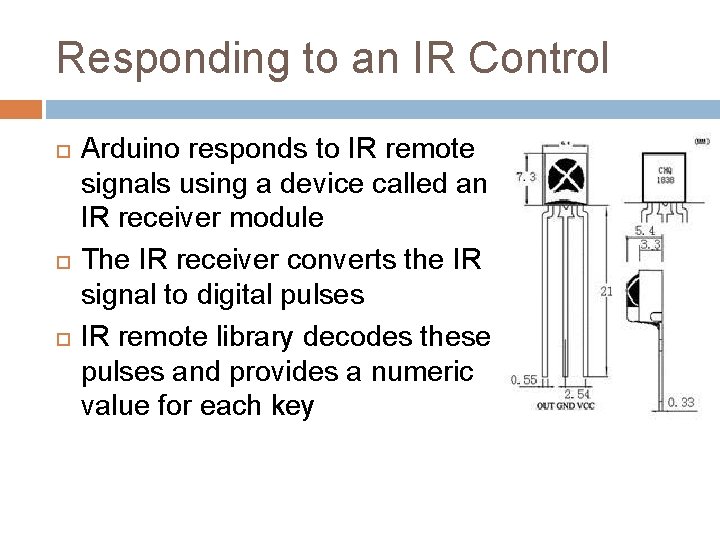
Responding to an IR Control Arduino responds to IR remote signals using a device called an IR receiver module The IR receiver converts the IR signal to digital pulses IR remote library decodes these pulses and provides a numeric value for each key
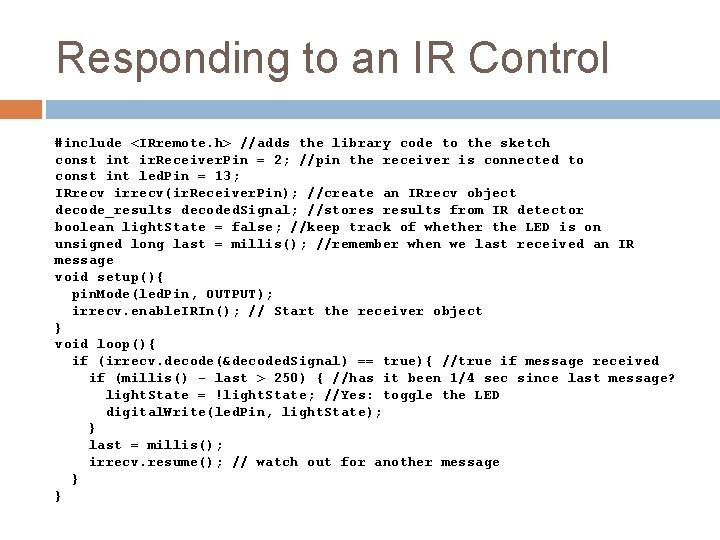
Responding to an IR Control #include <IRremote. h> //adds the library code to the sketch const int ir. Receiver. Pin = 2; //pin the receiver is connected to const int led. Pin = 13; IRrecv irrecv(ir. Receiver. Pin); //create an IRrecv object decode_results decoded. Signal; //stores results from IR detector boolean light. State = false; //keep track of whether the LED is on unsigned long last = millis(); //remember when we last received an IR message void setup(){ pin. Mode(led. Pin, OUTPUT); irrecv. enable. IRIn(); // Start the receiver object } void loop(){ if (irrecv. decode(&decoded. Signal) == true){ //true if message received if (millis() - last > 250) { //has it been 1/4 sec since last message? light. State = !light. State; //Yes: toggle the LED digital. Write(led. Pin, light. State); } last = millis(); irrecv. resume(); // watch out for another message } }
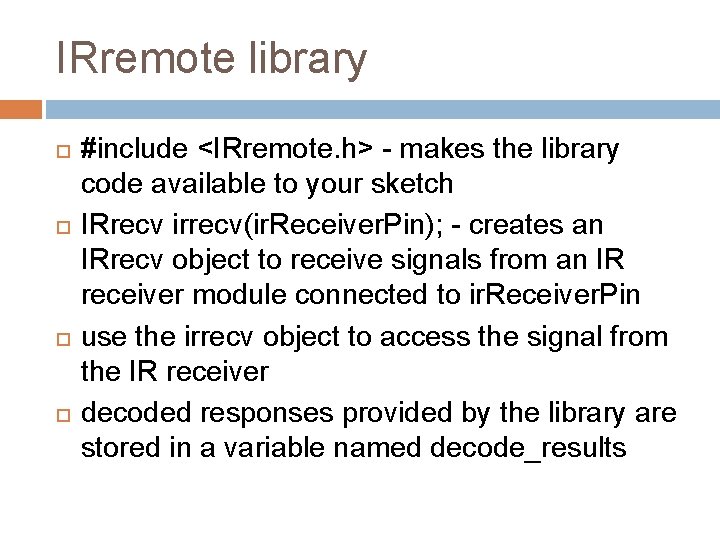
IRremote library #include <IRremote. h> - makes the library code available to your sketch IRrecv irrecv(ir. Receiver. Pin); - creates an IRrecv object to receive signals from an IR receiver module connected to ir. Receiver. Pin use the irrecv object to access the signal from the IR receiver decoded responses provided by the library are stored in a variable named decode_results
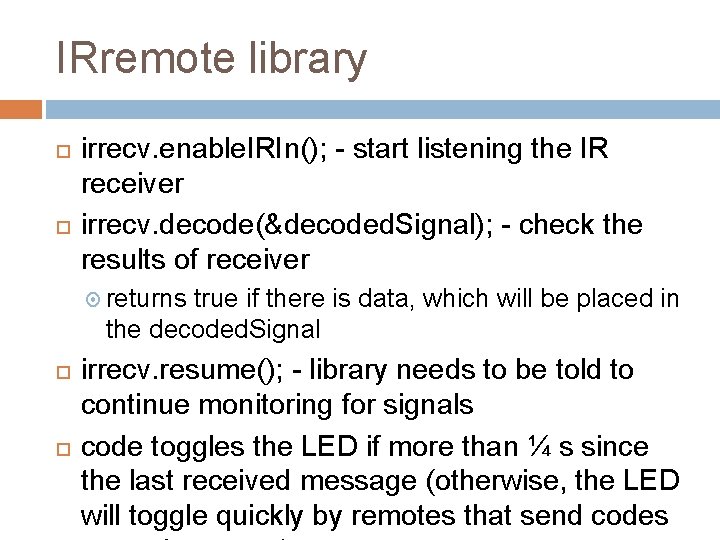
IRremote library irrecv. enable. IRIn(); - start listening the IR receiver irrecv. decode(&decoded. Signal); - check the results of receiver returns true if there is data, which will be placed in the decoded. Signal irrecv. resume(); - library needs to be told to continue monitoring for signals code toggles the LED if more than ¼ s since the last received message (otherwise, the LED will toggle quickly by remotes that send codes
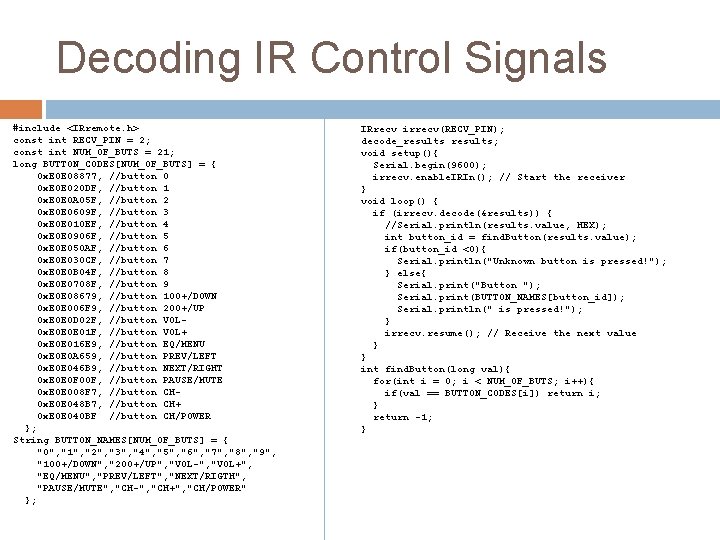
Decoding IR Control Signals #include <IRremote. h> const int RECV_PIN = 2; const int NUM_OF_BUTS = 21; long BUTTON_CODES[NUM_OF_BUTS] = { 0 x. E 0 E 08877, //button 0 0 x. E 0 E 020 DF, //button 1 0 x. E 0 E 0 A 05 F, //button 2 0 x. E 0 E 0609 F, //button 3 0 x. E 0 E 010 EF, //button 4 0 x. E 0 E 0906 F, //button 5 0 x. E 0 E 050 AF, //button 6 0 x. E 0 E 030 CF, //button 7 0 x. E 0 E 0 B 04 F, //button 8 0 x. E 0 E 0708 F, //button 9 0 x. E 0 E 08679, //button 100+/DOWN 0 x. E 0 E 006 F 9, //button 200+/UP 0 x. E 0 E 0 D 02 F, //button VOL 0 x. E 0 E 0 E 01 F, //button VOL+ 0 x. E 0 E 016 E 9, //button EQ/MENU 0 x. E 0 E 0 A 659, //button PREV/LEFT 0 x. E 0 E 046 B 9, //button NEXT/RIGHT 0 x. E 0 E 0 F 00 F, //button PAUSE/MUTE 0 x. E 0 E 008 F 7, //button CH 0 x. E 0 E 048 B 7, //button CH+ 0 x. E 0 E 040 BF //button CH/POWER }; String BUTTON_NAMES[NUM_OF_BUTS] = { "0", "1", "2", "3", "4", "5", "6", "7", "8", "9", "100+/DOWN", "200+/UP", "VOL-", "VOL+", "EQ/MENU", "PREV/LEFT", "NEXT/RIGTH", "PAUSE/MUTE", "CH-", "CH+", "CH/POWER" }; IRrecv irrecv(RECV_PIN); decode_results; void setup(){ Serial. begin(9600); irrecv. enable. IRIn(); // Start the receiver } void loop() { if (irrecv. decode(&results)) { //Serial. println(results. value, HEX); int button_id = find. Button(results. value); if(button_id <0){ Serial. println("Unknown button is pressed!"); } else{ Serial. print("Button "); Serial. print(BUTTON_NAMES[button_id]); Serial. println(" is pressed!"); } irrecv. resume(); // Receive the next value } } int find. Button(long val){ for(int i = 0; i < NUM_OF_BUTS; i++){ if(val == BUTTON_CODES[i]) return i; } return -1; }
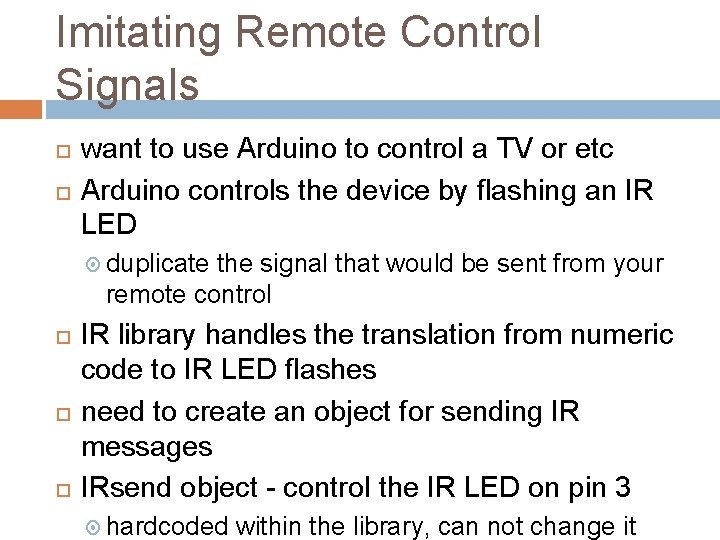
Imitating Remote Control Signals want to use Arduino to control a TV or etc Arduino controls the device by flashing an IR LED duplicate the signal that would be sent from your remote control IR library handles the translation from numeric code to IR LED flashes need to create an object for sending IR messages IRsend object - control the IR LED on pin 3 hardcoded within the library, can not change it
Imitating Remote Control Signals irsend. Sony(code, nob); - send code in sony format which has nob bits ir. Send object has different functions for various popular infrared code formats check the library documentation for other formats Each character in hex represents a 4 -bit value The codes here use eight characters, so they are 32 bits long
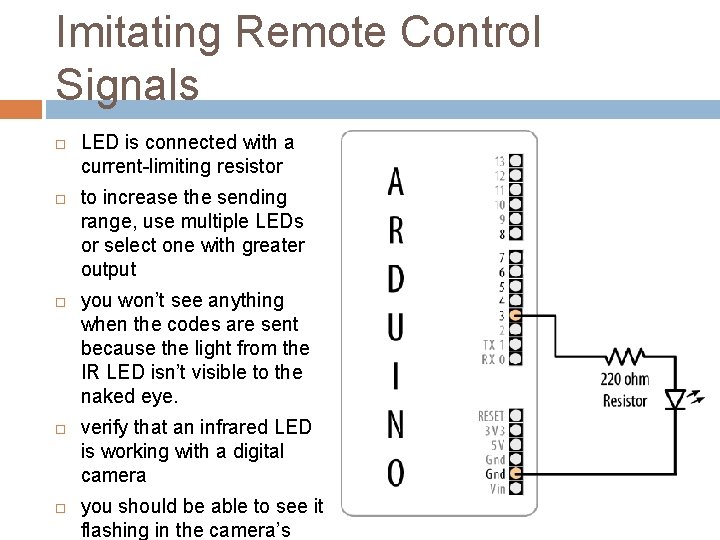
Imitating Remote Control Signals LED is connected with a current-limiting resistor to increase the sending range, use multiple LEDs or select one with greater output you won’t see anything when the codes are sent because the light from the IR LED isn’t visible to the naked eye. verify that an infrared LED is working with a digital camera you should be able to see it flashing in the camera’s
![Imitating Remote Control Signals #include <IRremote. h> const int NUM_OF_BUTS = 21; long BUTTON_CODES[NUM_OF_BUTS]](http://slidetodoc.com/presentation_image_h2/5aa24901a48520407983a350e4ca309e/image-15.jpg "Imitating Remote Control Signals #include <IRremote. h> const int NUM_OF_BUTS = 21; long BUTTON_CODES[NUM_OF_BUTS]")
Imitating Remote Control Signals #include <IRremote. h> const int NUM_OF_BUTS = 21; long BUTTON_CODES[NUM_OF_BUTS] = { 0 x. E 0 E 08877, //button 0 0 x. E 0 E 020 DF, //button 1 0 x. E 0 E 0 A 05 F, //button 2 0 x. E 0 E 0609 F, //button 3 0 x. E 0 E 010 EF, //button 4 0 x. E 0 E 0906 F, //button 5 0 x. E 0 E 050 AF, //button 6 0 x. E 0 E 030 CF, //button 7 0 x. E 0 E 0 B 04 F, //button 8 0 x. E 0 E 0708 F, //button 9 0 x. E 0 E 08679, //button 100+/DOWN 0 x. E 0 E 006 F 9, //button 200+/UP 0 x. E 0 E 0 D 02 F, //button VOL 0 x. E 0 E 0 E 01 F, //button VOL+ 0 x. E 0 E 016 E 9, //button EQ/MENU 0 x. E 0 E 0 A 659, //button PREV/LEFT 0 x. E 0 E 046 B 9, //button NEXT/RIGHT 0 x. E 0 E 0 F 00 F, //button PAUSE/MUTE 0 x. E 0 E 008 F 7, //button CH 0 x. E 0 E 048 B 7, //button CH+ 0 x. E 0 E 040 BF //button CH/POWER }; IRsend irsend; void setup(){ } void loop() { for (int i = 0; i < NUM_OF_BUTS; i++) { irsend. Sony(BUTTON_CODES[i], 32); delay(40); //half second delay between each signal burst } }
Liquid crystal displays (LCD) offer a convenient and inexpensive way to provide a user interface for a project is the text panel that displays two or four lines of text, with 16 or 20 characters per line library for driving LCD is provided with Arduino can do more than display simple text can be scrolled or highlighted can display special symbols and non-English characters
LCD vs. Graphical Display create your own symbols and block graphics with a text LCD small resolution (5 x 9, 7 x 12, 8 x 16) graphical LCD has fine graphical details can display up to eight lines of 20 text characters in addition to graphics
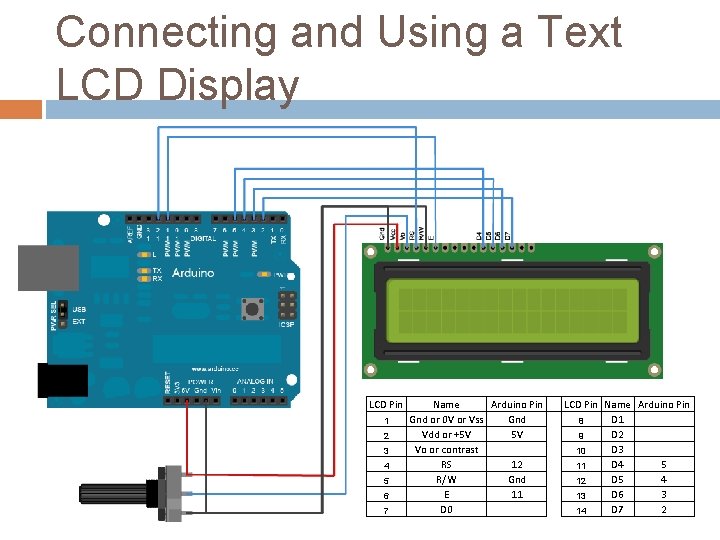
Connecting and Using a Text LCD Display LCD Pin 1 2 3 4 5 6 7 Name Arduino Pin Gnd or 0 V or Vss Gnd Vdd or +5 V 5 V Vo or contrast RS 12 R/W Gnd E 11 D 0 LCD Pin Name Arduino Pin D 1 8 D 2 9 D 3 10 D 4 5 11 D 5 4 12 D 6 3 13 D 7 2 14
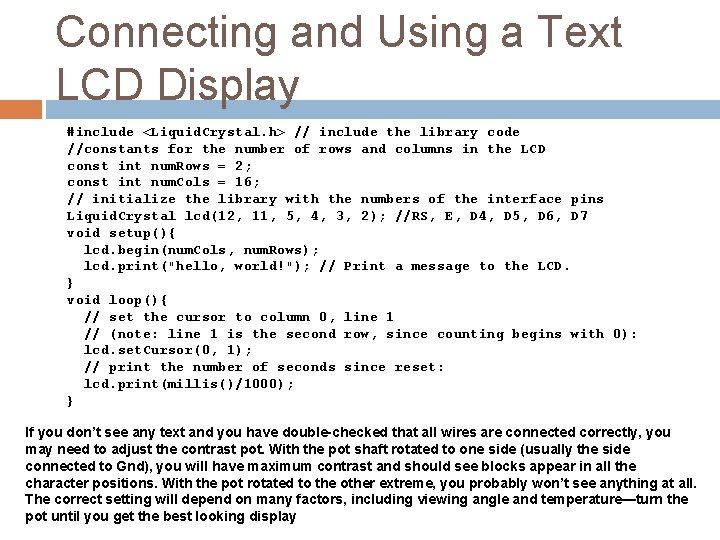
Connecting and Using a Text LCD Display #include <Liquid. Crystal. h> // include the library code //constants for the number of rows and columns in the LCD const int num. Rows = 2; const int num. Cols = 16; // initialize the library with the numbers of the interface pins Liquid. Crystal lcd(12, 11, 5, 4, 3, 2); //RS, E, D 4, D 5, D 6, D 7 void setup(){ lcd. begin(num. Cols, num. Rows); lcd. print("hello, world!"); // Print a message to the LCD. } void loop(){ // set the cursor to column 0, line 1 // (note: line 1 is the second row, since counting begins with 0): lcd. set. Cursor(0, 1); // print the number of seconds since reset: lcd. print(millis()/1000); } If you don’t see any text and you have double-checked that all wires are connected correctly, you may need to adjust the contrast pot. With the pot shaft rotated to one side (usually the side connected to Gnd), you will have maximum contrast and should see blocks appear in all the character positions. With the pot rotated to the other extreme, you probably won’t see anything at all. The correct setting will depend on many factors, including viewing angle and temperature—turn the pot until you get the best looking display
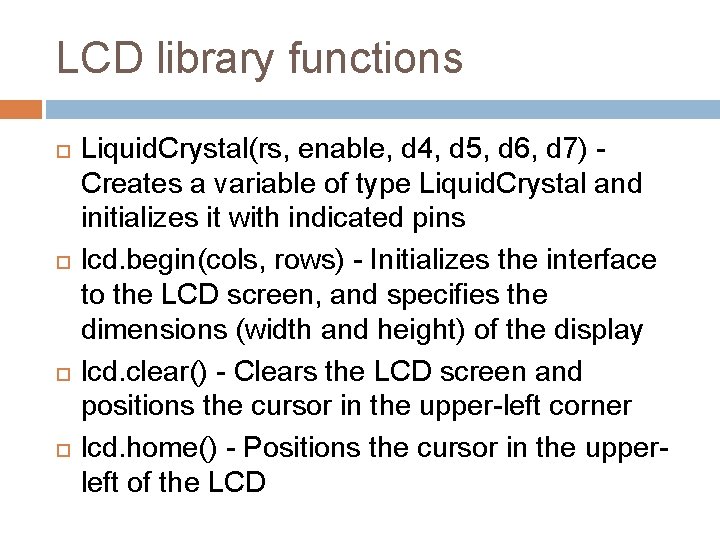
LCD library functions Liquid. Crystal(rs, enable, d 4, d 5, d 6, d 7) Creates a variable of type Liquid. Crystal and initializes it with indicated pins lcd. begin(cols, rows) - Initializes the interface to the LCD screen, and specifies the dimensions (width and height) of the display lcd. clear() - Clears the LCD screen and positions the cursor in the upper-left corner lcd. home() - Positions the cursor in the upperleft of the LCD
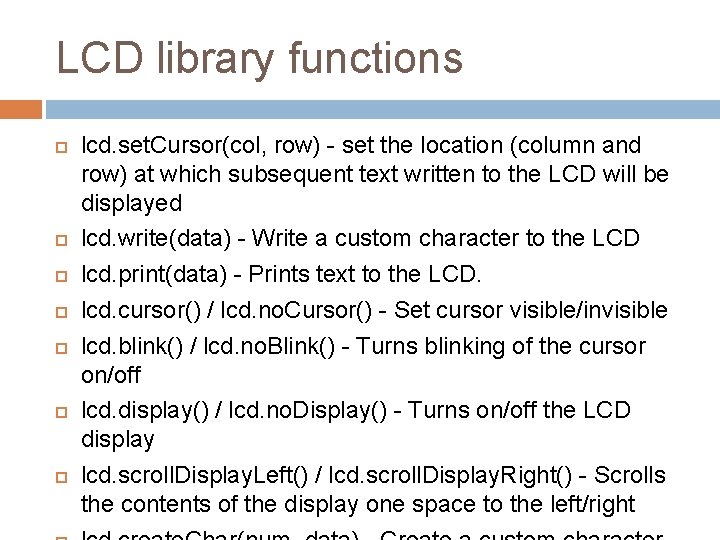
LCD library functions lcd. set. Cursor(col, row) - set the location (column and row) at which subsequent text written to the LCD will be displayed lcd. write(data) - Write a custom character to the LCD lcd. print(data) - Prints text to the LCD. lcd. cursor() / lcd. no. Cursor() - Set cursor visible/invisible lcd. blink() / lcd. no. Blink() - Turns blinking of the cursor on/off lcd. display() / lcd. no. Display() - Turns on/off the LCD display lcd. scroll. Display. Left() / lcd. scroll. Display. Right() - Scrolls the contents of the display one space to the left/right
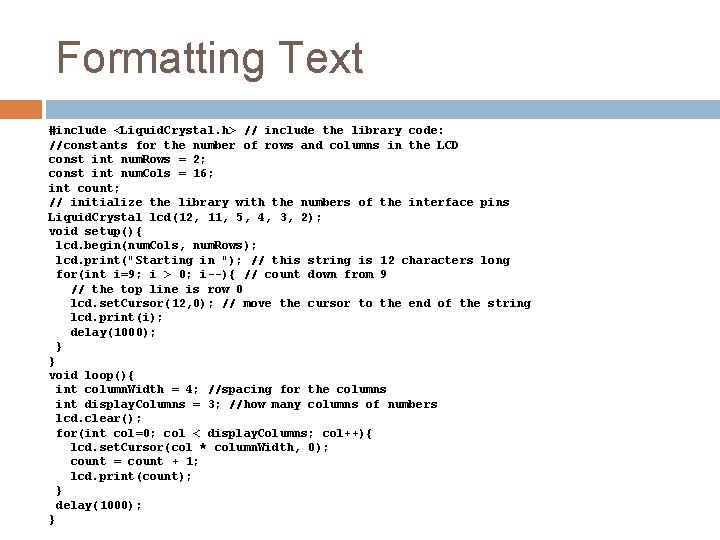
Formatting Text #include <Liquid. Crystal. h> // include the library code: //constants for the number of rows and columns in the LCD const int num. Rows = 2; const int num. Cols = 16; int count; // initialize the library with the numbers of the interface pins Liquid. Crystal lcd(12, 11, 5, 4, 3, 2); void setup(){ lcd. begin(num. Cols, num. Rows); lcd. print("Starting in "); // this string is 12 characters long for(int i=9; i > 0; i--){ // count down from 9 // the top line is row 0 lcd. set. Cursor(12, 0); // move the cursor to the end of the string lcd. print(i); delay(1000); } } void loop(){ int column. Width = 4; //spacing for the columns int display. Columns = 3; //how many columns of numbers lcd. clear(); for(int col=0; col < display. Columns; col++){ lcd. set. Cursor(col * column. Width, 0); count = count + 1; lcd. print(count); } delay(1000); }
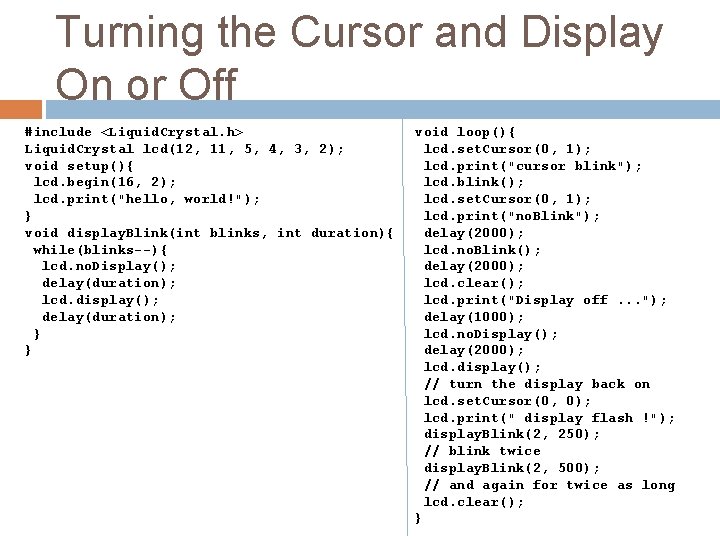
Turning the Cursor and Display On or Off #include <Liquid. Crystal. h> Liquid. Crystal lcd(12, 11, 5, 4, 3, 2); void setup(){ lcd. begin(16, 2); lcd. print("hello, world!"); } void display. Blink(int blinks, int duration){ while(blinks--){ lcd. no. Display(); delay(duration); lcd. display(); delay(duration); } } void loop(){ lcd. set. Cursor(0, 1); lcd. print("cursor blink"); lcd. blink(); lcd. set. Cursor(0, 1); lcd. print("no. Blink"); delay(2000); lcd. no. Blink(); delay(2000); lcd. clear(); lcd. print("Display off. . . "); delay(1000); lcd. no. Display(); delay(2000); lcd. display(); // turn the display back on lcd. set. Cursor(0, 0); lcd. print(" display flash !"); display. Blink(2, 250); // blink twice display. Blink(2, 500); // and again for twice as long lcd. clear(); }
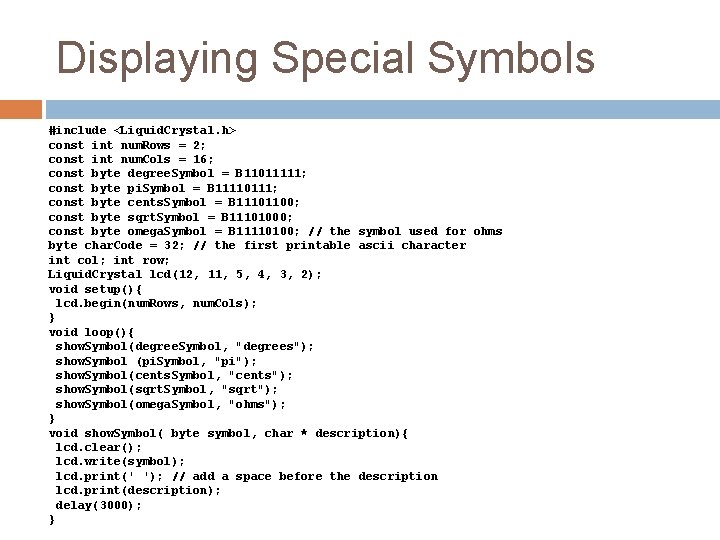
Displaying Special Symbols #include <Liquid. Crystal. h> const int num. Rows = 2; const int num. Cols = 16; const byte degree. Symbol = B 11011111; const byte pi. Symbol = B 11110111; const byte cents. Symbol = B 11101100; const byte sqrt. Symbol = B 11101000; const byte omega. Symbol = B 11110100; // the symbol used for ohms byte char. Code = 32; // the first printable ascii character int col; int row; Liquid. Crystal lcd(12, 11, 5, 4, 3, 2); void setup(){ lcd. begin(num. Rows, num. Cols); } void loop(){ show. Symbol(degree. Symbol, "degrees"); show. Symbol (pi. Symbol, "pi"); show. Symbol(cents. Symbol, "cents"); show. Symbol(sqrt. Symbol, "sqrt"); show. Symbol(omega. Symbol, "ohms"); } void show. Symbol( byte symbol, char * description){ lcd. clear(); lcd. write(symbol); lcd. print(' '); // add a space before the description lcd. print(description); delay(3000); }
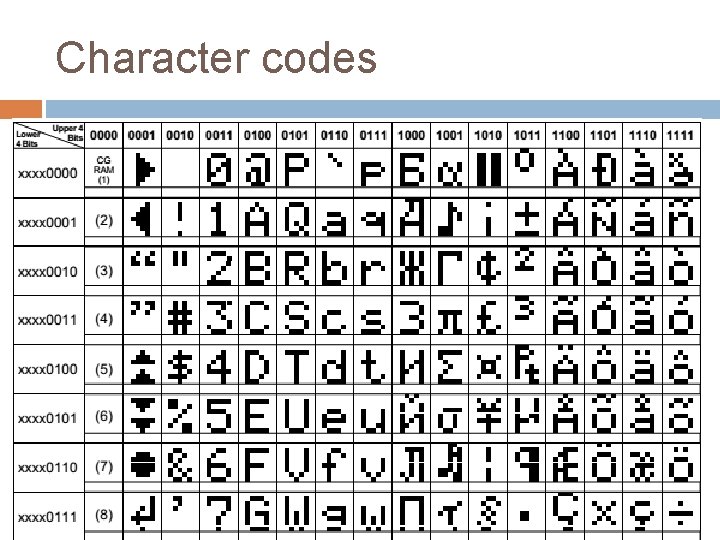
Character codes
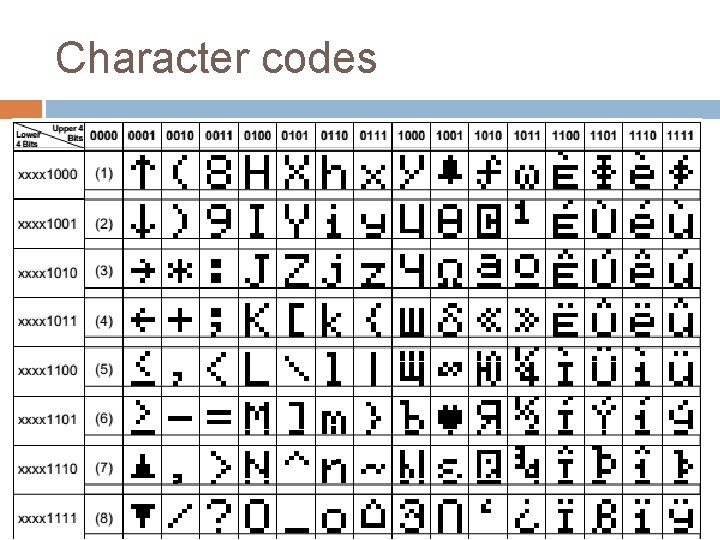
Character codes
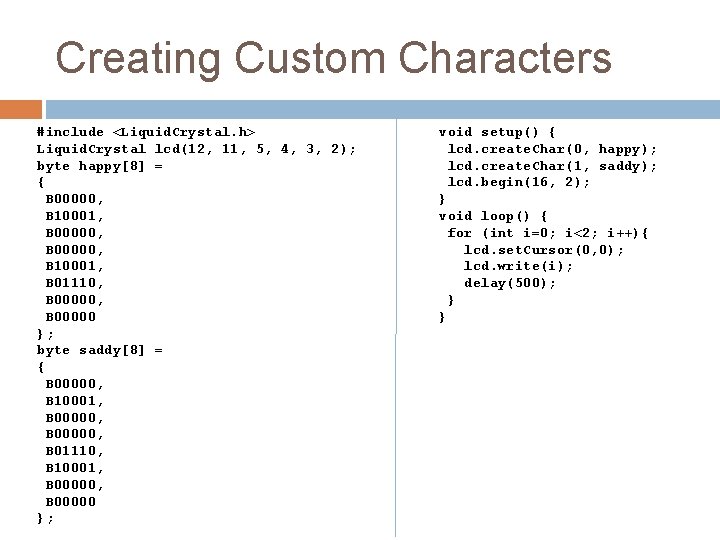
Creating Custom Characters #include <Liquid. Crystal. h> Liquid. Crystal lcd(12, 11, 5, 4, 3, 2); byte happy[8] = { B 00000, B 10001, B 01110, B 00000 }; byte saddy[8] = { B 00000, B 10001, B 00000, B 01110, B 10001, B 00000 }; void setup() { lcd. create. Char(0, happy); lcd. create. Char(1, saddy); lcd. begin(16, 2); } void loop() { for (int i=0; i<2; i++){ lcd. set. Cursor(0, 0); lcd. write(i); delay(500); } }
- Slides: 27