
Email Features Help Adding Attachments Adding Auto Signatures

- Slides: 21
Email Features Help (Adding Attachments) (Adding Auto Signatures) (Setting Priorities)
Adding Attachments • What are attachments? • Attachments are an easy way of sending your contacts pictures, folders, or other files. All you do is add them onto your email and your contact will be able to open them up.
Adding Attachments • Why are attachments useful? • Attachments are useful as you can send different types of files to your contacts. It’s a fast and easy way of sending different types of files.
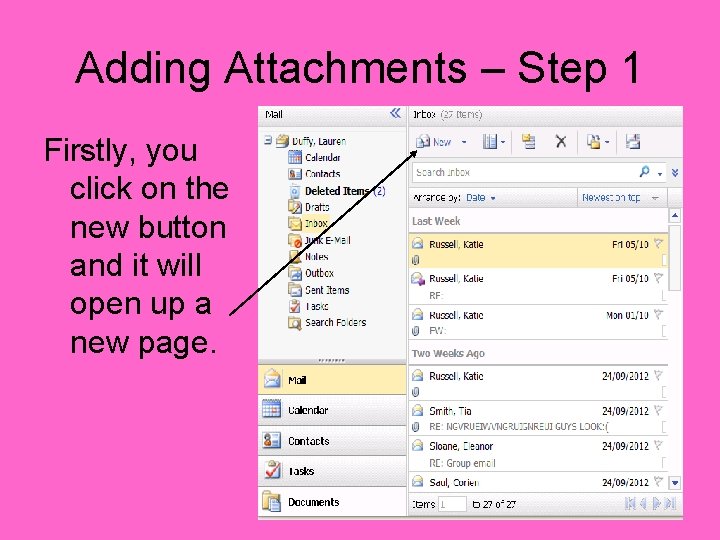
Adding Attachments – Step 1 Firstly, you click on the new button and it will open up a new page.
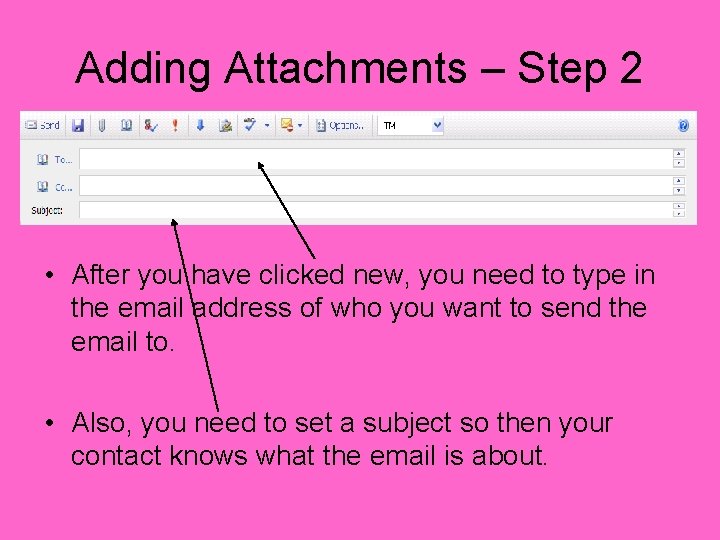
Adding Attachments – Step 2 • After you have clicked new, you need to type in the email address of who you want to send the email to. • Also, you need to set a subject so then your contact knows what the email is about.
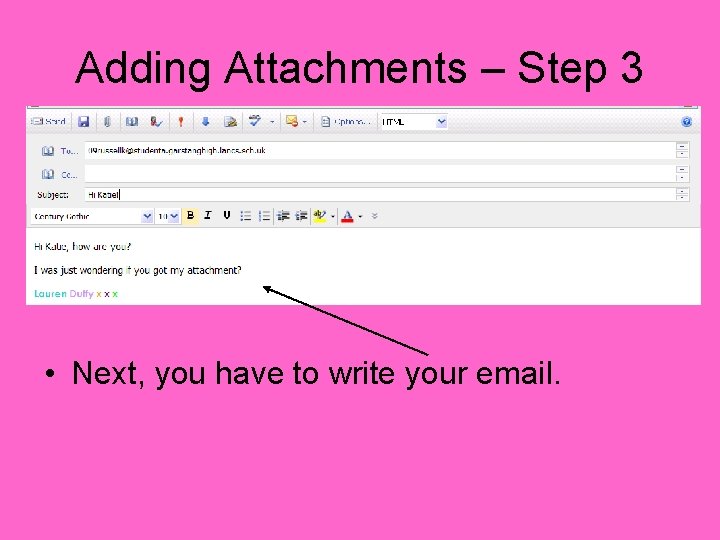
Adding Attachments – Step 3 • Next, you have to write your email.
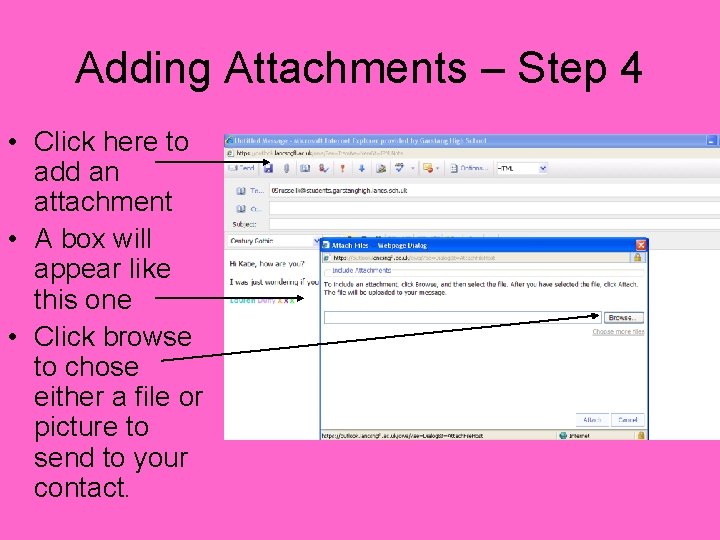
Adding Attachments – Step 4 • Click here to add an attachment • A box will appear like this one • Click browse to chose either a file or picture to send to your contact.
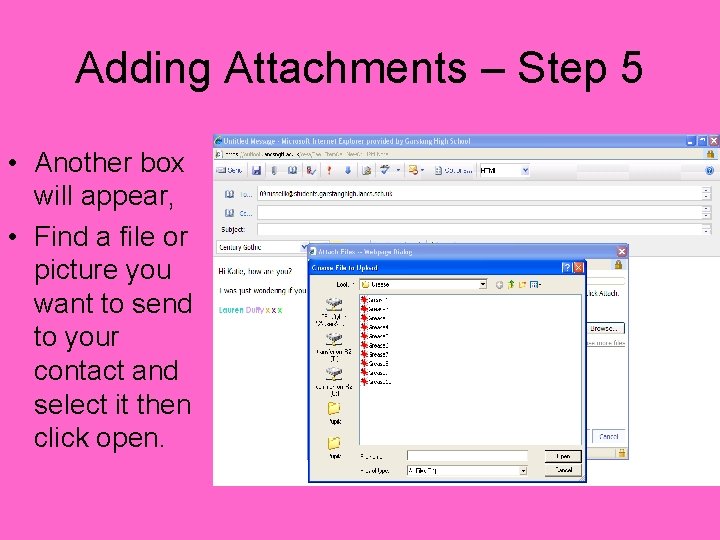
Adding Attachments – Step 5 • Another box will appear, • Find a file or picture you want to send to your contact and select it then click open.
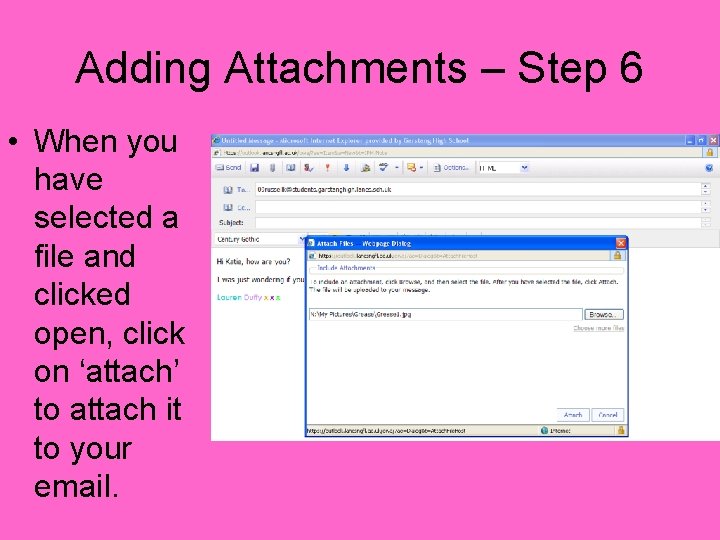
Adding Attachments – Step 6 • When you have selected a file and clicked open, click on ‘attach’ to attach it to your email.
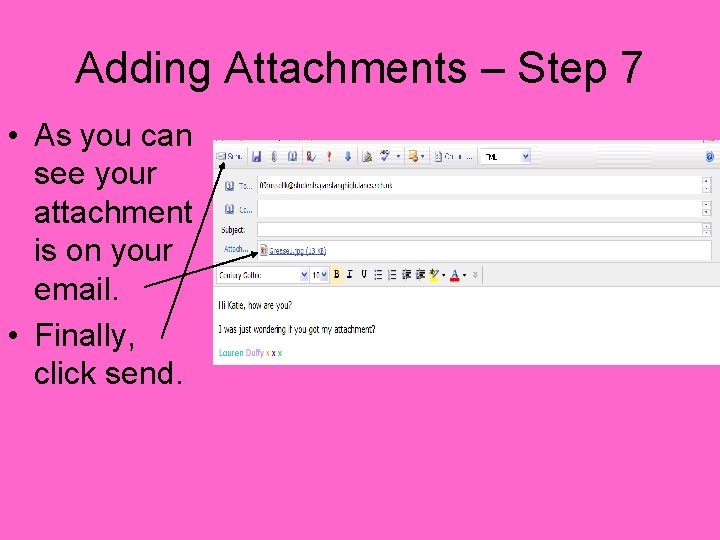
Adding Attachments – Step 7 • As you can see your attachment is on your email. • Finally, click send.
Adding Auto Signatures
Adding Auto Signatures • What are Auto Signatures? • Auto Signatures are where you set your signature to come up automatically on your email.
Adding Auto Signatures • Why are Auto Signatures useful? • Auto Signatures are useful because every time you go to send an email it means that you don’t have to type your signature in every time, it automatically pops up on your emails.
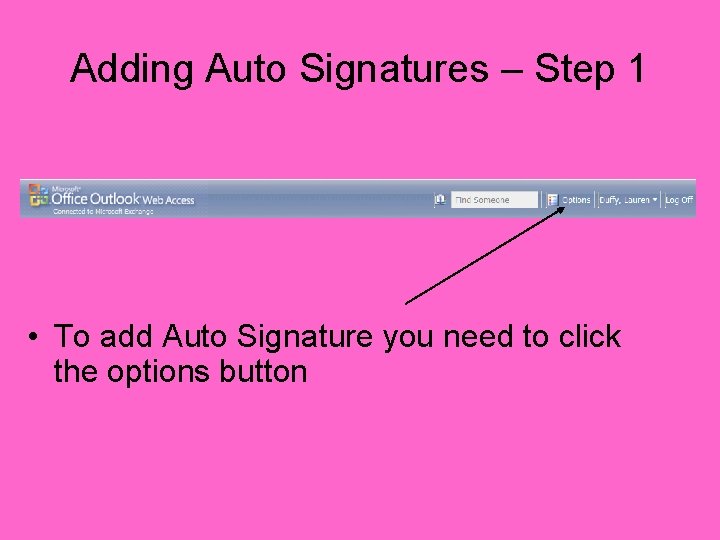
Adding Auto Signatures – Step 1 • To add Auto Signature you need to click the options button
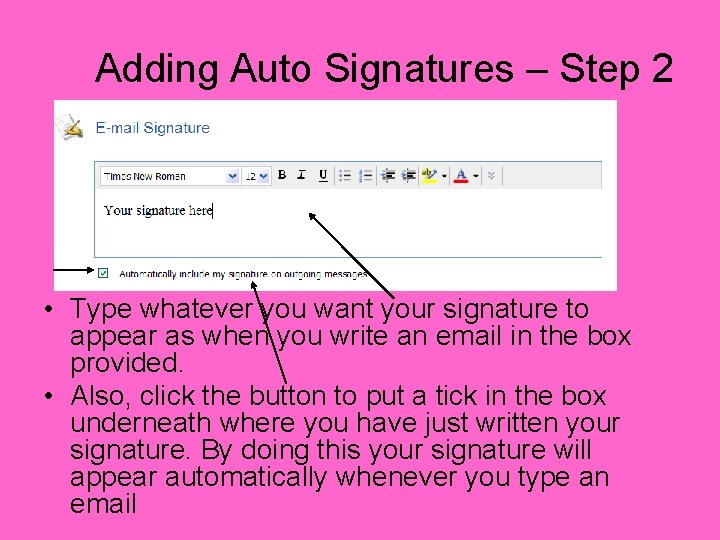
Adding Auto Signatures – Step 2 • Type whatever you want your signature to appear as when you write an email in the box provided. • Also, click the button to put a tick in the box underneath where you have just written your signature. By doing this your signature will appear automatically whenever you type an email
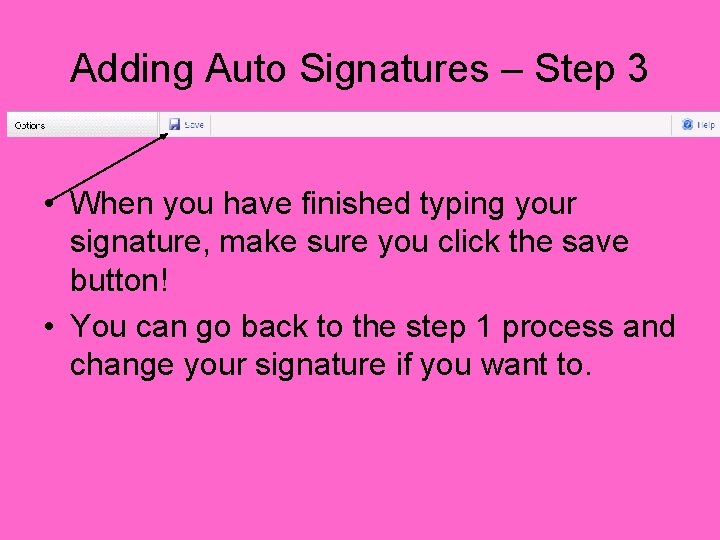
Adding Auto Signatures – Step 3 • When you have finished typing your signature, make sure you click the save button! • You can go back to the step 1 process and change your signature if you want to.
Setting Priorities
Setting Priorities • What are Setting Priorities? • Setting Priorities are when you send an email and you want to make it important so you click a button which sends the email to the top of your contacts list.
Setting Priorities • Why are Setting Priorities useful? • Setting Priorities are useful because if your email is important it will alert your contact when they go to their inbox to check their emails.
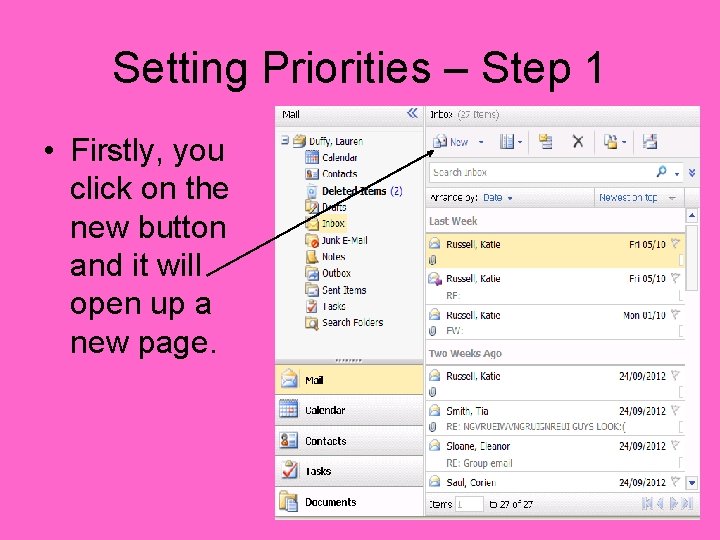
Setting Priorities – Step 1 • Firstly, you click on the new button and it will open up a new page.
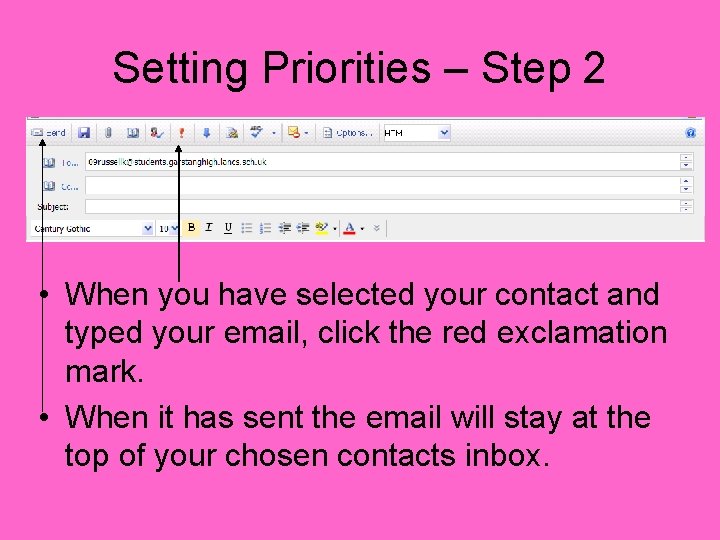
Setting Priorities – Step 2 • When you have selected your contact and typed your email, click the red exclamation mark. • When it has sent the email will stay at the top of your chosen contacts inbox.