
Electronic Official Personnel Folder for Employees e OPF
- Slides: 17
Electronic Official Personnel Folder for Employees e. OPF
What is e. OPF? • The e. OPF is the digitized re-creation of your hard copy Official Personnel File (OPF) which is currently the official record of your federal work career. • e. OPF allows each employee to have an electronic access to their own personnel folder. Some unique system features include: • Provides secure access to employment documents/official forms and information to a geographically dispersed workforce, • Supports a multi-level secure environment, • Eliminates loss of an employee’s official personnel folder during filing and/or routing , • Reduces costs associated with storage, maintenance, and retrieval of records, • Complies with Office of Personnel Management (OPM) and federally mandated HR employee record management regulations , and • Delivers system generated email notification to employee.
Accessing your e. OPF • You can only access e. OPF from a Government computer with internet access on a Government installation/location • The e. OPF login is not CAC enabled, when you create your password it only lasts for 60 days so remember to update it when needed. https: //eopf. opm. gov/nationalguard/ • You will need to request you e. OPF ID • Once you request your e. OPF ID you will receive an email with the ID • You will request a new password by clicking on the “Request a New Password” link on the e. OPF Login page. An email is then sent with a password reset link, a reset token, and instructions to the email address of record in e. OPF. The token is valid for 15 minutes. When you click on the reset link, you will be prompted to enter their e. OPF ID and token. Once submitted, you will create a new password.
What is in my e. OPF? • The documents that were in your hard copy OPF. • Human Resources documents - some examples are as follows: SF 50 s, SF 52 s, Position Description(s), resume(s), and any other supporting documentation for hiring actions. • Benefits Forms. • Performance Documents. • Military Forms, e. g. , DD-214.
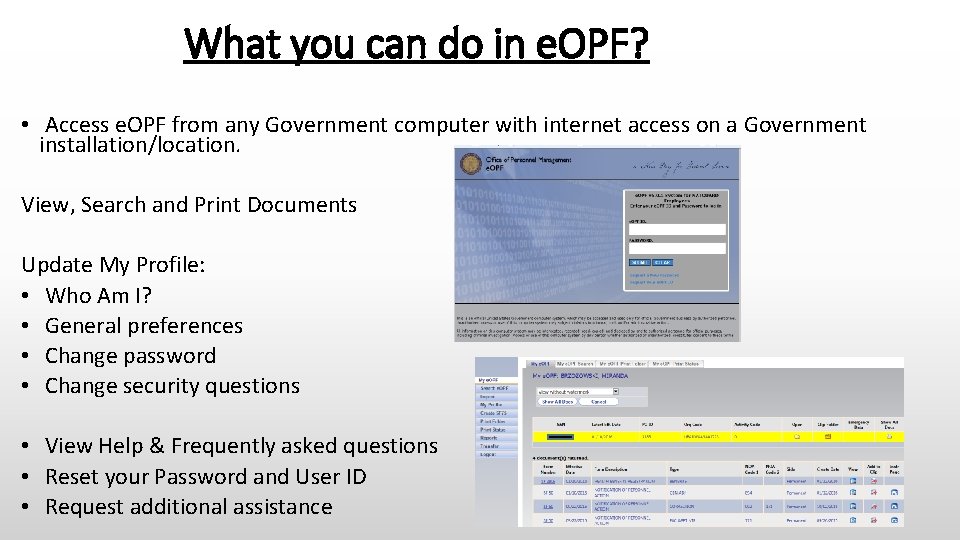
What you can do in e. OPF? • Access e. OPF from any Government computer with internet access on a Government installation/location. View, Search and Print Documents Update My Profile: • Who Am I? • General preferences • Change password • Change security questions • View Help & Frequently asked questions • Reset your Password and User ID • Request additional assistance
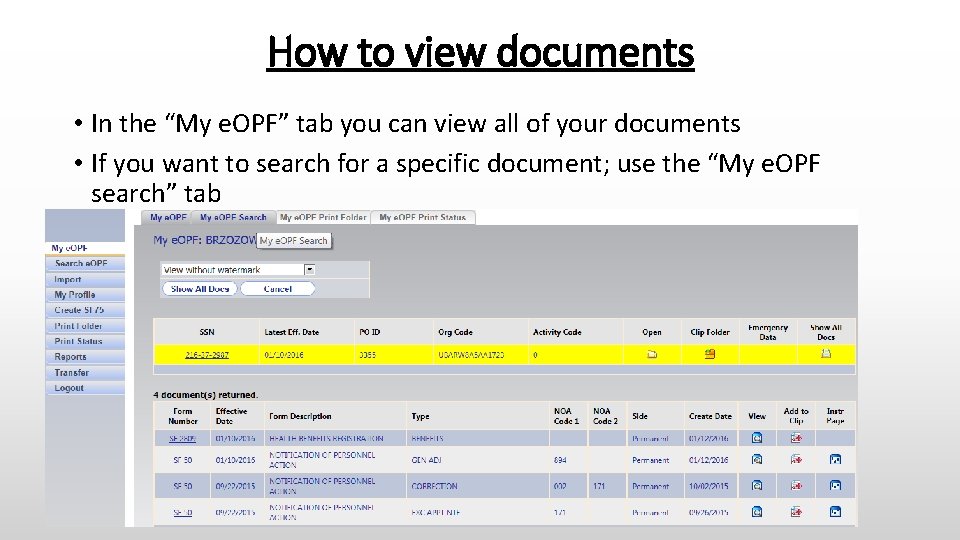
How to view documents • In the “My e. OPF” tab you can view all of your documents • If you want to search for a specific document; use the “My e. OPF search” tab
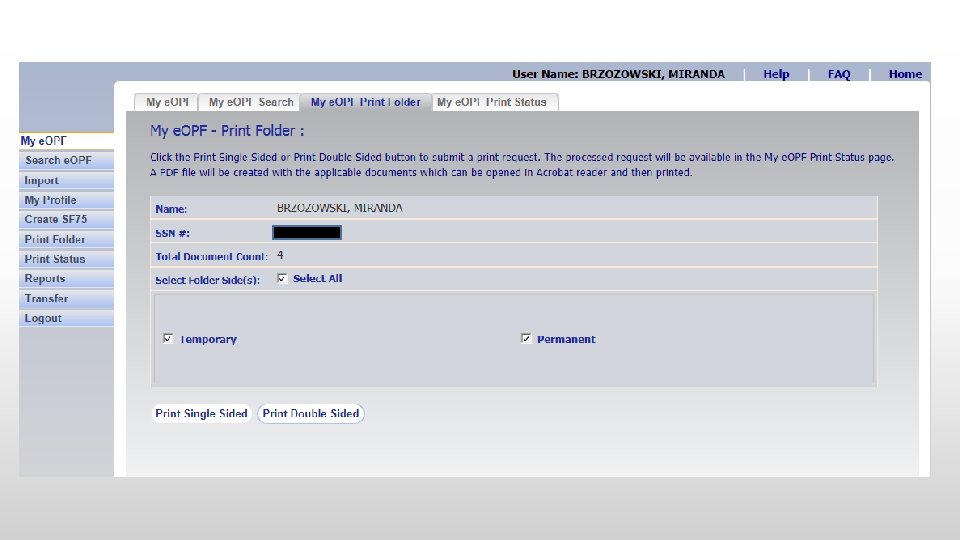
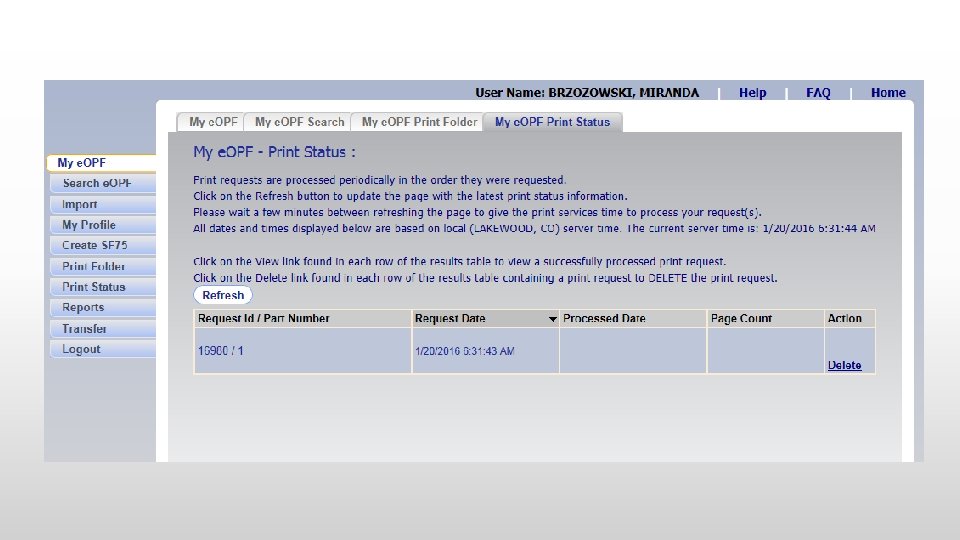
How to print your documents • You can view and/or print all documents from your e. OPF. • To print one document you can click the view button and print it from the pdf file • To print your entire folder go to the “My e. OPF Print Folder” tab then click “Print Single sided” then your print request will be forwarded to the print queue “my e. OPF print status”
Print status feature • Printing has been modified for ‘Print Folder’, ‘Show All Docs in My e. OPF’, ‘Show All Docs in Search e. OPF’, and ‘Clip Folders’. • Users submit a print request which is handled by a dedicated print service. • Once a print job is completed, a bulk PDF file is created - the images (bulk PDF) are retained for an agency determined period of time (default of 7 days) before being purged. • Users will be provided a list of their own requests.
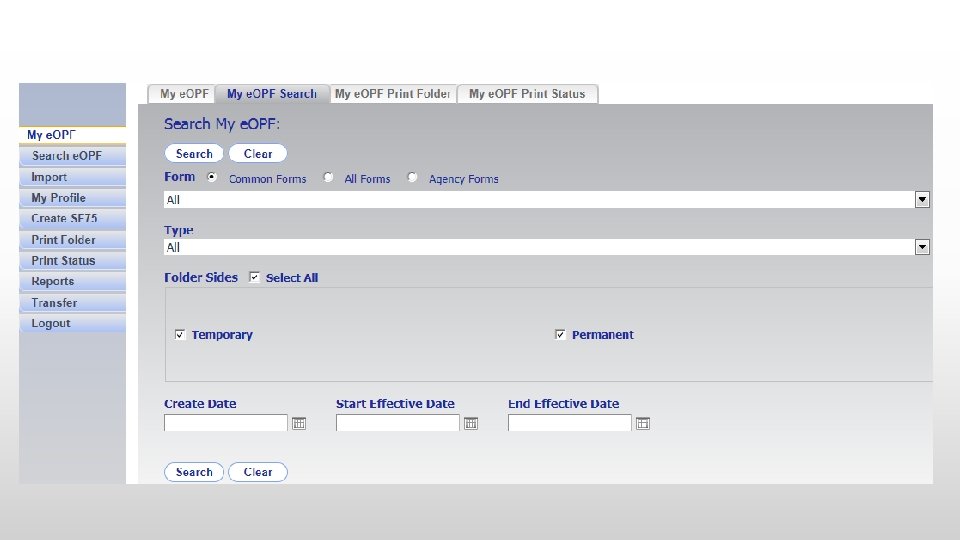
Searching documents • You can search for specific documents in the “My e. OPF Search” tab • Select the “Common Forms” option and use the drop down menus for the exact type of file you want to view
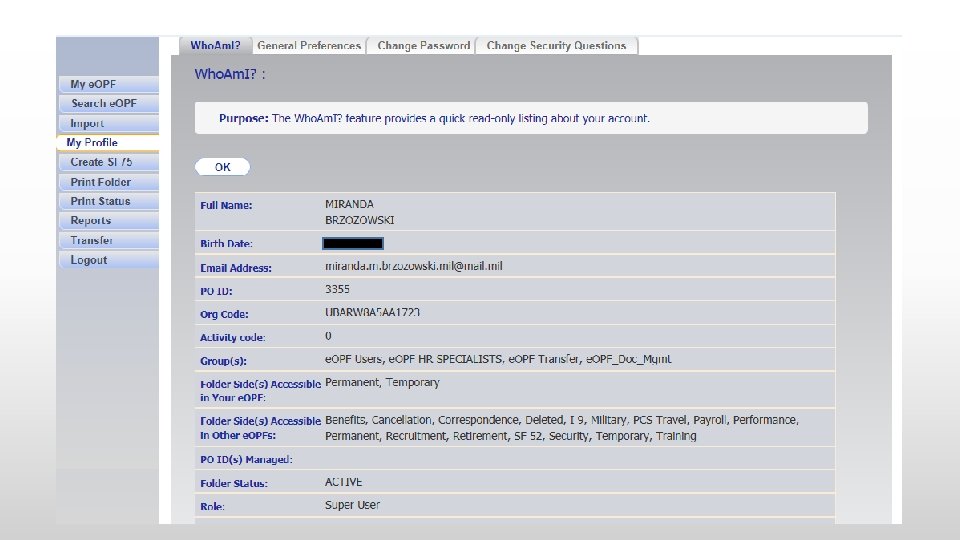
My Profile • A read-only view of a users own e. OPF account • Information regarding the employee’s profile will help troubleshoot issues regarding privileges and access to folders. • In “My Profile” you can change your General preference, password and security questions • The “OK” button will return the user to the e. OPF welcome page.
What happens to my records when I leave the agency? • Your personnel records are normally transferred to the National Personnel Records Center within 120 days after an employee's separation from Federal employment • When an employee leaves, the losing personnel office sends interagency personnel records to the next Federal employer. If the employee is leaving Federal service, the losing personnel office sends interagency personnel records to the National Personnel Records Center. When an employee separates from Federal service, the folders are stored by NPRC, National Personnel Records Center until retention requirements expire. Folders are retained for 65 years from date of last separation from Federal employment. • http: //www. archives. gov/st-louis/civilian-personnel/index. html
What if I need help? • e. OPF has an online help that you can view by clicking the word 'Help' at the top of most pages within the web site. The instructions in Help can be printed. If you are having system problems, please contact the e. OPF Help Desk. The e. OPF Help Desk can be contacted using the following methods: • Email: eopf_hd@telesishq. com Phone: 866 -275 -8518
e. OPF Summary • You can use any Government computer with internet access and on Government installations/locations to view your e. OPF documents. • You can view and print documents when ever you need them. • You will need Internet Explorer and Adobe Acrobat Reader version 6 or later.