
Election Commission of India Election Monitoring Dashboard Objective
Election Commission of India Election Monitoring Dashboard
Objective : Computerized tracking of the election process with the critically important objective of being able to take timely action in real time. Activity can be of predetermined nature or non-predetermined nature (eg. Incidents of violence). Both types of events need to trigger action on getting recorded into the system. Automatic Alert system(by Web, SMS and Email etc) Automatic sending of SMSs to the persons who are not reporting within scheduled / expected time limits. Automatic sending of SMSs to police stations, magistrates etc. on receipt of reports of events like violence etc. from polling booths, sector officers etc Current Poll day Activities Critical Incident.
Roles • Election Commissioners Can monitor the whole monitoring system online. • Chief electoral officer Can monitor the whole monitoring system online. Fill the Officer Information details Manage Division, Zone and Range • District Election officer DEO is responsible to fill the other election related information.
Modules included: Election Officer Information Electoral roll Polling Station Polling Personnel Law & Order MCC Complaint information SVEEP Polling Incidence Live Webcasting Voter turnout EVM Election Expenditure
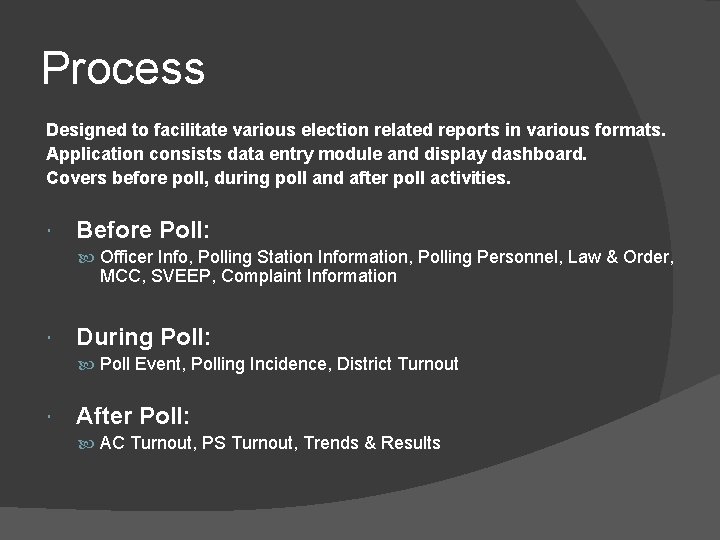
Process Designed to facilitate various election related reports in various formats. Application consists data entry module and display dashboard. Covers before poll, during poll and after poll activities. Before Poll: Officer Info, Polling Station Information, Polling Personnel, Law & Order, MCC, SVEEP, Complaint Information During Poll: Poll Event, Polling Incidence, District Turnout After Poll: AC Turnout, PS Turnout, Trends & Results
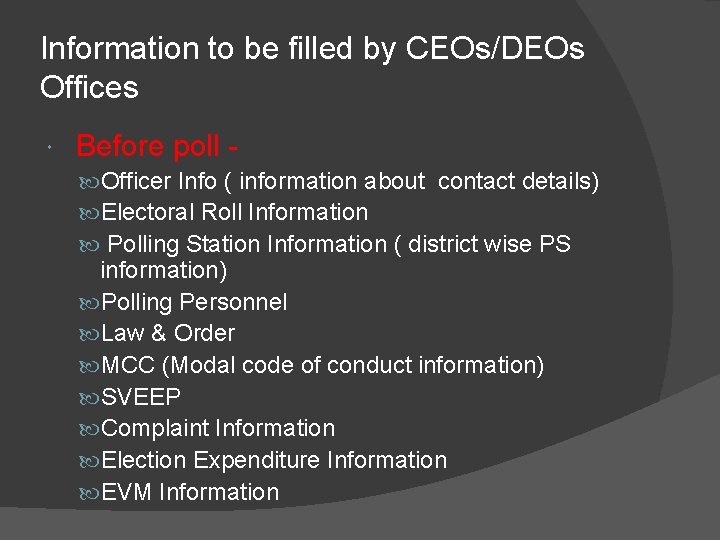
Information to be filled by CEOs/DEOs Offices Before poll Officer Info ( information about contact details) Electoral Roll Information Polling Station Information ( district wise PS information) Polling Personnel Law & Order MCC (Modal code of conduct information) SVEEP Complaint Information Election Expenditure Information EVM Information
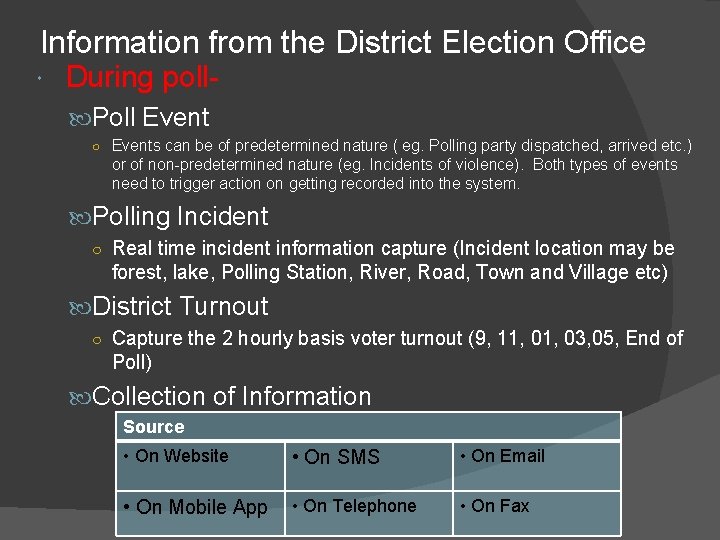
Information from the District Election Office During poll Poll Event ○ Events can be of predetermined nature ( eg. Polling party dispatched, arrived etc. ) or of non-predetermined nature (eg. Incidents of violence). Both types of events need to trigger action on getting recorded into the system. Polling Incident ○ Real time incident information capture (Incident location may be forest, lake, Polling Station, River, Road, Town and Village etc) District Turnout ○ Capture the 2 hourly basis voter turnout (9, 11, 03, 05, End of Poll) Collection of Information Source • On Website • On SMS • On Email • On Mobile App • On Telephone • On Fax
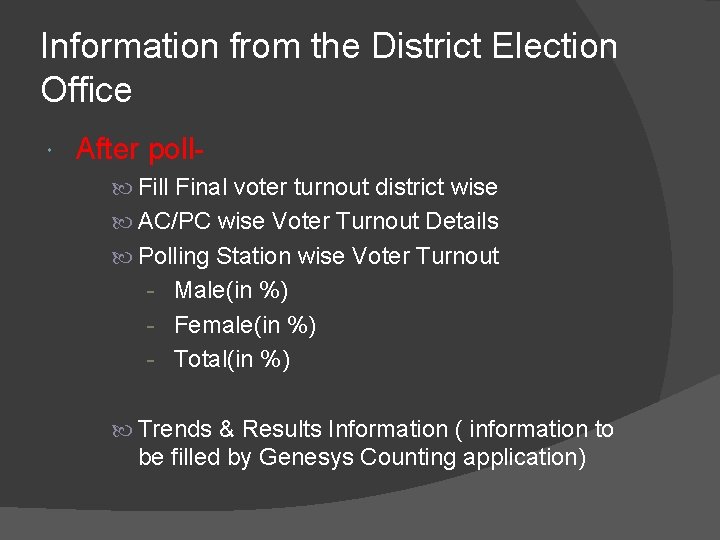
Information from the District Election Office After poll Final voter turnout district wise AC/PC wise Voter Turnout Details Polling Station wise Voter Turnout - Male(in %) - Female(in %) - Total(in %) Trends & Results Information ( information to be filled by Genesys Counting application)
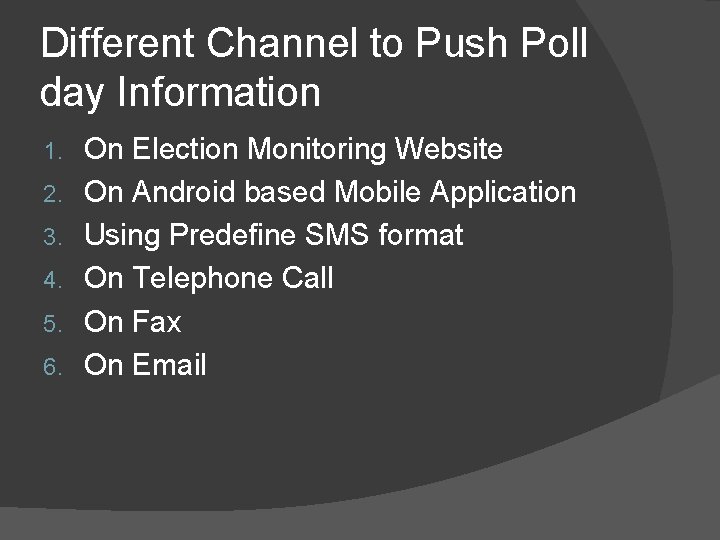
Different Channel to Push Poll day Information 1. 2. 3. 4. 5. 6. On Election Monitoring Website On Android based Mobile Application Using Predefine SMS format On Telephone Call On Fax On Email
Using Android based Mobile APP
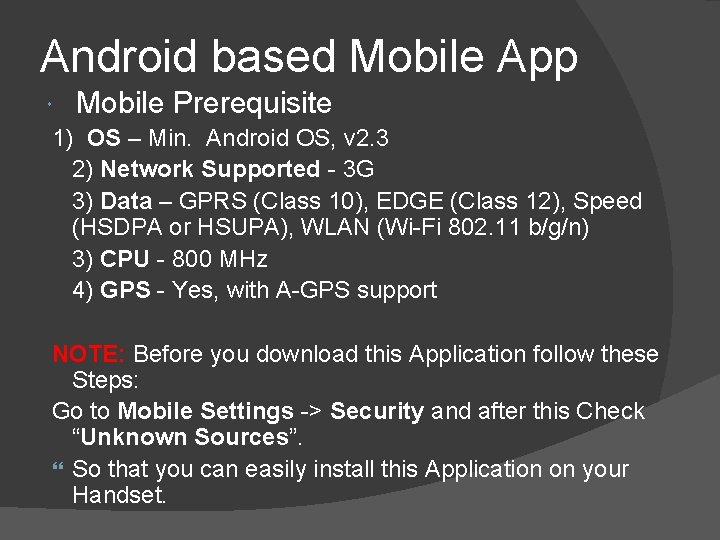
Android based Mobile App Mobile Prerequisite 1) OS – Min. Android OS, v 2. 3 2) Network Supported - 3 G 3) Data – GPRS (Class 10), EDGE (Class 12), Speed (HSDPA or HSUPA), WLAN (Wi-Fi 802. 11 b/g/n) 3) CPU - 800 MHz 4) GPS - Yes, with A-GPS support NOTE: Before you download this Application follow these Steps: Go to Mobile Settings -> Security and after this Check “Unknown Sources”. So that you can easily install this Application on your Handset.
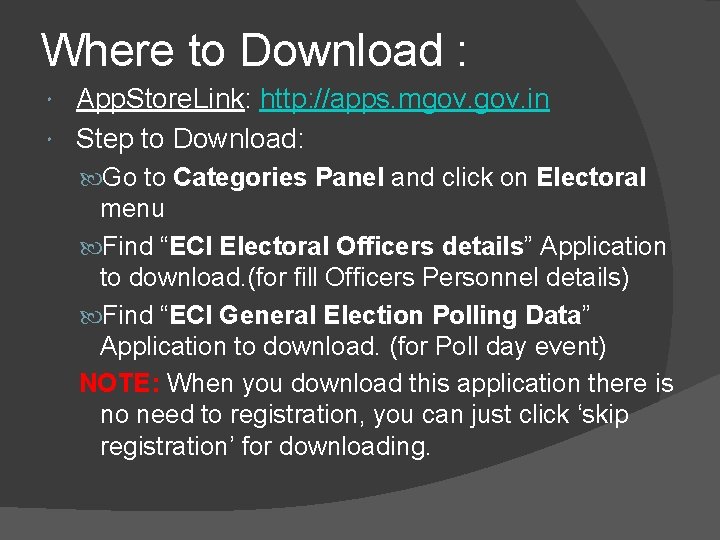
Where to Download : App. Store. Link: http: //apps. mgov. in Step to Download: Go to Categories Panel and click on Electoral menu Find “ECI Electoral Officers details” Application to download. (for fill Officers Personnel details) Find “ECI General Election Polling Data” Application to download. (for Poll day event) NOTE: When you download this application there is no need to registration, you can just click ‘skip registration’ for downloading.
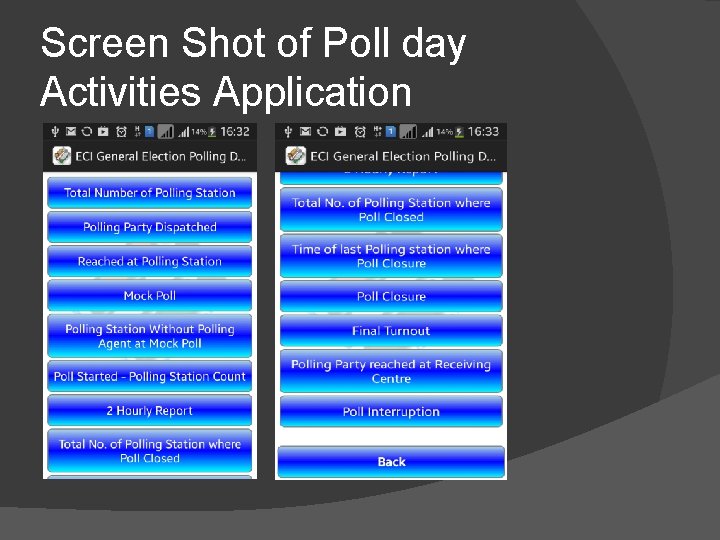
Screen Shot of Poll day Activities Application
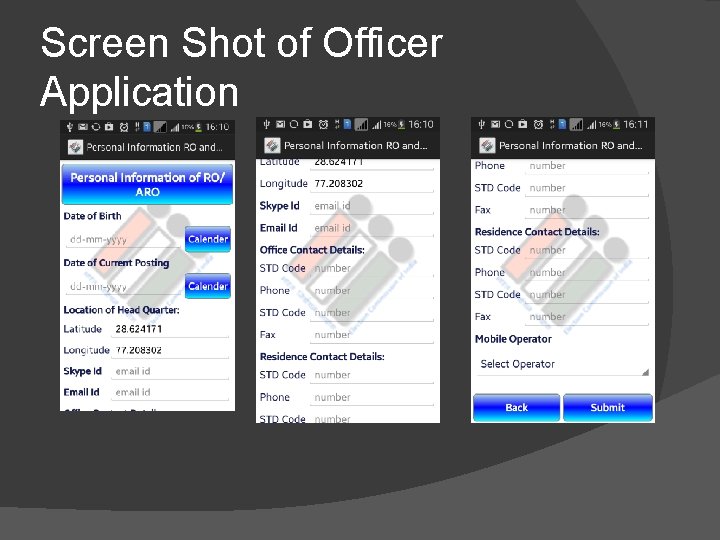
Screen Shot of Officer Application
Using Simple Text Message (SMS)
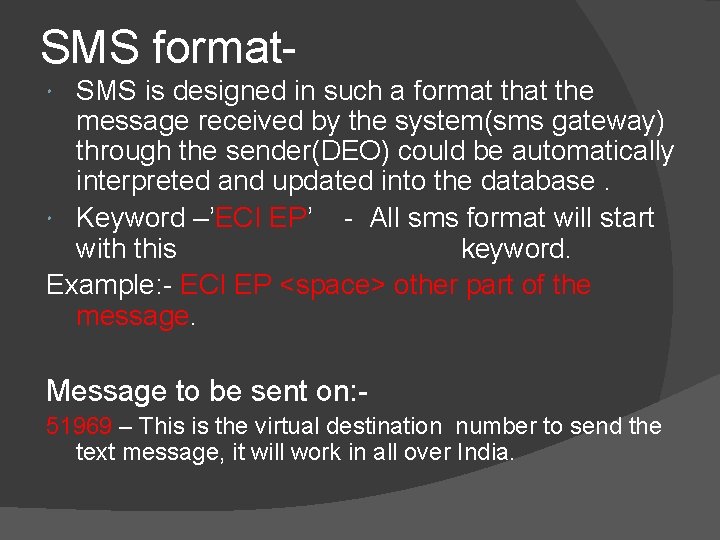
SMS format. SMS is designed in such a format the message received by the system(sms gateway) through the sender(DEO) could be automatically interpreted and updated into the database. Keyword –’ECI EP’ - All sms format will start with this keyword. Example: - ECI EP <space> other part of the message. Message to be sent on: 51969 – This is the virtual destination number to send the text message, it will work in all over India.
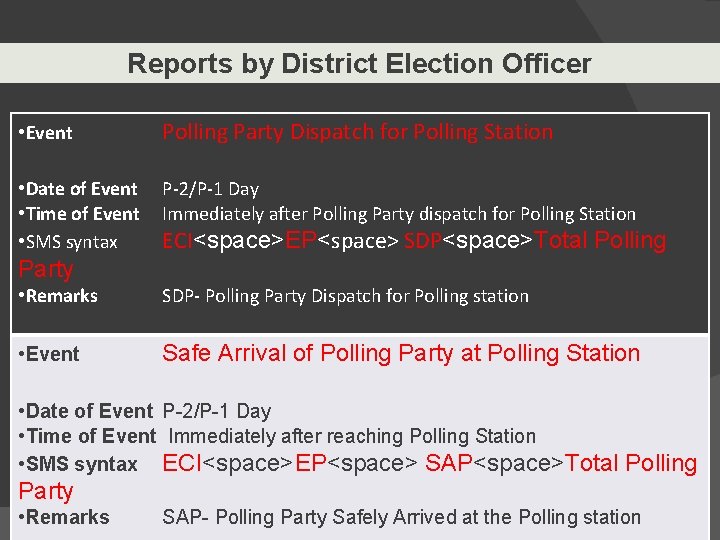
Reports by District Election Officer • Event Polling Party Dispatch for Polling Station • Date of Event • Time of Event • SMS syntax P-2/P-1 Day Immediately after Polling Party dispatch for Polling Station ECI<space>EP<space> SDP<space>Total Polling Party • Remarks SDP- Polling Party Dispatch for Polling station • Event Safe Arrival of Polling Party at Polling Station • Date of Event P-2/P-1 Day • Time of Event Immediately after reaching Polling Station • SMS syntax ECI<space>EP<space> SAP<space>Total Polling Party • Remarks SAP- Polling Party Safely Arrived at the Polling station
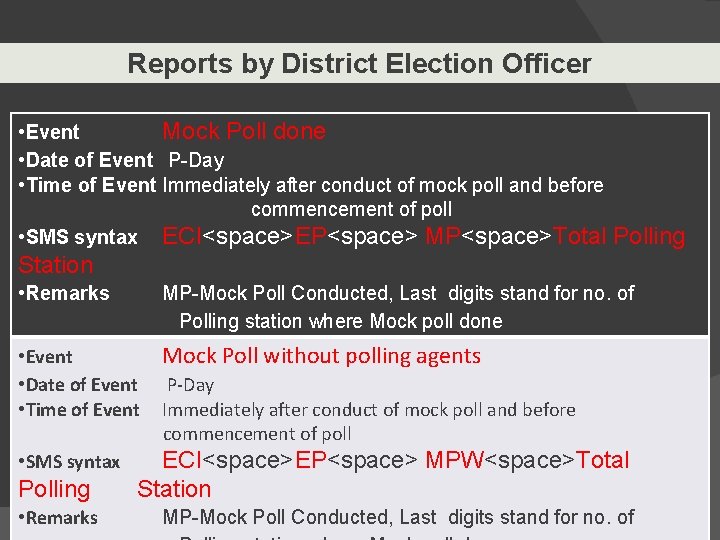
Reports by District Election Officer • Event Mock Poll done • Date of Event P-Day • Time of Event Immediately after conduct of mock poll and before commencement of poll • SMS syntax ECI<space>EP<space> MP<space>Total Polling Station • Remarks MP-Mock Poll Conducted, Last digits stand for no. of Polling station where Mock poll done • Event • Date of Event • Time of Event Mock Poll without polling agents • SMS syntax Polling • Remarks P-Day Immediately after conduct of mock poll and before commencement of poll ECI<space>EP<space> MPW<space>Total Station MP-Mock Poll Conducted, Last digits stand for no. of
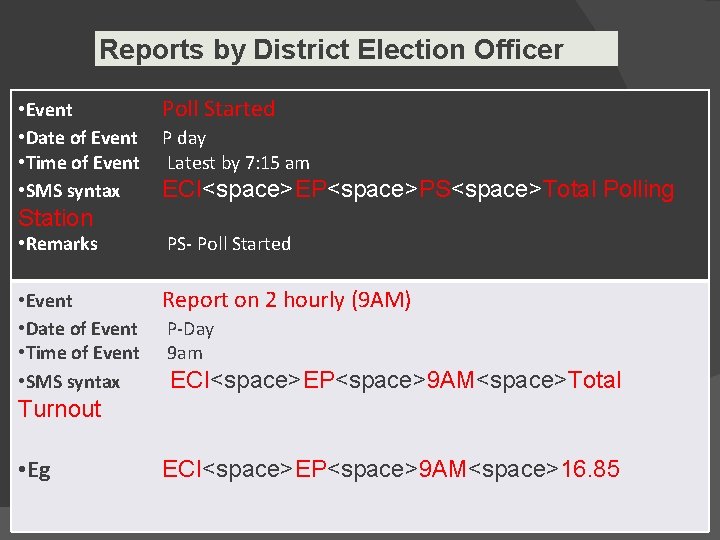
Reports by District Election Officer • Event • Date of Event • Time of Event • SMS syntax Poll Started P day Latest by 7: 15 am ECI<space>EP<space>PS<space>Total Polling Station • Remarks PS- Poll Started • Event • Date of Event • Time of Event • SMS syntax Report on 2 hourly (9 AM) P-Day 9 am ECI<space>EP<space>9 AM<space>Total Turnout • Eg ECI<space>EP<space>9 AM<space>16. 85
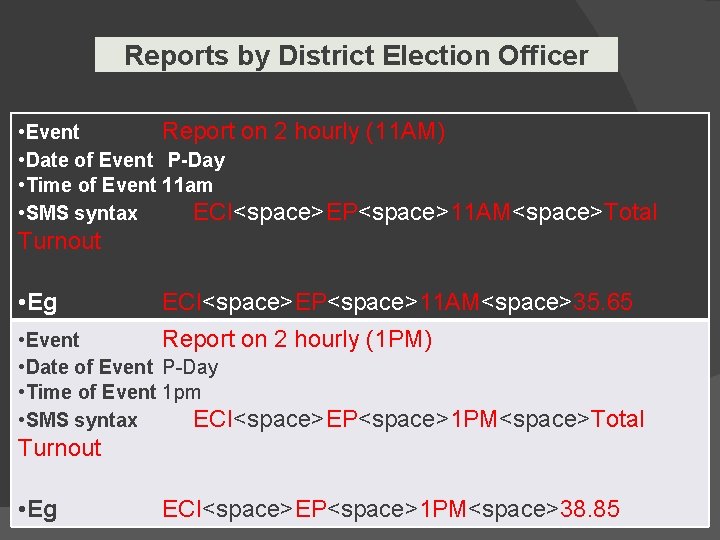
Reports by District Election Officer • Event Report on 2 hourly (11 AM) • Date of Event P-Day • Time of Event 11 am • SMS syntax ECI<space>EP<space>11 AM<space>Total Turnout • Eg ECI<space>EP<space>11 AM<space>35. 65 • Event Report on 2 hourly (1 PM) • Date of Event P-Day • Time of Event 1 pm • SMS syntax ECI<space>EP<space>1 PM<space>Total Turnout • Eg ECI<space>EP<space>1 PM<space>38. 85
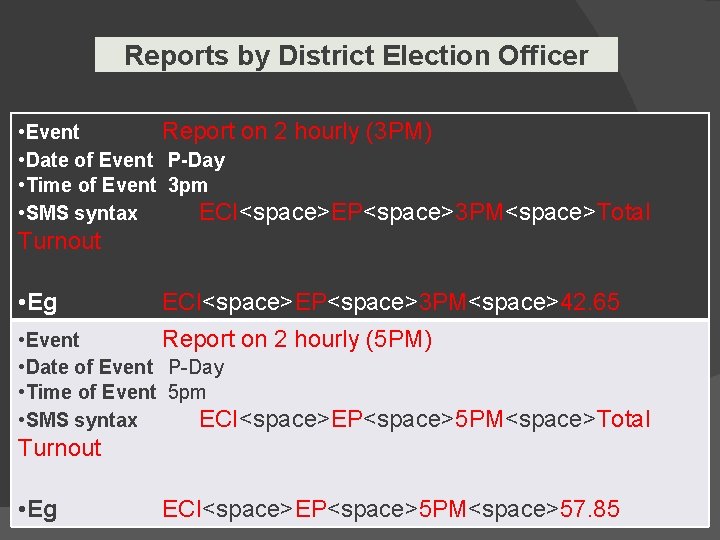
Reports by District Election Officer • Event Report on 2 hourly (3 PM) • Date of Event P-Day • Time of Event 3 pm • SMS syntax ECI<space>EP<space>3 PM<space>Total Turnout • Eg ECI<space>EP<space>3 PM<space>42. 65 • Event Report on 2 hourly (5 PM) • Date of Event P-Day • Time of Event 5 pm • SMS syntax ECI<space>EP<space>5 PM<space>Total Turnout • Eg ECI<space>EP<space>5 PM<space>57. 85
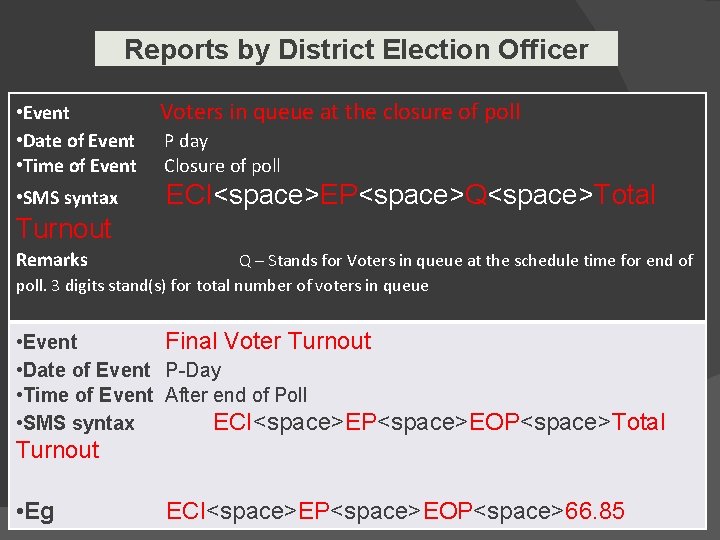
Reports by District Election Officer • Event • Date of Event • Time of Event • SMS syntax Voters in queue at the closure of poll P day Closure of poll ECI<space>EP<space>Q<space>Total Turnout Remarks Q – Stands for Voters in queue at the schedule time for end of poll. 3 digits stand(s) for total number of voters in queue • Event Final Voter Turnout • Date of Event P-Day • Time of Event After end of Poll • SMS syntax ECI<space>EP<space>EOP<space>Total Turnout • Eg ECI<space>EP<space>EOP<space>66. 85
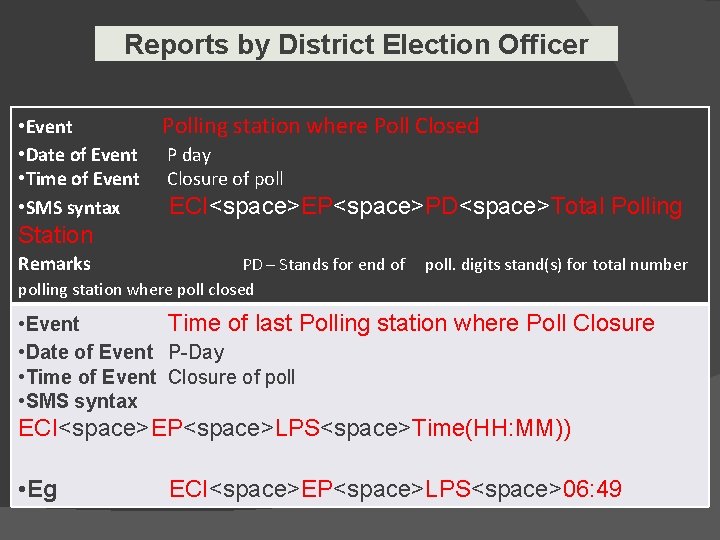
Reports by District Election Officer • Event • Date of Event • Time of Event • SMS syntax Polling station where Poll Closed P day Closure of poll ECI<space>EP<space>PD<space>Total Polling Station Remarks PD – Stands for end of polling station where poll closed poll. digits stand(s) for total number • Event Time of last Polling station where Poll Closure • Date of Event P-Day • Time of Event Closure of poll • SMS syntax ECI<space>EP<space>LPS<space>Time(HH: MM)) • Eg ECI<space>EP<space>LPS<space>06: 49

Reports by District Election Officer • Event • Date of Event • Time of Event • SMS syntax Polling Party Reached at Receiving Centre P day Closure of poll ECI<space>EP<space>SARC<space>Total Polling Station Remarks SARC – Stands for safe arrival receiving centre. Last digits stand(s) for total number polling station where polling party received at receiving centre
Using Election Monitoring Data Entry Web Application
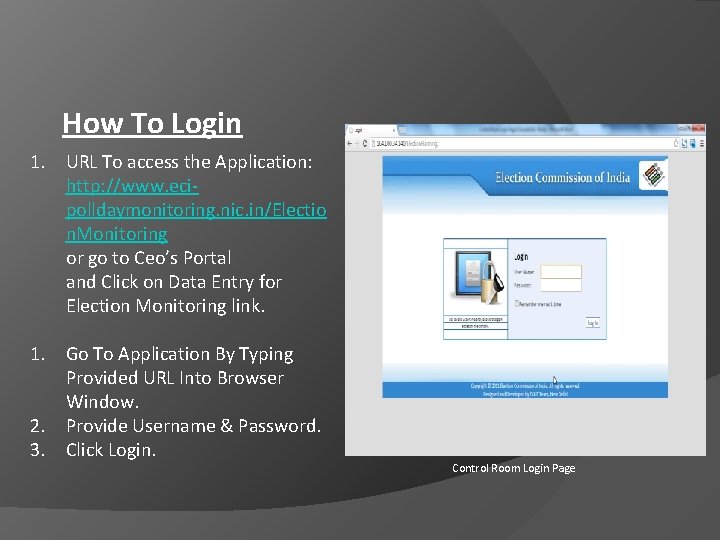
How To Login 1. URL To access the Application: http: //www. ecipolldaymonitoring. nic. in/Electio n. Monitoring or go to Ceo’s Portal and Click on Data Entry for Election Monitoring link. 1. Go To Application By Typing Provided URL Into Browser Window. 2. Provide Username & Password. 3. Click Login. Control Room Login Page
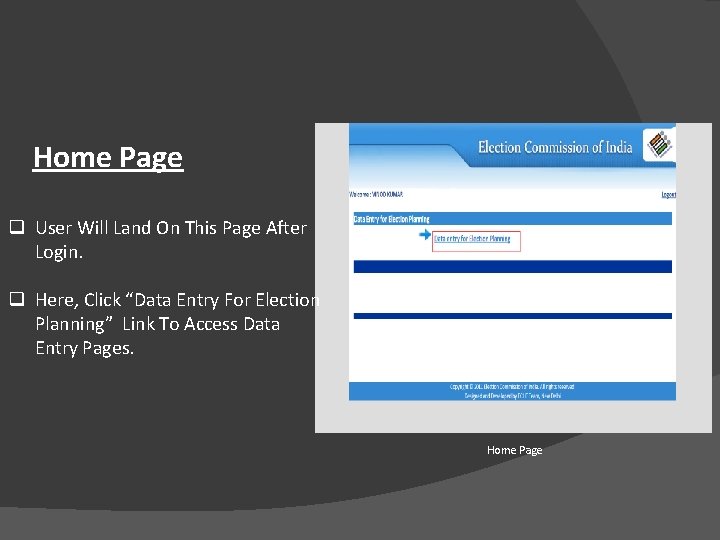
Home Page q User Will Land On This Page After Login. q Here, Click “Data Entry For Election Planning” Link To Access Data Entry Pages. Home Page
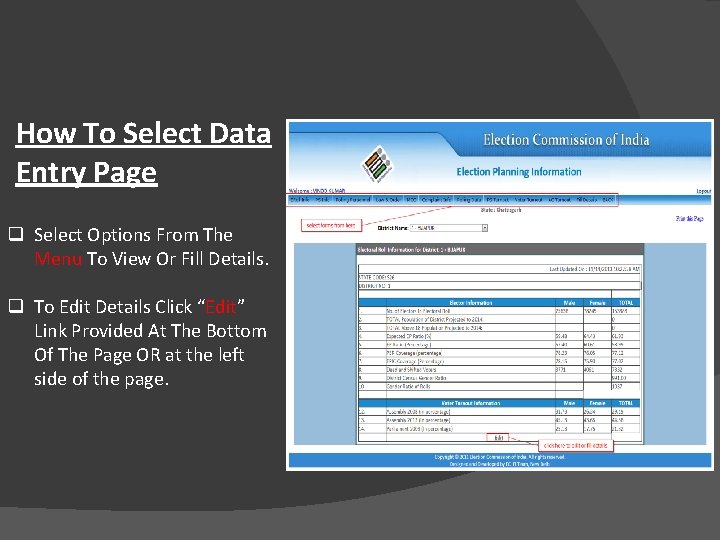
How To Select Data Entry Page q Select Options From The Menu To View Or Fill Details. q To Edit Details Click “Edit” Link Provided At The Bottom Of The Page OR at the left side of the page.
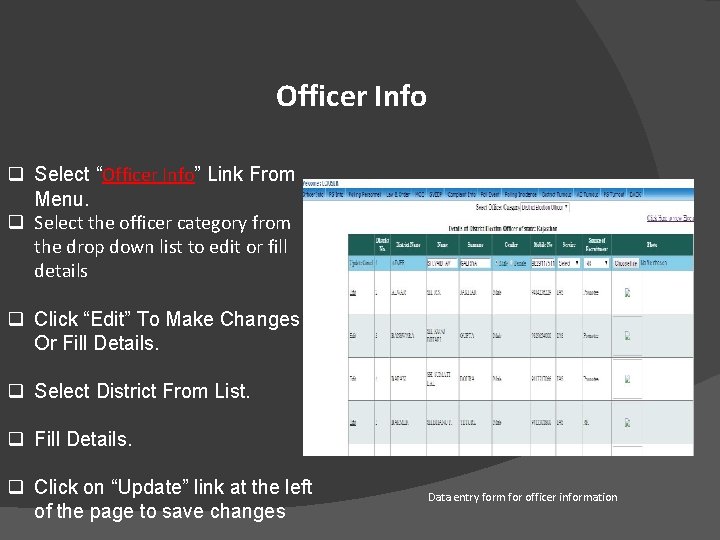
Officer Info q Select “Officer Info” Link From Menu. q Select the officer category from the drop down list to edit or fill details q Click “Edit” To Make Changes Or Fill Details. q Select District From List. q Fill Details. q Click on “Update” link at the left of the page to save changes Data entry form for officer information
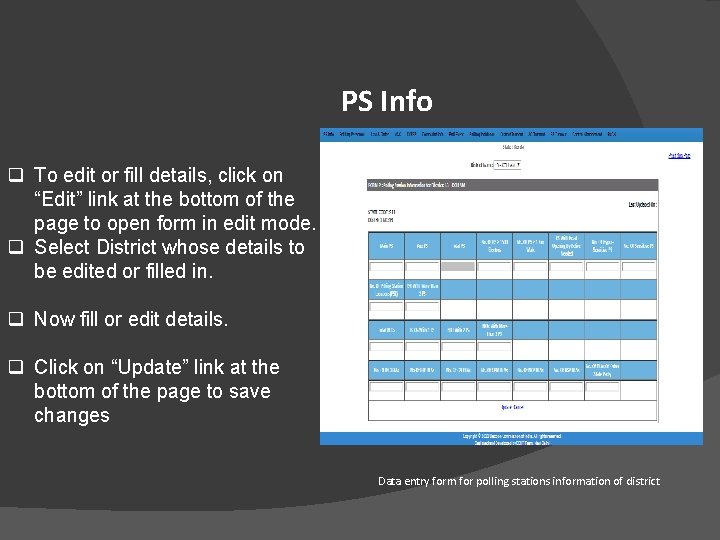
PS Info q To edit or fill details, click on “Edit” link at the bottom of the page to open form in edit mode. q Select District whose details to be edited or filled in. q Now fill or edit details. q Click on “Update” link at the bottom of the page to save changes Data entry form for polling stations information of district
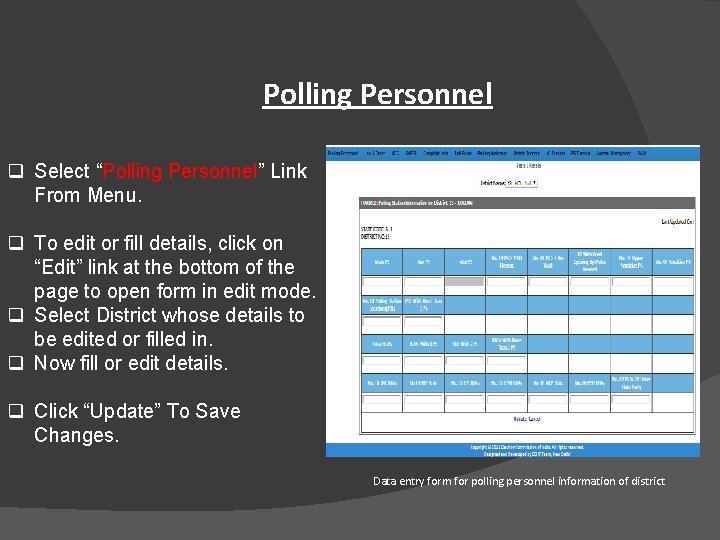
Polling Personnel q Select “Polling Personnel” Link From Menu. q To edit or fill details, click on “Edit” link at the bottom of the page to open form in edit mode. q Select District whose details to be edited or filled in. q Now fill or edit details. q Click “Update” To Save Changes. Data entry form for polling personnel information of district
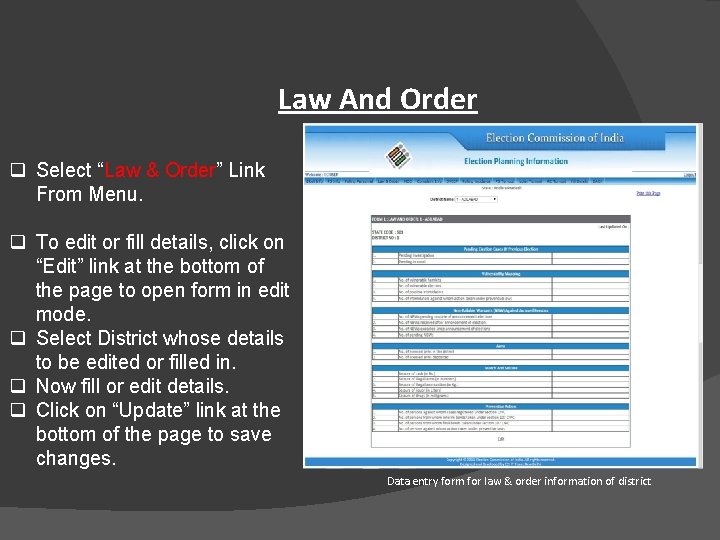
Law And Order q Select “Law & Order” Link From Menu. q To edit or fill details, click on “Edit” link at the bottom of the page to open form in edit mode. q Select District whose details to be edited or filled in. q Now fill or edit details. q Click on “Update” link at the bottom of the page to save changes. Data entry form for law & order information of district
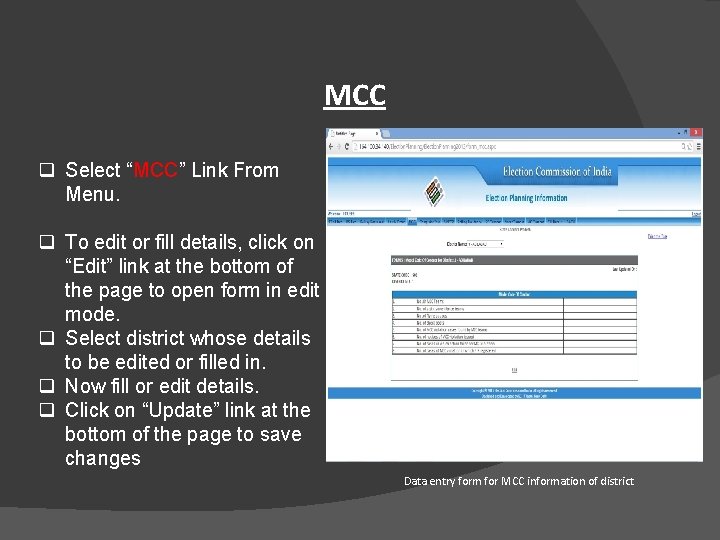
MCC q Select “MCC” Link From Menu. q To edit or fill details, click on “Edit” link at the bottom of the page to open form in edit mode. q Select district whose details to be edited or filled in. q Now fill or edit details. q Click on “Update” link at the bottom of the page to save changes Data entry form for MCC information of district
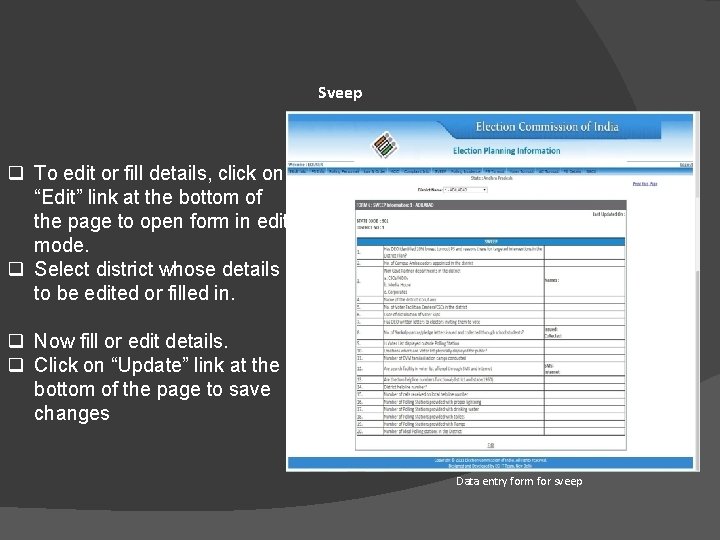
Sveep q To edit or fill details, click on “Edit” link at the bottom of the page to open form in edit mode. q Select district whose details to be edited or filled in. q Now fill or edit details. q Click on “Update” link at the bottom of the page to save changes Data entry form for sveep
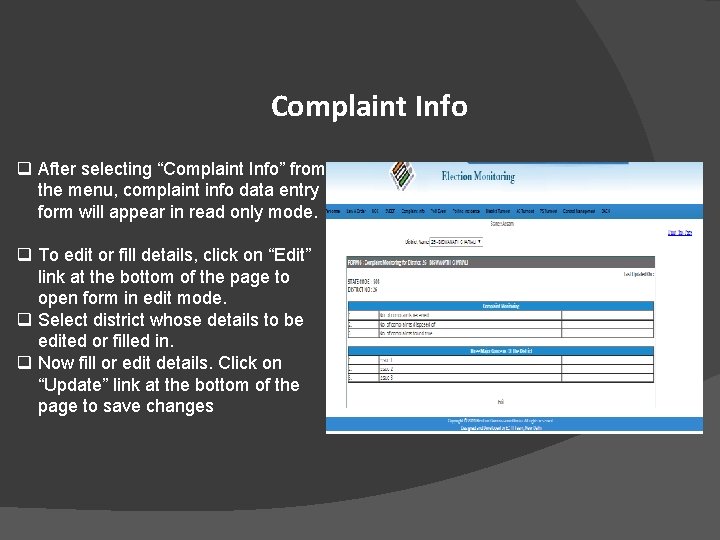
Complaint Info q After selecting “Complaint Info” from the menu, complaint info data entry form will appear in read only mode. q To edit or fill details, click on “Edit” link at the bottom of the page to open form in edit mode. q Select district whose details to be edited or filled in. q Now fill or edit details. Click on “Update” link at the bottom of the page to save changes
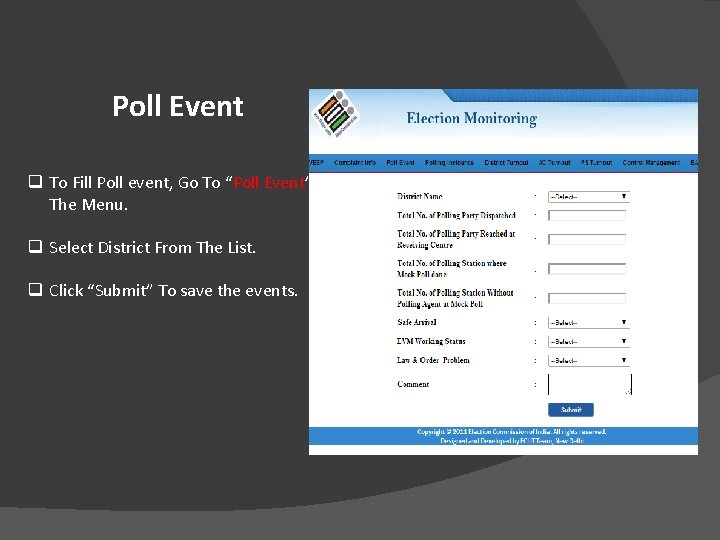
Poll Event q To Fill Poll event, Go To “Poll Event” Link In The Menu. q Select District From The List. q Click “Submit” To save the events.
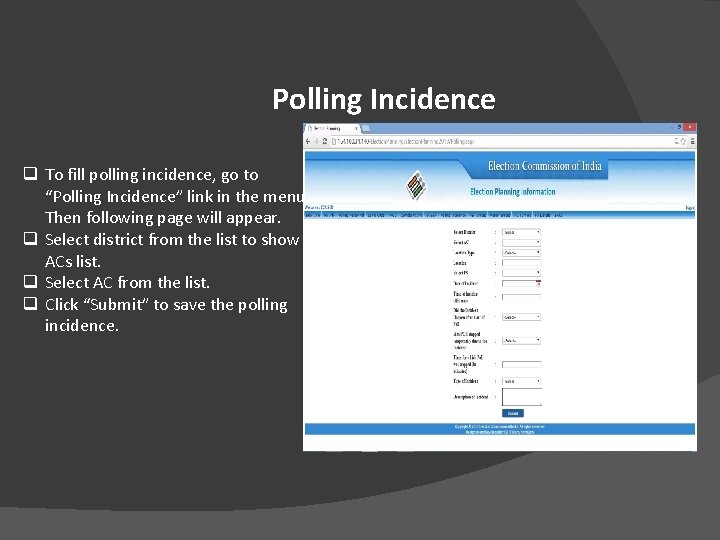
Polling Incidence q To fill polling incidence, go to “Polling Incidence” link in the menu. Then following page will appear. q Select district from the list to show ACs list. q Select AC from the list. q Click “Submit” to save the polling incidence.
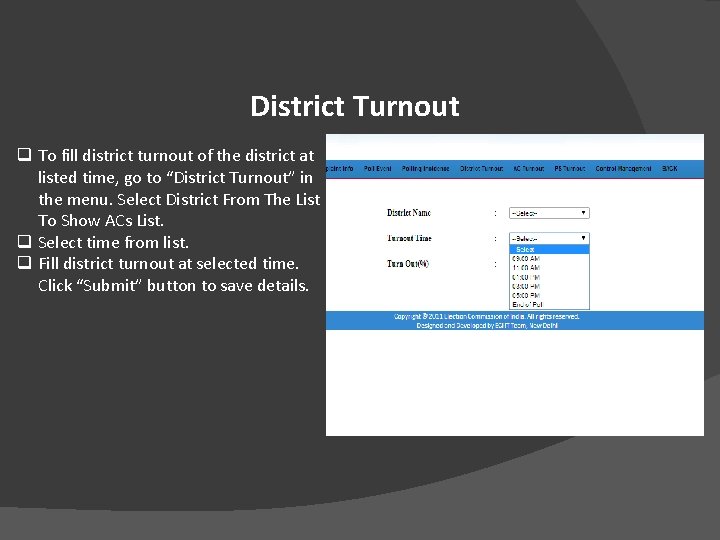
District Turnout q To fill district turnout of the district at listed time, go to “District Turnout” in the menu. Select District From The List To Show ACs List. q Select time from list. q Fill district turnout at selected time. Click “Submit” button to save details.
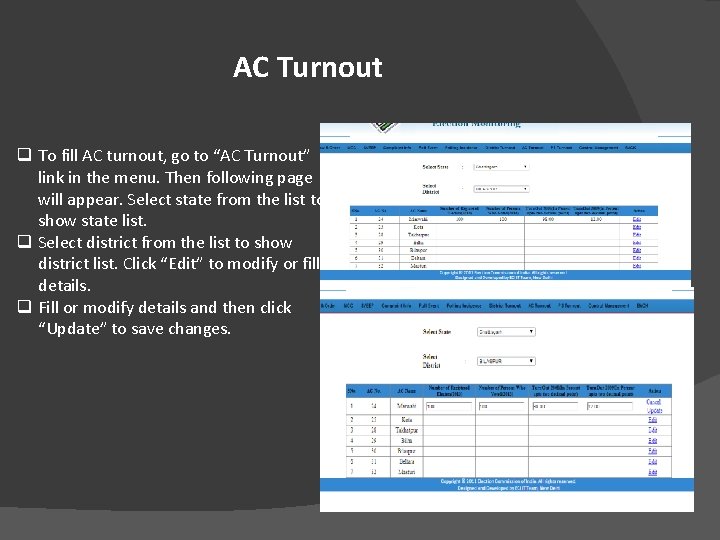
AC Turnout q To fill AC turnout, go to “AC Turnout” link in the menu. Then following page will appear. Select state from the list to show state list. q Select district from the list to show district list. Click “Edit” to modify or fill details. q Fill or modify details and then click “Update” to save changes.
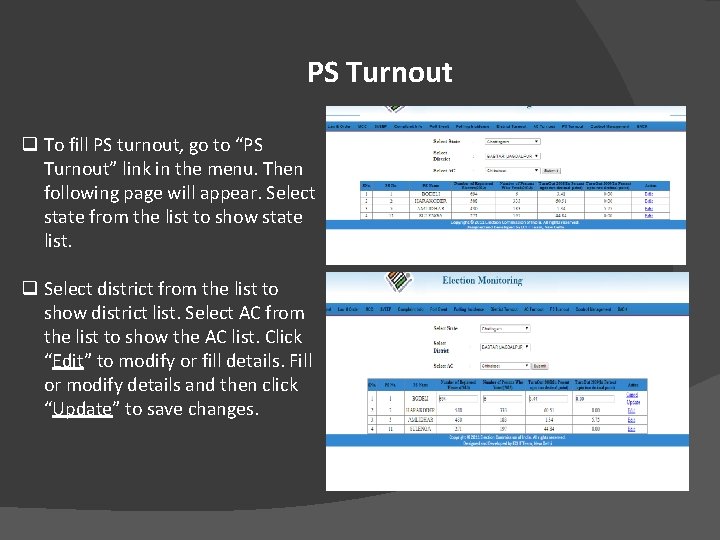
PS Turnout q To fill PS turnout, go to “PS Turnout” link in the menu. Then following page will appear. Select state from the list to show state list. q Select district from the list to show district list. Select AC from the list to show the AC list. Click “Edit” to modify or fill details. Fill or modify details and then click “Update” to save changes.
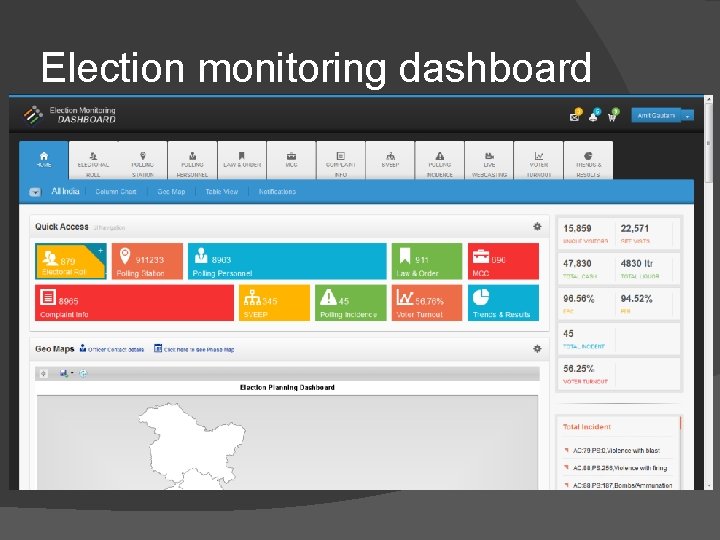
Election monitoring dashboard
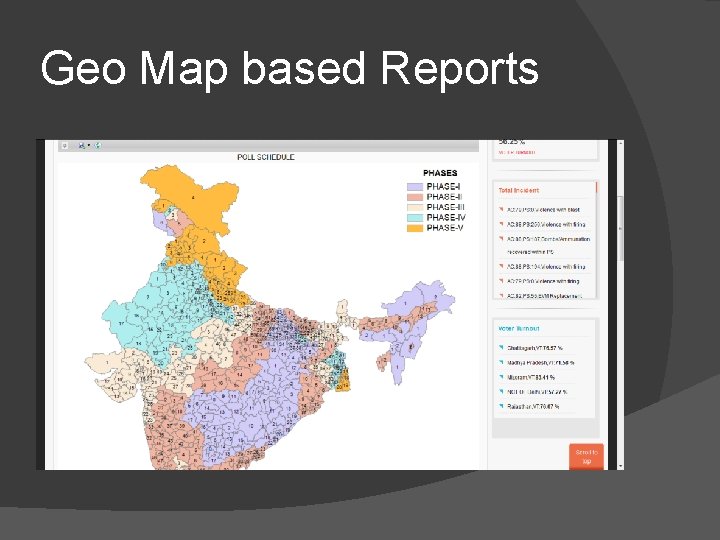
Geo Map based Reports
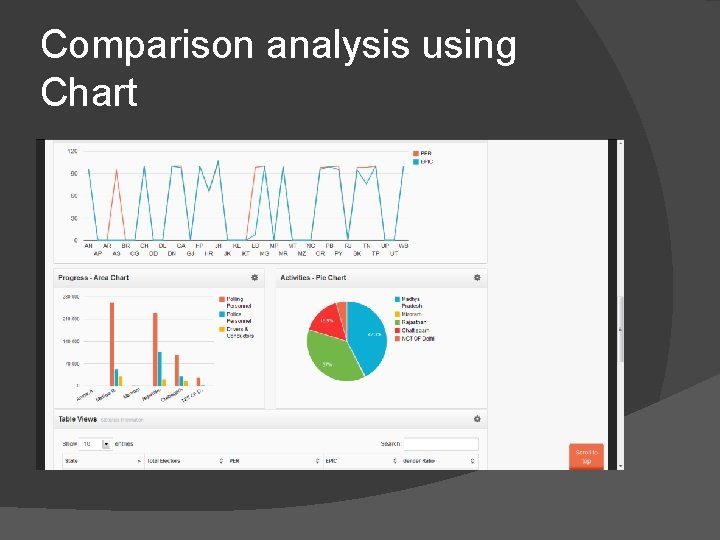
Comparison analysis using Chart
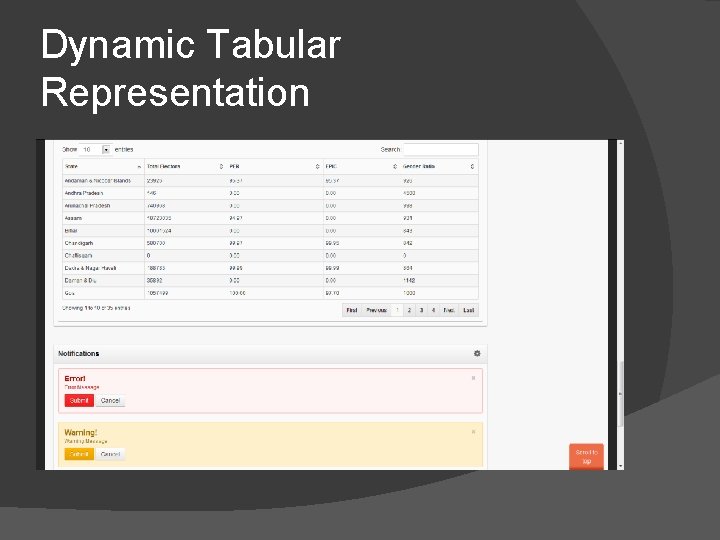
Dynamic Tabular Representation
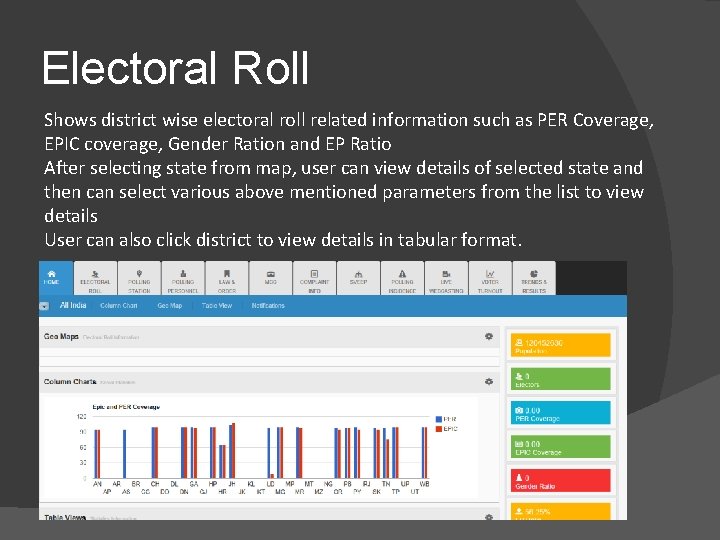
Electoral Roll Shows district wise electoral roll related information such as PER Coverage, EPIC coverage, Gender Ration and EP Ratio After selecting state from map, user can view details of selected state and then can select various above mentioned parameters from the list to view details User can also click district to view details in tabular format.
Polling Station This can be used to view info related to polling station such as total number of polling station in state/district, total polling station location, total BLO, auxiliary PS etc. User can click districts to view more details information in tabular format.
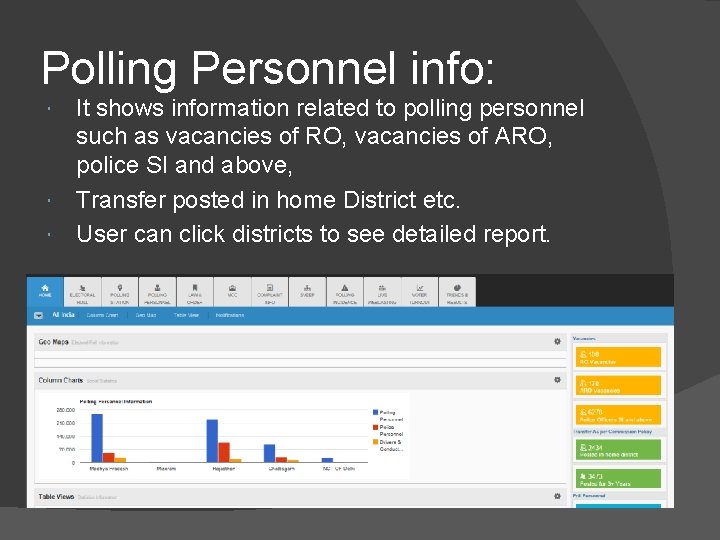
Polling Personnel info: It shows information related to polling personnel such as vacancies of RO, vacancies of ARO, police SI and above, Transfer posted in home District etc. User can click districts to see detailed report.
Training to District Election Officers How to send SMS. About the keyword ’ECI EP’. About the different types of SMS formats. When to send SMS (each SMS has to be send on certain event or time). Where to send SMS (each SMS has to be send on a particular no. given by ECI of CEO office) What to do if getting problem in sending SMS. Importance of sending SMS accurately and timely. Completeness Consistency
For More Information: Visit the official Web site : : http: //mgov. in/ Mobile Application Support: Mr. Gaurav Kumar, Developer Phone: +918468869333 Mobile Seva Team: Contact info: msdp@cdac. in ECI Technical Support: Mr. AMIT GAUTAM Mobile: +91 -9971007217 Email id: ecitechsupport@gmail. com Tel No: 011 -23052043 Thank You
- Slides: 49