
EJPPAP User Guide Supplier Risk Office Regulatory Compliance

- Slides: 13
E-JPPAP User Guide _ Supplier Risk Office | Regulatory Compliance Team George Zhou
Contents 1. Flow Chart 2. Supplier Submits the PPAP 3. Supplier Provides Further Information 4. Final Approval Notification
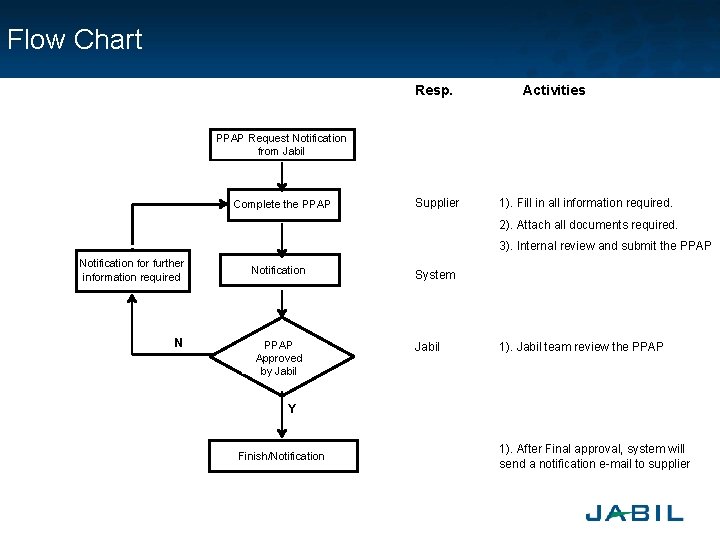
Flow Chart Resp. Activities PPAP Request Notification from Jabil Complete the PPAP Supplier 1). Fill in all information required. 2). Attach all documents required. 3). Internal review and submit the PPAP Notification for further information required N Notification PPAP Approved by Jabil System Jabil 1). Jabil team review the PPAP Y Finish/Notification 1). After Final approval, system will send a notification e-mail to supplier
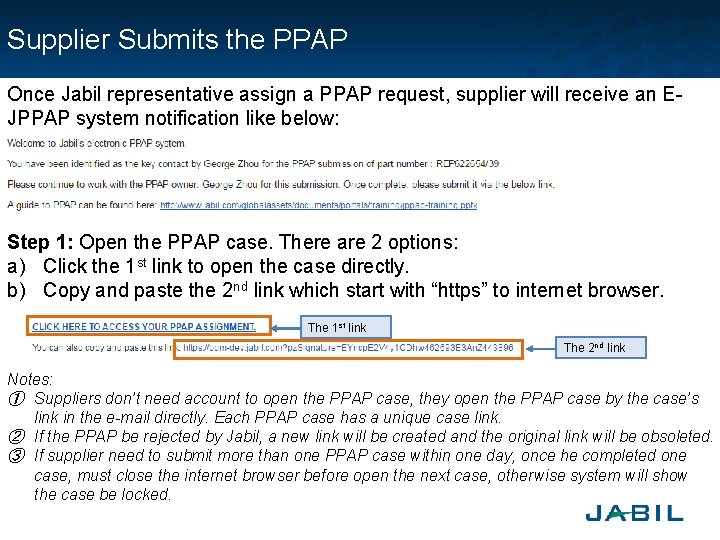
Supplier Submits the PPAP Once Jabil representative assign a PPAP request, supplier will receive an EJPPAP system notification like below: Step 1: Open the PPAP case. There are 2 options: a) Click the 1 st link to open the case directly. b) Copy and paste the 2 nd link which start with “https” to internet browser. The 1 st link The 2 nd link Notes: ① Suppliers don’t need account to open the PPAP case, they open the PPAP case by the case’s link in the e-mail directly. Each PPAP case has a unique case link. ② If the PPAP be rejected by Jabil, a new link will be created and the original link will be obsoleted. ③ If supplier need to submit more than one PPAP case within one day, once he completed one case, must close the internet browser before open the next case, otherwise system will show the case be locked.
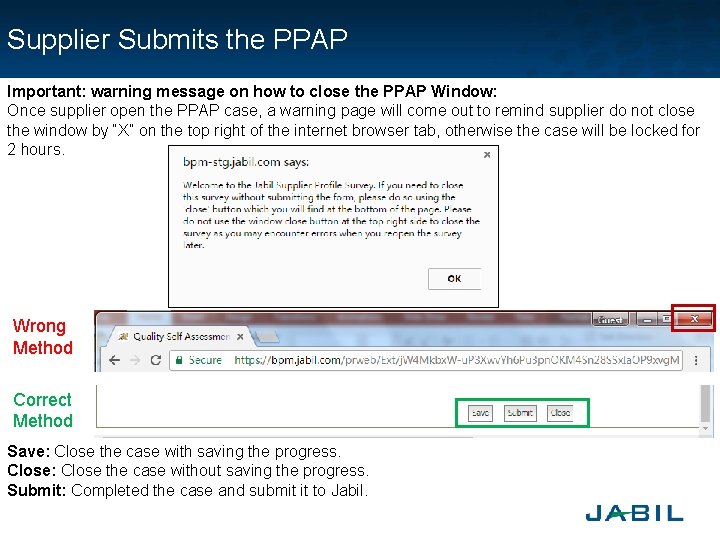
Supplier Submits the PPAP Important: warning message on how to close the PPAP Window: Once supplier open the PPAP case, a warning page will come out to remind supplier do not close the window by “X” on the top right of the internet browser tab, otherwise the case will be locked for 2 hours. Wrong Method Correct Method Save: Close the case with saving the progress. Close: Close the case without saving the progress. Submit: Completed the case and submit it to Jabil.
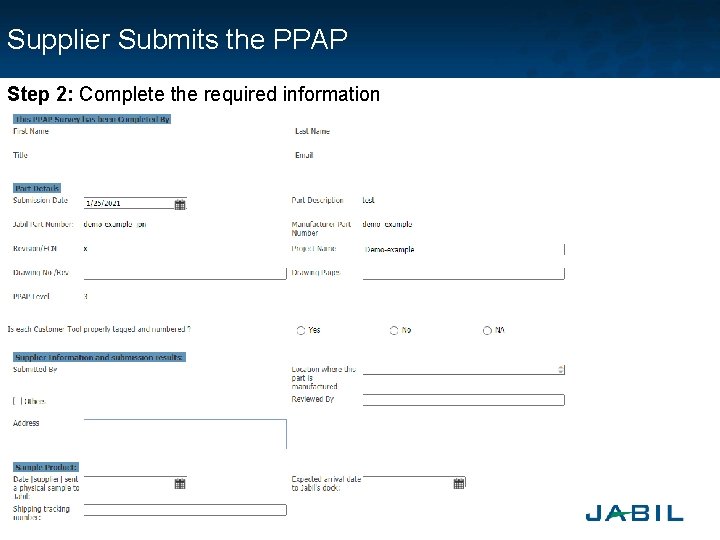
Supplier Submits the PPAP Step 2: Complete the required information
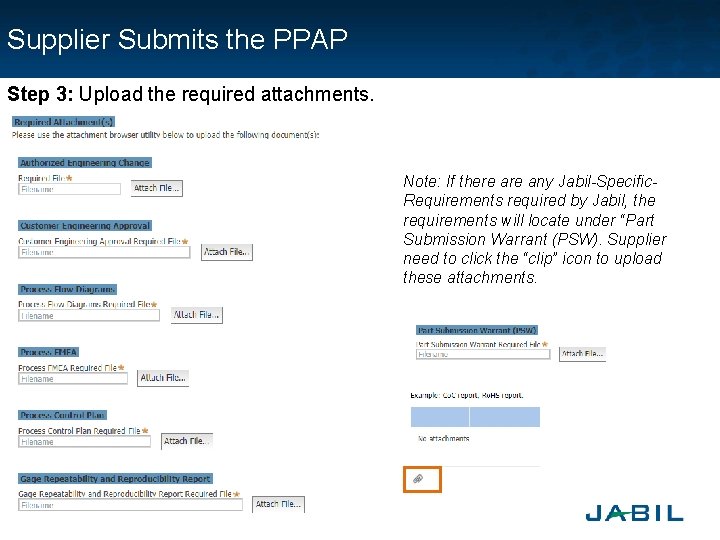
Supplier Submits the PPAP Step 3: Upload the required attachments. Note: If there any Jabil-Specific. Requirements required by Jabil, the requirements will locate under “Part Submission Warrant (PSW). Supplier need to click the “clip” icon to upload these attachments.
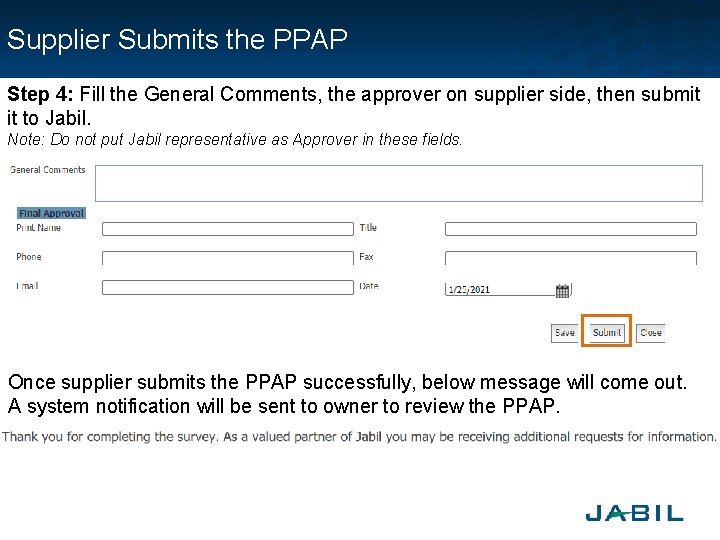
Supplier Submits the PPAP Step 4: Fill the General Comments, the approver on supplier side, then submit it to Jabil. Note: Do not put Jabil representative as Approver in these fields. Once supplier submits the PPAP successfully, below message will come out. A system notification will be sent to owner to review the PPAP.
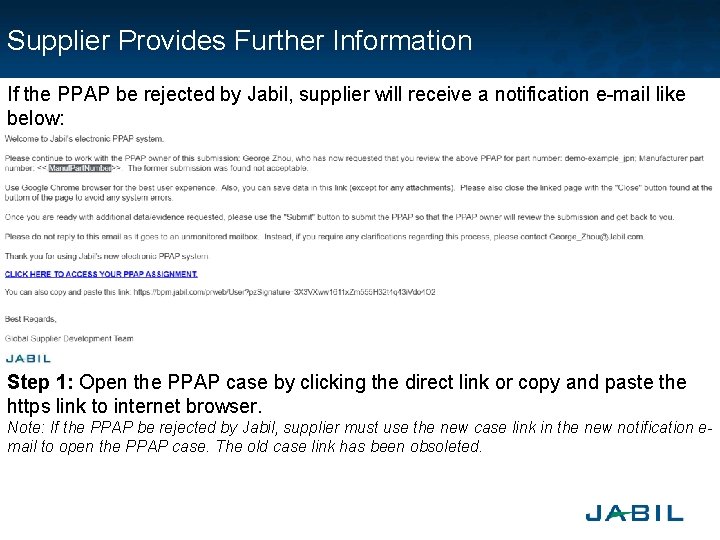
Supplier Provides Further Information If the PPAP be rejected by Jabil, supplier will receive a notification e-mail like below: Step 1: Open the PPAP case by clicking the direct link or copy and paste the https link to internet browser. Note: If the PPAP be rejected by Jabil, supplier must use the new case link in the new notification email to open the PPAP case. The old case link has been obsoleted.
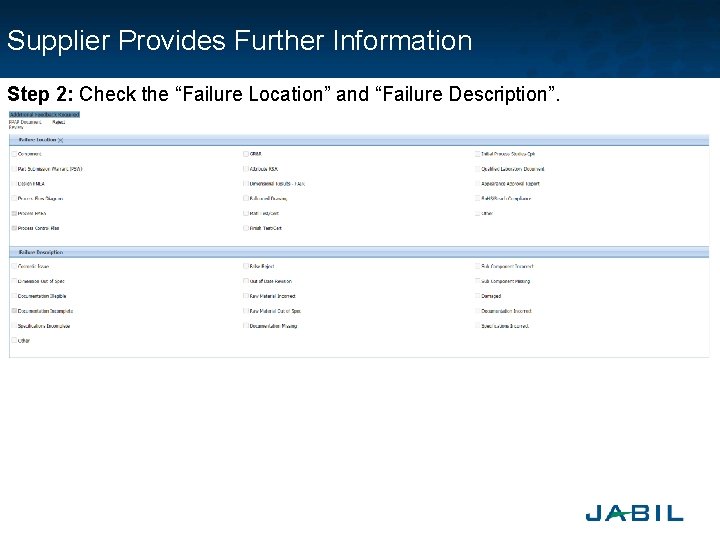
Supplier Provides Further Information Step 2: Check the “Failure Location” and “Failure Description”.
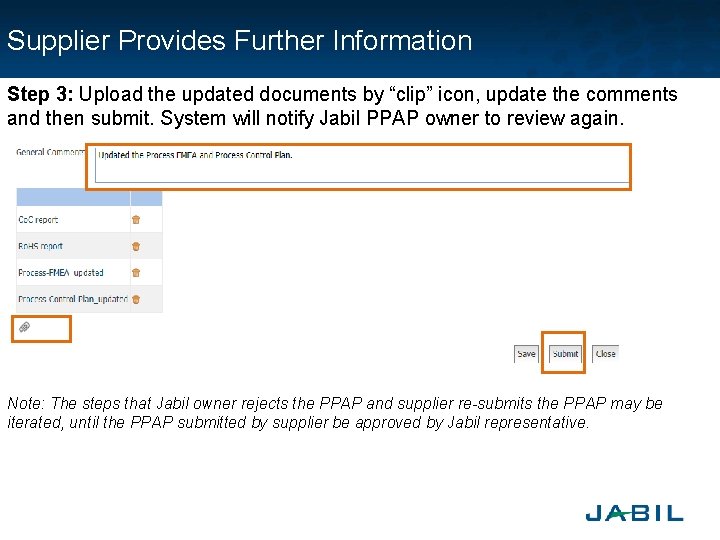
Supplier Provides Further Information Step 3: Upload the updated documents by “clip” icon, update the comments and then submit. System will notify Jabil PPAP owner to review again. Note: The steps that Jabil owner rejects the PPAP and supplier re-submits the PPAP may be iterated, until the PPAP submitted by supplier be approved by Jabil representative.
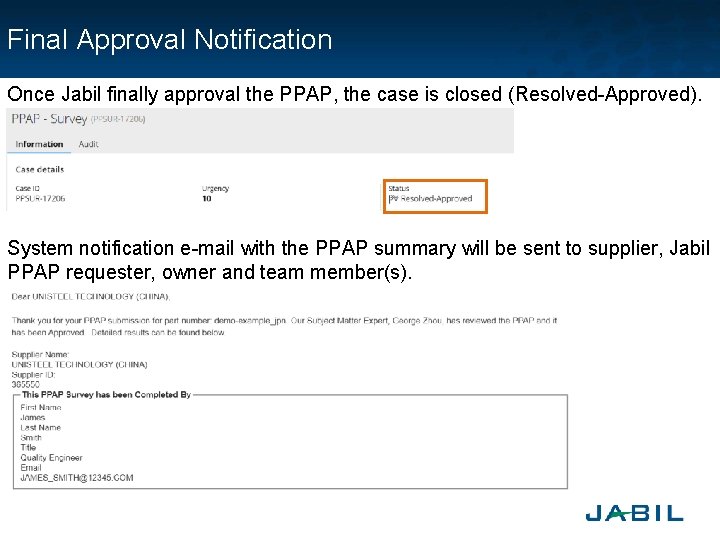
Final Approval Notification Once Jabil finally approval the PPAP, the case is closed (Resolved-Approved). System notification e-mail with the PPAP summary will be sent to supplier, Jabil PPAP requester, owner and team member(s).
Thank You