
eISuite An Automated Incident Business Information and Support
e-ISuite An Automated Incident Business Information and Support Tool 1. 0 -01 -e-ISUITE-EP
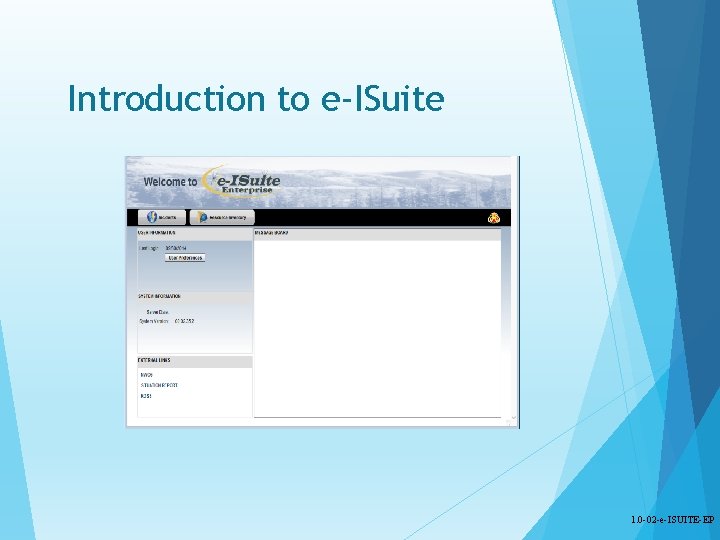
Introduction to e-ISuite 1. 0 -02 -e-ISUITE-EP
Welcome § Introductions § Logistics § Class schedule 1. 0 -03 -e-ISUITE-EP
Topics Overview User Resources Where to Get Help Differences between e-ISuite Enterprise and Site Security Common e-ISuite Application Features e-ISuite Roles and Functional Areas Roles Account Manager Data Steward Check-in/Demob; Time; Cost; IAP; Training Specialist Functional Areas Overview 1. 0 -04 -e-ISUITE-EP
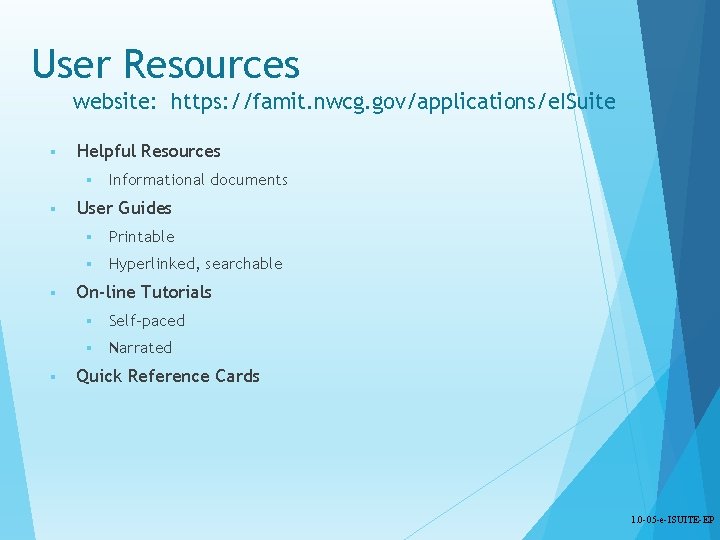
User Resources website: https: //famit. nwcg. gov/applications/e. ISuite § Helpful Resources § § Informational documents User Guides § Printable § Hyperlinked, searchable On-line Tutorials § Self-paced § Narrated Quick Reference Cards 1. 0 -05 -e-ISUITE-EP
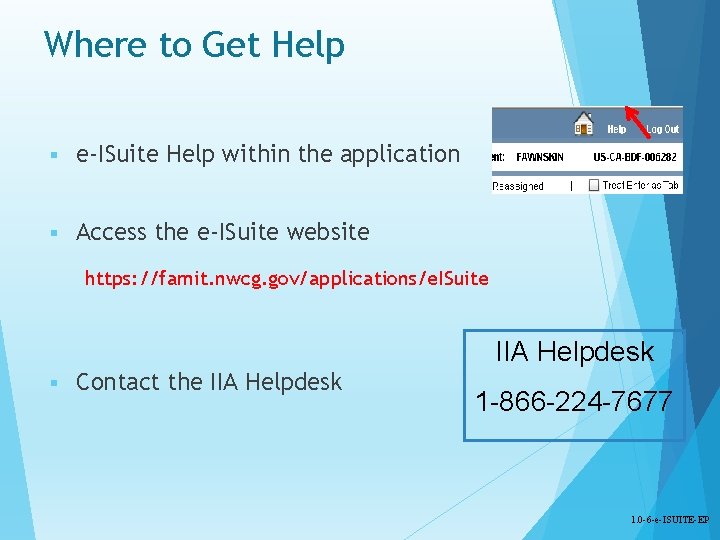
Where to Get Help § e-ISuite Help within the application § Access the e-ISuite website https: //famit. nwcg. gov/applications/e. ISuite IIA Helpdesk § Contact the IIA Helpdesk 1 -866 -224 -7677 1. 0 -6 -e-ISUITE-EP
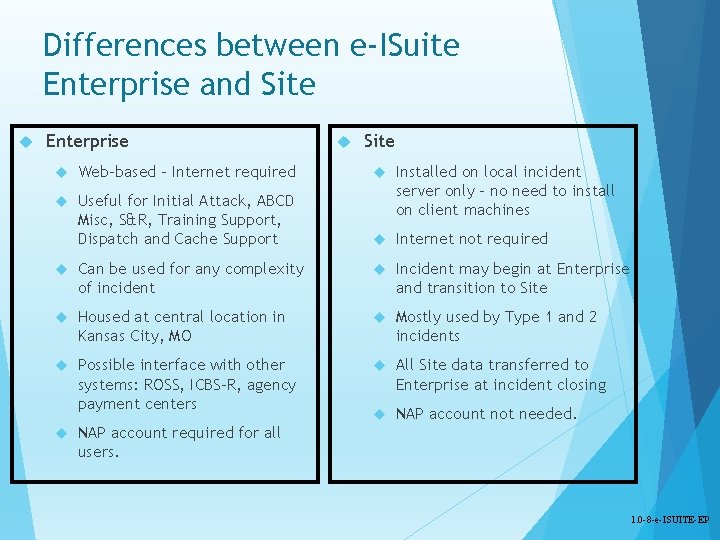
Differences between e-ISuite Enterprise and Site Enterprise Site Web-based – Internet required Useful for Initial Attack, ABCD Misc, S&R, Training Support, Dispatch and Cache Support Installed on local incident server only – no need to install on client machines Internet not required Can be used for any complexity of incident Incident may begin at Enterprise and transition to Site Housed at central location in Kansas City, MO Mostly used by Type 1 and 2 incidents Possible interface with other systems: ROSS, ICBS-R, agency payment centers All Site data transferred to Enterprise at incident closing NAP account not needed. NAP account required for all users. 1. 0 -8 -e-ISUITE-EP
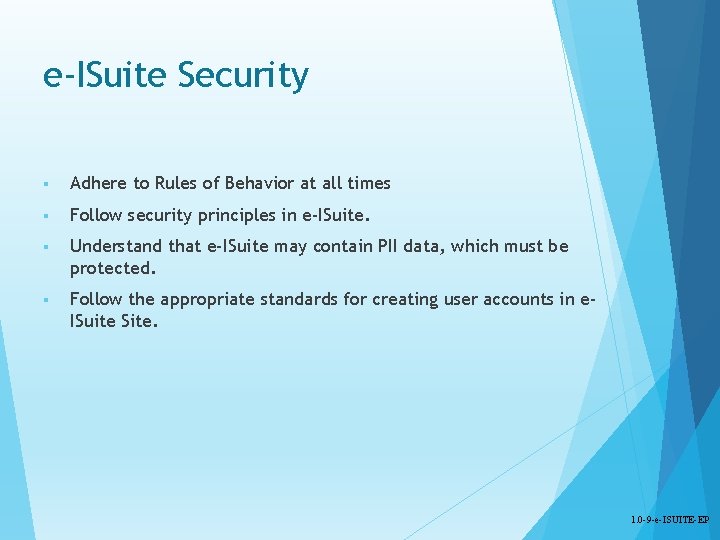
e-ISuite Security § Adhere to Rules of Behavior at all times § Follow security principles in e-ISuite. § Understand that e-ISuite may contain PII data, which must be protected. § Follow the appropriate standards for creating user accounts in e. ISuite Site. 1. 0 -9 -e-ISUITE-EP
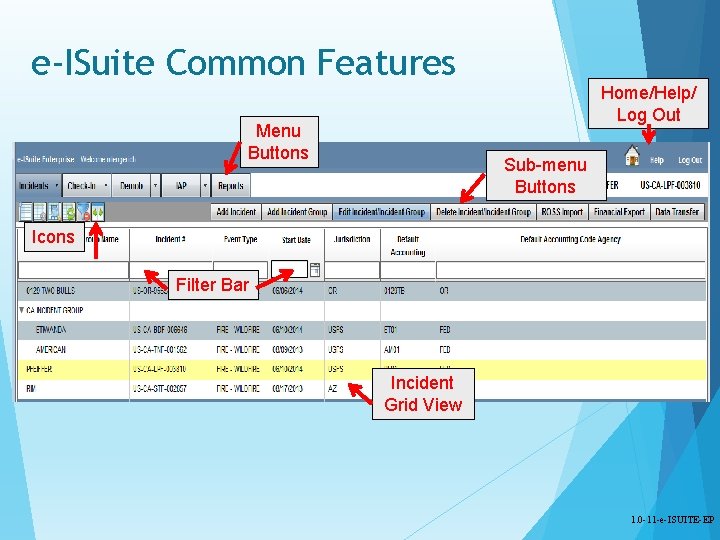
e-ISuite Common Features Home/Help/ Log Out Menu Buttons Sub-menu Buttons Icons Filter Bar Incident Grid View 1. 0 -11 -e-ISUITE-EP
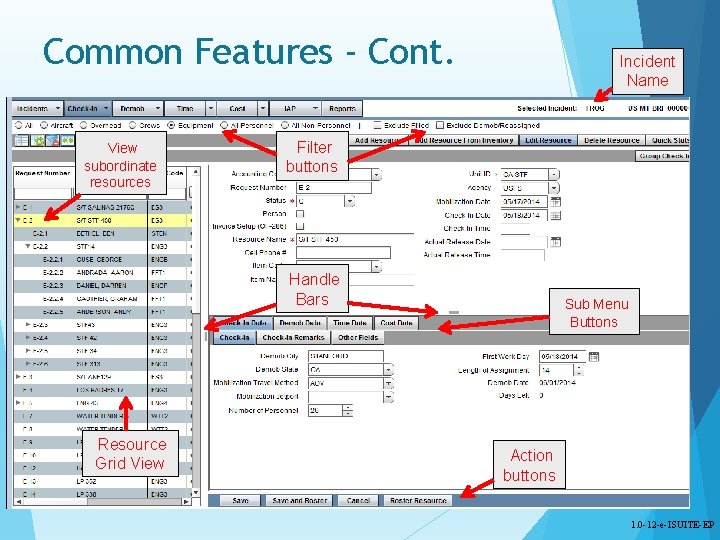
Common Features - Cont. View subordinate resources Incident Name Filter buttons Handle Bars Resource Grid View Sub Menu Buttons Action buttons 1. 0 -12 -e-ISUITE-EP
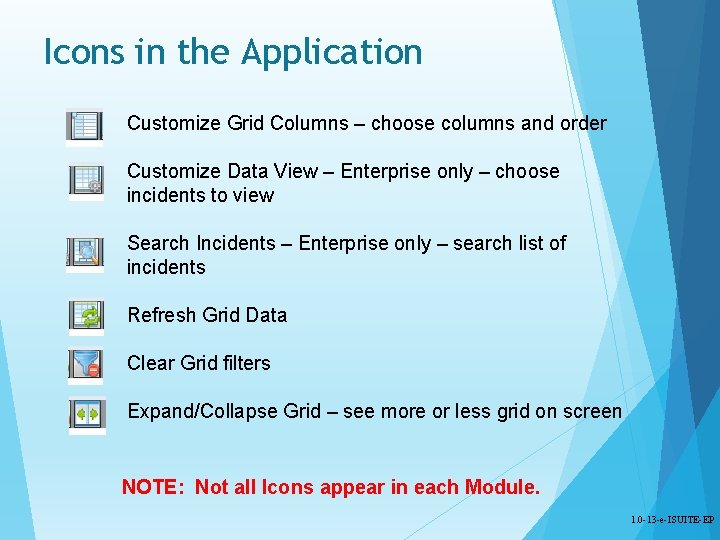
Icons in the Application Customize Grid Columns – choose columns and order Customize Data View – Enterprise only – choose incidents to view Search Incidents – Enterprise only – search list of incidents Refresh Grid Data Clear Grid filters Expand/Collapse Grid – see more or less grid on screen NOTE: Not all Icons appear in each Module. 1. 0 -13 -e-ISUITE-EP
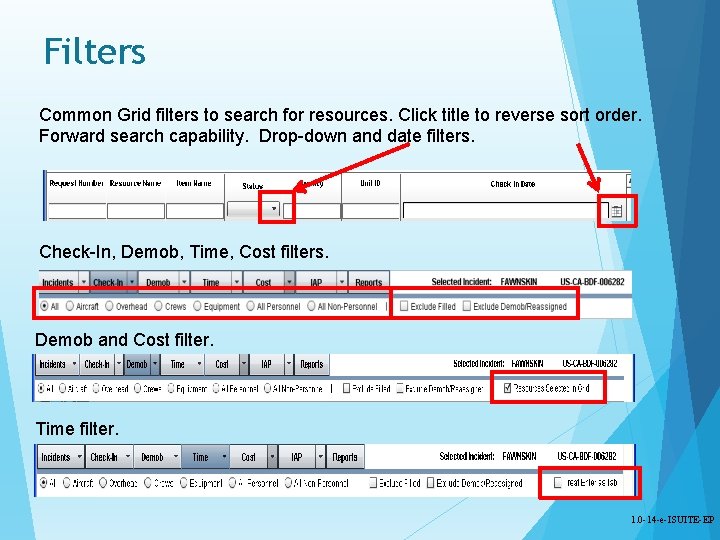
Filters Common Grid filters to search for resources. Click title to reverse sort order. Forward search capability. Drop-down and date filters. Check-In, Demob, Time, Cost filters. Demob and Cost filter. Time filter. 1. 0 -14 -e-ISUITE-EP
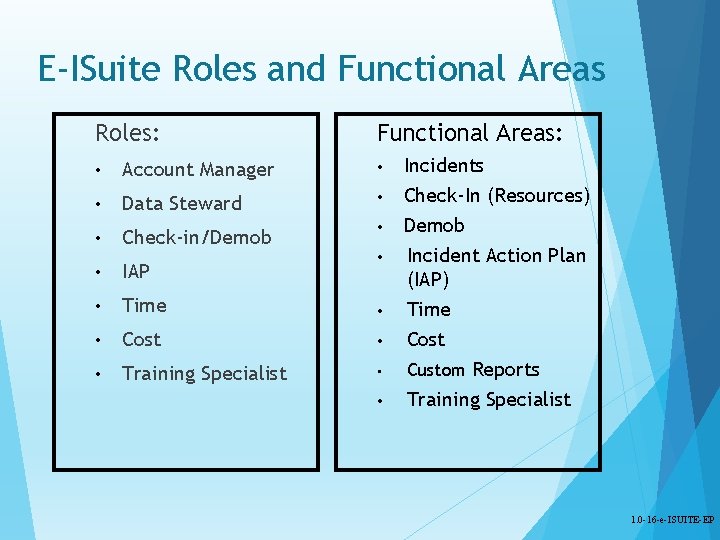
E-ISuite Roles and Functional Areas Roles: Functional Areas: • Account Manager • • Data Steward • • Check-in/Demob • • • IAP • Time • • Cost • • Training Specialist • • Incidents Check-In (Resources) Demob Incident Action Plan (IAP) Time Cost Custom Reports Training Specialist 1. 0 -16 -e-ISUITE-EP
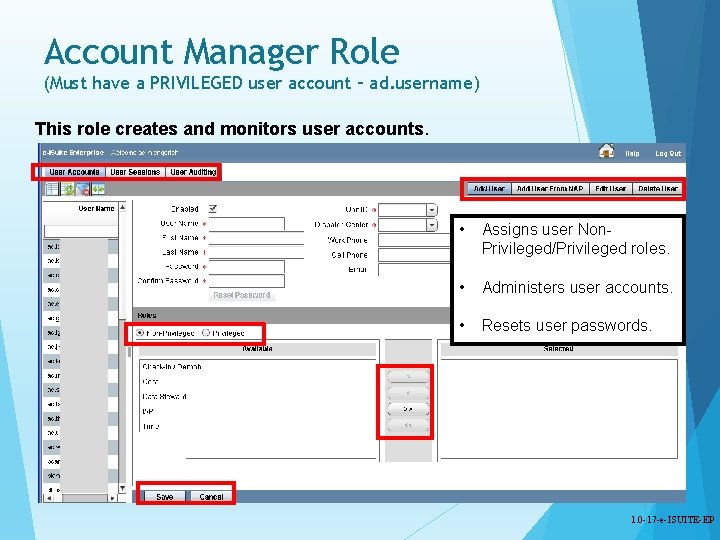
Account Manager Role (Must have a PRIVILEGED user account – ad. username) This role creates and monitors user accounts. • Assigns user Non. Privileged/Privileged roles. • Administers user accounts. • Resets user passwords. 1. 0 -17 -e-ISUITE-EP
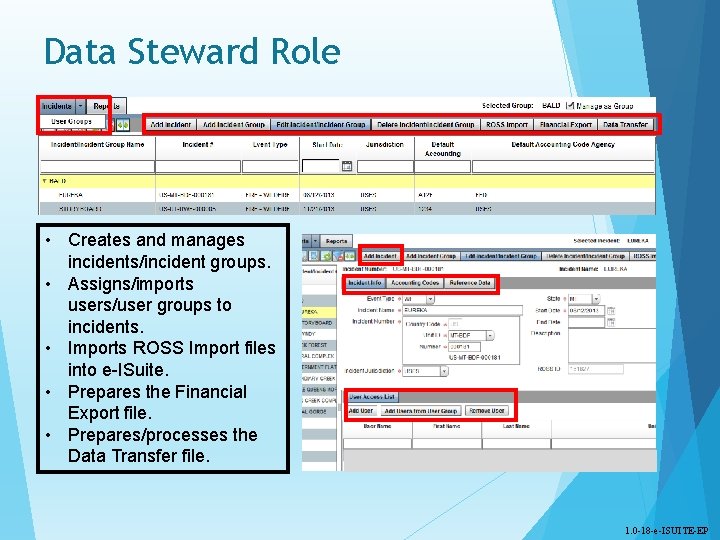
Data Steward Role • Creates and manages incidents/incident groups. • Assigns/imports users/user groups to incidents. • Imports ROSS Import files into e-ISuite. • Prepares the Financial Export file. • Prepares/processes the Data Transfer file. 1. 0 -18 -e-ISUITE-EP
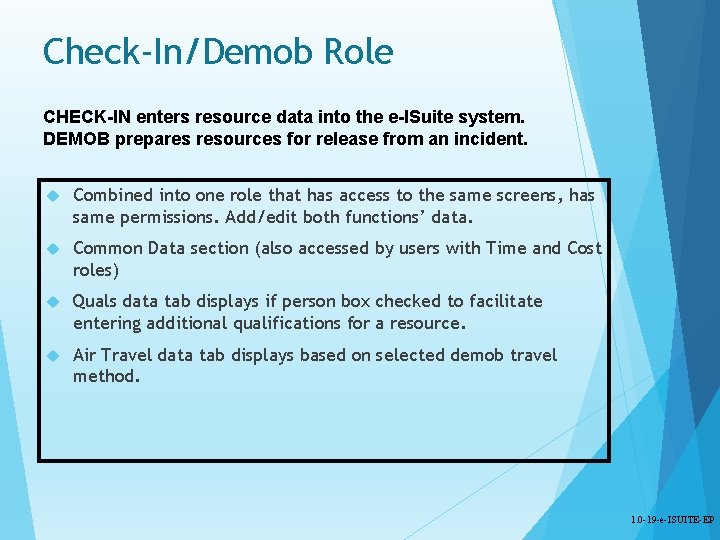
Check-In/Demob Role CHECK-IN enters resource data into the e-ISuite system. DEMOB prepares resources for release from an incident. Combined into one role that has access to the same screens, has same permissions. Add/edit both functions’ data. Common Data section (also accessed by users with Time and Cost roles) Quals data tab displays if person box checked to facilitate entering additional qualifications for a resource. Air Travel data tab displays based on selected demob travel method. 1. 0 -19 -e-ISUITE-EP
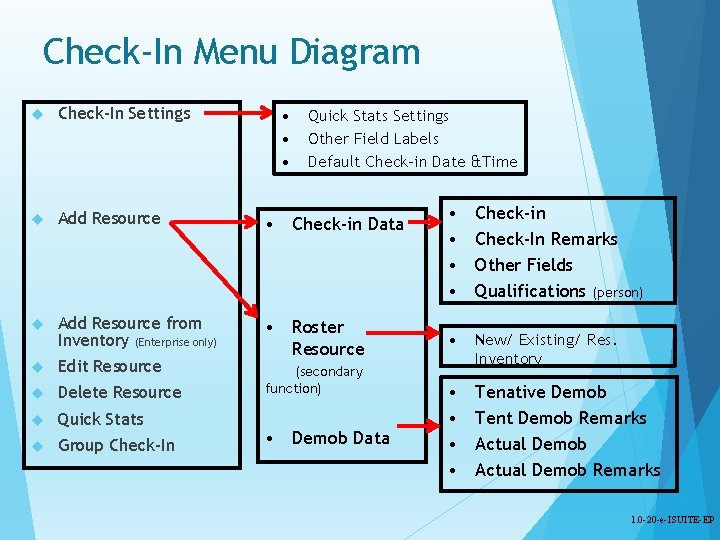
Check-In Menu Diagram Check-In Settings Add Resource • Check-in Data Add Resource from Inventory (Enterprise only) Edit Resource • Roster Resource Delete Resource Quick Stats Group Check-In • • • Quick Stats Settings Other Field Labels Default Check-in Date &Time (secondary function) • Demob Data • • Check-in Check-In Remarks Other Fields Qualifications (person) • New/ Existing/ Res. Inventory • • Tenative Demob Tent Demob Remarks Actual Demob Remarks 1. 0 -20 -e-ISUITE-EP
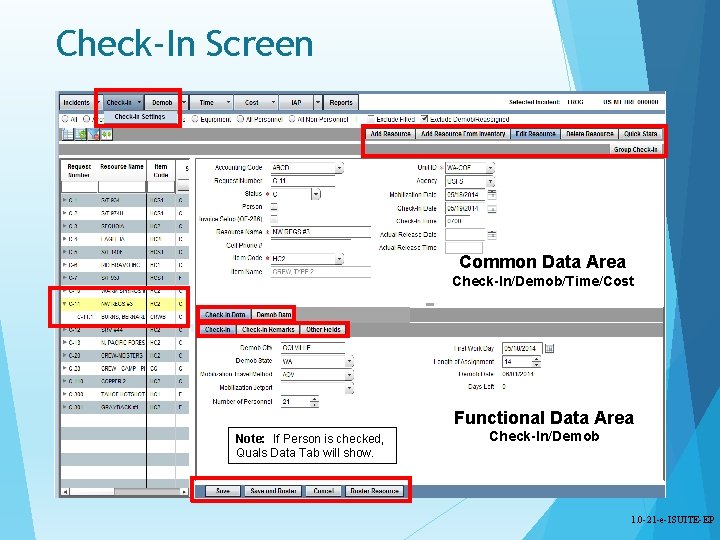
Check-In Screen Common Data Area Check-In/Demob/Time/Cost Functional Data Area Note: If Person is checked, Quals Data Tab will show. Check-In/Demob 1. 0 -21 -e-ISUITE-EP
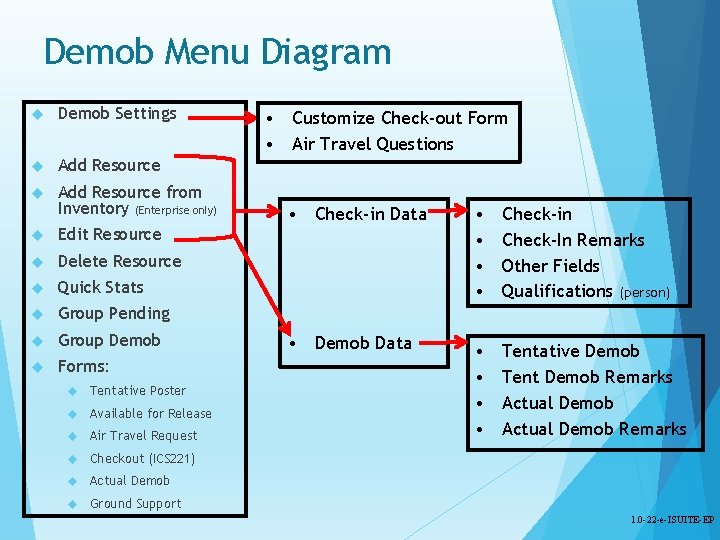
Demob Menu Diagram Demob Settings Add Resource from Inventory (Enterprise only) Edit Resource Delete Resource Quick Stats Group Pending Group Demob Forms: Tentative Poster Available for Release Air Travel Request Checkout (ICS 221) Actual Demob Ground Support • Customize Check-out Form • Air Travel Questions • Check-in Data • • Check-in Check-In Remarks Other Fields Qualifications (person) • Demob Data • • Tentative Demob Tent Demob Remarks Actual Demob Remarks 1. 0 -22 -e-ISUITE-EP

Demob Screen Common Data Area Check-In/Demob/Time/Cost Functional Data Area Note: Air Travel data tabs available based on Demob Travel Method. Check-In/Demob 1. 0 -23 -e-ISUITE-EP
Incident Action Plan (IAP) IAP uses database information to create ICS forms for an Incident Action Plan. • Create, copy, delete forms and Plans. • Import PDFs to be added to an IAP. • Export IAP files. • Form data is input using drop downs and lists which will be inserted/formatted in each form. • Depending on amount of form data, printed form will be adjusted to create form page(s) with complete data (headers/footers). 1. 0 -24 -e-ISUITE-EP

Incident Action Plan (IAP) Forms included in IAP Module: § ICS 202 Incident Objectives § ICS 203 Organizational Assignment List § ICS 204 (WF) Division/Group Assignment List § ICS 205 Incident Radio Communications Plan § ICS 206 (WF) Medical Plan Medical Incident Report Form § ICS 220 Air Operations Summary 1. 0 -25 -e-ISUITE-EP
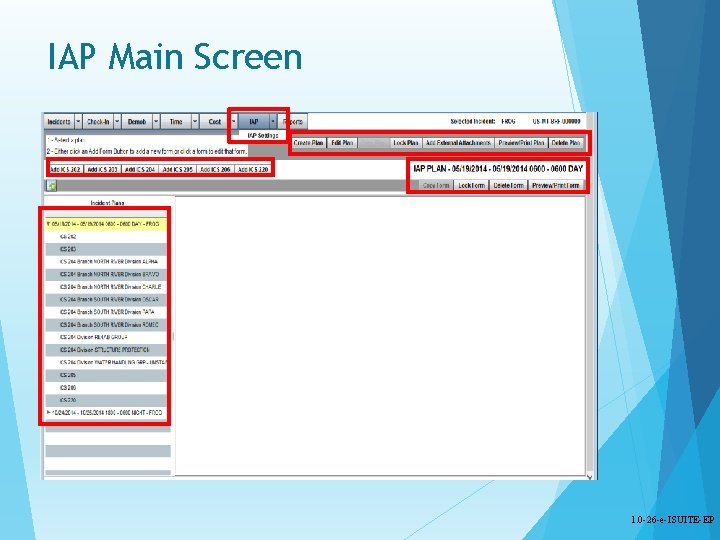
IAP Main Screen 1. 0 -26 -e-ISUITE-EP

IAP ICS 203 Screen ICS 203 Input Screen by Section ICS 203 Printout Page design is fluid, based on amount of data 1. 0 -27 -e-ISUITE-EP
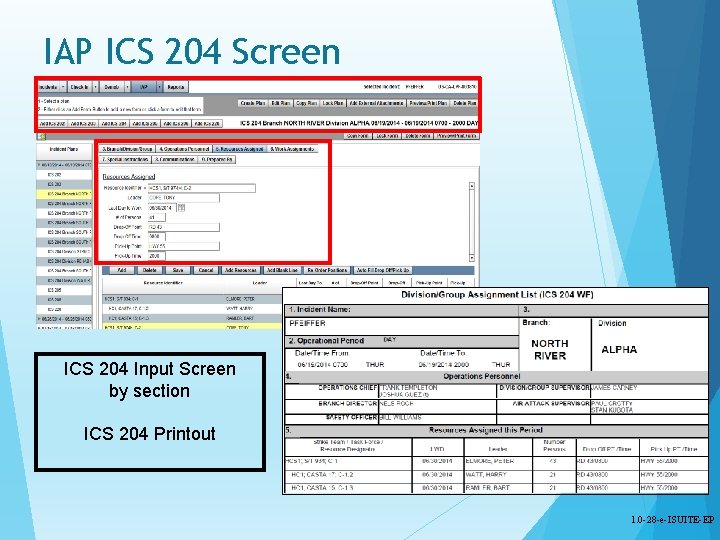
IAP ICS 204 Screen ICS 204 Input Screen by section ICS 204 Printout 1. 0 -28 -e-ISUITE-EP
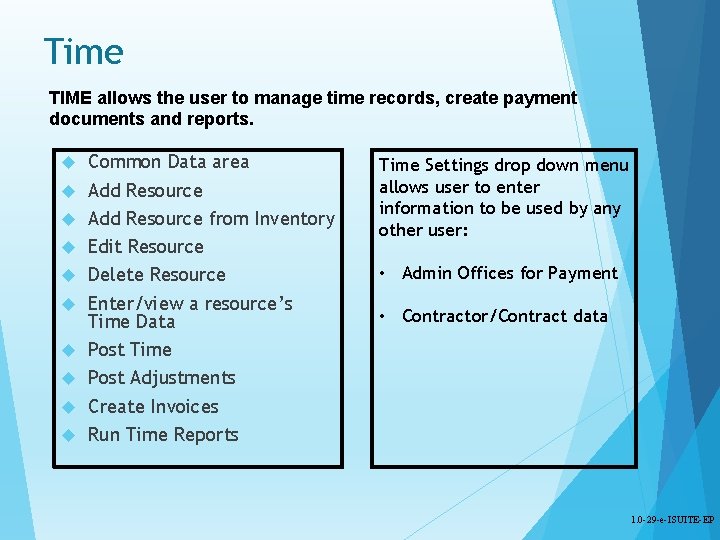
Time TIME allows the user to manage time records, create payment documents and reports. Common Data area Add Resource from Inventory Edit Resource Delete Resource Enter/view a resource’s Time Data Post Time Post Adjustments Create Invoices Run Time Reports Time Settings drop down menu allows user to enter information to be used by any other user: • Admin Offices for Payment • Contractor/Contract data 1. 0 -29 -e-ISUITE-EP
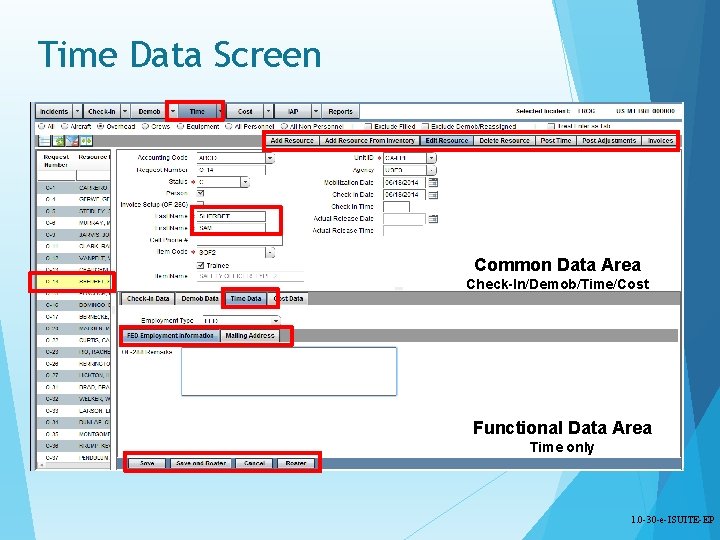
Time Data Screen Common Data Area Check-In/Demob/Time/Cost Functional Data Area Time only 1. 0 -30 -e-ISUITE-EP
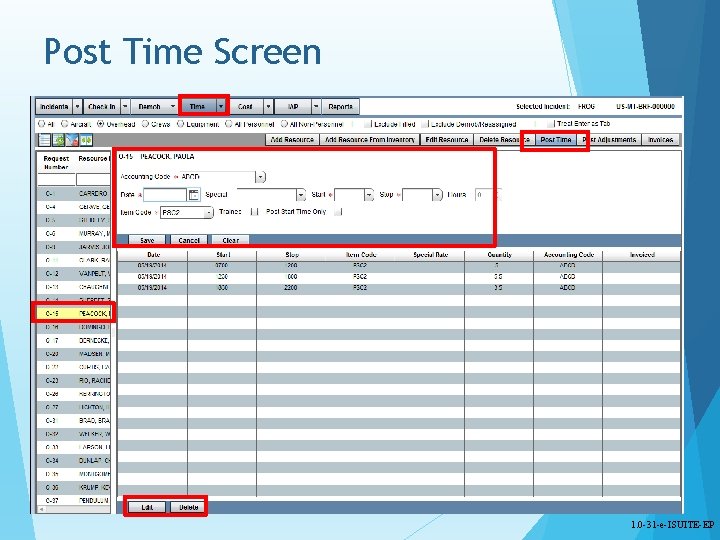
Post Time Screen 1. 0 -31 -e-ISUITE-EP
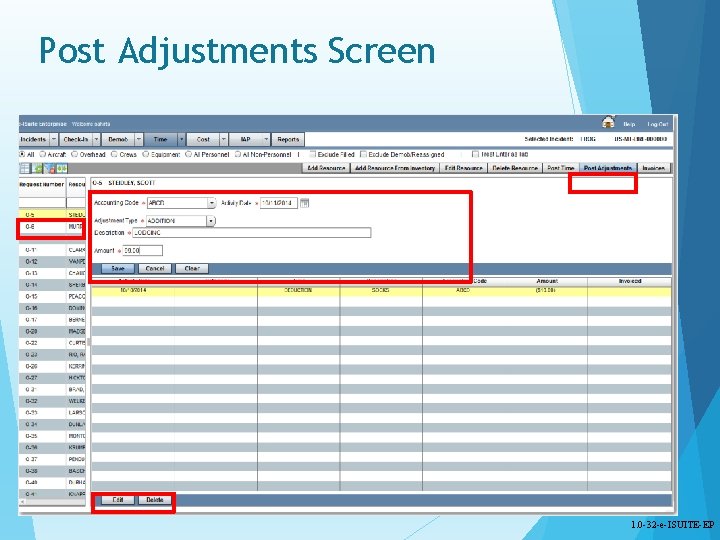
Post Adjustments Screen 1. 0 -32 -e-ISUITE-EP
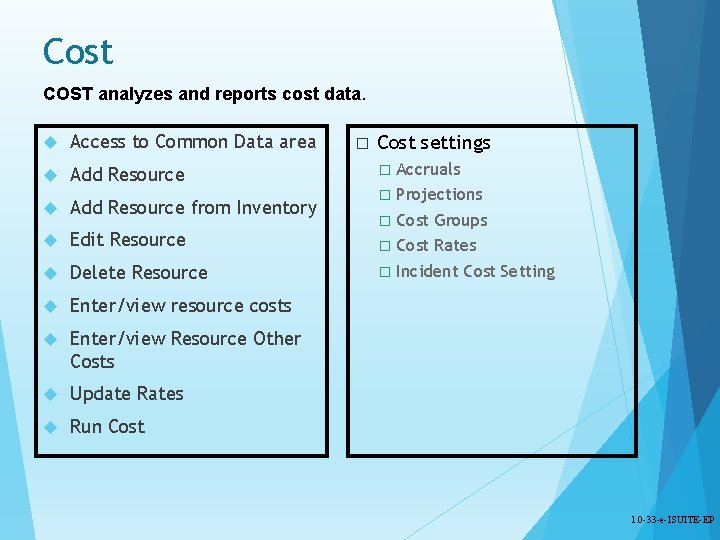
Cost COST analyzes and reports cost data. Access to Common Data area Add Resource from Inventory Edit Resource Delete Resource Enter/view resource costs Enter/view Resource Other Costs Update Rates Run Cost � Cost settings � Accruals � Projections � Cost Groups � Cost Rates � Incident Cost Setting 1. 0 -33 -e-ISUITE-EP
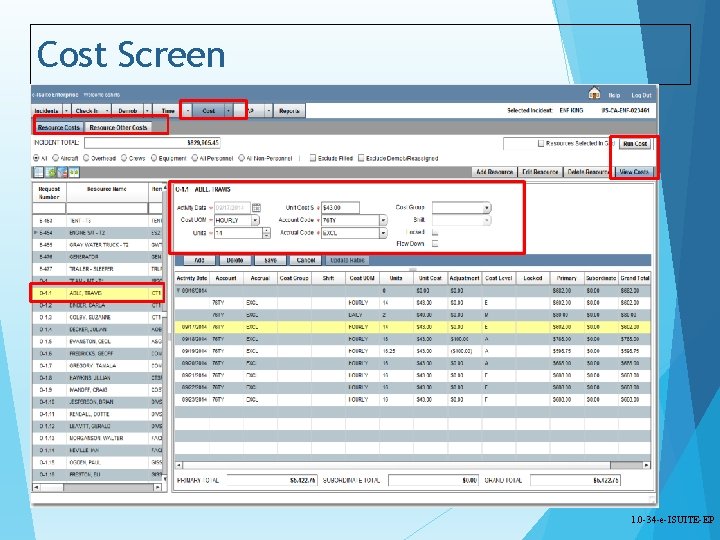
Cost Screen 1. 0 -34 -e-ISUITE-EP
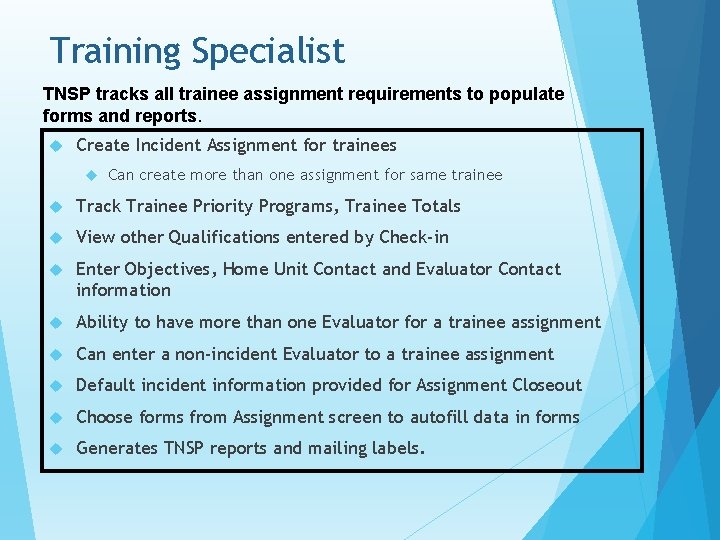
Training Specialist TNSP tracks all trainee assignment requirements to populate forms and reports. Create Incident Assignment for trainees Can create more than one assignment for same trainee Track Trainee Priority Programs, Trainee Totals View other Qualifications entered by Check-in Enter Objectives, Home Unit Contact and Evaluator Contact information Ability to have more than one Evaluator for a trainee assignment Can enter a non-incident Evaluator to a trainee assignment Default incident information provided for Assignment Closeout Choose forms from Assignment screen to autofill data in forms Generates TNSP reports and mailing labels.
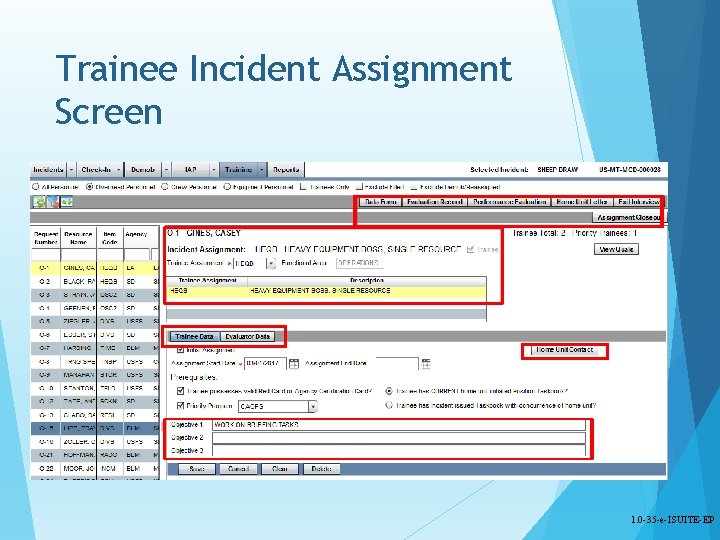
Trainee Incident Assignment Screen 1. 0 -35 -e-ISUITE-EP

Plans Reports Resource Reports • • All Resources ICS-209 Resource Count Qualifications Strike Team/Task Force Demob Reports • • Check-Out Form Demob Planning Tentative Poster Available for Release Air Travel Request Last Work Day Actual Demob Ground Support 1. 0 -36 -e-ISUITE-EP
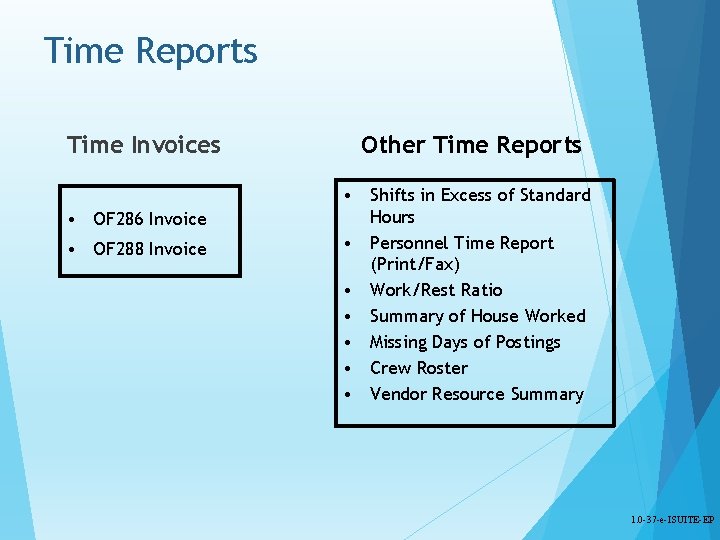
Time Reports Time Invoices • OF 286 Invoice • OF 288 Invoice Other Time Reports • Shifts in Excess of Standard Hours • Personnel Time Report (Print/Fax) • Work/Rest Ratio • Summary of House Worked • Missing Days of Postings • Crew Roster • Vendor Resource Summary 1. 0 -37 -e-ISUITE-EP
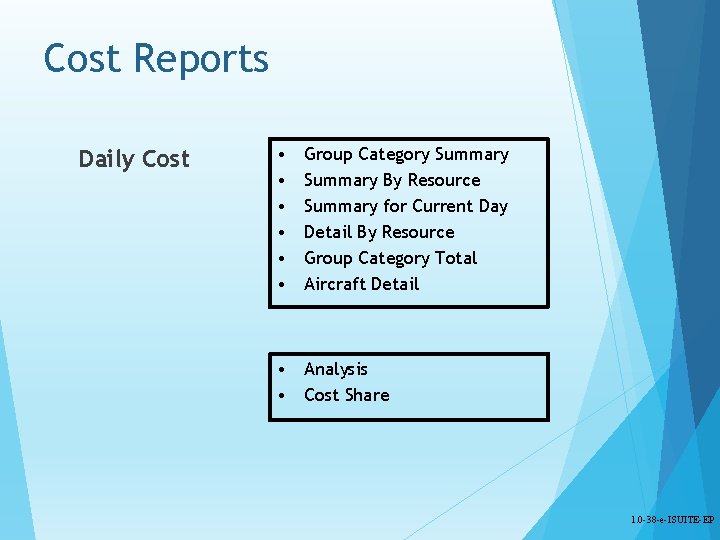
Cost Reports Daily Cost • • • Group Category Summary By Resource Summary for Current Day Detail By Resource Group Category Total Aircraft Detail • Analysis • Cost Share 1. 0 -38 -e-ISUITE-EP
Training Specialist Forms/Reports Trainee Forms Autofill with Data Reports/Forms/Labels • Trainee Data Form – 2 pages • Evaluation Record – last page of Taskbook • Performance Evaluation – fills in header, footer • Home Unit Letter • Exit Interview – fills in header • Training Assignment List • Incident Training Summary • Home Unit Mailing Labels • All TNSP Forms - can print blank forms if desired
Custom Reports Custom Report Module allows users to create non-standard reports. Query Building Screens Report Information Column Builder Creates report “canned” SQL statements Sort Builder Sets column parameters for report Criteria Builder Adds general report characteristics Provides sorting criteria SQL Viewer Able to view created SQL statements View as PDF Download data as Excel spreadsheet Copy, Export and Import Reports 1. 0 -39 -e-ISUITE-EP
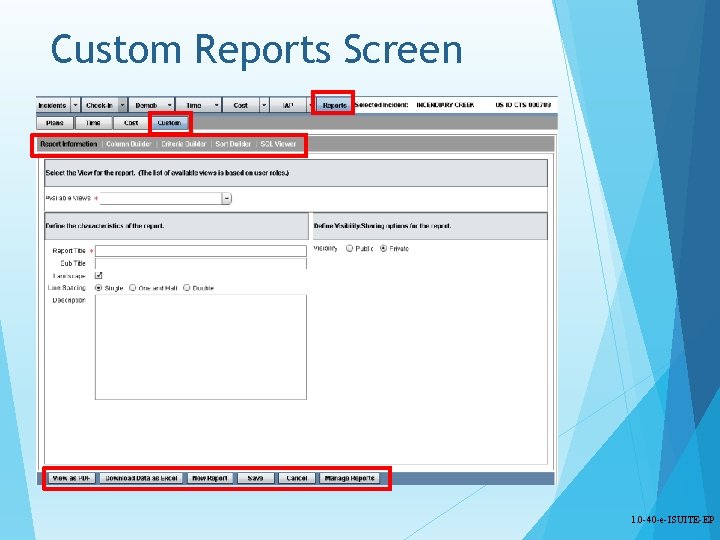
Custom Reports Screen 1. 0 -40 -e-ISUITE-EP

WELCOME to -- 1. 0 -41 -e-ISUITE-EP
- Slides: 40