
EIMS EMeasurement Book HOME PAGE WATER RESOURCES DEPARTMENT
EIMS E-Measurement Book
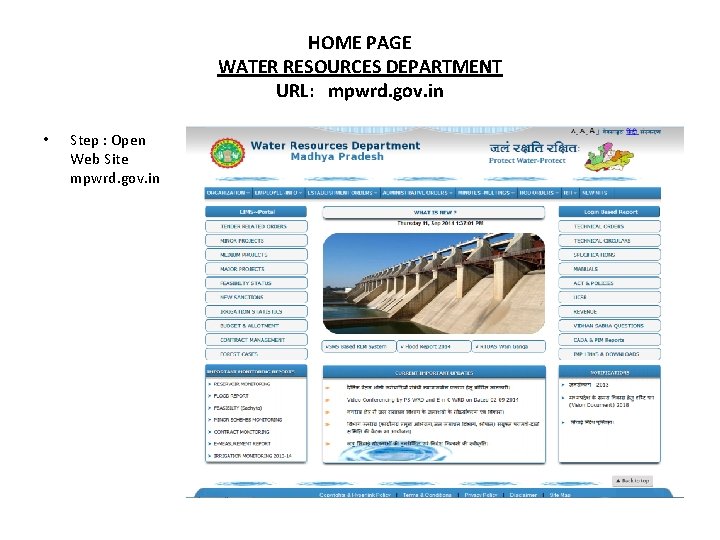
HOME PAGE WATER RESOURCES DEPARTMENT URL: mpwrd. gov. in • Step : Open Web Site mpwrd. gov. in
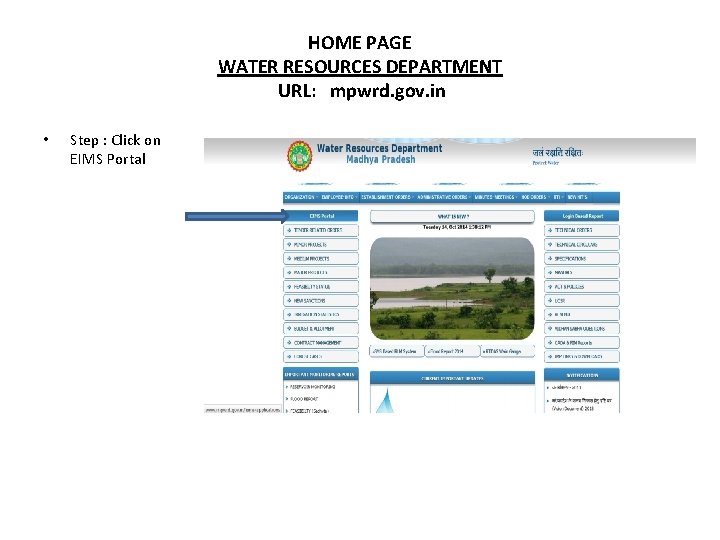
HOME PAGE WATER RESOURCES DEPARTMENT URL: mpwrd. gov. in • Step : Click on EIMS Portal
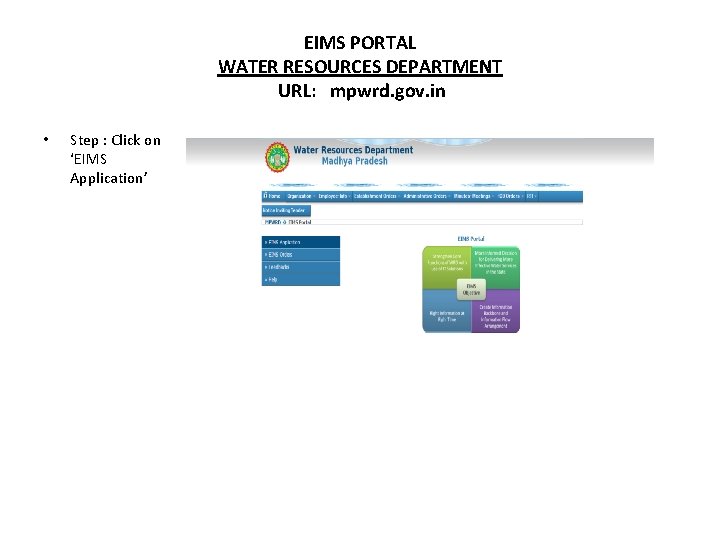
EIMS PORTAL WATER RESOURCES DEPARTMENT URL: mpwrd. gov. in • Step : Click on ‘EIMS Application’
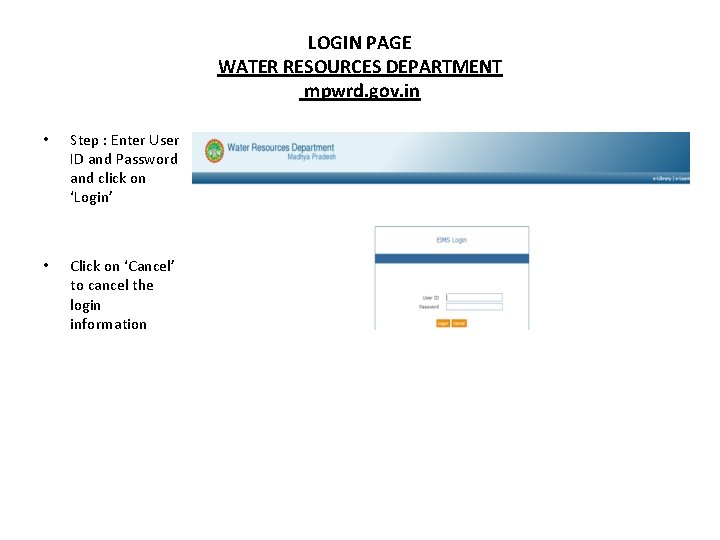
LOGIN PAGE WATER RESOURCES DEPARTMENT mpwrd. gov. in • Step : Enter User ID and Password and click on ‘Login’ • Click on ‘Cancel’ to cancel the login information
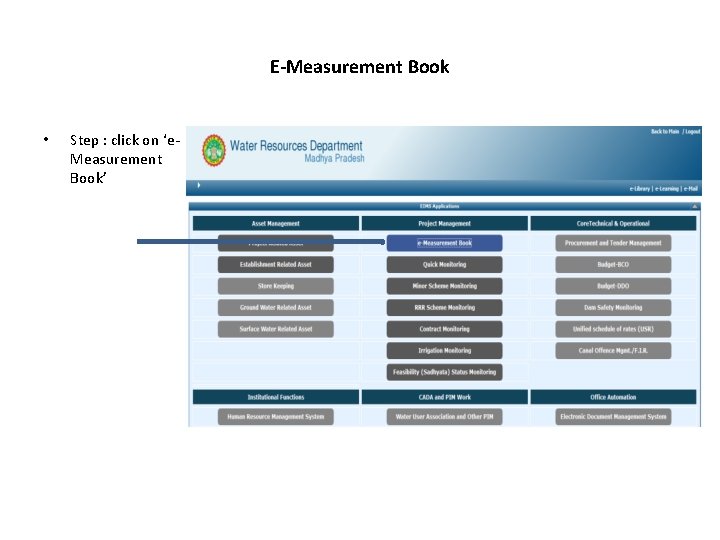
E-Measurement Book • Step : click on ‘e. Measurement Book’
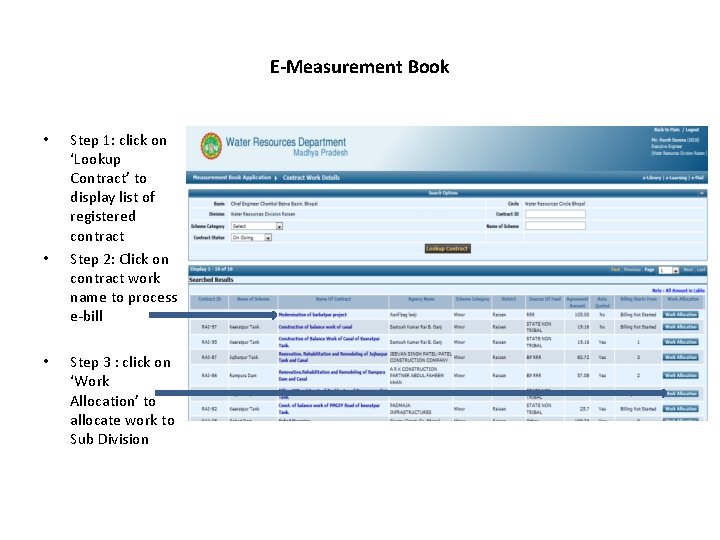
E-Measurement Book • • • Step 1: click on ‘Lookup Contract’ to display list of registered contract Step 2: Click on contract work name to process e-bill Step 3 : click on ‘Work Allocation’ to allocate work to Sub Division
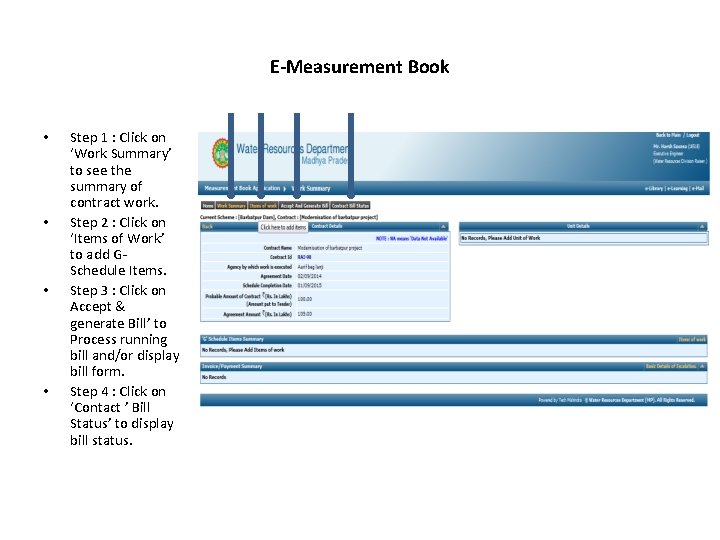
E-Measurement Book • • Step 1 : Click on ‘Work Summary’ to see the summary of contract work. Step 2 : Click on ‘Items of Work’ to add GSchedule Items. Step 3 : Click on Accept & generate Bill’ to Process running bill and/or display bill form. Step 4 : Click on ‘Contact ’ Bill Status’ to display bill status.
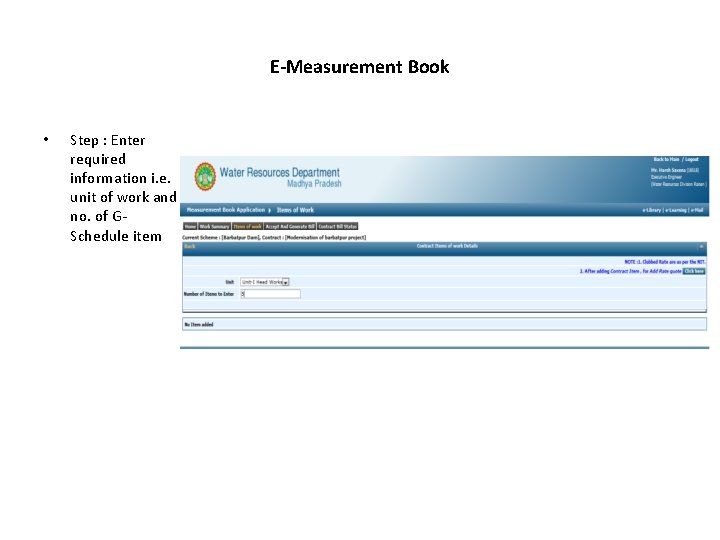
E-Measurement Book • Step : Enter required information i. e. unit of work and no. of GSchedule item
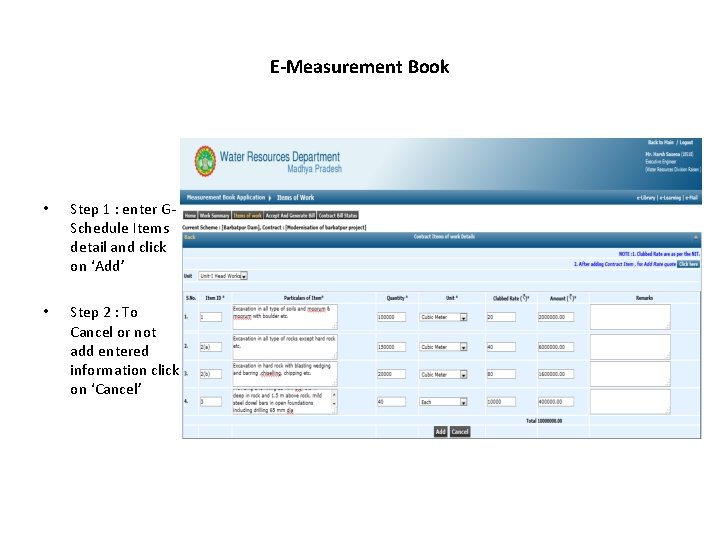
E-Measurement Book • Step 1 : enter GSchedule Items detail and click on ‘Add’ • Step 2 : To Cancel or not add entered information click on ‘Cancel’
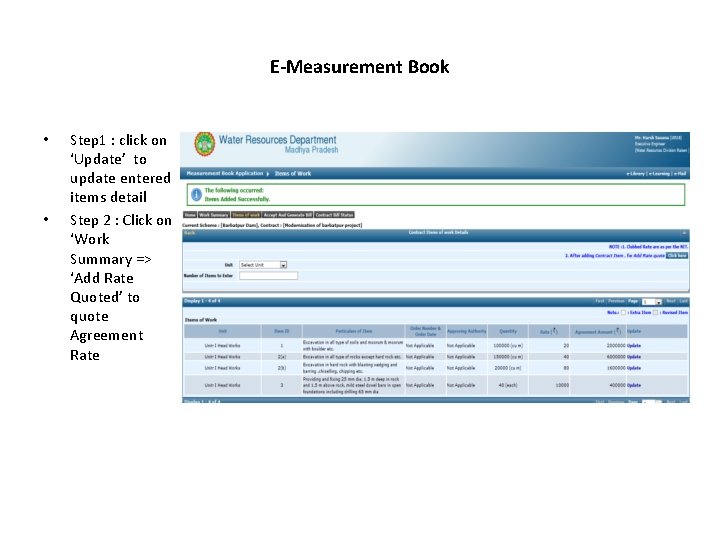
E-Measurement Book • • Step 1 : click on ‘Update’ to update entered items detail Step 2 : Click on ‘Work Summary => ‘Add Rate Quoted’ to quote Agreement Rate
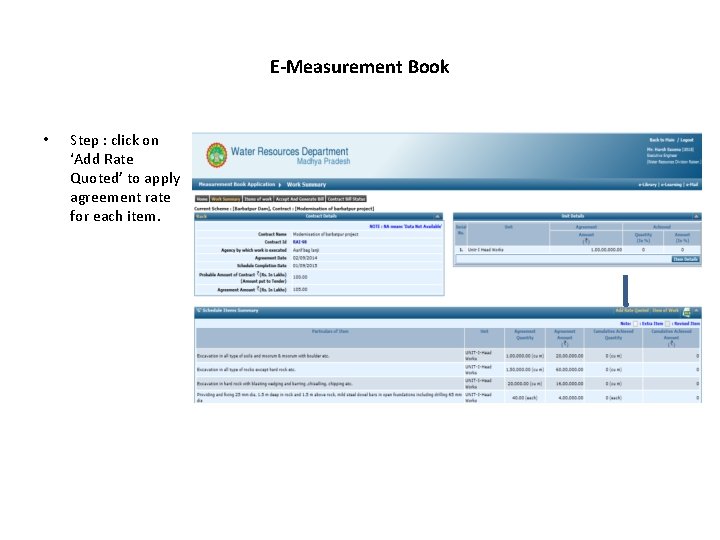
E-Measurement Book • Step : click on ‘Add Rate Quoted’ to apply agreement rate for each item.
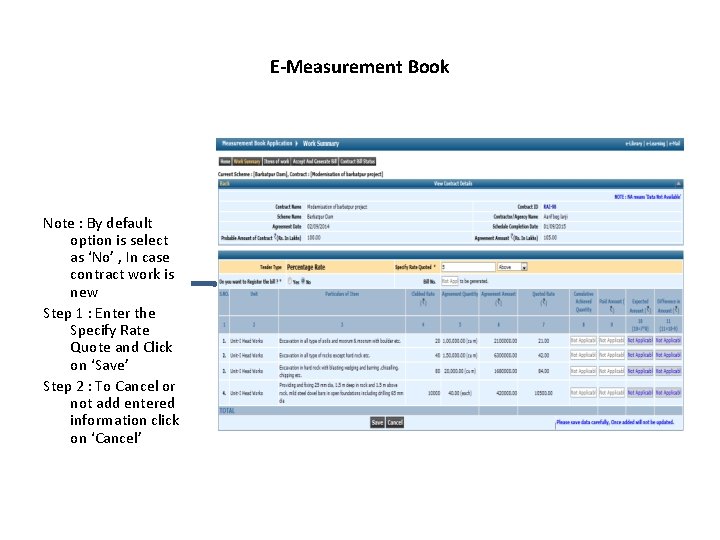
E-Measurement Book Note : By default option is select as ‘No’ , In case contract work is new Step 1 : Enter the Specify Rate Quote and Click on ‘Save’ Step 2 : To Cancel or not add entered information click on ‘Cancel’
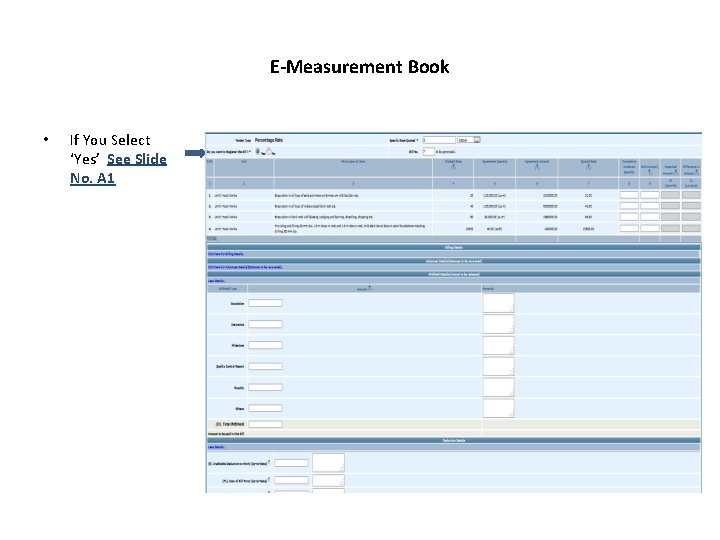
E-Measurement Book • If You Select ‘Yes’ See Slide No. A 1
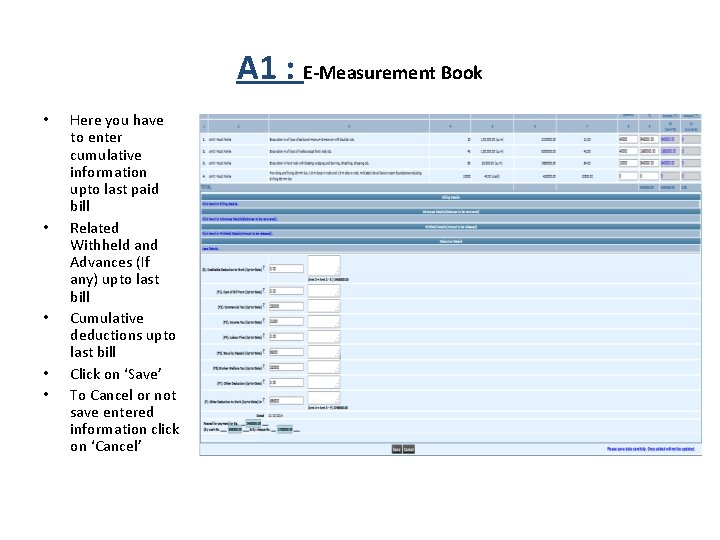
A 1 : E-Measurement Book • • • Here you have to enter cumulative information upto last paid bill Related Withheld and Advances (If any) upto last bill Cumulative deductions upto last bill Click on ‘Save’ To Cancel or not save entered information click on ‘Cancel’
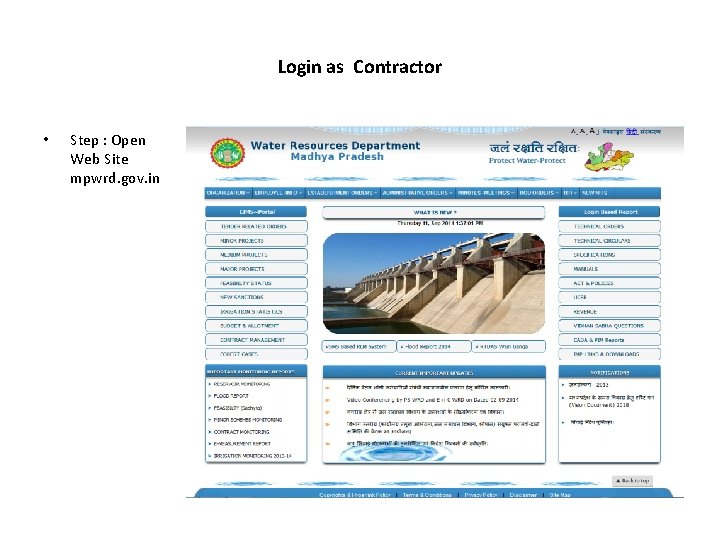
Login as Contractor • Step : Open Web Site mpwrd. gov. in
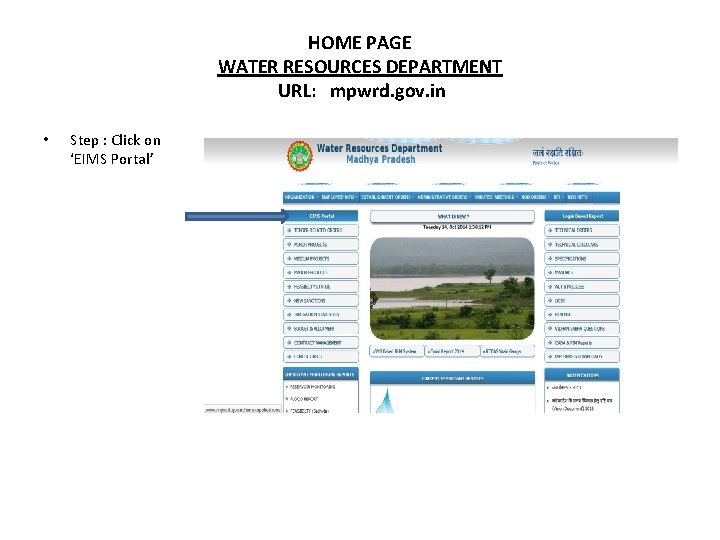
HOME PAGE WATER RESOURCES DEPARTMENT URL: mpwrd. gov. in • Step : Click on ‘EIMS Portal’
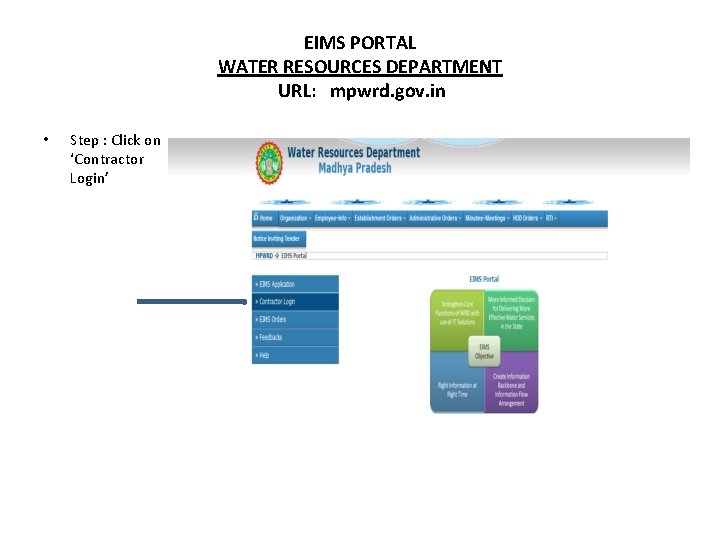
EIMS PORTAL WATER RESOURCES DEPARTMENT URL: mpwrd. gov. in • Step : Click on ‘Contractor Login’
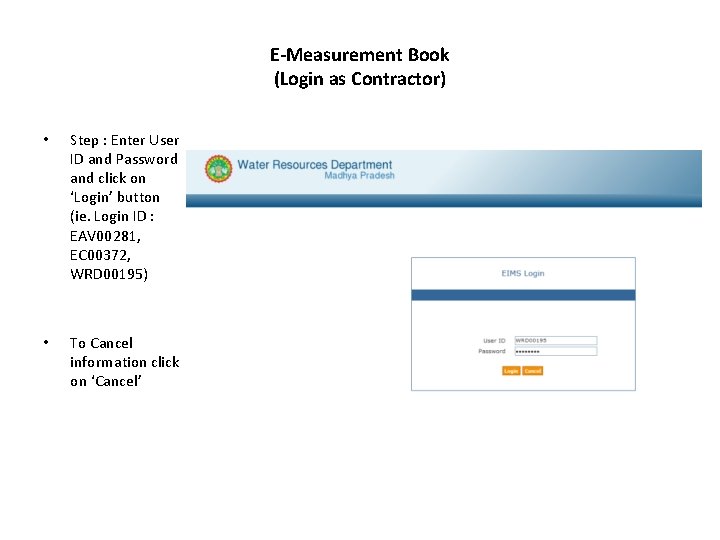
E-Measurement Book (Login as Contractor) • Step : Enter User ID and Password and click on ‘Login’ button (ie. Login ID : EAV 00281, EC 00372, WRD 00195) • To Cancel information click on ‘Cancel’
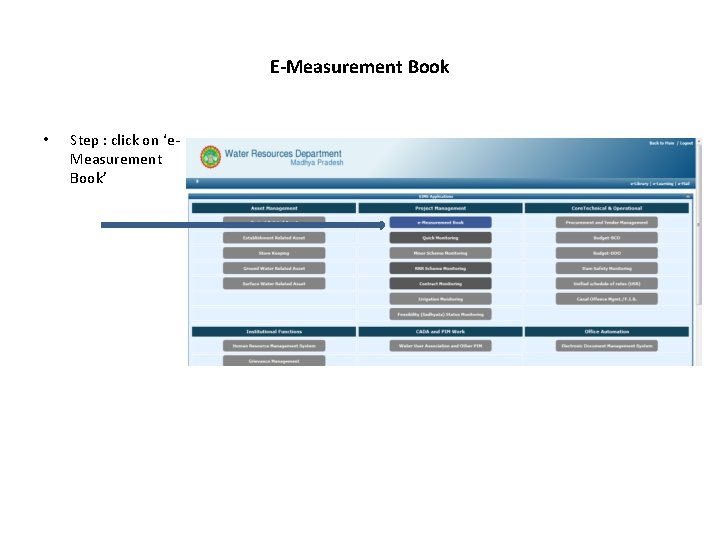
E-Measurement Book • Step : click on ‘e. Measurement Book’
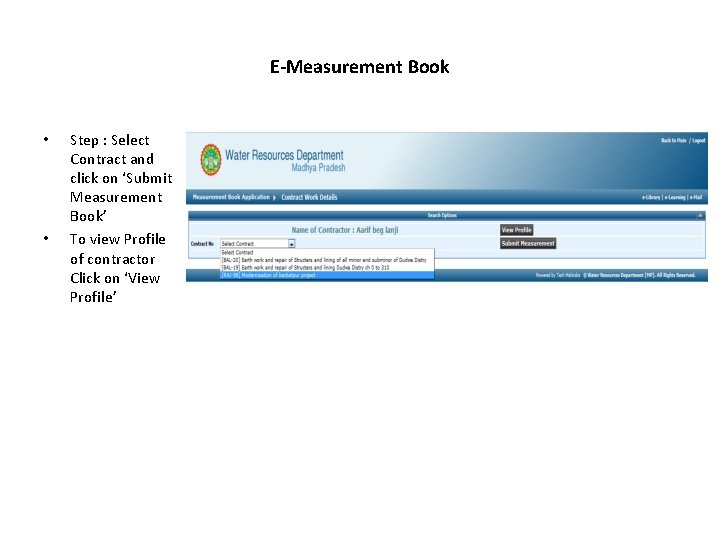
E-Measurement Book • • Step : Select Contract and click on ‘Submit Measurement Book’ To view Profile of contractor Click on ‘View Profile’
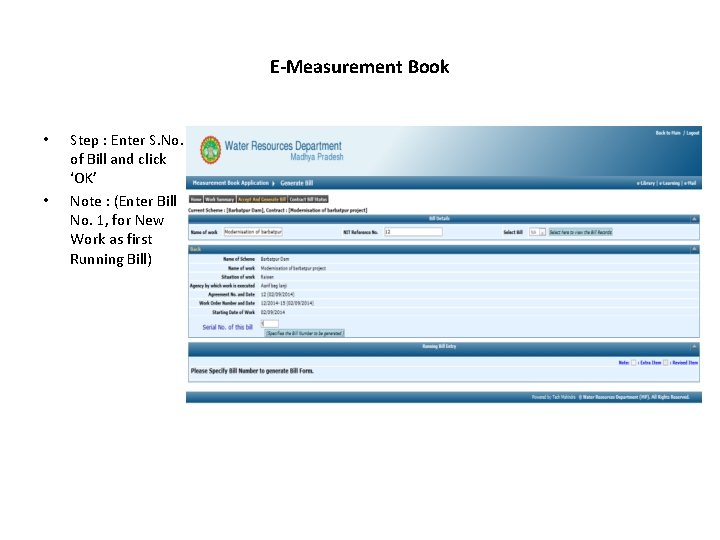
E-Measurement Book • • Step : Enter S. No. of Bill and click ‘OK’ Note : (Enter Bill No. 1, for New Work as first Running Bill)
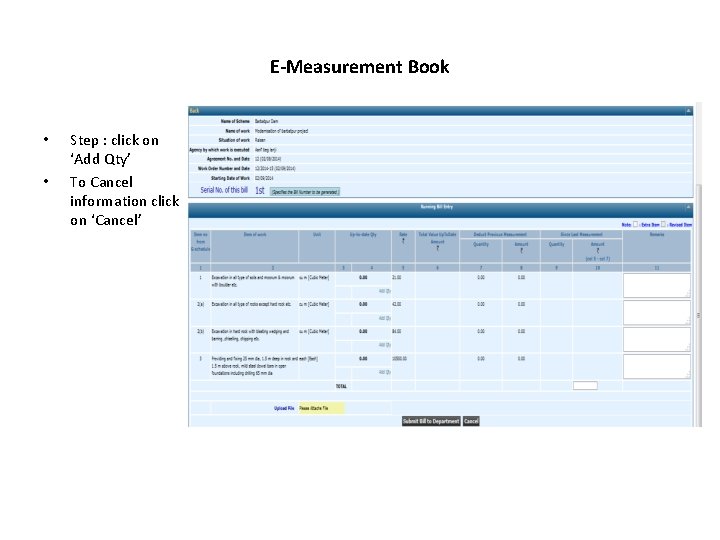
E-Measurement Book • • Step : click on ‘Add Qty’ To Cancel information click on ‘Cancel’
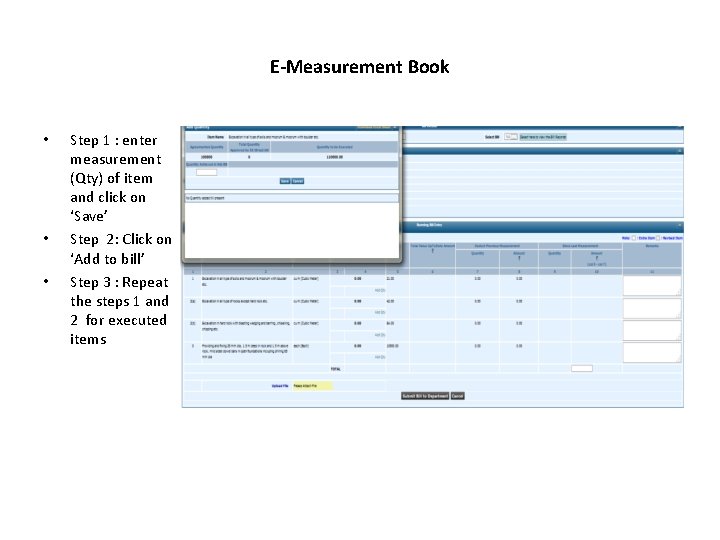
E-Measurement Book • • • Step 1 : enter measurement (Qty) of item and click on ‘Save’ Step 2: Click on ‘Add to bill’ Step 3 : Repeat the steps 1 and 2 for executed items
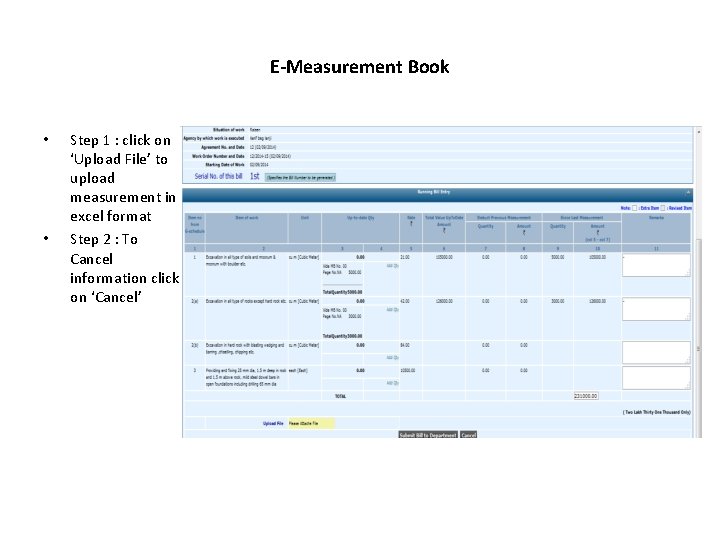
E-Measurement Book • • Step 1 : click on ‘Upload File’ to upload measurement in excel format Step 2 : To Cancel information click on ‘Cancel’
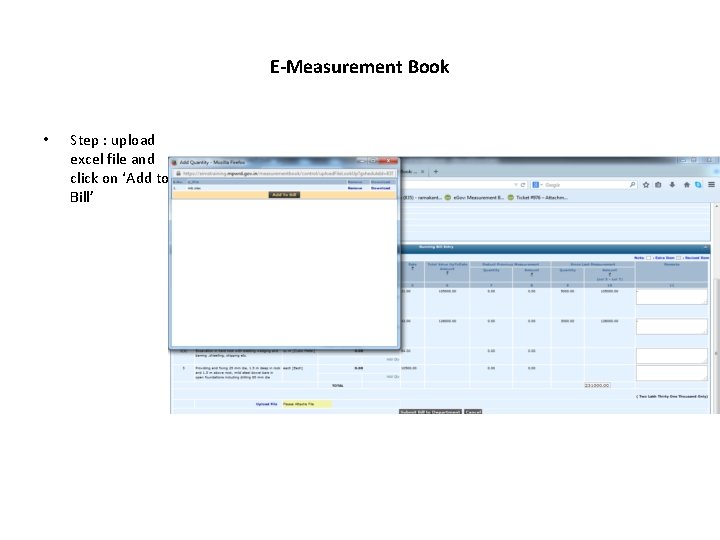
E-Measurement Book • Step : upload excel file and click on ‘Add to Bill’
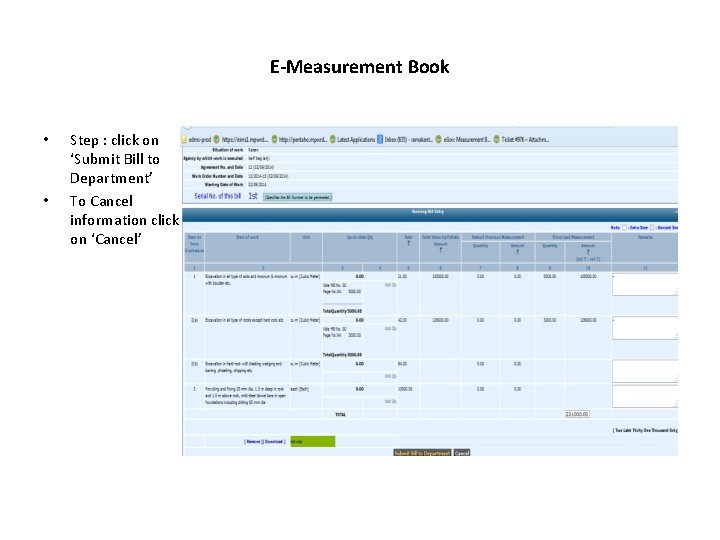
E-Measurement Book • • Step : click on ‘Submit Bill to Department’ To Cancel information click on ‘Cancel’
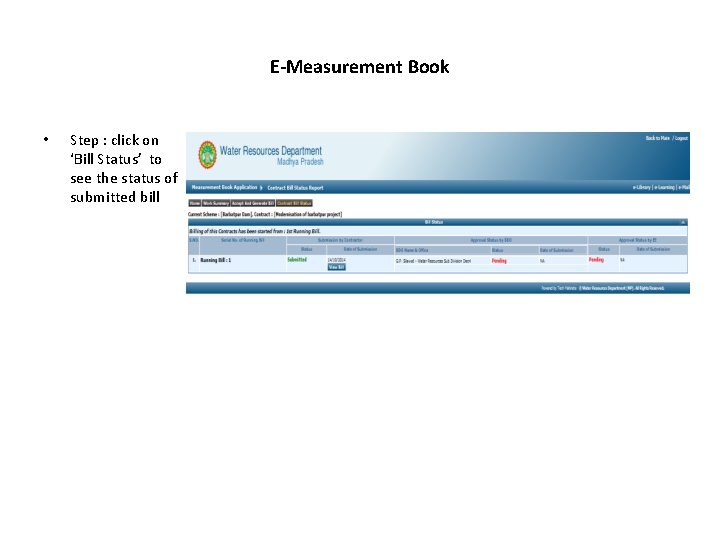
E-Measurement Book • Step : click on ‘Bill Status’ to see the status of submitted bill
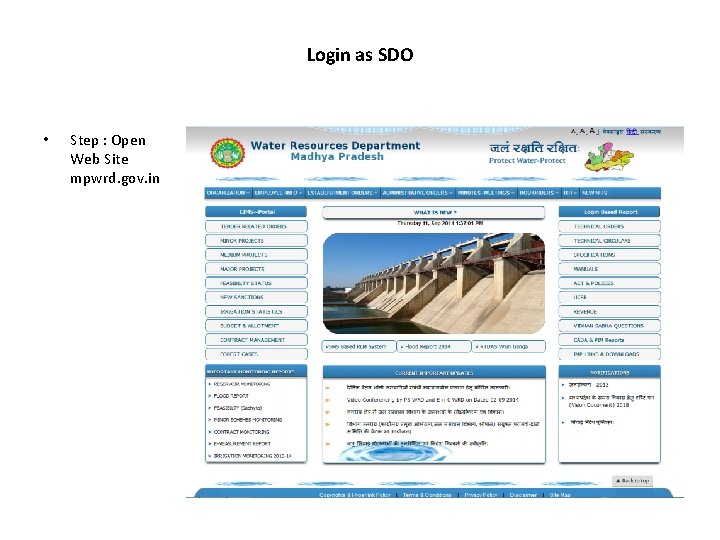
Login as SDO • Step : Open Web Site mpwrd. gov. in
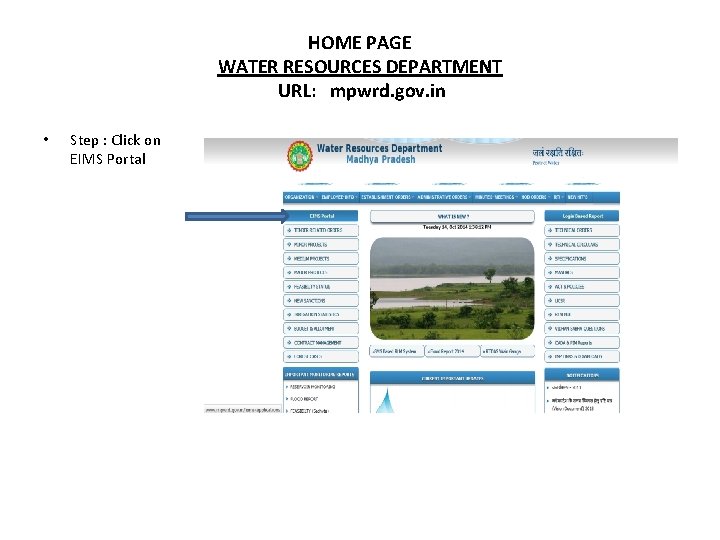
HOME PAGE WATER RESOURCES DEPARTMENT URL: mpwrd. gov. in • Step : Click on EIMS Portal
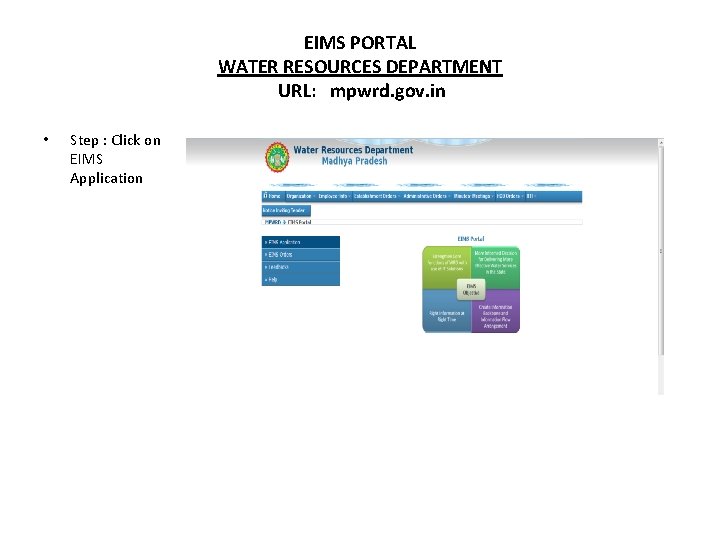
EIMS PORTAL WATER RESOURCES DEPARTMENT URL: mpwrd. gov. in • Step : Click on EIMS Application
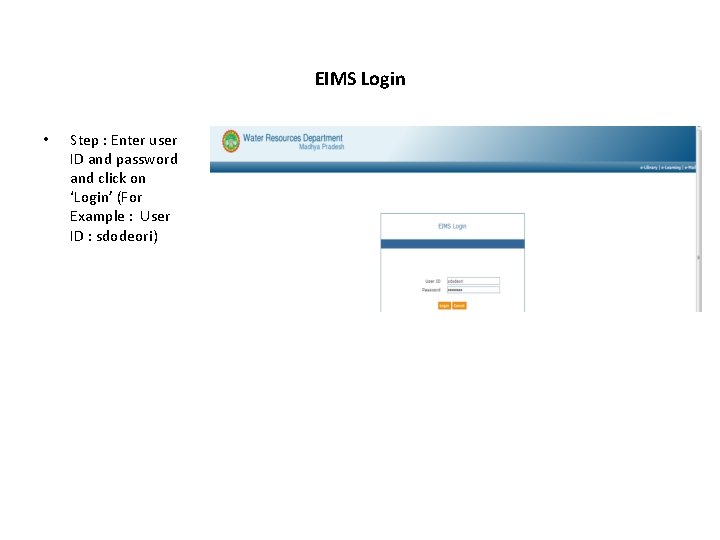
EIMS Login • Step : Enter user ID and password and click on ‘Login’ (For Example : User ID : sdodeori)
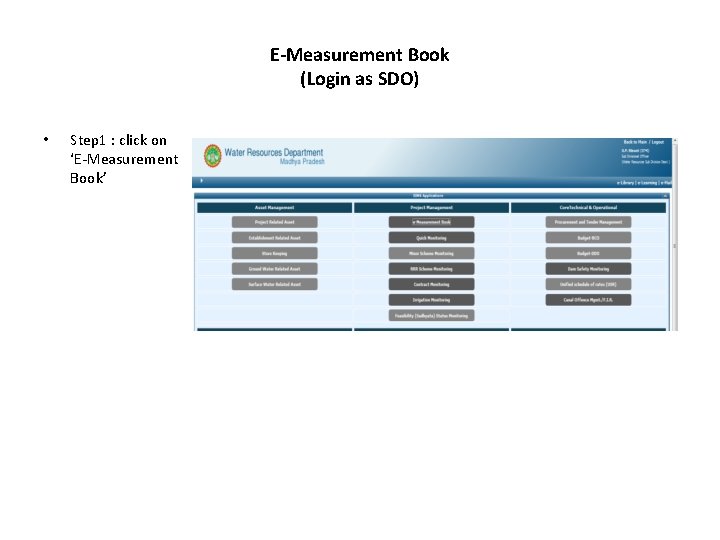
E-Measurement Book (Login as SDO) • Step 1 : click on ‘E-Measurement Book’
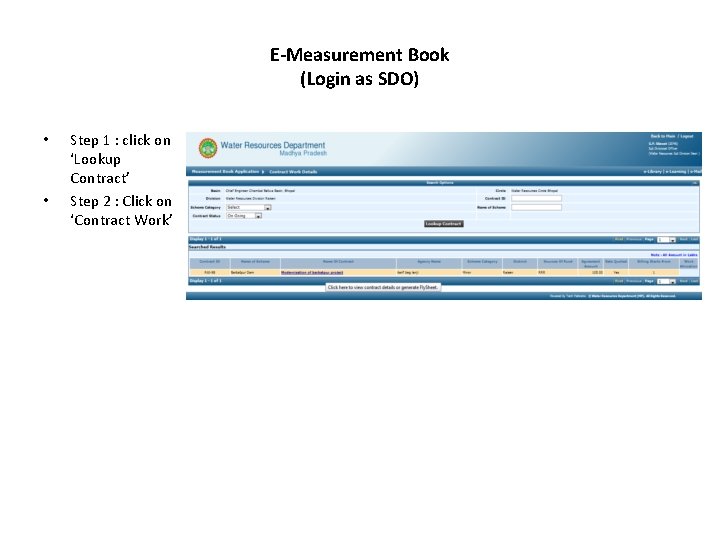
E-Measurement Book (Login as SDO) • • Step 1 : click on ‘Lookup Contract’ Step 2 : Click on ‘Contract Work’
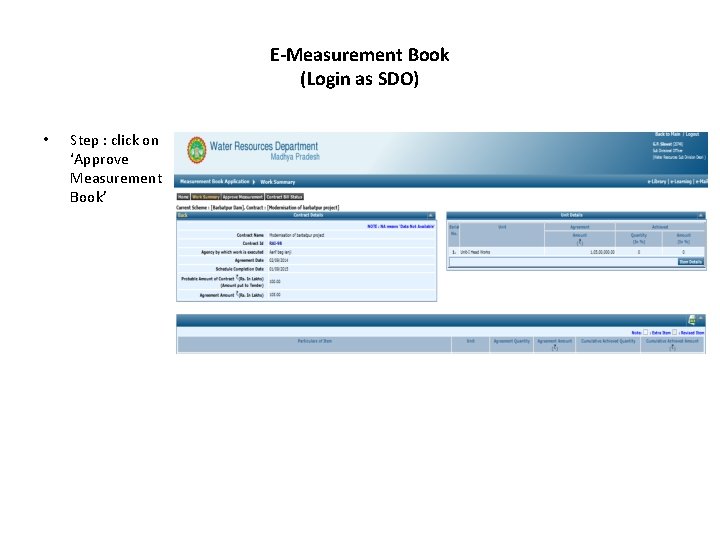
E-Measurement Book (Login as SDO) • Step : click on ‘Approve Measurement Book’
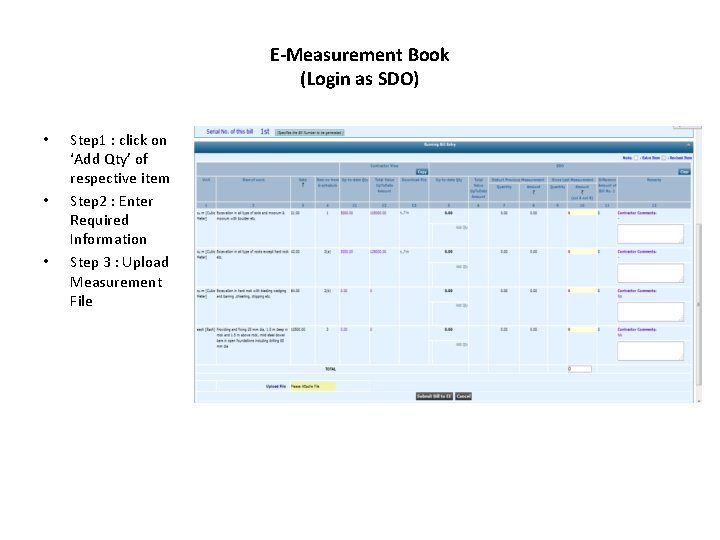
E-Measurement Book (Login as SDO) • • • Step 1 : click on ‘Add Qty’ of respective item Step 2 : Enter Required Information Step 3 : Upload Measurement File
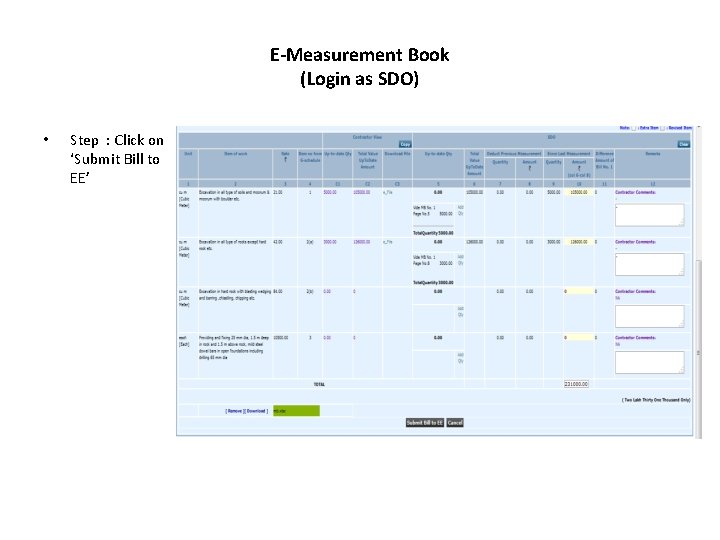
E-Measurement Book (Login as SDO) • Step : Click on ‘Submit Bill to EE’
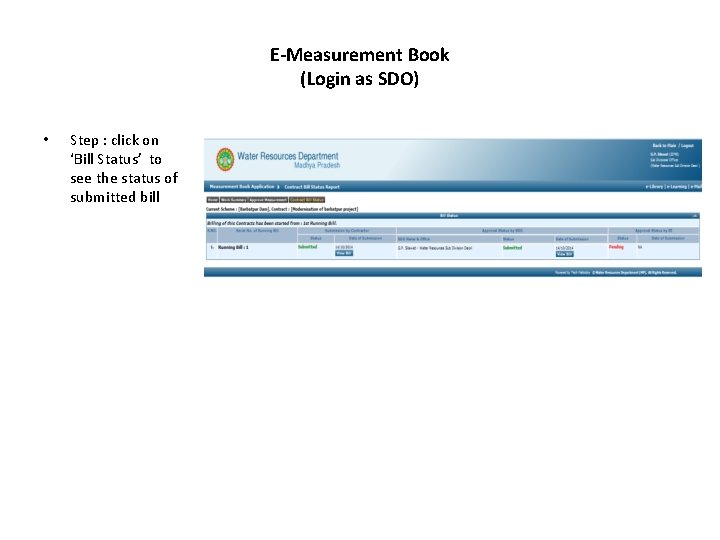
E-Measurement Book (Login as SDO) • Step : click on ‘Bill Status’ to see the status of submitted bill
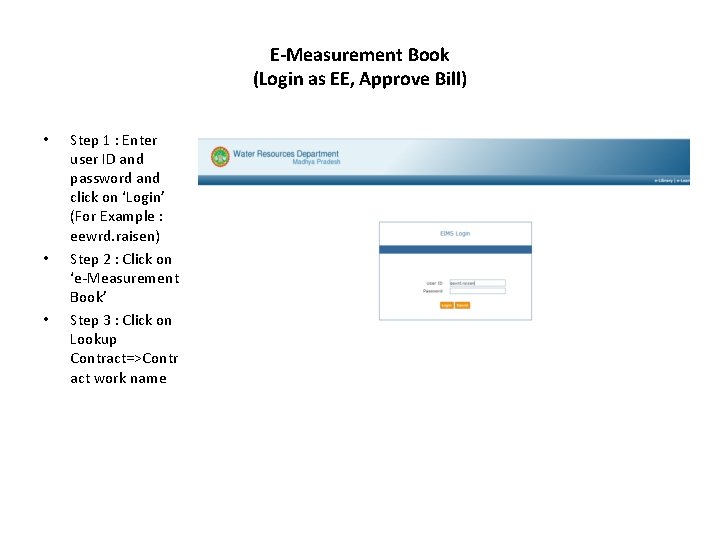
E-Measurement Book (Login as EE, Approve Bill) • • • Step 1 : Enter user ID and password and click on ‘Login’ (For Example : eewrd. raisen) Step 2 : Click on ‘e-Measurement Book’ Step 3 : Click on Lookup Contract=>Contr act work name
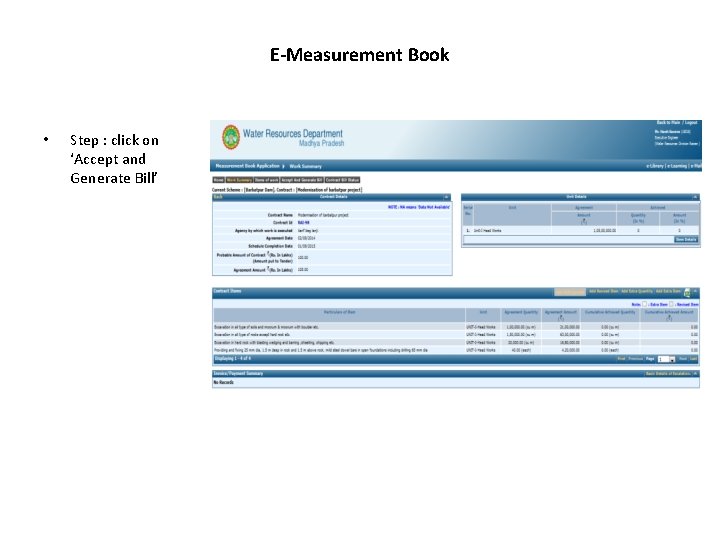
E-Measurement Book • Step : click on ‘Accept and Generate Bill’
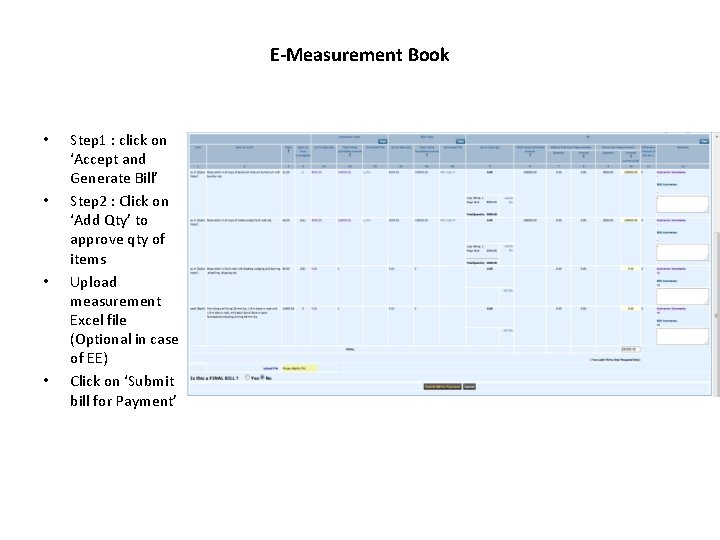
E-Measurement Book • • Step 1 : click on ‘Accept and Generate Bill’ Step 2 : Click on ‘Add Qty’ to approve qty of items Upload measurement Excel file (Optional in case of EE) Click on ‘Submit bill for Payment’
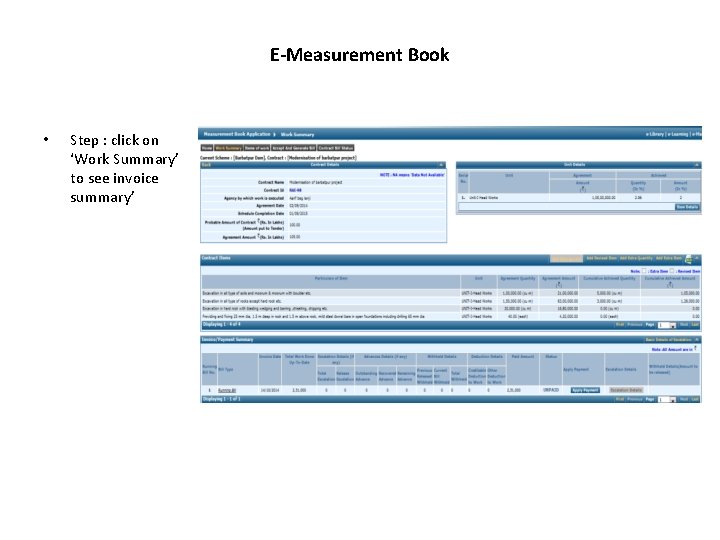
E-Measurement Book • Step : click on ‘Work Summary’ to see invoice summary’
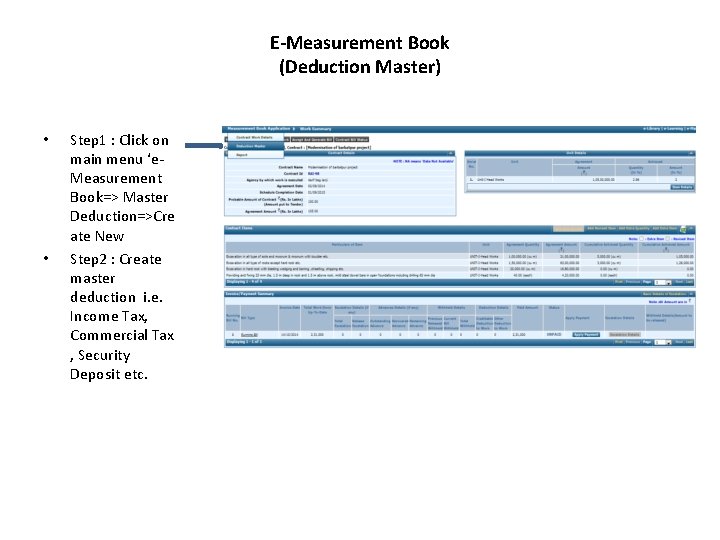
E-Measurement Book (Deduction Master) • • Step 1 : Click on main menu ‘e. Measurement Book=> Master Deduction=>Cre ate New Step 2 : Create master deduction i. e. Income Tax, Commercial Tax , Security Deposit etc.
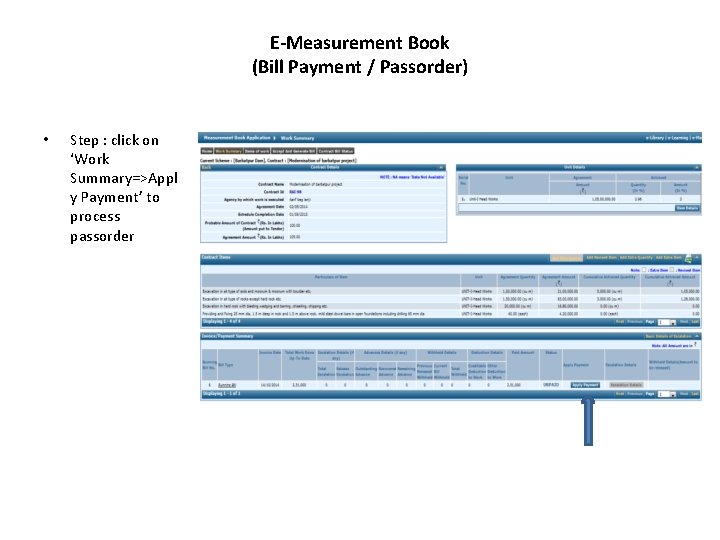
E-Measurement Book (Bill Payment / Passorder) • Step : click on ‘Work Summary=>Appl y Payment’ to process passorder
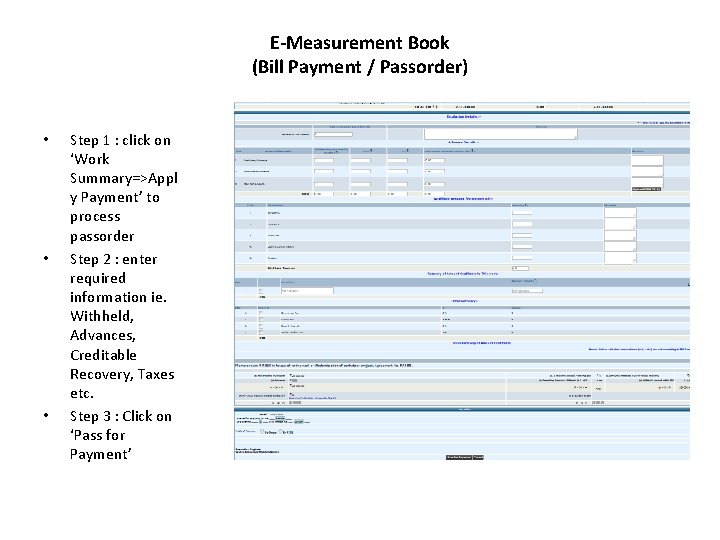
E-Measurement Book (Bill Payment / Passorder) • • • Step 1 : click on ‘Work Summary=>Appl y Payment’ to process passorder Step 2 : enter required information ie. Withheld, Advances, Creditable Recovery, Taxes etc. Step 3 : Click on ‘Pass for Payment’
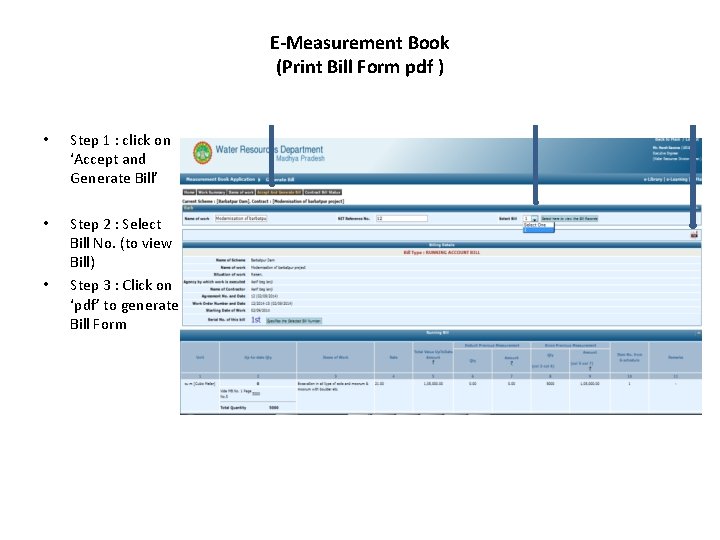
E-Measurement Book (Print Bill Form pdf ) • Step 1 : click on ‘Accept and Generate Bill’ • Step 2 : Select Bill No. (to view Bill) Step 3 : Click on ‘pdf’ to generate Bill Form •
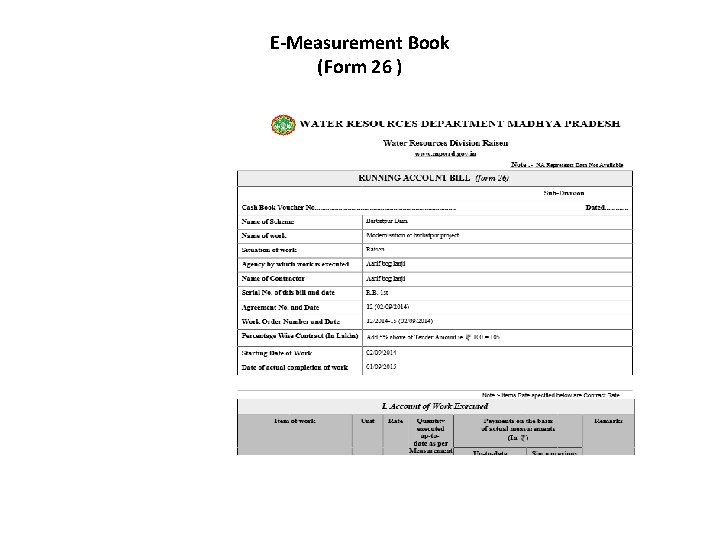
E-Measurement Book (Form 26 )
- Slides: 47