
Education and Career Action Plan ECAP Hamilton High
- Slides: 11
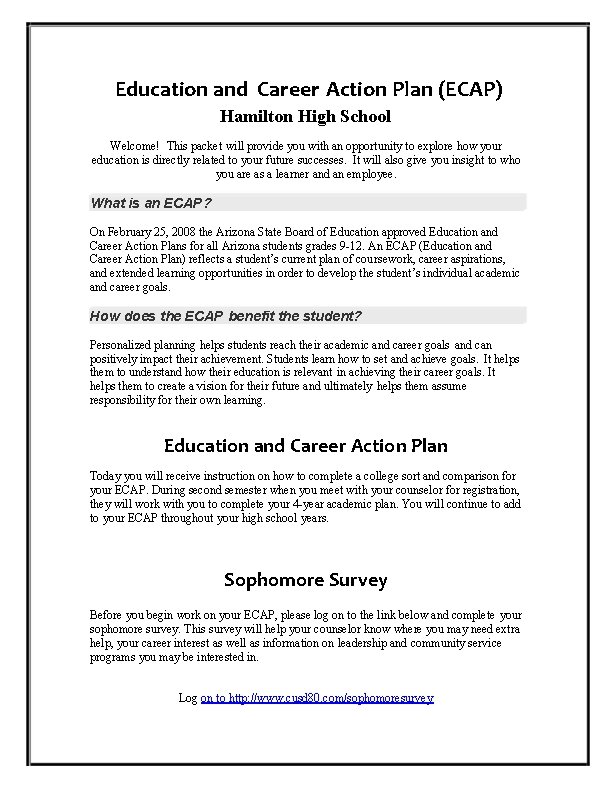
Education and Career Action Plan (ECAP) Hamilton High School Welcome! This packet will provide you with an opportunity to explore how your education is directly related to your future successes. It will also give you insight to who you are as a learner and an employee. What is an ECAP? On February 25, 2008 the Arizona State Board of Education approved Education and Career Action Plans for all Arizona students grades 9 -12. An ECAP (Education and Career Action Plan) reflects a student’s current plan of coursework, career aspirations, and extended learning opportunities in order to develop the student’s individual academic and career goals. How does the ECAP benefit the student? Personalized planning helps students reach their academic and career goals and can positively impact their achievement. Students learn how to set and achieve goals. It helps them to understand how their education is relevant in achieving their career goals. It helps them to create a vision for their future and ultimately helps them assume responsibility for their own learning. Education and Career Action Plan Today you will receive instruction on how to complete a college sort and comparison for your ECAP. During second semester when you meet with your counselor for registration, they will work with you to complete your 4 -year academic plan. You will continue to add to your ECAP throughout your high school years. Sophomore Survey Before you begin work on your ECAP, please log on to the link below and complete your sophomore survey. This survey will help your counselor know where you may need extra help, your career interest as well as information on leadership and community service programs you may be interested in. Log on to http: //www. cusd 80. com/sophomoresurvey
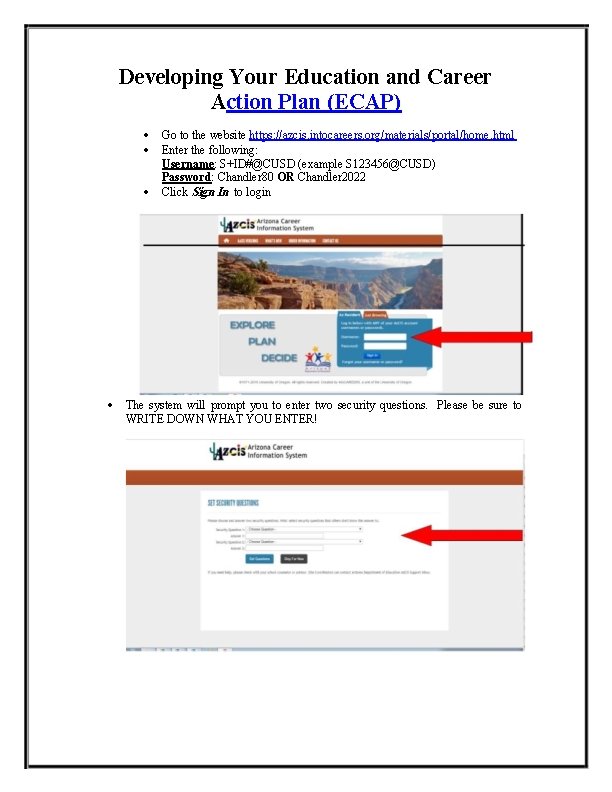
Developing Your Education and Career Action Plan (ECAP) Go to the website https: //azcis. intocareers. org/materials/portal/home. html Enter the following: Username: S+ID#@CUSD (example S 123456@CUSD) Password: Chandler 80 OR Chandler 2022 Click Sign In to login The system will prompt you to enter two security questions. Please be sure to WRITE DOWN WHAT YOU ENTER!
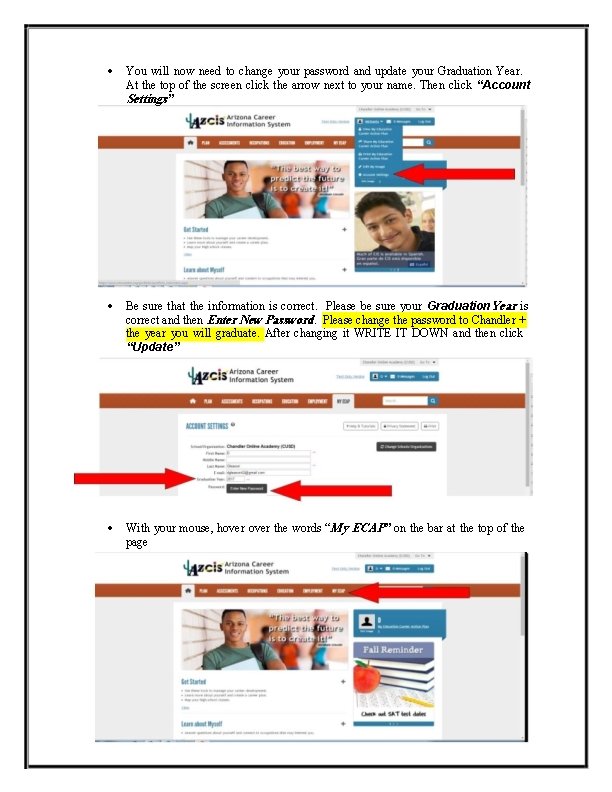
You will now need to change your password and update your Graduation Year. At the top of the screen click the arrow next to your name. Then click “Account Settings” Be sure that the information is correct. Please be sure your Graduation. Year is correct and then Enter New Password. Please change the password to Chandler + the year you will graduate. After changing it WRITE IT DOWN and then click “Update” With your mouse, hover the words “My ECAP” on the bar at the top of the page
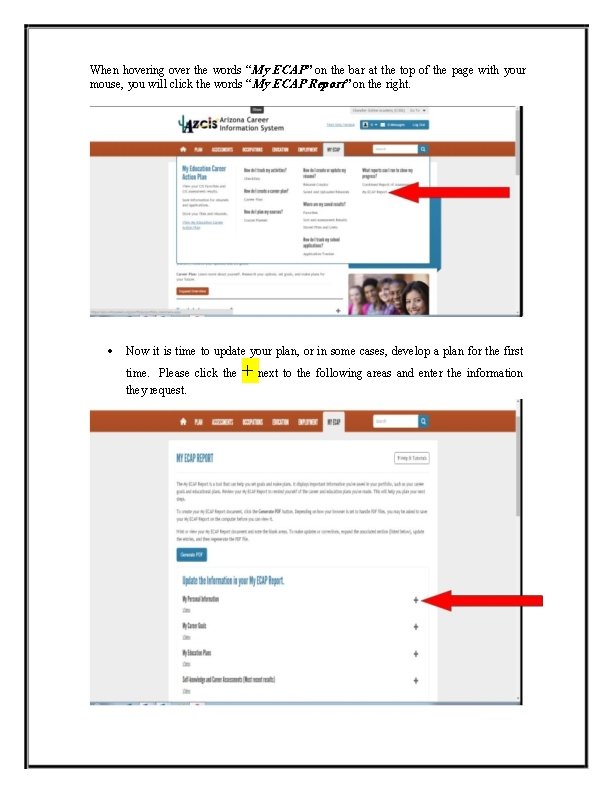
When hovering over the words “My ECAP” on the bar at the top of the page with your mouse, you will click the words “ My ECAP Report” on the right. Now it is time to update your plan, or in some cases, develop a plan for the first time. Please click they request. + next to the following areas and enter the information
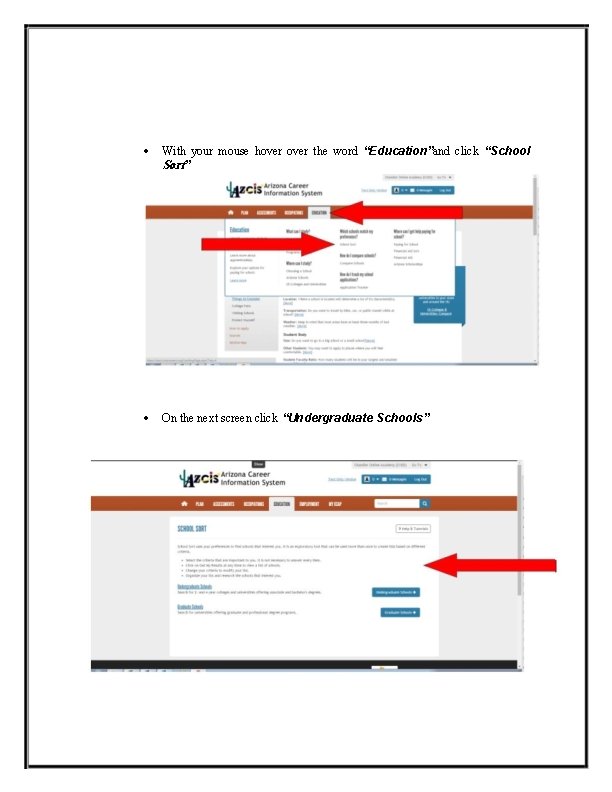
With your mouse hover the word “Education”and click “School Sort” On the next screen click “Undergraduate Schools”
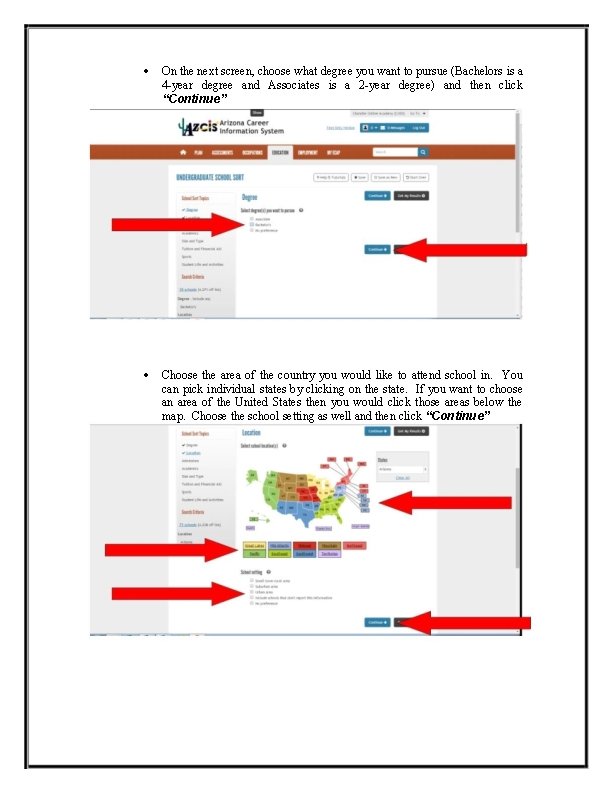
On the next screen, choose what degree you want to pursue (Bachelors is a 4 -year degree and Associates is a 2 -year degree) and then click “Continue” Choose the area of the country you would like to attend school in. You can pick individual states by clicking on the state. If you want to choose an area of the United States then you would click those areas below the map. Choose the school setting as well and then click “Continue”
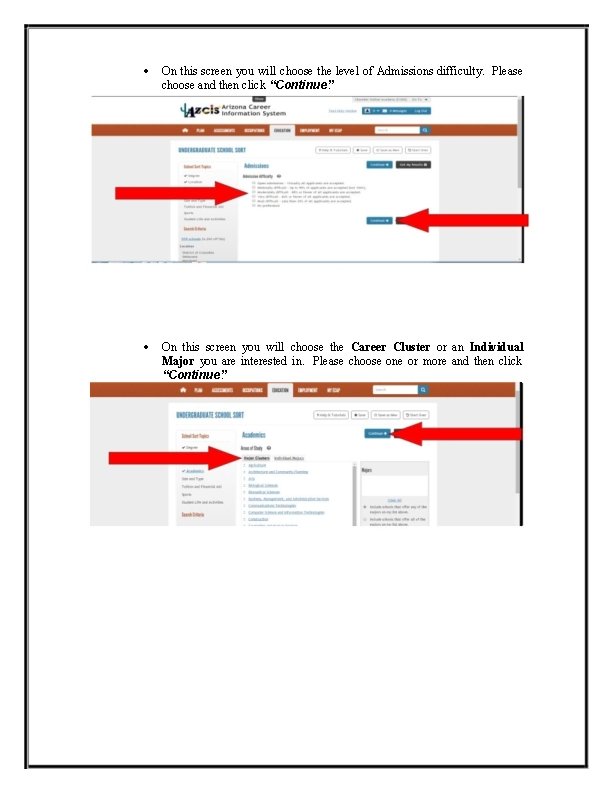
On this screen you will choose the level of Admissions difficulty. Please choose and then click “Continue”. On this screen you will choose the Career Cluster or an Individual Major you are interested in. Please choose one or more and then click “Continue”.
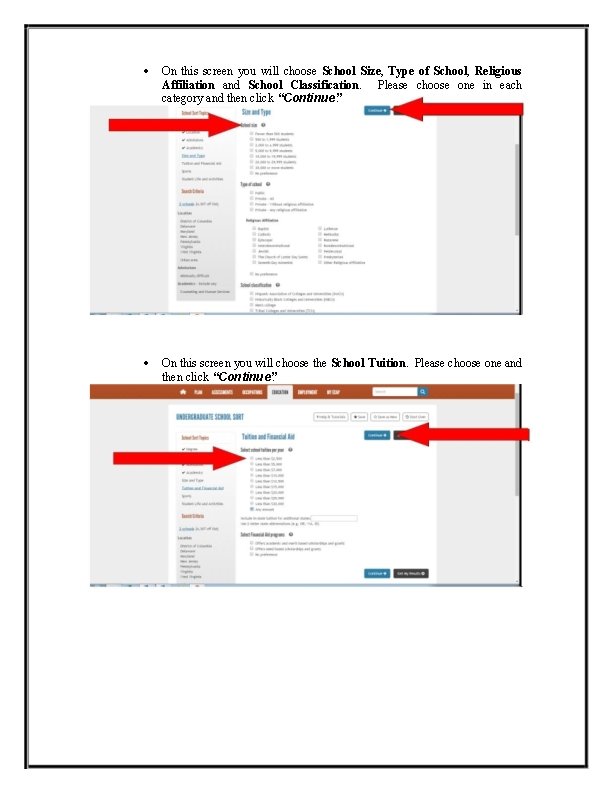
On this screen you will choose School Size, Type of School, Religious Affiliation and School Classification. Please choose one in each category and then click “Continue”. On this screen you will choose the School Tuition. Please choose one and then click “Continue”.
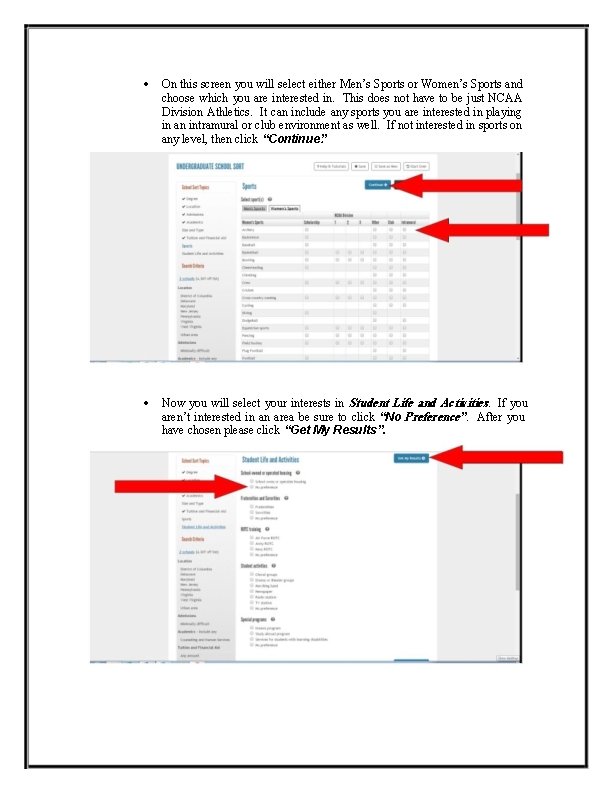
On this screen you will select either Men’s Sports or Women’s Sports and choose which you are interested in. This does not have to be just NCAA Division Athletics. It can include any sports you are interested in playing in an intramural or club environment as well. If not interested in sports on any level, then click “Continue”. Now you will select your interests in Student Life and Activities. If you aren’t interested in an area be sure to click “No Preference ”. After you have chosen please click “Get My Results”.
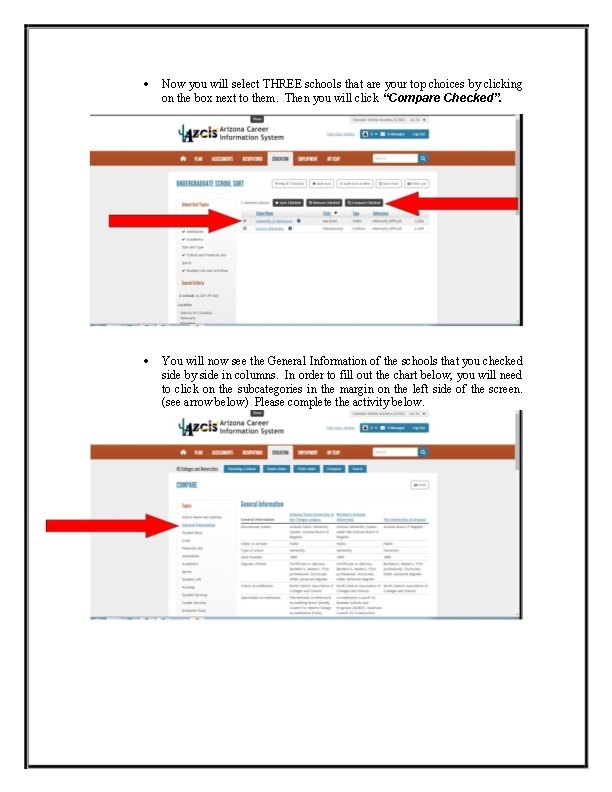
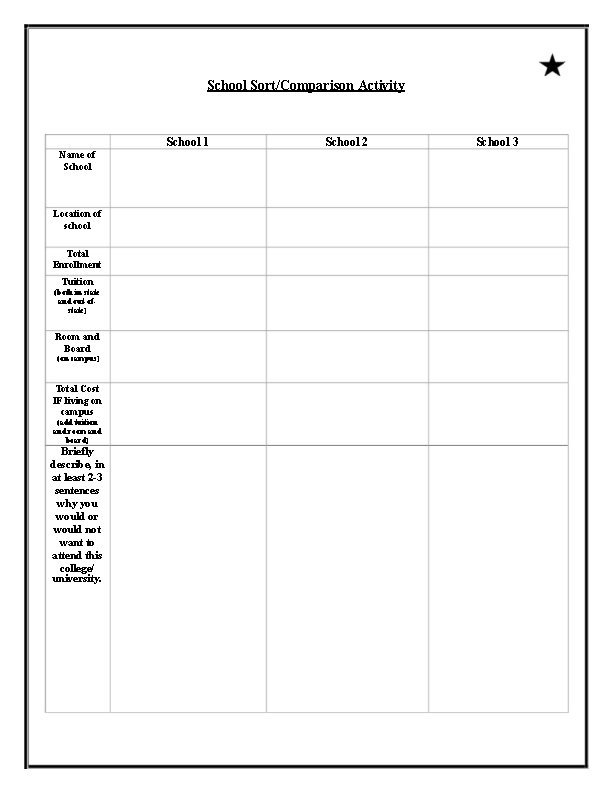
Now you will select THREE schools that are your top choices by clicking on the box next to them. Then you will click “Compare Checked”. You will now see the General Information of the schools that you checked side by side in columns. In order to fill out the chart below, you will need to click on the subcategories in the margin on the left side of the screen. (see arrow below) Please complete the activity below.
School Sort/Comparison Activity School 1 Name of School Location of school Total Enrollment Tuition (both in-state and out-ofstate) Room and Board (on-campus) Total Cost IF living on campus (add tuition and room and board) Briefly describe, in at least 2 -3 sentences why you would or would not want to attend this college/ university. School 2 School 3