
Edmodo Creating a Collaborative Online Classroom Environment BCPS
Edmodo. Creating a Collaborative Online Classroom Environment BCPS – Office of Instructional Technology

What is Edmodo? Free social learning network for teachers, students, schools and districts Safe and easy way to connect • • Exchange ideas Collabortae on projects Share content Access homework, grades and school notices. Edmodo at a Glance Video Shows older version of Edmodo but effective overview of the basics.
PROTOCOLS FOR THE USE OF ONLINE COLLABORATION TOOLS FOR TEACHING AND LEARNING https: //intranet. bcps. org/offices/oit/online. htm
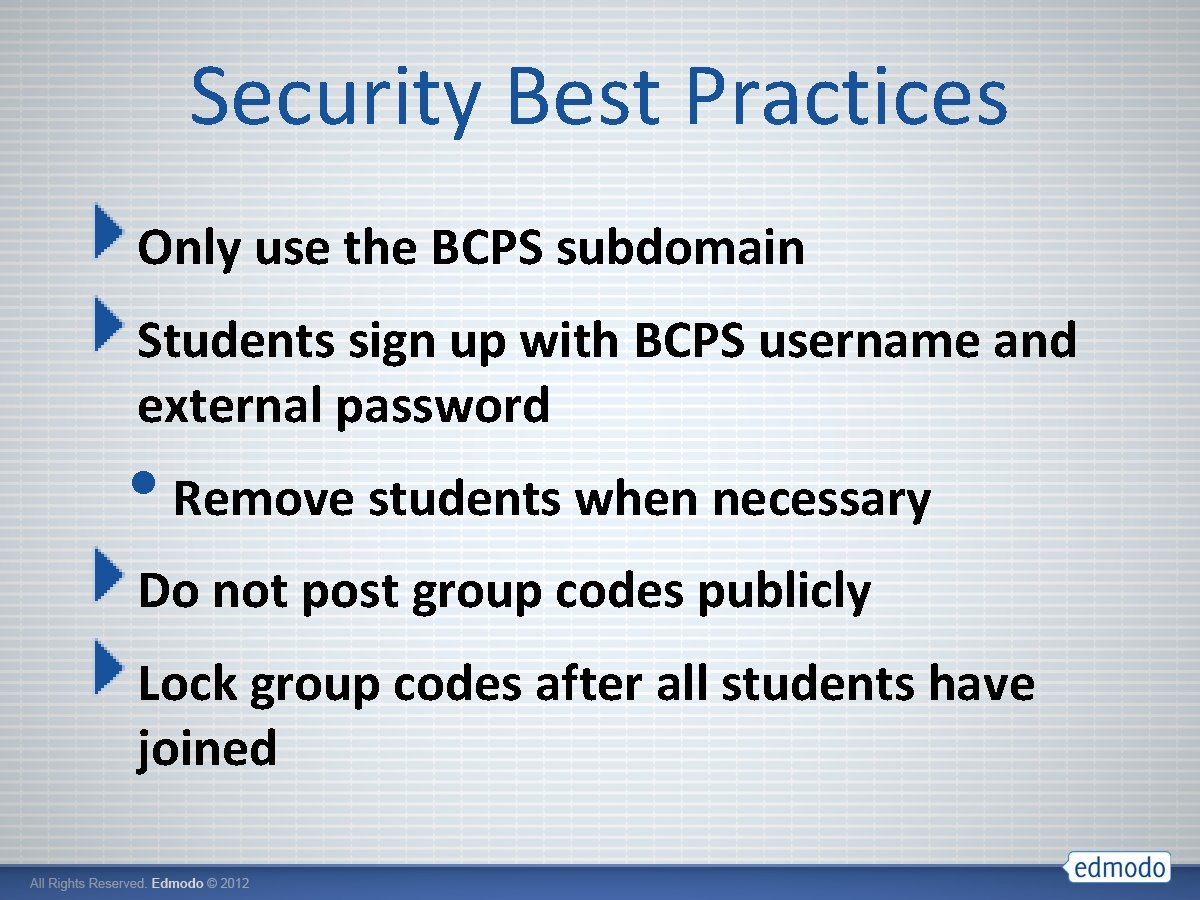
Security Best Practices Only use the BCPS subdomain Students sign up with BCPS username and external password • Remove students when necessary Do not post group codes publicly Lock group codes after all students have joined
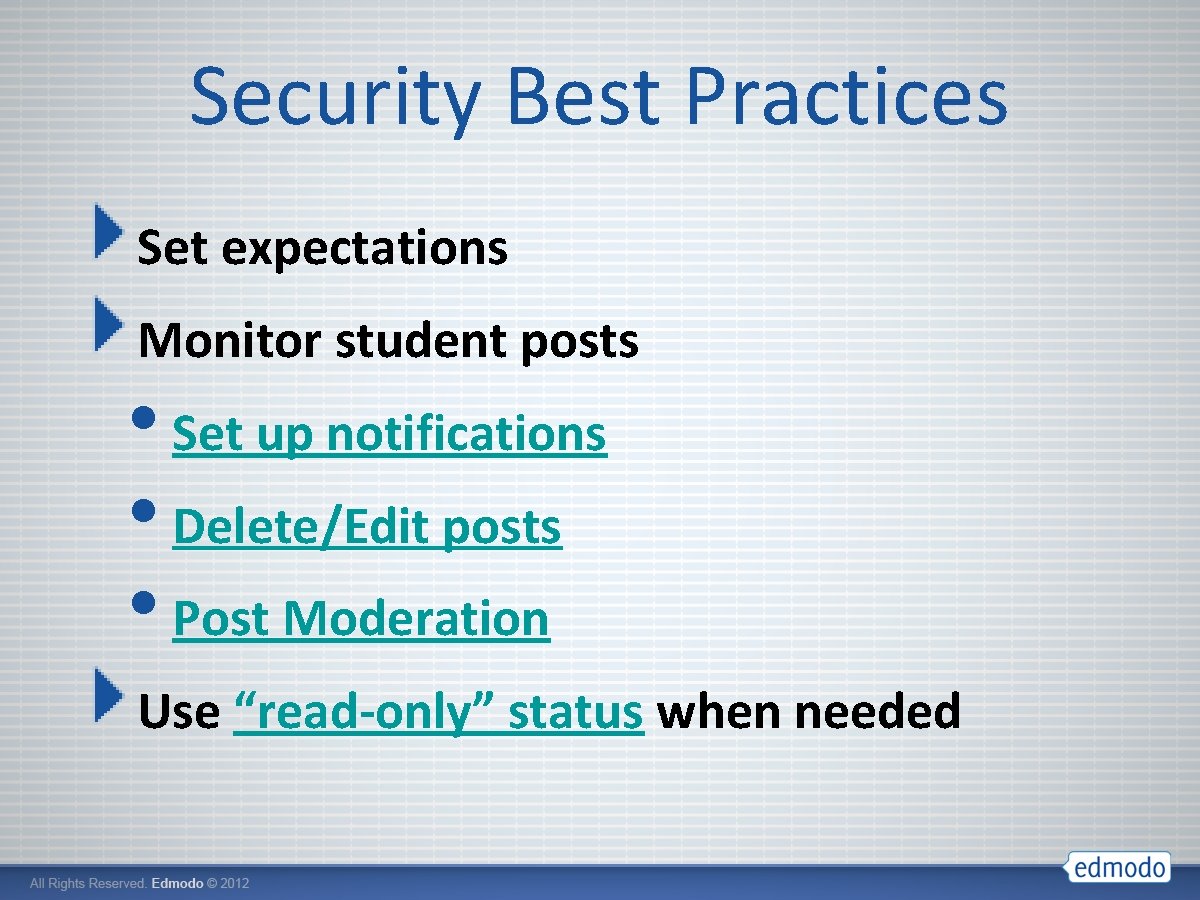
Security Best Practices Set expectations Monitor student posts • Set up notifications • Delete/Edit posts • Post Moderation Use “read-only” status when needed

Create Your Account – You will need your school code! http: //bcps. edmodo. com/
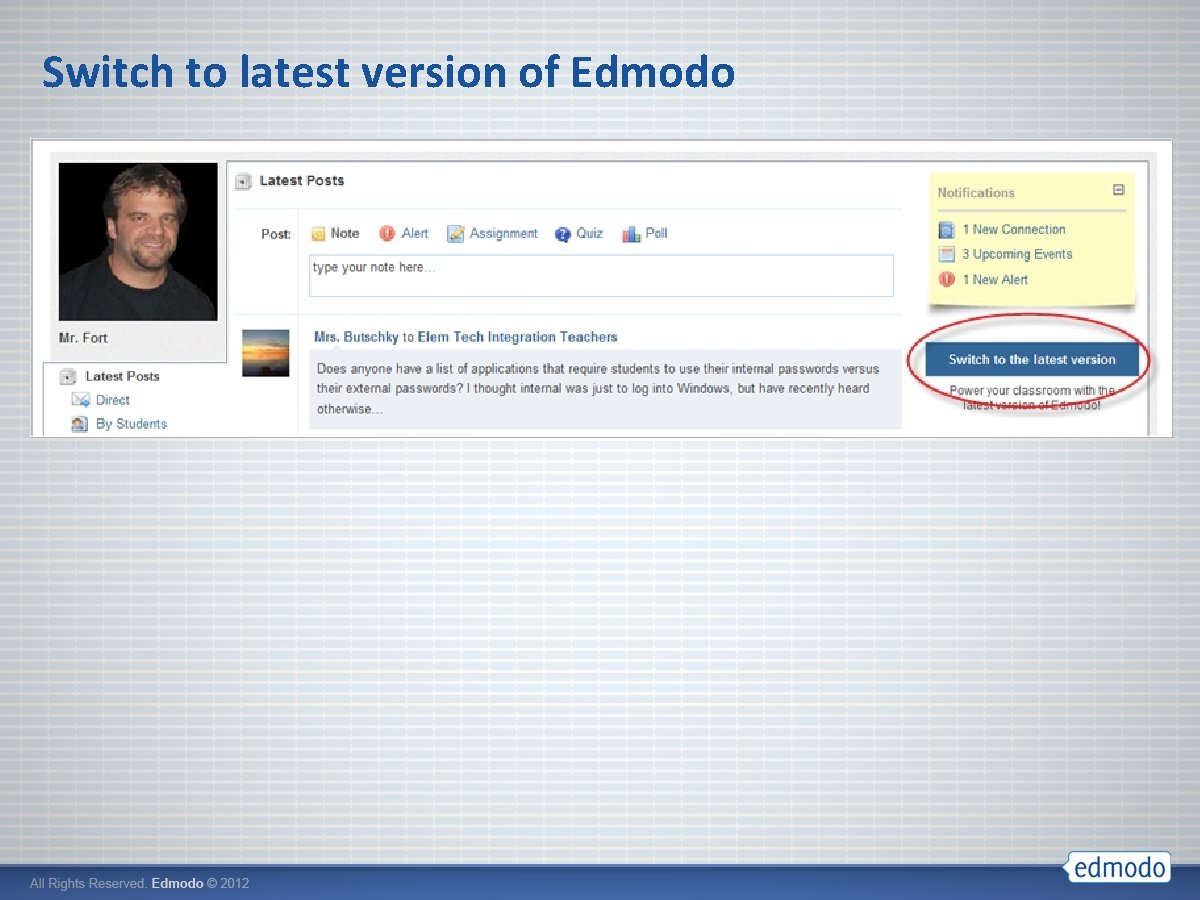
Switch to latest version of Edmodo
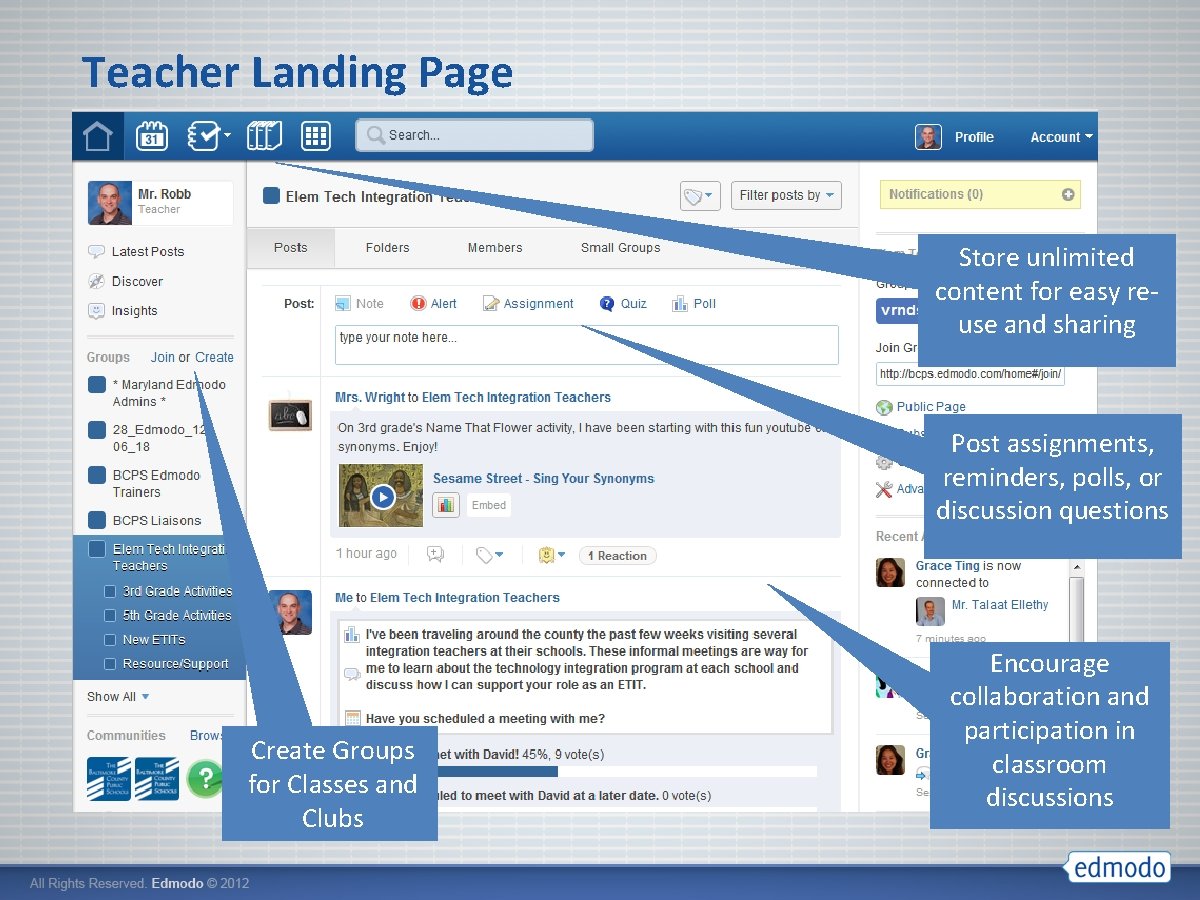
Teacher Landing Page Store unlimited content for easy reuse and sharing Post assignments, reminders, polls, or discussion questions Create Groups for Classes and Clubs Encourage collaboration and participation in classroom discussions
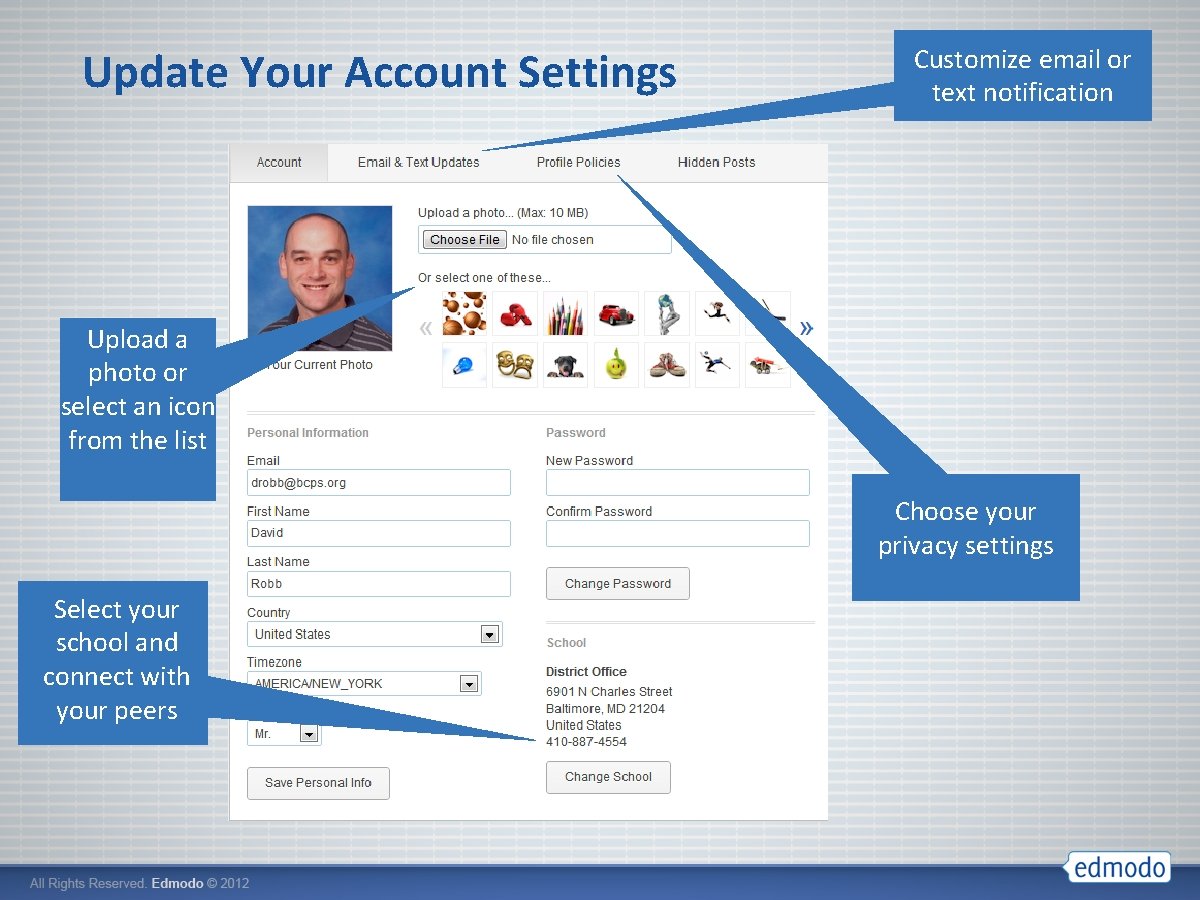
Update Your Account Settings Customize email or text notification Upload a photo or select an icon from the list Choose your privacy settings Select your school and connect with your peers
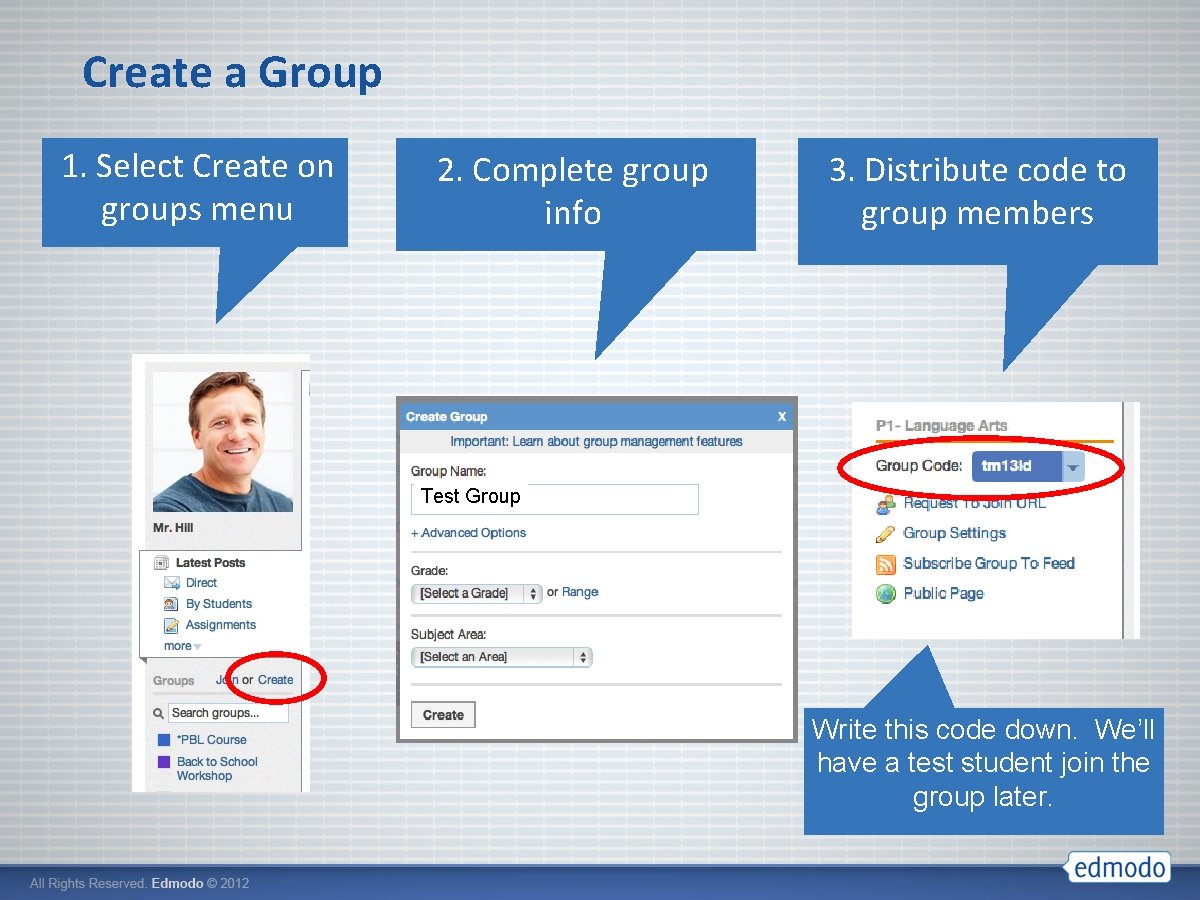
Create a Group 1. Select Create on groups menu 2. Complete group info 3. Distribute code to group members Test Group Write this code down. We’ll have a test student join the group later.
Edmodo in the Classroom
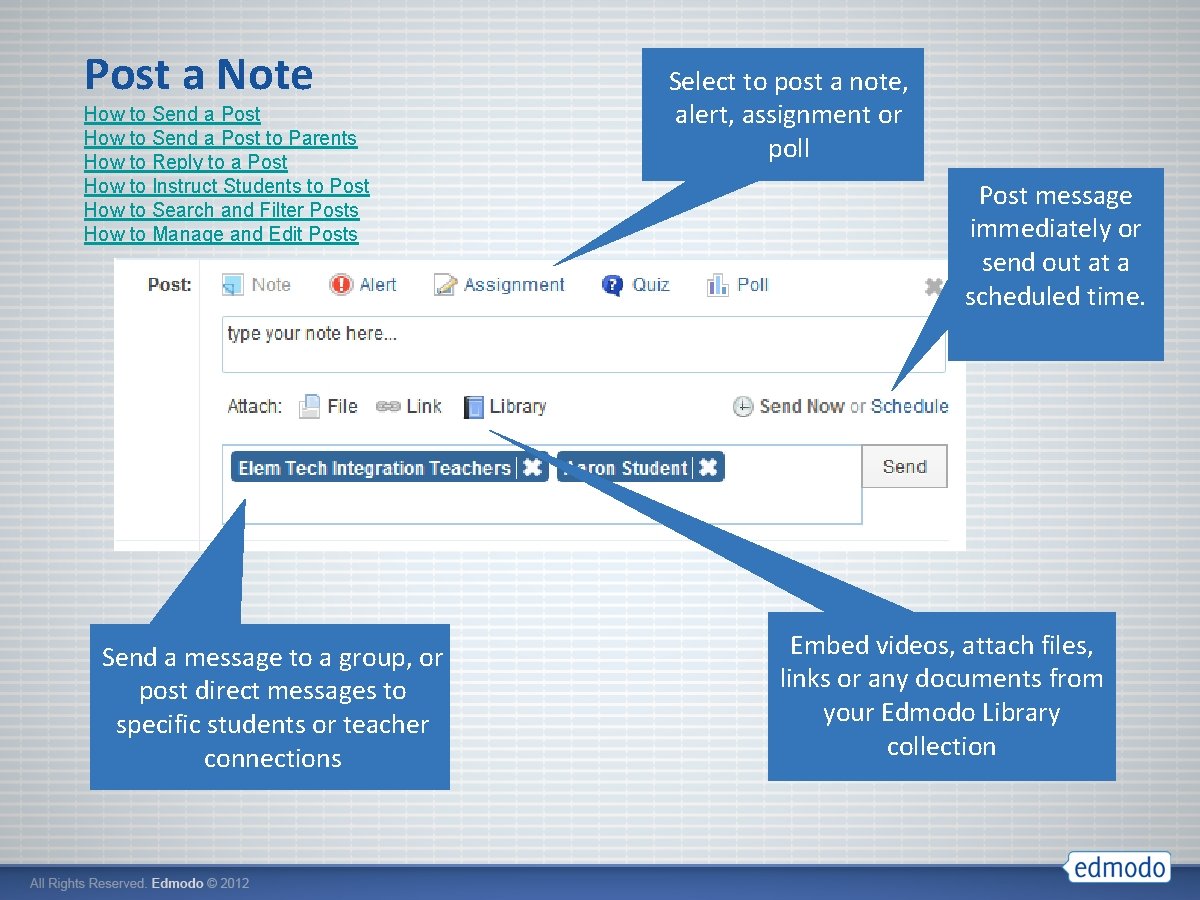
Post a Note How to Send a Post to Parents How to Reply to a Post How to Instruct Students to Post How to Search and Filter Posts How to Manage and Edit Posts Send a message to a group, or post direct messages to specific students or teacher connections Select to post a note, alert, assignment or poll Post message immediately or send out at a scheduled time. Embed videos, attach files, links or any documents from your Edmodo Library collection
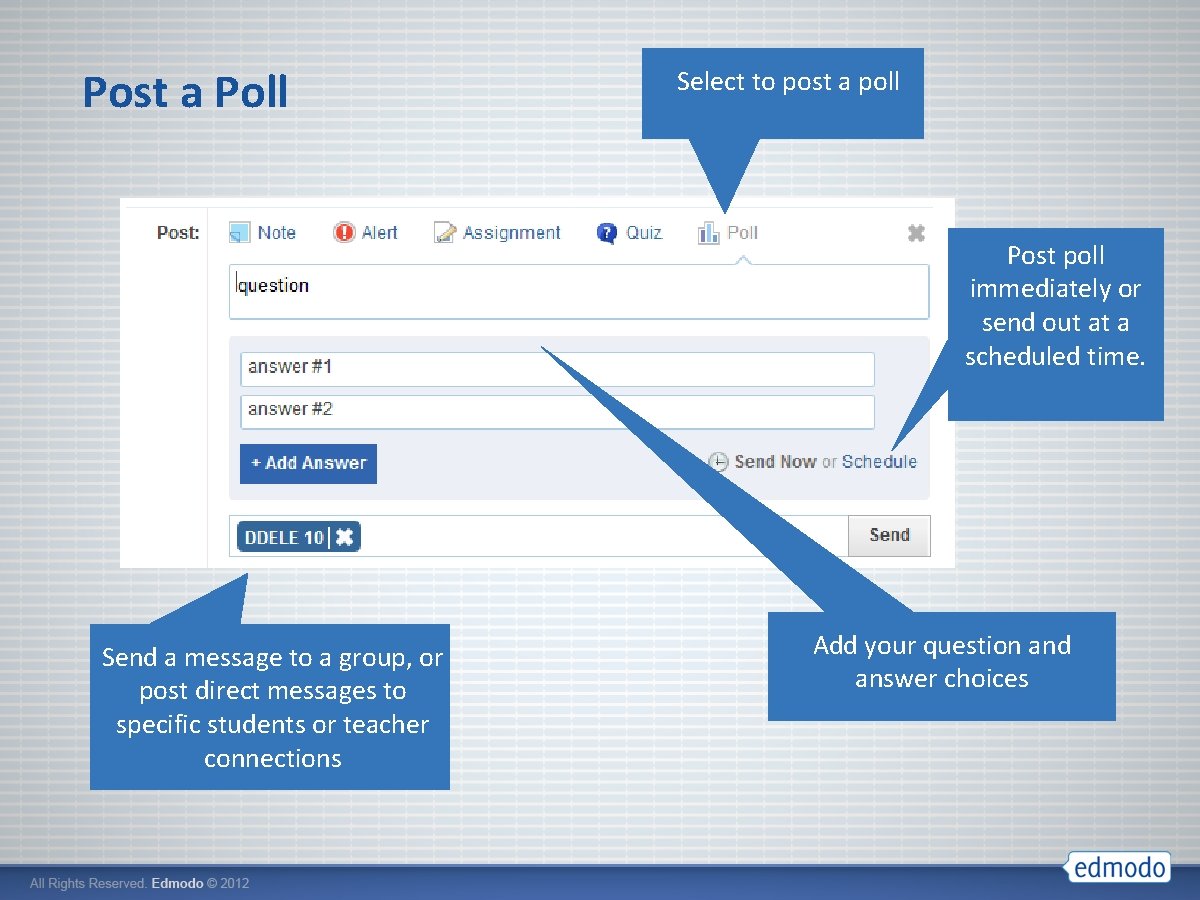
Post a Poll Select to post a poll Post poll immediately or send out at a scheduled time. Send a message to a group, or post direct messages to specific students or teacher connections Add your question and answer choices
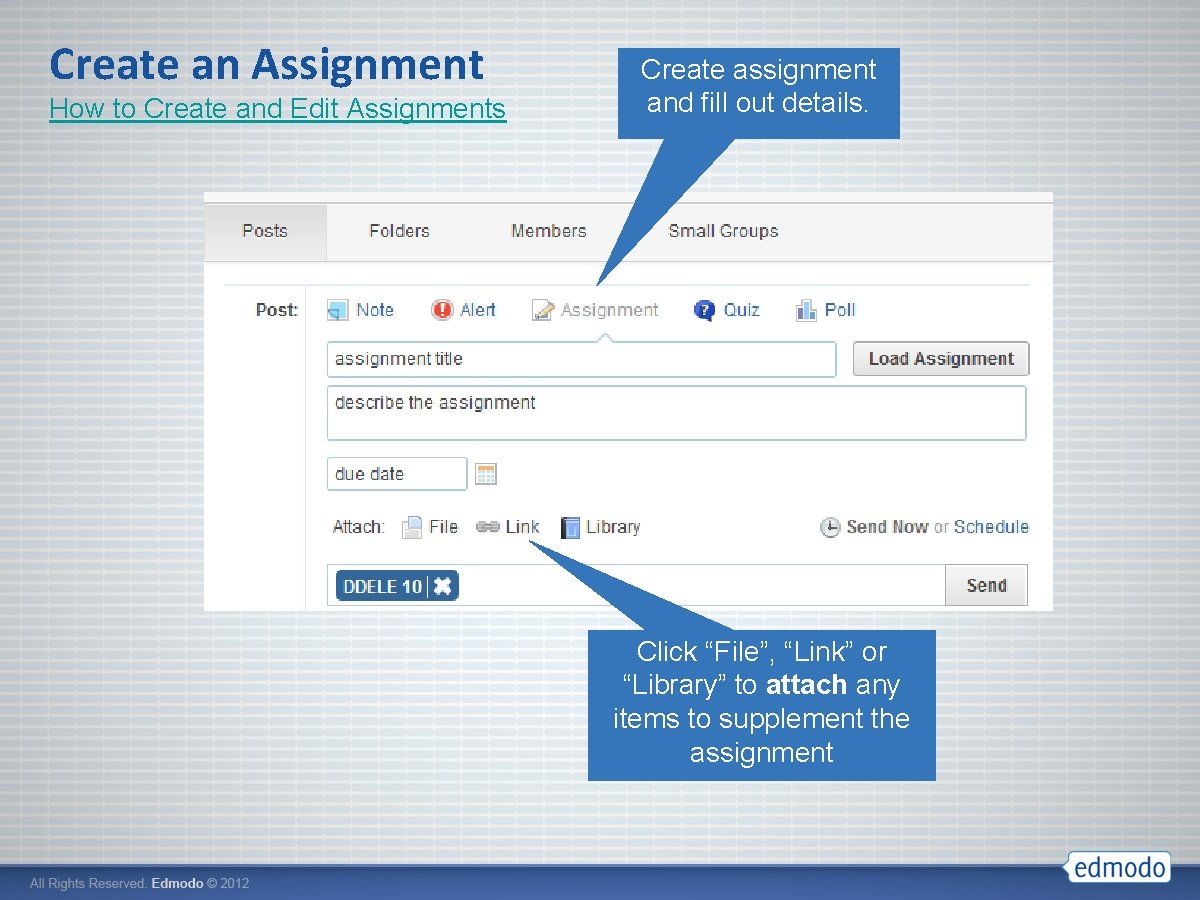
Create an Assignment How to Create and Edit Assignments Create assignment and fill out details. Click “File”, “Link” or “Library” to attach any items to supplement the assignment
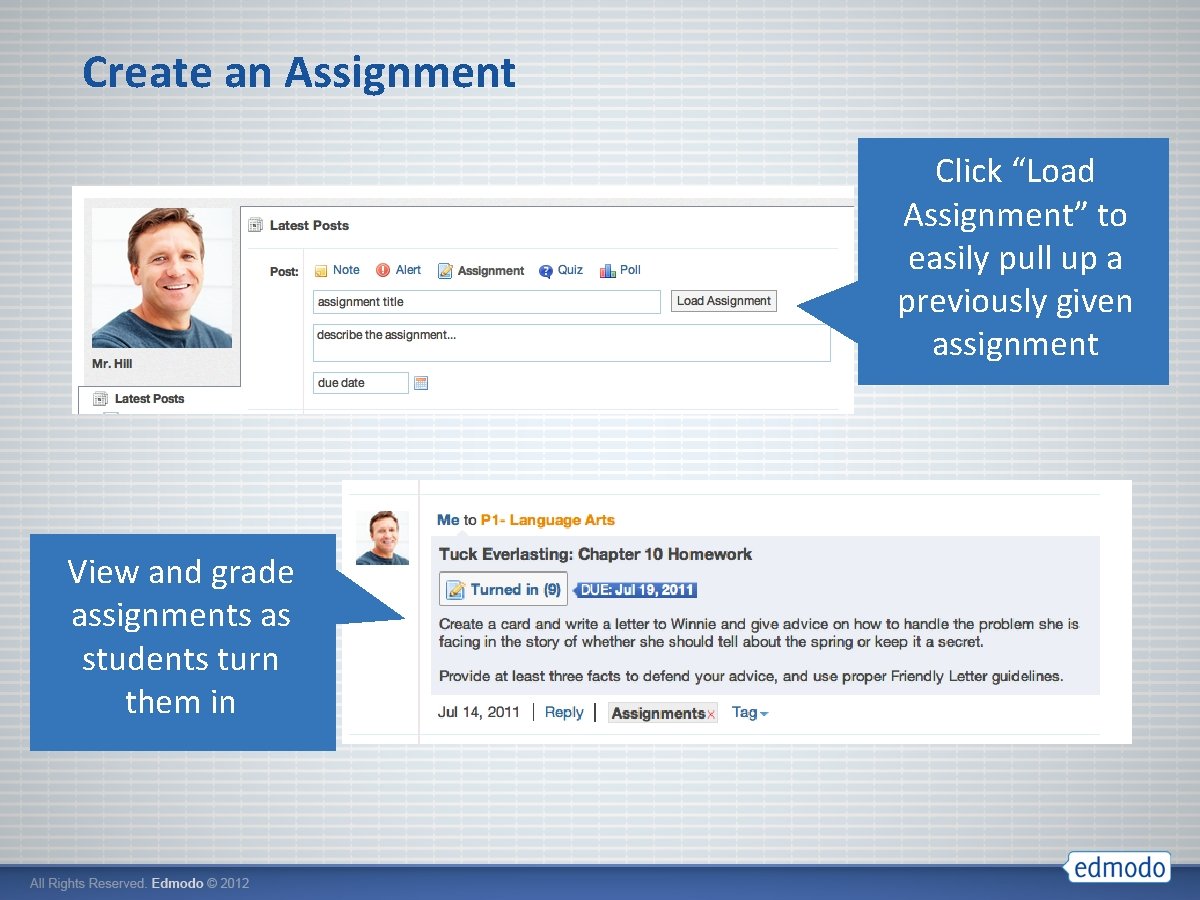
Create an Assignment Click “Load Assignment” to easily pull up a previously given assignment View and grade assignments as students turn them in
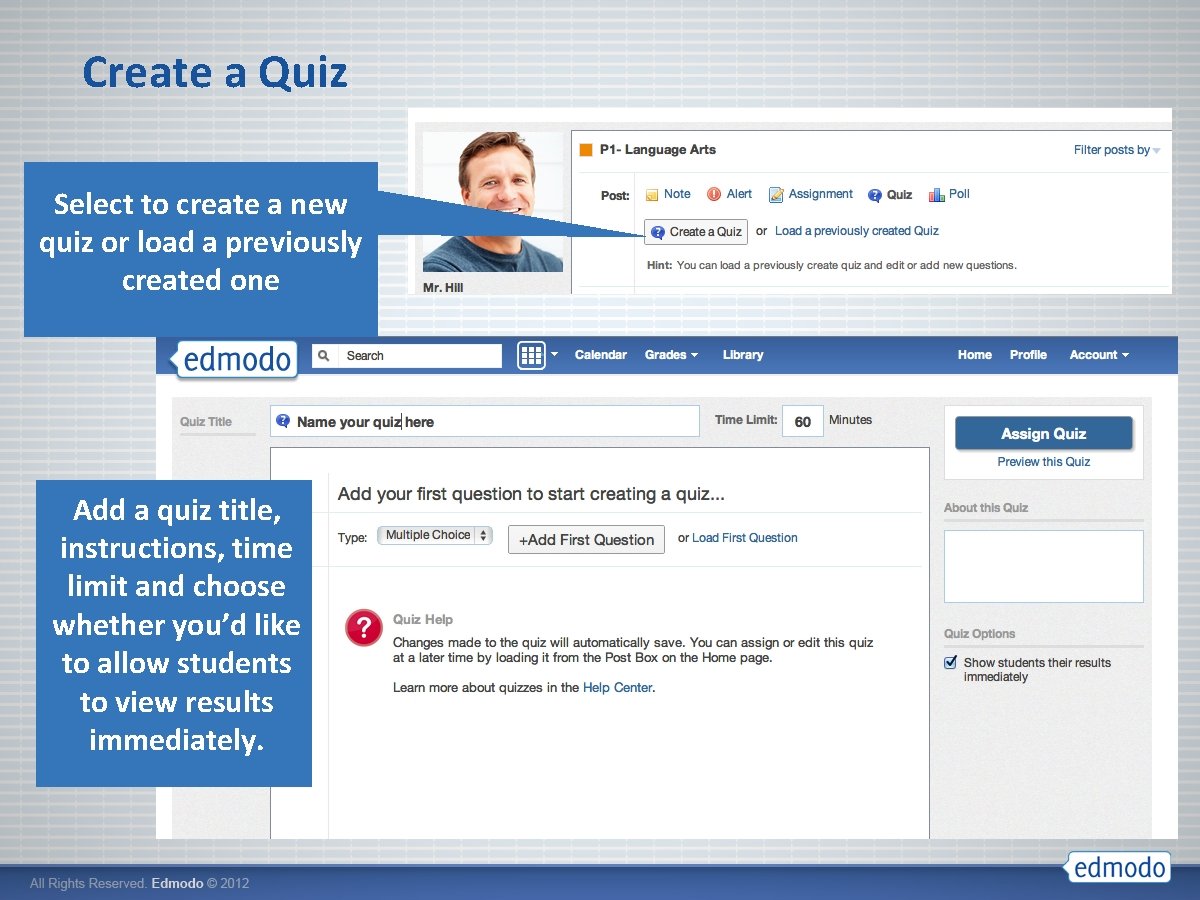
Create a Quiz Select to create a new quiz or load a previously created one Add a quiz title, instructions, time limit and choose whether you’d like to allow students to view results immediately.
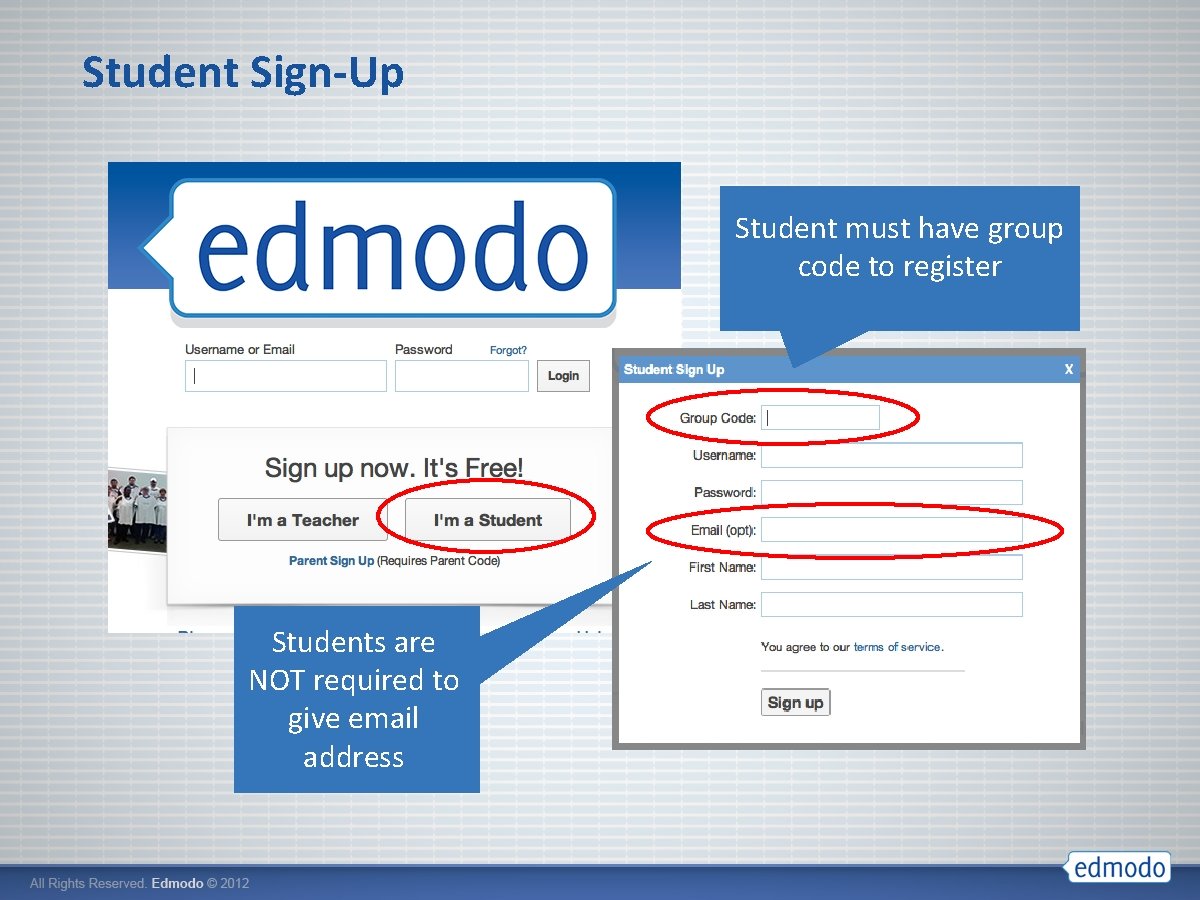
Student Sign-Up Student must have group code to register Students are NOT required to give email address
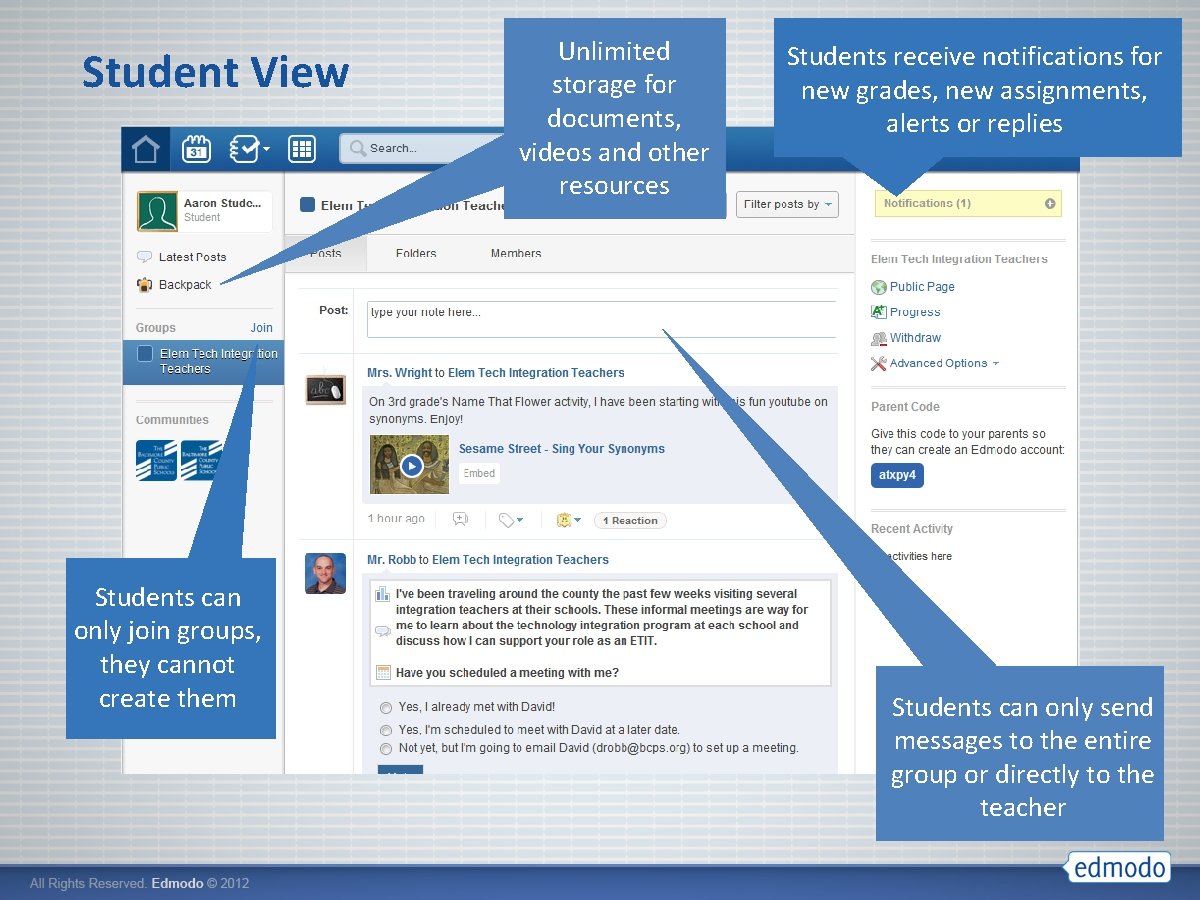
Student View Students can only join groups, they cannot create them Unlimited storage for documents, videos and other resources Students receive notifications for new grades, new assignments, alerts or replies Students can only send messages to the entire group or directly to the teacher
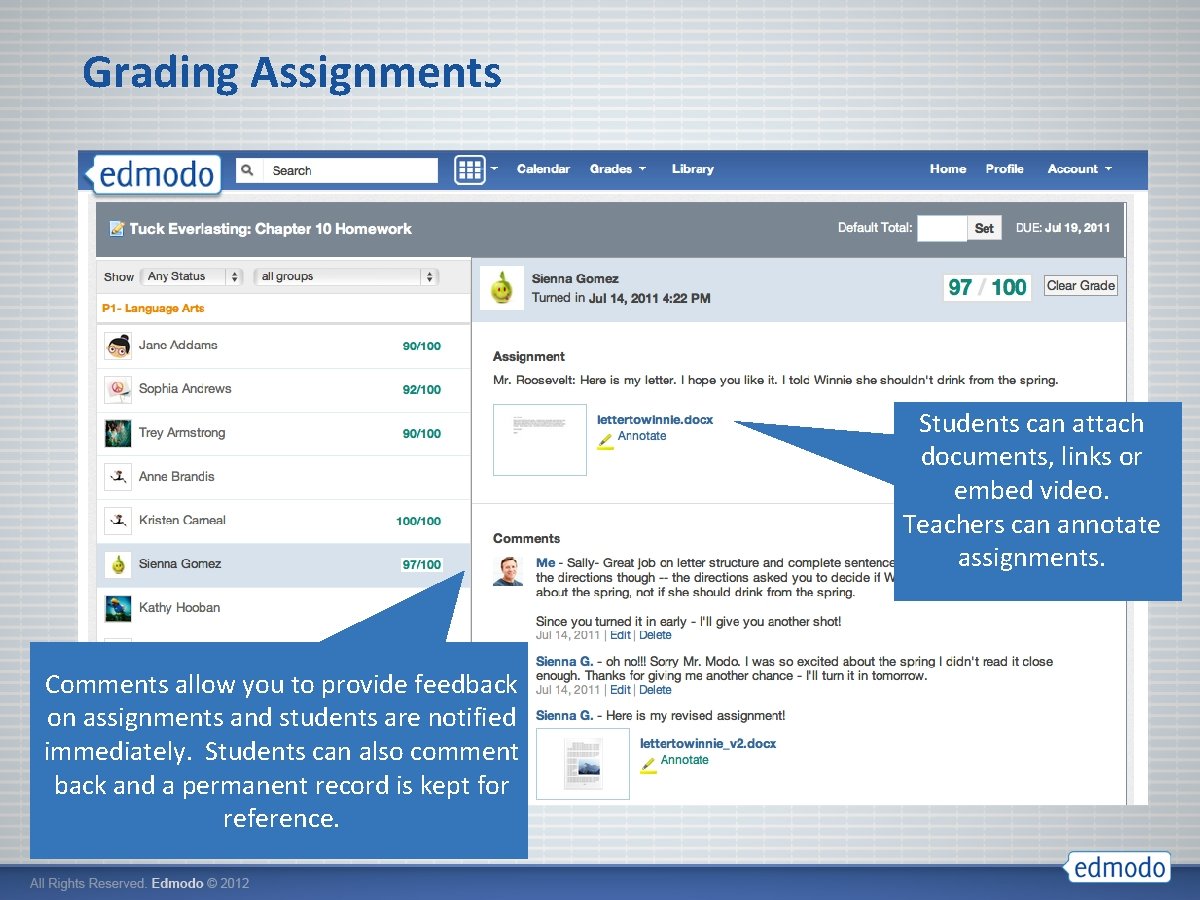
Grading Assignments Students can attach documents, links or embed video. Teachers can annotate assignments. Comments allow you to provide feedback on assignments and students are notified immediately. Students can also comment back and a permanent record is kept for reference.
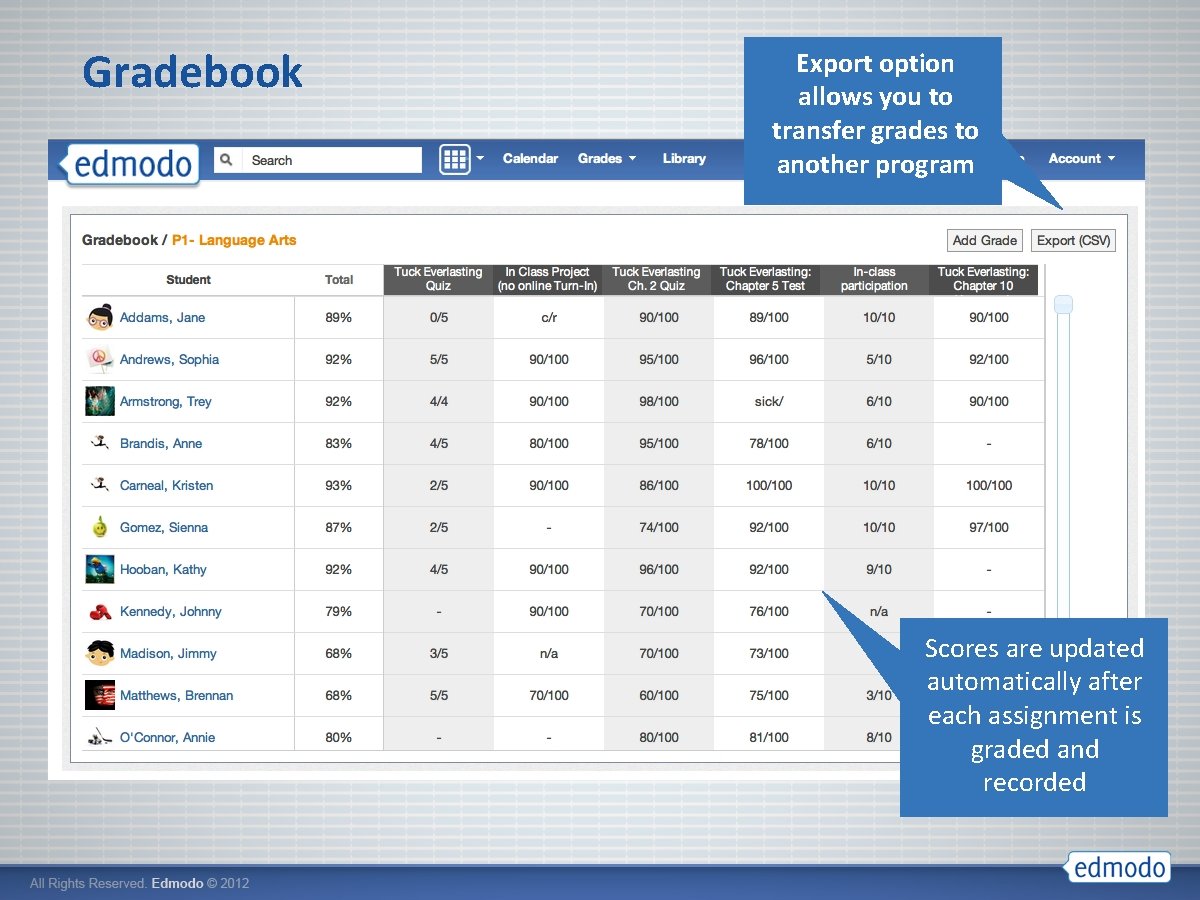
Gradebook Export option allows you to transfer grades to another program Scores are updated automatically after each assignment is graded and recorded
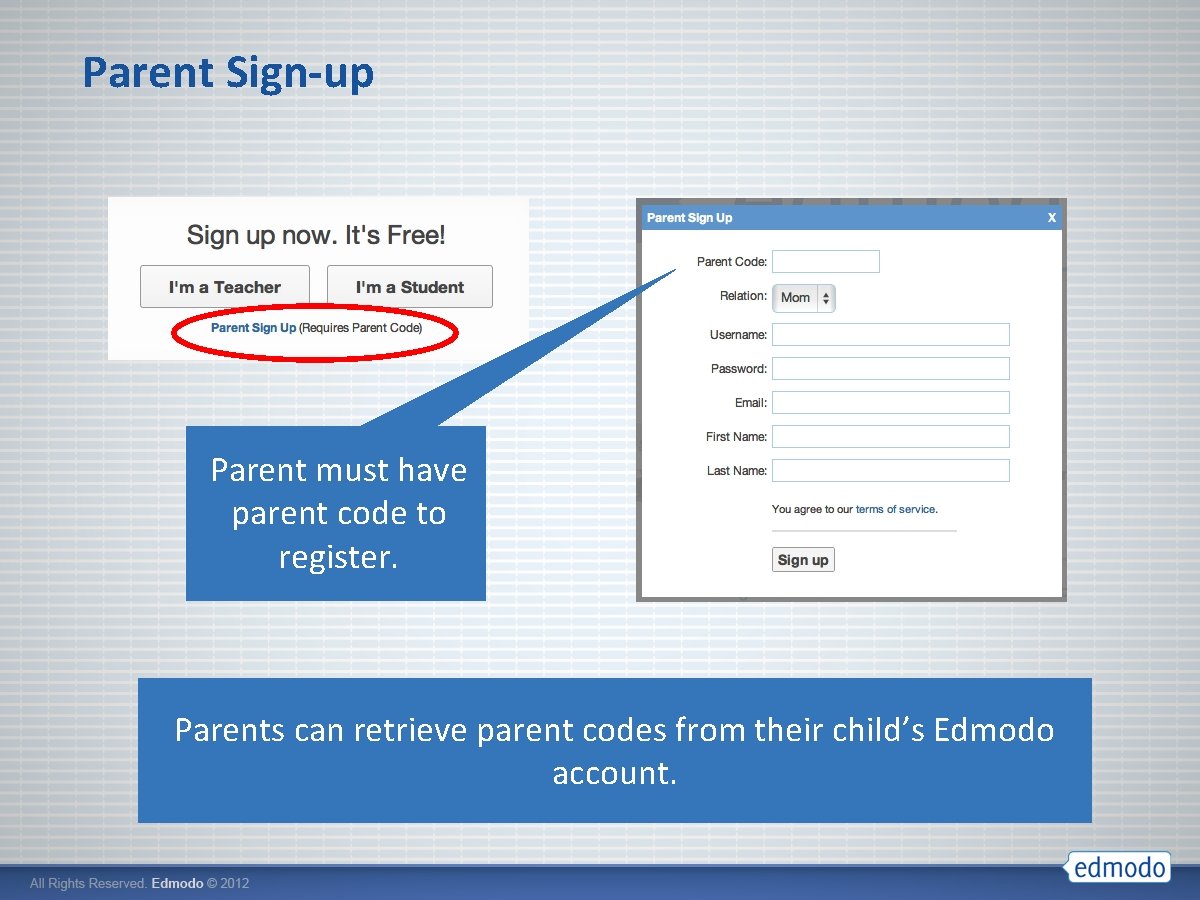
Parent Sign-up Parent must have parent code to register. Parents can retrieve parent codes from their child’s Edmodo account.
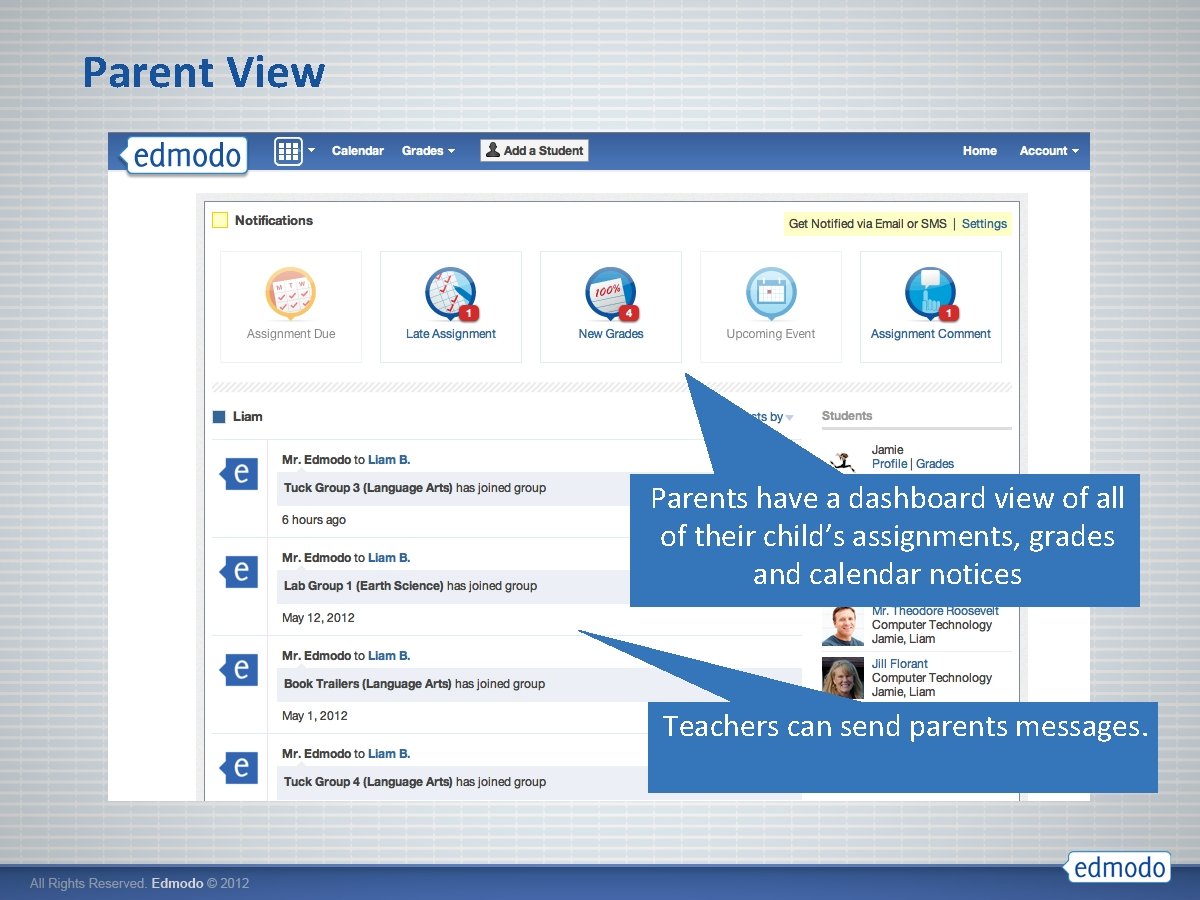
Parent View Parents have a dashboard view of all of their child’s assignments, grades and calendar notices Teachers can send parents messages.
Exit Ticket Take a look at a quick video on UDL. Then, complete the exit ticket on the Google Doc available through the wiki How can you use the collaborative features in Edmodo with your students to: • Present information and content in different ways? • Differentiate the ways that students can express what they know? • Stimulate interest and motivation for learning?
Training and Support Resources 1 View an Edmodo Webinar: help. edmodo. com/webinars 2 Explore resources in the Help Center: help. edmodo. com 3 Follow the Edmodo Support Community: edmodo. com/community/support
- Slides: 24