
EDM Extensible Display Manager for EPICS Author John
EDM Extensible Display Manager for EPICS Author: John Sinclair, June 2001 Updates: Kay Kasemir, April 2002 Andrew Johnson January 2007

Introduction EDM is an interactive GUI builder and execution engine, EPICS documentation uses the term Display Manager Maintained by ORNL EPICS community Component based, thus extensible by other members of the EPICS collaboration
Extensible defined as: All “objects” are loaded from shared libraries EDM administrator can add & remove objects from the list of available objects without recompiling EDM itself Objects are versioned; carefully coded objects can be upgraded without impacting existing displays
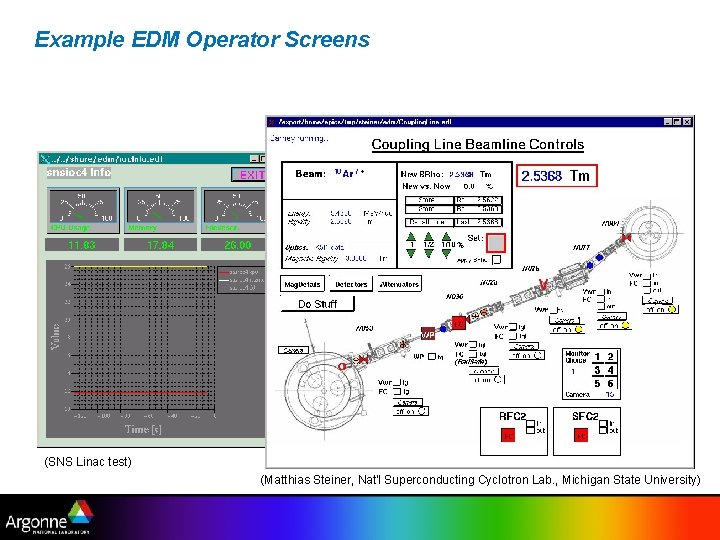
Example EDM Operator Screens (SNS Linac test) (Matthias Steiner, Nat'l Superconducting Cyclotron Lab. , Michigan State University)
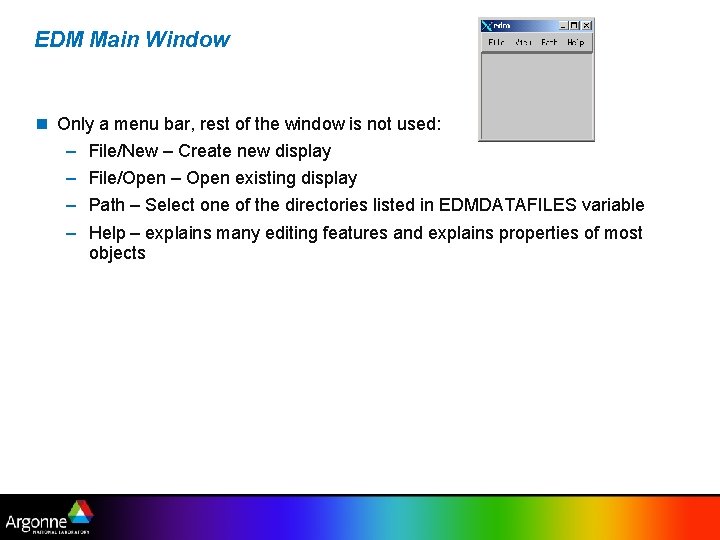
EDM Main Window Only a menu bar, rest of the window is not used: – File/New – Create new display – File/Open – Open existing display – Path – Select one of the directories listed in EDMDATAFILES variable – Help – explains many editing features and explains properties of most objects
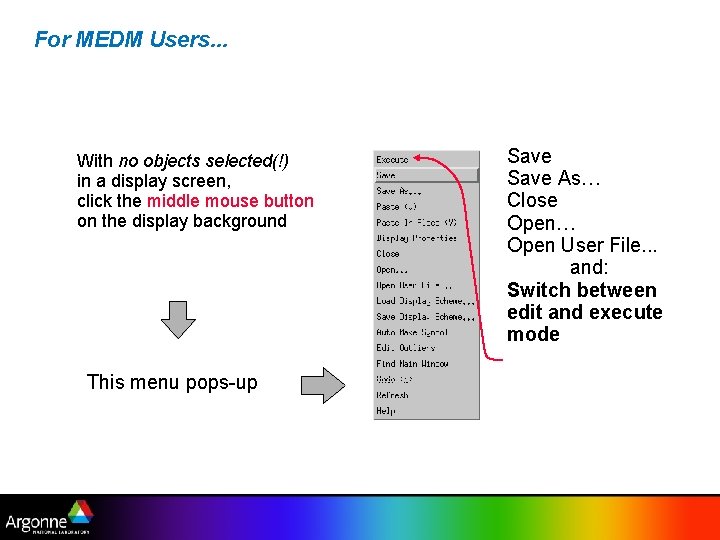
For MEDM Users. . . With no objects selected(!) in a display screen, click the middle mouse button on the display background This menu pops-up Save As… Close Open… Open User File. . . and: Switch between edit and execute mode
File Operation Notes You never need to include the file extension (xxx. edl) in a file open or save operation “Save As…” to an existing file requires user confirmation
Creating/Editing Display Content Expert friendly All mouse buttons, many keys and most of the conceivable combinations of shift/ctrl/double-click are used! Takes some getting-used-to, but in the end allows for very efficient editing If lost: Press ESC and left-double-click somewhere on the display where there is no object (exits line-edit mode)
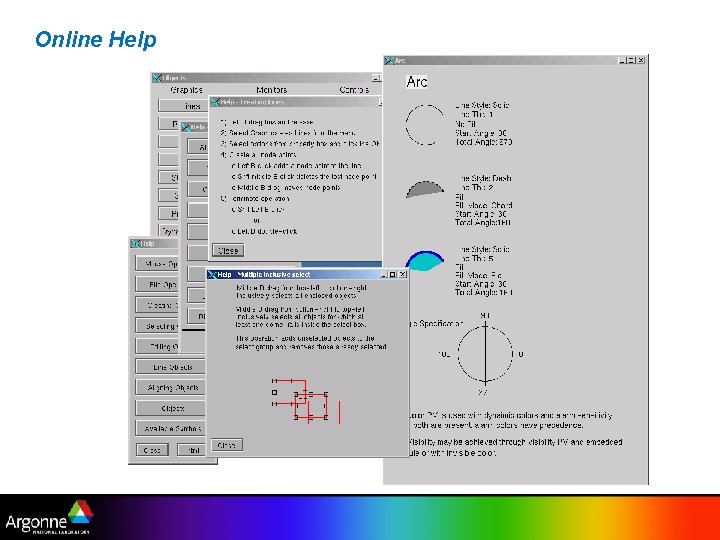
Some Advice Use the online help Create your own cheat-sheet Read the help information before working with lines – editing these can be somewhat complicated!
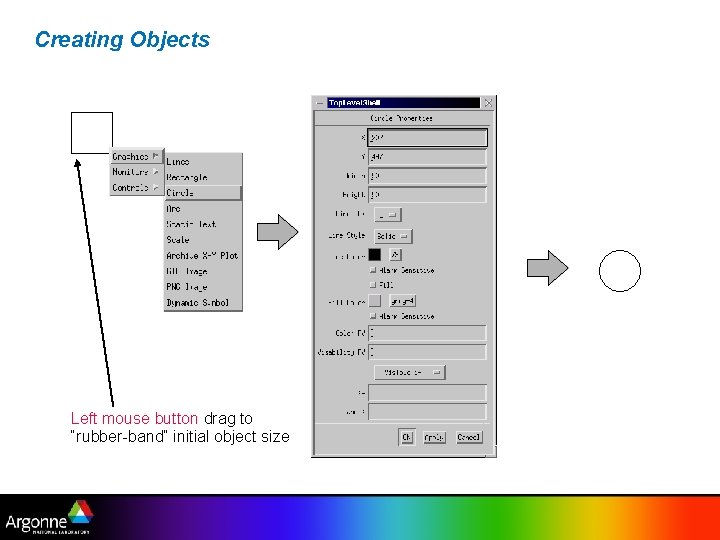
Creating Objects Left mouse button drag to “rubber-band” initial object size
Selecting Objects Left button click – Single exclusive select: object is selected, currently selected objects are deselected Shift-left button click – Single inclusive select: object is added or removed from the current group of selected objects Control-left button click – De-select the current object pointed to and select the one below it in the stack
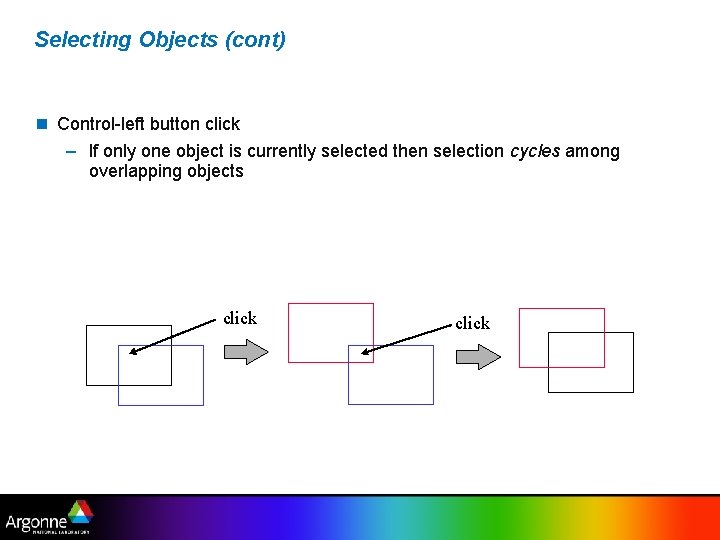
Selecting Objects (cont) Control-left button click – If only one object is currently selected then selection cycles among overlapping objects click
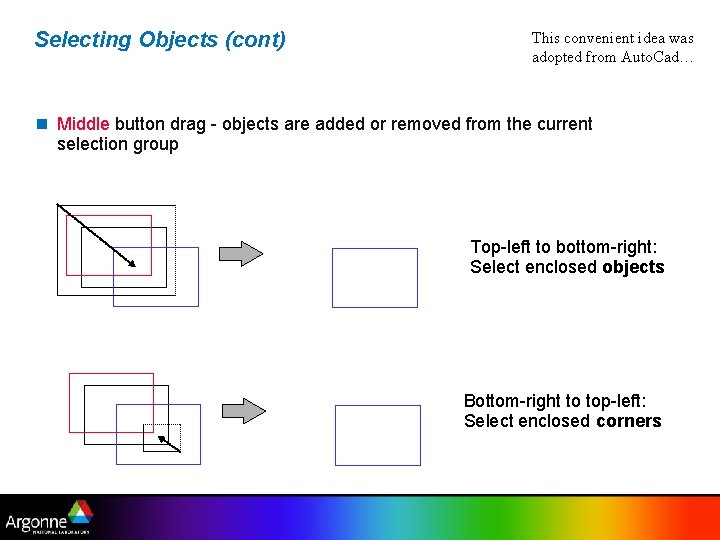
Selecting Objects (cont) This convenient idea was adopted from Auto. Cad… Middle button drag - objects are added or removed from the current selection group Top-left to bottom-right: Select enclosed objects Bottom-right to top-left: Select enclosed corners
Again: Left button rubberband: Create new object Middle button rubberband: Select objects
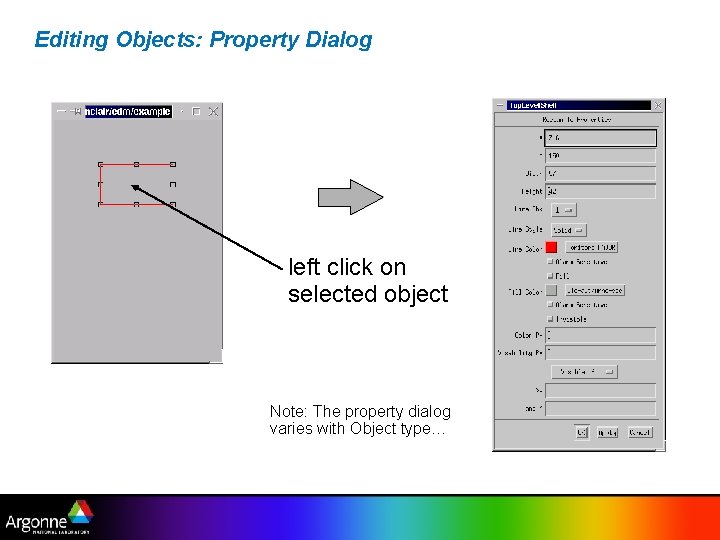
Editing Objects: Property Dialog left click on selected object Note: The property dialog varies with Object type…
Editing Notes Clicking on a group of selected objects brings up property dialog boxes for all the selected objects, one by one – the OK button takes you to the next dialog box Inside the property dialog box: – Left double-click is the same as pressing OK – Middle double-click is Apply – Right double-click is Cancel
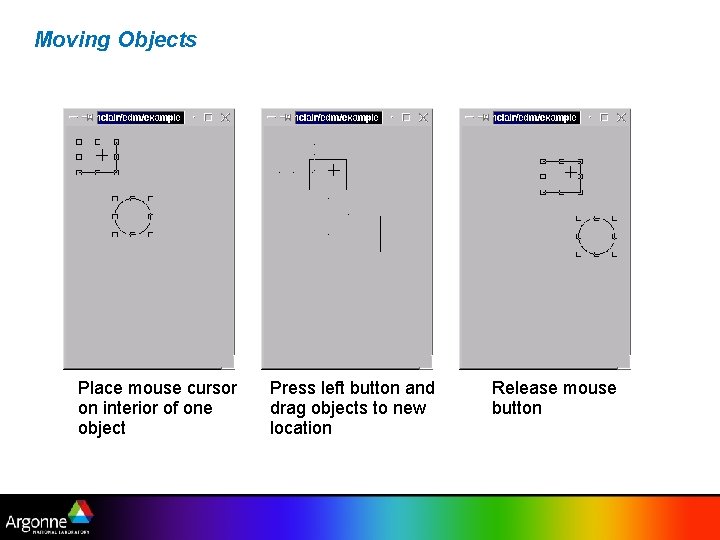
Moving Objects Place mouse cursor on interior of one object Press left button and drag objects to new location Release mouse button
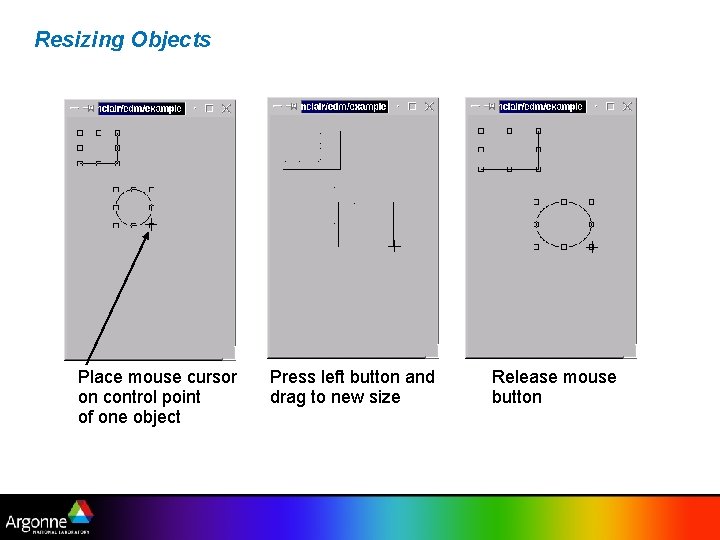
Resizing Objects Place mouse cursor on control point of one object Press left button and drag to new size Release mouse button
Draw/Move/Resize Notes Fine control may be achieved on moves and resizes by using keyboard arrow keys (mouse button release or click ends op) Control key forces move (prevents resize) – Useful for tiny objects where you cannot click “inside” w/o hitting the resize handles Shortcuts to options in the Display Properties – M/m key turns ON/off orthogonal move – L/l key turns ON/off orthogonal line draw – G/g key turns ON/off grid – S/s key turns ON/off snap-to-grid
Alignment Operations Reference Independent – Align left, right, top, bottom Reference Dependent – Center: horizontal, vertical, both – Size: width, height, both – Distribute: vertical axis, horizontal axis – Distribute Midpoint: vertical axis, horizontal axis
Reference Dependent Operations The first object selected is used as the reference If no reference object is specified, an appropriate object is chosen (topmost, leftmost, etc. )
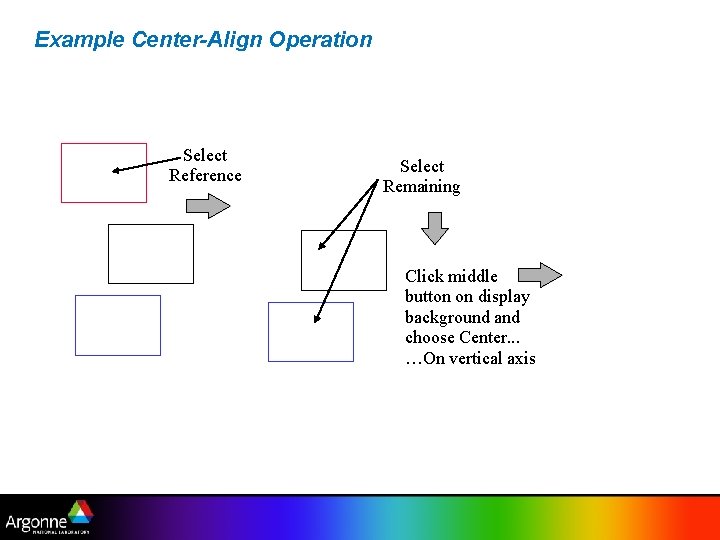
Example Center-Align Operation Select Reference Select Remaining Click middle button on display background and choose Center. . . …On vertical axis
Miscellaneous. Operations Raise (u), Lower (d) Copy (c), Cut (x), Paste (v) Group ([), Ungroup (]) Flip H & V Rotate CW & CCW Group Edit Undo
Undo Most useful for move, resize, & alignment operations Current limitations: – Cannot undo edit operations – Cut, Group, and Ungroup : Flush undo stack
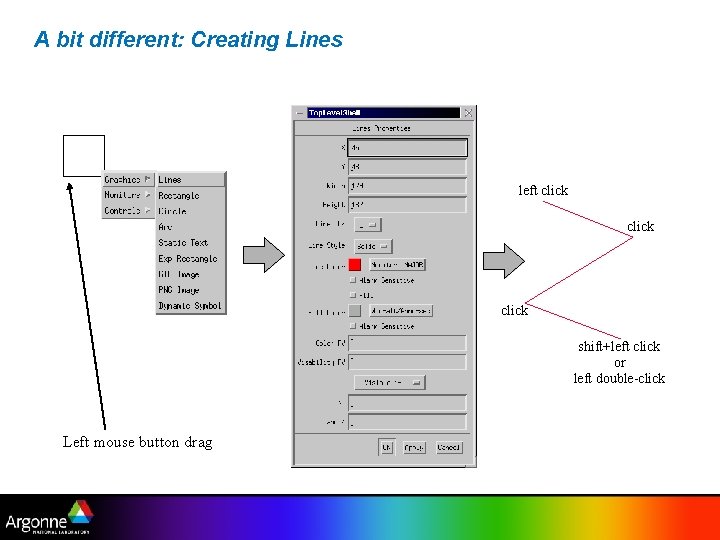
A bit different: Creating Lines left click shift+left click or left double-click Left mouse button drag
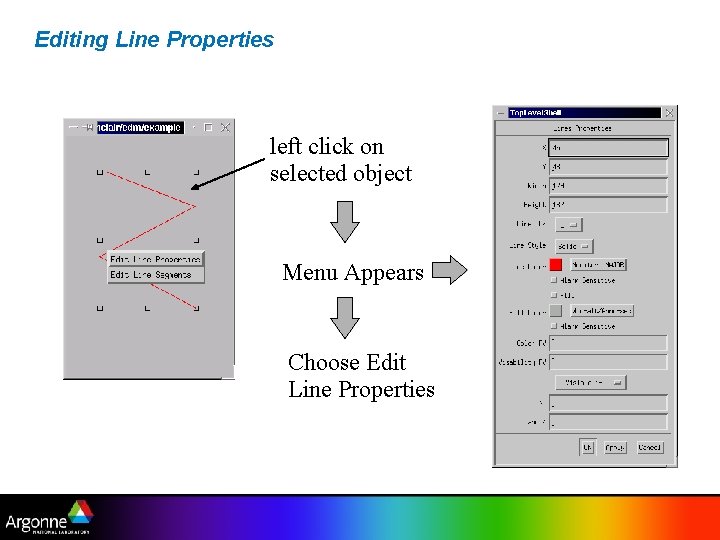
Editing Line Properties left click on selected object Menu Appears Choose Edit Line Properties
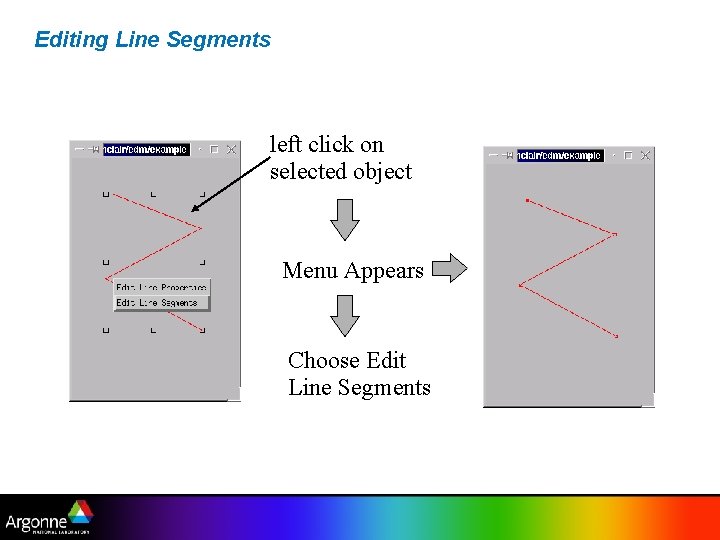
Editing Line Segments left click on selected object Menu Appears Choose Edit Line Segments
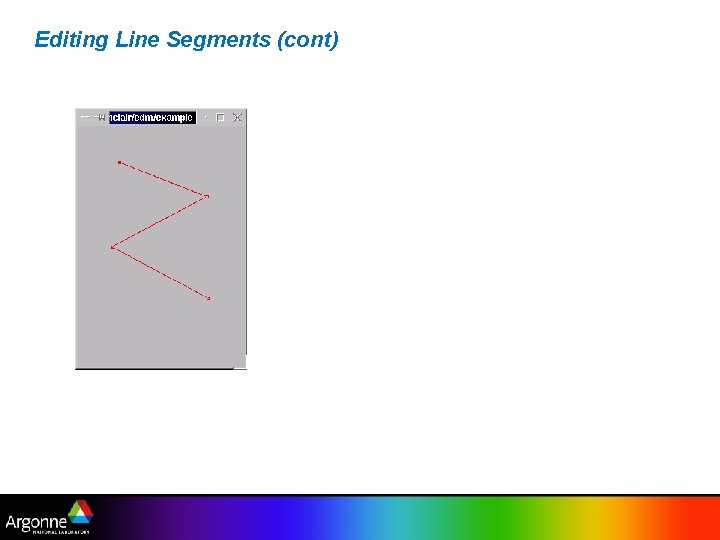
Editing Line Segments (cont)
Group Edit Change visual attributes of all selected objects Change PV names for all selected objects
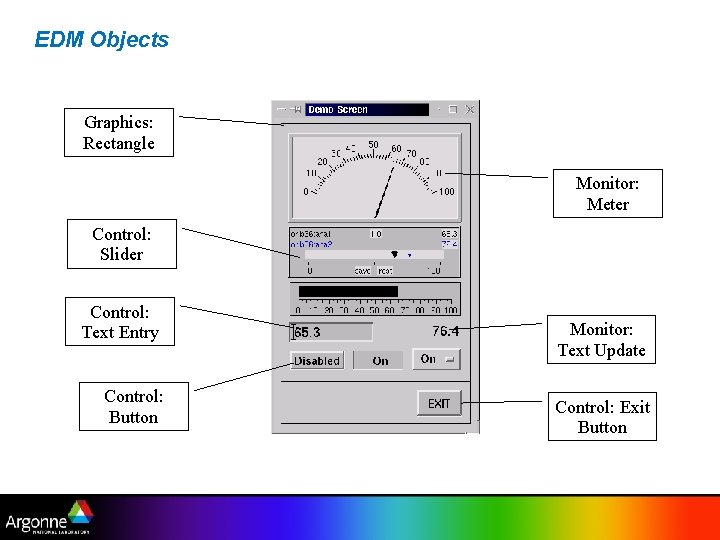
EDM Objects Graphics: Rectangle Monitor: Meter Control: Slider Control: Text Entry Control: Button Monitor: Text Update Control: Exit Button
Object Categories Graphics Do not require a process variable – Lines, rectangle, circle, arc, text, gif, png, dynamic symbol, embedded window Monitors Display current value of process variables – Meter, bar, message box, symbol, text update, graphs. . . Controls Modify value of process variables, change displays – Text, slider, button, menu button, message button, updown button, related display, shell command, exit, …
Online Help
Process Variables Many EDM objects accept PVs to – show the PV value (Monitors) – control the PV value (Controls) – change color or visibility based on the PV (all types) Formats: – EPICSfred Use EPICS Channel. Access to connect to “fred” – fred Use default method which is “EPICS”, i. e. same as above – CALCsum(fred, 2) Use CALC PV “sum”, provide arguments “fred” and “ 2”. – XYfred Use method XY (not implemented)…
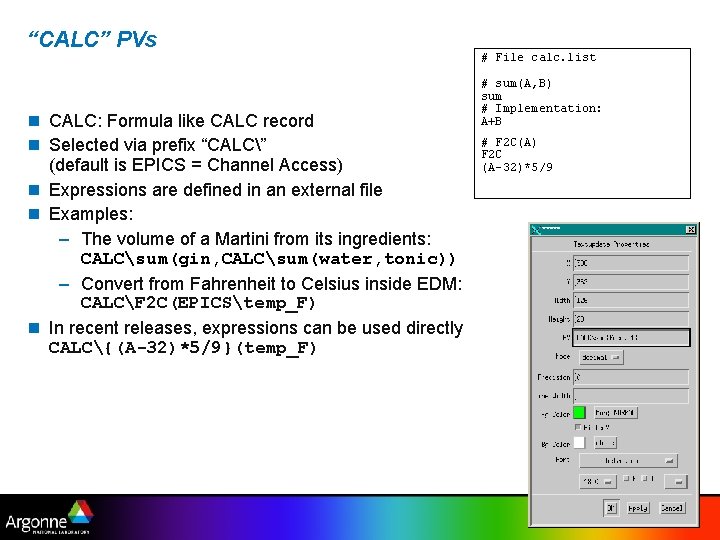
“CALC” PVs CALC: Formula like CALC record Selected via prefix “CALC” (default is EPICS = Channel Access) Expressions are defined in an external file Examples: – The volume of a Martini from its ingredients: CALCsum(gin, CALCsum(water, tonic)) – Convert from Fahrenheit to Celsius inside EDM: CALCF 2 C(EPICStemp_F) In recent releases, expressions can be used directly CALC{(A-32)*5/9}(temp_F) # File calc. list # sum(A, B) sum # Implementation: A+B # F 2 C(A) F 2 C (A-32)*5/9
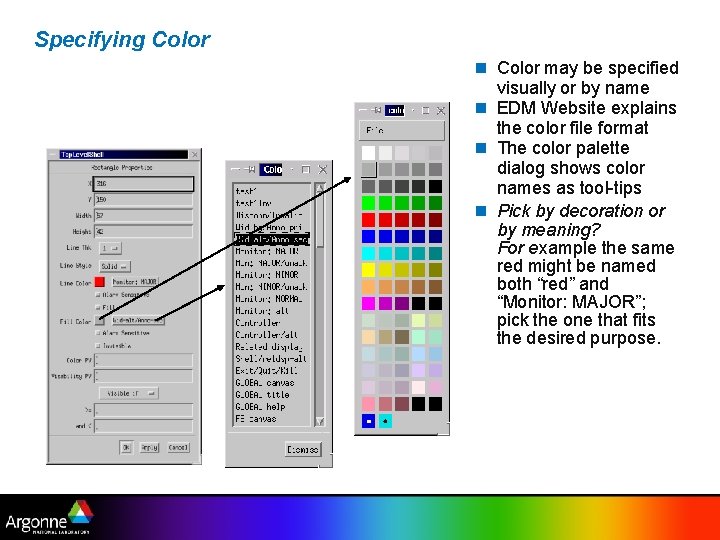
Specifying Color may be specified visually or by name EDM Website explains the color file format The color palette dialog shows color names as tool-tips Pick by decoration or by meaning? For example the same red might be named both “red” and “Monitor: MAJOR”; pick the one that fits the desired purpose.
Color - Static and Dynamic Some color entries are dynamic and are associated with a color rule In execute mode, dynamic colors change as a function of the color rule operating on the current value of an associated PV When selecting “alarm sensitive”, the color will change based on the PV's alarm severity.
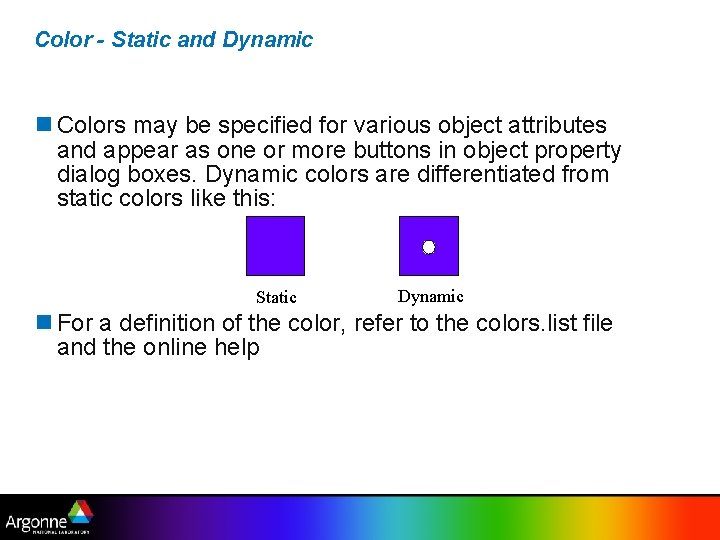
Color - Static and Dynamic Colors may be specified for various object attributes and appear as one or more buttons in object property dialog boxes. Dynamic colors are differentiated from static colors like this: Static Dynamic For a definition of the color, refer to the colors. list file and the online help
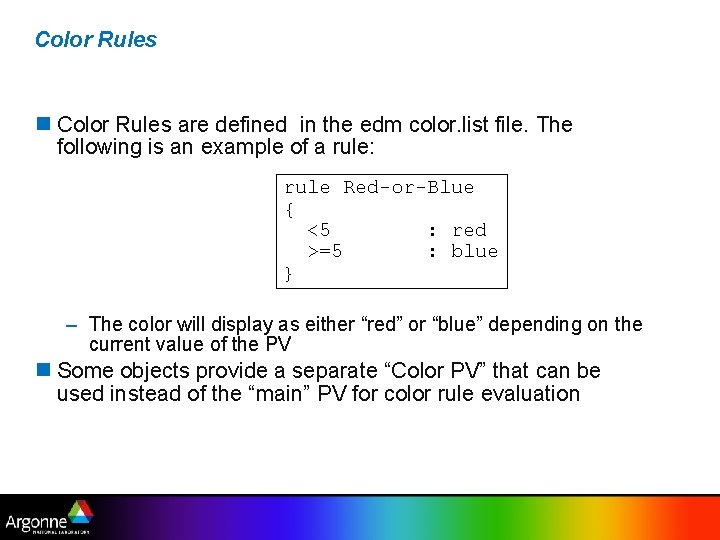
Color Rules are defined in the edm color. list file. The following is an example of a rule: rule Red-or-Blue { <5 : red >=5 : blue } – The color will display as either “red” or “blue” depending on the current value of the PV Some objects provide a separate “Color PV” that can be used instead of the “main” PV for color rule evaluation
EDM Macro Expansion Macro symbol sources – Command line – Related display or Embedded window parameter – Multiplexer object At run-time, the symbol expands to its given value For example: – EDM started with command line option -m ‘one=1’ – At run-time, $(one) =1
Symbols EDM implements a primitive symbol facility Symbols are multi-state objects – Each state maps to a value range of an associated PV – Maximum 64 states – Symbol's color and size may be different for each instance of a symbol if desired
Symbols (cont) An EDM symbol is a standard EDM display file, where each symbol state is represented as a group of objects Only one grouping level is allowed The visual ordering corresponds to the ordering of states EDM contains an auto-make symbol command to perform the necessary grouping and ordering
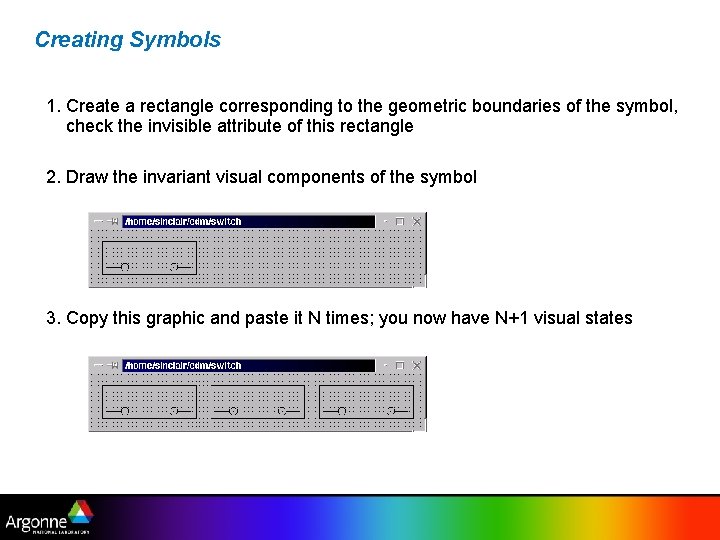
Creating Symbols 1. Create a rectangle corresponding to the geometric boundaries of the symbol, check the invisible attribute of this rectangle 2. Draw the invariant visual components of the symbol 3. Copy this graphic and paste it N times; you now have N+1 visual states
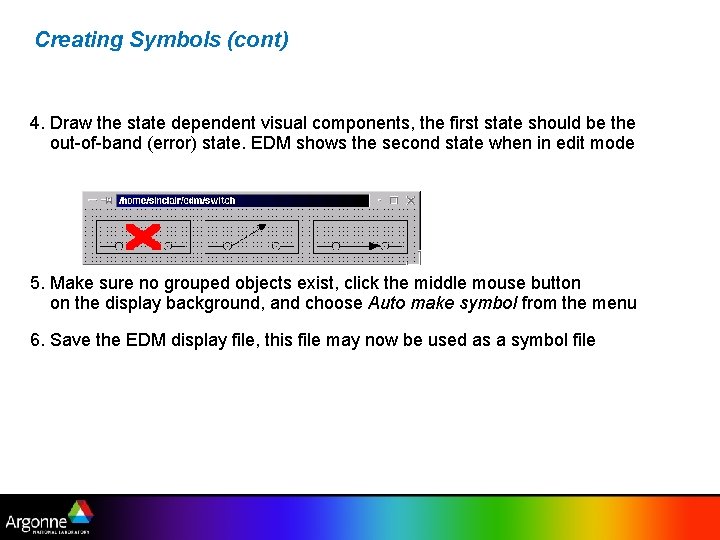
Creating Symbols (cont) 4. Draw the state dependent visual components, the first state should be the out-of-band (error) state. EDM shows the second state when in edit mode 5. Make sure no grouped objects exist, click the middle mouse button on the display background, and choose Auto make symbol from the menu 6. Save the EDM display file, this file may now be used as a symbol file
Deploying Symbols A symbol instance is created like any other EDM object One property of a symbol instance is the symbol file name; this is the file discussed previously An exercise will illustrate this entire process in detail
Program Execution - Command Line Options Define macro values -m “var 1=value 1, var 2=value 2, …” – Macros are referenced as $(var 1), $(var 2) etc. Start in execute mode -x Usually used in conjunction with -noedit Typical command used in operations: edm -x -noedit -m “var 1=1, var 2=2” display. File
Summary EDM is not only one of the available EPICS display managers – EDM has many editing features that support efficient display manipulation – The set of EDM objects can be extended – New PV types can be added
- Slides: 46