
Editorial Manager Features Preview The Elsevier Profile at






- Slides: 16
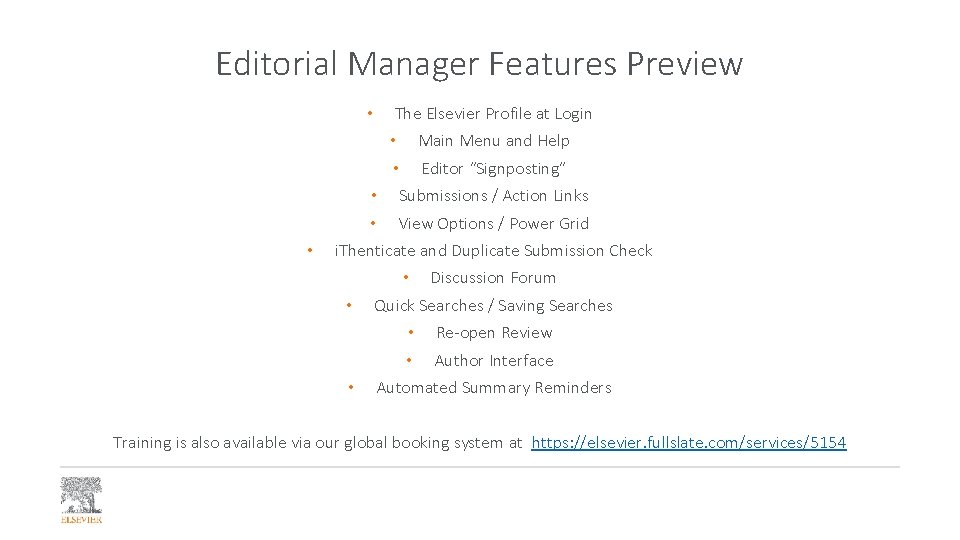
Editorial Manager Features Preview • • The Elsevier Profile at Login • Main Menu and Help • Editor “Signposting” • Submissions / Action Links • View Options / Power Grid i. Thenticate and Duplicate Submission Check • Discussion Forum • Quick Searches / Saving Searches • Re-open Review • Author Interface • Automated Summary Reminders Training is also available via our global booking system at https: //elsevier. fullslate. com/services/5154
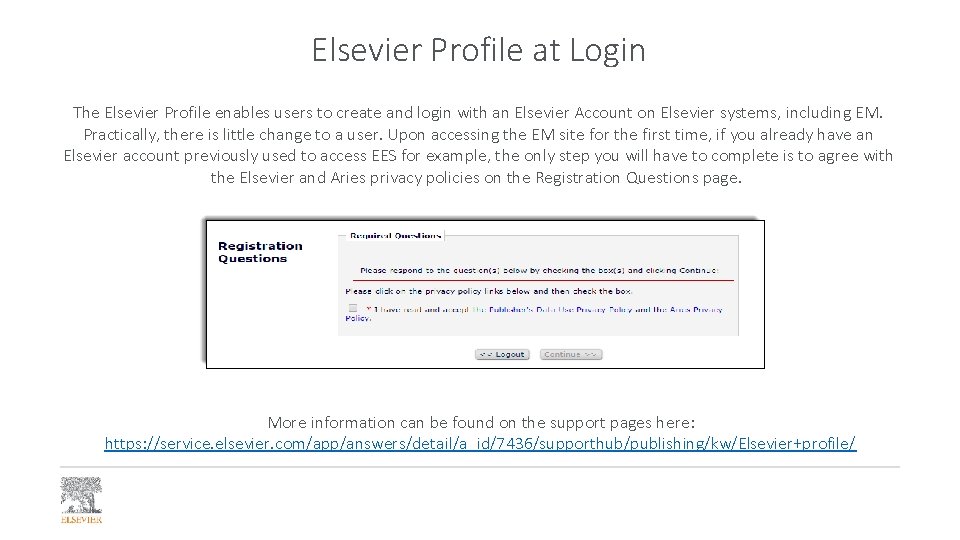
Elsevier Profile at Login The Elsevier Profile enables users to create and login with an Elsevier Account on Elsevier systems, including EM. Practically, there is little change to a user. Upon accessing the EM site for the first time, if you already have an Elsevier account previously used to access EES for example, the only step you will have to complete is to agree with the Elsevier and Aries privacy policies on the Registration Questions page. More information can be found on the support pages here: https: //service. elsevier. com/app/answers/detail/a_id/7436/supporthub/publishing/kw/Elsevier+profile/
EM Overview: Main Menu • The “Help” link at the top will take you to EM’s robust help documentation search • Items needing your attention will be in your To-Do List
EM Overview: Editor Signposting • Color coded signposting indicates submissions in each section that are new (green), need attention (amber), or overdue (red) • These thresholds are configurable, and can be changed after migration by either your JM or dedicated support agent Editor Signposting: https: //vimeo. com/album/3537271/video/217036720
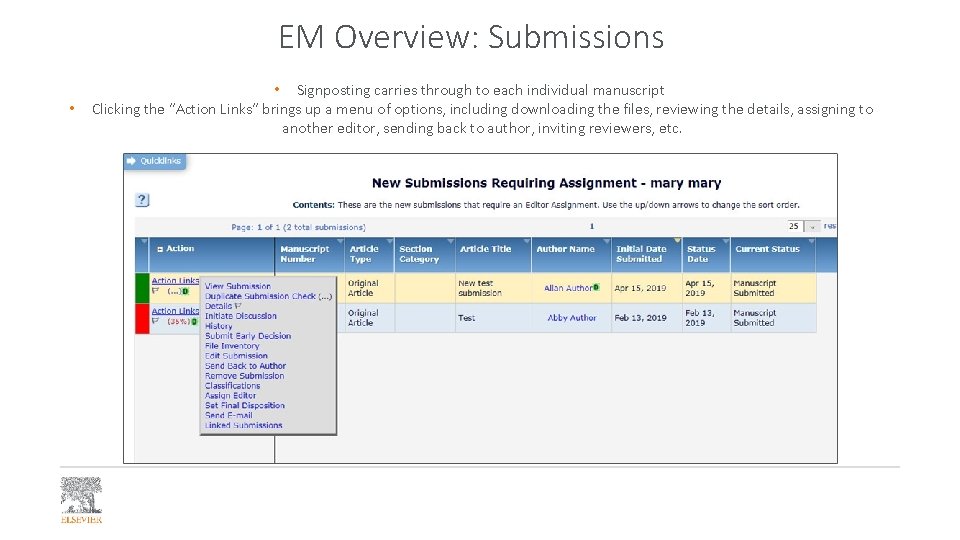
EM Overview: Submissions • • Signposting carries through to each individual manuscript Clicking the “Action Links” brings up a menu of options, including downloading the files, reviewing the details, assigning to another editor, sending back to author, inviting reviewers, etc.
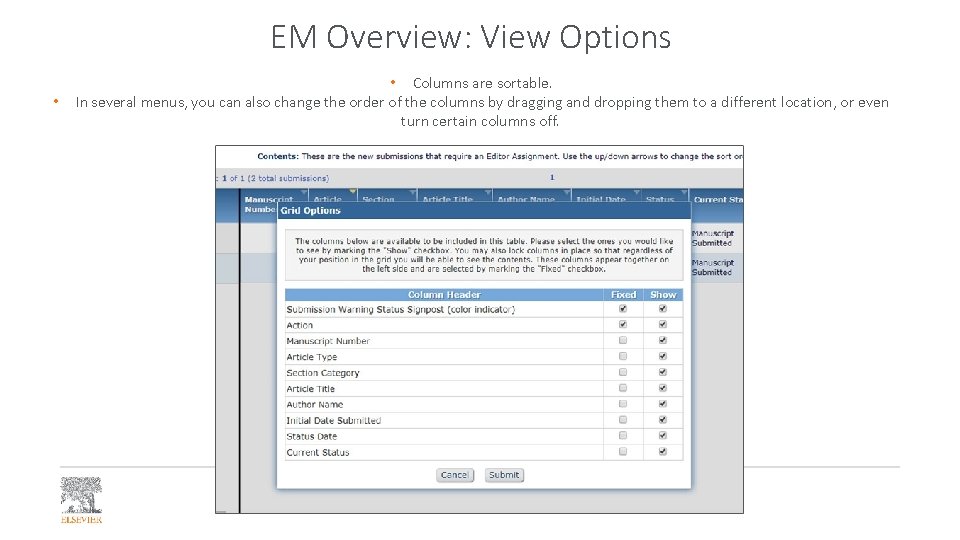
EM Overview: View Options • • Columns are sortable. In several menus, you can also change the order of the columns by dragging and dropping them to a different location, or even turn certain columns off.
EM Overview: Power Grid Power. Grid is being rolled out across several different areas of Editorial Manager; primarily useful when Searching Submissions, as searches can be saved and results downloaded.
i. Thenticate Cross Check All new submissions in Editorial Manager will automatically run through i. Thenticate, any migrated submissions will have the report run in the previous system brought across to EM. Duplicate Submission Check The duplicate submission check is a separate report that will compare three main elements – article title (word match and formatting), author list, and abstract – of new submissions against submissions already in the journal’s database. Similar to the i. Thenticate Cross Check, this check will calculate a percentage based on the amount of matching text it is finding.
Scopus Find Reviewers Tool Unlike using the Scopus FR tool in EES, when using this tool in EM, note that the manuscript’s keywords will not automatically populate into the keyword search field in the FR tool. Editors will need to manually enter the keywords into this field. A manuscript’s keywords can be found on the Details page in EM (just like EES).
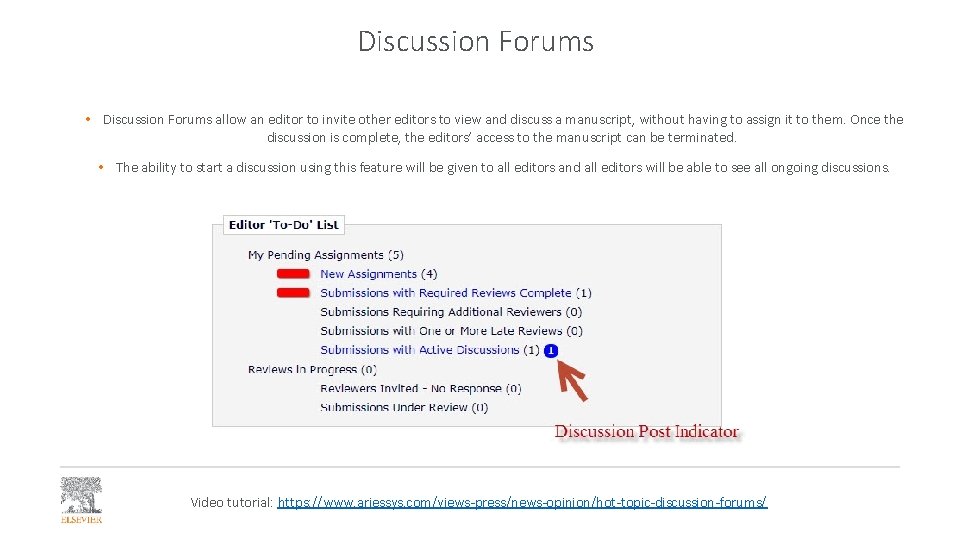
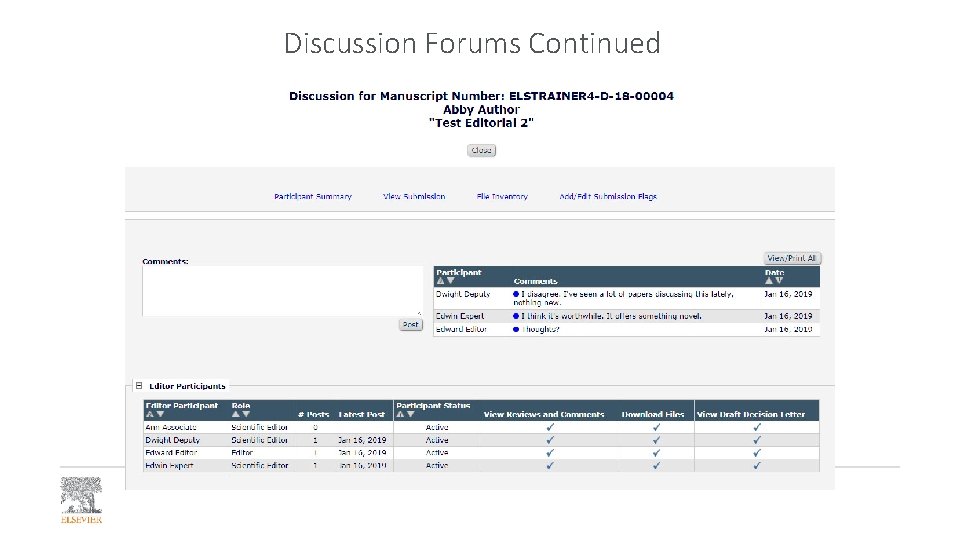
Discussion Forums • Discussion Forums allow an editor to invite other editors to view and discuss a manuscript, without having to assign it to them. Once the discussion is complete, the editors’ access to the manuscript can be terminated. • The ability to start a discussion using this feature will be given to all editors and all editors will be able to see all ongoing discussions. Video tutorial: https: //www. ariessys. com/views-press/news-opinion/hot-topic-discussion-forums/
Discussion Forums Continued
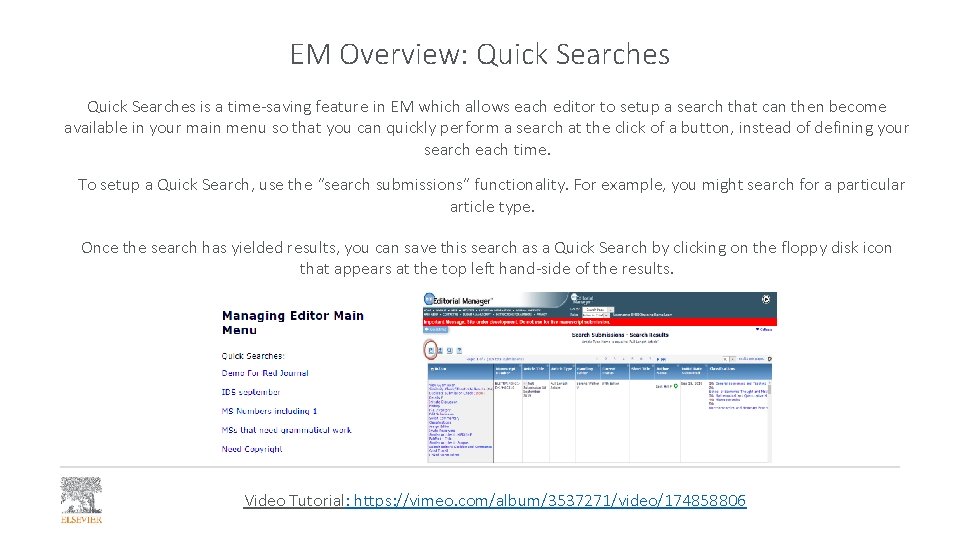
EM Overview: Quick Searches is a time-saving feature in EM which allows each editor to setup a search that can then become available in your main menu so that you can quickly perform a search at the click of a button, instead of defining your search each time. To setup a Quick Search, use the “search submissions” functionality. For example, you might search for a particular article type. Once the search has yielded results, you can save this search as a Quick Search by clicking on the floppy disk icon that appears at the top left hand-side of the results. Video Tutorial: https: //vimeo. com/album/3537271/video/174858806
EM Overview: Re-open Review In EM, Editors will have the ability to “re-open” a review. This option appears when viewing a completed reviewer report and allows the editor to return the report to the reviewer for editing. • • Once the review has been re-opened, the status for that report on the View Reviews and Comments screen will change to Partial Review Saved, and the Reviewer will see the assignment back on their Reviewer Main Menu for editing/re-submission in the My Pending Assignments folder.
Co-Author Role There is no co-author role in EM only an author role. New Submissions will automatically send a co-author confirmation email and once an author has confirmed their affiliation to the paper they can track the progress of the submission in their account. For papers already submitted, co-authors will only see the submission in their account once the paper is resubmitted and this triggers the co-author contribution email.
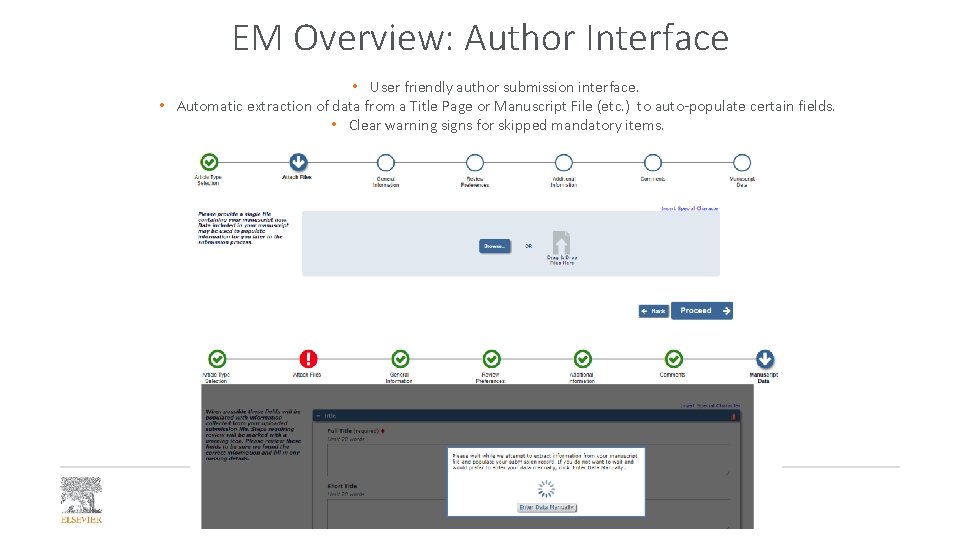
EM Overview: Author Interface • User friendly author submission interface. • Automatic extraction of data from a Title Page or Manuscript File (etc. ) to auto-populate certain fields. • Clear warning signs for skipped mandatory items.
EM Overview: Automated Summary Reminders • • Reminder emails can be sent automatically to Editors at regular intervals. These Reminders can include summaries from up to 11 assignment-related Editor Main Menu folders compiled in a single email. May be configured to include due-date threshold information (color-coded), allowing Editors a more informative quick view of their workload. • • Assignments that are on schedule are marked green, those requiring attention to keep them on schedule are marked amber, and those that are late are marked red. • You will have the ability to configure these, by contacting your Journal Manager or Dedicated Support Agent