
eclass Student SelfGuide By Dr Naomi Mwangi Senior
eclass Student Self-Guide By Dr Naomi Mwangi Senior Lecturer & Coordinator, e-Learning Supported by Sam Kariuki
Objective of the Presentation The main objective of this brief presentation is to guide you on: ❖ ❖ How to Login to eclass. uonbi. ac. ke How to navigate How to access course Materials How to submit an assignment

What is e-class ❖ e-class is the name given to Uo. N LMS (Learning Management System) ❖ It is the e-learning portal that facilitates learning process electronically in the ODe. L mode of study. ❖ It is the platform where learning materials are uploaded and where tutors and learners can interact asynchronously
How to access Eclass can be accessed in two ways: 1. Through the web 2. Through the moodle mobile app
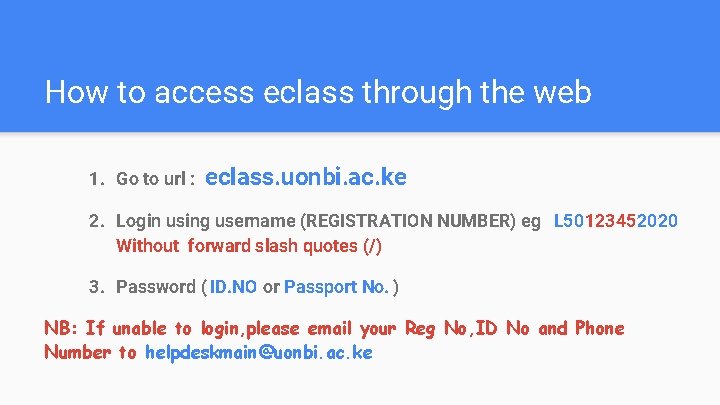
How to access eclass through the web 1. Go to url : eclass. uonbi. ac. ke 2. Login using username (REGISTRATION NUMBER) eg L 50123452020 Without forward slash quotes (/) 3. Password ( ID. NO or Passport No. ) NB: If unable to login, please email your Reg No, ID No and Phone Number to helpdeskmain@uonbi. ac. ke
Mobile app access Go to play store Download moodle mobile app Enter eclass url ( eclass. uonbi. ac. ke ) Then proceed to login, using your Credentials (Reg No & unique Password)
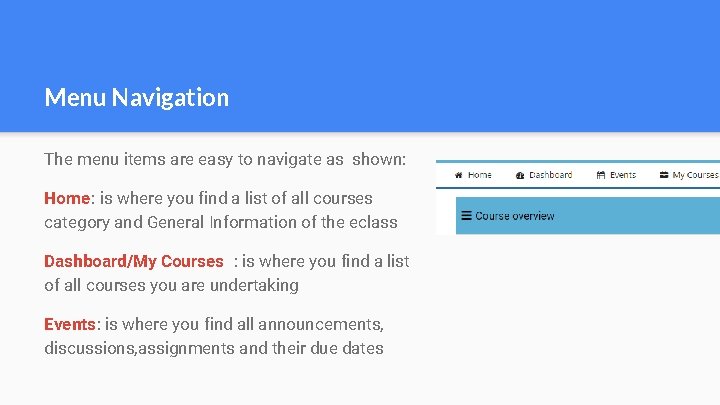
Menu Navigation The menu items are easy to navigate as shown: Home: is where you find a list of all courses category and General Information of the eclass Dashboard/My Courses : is where you find a list of all courses you are undertaking Events: is where you find all announcements, discussions, assignments and their due dates
Accessing Course Materials Accessing course material is easy. once you are logged in: ❖ click on menu item Home ❖ Scroll down and locate a course category you wish to enrol in, e. g M. A Project Planning and Management ❖ Click on a course e. g LDP 603 within Course Category and click on enroll Me ❖ All enrolled courses Appears at the Dashboard ❖ Click on the course at the dashboard and enjoy navigating the different course resources attached.
Submitting an Assignments on moodle have due dates and You will find all assignments at Events Tab. Please strive to do the assignment before the due date. ❖ Click on the assignment ❖ Click on Add Submission or type in the text field if file submission is not required ❖ Search the File to be uploaded and do the uploading and click on submit ❖ Wait for the grading by your E-Instructor.
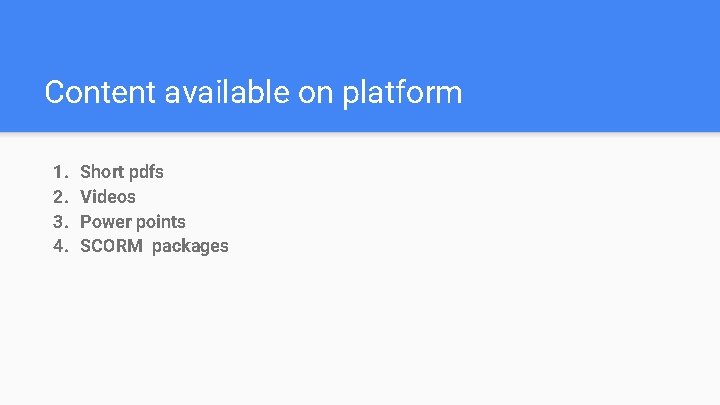
Content available on platform 1. 2. 3. 4. Short pdfs Videos Power points SCORM packages
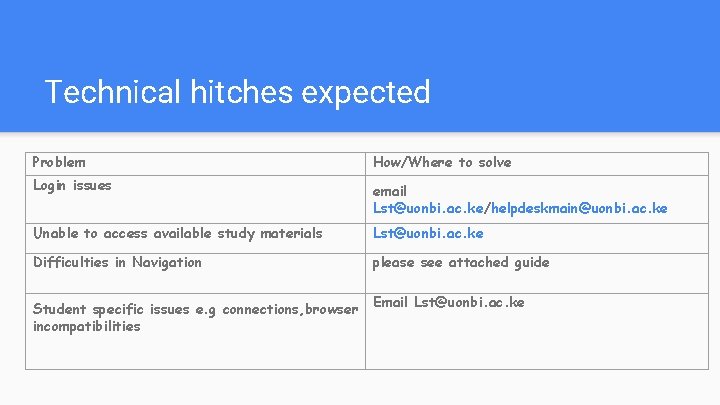
Technical hitches expected Problem How/Where to solve Login issues email Lst@uonbi. ac. ke/helpdeskmain@uonbi. ac. ke Unable to access available study materials Lst@uonbi. ac. ke Difficulties in Navigation please see attached guide Student specific issues e. g connections, browser incompatibilities Email Lst@uonbi. ac. ke
Online student support email: lst@uonbi. ac. k e
- Slides: 12