
ECBOE Gmail Setup on Your Smartphone Follow these
ECBOE Gmail Setup on Your Smartphone Follow these steps to set up your new ECBOE mail address on your personal Smartphone.
Select Your Operating System Click a device to get started Android Web. OS (HP/Palm) i. OS (Apple) Blackberry (including district provided devices)
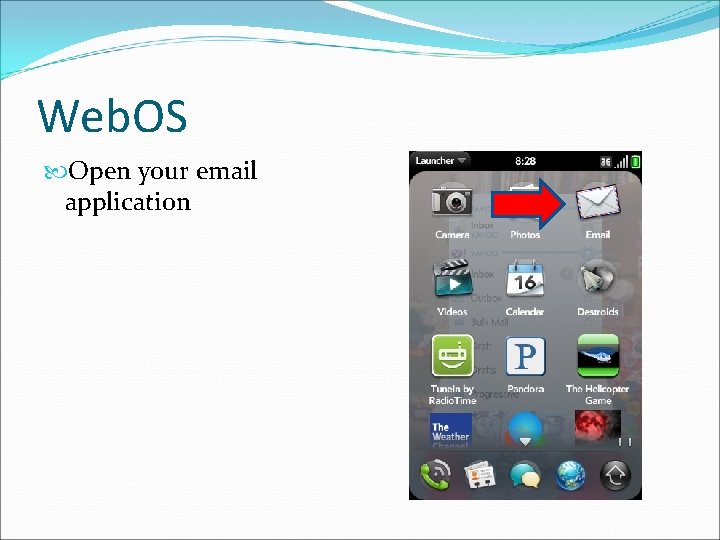
Web. OS Open your email application
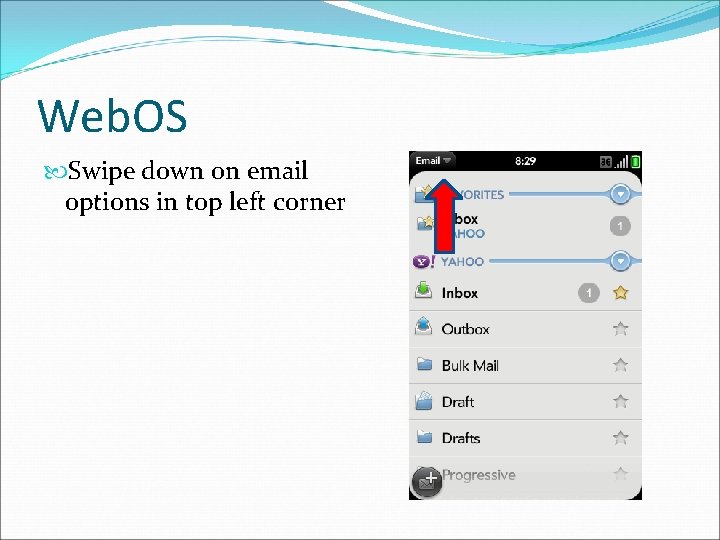
Web. OS Swipe down on email options in top left corner
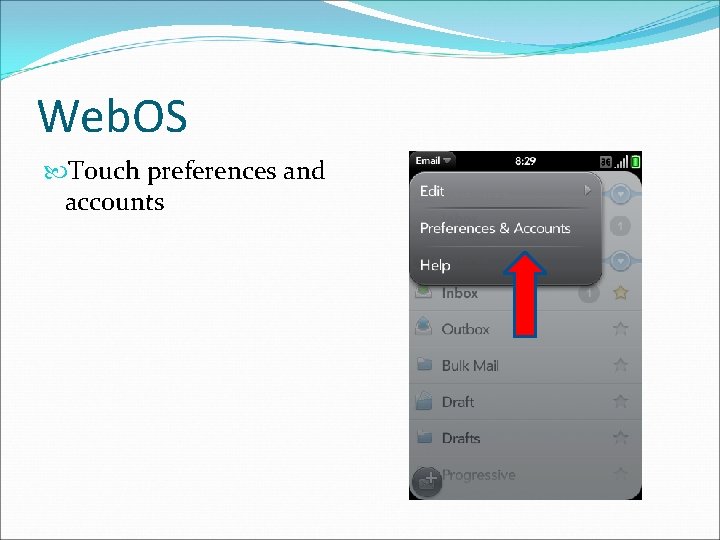
Web. OS Touch preferences and accounts
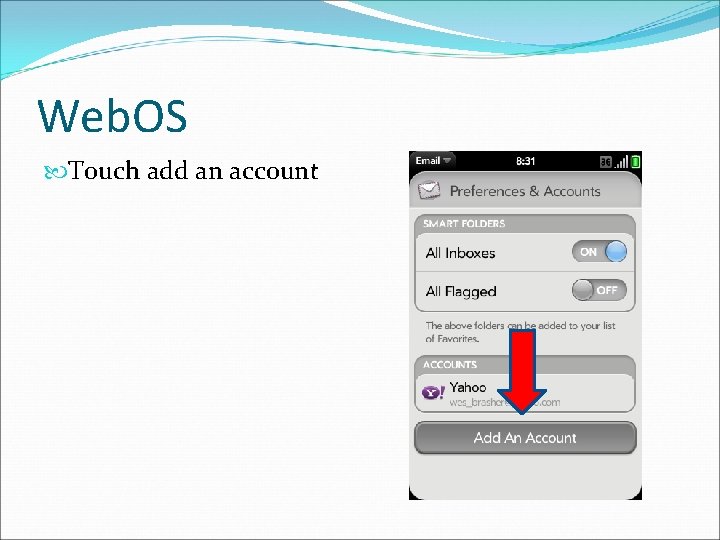
Web. OS Touch add an account
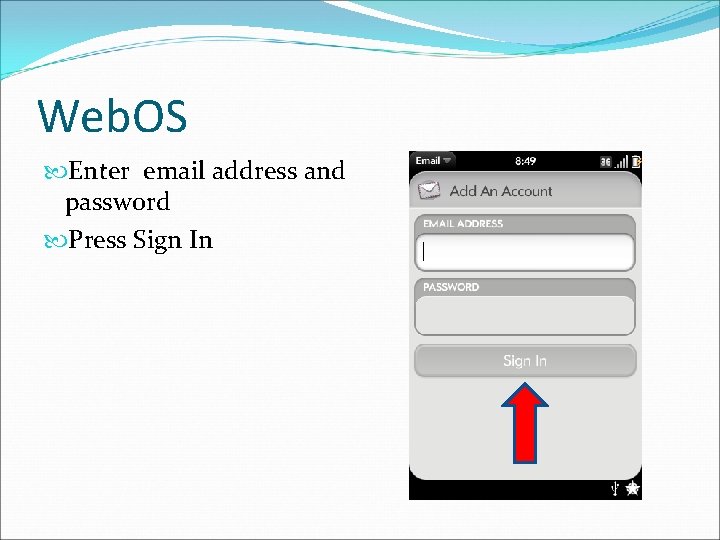
Web. OS Enter email address and password Press Sign In
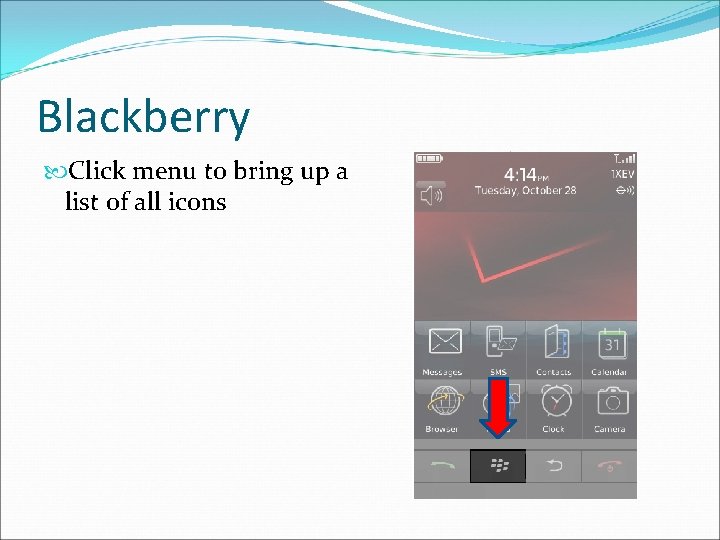
Blackberry Click menu to bring up a list of all icons
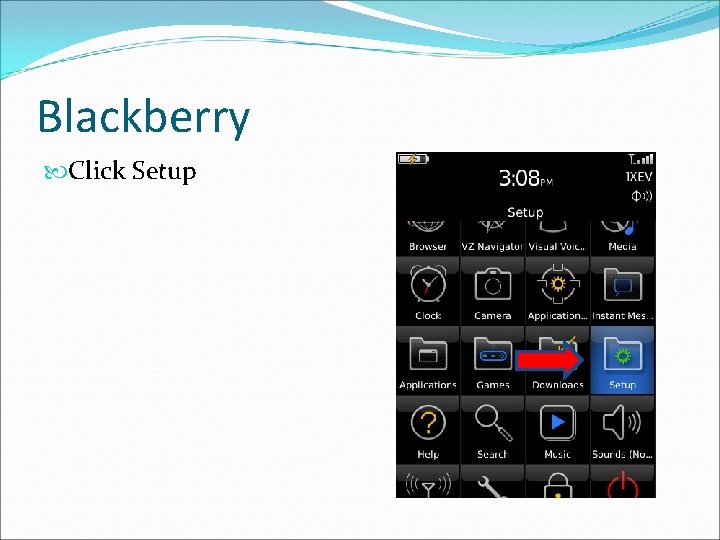
Blackberry Click Setup
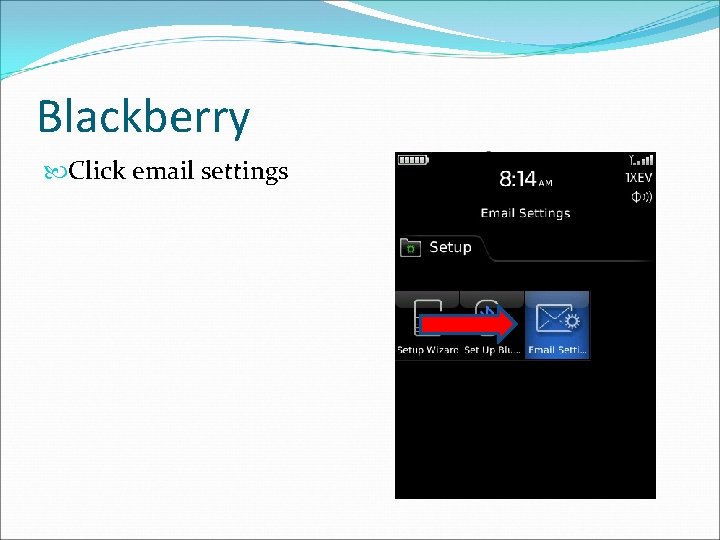
Blackberry Click email settings
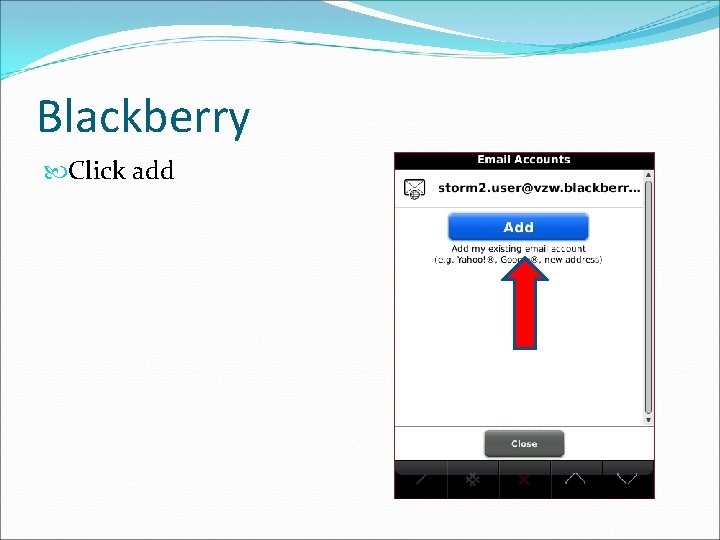
Blackberry Click add
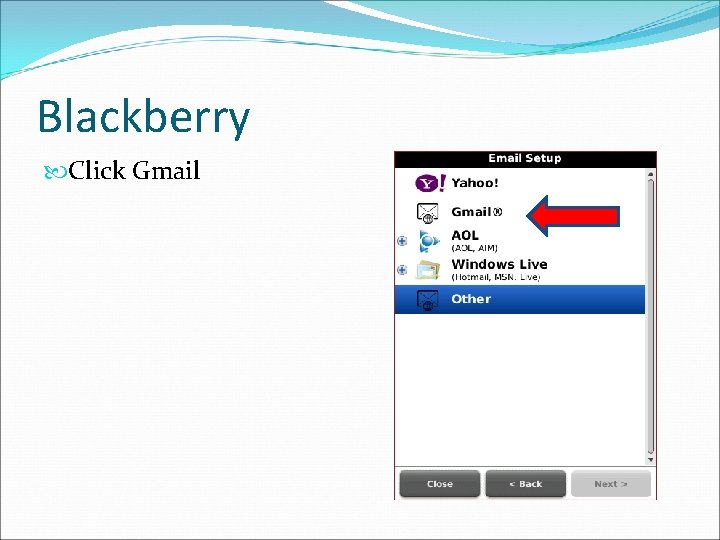
Blackberry Click Gmail
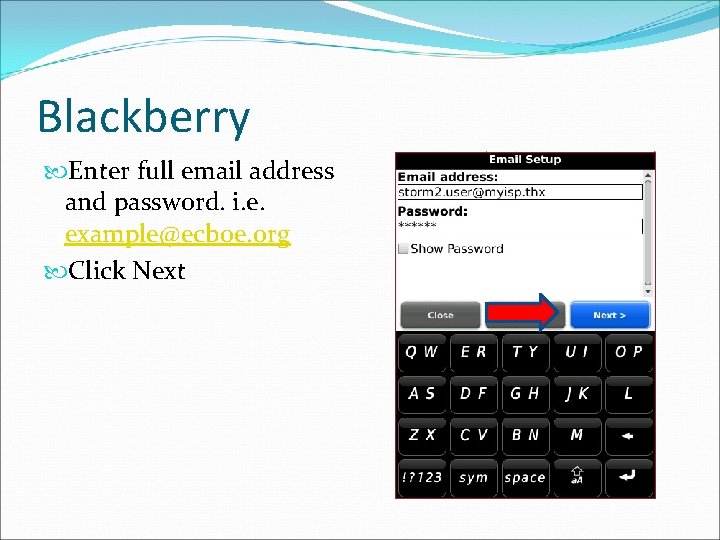
Blackberry Enter full email address and password. i. e. example@ecboe. org Click Next
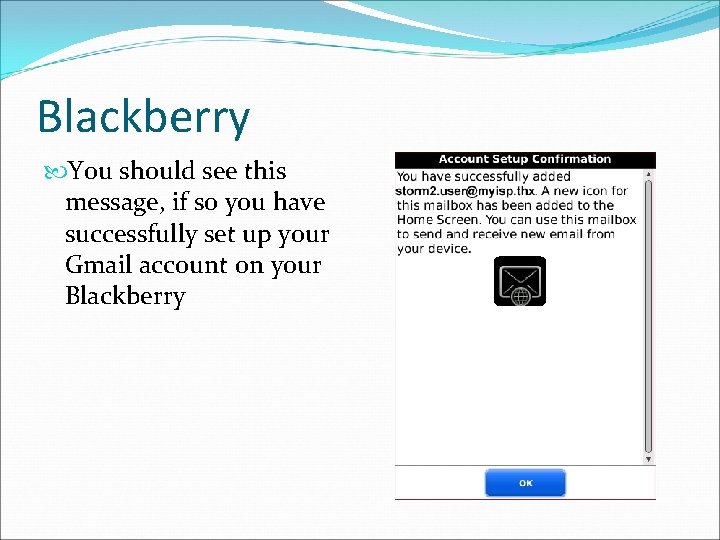
Blackberry You should see this message, if so you have successfully set up your Gmail account on your Blackberry
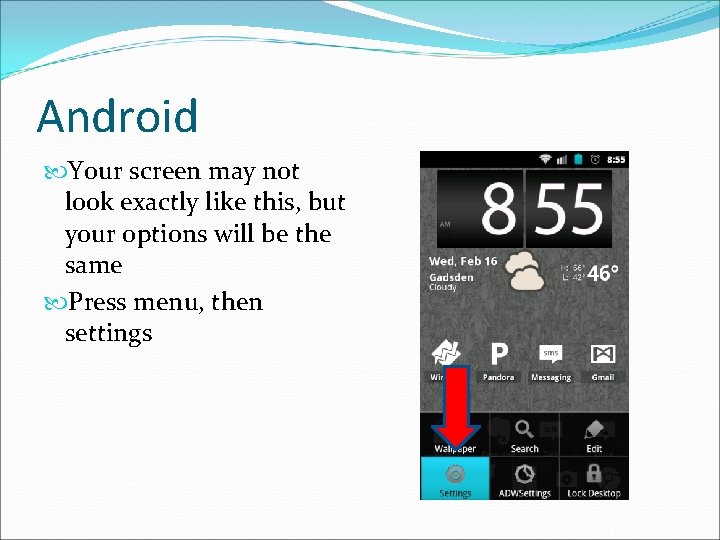
Android Your screen may not look exactly like this, but your options will be the same Press menu, then settings
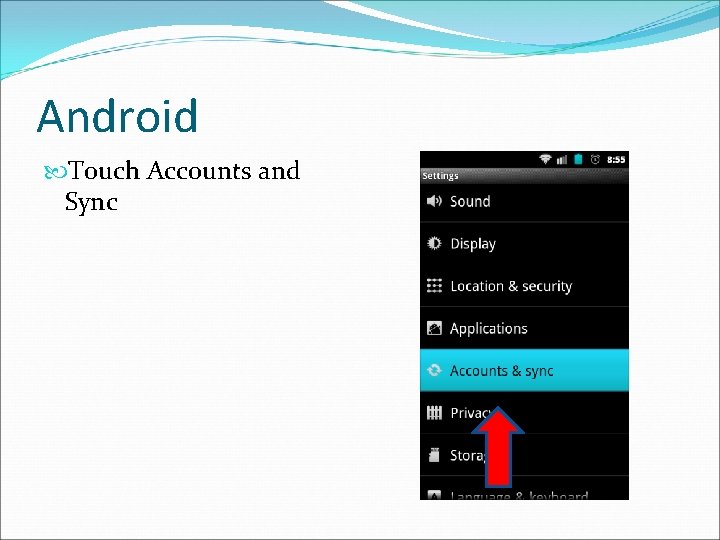
Android Touch Accounts and Sync
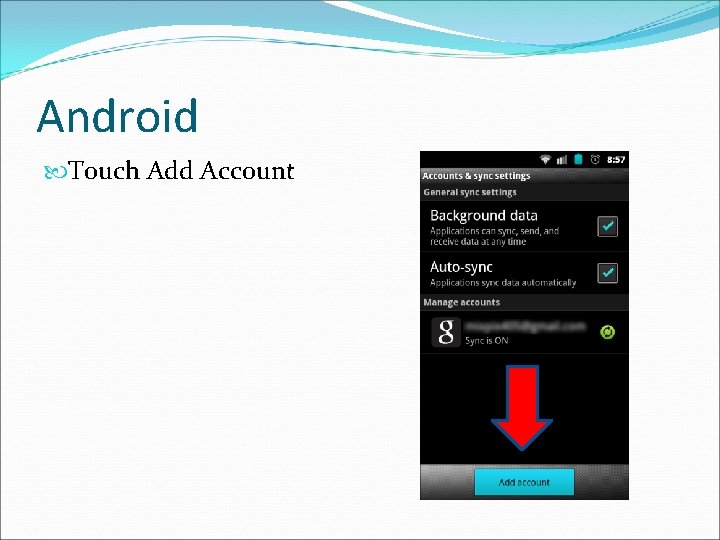
Android Touch Add Account
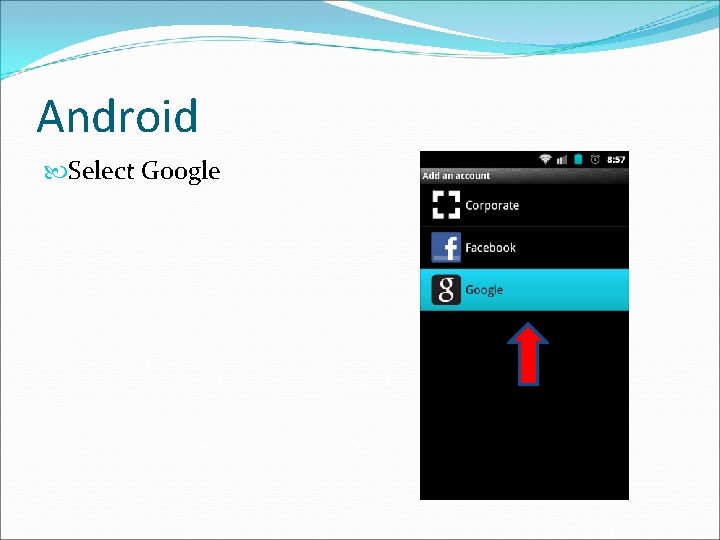
Android Select Google
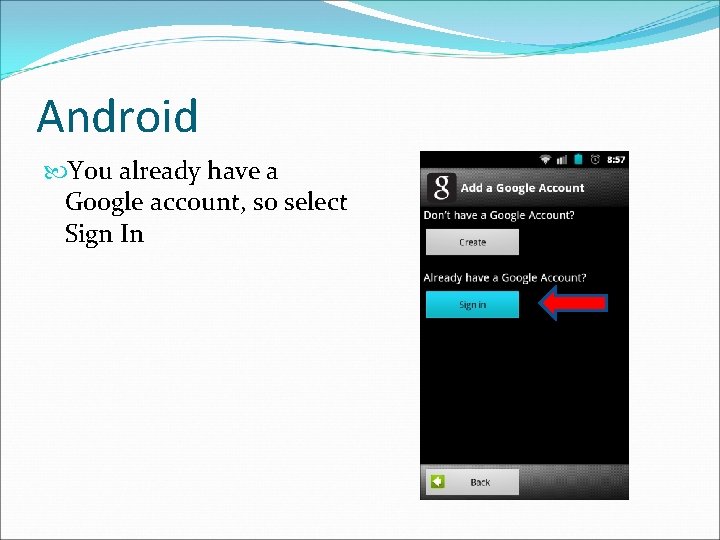
Android You already have a Google account, so select Sign In
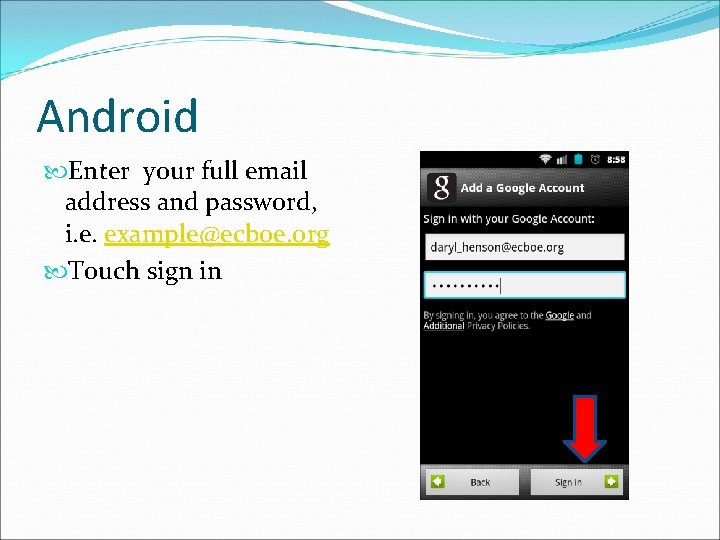
Android Enter your full email address and password, i. e. example@ecboe. org Touch sign in
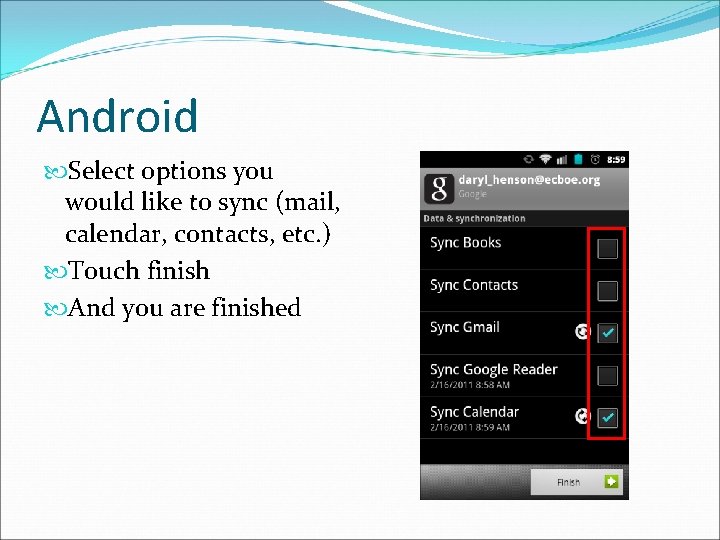
Android Select options you would like to sync (mail, calendar, contacts, etc. ) Touch finish And you are finished
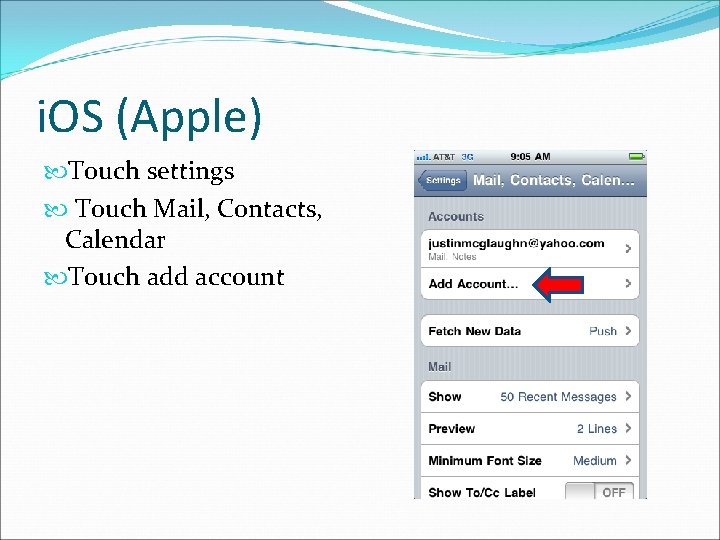
i. OS (Apple) Touch settings Touch Mail, Contacts, Calendar Touch add account
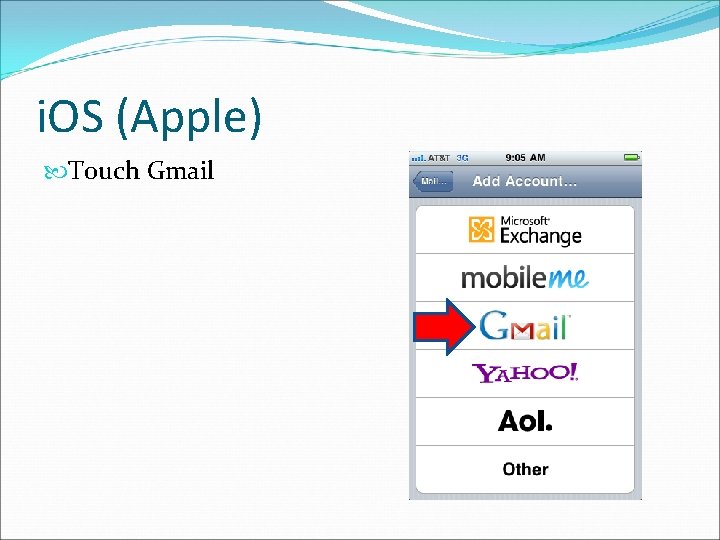
i. OS (Apple) Touch Gmail
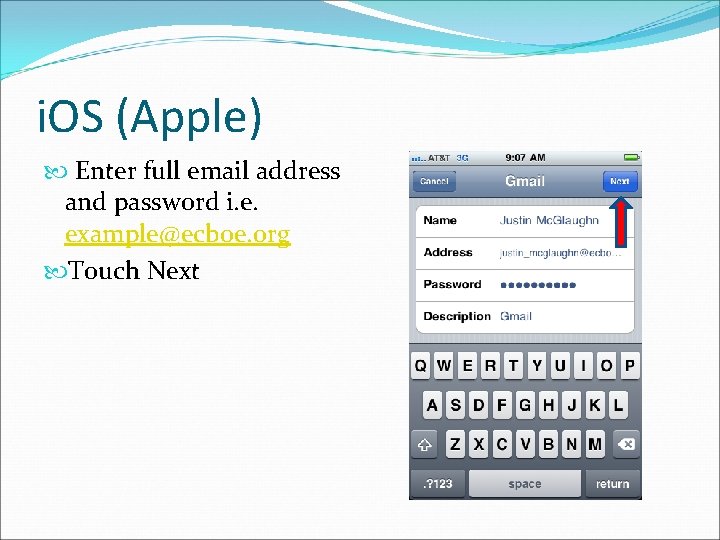
i. OS (Apple) Enter full email address and password i. e. example@ecboe. org Touch Next
- Slides: 24