
easy Programmable Relay Training Program Exercise 3 2013

easy Programmable Relay Training Program Exercise 3 © 2013 Eaton Corporation. All rights reserved.

Procedure 1. Open a new project 2. Write a program 3. Simulate/test 4. Download 5. Test © 2013 Eaton Corporation. All rights reserved. 2
Program 3 - Advanced Design a control system which provides two pushbutton inputs for Start and Stop, and two relay outputs, one for the pump and one for the valve as directed through the selector switch. The control system must include the time delay functions. The Operator pushes a Start PB to start the flow of water, and when the desired level is reached, pushes a Stop PB to stop the flow. In order to prevent excessive pressure in the pipes, the valve must be opened 1 second prior to the starting of the pump, and the pump must be stopped 2 seconds prior to the closing of the valve. © 2013 Eaton Corporation. All rights reserved. 3
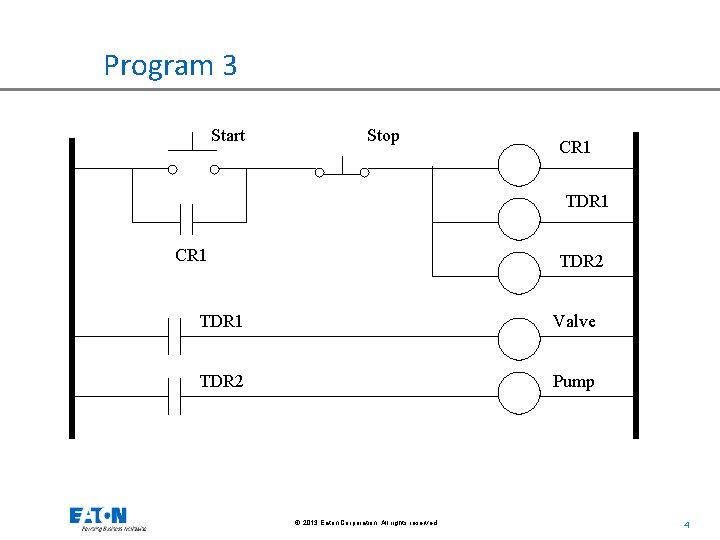
Program 3 Start Stop CR 1 TDR 1 CR 1 TDR 2 TDR 1 Valve TDR 2 Pump © 2013 Eaton Corporation. All rights reserved. 4
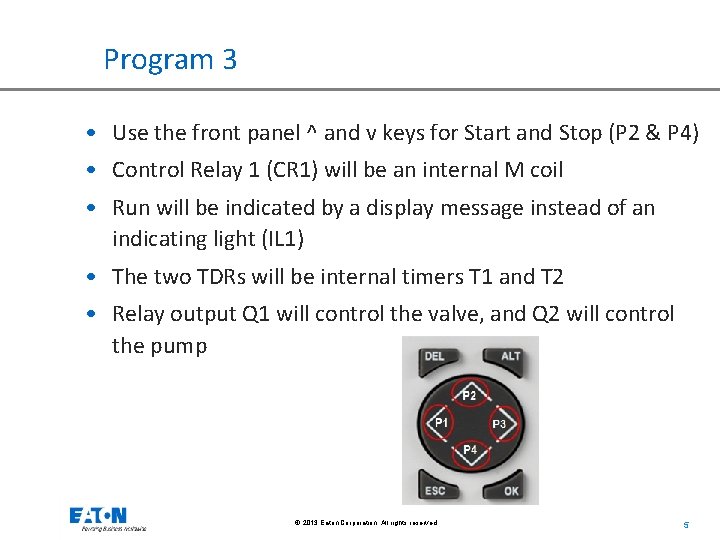
Program 3 • Use the front panel ^ and v keys for Start and Stop (P 2 & P 4) • Control Relay 1 (CR 1) will be an internal M coil • Run will be indicated by a display message instead of an indicating light (IL 1) • The two TDRs will be internal timers T 1 and T 2 • Relay output Q 1 will control the valve, and Q 2 will control the pump © 2013 Eaton Corporation. All rights reserved. 5
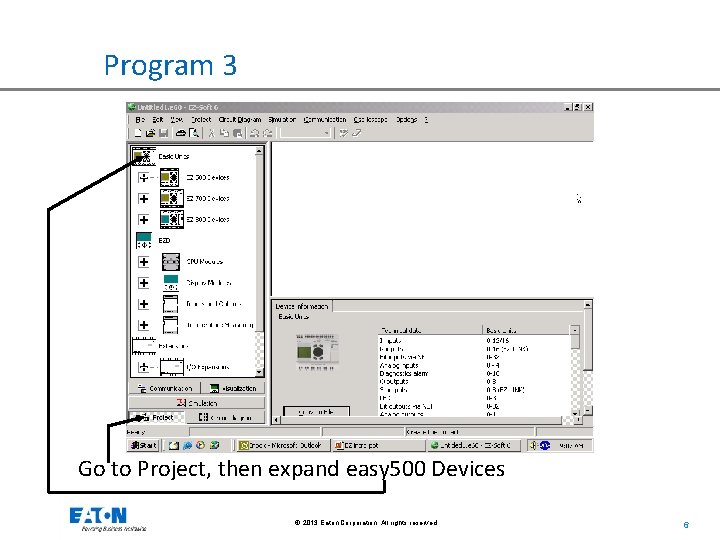
Program 3 Go to Project, then expand easy 500 Devices © 2013 Eaton Corporation. All rights reserved. 6
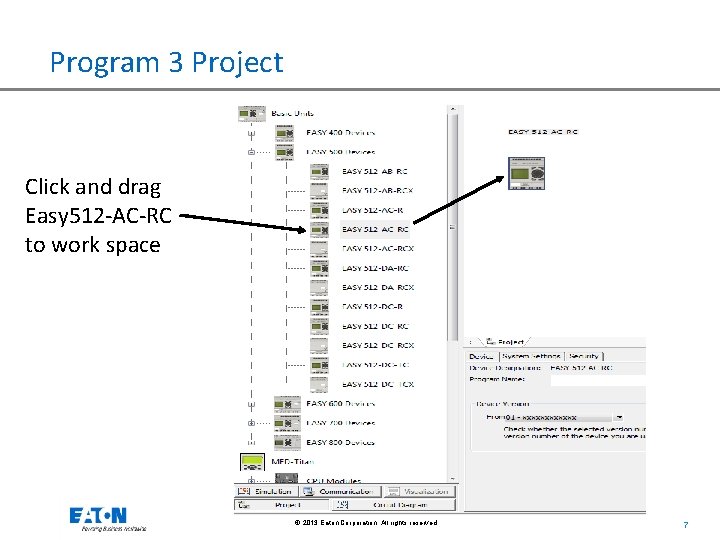
Program 3 Project Click and drag Easy 512 -AC-RC to work space © 2013 Eaton Corporation. All rights reserved. 7
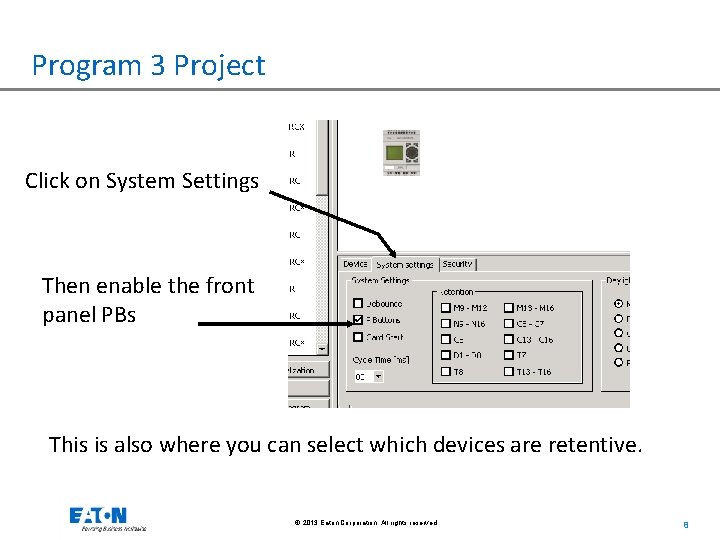
Program 3 Project Click on System Settings Then enable the front panel PBs This is also where you can select which devices are retentive. © 2013 Eaton Corporation. All rights reserved. 8
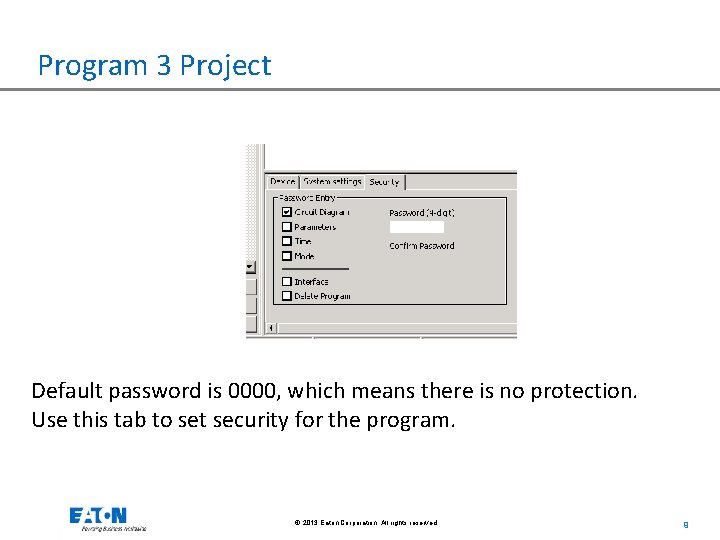
Program 3 Project Default password is 0000, which means there is no protection. Use this tab to set security for the program. © 2013 Eaton Corporation. All rights reserved. 9
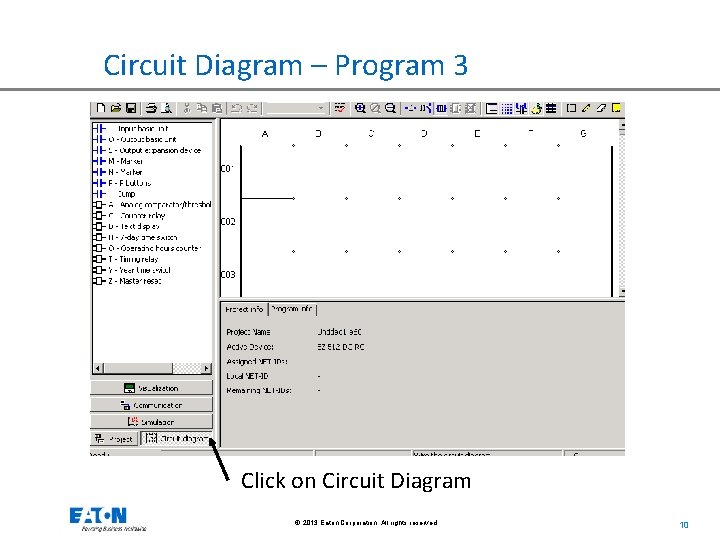
Circuit Diagram – Program 3 Click on Circuit Diagram © 2013 Eaton Corporation. All rights reserved. 10
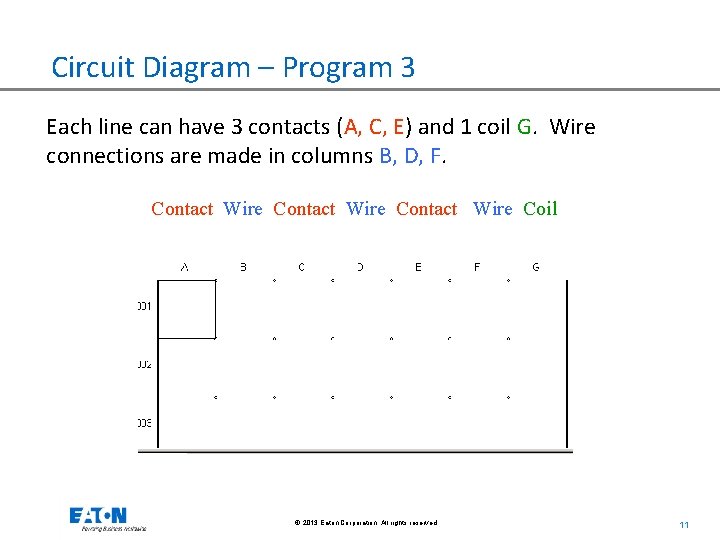
Circuit Diagram – Program 3 Each line can have 3 contacts (A, C, E) and 1 coil G. Wire connections are made in columns B, D, F. Contact Wire Coil © 2013 Eaton Corporation. All rights reserved. 11
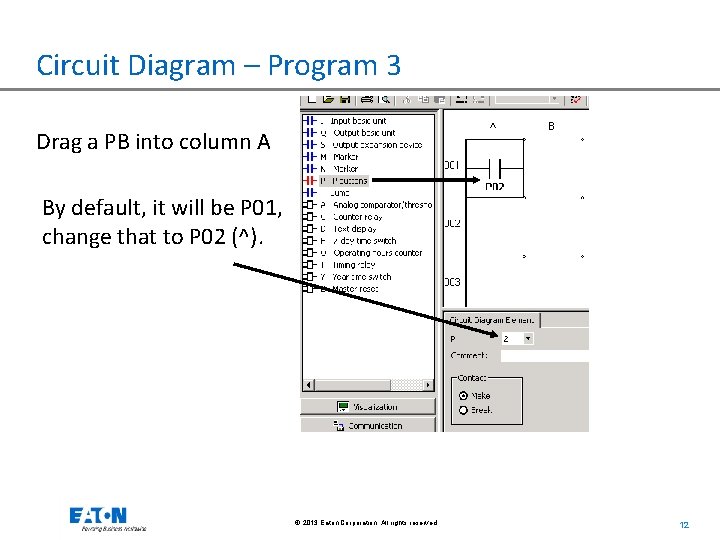
Circuit Diagram – Program 3 Drag a PB into column A By default, it will be P 01, change that to P 02 (^). © 2013 Eaton Corporation. All rights reserved. 12
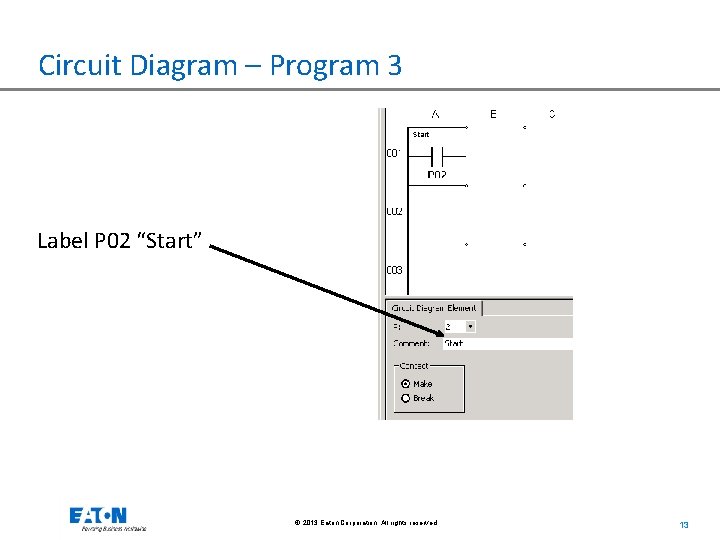
Circuit Diagram – Program 3 Label P 02 “Start” © 2013 Eaton Corporation. All rights reserved. 13

Circuit Diagram – Program 3 Drag in another PB, select P 04, and label it Stop Change the contact to NC by selecting Break Notice that the wire in column B appears automatically © 2013 Eaton Corporation. All rights reserved. 14
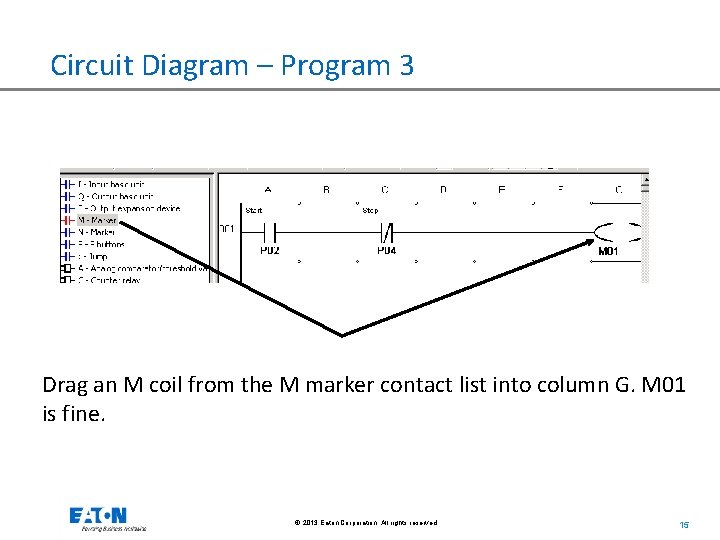
Circuit Diagram – Program 3 Drag an M coil from the M marker contact list into column G. M 01 is fine. © 2013 Eaton Corporation. All rights reserved. 15
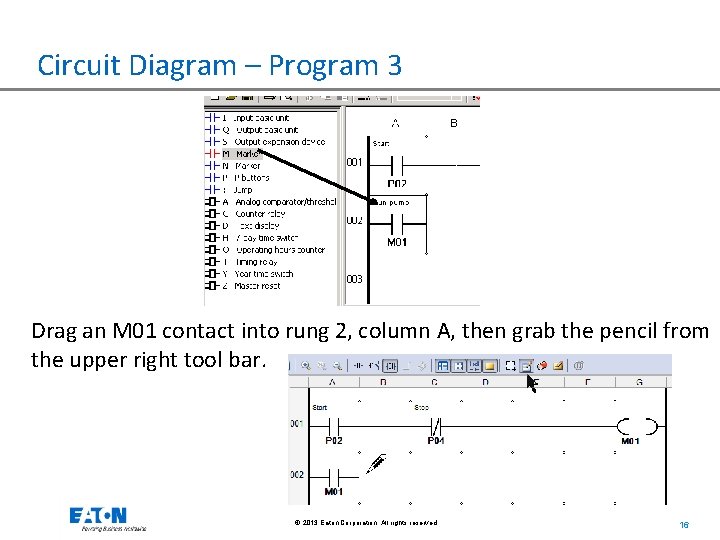
Circuit Diagram – Program 3 Drag an M 01 contact into rung 2, column A, then grab the pencil from the upper right tool bar. © 2013 Eaton Corporation. All rights reserved. 16
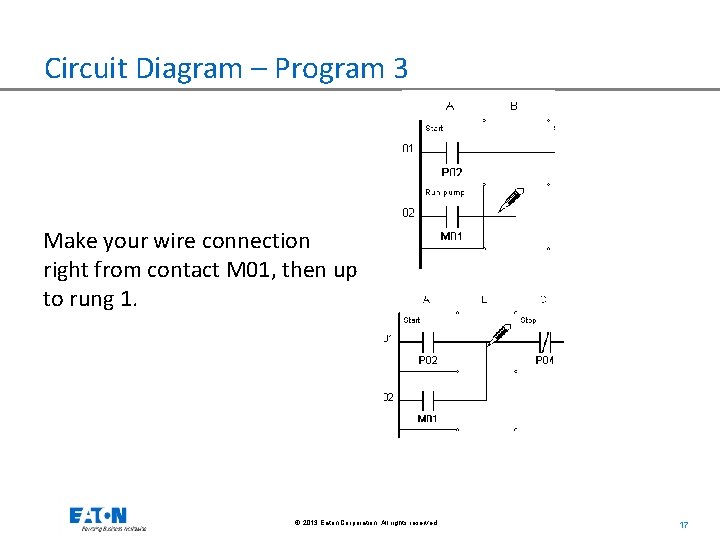
Circuit Diagram – Program 3 Make your wire connection right from contact M 01, then up to rung 1. © 2013 Eaton Corporation. All rights reserved. 17
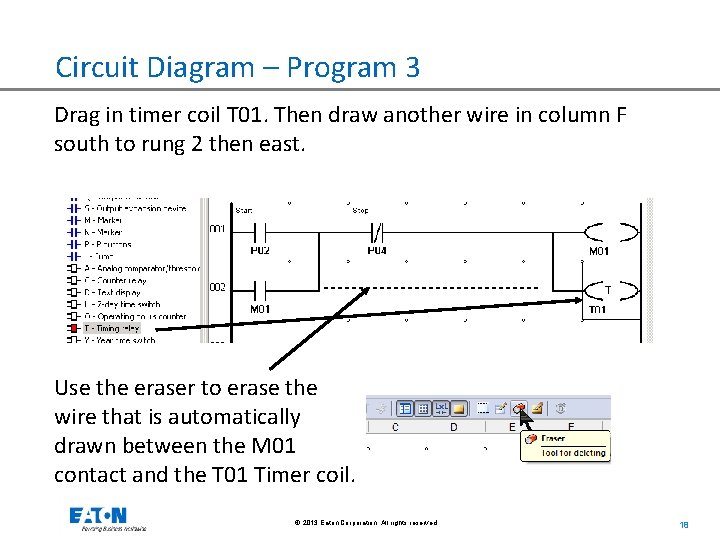
Circuit Diagram – Program 3 Drag in timer coil T 01. Then draw another wire in column F south to rung 2 then east. Use the eraser to erase the wire that is automatically drawn between the M 01 contact and the T 01 Timer coil. © 2013 Eaton Corporation. All rights reserved. 18
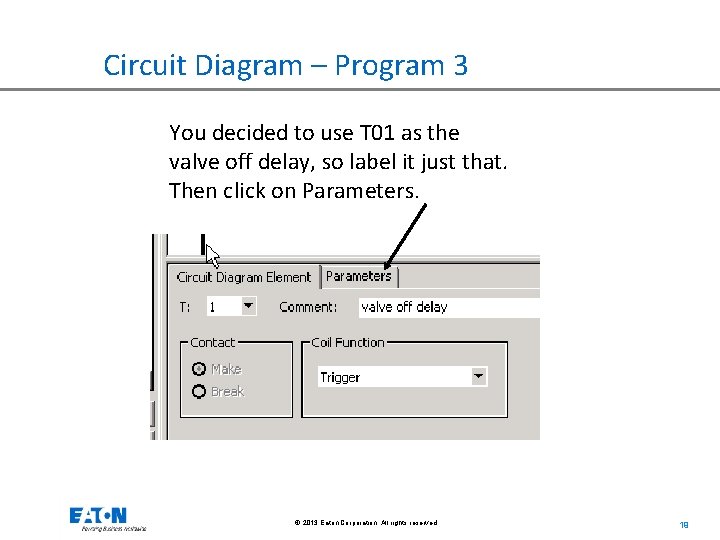
Circuit Diagram – Program 3 You decided to use T 01 as the valve off delay, so label it just that. Then click on Parameters. © 2013 Eaton Corporation. All rights reserved. 19
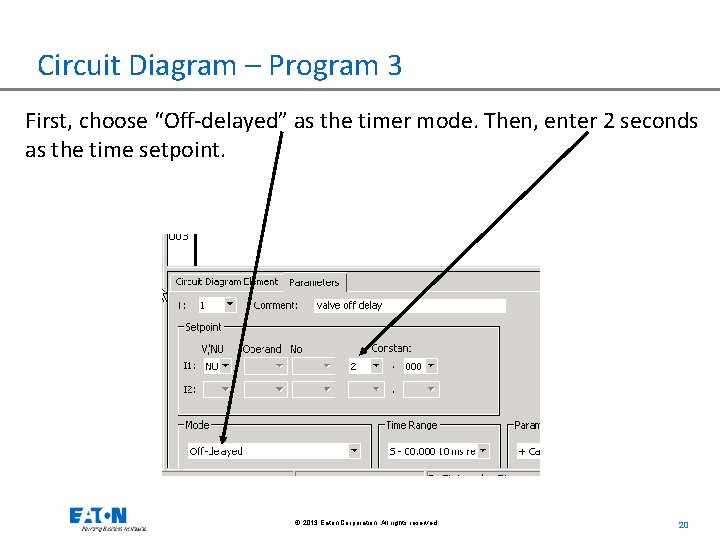
Circuit Diagram – Program 3 First, choose “Off-delayed” as the timer mode. Then, enter 2 seconds as the time setpoint. © 2013 Eaton Corporation. All rights reserved. 20
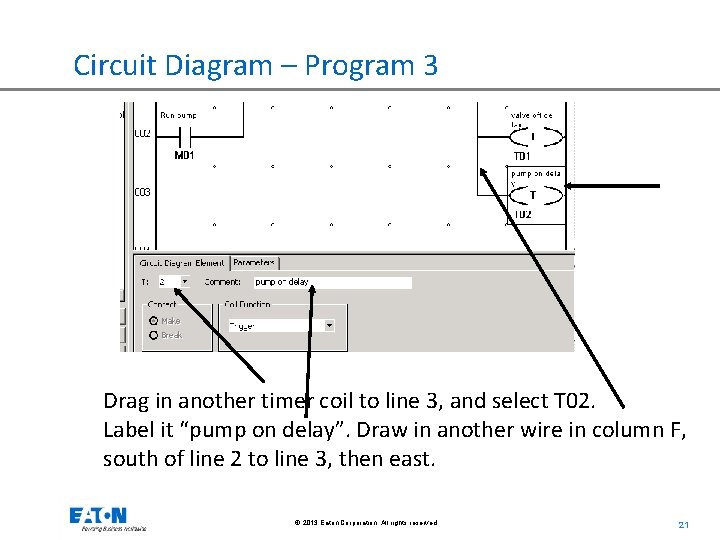
Circuit Diagram – Program 3 Drag in another timer coil to line 3, and select T 02. Label it “pump on delay”. Draw in another wire in column F, south of line 2 to line 3, then east. © 2013 Eaton Corporation. All rights reserved. 21
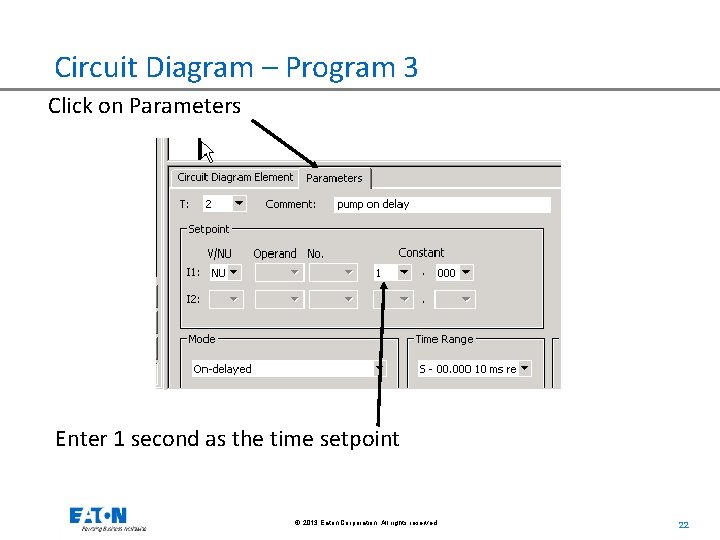
Circuit Diagram – Program 3 Click on Parameters Enter 1 second as the time setpoint © 2013 Eaton Corporation. All rights reserved. 22
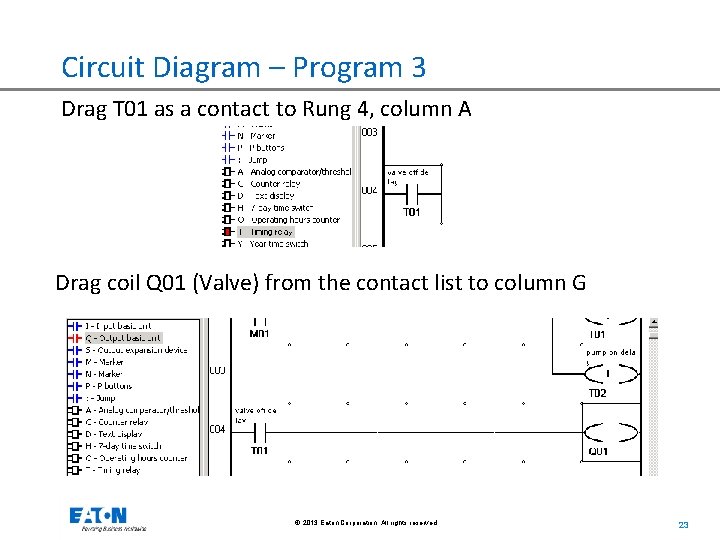
Circuit Diagram – Program 3 Drag T 01 as a contact to Rung 4, column A Drag coil Q 01 (Valve) from the contact list to column G © 2013 Eaton Corporation. All rights reserved. 23
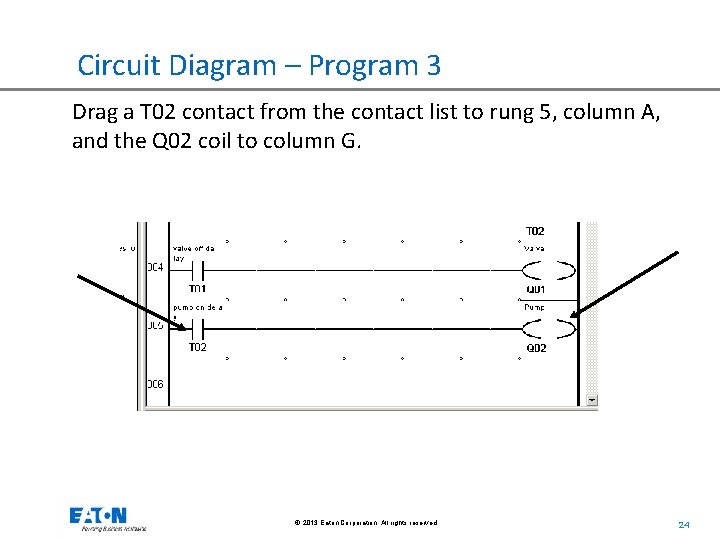
Circuit Diagram – Program 3 Drag a T 02 contact from the contact list to rung 5, column A, and the Q 02 coil to column G. Use Simulation to test this portion of the program © 2013 Eaton Corporation. All rights reserved. 24
Add HMI Element - Program 3 • The text screen can be modified to display messages • Add a message to the display when the pump is running and when it is stopped • Use Q 02 to trigger the messages © 2013 Eaton Corporation. All rights reserved. 25
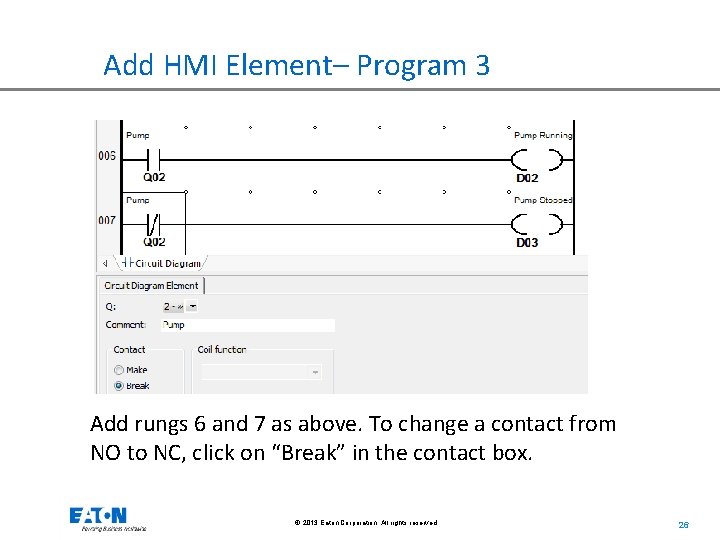
Add HMI Element– Program 3 Add rungs 6 and 7 as above. To change a contact from NO to NC, click on “Break” in the contact box. © 2013 Eaton Corporation. All rights reserved. 26
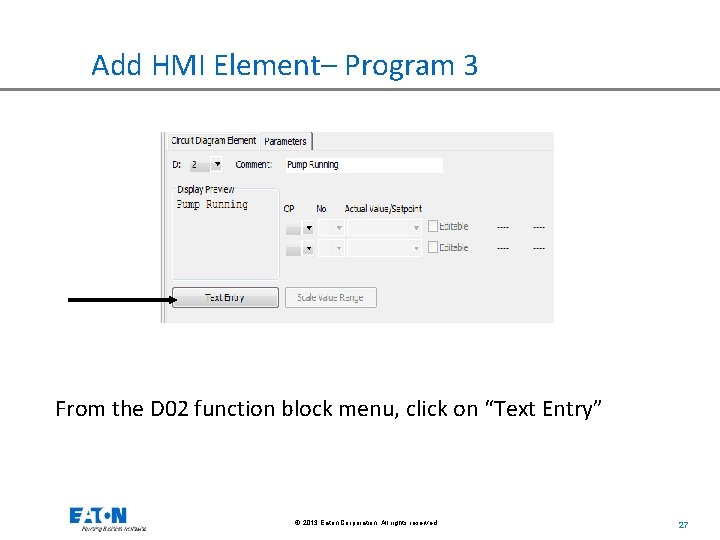
Add HMI Element– Program 3 From the D 02 function block menu, click on “Text Entry” © 2013 Eaton Corporation. All rights reserved. 27
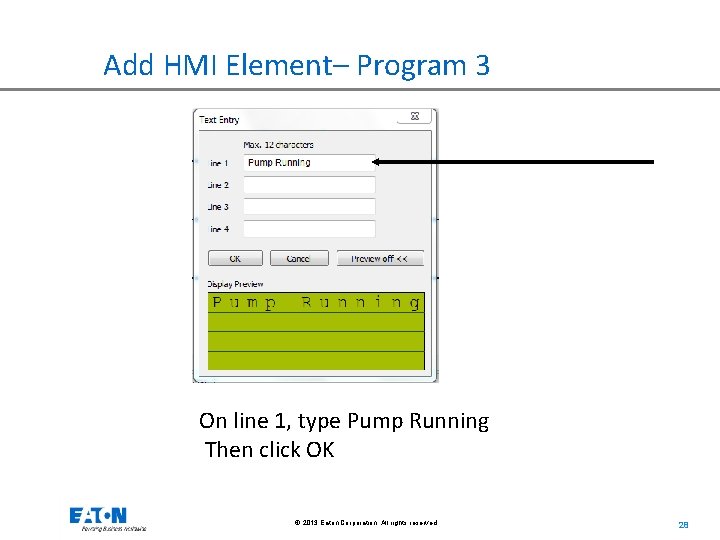
Add HMI Element– Program 3 On line 1, type Pump Running Then click OK © 2013 Eaton Corporation. All rights reserved. 28
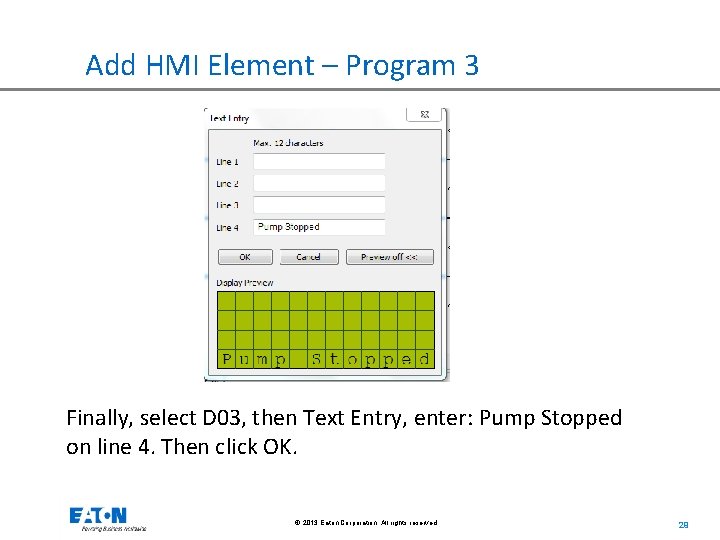
Add HMI Element – Program 3 Finally, select D 03, then Text Entry, enter: Pump Stopped on line 4. Then click OK. © 2013 Eaton Corporation. All rights reserved. 29
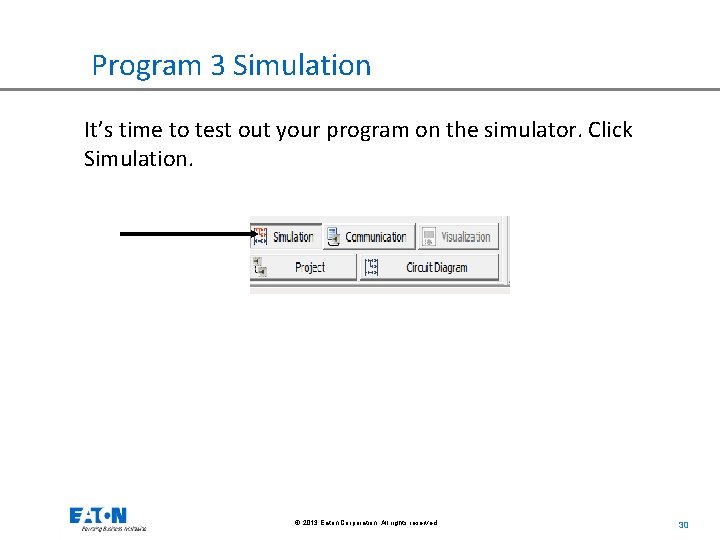
Program 3 Simulation It’s time to test out your program on the simulator. Click Simulation. © 2013 Eaton Corporation. All rights reserved. 30
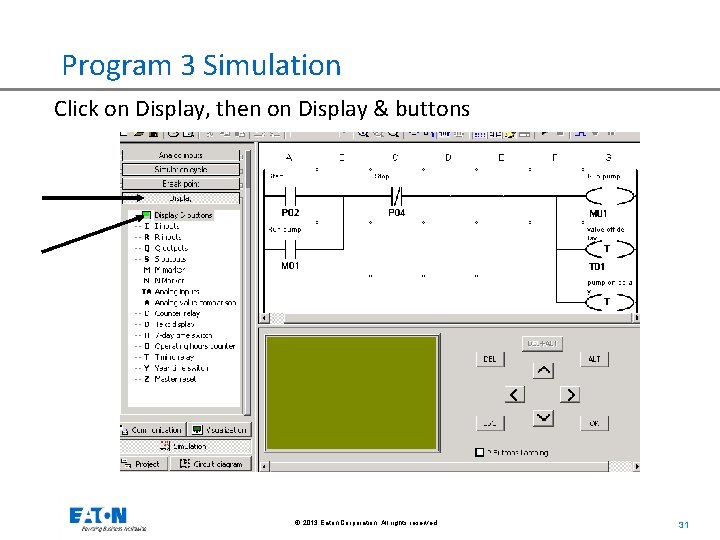
Program 3 Simulation Click on Display, then on Display & buttons © 2013 Eaton Corporation. All rights reserved. 31
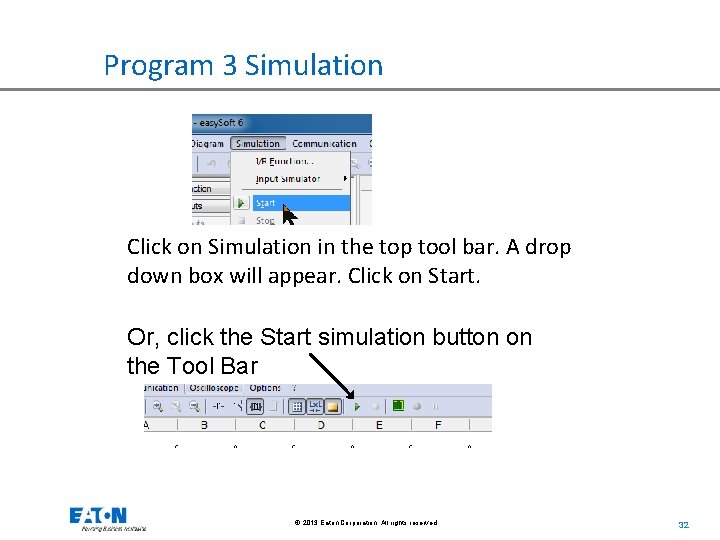
Program 3 Simulation Click on Simulation in the top tool bar. A drop down box will appear. Click on Start. Or, click the Start simulation button on the Tool Bar © 2013 Eaton Corporation. All rights reserved. 32
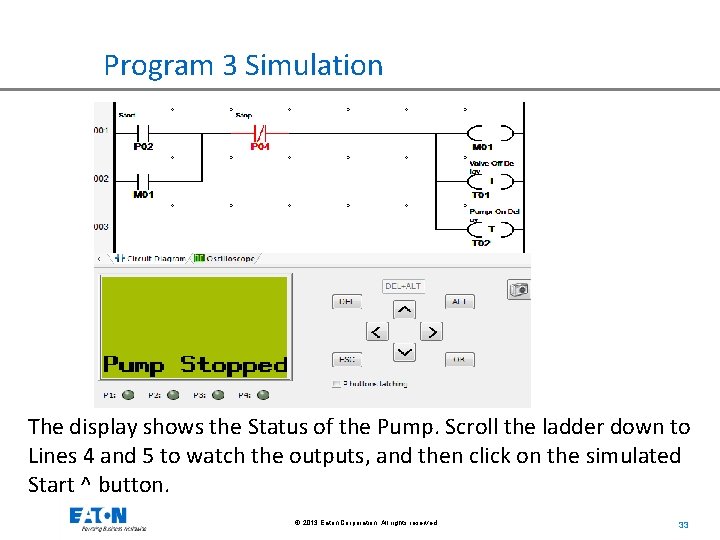
Program 3 Simulation The display shows the Status of the Pump. Scroll the ladder down to Lines 4 and 5 to watch the outputs, and then click on the simulated Start ^ button. © 2013 Eaton Corporation. All rights reserved. 33
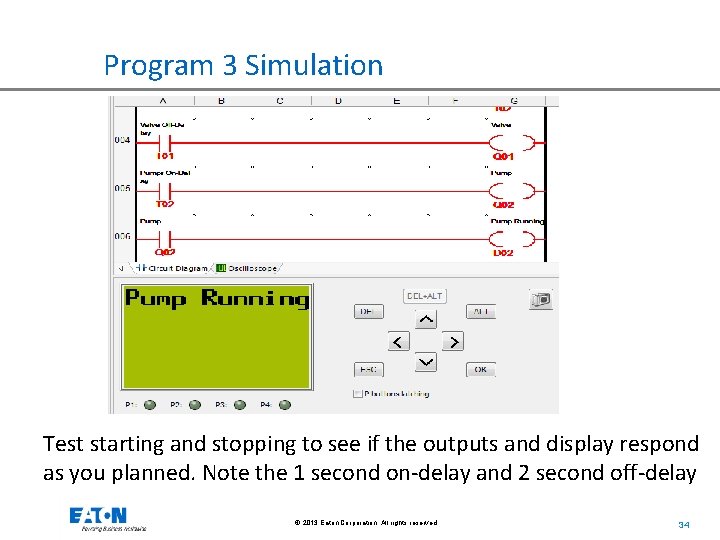
Program 3 Simulation Test starting and stopping to see if the outputs and display respond as you planned. Note the 1 second on-delay and 2 second off-delay © 2013 Eaton Corporation. All rights reserved. 34
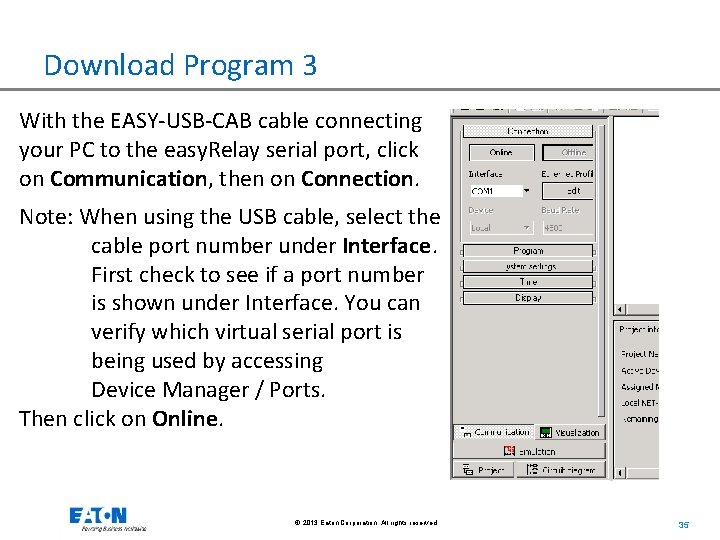
Download Program 3 With the EASY-USB-CAB cable connecting your PC to the easy. Relay serial port, click on Communication, then on Connection. Note: When using the USB cable, select the cable port number under Interface. First check to see if a port number is shown under Interface. You can verify which virtual serial port is being used by accessing Device Manager / Ports. Then click on Online. © 2013 Eaton Corporation. All rights reserved. 35
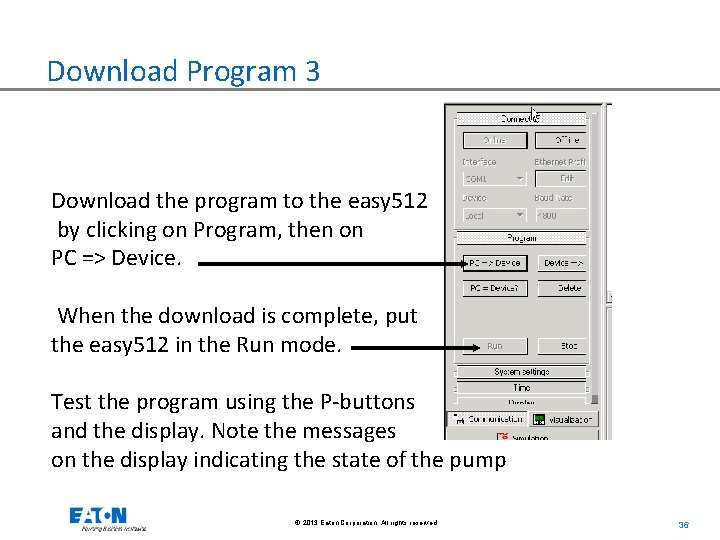
Download Program 3 Download the program to the easy 512 by clicking on Program, then on PC => Device. When the download is complete, put the easy 512 in the Run mode. Test the program using the P-buttons and the display. Note the messages on the display indicating the state of the pump © 2013 Eaton Corporation. All rights reserved. 36

Questions? © 2013 Eaton Corporation. All rights reserved. 37

© 2013 Eaton Corporation. All rights reserved.
- Slides: 38